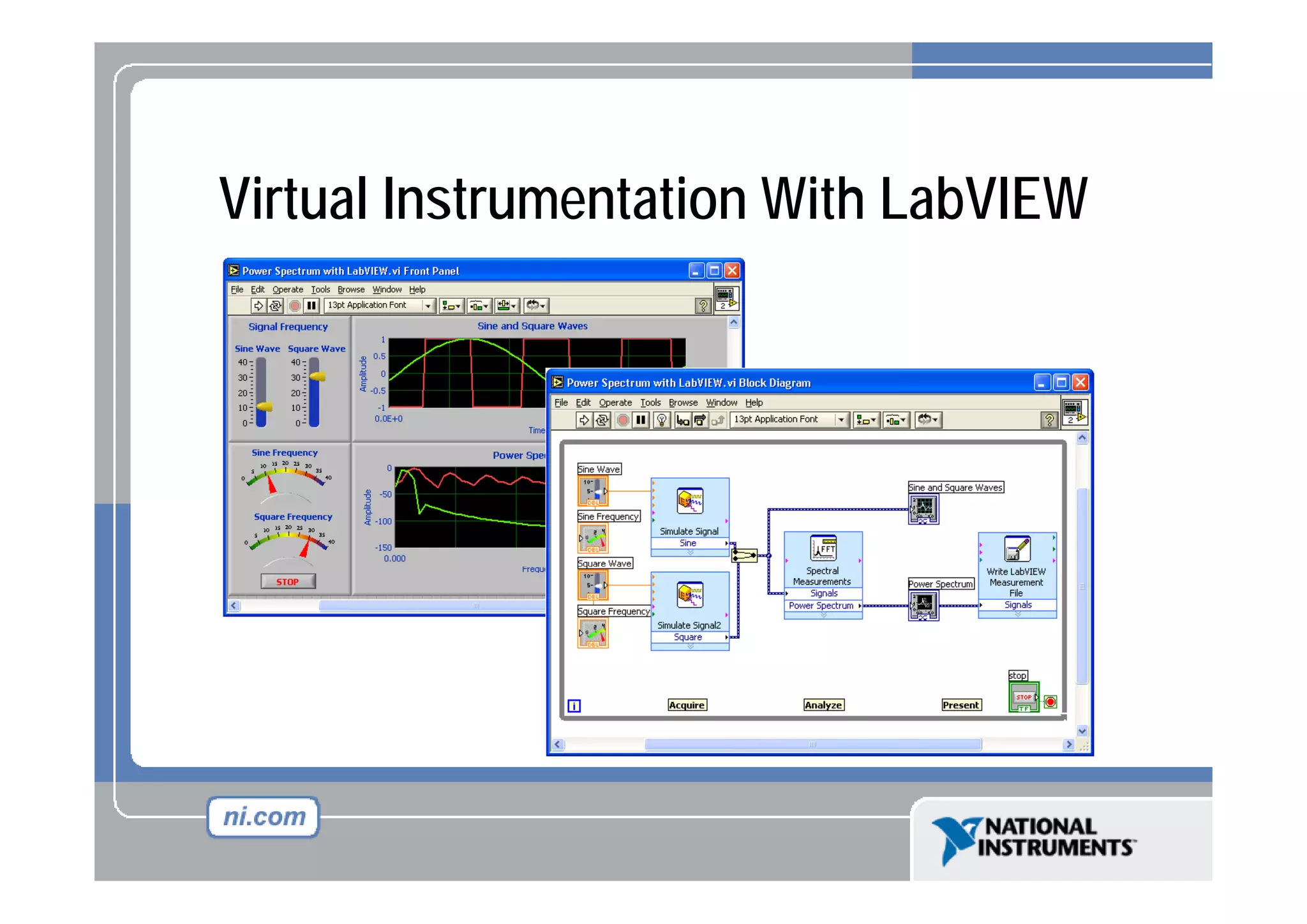
Virtual Instrumentation With LabVIEW
Course Goals
• Understand the components of a Virtual Instrument
• Introduce LabVIEW and common LabVIEW functions
• Build a simple data acquisition application
• Create a subroutine in LabVIEW
Section I
• LabVIEW terms
• Components of a LabVIEW application
• LabVIEW programming tools
• Creating an application in LabVIEW
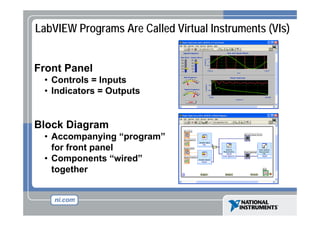
LabVIEW Programs Are Called Virtual Instruments (VIs)
Front Panel
• Controls = Inputs
• Indicators = O
Outputs

Block Diagram
• Accompanying “program”
program
for front panel
• Components “wired”
together
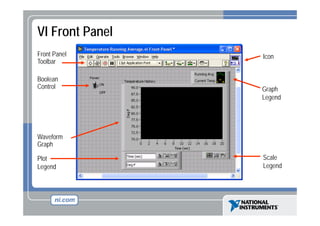
VI Front Panel
Front Panel
Toolbar
Boolean
Control

Icon

Graph
G h
Legend

Waveform
Graph
Plot
Legend
L
d

Scale
Legend
L
d
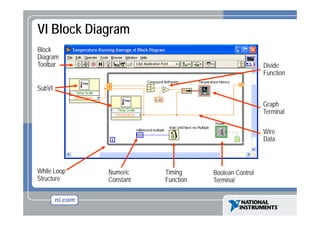
VI Block Diagram
g
Block
Diagram
Toolbar

Divide
Function

SubVI
Graph
Terminal
Wire
Data

While Loop
Structure

Numeric
Constant

Timing
Function

Boolean Control
Terminal
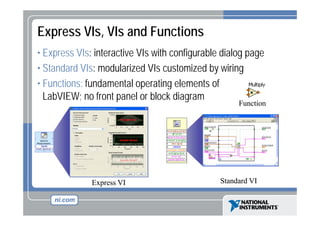
Express VIs, VIs and Functions
• Express VIs: interactive VIs with configurable dialog page
• Standard VIs: modularized VIs customized by wiring
p
g
• Functions: fundamental operating elements of
LabVIEW; no front panel or block diagram

Function

Express VI

Standard VI
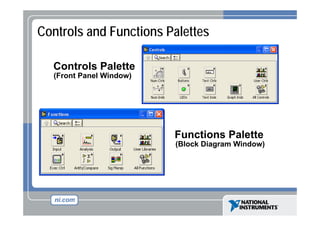
Controls and Functions Palettes
Controls Palette
(Front Panel Window)

Functions Palette
(Block Diagram Window)
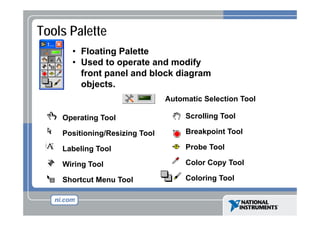
Tools Palette
• Floating Palette
• Used to operate and modify
front panel and block diagram
objects.
j
Automatic Selection Tool
Operating Tool

Scrolling Tool

Positioning/Resizing Tool

Breakpoint Tool

Labeling Tool

Probe Tool

Wiring Tool

Color Copy Tool

Shortcut Menu Tool

Coloring Tool
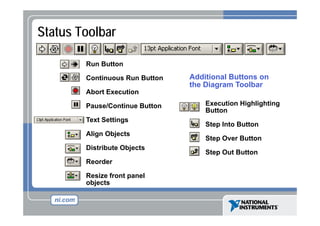
Status Toolbar
Run Button
R B tt
Continuous Run Button

Additional Buttons on
the Diagram Toolbar
g

Abort Execution
Pause/Continue Button
Text Settings
Align Objects
Distribute Objects
Reorder
Resize front panel
objects

Execution Highlighting
Button
Step Into Button
Step Over Button
Step Out Button
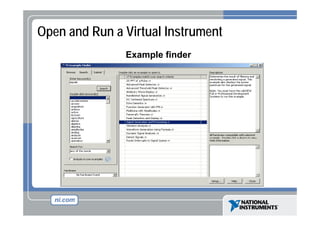
Open and Run a Virtual Instrument
Example finder
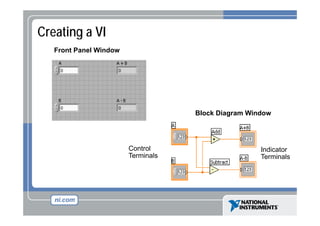
Creating a VI
Front Panel Window

Block Diagram Window

Control
Terminals

Indicator
Terminals
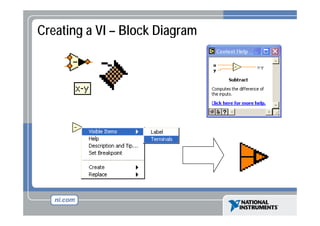
Creating a VI – Block Diagram
g
g
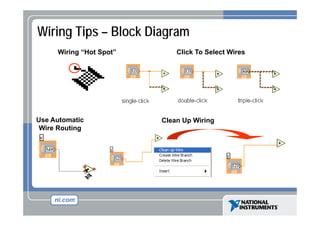
Wiring Tips – Block Diagram
Wiring “Hot Spot”

Use Automatic
Wire Routing

Click To Select Wires

Clean Up Wiring
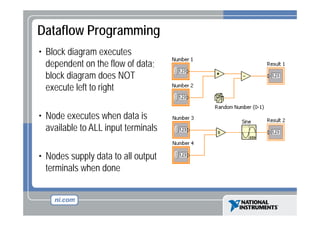
Dataflow Programming
g
g
• Block diagram executes
dependent on the flo of data
flow data;
block diagram does NOT
execute left to right
• N d executes when data is
Node
t
h d t i
available to ALL input terminals
• Nodes supply data to all output
terminals h done
t i l when d
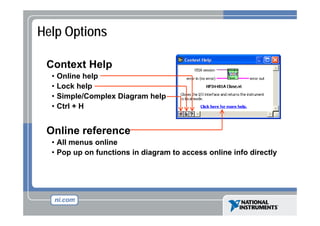
Help Options
Context Help
C t tH l
•
•
•
•

Online help
Lock help
Simple/Complex Diagram help
Ctrl + H

Online reference
• All menus online
• Pop up on functions in diagram to access online info directly
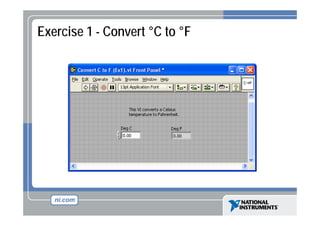
Exercise 1 - Convert °C to °F
C
F
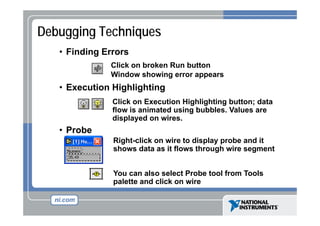
Debugging Techniques
• Finding Errors
Click on broken Run button
Window showing error appears

• Execution Highlighting
Click on Execution Highlighting button; data
g
flow is animated using bubbles. Values are
displayed on wires.

• Probe
Right-click
Ri ht li k on wire to display probe and it
i t di l
b
d
shows data as it flows through wire segment
You can also select Probe tool from Tools
palette and click on wire
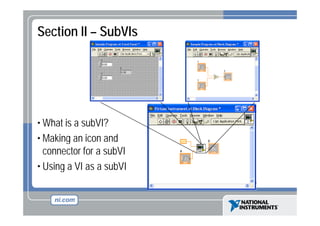
Section II – SubVIs

• What is a subVI?
• Making an icon and
connector for a subVI
• Using a VI as a s bVI
subVI
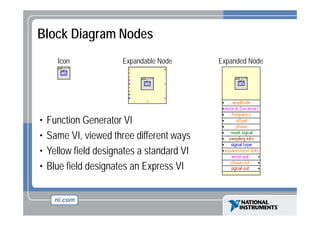
Block Diagram Nodes
Icon

•
•
•
•

Expandable Node

Function Generator VI
Same VI, viewed three different ways
Yellow field designates a standard VI
Blue field designates an Express VI

Expanded Node
SubVIs
• A SubVI is a VI that can be used within another VI
• Similar to a subroutine
g
• Advantages
– Modular
– Easier to debug
as e
– Don’t have to recreate code
– Require less memory
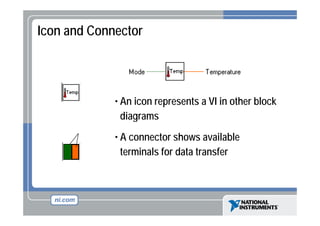
Icon and Connector

Icon
Terminals

Connector

• An icon represents a VI in other block
diagrams
di
• A connector shows available
terminals for data transfer
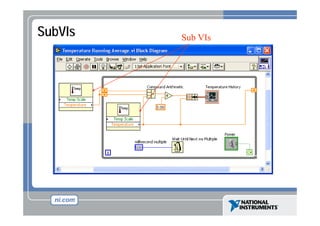
SubVIs

Sub VIs
S b VI
Steps to Create a SubVI
• Create the Icon
• Create the Connector
• Assign Terminals
• Save the VI
• Insert the VI into a Top Level VI
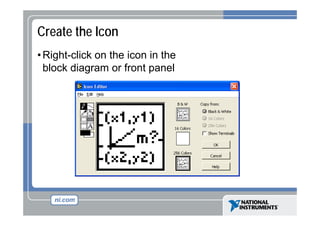
Create the Icon
• Right-click on the icon in the
block diagram or front panel
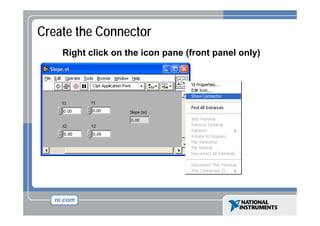
Create the Connector
Right click on the icon pane (front panel only)
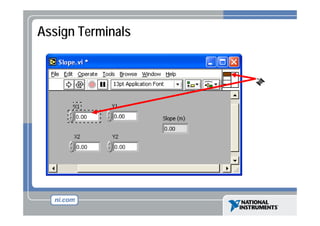
Assign Terminals
Save The VI
• Choose an Easy to Remember Location
y
• Organize by Functionality
– Save Similar VIs into one directory (e g Math Utilities)
(e.g.

• Organize by Application
–S
Save all VI U d f a S
ll VIs Used for Specific A li ti i t one
ifi Application into
directory or library file (e.g. Lab 1 – Frequency
Response)
• Library Files (.llbs) combine many VI’s into a single file, ideal for
transferring entire applications across computers
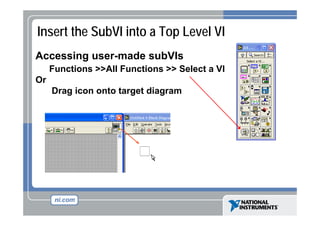
Insert the SubVI into a Top Level VI
Accessing user-made subVIs
Functions >>All Functions >> Select a VI
Or
Drag i
D
icon onto target di
diagram
Tips for Working in LabVIEW
• Keystroke Shortcuts
y
– <Ctrl-H> – Activate/Deactivate Context Help Window
– <Ctrl-B> – Remove Broken Wires From Block Diagram
Ctrl B
– <Ctrl-E> – Toggle Between Front Panel and Block
Diagram
g
– <Ctrl-Z> – Undo (Also in Edit Menu)

• Tools » Options… – Set Preferences in LabVIEW
• VI Properties – Configure VI Appearance,
Documentation, etc.
Documentation etc
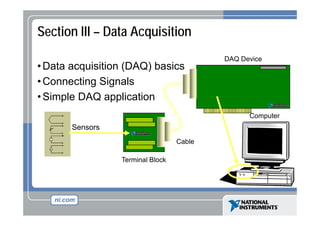
Section III – Data Acquisition
• Data acquisition (DAQ) basics
• Connecting Signals
• Simple DAQ application

DAQ Device

Computer

Sensors
Cable
Terminal Block
DAQ – Data Acquisition
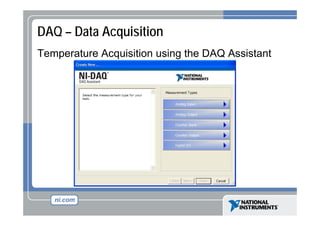
Temperature Acquisition using the DAQ Assistant
Data Acquisition Terminology
• Resolution - Determines How Many Different Voltage
Changes Can Be Measured
– Larger Resolution  More Precise Representation of Signal

• Range - Minimum and Maximum Voltages
– Smaller range  More Precise Representation of Signal

• Gain - Amplifies or Attenuates Signal for Best Fit in
Range
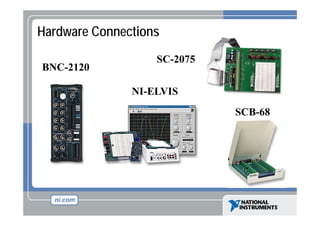
Hardware Connections
BNC-2120

SC 2075
SC-2075
NI-ELVIS
SCB-68
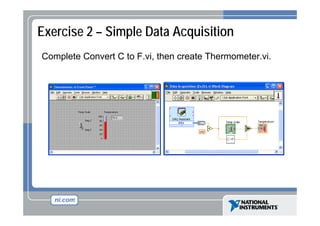
Exercise 2 – Simple Data Acquisition
Complete Convert C to F.vi, then create Thermometer.vi.
Section IV – Loops and Charts
• For Loop
p
• While Loop
• Charts
• Multiplots
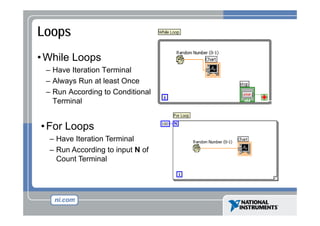
Loops
• While Loops
p
– Have Iteration Terminal
– Always Run at least Once
– Run According to Conditional
Terminal

• For Loops
– Have Iteration Terminal
– Run According to input N of
Count Terminal
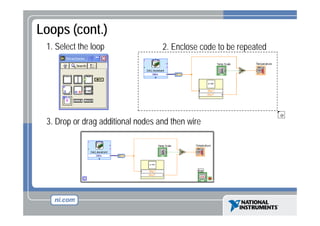
Loops (cont.)
p (
)
1. Select the loop

2. Enclose code to be repeated

3. Drop or drag additional nodes and then wire
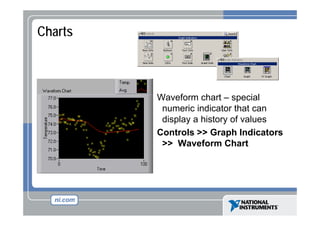
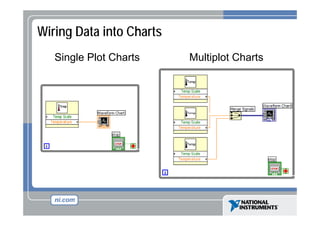
Charts

Waveform chart – special
numeric indicator that can
display a history of values
Controls >> Graph Indicators
>> Waveform Chart
Wiring Data into Charts
Single Plot Charts
g

Multiplot Charts
p
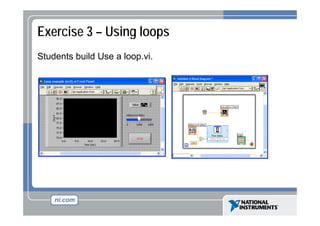
Exercise 3 – Using loops
Students build Use a loop.vi.
Section V – Arrays & File I/O
• Build arrays manually
• Have LabVIEW build arrays automatically
p
• Write to a spreadsheet file
• Read from a spreadsheet file
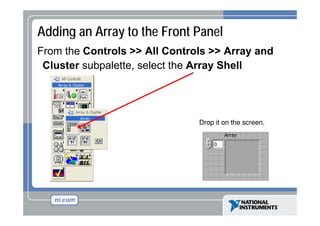
Adding an Array to the Front Panel
From the Controls >> All Controls >> Array and
Cluster b l tt
Cl t subpalette, select th A
l t the Array Sh ll
Shell

Drop it on the screen.
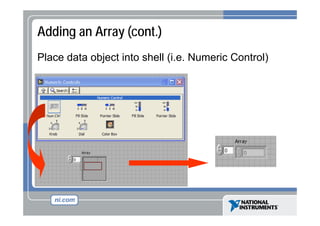
Adding an Array (cont.)
Place data object into shell (
j
(i.e. Numeric Control)
)
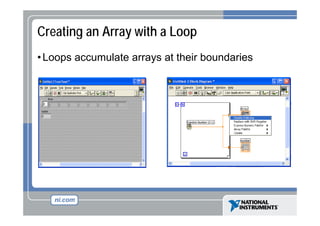
Creating an Array with a Loop
• Loops accumulate arrays at their boundaries
p
y
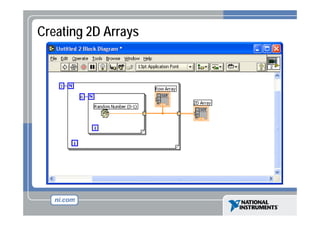
Creating 2D Arrays
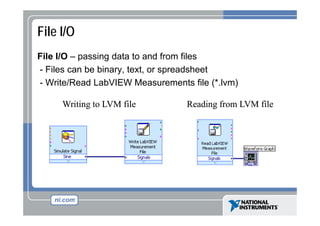
File I/O
File I/O – passing data to and from files
- Files can be binary, text, or spreadsheet
(
)
- Write/Read LabVIEW Measurements file (*.lvm)
Writing to LVM file

Reading from LVM file
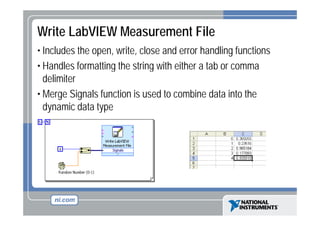
Write LabVIEW Measurement File
• Includes the open, write, close and error handling functions
• Handles f
formatting the string with either a tab or comma
delimiter
• Merge Signals function is used to combine data into the
dynamic data type
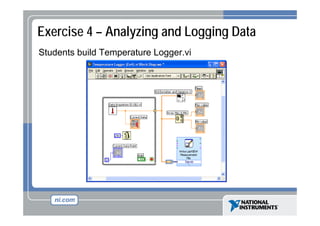
Exercise 4 – Analyzing and Logging Data
Students build Temperature Logger.vi
Where Do I Go From Here?
• Example programs (Help» Find Examples…)
• LabVIEW Student Edition (www.ni.com/labviewse)
• Web resources (ni.com)
– NI Developer Zone (zone.ni.com)
– Application Notes
– Info labview newsgroup (www info labview org/)
Info-labview
(www.info-labview.org/)
– Instrument Driver Library (www.ni.com/idnet)

Lab view introduction-threehour

  • 1.
  • 2.
    Course Goals • Understandthe components of a Virtual Instrument • Introduce LabVIEW and common LabVIEW functions • Build a simple data acquisition application • Create a subroutine in LabVIEW
  • 3.
    Section I • LabVIEWterms • Components of a LabVIEW application • LabVIEW programming tools • Creating an application in LabVIEW
  • 4.
    LabVIEW Programs AreCalled Virtual Instruments (VIs) Front Panel • Controls = Inputs • Indicators = O Outputs Block Diagram • Accompanying “program” program for front panel • Components “wired” together
  • 5.
    VI Front Panel FrontPanel Toolbar Boolean Control Icon Graph G h Legend Waveform Graph Plot Legend L d Scale Legend L d
  • 6.
    VI Block Diagram g Block Diagram Toolbar Divide Function SubVI Graph Terminal Wire Data WhileLoop Structure Numeric Constant Timing Function Boolean Control Terminal
  • 7.
    Express VIs, VIsand Functions • Express VIs: interactive VIs with configurable dialog page • Standard VIs: modularized VIs customized by wiring p g • Functions: fundamental operating elements of LabVIEW; no front panel or block diagram Function Express VI Standard VI
  • 8.
    Controls and FunctionsPalettes Controls Palette (Front Panel Window) Functions Palette (Block Diagram Window)
  • 9.
    Tools Palette • FloatingPalette • Used to operate and modify front panel and block diagram objects. j Automatic Selection Tool Operating Tool Scrolling Tool Positioning/Resizing Tool Breakpoint Tool Labeling Tool Probe Tool Wiring Tool Color Copy Tool Shortcut Menu Tool Coloring Tool
  • 10.
    Status Toolbar Run Button RB tt Continuous Run Button Additional Buttons on the Diagram Toolbar g Abort Execution Pause/Continue Button Text Settings Align Objects Distribute Objects Reorder Resize front panel objects Execution Highlighting Button Step Into Button Step Over Button Step Out Button
  • 11.
    Open and Runa Virtual Instrument Example finder
  • 12.
    Creating a VI FrontPanel Window Block Diagram Window Control Terminals Indicator Terminals
  • 13.
    Creating a VI– Block Diagram g g
  • 14.
    Wiring Tips –Block Diagram Wiring “Hot Spot” Use Automatic Wire Routing Click To Select Wires Clean Up Wiring
  • 15.
    Dataflow Programming g g • Blockdiagram executes dependent on the flo of data flow data; block diagram does NOT execute left to right • N d executes when data is Node t h d t i available to ALL input terminals • Nodes supply data to all output terminals h done t i l when d
  • 16.
    Help Options Context Help Ct tH l • • • • Online help Lock help Simple/Complex Diagram help Ctrl + H Online reference • All menus online • Pop up on functions in diagram to access online info directly
  • 17.
    Exercise 1 -Convert °C to °F C F
  • 18.
    Debugging Techniques • FindingErrors Click on broken Run button Window showing error appears • Execution Highlighting Click on Execution Highlighting button; data g flow is animated using bubbles. Values are displayed on wires. • Probe Right-click Ri ht li k on wire to display probe and it i t di l b d shows data as it flows through wire segment You can also select Probe tool from Tools palette and click on wire
  • 19.
    Section II –SubVIs • What is a subVI? • Making an icon and connector for a subVI • Using a VI as a s bVI subVI
  • 20.
    Block Diagram Nodes Icon • • • • ExpandableNode Function Generator VI Same VI, viewed three different ways Yellow field designates a standard VI Blue field designates an Express VI Expanded Node
  • 21.
    SubVIs • A SubVIis a VI that can be used within another VI • Similar to a subroutine g • Advantages – Modular – Easier to debug as e – Don’t have to recreate code – Require less memory
  • 22.
    Icon and Connector Icon Terminals Connector •An icon represents a VI in other block diagrams di • A connector shows available terminals for data transfer
  • 23.
  • 24.
    Steps to Createa SubVI • Create the Icon • Create the Connector • Assign Terminals • Save the VI • Insert the VI into a Top Level VI
  • 25.
    Create the Icon •Right-click on the icon in the block diagram or front panel
  • 26.
    Create the Connector Rightclick on the icon pane (front panel only)
  • 27.
  • 28.
    Save The VI •Choose an Easy to Remember Location y • Organize by Functionality – Save Similar VIs into one directory (e g Math Utilities) (e.g. • Organize by Application –S Save all VI U d f a S ll VIs Used for Specific A li ti i t one ifi Application into directory or library file (e.g. Lab 1 – Frequency Response) • Library Files (.llbs) combine many VI’s into a single file, ideal for transferring entire applications across computers
  • 29.
    Insert the SubVIinto a Top Level VI Accessing user-made subVIs Functions >>All Functions >> Select a VI Or Drag i D icon onto target di diagram
  • 30.
    Tips for Workingin LabVIEW • Keystroke Shortcuts y – <Ctrl-H> – Activate/Deactivate Context Help Window – <Ctrl-B> – Remove Broken Wires From Block Diagram Ctrl B – <Ctrl-E> – Toggle Between Front Panel and Block Diagram g – <Ctrl-Z> – Undo (Also in Edit Menu) • Tools » Options… – Set Preferences in LabVIEW • VI Properties – Configure VI Appearance, Documentation, etc. Documentation etc
  • 31.
    Section III –Data Acquisition • Data acquisition (DAQ) basics • Connecting Signals • Simple DAQ application DAQ Device Computer Sensors Cable Terminal Block
  • 32.
    DAQ – DataAcquisition Temperature Acquisition using the DAQ Assistant
  • 33.
    Data Acquisition Terminology •Resolution - Determines How Many Different Voltage Changes Can Be Measured – Larger Resolution  More Precise Representation of Signal • Range - Minimum and Maximum Voltages – Smaller range  More Precise Representation of Signal • Gain - Amplifies or Attenuates Signal for Best Fit in Range
  • 34.
  • 35.
    Exercise 2 –Simple Data Acquisition Complete Convert C to F.vi, then create Thermometer.vi.
  • 36.
    Section IV –Loops and Charts • For Loop p • While Loop • Charts • Multiplots
  • 37.
    Loops • While Loops p –Have Iteration Terminal – Always Run at least Once – Run According to Conditional Terminal • For Loops – Have Iteration Terminal – Run According to input N of Count Terminal
  • 38.
    Loops (cont.) p ( ) 1.Select the loop 2. Enclose code to be repeated 3. Drop or drag additional nodes and then wire
  • 39.
    Charts Waveform chart –special numeric indicator that can display a history of values Controls >> Graph Indicators >> Waveform Chart
  • 40.
    Wiring Data intoCharts Single Plot Charts g Multiplot Charts p
  • 41.
    Exercise 3 –Using loops Students build Use a loop.vi.
  • 42.
    Section V –Arrays & File I/O • Build arrays manually • Have LabVIEW build arrays automatically p • Write to a spreadsheet file • Read from a spreadsheet file
  • 43.
    Adding an Arrayto the Front Panel From the Controls >> All Controls >> Array and Cluster b l tt Cl t subpalette, select th A l t the Array Sh ll Shell Drop it on the screen.
  • 44.
    Adding an Array(cont.) Place data object into shell ( j (i.e. Numeric Control) )
  • 45.
    Creating an Arraywith a Loop • Loops accumulate arrays at their boundaries p y
  • 46.
  • 47.
    File I/O File I/O– passing data to and from files - Files can be binary, text, or spreadsheet ( ) - Write/Read LabVIEW Measurements file (*.lvm) Writing to LVM file Reading from LVM file
  • 48.
    Write LabVIEW MeasurementFile • Includes the open, write, close and error handling functions • Handles f formatting the string with either a tab or comma delimiter • Merge Signals function is used to combine data into the dynamic data type
  • 49.
    Exercise 4 –Analyzing and Logging Data Students build Temperature Logger.vi
  • 50.
    Where Do IGo From Here? • Example programs (Help» Find Examples…) • LabVIEW Student Edition (www.ni.com/labviewse) • Web resources (ni.com) – NI Developer Zone (zone.ni.com) – Application Notes – Info labview newsgroup (www info labview org/) Info-labview (www.info-labview.org/) – Instrument Driver Library (www.ni.com/idnet)