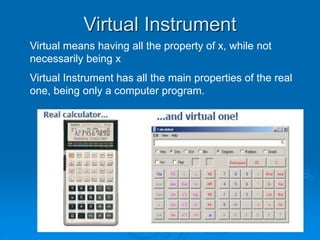
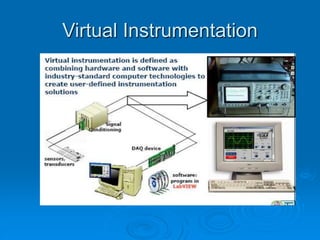
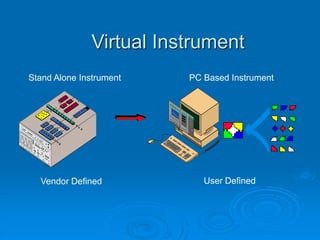
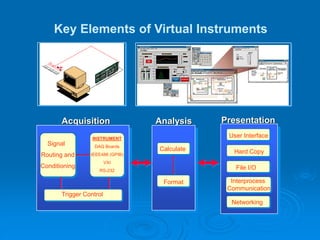
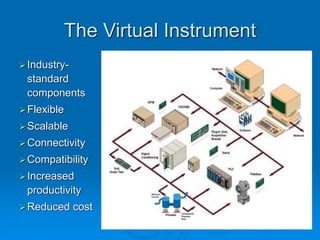
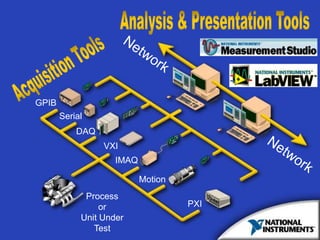
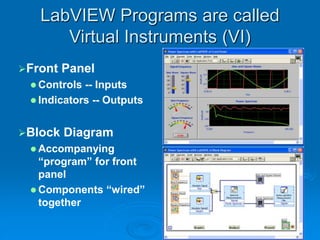
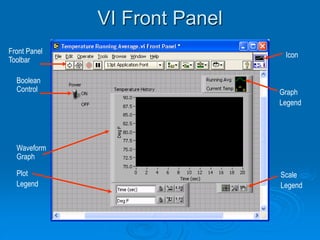
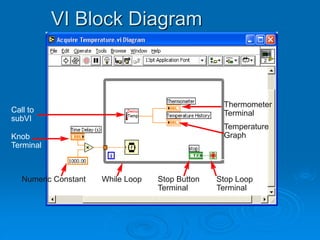
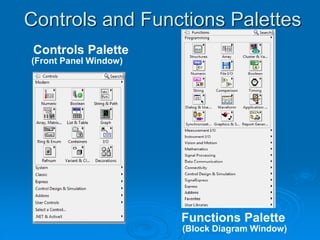
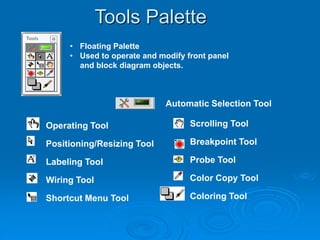
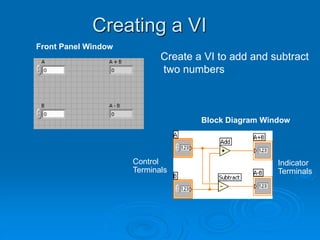
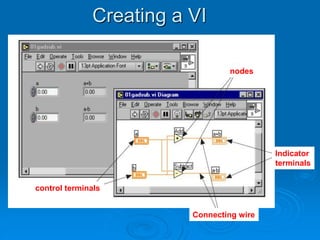
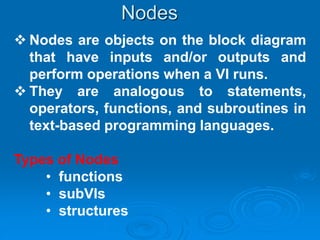
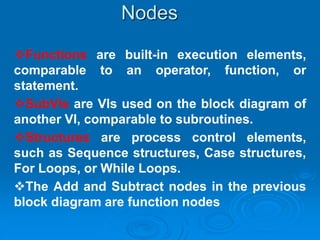
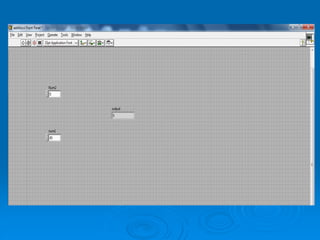
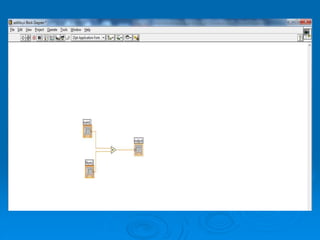
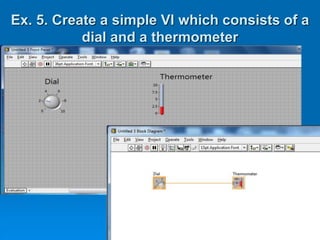
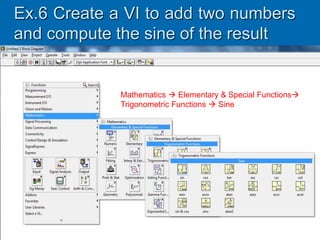
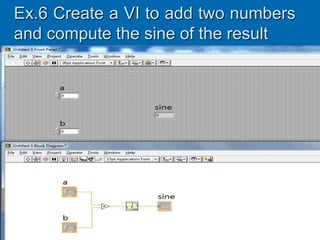
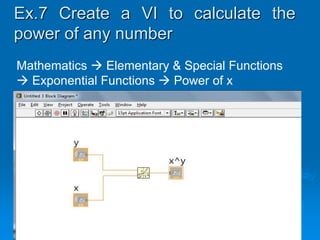
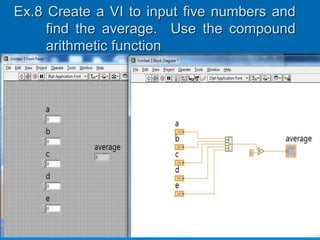
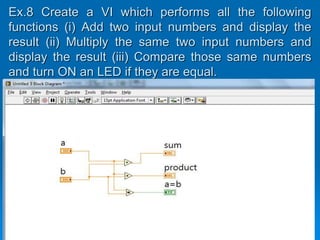
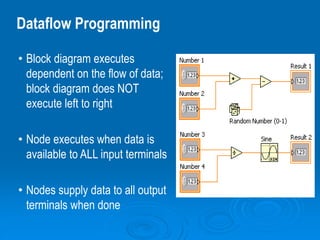
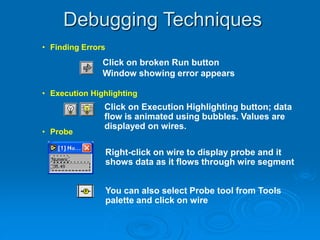
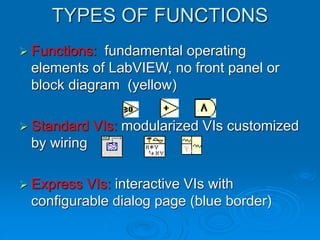
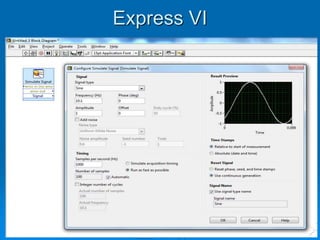
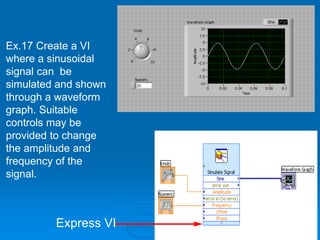
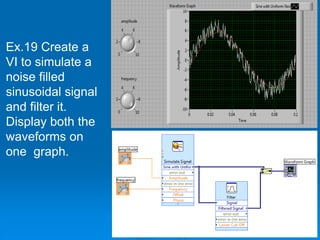
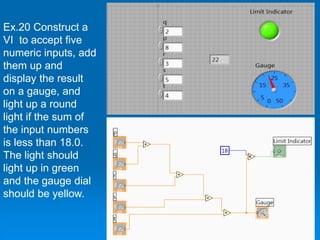
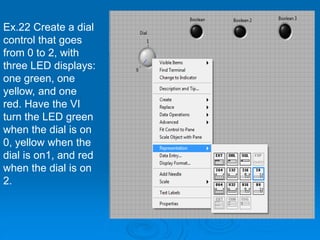
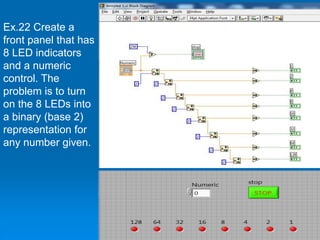
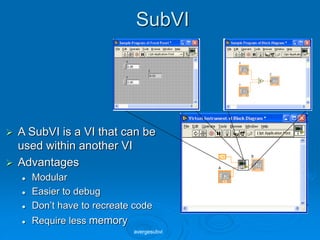
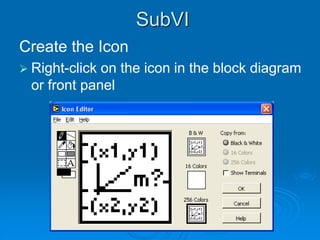
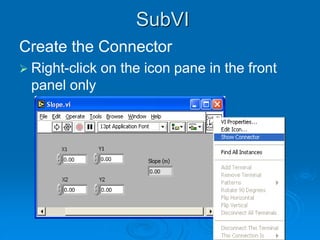
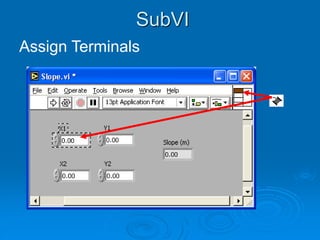
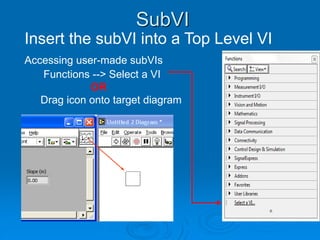
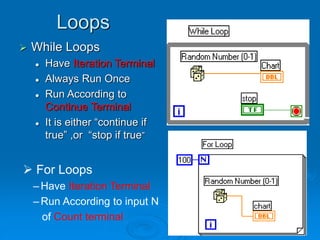
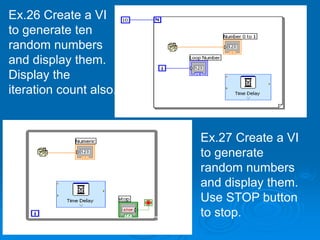
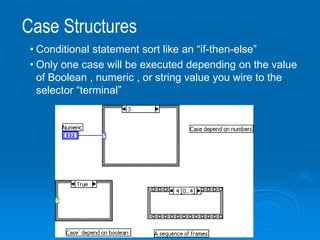
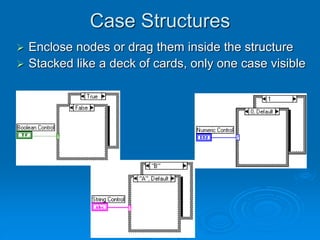
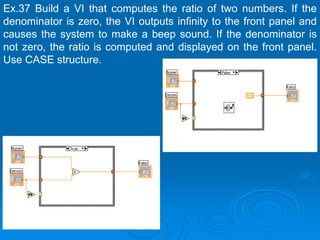
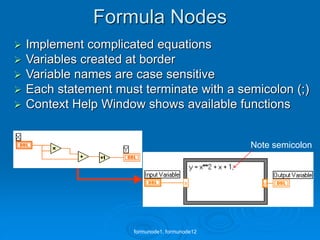
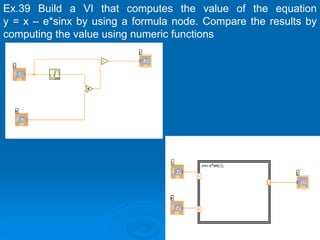
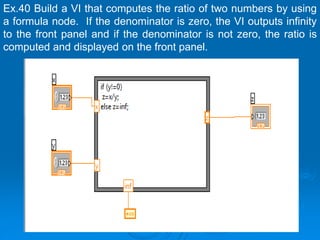
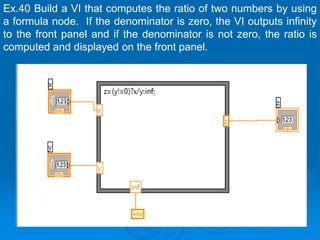
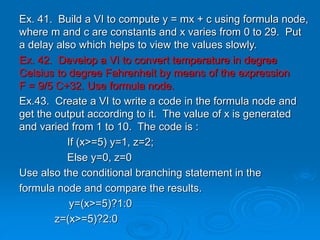
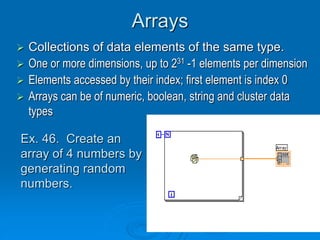
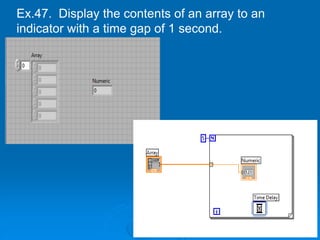
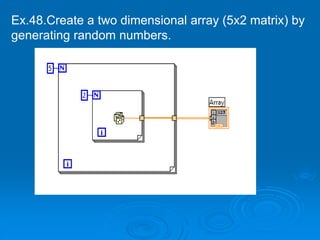
The document provides an introduction to virtual instrumentation and LabVIEW. It defines virtual instrumentation as using industry-standard computers, user-friendly software, and cost-effective hardware to perform the functions of traditional instruments. It describes the key elements of virtual instruments including acquisition, presentation, analysis, signal routing/conditioning, and user interface. Examples of how LabVIEW can be used for acquisition, analysis, and presentation are provided. An overview of LabVIEW programming including virtual instruments, controls, functions, loops, shift registers, and case structures is also given.