


Computer Science Masters
Introduction to EndNote
(Windows)
UCT Libraries
June 2018
Andiswa Mfengu
Andiswa.Mfengu@uct.ac.za
- 2 -
Overview
• Installing EndNote
• Creating a library
• Exporting from databases
• Creating an account with EndNote Web
• Citing
- 3 -
Getting started
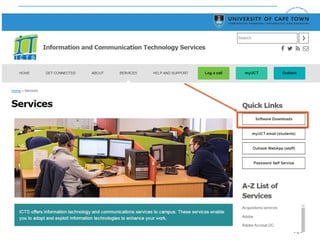
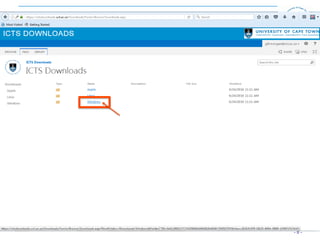
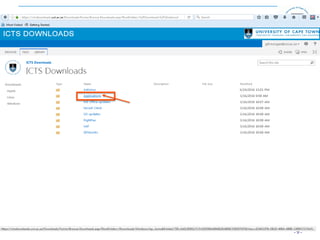
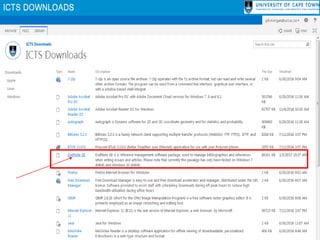
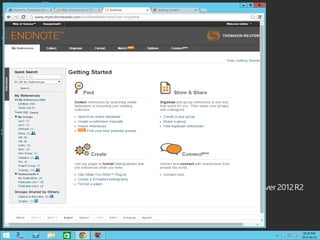
• Install EndNote (from ICTS website)
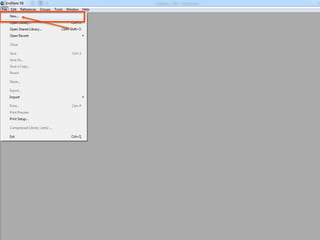
• Open a new EndNote library (File-> New)
• Create a new Group(s) as required (folder)
- 4 -
Installing EndNote
- 5 -
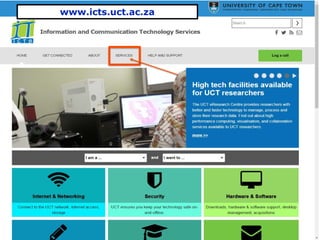
www.icts.uct.ac.za
- 6 -
- 7 -
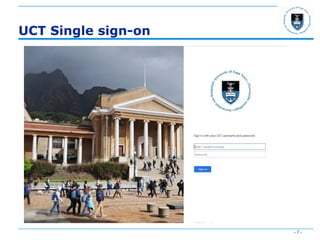
UCT Single sign-on
- 8 -
- 9 -
- 10 -
- 11 -
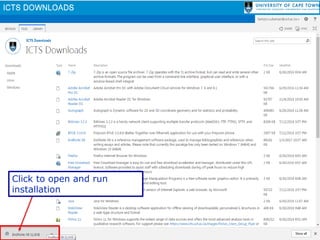
Click to open and run
installation
- 12 -
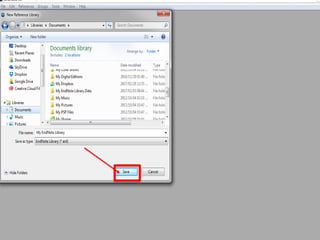
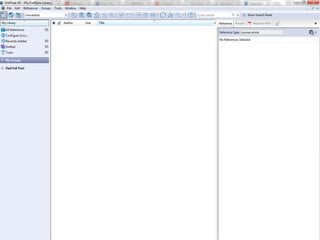
Starting a new library
- 13 -
- 14 -
- 15 -
- 16 -
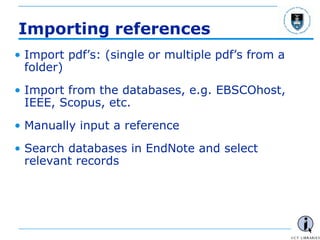
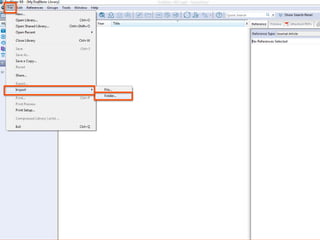
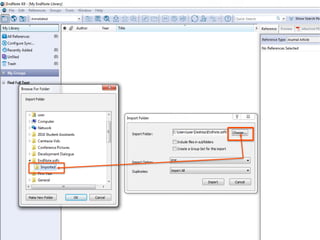
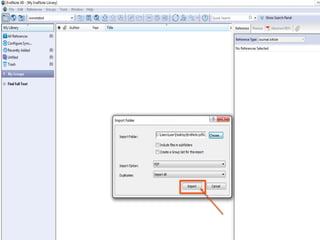
Importing references
• Import pdf’s: (single or multiple pdf’s from a
folder)
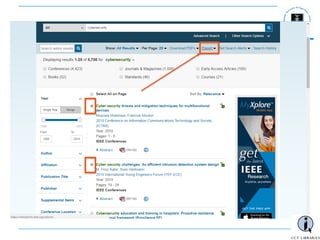
• Import from the databases, e.g. EBSCOhost,
IEEE, Scopus, etc.
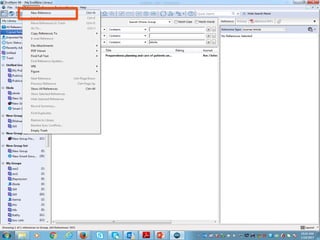
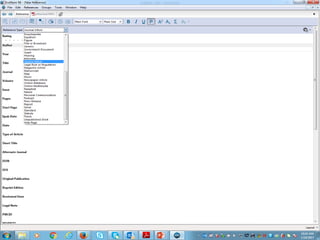
• Manually input a reference
• Search databases in EndNote and select
relevant records
- 17 -
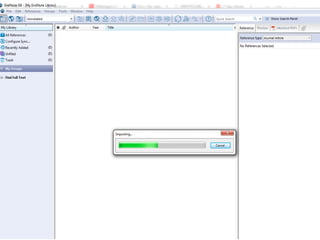
Importing PDFs
- 18 -
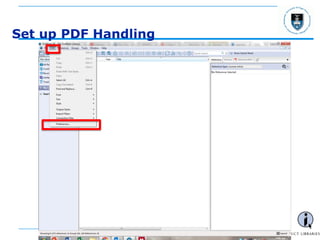
Set up PDF Handling
- 19 -
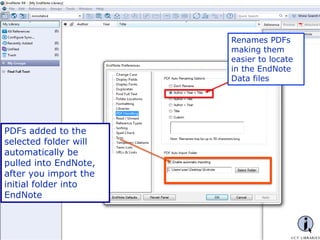
Renames PDFs
making them
easier to locate
in the EndNote
Data files
PDFs added to the
selected folder will
automatically be
pulled into EndNote,
after you import the
initial folder into
EndNote
- 20 -
- 21 -
- 22 -
- 23 -
- 24 -
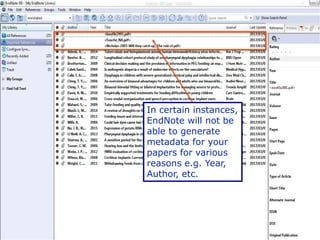
In certain instances,
EndNote will not be
able to generate
metadata for your
papers for various
reasons e.g. Year,
Author, etc.
- 25 -
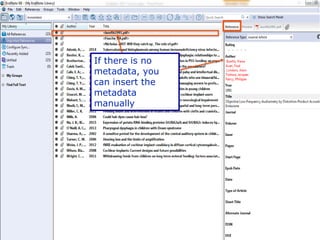
If there is no
metadata, you
can insert the
metadata
manually
- 26 -
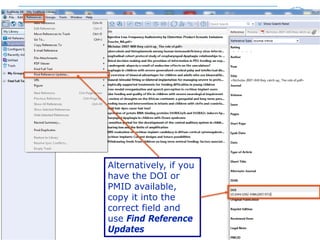
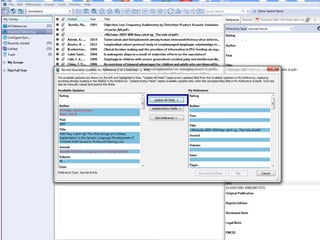
Alternatively, if you
have the DOI or
PMID available,
copy it into the
correct field and
use Find Reference
Updates
- 27 -
- 28 -
- 29 -
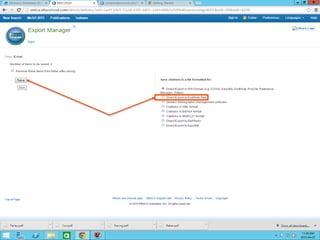
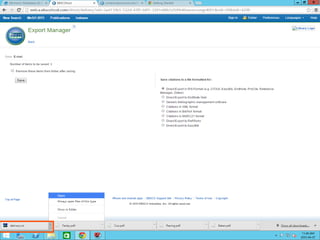
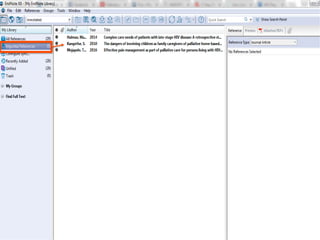
Importing references from
Ebsco Host
- 30 -
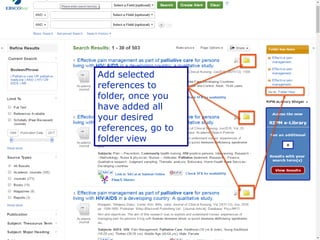
Add selected
references to
folder, once you
have added all
your desired
references, go to
folder view
- 31 -
- 32 -
- 33 -
- 34 -
- 35 -
- 36 -
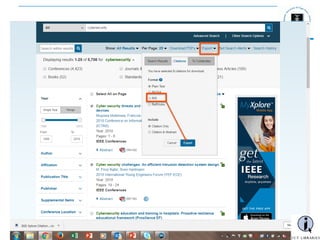
Importing from IEEE
- 37 -
- 38 -
- 39 -
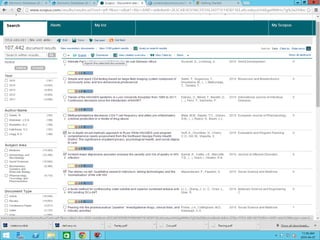
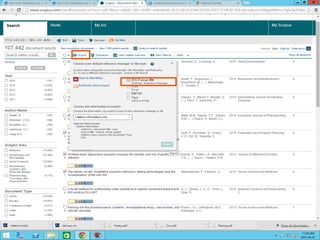
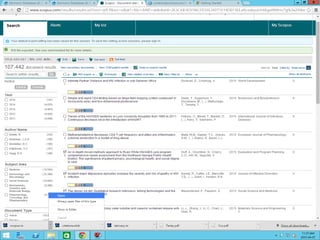
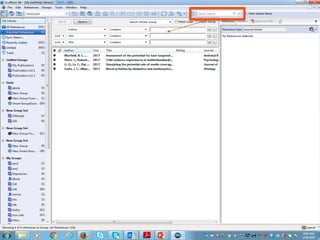
Importing from Scopus
- 40 -
- 41 -
- 42 -
- 43 -
- 44 -
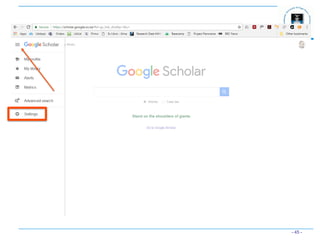
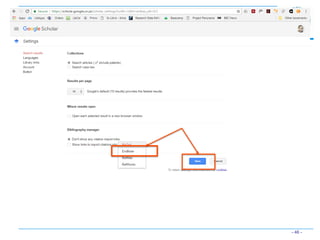
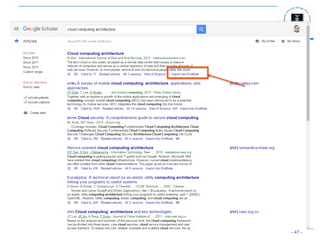
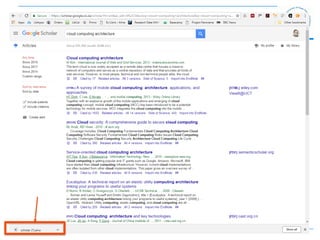
Importing from Google Scholar
- 45 -
- 46 -
- 47 -
- 48 -
- 49 -
- 50 -
Manually input a reference
- 51 -
- 52 -
- 53 -
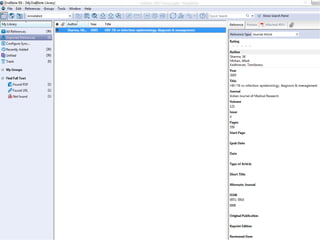
Inputting a reference manually
• Specific rules regarding punctuation, order etc.
to be found in EndNote Online User Manual
(http://endnote.com/support/online-user-manual/x7)
- 54 -
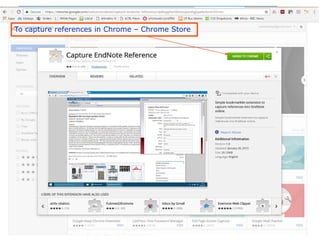
Capturing references from the web
- 55 -
To capture references in Chrome – Chrome Store
- 56 -
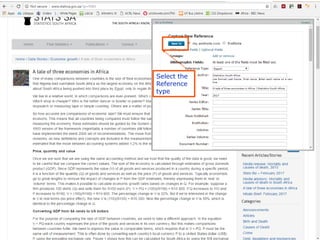
Select the
Reference
type
- 57 -
Syncing
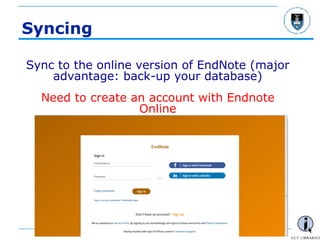
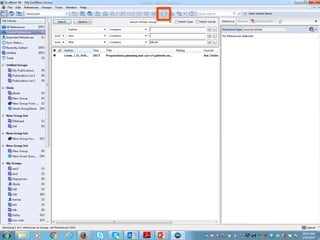
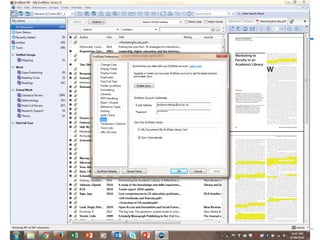
Sync to the online version of EndNote (major
advantage: back-up your database)
Need to create an account with Endnote
Online
- 58 -
- 59 -
- 60 -
- 61 -
Cite While You Write
(CWYW)
- 62 -
- 63 -
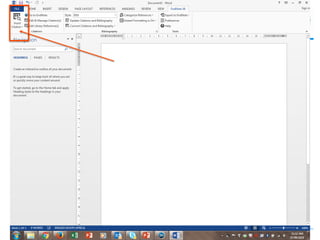
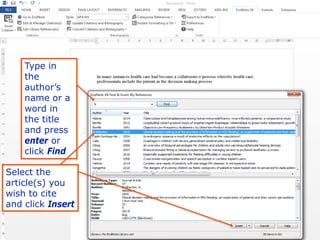
Type in
the
author’s
name or a
word in
the title
and press
enter or
click Find
Select the
article(s) you
wish to cite
and click Insert
- 64 -
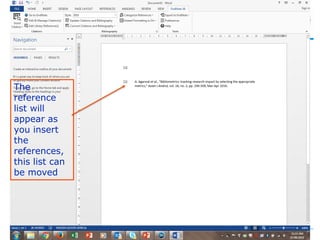
The
reference
list will
appear as
you insert
the
references,
this list can
be moved
- 65 -
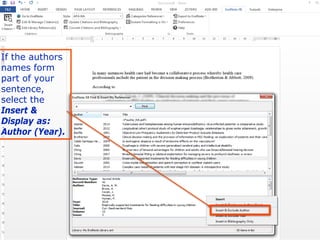
If the authors
names form
part of your
sentence,
select the
Insert &
Display as:
Author (Year).
- 66 -
- 67 -
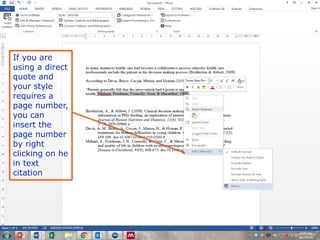
If you are
using a direct
quote and
your style
requires a
page number,
you can
insert the
page number
by right
clicking on he
in text
citation
- 68 -
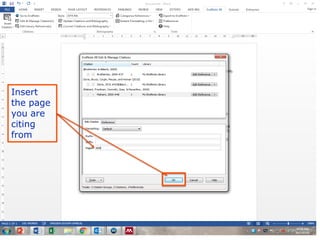
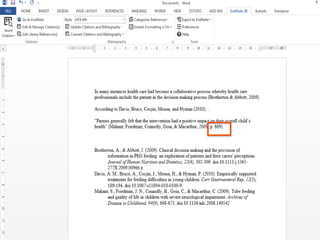
Insert
the page
you are
citing
from
- 69 -
- 70 -
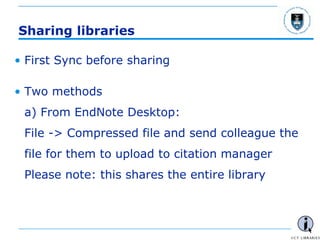
Sharing libraries
• First Sync before sharing
• Two methods
a) From EndNote Desktop:
File -> Compressed file and send colleague the
file for them to upload to citation manager
Please note: this shares the entire library
- 71 -
Sharing libraries
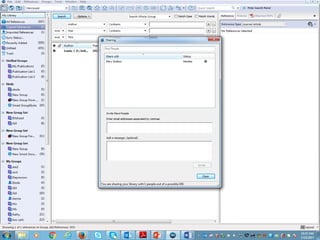
• b) From EndNote Desktop:
File -> Share (enter email addresses and Invite –
up to 14)
• To open the shared library, the person receiving it
must go to File -> Open Shared library
Please note: this shares the entire library
- 72 -
Sharing groups
• From EndNote web:
Organize -> Manage my groups -> Manage
sharing
Please note: this will share a group
Shared groups will NOT ALL reflect in your
EndNote Desktop version after synching.
Can set to allow editing or not
- 73 -
- 74 -
Summary
• Manage your referencing from the beginning.
• Add and read your full-text resources in
EndNote.
• If in doubt ask.
• Easy writing with EndNote using CWYW.
- 75 -

EndNote Reference Manager Introduction

  • 1.
    Computer Science Masters Introductionto EndNote (Windows) UCT Libraries June 2018 Andiswa Mfengu Andiswa.Mfengu@uct.ac.za
  • 2.
    - 2 - Overview •Installing EndNote • Creating a library • Exporting from databases • Creating an account with EndNote Web • Citing
  • 3.
    - 3 - Gettingstarted • Install EndNote (from ICTS website) • Open a new EndNote library (File-> New) • Create a new Group(s) as required (folder)
  • 4.
  • 5.
  • 6.
  • 7.
    - 7 - UCTSingle sign-on
  • 8.
  • 9.
  • 10.
  • 11.
    - 11 - Clickto open and run installation
  • 12.
    - 12 - Startinga new library
  • 13.
  • 14.
  • 15.
  • 16.
    - 16 - Importingreferences • Import pdf’s: (single or multiple pdf’s from a folder) • Import from the databases, e.g. EBSCOhost, IEEE, Scopus, etc. • Manually input a reference • Search databases in EndNote and select relevant records
  • 17.
  • 18.
    - 18 - Setup PDF Handling
  • 19.
    - 19 - RenamesPDFs making them easier to locate in the EndNote Data files PDFs added to the selected folder will automatically be pulled into EndNote, after you import the initial folder into EndNote
  • 20.
  • 21.
  • 22.
  • 23.
  • 24.
    - 24 - Incertain instances, EndNote will not be able to generate metadata for your papers for various reasons e.g. Year, Author, etc.
  • 25.
    - 25 - Ifthere is no metadata, you can insert the metadata manually
  • 26.
    - 26 - Alternatively,if you have the DOI or PMID available, copy it into the correct field and use Find Reference Updates
  • 27.
  • 28.
  • 29.
    - 29 - Importingreferences from Ebsco Host
  • 30.
    - 30 - Addselected references to folder, once you have added all your desired references, go to folder view
  • 31.
  • 32.
  • 33.
  • 34.
  • 35.
  • 36.
  • 37.
  • 38.
  • 39.
    - 39 - Importingfrom Scopus
  • 40.
  • 41.
  • 42.
  • 43.
  • 44.
    - 44 - Importingfrom Google Scholar
  • 45.
  • 46.
  • 47.
  • 48.
  • 49.
  • 50.
    - 50 - Manuallyinput a reference
  • 51.
  • 52.
  • 53.
    - 53 - Inputtinga reference manually • Specific rules regarding punctuation, order etc. to be found in EndNote Online User Manual (http://endnote.com/support/online-user-manual/x7)
  • 54.
    - 54 - Capturingreferences from the web
  • 55.
    - 55 - Tocapture references in Chrome – Chrome Store
  • 56.
    - 56 - Selectthe Reference type
  • 57.
    - 57 - Syncing Syncto the online version of EndNote (major advantage: back-up your database) Need to create an account with Endnote Online
  • 58.
  • 59.
  • 60.
  • 61.
    - 61 - CiteWhile You Write (CWYW)
  • 62.
  • 63.
    - 63 - Typein the author’s name or a word in the title and press enter or click Find Select the article(s) you wish to cite and click Insert
  • 64.
    - 64 - The reference listwill appear as you insert the references, this list can be moved
  • 65.
    - 65 - Ifthe authors names form part of your sentence, select the Insert & Display as: Author (Year).
  • 66.
  • 67.
    - 67 - Ifyou are using a direct quote and your style requires a page number, you can insert the page number by right clicking on he in text citation
  • 68.
    - 68 - Insert thepage you are citing from
  • 69.
  • 70.
    - 70 - Sharinglibraries • First Sync before sharing • Two methods a) From EndNote Desktop: File -> Compressed file and send colleague the file for them to upload to citation manager Please note: this shares the entire library
  • 71.
    - 71 - Sharinglibraries • b) From EndNote Desktop: File -> Share (enter email addresses and Invite – up to 14) • To open the shared library, the person receiving it must go to File -> Open Shared library Please note: this shares the entire library
  • 72.
    - 72 - Sharinggroups • From EndNote web: Organize -> Manage my groups -> Manage sharing Please note: this will share a group Shared groups will NOT ALL reflect in your EndNote Desktop version after synching. Can set to allow editing or not
  • 73.
  • 74.
    - 74 - Summary •Manage your referencing from the beginning. • Add and read your full-text resources in EndNote. • If in doubt ask. • Easy writing with EndNote using CWYW.
  • 75.