Burrell School District In-Service Monday, February 16, 2009 BRIAN QUERRY Pennsylvania Keystone Technology Integrator Discovery STAR Educator
Welcome and Introductions Different Learning Styles Uses for Audio Recordings Making Audio Recordings Podcasts / Posting Online Using the Internet as a resource BREAK Individual Work Time Summary and Recap
Name Grade Level and Subject Taught How you would like to use audio in the classroom or as a supplemental instructional tool
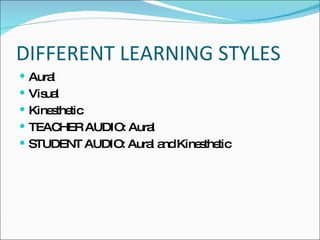
DIFFERENT LEARNING STYLES Aural Visual Kinesthetic TEACHER AUDIO: Aural STUDENT AUDIO: Aural and Kinesthetic
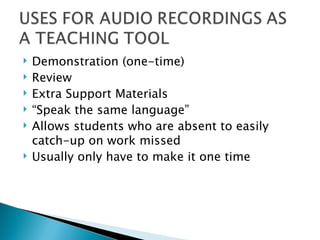
Demonstration (one-time) Review Extra Support Materials “ Speak the same language” Allows students who are absent to easily catch-up on work missed Usually only have to make it one time
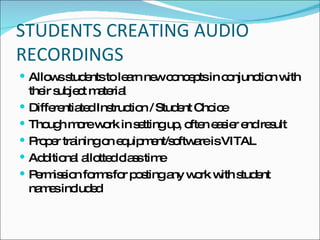
STUDENTS CREATING AUDIO RECORDINGS Allows students to learn new concepts in conjunction with their subject material Differentiated Instruction / Student Choice Though more work in setting up, often easier end result Proper training on equipment/software is VITAL Additional allotted class time Permission forms for posting any work with student names included
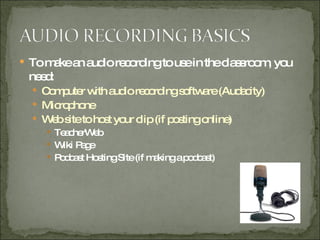
To make an audio recording to use in the classroom, you need: Computer with audio recording software (Audacity) Microphone Web site to host your clip (if posting online) TeacherWeb Wiki Page Podcast Hosting Site (if making a podcast)
What do I do with it once I’ve made it? Store your sound file on your computer Transfer your sound to an iPod or .mp3 player Upload your sound file for stand-alone listening to a web site Upload your sound file to be converted into a podcast
 
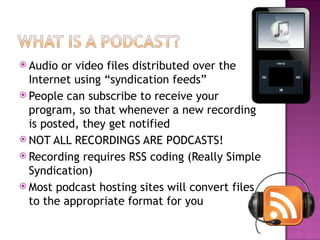
Audio or video files distributed over the Internet using “syndication feeds” People can subscribe to receive your program, so that whenever a new recording is posted, they get notified NOT ALL RECORDINGS ARE PODCASTS! Recording requires RSS coding (Really Simple Syndication) Most podcast hosting sites will convert files to the appropriate format for you
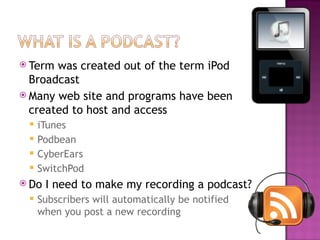
Term was created out of the term iPod Broadcast Many web site and programs have been created to host and access iTunes Podbean CyberEars SwitchPod Do I need to make my recording a podcast? Subscribers will automatically be notified when you post a new recording
Vocabulary or Concept Practice Unit Reviews Research Projects Oral Reports Audio Newsletter to Parents
Research Write a Script Practice Record your audio Mix in any additional music (optional) Edit your audio Save your file Upload to a web server
Audacity How To Have Fun With Sound by “Audacitydemo” Thanks to  http://audacityteam.org/wiki/ This presentation is licensed under the Creative Commons Attribution 3.0 License. http://creativecommons.org/licenses/by/3.0/
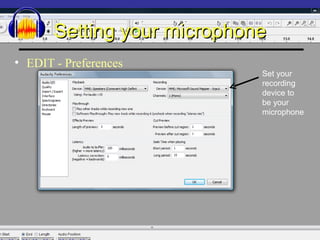
Setting your microphone EDIT - Preferences Set your recording device to be your microphone
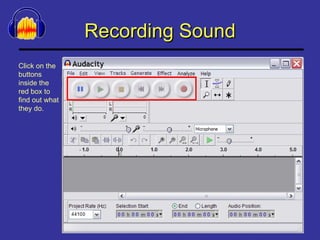
Recording Sound Click on the buttons inside the red box to find out what they do.
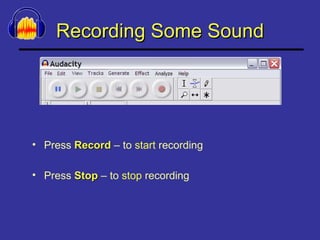
Recording Some Sound Press  Record  – to  start  recording Press  Stop  – to  stop  recording
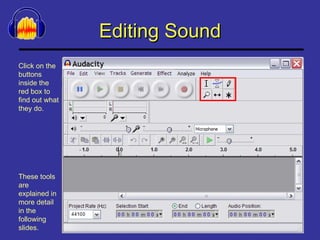
Editing Sound Click on the buttons inside the red box to find out what they do. These tools are explained in more detail in the following slides.
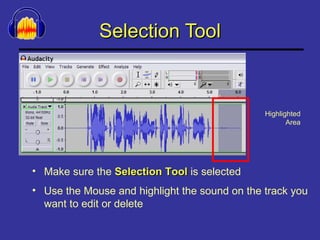
Selection Tool Make sure the  Selection Tool  is selected Use the Mouse and highlight the sound on the track you want to edit or delete Highlighted Area
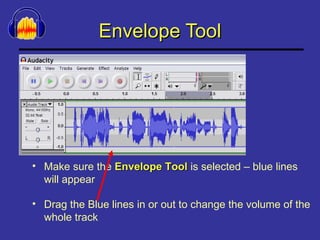
Envelope Tool Make sure the  Envelope Tool  is selected – blue lines will appear Drag the Blue lines in or out to change the volume of the whole track
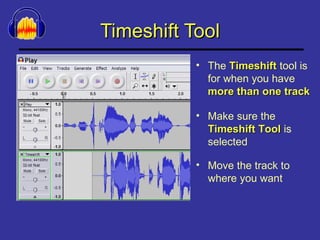
Timeshift Tool The  Timeshift  tool is for when you have  more than one track Move the track to where you want Make sure the  Timeshift Tool  is selected
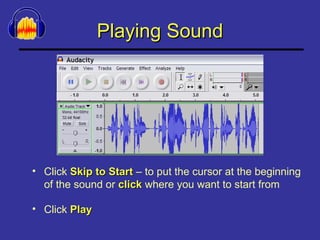
Playing Sound Click  Skip to Start  – to put the cursor at the beginning of the sound or  click  where you want to start from Click  Play
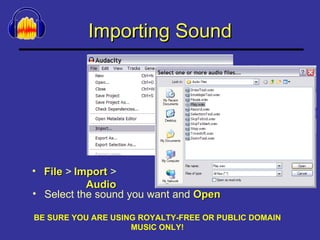
Importing Sound File  > Select the sound you want and  Open Import  >  Audio BE SURE YOU ARE USING ROYALTY-FREE OR PUBLIC DOMAIN MUSIC ONLY!
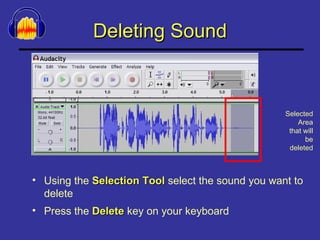
Deleting Sound Using the  Selection Tool  select the sound you want to delete Press the  Delete  key on your keyboard Selected Area that will be deleted
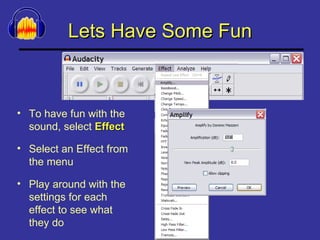
Lets Have Some Fun To have fun with the sound, select  Effect Play around with the settings for each effect to see what they do Select an Effect from the menu
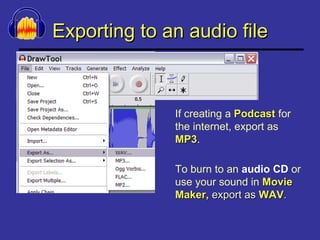
Exporting to an audio file If creating a  Podcast  for the internet, export as  MP3 . To burn to an  audio CD  or use your sound in  Movie Maker,  export as   WAV .
DEMONSTRATION
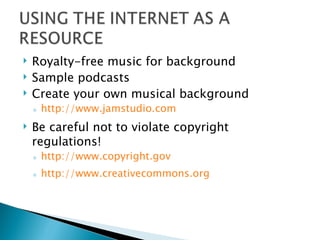
Royalty-free music for background Sample podcasts Create your own musical background http://www.jamstudio.com Be careful not to violate copyright regulations! http://www.copyright.gov http://www.creativecommons.org
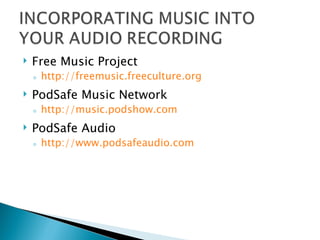
Free Music Project http://freemusic.freeculture.org PodSafe Music Network http://music.podshow.com PodSafe Audio http://www.podsafeaudio.com
INDIVIDUAL PRACTICE TIME Practice recording with Audacity Create something for your classroom (if prepared) and save to your flash drive If ready, upload to your TeacherWeb or create podcast account and upload
BREAK TIME! After the break: Work on individual practice or record from prepared material Approximately 45-50 minutes to work Come back together and share what we have done and answer any final questions
SHARING AND FINAL QUESTIONS Examples of what you’ve created Questions? Presentation materials, links, and tutorials on my wiki page hms-music.wikispaces.com

Using Audio in the Classroom

  • 1.
    Burrell School DistrictIn-Service Monday, February 16, 2009 BRIAN QUERRY Pennsylvania Keystone Technology Integrator Discovery STAR Educator
  • 2.
    Welcome and IntroductionsDifferent Learning Styles Uses for Audio Recordings Making Audio Recordings Podcasts / Posting Online Using the Internet as a resource BREAK Individual Work Time Summary and Recap
  • 3.
    Name Grade Leveland Subject Taught How you would like to use audio in the classroom or as a supplemental instructional tool
  • 4.
    DIFFERENT LEARNING STYLESAural Visual Kinesthetic TEACHER AUDIO: Aural STUDENT AUDIO: Aural and Kinesthetic
  • 5.
    Demonstration (one-time) ReviewExtra Support Materials “ Speak the same language” Allows students who are absent to easily catch-up on work missed Usually only have to make it one time
  • 6.
    STUDENTS CREATING AUDIORECORDINGS Allows students to learn new concepts in conjunction with their subject material Differentiated Instruction / Student Choice Though more work in setting up, often easier end result Proper training on equipment/software is VITAL Additional allotted class time Permission forms for posting any work with student names included
  • 7.
    To make anaudio recording to use in the classroom, you need: Computer with audio recording software (Audacity) Microphone Web site to host your clip (if posting online) TeacherWeb Wiki Page Podcast Hosting Site (if making a podcast)
  • 8.
    What do Ido with it once I’ve made it? Store your sound file on your computer Transfer your sound to an iPod or .mp3 player Upload your sound file for stand-alone listening to a web site Upload your sound file to be converted into a podcast
  • 9.
  • 10.
    Audio or videofiles distributed over the Internet using “syndication feeds” People can subscribe to receive your program, so that whenever a new recording is posted, they get notified NOT ALL RECORDINGS ARE PODCASTS! Recording requires RSS coding (Really Simple Syndication) Most podcast hosting sites will convert files to the appropriate format for you
  • 11.
    Term was createdout of the term iPod Broadcast Many web site and programs have been created to host and access iTunes Podbean CyberEars SwitchPod Do I need to make my recording a podcast? Subscribers will automatically be notified when you post a new recording
  • 12.
    Vocabulary or ConceptPractice Unit Reviews Research Projects Oral Reports Audio Newsletter to Parents
  • 13.
    Research Write aScript Practice Record your audio Mix in any additional music (optional) Edit your audio Save your file Upload to a web server
  • 14.
    Audacity How ToHave Fun With Sound by “Audacitydemo” Thanks to http://audacityteam.org/wiki/ This presentation is licensed under the Creative Commons Attribution 3.0 License. http://creativecommons.org/licenses/by/3.0/
  • 15.
    Setting your microphoneEDIT - Preferences Set your recording device to be your microphone
  • 16.
    Recording Sound Clickon the buttons inside the red box to find out what they do.
  • 17.
    Recording Some SoundPress Record – to start recording Press Stop – to stop recording
  • 18.
    Editing Sound Clickon the buttons inside the red box to find out what they do. These tools are explained in more detail in the following slides.
  • 19.
    Selection Tool Makesure the Selection Tool is selected Use the Mouse and highlight the sound on the track you want to edit or delete Highlighted Area
  • 20.
    Envelope Tool Makesure the Envelope Tool is selected – blue lines will appear Drag the Blue lines in or out to change the volume of the whole track
  • 21.
    Timeshift Tool The Timeshift tool is for when you have more than one track Move the track to where you want Make sure the Timeshift Tool is selected
  • 22.
    Playing Sound Click Skip to Start – to put the cursor at the beginning of the sound or click where you want to start from Click Play
  • 23.
    Importing Sound File > Select the sound you want and Open Import > Audio BE SURE YOU ARE USING ROYALTY-FREE OR PUBLIC DOMAIN MUSIC ONLY!
  • 24.
    Deleting Sound Usingthe Selection Tool select the sound you want to delete Press the Delete key on your keyboard Selected Area that will be deleted
  • 25.
    Lets Have SomeFun To have fun with the sound, select Effect Play around with the settings for each effect to see what they do Select an Effect from the menu
  • 26.
    Exporting to anaudio file If creating a Podcast for the internet, export as MP3 . To burn to an audio CD or use your sound in Movie Maker, export as WAV .
  • 27.
  • 28.
    Royalty-free music forbackground Sample podcasts Create your own musical background http://www.jamstudio.com Be careful not to violate copyright regulations! http://www.copyright.gov http://www.creativecommons.org
  • 29.
    Free Music Projecthttp://freemusic.freeculture.org PodSafe Music Network http://music.podshow.com PodSafe Audio http://www.podsafeaudio.com
  • 30.
    INDIVIDUAL PRACTICE TIMEPractice recording with Audacity Create something for your classroom (if prepared) and save to your flash drive If ready, upload to your TeacherWeb or create podcast account and upload
  • 31.
    BREAK TIME! Afterthe break: Work on individual practice or record from prepared material Approximately 45-50 minutes to work Come back together and share what we have done and answer any final questions
  • 32.
    SHARING AND FINALQUESTIONS Examples of what you’ve created Questions? Presentation materials, links, and tutorials on my wiki page hms-music.wikispaces.com