Platform Tutorial
Google Meet
Table of Contents
1. Locate Google Meet ………………………………………….. 1-2
2. Start up page .…………………………………………….……… 3
3. Send Google Meet invite ………………………………….. 4-6
4. Upload files to your Google Meet ..…………..……….. 7
5. Invite team members to your Google Meet …….... 8
6. Google meet interface & other features ………….... 9-15
Locate Google Meet
On the top right corner of
your Gmail suite, you will
find a grid with 6 dot
01.
Click on the grid it will show
you a dropdown menu from
where you can see Google
Meet icon
02.
1
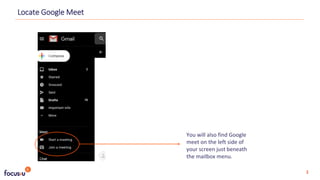
You will also find Google
meet on the left side of
your screen just beneath
the mailbox menu.
2
Locate Google Meet
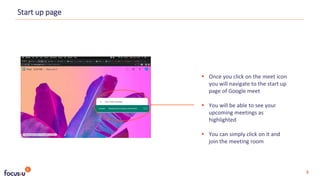
 Once you click on the meet icon
you will navigate to the start up
page of Google meet
 You will be able to see your
upcoming meetings as
highlighted
 You can simply click on it and
join the meeting room
Start up page
3
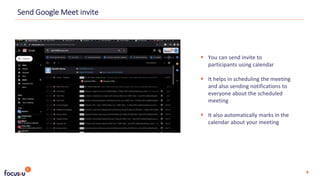
 You can send invite to
participants using calendar
 It helps in scheduling the meeting
and also sending notifications to
everyone about the scheduled
meeting
 It also automatically marks in the
calendar about your meeting
Send Google Meet invite
4
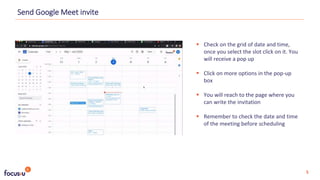
 Check on the grid of date and time,
once you select the slot click on it. You
will receive a pop up
 Click on more options in the pop-up
box
 You will reach to the page where you
can write the invitation
 Remember to check the date and time
of the meeting before scheduling
Send Google Meet invite
5
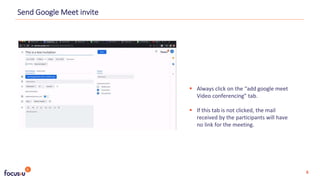
 Always click on the “add google meet
Video conferencing” tab.
 If this tab is not clicked, the mail
received by the participants will have
no link for the meeting.
Send Google Meet invite
6
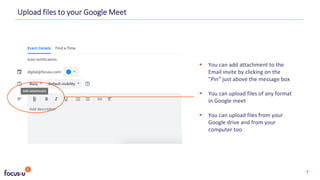
 You can add attachment to the
Email invite by clicking on the
”Pin” just above the message box
 You can upload files of any format
in Google meet
 You can upload files from your
Google drive and from your
computer too
Upload files to your Google Meet
7
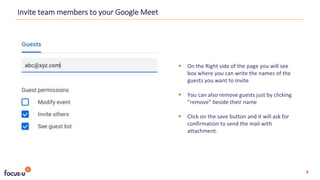
 On the Right side of the page you will see
box where you can write the names of the
guests you want to invite
 You can also remove guests just by clicking
”remove” beside their name
 Click on the save button and it will ask for
confirmation to send the mail with
attachment.
Invite team members to your Google Meet
8
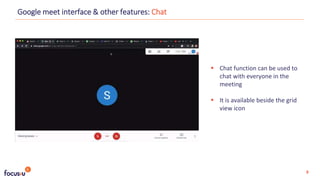
 Chat function can be used to
chat with everyone in the
meeting
 It is available beside the grid
view icon
Google meet interface & other features: Chat
9
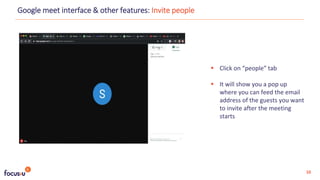
 Click on “people” tab
 It will show you a pop up
where you can feed the email
address of the guests you want
to invite after the meeting
starts
Google meet interface & other features: Invite people
10
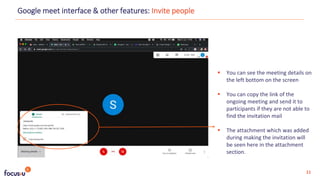
 You can see the meeting details on
the left bottom on the screen
 You can copy the link of the
ongoing meeting and send it to
participants if they are not able to
find the invitation mail
 The attachment which was added
during making the invitation will
be seen here in the attachment
section.
Google meet interface & other features: Invite people
11
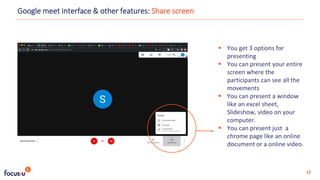
 You get 3 options for
presenting
 You can present your entire
screen where the
participants can see all the
movements
 You can present a window
like an excel sheet,
Slideshow, video on your
computer.
 You can present just a
chrome page like an online
document or a online video.
Google meet interface & other features: Share screen
12
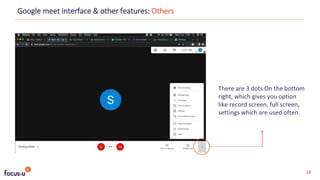
There are 3 dots On the bottom
right, which gives you option
like record screen, full screen,
settings which are used often.
Google meet interface & other features: Others
13
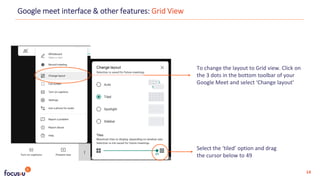
Select the ‘tiled’ option and drag
the cursor below to 49
Google meet interface & other features: Grid View
14
To change the layout to Grid view. Click on
the 3 dots in the bottom toolbar of your
Google Meet and select ‘Change layout’
Google meet interface & other features: Grid View
15
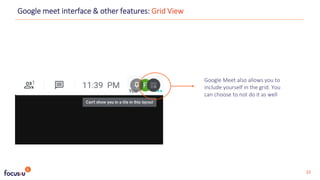
Google Meet also allows you to
include yourself in the grid. You
can choose to not do it as well
www.focusu.com

Google Meet Platform Tutorial

  • 1.
  • 2.
    Table of Contents 1.Locate Google Meet ………………………………………….. 1-2 2. Start up page .…………………………………………….……… 3 3. Send Google Meet invite ………………………………….. 4-6 4. Upload files to your Google Meet ..…………..……….. 7 5. Invite team members to your Google Meet …….... 8 6. Google meet interface & other features ………….... 9-15
  • 3.
    Locate Google Meet Onthe top right corner of your Gmail suite, you will find a grid with 6 dot 01. Click on the grid it will show you a dropdown menu from where you can see Google Meet icon 02. 1
  • 4.
    You will alsofind Google meet on the left side of your screen just beneath the mailbox menu. 2 Locate Google Meet
  • 5.
     Once youclick on the meet icon you will navigate to the start up page of Google meet  You will be able to see your upcoming meetings as highlighted  You can simply click on it and join the meeting room Start up page 3
  • 6.
     You cansend invite to participants using calendar  It helps in scheduling the meeting and also sending notifications to everyone about the scheduled meeting  It also automatically marks in the calendar about your meeting Send Google Meet invite 4
  • 7.
     Check onthe grid of date and time, once you select the slot click on it. You will receive a pop up  Click on more options in the pop-up box  You will reach to the page where you can write the invitation  Remember to check the date and time of the meeting before scheduling Send Google Meet invite 5
  • 8.
     Always clickon the “add google meet Video conferencing” tab.  If this tab is not clicked, the mail received by the participants will have no link for the meeting. Send Google Meet invite 6
  • 9.
     You canadd attachment to the Email invite by clicking on the ”Pin” just above the message box  You can upload files of any format in Google meet  You can upload files from your Google drive and from your computer too Upload files to your Google Meet 7
  • 10.
     On theRight side of the page you will see box where you can write the names of the guests you want to invite  You can also remove guests just by clicking ”remove” beside their name  Click on the save button and it will ask for confirmation to send the mail with attachment. Invite team members to your Google Meet 8
  • 11.
     Chat functioncan be used to chat with everyone in the meeting  It is available beside the grid view icon Google meet interface & other features: Chat 9
  • 12.
     Click on“people” tab  It will show you a pop up where you can feed the email address of the guests you want to invite after the meeting starts Google meet interface & other features: Invite people 10
  • 13.
     You cansee the meeting details on the left bottom on the screen  You can copy the link of the ongoing meeting and send it to participants if they are not able to find the invitation mail  The attachment which was added during making the invitation will be seen here in the attachment section. Google meet interface & other features: Invite people 11
  • 14.
     You get3 options for presenting  You can present your entire screen where the participants can see all the movements  You can present a window like an excel sheet, Slideshow, video on your computer.  You can present just a chrome page like an online document or a online video. Google meet interface & other features: Share screen 12
  • 15.
    There are 3dots On the bottom right, which gives you option like record screen, full screen, settings which are used often. Google meet interface & other features: Others 13
  • 16.
    Select the ‘tiled’option and drag the cursor below to 49 Google meet interface & other features: Grid View 14 To change the layout to Grid view. Click on the 3 dots in the bottom toolbar of your Google Meet and select ‘Change layout’
  • 17.
    Google meet interface& other features: Grid View 15 Google Meet also allows you to include yourself in the grid. You can choose to not do it as well
  • 19.