User Testing for 
A ccessibility 
Webinar - November 27, 2014
User Testing for Accessibility 
• Welcome to our lunch-and-learn! 
• We love questions, so please use the chat function and 
we’ll do our best to answer them. 
• After the lunch-and-learn we’ll send you a link to download 
the slides and recording, so you can share with your friends 
and colleagues. 
• If you’d prefer to dial in, call: 1 800 503 2899, 
access code: 598 777 0 
Please use your mute button. 
• Participate via Twitter using the hashtag 
#UMWebinar. Our handle is: @umatters.
2 
About Usability Matters
3 
About Linn & Heather
What you’re going to learn 
• Why test for accessibility 
• Overview of WCAG 2.0 standards 
• Types of impairments and assistive technologies 
4 
• Usability testing vs. accessibility testing 
• How to test for accessibility with automated and 
manual accessibility evaluation tools 
• How to test for accessibility with real users
Why accessibility test? 
• Don’t miss out on potential users 
• 1 in 10 -> severe disability 
• 1 in 2 over 65 -> reduced capabilities 
5
Why accessibility test? 
• Strengthen the code – for example, find tech jargon 
such as “navigation region” 
• An accessible website = good SEO 
• AODA is now the law! 6
AODA compliance timelines 
• Large organizations: 
- New internet and web content: Compliance with WCAG 2.0 level 
A by January 2014 
- All internet and web content: Compliance with WCAG 2.0 level 
AA by 1 Jan 2021 
7 
• Designated public service organizations: 
- New internet and web content: Compliance with WCAG 2.0 level 
A by January 2014 
- All internet and web content: Compliance with WCAG 2.0 level 
AA by 1 Jan 2021
Why accessibility test? 
• Design for as many people as possible 
8 
Image credit: http://blindfilmcritic.com/archives/2494 
• Build empathy 
• Technical requirements =/= accessible
Accessibility standards 
• WCAG 2.0 Level A and Level AA 
• Four guiding principles: 
9 
• Perceivable 
• Operable 
• Understandable 
• Robust
Accessibility standards 
10 
Perceivable 
Information and user interface components must be 
presented in ways users can perceive. 
Excerpt from WCAG 2.0: 
“Provide text alternative for any non-text content, so that it 
can be changed into other forms people need, such as large 
print, braille, speech, symbols or simpler language.”
Accessibility standards 
11 
Operable 
Users must be able to use all aspects of the interface. 
Excerpt from WCAG 2.0: 
“Make all functionality available from a keyboard.”
Accessibility standards 
12 
Understandable 
Users must be able to understand content and how 
to use the interface. 
Excerpt from WCAG 2.0: 
“Make text content readable and understandable.”
Accessibility standards 
13 
Robust 
Content must be accessible with a wide variety of user 
agents, and remain accessible as technologies evolve. 
Excerpt from WCAG 2.0: 
“Maximize compatibility with current and future user agents, 
including assistive technologies.”
Accessibility standards 
• Gov.uk project is a good reference – no separate accessibility 
statement – usable and accessible design for all 
14
Inclusive design: 
Design that considers the full range of diversity with respect to 
ability, language, gender and other forms of human difference. 
15 
Universal design: 
Design that is inherently accessible to the widest range of people. 
Accessibility: 
The degree to which a system or service is available to as many 
people as possible. It can be seen as the “ability to access” a system.
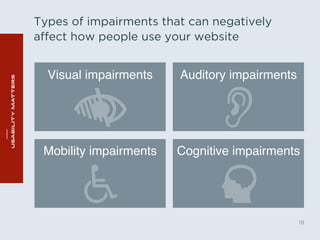
Types of impairments that can negatively 
affect how people use your website 
16 
Visual impairments" Auditory impairments" 
Mobility impairments" Cognitive impairments"
Overview of Assistive Technology 
• Screen readers (JAWS, NVDA, 
VoiceOver, TalkBack) 
17 
Image credit: http://westernblind.blogspot.ca/ 
2011/06/cat-skills-zoomtext.html 
• Screen magnification (ZoomText, 
through the browser) 
• Speech recognition (Dragon 
NaturallySpeaking) 
• Eye-tracking, dynamic braille 
display, alternative keyboard, 
oversized trackball mouse, etc.
What to test with 
• Can’t be low fidelity/paper prototype 
• Must be compatible with assistive technology 
18
What to test on 
• Think about the device (laptop, mobile, desktop, tablet) 
• Type of assistive technology 
19
Ensuring test artifact is ready 
• Don’t want to waste time 
• Code to WCAG 2.0 standards 
• Manual and automated accessibility evaluation tools 
• Test it yourself 
20 
We like: 
HTML CodeSniffer 
http://squizlabs.github.io/HTML_CodeSniffer/ 
Color Contrast Checker 
http://webaim.org/resources/contrastchecker/
HTML CodeSniffer 
• Browser extension 
• Cut and paste code 
• Results need appropriate interpretation 
• For example: image alt tags 
21 
http://squizlabs.github.io/HTML_CodeSniffer/
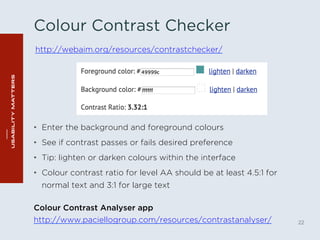
Colour Contrast Checker 
http://webaim.org/resources/contrastchecker/ 
• Enter the background and foreground colours 
• See if contrast passes or fails desired preference 
• Tip: lighten or darken colours within the interface 
• Colour contrast ratio for level AA should be at least 4.5:1 for 
normal text and 3:1 for large text 
22 
Colour Contrast Analyser app 
http://www.paciellogroup.com/resources/contrastanalyser/
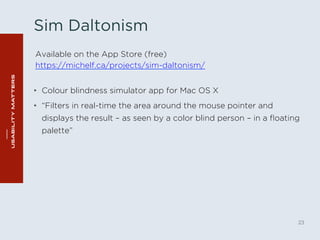
Sim Daltonism 
• Colour blindness simulator app for Mac OS X 
• “Filters in real-time the area around the mouse pointer and 
displays the result – as seen by a color blind person – in a floating 
palette” 
23 
Available on the App Store (free) 
https://michelf.ca/projects/sim-daltonism/
Photoshop tools 
• View > Proof Setup > Colour Blindness 
24 
Integrated colour blindness checkers
Let’s demo some tools! 
• HTML CodeSniffer 
• Colour Contrast Checker 
• Colour Contrast Analyser 
• Sim Daltonism 
25
Automated testing results 
• Automated testing requires some knowledge in accessibility to 
interpret the results and implement the proper changes. 
26
Usability vs Accessibility testing 
• Methodology is the same 
27 
• Being mindful when facilitating 
• Tasks for screen reader to include everything 
• Adapt number of tasks 
• More specific recruiting
Recruiting 
• Professional recruit 
• Personal networks 
• Challenging to find larger samples 
• Novice vs. expert users 
28
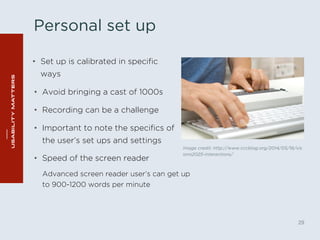
Personal set up 
• Set up is calibrated in specific 
ways 
Image credit: http://www.cccblog.org/2014/05/16/vis 
ions2025-interactions/ 
29 
• Avoid bringing a cast of 1000s 
• Recording can be a challenge 
• Important to note the specifics of 
the user’s set ups and settings 
• Speed of the screen reader 
Advanced screen reader user’s can get up 
to 900-1200 words per minute
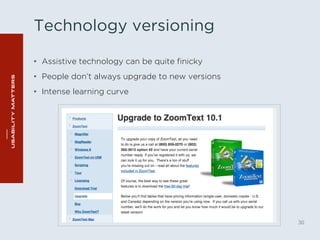
Technology versioning 
• Assistive technology can be quite finicky 
• People don’t always upgrade to new versions 
• Intense learning curve 
30
Testing at a facility 
• Facility itself has to be accessible 
• User’s tech set up needs to be portable 
• Alternatively -allow time for the participant to 
calibrate the technology 
31
Remote testing 
• Difficult to view user’s tech set up and how they use it 
• Software/applications needed to download must be accessible 
• Software/application must not interfere 
• Tech issues -> difficult to help find solutions 
32
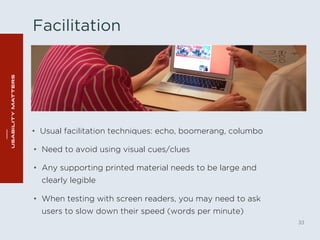
Facilitation 
• Usual facilitation techniques: echo, boomerang, columbo 
33 
• Need to avoid using visual cues/clues 
• Any supporting printed material needs to be large and 
clearly legible 
• When testing with screen readers, you may need to ask 
users to slow down their speed (words per minute)
Analysing results 
34 
• Identifying quick wins 
• Being able to reproduce issues 
• Task completion 
• Communicating the results
Making screens more accessible 
benefits everyone. 
35
Questions? 
36
Thank you 
Usability Matters 
215 Spadina Ave, Toronto 
www.usabilitymatters.com 
info@usabilitymatters.com 
facebook.com/UsabilityMattersInc 
@umatters 
linkedin.com/company/usability-matters 
Heather Moore 
416 598 7770 ex 20 
heather@usabilitymatters.com 
Linn Vizard 
416 598 7770 ex 19 
linnea@usabilitymatters.com
Resources (Canada) 
Inclusive Design Institute 
http://inclusivedesign.ca/WebSavvy 
Inclusive Design Research Centre (IDRC) 
http://idrc.ocad.ca/ 
WebSavvy 
http://websavvy.idrc.ocad.ca/ 
CNIB Web & Digital Accessibility 
http://www.cnib.ca/en/services/ 
web_digital_accessibility/Pages/default.aspx 
Accessibility Camp TO 
http://www.accessibilitycampto.org/

User Testing for Accessibility

  • 1.
    User Testing for A ccessibility Webinar - November 27, 2014
  • 2.
    User Testing forAccessibility • Welcome to our lunch-and-learn! • We love questions, so please use the chat function and we’ll do our best to answer them. • After the lunch-and-learn we’ll send you a link to download the slides and recording, so you can share with your friends and colleagues. • If you’d prefer to dial in, call: 1 800 503 2899, access code: 598 777 0 Please use your mute button. • Participate via Twitter using the hashtag #UMWebinar. Our handle is: @umatters.
  • 3.
  • 4.
    3 About Linn& Heather
  • 5.
    What you’re goingto learn • Why test for accessibility • Overview of WCAG 2.0 standards • Types of impairments and assistive technologies 4 • Usability testing vs. accessibility testing • How to test for accessibility with automated and manual accessibility evaluation tools • How to test for accessibility with real users
  • 6.
    Why accessibility test? • Don’t miss out on potential users • 1 in 10 -> severe disability • 1 in 2 over 65 -> reduced capabilities 5
  • 7.
    Why accessibility test? • Strengthen the code – for example, find tech jargon such as “navigation region” • An accessible website = good SEO • AODA is now the law! 6
  • 8.
    AODA compliance timelines • Large organizations: - New internet and web content: Compliance with WCAG 2.0 level A by January 2014 - All internet and web content: Compliance with WCAG 2.0 level AA by 1 Jan 2021 7 • Designated public service organizations: - New internet and web content: Compliance with WCAG 2.0 level A by January 2014 - All internet and web content: Compliance with WCAG 2.0 level AA by 1 Jan 2021
  • 9.
    Why accessibility test? • Design for as many people as possible 8 Image credit: http://blindfilmcritic.com/archives/2494 • Build empathy • Technical requirements =/= accessible
  • 10.
    Accessibility standards •WCAG 2.0 Level A and Level AA • Four guiding principles: 9 • Perceivable • Operable • Understandable • Robust
  • 11.
    Accessibility standards 10 Perceivable Information and user interface components must be presented in ways users can perceive. Excerpt from WCAG 2.0: “Provide text alternative for any non-text content, so that it can be changed into other forms people need, such as large print, braille, speech, symbols or simpler language.”
  • 12.
    Accessibility standards 11 Operable Users must be able to use all aspects of the interface. Excerpt from WCAG 2.0: “Make all functionality available from a keyboard.”
  • 13.
    Accessibility standards 12 Understandable Users must be able to understand content and how to use the interface. Excerpt from WCAG 2.0: “Make text content readable and understandable.”
  • 14.
    Accessibility standards 13 Robust Content must be accessible with a wide variety of user agents, and remain accessible as technologies evolve. Excerpt from WCAG 2.0: “Maximize compatibility with current and future user agents, including assistive technologies.”
  • 15.
    Accessibility standards •Gov.uk project is a good reference – no separate accessibility statement – usable and accessible design for all 14
  • 16.
    Inclusive design: Designthat considers the full range of diversity with respect to ability, language, gender and other forms of human difference. 15 Universal design: Design that is inherently accessible to the widest range of people. Accessibility: The degree to which a system or service is available to as many people as possible. It can be seen as the “ability to access” a system.
  • 17.
    Types of impairmentsthat can negatively affect how people use your website 16 Visual impairments" Auditory impairments" Mobility impairments" Cognitive impairments"
  • 18.
    Overview of AssistiveTechnology • Screen readers (JAWS, NVDA, VoiceOver, TalkBack) 17 Image credit: http://westernblind.blogspot.ca/ 2011/06/cat-skills-zoomtext.html • Screen magnification (ZoomText, through the browser) • Speech recognition (Dragon NaturallySpeaking) • Eye-tracking, dynamic braille display, alternative keyboard, oversized trackball mouse, etc.
  • 19.
    What to testwith • Can’t be low fidelity/paper prototype • Must be compatible with assistive technology 18
  • 20.
    What to teston • Think about the device (laptop, mobile, desktop, tablet) • Type of assistive technology 19
  • 21.
    Ensuring test artifactis ready • Don’t want to waste time • Code to WCAG 2.0 standards • Manual and automated accessibility evaluation tools • Test it yourself 20 We like: HTML CodeSniffer http://squizlabs.github.io/HTML_CodeSniffer/ Color Contrast Checker http://webaim.org/resources/contrastchecker/
  • 22.
    HTML CodeSniffer •Browser extension • Cut and paste code • Results need appropriate interpretation • For example: image alt tags 21 http://squizlabs.github.io/HTML_CodeSniffer/
  • 23.
    Colour Contrast Checker http://webaim.org/resources/contrastchecker/ • Enter the background and foreground colours • See if contrast passes or fails desired preference • Tip: lighten or darken colours within the interface • Colour contrast ratio for level AA should be at least 4.5:1 for normal text and 3:1 for large text 22 Colour Contrast Analyser app http://www.paciellogroup.com/resources/contrastanalyser/
  • 24.
    Sim Daltonism •Colour blindness simulator app for Mac OS X • “Filters in real-time the area around the mouse pointer and displays the result – as seen by a color blind person – in a floating palette” 23 Available on the App Store (free) https://michelf.ca/projects/sim-daltonism/
  • 25.
    Photoshop tools •View > Proof Setup > Colour Blindness 24 Integrated colour blindness checkers
  • 26.
    Let’s demo sometools! • HTML CodeSniffer • Colour Contrast Checker • Colour Contrast Analyser • Sim Daltonism 25
  • 27.
    Automated testing results • Automated testing requires some knowledge in accessibility to interpret the results and implement the proper changes. 26
  • 28.
    Usability vs Accessibilitytesting • Methodology is the same 27 • Being mindful when facilitating • Tasks for screen reader to include everything • Adapt number of tasks • More specific recruiting
  • 29.
    Recruiting • Professionalrecruit • Personal networks • Challenging to find larger samples • Novice vs. expert users 28
  • 30.
    Personal set up • Set up is calibrated in specific ways Image credit: http://www.cccblog.org/2014/05/16/vis ions2025-interactions/ 29 • Avoid bringing a cast of 1000s • Recording can be a challenge • Important to note the specifics of the user’s set ups and settings • Speed of the screen reader Advanced screen reader user’s can get up to 900-1200 words per minute
  • 31.
    Technology versioning •Assistive technology can be quite finicky • People don’t always upgrade to new versions • Intense learning curve 30
  • 32.
    Testing at afacility • Facility itself has to be accessible • User’s tech set up needs to be portable • Alternatively -allow time for the participant to calibrate the technology 31
  • 33.
    Remote testing •Difficult to view user’s tech set up and how they use it • Software/applications needed to download must be accessible • Software/application must not interfere • Tech issues -> difficult to help find solutions 32
  • 34.
    Facilitation • Usualfacilitation techniques: echo, boomerang, columbo 33 • Need to avoid using visual cues/clues • Any supporting printed material needs to be large and clearly legible • When testing with screen readers, you may need to ask users to slow down their speed (words per minute)
  • 35.
    Analysing results 34 • Identifying quick wins • Being able to reproduce issues • Task completion • Communicating the results
  • 36.
    Making screens moreaccessible benefits everyone. 35
  • 37.
  • 38.
    Thank you UsabilityMatters 215 Spadina Ave, Toronto www.usabilitymatters.com info@usabilitymatters.com facebook.com/UsabilityMattersInc @umatters linkedin.com/company/usability-matters Heather Moore 416 598 7770 ex 20 heather@usabilitymatters.com Linn Vizard 416 598 7770 ex 19 linnea@usabilitymatters.com
  • 39.
    Resources (Canada) InclusiveDesign Institute http://inclusivedesign.ca/WebSavvy Inclusive Design Research Centre (IDRC) http://idrc.ocad.ca/ WebSavvy http://websavvy.idrc.ocad.ca/ CNIB Web & Digital Accessibility http://www.cnib.ca/en/services/ web_digital_accessibility/Pages/default.aspx Accessibility Camp TO http://www.accessibilitycampto.org/