Web Accessibility Why should we care?!
Outline Define Guidelines The Audit Design Tips
Defining Accessibility 1
Universal Design “ If anybody asks me what the Internet means to me, I will tell him without hesitation: To me (a quadriplegic) the Internet occupies the most important part in my life. It is my feet that can take me to any part of the world; it is my hands which help me to accomplish my work; it is my best friend - it gives my life meaning ”. Dr. ZhangXu (2001) (http://www.zhangxu.org/)
Universal Design “ The power of the web is in its universality. Access by everyone regardless of disability is an essential aspect ”. Tim Berners Lee
Accessibility < Universal Design
What is accessibility?  Web accessibility  refers to the practice of making Web sites usable by people of all abilities and disabilities. (Wikipedia)
Why does it matter? Disabilities are invisible online.  More Access to information. Equal opportunity (Accused for Discrimination).  Financial incentives (e.g. widen number of customers, less bandwidth, faster loading pages, etc). Competitiveness (a good skill).
Case study: AIB A reduction in file size of  69% Reduction  in bandwidth of 192 GB  per page, per year. A  reduction in development costs. Faster downloads  - happier users of AIB sites Better  search engine placement? Question:  is this the best way to promote accessibility?
Again: What is accessibility? Disabilities Different devices Older & other browsers, operating systems Slow connections
Disabilities Vision Hearing Mobility Cognitive Temporary injury Getting old
Mobility impairment Difficulty using fingers, hands, or arms Challenges: Unable to use mouse Unable to select small buttons or icons Unable to participate in real-time text chat
Hearing impairment Deaf or hard of hearing Challenges: Listening to audio/video clips Difficulty participating in real-time audio chats
Learning impairment Effects the learning process involving one or more abilities (e.g, speaking, listening, reading, writing, spelling, reasoning, and organizing) Challenges: Getting lost in navigation Inability to understand cluttered content or worded clearly
Vision impairment Blind low vision, color blindness Challenges: Inability to view images or videos Inability to understand and navigate organization of Web page
How can Disabled people Navigate the Web?
Assistive Technologies  Assistive technology  (AT) is a generic term that includes assistive, adaptive, and rehabilitative devices for people with disabilities and includes the process used in selecting, locating, and using them. (Wikipedia)
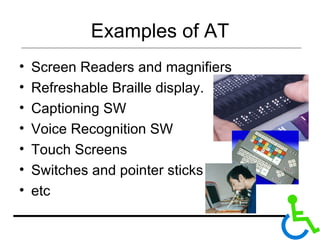
Examples of AT Screen Readers and magnifiers Refreshable Braille display. Captioning SW Voice Recognition SW Touch Screens Switches and pointer sticks etc
Experiencing Web Accessibility http://www.w3.org/WAI/EO/2005/Demo
Accessibility Myths Accessibility Myths: Accessibility means ugly websites Accessible sites look boring “ Text-only” pages are a good way to provide accessibility Accessibility adds cost to a web project Example of beautiful sites and accessible:  accesssites.org ,  cssliquid.com .  www.cssbeauty.com
Introduction to Laws & Guidelines 2
Laws Barcelona Declaration  www.bcn.es/ciutat-disminucio/angles/a_dec02.html UK Disability Discrimination Act   www.opsi.gov.uk/acts/acts1995/1995050.htm  U.S. Section 508   www.usdoj.gov/crt/508/ Other policies www.w3.org/WAI/Policy/
Standards ( W3C WAI WCAG 1.0 ) Web  Content  Accessibility  Guidelines 1.0  Created by the  Web   Accessibility  Initiative section of the W3C  2.0 is under review
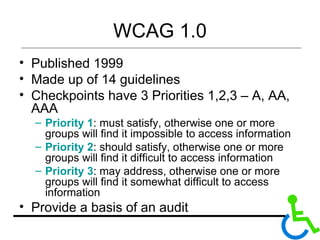
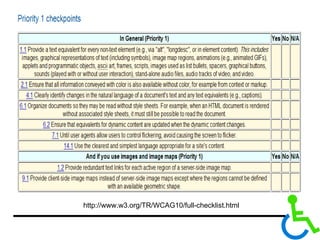
WCAG 1.0 Published 1999 Made up of 14 guidelines  Checkpoints have 3 Priorities 1,2,3 – A, AA, AAA Priority 1 : must satisfy, otherwise one or more groups will find it impossible to access information  Priority 2 : should satisfy, otherwise one or more groups will find it difficult to access information  Priority 3 : may address, otherwise one or more groups will find it somewhat difficult to access information  Provide a basis of an audit
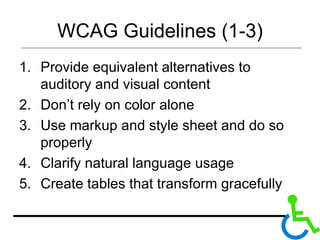
WCAG Guidelines (1-3) Provide equivalent alternatives to auditory and visual content Don’t rely on color alone Use markup and style sheet and do so properly  Clarify natural language usage Create tables that transform gracefully
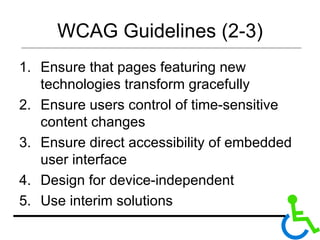
WCAG Guidelines (2-3) Ensure that pages featuring new technologies transform gracefully Ensure users control of time-sensitive content changes Ensure direct accessibility of embedded user interface Design for device-independent Use interim solutions
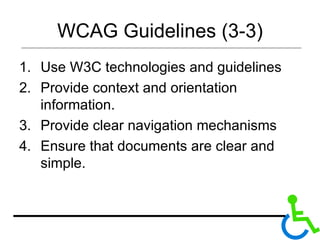
WCAG Guidelines (3-3) Use W3C technologies and guidelines  Provide context and orientation information. Provide clear navigation mechanisms Ensure that documents are clear and simple.
http://www.w3.org/TR/WCAG10/full-checklist.html
Key message Guidelines are not there to be ticked off – try to understand the potential problems they highlight and ensure you don’t create those problems for your users.
The “audit” 3
The audit Automated  &  manual  Manual: code-checking Internal  or independent?
Testing Tools Testing tools include: SW used by disabled (e.g. JAWS) Emulators (e.g. Fangs) Compliance checkers Remember that tools are not people
Process for the audit Checklists Automated tests Toolbars for manual testing  (AIS for IE, Web Developer on Firefox) User testing
Automated test Tools (1-3) Bobby  from Watchfire (IBM): $299 Bobby spiders through a website and tests on a page-by-page basis to see if it meets several accessibility requirements, including readability by screen readers, the provision of text equivalents for all images, animated elements, audio and video displays.
Automated test Tools (2-3) The  LIFT  Machine from UsableNet $999.  LIFT Machine is a server-based application that automatically scans internal and external websites for over 140 quality, accessibility, and usability issues. It then generates a variety of web-based reports for both executives and individual content creators.
Automated test Tools (3-3) Cynthia Says  http://www.contentquality.com Etre Accessibility Check  http://www.etre.com/tools/accessibilitycheck/ Colorblind web page filter http://colorfilter.wickline.org/
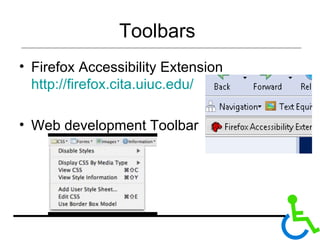
Toolbars  Firefox Accessibility Extension  http://firefox.cita.uiuc.edu/ Web development Toolbar
User testing You need actual people.  Experts in Accessibility:  Accessify forum WebAIm W3C Accessibility mailing list .
Design Tips 4
General Accessibility principle Consistency Patterns help everyone understand information.  Be consistent in the techniques you apply for your web site. Semantic Markup. Accessibility very dependent on markup  Information in markup accessed by AT Separation of content, presentation and behavior Enables progressive enhancement
Mobility impairment What can you do to help? Make buttons and links reasonably large Provide keyboard alternatives for anything that requires a mouse Provide audio alternatives for text requirements
Hearing impairment What can you do to help? Provide transcripts for audio Provide captioning for video Provide closed captioning or tty access for live chats
Vision impairment What can you do to help? Provide alt tags for all images Provide headers and descriptions for tables Provide audio explanations for complicated diagrams and images
Creating Accessible page Layouts Avoid Tables! Use CSS layout techniques: Fixed : All containers on the page have their widths defined in pixels or other fixed units. A fixed layout will not move in and out when you resize your browser window.  Elastic : All containers on the page have their widths defined in ems. They will be scaled according to the users default browser font size.  Liquid : All containers on the page have their widths defined in percents. A liquid layout will move in and out when you resize your browser window.
Design Tips Layout and Structure Use headings in content consistently Use the captions, summaries, and row and column headers for tables Use appropriate metadata
Design Tips Navigation Use clear, descriptive text for hyperlinks Set hyperlinks to open in new window Use meaningful text for page titles Color Avoid using color as only indicator Avoid using red Text Use clear, simple language Forms and tables
Design Tips Images Add meaningful alt text to all images For complex images, add a description link Avoid flickering images and unnecessary animated images Avoid using images of text Multimedia For audio clips, use a description link For video clips, use captioning or use a description link For video clips, provide a link to an audio file Provide a link to download appropriate audio/video player
Conclusion
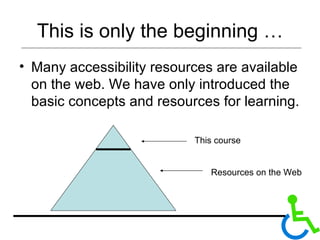
This is only the beginning … Many accessibility resources are available on the web. We have only introduced the basic concepts and resources for learning.  This course Resources on the Web
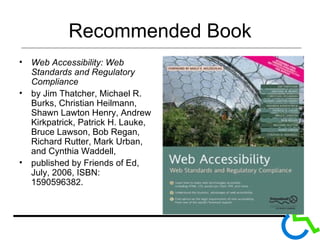
Recommended Book Web Accessibility: Web Standards and Regulatory Compliance  by Jim Thatcher, Michael R. Burks, Christian Heilmann, Shawn Lawton Henry, Andrew Kirkpatrick, Patrick H. Lauke, Bruce Lawson, Bob Regan, Richard Rutter, Mark Urban, and Cynthia Waddell,  published by Friends of Ed, July, 2006, ISBN: 1590596382.
Articles Evaluating Web Sites for Accessibility with Firefox,  http://www.ariadne.ac.uk/issue44/lauke/ Testing for Accessibility,  http://jimthatcher.com/testing.htm
Other Tools Complete List of Web Accessibility Evaluation Tools, http://www.w3.org/WAI/ER/tools/complete Web accessibility toolbar,  http://www.visionaustralia.org.au/ais/toolbar/

Web Accessibility

  • 1.
    Web Accessibility Whyshould we care?!
  • 2.
    Outline Define GuidelinesThe Audit Design Tips
  • 3.
  • 4.
    Universal Design “If anybody asks me what the Internet means to me, I will tell him without hesitation: To me (a quadriplegic) the Internet occupies the most important part in my life. It is my feet that can take me to any part of the world; it is my hands which help me to accomplish my work; it is my best friend - it gives my life meaning ”. Dr. ZhangXu (2001) (http://www.zhangxu.org/)
  • 5.
    Universal Design “The power of the web is in its universality. Access by everyone regardless of disability is an essential aspect ”. Tim Berners Lee
  • 6.
  • 7.
    What is accessibility? Web accessibility refers to the practice of making Web sites usable by people of all abilities and disabilities. (Wikipedia)
  • 8.
    Why does itmatter? Disabilities are invisible online. More Access to information. Equal opportunity (Accused for Discrimination). Financial incentives (e.g. widen number of customers, less bandwidth, faster loading pages, etc). Competitiveness (a good skill).
  • 9.
    Case study: AIBA reduction in file size of 69% Reduction in bandwidth of 192 GB per page, per year. A reduction in development costs. Faster downloads - happier users of AIB sites Better search engine placement? Question: is this the best way to promote accessibility?
  • 10.
    Again: What isaccessibility? Disabilities Different devices Older & other browsers, operating systems Slow connections
  • 11.
    Disabilities Vision HearingMobility Cognitive Temporary injury Getting old
  • 12.
    Mobility impairment Difficultyusing fingers, hands, or arms Challenges: Unable to use mouse Unable to select small buttons or icons Unable to participate in real-time text chat
  • 13.
    Hearing impairment Deafor hard of hearing Challenges: Listening to audio/video clips Difficulty participating in real-time audio chats
  • 14.
    Learning impairment Effectsthe learning process involving one or more abilities (e.g, speaking, listening, reading, writing, spelling, reasoning, and organizing) Challenges: Getting lost in navigation Inability to understand cluttered content or worded clearly
  • 15.
    Vision impairment Blindlow vision, color blindness Challenges: Inability to view images or videos Inability to understand and navigate organization of Web page
  • 16.
    How can Disabledpeople Navigate the Web?
  • 17.
    Assistive Technologies Assistive technology (AT) is a generic term that includes assistive, adaptive, and rehabilitative devices for people with disabilities and includes the process used in selecting, locating, and using them. (Wikipedia)
  • 18.
    Examples of ATScreen Readers and magnifiers Refreshable Braille display. Captioning SW Voice Recognition SW Touch Screens Switches and pointer sticks etc
  • 19.
    Experiencing Web Accessibilityhttp://www.w3.org/WAI/EO/2005/Demo
  • 20.
    Accessibility Myths AccessibilityMyths: Accessibility means ugly websites Accessible sites look boring “ Text-only” pages are a good way to provide accessibility Accessibility adds cost to a web project Example of beautiful sites and accessible: accesssites.org , cssliquid.com . www.cssbeauty.com
  • 21.
    Introduction to Laws& Guidelines 2
  • 22.
    Laws Barcelona Declaration www.bcn.es/ciutat-disminucio/angles/a_dec02.html UK Disability Discrimination Act www.opsi.gov.uk/acts/acts1995/1995050.htm U.S. Section 508 www.usdoj.gov/crt/508/ Other policies www.w3.org/WAI/Policy/
  • 23.
    Standards ( W3CWAI WCAG 1.0 ) Web Content Accessibility Guidelines 1.0 Created by the Web Accessibility Initiative section of the W3C 2.0 is under review
  • 24.
    WCAG 1.0 Published1999 Made up of 14 guidelines Checkpoints have 3 Priorities 1,2,3 – A, AA, AAA Priority 1 : must satisfy, otherwise one or more groups will find it impossible to access information Priority 2 : should satisfy, otherwise one or more groups will find it difficult to access information Priority 3 : may address, otherwise one or more groups will find it somewhat difficult to access information Provide a basis of an audit
  • 25.
    WCAG Guidelines (1-3)Provide equivalent alternatives to auditory and visual content Don’t rely on color alone Use markup and style sheet and do so properly Clarify natural language usage Create tables that transform gracefully
  • 26.
    WCAG Guidelines (2-3)Ensure that pages featuring new technologies transform gracefully Ensure users control of time-sensitive content changes Ensure direct accessibility of embedded user interface Design for device-independent Use interim solutions
  • 27.
    WCAG Guidelines (3-3)Use W3C technologies and guidelines Provide context and orientation information. Provide clear navigation mechanisms Ensure that documents are clear and simple.
  • 28.
  • 29.
    Key message Guidelinesare not there to be ticked off – try to understand the potential problems they highlight and ensure you don’t create those problems for your users.
  • 30.
  • 31.
    The audit Automated & manual Manual: code-checking Internal or independent?
  • 32.
    Testing Tools Testingtools include: SW used by disabled (e.g. JAWS) Emulators (e.g. Fangs) Compliance checkers Remember that tools are not people
  • 33.
    Process for theaudit Checklists Automated tests Toolbars for manual testing (AIS for IE, Web Developer on Firefox) User testing
  • 34.
    Automated test Tools(1-3) Bobby from Watchfire (IBM): $299 Bobby spiders through a website and tests on a page-by-page basis to see if it meets several accessibility requirements, including readability by screen readers, the provision of text equivalents for all images, animated elements, audio and video displays.
  • 35.
    Automated test Tools(2-3) The LIFT Machine from UsableNet $999. LIFT Machine is a server-based application that automatically scans internal and external websites for over 140 quality, accessibility, and usability issues. It then generates a variety of web-based reports for both executives and individual content creators.
  • 36.
    Automated test Tools(3-3) Cynthia Says http://www.contentquality.com Etre Accessibility Check http://www.etre.com/tools/accessibilitycheck/ Colorblind web page filter http://colorfilter.wickline.org/
  • 37.
    Toolbars FirefoxAccessibility Extension http://firefox.cita.uiuc.edu/ Web development Toolbar
  • 38.
    User testing Youneed actual people. Experts in Accessibility: Accessify forum WebAIm W3C Accessibility mailing list .
  • 39.
  • 40.
    General Accessibility principleConsistency Patterns help everyone understand information. Be consistent in the techniques you apply for your web site. Semantic Markup. Accessibility very dependent on markup Information in markup accessed by AT Separation of content, presentation and behavior Enables progressive enhancement
  • 41.
    Mobility impairment Whatcan you do to help? Make buttons and links reasonably large Provide keyboard alternatives for anything that requires a mouse Provide audio alternatives for text requirements
  • 42.
    Hearing impairment Whatcan you do to help? Provide transcripts for audio Provide captioning for video Provide closed captioning or tty access for live chats
  • 43.
    Vision impairment Whatcan you do to help? Provide alt tags for all images Provide headers and descriptions for tables Provide audio explanations for complicated diagrams and images
  • 44.
    Creating Accessible pageLayouts Avoid Tables! Use CSS layout techniques: Fixed : All containers on the page have their widths defined in pixels or other fixed units. A fixed layout will not move in and out when you resize your browser window. Elastic : All containers on the page have their widths defined in ems. They will be scaled according to the users default browser font size. Liquid : All containers on the page have their widths defined in percents. A liquid layout will move in and out when you resize your browser window.
  • 45.
    Design Tips Layoutand Structure Use headings in content consistently Use the captions, summaries, and row and column headers for tables Use appropriate metadata
  • 46.
    Design Tips NavigationUse clear, descriptive text for hyperlinks Set hyperlinks to open in new window Use meaningful text for page titles Color Avoid using color as only indicator Avoid using red Text Use clear, simple language Forms and tables
  • 47.
    Design Tips ImagesAdd meaningful alt text to all images For complex images, add a description link Avoid flickering images and unnecessary animated images Avoid using images of text Multimedia For audio clips, use a description link For video clips, use captioning or use a description link For video clips, provide a link to an audio file Provide a link to download appropriate audio/video player
  • 48.
  • 49.
    This is onlythe beginning … Many accessibility resources are available on the web. We have only introduced the basic concepts and resources for learning. This course Resources on the Web
  • 50.
    Recommended Book WebAccessibility: Web Standards and Regulatory Compliance by Jim Thatcher, Michael R. Burks, Christian Heilmann, Shawn Lawton Henry, Andrew Kirkpatrick, Patrick H. Lauke, Bruce Lawson, Bob Regan, Richard Rutter, Mark Urban, and Cynthia Waddell, published by Friends of Ed, July, 2006, ISBN: 1590596382.
  • 51.
    Articles Evaluating WebSites for Accessibility with Firefox, http://www.ariadne.ac.uk/issue44/lauke/ Testing for Accessibility, http://jimthatcher.com/testing.htm
  • 52.
    Other Tools CompleteList of Web Accessibility Evaluation Tools, http://www.w3.org/WAI/ER/tools/complete Web accessibility toolbar, http://www.visionaustralia.org.au/ais/toolbar/