How to make a Lineart and color it in Photoshop.A lineart is lines and curves of a drawing. Coloring is the colors between/inside the lines. I will be demonstrating the steps to create the lineart and the coloring inside Photoshop. There are many different ways to create a lineart and color it but I will be doing the simplest form to do so.
Requirements:Photoshop (version cs2 and higher)
Basic computer skills
At least the basic knowledge of Photoshop (i.e., knowing what Photoshop is and what it is used forThe tools/palettes inside of Photoshop that are going to be usedBrush tool
Polygonal lasso tool
Rectangular marquee tool
Smudge tool
Dodge tool
Layer palette
Channel palette
Color Selecting BoxThe Hot keysHot keys are shortcuts. These keys are located at the keyboard of your computor or laptop. These are hot keys that will be used in this tutorial: Alt Backspace -  this is to fill a selection with the foreground color of the color swatch.
Ctrl Backspace – this is to fill a seletion with the background color of the color swatch.
Ctrl D – this is to deselect a selection. It removes a selection.
Shift Ctrl I – This is inverse a selection.The main stepsThere will be three main steps to complete this tutorialStep 1: Making the Lineart.Step 2: Coloring the lineart.Step 3: The Background.
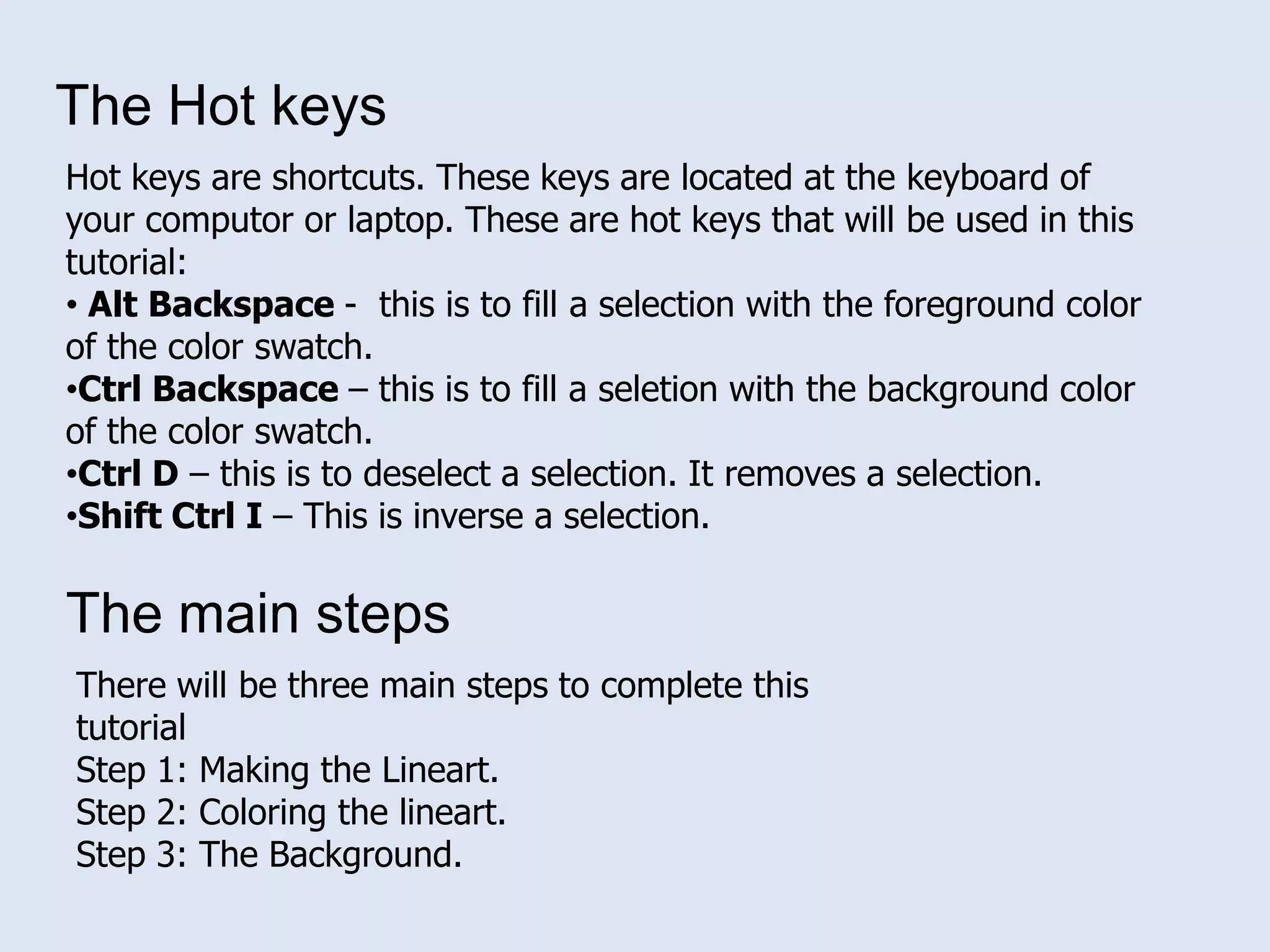
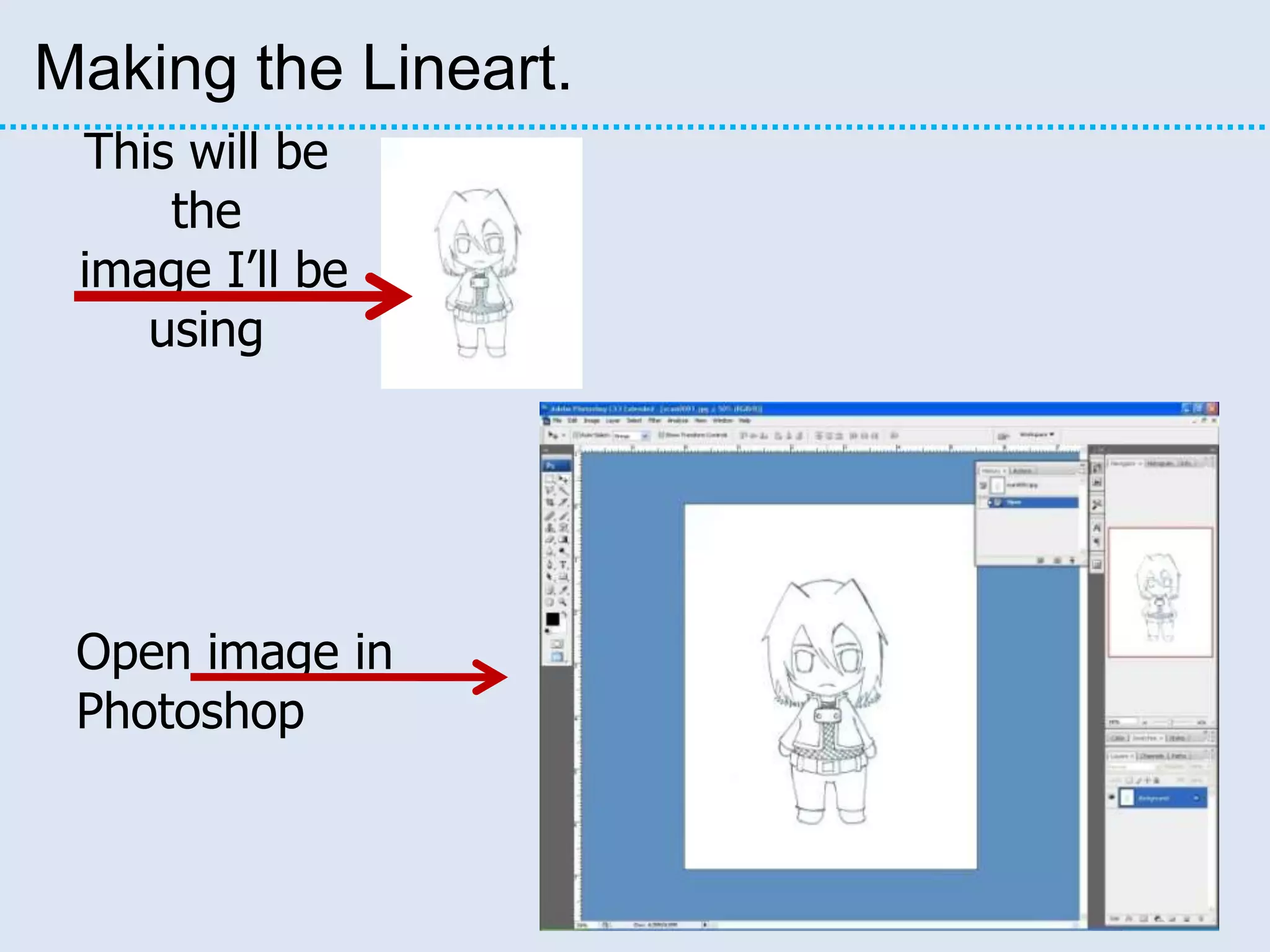
Making the Lineart.This will be the image I’ll be usingOpen image in Photoshop
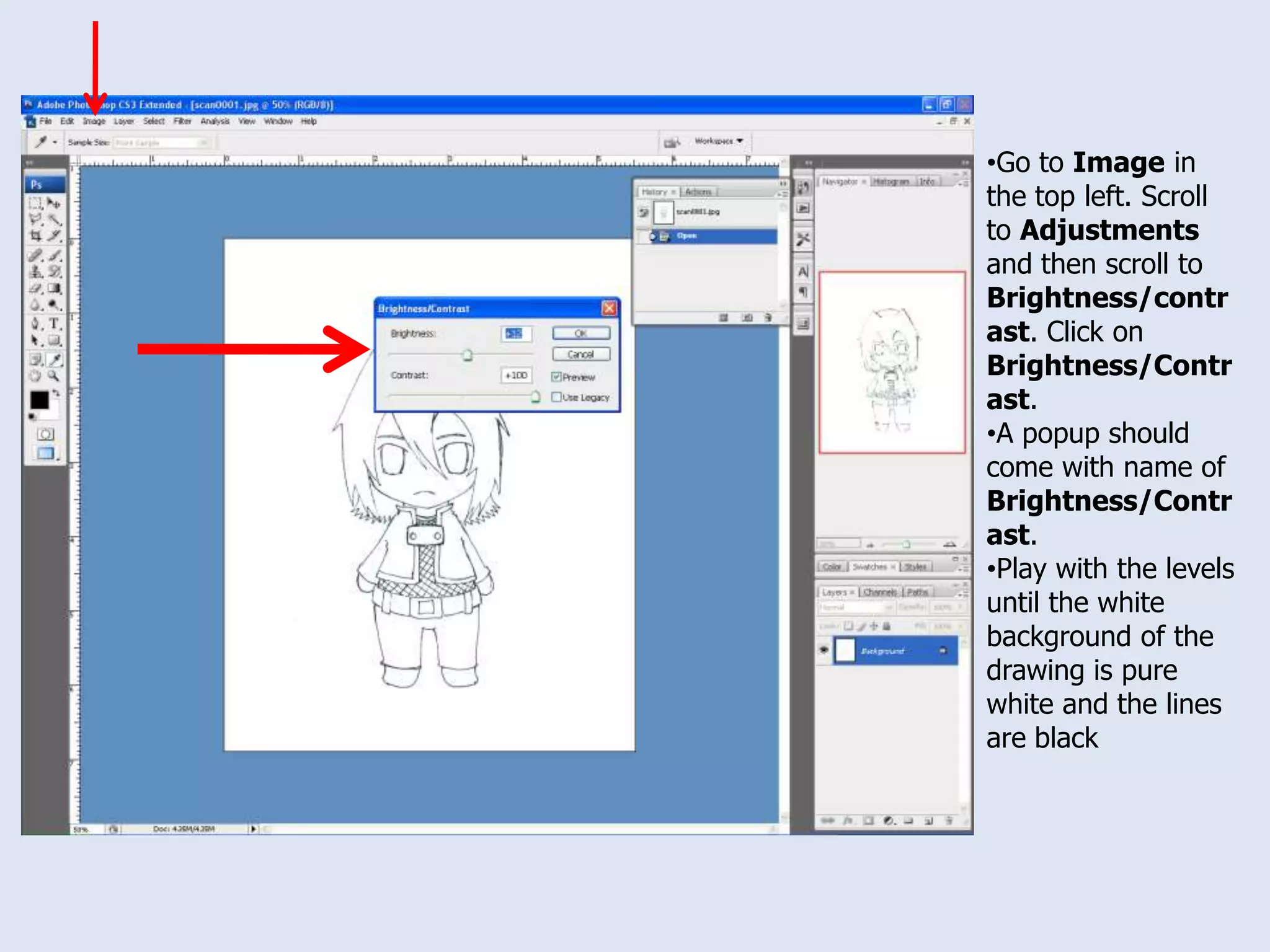
Go to Image in the top left. Scroll to Adjustments and then scroll to Brightness/contrast. Click on Brightness/Contrast.
A popup should come with name of Brightness/Contrast.
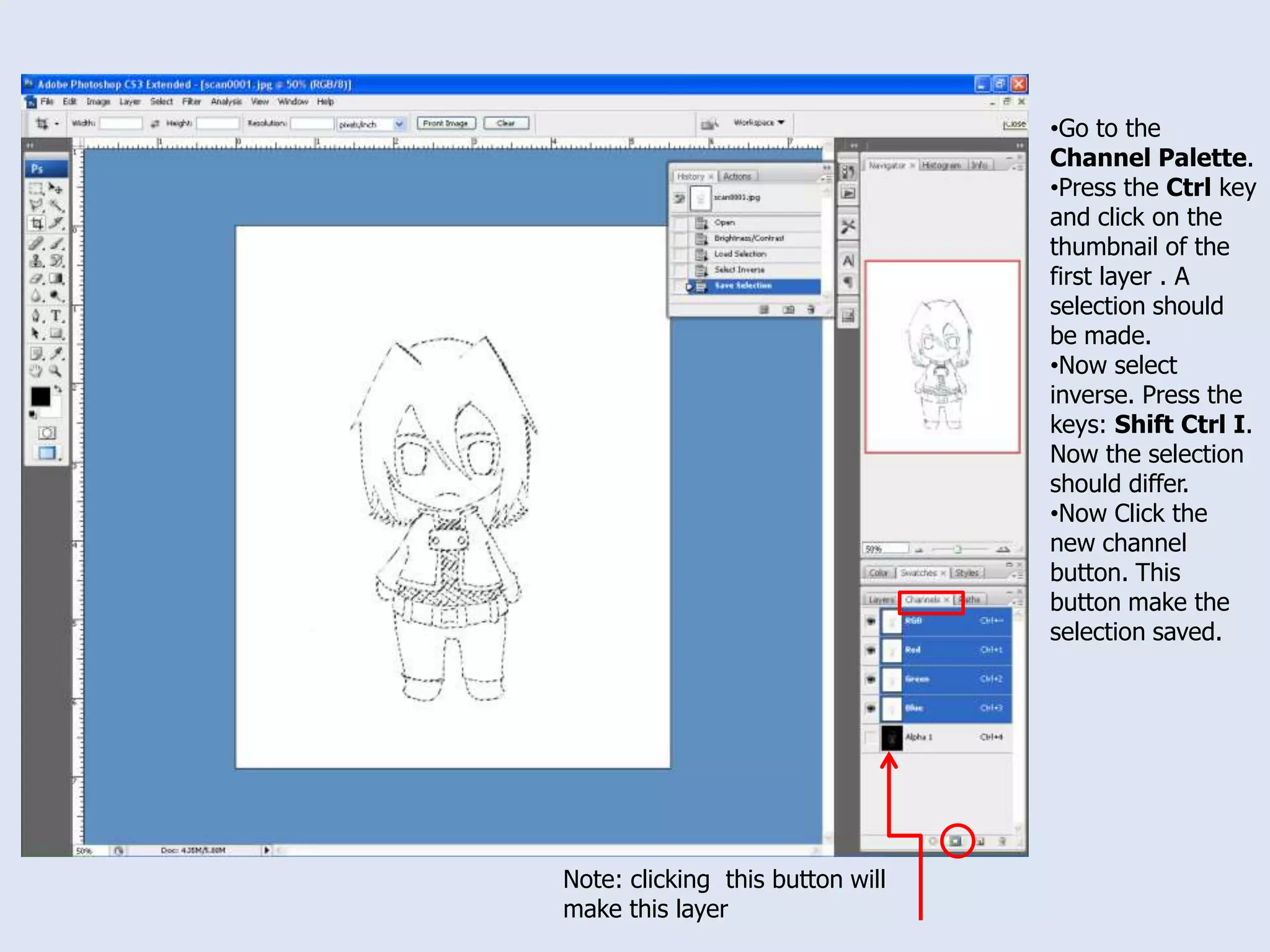
Play with the levels until the white background of the drawing is pure white and the lines are blackGo to the Channel Palette.
Press the Ctrl key and click on the thumbnail of the first layer . A selection should be made.
Now select inverse. Press the keys: Shift Ctrl I. Now the selection should differ.
Now Click the new channel button. This button make the selection saved.Note: clicking  this button will make this layer
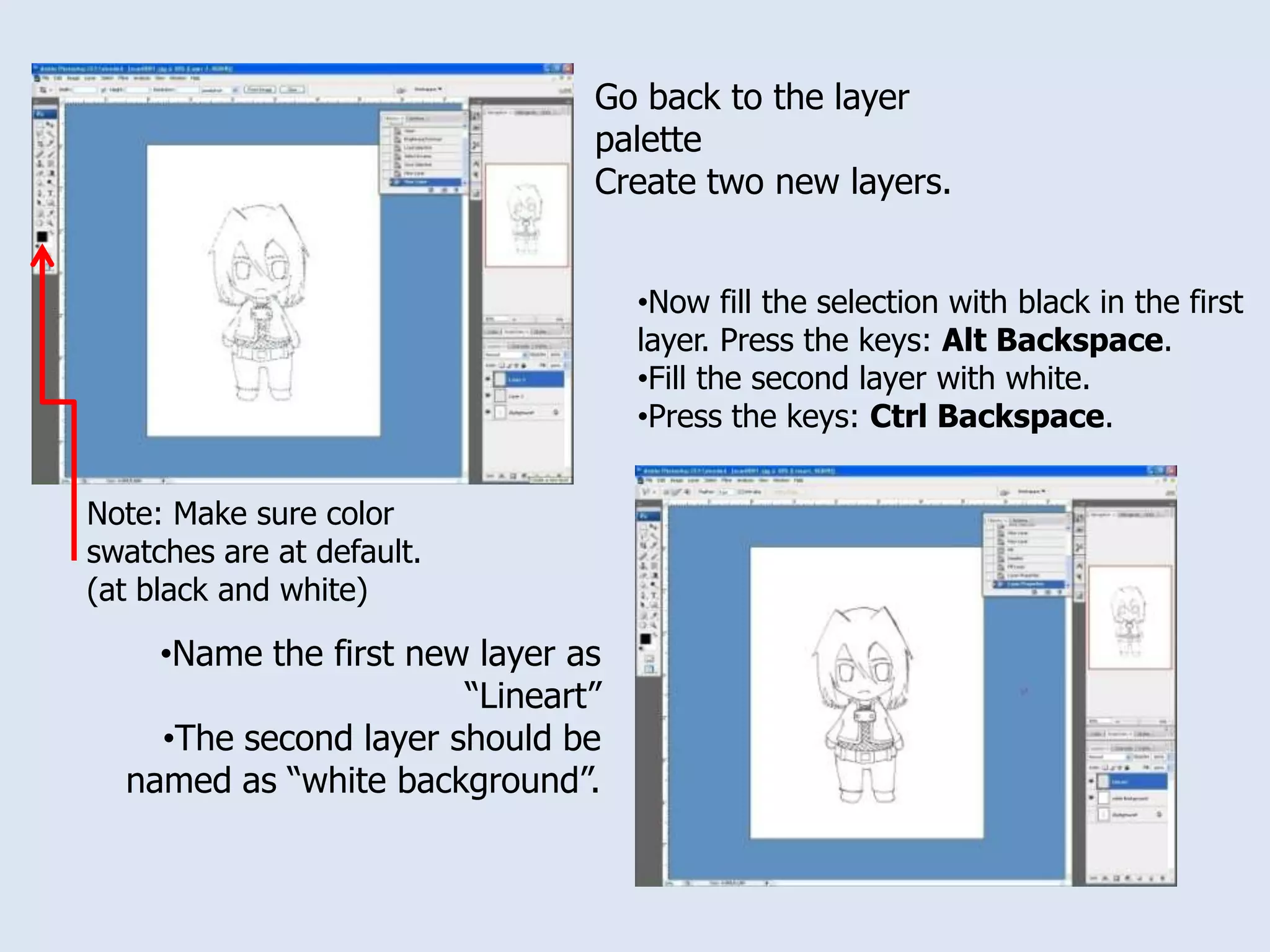
Go back to the layer paletteCreate two new layers.Now fill the selection with black in the first layer. Press the keys: Alt Backspace.
Fill the second layer with white.
Press the keys: Ctrl Backspace.Note: Make sure color swatches are at default. (at black and white)Name the first new layer as “Lineart”

How To Make A Lineart And Color It In Photoshop

  • 1.
    How to makea Lineart and color it in Photoshop.A lineart is lines and curves of a drawing. Coloring is the colors between/inside the lines. I will be demonstrating the steps to create the lineart and the coloring inside Photoshop. There are many different ways to create a lineart and color it but I will be doing the simplest form to do so.
  • 2.
  • 3.
  • 4.
    At least thebasic knowledge of Photoshop (i.e., knowing what Photoshop is and what it is used forThe tools/palettes inside of Photoshop that are going to be usedBrush tool
  • 5.
  • 6.
  • 7.
  • 8.
  • 9.
  • 10.
  • 11.
    Color Selecting BoxTheHot keysHot keys are shortcuts. These keys are located at the keyboard of your computor or laptop. These are hot keys that will be used in this tutorial: Alt Backspace - this is to fill a selection with the foreground color of the color swatch.
  • 12.
    Ctrl Backspace –this is to fill a seletion with the background color of the color swatch.
  • 13.
    Ctrl D –this is to deselect a selection. It removes a selection.
  • 14.
    Shift Ctrl I– This is inverse a selection.The main stepsThere will be three main steps to complete this tutorialStep 1: Making the Lineart.Step 2: Coloring the lineart.Step 3: The Background.
  • 15.
    Making the Lineart.Thiswill be the image I’ll be usingOpen image in Photoshop
  • 16.
    Go to Imagein the top left. Scroll to Adjustments and then scroll to Brightness/contrast. Click on Brightness/Contrast.
  • 17.
    A popup shouldcome with name of Brightness/Contrast.
  • 18.
    Play with thelevels until the white background of the drawing is pure white and the lines are blackGo to the Channel Palette.
  • 19.
    Press the Ctrlkey and click on the thumbnail of the first layer . A selection should be made.
  • 20.
    Now select inverse.Press the keys: Shift Ctrl I. Now the selection should differ.
  • 21.
    Now Click thenew channel button. This button make the selection saved.Note: clicking this button will make this layer
  • 22.
    Go back tothe layer paletteCreate two new layers.Now fill the selection with black in the first layer. Press the keys: Alt Backspace.
  • 23.
    Fill the secondlayer with white.
  • 24.
    Press the keys:Ctrl Backspace.Note: Make sure color swatches are at default. (at black and white)Name the first new layer as “Lineart”
  • 25.
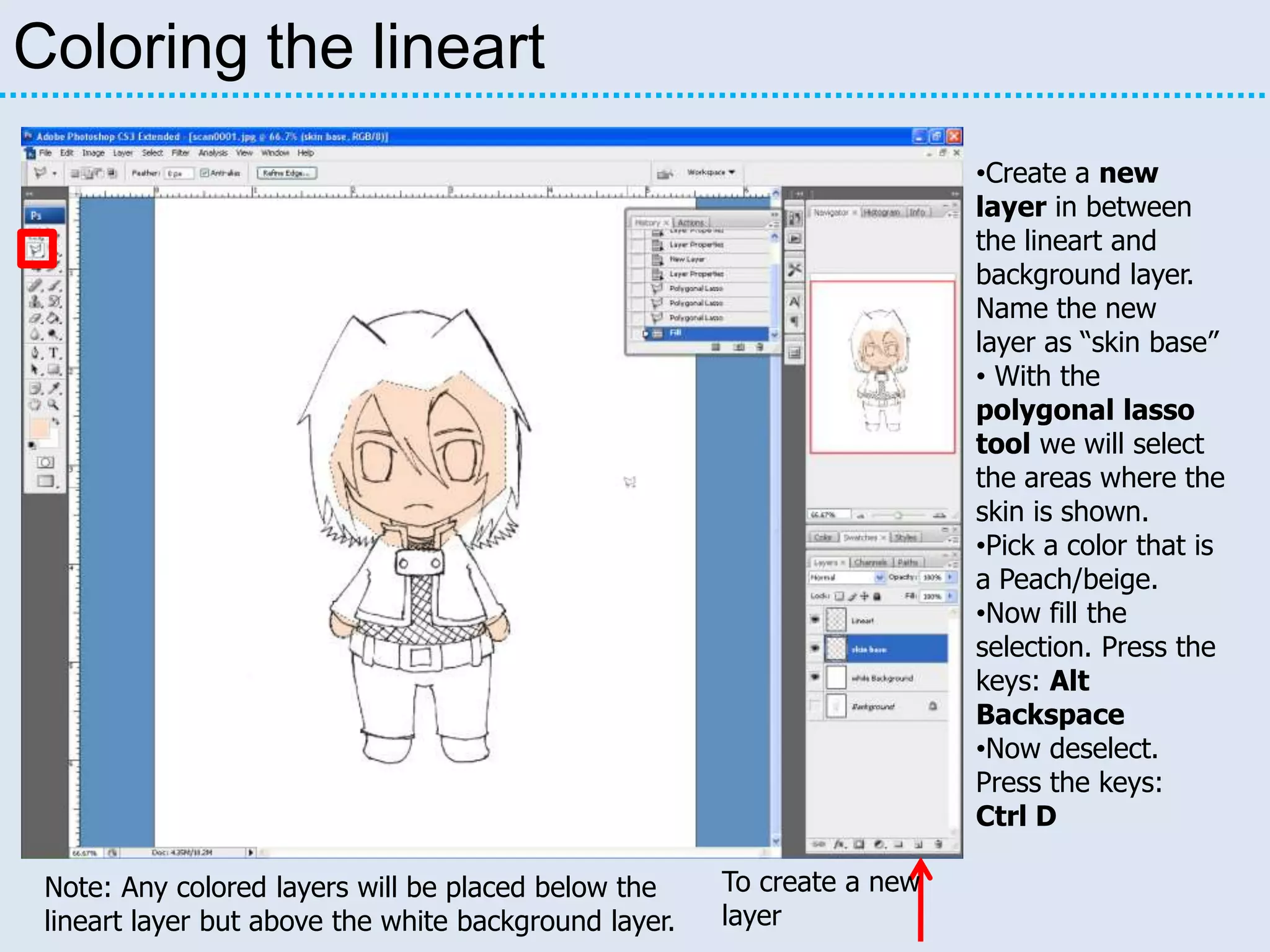
    The second layershould be named as “white background”.Coloring the lineartCreate a new layer in between the lineart and background layer. Name the new layer as “skin base”
  • 26.
    With the polygonallasso tool we will select the areas where the skin is shown.
  • 27.
    Pick a colorthat is a Peach/beige.
  • 28.
    Now fill theselection. Press the keys: Alt Backspace
  • 29.
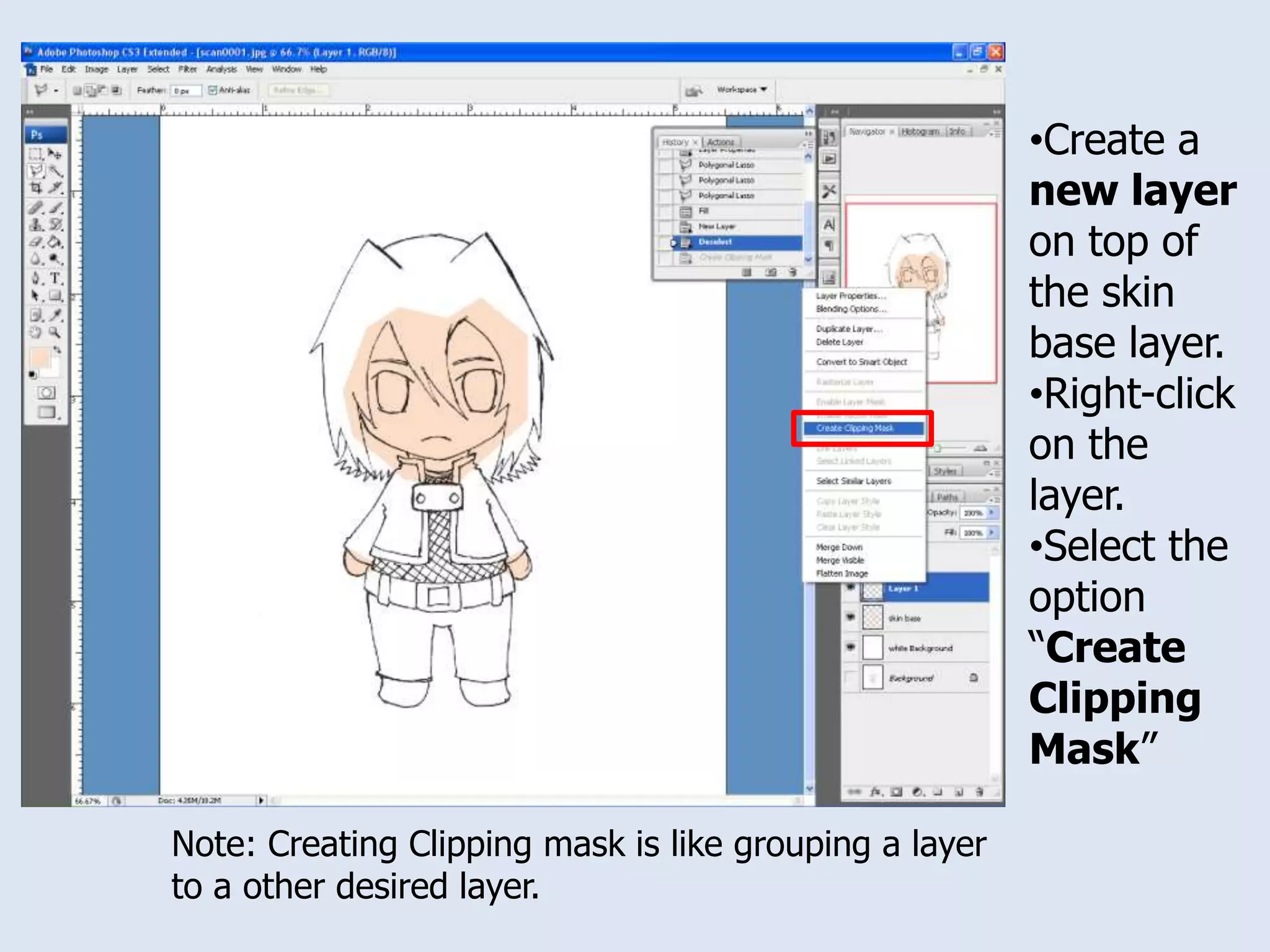
    Now deselect. Pressthe keys: Ctrl DTo create a new layerNote: Any colored layers will be placed below the lineart layer but above the white background layer.
  • 30.
    Create a newlayer on top of the skin base layer.
  • 31.
  • 32.
    Select the option“Create Clipping Mask”Note: Creating Clipping mask is like grouping a layer to a other desired layer.
  • 33.
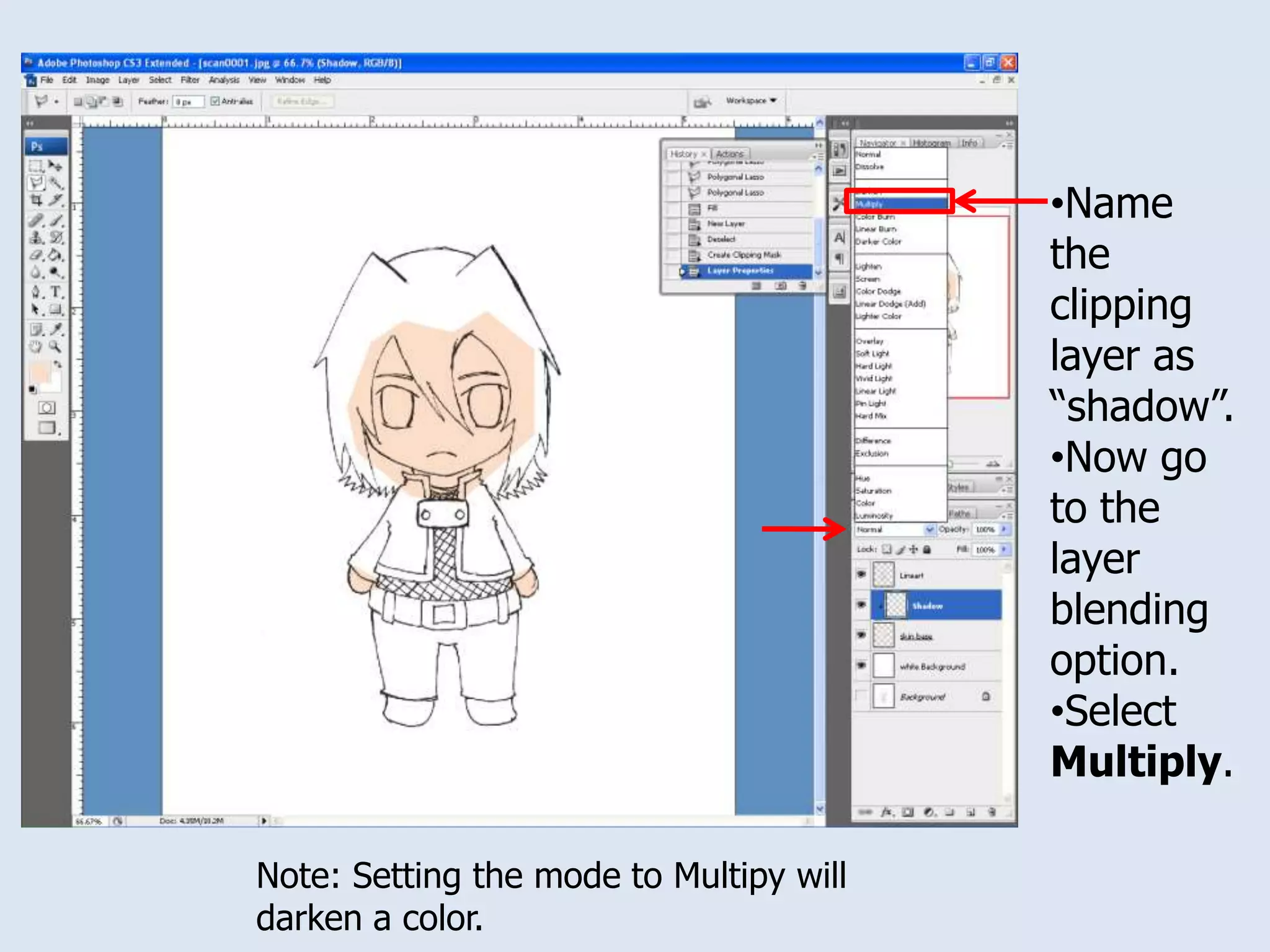
    Name the clippinglayer as “shadow”.
  • 34.
    Now go tothe layer blending option.
  • 35.
    Select Multiply.Note: Settingthe mode to Multipy will darken a color.
  • 36.
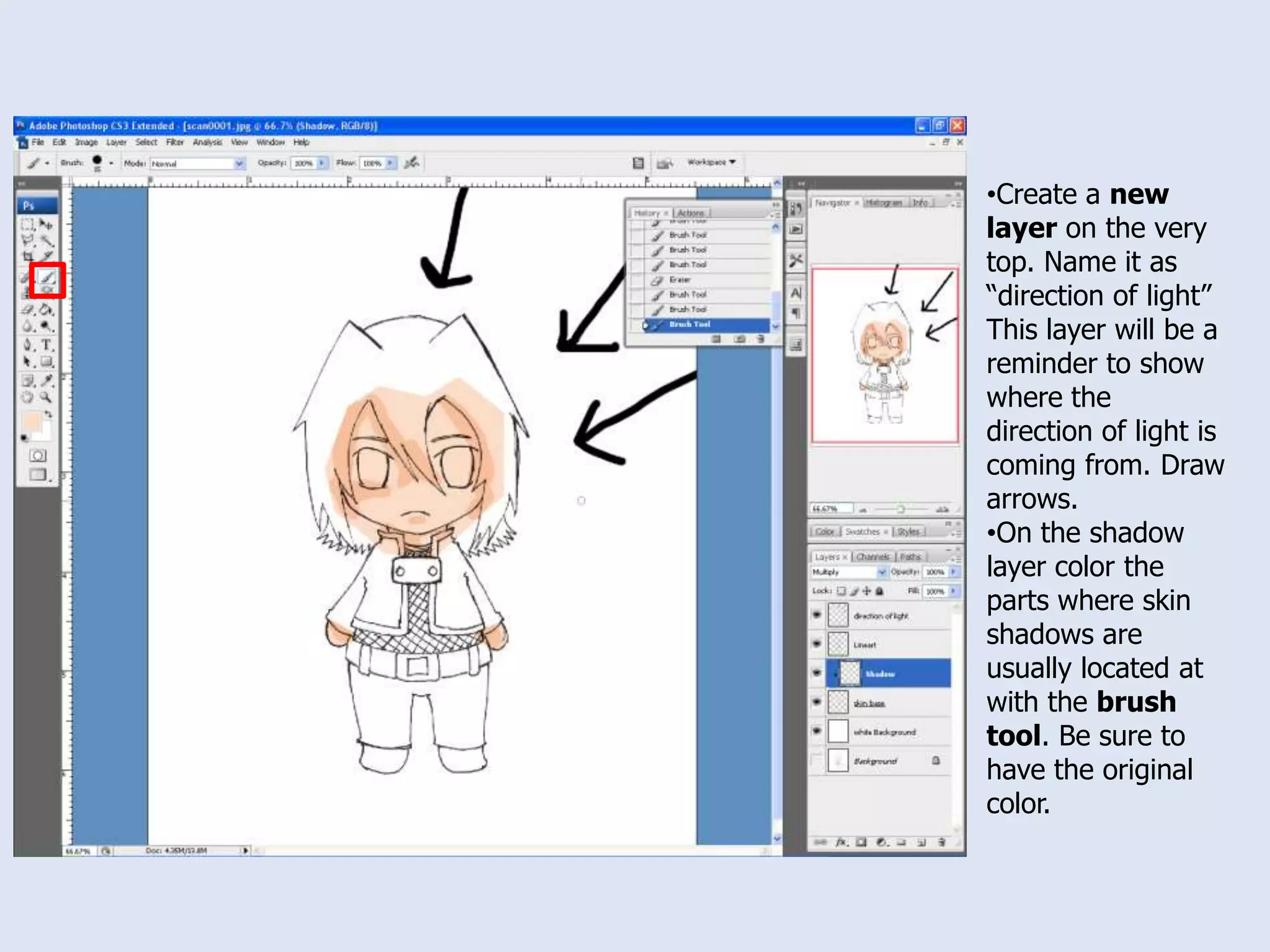
    Create a newlayer on the very top. Name it as “direction of light” This layer will be a reminder to show where the direction of light is coming from. Draw arrows.
  • 37.
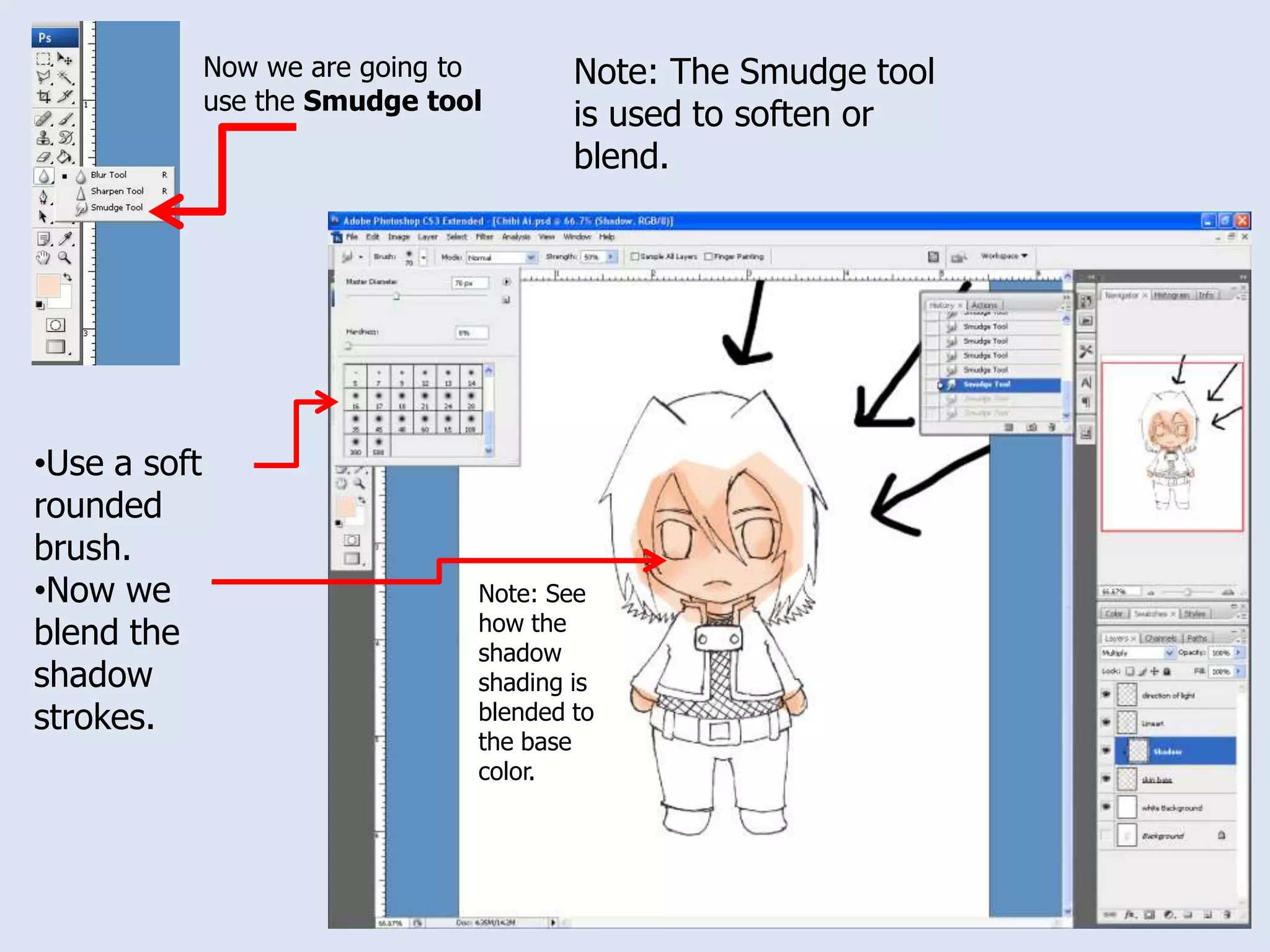
    On the shadowlayer color the parts where skin shadows are usually located at with the brush tool. Be sure to have the original color. Now we are going to use the Smudge toolNote: The Smudge tool is used to soften or blend.Use a soft rounded brush.
  • 38.
    Now we blendthe shadow strokes.Note: See how the shadow shading is blended to the base color.
  • 39.
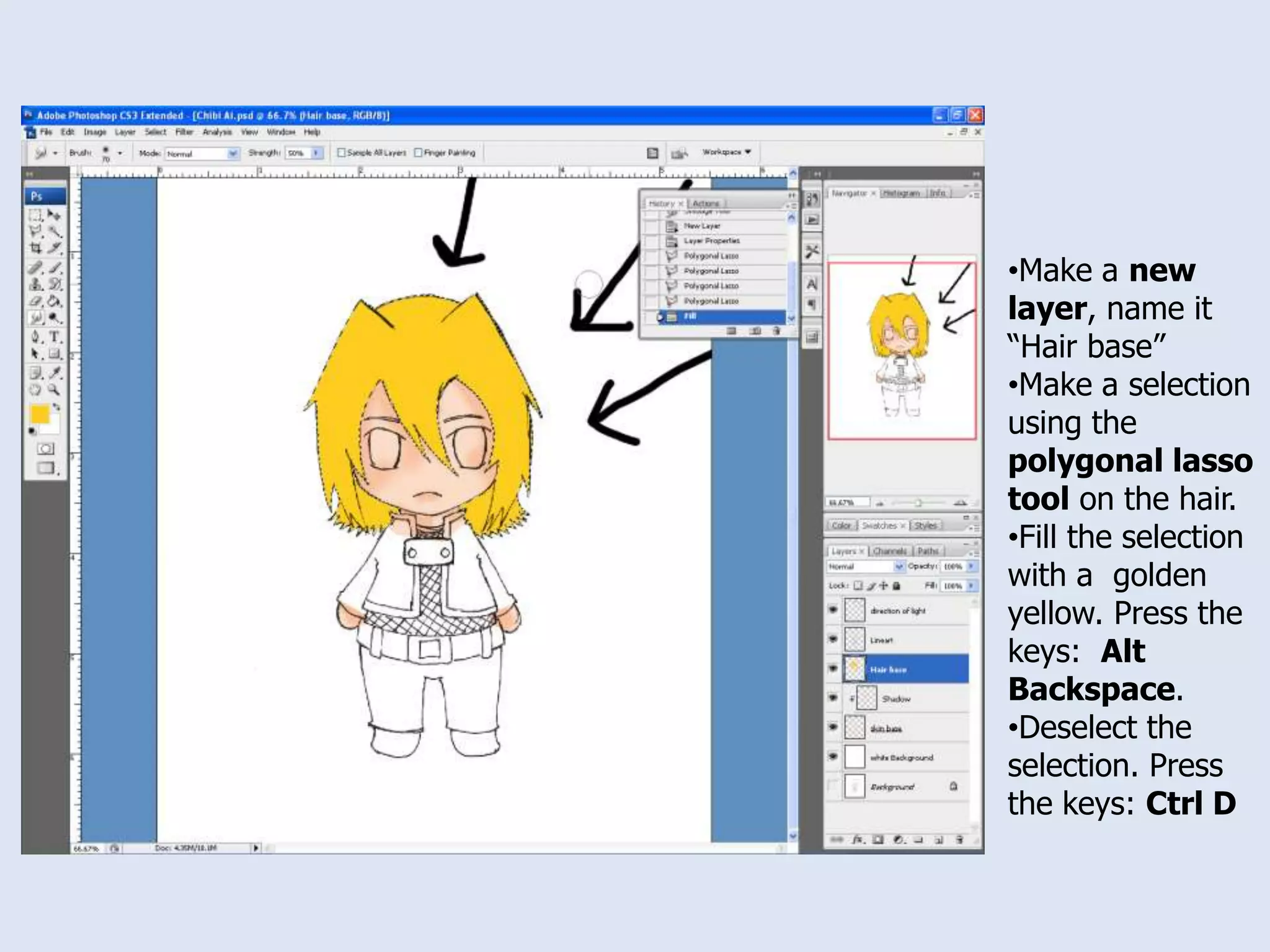
    Make a newlayer, name it “Hair base”
  • 40.
    Make a selectionusing the polygonal lasso tool on the hair.
  • 41.
    Fill the selectionwith a golden yellow. Press the keys: Alt Backspace.
  • 42.
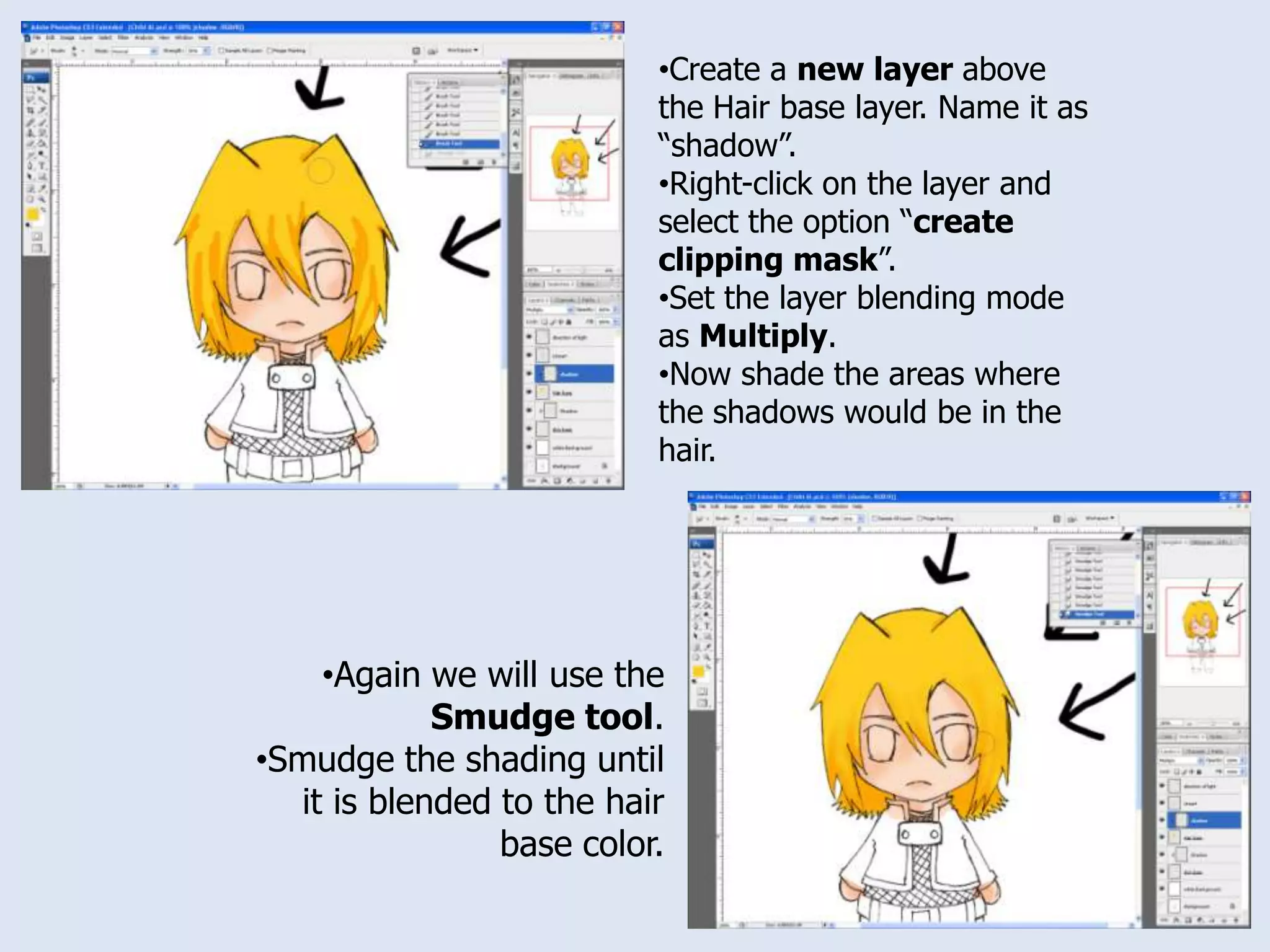
    Deselect the selection.Press the keys: Ctrl DCreate a new layer above the Hair base layer. Name it as “shadow”.
  • 43.
    Right-click on thelayer and select the option “create clipping mask”.
  • 44.
    Set the layerblending mode as Multiply.
  • 45.
    Now shade theareas where the shadows would be in the hair.
  • 46.
    Again we willuse the Smudge tool.
  • 47.
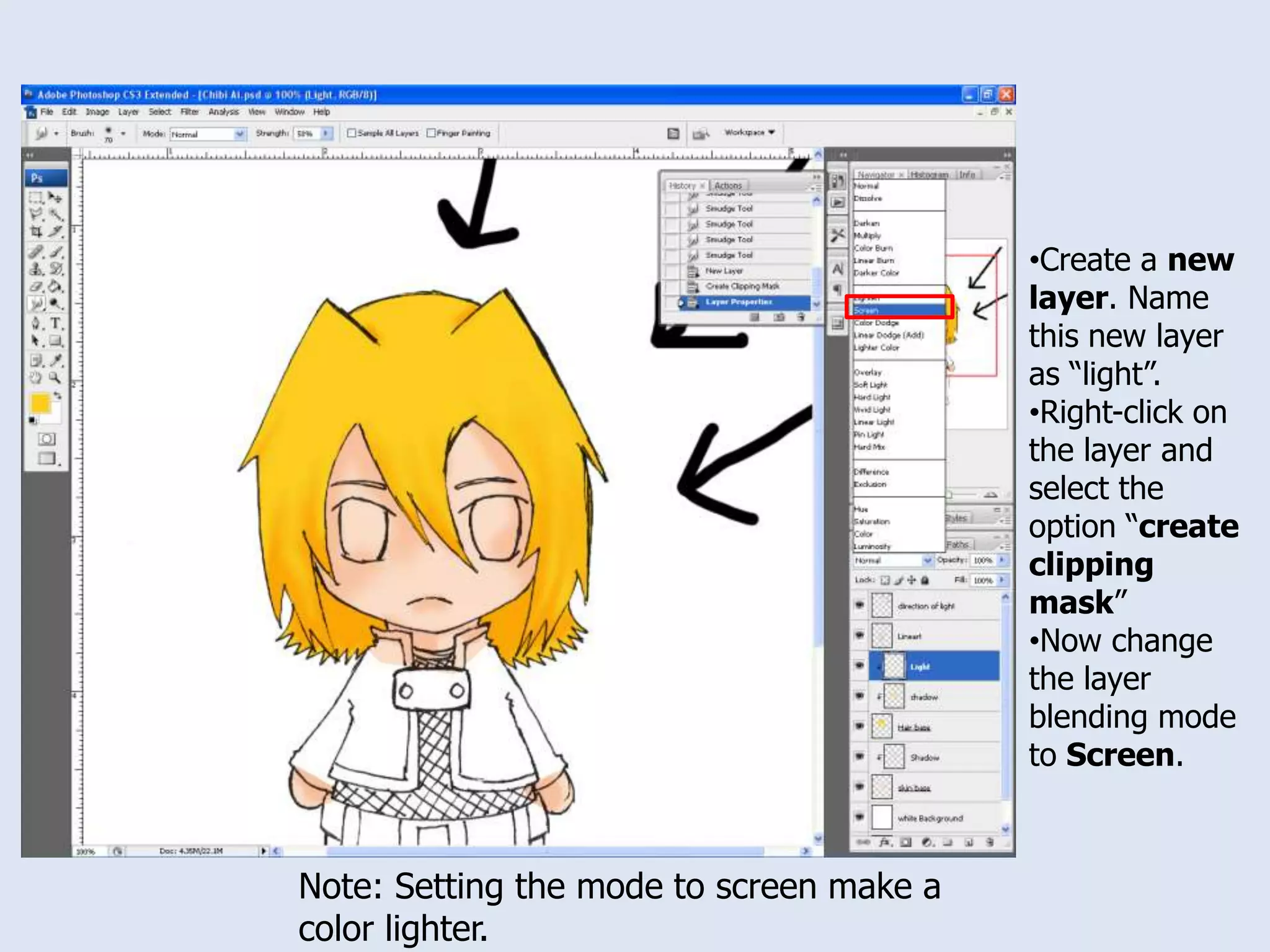
    Smudge the shadinguntil it is blended to the hair base color.Create a new layer. Name this new layer as “light”.
  • 48.
    Right-click on thelayer and select the option “create clipping mask”
  • 49.
    Now change thelayer blending mode to Screen.Note: Setting the mode to screen make a color lighter.
  • 50.
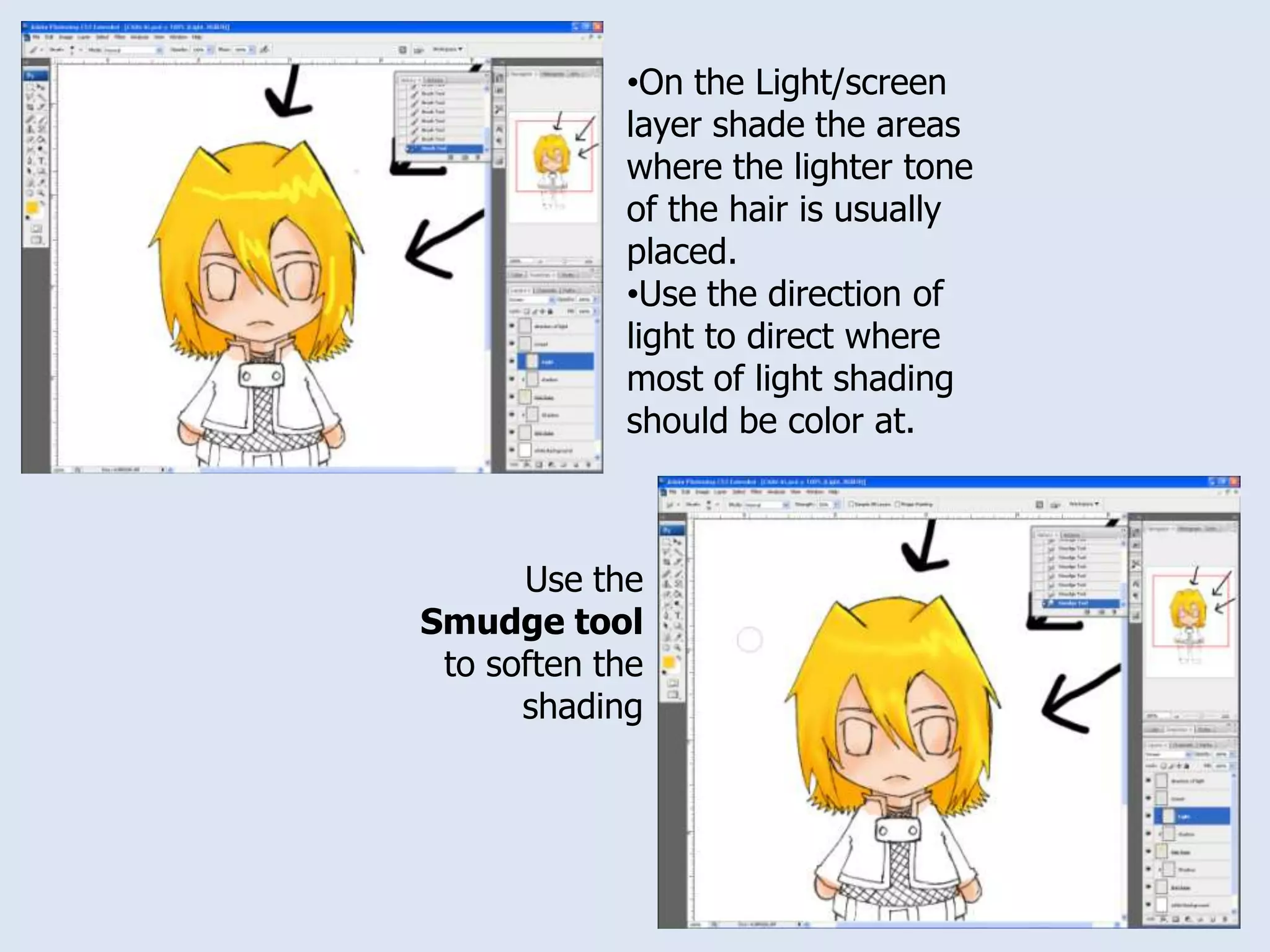
    On the Light/screenlayer shade the areas where the lighter tone of the hair is usually placed.
  • 51.
    Use the directionof light to direct where most of light shading should be color at.Use the Smudge tool to soften the shading
  • 52.
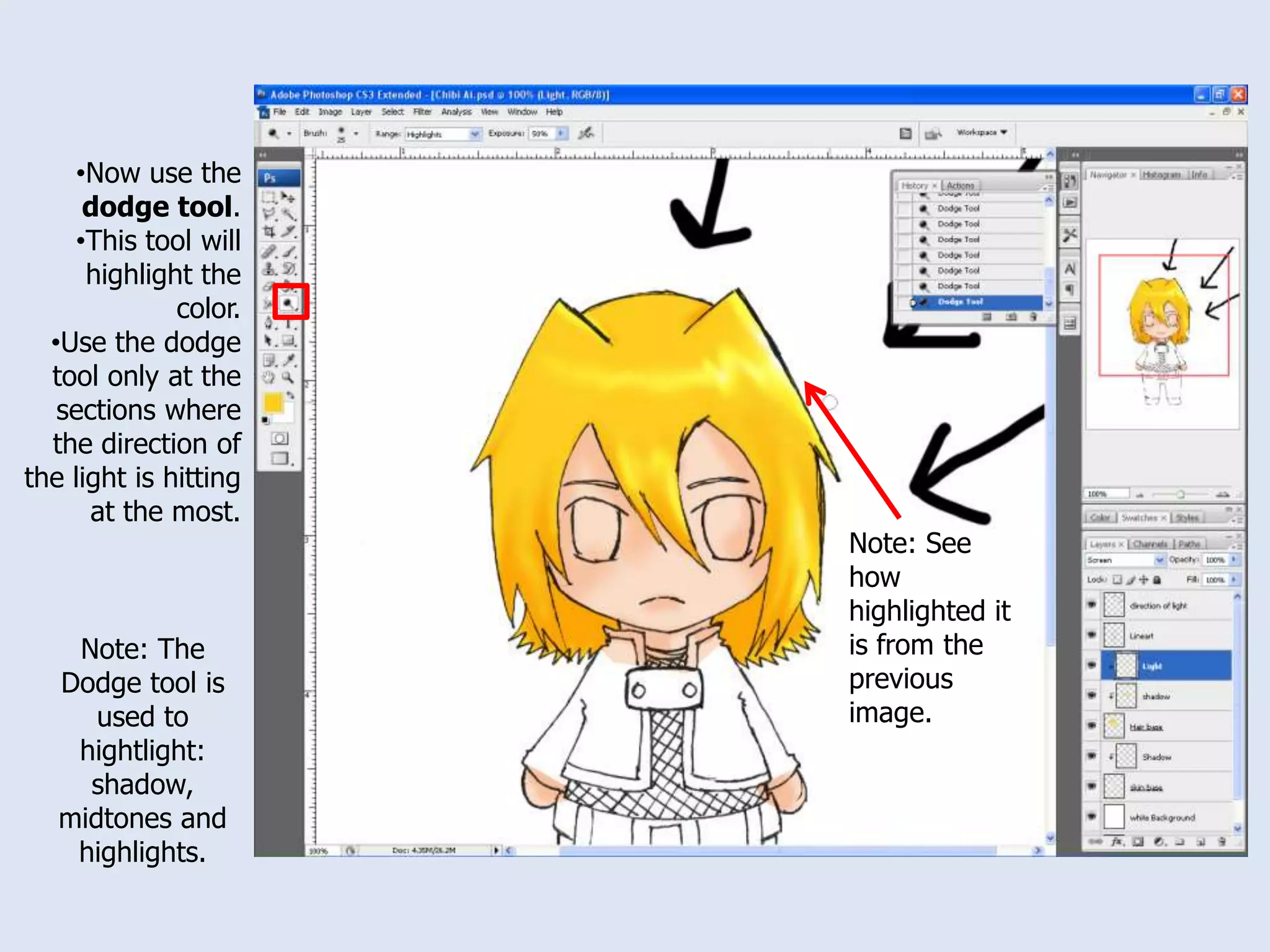
    Now use thedodge tool.
  • 53.
    This tool willhighlight the color.
  • 54.
    Use the dodgetool only at the sections where the direction of the light is hitting at the most.Note: See how highlighted it is from the previous image.Note: The Dodge tool is used to hightlight: shadow, midtones and highlights.
  • 55.
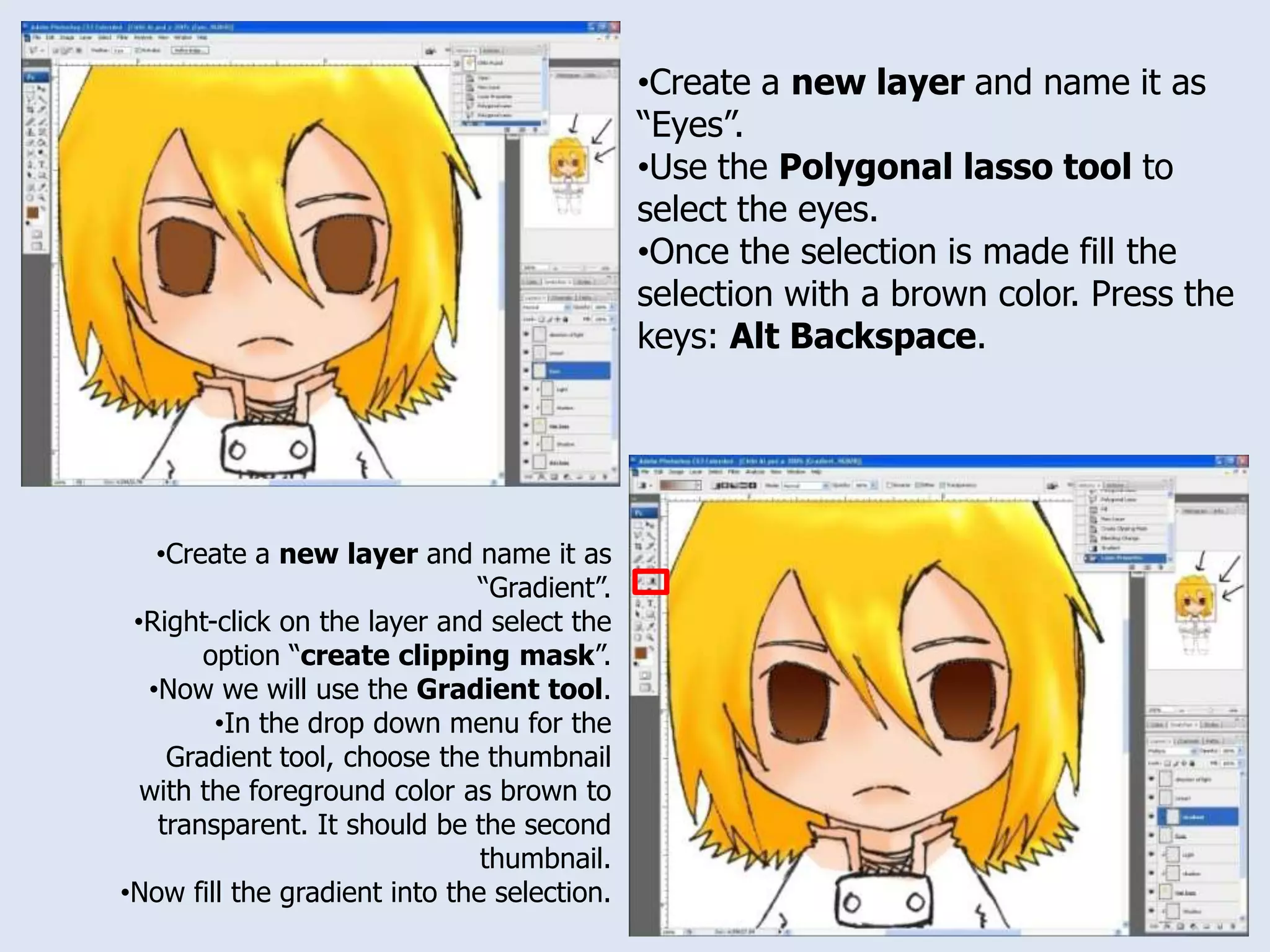
    Create a newlayer and name it as “Eyes”.
  • 56.
    Use the Polygonallasso tool to select the eyes.
  • 57.
    Once the selectionis made fill the selection with a brown color. Press the keys: Alt Backspace.
  • 58.
    Create a newlayer and name it as “Gradient”.
  • 59.
    Right-click on thelayer and select the option “create clipping mask”.
  • 60.
    Now we willuse the Gradient tool.
  • 61.
    In the dropdown menu for the Gradient tool, choose the thumbnail with the foreground color as brown to transparent. It should be the second thumbnail.
  • 62.
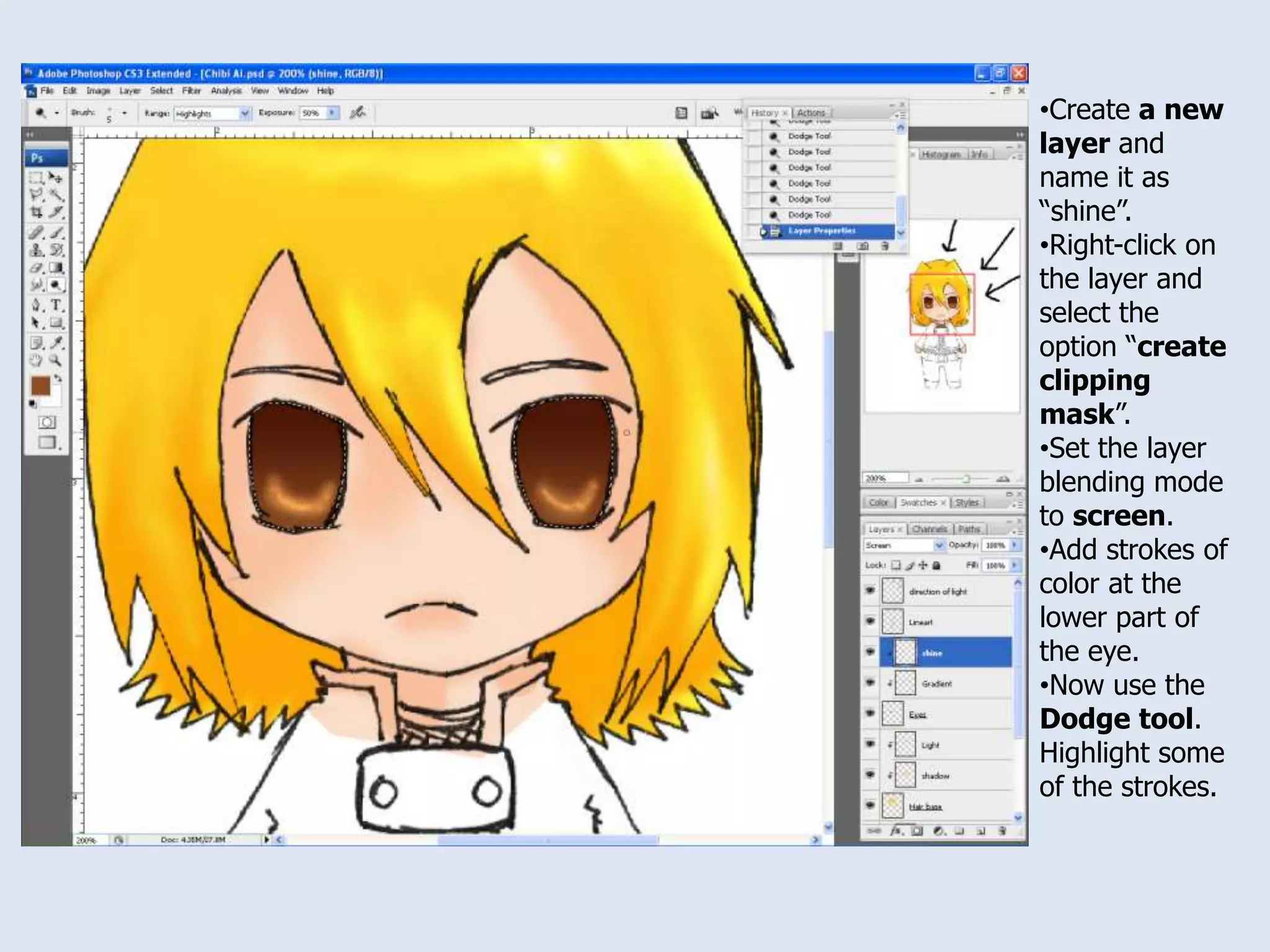
    Now fill thegradient into the selection.Create a new layer and name it as “shine”.
  • 63.
    Right-click on thelayer and select the option “create clipping mask”.
  • 64.
    Set the layerblending mode to screen.
  • 65.
    Add strokes ofcolor at the lower part of the eye.
  • 66.
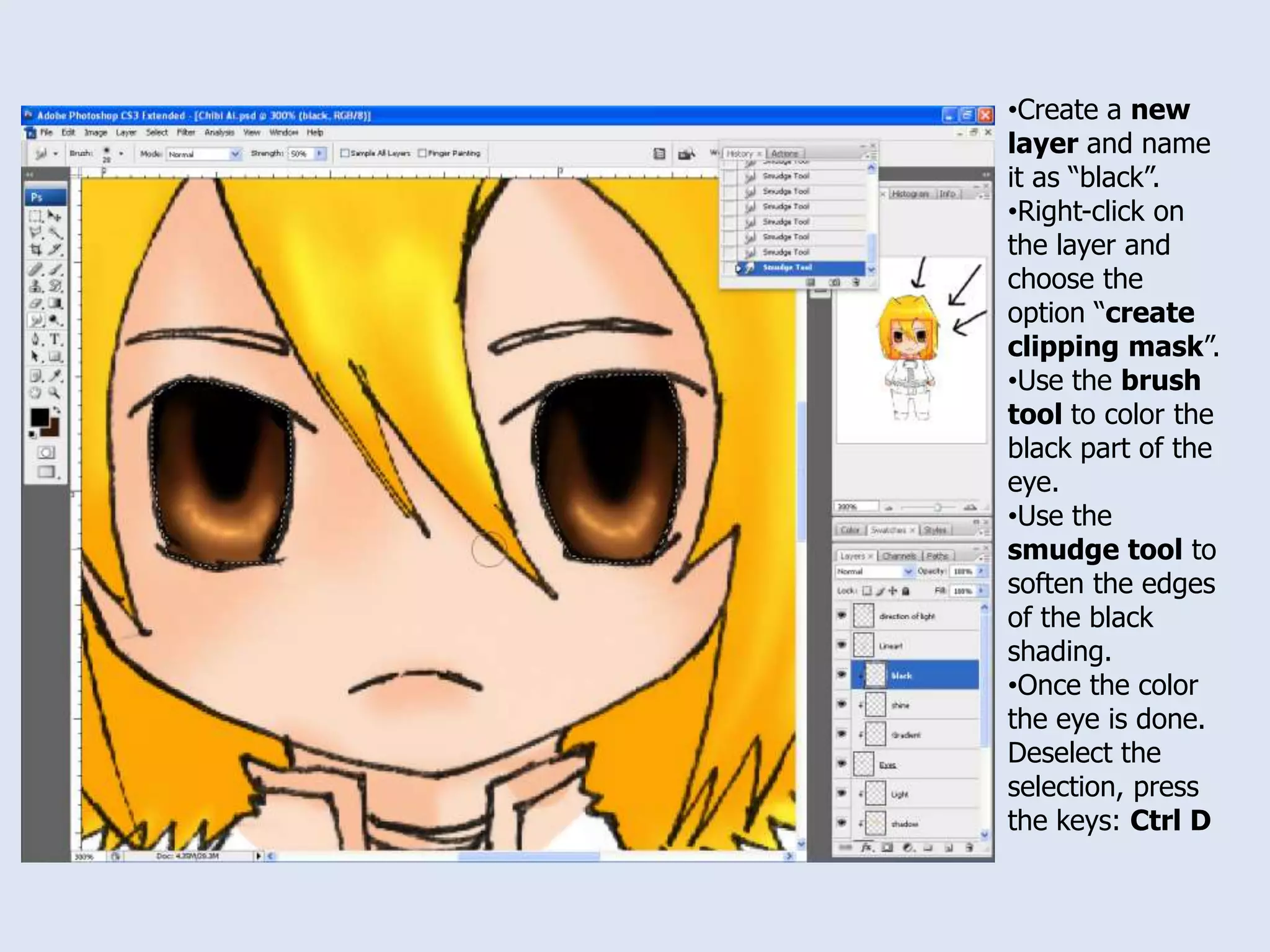
    Now use theDodge tool. Highlight some of the strokes.Create a new layer and name it as “black”.
  • 67.
    Right-click on thelayer and choose the option “create clipping mask”.
  • 68.
    Use the brushtool to color the black part of the eye.
  • 69.
    Use the smudgetool to soften the edges of the black shading.
  • 70.
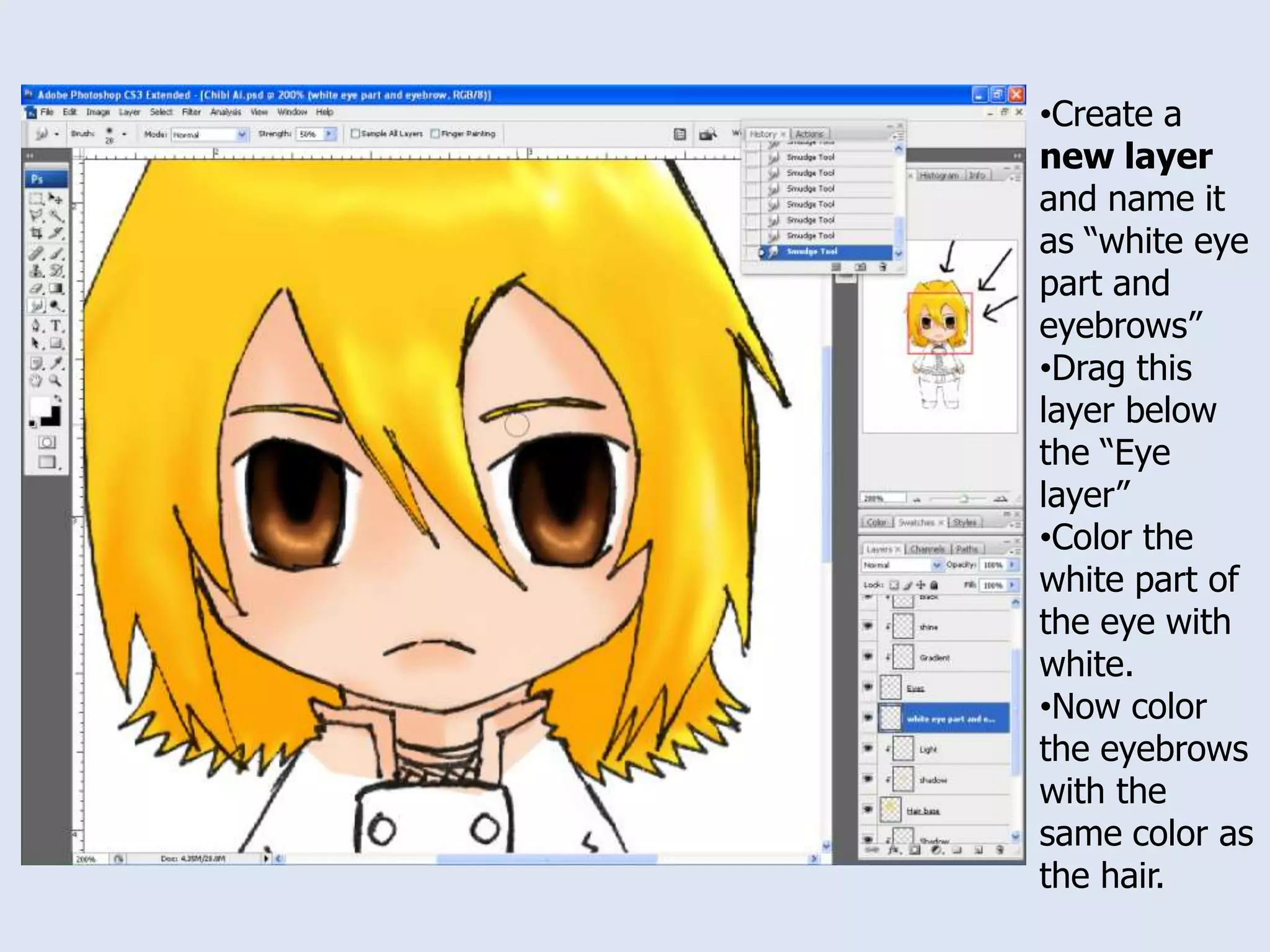
    Once the colorthe eye is done. Deselect the selection, press the keys: Ctrl DCreate a new layer and name it as “white eye part and eyebrows”
  • 71.
    Drag this layerbelow the “Eye layer”
  • 72.
    Color the whitepart of the eye with white.
  • 73.
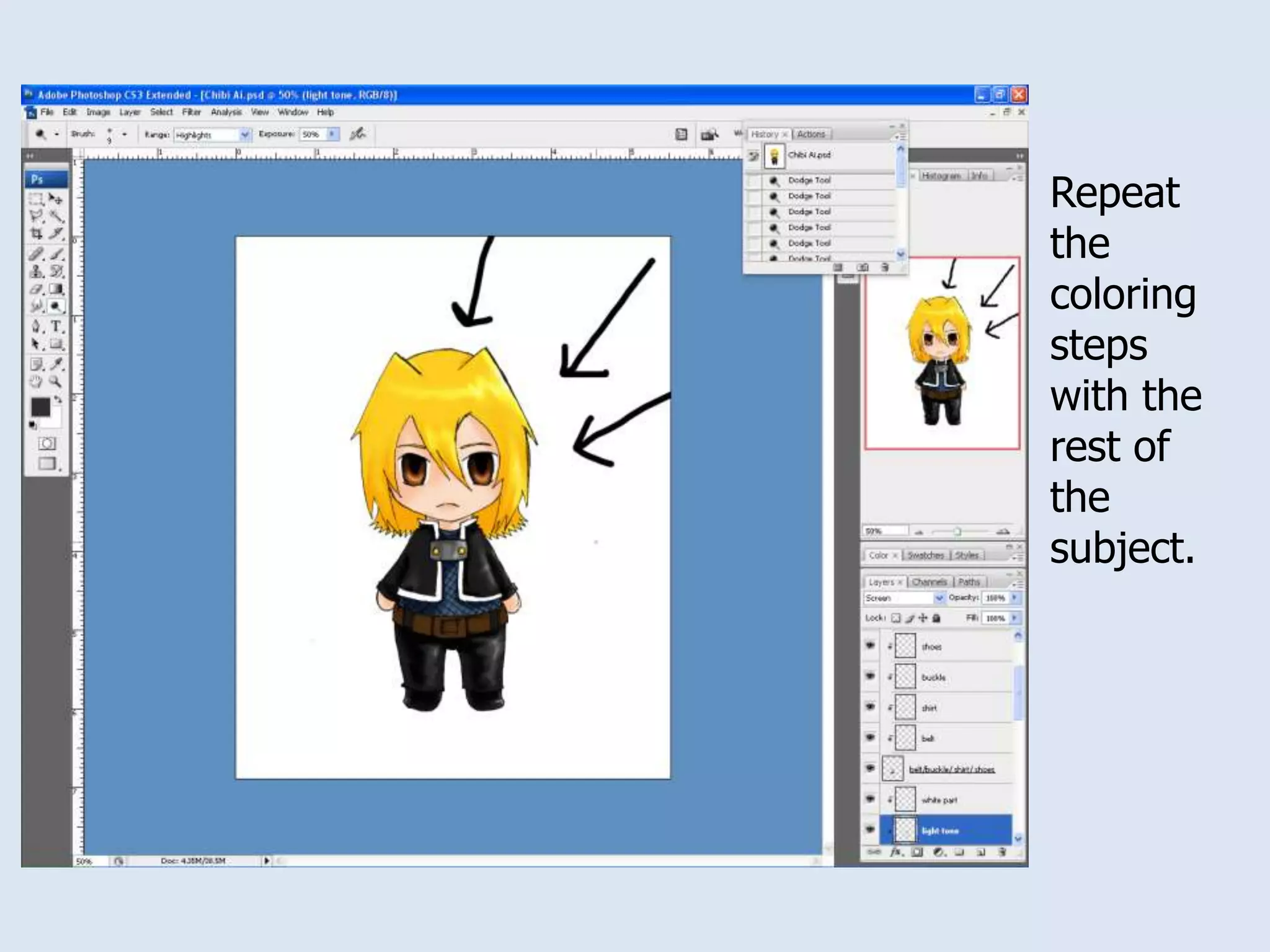
    Now color theeyebrows with the same color as the hair.Repeat the coloring steps with the rest of the subject.
  • 74.
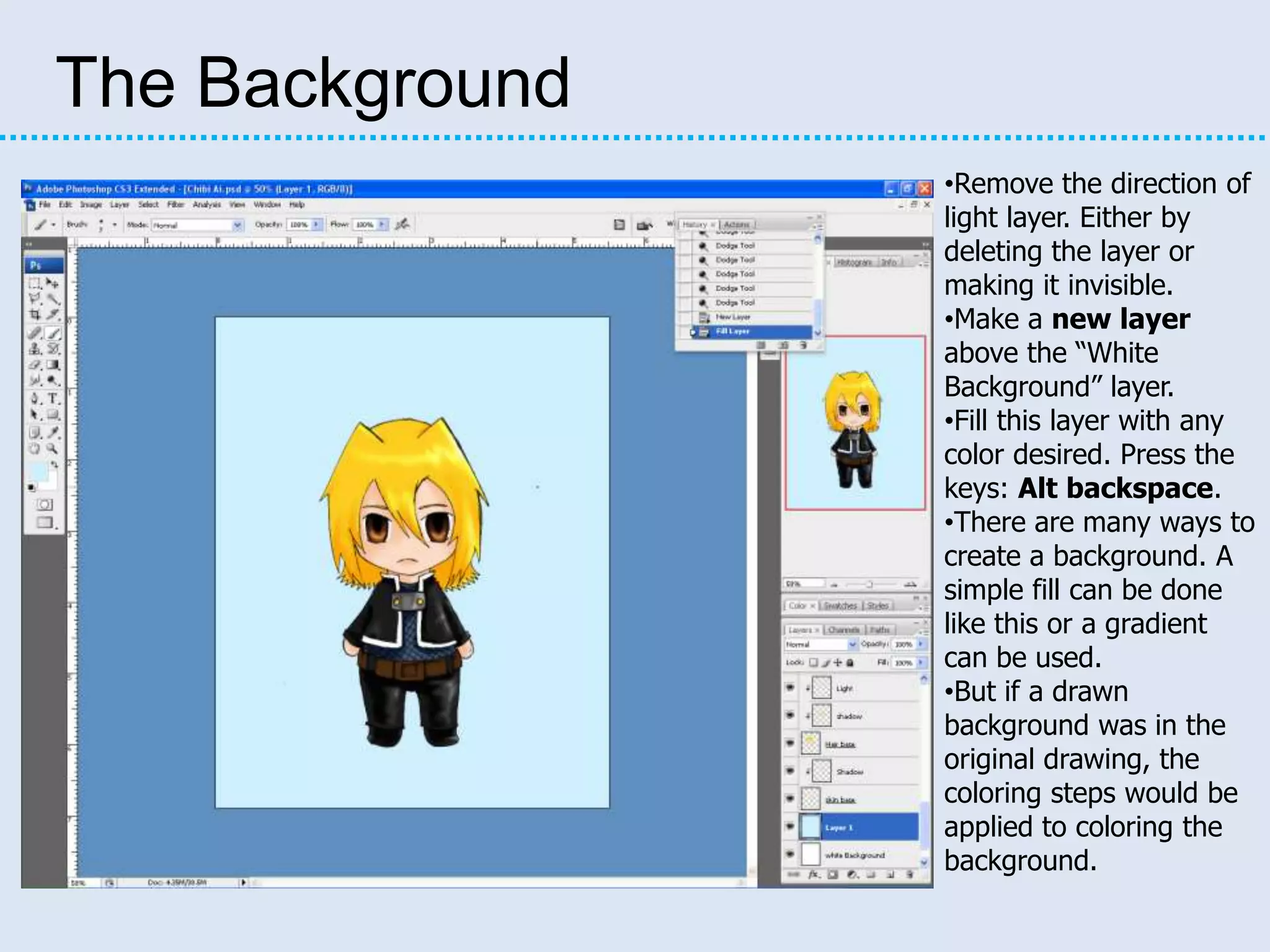
    The BackgroundRemove thedirection of light layer. Either by deleting the layer or making it invisible.
  • 75.
    Make a newlayer above the “White Background” layer.
  • 76.
    Fill this layerwith any color desired. Press the keys: Alt backspace.
  • 77.
    There are manyways to create a background. A simple fill can be done like this or a gradient can be used.
  • 78.
    But if adrawn background was in the original drawing, the coloring steps would be applied to coloring the background.Congratulations. You now have completed this tutorial. You now have the knowledge to create a lineart and color it inside of Photoshop. There are many different ways to create a lineart and color it. I know the one I have demonstrated is the simplest and easiest way to create one in saving time and effort.Now that you know the steps to create a lineart and color it in Photoshop you can now explore more complicated and different ways if you choose to learn more.