TOPIC 2: HARDWARE COMPONENTS
    FOR INTEGRATIVE MEDIA SYSTEMS
1
2.1 PERSONAL COMPUTER
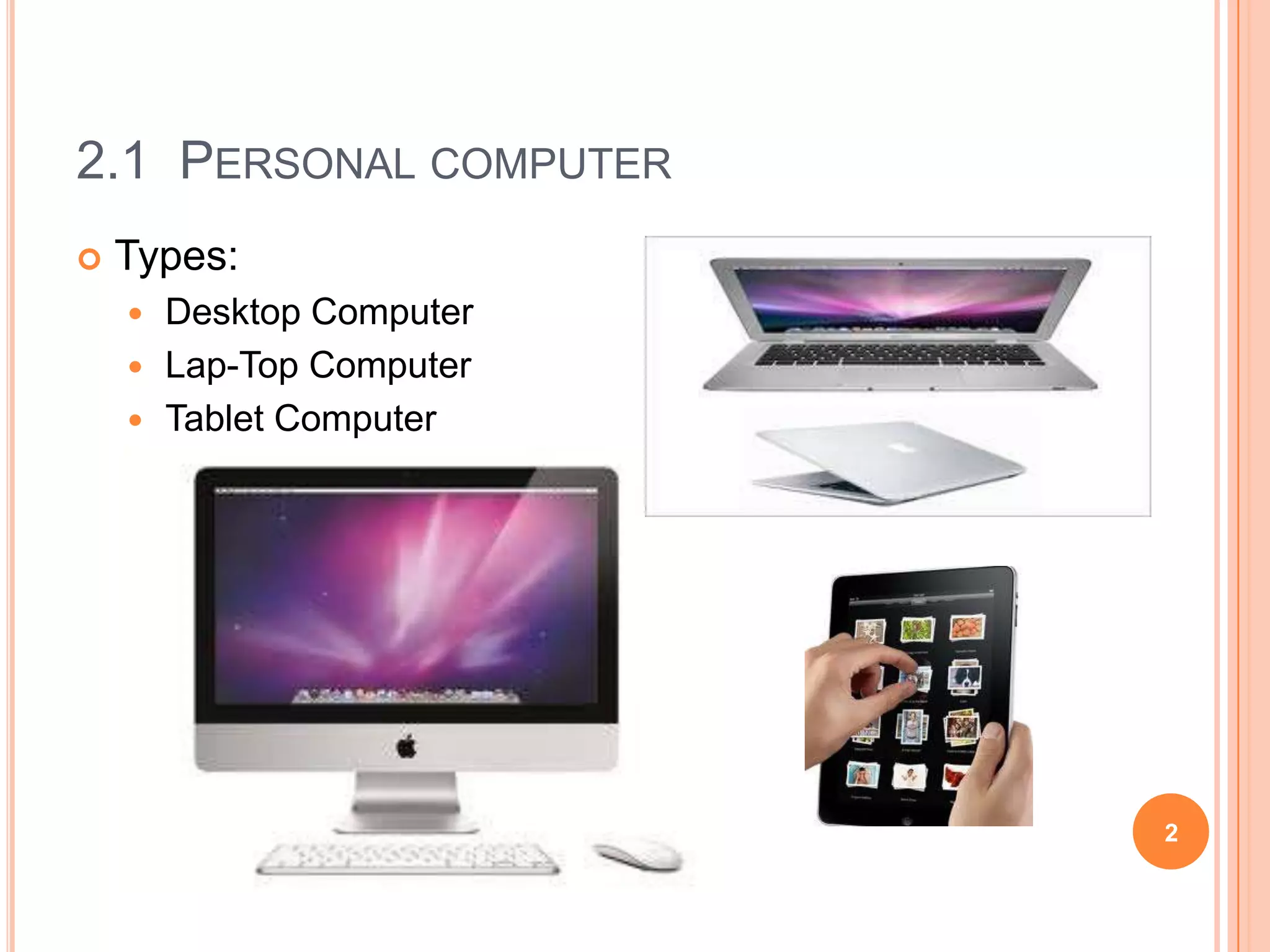
   Types:
     Desktop Computer
     Lap-Top Computer
     Tablet Computer


                         2
2.1 PERSONAL COMPUTER


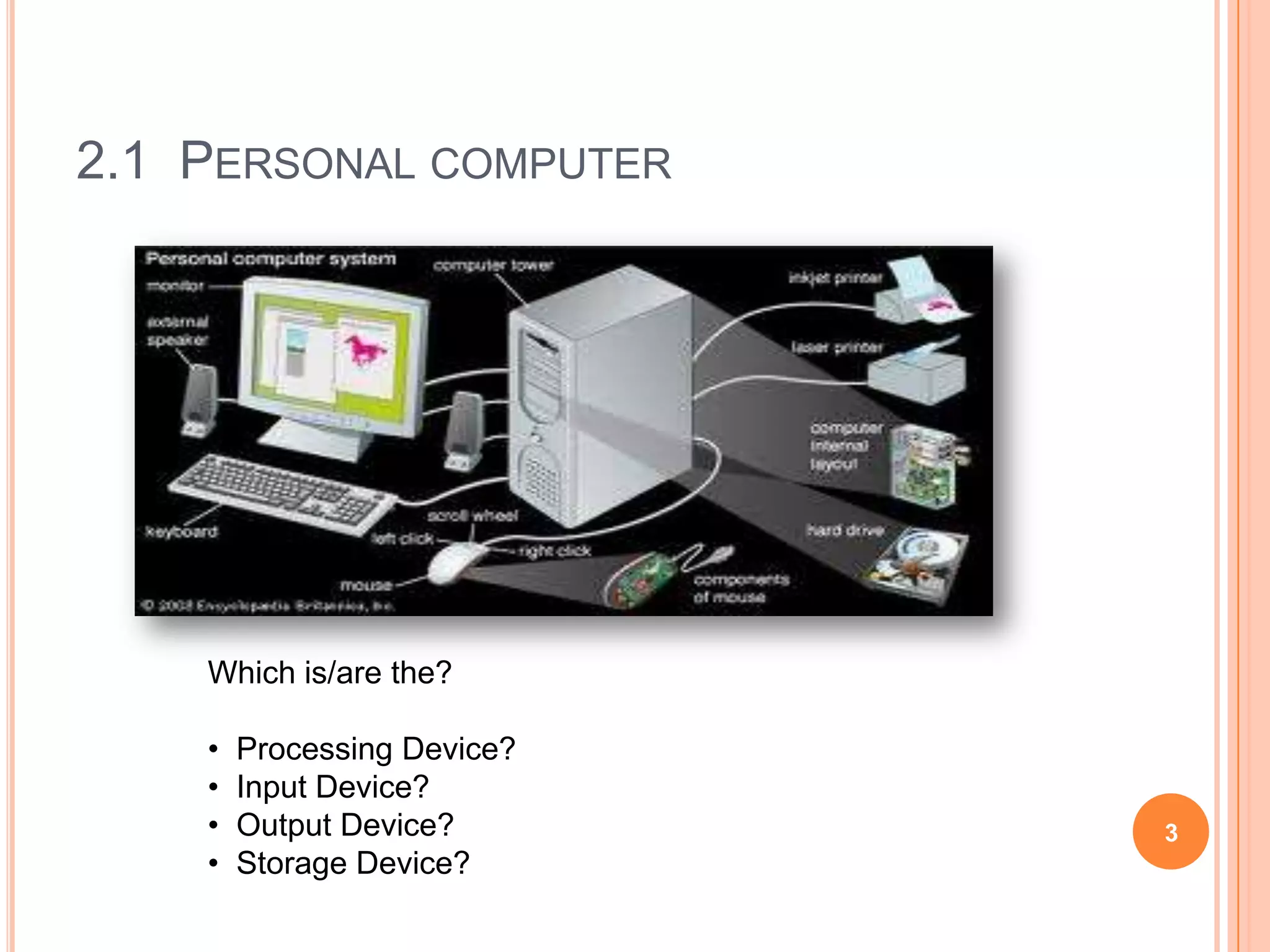
    Which is/are the?

    •   Processing Device?
    •   Input Device?
    •   Output Device?       3
    •   Storage Device?
2.1 PERSONAL COMPUTER
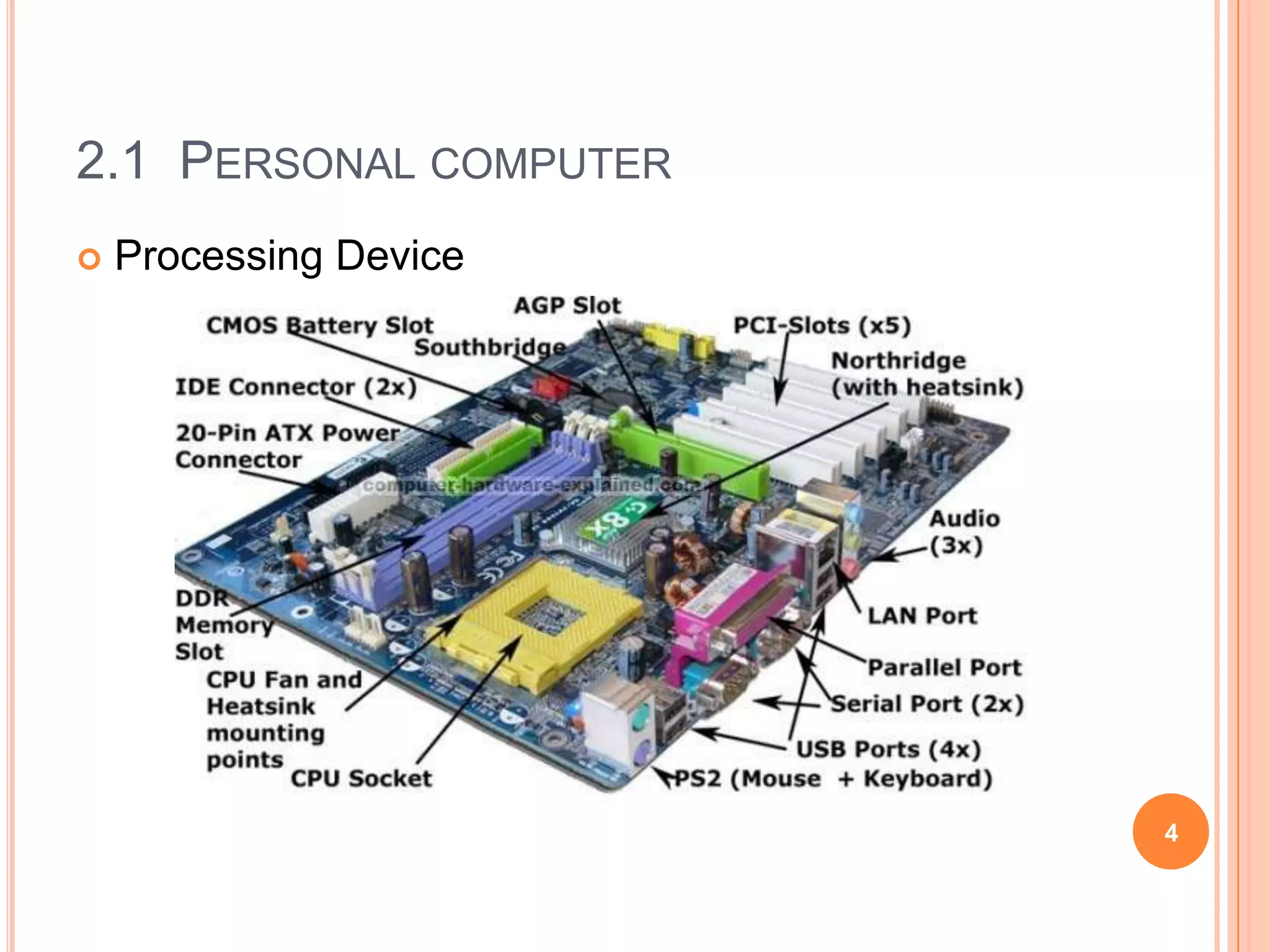
   Processing Device


                        4
2.1 PERSONAL COMPUTER
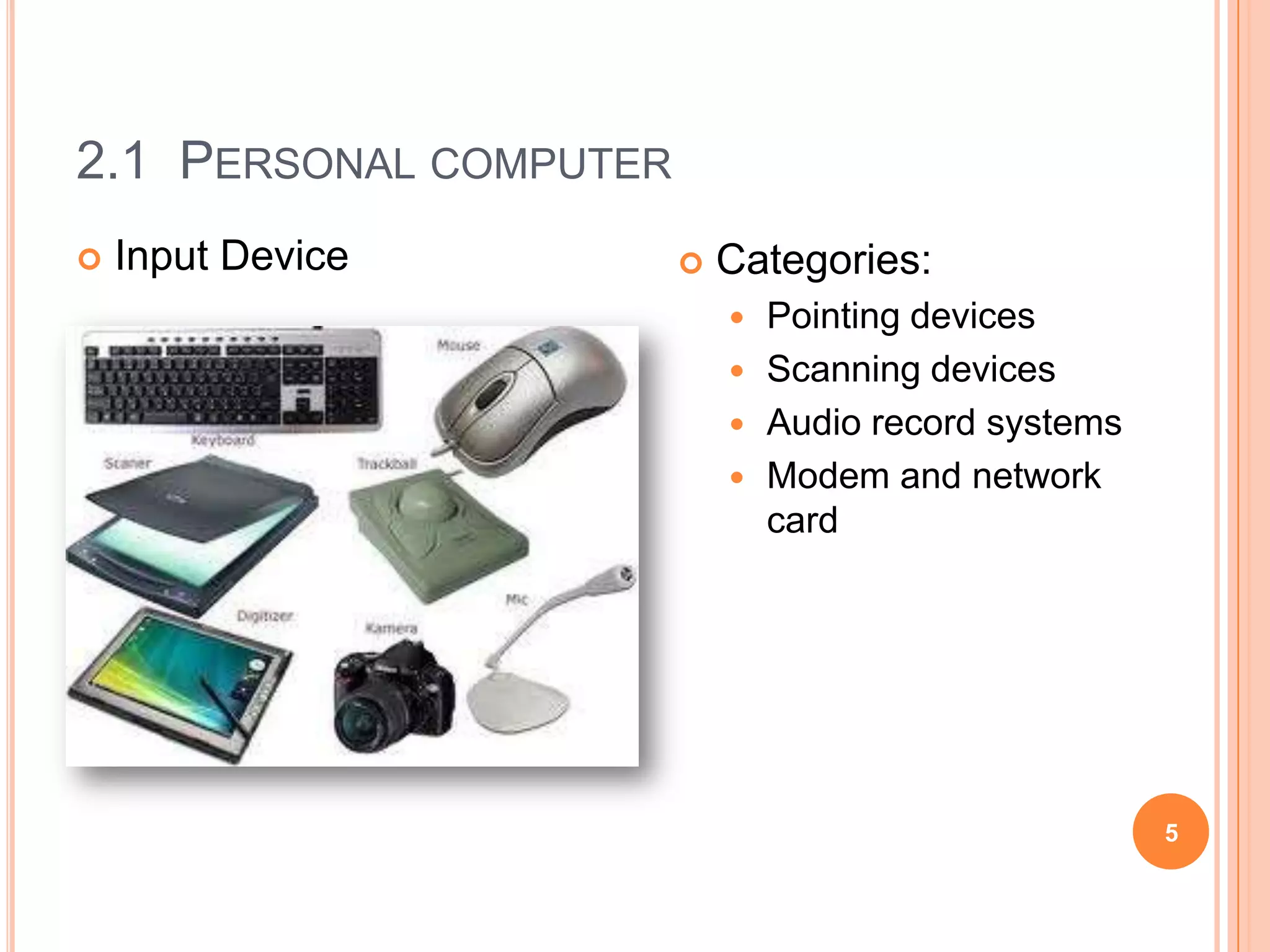
   Input Device           Categories:
                             Pointing devices
                             Scanning devices
                             Audio record systems
                             Modem and network
                              card


                                                     5
2.1 PERSONAL COMPUTER
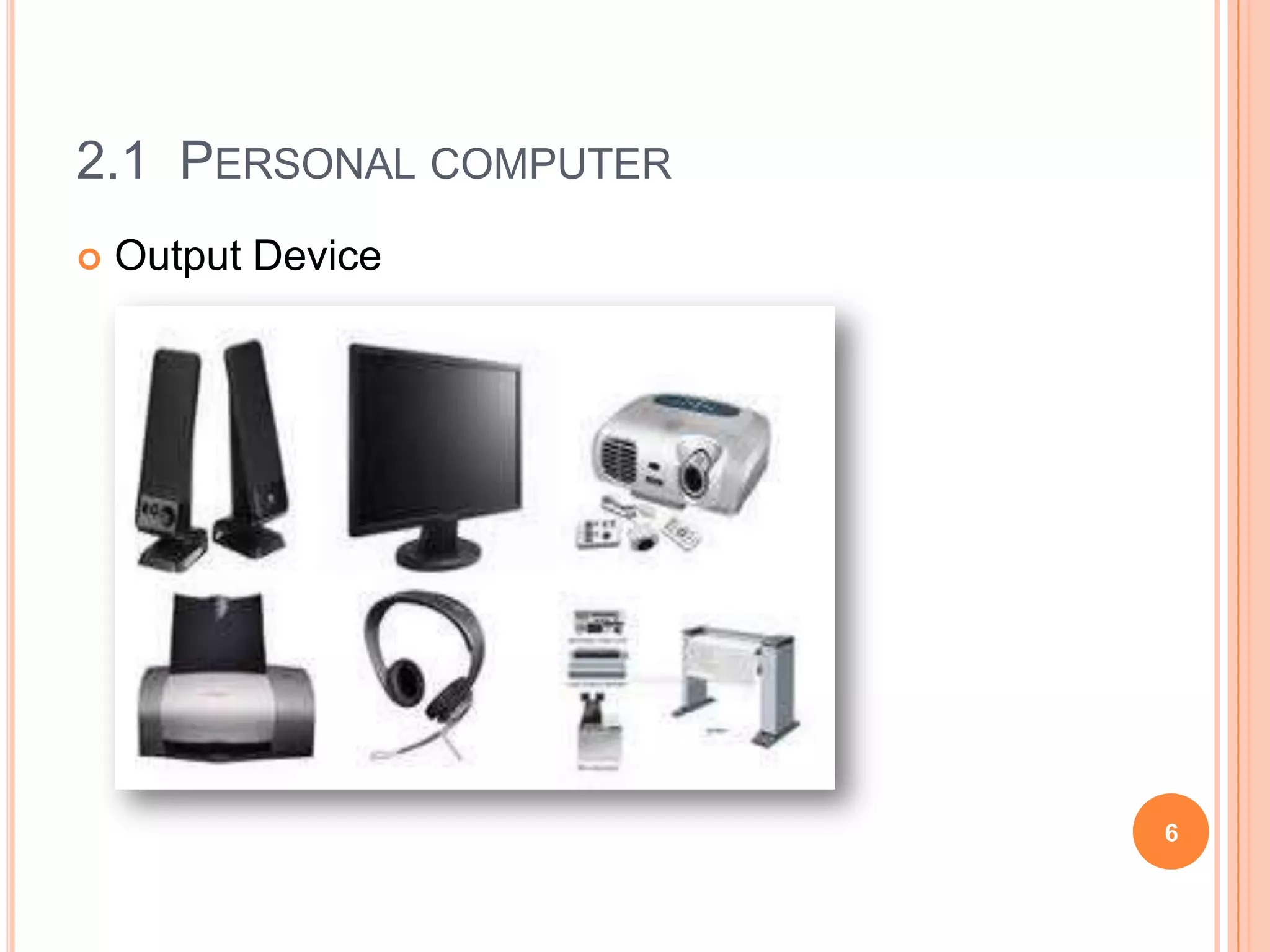
   Output Device


                        6
2.1 PERSONAL COMPUTER
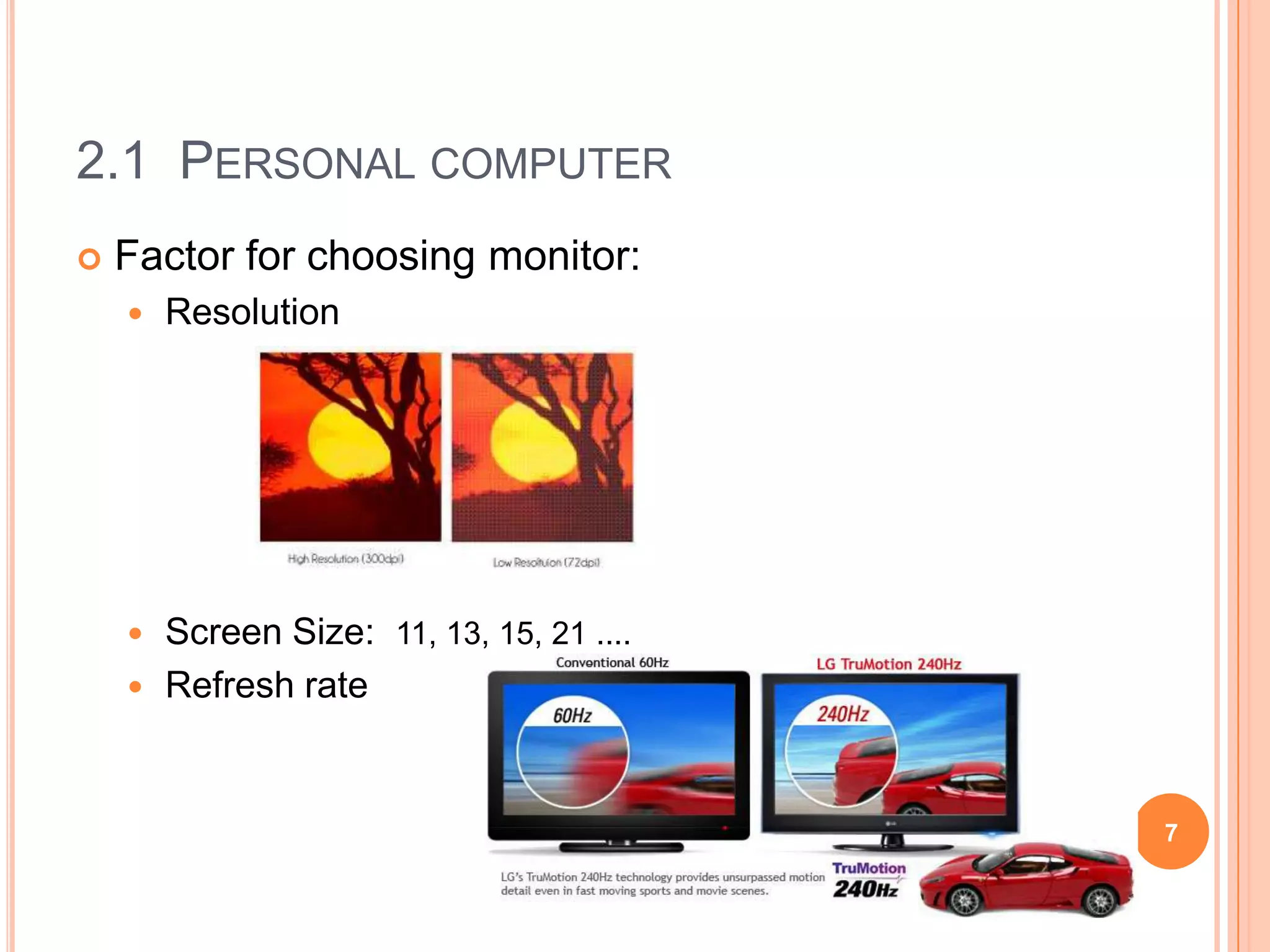
   Factor for choosing monitor:
       Resolution


     Screen Size: 11, 13, 15, 21 ....
     Refresh rate


                                         7
2.1 PERSONAL COMPUTER
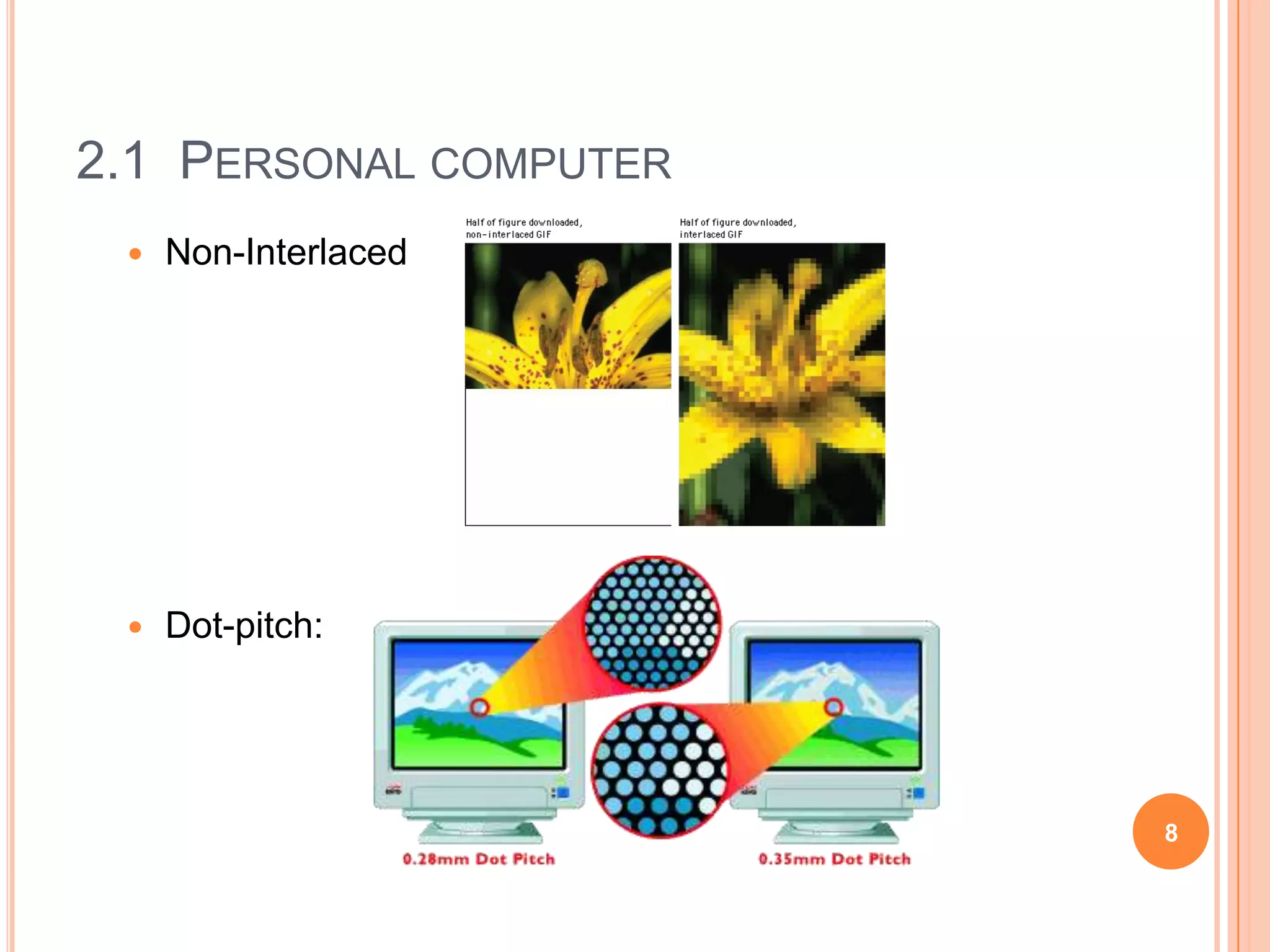
    Non-Interlaced


    Dot-pitch:


                        8
2.1 PERSONAL COMPUTER

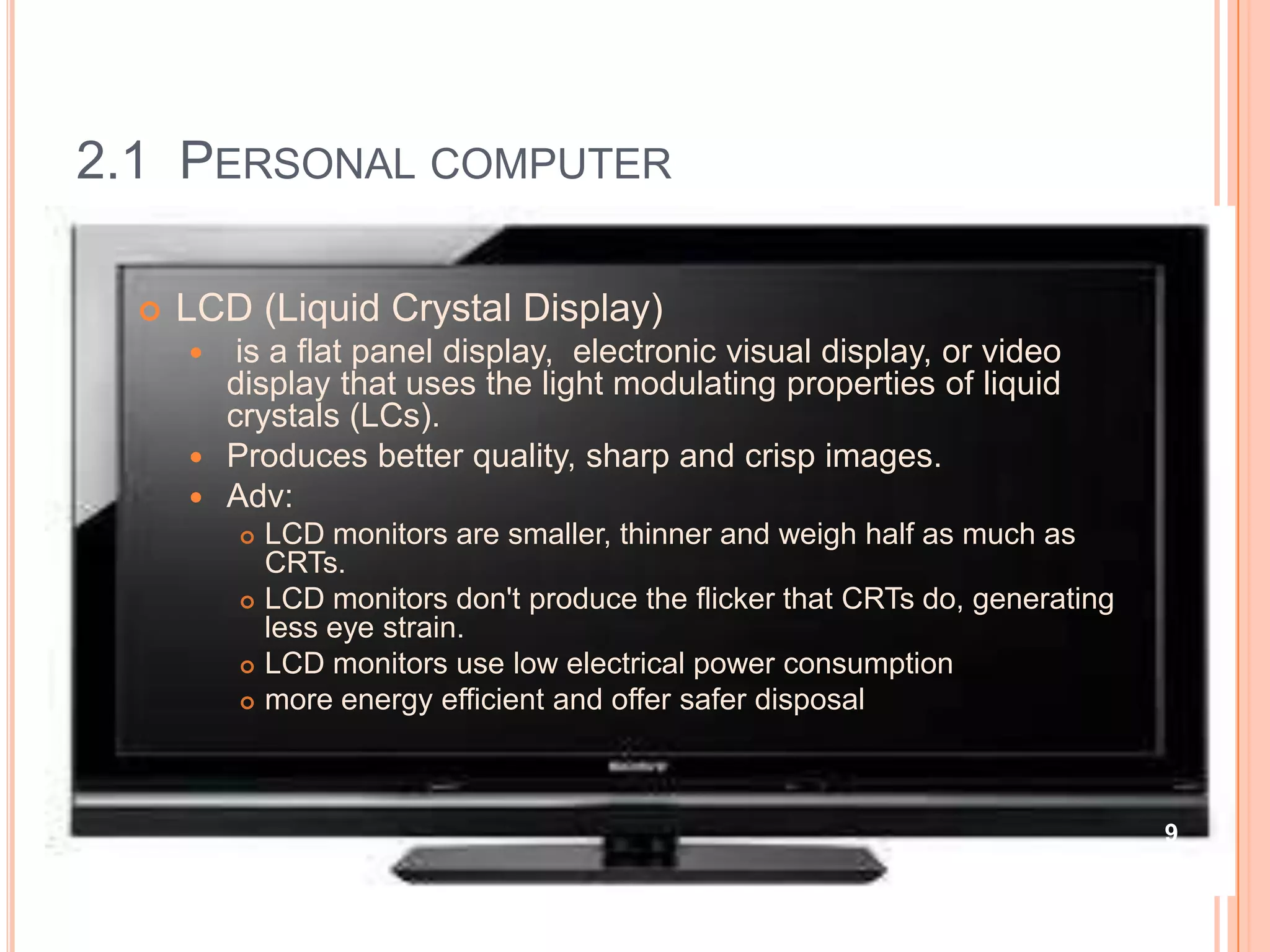
     LCD (Liquid Crystal Display)
        is a flat panel display, electronic visual display, or video
        display that uses the light modulating properties of liquid
        crystals (LCs).
       Produces better quality, sharp and crisp images.
       Adv:
             LCD monitors are smaller, thinner and weigh half as much as
              CRTs.
             LCD monitors don't produce the flicker that CRTs do, generating
              less eye strain.
             LCD monitors use low electrical power consumption
             more energy efficient and offer safer disposal


                                                                                9
2.1 PERSONAL COMPUTER


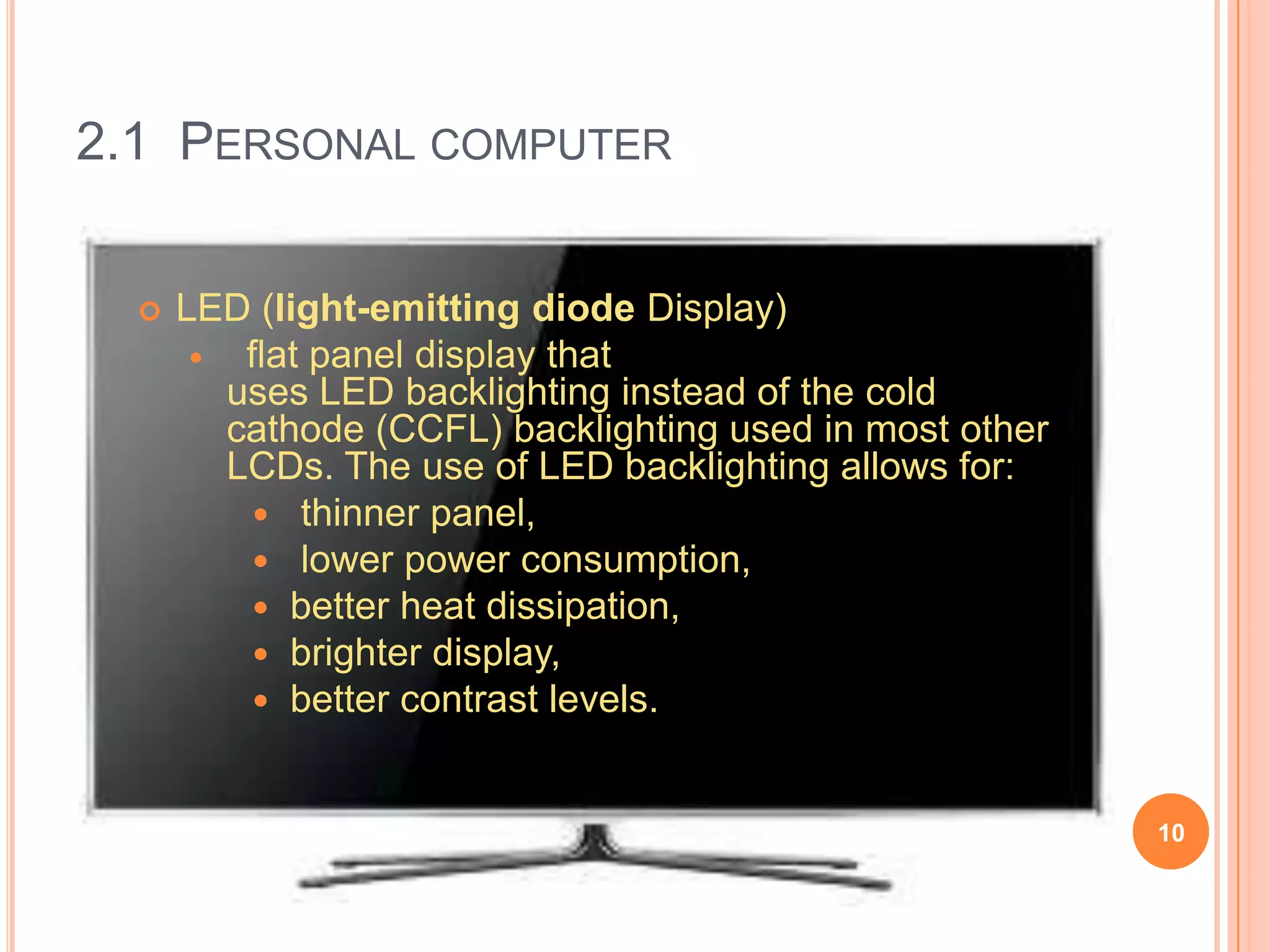
     LED (light-emitting diode Display)
         flat panel display that
         uses LED backlighting instead of the cold
         cathode (CCFL) backlighting used in most other
         LCDs. The use of LED backlighting allows for:
            thinner panel,
            lower power consumption,
            better heat dissipation,
            brighter display,
            better contrast levels.


                                                          10
2.1 PERSONAL COMPUTER
   Storage Devices
       storage device is a hardware device capable of storing
        information. There are two storage devices used in
        computers;
         Primary storage (or main memory or internal memory), often
          referred to simply as memory, is the only one directly accessible to
          the CPU. Eg: RAM
         Secondary storage (also known as external memory or auxiliary
          storage), differs from primary storage in that it is not directly
          accessible by the CPU. Secondary storage does not lose the data
          when the device is powered down eg: hard disk, floppy disk, CD,
          USB drive ect..


                                                                                 11
2.1 PERSONAL COMPUTER
   Types of storages
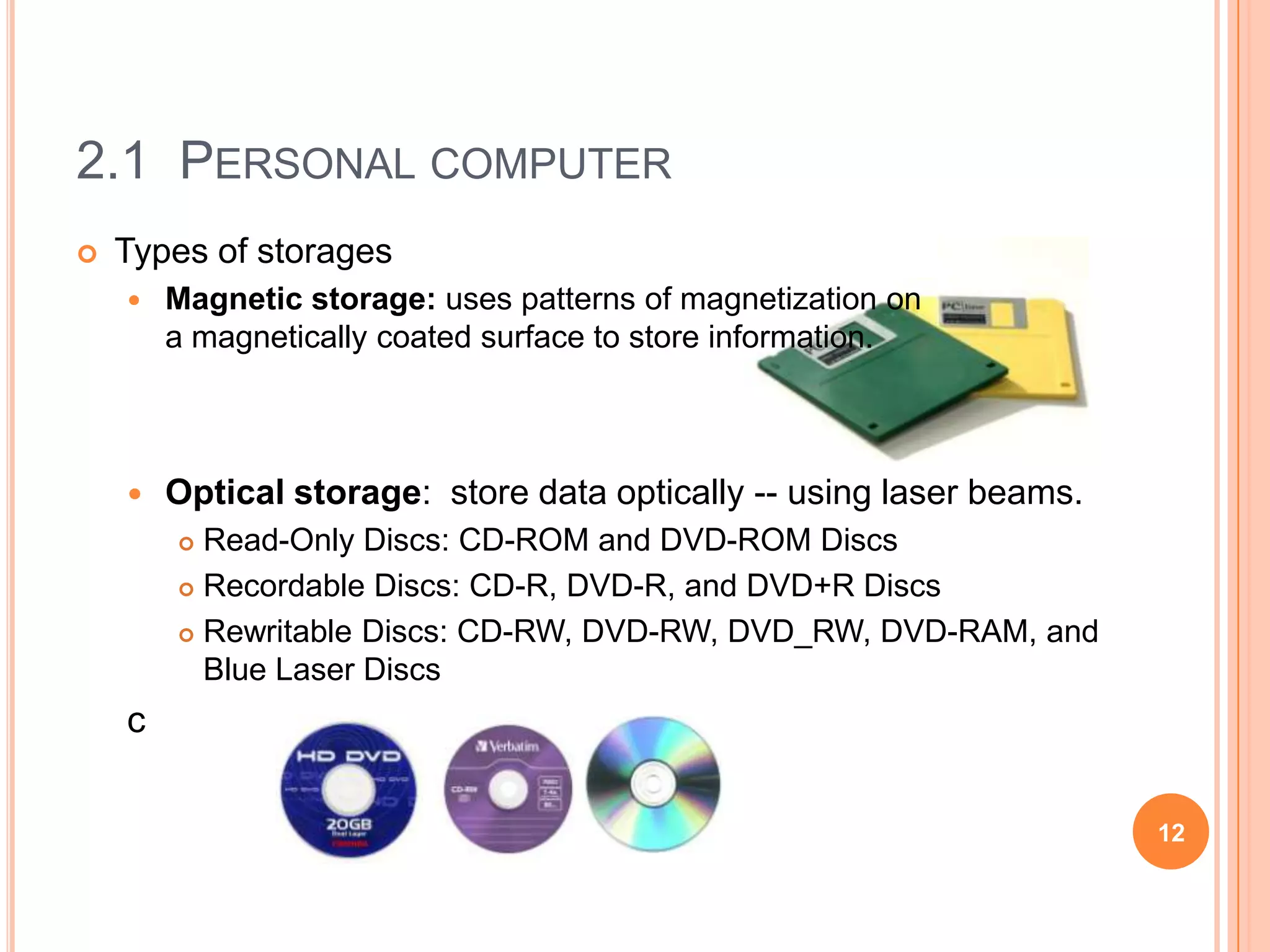
       Magnetic storage: uses patterns of magnetization on
        a magnetically coated surface to store information.


       Optical storage: store data optically -- using laser beams.
         Read-Only Discs: CD-ROM and DVD-ROM Discs
         Recordable Discs: CD-R, DVD-R, and DVD+R Discs

         Rewritable Discs: CD-RW, DVD-RW, DVD_RW, DVD-RAM, and

          Blue Laser Discs
    c

                                                                      12
2.1 PERSONAL COMPUTER
   Types of storages
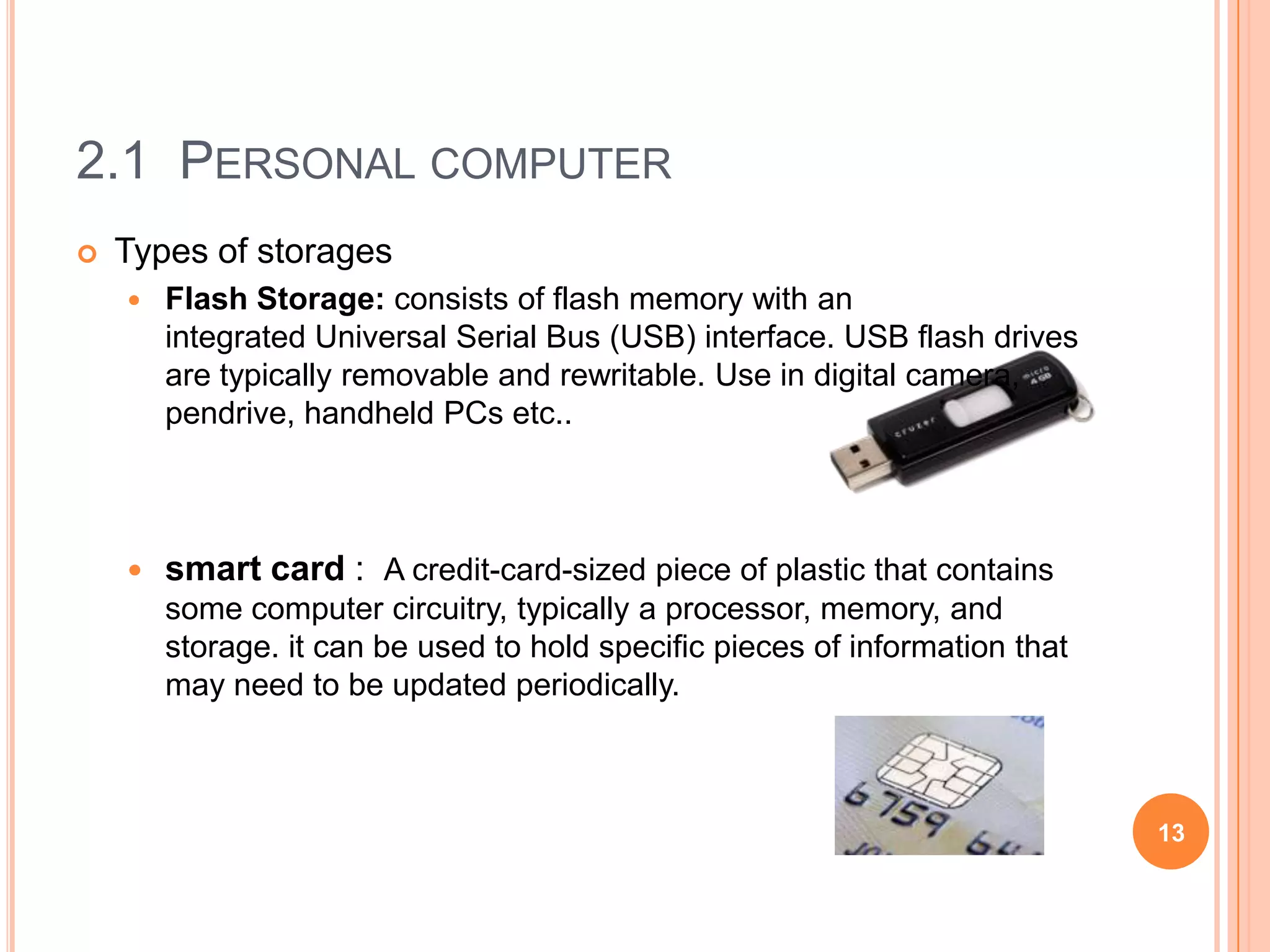
       Flash Storage: consists of flash memory with an
        integrated Universal Serial Bus (USB) interface. USB flash drives
        are typically removable and rewritable. Use in digital camera,
        pendrive, handheld PCs etc..


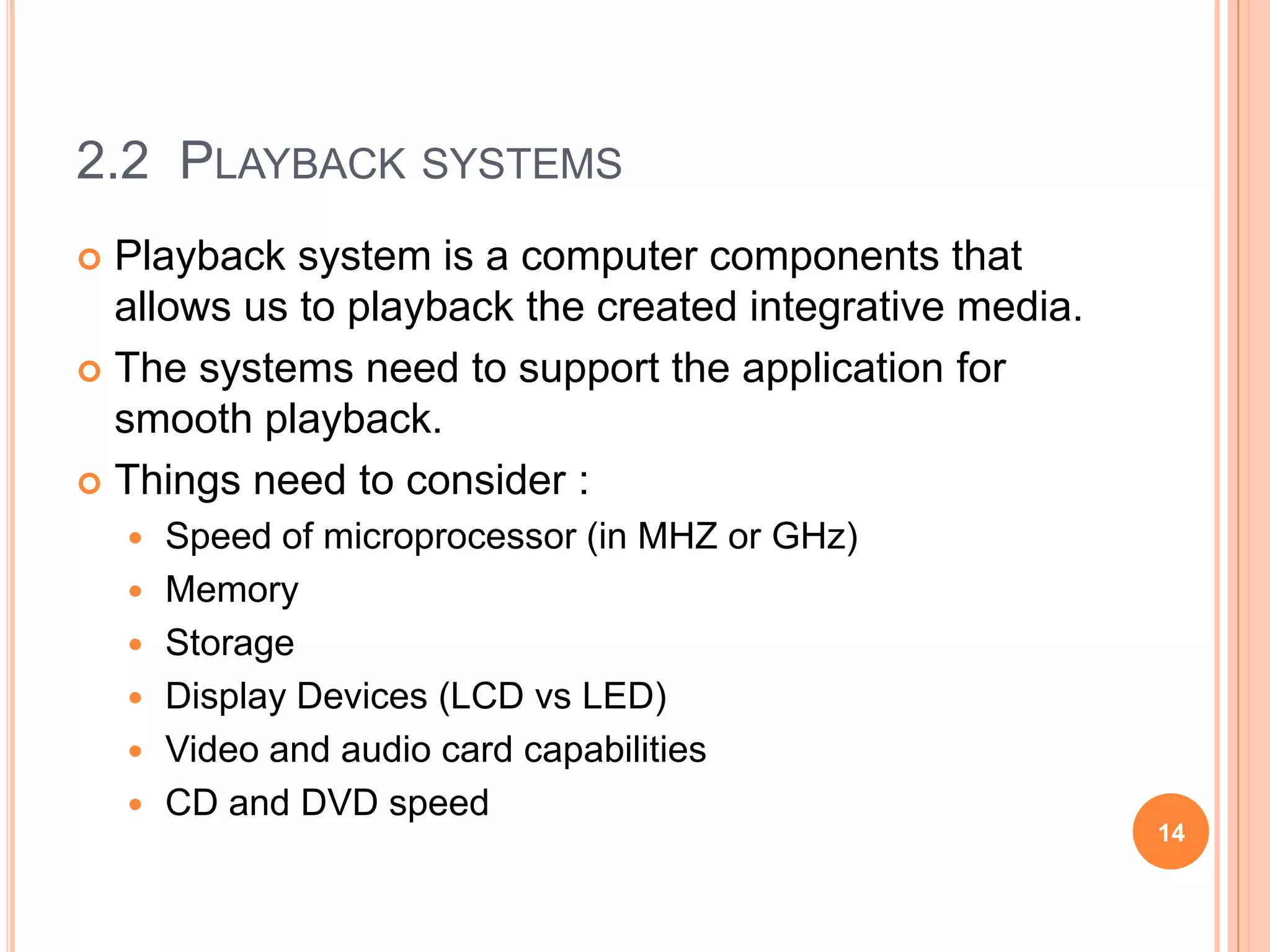
       smart card : A credit-card-sized piece of plastic that contains
        some computer circuitry, typically a processor, memory, and
        storage. it can be used to hold specific pieces of information that
        may need to be updated periodically.


                                                                              13
2.2 PLAYBACK SYSTEMS
 Playback system is a computer components that
  allows us to playback the created integrative media.
 The systems need to support the application for
  smooth playback.
 Things need to consider :
       Speed of microprocessor (in MHZ or GHz)
       Memory
       Storage
       Display Devices (LCD vs LED)
       Video and audio card capabilities
       CD and DVD speed
                                                         14
2.2 DEVOPMENT SYSTEMS
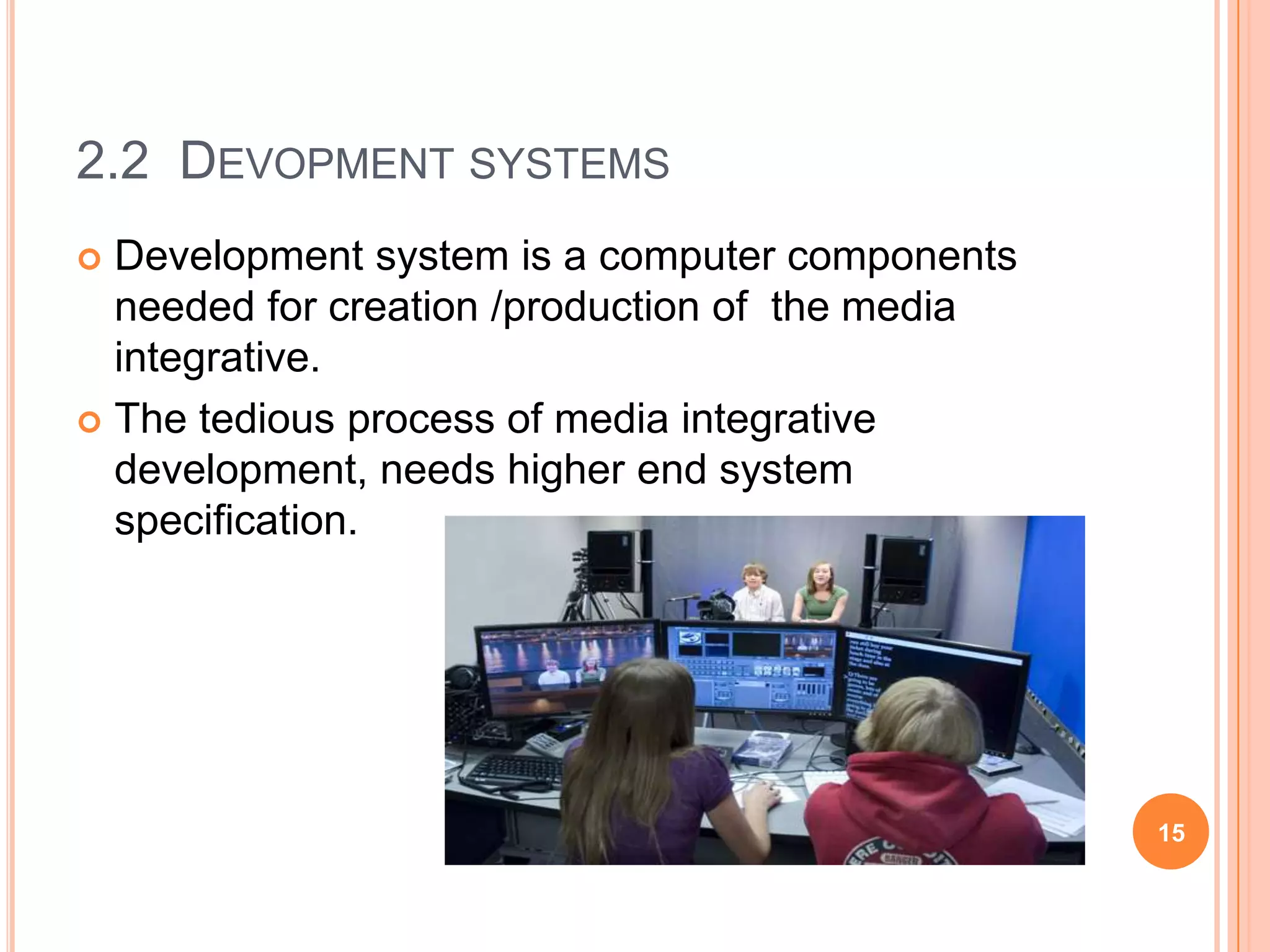
 Development system is a computer components
  needed for creation /production of the media
  integrative.
 The tedious process of media integrative
  development, needs higher end system
  specification.


                                                 15

HARDWARE COMPONENTS FOR INTEGRATIVE MEDIA SYSTEMS

  • 1.
    TOPIC 2: HARDWARECOMPONENTS FOR INTEGRATIVE MEDIA SYSTEMS 1
  • 2.
    2.1 PERSONAL COMPUTER  Types:  Desktop Computer  Lap-Top Computer  Tablet Computer 2
  • 3.
    2.1 PERSONAL COMPUTER Which is/are the? • Processing Device? • Input Device? • Output Device? 3 • Storage Device?
  • 4.
    2.1 PERSONAL COMPUTER  Processing Device 4
  • 5.
    2.1 PERSONAL COMPUTER  Input Device  Categories:  Pointing devices  Scanning devices  Audio record systems  Modem and network card 5
  • 6.
    2.1 PERSONAL COMPUTER  Output Device 6
  • 7.
    2.1 PERSONAL COMPUTER  Factor for choosing monitor:  Resolution  Screen Size: 11, 13, 15, 21 ....  Refresh rate 7
  • 8.
    2.1 PERSONAL COMPUTER  Non-Interlaced  Dot-pitch: 8
  • 9.
    2.1 PERSONAL COMPUTER  LCD (Liquid Crystal Display)  is a flat panel display, electronic visual display, or video display that uses the light modulating properties of liquid crystals (LCs).  Produces better quality, sharp and crisp images.  Adv:  LCD monitors are smaller, thinner and weigh half as much as CRTs.  LCD monitors don't produce the flicker that CRTs do, generating less eye strain.  LCD monitors use low electrical power consumption  more energy efficient and offer safer disposal 9
  • 10.
    2.1 PERSONAL COMPUTER  LED (light-emitting diode Display)  flat panel display that uses LED backlighting instead of the cold cathode (CCFL) backlighting used in most other LCDs. The use of LED backlighting allows for:  thinner panel,  lower power consumption,  better heat dissipation,  brighter display,  better contrast levels. 10
  • 11.
    2.1 PERSONAL COMPUTER  Storage Devices  storage device is a hardware device capable of storing information. There are two storage devices used in computers;  Primary storage (or main memory or internal memory), often referred to simply as memory, is the only one directly accessible to the CPU. Eg: RAM  Secondary storage (also known as external memory or auxiliary storage), differs from primary storage in that it is not directly accessible by the CPU. Secondary storage does not lose the data when the device is powered down eg: hard disk, floppy disk, CD, USB drive ect.. 11
  • 12.
    2.1 PERSONAL COMPUTER  Types of storages  Magnetic storage: uses patterns of magnetization on a magnetically coated surface to store information.  Optical storage: store data optically -- using laser beams.  Read-Only Discs: CD-ROM and DVD-ROM Discs  Recordable Discs: CD-R, DVD-R, and DVD+R Discs  Rewritable Discs: CD-RW, DVD-RW, DVD_RW, DVD-RAM, and Blue Laser Discs c 12
  • 13.
    2.1 PERSONAL COMPUTER  Types of storages  Flash Storage: consists of flash memory with an integrated Universal Serial Bus (USB) interface. USB flash drives are typically removable and rewritable. Use in digital camera, pendrive, handheld PCs etc..  smart card : A credit-card-sized piece of plastic that contains some computer circuitry, typically a processor, memory, and storage. it can be used to hold specific pieces of information that may need to be updated periodically. 13
  • 14.
    2.2 PLAYBACK SYSTEMS Playback system is a computer components that allows us to playback the created integrative media.  The systems need to support the application for smooth playback.  Things need to consider :  Speed of microprocessor (in MHZ or GHz)  Memory  Storage  Display Devices (LCD vs LED)  Video and audio card capabilities  CD and DVD speed 14
  • 15.
    2.2 DEVOPMENT SYSTEMS Development system is a computer components needed for creation /production of the media integrative.  The tedious process of media integrative development, needs higher end system specification. 15

Editor's Notes

  • #9 Interlaced GIFThe conventional (non-interlaced) GIF graphic downloads one line of pixels at a time from top to bottom, and browsers display each line of the image as it gradually builds on the screen. In interlaced GIF files the image data is stored in a format that allows browsers that support interlaced GIFs to begin to build a low-resolution version of the full-sized GIF picture on the screen while the file is downloading. Many people find the "fuzzy-to-sharp" animated effect of interlacing visually appealing, but the most important benefit of interlacing is that it gives the reader a preview of the full area of the picture while the picture downloads into the browser.Interlacing is best for larger GIF images such as illustrations and photographs. Interlacing is a poor choice for small GIF graphics such as navigation bars, buttons, and icons. These small graphics will load onto the screen much faster if you keep them in conventional (non-interlaced) GIF format. In general, interlacing has no significant effect on the file size of GIF graphics.Dot-pitch: The size of the smallest dot (pixel) your screen can display. Dot pitch is usually given as a fraction of a millimeter, such as 0.28 mm or 0.35 mm. The smaller the dot pitch, the crisper the images are on the screen, but the more the screen costs.