
Daffodil International University(DIU)
Computer Fundamentals
Instructor: Taslima Ferdous Shova
Course Code : Cse 111
Group Members
Name
• Md.Imran hossain
• Masud Rana
• Ashrafur Rahman
ID No.
• Introducing computer systems
• Looking inside the computer system
• Using the keyboard and mouse
• Inputting data in other ways
• Video and sound
• Printing
Introducing Computer Systems
• The computer definition
• Computers for individual use
• Computers for organizations
• Computers in society
The Computer Defined
• Electronic device
• Converts data into information
– programmable, multiuse machine that
accepts data and processes it into usable
information
• summaries, totals, or reports
• Older computers were analog
– A range of values made data
Computer for Individual Use
• Although PCs are used by individuals they
also can be connected together to create
networks.
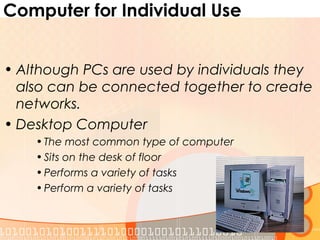
• Desktop Computer
•The most common type of computer
•Sits on the desk of floor
•Performs a variety of tasks
•Perform a variety of tasks
Different Types of Computer (Cont.)
• Workstation
• Specialized computers
• Optimized for science or graphics
• More powerful for desktops
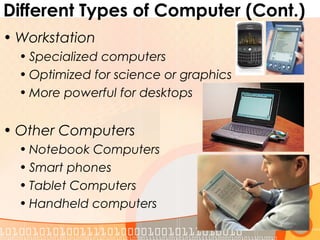
• Other Computers
• Notebook Computers
• Smart phones
• Tablet Computers
• Handheld computers
Computers for Organizations
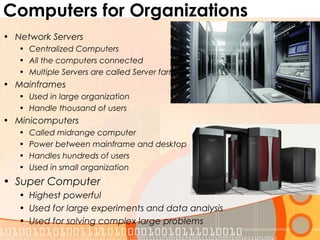
• Network Servers
• Centralized Computers
• All the computers connected
• Multiple Servers are called Server farms
• Mainframes
• Used in large organization
• Handle thousand of users
• Minicomputers
• Called midrange computer
• Power between mainframe and desktop
• Handles hundreds of users
• Used in small organization
• Super Computer
• Highest powerful
• Used for large experiments and data analysis
• Used for solving complex large problems
Computers In Society
• More impact than any other invention
• Changed work and leisure activities
• Used by all demographic groups
• Computers are important because:
• Provide information to users
• Information is critical to our society
• Managing information is difficult
• Computers in education
• Computer literacy required at all levels
• Computers in small business
• Makes businesses more profitable
• Allows owners to manage
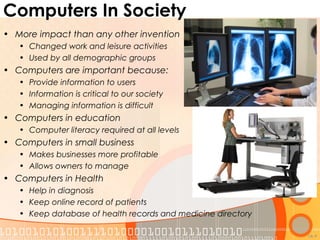
• Computers in Health
• Help in diagnosis
• Keep online record of patients
• Keep database of health records and medicine directory
1A-9
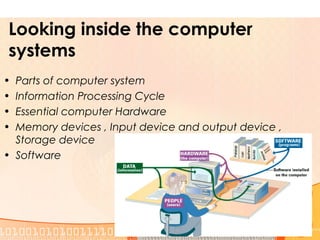
Looking inside the computer
systems
• Parts of computer system
• Information Processing Cycle
• Essential computer Hardware
• Memory devices , Input device and output device ,
Storage device
• Software
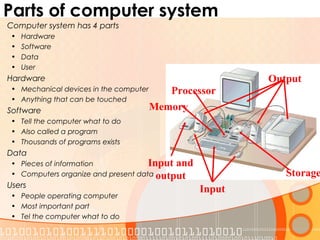
Parts of computer system
Computer system has 4 parts
• Hardware
• Software
• Data
• User
Hardware
• Mechanical devices in the computer
• Anything that can be touched
Software
• Tell the computer what to do
• Also called a program
• Thousands of programs exists
Data
• Pieces of information
• Computers organize and present data
Users
• People operating computer
• Most important part
• Tel the computer what to do
Output
Storage
Input
Processor
Input and
output
Memory
Information processing cycle
• Steps followed to process data
• Input
• Processing
• Output
• Storage
Essential Computer Hardware
• Computers use the same basic hardware
• Hardware categories into 4 types
• Processing device
• Memory Device
• Input and Output Device
• Storage Device
Software
• Tells computer what to do
• Reasons people purchase computer
• Two types
• System Software
• Application Software
• System Software
• Operating system
• Example : Network OS ,
Windows 10 , Linux
• Application Software
• Accomplish a specific task
• Common software : MS Word , Powerpoint , Games etc
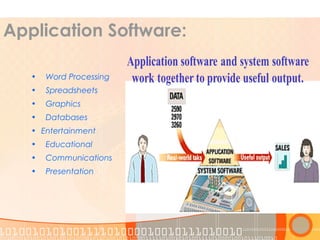
Application Software:
• Word Processing
• Spreadsheets
• Graphics
• Databases
• Entertainment
• Educational
• Communications
• Presentation
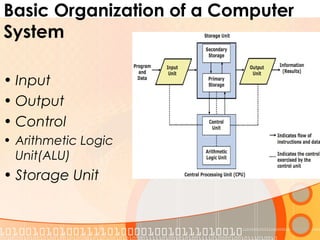
Basic Organization of a Computer
System
• Input
• Output
• Control
• Arithmetic Logic
Unit(ALU)
• Storage Unit
Using Keyboard and mouse
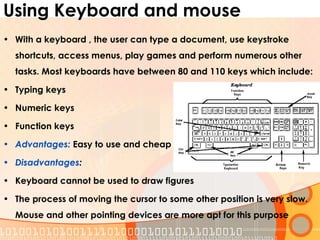
• With a keyboard , the user can type a document, use keystroke
shortcuts, access menus, play games and perform numerous other
tasks. Most keyboards have between 80 and 110 keys which include:
• Typing keys
• Numeric keys
• Function keys
• Advantages: Easy to use and cheap
• Disadvantages:
• Keyboard cannot be used to draw figures
• The process of moving the cursor to some other position is very slow.
Mouse and other pointing devices are more apt for this purpose
The Mouse
• The mouse is the key input device to be used in a graphical user interface (GUI). The
users can use mouse to handle the pointer easily on the screen to perform various
functions like opening a program or file.
• With mouse, the users no longer need to memorize commands, which was earlier a
necessity when working with text-based command line environment such as MS-DOS.
• Variants of mouse
• Track balls
• Track pads
• Track point
• Advantages:
• Easy to use; Cheap; Can be used to quickly place the cursor
• anywhere on the screen; Helps to quickly and easily draw figures;
• Point and click capabilities makes it unnecessary to remember certain commands
• Disadvantages:
• Needs extra desk space to be placed and moved easily
• The ball in the mechanical mouse must be cleaned to remove dust from it
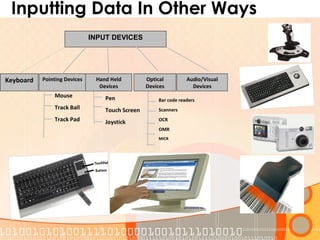
Inputting Data In Other Ways
Keyboard Pointing Devices Hand Held
Devices
Optical
Devices
Audio/Visual
Devices
Mouse
Track Ball
Track Pad
Pen
Touch Screen
Joystick
Bar code readers
Scanners
OCR
OMR
MICR
INPUT DEVICES
Inputting data in other ways
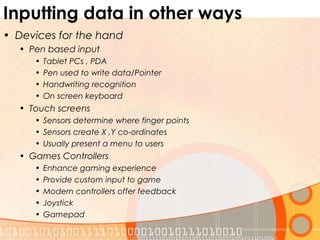
• Devices for the hand
• Pen based input
• Tablet PCs , PDA
• Pen used to write data/Pointer
• Handwriting recognition
• On screen keyboard
• Touch screens
• Sensors determine where finger points
• Sensors create X ,Y co-ordinates
• Usually present a menu to users
• Games Controllers
• Enhance gaming experience
• Provide custom input to game
• Modern controllers offer feedback
• Joystick
• Gamepad
Inputting data in other ways
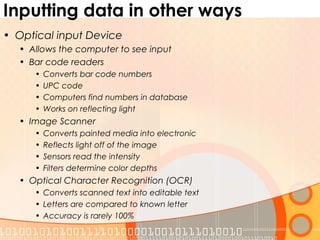
• Optical input Device
• Allows the computer to see input
• Bar code readers
• Converts bar code numbers
• UPC code
• Computers find numbers in database
• Works on reflecting light
• Image Scanner
• Converts painted media into electronic
• Reflects light off of the image
• Sensors read the intensity
• Filters determine color depths
• Optical Character Recognition (OCR)
• Converts scanned text into editable text
• Letters are compared to known letter
• Accuracy is rarely 100%
Ergonomics
• Study of interaction between human and tool
• Office hardware suggestions
• Office chairs should have
• Adjustable armrests and height
• Armrests
• Lower back support
• Desks should have
• Have a keyboard tray
• Keep hands at keyboard height
• Place the monitor at eye level
Video, Sound and Printer
• Monitors
• Data projectors
• Sound System
• Printer
• Dot Matrix Printers
• Laser printer , High quality Printer,
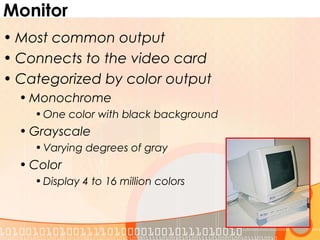
Monitor
• Most common output
• Connects to the video card
• Categorized by color output
• Monochrome
• One color with black background
• Grayscale
• Varying degrees of gray
• Color
• Display 4 to 16 million colors
Monitor(CRT)
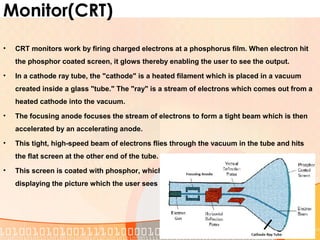
• CRT monitors work by firing charged electrons at a phosphorus film. When electron hit
the phosphor coated screen, it glows thereby enabling the user to see the output.
• In a cathode ray tube, the "cathode" is a heated filament which is placed in a vacuum
created inside a glass "tube." The "ray" is a stream of electrons which comes out from a
heated cathode into the vacuum.
• The focusing anode focuses the stream of electrons to form a tight beam which is then
accelerated by an accelerating anode.
• This tight, high-speed beam of electrons flies through the vacuum in the tube and hits
the flat screen at the other end of the tube.
• This screen is coated with phosphor, which glows when struck by the beam, thereby
displaying the picture which the user sees on the monitor.
Monitor (LCD)
• LCD monitor is a thin, flat electronic visual display that uses the light modulating
properties of liquid crystals which do not emit light directly.
• LCD screens are used in a wide range of applications ranging from computer monitors,
television, instrument panels, aircraft cockpit displays, signage, to consumer devices
like such as video players, gaming devices, clocks, watches, calculators, and
telephones.
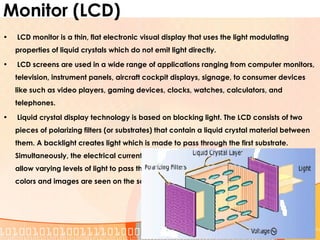
• Liquid crystal display technology is based on blocking light. The LCD consists of two
pieces of polarizing filters (or substrates) that contain a liquid crystal material between
them. A backlight creates light which is made to pass through the first substrate.
Simultaneously, the electrical currents cause the liquid crystal molecules to align to
allow varying levels of light to pass through to the second substrate and create the
colors and images are seen on the screen.
Data Projectors
• Replaced overhead and slide
projectors
• Project image onto wall or screen
• LCD projectors
– Most common type of projector
– Small LCD screen
– Very bright light
– Require a darkened room
Sound Systems
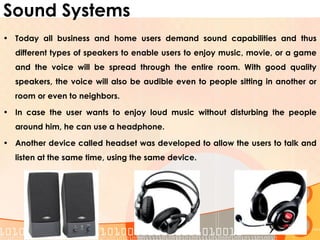
• Today all business and home users demand sound capabilities and thus
different types of speakers to enable users to enjoy music, movie, or a game
and the voice will be spread through the entire room. With good quality
speakers, the voice will also be audible even to people sitting in another or
room or even to neighbors.
• In case the user wants to enjoy loud music without disturbing the people
around him, he can use a headphone.
• Another device called headset was developed to allow the users to talk and
listen at the same time, using the same device.
Printer
Printer is a device that outputs text and graphics information obtained
from the computer and prints it on to a paper. Printers are available in
the market in a variety of size, speed, sophistication, and cost. The
qualities of printer which are of interest to users include:
Color
Memory
Resolution
Speed
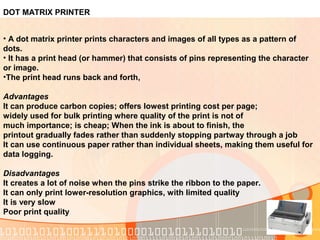
DOT MATRIX PRINTER
• A dot matrix printer prints characters and images of all types as a pattern of
dots.
• It has a print head (or hammer) that consists of pins representing the character
or image.
•The print head runs back and forth,
Advantages
It can produce carbon copies; offers lowest printing cost per page;
widely used for bulk printing where quality of the print is not of
much importance; is cheap; When the ink is about to finish, the
printout gradually fades rather than suddenly stopping partway through a job
It can use continuous paper rather than individual sheets, making them useful for
data logging.
Disadvantages
It creates a lot of noise when the pins strike the ribbon to the paper.
It can only print lower-resolution graphics, with limited quality
It is very slow
Poor print quality
Thank you !
ANY Question please ??

Computer Fundamental

  • 1.
    Daffodil International University(DIU) ComputerFundamentals Instructor: Taslima Ferdous Shova Course Code : Cse 111
  • 2.
    Group Members Name • Md.Imranhossain • Masud Rana • Ashrafur Rahman ID No.
  • 3.
    • Introducing computersystems • Looking inside the computer system • Using the keyboard and mouse • Inputting data in other ways • Video and sound • Printing
  • 4.
    Introducing Computer Systems •The computer definition • Computers for individual use • Computers for organizations • Computers in society
  • 5.
    The Computer Defined •Electronic device • Converts data into information – programmable, multiuse machine that accepts data and processes it into usable information • summaries, totals, or reports • Older computers were analog – A range of values made data
  • 6.
    Computer for IndividualUse • Although PCs are used by individuals they also can be connected together to create networks. • Desktop Computer •The most common type of computer •Sits on the desk of floor •Performs a variety of tasks •Perform a variety of tasks
  • 7.
    Different Types ofComputer (Cont.) • Workstation • Specialized computers • Optimized for science or graphics • More powerful for desktops • Other Computers • Notebook Computers • Smart phones • Tablet Computers • Handheld computers
  • 8.
    Computers for Organizations •Network Servers • Centralized Computers • All the computers connected • Multiple Servers are called Server farms • Mainframes • Used in large organization • Handle thousand of users • Minicomputers • Called midrange computer • Power between mainframe and desktop • Handles hundreds of users • Used in small organization • Super Computer • Highest powerful • Used for large experiments and data analysis • Used for solving complex large problems
  • 9.
    Computers In Society •More impact than any other invention • Changed work and leisure activities • Used by all demographic groups • Computers are important because: • Provide information to users • Information is critical to our society • Managing information is difficult • Computers in education • Computer literacy required at all levels • Computers in small business • Makes businesses more profitable • Allows owners to manage • Computers in Health • Help in diagnosis • Keep online record of patients • Keep database of health records and medicine directory 1A-9
  • 10.
    Looking inside thecomputer systems • Parts of computer system • Information Processing Cycle • Essential computer Hardware • Memory devices , Input device and output device , Storage device • Software
  • 11.
    Parts of computersystem Computer system has 4 parts • Hardware • Software • Data • User Hardware • Mechanical devices in the computer • Anything that can be touched Software • Tell the computer what to do • Also called a program • Thousands of programs exists Data • Pieces of information • Computers organize and present data Users • People operating computer • Most important part • Tel the computer what to do Output Storage Input Processor Input and output Memory
  • 12.
    Information processing cycle •Steps followed to process data • Input • Processing • Output • Storage
  • 13.
    Essential Computer Hardware •Computers use the same basic hardware • Hardware categories into 4 types • Processing device • Memory Device • Input and Output Device • Storage Device
  • 14.
    Software • Tells computerwhat to do • Reasons people purchase computer • Two types • System Software • Application Software • System Software • Operating system • Example : Network OS , Windows 10 , Linux • Application Software • Accomplish a specific task • Common software : MS Word , Powerpoint , Games etc
  • 15.
    Application Software: • WordProcessing • Spreadsheets • Graphics • Databases • Entertainment • Educational • Communications • Presentation
  • 16.
    Basic Organization ofa Computer System • Input • Output • Control • Arithmetic Logic Unit(ALU) • Storage Unit
  • 17.
    Using Keyboard andmouse • With a keyboard , the user can type a document, use keystroke shortcuts, access menus, play games and perform numerous other tasks. Most keyboards have between 80 and 110 keys which include: • Typing keys • Numeric keys • Function keys • Advantages: Easy to use and cheap • Disadvantages: • Keyboard cannot be used to draw figures • The process of moving the cursor to some other position is very slow. Mouse and other pointing devices are more apt for this purpose
  • 18.
    The Mouse • Themouse is the key input device to be used in a graphical user interface (GUI). The users can use mouse to handle the pointer easily on the screen to perform various functions like opening a program or file. • With mouse, the users no longer need to memorize commands, which was earlier a necessity when working with text-based command line environment such as MS-DOS. • Variants of mouse • Track balls • Track pads • Track point • Advantages: • Easy to use; Cheap; Can be used to quickly place the cursor • anywhere on the screen; Helps to quickly and easily draw figures; • Point and click capabilities makes it unnecessary to remember certain commands • Disadvantages: • Needs extra desk space to be placed and moved easily • The ball in the mechanical mouse must be cleaned to remove dust from it
  • 19.
    Inputting Data InOther Ways Keyboard Pointing Devices Hand Held Devices Optical Devices Audio/Visual Devices Mouse Track Ball Track Pad Pen Touch Screen Joystick Bar code readers Scanners OCR OMR MICR INPUT DEVICES
  • 20.
    Inputting data inother ways • Devices for the hand • Pen based input • Tablet PCs , PDA • Pen used to write data/Pointer • Handwriting recognition • On screen keyboard • Touch screens • Sensors determine where finger points • Sensors create X ,Y co-ordinates • Usually present a menu to users • Games Controllers • Enhance gaming experience • Provide custom input to game • Modern controllers offer feedback • Joystick • Gamepad
  • 21.
    Inputting data inother ways • Optical input Device • Allows the computer to see input • Bar code readers • Converts bar code numbers • UPC code • Computers find numbers in database • Works on reflecting light • Image Scanner • Converts painted media into electronic • Reflects light off of the image • Sensors read the intensity • Filters determine color depths • Optical Character Recognition (OCR) • Converts scanned text into editable text • Letters are compared to known letter • Accuracy is rarely 100%
  • 22.
    Ergonomics • Study ofinteraction between human and tool • Office hardware suggestions • Office chairs should have • Adjustable armrests and height • Armrests • Lower back support • Desks should have • Have a keyboard tray • Keep hands at keyboard height • Place the monitor at eye level
  • 23.
    Video, Sound andPrinter • Monitors • Data projectors • Sound System • Printer • Dot Matrix Printers • Laser printer , High quality Printer,
  • 24.
    Monitor • Most commonoutput • Connects to the video card • Categorized by color output • Monochrome • One color with black background • Grayscale • Varying degrees of gray • Color • Display 4 to 16 million colors
  • 25.
    Monitor(CRT) • CRT monitorswork by firing charged electrons at a phosphorus film. When electron hit the phosphor coated screen, it glows thereby enabling the user to see the output. • In a cathode ray tube, the "cathode" is a heated filament which is placed in a vacuum created inside a glass "tube." The "ray" is a stream of electrons which comes out from a heated cathode into the vacuum. • The focusing anode focuses the stream of electrons to form a tight beam which is then accelerated by an accelerating anode. • This tight, high-speed beam of electrons flies through the vacuum in the tube and hits the flat screen at the other end of the tube. • This screen is coated with phosphor, which glows when struck by the beam, thereby displaying the picture which the user sees on the monitor.
  • 26.
    Monitor (LCD) • LCDmonitor is a thin, flat electronic visual display that uses the light modulating properties of liquid crystals which do not emit light directly. • LCD screens are used in a wide range of applications ranging from computer monitors, television, instrument panels, aircraft cockpit displays, signage, to consumer devices like such as video players, gaming devices, clocks, watches, calculators, and telephones. • Liquid crystal display technology is based on blocking light. The LCD consists of two pieces of polarizing filters (or substrates) that contain a liquid crystal material between them. A backlight creates light which is made to pass through the first substrate. Simultaneously, the electrical currents cause the liquid crystal molecules to align to allow varying levels of light to pass through to the second substrate and create the colors and images are seen on the screen.
  • 27.
    Data Projectors • Replacedoverhead and slide projectors • Project image onto wall or screen • LCD projectors – Most common type of projector – Small LCD screen – Very bright light – Require a darkened room
  • 28.
    Sound Systems • Todayall business and home users demand sound capabilities and thus different types of speakers to enable users to enjoy music, movie, or a game and the voice will be spread through the entire room. With good quality speakers, the voice will also be audible even to people sitting in another or room or even to neighbors. • In case the user wants to enjoy loud music without disturbing the people around him, he can use a headphone. • Another device called headset was developed to allow the users to talk and listen at the same time, using the same device.
  • 29.
    Printer Printer is adevice that outputs text and graphics information obtained from the computer and prints it on to a paper. Printers are available in the market in a variety of size, speed, sophistication, and cost. The qualities of printer which are of interest to users include: Color Memory Resolution Speed
  • 30.
    DOT MATRIX PRINTER •A dot matrix printer prints characters and images of all types as a pattern of dots. • It has a print head (or hammer) that consists of pins representing the character or image. •The print head runs back and forth, Advantages It can produce carbon copies; offers lowest printing cost per page; widely used for bulk printing where quality of the print is not of much importance; is cheap; When the ink is about to finish, the printout gradually fades rather than suddenly stopping partway through a job It can use continuous paper rather than individual sheets, making them useful for data logging. Disadvantages It creates a lot of noise when the pins strike the ribbon to the paper. It can only print lower-resolution graphics, with limited quality It is very slow Poor print quality
  • 31.
    Thank you ! ANYQuestion please ??