Introduction to Computing
Computer System Components
3
2
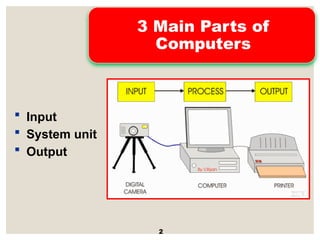
3 Main Parts of
Computers
 Input
 System unit
 Output
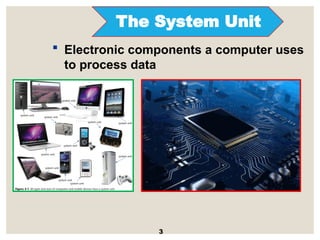
The System Unit
3
 Electronic components a computer uses
to process data
Data Representation
4
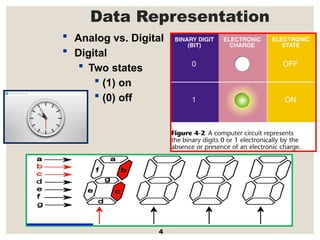
 Analog vs. Digital
 Digital
 Two states
 (1) on
 (0) off
Data Representation
5
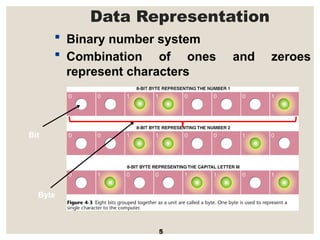
 Binary number system
 Combination of ones and zeroes
represent characters
Bit
Byte
6
The Components of the
System Unit
7
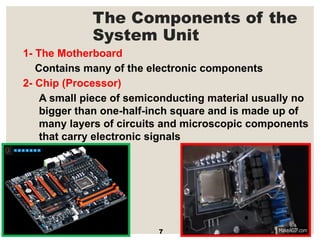
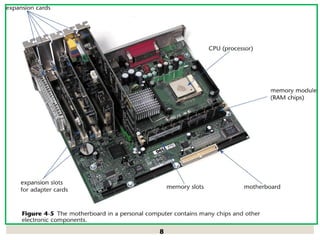
1- The Motherboard
Contains many of the electronic components
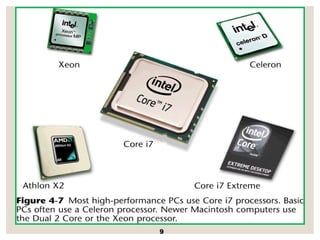
2- Chip (Processor)
A small piece of semiconducting material usually no
bigger than one-half-inch square and is made up of
many layers of circuits and microscopic components
that carry electronic signals
8
9
The Components of the
System Unit
1
0
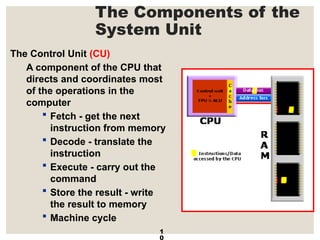
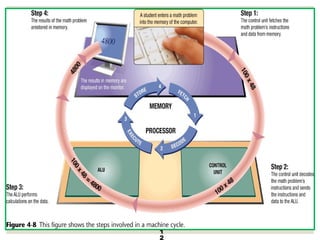
The Control Unit (CU)
A component of the CPU that
directs and coordinates most
of the operations in the
computer
 Fetch - get the next
instruction from memory
 Decode - translate the
instruction
 Execute - carry out the
command
 Store the result - write
the result to memory
 Machine cycle
The Components of the
System Unit
1
1
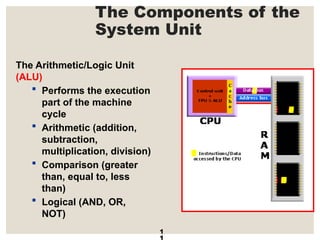
The Arithmetic/Logic Unit
(ALU)
 Performs the execution
part of the machine
cycle
 Arithmetic (addition,
subtraction,
multiplication, division)
 Comparison (greater
than, equal to, less
than)
 Logical (AND, OR,
NOT)
1
2
The Components of the
System Unit
1
3
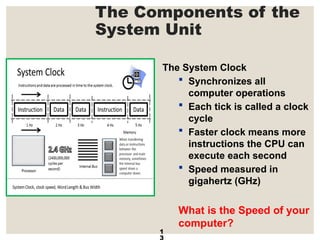
The System Clock
 Synchronizes all
computer operations
 Each tick is called a clock
cycle
 Faster clock means more
instructions the CPU can
execute each second
 Speed measured in
gigahertz (GHz)
What is the Speed of your
computer?
The Components of the
System Unit
1
4
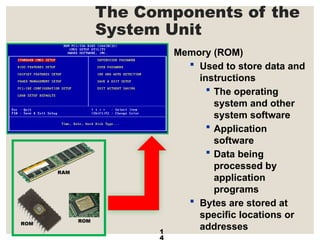
Memory (ROM)
 Used to store data and
instructions
 The operating
system and other
system software
 Application
software
 Data being
processed by
application
programs
 Bytes are stored at
specific locations or
addresses
The Components of the
System Unit
1
5
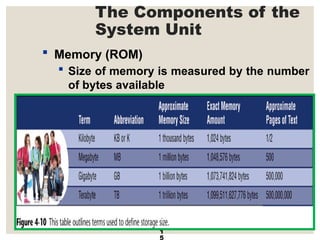
 Memory (ROM)
 Size of memory is measured by the number
of bytes available
The Components of the
System Unit
1
6
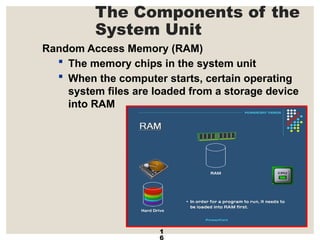
Random Access Memory (RAM)
 The memory chips in the system unit
 When the computer starts, certain operating
system files are loaded from a storage device
into RAM
The Components of the
System Unit
1
7
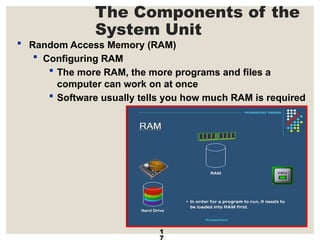
 Random Access Memory (RAM)
 Configuring RAM
 The more RAM, the more programs and files a
computer can work on at once
 Software usually tells you how much RAM is required
The Components of the
System Unit
1
8
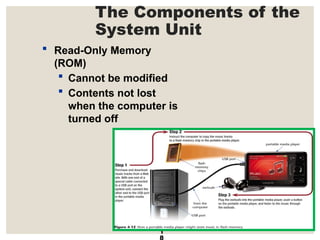
 Read-Only Memory
(ROM)
 Cannot be modified
 Contents not lost
when the computer is
turned off
The Components of the
System Unit
1
9
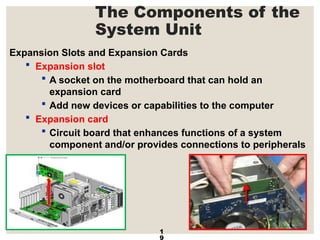
Expansion Slots and Expansion Cards
 Expansion slot
 A socket on the motherboard that can hold an
expansion card
 Add new devices or capabilities to the computer
 Expansion card
 Circuit board that enhances functions of a system
component and/or provides connections to peripherals
The Components of the
System Unit
2
0
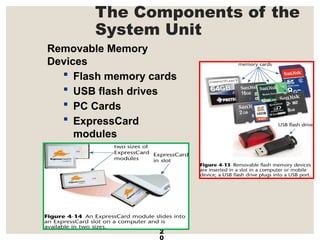
Removable Memory
Devices
 Flash memory cards
 USB flash drives
 PC Cards
 ExpressCard
modules
The Components of the
System Unit
2
1
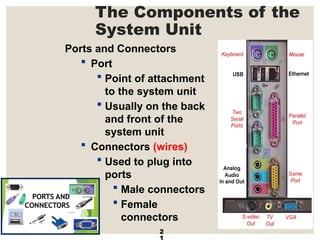
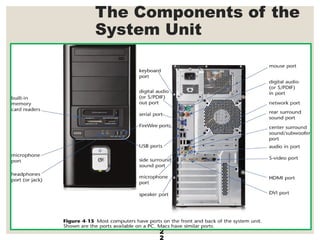
Ports and Connectors
 Port
 Point of attachment
to the system unit
 Usually on the back
and front of the
system unit
 Connectors (wires)
 Used to plug into
ports
 Male connectors
 Female
connectors
The Components of the
System Unit
2
2
The Components of the
System Unit
2
3
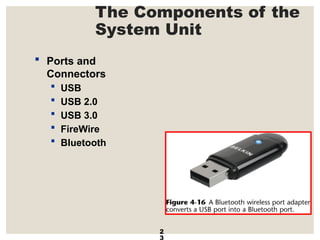
 Ports and
Connectors
 USB
 USB 2.0
 USB 3.0
 FireWire
 Bluetooth
What is Input?
2
4
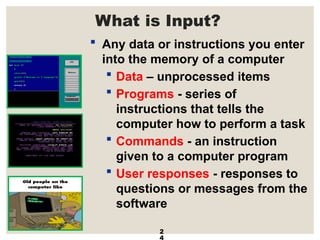
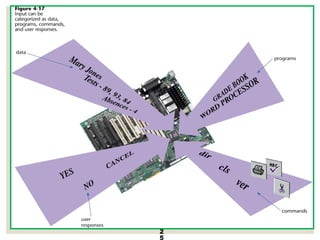
 Any data or instructions you enter
into the memory of a computer
 Data – unprocessed items
 Programs - series of
instructions that tells the
computer how to perform a task
 Commands - an instruction
given to a computer program
 User responses - responses to
questions or messages from the
software
2
5
What are Input Devices?
2
6
 Any hardware component that allows you to enter data,
programs, commands, and user responses into a computer
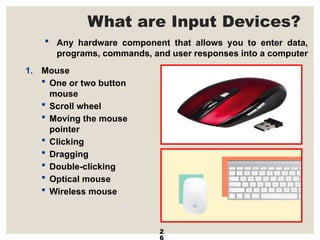
1. Mouse
 One or two button
mouse
 Scroll wheel
 Moving the mouse
pointer
 Clicking
 Dragging
 Double-clicking
 Optical mouse
 Wireless mouse
What are Input Devices?
2
7
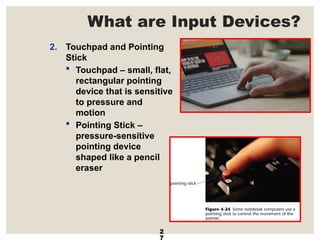
2. Touchpad and Pointing
Stick
 Touchpad – small, flat,
rectangular pointing
device that is sensitive
to pressure and
motion
 Pointing Stick –
pressure-sensitive
pointing device
shaped like a pencil
eraser
What are Input Devices?
2
8
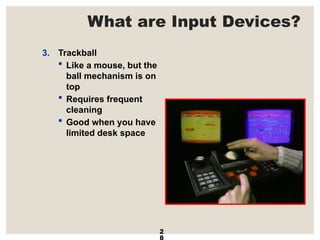
3. Trackball
 Like a mouse, but the
ball mechanism is on
top
 Requires frequent
cleaning
 Good when you have
limited desk space
What are Input Devices?
2
9
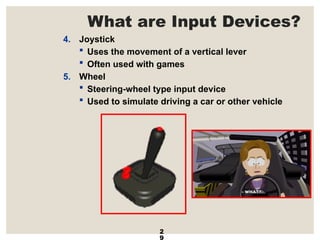
4. Joystick
 Uses the movement of a vertical lever
 Often used with games
5. Wheel
 Steering-wheel type input device
 Used to simulate driving a car or other vehicle
What are Input Devices?
3
0
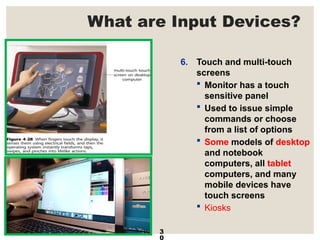
6. Touch and multi-touch
screens
 Monitor has a touch
sensitive panel
 Used to issue simple
commands or choose
from a list of options
 Some models of desktop
and notebook
computers, all tablet
computers, and many
mobile devices have
touch screens
 Kiosks
What are Input Devices?
3
1
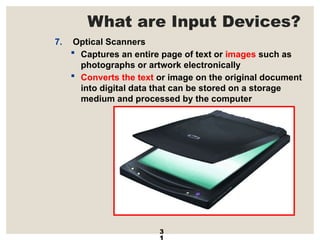
7. Optical Scanners
 Captures an entire page of text or images such as
photographs or artwork electronically
 Converts the text or image on the original document
into digital data that can be stored on a storage
medium and processed by the computer
What are Input Devices?
3
2
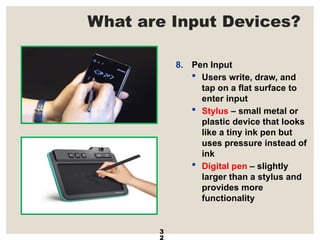
8. Pen Input
 Users write, draw, and
tap on a flat surface to
enter input
 Stylus – small metal or
plastic device that looks
like a tiny ink pen but
uses pressure instead of
ink
 Digital pen – slightly
larger than a stylus and
provides more
functionality
What are Input Devices?
3
3
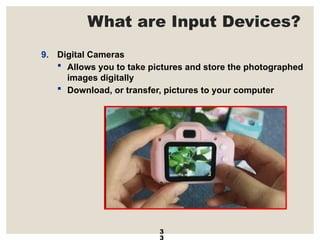
9. Digital Cameras
 Allows you to take pictures and store the photographed
images digitally
 Download, or transfer, pictures to your computer
What are Input Devices?
3
4
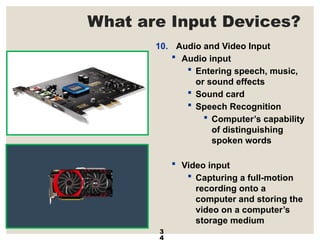
10. Audio and Video Input
 Audio input
 Entering speech, music,
or sound effects
 Sound card
 Speech Recognition
 Computer’s capability
of distinguishing
spoken words
 Video input
 Capturing a full-motion
recording onto a
computer and storing the
video on a computer’s
storage medium
What is Output?
3
5
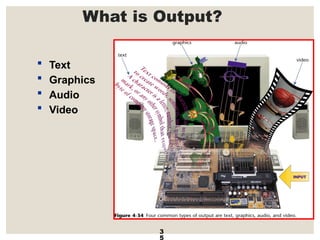
 Text
 Graphics
 Audio
 Video
What are Output Devices?
3
6
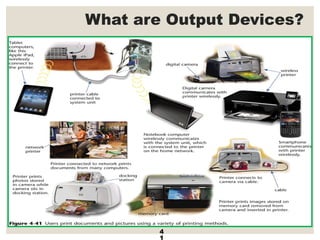
 Any computer component capable of
conveying information to the user
 Commonly used output devices
1. Display devices
2. Printers
3. Data projectors
4. Facsimile machines
5. Multifunction devices
6. Interactive whiteboards
7. Speakers, headphones, and earphones
What are Output Devices?
3
7
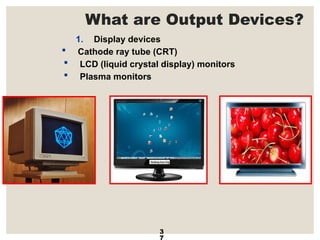
1. Display devices
 Cathode ray tube (CRT)
 LCD (liquid crystal display) monitors
 Plasma monitors
What are Output Devices?
3
8
What are Output Devices?
3
9
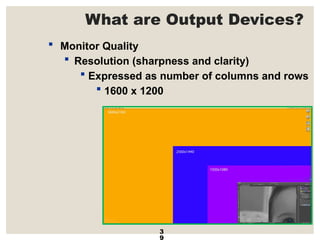
 Monitor Quality
 Resolution (sharpness and clarity)
 Expressed as number of columns and rows
 1600 x 1200
What are Output Devices?
4
0
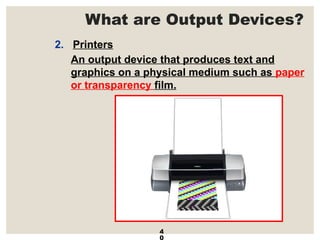
2. Printers
An output device that produces text and
graphics on a physical medium such as paper
or transparency film.
What are Output Devices?
4
1
What are Output Devices?
4
2
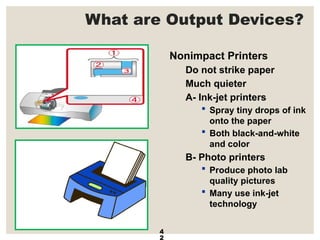
Nonimpact Printers
Do not strike paper
Much quieter
A- Ink-jet printers
 Spray tiny drops of ink
onto the paper
 Both black-and-white
and color
B- Photo printers
 Produce photo lab
quality pictures
 Many use ink-jet
technology
What are Output Devices?
4
3
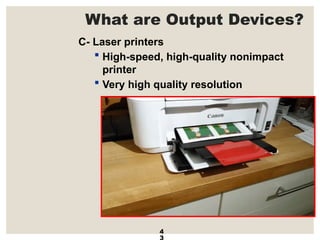
C- Laser printers
 High-speed, high-quality nonimpact
printer
 Very high quality resolution
What are Output Devices?
4
4
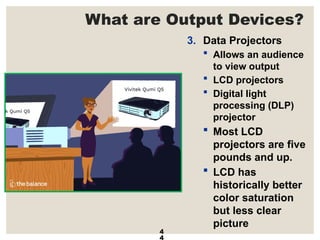
3. Data Projectors
 Allows an audience
to view output
 LCD projectors
 Digital light
processing (DLP)
projector
 Most LCD
projectors are five
pounds and up.
 LCD has
historically better
color saturation
but less clear
picture
What are Output Devices?
4
5
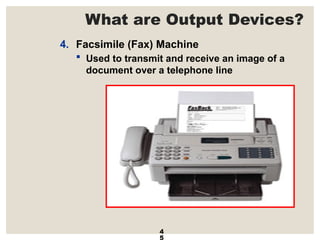
4. Facsimile (Fax) Machine
 Used to transmit and receive an image of a
document over a telephone line
What are Output Devices?
4
6
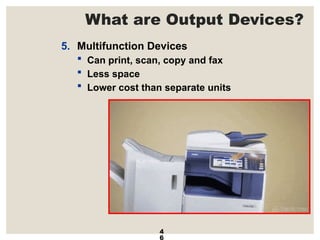
5. Multifunction Devices
 Can print, scan, copy and fax
 Less space
 Lower cost than separate units
What are Output Devices?
4
7
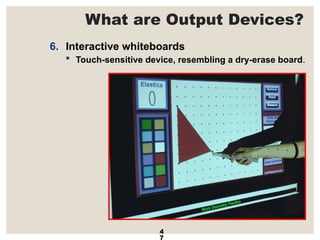
6. Interactive whiteboards
 Touch-sensitive device, resembling a dry-erase board.
What are Output Devices?
4
8
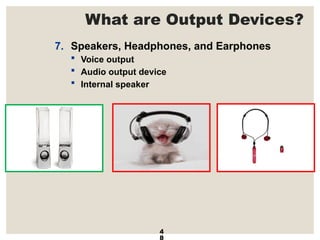
7. Speakers, Headphones, and Earphones
 Voice output
 Audio output device
 Internal speaker
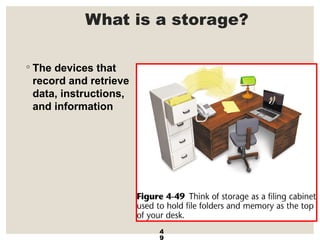
What is a storage?
◦ The devices that
record and retrieve
data, instructions,
and information
4
9
Storage Media and Devices
5
0
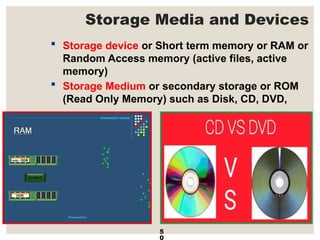
 Storage device or Short term memory or RAM or
Random Access memory (active files, active
memory)
 Storage Medium or secondary storage or ROM
(Read Only Memory) such as Disk, CD, DVD,
Storage Media and Devices
5
1
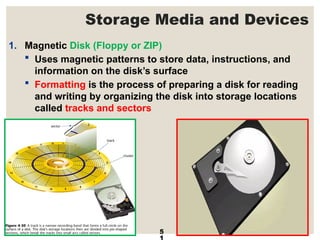
1. Magnetic Disk (Floppy or ZIP)
 Uses magnetic patterns to store data, instructions, and
information on the disk’s surface
 Formatting is the process of preparing a disk for reading
and writing by organizing the disk into storage locations
called tracks and sectors
Storage Media and Devices
5
2
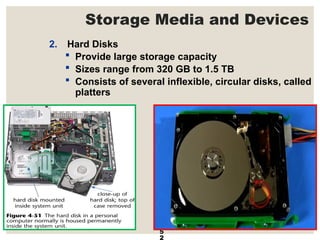
2. Hard Disks
 Provide large storage capacity
 Sizes range from 320 GB to 1.5 TB
 Consists of several inflexible, circular disks, called
platters
Storage Media and Devices
5
3
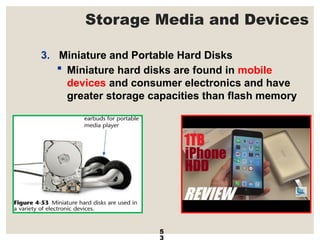
3. Miniature and Portable Hard Disks
 Miniature hard disks are found in mobile
devices and consumer electronics and have
greater storage capacities than flash memory
Storage Media and Devices
5
4
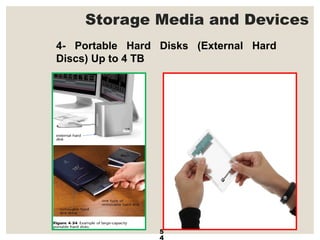
4- Portable Hard Disks (External Hard
Discs) Up to 4 TB
Storage Media and Devices
5
5
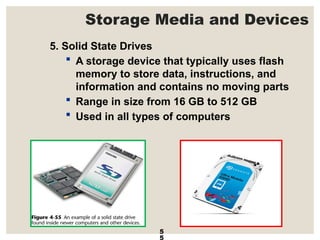
5. Solid State Drives
 A storage device that typically uses flash
memory to store data, instructions, and
information and contains no moving parts
 Range in size from 16 GB to 512 GB
 Used in all types of computers
Storage Media and Devices
5
6
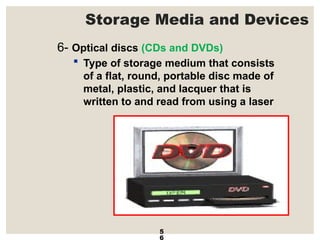
6- Optical discs (CDs and DVDs)
 Type of storage medium that consists
of a flat, round, portable disc made of
metal, plastic, and lacquer that is
written to and read from using a laser
Storage Media and Devices
5
7
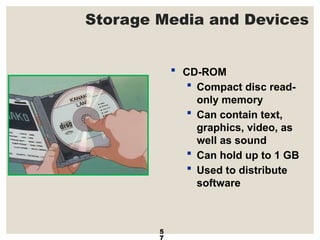
 CD-ROM
 Compact disc read-
only memory
 Can contain text,
graphics, video, as
well as sound
 Can hold up to 1 GB
 Used to distribute
software
Storage Media and Devices
5
8
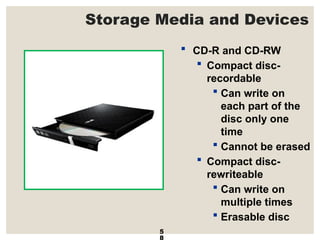
 CD-R and CD-RW
 Compact disc-
recordable
 Can write on
each part of the
disc only one
time
 Cannot be erased
 Compact disc-
rewriteable
 Can write on
multiple times
 Erasable disc
Storage Media and Devices
5
9
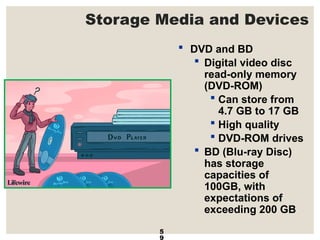
 DVD and BD
 Digital video disc
read-only memory
(DVD-ROM)
 Can store from
4.7 GB to 17 GB
 High quality
 DVD-ROM drives
 BD (Blu-ray Disc)
has storage
capacities of
100GB, with
expectations of
exceeding 200 GB
Storage Media and Devices
6
0
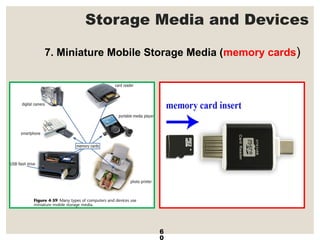
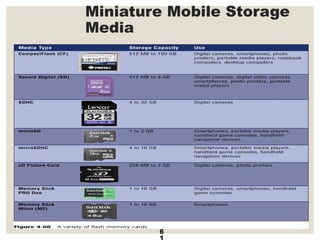
7. Miniature Mobile Storage Media (memory cards)
Miniature Mobile Storage
Media
6
1
Storage Media and Devices
6
2
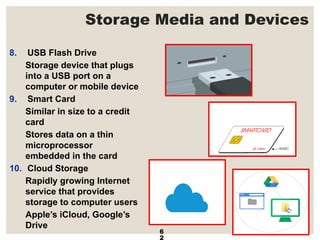
8. USB Flash Drive
Storage device that plugs
into a USB port on a
computer or mobile device
9. Smart Card
Similar in size to a credit
card
Stores data on a thin
microprocessor
embedded in the card
10. Cloud Storage
Rapidly growing Internet
service that provides
storage to computer users
Apple’s iCloud, Google’s
Drive

Introduction to Computing - Computer System Components

  • 1.
  • 2.
    2 3 Main Partsof Computers  Input  System unit  Output
  • 3.
    The System Unit 3 Electronic components a computer uses to process data
  • 4.
    Data Representation 4  Analogvs. Digital  Digital  Two states  (1) on  (0) off
  • 5.
    Data Representation 5  Binarynumber system  Combination of ones and zeroes represent characters Bit Byte
  • 6.
  • 7.
    The Components ofthe System Unit 7 1- The Motherboard Contains many of the electronic components 2- Chip (Processor) A small piece of semiconducting material usually no bigger than one-half-inch square and is made up of many layers of circuits and microscopic components that carry electronic signals
  • 8.
  • 9.
  • 10.
    The Components ofthe System Unit 1 0 The Control Unit (CU) A component of the CPU that directs and coordinates most of the operations in the computer  Fetch - get the next instruction from memory  Decode - translate the instruction  Execute - carry out the command  Store the result - write the result to memory  Machine cycle
  • 11.
    The Components ofthe System Unit 1 1 The Arithmetic/Logic Unit (ALU)  Performs the execution part of the machine cycle  Arithmetic (addition, subtraction, multiplication, division)  Comparison (greater than, equal to, less than)  Logical (AND, OR, NOT)
  • 12.
  • 13.
    The Components ofthe System Unit 1 3 The System Clock  Synchronizes all computer operations  Each tick is called a clock cycle  Faster clock means more instructions the CPU can execute each second  Speed measured in gigahertz (GHz) What is the Speed of your computer?
  • 14.
    The Components ofthe System Unit 1 4 Memory (ROM)  Used to store data and instructions  The operating system and other system software  Application software  Data being processed by application programs  Bytes are stored at specific locations or addresses
  • 15.
    The Components ofthe System Unit 1 5  Memory (ROM)  Size of memory is measured by the number of bytes available
  • 16.
    The Components ofthe System Unit 1 6 Random Access Memory (RAM)  The memory chips in the system unit  When the computer starts, certain operating system files are loaded from a storage device into RAM
  • 17.
    The Components ofthe System Unit 1 7  Random Access Memory (RAM)  Configuring RAM  The more RAM, the more programs and files a computer can work on at once  Software usually tells you how much RAM is required
  • 18.
    The Components ofthe System Unit 1 8  Read-Only Memory (ROM)  Cannot be modified  Contents not lost when the computer is turned off
  • 19.
    The Components ofthe System Unit 1 9 Expansion Slots and Expansion Cards  Expansion slot  A socket on the motherboard that can hold an expansion card  Add new devices or capabilities to the computer  Expansion card  Circuit board that enhances functions of a system component and/or provides connections to peripherals
  • 20.
    The Components ofthe System Unit 2 0 Removable Memory Devices  Flash memory cards  USB flash drives  PC Cards  ExpressCard modules
  • 21.
    The Components ofthe System Unit 2 1 Ports and Connectors  Port  Point of attachment to the system unit  Usually on the back and front of the system unit  Connectors (wires)  Used to plug into ports  Male connectors  Female connectors
  • 22.
    The Components ofthe System Unit 2 2
  • 23.
    The Components ofthe System Unit 2 3  Ports and Connectors  USB  USB 2.0  USB 3.0  FireWire  Bluetooth
  • 24.
    What is Input? 2 4 Any data or instructions you enter into the memory of a computer  Data – unprocessed items  Programs - series of instructions that tells the computer how to perform a task  Commands - an instruction given to a computer program  User responses - responses to questions or messages from the software
  • 25.
  • 26.
    What are InputDevices? 2 6  Any hardware component that allows you to enter data, programs, commands, and user responses into a computer 1. Mouse  One or two button mouse  Scroll wheel  Moving the mouse pointer  Clicking  Dragging  Double-clicking  Optical mouse  Wireless mouse
  • 27.
    What are InputDevices? 2 7 2. Touchpad and Pointing Stick  Touchpad – small, flat, rectangular pointing device that is sensitive to pressure and motion  Pointing Stick – pressure-sensitive pointing device shaped like a pencil eraser
  • 28.
    What are InputDevices? 2 8 3. Trackball  Like a mouse, but the ball mechanism is on top  Requires frequent cleaning  Good when you have limited desk space
  • 29.
    What are InputDevices? 2 9 4. Joystick  Uses the movement of a vertical lever  Often used with games 5. Wheel  Steering-wheel type input device  Used to simulate driving a car or other vehicle
  • 30.
    What are InputDevices? 3 0 6. Touch and multi-touch screens  Monitor has a touch sensitive panel  Used to issue simple commands or choose from a list of options  Some models of desktop and notebook computers, all tablet computers, and many mobile devices have touch screens  Kiosks
  • 31.
    What are InputDevices? 3 1 7. Optical Scanners  Captures an entire page of text or images such as photographs or artwork electronically  Converts the text or image on the original document into digital data that can be stored on a storage medium and processed by the computer
  • 32.
    What are InputDevices? 3 2 8. Pen Input  Users write, draw, and tap on a flat surface to enter input  Stylus – small metal or plastic device that looks like a tiny ink pen but uses pressure instead of ink  Digital pen – slightly larger than a stylus and provides more functionality
  • 33.
    What are InputDevices? 3 3 9. Digital Cameras  Allows you to take pictures and store the photographed images digitally  Download, or transfer, pictures to your computer
  • 34.
    What are InputDevices? 3 4 10. Audio and Video Input  Audio input  Entering speech, music, or sound effects  Sound card  Speech Recognition  Computer’s capability of distinguishing spoken words  Video input  Capturing a full-motion recording onto a computer and storing the video on a computer’s storage medium
  • 35.
    What is Output? 3 5 Text  Graphics  Audio  Video
  • 36.
    What are OutputDevices? 3 6  Any computer component capable of conveying information to the user  Commonly used output devices 1. Display devices 2. Printers 3. Data projectors 4. Facsimile machines 5. Multifunction devices 6. Interactive whiteboards 7. Speakers, headphones, and earphones
  • 37.
    What are OutputDevices? 3 7 1. Display devices  Cathode ray tube (CRT)  LCD (liquid crystal display) monitors  Plasma monitors
  • 38.
    What are OutputDevices? 3 8
  • 39.
    What are OutputDevices? 3 9  Monitor Quality  Resolution (sharpness and clarity)  Expressed as number of columns and rows  1600 x 1200
  • 40.
    What are OutputDevices? 4 0 2. Printers An output device that produces text and graphics on a physical medium such as paper or transparency film.
  • 41.
    What are OutputDevices? 4 1
  • 42.
    What are OutputDevices? 4 2 Nonimpact Printers Do not strike paper Much quieter A- Ink-jet printers  Spray tiny drops of ink onto the paper  Both black-and-white and color B- Photo printers  Produce photo lab quality pictures  Many use ink-jet technology
  • 43.
    What are OutputDevices? 4 3 C- Laser printers  High-speed, high-quality nonimpact printer  Very high quality resolution
  • 44.
    What are OutputDevices? 4 4 3. Data Projectors  Allows an audience to view output  LCD projectors  Digital light processing (DLP) projector  Most LCD projectors are five pounds and up.  LCD has historically better color saturation but less clear picture
  • 45.
    What are OutputDevices? 4 5 4. Facsimile (Fax) Machine  Used to transmit and receive an image of a document over a telephone line
  • 46.
    What are OutputDevices? 4 6 5. Multifunction Devices  Can print, scan, copy and fax  Less space  Lower cost than separate units
  • 47.
    What are OutputDevices? 4 7 6. Interactive whiteboards  Touch-sensitive device, resembling a dry-erase board.
  • 48.
    What are OutputDevices? 4 8 7. Speakers, Headphones, and Earphones  Voice output  Audio output device  Internal speaker
  • 49.
    What is astorage? ◦ The devices that record and retrieve data, instructions, and information 4 9
  • 50.
    Storage Media andDevices 5 0  Storage device or Short term memory or RAM or Random Access memory (active files, active memory)  Storage Medium or secondary storage or ROM (Read Only Memory) such as Disk, CD, DVD,
  • 51.
    Storage Media andDevices 5 1 1. Magnetic Disk (Floppy or ZIP)  Uses magnetic patterns to store data, instructions, and information on the disk’s surface  Formatting is the process of preparing a disk for reading and writing by organizing the disk into storage locations called tracks and sectors
  • 52.
    Storage Media andDevices 5 2 2. Hard Disks  Provide large storage capacity  Sizes range from 320 GB to 1.5 TB  Consists of several inflexible, circular disks, called platters
  • 53.
    Storage Media andDevices 5 3 3. Miniature and Portable Hard Disks  Miniature hard disks are found in mobile devices and consumer electronics and have greater storage capacities than flash memory
  • 54.
    Storage Media andDevices 5 4 4- Portable Hard Disks (External Hard Discs) Up to 4 TB
  • 55.
    Storage Media andDevices 5 5 5. Solid State Drives  A storage device that typically uses flash memory to store data, instructions, and information and contains no moving parts  Range in size from 16 GB to 512 GB  Used in all types of computers
  • 56.
    Storage Media andDevices 5 6 6- Optical discs (CDs and DVDs)  Type of storage medium that consists of a flat, round, portable disc made of metal, plastic, and lacquer that is written to and read from using a laser
  • 57.
    Storage Media andDevices 5 7  CD-ROM  Compact disc read- only memory  Can contain text, graphics, video, as well as sound  Can hold up to 1 GB  Used to distribute software
  • 58.
    Storage Media andDevices 5 8  CD-R and CD-RW  Compact disc- recordable  Can write on each part of the disc only one time  Cannot be erased  Compact disc- rewriteable  Can write on multiple times  Erasable disc
  • 59.
    Storage Media andDevices 5 9  DVD and BD  Digital video disc read-only memory (DVD-ROM)  Can store from 4.7 GB to 17 GB  High quality  DVD-ROM drives  BD (Blu-ray Disc) has storage capacities of 100GB, with expectations of exceeding 200 GB
  • 60.
    Storage Media andDevices 6 0 7. Miniature Mobile Storage Media (memory cards)
  • 61.
  • 62.
    Storage Media andDevices 6 2 8. USB Flash Drive Storage device that plugs into a USB port on a computer or mobile device 9. Smart Card Similar in size to a credit card Stores data on a thin microprocessor embedded in the card 10. Cloud Storage Rapidly growing Internet service that provides storage to computer users Apple’s iCloud, Google’s Drive