TEACHING WITH TABLETS USING IPADS TO DELIVER INSTRUCTION & ENGAGE STUDENTS 
CATHERINE RITZ 
ARLINGTON (MA) PUBLIC SCHOOLS 
ACTFL, 2014
ABOUT ME & TECHNOLOGY IN MY DISTRICT 
•WL Director, Arlington, MA – French/Spanish teacher 
•Middle School: each teacher has an iPad for teaching; iPad Mini Cart for students 
•High School: a few teachers have an iPad for teaching; 15 iPod Touches for students, many use their own iPhones 
•All students are assigned Gmail accounts through the district, and teacher emails are also through Gmail
SESSION OBJECTIVES 
•Understand how to set up your classroom with a tablet and manage workflow in order to: 
•…create and share class agendas and presentations. 
•…share and publish student work. 
•…flip your classroom. 
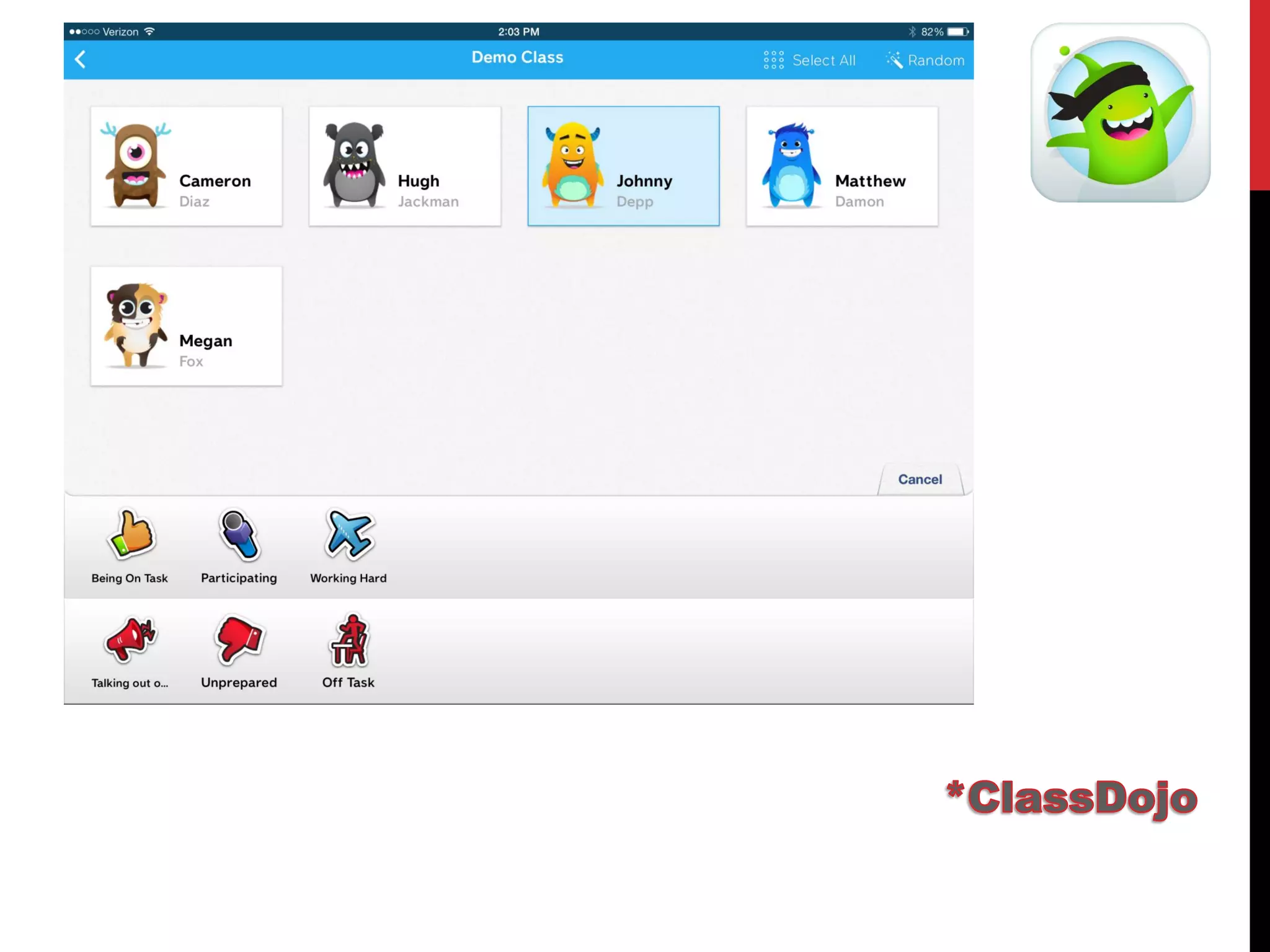
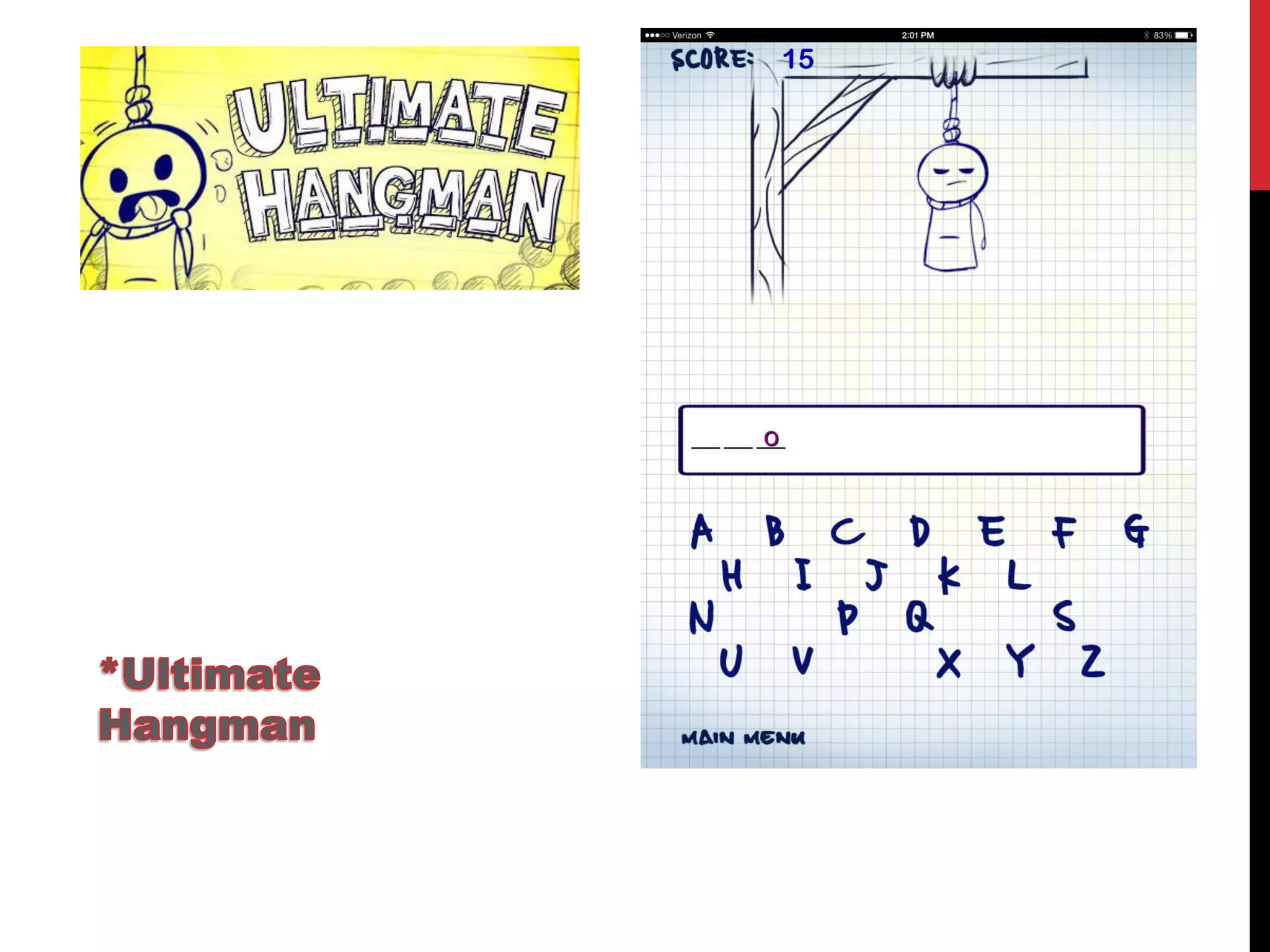
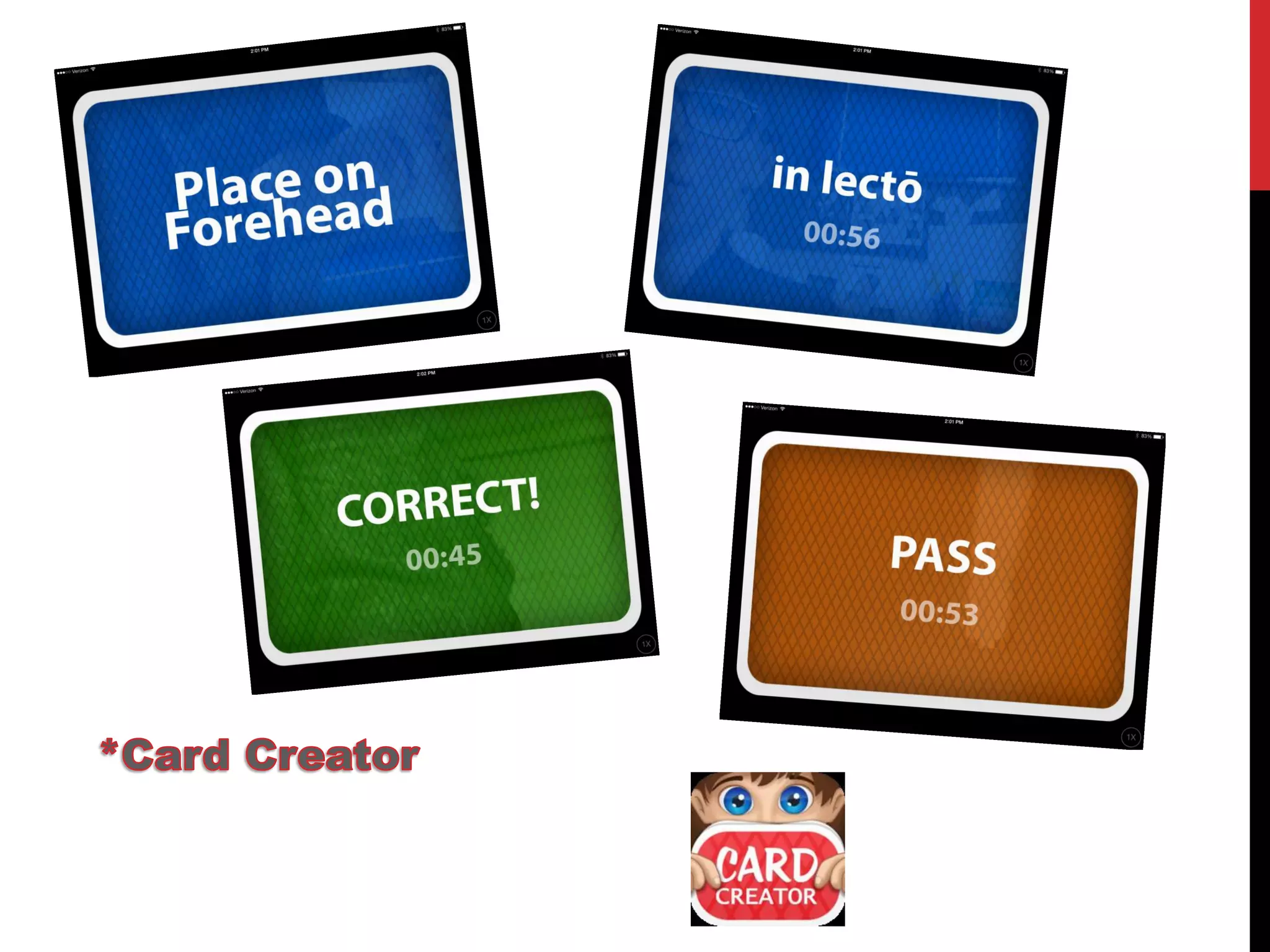
•…use the tablet for fun, engaging games. 
•Understand how to manage workflow when students are using tablets in class or at home in order to… 
•…effectively manage class time. 
•…easily collect student work.
ONE TABLET 
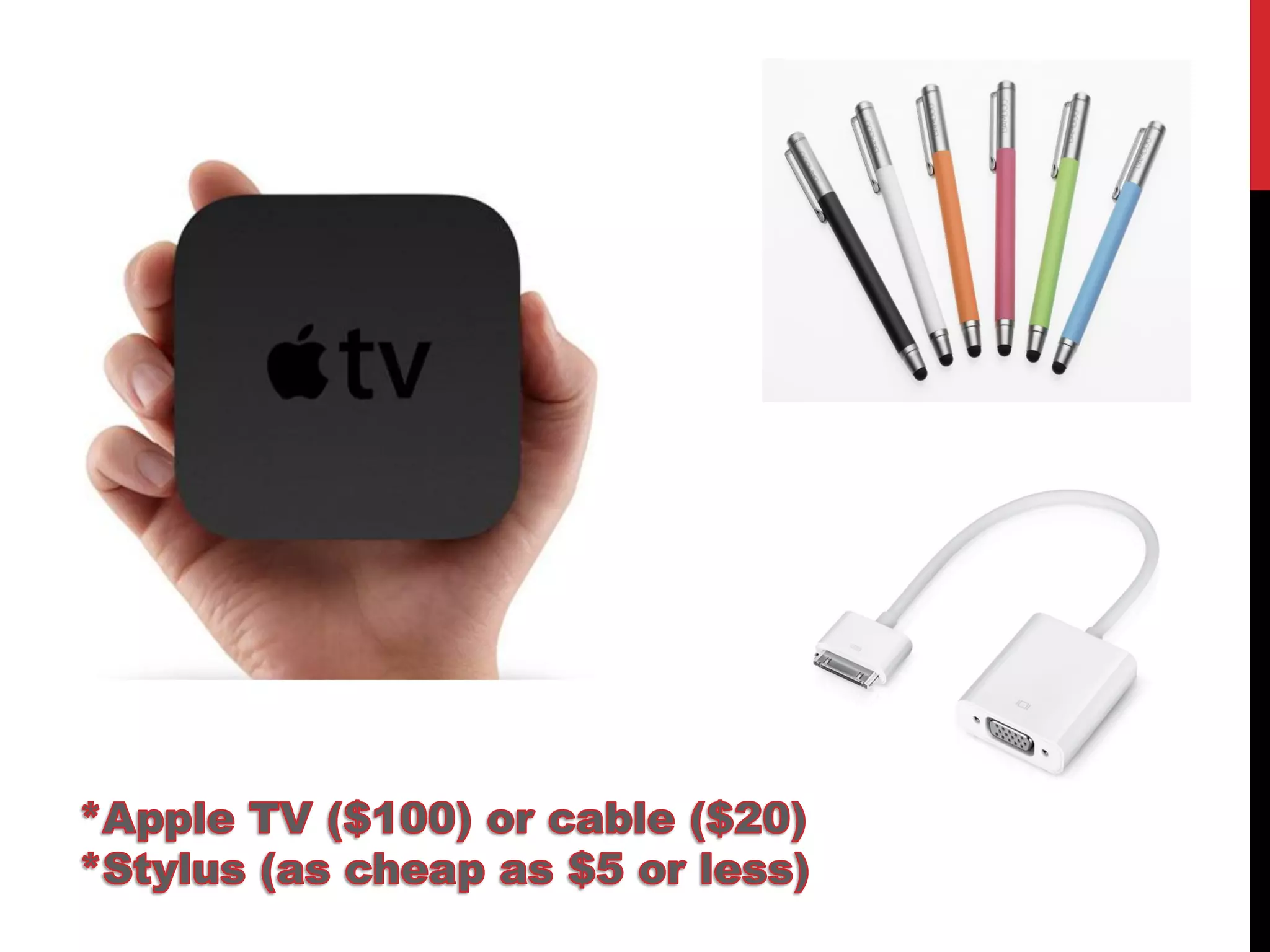
•Teach with your iPad like an Interactive Whiteboard 
•Do interactive games with students 
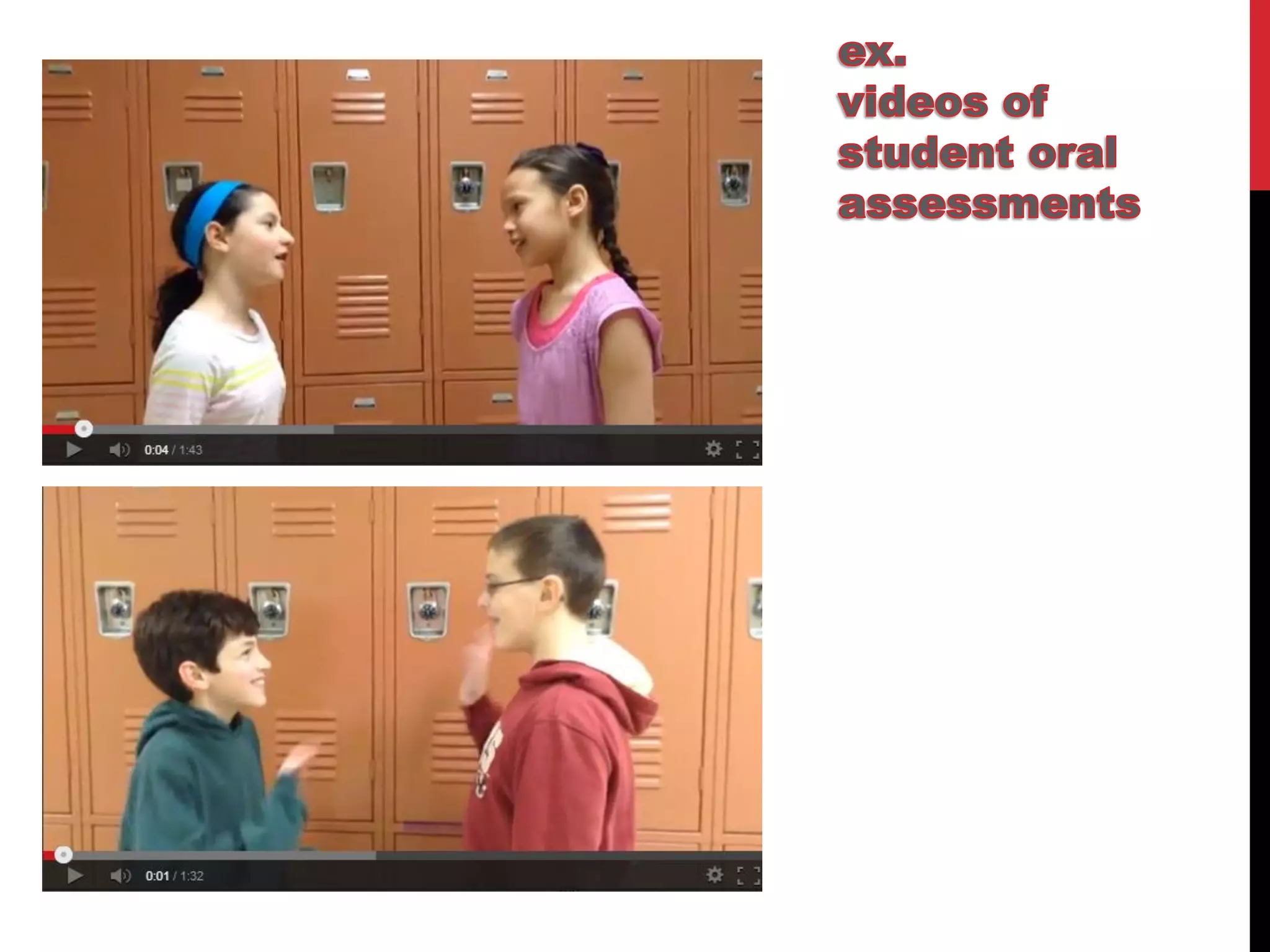
•Film student conversations 
•Take photos of student work 
•Flip your classroom (no more in-class grammar!)
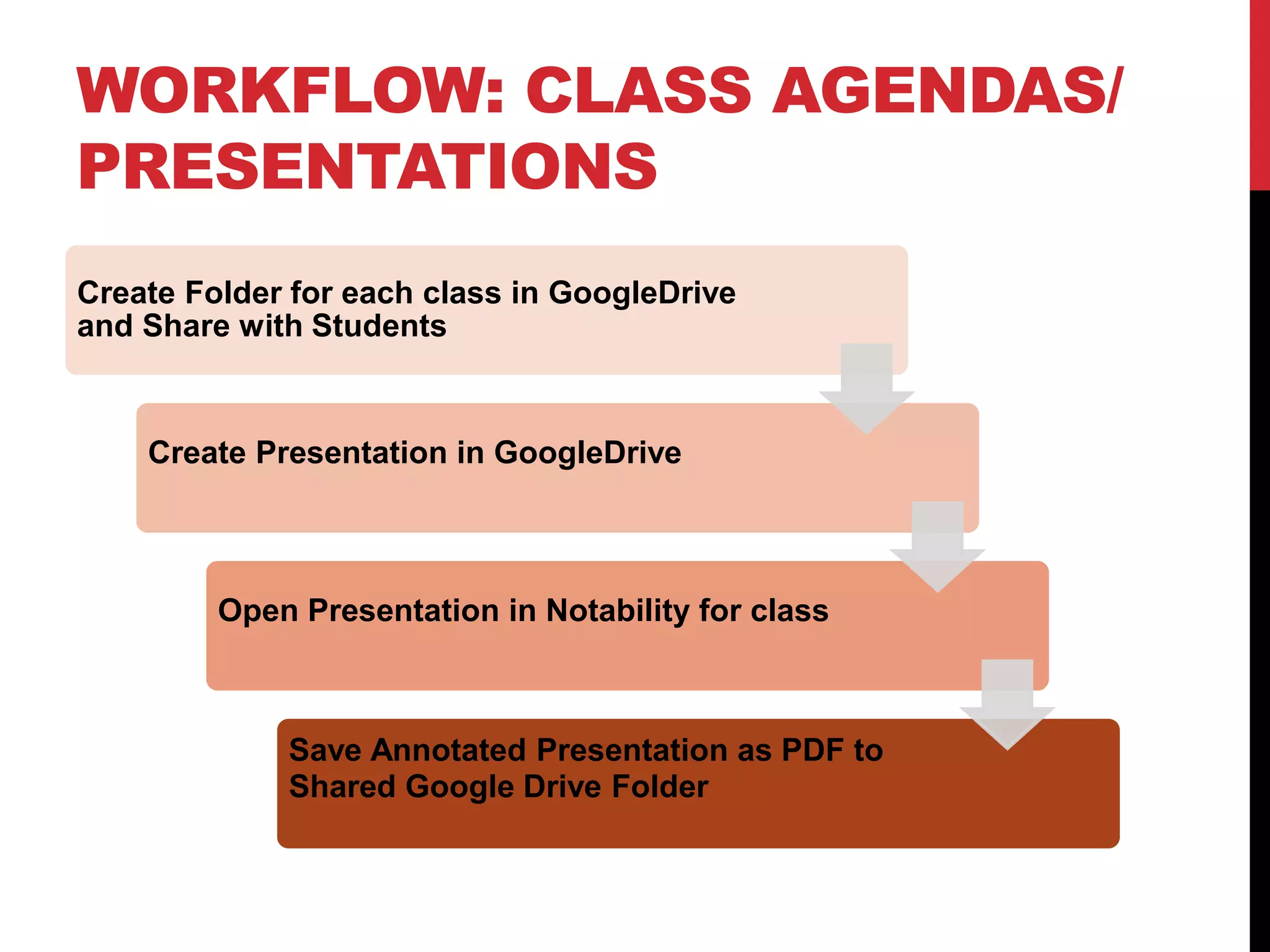
WORKFLOW: CLASS AGENDAS/ PRESENTATIONS 
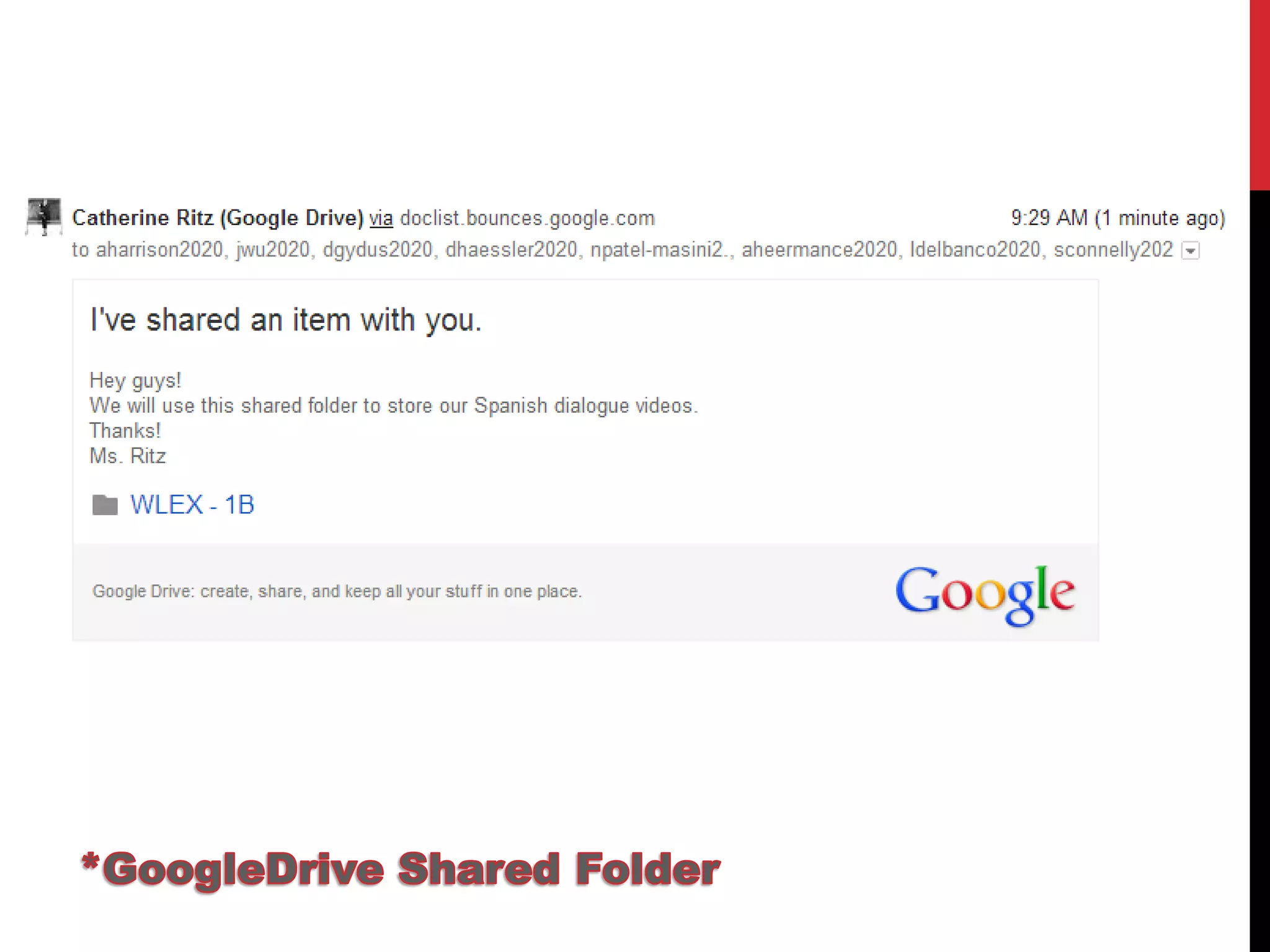
Create Folder for each class in GoogleDrive and Share with Students 
Create Presentation in GoogleDrive 
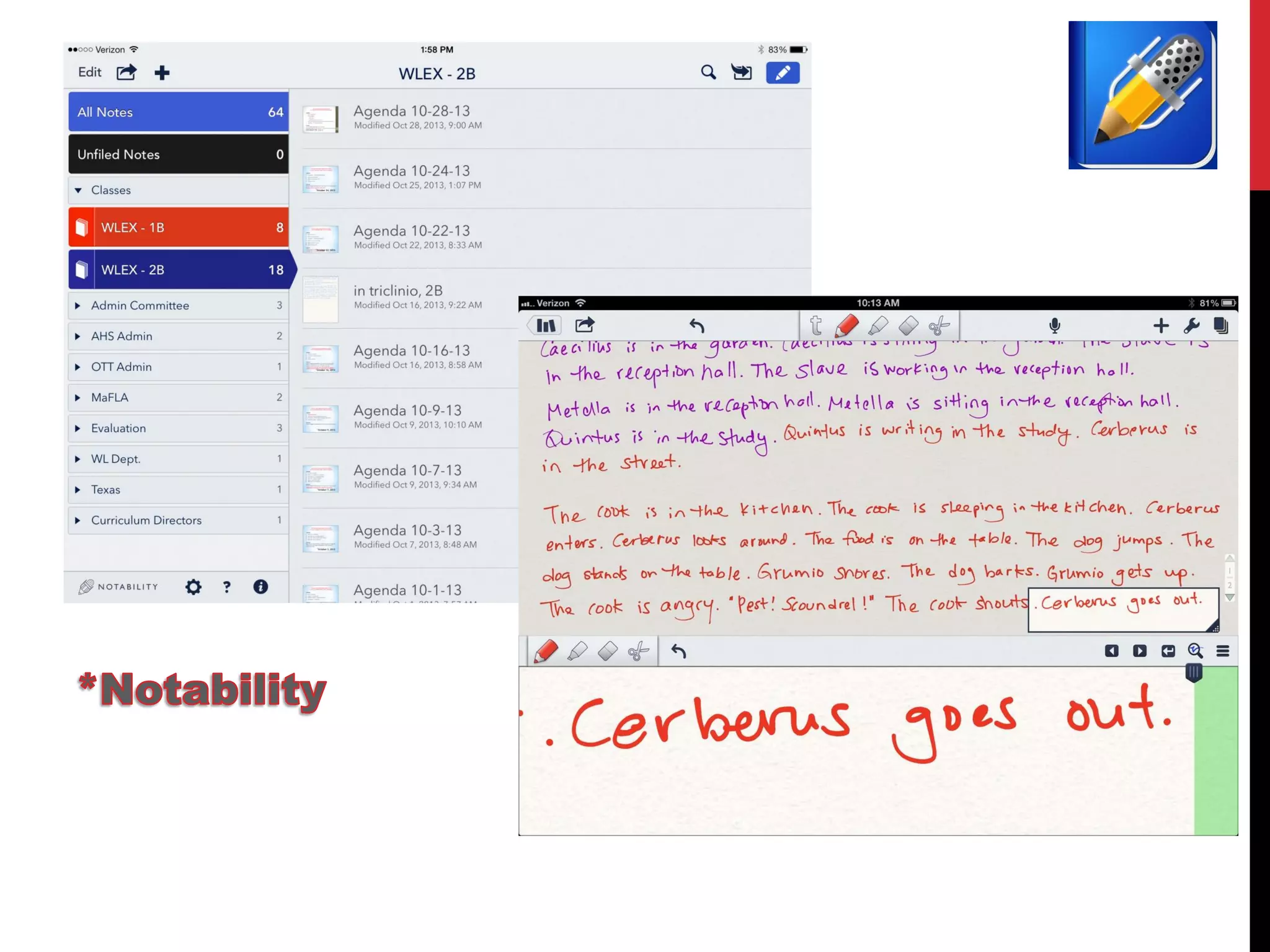
Open Presentation in Notability for class 
Save Annotated Presentation as PDF to Shared Google Drive Folder
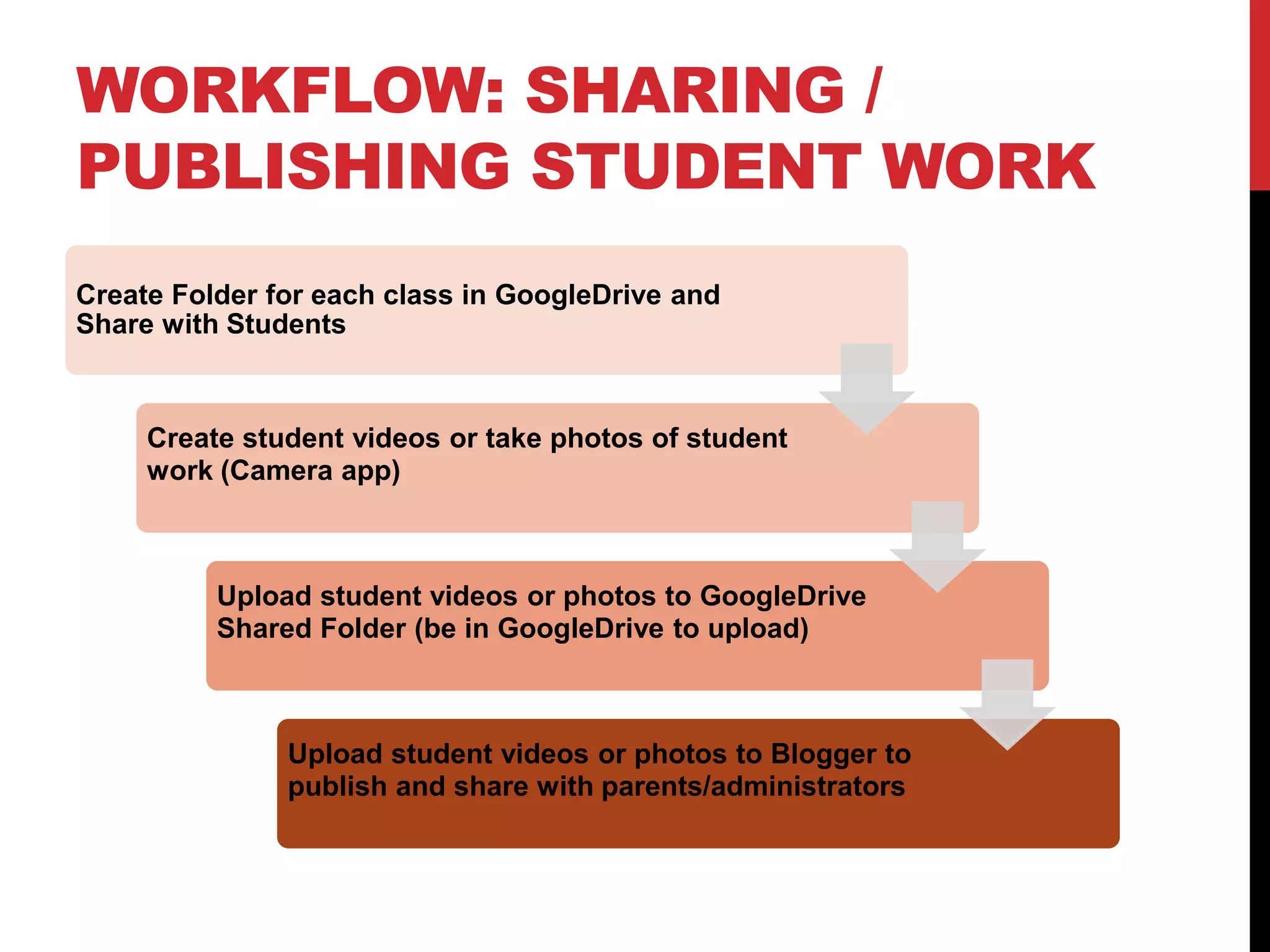
WORKFLOW: SHARING / PUBLISHING STUDENT WORK 
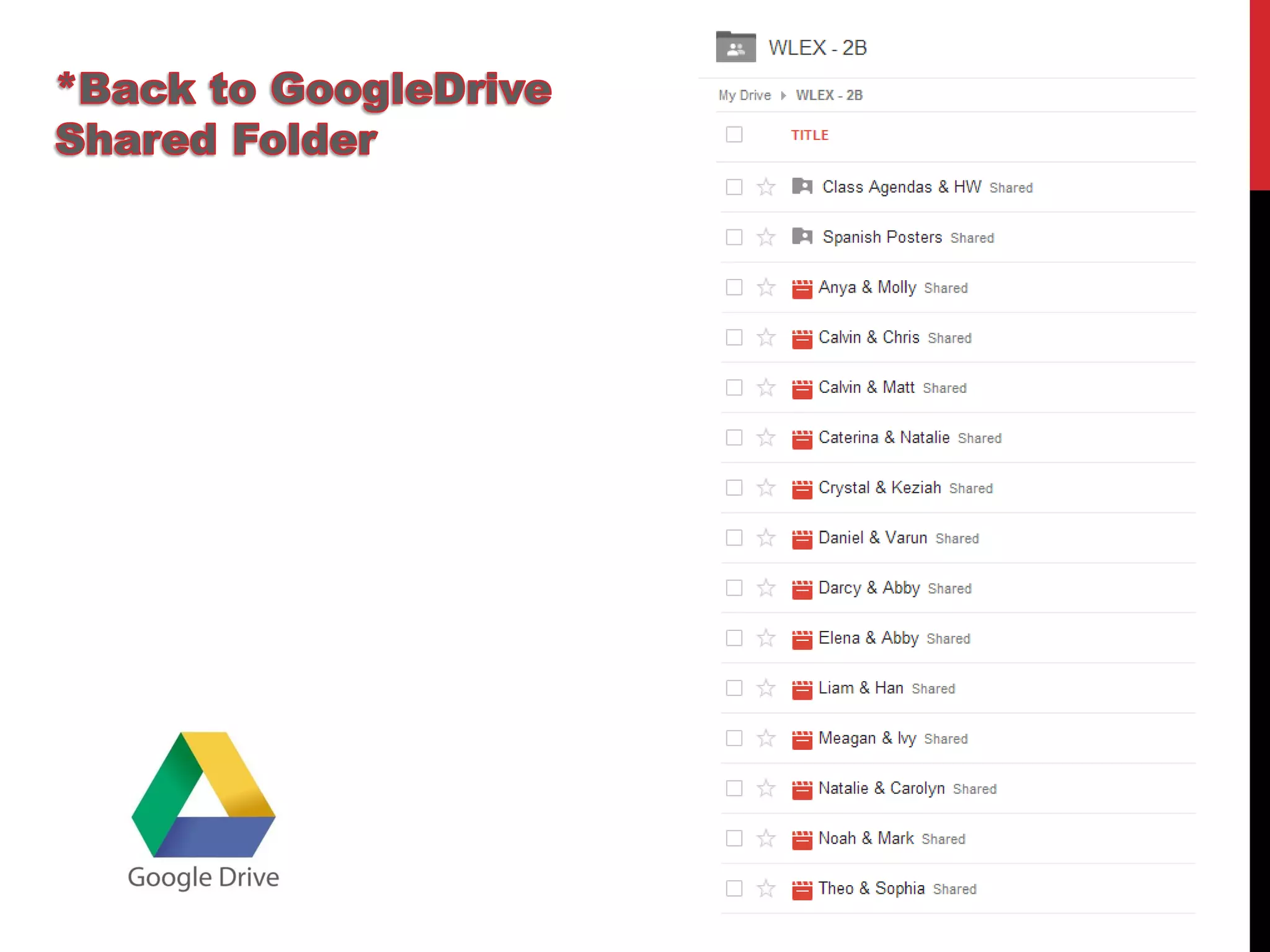
Create Folder for each class in GoogleDrive and Share with Students 
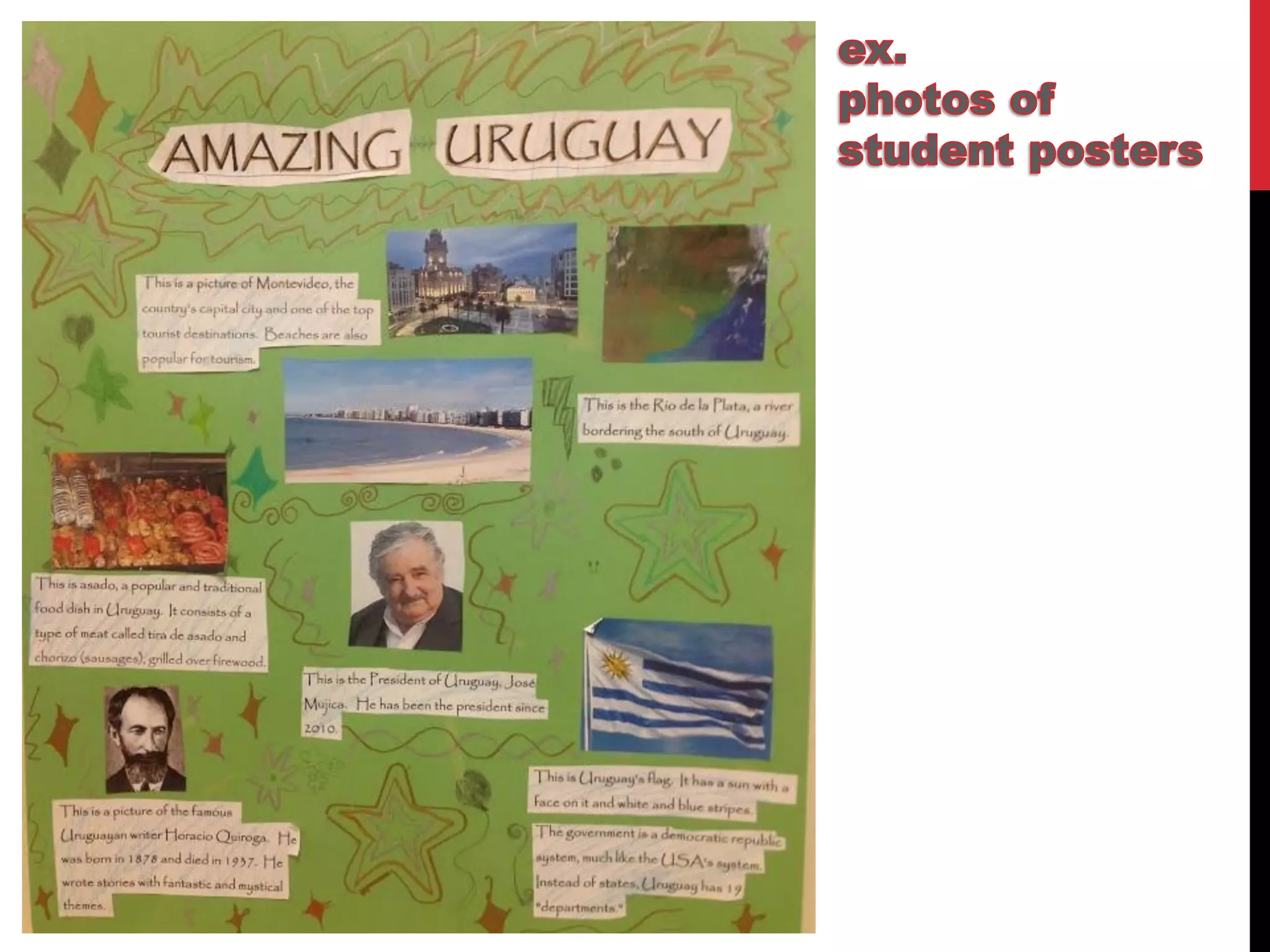
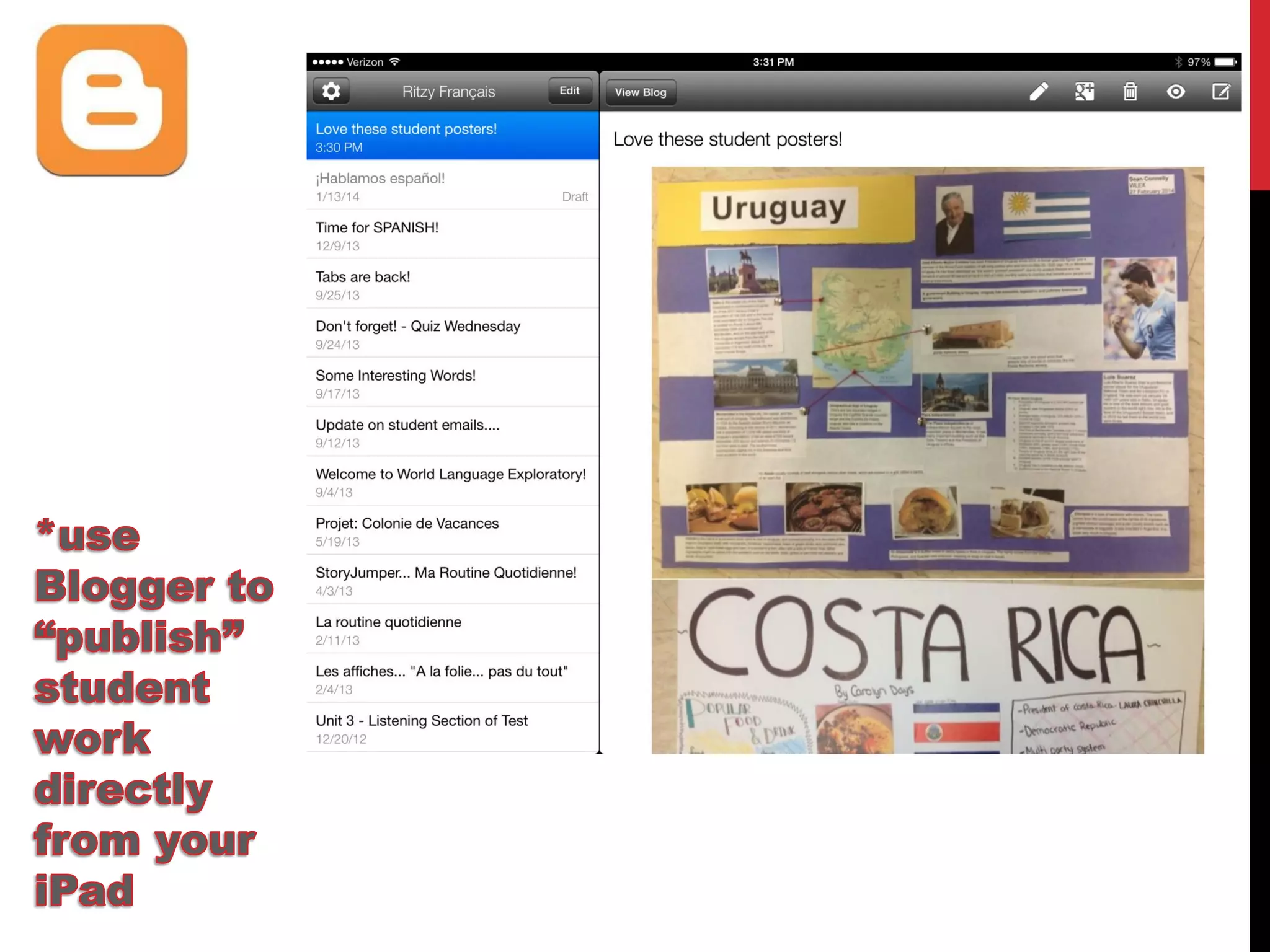
Create student videos or take photos of student work (Camera app) 
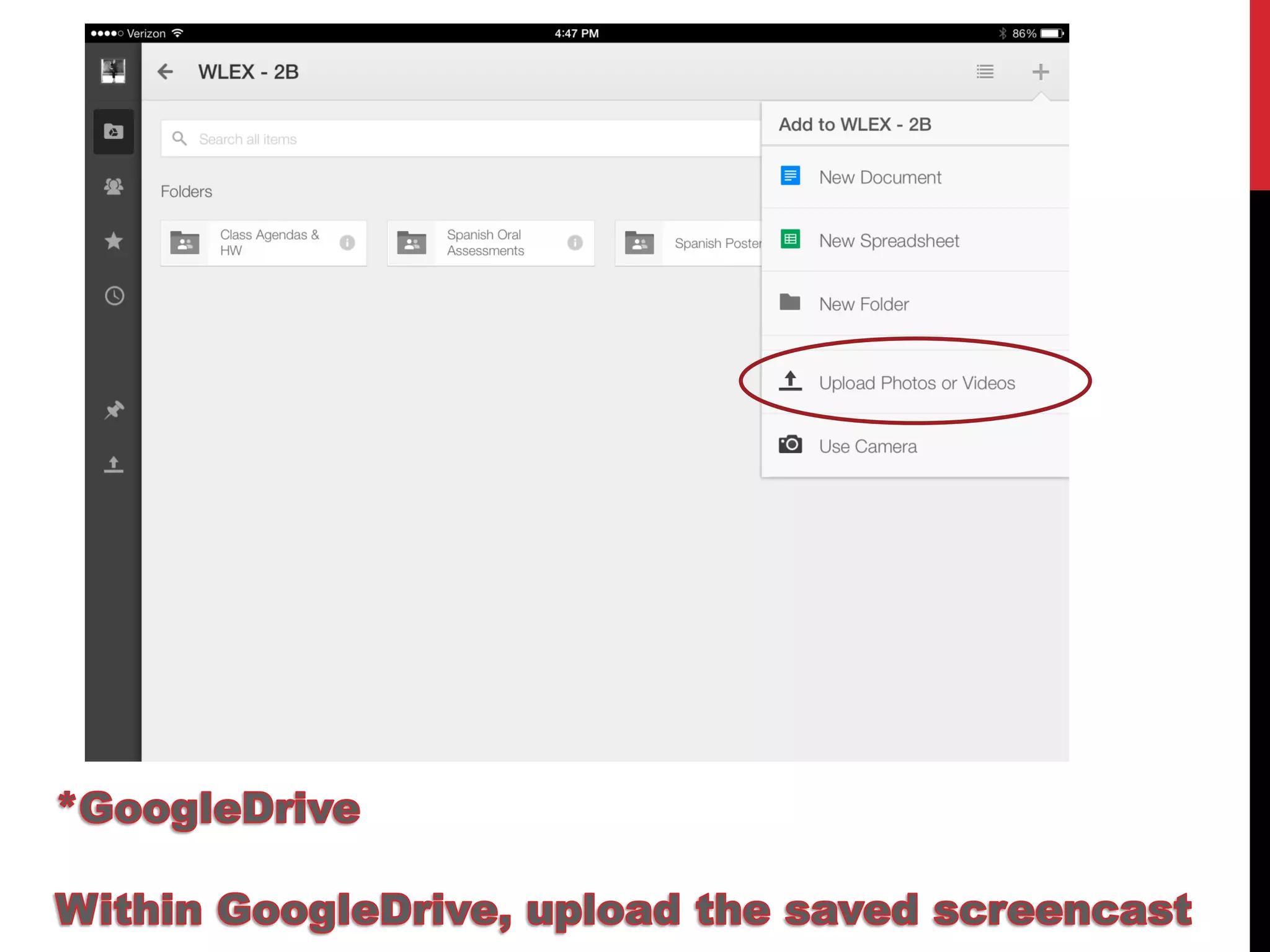
Upload student videos or photos to GoogleDrive Shared Folder (be in GoogleDrive to upload) 
Upload student videos or photos to Blogger to publish and share with parents/administrators
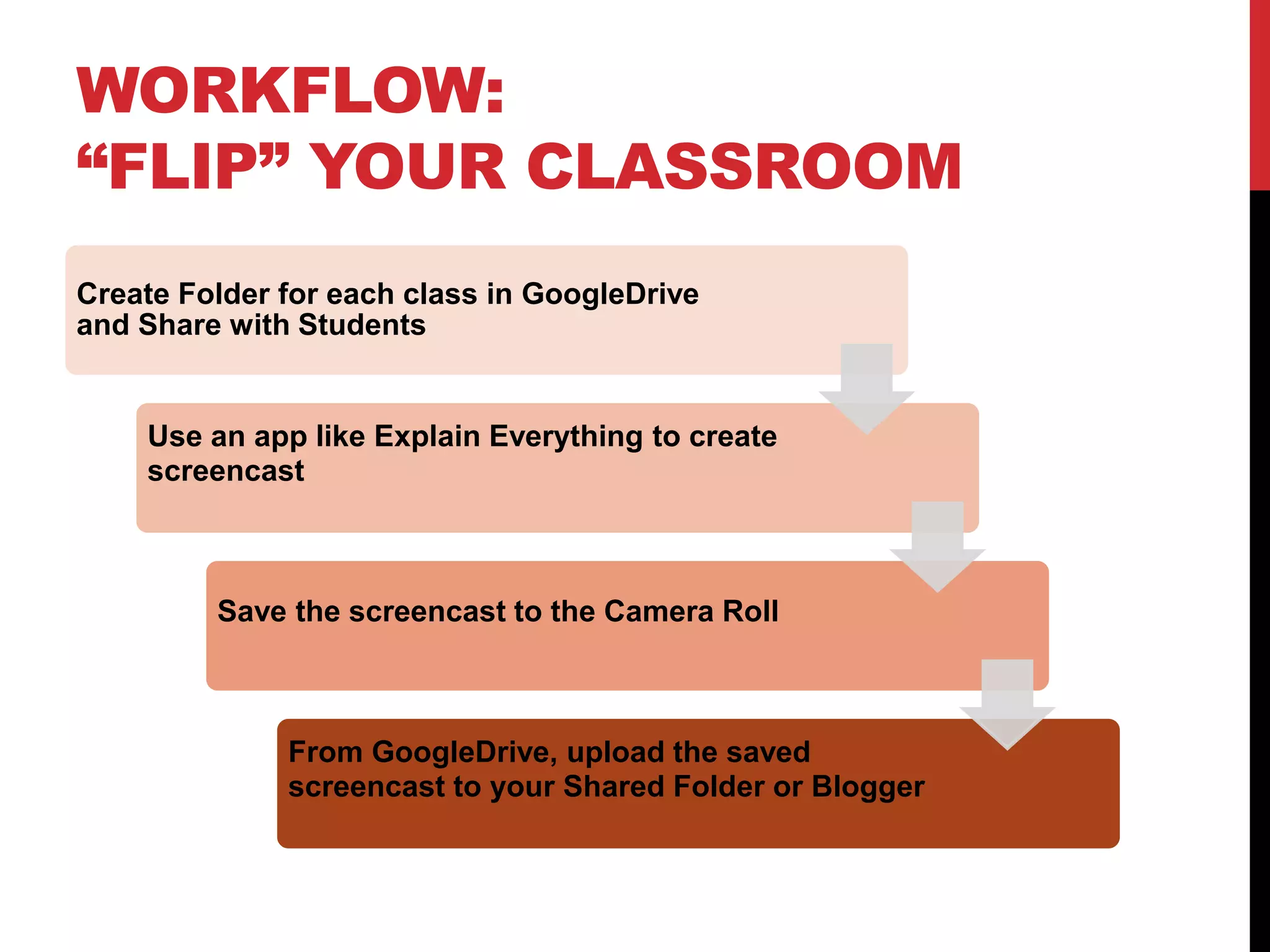
WORKFLOW: “FLIP” YOUR CLASSROOM 
Create Folder for each class in GoogleDrive and Share with Students 
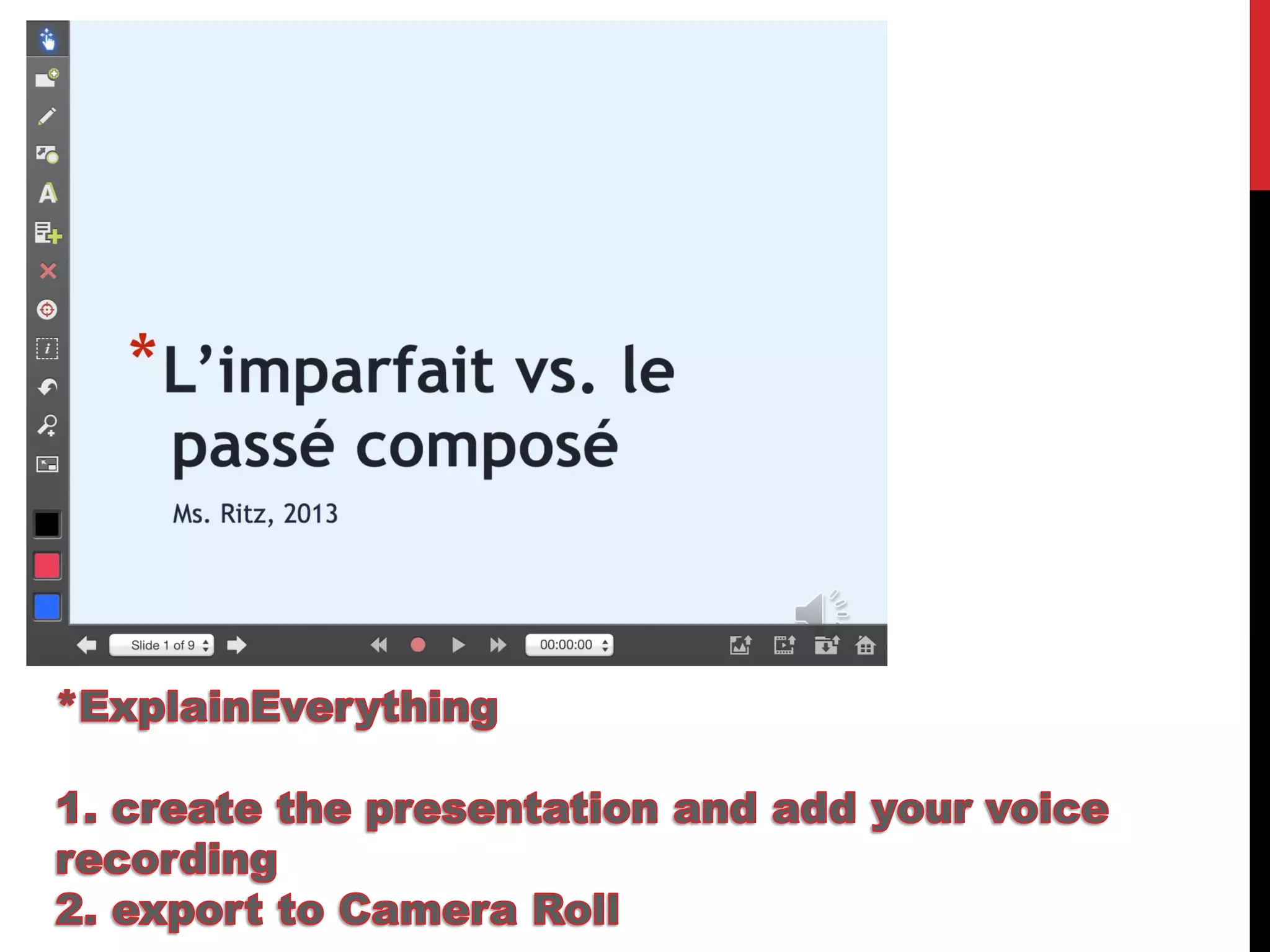
Use an app like Explain Everything to create screencast 
Save the screencast to the Camera Roll 
From GoogleDrive, upload the saved screencast to your Shared Folder or Blogger
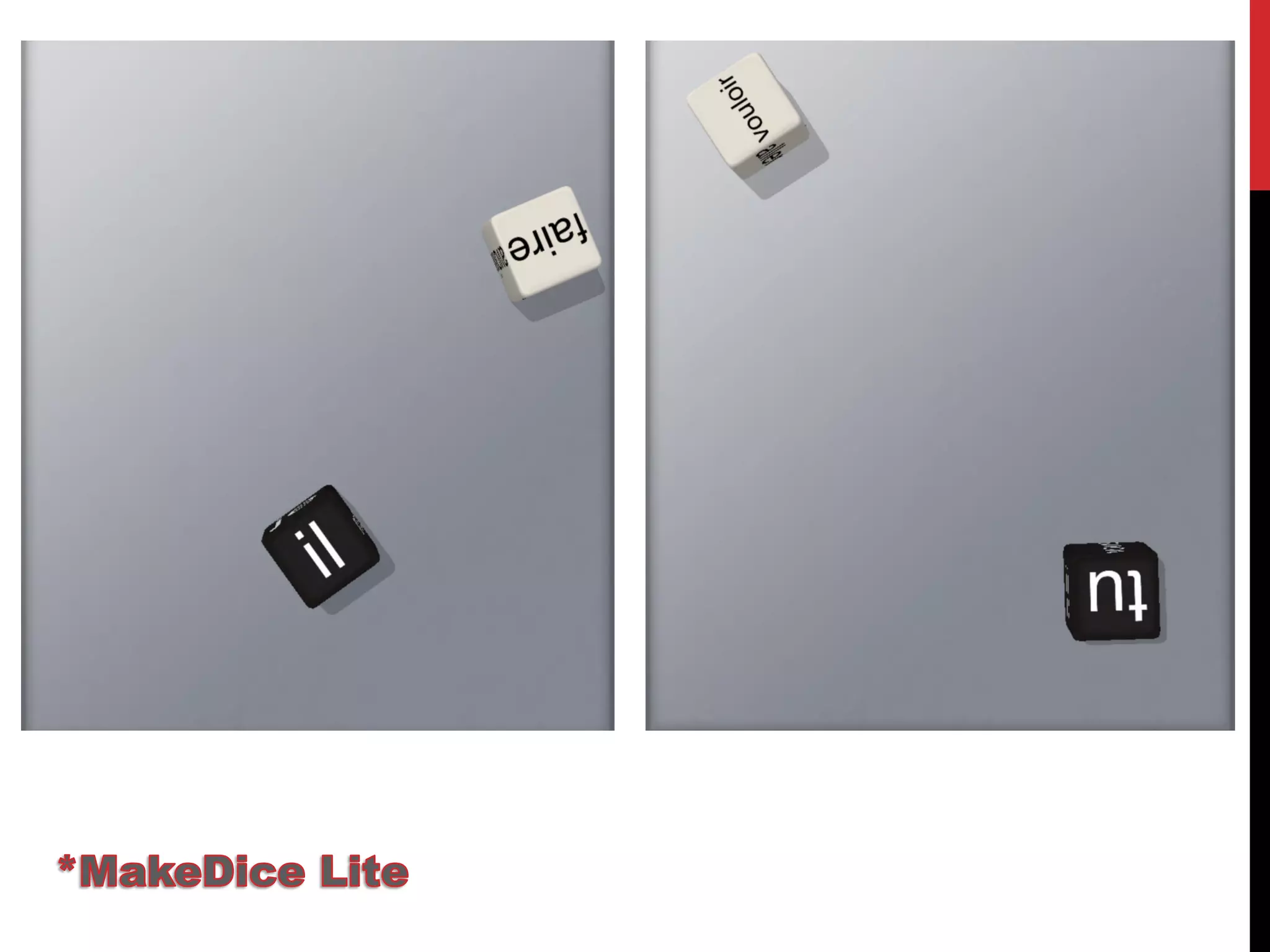
AND NOW FOR A LITTLE FUN…
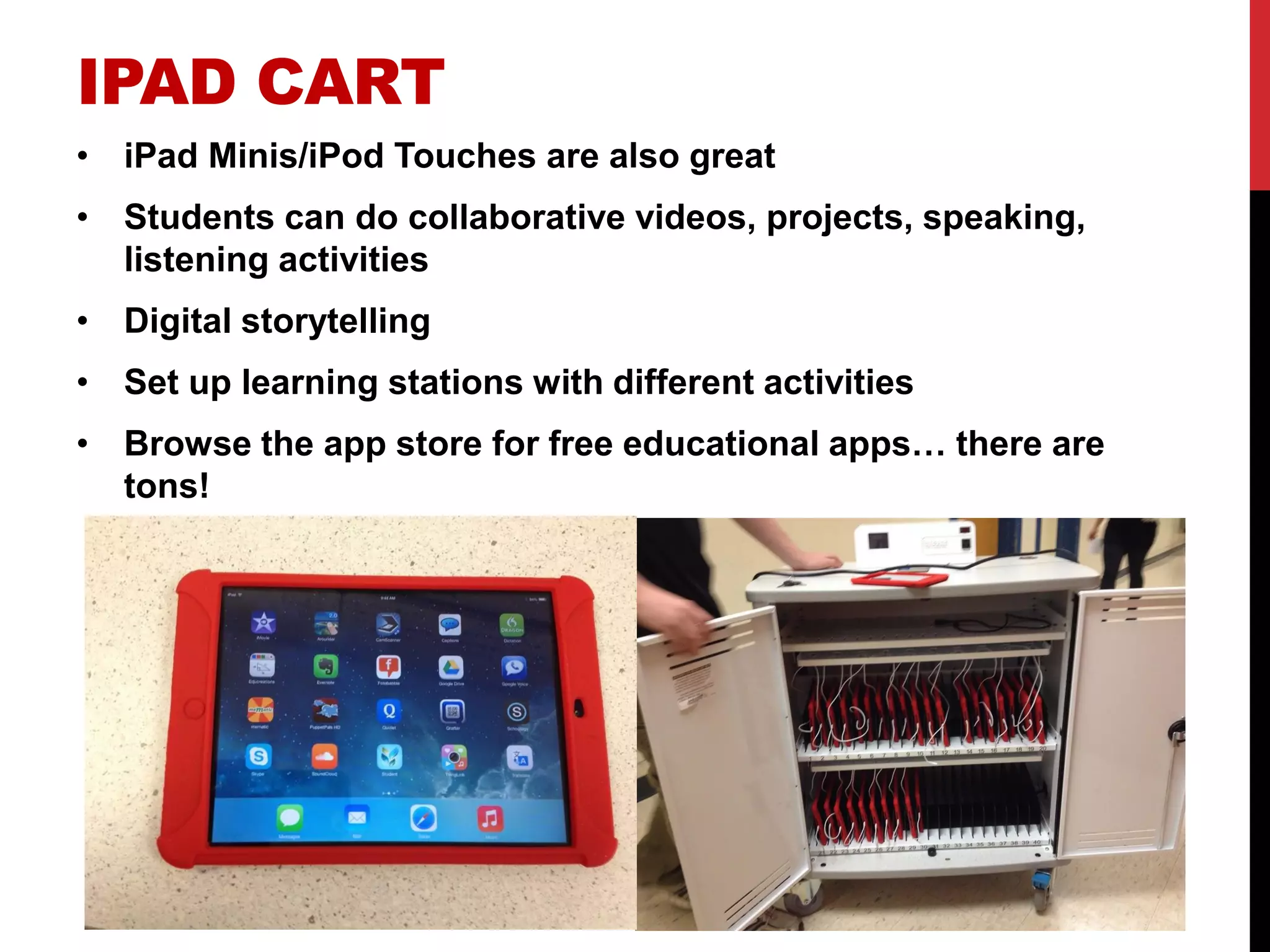
IPAD CART 
•iPad Minis/iPod Touches are also great 
•Students can do collaborative videos, projects, speaking, listening activities 
•Digital storytelling 
•Set up learning stations with different activities 
•Browse the app store for free educational apps… there are tons!
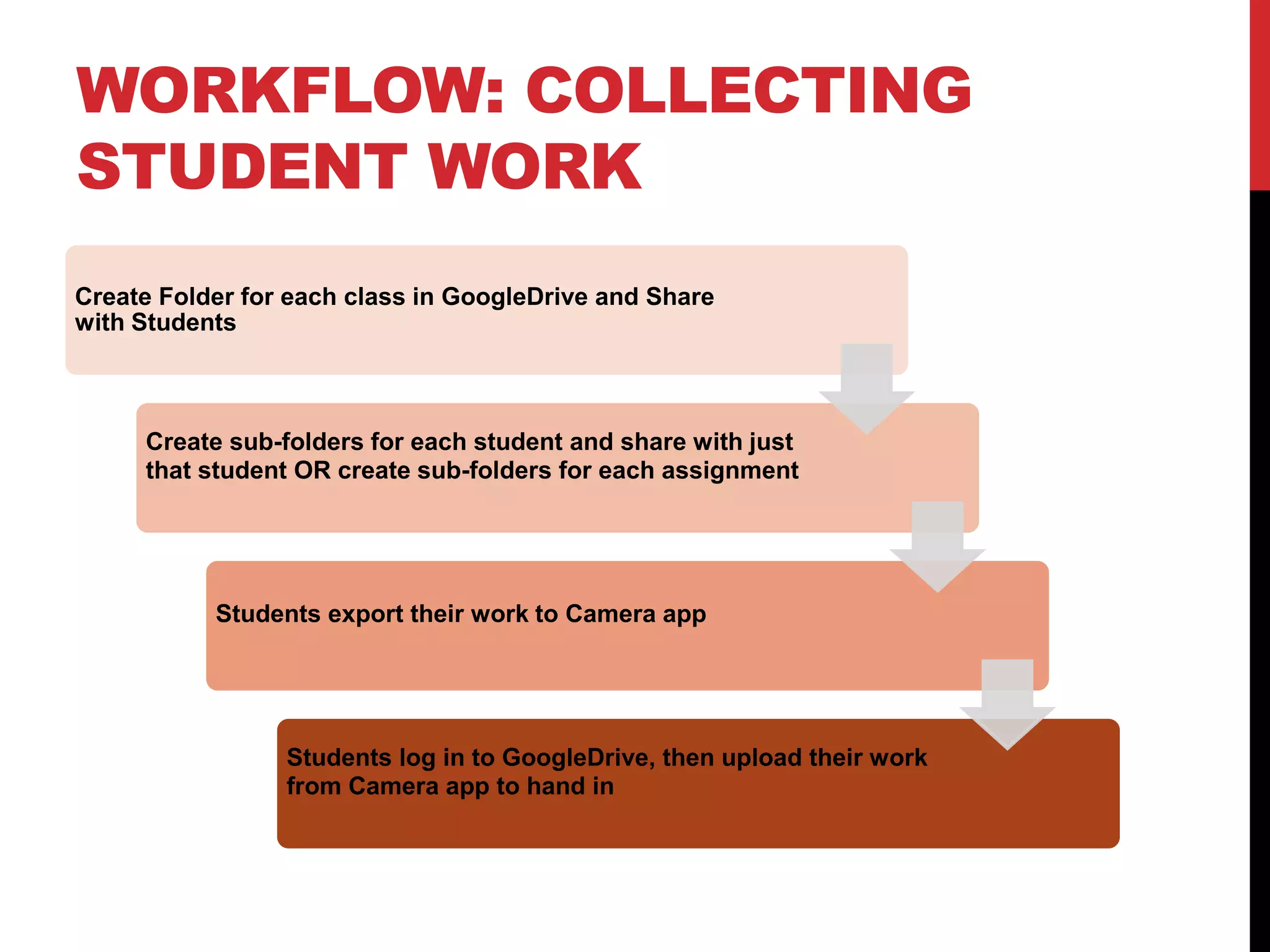
WORKFLOW: COLLECTING STUDENT WORK 
Create Folder for each class in GoogleDrive and Share with Students 
Create sub-folders for each student and share with just that student OR create sub-folders for each assignment 
Students export their work to Camera app 
Students log in to GoogleDrive, then upload their work from Camera app to hand in
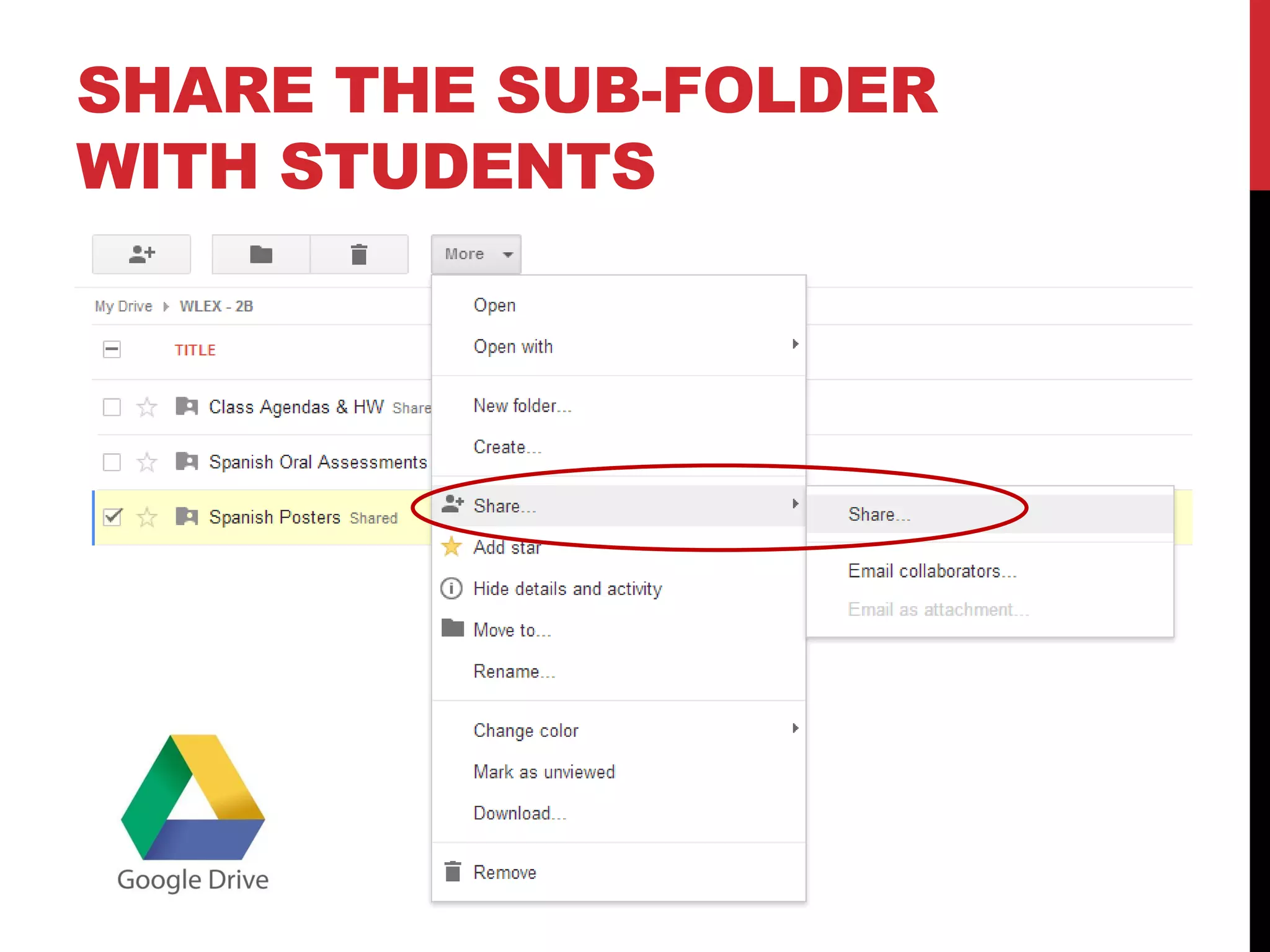
SHARE THE SUB-FOLDER WITH STUDENTS
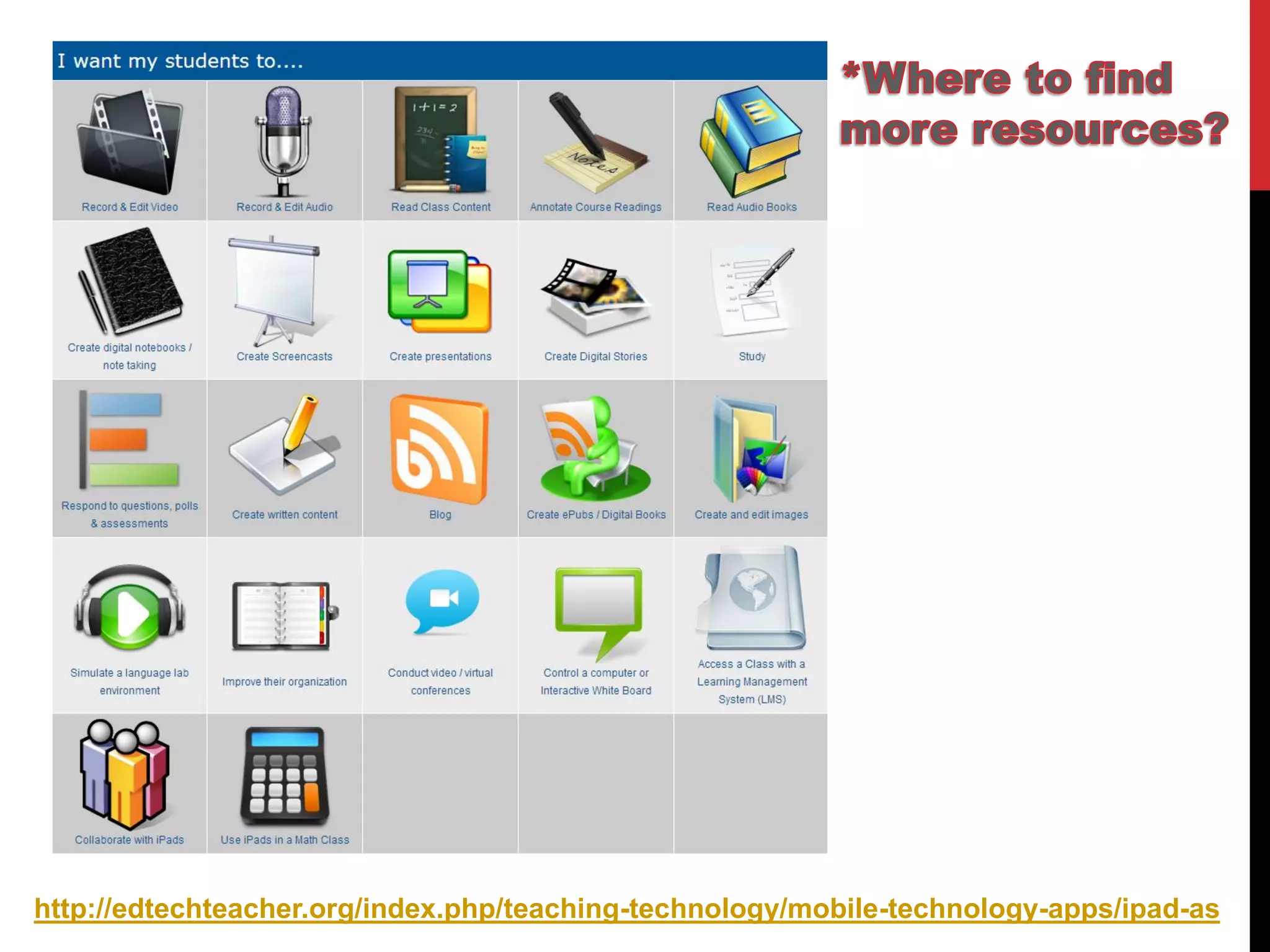
http://edtechteacher.org/index.php/teaching-technology/mobile-technology-apps/ipad-as
QUESTIONS? 
•? 
•catherineritz@gmail.com

Teaching With Tablets - ACTFL 2014

  • 1.
    TEACHING WITH TABLETSUSING IPADS TO DELIVER INSTRUCTION & ENGAGE STUDENTS CATHERINE RITZ ARLINGTON (MA) PUBLIC SCHOOLS ACTFL, 2014
  • 2.
    ABOUT ME &TECHNOLOGY IN MY DISTRICT •WL Director, Arlington, MA – French/Spanish teacher •Middle School: each teacher has an iPad for teaching; iPad Mini Cart for students •High School: a few teachers have an iPad for teaching; 15 iPod Touches for students, many use their own iPhones •All students are assigned Gmail accounts through the district, and teacher emails are also through Gmail
  • 3.
    SESSION OBJECTIVES •Understandhow to set up your classroom with a tablet and manage workflow in order to: •…create and share class agendas and presentations. •…share and publish student work. •…flip your classroom. •…use the tablet for fun, engaging games. •Understand how to manage workflow when students are using tablets in class or at home in order to… •…effectively manage class time. •…easily collect student work.
  • 4.
    ONE TABLET •Teachwith your iPad like an Interactive Whiteboard •Do interactive games with students •Film student conversations •Take photos of student work •Flip your classroom (no more in-class grammar!)
  • 6.
    WORKFLOW: CLASS AGENDAS/PRESENTATIONS Create Folder for each class in GoogleDrive and Share with Students Create Presentation in GoogleDrive Open Presentation in Notability for class Save Annotated Presentation as PDF to Shared Google Drive Folder
  • 10.
    WORKFLOW: SHARING /PUBLISHING STUDENT WORK Create Folder for each class in GoogleDrive and Share with Students Create student videos or take photos of student work (Camera app) Upload student videos or photos to GoogleDrive Shared Folder (be in GoogleDrive to upload) Upload student videos or photos to Blogger to publish and share with parents/administrators
  • 14.
    WORKFLOW: “FLIP” YOURCLASSROOM Create Folder for each class in GoogleDrive and Share with Students Use an app like Explain Everything to create screencast Save the screencast to the Camera Roll From GoogleDrive, upload the saved screencast to your Shared Folder or Blogger
  • 17.
    AND NOW FORA LITTLE FUN…
  • 22.
    IPAD CART •iPadMinis/iPod Touches are also great •Students can do collaborative videos, projects, speaking, listening activities •Digital storytelling •Set up learning stations with different activities •Browse the app store for free educational apps… there are tons!
  • 23.
    WORKFLOW: COLLECTING STUDENTWORK Create Folder for each class in GoogleDrive and Share with Students Create sub-folders for each student and share with just that student OR create sub-folders for each assignment Students export their work to Camera app Students log in to GoogleDrive, then upload their work from Camera app to hand in
  • 24.
    SHARE THE SUB-FOLDERWITH STUDENTS
  • 29.
  • 30.