Incorporating Internet and MS Applications
with Smart Notebook
Catherine Ritz


Goals:
• effectively use the Internet and MS applications in conjunction with SmartBoard

SmartBoard functions:
• transparent background
• screen capture tools
• ruler, protractor, compass, geodreick protractor
• shape, fill icons
• grouping
• “aware tools”
• magic pen


                                                                                    1
Transparent Background


      The transparent background icon will allow your SB page to
      "disappear," but will save all work you do as if you were still on it.


             Why use the transparent background?

             - look at content on-line or on the computer,
             take notes and save them
             - create a class record of notes/discussion without
             constantly re-opening Smart Notebook


                                                                               2
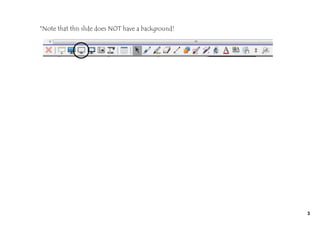
*Note that this slide does NOT have a background!


                                                    3
http://www.lonelyplanet.com/france/paris
Activity #1: Visit Paris


What are the key monuments in Paris?


                                                                                  4
5
Technical How-To


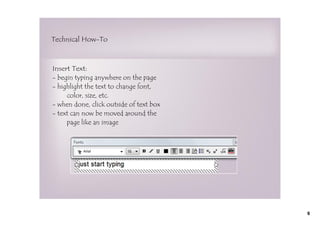
Insert Text:
- begin typing anywhere on the page
- highlight the text to change font,
     color, size, etc.
- when done, click outside of text box
- text can now be moved around the
     page like an image


                                         6
Technical How-To


Create Text Boxes:
- click on "Shapes" button
- select the shape you want to encircle your text
- size it around your text


                                                    7
Technical How-To


Fill Text Boxes:
- click on the text box you've created
- click on the "Properties" tab on the left
- select the color/style you want


                                              8
Technical How-To


Send Text Boxes to Back:
- click on the text box
- click on the drop-down arrow
- select "Order," then "Send to Back"


                                        Practice


                                                   9
Technical How-To


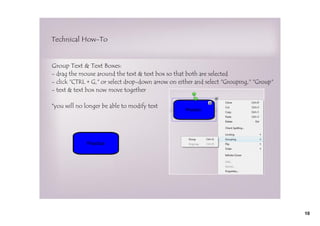
Group Text & Text Boxes:
- drag the mouse around the text & text box so that both are selected
- click "CTRL + G," or select drop-down arrow on either and select "Grouping," "Group"
- text & text box now move together

*you will no longer be able to modify text


             Practice


                                                                                         10
What are web search ideas for your content area?


                                                   11
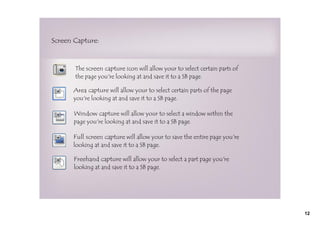
Screen Capture:


       The screen capture icon will allow your to select certain parts of
       the page you're looking at and save it to a SB page.

      Area capture will allow your to select certain parts of the page
      you're looking at and save it to a SB page.

       Window capture will allow your to select a window within the
       page you're looking at and save it to a SB page.

      Full screen capture will allow your to save the entire page you're
      looking at and save it to a SB page.

       Freehand capture will allow your to select a part page you're
       looking at and save it to a SB page.


                                                                            12
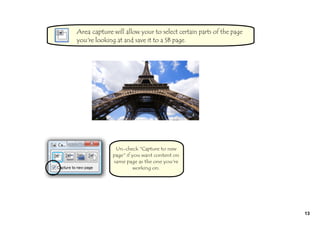
Area capture will allow your to select certain parts of the page
you're looking at and save it to a SB page.


              Un-check "Capture to new
             page" if you want content on
             same page as the one you're
                       working on.


                                                                   13
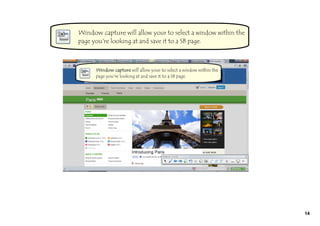
Window capture will allow your to select a window within the
page you're looking at and save it to a SB page.


                                                               14
Full screen capture will allow your to save the entire page you're
looking at and save it to a SB page.


                                                                     15
Freehand capture will allow your to select a part page you're
looking at and save it to a SB page.


                                                                16
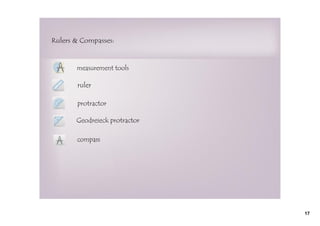
Rulers & Compasses:


       measurement tools

       ruler

       protractor

       Geodreieck protractor

       compass


                               17
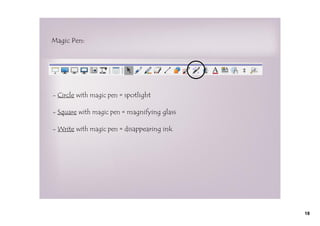
Magic Pen:


- Circle with magic pen = spotlight

- Square with magic pen = magnifying glass

- Write with magic pen = disappearing ink


                                             18
http://maps.google.com/maps
Activity #2: Measuring Distances On-Line


 What is the distance from the Eiffel Tower to Notre Dame?


                                                                            19
20
What are some ways you could use screen capture,
measurement tools & magic pen in your content area?


                                                      21
Ink Aware:


Ink Aware Programs: MS Word, PPT, Excel

                                          Insert as Image


                                          Insert as Text


                                          Save to SB page


                                                            22
Ink Aware in MS 2007:


Word:

- MS Word 2007 requires a complicated and temperamental activation
- if you simply pick up your SB pen, all ink-aware products will work in
Word regardless of the version!


                                                                           23
Ink Aware in MS 2007:


Excel & PowerPoint:


                        24
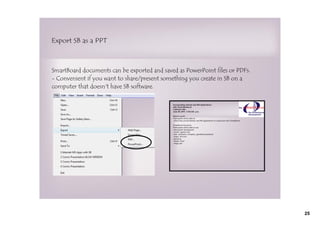
Export SB as a PPT


SmartBoard documents can be exported and saved as PowerPoint files or PDFs.
- Convenient if you want to share/present something you create in SB on a
computer that doesn't have SB software.


                                                                              25
What are some ways you could combine MS Applications
    & SmartBoard effectively in your content area?


                                                       26
Attachments


     Melrose Study 1200 Feb 2011.pdf

     Boston Globe

     Le Figaro

     Adjective­ETRE celebrity review.ppt

     Bourses___form4506.pdf

SmartBoard, the Internet, & MS Office

  • 1.
    Incorporating Internet andMS Applications with Smart Notebook Catherine Ritz Goals: • effectively use the Internet and MS applications in conjunction with SmartBoard SmartBoard functions: • transparent background • screen capture tools • ruler, protractor, compass, geodreick protractor • shape, fill icons • grouping • “aware tools” • magic pen 1
  • 2.
    Transparent Background The transparent background icon will allow your SB page to "disappear," but will save all work you do as if you were still on it. Why use the transparent background? - look at content on-line or on the computer, take notes and save them - create a class record of notes/discussion without constantly re-opening Smart Notebook 2
  • 3.
    *Note that thisslide does NOT have a background! 3
  • 4.
    http://www.lonelyplanet.com/france/paris Activity #1: VisitParis What are the key monuments in Paris? 4
  • 5.
  • 6.
    Technical How-To Insert Text: -begin typing anywhere on the page - highlight the text to change font, color, size, etc. - when done, click outside of text box - text can now be moved around the page like an image 6
  • 7.
    Technical How-To Create TextBoxes: - click on "Shapes" button - select the shape you want to encircle your text - size it around your text 7
  • 8.
    Technical How-To Fill TextBoxes: - click on the text box you've created - click on the "Properties" tab on the left - select the color/style you want 8
  • 9.
    Technical How-To Send TextBoxes to Back: - click on the text box - click on the drop-down arrow - select "Order," then "Send to Back" Practice 9
  • 10.
    Technical How-To Group Text& Text Boxes: - drag the mouse around the text & text box so that both are selected - click "CTRL + G," or select drop-down arrow on either and select "Grouping," "Group" - text & text box now move together *you will no longer be able to modify text Practice 10
  • 11.
    What are websearch ideas for your content area? 11
  • 12.
    Screen Capture: The screen capture icon will allow your to select certain parts of the page you're looking at and save it to a SB page. Area capture will allow your to select certain parts of the page you're looking at and save it to a SB page. Window capture will allow your to select a window within the page you're looking at and save it to a SB page. Full screen capture will allow your to save the entire page you're looking at and save it to a SB page. Freehand capture will allow your to select a part page you're looking at and save it to a SB page. 12
  • 13.
    Area capture willallow your to select certain parts of the page you're looking at and save it to a SB page. Un-check "Capture to new page" if you want content on same page as the one you're working on. 13
  • 14.
    Window capture willallow your to select a window within the page you're looking at and save it to a SB page. 14
  • 15.
    Full screen capturewill allow your to save the entire page you're looking at and save it to a SB page. 15
  • 16.
    Freehand capture willallow your to select a part page you're looking at and save it to a SB page. 16
  • 17.
    Rulers & Compasses: measurement tools ruler protractor Geodreieck protractor compass 17
  • 18.
    Magic Pen: - Circlewith magic pen = spotlight - Square with magic pen = magnifying glass - Write with magic pen = disappearing ink 18
  • 19.
    http://maps.google.com/maps Activity #2: MeasuringDistances On-Line What is the distance from the Eiffel Tower to Notre Dame? 19
  • 20.
  • 21.
    What are someways you could use screen capture, measurement tools & magic pen in your content area? 21
  • 22.
    Ink Aware: Ink AwarePrograms: MS Word, PPT, Excel Insert as Image Insert as Text Save to SB page 22
  • 23.
    Ink Aware inMS 2007: Word: - MS Word 2007 requires a complicated and temperamental activation - if you simply pick up your SB pen, all ink-aware products will work in Word regardless of the version! 23
  • 24.
    Ink Aware inMS 2007: Excel & PowerPoint: 24
  • 25.
    Export SB asa PPT SmartBoard documents can be exported and saved as PowerPoint files or PDFs. - Convenient if you want to share/present something you create in SB on a computer that doesn't have SB software. 25
  • 26.
    What are someways you could combine MS Applications & SmartBoard effectively in your content area? 26
  • 27.
    Attachments Melrose Study 1200 Feb 2011.pdf Boston Globe Le Figaro Adjective­ETRE celebrity review.ppt Bourses___form4506.pdf