PROJECT:
TECHNOLOGY!
Catherine Ritz
MaFLA Fall Conference, 10/2012
Learning objectives / agenda
• To make your classroom tech-friendly, giving you
 resources to support class management as well as Web
 2.0 and Mobile student-centered projects and activities.

• AGENDA:
   1. Management
   2. Web 2.0 resources for student projects/activities
   3. Mobile resources for student projects/activities


        Dinner Break & Dessert Break
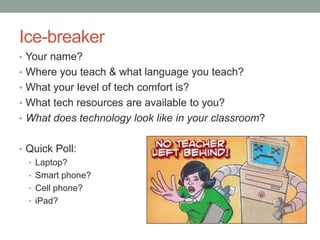
Ice-breaker
• Your name?
• Where you teach & what language you teach?
• What your level of tech comfort is?
• What tech resources are available to you?
• What does technology look like in your classroom?


• Quick Poll:
  • Laptop?
  • Smart phone?
  • Cell phone?
  • iPad?
Stage 1: Management
• Establish the foundation for a tech-friendly classroom:
  • Class website/blog
  • Class management site (homework posting, etc.)
  • Flashcards
  • Work seamlessly from multiple computers
  • Stay current in new resources
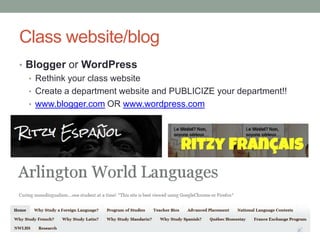
Class website/blog
• Blogger or WordPress
  • Rethink your class website
  • Create a department website and PUBLICIZE your department!!
  • www.blogger.com OR www.wordpress.com
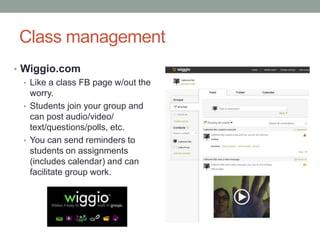
Class management
• Wiggio.com
  • Like a class FB page w/out the
    worry.
  • Students join your group and
    can post audio/video/
    text/questions/polls, etc.
  • You can send reminders to
    students on assignments
    (includes calendar) and can
    facilitate group work.
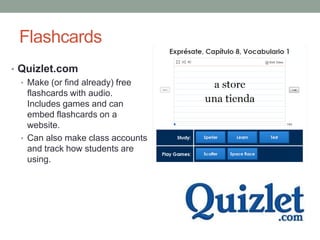
Flashcards
• Quizlet.com
  • Make (or find already) free
    flashcards with audio.
    Includes games and can
    embed flashcards on a
    website.
  • Can also make class accounts
    and track how students are
    using.
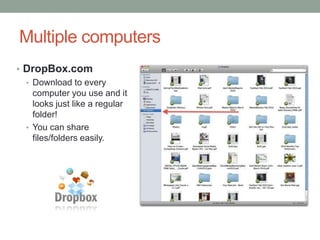
Multiple computers
• DropBox.com
  • Download to every
    computer you use and it
    looks just like a regular
    folder!
  • You can share
    files/folders easily.
Professional development
 Personal Learning Networks
• Twitter.com
 • The best online professional
   development!
 • Please follow me
   @ritzforeignlang, then see who
   I follow, then look for other
   teachers. This is not personal,    https://docs.google.com/a/arlington.k12.ma.us/present/vie
   it’s 100% professional resources   w?id=0ASnpJkDhdWidZGY1M3BuZ2RfMzFkaHA3aDlobQ
                                      &hl=en_US&authkey=CNbdw7ID
   sharing, asking/answering
   questions, helping other
   teachers and getting help from
   them!
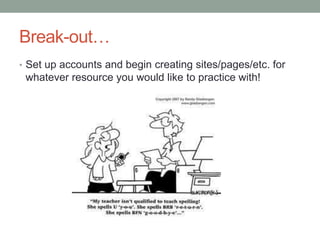
Break-out…
• Set up accounts and begin creating sites/pages/etc. for
 whatever resource you would like to practice with!
Stage 2:
Web 2.0 for student projects/activities
• Enhance your projects/classroom activities with
 technology & “publish” them on your class website:
  • Fun voice recording
  • Digital storytelling
  • Timelines
  • Comic strips/animations
  • Interactive images
Kooky voice recording
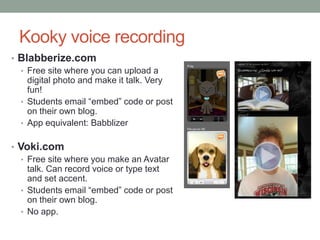
• Blabberize.com
  • Free site where you can upload a
    digital photo and make it talk. Very
    fun!
  • Students email “embed” code or post
    on their own blog.
  • App equivalent: Babblizer


• Voki.com
   • Free site where you make an Avatar
     talk. Can record voice or type text
     and set accent.
   • Students email “embed” code or post
     on their own blog.
   • No app.
Digital storytelling
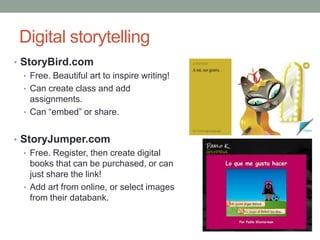
• StoryBird.com
  • Free. Beautiful art to inspire writing!
  • Can create class and add
    assignments.
  • Can “embed” or share.


• StoryJumper.com
  • Free. Register, then create digital
    books that can be purchased, or can
    just share the link!
  • Add art from online, or select images
    from their databank.
Timelines
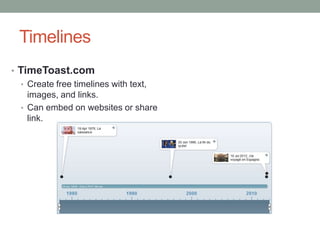
• TimeToast.com
   • Create free timelines with text,
     images, and links.
   • Can embed on websites or share
     link.
Comic strips/Animations
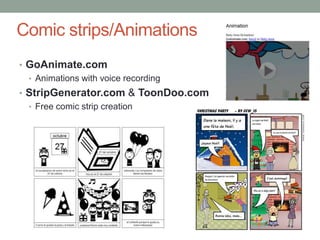
• GoAnimate.com
  • Animations with voice recording
• StripGenerator.com & ToonDoo.com
  • Free comic strip creation
Interactive images
  with or w/o voice
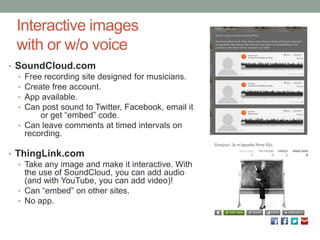
• SoundCloud.com
  • Free recording site designed for musicians.
  • Create free account.
  • App available.
  • Can post sound to Twitter, Facebook, email it
        or get “embed” code.
  • Can leave comments at timed intervals on
    recording.

• ThingLink.com
   • Take any image and make it interactive. With
     the use of SoundCloud, you can add audio
     (and with YouTube, you can add video)!
   • Can “embed” on other sites.
   • No app.
Techie talk: the embed code
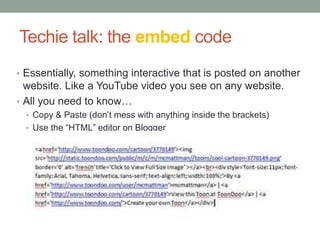
• Essentially, something interactive that is posted on another
  website. Like a YouTube video you see on any website.
• All you need to know…
  • Copy & Paste (don’t mess with anything inside the brackets)
  • Use the “HTML” editor on Blogger
Break-out…
• Choose one or two resources you would like to use,
  create an account and test them out.
• “Embed” your creations in your newly created class
  website for practice. (Or email me your “embed” code and
  I will post on my website: catherineritz@gmail.com)
Stage 3: Mobile-friendly
• Allow cell phones & smart phones in your classroom to
 enhance instruction and make it more engaging for your
 students.
 • Voice recording
 • Videos
 • Digital storytelling
 • Polling
 • Clickers
Voice recording
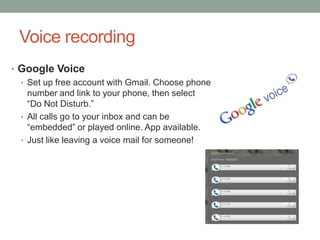
• Google Voice
  • Set up free account with Gmail. Choose phone
    number and link to your phone, then select
    “Do Not Disturb.”
  • All calls go to your inbox and can be
    “embedded” or played online. App available.
  • Just like leaving a voice mail for someone!
Video cameras
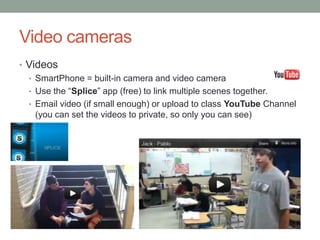
• Videos
  • SmartPhone = built-in camera and video camera
  • Use the “Splice” app (free) to link multiple scenes together.
  • Email video (if small enough) or upload to class YouTube Channel
    (you can set the videos to private, so only you can see)
Digital Storytelling

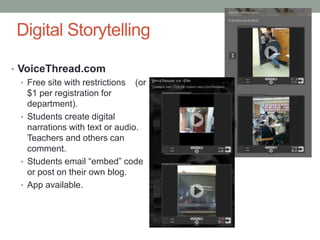
• VoiceThread.com
   • Free site with restrictions (or
     $1 per registration for
     department).
   • Students create digital
     narrations with text or audio.
     Teachers and others can
     comment.
   • Students email “embed” code
     or post on their own blog.
   • App available.
Polling
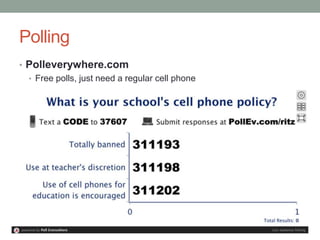
• Polleverywhere.com
  • Free polls, just need a regular cell phone
Clickers
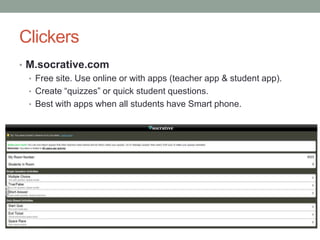
• M.socrative.com
  • Free site. Use online or with apps (teacher app & student app).
  • Create “quizzes” or quick student questions.
  • Best with apps when all students have Smart phone.
Break out…
• Either set up an account online for a mobile resource
 you’d like to test out, or download the app on your Smart
 phone and practice.
Resources from this workshop
•   www.google.com/voice     •   www.quizlet.com
•   www.soundcloud.com       •   www.wiggio.com
•   www.thinglink.com        •   www.twitter.com
•   www.blabberize.com       •   www.dropbox.com
                             •   www.classparrot.com
•   www.voki.com
                             •   www.m.socrative.com
•   www.voicethread.com
•   www.storybird.com
                             My sites
•   www.storyjumper.com
                             • www.ritzyfrancais.blogspot.com
•   www.goanimate.com        • www.ritzyespanol.blogspot.com
•   www.stripgenerator.com   • www.arlingtonworldlanguages.blo
•   www.toondoo.com            gstpo.com
•   www.blogger.com          • www.catherineritz.org
                             • catherineritz@gmail.com
•   www.wordpress.com
•   www.timetoast.com
•   www.polleverywhere.com

Project: Technology!

  • 1.
  • 2.
    Learning objectives /agenda • To make your classroom tech-friendly, giving you resources to support class management as well as Web 2.0 and Mobile student-centered projects and activities. • AGENDA: 1. Management 2. Web 2.0 resources for student projects/activities 3. Mobile resources for student projects/activities Dinner Break & Dessert Break
  • 3.
    Ice-breaker • Your name? •Where you teach & what language you teach? • What your level of tech comfort is? • What tech resources are available to you? • What does technology look like in your classroom? • Quick Poll: • Laptop? • Smart phone? • Cell phone? • iPad?
  • 4.
    Stage 1: Management •Establish the foundation for a tech-friendly classroom: • Class website/blog • Class management site (homework posting, etc.) • Flashcards • Work seamlessly from multiple computers • Stay current in new resources
  • 5.
    Class website/blog • Bloggeror WordPress • Rethink your class website • Create a department website and PUBLICIZE your department!! • www.blogger.com OR www.wordpress.com
  • 6.
    Class management • Wiggio.com • Like a class FB page w/out the worry. • Students join your group and can post audio/video/ text/questions/polls, etc. • You can send reminders to students on assignments (includes calendar) and can facilitate group work.
  • 7.
    Flashcards • Quizlet.com • Make (or find already) free flashcards with audio. Includes games and can embed flashcards on a website. • Can also make class accounts and track how students are using.
  • 8.
    Multiple computers • DropBox.com • Download to every computer you use and it looks just like a regular folder! • You can share files/folders easily.
  • 9.
    Professional development PersonalLearning Networks • Twitter.com • The best online professional development! • Please follow me @ritzforeignlang, then see who I follow, then look for other teachers. This is not personal, https://docs.google.com/a/arlington.k12.ma.us/present/vie it’s 100% professional resources w?id=0ASnpJkDhdWidZGY1M3BuZ2RfMzFkaHA3aDlobQ &hl=en_US&authkey=CNbdw7ID sharing, asking/answering questions, helping other teachers and getting help from them!
  • 10.
    Break-out… • Set upaccounts and begin creating sites/pages/etc. for whatever resource you would like to practice with!
  • 11.
    Stage 2: Web 2.0for student projects/activities • Enhance your projects/classroom activities with technology & “publish” them on your class website: • Fun voice recording • Digital storytelling • Timelines • Comic strips/animations • Interactive images
  • 12.
    Kooky voice recording •Blabberize.com • Free site where you can upload a digital photo and make it talk. Very fun! • Students email “embed” code or post on their own blog. • App equivalent: Babblizer • Voki.com • Free site where you make an Avatar talk. Can record voice or type text and set accent. • Students email “embed” code or post on their own blog. • No app.
  • 13.
    Digital storytelling • StoryBird.com • Free. Beautiful art to inspire writing! • Can create class and add assignments. • Can “embed” or share. • StoryJumper.com • Free. Register, then create digital books that can be purchased, or can just share the link! • Add art from online, or select images from their databank.
  • 14.
    Timelines • TimeToast.com • Create free timelines with text, images, and links. • Can embed on websites or share link.
  • 15.
    Comic strips/Animations • GoAnimate.com • Animations with voice recording • StripGenerator.com & ToonDoo.com • Free comic strip creation
  • 16.
    Interactive images with or w/o voice • SoundCloud.com • Free recording site designed for musicians. • Create free account. • App available. • Can post sound to Twitter, Facebook, email it or get “embed” code. • Can leave comments at timed intervals on recording. • ThingLink.com • Take any image and make it interactive. With the use of SoundCloud, you can add audio (and with YouTube, you can add video)! • Can “embed” on other sites. • No app.
  • 17.
    Techie talk: theembed code • Essentially, something interactive that is posted on another website. Like a YouTube video you see on any website. • All you need to know… • Copy & Paste (don’t mess with anything inside the brackets) • Use the “HTML” editor on Blogger
  • 18.
    Break-out… • Choose oneor two resources you would like to use, create an account and test them out. • “Embed” your creations in your newly created class website for practice. (Or email me your “embed” code and I will post on my website: catherineritz@gmail.com)
  • 19.
    Stage 3: Mobile-friendly •Allow cell phones & smart phones in your classroom to enhance instruction and make it more engaging for your students. • Voice recording • Videos • Digital storytelling • Polling • Clickers
  • 20.
    Voice recording • GoogleVoice • Set up free account with Gmail. Choose phone number and link to your phone, then select “Do Not Disturb.” • All calls go to your inbox and can be “embedded” or played online. App available. • Just like leaving a voice mail for someone!
  • 21.
    Video cameras • Videos • SmartPhone = built-in camera and video camera • Use the “Splice” app (free) to link multiple scenes together. • Email video (if small enough) or upload to class YouTube Channel (you can set the videos to private, so only you can see)
  • 22.
    Digital Storytelling • VoiceThread.com • Free site with restrictions (or $1 per registration for department). • Students create digital narrations with text or audio. Teachers and others can comment. • Students email “embed” code or post on their own blog. • App available.
  • 23.
    Polling • Polleverywhere.com • Free polls, just need a regular cell phone
  • 24.
    Clickers • M.socrative.com • Free site. Use online or with apps (teacher app & student app). • Create “quizzes” or quick student questions. • Best with apps when all students have Smart phone.
  • 25.
    Break out… • Eitherset up an account online for a mobile resource you’d like to test out, or download the app on your Smart phone and practice.
  • 26.
    Resources from thisworkshop • www.google.com/voice • www.quizlet.com • www.soundcloud.com • www.wiggio.com • www.thinglink.com • www.twitter.com • www.blabberize.com • www.dropbox.com • www.classparrot.com • www.voki.com • www.m.socrative.com • www.voicethread.com • www.storybird.com My sites • www.storyjumper.com • www.ritzyfrancais.blogspot.com • www.goanimate.com • www.ritzyespanol.blogspot.com • www.stripgenerator.com • www.arlingtonworldlanguages.blo • www.toondoo.com gstpo.com • www.blogger.com • www.catherineritz.org • catherineritz@gmail.com • www.wordpress.com • www.timetoast.com • www.polleverywhere.com