Dto. Tecnoloxía, IES de Pastoriza
SPREADSHEET
OpenOffice
Dto. Tecnoloxía, IES de Pastoriza
Spreadsheet
● Basics
● Formatting cells
● Enter/Delete data
● Sheets
● Basic calculations and formulae
● Charts
● Printing and preview
Dto. Tecnoloxía, IES de Pastoriza
What is a spreadsheet?
SPREADSHEET:
Originally it was a very big piece of paper where
accountants wrote and read information about
cost, payments, taxes...
Dto. Tecnoloxía, IES de Pastoriza
What is a spreadsheet?
● Nowdays a spreadsheet is a software you can
use to:
● Store information (addresses, telephone
numbers...)
● Do calculations.
● Make graphs and analyse information .
● Do 'What-if calculations'.
Dto. Tecnoloxía, IES de Pastoriza
What is a spreadsheet?
● There is a lot of spreadsheets you can use in
your computer. The most common are:
● Excel by Microsoft, it is included in the Microsoft
package:
– It isn't free.
– It isn't compatible with other spreadsheets.
● Calc is included in the OpenOffice package:
– It is free
– You can convert into a excel document or save it as pdf.
● We will use Calc.
Dto. Tecnoloxía, IES de Pastoriza
Basics
● Calc toolbars:
● Main menu toolbar:
● Function toolbar:
● Formatting toolbar:
● Formula toolbar:
Dto. Tecnoloxía, IES de Pastoriza
Basics
● A spreadsheet organises data into columns and
rows.
● Each column is linked to a letter.
● Each row is linked to a number.
● A cell address is a combination of the column
letter and the row number:
row
column
cell
Cell address
Dto. Tecnoloxía, IES de Pastoriza
Basics
● If you want to select a single cell click on it.
● If you want to select multiple cells drag over the
cells you want select.
Address of the cell
selected
Range of cells selected,
from the first to the last
Dto. Tecnoloxía, IES de Pastoriza
Basics
● If you want to select a
single column click a
column heading.
● If you want to select
multiple columns drag
over multiple column
headings.
All the column is selected
Columns selected
A, B and C
Dto. Tecnoloxía, IES de Pastoriza
Basics
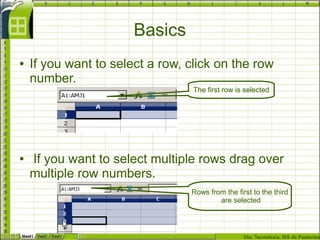
● If you want to select a row, click on the row
number.
● If you want to select multiple rows drag over
multiple row numbers.
The first row is selected
Rows from the first to the third
are selected
Dto. Tecnoloxía, IES de Pastoriza
Basics
● You can put in a cell any kind
of data (information):
● Text: letters, words, numbers
or a combination of all of them.
Alphanumeric information.
● Numbers: you can do different
calculations with the numbers.
Numeric information.
● Formulae: when you write a
formula into a cell, what the
cell displays is the result of the
formula.
Dto. Tecnoloxía, IES de Pastoriza
Basics
● Notice: if you don't modify the alignment of the
data the Calc document writes:
● Alphanumerical data on the left.
● Numeric data on the right.
Letters and words
automatically on the left Numeric data on
the right
Dto. Tecnoloxía, IES de Pastoriza
Format a cell
● You can format the data of a cell:
● Click right on the cell you want to format.
● A small menu appears, click on format cells.
● 'Format cells' window appears.
Dto. Tecnoloxía, IES de Pastoriza
Format a column (row)
● You can resize a column (row):
● Click format->column (row) -> optimal width (high)
● Right click letter column (number row)-> optimal...
Dto. Tecnoloxía, IES de Pastoriza
Format a column (row)
● If you want you can fix the size of a column
(row):
● Click format-> column -> width of column
● Right click on the column letter (row number) ->
width column.
Dto. Tecnoloxía, IES de Pastoriza
Format a column (row)
● You can also resize it manually:
● Place your pointer on the line that divides columns
(rows).
● Click the left mouse button and drag.
Dto. Tecnoloxía, IES de Pastoriza
Insert/delete elements
● We can insert an additional column or row:
● Right click on the column head (row)-> insert or
delete column (row)
Dto. Tecnoloxía, IES de Pastoriza
Merge cells
● Select the cells you want to merge:
● Option A: format -> merge cells
● Option B: click on merge cells button of the
formatting toolbar
Option A
Option B
Dto. Tecnoloxía, IES de Pastoriza
Insert elements
● In a spreadsheet you can insert different
elements like:
● Drawings
● Images
● Elements from other applications
● To do this:
● Click insert -> Copy or insert
● Try to insert an image you have in your laptop
Dto. Tecnoloxía, IES de Pastoriza
Sheets
● Each time you open a spreadsheet, this
document has 3 sheets called sheet1, sheet2,
sheet3.
● With a right click on one of the tabs a menu
appears, and you can:
● Rename the sheet
● Insert other sheets
● Delete sheets
● Move...
Dto. Tecnoloxía, IES de Pastoriza
Sheets
● Enter data into more than one sheet at the same
time:
● Hold down the Ctrl key and click on the sheets you
want select.
● Enter the data into the cell you want, the data will be
entered in the same cell into all sheets selected.
● To unselect, left click on the space where there aren't
any sheets.
Dto. Tecnoloxía, IES de Pastoriza
Basic calculations and formulae
● To do basic operations:
● Select the cell where you want to insert the formula.
● Write '='
● Click on the cell where the data you want to use in the
formula is.
● Write the operation you want (addition, substration ...)
● Click on the cell where the other data is.
● Press enter and the answer will appear in the cell.
Dto. Tecnoloxía, IES de Pastoriza
Basic calculations and formulae
● To write a formula you must follow the same
steps:
● Order of operations: exponentiation, multiplication,
division, addition and then substraction
● If you want to change the order of operation you
have to use brackets '()'
Dto. Tecnoloxía, IES de Pastoriza
Basic calculations and formulae
● Copying formulae:
● Select the cell where the formula is.
● Right click and then copy
● Select the cell where you want to paste the formula
● Right click and paste.
Dto. Tecnoloxía, IES de Pastoriza
Basic calculations and formulae
● If you want to copy the formula into more than
one cell and the cells are together:
● Select the cell where the formula is.
● Put the pointer on the black square on the bottom
right corner.
● Left click and drag.
Notice now your pointer
has taken shape of a cross
Dto. Tecnoloxía, IES de Pastoriza
Basic calculations and formulae
● There are lots of functions Calc has predefined.
● You can see them:
● Insert -> function and a function window appears.
Dto. Tecnoloxía, IES de Pastoriza
Basic calculations and formulae
● Select the function you want to use and press next.
● Select the cells where the data are.
● Press accept.
Dto. Tecnoloxía, IES de Pastoriza
Charts
● To do a chart you need data with a relationship
between them e.g. Voltage over current, prices
over time, rainfall over time...
● To do a chart:
● Select the data (axis X will always be the first column)
● Click or insert -> chart.
● Two windows appear.
Dto. Tecnoloxía, IES de Pastoriza
Charts
● (1) Click on the kind of chart you want and press
next.
● (2) If the data is:
– on the column, select data series in columns
– on the row, select data in rows
● Press next
1
2
Dto. Tecnoloxía, IES de Pastoriza
Charts
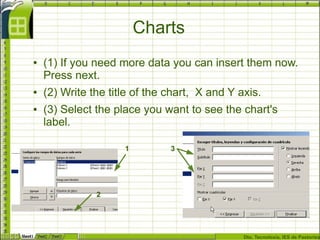
● (1) If you need more data you can insert them now.
Press next.
● (2) Write the title of the chart, X and Y axis.
● (3) Select the place you want to see the chart's
label.
1
2
3
Dto. Tecnoloxía, IES de Pastoriza
Charts
● Finally click create and your chart is done.
● If you don't like the appearance of your chart
very much you can format it:
● Double click on the chart and the chart is selected
Dto. Tecnoloxía, IES de Pastoriza
Charts
● With the chart selected, right click on the element
you want to change and a menu opens:
Formatting axis Formatting data seriesFormatting axis Formatting background
Dto. Tecnoloxía, IES de Pastoriza
Charts
● You can get the appearance you want:
Dto. Tecnoloxía, IES de Pastoriza
Printing and preview
● You can print a Calc document as any
document of OpenOffice.
● Before printing it is useful to do a page break
preview.
● Select 'see' on menu toolbar.
● Click on 'page break preview'.
● You will see each page of your
document with a blue border.
Dto. Tecnoloxía, IES de Pastoriza
Printing and preview:
● Click on the blue line, drag and adjust the page as
you want.
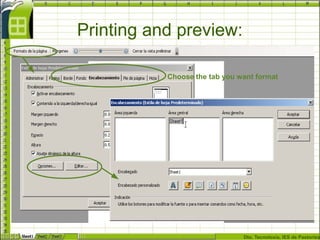
● The page preview toolbar shows you the
document Calc printing view:
● Click on page format and you can configure the
page, headers, footers...
Dto. Tecnoloxía, IES de Pastoriza
Printing and preview:
Choose the tab you want format
Dto. Tecnoloxía, IES de Pastoriza
Printing and preview
● Now we are ready to
print:
● Click file -> print
● Select the printer.
● Select the sheets you
want to print.
● Select the pages you
want to print. (Each
sheet could have
more than a page)
● Print.
Dto. Tecnoloxía, IES de Pastoriza
SPREADSHEET
● This is a quick tutorial to learn the basics of
Calc.
● Now you are ready to learn by yourself
● Here you can find more information about
spreadsheets:
● http://www.tutorialsforopenoffice.org/category_index/spreadsheet.html
● http://wiki.services.openoffice.org/wiki/Documentation/FAQ/Calc
● http://plan-b-for-openoffice.org/calc/index

Spreadsheet

  • 1.
    Dto. Tecnoloxía, IESde Pastoriza SPREADSHEET OpenOffice
  • 2.
    Dto. Tecnoloxía, IESde Pastoriza Spreadsheet ● Basics ● Formatting cells ● Enter/Delete data ● Sheets ● Basic calculations and formulae ● Charts ● Printing and preview
  • 3.
    Dto. Tecnoloxía, IESde Pastoriza What is a spreadsheet? SPREADSHEET: Originally it was a very big piece of paper where accountants wrote and read information about cost, payments, taxes...
  • 4.
    Dto. Tecnoloxía, IESde Pastoriza What is a spreadsheet? ● Nowdays a spreadsheet is a software you can use to: ● Store information (addresses, telephone numbers...) ● Do calculations. ● Make graphs and analyse information . ● Do 'What-if calculations'.
  • 5.
    Dto. Tecnoloxía, IESde Pastoriza What is a spreadsheet? ● There is a lot of spreadsheets you can use in your computer. The most common are: ● Excel by Microsoft, it is included in the Microsoft package: – It isn't free. – It isn't compatible with other spreadsheets. ● Calc is included in the OpenOffice package: – It is free – You can convert into a excel document or save it as pdf. ● We will use Calc.
  • 6.
    Dto. Tecnoloxía, IESde Pastoriza Basics ● Calc toolbars: ● Main menu toolbar: ● Function toolbar: ● Formatting toolbar: ● Formula toolbar:
  • 7.
    Dto. Tecnoloxía, IESde Pastoriza Basics ● A spreadsheet organises data into columns and rows. ● Each column is linked to a letter. ● Each row is linked to a number. ● A cell address is a combination of the column letter and the row number: row column cell Cell address
  • 8.
    Dto. Tecnoloxía, IESde Pastoriza Basics ● If you want to select a single cell click on it. ● If you want to select multiple cells drag over the cells you want select. Address of the cell selected Range of cells selected, from the first to the last
  • 9.
    Dto. Tecnoloxía, IESde Pastoriza Basics ● If you want to select a single column click a column heading. ● If you want to select multiple columns drag over multiple column headings. All the column is selected Columns selected A, B and C
  • 10.
    Dto. Tecnoloxía, IESde Pastoriza Basics ● If you want to select a row, click on the row number. ● If you want to select multiple rows drag over multiple row numbers. The first row is selected Rows from the first to the third are selected
  • 11.
    Dto. Tecnoloxía, IESde Pastoriza Basics ● You can put in a cell any kind of data (information): ● Text: letters, words, numbers or a combination of all of them. Alphanumeric information. ● Numbers: you can do different calculations with the numbers. Numeric information. ● Formulae: when you write a formula into a cell, what the cell displays is the result of the formula.
  • 12.
    Dto. Tecnoloxía, IESde Pastoriza Basics ● Notice: if you don't modify the alignment of the data the Calc document writes: ● Alphanumerical data on the left. ● Numeric data on the right. Letters and words automatically on the left Numeric data on the right
  • 13.
    Dto. Tecnoloxía, IESde Pastoriza Format a cell ● You can format the data of a cell: ● Click right on the cell you want to format. ● A small menu appears, click on format cells. ● 'Format cells' window appears.
  • 14.
    Dto. Tecnoloxía, IESde Pastoriza Format a column (row) ● You can resize a column (row): ● Click format->column (row) -> optimal width (high) ● Right click letter column (number row)-> optimal...
  • 15.
    Dto. Tecnoloxía, IESde Pastoriza Format a column (row) ● If you want you can fix the size of a column (row): ● Click format-> column -> width of column ● Right click on the column letter (row number) -> width column.
  • 16.
    Dto. Tecnoloxía, IESde Pastoriza Format a column (row) ● You can also resize it manually: ● Place your pointer on the line that divides columns (rows). ● Click the left mouse button and drag.
  • 17.
    Dto. Tecnoloxía, IESde Pastoriza Insert/delete elements ● We can insert an additional column or row: ● Right click on the column head (row)-> insert or delete column (row)
  • 18.
    Dto. Tecnoloxía, IESde Pastoriza Merge cells ● Select the cells you want to merge: ● Option A: format -> merge cells ● Option B: click on merge cells button of the formatting toolbar Option A Option B
  • 19.
    Dto. Tecnoloxía, IESde Pastoriza Insert elements ● In a spreadsheet you can insert different elements like: ● Drawings ● Images ● Elements from other applications ● To do this: ● Click insert -> Copy or insert ● Try to insert an image you have in your laptop
  • 20.
    Dto. Tecnoloxía, IESde Pastoriza Sheets ● Each time you open a spreadsheet, this document has 3 sheets called sheet1, sheet2, sheet3. ● With a right click on one of the tabs a menu appears, and you can: ● Rename the sheet ● Insert other sheets ● Delete sheets ● Move...
  • 21.
    Dto. Tecnoloxía, IESde Pastoriza Sheets ● Enter data into more than one sheet at the same time: ● Hold down the Ctrl key and click on the sheets you want select. ● Enter the data into the cell you want, the data will be entered in the same cell into all sheets selected. ● To unselect, left click on the space where there aren't any sheets.
  • 22.
    Dto. Tecnoloxía, IESde Pastoriza Basic calculations and formulae ● To do basic operations: ● Select the cell where you want to insert the formula. ● Write '=' ● Click on the cell where the data you want to use in the formula is. ● Write the operation you want (addition, substration ...) ● Click on the cell where the other data is. ● Press enter and the answer will appear in the cell.
  • 23.
    Dto. Tecnoloxía, IESde Pastoriza Basic calculations and formulae ● To write a formula you must follow the same steps: ● Order of operations: exponentiation, multiplication, division, addition and then substraction ● If you want to change the order of operation you have to use brackets '()'
  • 24.
    Dto. Tecnoloxía, IESde Pastoriza Basic calculations and formulae ● Copying formulae: ● Select the cell where the formula is. ● Right click and then copy ● Select the cell where you want to paste the formula ● Right click and paste.
  • 25.
    Dto. Tecnoloxía, IESde Pastoriza Basic calculations and formulae ● If you want to copy the formula into more than one cell and the cells are together: ● Select the cell where the formula is. ● Put the pointer on the black square on the bottom right corner. ● Left click and drag. Notice now your pointer has taken shape of a cross
  • 26.
    Dto. Tecnoloxía, IESde Pastoriza Basic calculations and formulae ● There are lots of functions Calc has predefined. ● You can see them: ● Insert -> function and a function window appears.
  • 27.
    Dto. Tecnoloxía, IESde Pastoriza Basic calculations and formulae ● Select the function you want to use and press next. ● Select the cells where the data are. ● Press accept.
  • 28.
    Dto. Tecnoloxía, IESde Pastoriza Charts ● To do a chart you need data with a relationship between them e.g. Voltage over current, prices over time, rainfall over time... ● To do a chart: ● Select the data (axis X will always be the first column) ● Click or insert -> chart. ● Two windows appear.
  • 29.
    Dto. Tecnoloxía, IESde Pastoriza Charts ● (1) Click on the kind of chart you want and press next. ● (2) If the data is: – on the column, select data series in columns – on the row, select data in rows ● Press next 1 2
  • 30.
    Dto. Tecnoloxía, IESde Pastoriza Charts ● (1) If you need more data you can insert them now. Press next. ● (2) Write the title of the chart, X and Y axis. ● (3) Select the place you want to see the chart's label. 1 2 3
  • 31.
    Dto. Tecnoloxía, IESde Pastoriza Charts ● Finally click create and your chart is done. ● If you don't like the appearance of your chart very much you can format it: ● Double click on the chart and the chart is selected
  • 32.
    Dto. Tecnoloxía, IESde Pastoriza Charts ● With the chart selected, right click on the element you want to change and a menu opens: Formatting axis Formatting data seriesFormatting axis Formatting background
  • 33.
    Dto. Tecnoloxía, IESde Pastoriza Charts ● You can get the appearance you want:
  • 34.
    Dto. Tecnoloxía, IESde Pastoriza Printing and preview ● You can print a Calc document as any document of OpenOffice. ● Before printing it is useful to do a page break preview. ● Select 'see' on menu toolbar. ● Click on 'page break preview'. ● You will see each page of your document with a blue border.
  • 35.
    Dto. Tecnoloxía, IESde Pastoriza Printing and preview: ● Click on the blue line, drag and adjust the page as you want. ● The page preview toolbar shows you the document Calc printing view: ● Click on page format and you can configure the page, headers, footers...
  • 36.
    Dto. Tecnoloxía, IESde Pastoriza Printing and preview: Choose the tab you want format
  • 37.
    Dto. Tecnoloxía, IESde Pastoriza Printing and preview ● Now we are ready to print: ● Click file -> print ● Select the printer. ● Select the sheets you want to print. ● Select the pages you want to print. (Each sheet could have more than a page) ● Print.
  • 38.
    Dto. Tecnoloxía, IESde Pastoriza SPREADSHEET ● This is a quick tutorial to learn the basics of Calc. ● Now you are ready to learn by yourself ● Here you can find more information about spreadsheets: ● http://www.tutorialsforopenoffice.org/category_index/spreadsheet.html ● http://wiki.services.openoffice.org/wiki/Documentation/FAQ/Calc ● http://plan-b-for-openoffice.org/calc/index