Part Five
Working with
Spreadsheets
Basics:
Introducing Spreadsheets
and Microsoft Excel
2
Objectives
 Know and understand the basics of spreadsheets
 Apply spreadsheets to solve real world problems
 Be able to format and present data using
spreadsheet programs
 Be able to create simple charts using
spreadsheet data
3
What is a spreadsheet?
ANY large sheet with rows
and columns
A spreadsheet is like one
BIG table, it has columns
that are numbered A, B, C…
4
Why use spreadsheets?
Used to perform numerical
calculations
Automated and speed up
calculations
Easily used in organising and
presenting large amounts of data
Used to analyse data
5
When do we use Spreadsheets?
Timetable
Invoicing Customers
Calculating Marks
Football Scores, e.t.c
6
Some other Spreadsheet Programs
OpenOffice.Org Calc
Microsoft Excel
Lotus 1-2-3
Simple Exercise
Start OpenOffice.org Calc
Close OpenOffice.org Calc
7
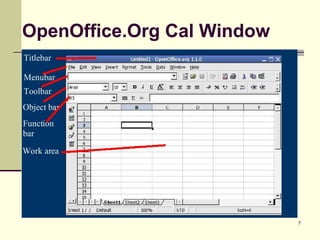
OpenOffice.Org Cal Window
8
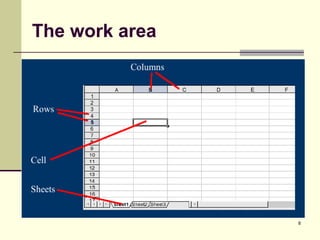
The work area
9
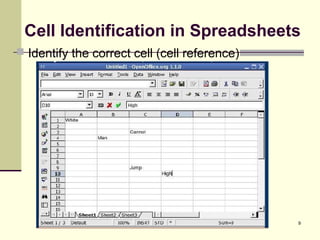
Cell Identification in Spreadsheets
 Identify the correct cell (cell reference)
10
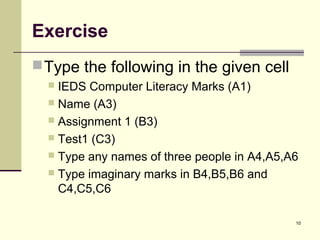
Exercise
Type the following in the given cell
 IEDS Computer Literacy Marks (A1)
 Name (A3)
 Assignment 1 (B3)
 Test1 (C3)
 Type any names of three people in A4,A5,A6
 Type imaginary marks in B4,B5,B6 and
C4,C5,C6
11
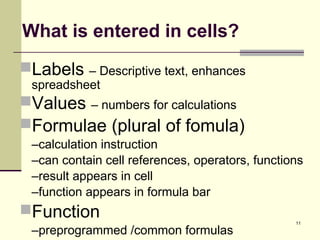
What is entered in cells?
Labels – Descriptive text, enhances
spreadsheet
Values – numbers for calculations
Formulae (plural of fomula)
–calculation instruction
–can contain cell references, operators, functions
–result appears in cell
–function appears in formula bar
Function
–preprogrammed /common formulas
12
Review
 What are spreadsheets and why use them?
 Layout of a basic spreadsheet window
 The spreadsheet work area and how it works
13
Principle of Calculations
Calculations are a combination of
–operators (symbols used in calculations)
–values (numbers for calculations)
–cell references (unique cell identification)
–functions (pre-programmed /common
formulas)
Results appear in the active cell
14
Some Operators in calculations
= Equals
^ Exponent
* Multiplication
/ Division
+ Addition
- Subtraction
15
Using values in spreadsheets
Try out the following calculations
=1500+800
=10000-4000
=15/3
=4*1000
=4 ^2
16
Exercise
 Use spreadsheet to calculate the following
problems: (use values and operators only)
 Age
 Number of years to stay at university
 Amount of tuition per semester
 Total amount of money spent on tuition for entire
university education
 Personal weekly expenditure
 Total personal expenditure in entire time in
university
 Total amount of money spent by sponsor (tuition
and upkeep) while in university
17
Cell references
 Unique name of each cell in the spreadsheet
 Replace values with cell references to desired
value
 Update the university expenses spreadsheet to
reflect cell references instead of values
18
Advantages of using cell
references
Able to reuse value without typing
out second time
Calculations updated when changes
occur
19
Functions
Predefined operation (formulas)
Performed on a block of data in
spreadsheet
Help to ease work
Replace simple common formulae
(A formula is sometimes called an equation. It
is a specification or description of a
calculation.)
20
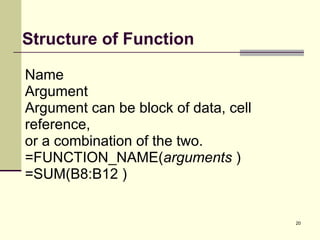
Structure of Function
Name
Argument
Argument can be block of data, cell
reference,
or a combination of the two.
=FUNCTION_NAME(arguments )
=SUM(B8:B12 )
21
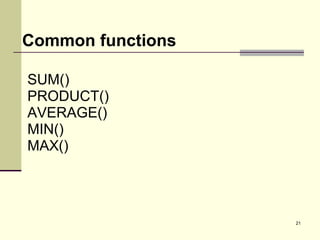
Common functions
SUM()
PRODUCT()
AVERAGE()
MIN()
MAX()
22
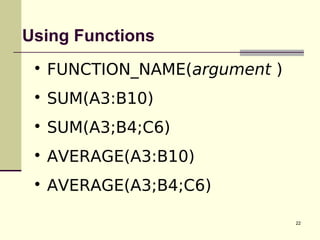
Using Functions

FUNCTION_NAME(argument )

SUM(A3:B10)

SUM(A3;B4;C6)

AVERAGE(A3:B10)

AVERAGE(A3;B4;C6)
23
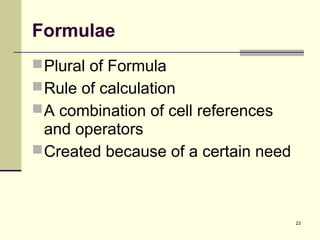
Formulae
Plural of Formula
Rule of calculation
A combination of cell references
and operators
Created because of a certain need
24
Exercise
Create simple spreadsheet for when
you go to supermarket
– Work out how much change you should be
given
– Improve on the spreadsheet to include
particulars of items bought
25
Review
 Calculations in spreadsheets involve
–operators
–values
–cell references
–functions
 These are combined in various ways to get
desired results
 Values generated appear in the active cell
 Formulae are combination of cell references
and operators
26
Cont. Review
 Function and Formulae
 Identifying Block of Data with range
operator
 Common functions

Lecture 6 spreadsheets

  • 1.
  • 2.
    2 Objectives  Know andunderstand the basics of spreadsheets  Apply spreadsheets to solve real world problems  Be able to format and present data using spreadsheet programs  Be able to create simple charts using spreadsheet data
  • 3.
    3 What is aspreadsheet? ANY large sheet with rows and columns A spreadsheet is like one BIG table, it has columns that are numbered A, B, C…
  • 4.
    4 Why use spreadsheets? Usedto perform numerical calculations Automated and speed up calculations Easily used in organising and presenting large amounts of data Used to analyse data
  • 5.
    5 When do weuse Spreadsheets? Timetable Invoicing Customers Calculating Marks Football Scores, e.t.c
  • 6.
    6 Some other SpreadsheetPrograms OpenOffice.Org Calc Microsoft Excel Lotus 1-2-3 Simple Exercise Start OpenOffice.org Calc Close OpenOffice.org Calc
  • 7.
  • 8.
  • 9.
    9 Cell Identification inSpreadsheets  Identify the correct cell (cell reference)
  • 10.
    10 Exercise Type the followingin the given cell  IEDS Computer Literacy Marks (A1)  Name (A3)  Assignment 1 (B3)  Test1 (C3)  Type any names of three people in A4,A5,A6  Type imaginary marks in B4,B5,B6 and C4,C5,C6
  • 11.
    11 What is enteredin cells? Labels – Descriptive text, enhances spreadsheet Values – numbers for calculations Formulae (plural of fomula) –calculation instruction –can contain cell references, operators, functions –result appears in cell –function appears in formula bar Function –preprogrammed /common formulas
  • 12.
    12 Review  What arespreadsheets and why use them?  Layout of a basic spreadsheet window  The spreadsheet work area and how it works
  • 13.
    13 Principle of Calculations Calculationsare a combination of –operators (symbols used in calculations) –values (numbers for calculations) –cell references (unique cell identification) –functions (pre-programmed /common formulas) Results appear in the active cell
  • 14.
    14 Some Operators incalculations = Equals ^ Exponent * Multiplication / Division + Addition - Subtraction
  • 15.
    15 Using values inspreadsheets Try out the following calculations =1500+800 =10000-4000 =15/3 =4*1000 =4 ^2
  • 16.
    16 Exercise  Use spreadsheetto calculate the following problems: (use values and operators only)  Age  Number of years to stay at university  Amount of tuition per semester  Total amount of money spent on tuition for entire university education  Personal weekly expenditure  Total personal expenditure in entire time in university  Total amount of money spent by sponsor (tuition and upkeep) while in university
  • 17.
    17 Cell references  Uniquename of each cell in the spreadsheet  Replace values with cell references to desired value  Update the university expenses spreadsheet to reflect cell references instead of values
  • 18.
    18 Advantages of usingcell references Able to reuse value without typing out second time Calculations updated when changes occur
  • 19.
    19 Functions Predefined operation (formulas) Performedon a block of data in spreadsheet Help to ease work Replace simple common formulae (A formula is sometimes called an equation. It is a specification or description of a calculation.)
  • 20.
    20 Structure of Function Name Argument Argumentcan be block of data, cell reference, or a combination of the two. =FUNCTION_NAME(arguments ) =SUM(B8:B12 )
  • 21.
  • 22.
  • 23.
    23 Formulae Plural of Formula Ruleof calculation A combination of cell references and operators Created because of a certain need
  • 24.
    24 Exercise Create simple spreadsheetfor when you go to supermarket – Work out how much change you should be given – Improve on the spreadsheet to include particulars of items bought
  • 25.
    25 Review  Calculations inspreadsheets involve –operators –values –cell references –functions  These are combined in various ways to get desired results  Values generated appear in the active cell  Formulae are combination of cell references and operators
  • 26.
    26 Cont. Review  Functionand Formulae  Identifying Block of Data with range operator  Common functions