SPREADSHEETS
INTRODUCTION Electronic worksheet - any worksheet done by using a computer and a spreadsheet package. E.g. Lotus 1-2-3, Microsoft Excel and Framework. It is an application that allows the user to enter numbers and text into a table with rows and columns and perform calculations on them.
ADVANTAGES OF SPREADSHEET Easier to edit or change data. Formulae for calculation to be done automatically. There are built-in commands for calculating averages, totals and so on. Different types of Charts can easily be created. It can be use to create documents just like a word processor. It may have a database management facility to search data quickly.
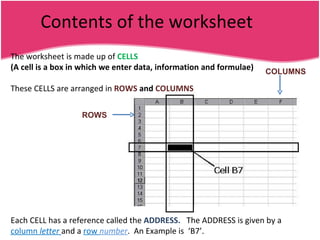
Contents of the worksheet The worksheet is made up of  CELLS (A cell is a box in which we enter data, information and formulae) These CELLS are arranged in  ROWS  and  COLUMNS ROWS COLUMNS Each CELL has a reference called the  ADDRESS.  The ADDRESS is given by a  column  letter  and   a  row  number .  An Example is  ‘B7’.
EACH CELL MAY CONTAIN ANY OF THESE ITEMS Label (only ‘Text’). Numbers . Date/Time. Formulae and Functions.
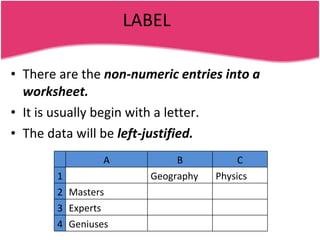
LABEL There are the  non-numeric entries into a worksheet. It is usually begin with a letter. The data will be  left-justified. A B C 1 Geography Physics 2 Masters 3 Experts 4 Geniuses
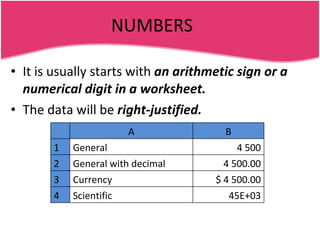
NUMBERS It is usually starts with  an arithmetic sign or a numerical digit in a worksheet.  The data will be  right-justified. A B 1 General 4 500 2 General with decimal 4 500.00 3 Currency $ 4 500.00 4 Scientific 45E+03
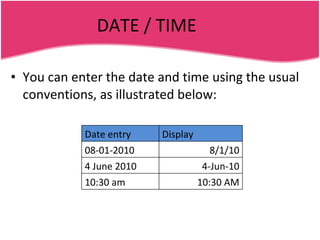
DATE / TIME You can enter the date and time using the usual conventions, as illustrated below: Date entry Display 08-01-2010 8/1/10 4 June 2010 4-Jun-10 10:30 am 10:30 AM
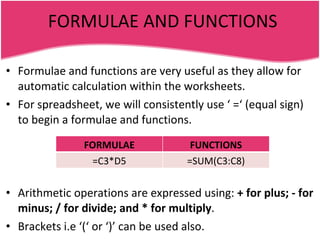
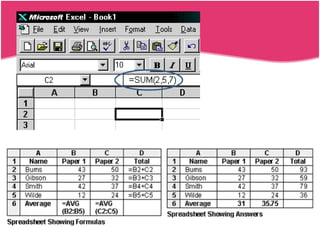
FORMULAE AND FUNCTIONS Formulae and functions are very useful as they allow for automatic calculation within the worksheets.  For spreadsheet, we will consistently use ‘ =‘ (equal sign) to begin a formulae and functions. Arithmetic operations are expressed using:  + for plus; - for minus; / for divide; and * for multiply . Brackets i.e ‘(‘ or ‘)’ can be used also.  FORMULAE FUNCTIONS =C3*D5 =SUM(C3:C8)
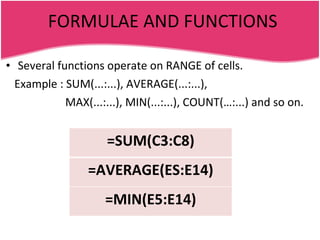
FORMULAE AND FUNCTIONS Several functions operate on RANGE of cells. Example : SUM(...:...), AVERAGE(...:...),  MAX(...:...), MIN(...:...), COUNT(…:...) and so on. =SUM(C3:C8) =AVERAGE(ES:E14) =MIN(E5:E14)
 
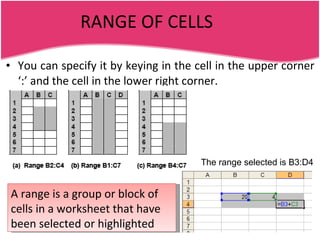
RANGE OF CELLS You can specify it by keying in the cell in the upper corner ‘:’ and the cell in the lower right corner. The range selected is B3:D4 A range is a group or block of cells in a worksheet that have been selected or highlighted
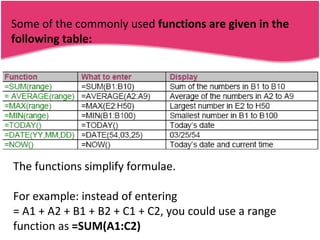
Some of the commonly used  functions are given in the following table: The functions simplify formulae.  For example: instead of entering = A1 + A2 + B1 + B2 + C1 + C2, you could use a range function as  =SUM(A1:C2)
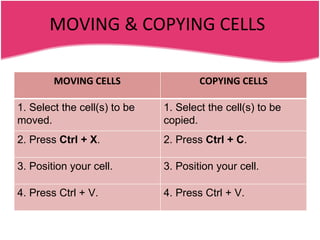
MOVING & COPYING CELLS MOVING CELLS COPYING CELLS 1. Select the cell(s) to be moved. 1. Select the cell(s) to be copied. 2. Press  Ctrl + X . 2. Press  Ctrl + C . 3. Position your cell. 3. Position your cell. 4. Press Ctrl + V. 4. Press Ctrl + V.
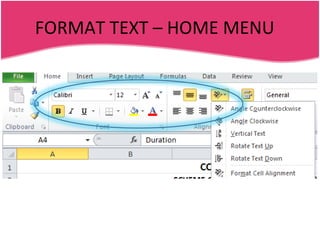
FORMAT TEXT – HOME MENU
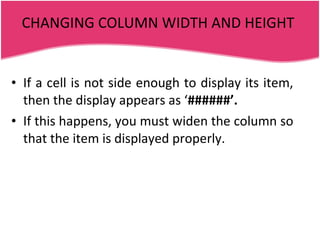
CHANGING COLUMN WIDTH AND HEIGHT If a cell is not side enough to display its item, then the display appears as ‘ ######’. If this happens, you must widen the column so that the item is displayed properly.
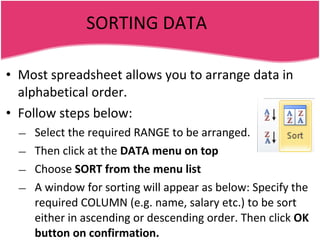
SORTING DATA Most spreadsheet allows you to arrange data in alphabetical order. Follow steps below: Select the required RANGE to be arranged. Then click at the  DATA menu on top Choose  SORT from the menu list A window for sorting will appear as below: Specify the required COLUMN (e.g. name, salary etc.) to be sort either in ascending or descending order. Then click  OK button on confirmation.
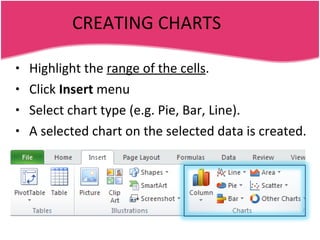
CREATING CHARTS Highlight the  range of the cells . Click  Insert  menu Select chart type (e.g. Pie, Bar, Line). A selected chart on the selected data is created.

Spreadsheet for Year 8

  • 1.
  • 2.
    INTRODUCTION Electronic worksheet- any worksheet done by using a computer and a spreadsheet package. E.g. Lotus 1-2-3, Microsoft Excel and Framework. It is an application that allows the user to enter numbers and text into a table with rows and columns and perform calculations on them.
  • 3.
    ADVANTAGES OF SPREADSHEETEasier to edit or change data. Formulae for calculation to be done automatically. There are built-in commands for calculating averages, totals and so on. Different types of Charts can easily be created. It can be use to create documents just like a word processor. It may have a database management facility to search data quickly.
  • 4.
    Contents of theworksheet The worksheet is made up of CELLS (A cell is a box in which we enter data, information and formulae) These CELLS are arranged in ROWS and COLUMNS ROWS COLUMNS Each CELL has a reference called the ADDRESS. The ADDRESS is given by a column letter and a row number . An Example is ‘B7’.
  • 5.
    EACH CELL MAYCONTAIN ANY OF THESE ITEMS Label (only ‘Text’). Numbers . Date/Time. Formulae and Functions.
  • 6.
    LABEL There arethe non-numeric entries into a worksheet. It is usually begin with a letter. The data will be left-justified. A B C 1 Geography Physics 2 Masters 3 Experts 4 Geniuses
  • 7.
    NUMBERS It isusually starts with an arithmetic sign or a numerical digit in a worksheet. The data will be right-justified. A B 1 General 4 500 2 General with decimal 4 500.00 3 Currency $ 4 500.00 4 Scientific 45E+03
  • 8.
    DATE / TIMEYou can enter the date and time using the usual conventions, as illustrated below: Date entry Display 08-01-2010 8/1/10 4 June 2010 4-Jun-10 10:30 am 10:30 AM
  • 9.
    FORMULAE AND FUNCTIONSFormulae and functions are very useful as they allow for automatic calculation within the worksheets. For spreadsheet, we will consistently use ‘ =‘ (equal sign) to begin a formulae and functions. Arithmetic operations are expressed using: + for plus; - for minus; / for divide; and * for multiply . Brackets i.e ‘(‘ or ‘)’ can be used also. FORMULAE FUNCTIONS =C3*D5 =SUM(C3:C8)
  • 10.
    FORMULAE AND FUNCTIONSSeveral functions operate on RANGE of cells. Example : SUM(...:...), AVERAGE(...:...), MAX(...:...), MIN(...:...), COUNT(…:...) and so on. =SUM(C3:C8) =AVERAGE(ES:E14) =MIN(E5:E14)
  • 11.
  • 12.
    RANGE OF CELLSYou can specify it by keying in the cell in the upper corner ‘:’ and the cell in the lower right corner. The range selected is B3:D4 A range is a group or block of cells in a worksheet that have been selected or highlighted
  • 13.
    Some of thecommonly used functions are given in the following table: The functions simplify formulae. For example: instead of entering = A1 + A2 + B1 + B2 + C1 + C2, you could use a range function as =SUM(A1:C2)
  • 14.
    MOVING & COPYINGCELLS MOVING CELLS COPYING CELLS 1. Select the cell(s) to be moved. 1. Select the cell(s) to be copied. 2. Press Ctrl + X . 2. Press Ctrl + C . 3. Position your cell. 3. Position your cell. 4. Press Ctrl + V. 4. Press Ctrl + V.
  • 15.
    FORMAT TEXT –HOME MENU
  • 16.
    CHANGING COLUMN WIDTHAND HEIGHT If a cell is not side enough to display its item, then the display appears as ‘ ######’. If this happens, you must widen the column so that the item is displayed properly.
  • 17.
    SORTING DATA Mostspreadsheet allows you to arrange data in alphabetical order. Follow steps below: Select the required RANGE to be arranged. Then click at the DATA menu on top Choose SORT from the menu list A window for sorting will appear as below: Specify the required COLUMN (e.g. name, salary etc.) to be sort either in ascending or descending order. Then click OK button on confirmation.
  • 18.
    CREATING CHARTS Highlightthe range of the cells . Click Insert menu Select chart type (e.g. Pie, Bar, Line). A selected chart on the selected data is created.

Editor's Notes

  • #2 2011 Prepared by:Qistinah Hj Jalil