













POLYTECHNIC UNIVERSITY OF THE PHILIPPINES - BIÑAN
COLLEGE OF INFORMATION TECHNOLOGY AND ENGINEERING (CITE)
USING FORMULA
IN MS EXCEL
Lesson 2 – Quantitative Methods with Modelling and Simulation
ROWELL L. MARQUINA
Professional Lecturer
LEARNING OBJECTIVES:
At the end of the session, students will be
able to:
 understand the concept of
formulas in Excel.
 learn the basic syntax for
creating formulas.
 practice using common
functions
 apply formulas to solve real-
world problems or analyze
provided datasets.
IMAGE SOURCE: https://img.freepik.com/premium-vector/flat-isometric-illustration-concept-pile-books-ideas-targets_18660-
2027.jpg
WHAT IS AN
EXCEL FORMULA?
WHAT IS AN EXCEL FORMULA?
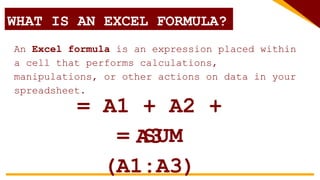
An Excel formula is an expression placed within
a cell that performs calculations,
manipulations, or other actions on data in your
spreadsheet.
= A1 + A2 +
A3
= SUM
(A1:A3)
WHAT IS AN EXCEL FORMULA?
PURPOSE OF EXCEL FORMULA
 Automate Calculations
Formulas replace manual calculations, making your
spreadsheet dynamic and responsive to changes in
input data.
 Data Analysis
Formulas enable you to extract insights from raw
data, such as finding averages, identifying trends,
or comparing values.
 Decision Making
Formulas can use conditional logic to help you make
COMPONENTS OF
EXCEL FORMULA
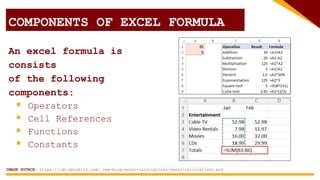
An excel formula is
consists
of the following
components:
 Operators
 Cell References
 Functions
 Constants
COMPONENTS OF EXCEL FORMULA
IMAGE SOURCE: https://cdn.ablebits.com/_img-blog/excel-calculations/excel-calculations.png
COMPONENTS OF EXCEL FORMULA
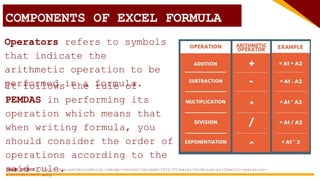
Operators refers to symbols
that indicate the
arithmetic operation to be
performed in a formula.
It follows the rule of
PEMDAS in performing its
operation which means that
when writing formula, you
should consider the order of
operations according to the
said rule.
IMAGE SOURCE: https://www.projectcubicle.com/wp-content/uploads/2022/05/excel-formulas-arithmetic-operators-
e1651596319655.webp
COMPONENTS OF EXCEL FORMULA
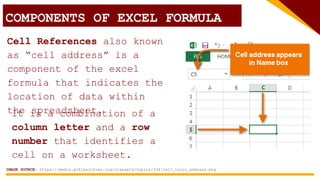
Cell References also known
as “cell address” is a
component of the excel
formula that indicates the
location of data within
the spreadsheet.
IMAGE SOURCE: https://media.gcflearnfree.org/ctassets/topics/234/cell_intro_address.png
It is a combination of a
column letter and a row
number that identifies a
cell on a worksheet.
COMPONENTS OF EXCEL FORMULA
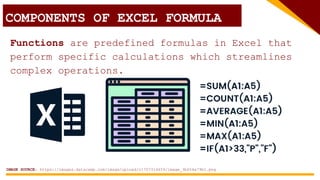
Functions are predefined formulas in Excel that
perform specific calculations which streamlines
complex operations.
IMAGE SOURCE: https://images.datacamp.com/image/upload/v1707314659/image_3b654e79b1.png
USING FORMULA IN
MS EXCEL
USING FORMULA IN MS
EXCEL
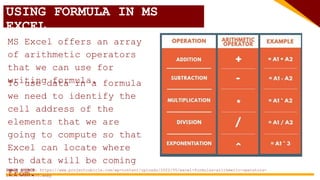
MS Excel offers an array
of arithmetic operators
that we can use for
writing formula.
IMAGE SOURCE: https://www.projectcubicle.com/wp-content/uploads/2022/05/excel-formulas-arithmetic-operators-
e1651596319655.webp
To use data in a formula
we need to identify the
cell address of the
elements that we are
going to compute so that
Excel can locate where
the data will be coming
from.
USING FORMULA IN MS
EXCEL
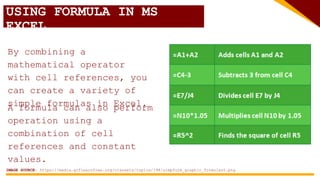
By combining a
mathematical operator
with cell references, you
can create a variety of
simple formulas in Excel.
IMAGE SOURCE: https://media.gcflearnfree.org/ctassets/topics/198/simpform_graphic_formulas5.png
A formula can also perform
operation using a
combination of cell
references and constant
values.
USING FORMULA IN MS
EXCEL
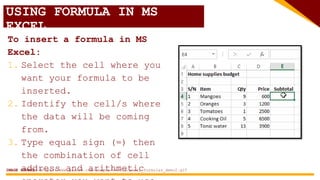
To insert a formula in MS
Excel:
1. Select the cell where you
want your formula to be
inserted.
2. Identify the cell/s where
the data will be coming
from.
3. Type equal sign (=) then
the combination of cell
address and arithmetic
IMAGE SOURCE: https://www.guru99.com/images/5-2015/excel_formulas_demo2.gif
USING FORMULA IN MS
EXCEL
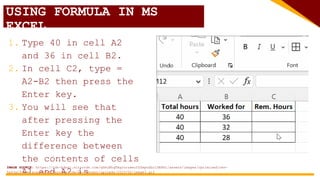
1. Type 40 in cell A2
and 36 in cell B2.
2. In cell C2, type =
A2-B2 then press the
Enter key.
3. You will see that
after pressing the
Enter key the
difference between
the contents of cells
A1 and A2 is
IMAGE SOURCE: https://cdn-kdnkj.nitrocdn.com/qYmjBhqTAqJorzweuYZZmpnSbrlDEHHj/assets/images/optimized/rev-
5a63a19/www.academyoflearning.com/wp-content/uploads/2023/02/image3.gif
USING OPERATORS IN MS
EXCEL
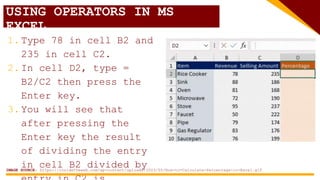
1.Type 78 in cell B2 and
235 in cell C2.
2.In cell D2, type =
B2/C2 then press the
Enter key.
3.You will see that
after pressing the
Enter key the result
of dividing the entry
in cell B2 divided by
IMAGE SOURCE: https://insidetheweb.com/wp-content/uploads/2023/05/How-to-Calculate-Percentage-in-Excel.gif
VIDEO SOURCE:
https://www.youtube.co
m/watch?v=xc14gFFyiTw&
t=7s
LET’S PRACTICE!
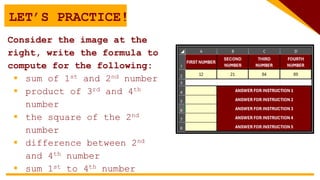
Consider the image at the
right, write the formula to
compute for the following:
 sum of 1st and 2nd number
 product of 3rd and 4th
number
 the square of the 2nd
number
 difference between 2nd
and 4th number
 sum 1st to 4th number
USING FORMULA IN MS
EXCEL
There will be cases where the formula will require
to use two or more arithmetic operators.
In those cases, you should consider writing
the formula following the order of
operations:
 Operations enclosed in parentheses
 Exponential calculations (3^2, for example)
 Multiplication and division, whichever
comes first
 Addition and subtraction, whichever comes
VIDEO SOURCE:
https://www.youtube.co
m/watch?v=J-W3thqtDpQ
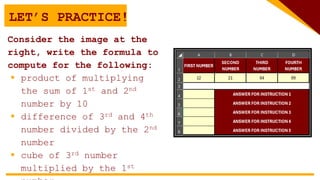
LET’S PRACTICE!
Consider the image at the
right, write the formula to
compute for the following:
 product of multiplying
the sum of 1st and 2nd
number by 10
 difference of 3rd and 4th
number divided by the 2nd
number
 cube of 3rd number
multiplied by the 1st
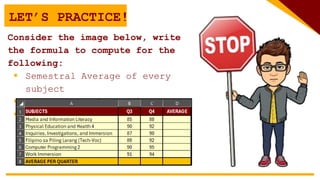
LET’S PRACTICE!
Consider the image below, write
the formula to compute for the
following:
 Semestral Average of every
subject
 Average of 3rd and 4th Quarter
 Semestral Average
RELATIVE
AND ABSOLUTE
REFERENCES
RELATIVE
REFERENCES
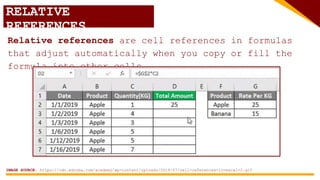
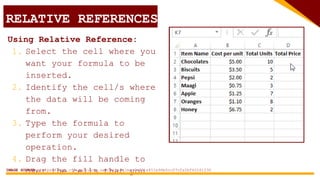
Relative references are cell references in formulas
that adjust automatically when you copy or fill the
formula into other cells.
IMAGE SOURCE: https://cdn.educba.com/academy/wp-content/uploads/2019/07/cell-references-in-excel-2.gif
RELATIVE
REFERENCES
They are the default type of reference in Excel and
are essential for replicating calculations or patterns
across multiple cells.
Relativity is based on direction, When you copy a
formula, relative references change based on the
relative position of the original and copied cells.
 Copying down rows: Row numbers in the reference
will increase.
 Copying across columns: Column letters in the
reference will shift.
RELATIVE REFERENCES
Using Relative Reference:
1. Select the cell where you
want your formula to be
inserted.
2. Identify the cell/s where
the data will be coming
from.
3. Type the formula to
perform your desired
operation.
4. Drag the fill handle to
over the cells that you
IMAGE SOURCE: https://qph.cf2.quoracdn.net/main-qimg-7c031e451e96b5cc07cfa2bf62261230
ABSOLUTE REFERENCES
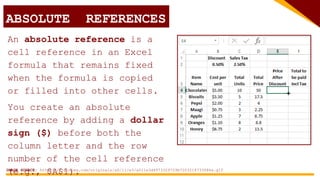
An absolute reference is a
cell reference in an Excel
formula that remains fixed
when the formula is copied
or filled into other cells.
IMAGE SOURCE: https://i.pinimg.com/originals/a0/11/e3/a011e3d4973329729b7203214733086a.gif
You create an absolute
reference by adding a dollar
sign ($) before both the
column letter and the row
number of the cell reference
(e.g., $A$1).
ABSOLUTE REFERENCES
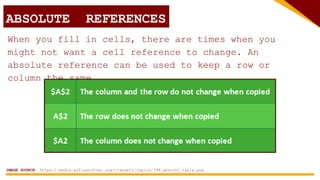
When you fill in cells, there are times when you
might not want a cell reference to change. An
absolute reference can be used to keep a row or
column the same.
IMAGE SOURCE: https://media.gcflearnfree.org/ctassets/topics/198/absorel_table.png
VIDEO SOURCE:
https://www.youtube.co
m/watch?v=iDg9s7BJ2m4
USING FUNCTIONS IN
MS EXCEL
USING FUNCTIONS IN MS
EXCEL
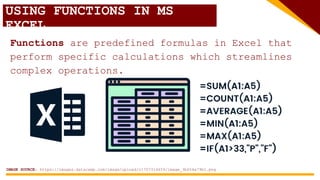
Functions are predefined formulas in Excel that
perform specific calculations which streamlines
complex operations.
IMAGE SOURCE: https://images.datacamp.com/image/upload/v1707314659/image_3b654e79b1.png
USING FUNCTIONS IN MS
EXCEL
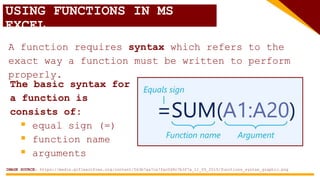
A function requires syntax which refers to the
exact way a function must be written to perform
properly.
IMAGE SOURCE: https://media.gcflearnfree.org/content/563b7aa7ca7fac0d9c7b3f7a_11_05_2015/functions_syntax_graphic.png
The basic syntax for
a function is
consists of:
 equal sign (=)
 function name
 arguments
USING FUNCTIONS IN MS
EXCEL
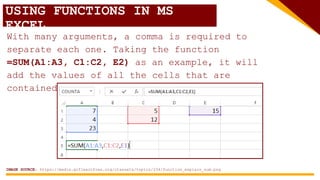
With many arguments, a comma is required to
separate each one. Taking the function
=SUM(A1:A3, C1:C2, E2) as an example, it will
add the values of all the cells that are
contained within the three arguments.
IMAGE SOURCE: https://media.gcflearnfree.org/ctassets/topics/234/function_explain_sum.png
USING FUNCTIONS IN MS
EXCEL
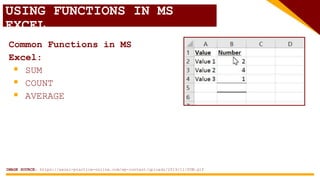
Common Functions in MS
Excel:
 SUM
 COUNT
 AVERAGE
IMAGE SOURCE: https://excel-practice-online.com/wp-content/uploads/2019/11/SUM.gif
SUM FUNCTION IN MS
EXCEL
SUM FUNCTION
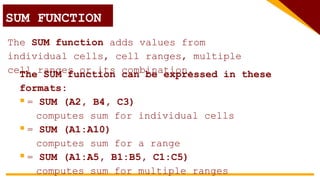
The SUM function adds values from
individual cells, cell ranges, multiple
cell ranges or its combination.
The SUM function can be expressed in these
formats:
 = SUM (A2, B4, C3)
computes sum for individual cells
 = SUM (A1:A10)
computes sum for a range
 = SUM (A1:A5, B1:B5, C1:C5)
computes sum for multiple ranges
SUMIF FUNCTION
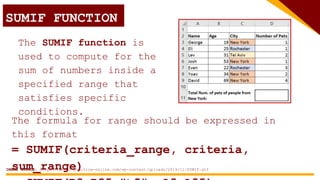
The SUMIF function is
used to compute for the
sum of numbers inside a
specified range that
satisfies specific
conditions.
The formula for range should be expressed in
this format
= SUMIF(criteria_range, criteria,
sum_range)
IMAGE SOURCE: https://excel-practice-online.com/wp-content/uploads/2019/11/SUMIF.gif
SUMIF FUNCTION
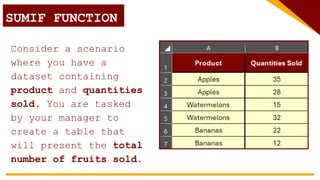
Consider a scenario
where you have a
dataset containing
product and quantities
sold. You are tasked
by your manager to
create a table that
will present the total
number of fruits sold.
SUMIF FUNCTION
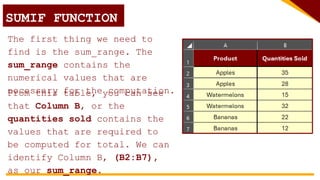
The first thing we need to
find is the sum_range. The
sum_range contains the
numerical values that are
necessary for the computation.
From this table, you can see
that Column B, or the
quantities sold contains the
values that are required to
be computed for total. We can
identify Column B, (B2:B7),
as our sum_range.
SUMIF FUNCTION
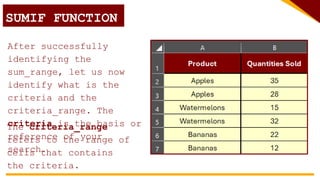
After successfully
identifying the
sum_range, let us now
identify what is the
criteria and the
criteria_range. The
criteria is the basis or
reference of your
search.
The criteria_range
refers to the range of
cells that contains
the criteria.
SUMIF FUNCTION
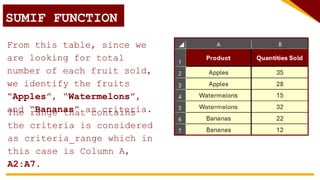
From this table, since we
are looking for total
number of each fruit sold,
we identify the fruits
“Apples”, “Watermelons”,
and “Bananas” as criteria.
The range that contains
the criteria is considered
as criteria_range which in
this case is Column A,
A2:A7.
SUMIF FUNCTION
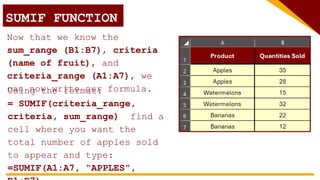
Now that we know the
sum_range (B1:B7), criteria
(name of fruit), and
criteria_range (A1:A7), we
can now write our formula.
Using the format:
= SUMIF(criteria_range,
criteria, sum_range) find a
cell where you want the
total number of apples sold
to appear and type:
=SUMIF(A1:A7, “APPLES”,
SUMIF FUNCTION
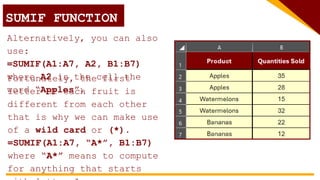
Alternatively, you can also
use:
=SUMIF(A1:A7, A2, B1:B7)
where A2 is the cell the
word “Apples”.
Fortunately, the first
letter of each fruit is
different from each other
that is why we can make use
of a wild card or (*).
=SUMIF(A1:A7, “A*”, B1:B7)
where “A*” means to compute
for anything that starts
SUMIFS FUNCTION
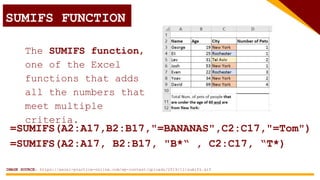
The SUMIFS function,
one of the Excel
functions that adds
all the numbers that
meet multiple
criteria.
=SUMIFS(A2:A17, B2:B17, "B*“ , C2:C17, “T*)
=SUMIFS(A2:A17,B2:B17,"=BANANAS",C2:C17,"=Tom")
IMAGE SOURCE: https://excel-practice-online.com/wp-content/uploads/2019/11/sumifs.gif
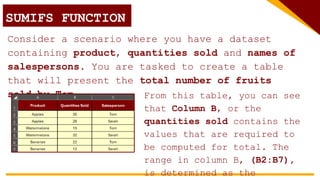
SUMIFS FUNCTION
Consider a scenario where you have a dataset
containing product, quantities sold and names of
salespersons. You are tasked to create a table
that will present the total number of fruits
sold by Tom. From this table, you can see
that Column B, or the
quantities sold contains the
values that are required to
be computed for total. The
range in column B, (B2:B7),
is determined as the
SUMIFS FUNCTION
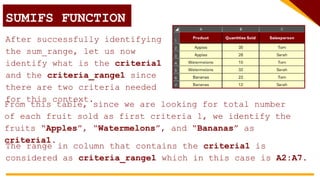
After successfully identifying
the sum_range, let us now
identify what is the criteria1
and the criteria_range1 since
there are two criteria needed
for this context.
From this table, since we are looking for total number
of each fruit sold as first criteria 1, we identify the
fruits “Apples”, “Watermelons”, and “Bananas” as
criteria1.
The range in column that contains the criteria1 is
considered as criteria_range1 which in this case is A2:A7.
SUMIFS FUNCTION
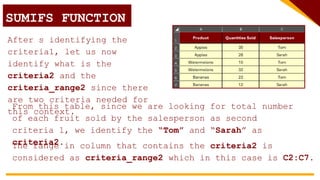
After s identifying the
criteria1, let us now
identify what is the
criteria2 and the
criteria_range2 since there
are two criteria needed for
this context.
From this table, since we are looking for total number
of each fruit sold by the salesperson as second
criteria 1, we identify the “Tom” and “Sarah” as
criteria2.
The range in column that contains the criteria2 is
considered as criteria_range2 which in this case is C2:C7.
SUMIFS FUNCTION
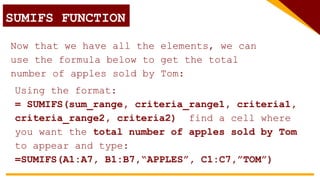
Now that we have all the elements, we can
use the formula below to get the total
number of apples sold by Tom:
Using the format:
= SUMIFS(sum_range, criteria_range1, criteria1,
criteria_range2, criteria2) find a cell where
you want the total number of apples sold by Tom
to appear and type:
=SUMIFS(A1:A7, B1:B7,“APPLES”, C1:C7,”TOM”)
VIDEO SOURCE:
https://www.youtube.co
m/watch?v=dI8w0utjUc0
COUNT FUNCTION IN
MS EXCEL
COUNT FUNCTION
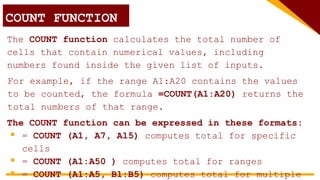
The COUNT function calculates the total number of
cells that contain numerical values, including
numbers found inside the given list of inputs.
The COUNT function can be expressed in these formats:
 = COUNT (A1, A7, A15) computes total for specific
cells
 = COUNT (A1:A50 ) computes total for ranges
 = COUNT (A1:A5, B1:B5) computes total for multiple
For example, if the range A1:A20 contains the values
to be counted, the formula =COUNT(A1:A20) returns the
total numbers of that range.
COUNTIF FUNCTION
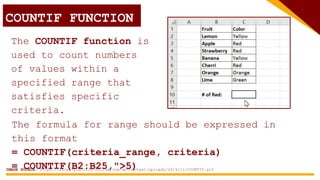
The COUNTIF function is
used to count numbers
of values within a
specified range that
satisfies specific
criteria.
The formula for range should be expressed in
this format
= COUNTIF(criteria_range, criteria)
= COUNTIF(B2:B25,">5)
IMAGE SOURCE: https://excel-practice-online.com/wp-content/uploads/2019/11/COUNTIF.gif
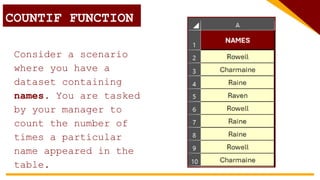
Consider a scenario
where you have a
dataset containing
names. You are tasked
by your manager to
count the number of
times a particular
name appeared in the
table.
COUNTIF FUNCTION
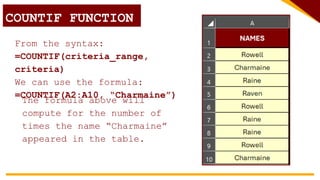
From the syntax:
=COUNTIF(criteria_range,
criteria)
We can use the formula:
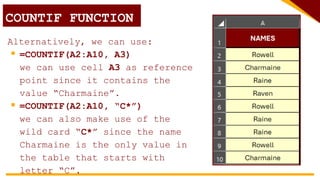
=COUNTIF(A2:A10, “Charmaine”)
The formula above will
compute for the number of
times the name “Charmaine”
appeared in the table.
COUNTIF FUNCTION
Alternatively, we can use:
 =COUNTIF(A2:A10, A3)
we can use cell A3 as reference
point since it contains the
value “Charmaine”.
 =COUNTIF(A2:A10, “C*”)
we can also make use of the
wild card “C*” since the name
Charmaine is the only value in
the table that starts with
letter “C”.
COUNTIF FUNCTION
The COUNTIFS function is function in Excel that
tallies the number of cells within a specified
range that meet one or more specified conditions.
COUNTIFS FUNCTION
The conditions are referred to as critera1,
criteria2, .. and so on, which can check things
like:
 If a number is greater than another number >
 If a number is smaller than another number <
 If a number or text is equal to something =
 If a number or text is greater than equal to
something >=
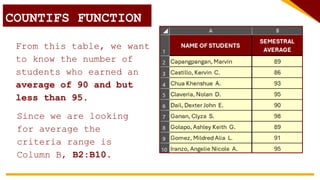
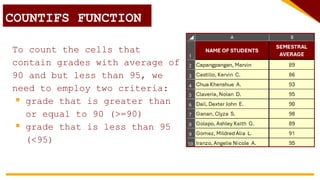
From this table, we want
to know the number of
students who earned an
average of 90 and but
less than 95.
Since we are looking
for average the
criteria range is
Column B, B2:B10.
COUNTIF FUNCTION
COUNTIFS FUNCTION
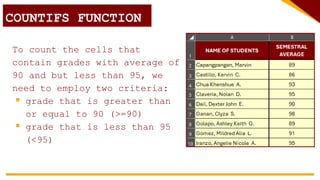
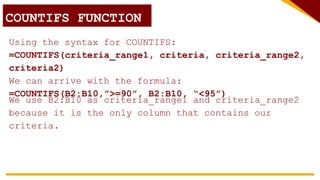
To count the cells that
contain grades with average of
90 and but less than 95, we
need to employ two criteria:
 grade that is greater than
or equal to 90 (>=90)
 grade that is less than 95
(<95)
COUNTIF FUNCTION
COUNTIFS FUNCTION
To count the cells that
contain grades with average of
90 and but less than 95, we
need to employ two criteria:
 grade that is greater than
or equal to 90 (>=90)
 grade that is less than 95
(<95)
COUNTIF FUNCTION
COUNTIFS FUNCTION
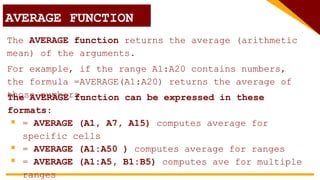
Using the syntax for COUNTIFS:
=COUNTIFS(criteria_range1, criteria, criteria_range2,
criteria2)
We can arrive with the formula:
=COUNTIFS(B2:B10,”>=90”, B2:B10, “<95”)
COUNTIF FUNCTION
COUNTIFS FUNCTION
We use B2:B10 as criteria_range1 and criteria_range2
because it is the only column that contains our
criteria.
VIDEO SOURCE:
https://www.youtube.co
m/watch?v=OFqQqdr9R44
AVERAGE FUNCTION
IN MS EXCEL
AVERAGE FUNCTION
The AVERAGE function returns the average (arithmetic
mean) of the arguments.
The AVERAGE function can be expressed in these
formats:
 = AVERAGE (A1, A7, A15) computes average for
specific cells
 = AVERAGE (A1:A50 ) computes average for ranges
 = AVERAGE (A1:A5, B1:B5) computes ave for multiple
ranges
For example, if the range A1:A20 contains numbers,
the formula =AVERAGE(A1:A20) returns the average of
those numbers.
AVERAGEIF FUNCTION
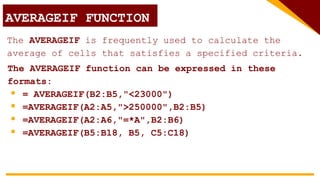
The AVERAGEIF is frequently used to calculate the
average of cells that satisfies a specified criteria.
The AVERAGEIF function can be expressed in these
formats:
 = AVERAGEIF(B2:B5,"<23000")
 =AVERAGEIF(A2:A5,">250000",B2:B5)
 =AVERAGEIF(A2:A6,"=*A",B2:B6)
 =AVERAGEIF(B5:B18, B5, C5:C18)
VIDEO SOURCE:
https://www.youtube.co
m/watch?v=EgluXBBtwZ0
USING FORMULA
IN MS EXCEL
MR. ROWELL L. MARQUINA
Professional Lecturer,
Polytechnic University of the
Philippines
Email Address:
rowell.marquina001@deped.gov.ph
sirrowellmarquina@gmail.com
rmarquina@mitis.edu.ph

QMMS Lesson 2 - Using Excel Formula.pptx

  • 1.
    POLYTECHNIC UNIVERSITY OFTHE PHILIPPINES - BIÑAN COLLEGE OF INFORMATION TECHNOLOGY AND ENGINEERING (CITE) USING FORMULA IN MS EXCEL Lesson 2 – Quantitative Methods with Modelling and Simulation ROWELL L. MARQUINA Professional Lecturer
  • 2.
    LEARNING OBJECTIVES: At theend of the session, students will be able to:  understand the concept of formulas in Excel.  learn the basic syntax for creating formulas.  practice using common functions  apply formulas to solve real- world problems or analyze provided datasets. IMAGE SOURCE: https://img.freepik.com/premium-vector/flat-isometric-illustration-concept-pile-books-ideas-targets_18660- 2027.jpg
  • 3.
  • 4.
    WHAT IS ANEXCEL FORMULA? An Excel formula is an expression placed within a cell that performs calculations, manipulations, or other actions on data in your spreadsheet. = A1 + A2 + A3 = SUM (A1:A3)
  • 5.
    WHAT IS ANEXCEL FORMULA? PURPOSE OF EXCEL FORMULA  Automate Calculations Formulas replace manual calculations, making your spreadsheet dynamic and responsive to changes in input data.  Data Analysis Formulas enable you to extract insights from raw data, such as finding averages, identifying trends, or comparing values.  Decision Making Formulas can use conditional logic to help you make
  • 6.
  • 7.
    An excel formulais consists of the following components:  Operators  Cell References  Functions  Constants COMPONENTS OF EXCEL FORMULA IMAGE SOURCE: https://cdn.ablebits.com/_img-blog/excel-calculations/excel-calculations.png
  • 8.
    COMPONENTS OF EXCELFORMULA Operators refers to symbols that indicate the arithmetic operation to be performed in a formula. It follows the rule of PEMDAS in performing its operation which means that when writing formula, you should consider the order of operations according to the said rule. IMAGE SOURCE: https://www.projectcubicle.com/wp-content/uploads/2022/05/excel-formulas-arithmetic-operators- e1651596319655.webp
  • 9.
    COMPONENTS OF EXCELFORMULA Cell References also known as “cell address” is a component of the excel formula that indicates the location of data within the spreadsheet. IMAGE SOURCE: https://media.gcflearnfree.org/ctassets/topics/234/cell_intro_address.png It is a combination of a column letter and a row number that identifies a cell on a worksheet.
  • 10.
    COMPONENTS OF EXCELFORMULA Functions are predefined formulas in Excel that perform specific calculations which streamlines complex operations. IMAGE SOURCE: https://images.datacamp.com/image/upload/v1707314659/image_3b654e79b1.png
  • 11.
  • 12.
    USING FORMULA INMS EXCEL MS Excel offers an array of arithmetic operators that we can use for writing formula. IMAGE SOURCE: https://www.projectcubicle.com/wp-content/uploads/2022/05/excel-formulas-arithmetic-operators- e1651596319655.webp To use data in a formula we need to identify the cell address of the elements that we are going to compute so that Excel can locate where the data will be coming from.
  • 13.
    USING FORMULA INMS EXCEL By combining a mathematical operator with cell references, you can create a variety of simple formulas in Excel. IMAGE SOURCE: https://media.gcflearnfree.org/ctassets/topics/198/simpform_graphic_formulas5.png A formula can also perform operation using a combination of cell references and constant values.
  • 14.
    USING FORMULA INMS EXCEL To insert a formula in MS Excel: 1. Select the cell where you want your formula to be inserted. 2. Identify the cell/s where the data will be coming from. 3. Type equal sign (=) then the combination of cell address and arithmetic IMAGE SOURCE: https://www.guru99.com/images/5-2015/excel_formulas_demo2.gif
  • 15.
    USING FORMULA INMS EXCEL 1. Type 40 in cell A2 and 36 in cell B2. 2. In cell C2, type = A2-B2 then press the Enter key. 3. You will see that after pressing the Enter key the difference between the contents of cells A1 and A2 is IMAGE SOURCE: https://cdn-kdnkj.nitrocdn.com/qYmjBhqTAqJorzweuYZZmpnSbrlDEHHj/assets/images/optimized/rev- 5a63a19/www.academyoflearning.com/wp-content/uploads/2023/02/image3.gif
  • 16.
    USING OPERATORS INMS EXCEL 1.Type 78 in cell B2 and 235 in cell C2. 2.In cell D2, type = B2/C2 then press the Enter key. 3.You will see that after pressing the Enter key the result of dividing the entry in cell B2 divided by IMAGE SOURCE: https://insidetheweb.com/wp-content/uploads/2023/05/How-to-Calculate-Percentage-in-Excel.gif
  • 17.
  • 18.
    LET’S PRACTICE! Consider theimage at the right, write the formula to compute for the following:  sum of 1st and 2nd number  product of 3rd and 4th number  the square of the 2nd number  difference between 2nd and 4th number  sum 1st to 4th number
  • 19.
    USING FORMULA INMS EXCEL There will be cases where the formula will require to use two or more arithmetic operators. In those cases, you should consider writing the formula following the order of operations:  Operations enclosed in parentheses  Exponential calculations (3^2, for example)  Multiplication and division, whichever comes first  Addition and subtraction, whichever comes
  • 20.
  • 21.
    LET’S PRACTICE! Consider theimage at the right, write the formula to compute for the following:  product of multiplying the sum of 1st and 2nd number by 10  difference of 3rd and 4th number divided by the 2nd number  cube of 3rd number multiplied by the 1st
  • 22.
    LET’S PRACTICE! Consider theimage below, write the formula to compute for the following:  Semestral Average of every subject  Average of 3rd and 4th Quarter  Semestral Average
  • 23.
  • 24.
    RELATIVE REFERENCES Relative references arecell references in formulas that adjust automatically when you copy or fill the formula into other cells. IMAGE SOURCE: https://cdn.educba.com/academy/wp-content/uploads/2019/07/cell-references-in-excel-2.gif
  • 25.
    RELATIVE REFERENCES They are thedefault type of reference in Excel and are essential for replicating calculations or patterns across multiple cells. Relativity is based on direction, When you copy a formula, relative references change based on the relative position of the original and copied cells.  Copying down rows: Row numbers in the reference will increase.  Copying across columns: Column letters in the reference will shift.
  • 26.
    RELATIVE REFERENCES Using RelativeReference: 1. Select the cell where you want your formula to be inserted. 2. Identify the cell/s where the data will be coming from. 3. Type the formula to perform your desired operation. 4. Drag the fill handle to over the cells that you IMAGE SOURCE: https://qph.cf2.quoracdn.net/main-qimg-7c031e451e96b5cc07cfa2bf62261230
  • 27.
    ABSOLUTE REFERENCES An absolutereference is a cell reference in an Excel formula that remains fixed when the formula is copied or filled into other cells. IMAGE SOURCE: https://i.pinimg.com/originals/a0/11/e3/a011e3d4973329729b7203214733086a.gif You create an absolute reference by adding a dollar sign ($) before both the column letter and the row number of the cell reference (e.g., $A$1).
  • 28.
    ABSOLUTE REFERENCES When youfill in cells, there are times when you might not want a cell reference to change. An absolute reference can be used to keep a row or column the same. IMAGE SOURCE: https://media.gcflearnfree.org/ctassets/topics/198/absorel_table.png
  • 29.
  • 30.
  • 31.
    USING FUNCTIONS INMS EXCEL Functions are predefined formulas in Excel that perform specific calculations which streamlines complex operations. IMAGE SOURCE: https://images.datacamp.com/image/upload/v1707314659/image_3b654e79b1.png
  • 32.
    USING FUNCTIONS INMS EXCEL A function requires syntax which refers to the exact way a function must be written to perform properly. IMAGE SOURCE: https://media.gcflearnfree.org/content/563b7aa7ca7fac0d9c7b3f7a_11_05_2015/functions_syntax_graphic.png The basic syntax for a function is consists of:  equal sign (=)  function name  arguments
  • 33.
    USING FUNCTIONS INMS EXCEL With many arguments, a comma is required to separate each one. Taking the function =SUM(A1:A3, C1:C2, E2) as an example, it will add the values of all the cells that are contained within the three arguments. IMAGE SOURCE: https://media.gcflearnfree.org/ctassets/topics/234/function_explain_sum.png
  • 34.
    USING FUNCTIONS INMS EXCEL Common Functions in MS Excel:  SUM  COUNT  AVERAGE IMAGE SOURCE: https://excel-practice-online.com/wp-content/uploads/2019/11/SUM.gif
  • 35.
  • 36.
    SUM FUNCTION The SUMfunction adds values from individual cells, cell ranges, multiple cell ranges or its combination. The SUM function can be expressed in these formats:  = SUM (A2, B4, C3) computes sum for individual cells  = SUM (A1:A10) computes sum for a range  = SUM (A1:A5, B1:B5, C1:C5) computes sum for multiple ranges
  • 37.
    SUMIF FUNCTION The SUMIFfunction is used to compute for the sum of numbers inside a specified range that satisfies specific conditions. The formula for range should be expressed in this format = SUMIF(criteria_range, criteria, sum_range) IMAGE SOURCE: https://excel-practice-online.com/wp-content/uploads/2019/11/SUMIF.gif
  • 38.
    SUMIF FUNCTION Consider ascenario where you have a dataset containing product and quantities sold. You are tasked by your manager to create a table that will present the total number of fruits sold.
  • 39.
    SUMIF FUNCTION The firstthing we need to find is the sum_range. The sum_range contains the numerical values that are necessary for the computation. From this table, you can see that Column B, or the quantities sold contains the values that are required to be computed for total. We can identify Column B, (B2:B7), as our sum_range.
  • 40.
    SUMIF FUNCTION After successfully identifyingthe sum_range, let us now identify what is the criteria and the criteria_range. The criteria is the basis or reference of your search. The criteria_range refers to the range of cells that contains the criteria.
  • 41.
    SUMIF FUNCTION From thistable, since we are looking for total number of each fruit sold, we identify the fruits “Apples”, “Watermelons”, and “Bananas” as criteria. The range that contains the criteria is considered as criteria_range which in this case is Column A, A2:A7.
  • 42.
    SUMIF FUNCTION Now thatwe know the sum_range (B1:B7), criteria (name of fruit), and criteria_range (A1:A7), we can now write our formula. Using the format: = SUMIF(criteria_range, criteria, sum_range) find a cell where you want the total number of apples sold to appear and type: =SUMIF(A1:A7, “APPLES”,
  • 43.
    SUMIF FUNCTION Alternatively, youcan also use: =SUMIF(A1:A7, A2, B1:B7) where A2 is the cell the word “Apples”. Fortunately, the first letter of each fruit is different from each other that is why we can make use of a wild card or (*). =SUMIF(A1:A7, “A*”, B1:B7) where “A*” means to compute for anything that starts
  • 44.
    SUMIFS FUNCTION The SUMIFSfunction, one of the Excel functions that adds all the numbers that meet multiple criteria. =SUMIFS(A2:A17, B2:B17, "B*“ , C2:C17, “T*) =SUMIFS(A2:A17,B2:B17,"=BANANAS",C2:C17,"=Tom") IMAGE SOURCE: https://excel-practice-online.com/wp-content/uploads/2019/11/sumifs.gif
  • 45.
    SUMIFS FUNCTION Consider ascenario where you have a dataset containing product, quantities sold and names of salespersons. You are tasked to create a table that will present the total number of fruits sold by Tom. From this table, you can see that Column B, or the quantities sold contains the values that are required to be computed for total. The range in column B, (B2:B7), is determined as the
  • 46.
    SUMIFS FUNCTION After successfullyidentifying the sum_range, let us now identify what is the criteria1 and the criteria_range1 since there are two criteria needed for this context. From this table, since we are looking for total number of each fruit sold as first criteria 1, we identify the fruits “Apples”, “Watermelons”, and “Bananas” as criteria1. The range in column that contains the criteria1 is considered as criteria_range1 which in this case is A2:A7.
  • 47.
    SUMIFS FUNCTION After sidentifying the criteria1, let us now identify what is the criteria2 and the criteria_range2 since there are two criteria needed for this context. From this table, since we are looking for total number of each fruit sold by the salesperson as second criteria 1, we identify the “Tom” and “Sarah” as criteria2. The range in column that contains the criteria2 is considered as criteria_range2 which in this case is C2:C7.
  • 48.
    SUMIFS FUNCTION Now thatwe have all the elements, we can use the formula below to get the total number of apples sold by Tom: Using the format: = SUMIFS(sum_range, criteria_range1, criteria1, criteria_range2, criteria2) find a cell where you want the total number of apples sold by Tom to appear and type: =SUMIFS(A1:A7, B1:B7,“APPLES”, C1:C7,”TOM”)
  • 49.
  • 50.
  • 51.
    COUNT FUNCTION The COUNTfunction calculates the total number of cells that contain numerical values, including numbers found inside the given list of inputs. The COUNT function can be expressed in these formats:  = COUNT (A1, A7, A15) computes total for specific cells  = COUNT (A1:A50 ) computes total for ranges  = COUNT (A1:A5, B1:B5) computes total for multiple For example, if the range A1:A20 contains the values to be counted, the formula =COUNT(A1:A20) returns the total numbers of that range.
  • 52.
    COUNTIF FUNCTION The COUNTIFfunction is used to count numbers of values within a specified range that satisfies specific criteria. The formula for range should be expressed in this format = COUNTIF(criteria_range, criteria) = COUNTIF(B2:B25,">5) IMAGE SOURCE: https://excel-practice-online.com/wp-content/uploads/2019/11/COUNTIF.gif
  • 53.
    Consider a scenario whereyou have a dataset containing names. You are tasked by your manager to count the number of times a particular name appeared in the table. COUNTIF FUNCTION
  • 54.
    From the syntax: =COUNTIF(criteria_range, criteria) Wecan use the formula: =COUNTIF(A2:A10, “Charmaine”) The formula above will compute for the number of times the name “Charmaine” appeared in the table. COUNTIF FUNCTION
  • 55.
    Alternatively, we canuse:  =COUNTIF(A2:A10, A3) we can use cell A3 as reference point since it contains the value “Charmaine”.  =COUNTIF(A2:A10, “C*”) we can also make use of the wild card “C*” since the name Charmaine is the only value in the table that starts with letter “C”. COUNTIF FUNCTION
  • 56.
    The COUNTIFS functionis function in Excel that tallies the number of cells within a specified range that meet one or more specified conditions. COUNTIFS FUNCTION The conditions are referred to as critera1, criteria2, .. and so on, which can check things like:  If a number is greater than another number >  If a number is smaller than another number <  If a number or text is equal to something =  If a number or text is greater than equal to something >=
  • 57.
    From this table,we want to know the number of students who earned an average of 90 and but less than 95. Since we are looking for average the criteria range is Column B, B2:B10. COUNTIF FUNCTION COUNTIFS FUNCTION
  • 58.
    To count thecells that contain grades with average of 90 and but less than 95, we need to employ two criteria:  grade that is greater than or equal to 90 (>=90)  grade that is less than 95 (<95) COUNTIF FUNCTION COUNTIFS FUNCTION
  • 59.
    To count thecells that contain grades with average of 90 and but less than 95, we need to employ two criteria:  grade that is greater than or equal to 90 (>=90)  grade that is less than 95 (<95) COUNTIF FUNCTION COUNTIFS FUNCTION
  • 60.
    Using the syntaxfor COUNTIFS: =COUNTIFS(criteria_range1, criteria, criteria_range2, criteria2) We can arrive with the formula: =COUNTIFS(B2:B10,”>=90”, B2:B10, “<95”) COUNTIF FUNCTION COUNTIFS FUNCTION We use B2:B10 as criteria_range1 and criteria_range2 because it is the only column that contains our criteria.
  • 61.
  • 62.
  • 63.
    AVERAGE FUNCTION The AVERAGEfunction returns the average (arithmetic mean) of the arguments. The AVERAGE function can be expressed in these formats:  = AVERAGE (A1, A7, A15) computes average for specific cells  = AVERAGE (A1:A50 ) computes average for ranges  = AVERAGE (A1:A5, B1:B5) computes ave for multiple ranges For example, if the range A1:A20 contains numbers, the formula =AVERAGE(A1:A20) returns the average of those numbers.
  • 64.
    AVERAGEIF FUNCTION The AVERAGEIFis frequently used to calculate the average of cells that satisfies a specified criteria. The AVERAGEIF function can be expressed in these formats:  = AVERAGEIF(B2:B5,"<23000")  =AVERAGEIF(A2:A5,">250000",B2:B5)  =AVERAGEIF(A2:A6,"=*A",B2:B6)  =AVERAGEIF(B5:B18, B5, C5:C18)
  • 65.
  • 66.
    USING FORMULA IN MSEXCEL MR. ROWELL L. MARQUINA Professional Lecturer, Polytechnic University of the Philippines Email Address: rowell.marquina001@deped.gov.ph sirrowellmarquina@gmail.com rmarquina@mitis.edu.ph