By the endof the lesson, the learners will be able to:
· Identify the four arithmetic operators in Microsoft Excel and explain their
basic functions.
· Apply the four arithmetic operators in Excel to perform simple
mathematical computations using real-life data.
· Analyze computed results in Excel and interpret their significance in
solving practical numeracy and daily life problems.
Learning Objectives:
3.
What Are ArithmeticOperators in Excel?
Arithmetic operators are the fundamental building
blocks of Excel calculations that allow you to perform
mathematical operations on your data.
All Excel formulas begin with an equal sign
(=) to signal that a calculation follows.
Addition (+)
Combines values
Subtraction (-)
Finds differences
Multiplication (*)
Multiplies values
Division (/)
Divides values
4.
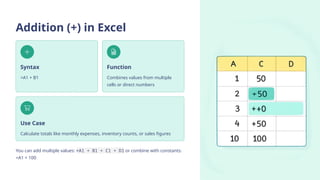
Addition (+) inExcel
Syntax
=A1 + B1
Function
Combines values from multiple
cells or direct numbers
Use Case
Calculate totals like monthly expenses, inventory counts, or sales figures
You can add multiple values: =A1 + B1 + C1 + D1 or combine with constants:
=A1 + 100
5.
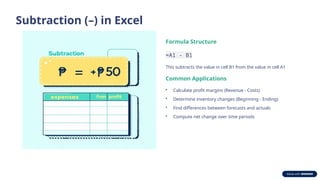
Subtraction (–) inExcel
Formula Structure
=A1 - B1
This subtracts the value in cell B1 from the value in cell A1
Common Applications
• Calculate profit margins (Revenue - Costs)
• Determine inventory changes (Beginning - Ending)
• Find differences between forecasts and actuals
• Compute net change over time periods
6.
Multiplication (*) inExcel
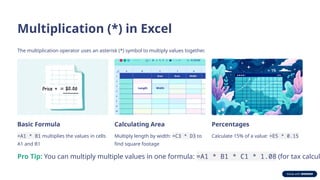
The multiplication operator uses an asterisk (*) symbol to multiply values together.
Basic Formula
=A1 * B1 multiplies the values in cells
A1 and B1
Calculating Area
Multiply length by width: =C3 * D3 to
find square footage
Percentages
Calculate 15% of a value: =E5 * 0.15
Pro Tip: You can multiply multiple values in one formula: =A1 * B1 * C1 * 1.08 (for tax calcul
7.
Division (/) inExcel
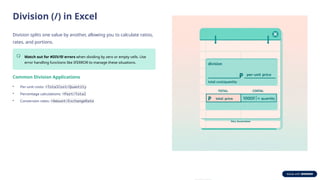
Division splits one value by another, allowing you to calculate ratios,
rates, and portions.
Watch out for #DIV/0! errors when dividing by zero or empty cells. Use
error handling functions like IFERROR to manage these situations.
Common Division Applications
• Per-unit costs: =TotalCost/Quantity
• Percentage calculations: =Part/Total
• Conversion rates: =Amount/ExchangeRate
8.
Operator Precedence: PEMDASin Excel
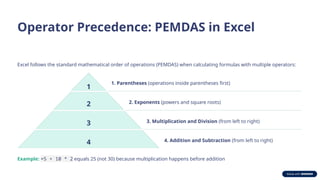
Excel follows the standard mathematical order of operations (PEMDAS) when calculating formulas with multiple operators:
1
1. Parentheses (operations inside parentheses first)
2 2. Exponents (powers and square roots)
3 3. Multiplication and Division (from left to right)
4 4. Addition and Subtraction (from left to right)
Example: =5 + 10 * 2 equals 25 (not 30) because multiplication happens before addition
9.
Using Parentheses toControl Calculations
Why Parentheses Matter
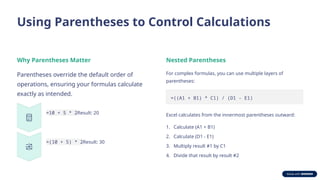
Parentheses override the default order of
operations, ensuring your formulas calculate
exactly as intended.
=10 + 5 * 2Result: 20
=(10 + 5) * 2Result: 30
Nested Parentheses
For complex formulas, you can use multiple layers of
parentheses:
=((A1 + B1) * C1) / (D1 - E1)
Excel calculates from the innermost parentheses outward:
1. Calculate (A1 + B1)
2. Calculate (D1 - E1)
3. Multiply result #1 by C1
4. Divide that result by result #2
10.
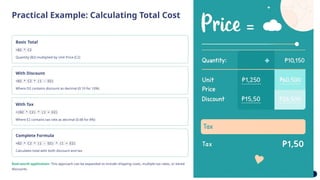
Practical Example: CalculatingTotal Cost
Basic Total
=B2 * C2
Quantity (B2) multiplied by Unit Price (C2)
With Discount
=B2 * C2 * (1 - D2)
Where D2 contains discount as decimal (0.10 for 10%)
With Tax
=(B2 * C2) * (1 + E2)
Where E2 contains tax rate as decimal (0.08 for 8%)
Complete Formula
=B2 * C2 * (1 - D2) * (1 + E2)
Calculates total with both discount and tax
Real-world application: This approach can be expanded to include shipping costs, multiple tax rates, or tiered
discounts.
11.
Mastering Arithmetic OperatorsEmpowers You!
Now that you understand Excel's arithmetic operators, you can:
1 Build financial models
Create budgets, forecasts, and investment calculators
2 Analyze data patterns
Calculate growth rates, averages, and performance metrics
3 Solve complex problems
Combine operators with Excel functions for powerful solutions
Remember: Always start formulas with = and check your parentheses to ensure calculations follow





![7.__Developing_a_Research_Proposal[1].pptx](https://cdn.slidesharecdn.com/ss_thumbnails/7-260131073037-df92dd7d-thumbnail.jpg?width=640&height=640&fit=bounds)


