IMPORT AND EXPORT 
UTILITIES IN MS ACCESS 
SUBMITTED BY:HARSH GOAR 
ROLL NO:5838
IMPORTING VS. LINKING DATABASE 
FILES 
• You have the choice of importing or linking data from other databases, but how do you 
• decide which type of access is best? Here are some guidelines. 
• You should consider importing another database file when any of the following is true: 
• ● The file you need is relatively small and is not changed frequently by users of the other 
• database application. 
• ● You don’t need to share the data you create with users of the other database application. 
• ● You’re replacing the old database application, and you no longer need the data in the 
• old format. 
• ● You need to load data (such as customers or products as I mentioned earlier) from 
• another source to begin populating your Access tables. 
• ● You need the best performance while working with the data from the other database 
• (because Access performs best with a local copy of the data in Access’s native format). 
• On the other hand, you should consider linking another database file when any of the following 
• is true: 
• ● The file is larger than the maximum capacity of a local Access database (2 gigabytes). 
• ● The file is changed frequently by users of the other database application. 
• ● You must share the data on a network with users of the other database application. 
• ● You’ll be distributing your application to several individual users, and you will need to 
• make changes to the queries, forms, reports, and modules in the application without 
• disturbing data already entered in the tables.
Import Options 
To copy data from a text file, 
spreadsheet file, or database table 
into an Access table. You can use 
the imported data to create a new 
table, or you can append (add) it to 
an existing table that has a 
matching data structure. 
21
IMPORTING ACCESS FILES 
.
Importing Access Objects 
• If the database from which you want to import data is 
another Access database, you can 
• import any of the seven major types of Access objects: 
tables, queries, forms, reports, data 
• access pages, macros, or modules. To achieve the same 
result, you can also open the source 
• database, select the object you want, choose the Copy 
command from the Edit menu, open 
• the target database, and then choose the Paste 
command from the Edit menu. Using the 
• Import command, however, allows you to copy several 
objects without having to switch back 
• and forth between the two databases.
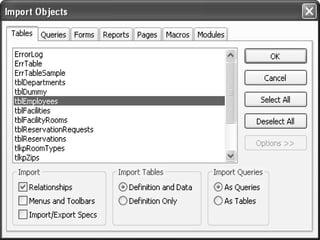
• You can also click the Options button (which has been clicked in the preceding illustration) 
• to select additional options. If you import any tables from the source database, 
• you can select the option to import the table relationships (if any) defined for 
• those tables in the source database. If the object is a table, you can select the option to 
• import the table structure (the table definition) only or to import the structure and 
• the stored data. You can also select special options to import all custom menus and 
• toolbars (all command bars) from the source database (see Chapter 24, “The Finishing 
• Touches”) or all import/export specifications. (See the sidebar titled “Defining an 
• Import Specification,” page 207, for details.) You can also choose to import a query 
• object (the definition of the query) by choosing As Queries under Import Queries, or 
• you can ask Access to run the query and import the data results into a table by choosing 
• As Tables. (See Chapter 7, “Creating and Working with Simple Queries,” for details 
• about building and using queries.) Click OK to copy the objects you selected to the 
• current database.
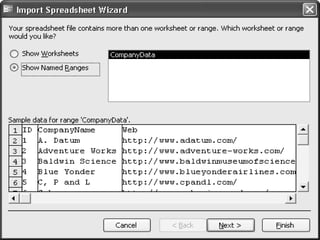
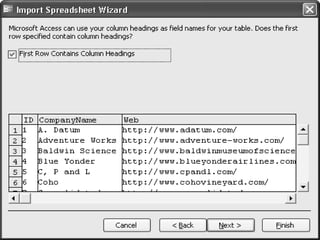
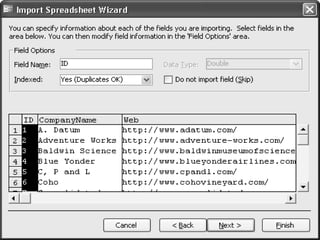
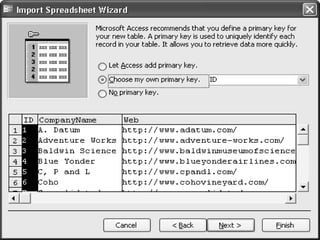
Importing excel 
files
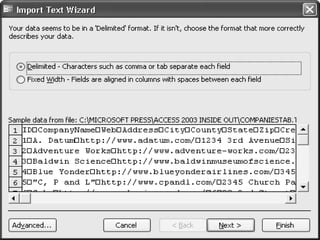
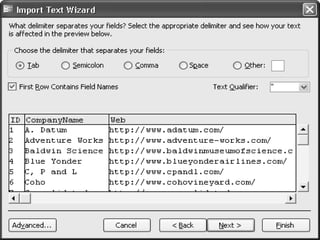
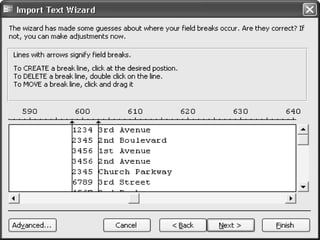
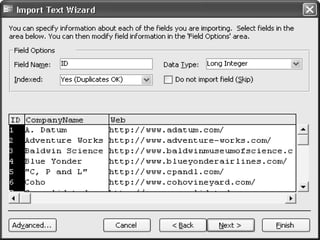
Importing Text 
Files
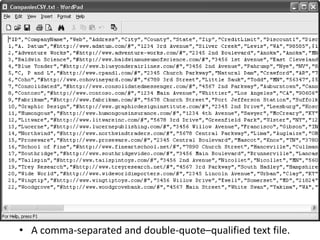
• A comma-separated and double-quote–qualified text file.
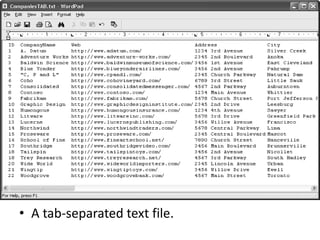
• A tab-separated text file.
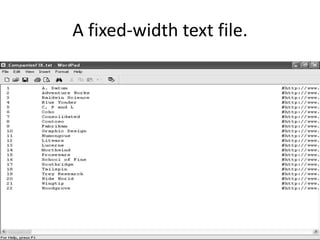
A fixed-width text file.
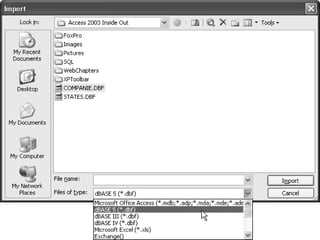
Importing dBASE 
Files
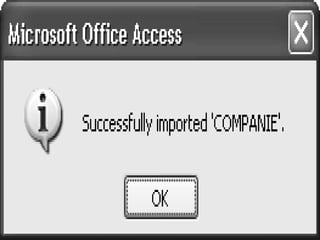
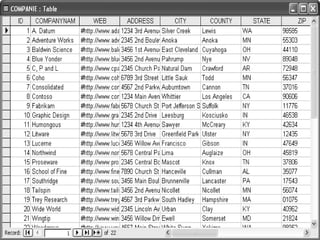
• An imported dBASE file.
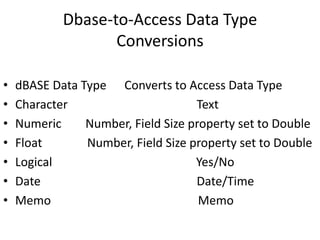
Dbase-to-Access Data Type 
Conversions 
• dBASE Data Type Converts to Access Data Type 
• Character Text 
• Numeric Number, Field Size property set to Double 
• Float Number, Field Size property set to Double 
• Logical Yes/No 
• Date Date/Time 
• Memo Memo
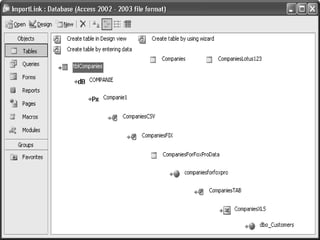
Linking Access 
Tables
LINKING TEXT AND SPREADSHEET 
FILES 
• . 
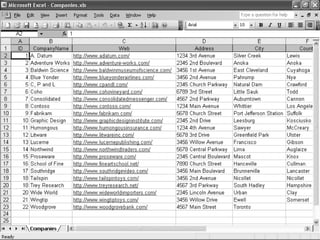
Linking a text file or an Excel spreadsheet file is almost 
identical to importing these types of Files. (You 
cannot link Lotus 1-2-3 files, you can only import 
them.) As noted, you can only read linked text files, 
but you can update and add new rows (but not delete 
rows) in Excel spreadsheet files.
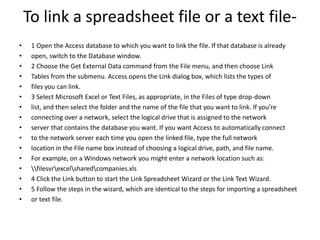
To link a spreadsheet file or a text file- 
• 1 Open the Access database to which you want to link the file. If that database is already 
• open, switch to the Database window. 
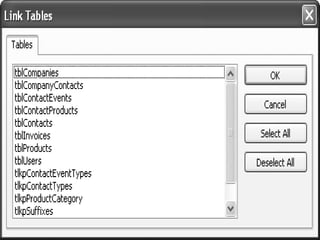
• 2 Choose the Get External Data command from the File menu, and then choose Link 
• Tables from the submenu. Access opens the Link dialog box, which lists the types of 
• files you can link. 
• 3 Select Microsoft Excel or Text Files, as appropriate, in the Files of type drop-down 
• list, and then select the folder and the name of the file that you want to link. If you’re 
• connecting over a network, select the logical drive that is assigned to the network 
• server that contains the database you want. If you want Access to automatically connect 
• to the network server each time you open the linked file, type the full network 
• location in the File name box instead of choosing a logical drive, path, and file name. 
• For example, on a Windows network you might enter a network location such as: 
• filesvrexcelsharedcompanies.xls 
• 4 Click the Link button to start the Link Spreadsheet Wizard or the Link Text Wizard. 
• 5 Follow the steps in the wizard, which are identical to the steps for importing a spreadsheet 
• or text file.
Modifying Linked Tables 
• You can make some changes to the definitions of linked tables to customize them 
for use in 
• your Access environment. When you attempt to open the table in Design view, 
Access opens 
• a dialog box to warn you that you cannot modify certain properties of a linked 
table. You can 
• still click OK to open the linked table in Design view. 
• You can open a linked table in Design view to change the Format, Decimal Places, 
Caption, 
• Description, and Input Mask property settings for any field. You can set these 
properties to 
• customize the way you look at and update data in Access forms and reports. You 
can also give 
• any linked table a new name for use within your Access database (although the 
table’s original 
• name remains unchanged in the source database) to help you better identify the 
table or to 
• enable you to use the table with the queries, forms, and reports that you’ve 
already designed. 
• Changing a table’s design in Access has no effect on the original table in its source 
database. 
• However, if the design of the table in the source database changes, you must relink 
the table to 
• Access. You must also unlink and relink any table if your user ID or your password 
changes
Using the Linked Table Manager 
If you move some or all of your linked tables to a different location, you must either 
delete 
your linked tables and relink them or update the location information before you can 
open 
the tables. You can easily update the location information in the table links by using 
the 
Linked Table Manager. To use this handy utility, open the database that contains linked 
tables 
that need to be relinked, choose Database Utilities from the Tools menu, and then 
choose 
Linked Table Manager from the submenu. The utility opens a dialog box that displays 
all the 
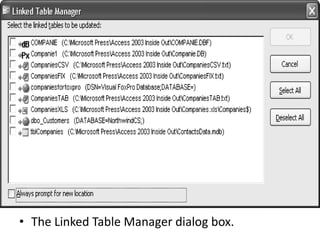
linked tables in your database, as shown in Figure 6-14. Simply select the ones that 
you think 
need to be verified and updated, and then click OK. If any of the linked tables have 
been 
moved to a different location, the Linked Table Manager prompts you with a dialog box 
so 
that you can specify the new file location. You can also select the Always prompt for 
new 
location check box to verify the file location for all linked tables.
• The Linked Table Manager dialog box.
Export Option 
To copy data and database objects 
to another database, spreadsheet 
file, or file format so that another 
database or program can use the 
data or database objects. You can 
export data to a variety of 
supported databases, programs, 
and file formats. 
23

IMPORT AND EXPORT UTILITIES IN MS-ACCESS

  • 1.
    IMPORT AND EXPORT UTILITIES IN MS ACCESS SUBMITTED BY:HARSH GOAR ROLL NO:5838
  • 2.
    IMPORTING VS. LINKINGDATABASE FILES • You have the choice of importing or linking data from other databases, but how do you • decide which type of access is best? Here are some guidelines. • You should consider importing another database file when any of the following is true: • ● The file you need is relatively small and is not changed frequently by users of the other • database application. • ● You don’t need to share the data you create with users of the other database application. • ● You’re replacing the old database application, and you no longer need the data in the • old format. • ● You need to load data (such as customers or products as I mentioned earlier) from • another source to begin populating your Access tables. • ● You need the best performance while working with the data from the other database • (because Access performs best with a local copy of the data in Access’s native format). • On the other hand, you should consider linking another database file when any of the following • is true: • ● The file is larger than the maximum capacity of a local Access database (2 gigabytes). • ● The file is changed frequently by users of the other database application. • ● You must share the data on a network with users of the other database application. • ● You’ll be distributing your application to several individual users, and you will need to • make changes to the queries, forms, reports, and modules in the application without • disturbing data already entered in the tables.
  • 3.
    Import Options Tocopy data from a text file, spreadsheet file, or database table into an Access table. You can use the imported data to create a new table, or you can append (add) it to an existing table that has a matching data structure. 21
  • 4.
  • 5.
    Importing Access Objects • If the database from which you want to import data is another Access database, you can • import any of the seven major types of Access objects: tables, queries, forms, reports, data • access pages, macros, or modules. To achieve the same result, you can also open the source • database, select the object you want, choose the Copy command from the Edit menu, open • the target database, and then choose the Paste command from the Edit menu. Using the • Import command, however, allows you to copy several objects without having to switch back • and forth between the two databases.
  • 7.
    • You canalso click the Options button (which has been clicked in the preceding illustration) • to select additional options. If you import any tables from the source database, • you can select the option to import the table relationships (if any) defined for • those tables in the source database. If the object is a table, you can select the option to • import the table structure (the table definition) only or to import the structure and • the stored data. You can also select special options to import all custom menus and • toolbars (all command bars) from the source database (see Chapter 24, “The Finishing • Touches”) or all import/export specifications. (See the sidebar titled “Defining an • Import Specification,” page 207, for details.) You can also choose to import a query • object (the definition of the query) by choosing As Queries under Import Queries, or • you can ask Access to run the query and import the data results into a table by choosing • As Tables. (See Chapter 7, “Creating and Working with Simple Queries,” for details • about building and using queries.) Click OK to copy the objects you selected to the • current database.
  • 8.
  • 14.
  • 15.
    • A comma-separatedand double-quote–qualified text file.
  • 16.
  • 17.
  • 22.
  • 25.
    • An importeddBASE file.
  • 26.
    Dbase-to-Access Data Type Conversions • dBASE Data Type Converts to Access Data Type • Character Text • Numeric Number, Field Size property set to Double • Float Number, Field Size property set to Double • Logical Yes/No • Date Date/Time • Memo Memo
  • 27.
  • 30.
    LINKING TEXT ANDSPREADSHEET FILES • . Linking a text file or an Excel spreadsheet file is almost identical to importing these types of Files. (You cannot link Lotus 1-2-3 files, you can only import them.) As noted, you can only read linked text files, but you can update and add new rows (but not delete rows) in Excel spreadsheet files.
  • 31.
    To link aspreadsheet file or a text file- • 1 Open the Access database to which you want to link the file. If that database is already • open, switch to the Database window. • 2 Choose the Get External Data command from the File menu, and then choose Link • Tables from the submenu. Access opens the Link dialog box, which lists the types of • files you can link. • 3 Select Microsoft Excel or Text Files, as appropriate, in the Files of type drop-down • list, and then select the folder and the name of the file that you want to link. If you’re • connecting over a network, select the logical drive that is assigned to the network • server that contains the database you want. If you want Access to automatically connect • to the network server each time you open the linked file, type the full network • location in the File name box instead of choosing a logical drive, path, and file name. • For example, on a Windows network you might enter a network location such as: • filesvrexcelsharedcompanies.xls • 4 Click the Link button to start the Link Spreadsheet Wizard or the Link Text Wizard. • 5 Follow the steps in the wizard, which are identical to the steps for importing a spreadsheet • or text file.
  • 32.
    Modifying Linked Tables • You can make some changes to the definitions of linked tables to customize them for use in • your Access environment. When you attempt to open the table in Design view, Access opens • a dialog box to warn you that you cannot modify certain properties of a linked table. You can • still click OK to open the linked table in Design view. • You can open a linked table in Design view to change the Format, Decimal Places, Caption, • Description, and Input Mask property settings for any field. You can set these properties to • customize the way you look at and update data in Access forms and reports. You can also give • any linked table a new name for use within your Access database (although the table’s original • name remains unchanged in the source database) to help you better identify the table or to • enable you to use the table with the queries, forms, and reports that you’ve already designed. • Changing a table’s design in Access has no effect on the original table in its source database. • However, if the design of the table in the source database changes, you must relink the table to • Access. You must also unlink and relink any table if your user ID or your password changes
  • 33.
    Using the LinkedTable Manager If you move some or all of your linked tables to a different location, you must either delete your linked tables and relink them or update the location information before you can open the tables. You can easily update the location information in the table links by using the Linked Table Manager. To use this handy utility, open the database that contains linked tables that need to be relinked, choose Database Utilities from the Tools menu, and then choose Linked Table Manager from the submenu. The utility opens a dialog box that displays all the linked tables in your database, as shown in Figure 6-14. Simply select the ones that you think need to be verified and updated, and then click OK. If any of the linked tables have been moved to a different location, the Linked Table Manager prompts you with a dialog box so that you can specify the new file location. You can also select the Always prompt for new location check box to verify the file location for all linked tables.
  • 34.
    • The LinkedTable Manager dialog box.
  • 35.
    Export Option Tocopy data and database objects to another database, spreadsheet file, or file format so that another database or program can use the data or database objects. You can export data to a variety of supported databases, programs, and file formats. 23