Database Management
Microsoft Access – Simplified
By: A. Vanhorne
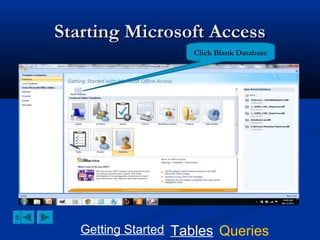
Starting Microsoft Access
Click Blank Database

Getting Started Tables Queries
Creating a Database


For this tutorial you will be creating a database
name: “School”

Getting Started Tables Queries
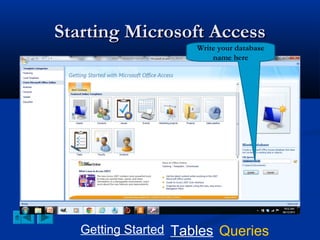
Starting Microsoft Access
Write your database
name here

Getting Started Tables Queries
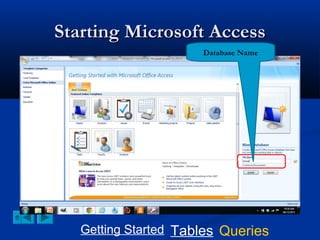
Starting Microsoft Access
Database Name

Getting Started Tables Queries
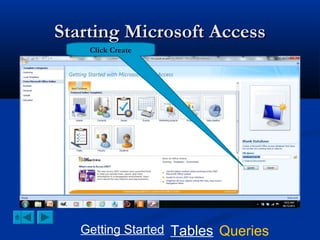
Starting Microsoft Access
Click Create

Getting Started Tables Queries
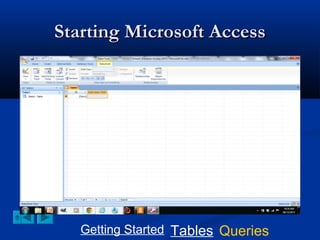
Starting Microsoft Access

Getting Started Tables Queries
Starting Microsoft Access

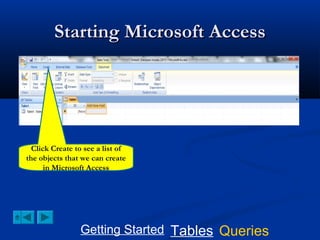
Click Create to see a list of
the objects that we can create
in Microsoft Access

Getting Started Tables Queries
Starting Microsoft Access

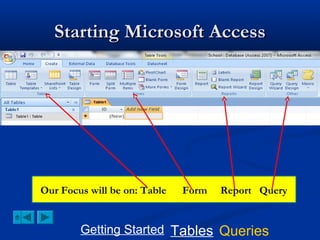
Our Focus will be on: Table

Form

Report Query

Getting Started Tables Queries
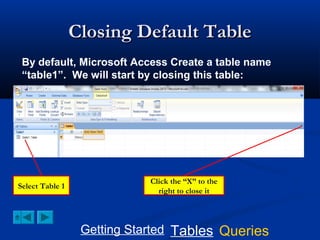
Closing Default Table
By default, Microsoft Access Create a table name
“table1”. We will start by closing this table:

Select Table 1

Click the “X” to the
right to close it

Getting Started Tables Queries
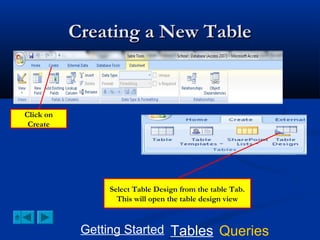
Creating a New Table

Click on
Create

Select Table Design from the table Tab.
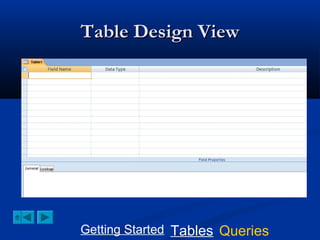
This will open the table design view

Getting Started Tables Queries
Table Design View

Getting Started Tables Queries
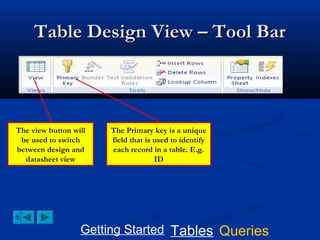
Table Design View – Tool Bar

The view button will
be used to switch
between design and
datasheet view

The Primary key is a unique
field that is used to identify
each record in a table. E.g.
ID

Getting Started Tables Queries
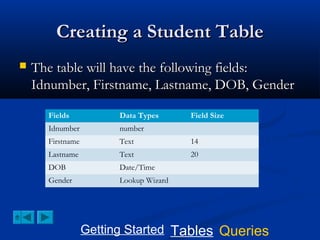
Creating a Student Table


The table will have the following fields:
Idnumber, Firstname, Lastname, DOB, Gender
Fields

Data Types

Field Size

Idnumber

number

Firstname

Text

14

Lastname

Text

20

DOB

Date/Time

Gender

Lookup Wizard

Getting Started Tables Queries
Creating a Student Table

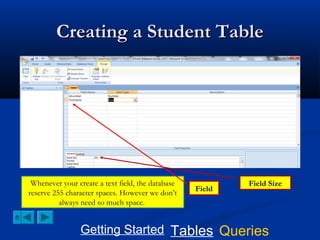
Whenever your create a text field, the database
reserve 255 character spaces. However we don’t
always need so much space.
Field

Field Size

Getting Started Tables Queries
Creating a Student Table


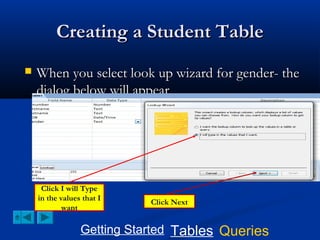
When you select look up wizard for gender- the
dialog below will appear

Click I will Type
in the values that I
want

Click Next

Getting Started Tables Queries
Creating a Student Table


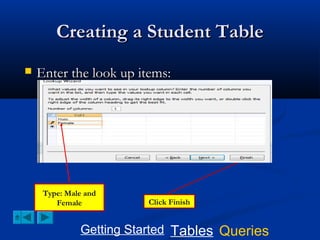
Enter the look up items:

Type: Male and
Female

Click Finish

Getting Started Tables Queries
Setting Primary Key

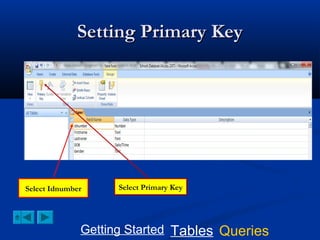
Select Idnumber

Select Primary Key

Getting Started Tables Queries
Creating a Student Table

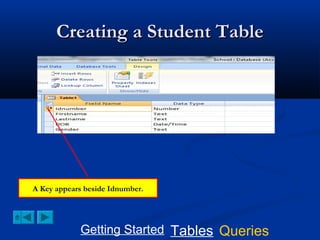
A Key appears beside Idnumber.

Getting Started Tables Queries
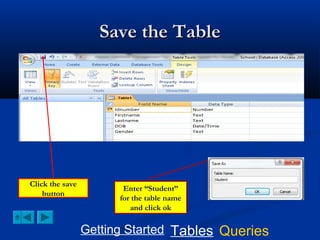
Save the Table

Click the save
button

Enter “Student”
for the table name
and click ok

Getting Started Tables Queries
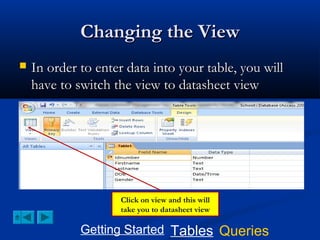
Changing the View


In order to enter data into your table, you will
have to switch the view to datasheet view

Click on view and this will
take you to datasheet view

Getting Started Tables Queries
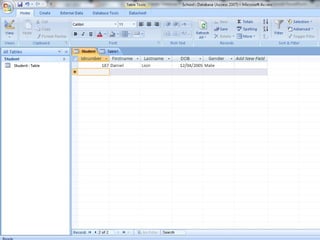
Datasheet View


Here you can populate the table

Click on view and this will
take you to datasheet view

Getting Started Tables Queries
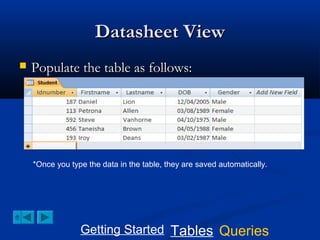
Datasheet View


Populate the table as follows:

*Once you type the data in the table, they are saved automatically.

Getting Started Tables Queries
What is a query?


A query is a specific set of instructions for
retrieving data from a database and displaying,
printing, modifying or storing it.

Getting Started Tables Queries
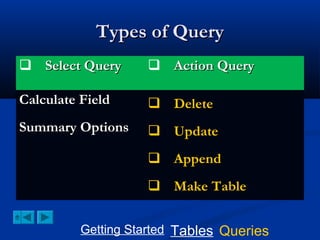
Types of Query
 Select Query

 Action Query

Calculate Field

 Delete

Summary Options

 Update
 Append
 Make Table

Getting Started Tables Queries
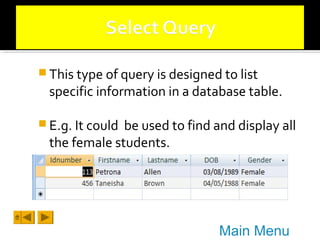
 This type of query is designed to list

specific information in a database table.

 E.g. It could

be used to find and display all
the female students.

Main Menu
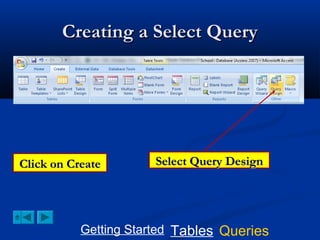
Creating a Select Query

Click on Create

Select Query Design

Getting Started Tables Queries
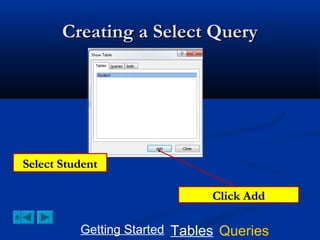
Creating a Select Query

Select Student
Click Add
Getting Started Tables Queries
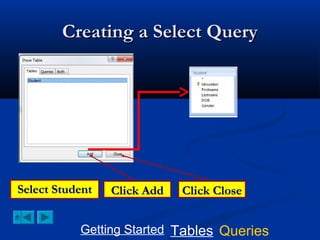
Creating a Select Query

Select Student

Click Add

Click Close

Getting Started Tables Queries
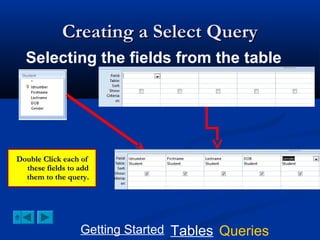
Creating a Select Query
Selecting the fields from the table

Double Click each of
these fields to add
them to the query.

Getting Started Tables Queries
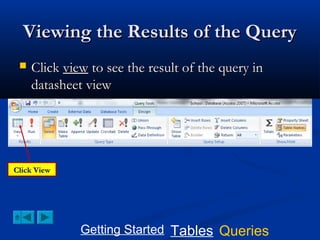
Viewing the Results of the Query


Click view to see the result of the query in
datasheet view

Click View

Getting Started Tables Queries
Viewing the Results of the Query


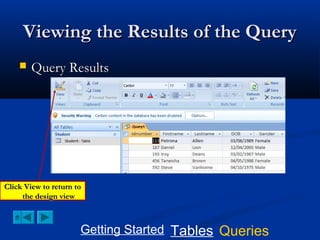
Query Results

Click View to return to
the design view

Getting Started Tables Queries
Viewing the Results of the Query



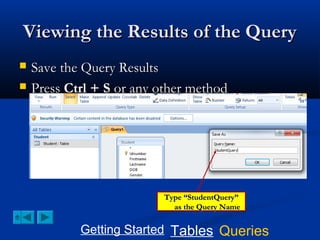
Save the Query Results
Press Ctrl + S or any other method

Type “StudentQuery”
as the Query Name

Getting Started Tables Queries
Viewing specific information




In order to produce a list of specific information
in a table; a criteria must be specified.
Criteria is a restriction that data must meet while
being retrieved.

Getting Started Tables Queries
Creating a Criteria


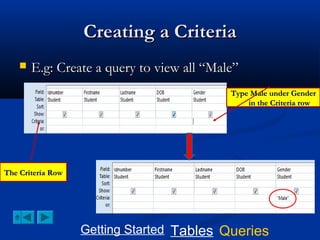
E.g: Create a query to view all “Male”
Type Male under Gender
in the Criteria row

The Criteria Row

Getting Started Tables Queries
View Information


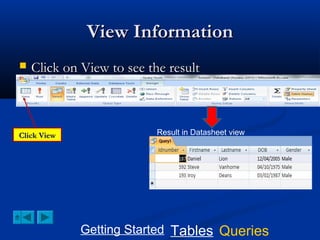
Click on View to see the result

Click View

Result in Datasheet view

Getting Started Tables Queries
 Example: create a new field to calculate

employees’ pay after an increase of $1200.00.
 OR: Create a field call “Fullname” to display
students full name

Main Menu
Calculated Field Cont’d




To the right of Gender; enter the text
“Fullname”, followed by a colon ‘:’.
Enter the calculation for Fullname: [Firstname]+
[Lastname]

Getting Started Tables Queries
Calculated Field Cont’d


Click on View from the menu bar

IF you want space between the names, modify the calculation as following:

Fullname: [Firstname]+” “+[Lastname]
Getting Started Tables Queries


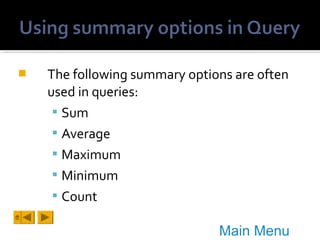
The following summary options are often
used in queries:
 Sum
 Average
 Maximum
 Minimum
 Count
Main Menu
Using Summary options


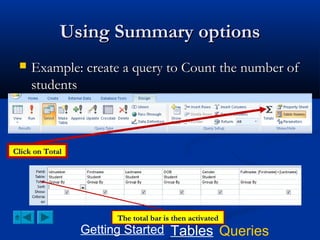
Example: create a query to Count the number of
students

Click on Total

The total bar is then activated

Getting Started Tables Queries
Using Summary options


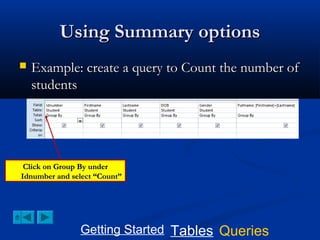
Example: create a query to Count the number of
students

Click on Group By under
Idnumber and select “Count”

Getting Started Tables Queries
Summary option Cont’d


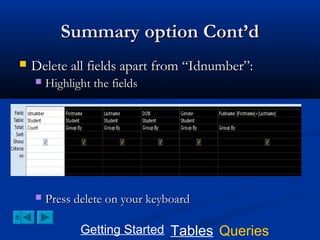
Delete all fields apart from “Idnumber”:


Highlight the fields



Press delete on your keyboard
Getting Started Tables Queries
Summary option Cont’d


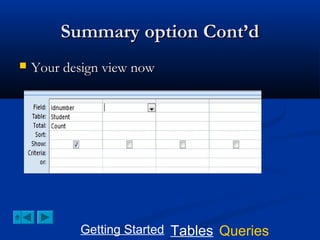
Your design view now

Getting Started Tables Queries
Summary option – Cont’d


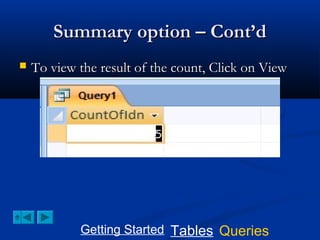
To view the result of the count, Click on View

Getting Started Tables Queries


An action query makes changes to or moves
many records in just one operation. There
are four types of action queries:
i. Delete
ii. Append

ii.
iv.

Update
Make-table

Main Menu
 This query deletes specific records from a

database table.
 Example: to delete the student with

Idnumber “113”.

Main Menu
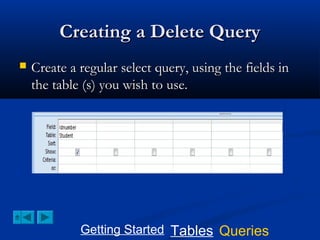
Creating a Delete Query


Create a regular select query, using the fields in
the table (s) you wish to use.

Getting Started Tables Queries
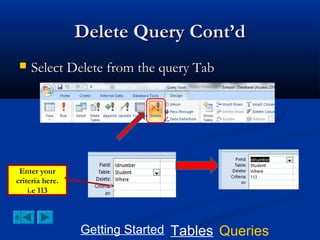
Delete Query Cont’d


Select Delete from the query Tab

Enter your
criteria here.
i.e 113

Getting Started Tables Queries
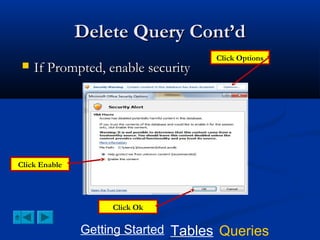
Delete Query Cont’d


If Prompted, enable security

Click Options

Click Enable

Click Ok

Getting Started Tables Queries
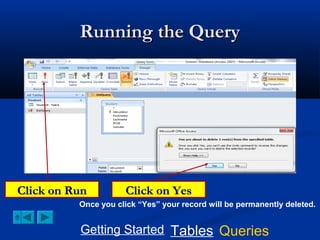
Running the Query

Click on Run

Click on Yes

Once you click “Yes” your record will be permanently deleted.

Getting Started Tables Queries
Records after Deletion


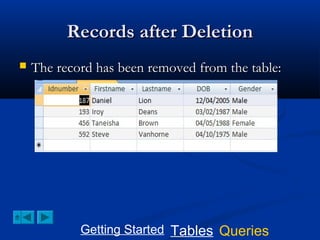
The record has been removed from the table:

Getting Started Tables Queries
 An update query is used to modify a field (s)

within a database table.
 Example to Add the prefix “Mr.” to all Male
first name

Main Menu
Creating an Update Query


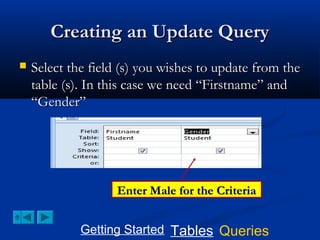
Select the field (s) you wishes to update from the
table (s). In this case we need “Firstname” and
“Gender”

Enter Male for the Criteria
Getting Started Tables Queries
Creating an Update Query


Select update from the query tab

TO add the prefix “Mr”; type the
following in the update To box:
“Mr.”+[Firstname]

Getting Started Tables Queries
Update Query Cont’d






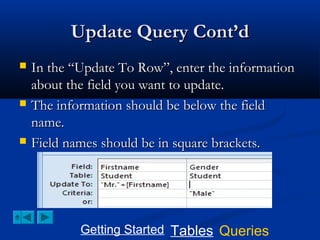
In the “Update To Row”, enter the information
about the field you want to update.
The information should be below the field
name.
Field names should be in square brackets.

Getting Started Tables Queries
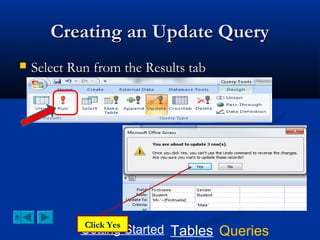
Creating an Update Query


Select Run from the Results tab

Click Yes
Getting Started Tables Queries
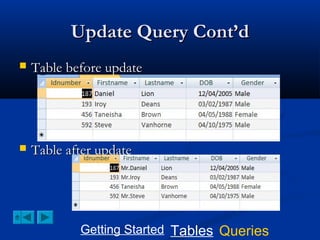
Update Query Cont’d


Table before update



Table after update

Getting Started Tables Queries
 An append query, is use to copy (move)

information from one table to another.
 Example moving all the records from the
New customer’s table to the customer table.

Main Menu
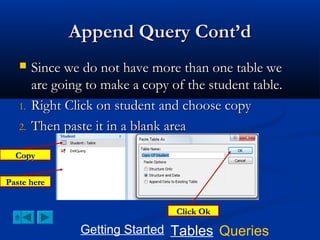
Append Query Cont’d


1.
2.

Since we do not have more than one table we
are going to make a copy of the student table.
Right Click on student and choose copy
Then paste it in a blank area

Copy
Paste here
Click Ok

Getting Started Tables Queries
Append Query Cont’d


1.

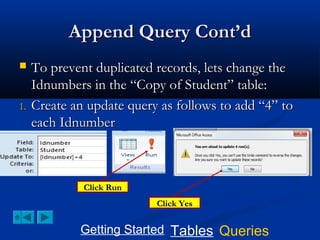
To prevent duplicated records, lets change the
Idnumbers in the “Copy of Student” table:
Create an update query as follows to add “4” to
each Idnumber

Click Run
Click Yes

Getting Started Tables Queries
Append Query Cont’d


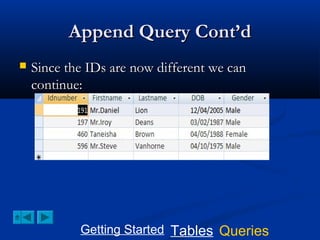
Since the IDs are now different we can
continue:

Getting Started Tables Queries
Append Query Cont’d


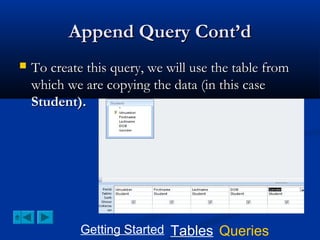
To create this query, we will use the table from
which we are copying the data (in this case
Student).

Getting Started Tables Queries
Append Query Cont’d


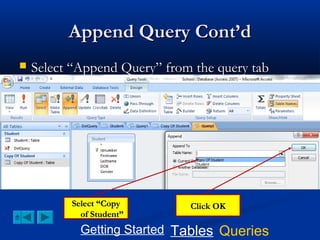
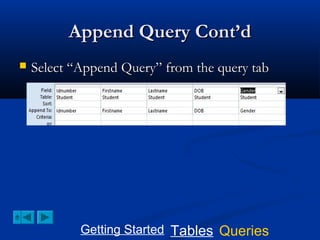
Select “Append Query” from the query tab

Select “Copy
of Student”

Click OK

Getting Started Tables Queries
Append Query Cont’d


Select “Append Query” from the query tab

Getting Started Tables Queries
Append Query Cont’d


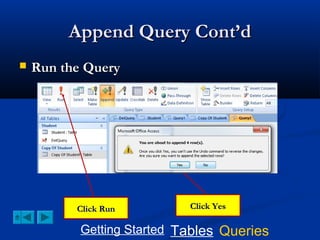
Run the Query

Click Run

Click Yes

Getting Started Tables Queries
Append query


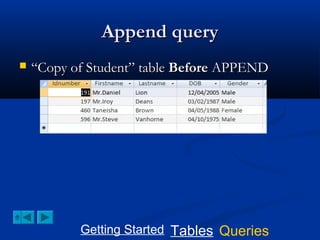
“Copy of Student” table Before APPEND

Getting Started Tables Queries
Append Query Cont’d


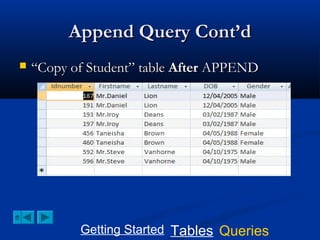
“Copy of Student” table After APPEND

Getting Started Tables Queries
Append Query - Activity






Using an update query change the Idnumber for
Daniel from 187 to 200 in the Student table
Create a query to append the record for Daniel
to the “Copy of Student” table.
HINT: Criteria may be needed.

Getting Started Tables Queries

Master database management for cxc

  • 1.
    Database Management Microsoft Access– Simplified By: A. Vanhorne
  • 2.
    Starting Microsoft Access ClickBlank Database Getting Started Tables Queries
  • 3.
    Creating a Database  Forthis tutorial you will be creating a database name: “School” Getting Started Tables Queries
  • 4.
    Starting Microsoft Access Writeyour database name here Getting Started Tables Queries
  • 5.
    Starting Microsoft Access DatabaseName Getting Started Tables Queries
  • 6.
    Starting Microsoft Access ClickCreate Getting Started Tables Queries
  • 7.
    Starting Microsoft Access GettingStarted Tables Queries
  • 8.
    Starting Microsoft Access ClickCreate to see a list of the objects that we can create in Microsoft Access Getting Started Tables Queries
  • 9.
    Starting Microsoft Access OurFocus will be on: Table Form Report Query Getting Started Tables Queries
  • 10.
    Closing Default Table Bydefault, Microsoft Access Create a table name “table1”. We will start by closing this table: Select Table 1 Click the “X” to the right to close it Getting Started Tables Queries
  • 11.
    Creating a NewTable Click on Create Select Table Design from the table Tab. This will open the table design view Getting Started Tables Queries
  • 12.
    Table Design View GettingStarted Tables Queries
  • 13.
    Table Design View– Tool Bar The view button will be used to switch between design and datasheet view The Primary key is a unique field that is used to identify each record in a table. E.g. ID Getting Started Tables Queries
  • 14.
    Creating a StudentTable  The table will have the following fields: Idnumber, Firstname, Lastname, DOB, Gender Fields Data Types Field Size Idnumber number Firstname Text 14 Lastname Text 20 DOB Date/Time Gender Lookup Wizard Getting Started Tables Queries
  • 15.
    Creating a StudentTable Whenever your create a text field, the database reserve 255 character spaces. However we don’t always need so much space. Field Field Size Getting Started Tables Queries
  • 16.
    Creating a StudentTable  When you select look up wizard for gender- the dialog below will appear Click I will Type in the values that I want Click Next Getting Started Tables Queries
  • 17.
    Creating a StudentTable  Enter the look up items: Type: Male and Female Click Finish Getting Started Tables Queries
  • 18.
    Setting Primary Key SelectIdnumber Select Primary Key Getting Started Tables Queries
  • 19.
    Creating a StudentTable A Key appears beside Idnumber. Getting Started Tables Queries
  • 20.
    Save the Table Clickthe save button Enter “Student” for the table name and click ok Getting Started Tables Queries
  • 21.
    Changing the View  Inorder to enter data into your table, you will have to switch the view to datasheet view Click on view and this will take you to datasheet view Getting Started Tables Queries
  • 22.
    Datasheet View  Here youcan populate the table Click on view and this will take you to datasheet view Getting Started Tables Queries
  • 23.
    Datasheet View  Populate thetable as follows: *Once you type the data in the table, they are saved automatically. Getting Started Tables Queries
  • 24.
    What is aquery?  A query is a specific set of instructions for retrieving data from a database and displaying, printing, modifying or storing it. Getting Started Tables Queries
  • 25.
    Types of Query Select Query  Action Query Calculate Field  Delete Summary Options  Update  Append  Make Table Getting Started Tables Queries
  • 26.
     This typeof query is designed to list specific information in a database table.  E.g. It could be used to find and display all the female students. Main Menu
  • 27.
    Creating a SelectQuery Click on Create Select Query Design Getting Started Tables Queries
  • 28.
    Creating a SelectQuery Select Student Click Add Getting Started Tables Queries
  • 29.
    Creating a SelectQuery Select Student Click Add Click Close Getting Started Tables Queries
  • 30.
    Creating a SelectQuery Selecting the fields from the table Double Click each of these fields to add them to the query. Getting Started Tables Queries
  • 31.
    Viewing the Resultsof the Query  Click view to see the result of the query in datasheet view Click View Getting Started Tables Queries
  • 32.
    Viewing the Resultsof the Query  Query Results Click View to return to the design view Getting Started Tables Queries
  • 33.
    Viewing the Resultsof the Query   Save the Query Results Press Ctrl + S or any other method Type “StudentQuery” as the Query Name Getting Started Tables Queries
  • 34.
    Viewing specific information   Inorder to produce a list of specific information in a table; a criteria must be specified. Criteria is a restriction that data must meet while being retrieved. Getting Started Tables Queries
  • 35.
    Creating a Criteria  E.g:Create a query to view all “Male” Type Male under Gender in the Criteria row The Criteria Row Getting Started Tables Queries
  • 36.
    View Information  Click onView to see the result Click View Result in Datasheet view Getting Started Tables Queries
  • 37.
     Example: createa new field to calculate employees’ pay after an increase of $1200.00.  OR: Create a field call “Fullname” to display students full name Main Menu
  • 38.
    Calculated Field Cont’d   Tothe right of Gender; enter the text “Fullname”, followed by a colon ‘:’. Enter the calculation for Fullname: [Firstname]+ [Lastname] Getting Started Tables Queries
  • 39.
    Calculated Field Cont’d  Clickon View from the menu bar IF you want space between the names, modify the calculation as following: Fullname: [Firstname]+” “+[Lastname] Getting Started Tables Queries
  • 40.
     The following summaryoptions are often used in queries:  Sum  Average  Maximum  Minimum  Count Main Menu
  • 41.
    Using Summary options  Example:create a query to Count the number of students Click on Total The total bar is then activated Getting Started Tables Queries
  • 42.
    Using Summary options  Example:create a query to Count the number of students Click on Group By under Idnumber and select “Count” Getting Started Tables Queries
  • 43.
    Summary option Cont’d  Deleteall fields apart from “Idnumber”:  Highlight the fields  Press delete on your keyboard Getting Started Tables Queries
  • 44.
    Summary option Cont’d  Yourdesign view now Getting Started Tables Queries
  • 45.
    Summary option –Cont’d  To view the result of the count, Click on View Getting Started Tables Queries
  • 46.
     An action querymakes changes to or moves many records in just one operation. There are four types of action queries: i. Delete ii. Append ii. iv. Update Make-table Main Menu
  • 47.
     This querydeletes specific records from a database table.  Example: to delete the student with Idnumber “113”. Main Menu
  • 48.
    Creating a DeleteQuery  Create a regular select query, using the fields in the table (s) you wish to use. Getting Started Tables Queries
  • 49.
    Delete Query Cont’d  SelectDelete from the query Tab Enter your criteria here. i.e 113 Getting Started Tables Queries
  • 50.
    Delete Query Cont’d  IfPrompted, enable security Click Options Click Enable Click Ok Getting Started Tables Queries
  • 51.
    Running the Query Clickon Run Click on Yes Once you click “Yes” your record will be permanently deleted. Getting Started Tables Queries
  • 52.
    Records after Deletion  Therecord has been removed from the table: Getting Started Tables Queries
  • 53.
     An updatequery is used to modify a field (s) within a database table.  Example to Add the prefix “Mr.” to all Male first name Main Menu
  • 54.
    Creating an UpdateQuery  Select the field (s) you wishes to update from the table (s). In this case we need “Firstname” and “Gender” Enter Male for the Criteria Getting Started Tables Queries
  • 55.
    Creating an UpdateQuery  Select update from the query tab TO add the prefix “Mr”; type the following in the update To box: “Mr.”+[Firstname] Getting Started Tables Queries
  • 56.
    Update Query Cont’d    Inthe “Update To Row”, enter the information about the field you want to update. The information should be below the field name. Field names should be in square brackets. Getting Started Tables Queries
  • 57.
    Creating an UpdateQuery  Select Run from the Results tab Click Yes Getting Started Tables Queries
  • 58.
    Update Query Cont’d  Tablebefore update  Table after update Getting Started Tables Queries
  • 59.
     An appendquery, is use to copy (move) information from one table to another.  Example moving all the records from the New customer’s table to the customer table. Main Menu
  • 60.
    Append Query Cont’d  1. 2. Sincewe do not have more than one table we are going to make a copy of the student table. Right Click on student and choose copy Then paste it in a blank area Copy Paste here Click Ok Getting Started Tables Queries
  • 61.
    Append Query Cont’d  1. Toprevent duplicated records, lets change the Idnumbers in the “Copy of Student” table: Create an update query as follows to add “4” to each Idnumber Click Run Click Yes Getting Started Tables Queries
  • 62.
    Append Query Cont’d  Sincethe IDs are now different we can continue: Getting Started Tables Queries
  • 63.
    Append Query Cont’d  Tocreate this query, we will use the table from which we are copying the data (in this case Student). Getting Started Tables Queries
  • 64.
    Append Query Cont’d  Select“Append Query” from the query tab Select “Copy of Student” Click OK Getting Started Tables Queries
  • 65.
    Append Query Cont’d  Select“Append Query” from the query tab Getting Started Tables Queries
  • 66.
    Append Query Cont’d  Runthe Query Click Run Click Yes Getting Started Tables Queries
  • 67.
    Append query  “Copy ofStudent” table Before APPEND Getting Started Tables Queries
  • 68.
    Append Query Cont’d  “Copyof Student” table After APPEND Getting Started Tables Queries
  • 69.
    Append Query -Activity    Using an update query change the Idnumber for Daniel from 187 to 200 in the Student table Create a query to append the record for Daniel to the “Copy of Student” table. HINT: Criteria may be needed. Getting Started Tables Queries