CALCULATION OPERATOR
Prepared by: Mr. Jesus F. Obenita Jr.
Teacher Benjamin B. Esguerra MNHS
TYPE OF OPERATORS
1. Arithmetic Operator
2.Comparison Operator
3.Text Concatenation Operator
4.Reference Operator
Arithmetic operators To
perform basic mathematical
operations such as addition,
subtraction, or multiplication;
combine numbers; and produce
numeric results, use the
following arithmetic operators.
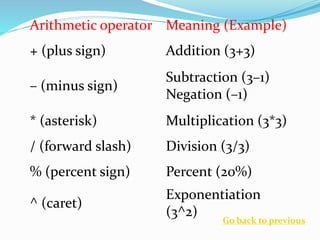
Arithmetic operator Meaning (Example)
+ (plus sign) Addition (3+3)
– (minus sign)
Subtraction (3–1)
Negation (–1)
* (asterisk) Multiplication (3*3)
/ (forward slash) Division (3/3)
% (percent sign) Percent (20%)
^ (caret)
Exponentiation
(3^2)
Go back to previous
Comparison operators You
can compare two values with
the following operators. When
two values are compared by
using these operators, the
result is a logical value either
TRUE or FALSE.
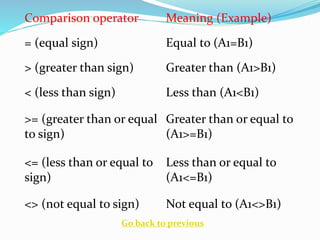
Comparison operator Meaning (Example)
= (equal sign) Equal to (A1=B1)
> (greater than sign) Greater than (A1>B1)
< (less than sign) Less than (A1<B1)
>= (greater than or equal
to sign)
Greater than or equal to
(A1>=B1)
<= (less than or equal to
sign)
Less than or equal to
(A1<=B1)
<> (not equal to sign) Not equal to (A1<>B1)
Go back to previous
Text concatenation
operator Use the
ampersand (&) to join, or
concatenate, one or more
text strings to produce a
single piece of text.
Text operator Meaning (Example)
& (ampersand)
Connects, or
concatenates, two values
to produce one
continuous text value
("North"&"wind")
Go back to previous
Reference operators
Combine ranges of
cells for calculations
with the following
operators.
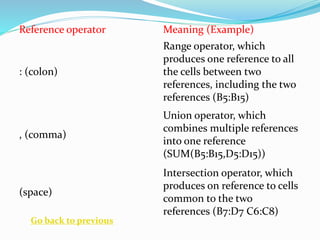
Reference operator Meaning (Example)
: (colon)
Range operator, which
produces one reference to all
the cells between two
references, including the two
references (B5:B15)
, (comma)
Union operator, which
combines multiple references
into one reference
(SUM(B5:B15,D5:D15))
(space)
Intersection operator, which
produces on reference to cells
common to the two
references (B7:D7 C6:C8)
Go back to previous

MS Excel: The Four Types of Operator

  • 1.
    CALCULATION OPERATOR Prepared by:Mr. Jesus F. Obenita Jr. Teacher Benjamin B. Esguerra MNHS
  • 2.
    TYPE OF OPERATORS 1.Arithmetic Operator 2.Comparison Operator 3.Text Concatenation Operator 4.Reference Operator
  • 3.
    Arithmetic operators To performbasic mathematical operations such as addition, subtraction, or multiplication; combine numbers; and produce numeric results, use the following arithmetic operators.
  • 4.
    Arithmetic operator Meaning(Example) + (plus sign) Addition (3+3) – (minus sign) Subtraction (3–1) Negation (–1) * (asterisk) Multiplication (3*3) / (forward slash) Division (3/3) % (percent sign) Percent (20%) ^ (caret) Exponentiation (3^2) Go back to previous
  • 5.
    Comparison operators You cancompare two values with the following operators. When two values are compared by using these operators, the result is a logical value either TRUE or FALSE.
  • 6.
    Comparison operator Meaning(Example) = (equal sign) Equal to (A1=B1) > (greater than sign) Greater than (A1>B1) < (less than sign) Less than (A1<B1) >= (greater than or equal to sign) Greater than or equal to (A1>=B1) <= (less than or equal to sign) Less than or equal to (A1<=B1) <> (not equal to sign) Not equal to (A1<>B1) Go back to previous
  • 7.
    Text concatenation operator Usethe ampersand (&) to join, or concatenate, one or more text strings to produce a single piece of text.
  • 8.
    Text operator Meaning(Example) & (ampersand) Connects, or concatenates, two values to produce one continuous text value ("North"&"wind") Go back to previous
  • 9.
    Reference operators Combine rangesof cells for calculations with the following operators.
  • 10.
    Reference operator Meaning(Example) : (colon) Range operator, which produces one reference to all the cells between two references, including the two references (B5:B15) , (comma) Union operator, which combines multiple references into one reference (SUM(B5:B15,D5:D15)) (space) Intersection operator, which produces on reference to cells common to the two references (B7:D7 C6:C8) Go back to previous