Layout Wireless Network

BIN95.com

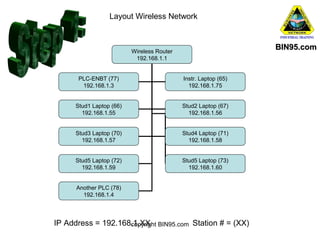
Wireless Router
192.168.1.1
PLC-ENBT (77)
192.168.1.3

Instr. Laptop (65)
192.168.1.75

Stud1 Laptop (66)
192.168.1.55

Stud2 Laptop (67)
192.168.1.56

Stud3 Laptop (70)
192.168.1.57

Stud4 Laptop (71)
192.168.1.58

Stud5 Laptop (72)
192.168.1.59

Stud5 Laptop (73)
192.168.1.60

Another PLC (78)
192.168.1.4

IP Address = 192.168.1.XX BIN95.com Station # = (XX)
copyright
Setup Laptop IP Address
BIN95.com

copyright BIN95.com
BIN95.com
Click on Network Connections

Select LAN , Local Area Conn

copyright BIN95.com
BIN95.com

Select Internet Protocol

Then click Properties

copyright BIN95.com
BIN95.com

Select ‘Use the
following IP address”
Type in IP address you
decided to use for
student Laptop when
mapping network
Use default Subnet
mask

copyright BIN95.com
Plug in Ethernet Cable
BIN95.com

We used a Crossover Cable (T568ab) in our
example, but you can use a Straight Trough
Cable (T568a on both ends) if you like.

copyright BIN95.com
Test Network Connection to ENBT Card
BIN95.com

Select Start, then Run

Type in “command”,
then click OK

copyright BIN95.com
Ping 192.168.1.3
BIN95.com

copyright BIN95.com
Install ENBT EDS Files
BIN95.com

Click Start, select programs and navigate to EDS Install Tool as
show above and click it.
On the dialog box that pops open, click the “Add” button.
copyright BIN95.com
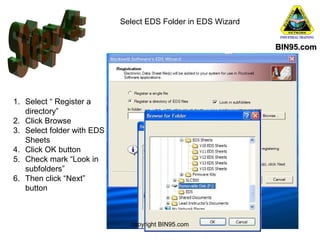
Select EDS Folder in EDS Wizard
BIN95.com

1. Select “ Register a
directory”
2. Click Browse
3. Select folder with EDS
Sheets
4. Click OK button
5. Check mark “Look in
subfolders”
6. Then click “Next”
button

copyright BIN95.com
EDS Files are now Installed
BIN95.com

Leave all files
checked and click
the “Next” button.
2 more dialog
boxes will open
after clicking next
on this one, just
click “Next” button
on them too.
Then click “Finnish”
on the final 4th
dialog box that
opens.

copyright BIN95.com
Install RSLinx Ethernet Driver
BIN95.com

Open RSLinx, Select “Communications” from pull down menu. Click on
“Configure Driver”.
copyright BIN95.com
Install RSLinx Ethernet Driver
BIN95.com

1. Select “Ethernet devices” from drop down list of available driver types.
2. Click “Add New” button.
copyright BIN95.com
A dialog box will pop up for you to optional change
default driver name. Rename driver to something
that better reflects the real world.

BIN95.com

•“ENBT” lets users know
what IP address the drive is
set for.
•“Ethernet” lets users know
what type of driver it is.

•Set ENBT Station # and IP
address.
•Set Driver Station #
•Click “OK” button.
copyright BIN95.com
Before clicking “Close” button, make sure
you see “RUNNING” in both the description
and status columns.

copyright BIN95.com

BIN95.com
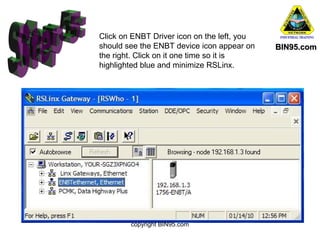
Click on ENBT Driver icon on the left, you
should see the ENBT device icon appear on
the right. Click on it one time so it is
highlighted blue and minimize RSLinx.

copyright BIN95.com

BIN95.com
Wireless Router Setup
•Plug ENBT Ethernet cable into port 1 of Router

•In web
browser, type
router IP
address
•Change IP
Address to
same channel
as laptops in
this case 1.1
•Makes sure
Mask is same
as laptops
and ENBT

copyright BIN95.com

BIN95.com
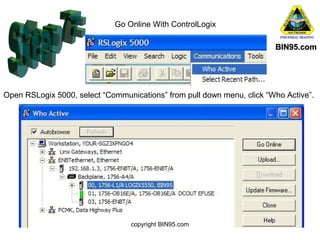
Go Online With ControlLogix
BIN95.com

Open RSLogix 5000, select “Communications” from pull down menu, click “Who Active”.

copyright BIN95.com
BIN95.com

copyright BIN95.com
BIN95.com

For Videos: Go To http://www.youtube.com/watch?
v=Au03psa9Vxk
For Test: Go To http://bin95.com/Employee-TrainingAssessments/PLC-Training-Assessment/PLC-Networking-BasicsControllogix.php
copyright BIN95.com

Plc networking basics - controllogix

  • 1.
    Layout Wireless Network BIN95.com WirelessRouter 192.168.1.1 PLC-ENBT (77) 192.168.1.3 Instr. Laptop (65) 192.168.1.75 Stud1 Laptop (66) 192.168.1.55 Stud2 Laptop (67) 192.168.1.56 Stud3 Laptop (70) 192.168.1.57 Stud4 Laptop (71) 192.168.1.58 Stud5 Laptop (72) 192.168.1.59 Stud5 Laptop (73) 192.168.1.60 Another PLC (78) 192.168.1.4 IP Address = 192.168.1.XX BIN95.com Station # = (XX) copyright
  • 2.
    Setup Laptop IPAddress BIN95.com copyright BIN95.com
  • 3.
    BIN95.com Click on NetworkConnections Select LAN , Local Area Conn copyright BIN95.com
  • 4.
    BIN95.com Select Internet Protocol Thenclick Properties copyright BIN95.com
  • 5.
    BIN95.com Select ‘Use the followingIP address” Type in IP address you decided to use for student Laptop when mapping network Use default Subnet mask copyright BIN95.com
  • 6.
    Plug in EthernetCable BIN95.com We used a Crossover Cable (T568ab) in our example, but you can use a Straight Trough Cable (T568a on both ends) if you like. copyright BIN95.com
  • 7.
    Test Network Connectionto ENBT Card BIN95.com Select Start, then Run Type in “command”, then click OK copyright BIN95.com
  • 8.
  • 9.
    Install ENBT EDSFiles BIN95.com Click Start, select programs and navigate to EDS Install Tool as show above and click it. On the dialog box that pops open, click the “Add” button. copyright BIN95.com
  • 10.
    Select EDS Folderin EDS Wizard BIN95.com 1. Select “ Register a directory” 2. Click Browse 3. Select folder with EDS Sheets 4. Click OK button 5. Check mark “Look in subfolders” 6. Then click “Next” button copyright BIN95.com
  • 11.
    EDS Files arenow Installed BIN95.com Leave all files checked and click the “Next” button. 2 more dialog boxes will open after clicking next on this one, just click “Next” button on them too. Then click “Finnish” on the final 4th dialog box that opens. copyright BIN95.com
  • 12.
    Install RSLinx EthernetDriver BIN95.com Open RSLinx, Select “Communications” from pull down menu. Click on “Configure Driver”. copyright BIN95.com
  • 13.
    Install RSLinx EthernetDriver BIN95.com 1. Select “Ethernet devices” from drop down list of available driver types. 2. Click “Add New” button. copyright BIN95.com
  • 14.
    A dialog boxwill pop up for you to optional change default driver name. Rename driver to something that better reflects the real world. BIN95.com •“ENBT” lets users know what IP address the drive is set for. •“Ethernet” lets users know what type of driver it is. •Set ENBT Station # and IP address. •Set Driver Station # •Click “OK” button. copyright BIN95.com
  • 15.
    Before clicking “Close”button, make sure you see “RUNNING” in both the description and status columns. copyright BIN95.com BIN95.com
  • 16.
    Click on ENBTDriver icon on the left, you should see the ENBT device icon appear on the right. Click on it one time so it is highlighted blue and minimize RSLinx. copyright BIN95.com BIN95.com
  • 17.
    Wireless Router Setup •PlugENBT Ethernet cable into port 1 of Router •In web browser, type router IP address •Change IP Address to same channel as laptops in this case 1.1 •Makes sure Mask is same as laptops and ENBT copyright BIN95.com BIN95.com
  • 18.
    Go Online WithControlLogix BIN95.com Open RSLogix 5000, select “Communications” from pull down menu, click “Who Active”. copyright BIN95.com
  • 19.
  • 20.
    BIN95.com For Videos: GoTo http://www.youtube.com/watch? v=Au03psa9Vxk For Test: Go To http://bin95.com/Employee-TrainingAssessments/PLC-Training-Assessment/PLC-Networking-BasicsControllogix.php copyright BIN95.com

Editor's Notes

  • #2 Whenever working with networking Allen Bradley products, it is a good practice to use Octal number system (no 8s or 9s). So you will notice our Laptop station numbering in map above skips number 68 and 69. Also a good idea is to have laptops in a separate group of address than ENBT cards. (As station numbers are just for RSLinx, IP addresses use decimal numbering system.)
  • #3 Click on task bar and then ControlPanel
  • #6 Then click ok for this dialog box, and click done button on next dialog box.
  • #9 At command prompt, type “ping 192.168.1.3” or what ever address you have set up in your ControlLogix program loaded in the processor (via RSLogix 5000) for your ENBT card. A successful ping will show the same number of packets received as was sent. (our example 4 sent, 4 received). The Average time should be less than 1 millisecond. (our example was <0ms) If longer time was seen, or packets where lost, try another cable. Commend prompt = C:DOCUME~1STEVE>
  • #10 You will find the required EDS files on BIN95.com USB Flash Drive we giveaway in class. (EDS (Electronic Data Sheet)) They will be under the PLC5000 directory
  • #11 Note: Make sure “Look in subfolder” check box is checked, before clicking “Next button of wizard or it may not find your EDS files. To make it easier, we have placed only the ENBT EDS files in a folder “EDS” on the BIN95.com Flash Drive.
  • #12 So the step in this slide is to click “Next” button 3 times in a row, once for each of the 3 dialog boxes that appear. Then click “Finish” on the 4th dialog box, then “Exit” on the 5th dialog box. You are done installing EDS files.
  • #15 Use Station numbers (XX) and IP Addresses you mapped out in slide 1. (The example above is for Student laptop #6 on network map.)
  • #17 Note: If you see a yellow question mark on the right instead of ENBT icon pictured above, you did not properly install EDS files for ENBT.
  • #18 Access Wireless router via web browser. Type in original IP address (typically 192.168.0.1) Default user name is typically “admin”, passwords are “password” or “admin” In the default IP address the “0” (zero) we will refer to as the Channel. The ENBT card and laptops where all set up in previous slides with channel 1 (like 192.168.1.3). So we want to change the Router TCP/IP from 0 to 1 also. So wireless is on same channel. Also while you are there, double check to make sure mask is the same as it was for ENBT card and laptops (255.255.255.0) Changing channel from default can reduce interference, increase speed and make a little more secure. But in an Industrial environment (not a classroom like we are setting up here), you want to use the most secure industrial network, security and protocols you can.
  • #19 In the Who Active dialog box, click on the “+” sign to the left of ENBT driver icon. Click on the “+” sign next to 1756-ENBT Click on the “+” sign next to 1756-A4/A (the rack) Click on the Icon for 1756-L1/A (Logix 5550 processor) Click “Go Online” button.
  • #20 Success !! If you see gears moving in the icon Located on the left of status window with path “ENBT ethernet192.168.1.3Backplane”
  • #21 For Videos: Go To http://www.youtube.com/watch?v=Au03psa9Vxk For Test: Go To http://bin95.com/Employee-Training-Assessments/PLC-Training-Assessment/PLC-Networking-Basics-Controllogix.php