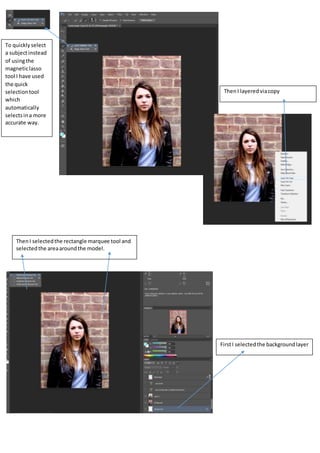
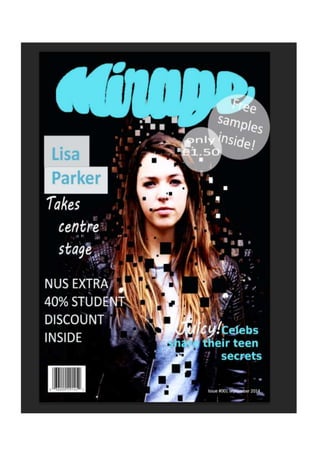
To quickly select 
a subject instead 
of using the 
magnetic lasso 
tool I have used 
the quick 
selection tool 
which 
automatically 
selects in a more 
accurate way. 
Then I layered via copy 
First I selected the background layer 
Then I selected the rectangle marquee tool and 
selected the area around the model.
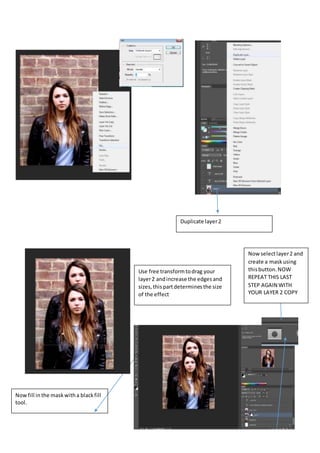
Duplicate layer 2 
Use free transform to drag your 
layer 2 and increase the edges and 
sizes, this part determines the size 
of the effect 
Now select layer 2 and 
create a mask using 
this button. NOW 
REPEAT THIS LAST 
STEP AGAIN WITH 
YOUR LAYER 2 COPY 
Now fill in the mask with a black fill 
tool.
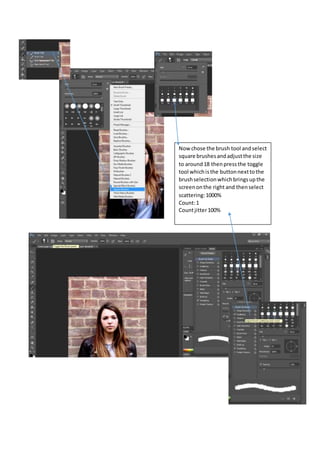
Now chose the brush tool and select 
square brushes and adjust the size 
to around 18 then press the toggle 
tool which is the button next to the 
brush selection which brings up the 
screen on the right and then select 
scattering: 1000% 
Count: 1 
Count jitter 100%
Now click on the shape dynamics 
box 
Size jitter: 90% 
Minimum diameter: 0% 
And keep the rest as default 
Then just scatter the brush around 
the image using the keys “[ and ]” to 
increase and decrease the size of 
the brush. And then select layer 2 
copy and scatter the brush around 
the outside of the image
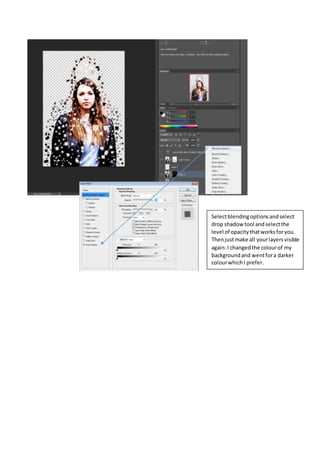
Select blending options and select 
drop shadow tool and select the 
level of opacity that works for you. 
Then just make all your layers visible 
again. I changed the colour of my 
background and went for a darker 
colour which I prefer.
Photoshop pixel explosion tutorial

Photoshop pixel explosion tutorial

  • 1.
    To quickly select a subject instead of using the magnetic lasso tool I have used the quick selection tool which automatically selects in a more accurate way. Then I layered via copy First I selected the background layer Then I selected the rectangle marquee tool and selected the area around the model.
  • 2.
    Duplicate layer 2 Use free transform to drag your layer 2 and increase the edges and sizes, this part determines the size of the effect Now select layer 2 and create a mask using this button. NOW REPEAT THIS LAST STEP AGAIN WITH YOUR LAYER 2 COPY Now fill in the mask with a black fill tool.
  • 3.
    Now chose thebrush tool and select square brushes and adjust the size to around 18 then press the toggle tool which is the button next to the brush selection which brings up the screen on the right and then select scattering: 1000% Count: 1 Count jitter 100%
  • 4.
    Now click onthe shape dynamics box Size jitter: 90% Minimum diameter: 0% And keep the rest as default Then just scatter the brush around the image using the keys “[ and ]” to increase and decrease the size of the brush. And then select layer 2 copy and scatter the brush around the outside of the image
  • 5.
    Select blending optionsand select drop shadow tool and select the level of opacity that works for you. Then just make all your layers visible again. I changed the colour of my background and went for a darker colour which I prefer.