Skills Development - Photoshop Techniques


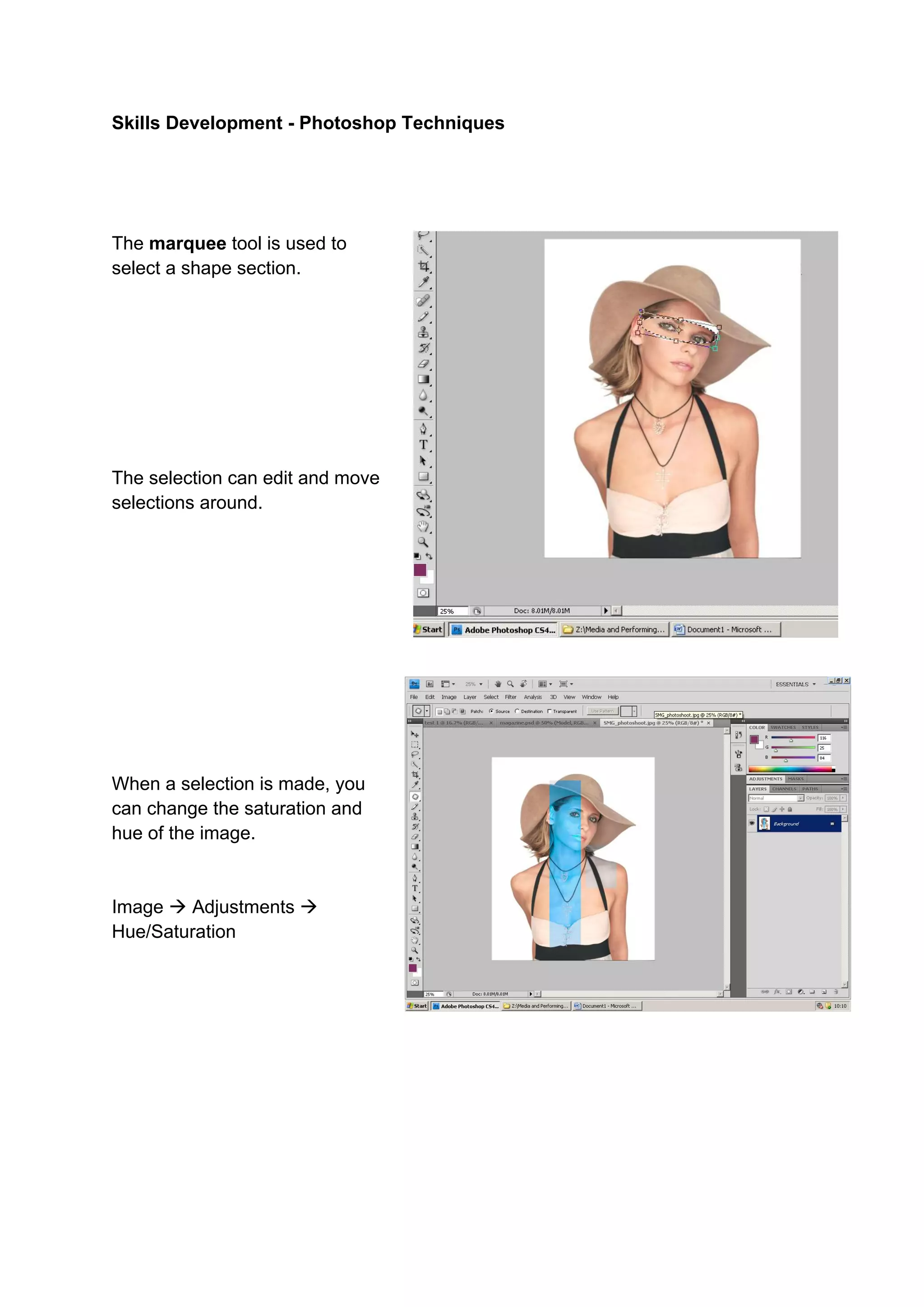
The marquee tool is used to
select a shape section.


The selection can edit and move
selections around.


When a selection is made, you
can change the saturation and
hue of the image.


Image  Adjustments 
Hue/Saturation
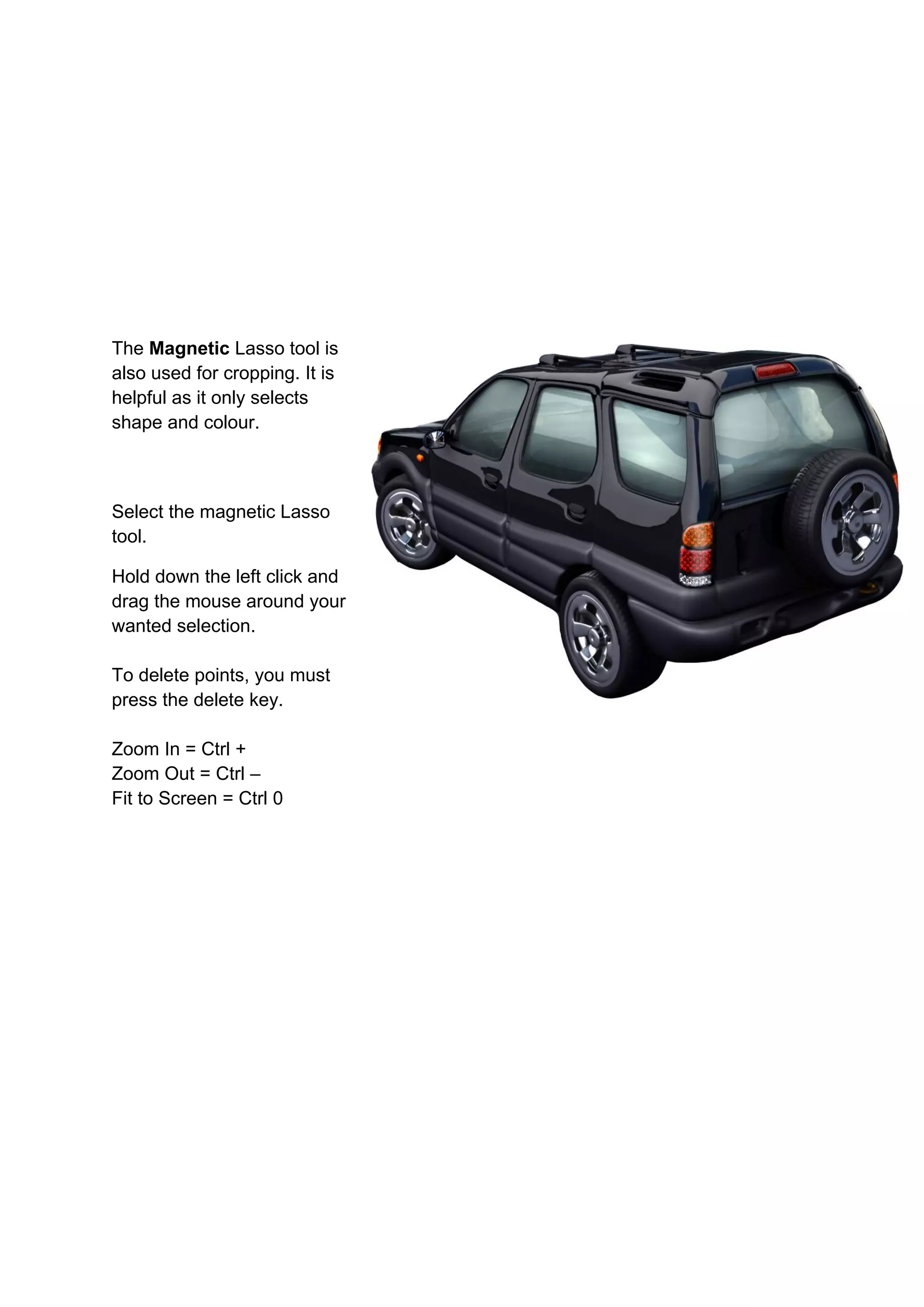
The Magnetic Lasso tool is
also used for cropping. It is
helpful as it only selects
shape and colour.


Select the magnetic Lasso
tool.

Hold down the left click and
drag the mouse around your
wanted selection.

To delete points, you must
press the delete key.

Zoom In = Ctrl +
Zoom Out = Ctrl –
Fit to Screen = Ctrl 0
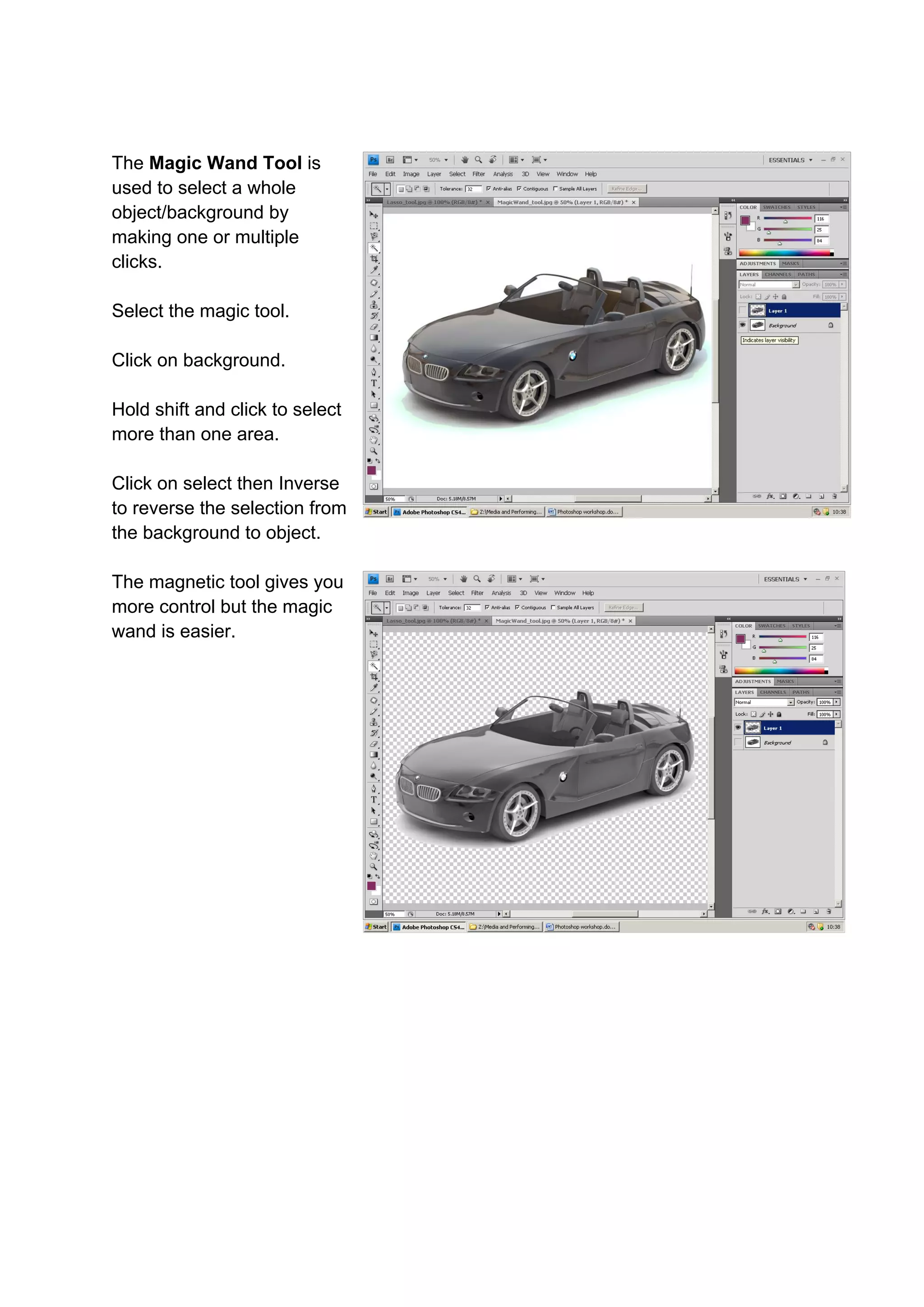
The Magic Wand Tool is
used to select a whole
object/background by
making one or multiple
clicks.

Select the magic tool.

Click on background.

Hold shift and click to select
more than one area.

Click on select then Inverse
to reverse the selection from
the background to object.

The magnetic tool gives you
more control but the magic
wand is easier.
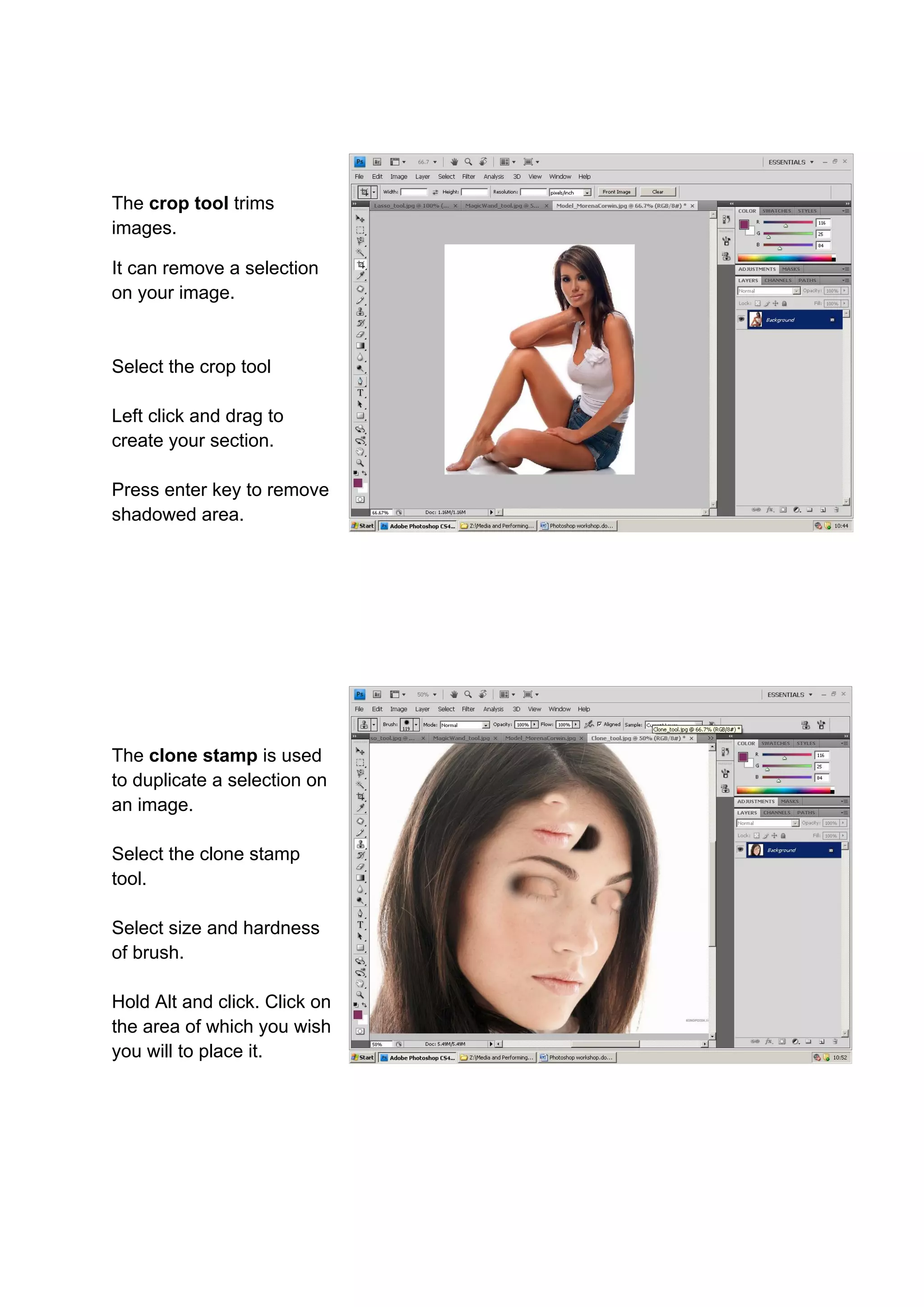
The crop tool trims
images.

It can remove a selection
on your image.


Select the crop tool

Left click and drag to
create your section.

Press enter key to remove
shadowed area.


The clone stamp is used
to duplicate a selection on
an image.

Select the clone stamp
tool.

Select size and hardness
of brush.

Hold Alt and click. Click on
the area of which you wish
you will to place it.
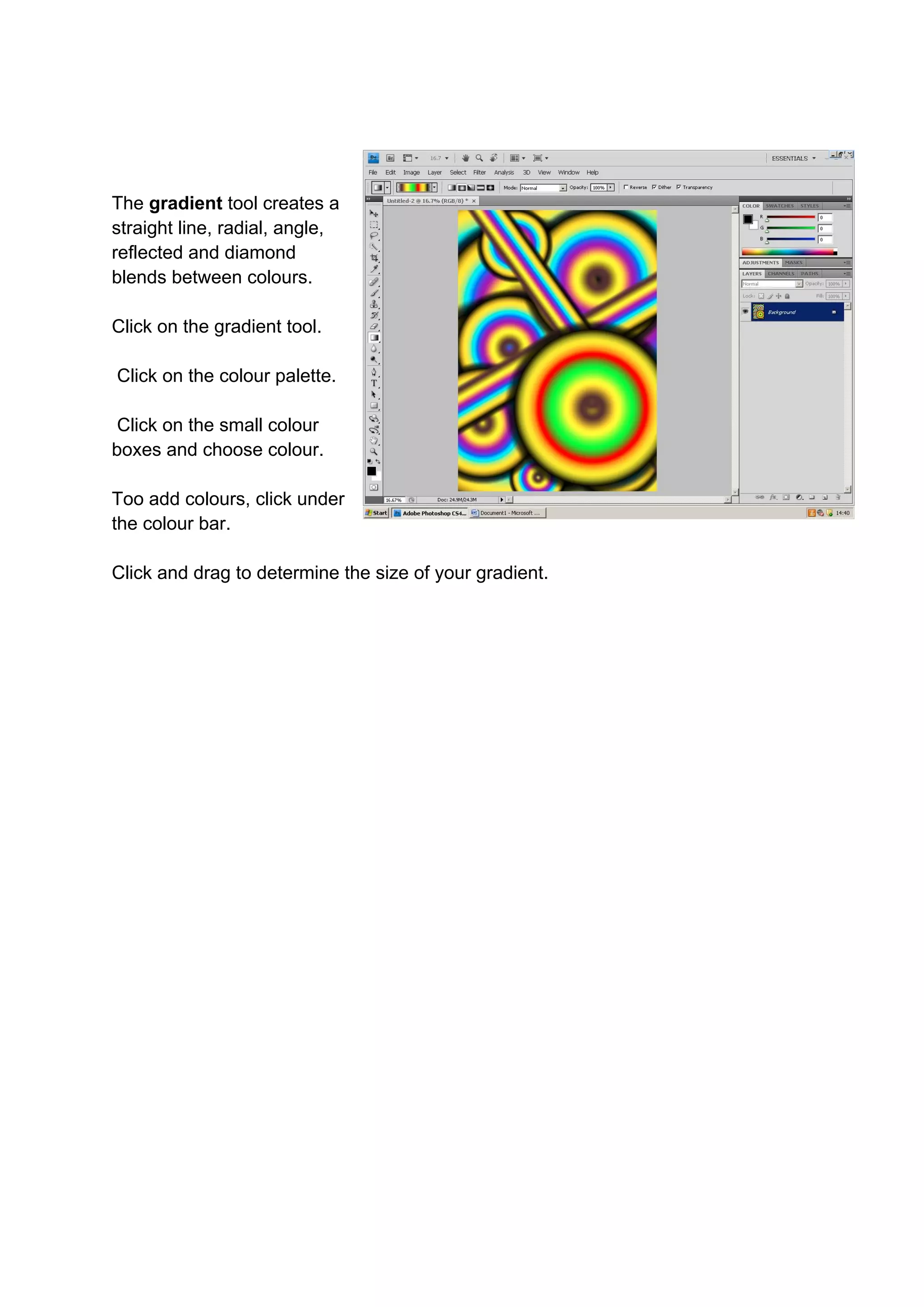
The gradient tool creates a
straight line, radial, angle,
reflected and diamond
blends between colours.

Click on the gradient tool.

Click on the colour palette.

 Click on the small colour
boxes and choose colour.

Too add colours, click under
the colour bar.

Click and drag to determine the size of your gradient.

Skills Development Notes in Photoshop

  • 1.
    Skills Development -Photoshop Techniques The marquee tool is used to select a shape section. The selection can edit and move selections around. When a selection is made, you can change the saturation and hue of the image. Image  Adjustments  Hue/Saturation
  • 2.
    The Magnetic Lassotool is also used for cropping. It is helpful as it only selects shape and colour. Select the magnetic Lasso tool. Hold down the left click and drag the mouse around your wanted selection. To delete points, you must press the delete key. Zoom In = Ctrl + Zoom Out = Ctrl – Fit to Screen = Ctrl 0
  • 3.
    The Magic WandTool is used to select a whole object/background by making one or multiple clicks. Select the magic tool. Click on background. Hold shift and click to select more than one area. Click on select then Inverse to reverse the selection from the background to object. The magnetic tool gives you more control but the magic wand is easier.
  • 4.
    The crop tooltrims images. It can remove a selection on your image. Select the crop tool Left click and drag to create your section. Press enter key to remove shadowed area. The clone stamp is used to duplicate a selection on an image. Select the clone stamp tool. Select size and hardness of brush. Hold Alt and click. Click on the area of which you wish you will to place it.
  • 5.
    The gradient toolcreates a straight line, radial, angle, reflected and diamond blends between colours. Click on the gradient tool. Click on the colour palette. Click on the small colour boxes and choose colour. Too add colours, click under the colour bar. Click and drag to determine the size of your gradient.