Cast Shadow
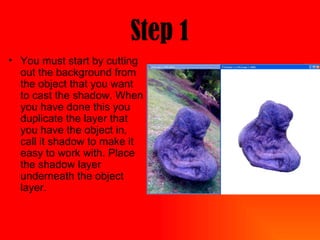
Step 1 You must start by cutting out the background from the object that you want to cast the shadow. When you have done this you duplicate the layer that you have the object in, call it shadow to make it easy to work with. Place the shadow layer underneath the object layer.
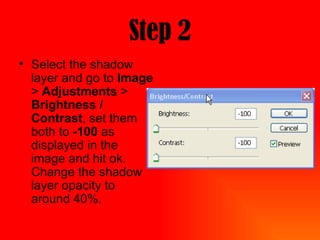
Step 2 Select the shadow layer and go to  Image  >  Adjustments  >  Brightness / Contrast , set them both to  -100  as displayed in the image and hit ok. Change the shadow layer opacity to around 40%.
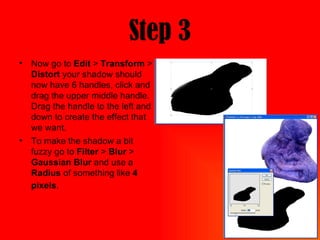
Step 3 Now go to  Edit  >  Transform  >  Distort  your shadow should now have 6 handles, click and drag the upper middle handle. Drag the handle to the left and down to create the effect that we want. To make the shadow a bit fuzzy go to  Filter  >  Blur  >  Gaussian Blur  and use a  Radius  of something like  4 pixels .
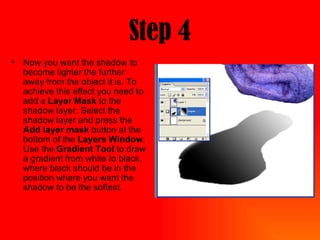
Step 4 Now you want the shadow to become lighter the further away from the object it is. To achieve this effect you need to add a  Layer Mask  to the shadow layer. Select the shadow layer and press the  Add layer mask  button at the bottom of the  Layers Window . Use the  Gradient Tool  to draw a gradient from white to black, where black should be in the position where you want the shadow to be the softest.
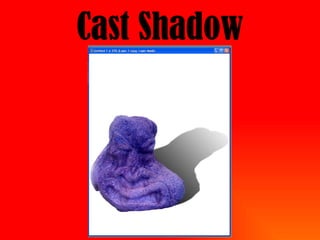
Final Step You might have to move the shadow to make it look like it origins from the object, when you have aligned it perfect to the object you are done and it could look like the image you can see to the right.

Cast Shadow

  • 1.
  • 2.
    Step 1 Youmust start by cutting out the background from the object that you want to cast the shadow. When you have done this you duplicate the layer that you have the object in, call it shadow to make it easy to work with. Place the shadow layer underneath the object layer.
  • 3.
    Step 2 Selectthe shadow layer and go to Image > Adjustments > Brightness / Contrast , set them both to -100 as displayed in the image and hit ok. Change the shadow layer opacity to around 40%.
  • 4.
    Step 3 Nowgo to Edit > Transform > Distort your shadow should now have 6 handles, click and drag the upper middle handle. Drag the handle to the left and down to create the effect that we want. To make the shadow a bit fuzzy go to Filter > Blur > Gaussian Blur and use a Radius of something like 4 pixels .
  • 5.
    Step 4 Nowyou want the shadow to become lighter the further away from the object it is. To achieve this effect you need to add a Layer Mask to the shadow layer. Select the shadow layer and press the Add layer mask button at the bottom of the Layers Window . Use the Gradient Tool to draw a gradient from white to black, where black should be in the position where you want the shadow to be the softest.
  • 6.
    Final Step Youmight have to move the shadow to make it look like it origins from the object, when you have aligned it perfect to the object you are done and it could look like the image you can see to the right.