Office 365 Microsoft To- Do List
Dasey DiElmo, Meghan Kneringer, Nicole Manning, Caroline McCoy
1
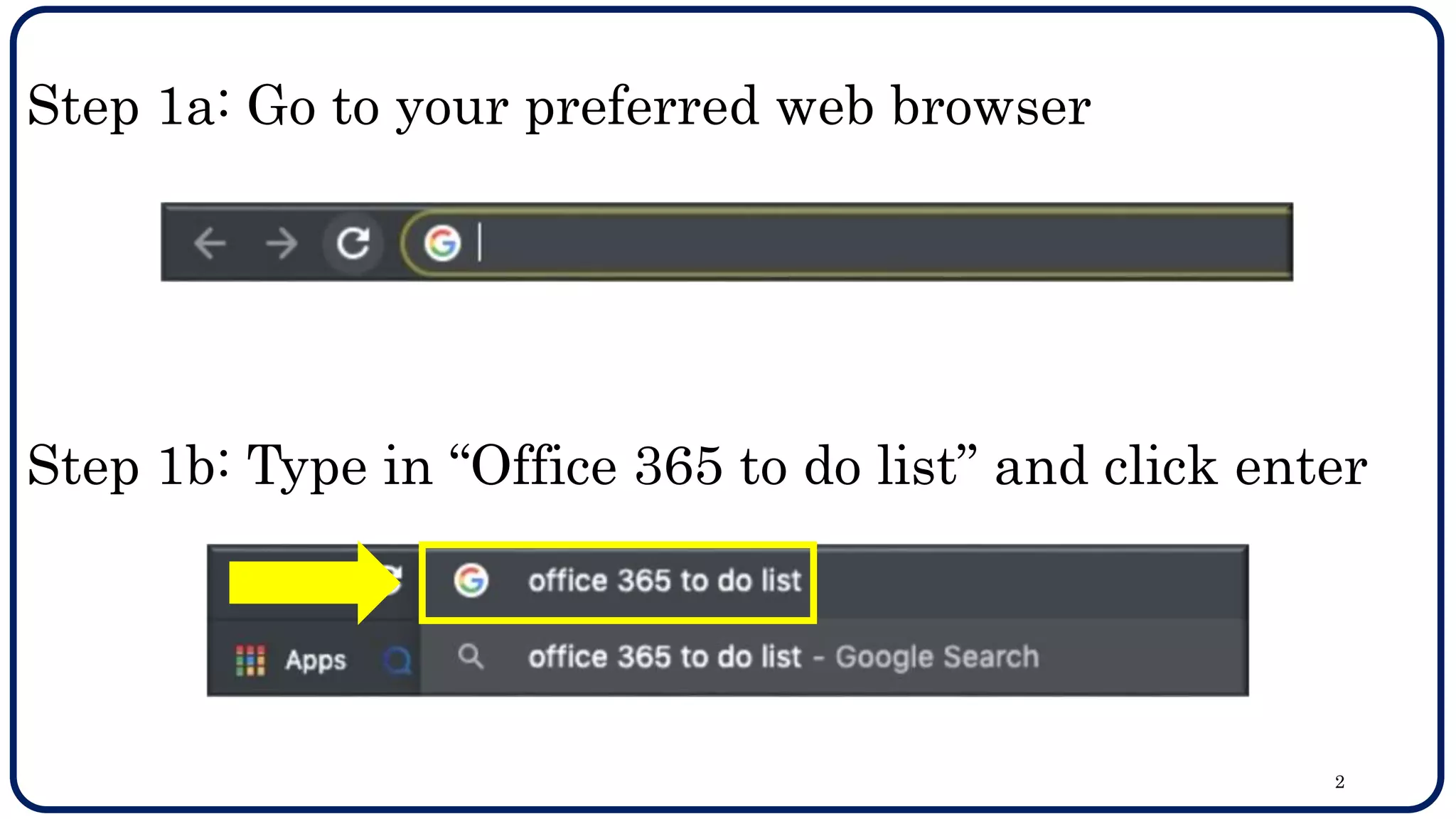
Step 1a: Go to your preferred web browser
Step 1b: Type in “Office 365 to do list” and click enter
2
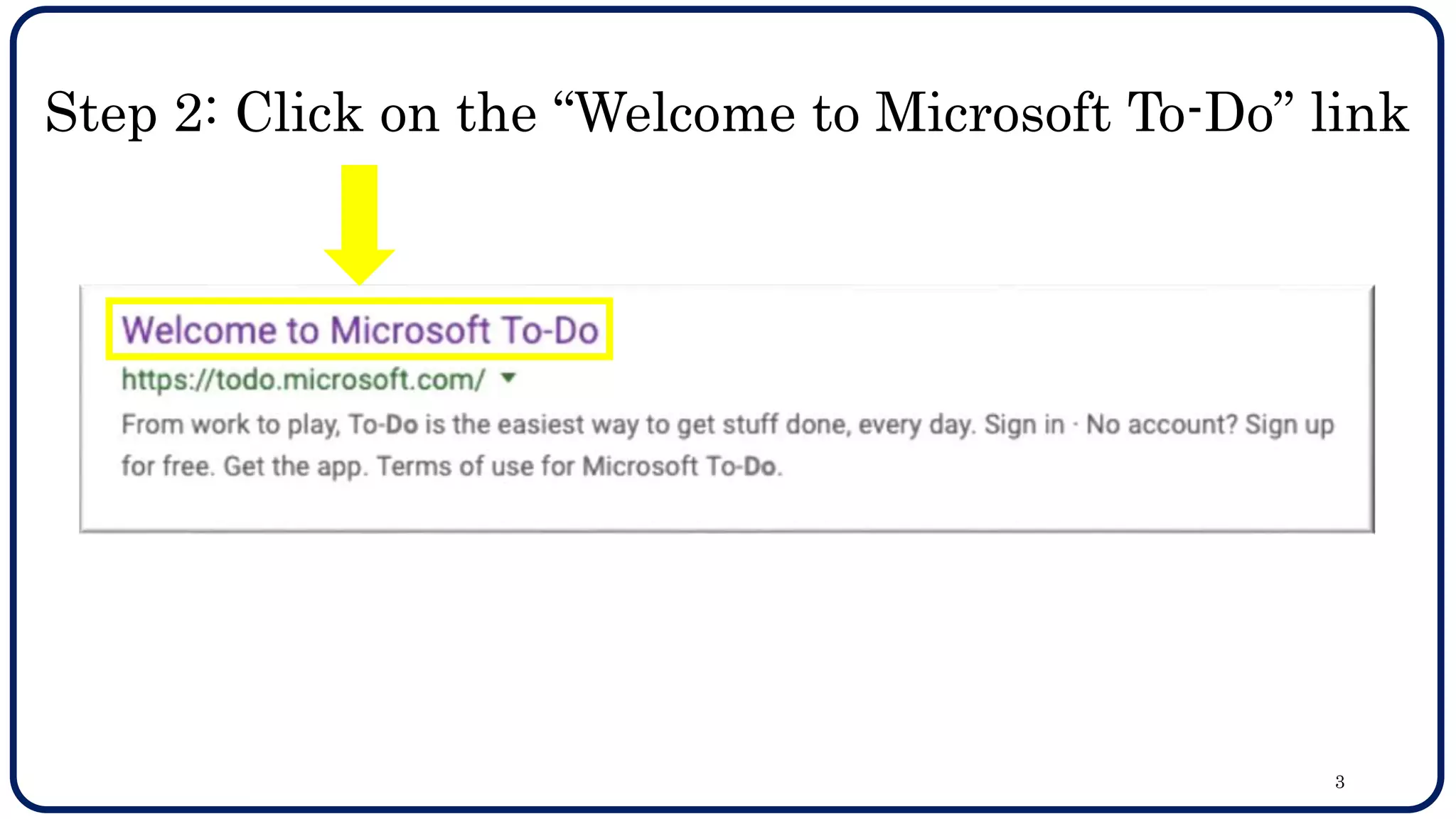
Step 2: Click on the “Welcome to Microsoft To-Do” link
3
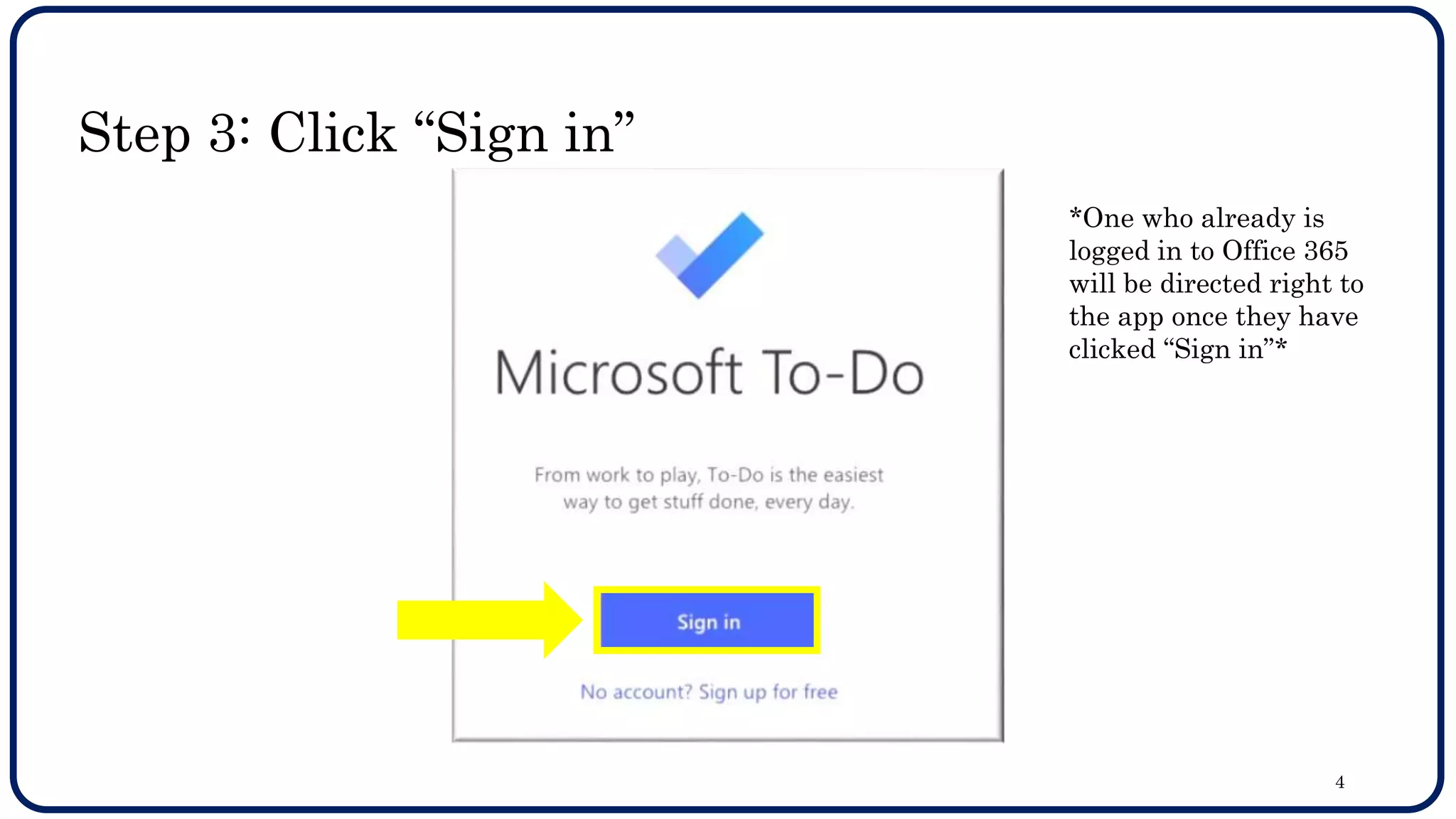
Step 3: Click “Sign in”
*One who already is
logged in to Office 365
will be directed right to
the app once they have
clicked “Sign in”*
4
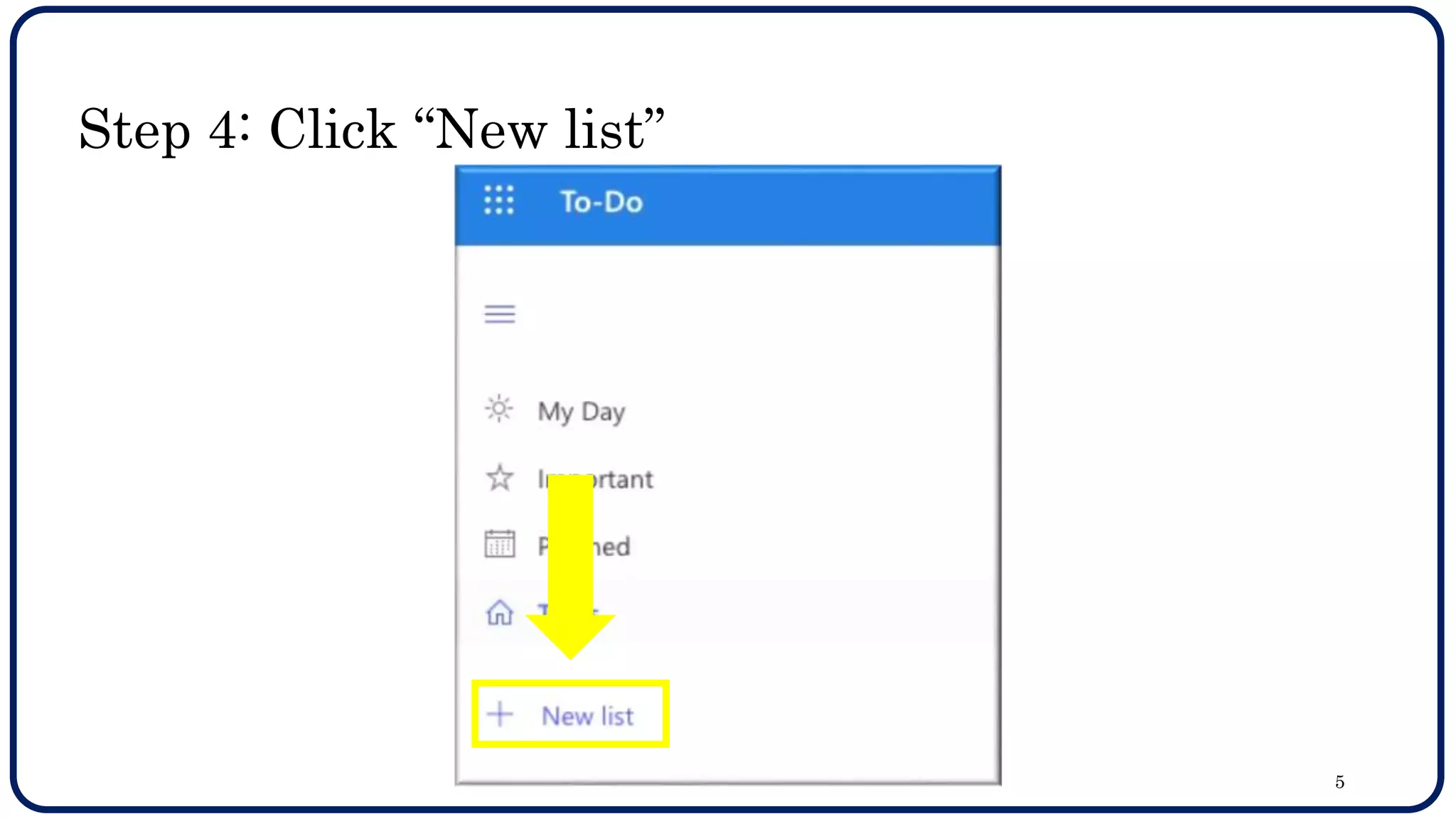
Step 4: Click “New list”
5
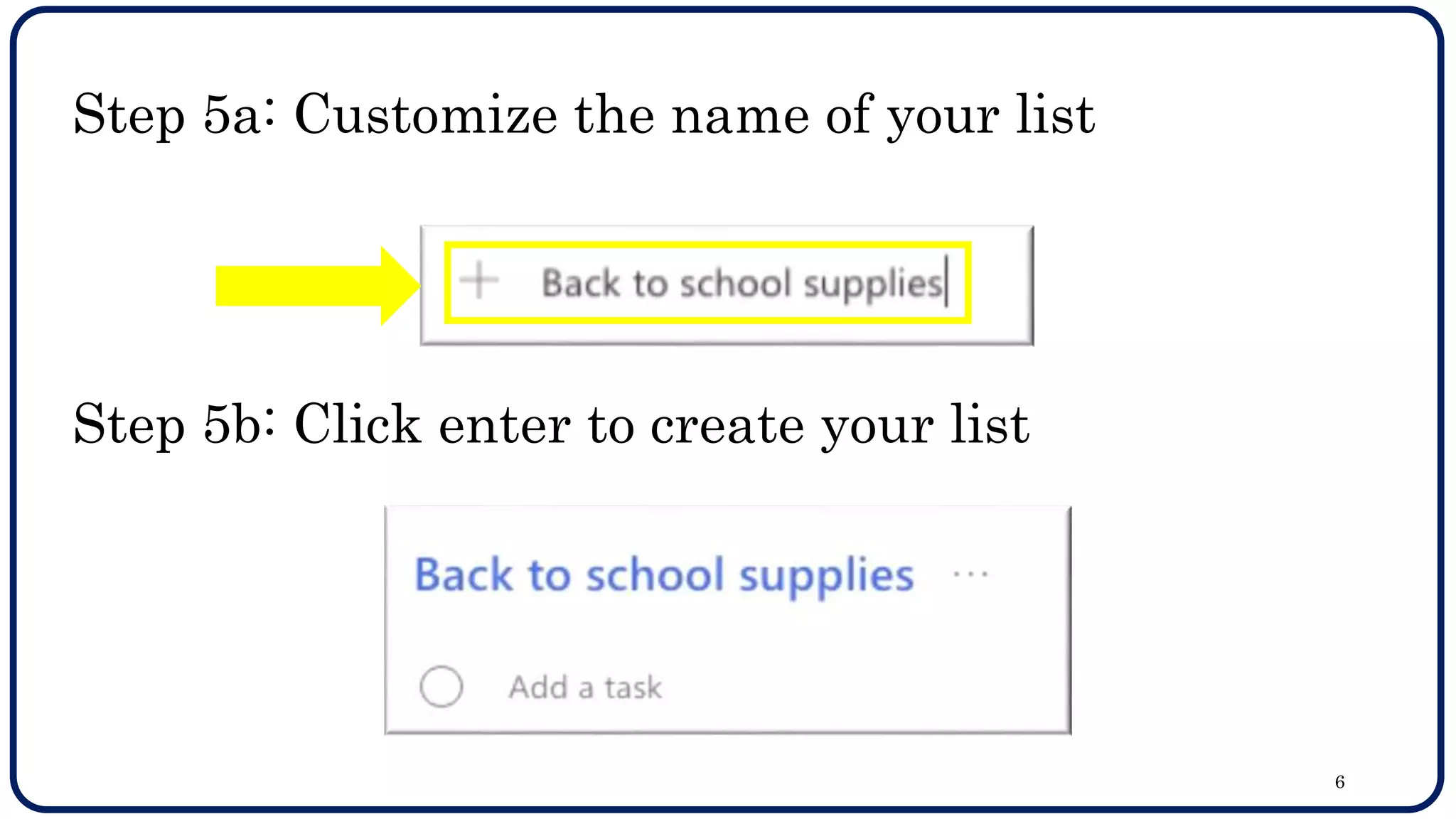
Step 5a: Customize the name of your list
Step 5b: Click enter to create your list
6
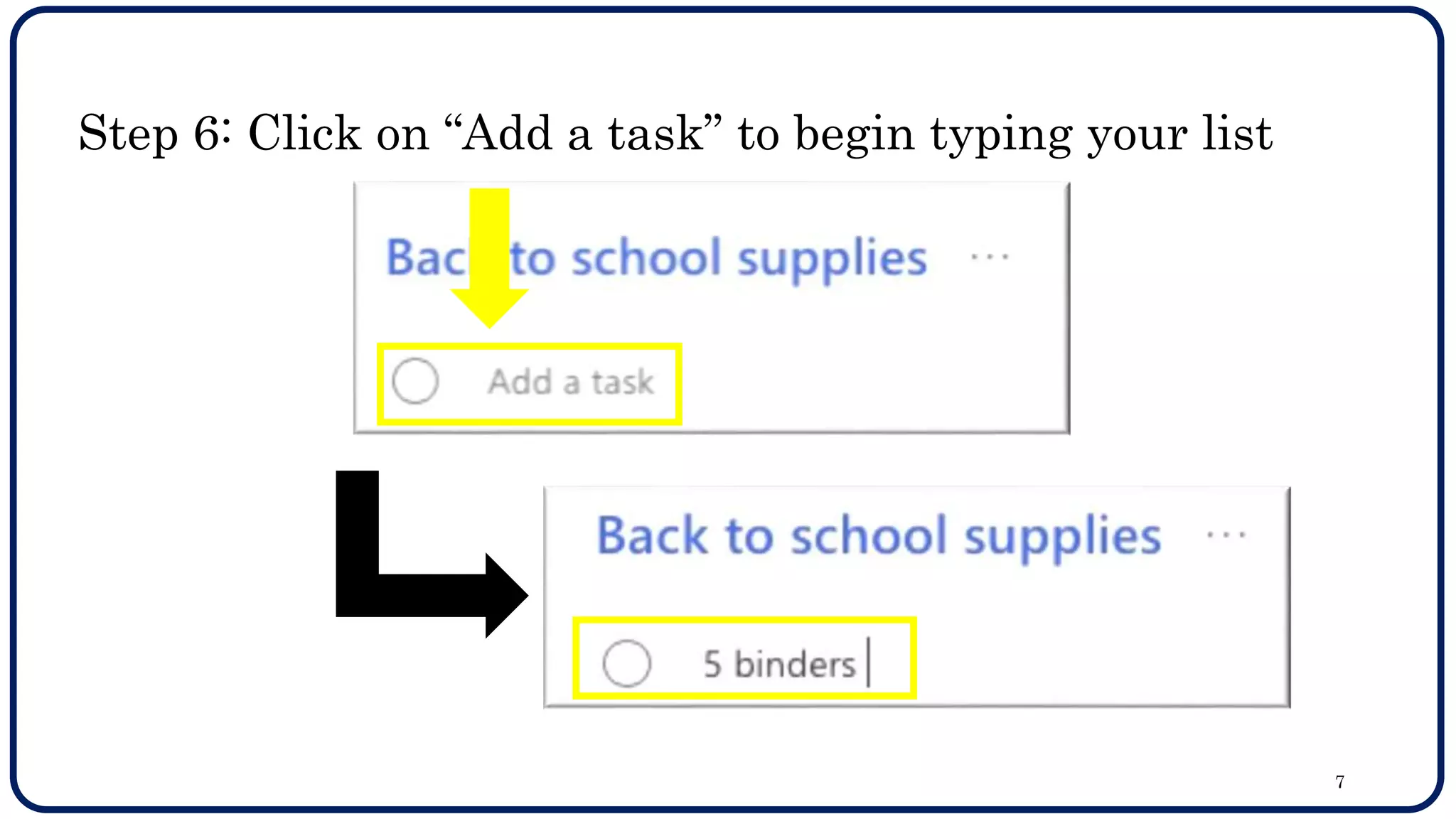
Step 6: Click on “Add a task” to begin typing your list
7
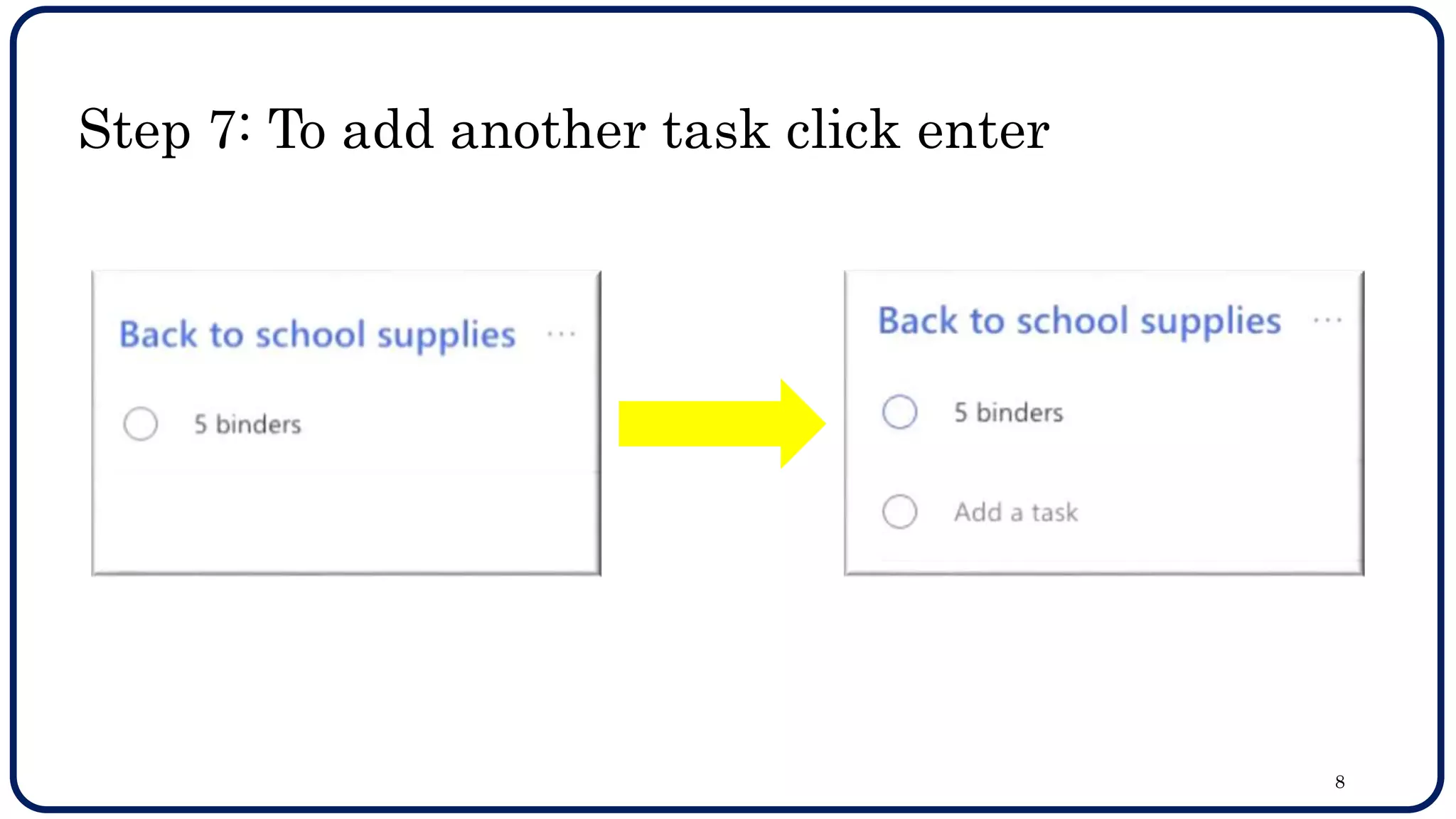
Step 7: To add another task click enter
8
Once your list is complete one
may add reminders, due dates, or
“check” them off as they are
completed. Continue on to learn
these features.
9
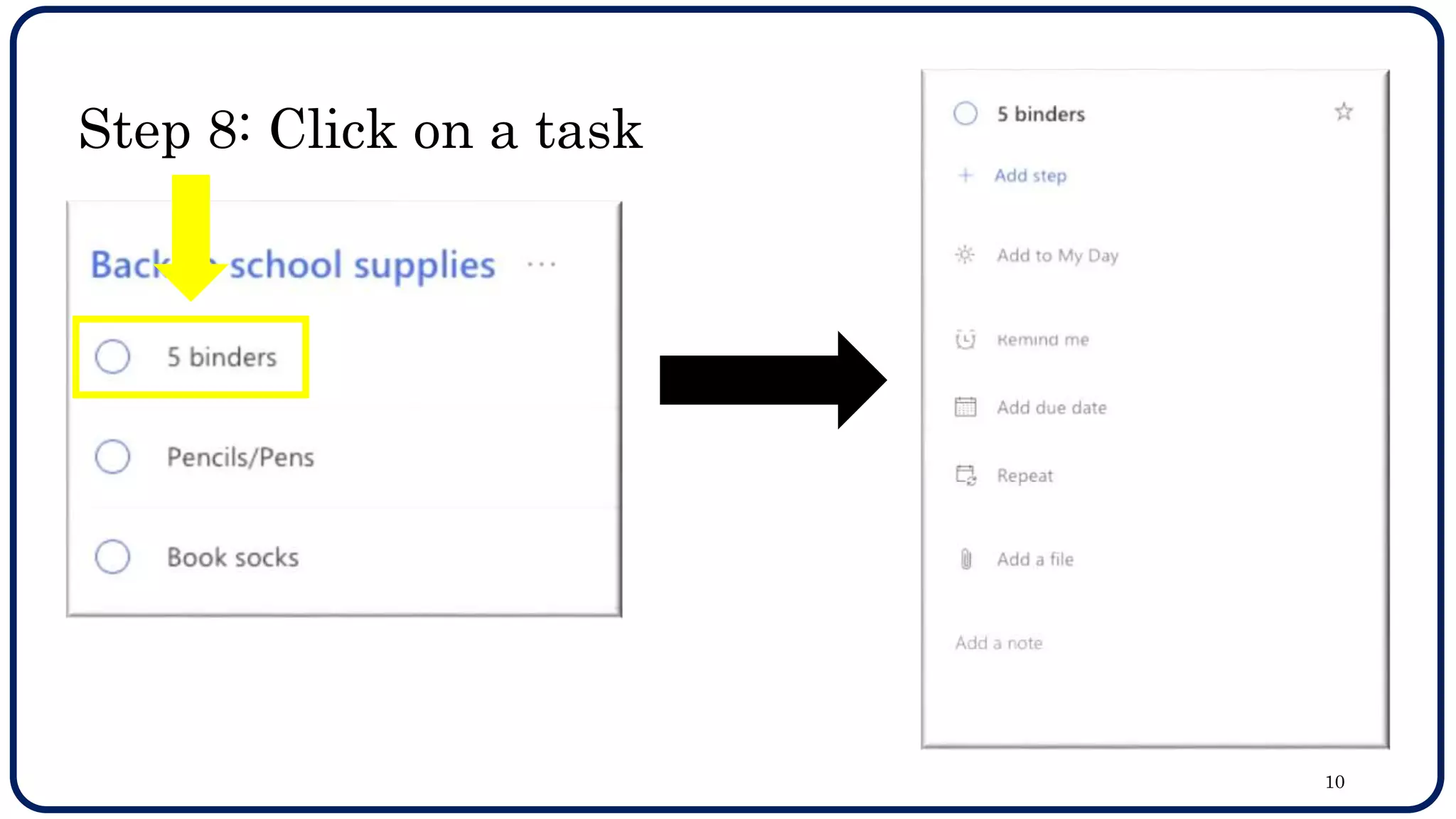
Step 8: Click on a task
10
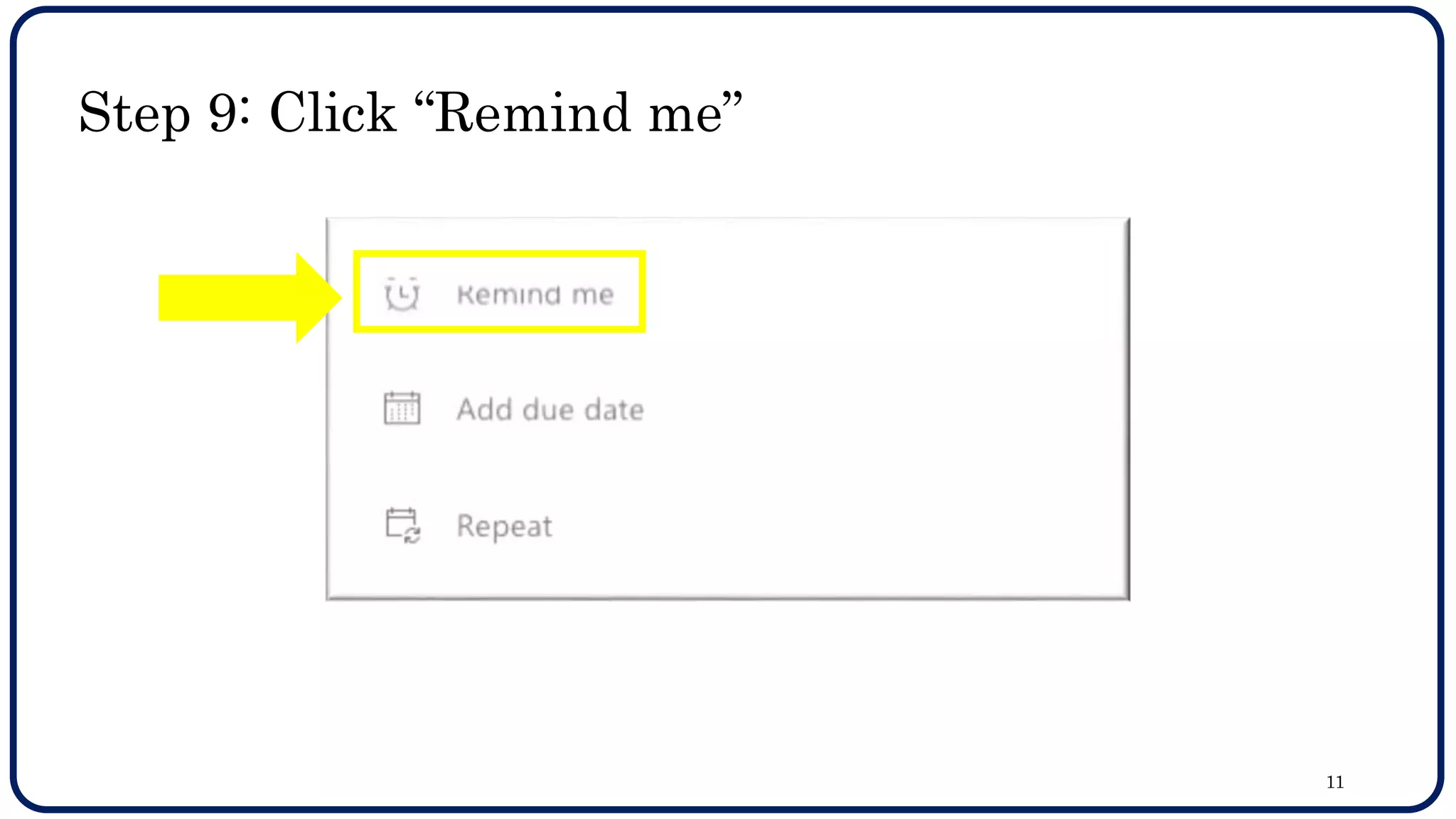
Step 9: Click “Remind me”
11
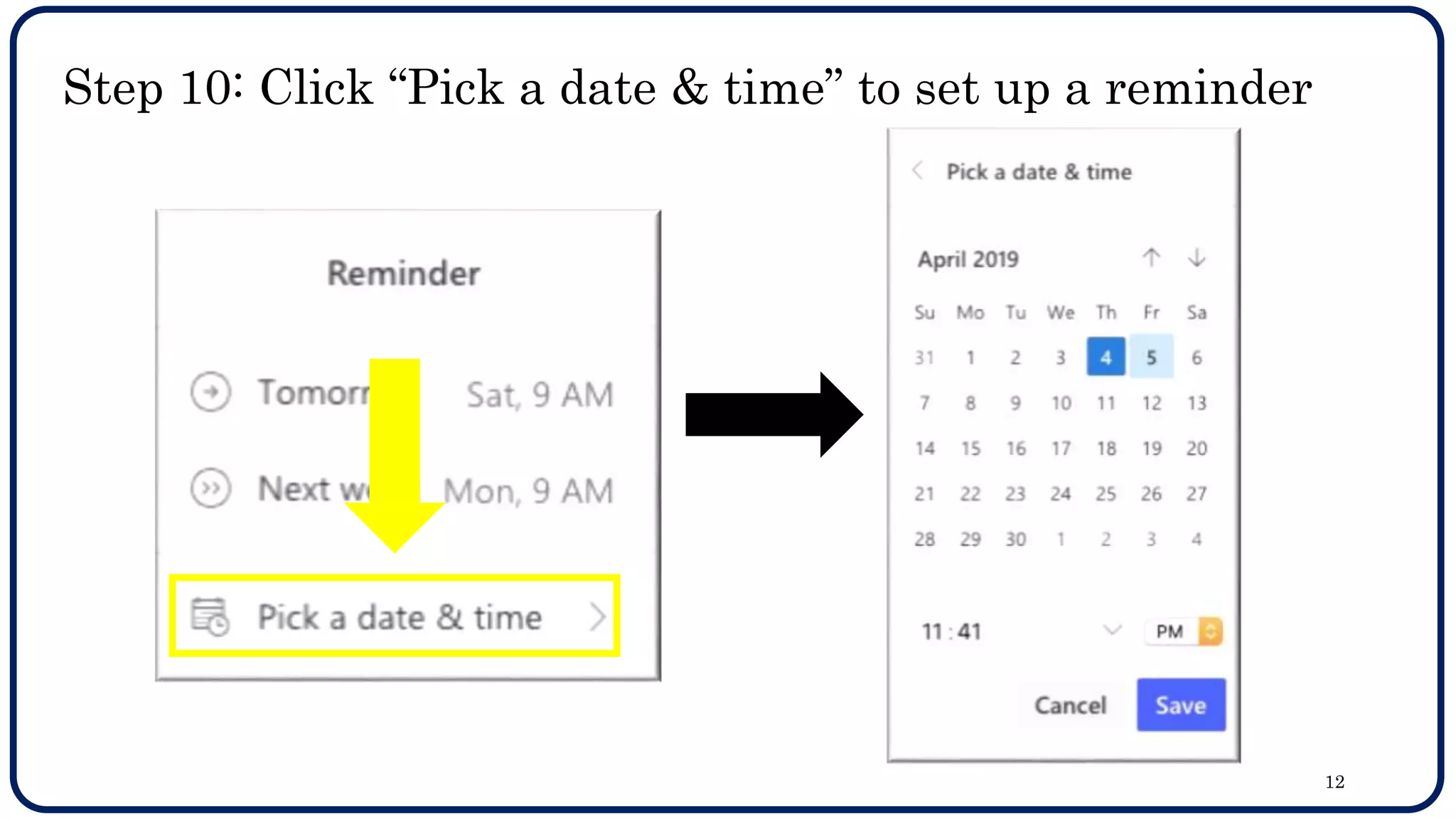
Step 10: Click “Pick a date & time” to set up a reminder
12
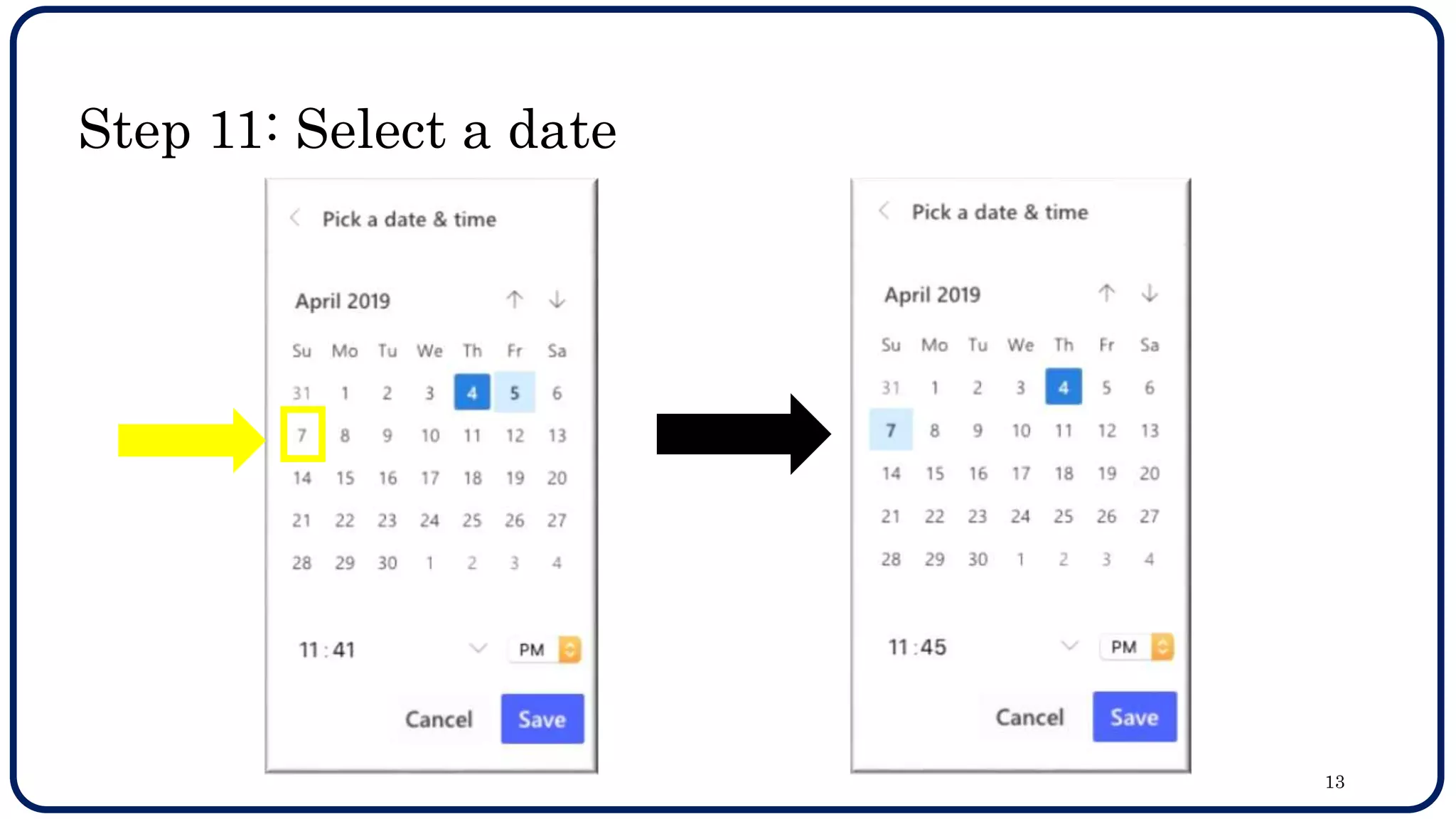
Step 11: Select a date
13
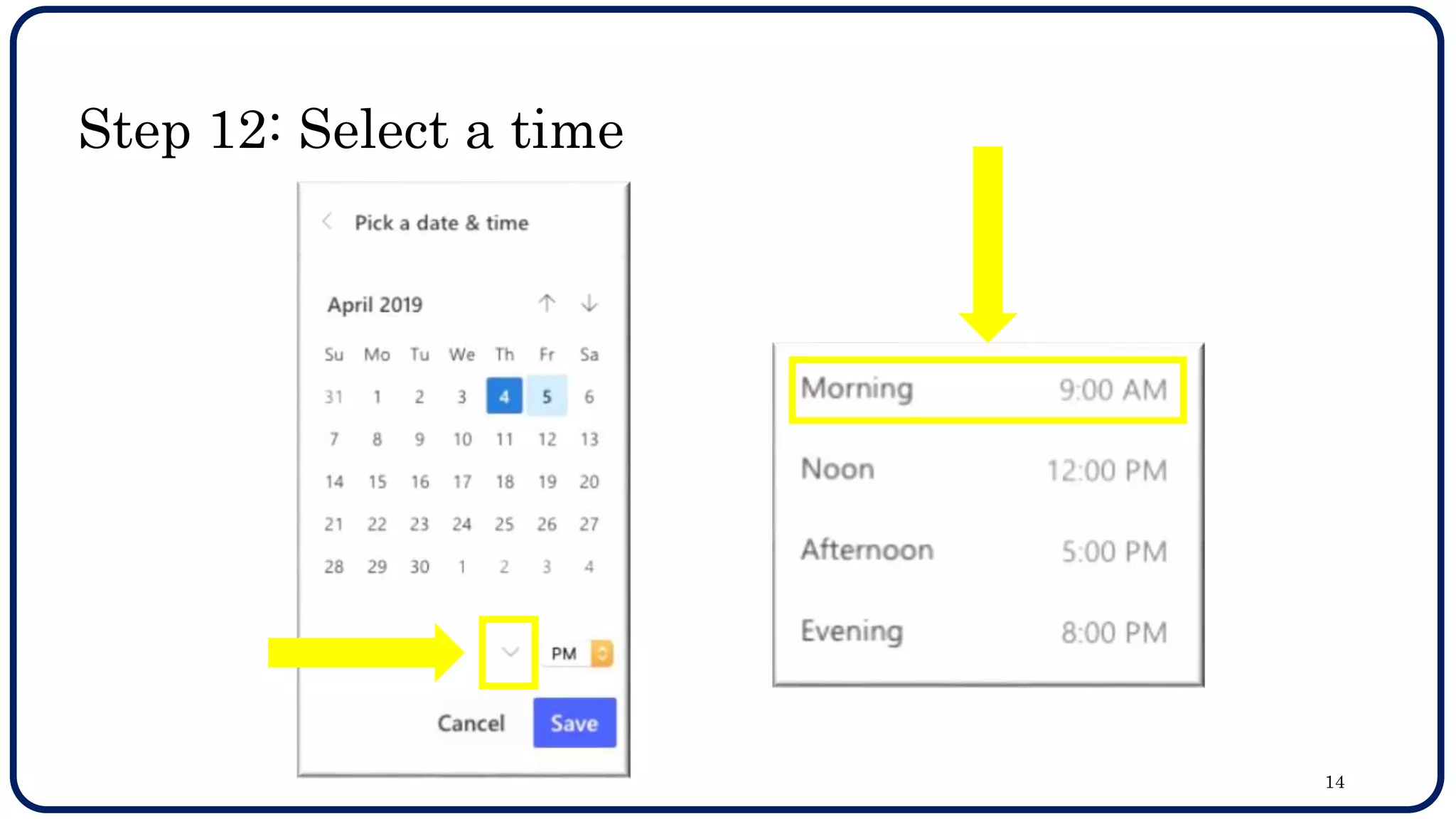
Step 12: Select a time
14
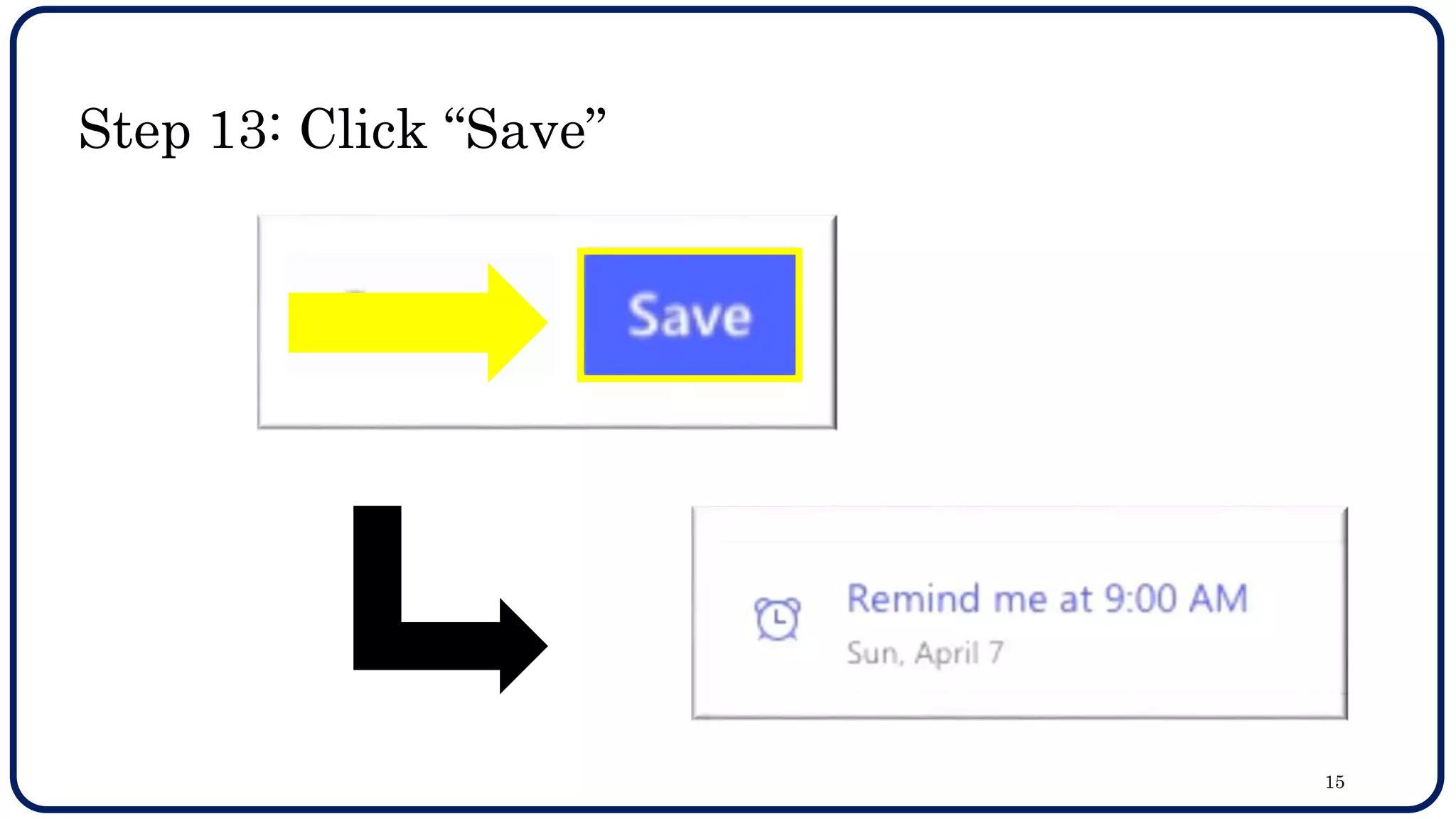
Step 13: Click “Save”
15
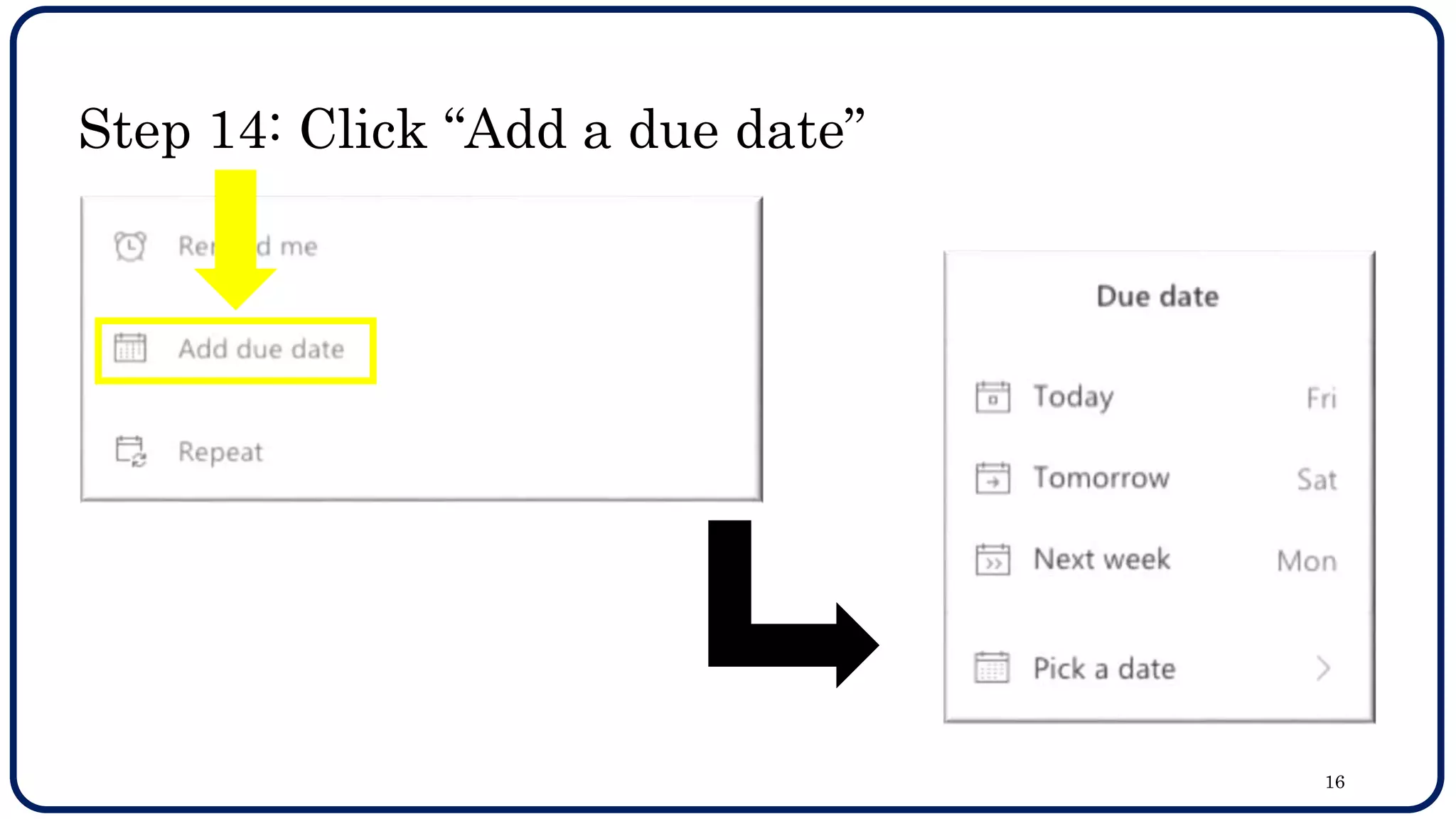
Step 14: Click “Add a due date”
16
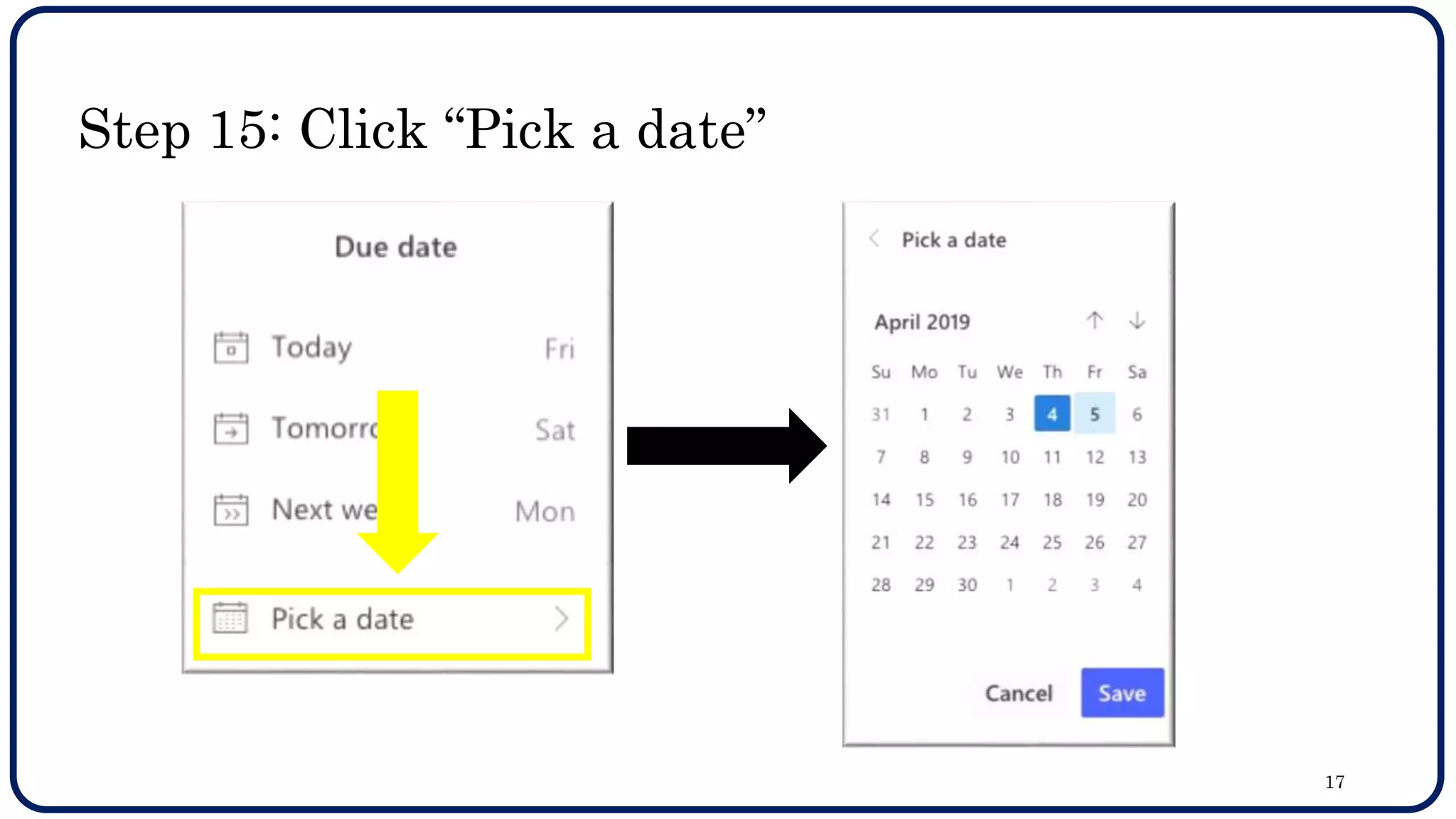
Step 15: Click “Pick a date”
17
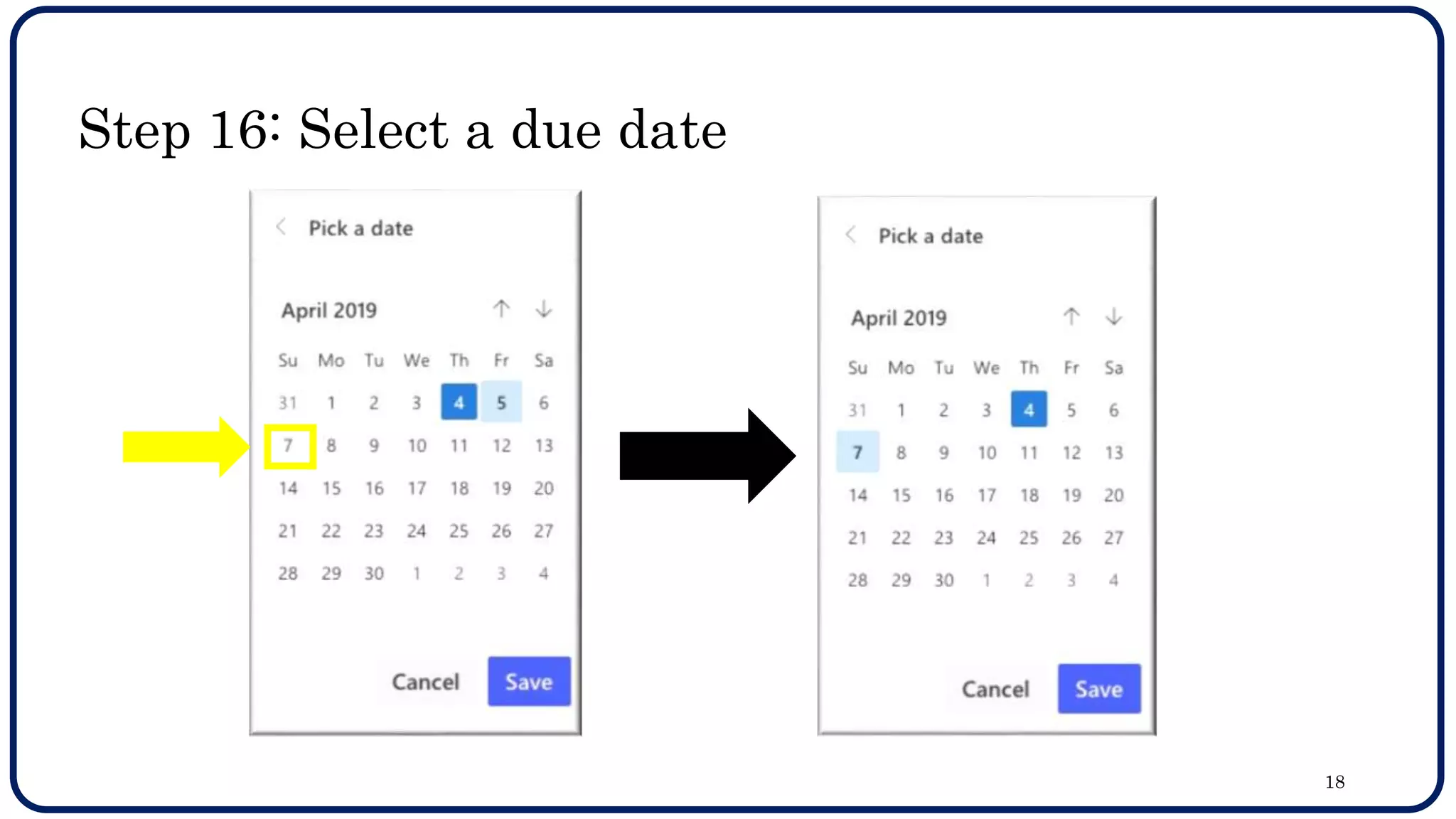
Step 16: Select a due date
18
Step 17: Click “Save”
19
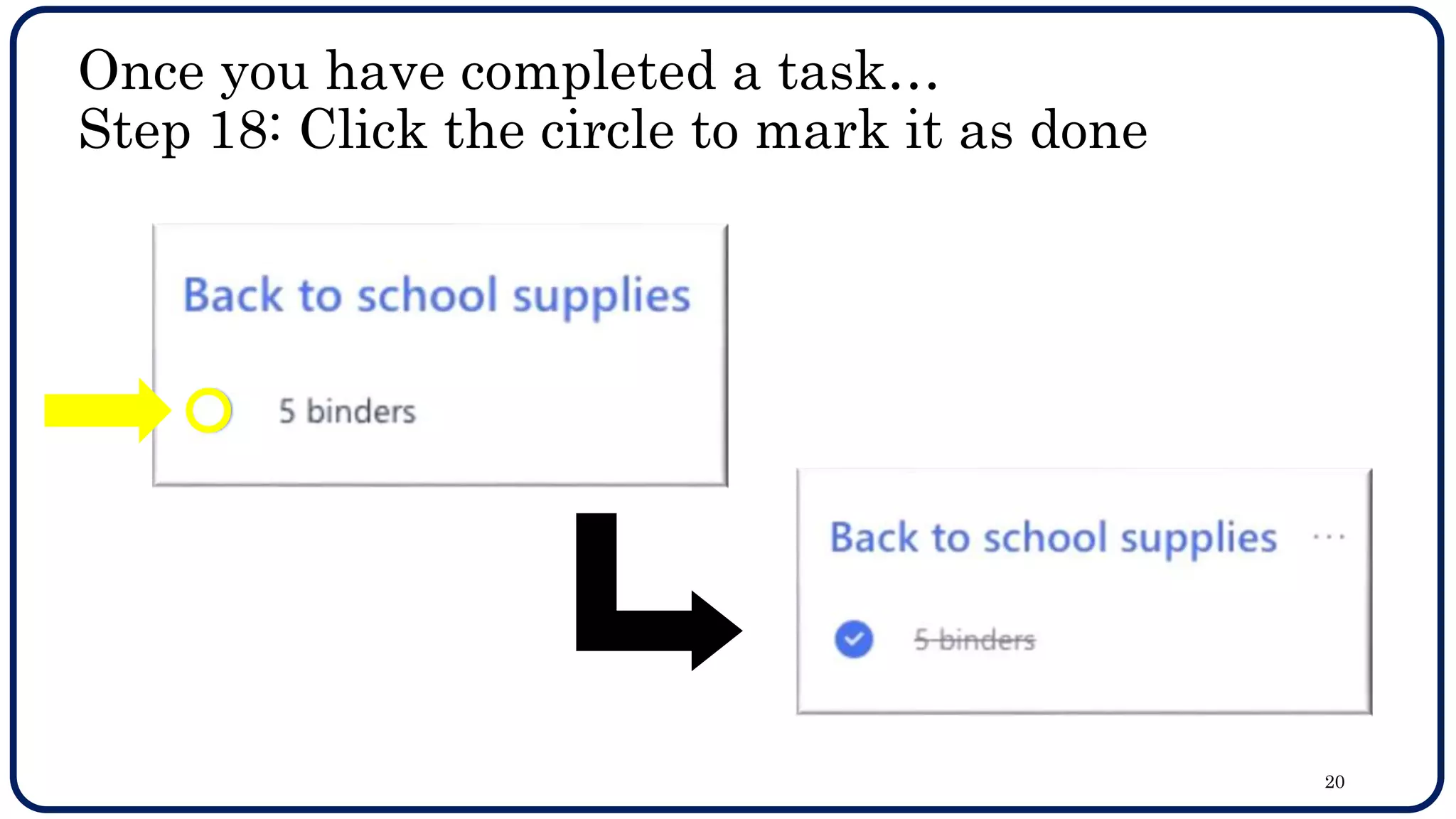
Once you have completed a task…
Step 18: Click the circle to mark it as done
20
21
Screencasts
How To Login:
https://www.youtube.com/watch?v=3D4HJViyBXo&feature=y
outu.be
The Tour of the Homepage:
https://www.youtube.com/watch?v=uoVTHXweKWM&featur
e=youtu.be

Office 365 To Do List Tutorial