Microsoft Planner: Agile Tasks
Management for Modern Teams
Juan Carlos González
Juan Carlos Gonzalez
Office Apps & Services MVP | Office
365 SME at Ricoh Spain IT Services
@jcgm1978
jcgonzalezmartin1978@hotmail.com
https://nl.linkedin.com/in/juagon
https://jcgonzalezmartin.wordpress.com/
https://tinyurl.com/ycb6jhbf
Office 365 for IT Pros –
5th Edition
• 20 % discount:
• https://gumroad.com/l/O365IT/Spoisg
reat
30% of executives say the greatest
challenge to executing strategy is
the failure to coordinate across units1
62% of employees work
from multiple locations in a
month2
25% of the average worker’s time goes
into looking for information3
1. Harvard Business Review. “Why Strategy Execution
Unravels—and What to Do About It.”
2. Forrester Remote Work Survey
3. IDC. “The High Cost of Not Finding Information.”
Modern Workplace Challenges
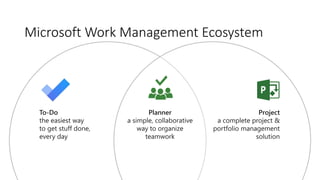
Microsoft Work Management Ecosystem
Planner
a simple, collaborative
way to organize
teamwork
To-Do
the easiest way
to get stuff done,
every day
Project
a complete project &
portfolio management
solution
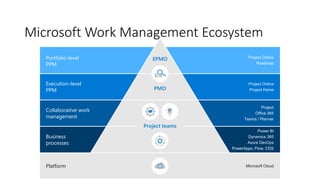
Microsoft Work Management Ecosystem
EPMO
PMO
Project teams
Project Online
Roadmap
Project Online
Project Home
Microsoft CloudPlatform
Portfolio-level
PPM
Execution-level
PPM
Collaborative work
management
Business
processes
Project
Office 365
Teams / Planner
Power BI
Dynamics 365
Azure DevOps
PowerApps, Flow, CDS
What’s Microsoft Planner?
A W O R K M A N A G E M E N T T O O L F O R
T H E M O D E R N W O R K P L A C E
Planner
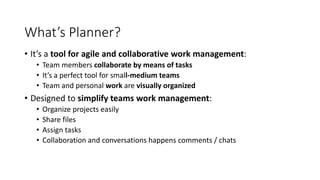
What’s Planner?
• It’s a tool for agile and collaborative work management:
• Team members collaborate by means of tasks
• It’s a perfect tool for small-medium teams
• Team and personal work are visually organized
• Designed to simplify teams work management:
• Organize projects easily
• Share files
• Assign tasks
• Collaboration and conversations happens comments / chats
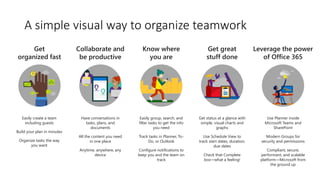
A simple visual way to organize teamwork
Easily create a team
including guests
Build your plan in minutes
Organize tasks the way
you want
Have conversations in
tasks, plans, and
documents
All the content you need
in one place
Anytime, anywhere, any
device
Easily group, search, and
filter tasks to get the info
you need
Track tasks in Planner, To-
Do, or Outlook
Configure notifications to
keep you and the team on
track
Get status at a glance with
simple, visual charts and
graphs
Use Schedule View to
track start dates, duration,
due dates
Check that Complete
box—what a feeling!
Use Planner inside
Microsoft Teams and
SharePoint
Modern Groups for
security and permissions
Compliant, secure,
performant, and scalable
platform—Microsoft from
the ground up
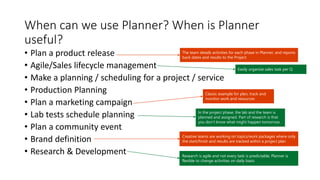
When can we use Planner? When is Planner
useful?
• Plan a product release
• Agile/Sales lifecycle management
• Make a planning / scheduling for a project / service
• Production Planning
• Plan a marketing campaign
• Lab tests schedule planning
• Plan a community event
• Brand definition
• Research & Development
Classic example for plan, track and
monitor work and resources
Creative teams are working on topics/work packages where only
the start/finish and results are tracked within a project plan
The team details activities for each phase in Planner, and reports
back dates and results to the Project
Research is agile and not every task is predictable, Planner is
flexible to change activities on daily basis
In the project phase, the lab and the team is
planned and assigned. Part of research is that
you don’t know what might happen tomorrow.
Easily organize sales task per Q
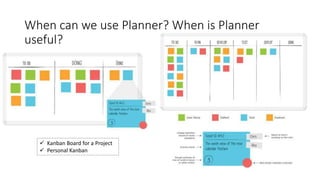
When can we use Planner? When is Planner
useful?
 Kanban Board for a Project
 Personal Kanban
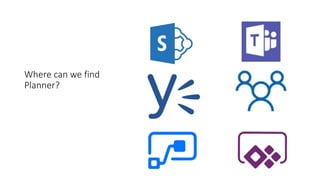
Where can we find
Planner?
Agile Tasks Management in the Modern
Workplace
• Planner is not focused on planning / scheduling projects (*):
• It has been designed to quickly organize Teams work by means of tasks
• It’s an ideal tool for small teams that can work together without chaos:
• It provides visibility and transparency for the team work
• Some Planner features (We have already mentioned all of them !):
• Easy to use
• Team work is visually organized
• Relies on Office 365 groups to share updates and to speed up collaboration
• Insights about team performance
• Multiplatform and multidevice
• E-mail notifications
(*)Planning is concerned with scheduling, task dependencies, plan/actual comparison and
monitoring progress
Planner key elements
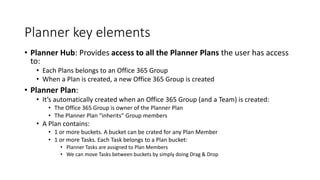
• Planner Hub: Provides access to all the Planner Plans the user has access
to:
• Each Plans belongs to an Office 365 Group
• When a Plan is created, a new Office 365 Group is created
• Planner Plan:
• It’s automatically created when an Office 365 Group (and a Team) is created:
• The Office 365 Group is owner of the Planner Plan
• The Planner Plan “inherits” Group members
• A Plan contains:
• 1 or more buckets. A bucket can be crated for any Plan Member
• 1 or more Tasks. Each Task belongs to a Plan bucket:
• Planner Tasks are assigned to Plan Members
• We can move Tasks between buckets by simply doing Drag & Drop
Planner Hub
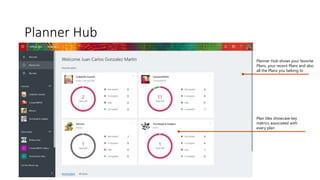
Planner Hub shows your favorite
Plans, your recent Plans and also
all the Plans you belong to
Plan tiles showcase key
metrics associated with
every plan
Demo #1: Creating a Plan + Planner
Hub
Planner key elements
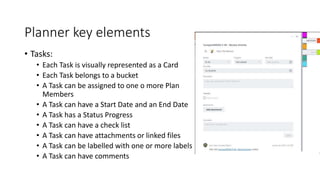
• Tasks:
• Each Task is visually represented as a Card
• Each Task belongs to a bucket
• A Task can be assigned to one o more Plan
Members
• A Task can have a Start Date and an End Date
• A Task has a Status Progress
• A Task can have a check list
• A Task can have attachments or linked files
• A Task can be labelled with one or more labels
• A Task can have comments
My Tasks
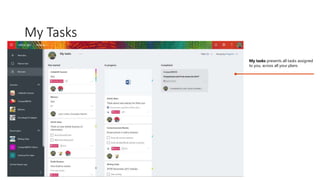
My tasks presents all tasks assigned
to you, across all your plans
Working with Tasks: View and create Tasks
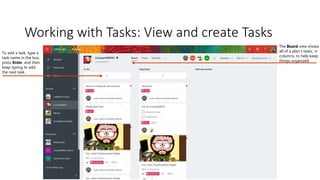
The Board view shows
all of a plan’s tasks, in
columns, to help keep
things organized
To add a task, type a
task name in the box,
press Enter, and then
keep typing to add
the next task.
Working with Tasks: Updating Tasks
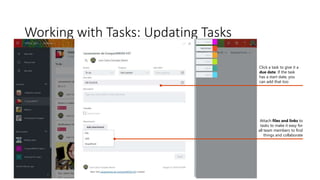
Click a task to give it a
due date. If the task
has a start date, you
can add that too
Attach files and links to
tasks to make it easy for
all team members to find
things and collaborate
Working with Tasks: Tags & Conversations
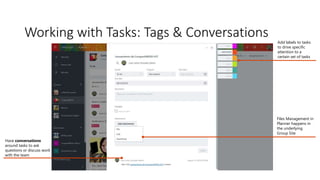
Have conversations
around tasks to ask
questions or discuss work
with the team
Add labels to tasks
to drive specific
attention to a
certain set of tasks
Files Management in
Planner happens in
the underlying
Group Site
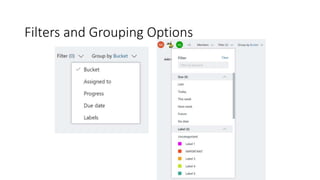
Filters and Grouping Options
How do I start before creating a Planner Plan?
• Answering some basic questions that will allow you to design your
Plan:
• What is the purpose of the Plan?
• Which buckets are we going to use in the Plan?
• Are we going to use labels? If so, what color codes and tags are we going to
use?
• Are we going to assign tasks? Or just leave it to the team?
• Where do project conversations happen? In Planner Comments? In the
Group conversations or in a Teams chat?
• Where do we manage Project Files? Directly in the Tasks? In Teams? In SPO?
In ODFB?
Demo #2: Agile Tasks Management
with Microsoft Planner
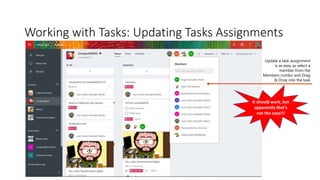
Working with Tasks: Updating Tasks Assignments
Update a task assignment
is as easy as select a
member from the
Members combo and Drag
& Drop into the task
It should work, but
apparently that’s
not the case!!!
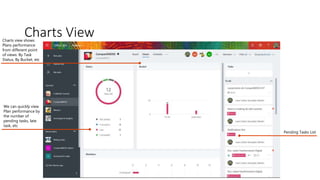
Charts View
We can quickly view
Plan performance by
the number of
pending tasks, late
task, etc
Charts view shows
Plans performance
from different point
of views: By Task
Status, By Bucket, etc
Pending Tasks List
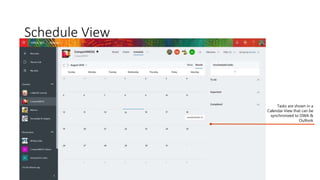
Schedule View
Tasks are shown in a
Calendar View that can be
synchronized to OWA &
Outlook
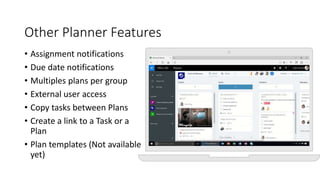
Other Planner Features
• Assignment notifications
• Due date notifications
• Multiples plans per group
• External user access
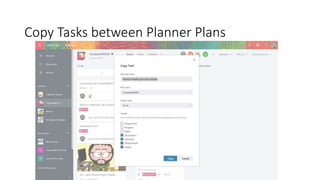
• Copy tasks between Plans
• Create a link to a Task or a
Plan
• Plan templates (Not available
yet)
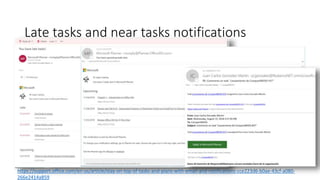
Late tasks and near tasks notifications
https://support.office.com/en-us/article/stay-on-top-of-tasks-and-plans-with-email-and-notifications-cce223d6-b0ae-43cf-a080-
266e2414a859
Copy Tasks between Planner Plans
Guests Users support
• Guests users can be added to a Planner Plan in two one possible
ways:
• Through the underlying Office 365 Group: Owners can add guests users
• Through Azure AD: Any guest user added directly in Azure AD, can be added
in a Planner Plan
• Guests users:
• Receives a welcome email and group messages
• Access Plans as well as files and notes
Demo #3: Other Planner Features
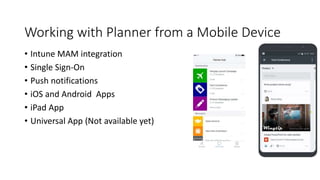
Working with Planner from a Mobile Device
• Intune MAM integration
• Single Sign-On
• Push notifications
• iOS and Android Apps
• iPad App
• Universal App (Not available yet)
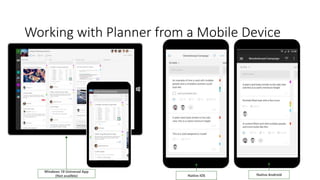
Working with Planner from a Mobile Device
Windows 10 Universal App
(Not availble) Native iOS Native Android
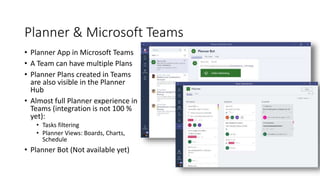
Planner & Microsoft Teams
• Planner App in Microsoft Teams
• A Team can have multiple Plans
• Planner Plans created in Teams
are also visible in the Planner
Hub
• Almost full Planner experience in
Teams (integration is not 100 %
yet):
• Tasks filtering
• Planner Views: Boards, Charts,
Schedule
• Planner Bot (Not available yet)
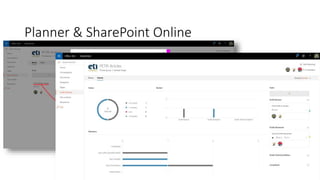
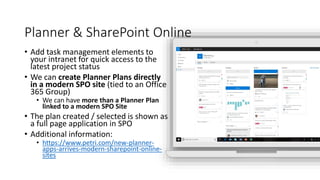
Planner & SharePoint Online
• Add task management elements to
your intranet for quick access to the
latest project status
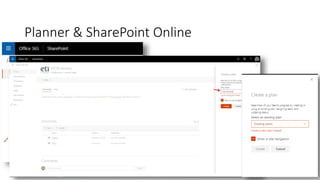
• We can create Planner Plans directly
in a modern SPO site (tied to an Office
365 Group)
• We can have more than a Planner Plan
linked to a modern SPO Site
• The plan created / selected is shown as
a full page application in SPO
• Additional information:
• https://www.petri.com/new-planner-
apps-arrives-modern-sharepoint-online-
sites
Planner & SharePoint Online
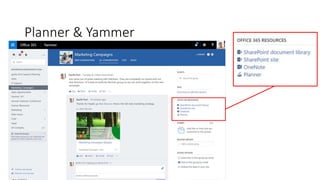
Planner & Yammer
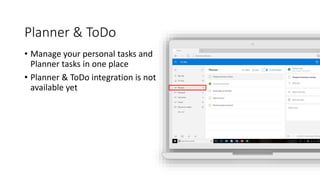
Planner & ToDo
• Manage your personal tasks and
Planner tasks in one place
• Planner & ToDo integration is not
available yet
Demo #4: Planner integration with
other Office 365 Services and
Applications
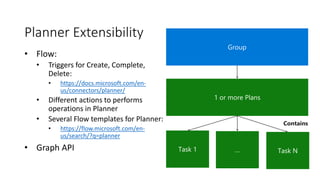
Planner Extensibility
• Flow:
• Triggers for Create, Complete,
Delete:
• https://docs.microsoft.com/en-
us/connectors/planner/
• Different actions to performs
operations in Planner
• Several Flow templates for Planner:
• https://flow.microsoft.com/en-
us/search/?q=planner
• Graph API
1 or more Plans
Contains
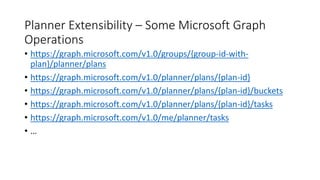
Planner Extensibility – Some Microsoft Graph
Operations
• https://graph.microsoft.com/v1.0/groups/{group-id-with-
plan}/planner/plans
• https://graph.microsoft.com/v1.0/planner/plans/{plan-id}
• https://graph.microsoft.com/v1.0/planner/plans/{plan-id}/buckets
• https://graph.microsoft.com/v1.0/planner/plans/{plan-id}/tasks
• https://graph.microsoft.com/v1.0/me/planner/tasks
• …
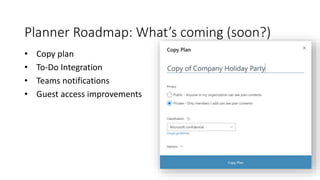
Planner Roadmap: What’s coming (soon?)
• Copy plan
• To-Do Integration
• Teams notifications
• Guest access improvements
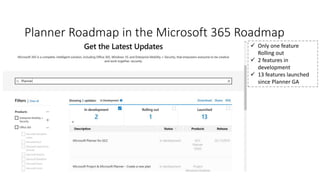
Planner Roadmap in the Microsoft 365 Roadmap
 Only one feature
Rolling out
 2 features in
development
 13 features launched
since Planner GA
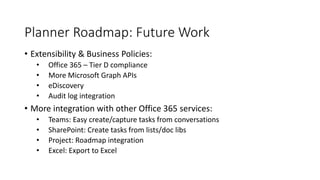
Planner Roadmap: Future Work
• Extensibility & Business Policies:
• Office 365 – Tier D compliance
• More Microsoft Graph APIs
• eDiscovery
• Audit log integration
• More integration with other Office 365 services:
• Teams: Easy create/capture tasks from conversations
• SharePoint: Create tasks from lists/doc libs
• Project: Roadmap integration
• Excel: Export to Excel
Planner Roadmap: Future Work
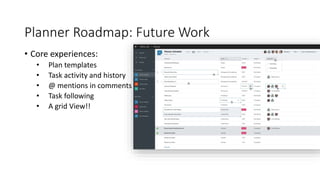
• Core experiences:
• Plan templates
• Task activity and history
• @ mentions in comments
• Task following
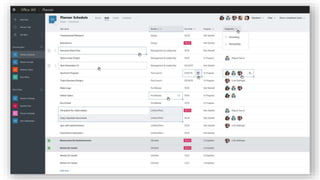
• A grid View!!
Conclusions
• Planner provides agile Tasks Management for modern teams so the
work can be done as fast as possible:
• Each Plan belongs to an Office 365 Group
• Each Office 365 Group can have 1 or more Planner Plans
• Planner is more and more integrated in the ecosystem of
applications and services that are part of the Microsoft proposal for
the Modern Workplace:
• Teams, SharePoint Online, Flow & PowerApps
Microsoft Tech Community
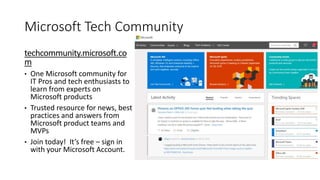
techcommunity.microsoft.co
m
• One Microsoft community for
IT Pros and tech enthusiasts to
learn from experts on
Microsoft products
• Trusted resource for news, best
practices and answers from
Microsoft product teams and
MVPs
• Join today! It’s free – sign in
with your Microsoft Account.
@jcgm1978
jcgonzalezmartin1978@hotmail.com
https://nl.linkedin.com/in/juagon
https://jcgonzalezmartin.wordpress.com/
https://tinyurl.com/ycb6jhbf
Office 365 for IT Pros –
5th Edition
• 20 % discount:
• https://gumroad.com/l/O365IT/Spoisg
reat
Bonus: References
• Planner in the Microsoft 365 Roadmap:
• https://www.microsoft.com/en-us/microsoft-
365/roadmap?filters=&searchterms=Planner
• FastTrack Productivity Library:
• https://www.microsoft.com/es-es/microsoft-
365/success/productivitylibrary/organize-teamwork-visually?rtc=1
• Manage Guest Access in Office 365 Groups (and in Planner ):
• https://docs.microsoft.com/en-us/office365/admin/create-groups/manage-guest-
access-in-groups?view=o365-worldwide
• Set Office 365 Groups to expire in Azure AD:
• https://docs.microsoft.com/en-us/azure/active-directory/users-groups-roles/groups-
quickstart-expiration
Bonus: References
• Control Groups creation (and also Planner):
• https://docs.microsoft.com/en-us/office365/admin/create-groups/manage-
creation-of-groups?view=o365-worldwide
• Planner vs. Trello:
• http://www.2tolead.com/microsoft-cloud-solutions-and-strategy-
insights/managing-tasks-office-planner-vs-trello/
Bonus: Microsoft Planner availability
• Planner is available in Office 365 Business and Enterprise Plans, and
also in the y the corresponding Office 365 for Education Plans:
• Business Essentials
• Business Premium
• Enterprise E1 – E5
• Education A1 – A5
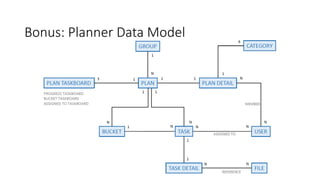
Bonus: Planner Data Model
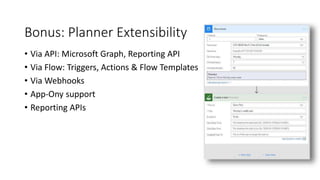
Bonus: Planner Extensibility
• Via API: Microsoft Graph, Reporting API
• Via Flow: Triggers, Actions & Flow Templates
• Via Webhooks
• App-Ony support
• Reporting APIs
Bonus: Security & Compliance
Features in Microsoft Planner
• Planner takes advantage of the following features available
in Office 365 Groups:
• Group naming policy
• Group expiration policy
• Group Classification
• Soft delete
• Conditional Access support
• Sovereign Clouds
• Compliance Tier D in Office 365
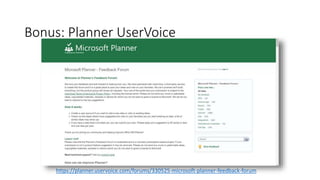
Bonus: Planner UserVoice
https://planner.uservoice.com/forums/330525-microsoft-planner-feedback-forum
Bonus: Planner Limits (Not Official Limits)
• (Since there is not official documentation about Planner Limits, take those
as a reference):
• https://techcommunity.microsoft.com/t5/Planner/Planner-Limitations/td-p/61650
• Up to 300 assigned tasks per user in a Plan
• 1500 tasks can be created by a user
• 250 active tasks – not started, in progress per plan
• 100 tasks per bucket
• Cannot view all the tasks in the Hub
• Cannot export all tasks to Excel
• Cannot import Tasks from another data source (Excel,Outlook Tasks, Microsoft
Project)
• Task name cannot exceed 254 characters
• Cannot add more than 20 checklist items to a single task
• Cannot add more than 9 attachments / links to a single task
Some are old limits,
but we don’t know
current ones

Microsoft Planner - Agile Tasks Management for Modern Teams

  • 1.
    Microsoft Planner: AgileTasks Management for Modern Teams Juan Carlos González
  • 2.
    Juan Carlos Gonzalez OfficeApps & Services MVP | Office 365 SME at Ricoh Spain IT Services @jcgm1978 jcgonzalezmartin1978@hotmail.com https://nl.linkedin.com/in/juagon https://jcgonzalezmartin.wordpress.com/ https://tinyurl.com/ycb6jhbf
  • 4.
    Office 365 forIT Pros – 5th Edition • 20 % discount: • https://gumroad.com/l/O365IT/Spoisg reat
  • 5.
    30% of executivessay the greatest challenge to executing strategy is the failure to coordinate across units1 62% of employees work from multiple locations in a month2 25% of the average worker’s time goes into looking for information3 1. Harvard Business Review. “Why Strategy Execution Unravels—and What to Do About It.” 2. Forrester Remote Work Survey 3. IDC. “The High Cost of Not Finding Information.” Modern Workplace Challenges
  • 6.
    Microsoft Work ManagementEcosystem Planner a simple, collaborative way to organize teamwork To-Do the easiest way to get stuff done, every day Project a complete project & portfolio management solution
  • 7.
    Microsoft Work ManagementEcosystem EPMO PMO Project teams Project Online Roadmap Project Online Project Home Microsoft CloudPlatform Portfolio-level PPM Execution-level PPM Collaborative work management Business processes Project Office 365 Teams / Planner Power BI Dynamics 365 Azure DevOps PowerApps, Flow, CDS
  • 8.
    What’s Microsoft Planner? AW O R K M A N A G E M E N T T O O L F O R T H E M O D E R N W O R K P L A C E Planner
  • 9.
    What’s Planner? • It’sa tool for agile and collaborative work management: • Team members collaborate by means of tasks • It’s a perfect tool for small-medium teams • Team and personal work are visually organized • Designed to simplify teams work management: • Organize projects easily • Share files • Assign tasks • Collaboration and conversations happens comments / chats
  • 10.
    A simple visualway to organize teamwork Easily create a team including guests Build your plan in minutes Organize tasks the way you want Have conversations in tasks, plans, and documents All the content you need in one place Anytime, anywhere, any device Easily group, search, and filter tasks to get the info you need Track tasks in Planner, To- Do, or Outlook Configure notifications to keep you and the team on track Get status at a glance with simple, visual charts and graphs Use Schedule View to track start dates, duration, due dates Check that Complete box—what a feeling! Use Planner inside Microsoft Teams and SharePoint Modern Groups for security and permissions Compliant, secure, performant, and scalable platform—Microsoft from the ground up
  • 11.
    When can weuse Planner? When is Planner useful? • Plan a product release • Agile/Sales lifecycle management • Make a planning / scheduling for a project / service • Production Planning • Plan a marketing campaign • Lab tests schedule planning • Plan a community event • Brand definition • Research & Development Classic example for plan, track and monitor work and resources Creative teams are working on topics/work packages where only the start/finish and results are tracked within a project plan The team details activities for each phase in Planner, and reports back dates and results to the Project Research is agile and not every task is predictable, Planner is flexible to change activities on daily basis In the project phase, the lab and the team is planned and assigned. Part of research is that you don’t know what might happen tomorrow. Easily organize sales task per Q
  • 12.
    When can weuse Planner? When is Planner useful?  Kanban Board for a Project  Personal Kanban
  • 13.
    Where can wefind Planner?
  • 14.
    Agile Tasks Managementin the Modern Workplace • Planner is not focused on planning / scheduling projects (*): • It has been designed to quickly organize Teams work by means of tasks • It’s an ideal tool for small teams that can work together without chaos: • It provides visibility and transparency for the team work • Some Planner features (We have already mentioned all of them !): • Easy to use • Team work is visually organized • Relies on Office 365 groups to share updates and to speed up collaboration • Insights about team performance • Multiplatform and multidevice • E-mail notifications (*)Planning is concerned with scheduling, task dependencies, plan/actual comparison and monitoring progress
  • 15.
    Planner key elements •Planner Hub: Provides access to all the Planner Plans the user has access to: • Each Plans belongs to an Office 365 Group • When a Plan is created, a new Office 365 Group is created • Planner Plan: • It’s automatically created when an Office 365 Group (and a Team) is created: • The Office 365 Group is owner of the Planner Plan • The Planner Plan “inherits” Group members • A Plan contains: • 1 or more buckets. A bucket can be crated for any Plan Member • 1 or more Tasks. Each Task belongs to a Plan bucket: • Planner Tasks are assigned to Plan Members • We can move Tasks between buckets by simply doing Drag & Drop
  • 16.
    Planner Hub Planner Hubshows your favorite Plans, your recent Plans and also all the Plans you belong to Plan tiles showcase key metrics associated with every plan
  • 17.
    Demo #1: Creatinga Plan + Planner Hub
  • 18.
    Planner key elements •Tasks: • Each Task is visually represented as a Card • Each Task belongs to a bucket • A Task can be assigned to one o more Plan Members • A Task can have a Start Date and an End Date • A Task has a Status Progress • A Task can have a check list • A Task can have attachments or linked files • A Task can be labelled with one or more labels • A Task can have comments
  • 19.
    My Tasks My taskspresents all tasks assigned to you, across all your plans
  • 20.
    Working with Tasks:View and create Tasks The Board view shows all of a plan’s tasks, in columns, to help keep things organized To add a task, type a task name in the box, press Enter, and then keep typing to add the next task.
  • 21.
    Working with Tasks:Updating Tasks Click a task to give it a due date. If the task has a start date, you can add that too Attach files and links to tasks to make it easy for all team members to find things and collaborate
  • 22.
    Working with Tasks:Tags & Conversations Have conversations around tasks to ask questions or discuss work with the team Add labels to tasks to drive specific attention to a certain set of tasks Files Management in Planner happens in the underlying Group Site
  • 23.
  • 24.
    How do Istart before creating a Planner Plan? • Answering some basic questions that will allow you to design your Plan: • What is the purpose of the Plan? • Which buckets are we going to use in the Plan? • Are we going to use labels? If so, what color codes and tags are we going to use? • Are we going to assign tasks? Or just leave it to the team? • Where do project conversations happen? In Planner Comments? In the Group conversations or in a Teams chat? • Where do we manage Project Files? Directly in the Tasks? In Teams? In SPO? In ODFB?
  • 25.
    Demo #2: AgileTasks Management with Microsoft Planner
  • 26.
    Working with Tasks:Updating Tasks Assignments Update a task assignment is as easy as select a member from the Members combo and Drag & Drop into the task It should work, but apparently that’s not the case!!!
  • 27.
    Charts View We canquickly view Plan performance by the number of pending tasks, late task, etc Charts view shows Plans performance from different point of views: By Task Status, By Bucket, etc Pending Tasks List
  • 28.
    Schedule View Tasks areshown in a Calendar View that can be synchronized to OWA & Outlook
  • 29.
    Other Planner Features •Assignment notifications • Due date notifications • Multiples plans per group • External user access • Copy tasks between Plans • Create a link to a Task or a Plan • Plan templates (Not available yet)
  • 30.
    Late tasks andnear tasks notifications https://support.office.com/en-us/article/stay-on-top-of-tasks-and-plans-with-email-and-notifications-cce223d6-b0ae-43cf-a080- 266e2414a859
  • 31.
    Copy Tasks betweenPlanner Plans
  • 32.
    Guests Users support •Guests users can be added to a Planner Plan in two one possible ways: • Through the underlying Office 365 Group: Owners can add guests users • Through Azure AD: Any guest user added directly in Azure AD, can be added in a Planner Plan • Guests users: • Receives a welcome email and group messages • Access Plans as well as files and notes
  • 33.
    Demo #3: OtherPlanner Features
  • 34.
    Working with Plannerfrom a Mobile Device • Intune MAM integration • Single Sign-On • Push notifications • iOS and Android Apps • iPad App • Universal App (Not available yet)
  • 35.
    Working with Plannerfrom a Mobile Device Windows 10 Universal App (Not availble) Native iOS Native Android
  • 36.
    Planner & MicrosoftTeams • Planner App in Microsoft Teams • A Team can have multiple Plans • Planner Plans created in Teams are also visible in the Planner Hub • Almost full Planner experience in Teams (integration is not 100 % yet): • Tasks filtering • Planner Views: Boards, Charts, Schedule • Planner Bot (Not available yet)
  • 37.
    Planner & SharePointOnline • Add task management elements to your intranet for quick access to the latest project status • We can create Planner Plans directly in a modern SPO site (tied to an Office 365 Group) • We can have more than a Planner Plan linked to a modern SPO Site • The plan created / selected is shown as a full page application in SPO • Additional information: • https://www.petri.com/new-planner- apps-arrives-modern-sharepoint-online- sites
  • 38.
  • 39.
  • 40.
  • 41.
    Planner & ToDo •Manage your personal tasks and Planner tasks in one place • Planner & ToDo integration is not available yet
  • 42.
    Demo #4: Plannerintegration with other Office 365 Services and Applications
  • 43.
    Planner Extensibility • Flow: •Triggers for Create, Complete, Delete: • https://docs.microsoft.com/en- us/connectors/planner/ • Different actions to performs operations in Planner • Several Flow templates for Planner: • https://flow.microsoft.com/en- us/search/?q=planner • Graph API 1 or more Plans Contains
  • 44.
    Planner Extensibility –Some Microsoft Graph Operations • https://graph.microsoft.com/v1.0/groups/{group-id-with- plan}/planner/plans • https://graph.microsoft.com/v1.0/planner/plans/{plan-id} • https://graph.microsoft.com/v1.0/planner/plans/{plan-id}/buckets • https://graph.microsoft.com/v1.0/planner/plans/{plan-id}/tasks • https://graph.microsoft.com/v1.0/me/planner/tasks • …
  • 45.
    Planner Roadmap: What’scoming (soon?) • Copy plan • To-Do Integration • Teams notifications • Guest access improvements
  • 46.
    Planner Roadmap inthe Microsoft 365 Roadmap  Only one feature Rolling out  2 features in development  13 features launched since Planner GA
  • 47.
    Planner Roadmap: FutureWork • Extensibility & Business Policies: • Office 365 – Tier D compliance • More Microsoft Graph APIs • eDiscovery • Audit log integration • More integration with other Office 365 services: • Teams: Easy create/capture tasks from conversations • SharePoint: Create tasks from lists/doc libs • Project: Roadmap integration • Excel: Export to Excel
  • 48.
    Planner Roadmap: FutureWork • Core experiences: • Plan templates • Task activity and history • @ mentions in comments • Task following • A grid View!!
  • 50.
    Conclusions • Planner providesagile Tasks Management for modern teams so the work can be done as fast as possible: • Each Plan belongs to an Office 365 Group • Each Office 365 Group can have 1 or more Planner Plans • Planner is more and more integrated in the ecosystem of applications and services that are part of the Microsoft proposal for the Modern Workplace: • Teams, SharePoint Online, Flow & PowerApps
  • 52.
    Microsoft Tech Community techcommunity.microsoft.co m •One Microsoft community for IT Pros and tech enthusiasts to learn from experts on Microsoft products • Trusted resource for news, best practices and answers from Microsoft product teams and MVPs • Join today! It’s free – sign in with your Microsoft Account.
  • 53.
  • 54.
    Office 365 forIT Pros – 5th Edition • 20 % discount: • https://gumroad.com/l/O365IT/Spoisg reat
  • 55.
    Bonus: References • Plannerin the Microsoft 365 Roadmap: • https://www.microsoft.com/en-us/microsoft- 365/roadmap?filters=&searchterms=Planner • FastTrack Productivity Library: • https://www.microsoft.com/es-es/microsoft- 365/success/productivitylibrary/organize-teamwork-visually?rtc=1 • Manage Guest Access in Office 365 Groups (and in Planner ): • https://docs.microsoft.com/en-us/office365/admin/create-groups/manage-guest- access-in-groups?view=o365-worldwide • Set Office 365 Groups to expire in Azure AD: • https://docs.microsoft.com/en-us/azure/active-directory/users-groups-roles/groups- quickstart-expiration
  • 56.
    Bonus: References • ControlGroups creation (and also Planner): • https://docs.microsoft.com/en-us/office365/admin/create-groups/manage- creation-of-groups?view=o365-worldwide • Planner vs. Trello: • http://www.2tolead.com/microsoft-cloud-solutions-and-strategy- insights/managing-tasks-office-planner-vs-trello/
  • 57.
    Bonus: Microsoft Planneravailability • Planner is available in Office 365 Business and Enterprise Plans, and also in the y the corresponding Office 365 for Education Plans: • Business Essentials • Business Premium • Enterprise E1 – E5 • Education A1 – A5
  • 58.
  • 59.
    Bonus: Planner Extensibility •Via API: Microsoft Graph, Reporting API • Via Flow: Triggers, Actions & Flow Templates • Via Webhooks • App-Ony support • Reporting APIs
  • 60.
    Bonus: Security &Compliance Features in Microsoft Planner • Planner takes advantage of the following features available in Office 365 Groups: • Group naming policy • Group expiration policy • Group Classification • Soft delete • Conditional Access support • Sovereign Clouds • Compliance Tier D in Office 365
  • 61.
  • 62.
    Bonus: Planner Limits(Not Official Limits) • (Since there is not official documentation about Planner Limits, take those as a reference): • https://techcommunity.microsoft.com/t5/Planner/Planner-Limitations/td-p/61650 • Up to 300 assigned tasks per user in a Plan • 1500 tasks can be created by a user • 250 active tasks – not started, in progress per plan • 100 tasks per bucket • Cannot view all the tasks in the Hub • Cannot export all tasks to Excel • Cannot import Tasks from another data source (Excel,Outlook Tasks, Microsoft Project) • Task name cannot exceed 254 characters • Cannot add more than 20 checklist items to a single task • Cannot add more than 9 attachments / links to a single task Some are old limits, but we don’t know current ones

Editor's Notes

  • #10 Planner: A simple visual way to organize teamwork Get organized quickly Work together effortlessly Achieve more
  • #12 Plan our product reléase Agile lifecycle management – this is the sticky notes board Plan the next Office365 Saturday or SQL Saturday Plan the family trip Marketing reléase Team tasks management Lab tests schedule planning
  • #13 Another clear use case for Planner…does this slide reminds you Planner?
  • #14 In Teams – Planner tab In O365 – on the menu planner In Groups – Planner Tab In SharePoint – Can be added to the menu In Flow – Planner data connection In PowerApps – Planner button (with data connection using planner flow) In Yammer
  • #17 Planner Hub shows all of the plans you’re working on. Plan tiles showcase key metrics associated with every plan.
  • #19 Cada Tarea se representa por un Card Las Tareas se ubican en un bucket o Contenedor Las Tareas se pueden asignar a uno o más miembros Las Tareas pueden tener fecha de inicio y fin Una Tarea puede tener un estado de progreso Una Tarea puede contener un checklist Una Tarea puede contener archivos adjuntos o vinculados Una Tarea puede tener etiquetas Una Tarea puede tener comentarios
  • #20 My tasks presents all tasks assigned to you, across all your plans.
  • #21 To add a task, type a task name in the box, press Enter, and then keep typing to add the next task. The Board view shows all of a plan’s tasks, in columns, to help keep things organized
  • #22 Click a task to give it a due date. If the task has a start date, you can add that too. Attach files and links to tasks to make it easy for all team members to find things and collaborate.
  • #23 Add labels to tasks to drive specific attention to a certain set of tasks. Have conversations around tasks to ask questions or discuss work with the team.
  • #25 1. What are we going to produce? 2. Which buckets are we going to use? 3. Which color codes are we going to use? 4. Are we going to assign tasks? Or leave it to the team? 5. Discussions in the tasks or in the product site? In the product team? 6. Files in the planner? In Teams? In SP site? In One Drive? 7. Schedule for tasks – added to the groups Outlook? Or just iteration dates? If we are not on time, do we track it?
  • #26 Working with Views in Planner: https://capacreative.co.uk/2018/11/07/planner-what-a-view/
  • #28 De forma rápida se visualiza que tareas están pendientes de realizar, cuáles han vencido, etc La vista de Gráficos muestra el progreso en el Plan detallando asignaciones
  • #29 Las Tareas del Plan se muestran en una vista de Calendario
  • #31 https://support.office.com/en-us/article/stay-on-top-of-tasks-and-plans-with-email-and-notifications-cce223d6-b0ae-43cf-a080-266e2414a859
  • #33 Plan Owner/Members Owners can add guest users Members are aware of guest participation across all group endpoints Guests (subscribed experience in their email account) Receives a welcome email and groups messages Access Plans as well as files and notes
  • #34 - Guest access to a Planner Plan
  • #38 Add task management elements to your intranet for quick access to the latest project status
  • #60 More Microsoft Graph APIs Flow triggers, actions, templates Webhooks Reporting: Excel Export App-only policy Reporting APIs
  • #61 Soft delete Group naming policy Group expiration policy Group classification Conditional access Office 365 – Tier D compliance Sovereign Clouds
  • #62 Cannot export all tasks to Excel Cannot import Tasks from another data source (Excel,Outlook Tasks, MS Project)
  • #67 Planner: A simple visual way to organize teamwork Get organized quickly Work together effortlessly Achieve more