Step-by-Step
Tutorial on How
to Use Microsoft
To Do
By: J.N Tajale
HAVE YOU BEEN
SUFFERING FROM
INFORMATION
OVERLOAD?
If yes, then this tool is perfect for you
In this presentation, you will
Learn how to use Microsoft To-Do
In this tutorial, we will answer
the questions,
What is Microsoft To-Do?
What is Microsoft To-Do for?
How to use Microsoft To-Do?
WHAT IS MICROSOFT
TO-DO?
Microsoft To-Do is a cloud-based
task management application.
This application allows users to create
to-do lists
and manage them from:
A Smartphone
A Computer
A Tablet
Microsoft To-Do helps you create
list for anything.
May it be:
For School Projects
For Work
For Groceries
Microsoft To-Do can be used in tracking
your deadlines
By adding due dates and
reminders of your notes.
This tool provides a full-featured
To-Do Lists
Notes
Reminders
Attachments
Share Lists with others
and
WHAT IS MICROSOFT
TO-DO FOR?
Microsoft To-Do is for you to track your progress on
your:
Projects
Weekly Tasks
and
Daily Tasks
HOW TO USE
MICROSOFT TO-DO?
Step-by-Step Process
How to use Microsoft To-Do
on
Choose what device you will use
For this tutorial, I will be using
Android Phone
Step 1
Go to the app store
Step 2
In the Search bar
Type down Microsoft To-Do
Step 3
Then, tap "Install"
to start downloading
Step 4
Once it is downloaded,
open the app
Step 5
Type down your email
Step 6
Tap "Sign In"
Step 7
If you don't have an existing account
Tap this to create
a new account
Step 8
Type down your password
Step 9
Tap "Sign in"
It will lead you to its
HomePage
Let's have a quick
tour of the app
Here are the things
you can do with
Microsoft To-Do
You can add a task
here for a day
You can add an
important task here
You can add tasks here
with due dates
or reminders
You can add tasks here
that are assigned to you
These are tasks that are
not part of any lists
You can personalize your
own list here
You can create groups of
lists here
You can search tasks and
notes here
Step 10
After signing in,
tap "New List" to create your
own list
Step 11
Enter your desired list title
Tap "Color" to choose your
desired theme
Step 12
Step 13
You can change the background
photo of your list
Step 14
Tap "Create List" to create the
list
It appears on your HomePage after creating
Step 15
Tap on the list you created
Step 16
Tap the circle button on the
lower right
That button allows you to add a
task
Step 16
Step 17
Type down the task you wanted to
add
Tap this arrow to add the task
Step 18
Step 19
You can set the
due date of your task
You can set a reminder of the
due date of your task
Step 20
Step 21
You can put your reminder on
repeat
Step 22
You'll see the task you created
after adding it
Tap this symbol to invite the
members of your team
Step 23
Tap this button to invite others
through social media
Step 24
Choose any app where you want to invite your team
Step 25
Step 26
When you tap these dots on the
upper right,
You will see the following
commands
When you tap "Rename List",
you can change the name of your
list
Step 27
You can sort your tasks according
to how you want them to be
Step 28
You can sort them according to
their importance
Step 28
You can sort them according to
their due date
Step 28
You can sort them according to
what you added in your "My Day"
Step 28
You can sort your tasks
alphabetically
Step 28
You can sort them according to
their creation date
Step 28
For those who don't know what a creation date is,
It is the date when you created the task
Step 29
You can add a shortcut of
your task to your home screen
Step 30
You can change the
theme of your tasks
Step 31
You can delete the
list you created
After adding your task,
Step 32
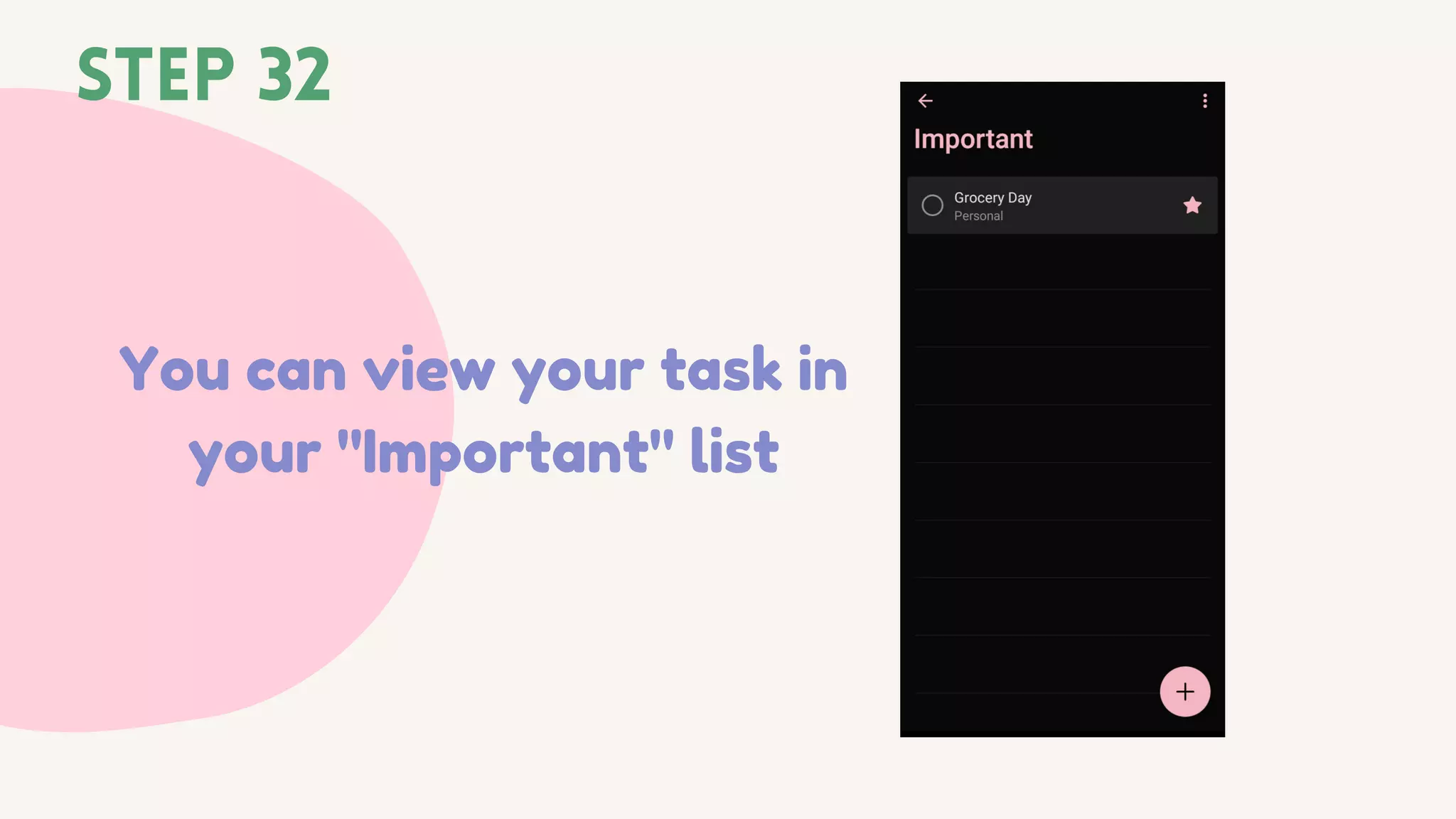
You can tap the star to add
it as your important task
You can view your task in
your "Important" list
Step 32
Step 33
When you tap the circle,
Step 33
It will be marked checked
Step 33
Which shows that you have completed a task
Can I see how many tasks I have completed?
Of course, you can
Step 34
You can see the number
of tasks you completed here
Microsoft To-Do could be
the app you're looking for.
Thank you for reading!
References:
https://techcommunity.microsoft.com/t5/microsoft-to-do-blog/introducing-microsoft-to-
do-preview/ba-p/96872
https://www.techrepublic.com/article/how-to-use-microsoft-to-do-to-keep-track-of-your-
personal-and-professional-tasks/
https://www2.slideshare.net/MarviGatdula1/step-by-step-tutorials-on-how-to-use-asana?
qid=07a1b038-4e3f-438b-9ca1-d69b3233b774&v=&b=&from_search=7

Step-by-Step Tutorial on How to Use Microsoft To Do