


MICROSOFT 365
Virtual MARATHON
May 27 & 28, 2020
36 hours / 2 days
MICROSOFT 365 VIRTUAL MARATHON
20 Microsoft 365 Productivity Tips You’ve Probably Never Used (But Should)
CHRISTIAN BUCKLEY
@buckleyplanet
www.buckleyplanet.com
Sponsored by
MICROSOFT 365
Virtual MARATHON
May 27 & 28, 2020
36 hours / 2 days
Mark Your Calendars:
March 23-25, 2021, MGM Grand Resort
Las Vegas, Nevada, USA
M365Conf.com
#M365CONF
TheSharePoint Conferenceis nowTheMicrosoft 365 CollaborationConference
#M365VM
M365VirtualMarathon.com
Broughtto youby:
TheGlobalMicrosoft Community&
M365Conf.com | #M365CONF
THANK YOU TO ALL OUR GENEROUS SPONSORS
 Christian Buckley, Founder & CEO of CollabTalk LLC
 Office Apps & Services MVP / Microsoft Regional Director
 Board member of Microsoft User Group Utah (MUGUT),
former board of Puget Sound SPUG
 Helped launch and run a dozen+ SPS events across western US
 Raised in the SF Bay Area, spent 12 years in Seattle,
currently living in Lehi, Utah
 Almost learned the banjo
LET ME INTRODUCE MYSELF…
Broughtto youby:
TheGlobalMicrosoft Community&
M365Conf.com | #M365CONF
#M365VM
M365VirtualMarathon.com
1
Leverage the new Office App
As you’ve probably seen in the MASSIVE media
push, the new Office app for iOS and Android is
now available!
The big question: Does it replace your
standalone apps?
There is a great article by Jon Friedman, head of
Microsoft Office design, on the reimagining of
the app – and how Microsoft has more to come
https://medium.com/microsoft-
design/designing-the-new-office-app-for-
mobile-1ec1162a966
You can download the app from the store:
https://apps.apple.com/app/microsoft-
office/id541164041
Leverage the new Office App
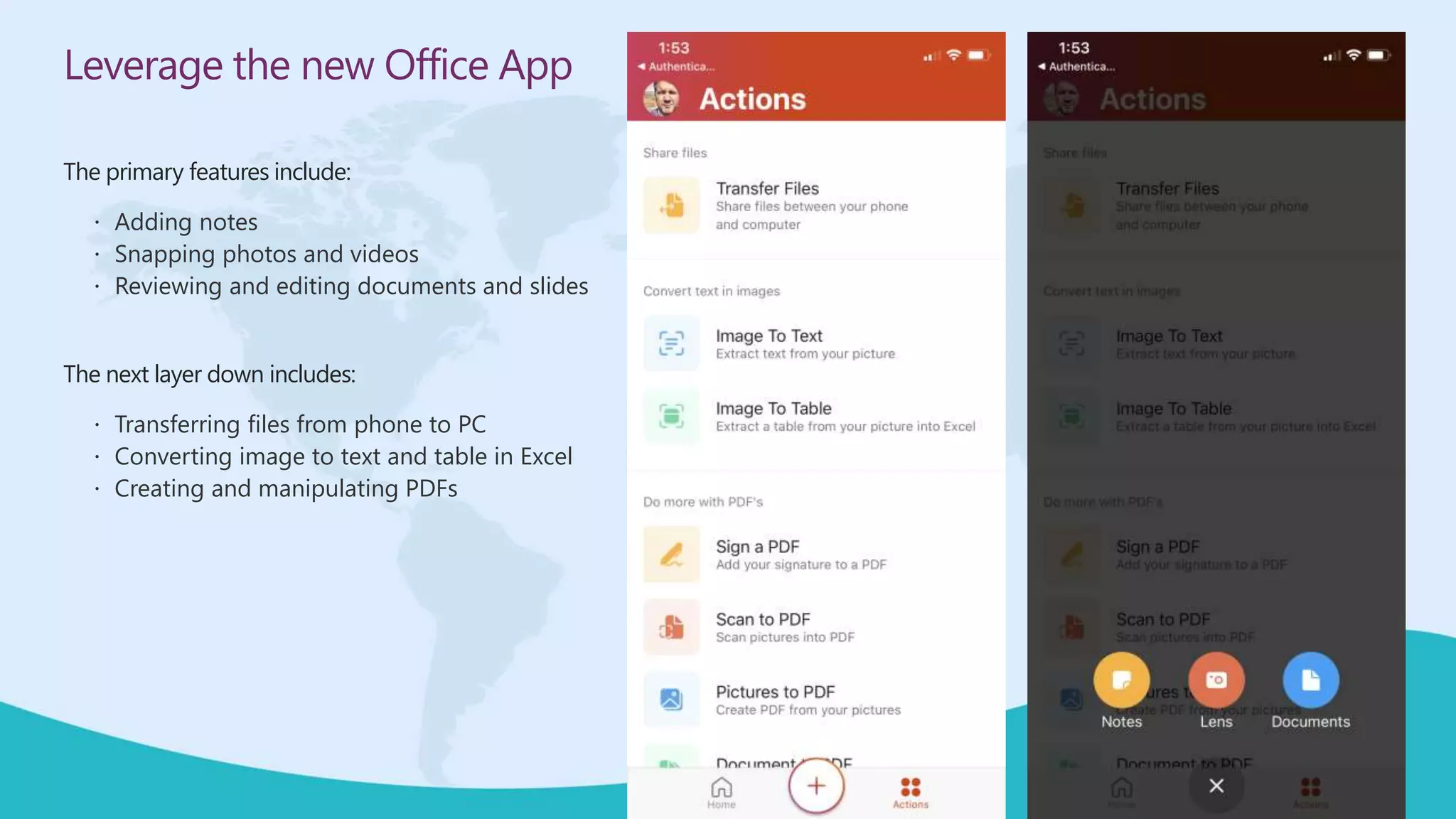
The primary features include:
 Adding notes
 Snapping photos and videos
 Reviewing and editing documents and slides
The next layer down includes:
 Transferring files from phone to PC
 Converting image to text and table in Excel
 Creating and manipulating PDFs
Leverage the new Office App
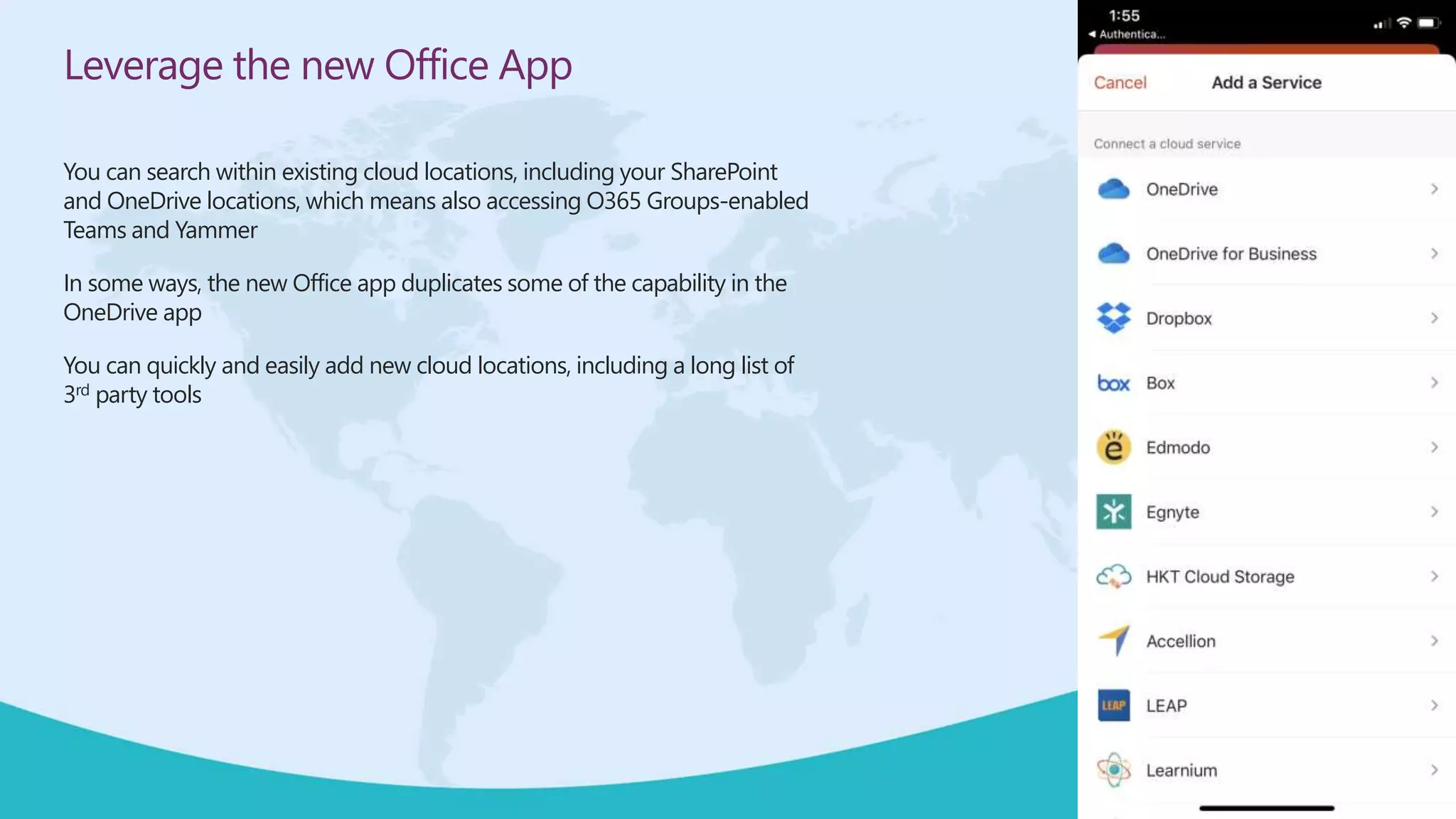
You can search within existing cloud locations, including your SharePoint
and OneDrive locations, which means also accessing O365 Groups-enabled
Teams and Yammer
In some ways, the new Office app duplicates some of the capability in the
OneDrive app
You can quickly and easily add new cloud locations, including a long list of
3rd party tools
Leverage the new Office App
Find content, review visual cards
Pin important documents
Search for content across connected libraries
Review and edit content in mobile format
…and preview in print view
View and edit metadata
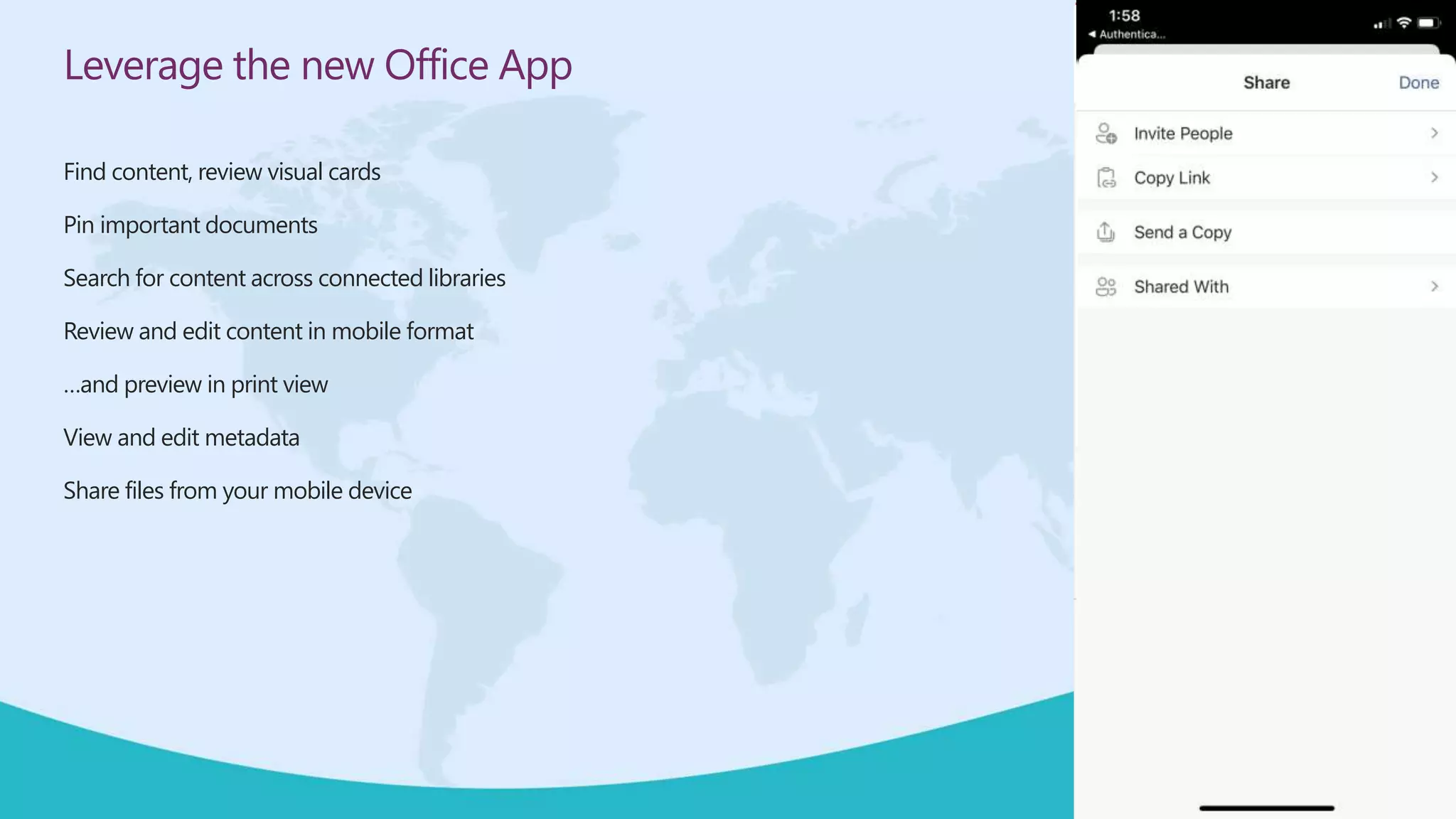
Share files from your mobile device
Leverage the new Office App
Convert tables and graphs to Excel data
Convert text within images to usable text
Leverage the new Office App
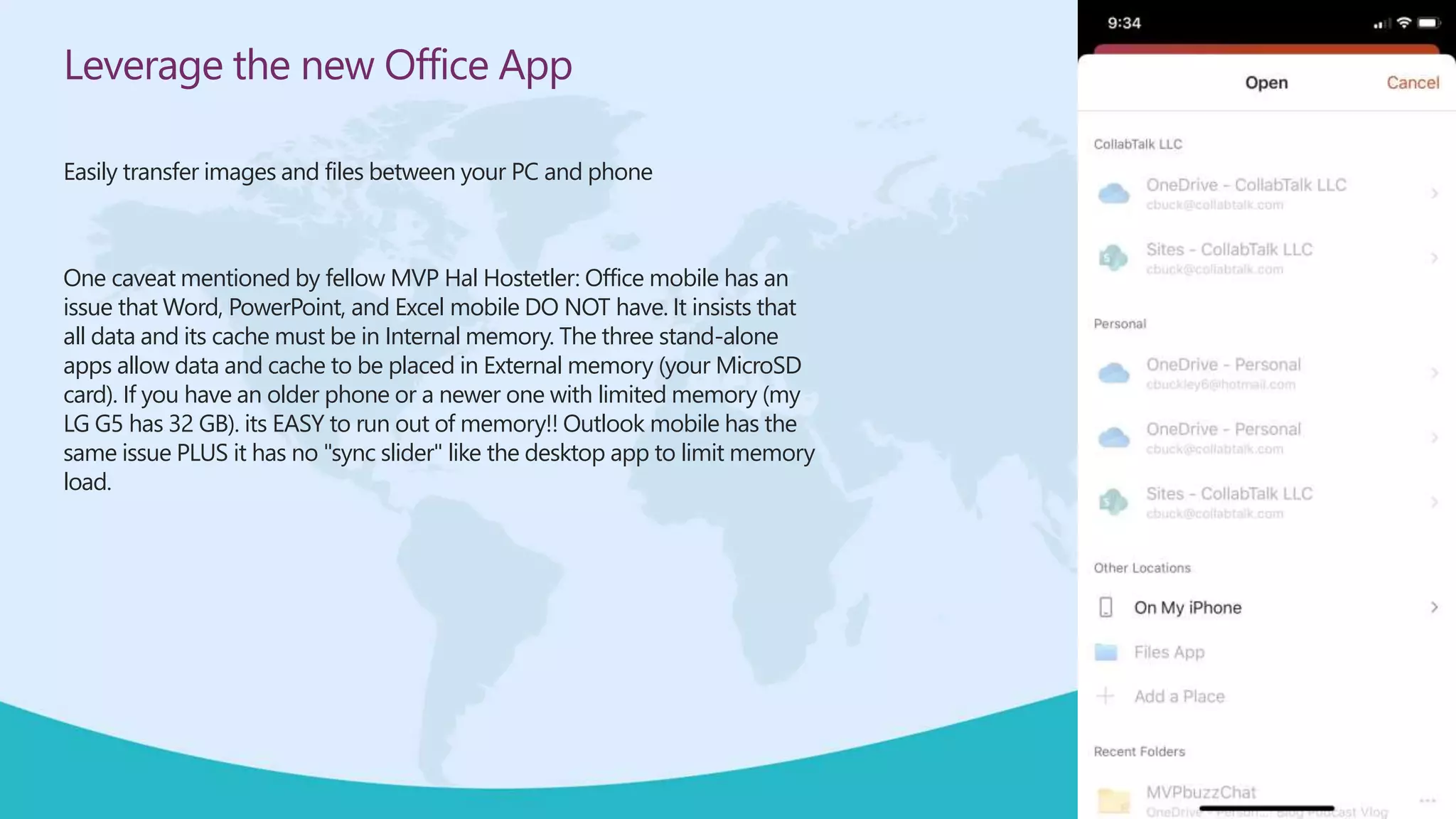
Easily transfer images and files between your PC and phone
One caveat mentioned by fellow MVP Hal Hostetler: Office mobile has an
issue that Word, PowerPoint, and Excel mobile DO NOT have. It insists that
all data and its cache must be in Internal memory. The three stand-alone
apps allow data and cache to be placed in External memory (your MicroSD
card). If you have an older phone or a newer one with limited memory (my
LG G5 has 32 GB). its EASY to run out of memory!! Outlook mobile has the
same issue PLUS it has no "sync slider" like the desktop app to limit memory
load.
2
AI-Powered To-Do Tracking in Word
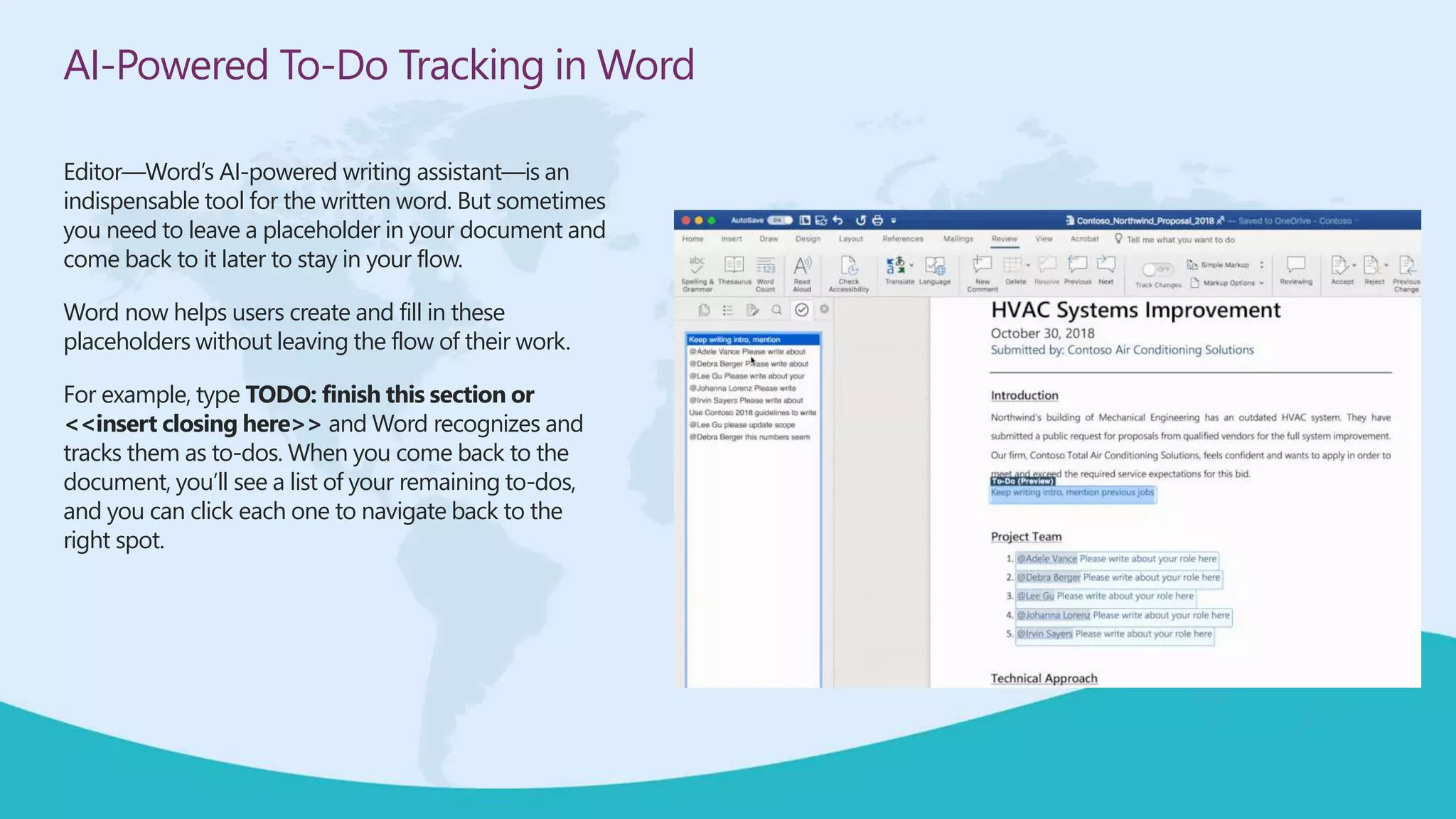
Editor—Word’s AI-powered writing assistant—is an
indispensable tool for the written word. But sometimes
you need to leave a placeholder in your document and
come back to it later to stay in your flow.
Word now helps users create and fill in these
placeholders without leaving the flow of their work.
For example, type TODO: finish this section or
<<insert closing here>> and Word recognizes and
tracks them as to-dos. When you come back to the
document, you’ll see a list of your remaining to-dos,
and you can click each one to navigate back to the
right spot.
AI-Powered To-Do Tracking in Word
Once you’ve created your to-dos, Word can also help you
complete them. If you need help from a friend or
coworker, just @mention them within a placeholder. Word
sends them a notification with a “deep link” to the relevant
place in the document.
Soon, they’ll be able to reply to the notification with their
contributions, and those contributions will be inserted
directly into the document—making it easy to complete
the task with an email from any device.
Over time, Office will use AI to help fill in many of these
placeholders. In the next few months, Word will use
Microsoft Search to suggest content for a to-do like
<<insert chart of quarterly sales figures>>. You will be
able to pick from the results and insert content from
another document with a single click.
3
Leverage Cortana Scheduler for meetings
Building on Microsoft’s strategy to re-brand Cortana as an
intelligent personal assistant, you can now leverage
Calendar.help and have Cortana help you organize online
meetings and book conference rooms.
Scheduler is not a replacement, but an alternative to
FindTime and FreeBusy that leverages the power of AI and
allows you to respond with natural language.
Scheduler works with your Office 365, Outlook.com, or
Google calendar. Cortana, using Scheduler, knows your
meeting preferences and uses them to find the best times.
This is key: External participants do not need to download
anything.
Leverage Cortana Scheduler for meetings
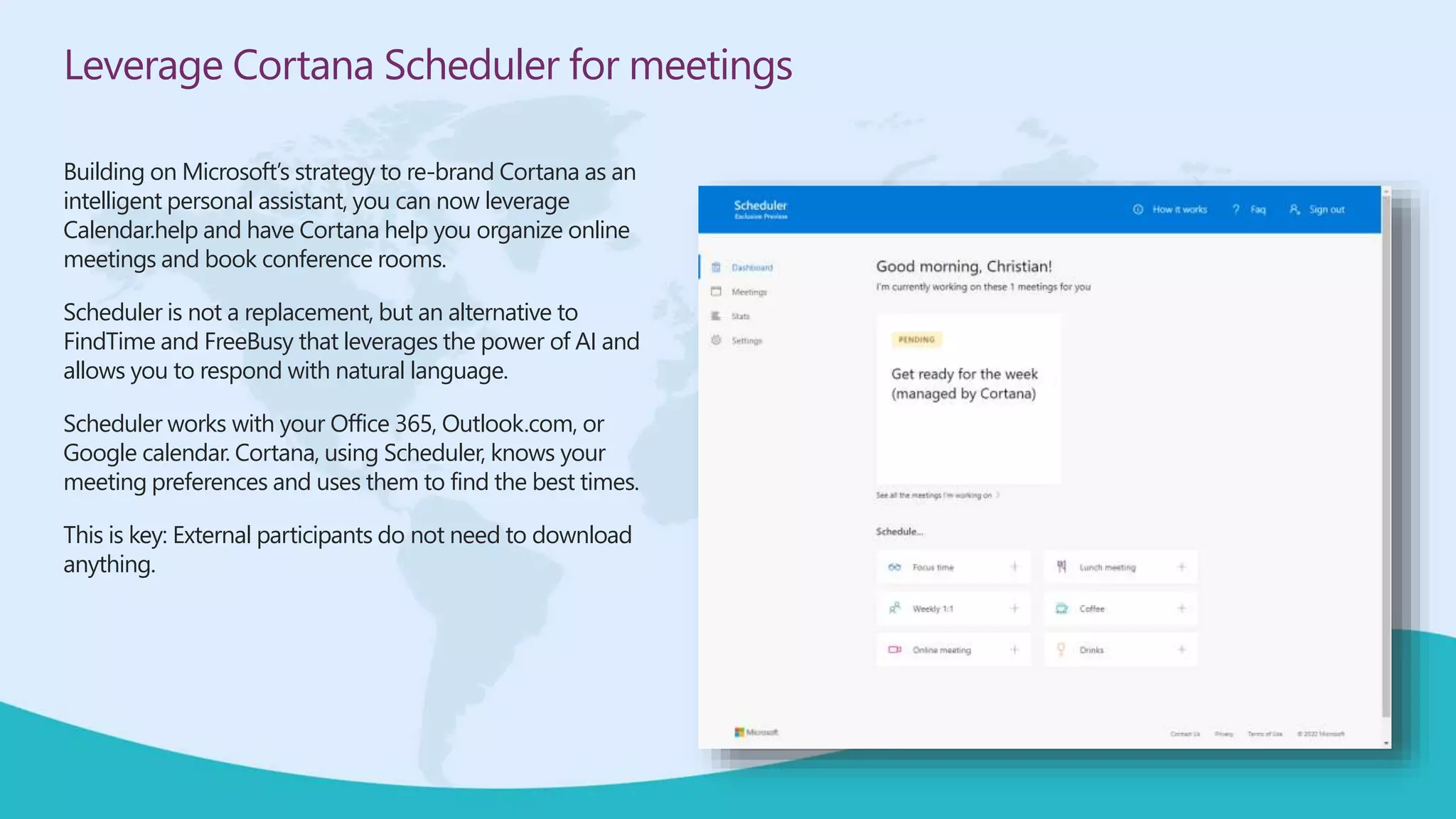
To get started, go to https://calendar.help/
Once registered and your account confirmed, simply
send an email message to cortana@calendar.help
and ask her to schedule meetings for you:
• Focus time
• Weekly 1:1
• Online meeting
• Lunch meeting
• Coffee or Drinks
From the desktop or mobile device, you can also
verbally ask Cortana to schedule these meetings.
4
Create custom results pages for Microsoft Search
Create custom search results pages for
Microsoft Search!
Announced in January, you can now create
custom search results pages in SharePoint
Online, controlling the layout and design of
search results to tailor your SharePoint Online
experience for your enterprise environment.
Btw, you can then share these results as tabs
within Teams.
Create custom results pages for Microsoft Search
To configure a custom results page in SharePoint
Online follow the steps below:
Browse to the site where you would like to
configure a custom results page and select Site
Collection Settings > Search Settings.
In Search Settings, choose to Send queries to a
custom results page, and provide a value for
Results page URL: and save your changes.
Read more at https://www.microsoft.com/en-
us/microsoft-365/blog/2020/02/27/improve-
collaboration-apps-customize-experiences-new-to-
microsoft-365-in-february/
Watch a video at https://youtu.be/SG3ngNXGUX8
5
Adding to OneNote Meeting Notes via Mobile
Within any new meeting, you have the option
to add OneNote meeting notes to any
outgoing meeting invite.
From the Appointment menu, simply select
Meeting Notes.
Next, select either Share Notes with the
Meeting or Take Notes on Your Own
Adding to OneNote Meeting Notes via Mobile
From your mobile device, you can now capture
images, audio, or even video and add directly to
the personal or teams notes, giving you yet
another way to capture multi-media for your
collaborative efforts.
6
Adding an Email as a Task in Outlook and To-Do
To-Do is quickly becoming “the” default task
management solution within Office. Within
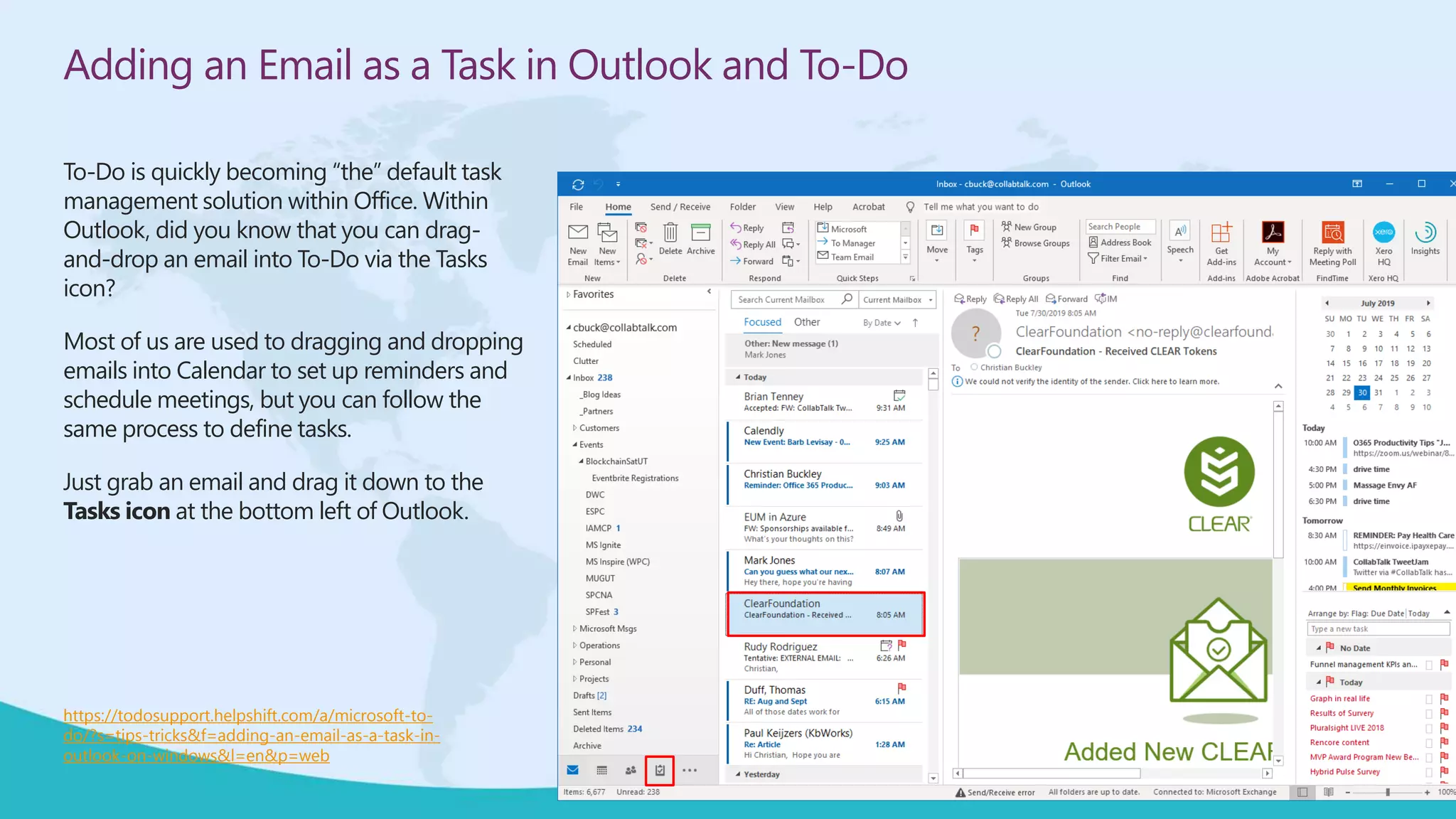
Outlook, did you know that you can drag-
and-drop an email into To-Do via the Tasks
icon?
Most of us are used to dragging and dropping
emails into Calendar to set up reminders and
schedule meetings, but you can follow the
same process to define tasks.
Just grab an email and drag it down to the
Tasks icon at the bottom left of Outlook.
https://todosupport.helpshift.com/a/microsoft-to-
do/?s=tips-tricks&f=adding-an-email-as-a-task-in-
outlook-on-windows&l=en&p=web
Adding an Email as a Task in Outlook and To-Do
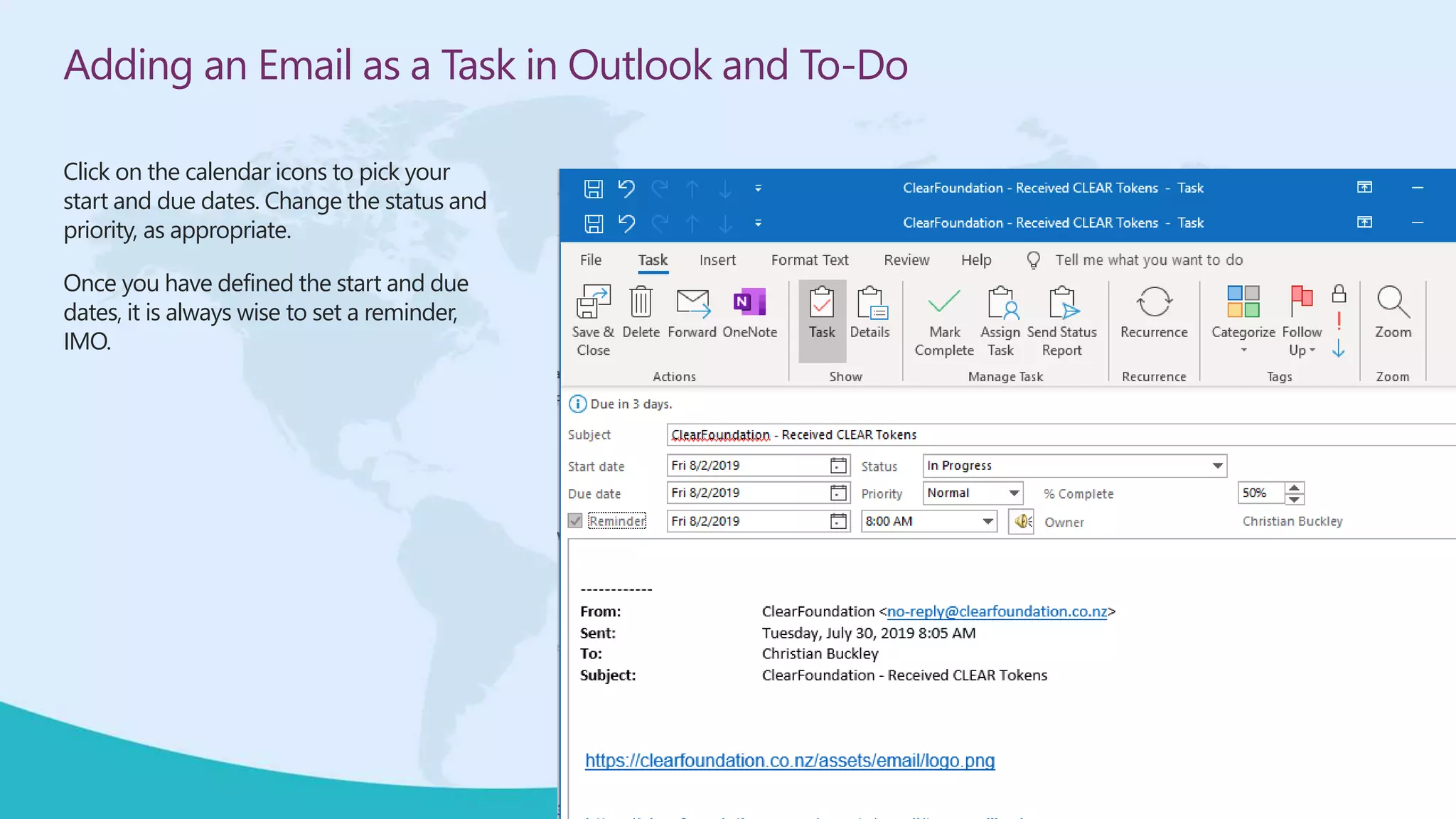
A task dialog will open up, with task details
at the top and the body of the email below.
From here you can set due dates, reminders,
assign it to someone on your team, push it
to OneNote, and more.
Adding an Email as a Task in Outlook and To-Do
Click on the calendar icons to pick your
start and due dates. Change the status and
priority, as appropriate.
Once you have defined the start and due
dates, it is always wise to set a reminder,
IMO.
Adding an Email as a Task in Outlook and To-Do
Within the Tasks view of Outlook, you can
quickly view all of the tasks created within
Outlook – as well as task lists created in the
To-Do app (Windows or mobile)
For additional productivity, there is much
more than you can do with To-Do
integration to your mobile device and other
smart speakers, and automate using
Microsoft Flow. We’ll cover more of those
examples in future tips…
7
Add Quick Polls to Outlook emails
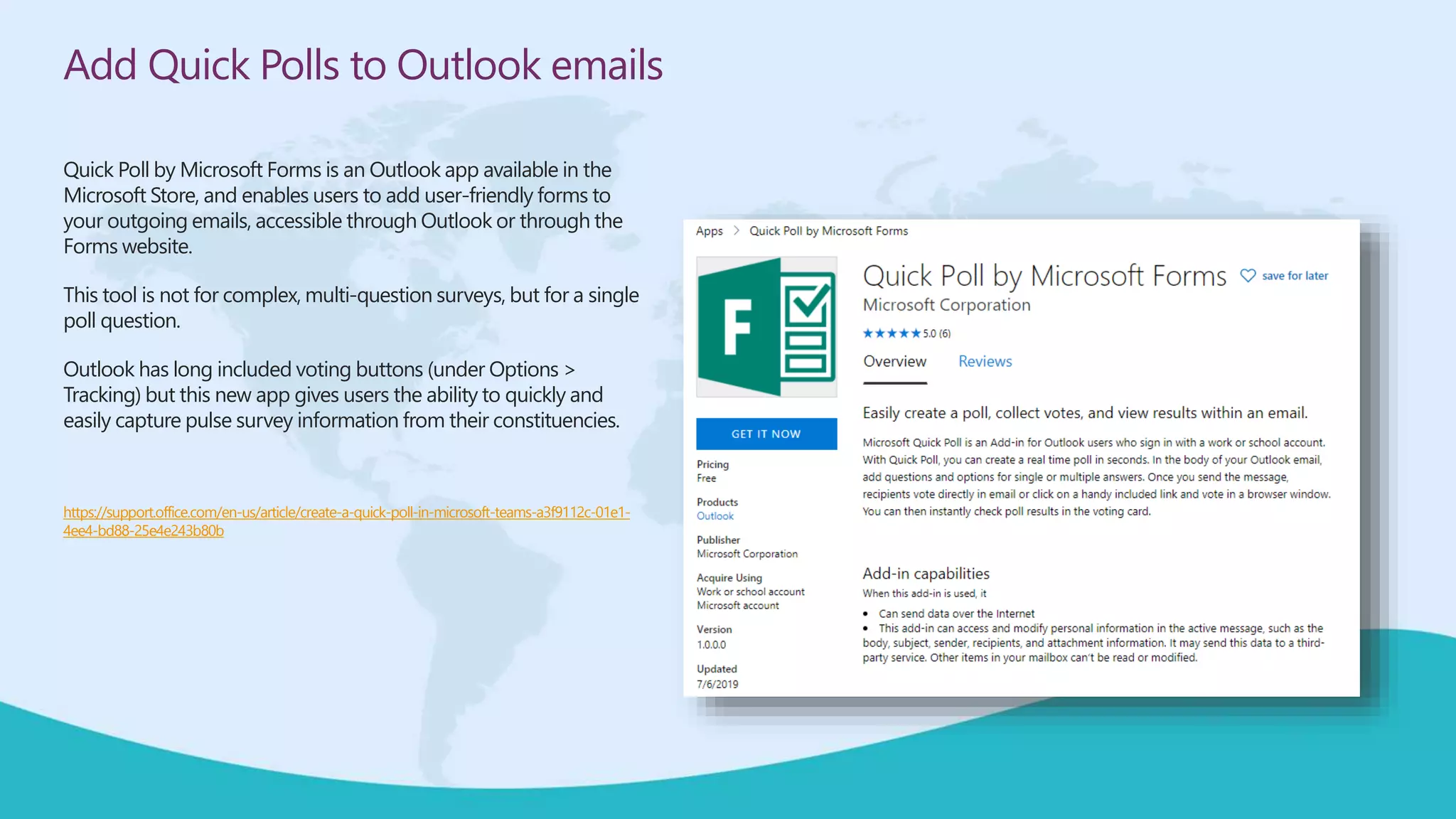
Quick Poll by Microsoft Forms is an Outlook app available in the
Microsoft Store, and enables users to add user-friendly forms to
your outgoing emails, accessible through Outlook or through the
Forms website.
This tool is not for complex, multi-question surveys, but for a single
poll question.
Outlook has long included voting buttons (under Options >
Tracking) but this new app gives users the ability to quickly and
easily capture pulse survey information from their constituencies.
https://support.office.com/en-us/article/create-a-quick-poll-in-microsoft-teams-a3f9112c-01e1-
4ee4-bd88-25e4e243b80b
Create Internal or External Polls with Microsoft Forms
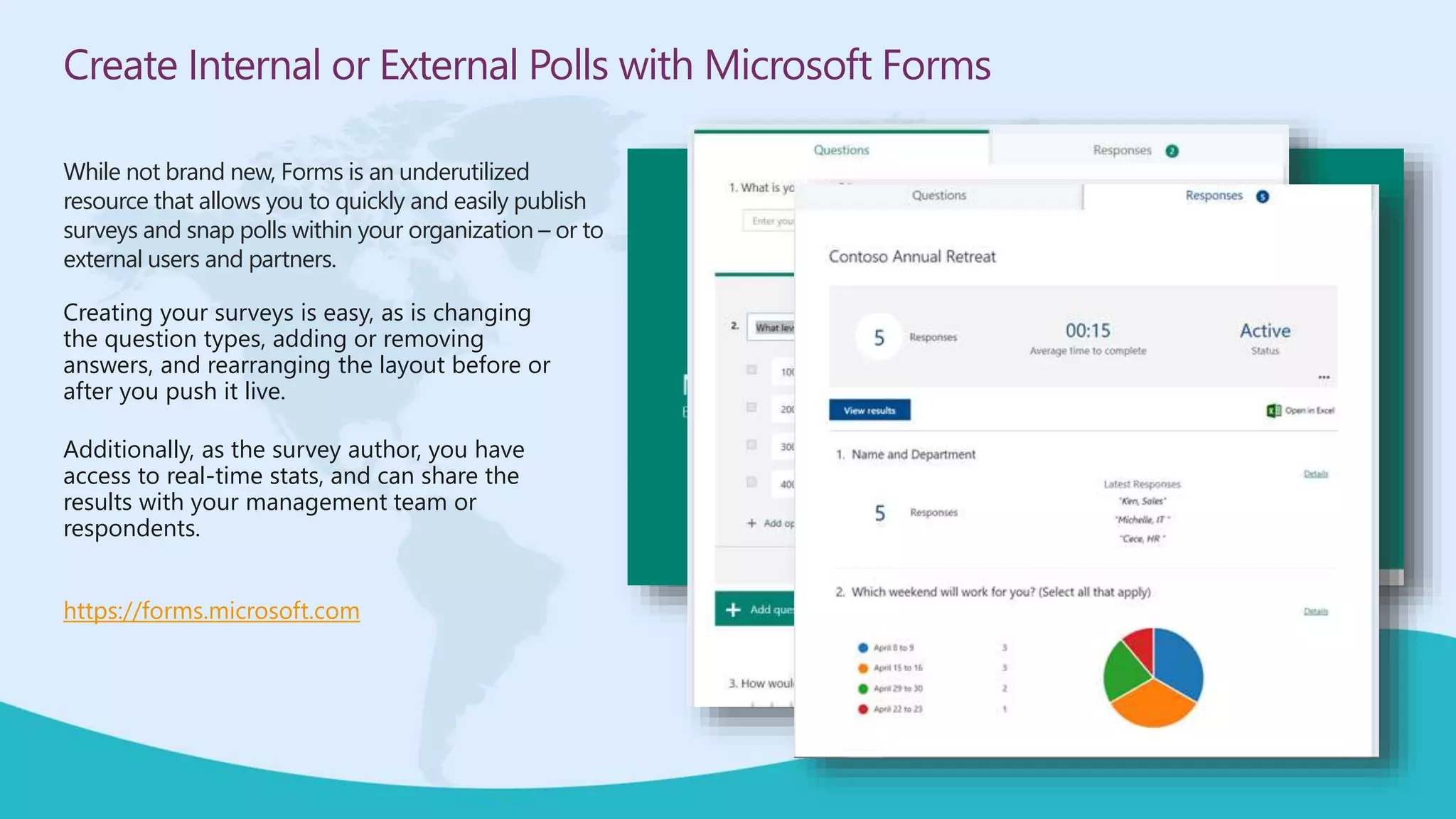
While not brand new, Forms is an underutilized
resource that allows you to quickly and easily publish
surveys and snap polls within your organization – or to
external users and partners.
Creating your surveys is easy, as is changing
the question types, adding or removing
answers, and rearranging the layout before or
after you push it live.
Additionally, as the survey author, you have
access to real-time stats, and can share the
results with your management team or
respondents.
https://forms.microsoft.com
8
Microsoft Stream now allows for screen capture videos
OK… I did NOT know this was coming, but it is *really* cool! You can now use Microsoft Stream to record screen
capture videos up to 15 minutes in length. Think of creating your own short training videos where you show something
on your screen with narration and everything. Here's how that works…
When you're in Microsoft Stream, you can start your screen capture session by selecting Create > Record Screen:
Microsoft Stream now allows for screen capture videos
To start your recording, click the Record button:
Microsoft Stream now allows for screen capture videos
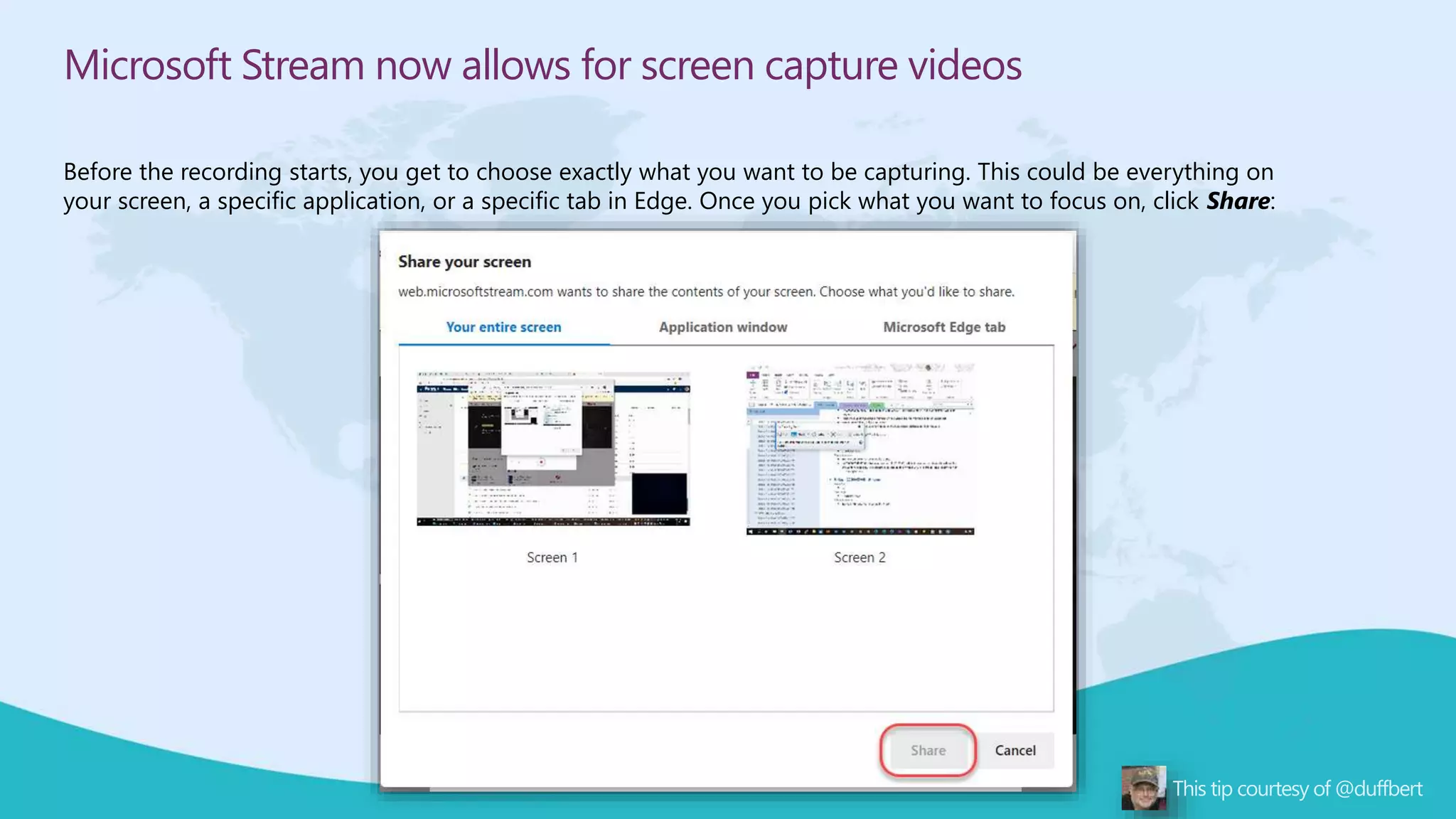
Before the recording starts, you get to choose exactly what you want to be capturing. This could be everything on
your screen, a specific application, or a specific tab in Edge. Once you pick what you want to focus on, click Share:
Microsoft Stream now allows for screen capture videos
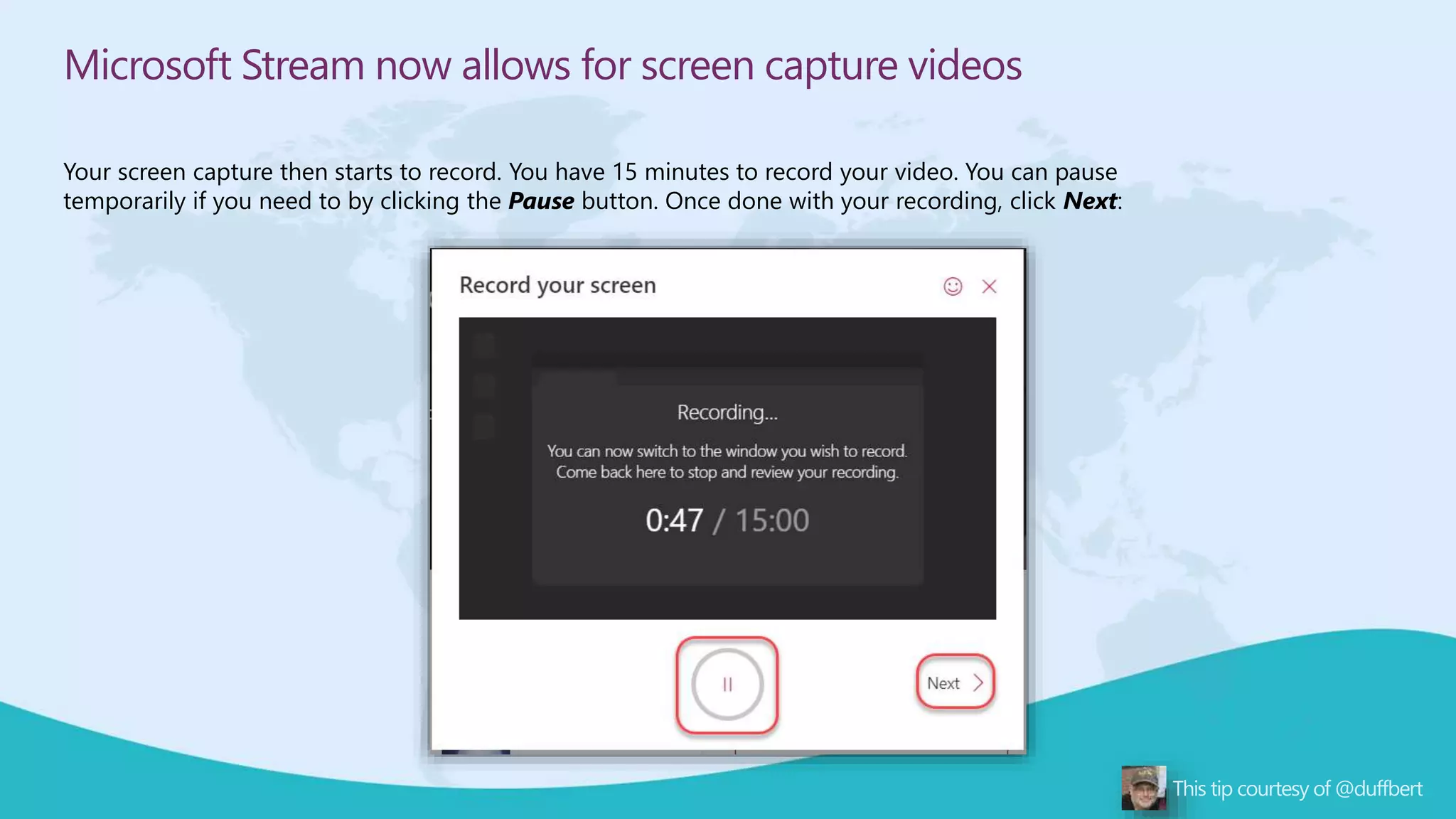
Your screen capture then starts to record. You have 15 minutes to record your video. You can pause
temporarily if you need to by clicking the Pause button. Once done with your recording, click Next:
Microsoft Stream now allows for screen capture videos
At this point, you can either choose to re-record your video (Record Again), or you can Upload To Stream:
Microsoft Stream now allows for screen capture videos
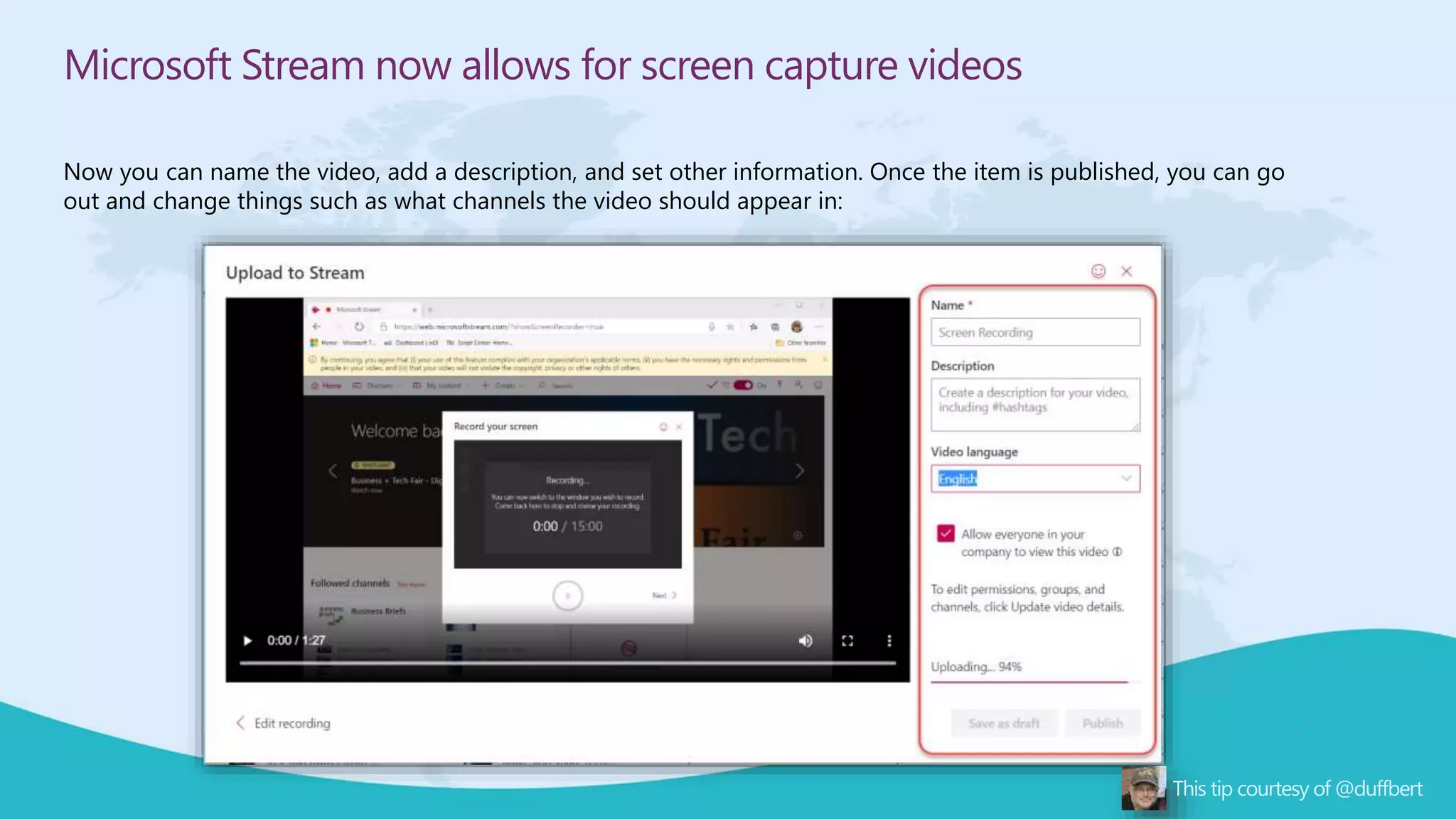
Now you can name the video, add a description, and set other information. Once the item is published, you can go
out and change things such as what channels the video should appear in:
9
Create Tabs in Teams Chats
We’re all familiar with creating Tabs in
Teams, but did you know that you can also
create a Tab in a Chat? It is a great way to
expand your collaborations with individuals
or small groups without having to create
the more “permanent” Teams or Channels.
Tabs in channels can be seen by everyone
in the Team, but Tabs in chats can only be
seen by members of the chat.
The same is true for bots used within
private or group chats, which you can read
more about at
https://docs.microsoft.com/en-
us/microsoftteams/platform/bots/what-
are-bots
Create Tabs in Teams Chats
To get started, go into the target chat in
Teams and select the + from the top nav to
add a tab.
The Add a Tab dialog will open, allowing
you to select from all of the apps available
to your organization.
In this example, I want to post a blog post
to our chat that we can reference in our
ongoing conversations.
Once saved, the new tab appears in our
chat, and only members of the chat can
view this information.
10
Use Alt-Tab & Windows Key to Organize your Desktop
The reality is that multi-tasking (i.e. context-switching) is a productivity-sapping dream of the ADHD and OCD crowd (I am one of
them). Having said that….we all do it. So why not make it easier to organize our already overly complex desktops?
The two tools that I rely on are switching between applications using Alt+Tab, and the screen-splitting bliss of the Windows Key
and arrows. When you add in the Windows Timeline feature, you will become the Master of your screen domain!
First, we’re probably all familiar with the Alt+Tab capability, which allows you to see and move between any and all open
applications on your desktop. This is an essential tool when you have one screen or many screens.
Use Alt-Tab & Windows Key to Organize your Desktop
Next up in screen splitting. Let’s say you’re taking notes in OneNote while reviewing several sites in the Edge browser, or
documentation hosted on Teams.
Select the first app, in this case OneNote, and while holding down the Windows Key on your keyboard, hit the right arrow ()
Use Alt-Tab & Windows Key to Organize your Desktop
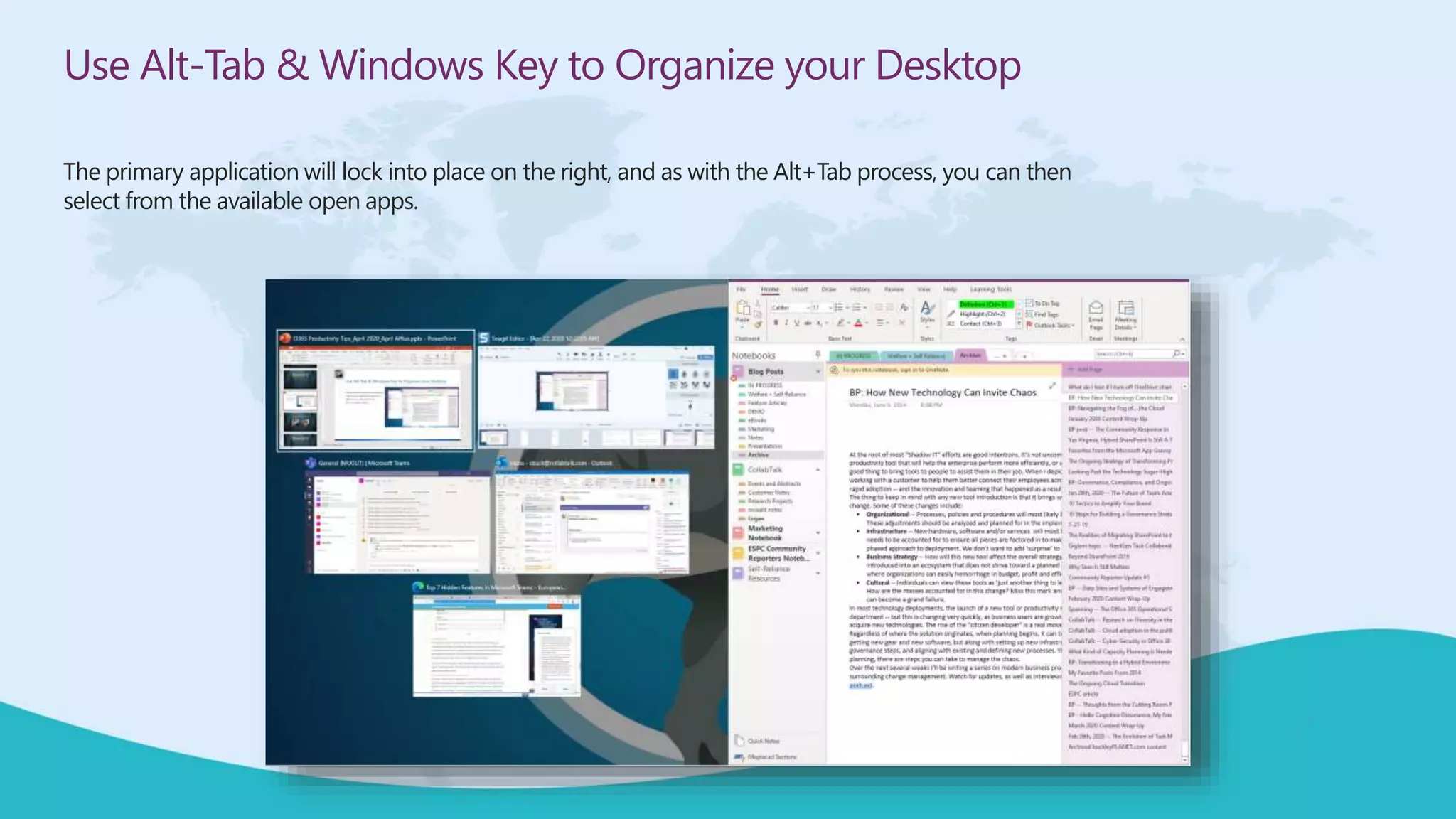
The primary application will lock into place on the right, and as with the Alt+Tab process, you can then
select from the available open apps.
Use Alt-Tab & Windows Key to Organize your Desktop
The second app will lock into place.
You can then grab the divider between them and slide left and right to adjust how much screen real estate to give each as you work.
Use Alt-Tab & Windows Key to Organize your Desktop
The second app will lock into place.
You can then grab the divider between them and slide left and right to adjust how much screen real estate to give each as you work.
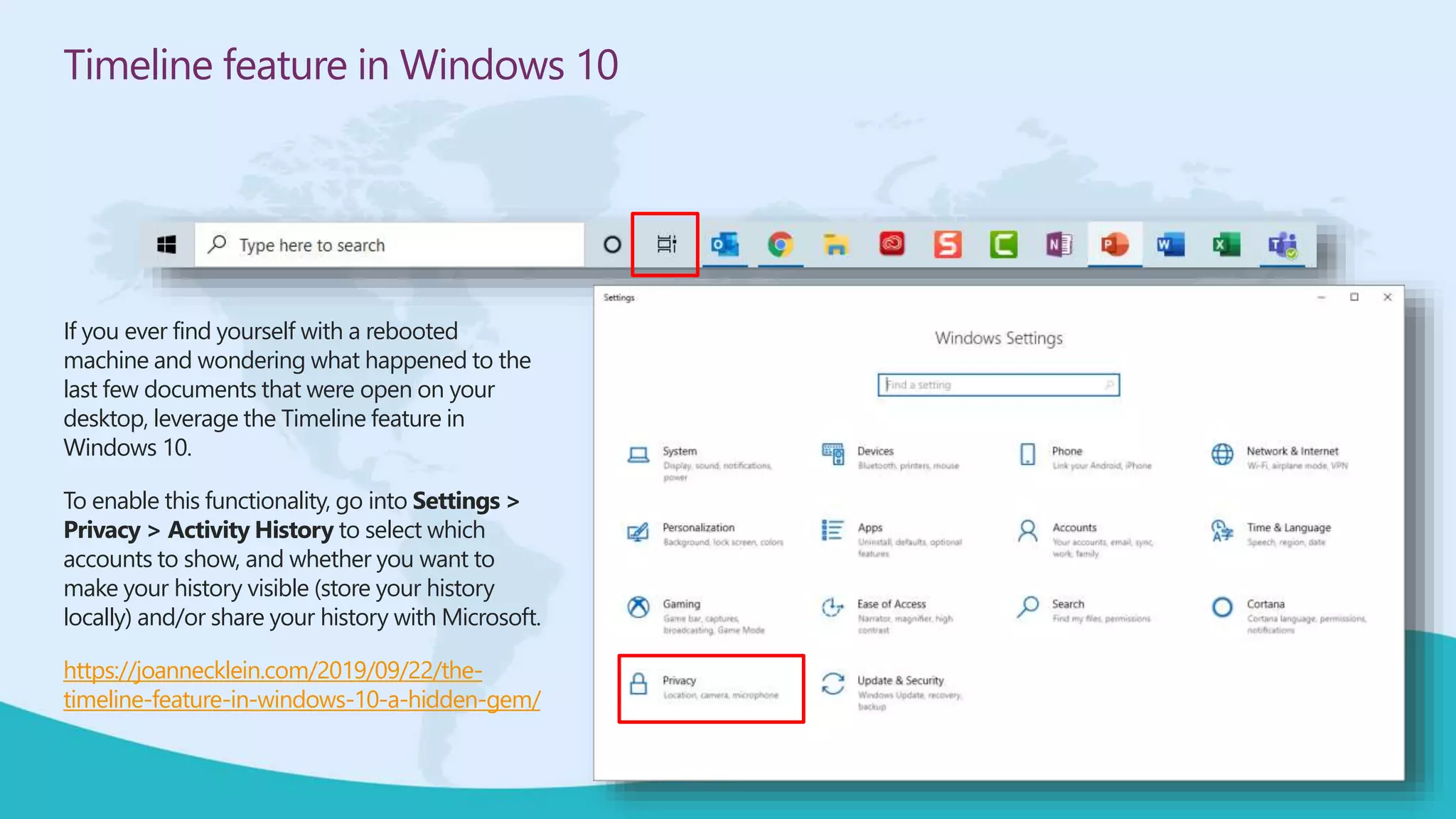
Timeline feature in Windows 10
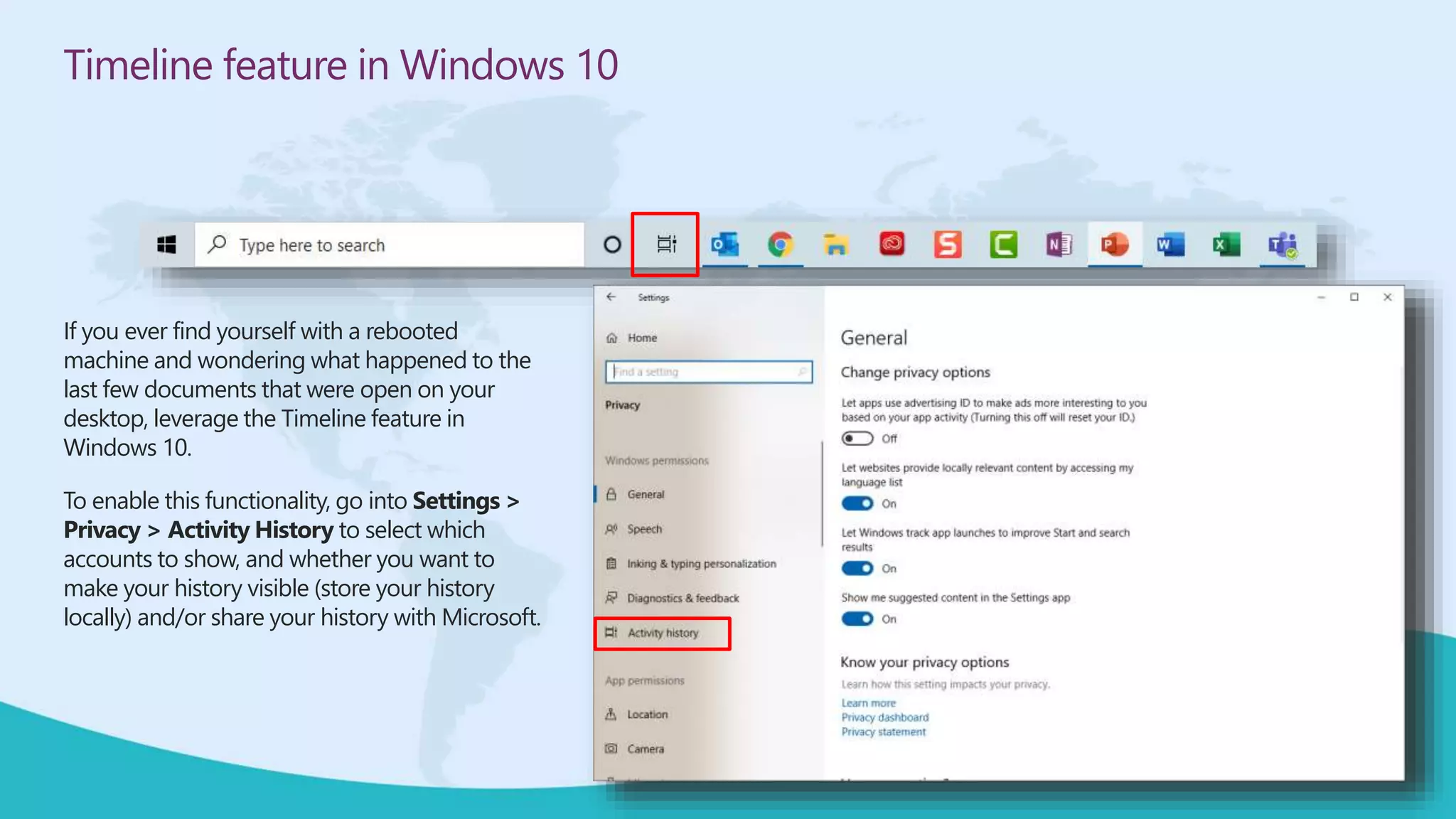
If you ever find yourself with a rebooted
machine and wondering what happened to the
last few documents that were open on your
desktop, leverage the Timeline feature in
Windows 10.
To enable this functionality, go into Settings >
Privacy > Activity History to select which
accounts to show, and whether you want to
make your history visible (store your history
locally) and/or share your history with Microsoft.
https://joannecklein.com/2019/09/22/the-
timeline-feature-in-windows-10-a-hidden-gem/
Timeline feature in Windows 10
If you ever find yourself with a rebooted
machine and wondering what happened to the
last few documents that were open on your
desktop, leverage the Timeline feature in
Windows 10.
To enable this functionality, go into Settings >
Privacy > Activity History to select which
accounts to show, and whether you want to
make your history visible (store your history
locally) and/or share your history with Microsoft.
Timeline feature in Windows 10
If you ever find yourself with a rebooted
machine and wondering what happened to the
last few documents that were open on your
desktop, leverage the Timeline feature in
Windows 10.
To enable this functionality, go into Settings >
Privacy > Activity History to select which
accounts to show, and whether you want to
make your history visible (store your history
locally) and/or share your history with Microsoft.
Timeline feature in Windows 10
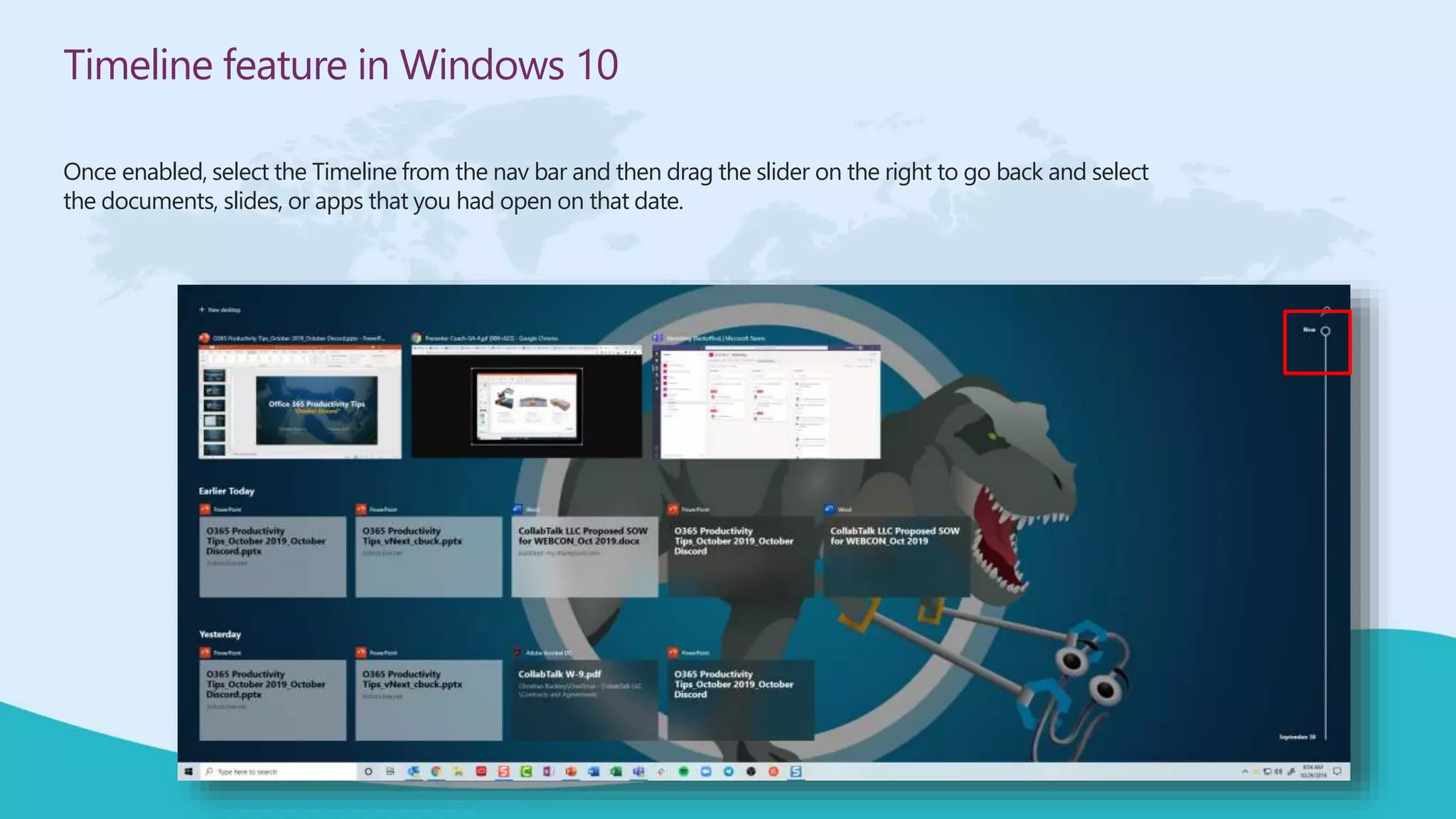
Once enabled, select the Timeline from the nav bar and then drag the slider on the right to go back and select
the documents, slides, or apps that you had open on that date.
Timeline feature in Windows 10
Once enabled, select the Timeline from the nav bar and then drag the slider on the right to go back and
select the documents, slides, or apps that you had open on that date.
11
Increase engagement in Teams with the Incentives App
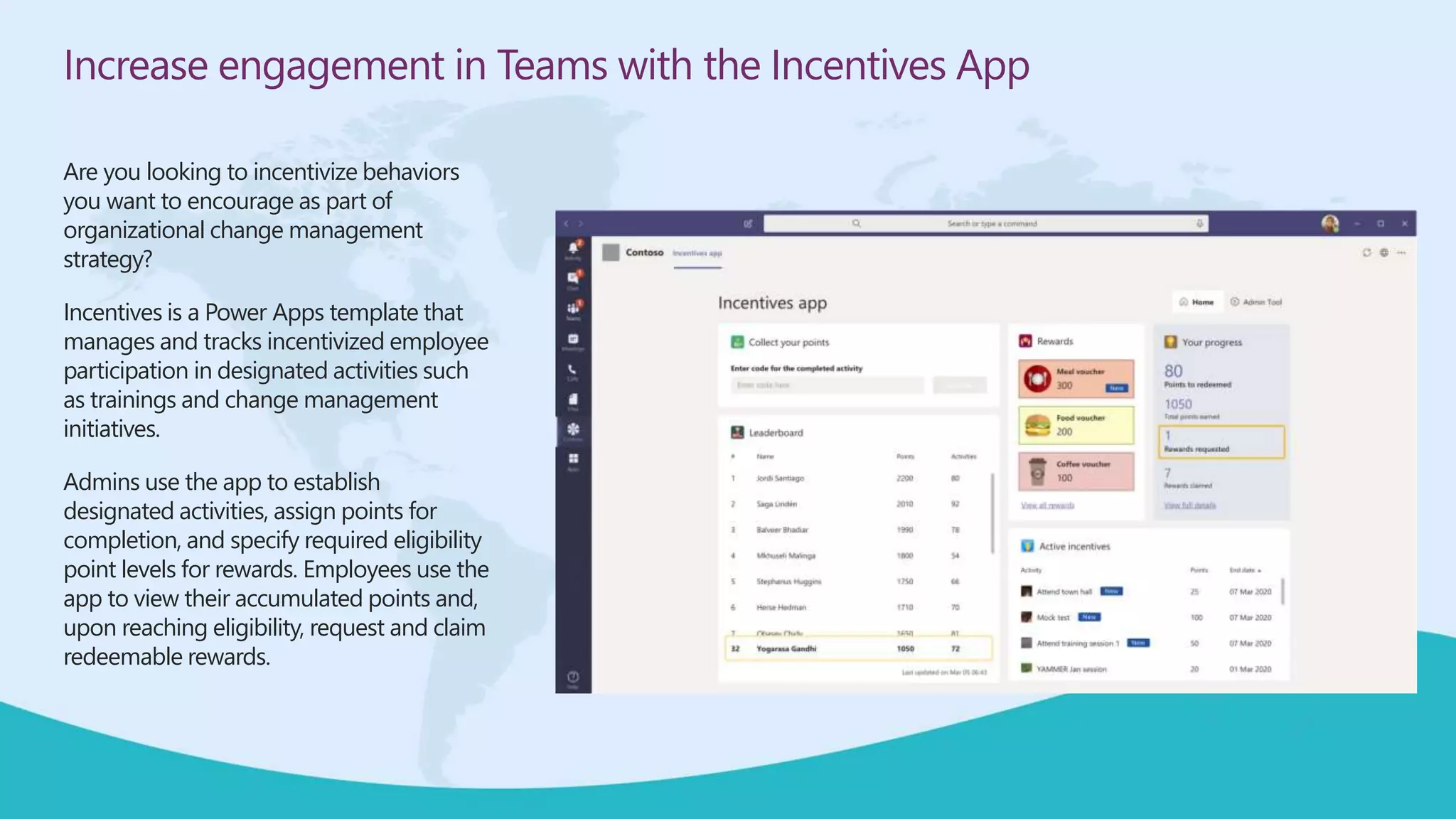
Are you looking to incentivize behaviors
you want to encourage as part of
organizational change management
strategy?
Incentives is a Power Apps template that
manages and tracks incentivized employee
participation in designated activities such
as trainings and change management
initiatives.
Admins use the app to establish
designated activities, assign points for
completion, and specify required eligibility
point levels for rewards. Employees use the
app to view their accumulated points and,
upon reaching eligibility, request and claim
redeemable rewards.
Increase engagement in Teams with the Incentives App
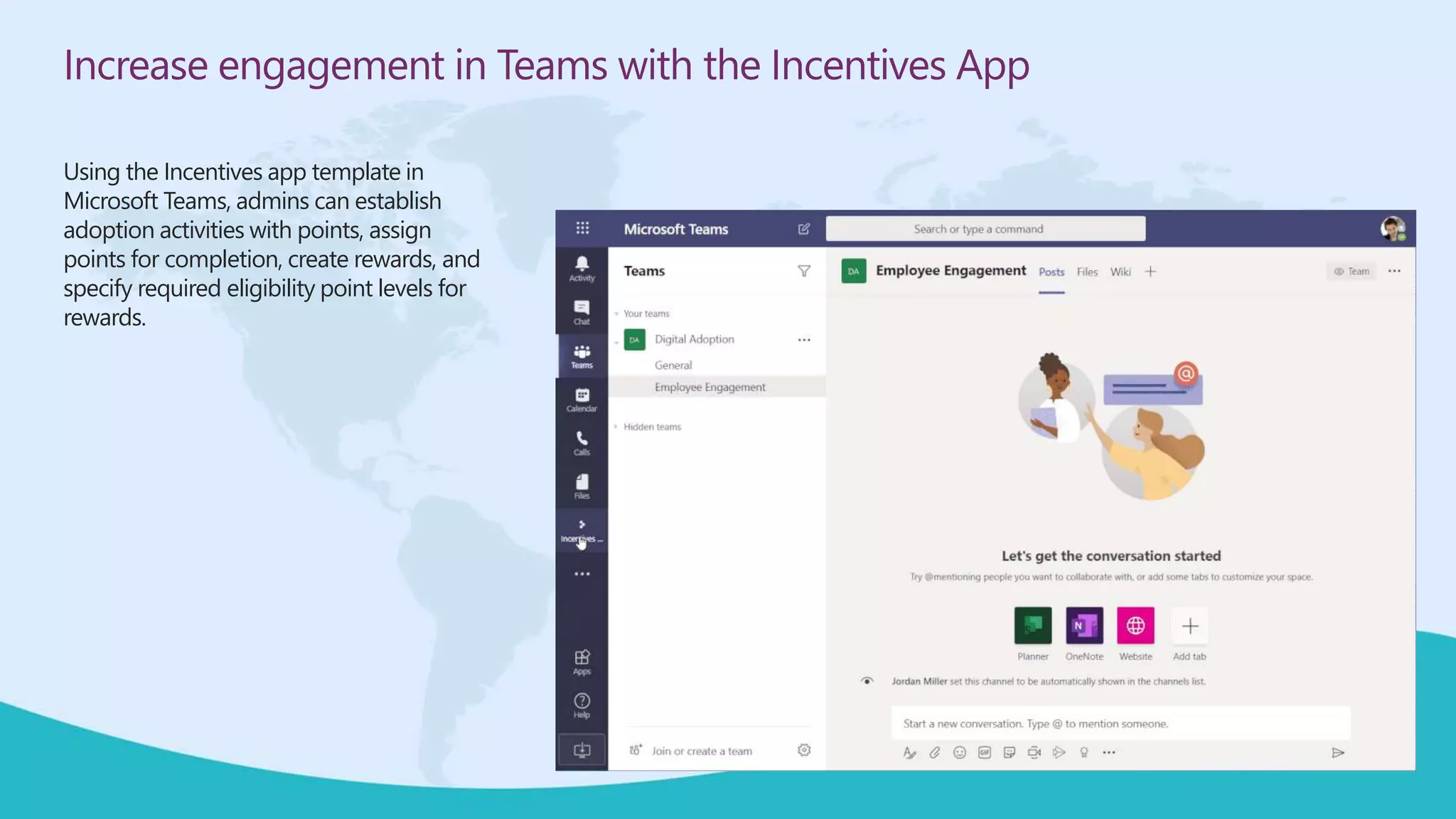
Using the Incentives app template in
Microsoft Teams, admins can establish
adoption activities with points, assign
points for completion, create rewards, and
specify required eligibility point levels for
rewards.
Increase engagement in Teams with the Incentives App
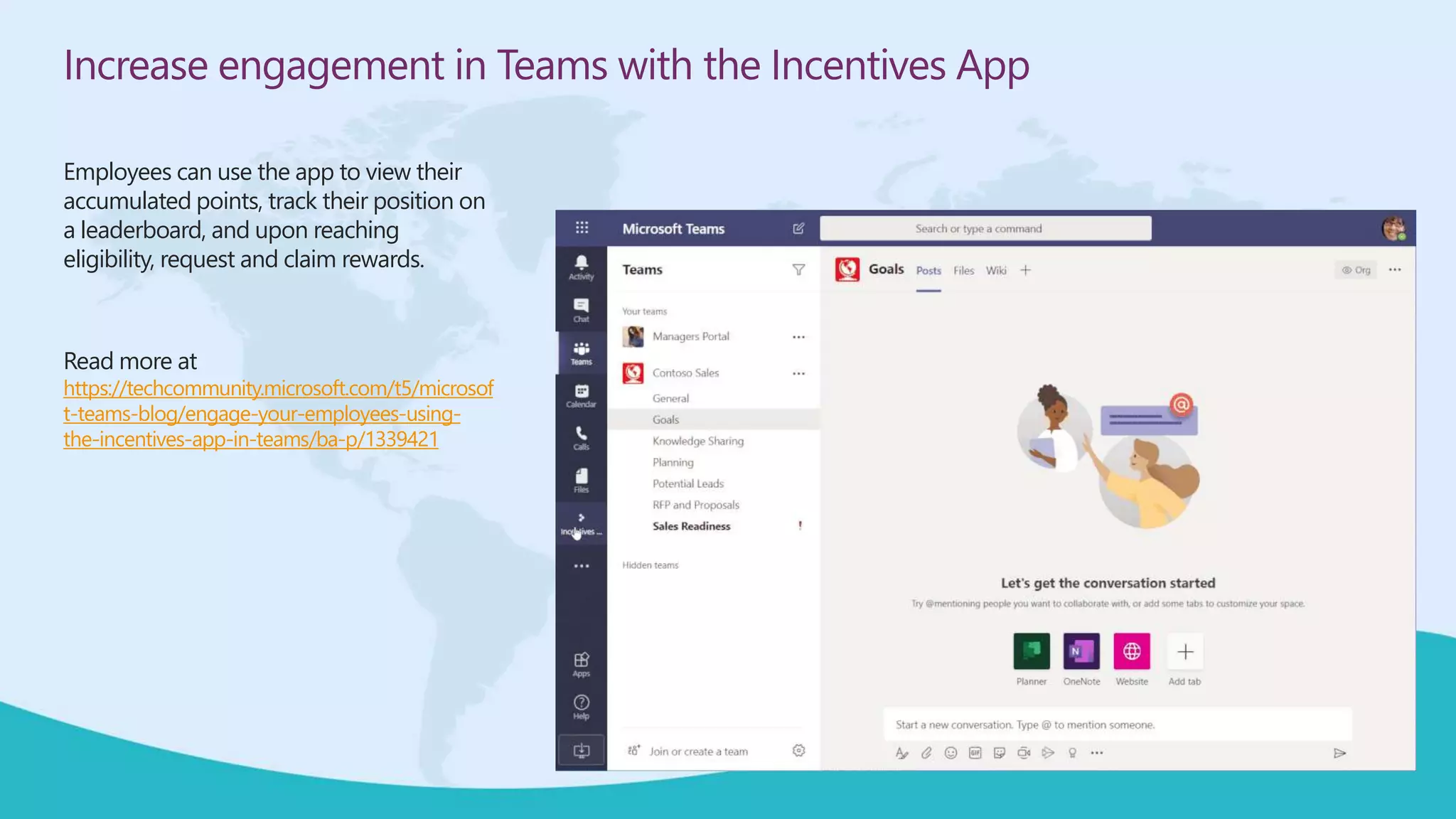
Employees can use the app to view their
accumulated points, track their position on
a leaderboard, and upon reaching
eligibility, request and claim rewards.
Read more at
https://techcommunity.microsoft.com/t5/microsof
t-teams-blog/engage-your-employees-using-
the-incentives-app-in-teams/ba-p/1339421
12
Visualize your data with Ideas in Excel
If you’ve used the Ideas option in PowerPoint and were
wondering when this fantastic, AI-driven feature would
be included within Excel, it’s here!
Excel Ideas helps users create high-quality documents,
presentations, and spreadsheets in less time.
Put simply, it uses AI to turn data into visualizations to
help you easily identify summaries, trends, and
patterns.
In addition to getting recommendations from Ideas,
you can also directly ask questions about your data
and narrow down the Ideas by selecting only the fields
you want to see. When you choose fields and how to
summarize them, Ideas analyzes that data—speeding
up the process and presenting fewer, more targeted
suggestions.
Visualize your data with Ideas in Excel
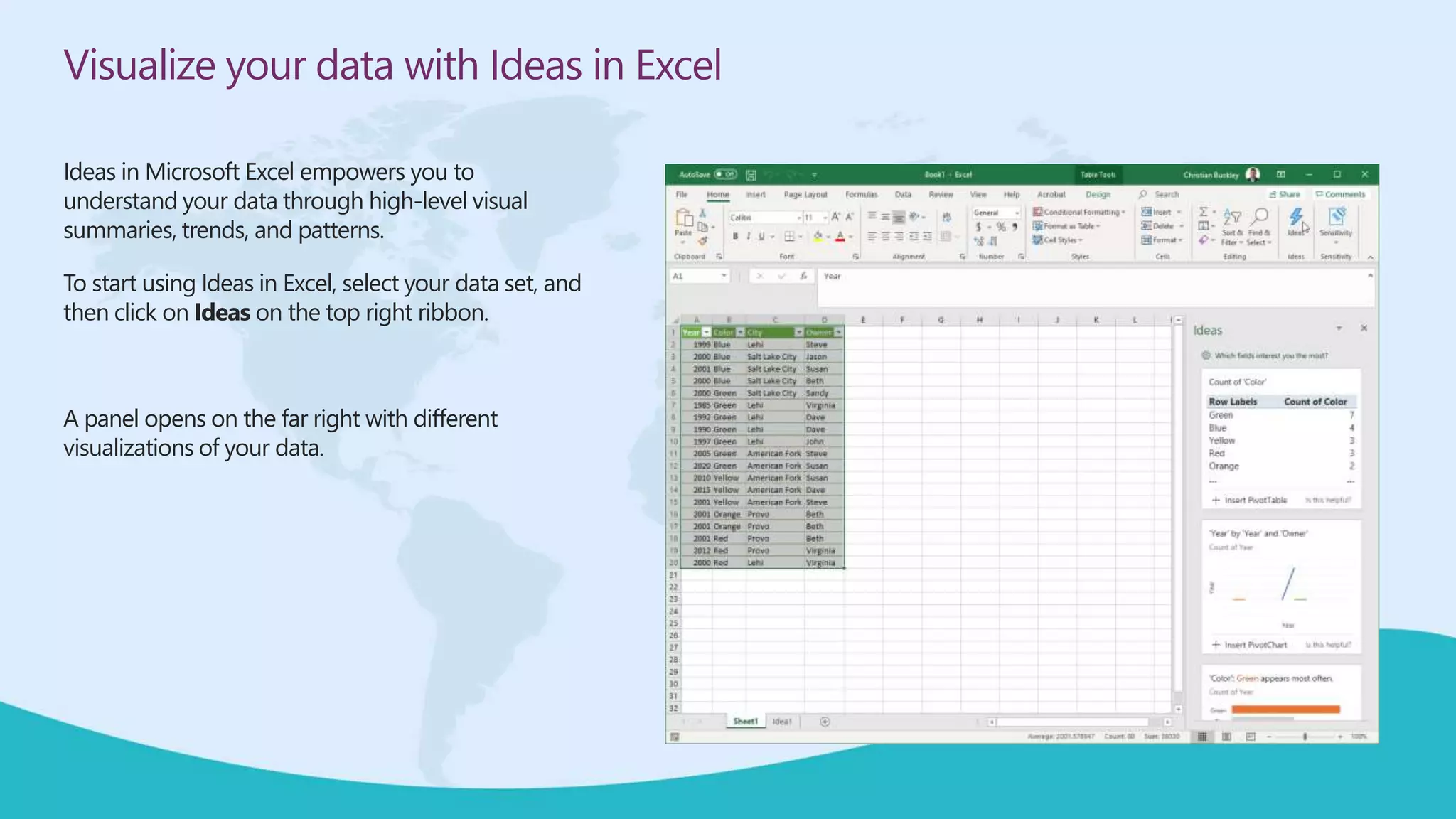
Ideas in Microsoft Excel empowers you to
understand your data through high-level visual
summaries, trends, and patterns.
To start using Ideas in Excel, select your data set, and
then click on Ideas on the top right ribbon.
A panel opens on the far right with different
visualizations of your data.
Visualize your data with Ideas in Excel
You can refine the options you see by selecting specific
fields on which to focus.
These options change the visualizations available to you.
The idea is to provide a jumpstart into these
visualizations – which you can tweak and adjust to create
the right view of your data and convey the right
messaging.
Once you’ve identified the visualization that works best
for your data, select +Insert PivotChart
Visualize your data with Ideas in Excel
A new tab is opened within your spreadsheet, with an
abbreviated set of data based on your selection, and
the related PivotChart.
From here you can cut and paste into a presentation,
or further manipulate the look and feel or the data.
To learn more about Ideas, watch this video.
To learn more about Ideas, read this article.
13
Present like a pro with PowerPoint Presenter Coach
Now that you’ve made your content and
graphs look amazing, PowerPoint
Presenter Coach (in preview) helps you nail
your delivery.
For some, the art of delivering an
impactful presentation comes naturally,
while for others it can be a stressful
experience.
Available through PowerPoint for the Web,
Presenter Coach provides real-time
feedback and suggestions to help you
gain confidence and improve your public
speaking abilities.
Present like a pro with PowerPoint Presenter Coach
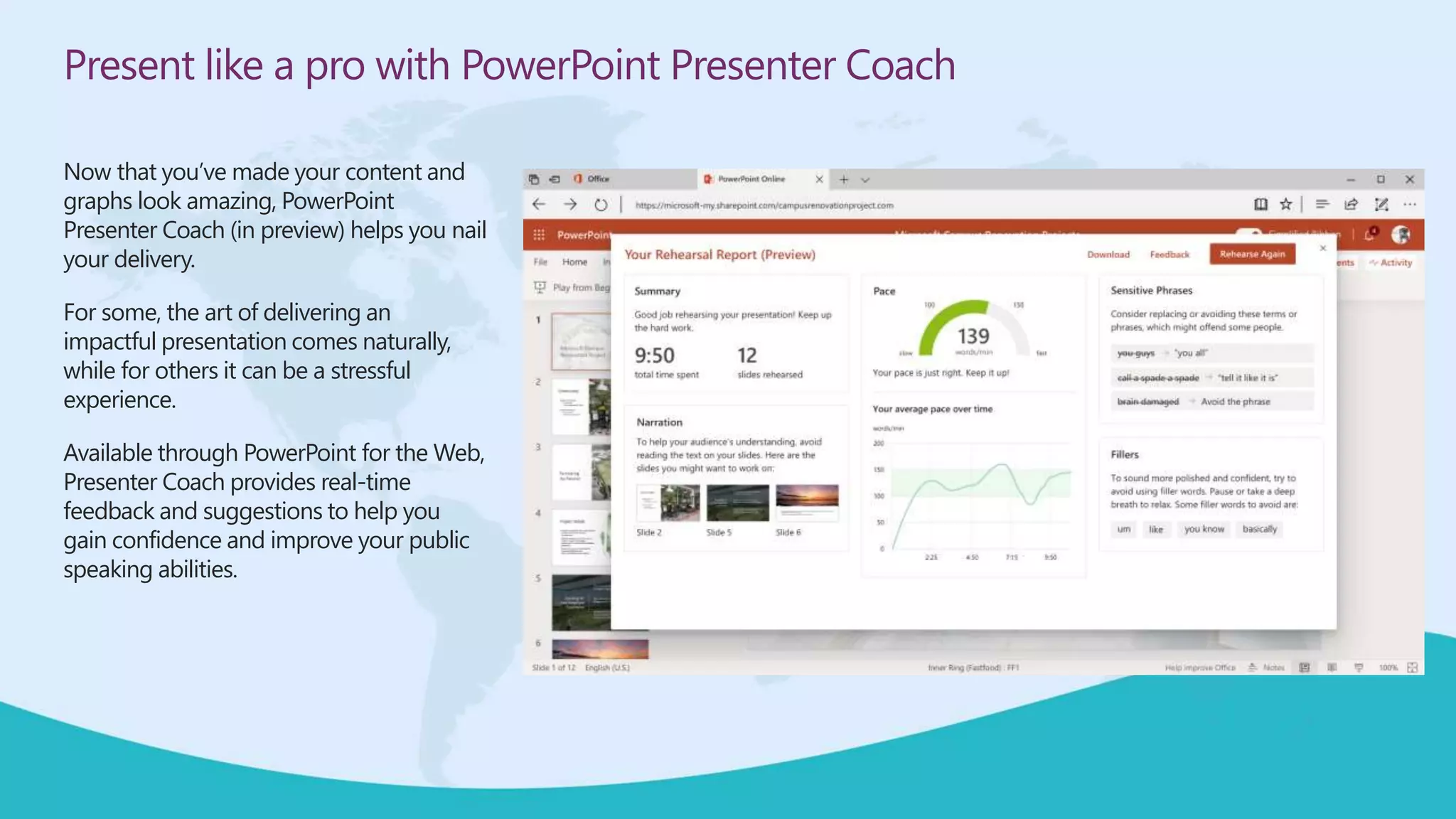
As you practice presenting, it offers
alternatives to filler words (e.g. “um”) as well
as terms and phrases for inclusive audiences.
It also alerts you when it senses you’re just
reading the slides or reading them too slow
or fast.
When you’re done, you see a summary page
with insights on how to improve over time.
You can find out more about PowerPoint
Presenter Coach at
https://support.office.com/en-
us/article/Rehearse-your-slide-show-with-
Presenter-Coach-cd7fc941-5c3b-498c-a225-
83ef3f64f07b
You can also watch PowerPoint Presenter
Coach in action in this video.
14
Create content in Word with the new, improved Dictation
Save time and simplify work with improved speech-
to-text!
It’s now easy to create content with your voice in
Word thanks to a new dictation toolbar,
suggestions experience, and auto-punctuation
support.
You can also now work in six new preview
languages: Danish, Dutch, Finnish, Swedish,
Norwegian, and Japanese.
The new Voice Dictation in Word for the web is
rolling out to all Office 365 users now.
https://www.microsoft.com/en-us/microsoft-
365/blog/2020/02/27/improve-collaboration-apps-
customize-experiences-new-to-microsoft-365-in-
february/
15
Adding Comments to non-Microsoft files in SharePoint Online and OneDrive
One of the many benefits of storing files in SharePoint Online or OneDrive as opposed to file shares is the ability to add comments
to the file for additional context and collaboration. However, until recently that was only allowed for Microsoft files (such as Word,
Excel, etc.) Now the ability to add comments has been extended to non-Microsoft files, such as PDF files. Here's how that works…
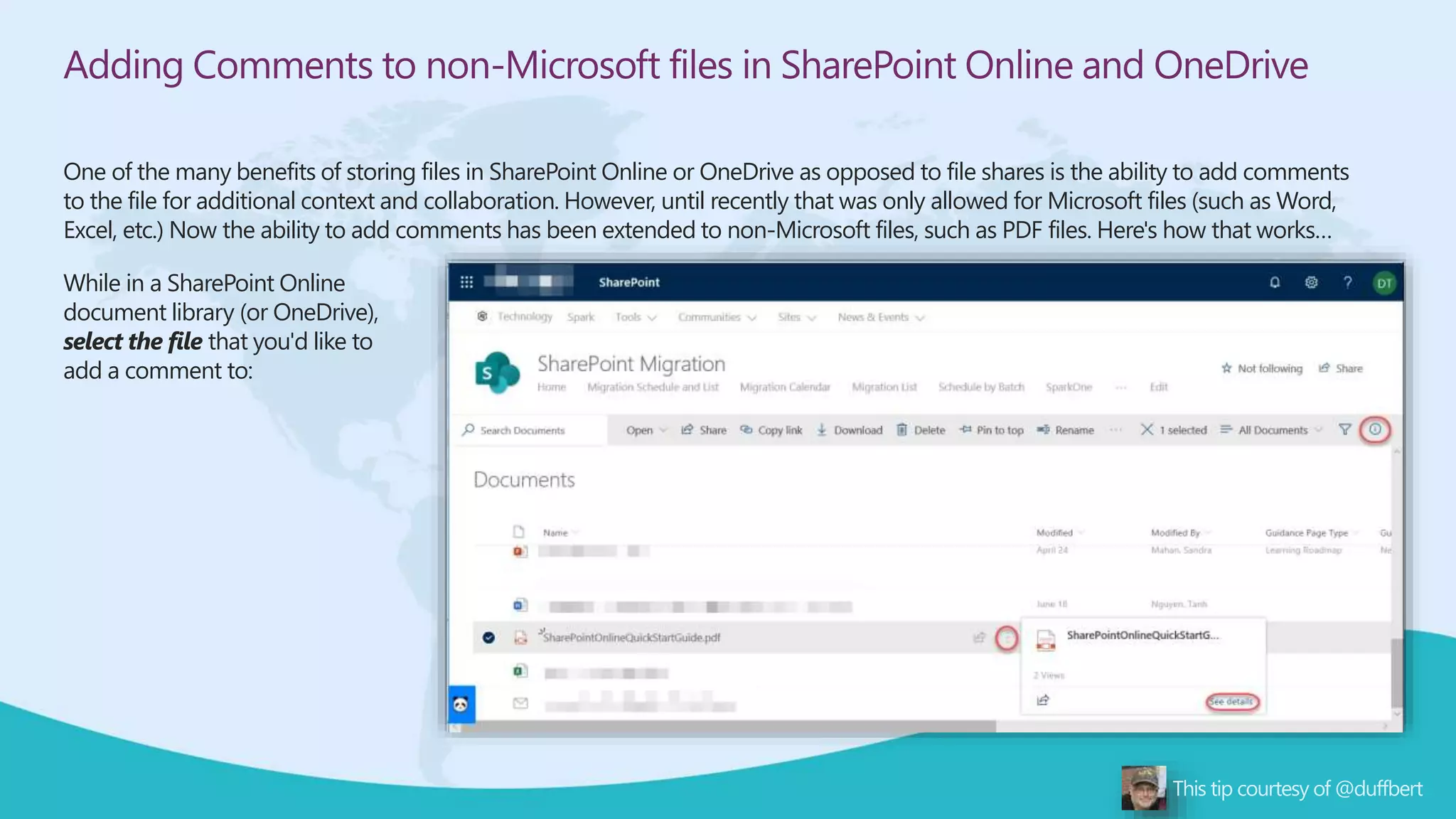
While in a SharePoint Online
document library (or OneDrive),
select the file that you'd like to
add a comment to:
Adding Comments to non-Microsoft files in SharePoint Online and OneDrive
Hover over the Vertical Ellipsis icon and select the See Details option in the pop-
up box (or just click the Information Icon in the menu bar on the far right side):
Adding Comments to non-Microsoft files in SharePoint Online and OneDrive
In the Information panel, scroll down until you get to the Activities
section. Enter a comment in the Comment field and click the Send
icon:
Adding Comments to non-Microsoft files in SharePoint Online and OneDrive
Your comment is added to the Activity section, and it is now part of the file:
16
Channel cross-posting in Microsoft Teams
I'm happy to see that the ability to
cross-post in multiple channels in
Microsoft Teams has arrived in our
tenant. This will make it much easier to
get certain messages out to a wider
audience much more easily. This is how
it works…
To start a post that will be cross-posted,
click on the Format icon to start a new
conversation:
Channel cross-posting in Microsoft Teams
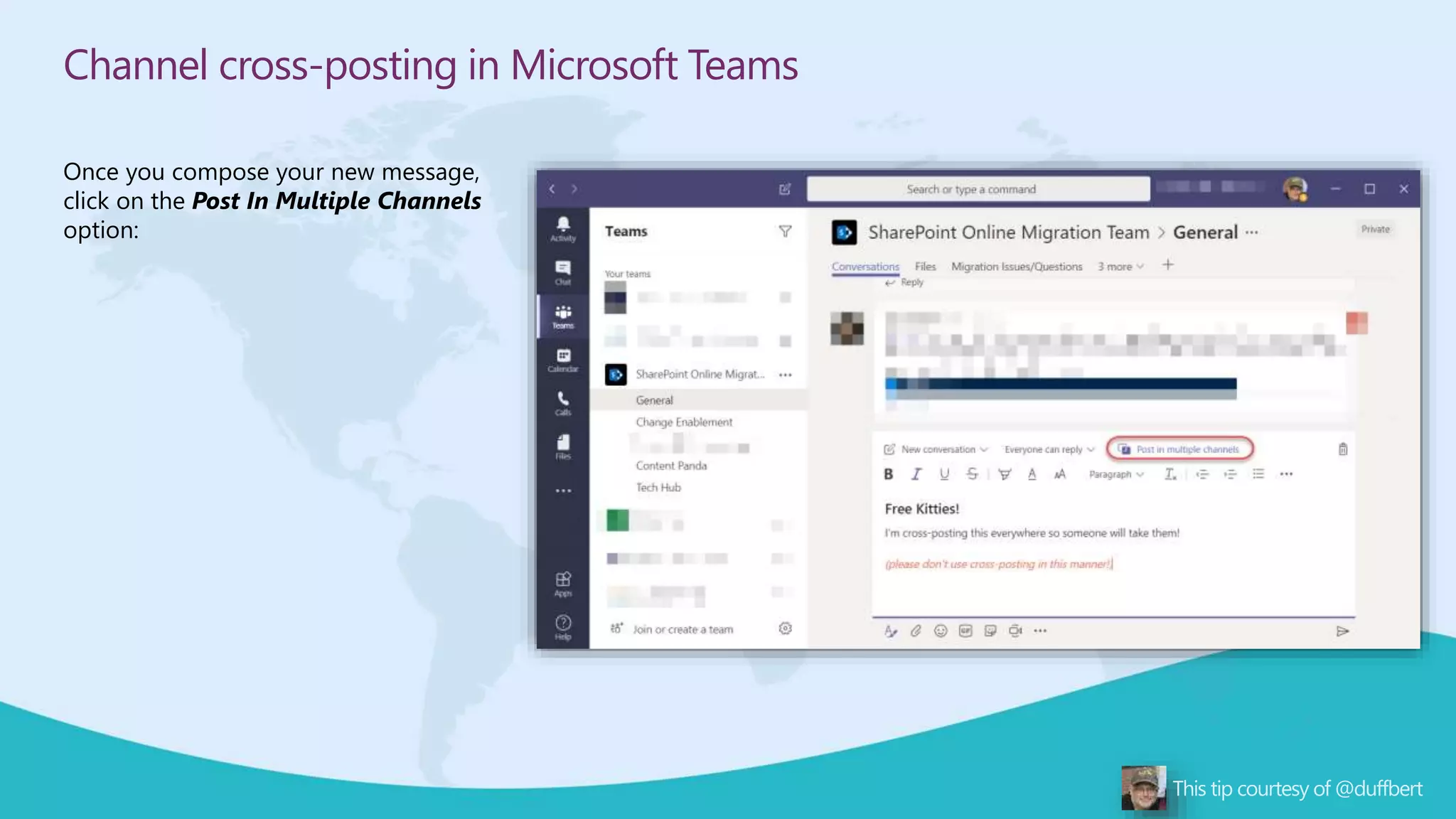
Once you compose your new message,
click on the Post In Multiple Channels
option:
Channel cross-posting in Microsoft Teams
The To: field will show your current
channel, and you can click on Select
Channels to add additional Team
workspaces and channels where the
message will appear:
Channel cross-posting in Microsoft Teams
In the Choose Channels panel, you
can select one or more channels where
the message will appear. Once you're
done, click Update:
Channel cross-posting in Microsoft Teams
The To: field now shows all the channels
that will get the message. Click on the
Send icon to post your message:
Channel cross-posting in Microsoft Teams
The message is now in the General
channel, and it has an icon that shows
that it's a cross-posted item:
Channel cross-posting in Microsoft Teams
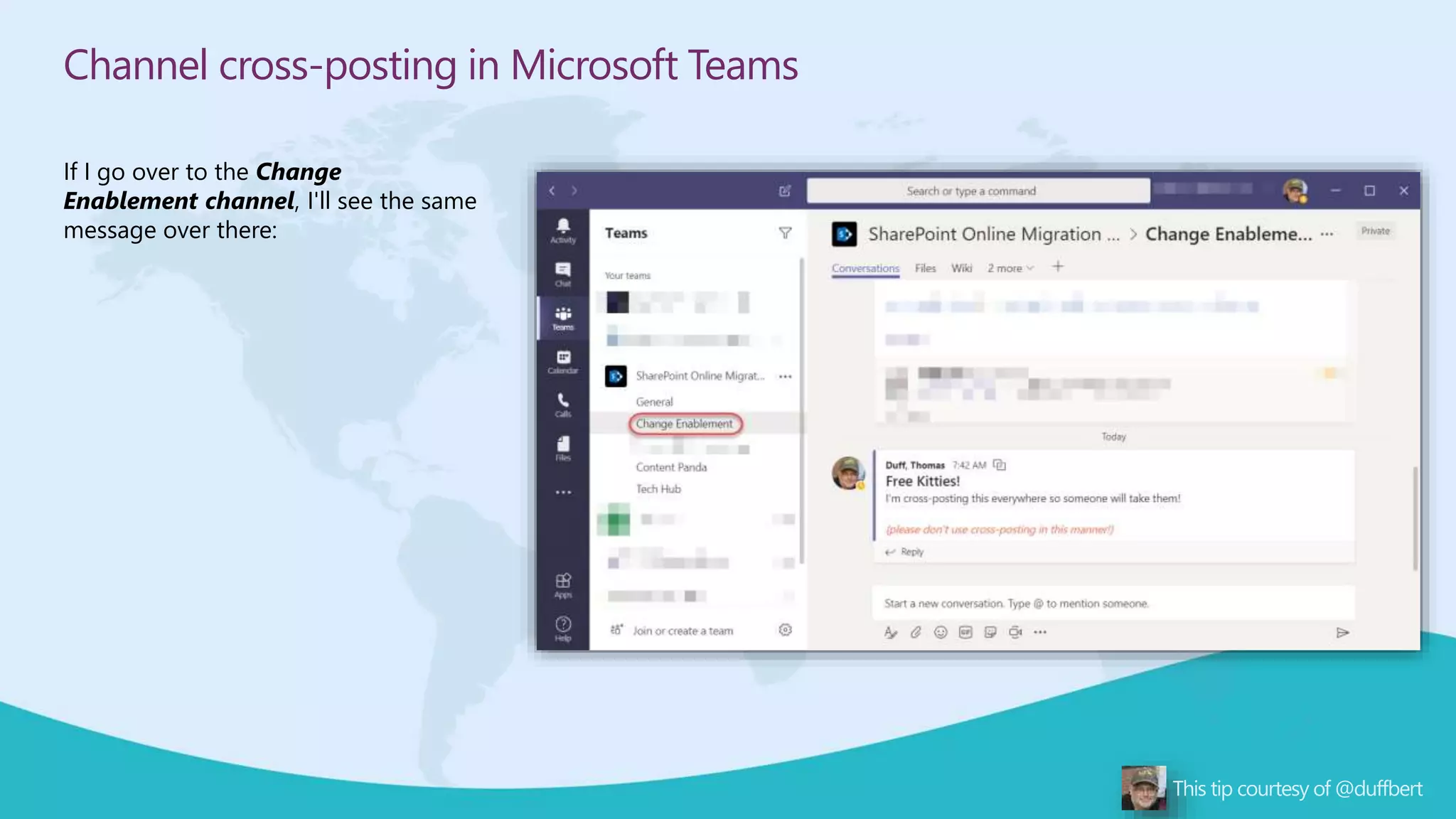
If I go over to the Change
Enablement channel, I'll see the same
message over there:
Channel cross-posting in Microsoft Teams
You can also delete the message from a single channel or all channels
by clicking on the Ellipsis icon and selecting Delete:
17
Improve brainstorming with Microsoft Whiteboard templates
If you’re looking for ways to improve your team
collaboration, it’s always helpful to start with a template
— whether you’re trying to brainstorm your next big
idea or get everyone on the same page.
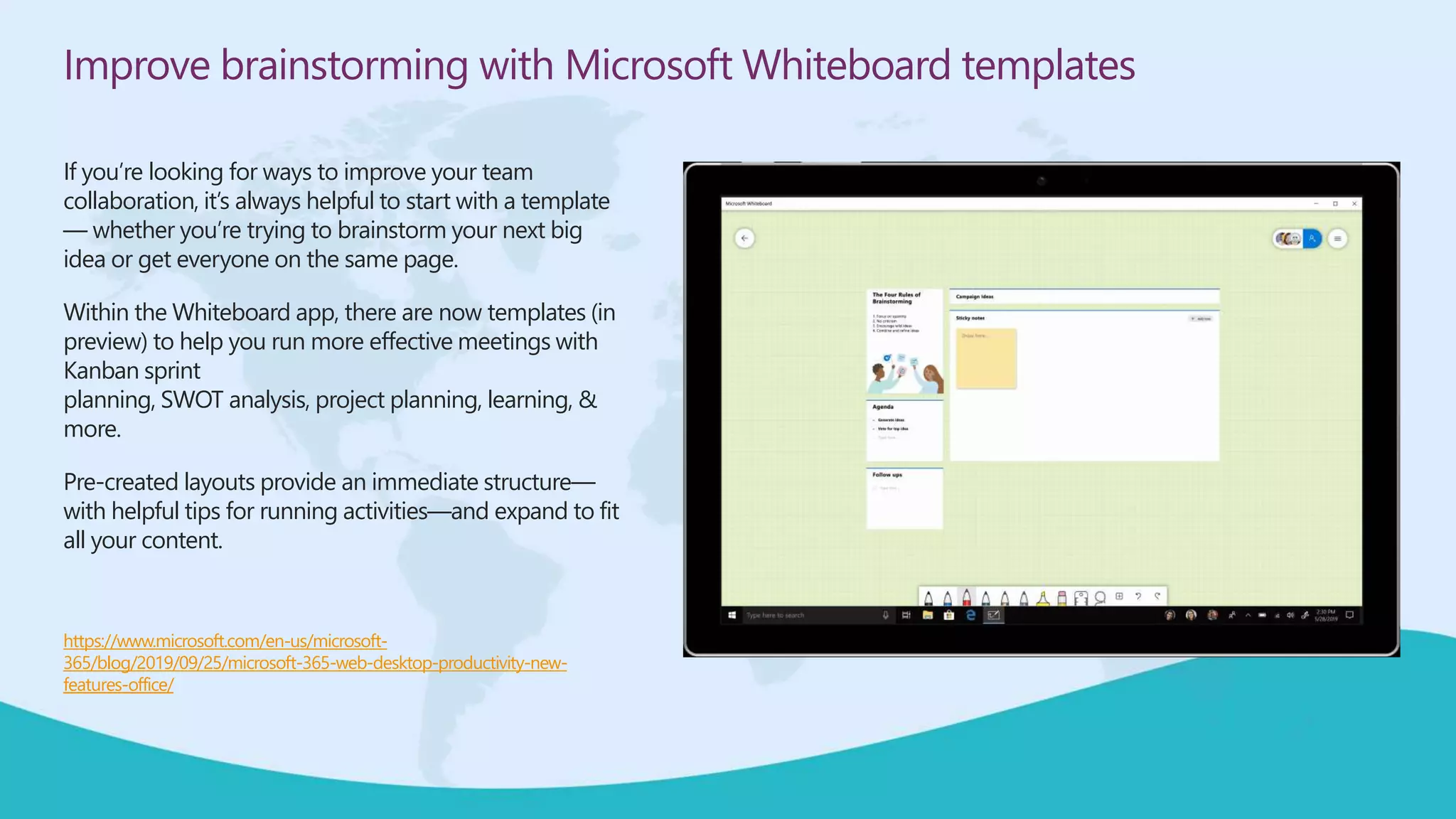
Within the Whiteboard app, there are now templates (in
preview) to help you run more effective meetings with
Kanban sprint
planning, SWOT analysis, project planning, learning, &
more.
Pre-created layouts provide an immediate structure—
with helpful tips for running activities—and expand to fit
all your content.
https://www.microsoft.com/en-us/microsoft-
365/blog/2019/09/25/microsoft-365-web-desktop-productivity-new-
features-office/
Improve brainstorming with Microsoft Whiteboard templates
Getting started in easy. Go to Office.com and
search for the Whiteboard app for your
device or desktop (Windows 10).
The website will push you to the relevant
store, from which you can download and
install the app.
Improve brainstorming with Microsoft Whiteboard templates
Getting started in easy. Go to
Office.com and search for the
Whiteboard app for your device or
desktop (Windows 10).
The website will push you to the
relevant store, from which you can
download and install the app.
Improve brainstorming with Microsoft Whiteboard templates
Once installed, select the + option from the
bottom navigation to see your menu of options.
Improve brainstorming with Microsoft Whiteboard templates
From here you can add the pre-built
(preview) templates.
Improve brainstorming with Microsoft Whiteboard templates
In this case, I’ve added a Kanban list which I’ll
use with my team to organize our planning for
an upcoming event, leveraging my Surface
Pro to quick add and edit, and drag-and-drop
tasks as I project onto a screen for the entire
team.
This is a great free tool that anyone with
Windows (or iOS) can get started using
quickly and easily.
18
Capturing Best Responses with Yammer Q&A
Announced in July, Yammer now includes
Q&A capabilities, improving its story as a
community-based knowledge
management tool.
As knowledge is captured and shared,
people will share their responses to
important questions.
As the question originator, you have the
ability to tag a response as ‘Best
Response’ which pins the response to the
top of the KM asset.
Over time, you may find that there is a
better- more comprehensive answer to
your question, and at any time you can
unmark your previous selection, and mark
the new response as ‘Best Response’
https://techcommunity.microsoft.com/t5/Yammer-
Blog/Announcing-question-and-answer-in-
Yammer/ba-p/728528
19
Giving people Praise in Microsoft Teams
When you're in Microsoft Teams,
collaborating with all your coworkers,
you might feel the need to call out
someone for the excellent work they've
done or the help they've given you. You
can do that now with the Praise
feature. Here's how that works…
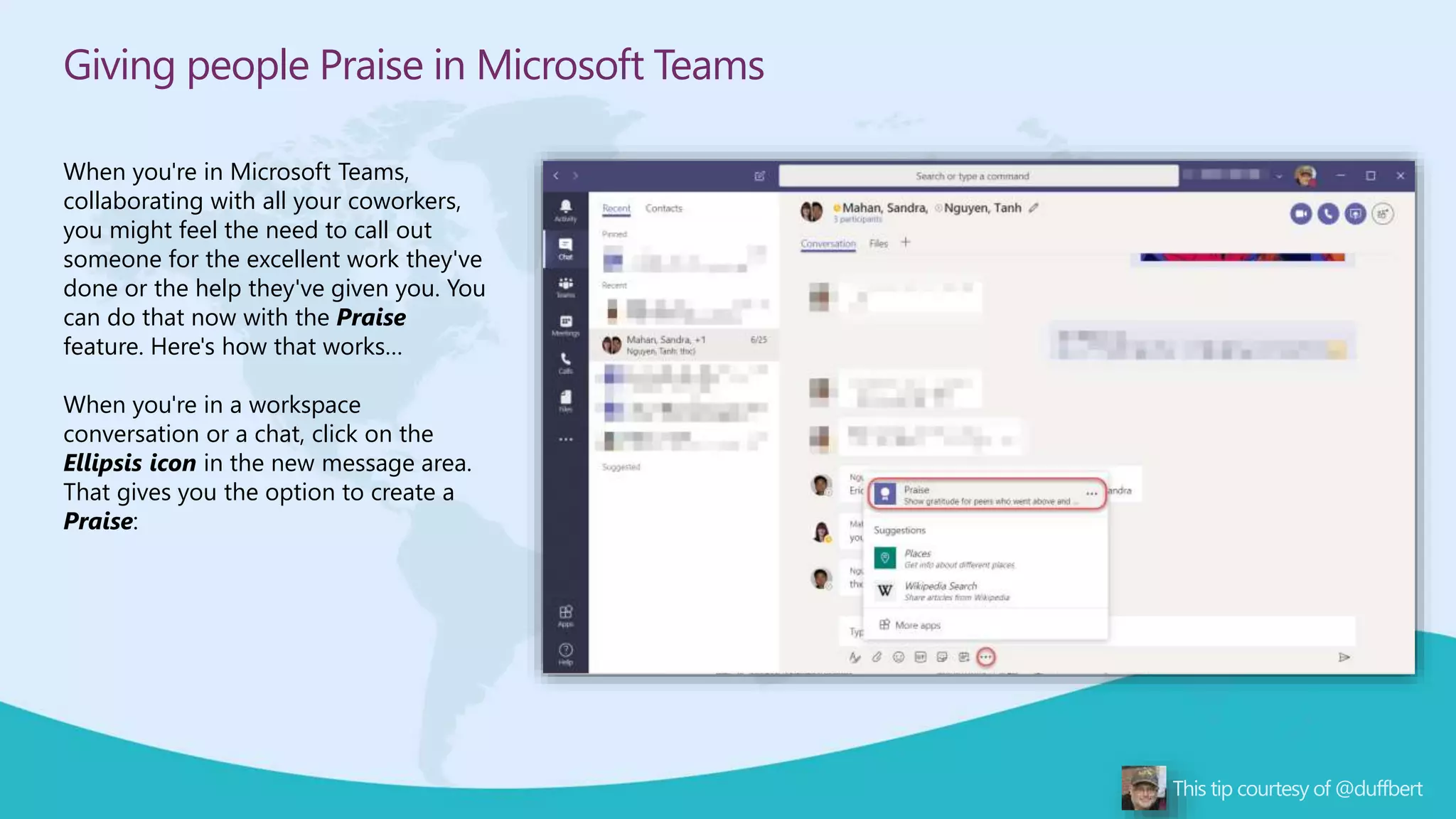
When you're in a workspace
conversation or a chat, click on the
Ellipsis icon in the new message area.
That gives you the option to create a
Praise:
Giving people Praise in Microsoft Teams
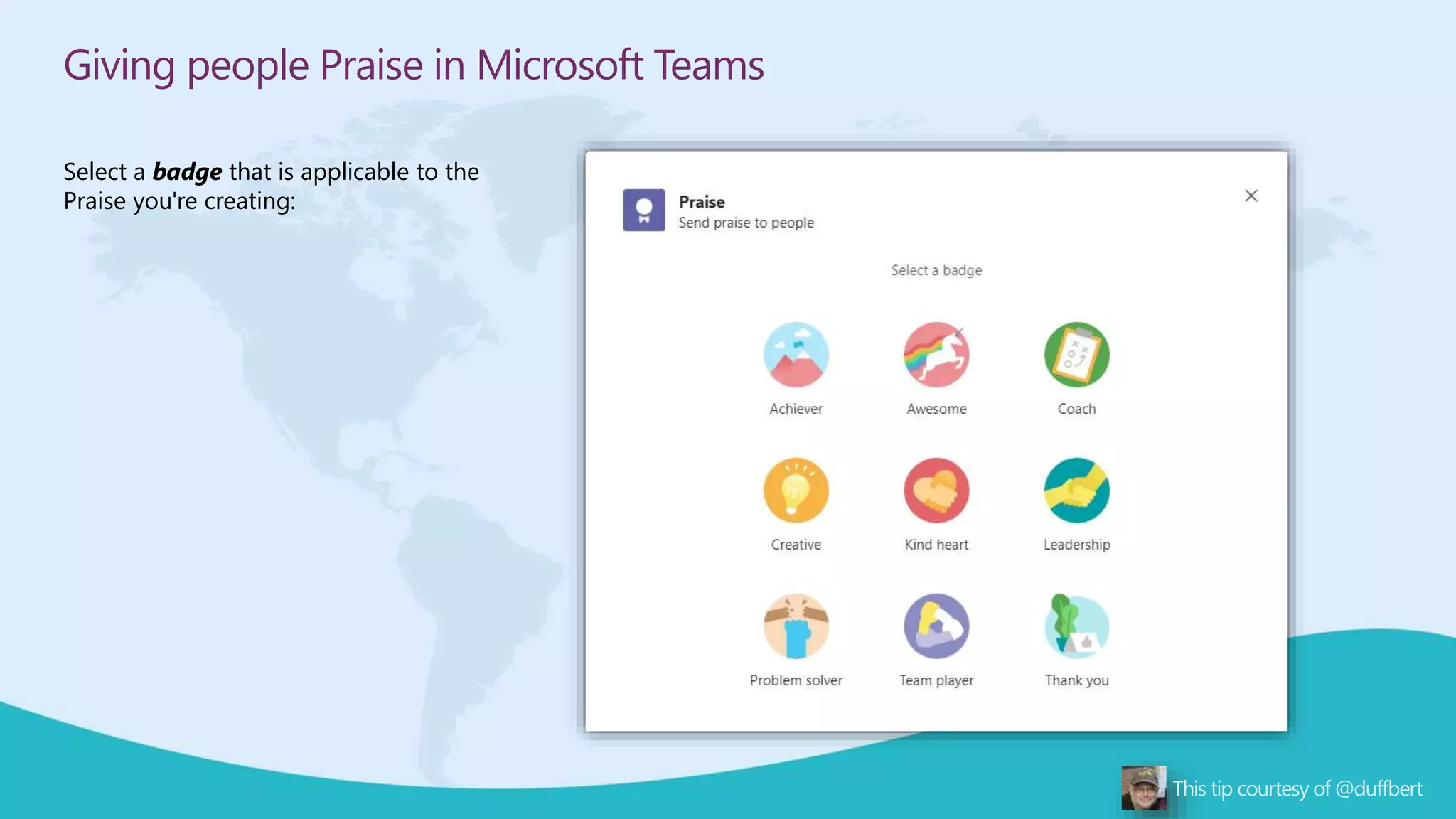
Select a badge that is applicable to the
Praise you're creating:
Giving people Praise in Microsoft Teams
Using the To field, enter one or more names
of people who the Praise is intended for. Click
on Preview to see what the Praise looks like:
Giving people Praise in Microsoft Teams
If everything looks good, click Send:
Giving people Praise in Microsoft Teams
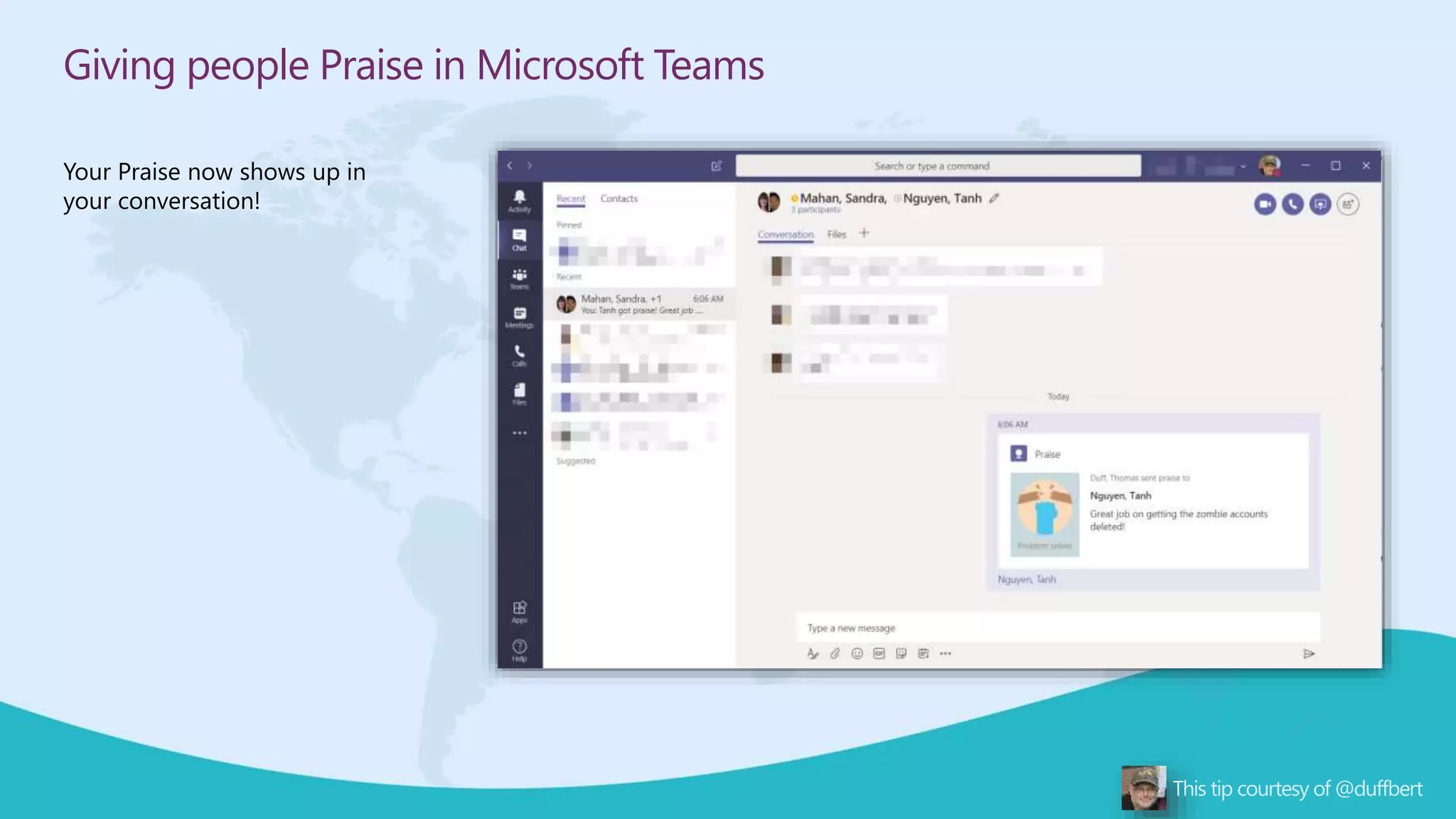
Your Praise now shows up in
your conversation!
Create digital badges in Microsoft Teams
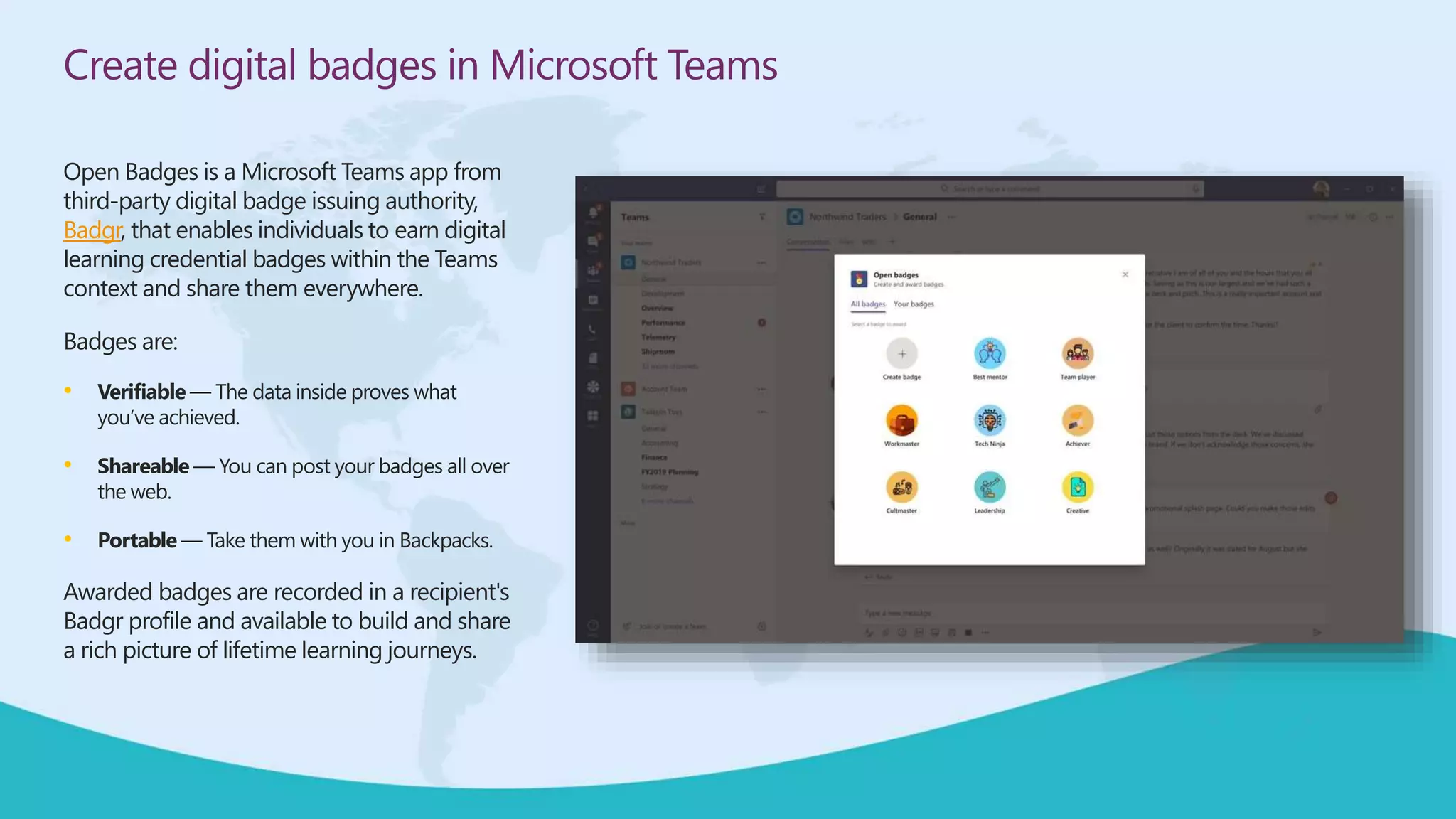
Open Badges is a Microsoft Teams app from
third-party digital badge issuing authority,
Badgr, that enables individuals to earn digital
learning credential badges within the Teams
context and share them everywhere.
Badges are:
• Verifiable — The data inside proves what
you’ve achieved.
• Shareable — You can post your badges all over
the web.
• Portable — Take them with you in Backpacks.
Awarded badges are recorded in a recipient's
Badgr profile and available to build and share
a rich picture of lifetime learning journeys.
Create digital badges in Microsoft Teams
Within Teams, badges can be a powerful
engagement tool to reward behavior and
encourage learning and participation.
Read more at
https://techcommunity.microsoft.com/t5/micr
osoft-teams-blog/create-and-award-digital-
publicly-verifiable-badges-in-teams/ba-
p/1307507
20
Convert Word documents into beautiful webpages using Transform to Web
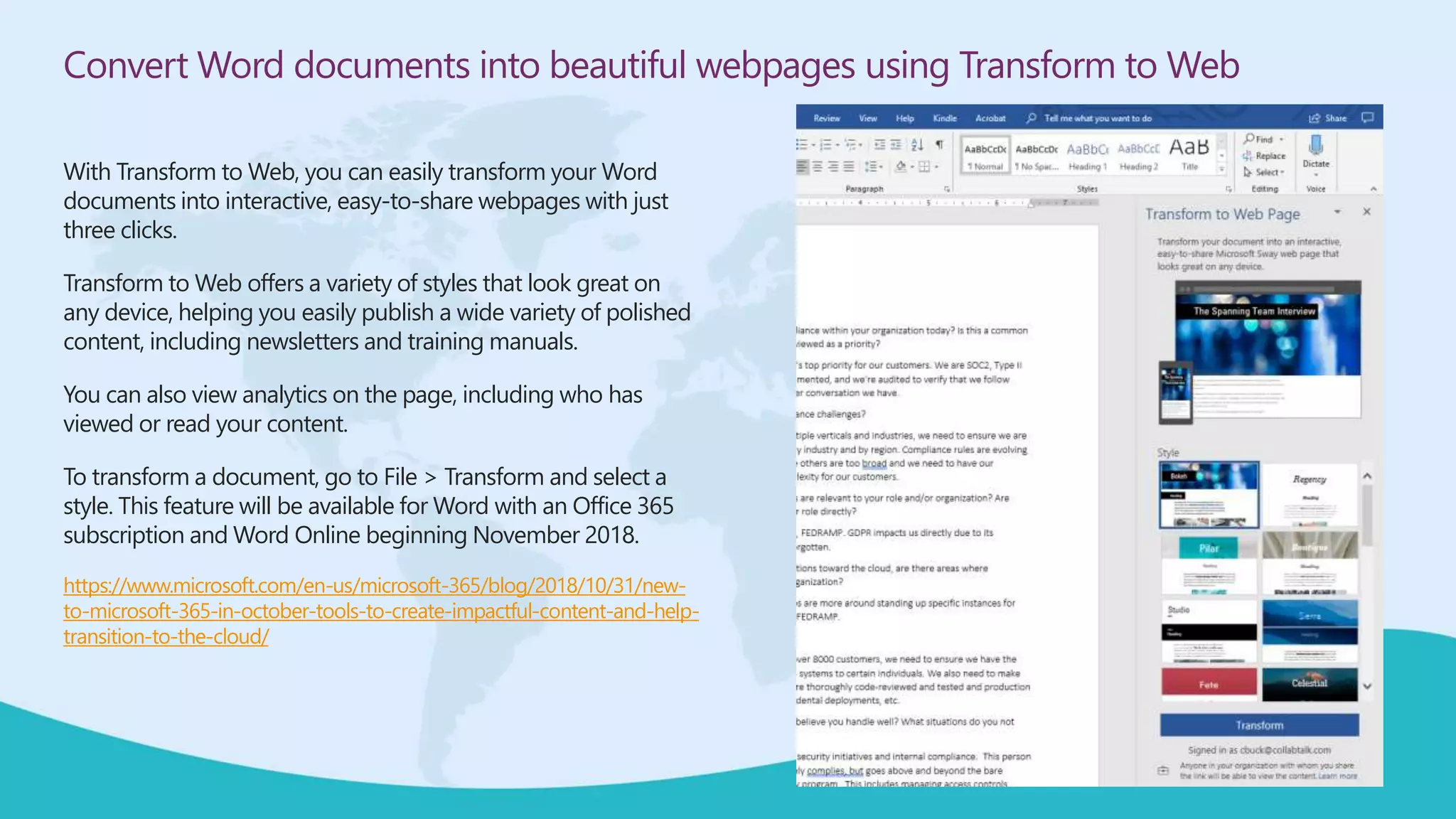
With Transform to Web, you can easily transform your Word
documents into interactive, easy-to-share webpages with just
three clicks.
Transform to Web offers a variety of styles that look great on
any device, helping you easily publish a wide variety of polished
content, including newsletters and training manuals.
You can also view analytics on the page, including who has
viewed or read your content.
To transform a document, go to File > Transform and select a
style. This feature will be available for Word with an Office 365
subscription and Word Online beginning November 2018.
https://www.microsoft.com/en-us/microsoft-365/blog/2018/10/31/new-
to-microsoft-365-in-october-tools-to-create-impactful-content-and-help-
transition-to-the-cloud/
 Get my slides Slideshare
 Follow me @buckleyplanet
 Connect with me /IN/christianbuckley
 Check out my blog www.buckleyplanet.com
 Subscribe to youtube/c/collabtalk
 Email me cbuck@collabtalk
 Next tips webinar http://bit.ly/M365jam
THANK YOU!
Broughtto youby:
TheGlobalMicrosoft Community&
M365Conf.com | #M365CONF
#M365VM
M365VirtualMarathon.com
 Visit the Vendors Booth, Sessions and Watch the Videos
 Submit Your Answers to Pair up Items to Sponsor Enter the Raffle
 You need at least 5 correct answers then submit for a chance to win!
(One in each Americas, APAC, EMEA)
ARE YOU READY FOR A RAFFLE?
WE ARE GIVING AWAY 3 OCULUS QUEST ALL IN ONE!
https://bit.ly/m365raffle
CONSIDER DONATING TO THE FOLLOWING CHARITY RELIEF FUNDS:
UNITED WAY: https://give.uwkc.org/m365vm
INTERNATIONAL MEDICAL CORPS: https://bit.ly/MedicalCorpsFund
10% OF FUNDS FROMSPONSORS GOTO SUPPORT COMMUNITY RELIEF.
FOR MORE INFORMATION WRITE TO: info@m365virtualmarathon.com
MICROSOFT 365
Virtual MARATHON
May 27 & 28, 2020
36 hours / 2 days
THANK YOU FOR JOINING US!
DO YOU HAVE ANY QUESTIONS?
Speaker feedback
https://bit.ly/M365VMSpeakerFeedback
Event feedback
https://bit.ly/M365VMFeedback

20 Microsoft 365 Tips You've Probably Never Used (But Should)

  • 1.
    MICROSOFT 365 Virtual MARATHON May27 & 28, 2020 36 hours / 2 days MICROSOFT 365 VIRTUAL MARATHON 20 Microsoft 365 Productivity Tips You’ve Probably Never Used (But Should) CHRISTIAN BUCKLEY @buckleyplanet www.buckleyplanet.com Sponsored by
  • 2.
    MICROSOFT 365 Virtual MARATHON May27 & 28, 2020 36 hours / 2 days Mark Your Calendars: March 23-25, 2021, MGM Grand Resort Las Vegas, Nevada, USA M365Conf.com #M365CONF TheSharePoint Conferenceis nowTheMicrosoft 365 CollaborationConference #M365VM M365VirtualMarathon.com Broughtto youby: TheGlobalMicrosoft Community& M365Conf.com | #M365CONF
  • 3.
    THANK YOU TOALL OUR GENEROUS SPONSORS
  • 4.
     Christian Buckley,Founder & CEO of CollabTalk LLC  Office Apps & Services MVP / Microsoft Regional Director  Board member of Microsoft User Group Utah (MUGUT), former board of Puget Sound SPUG  Helped launch and run a dozen+ SPS events across western US  Raised in the SF Bay Area, spent 12 years in Seattle, currently living in Lehi, Utah  Almost learned the banjo LET ME INTRODUCE MYSELF… Broughtto youby: TheGlobalMicrosoft Community& M365Conf.com | #M365CONF #M365VM M365VirtualMarathon.com
  • 5.
  • 6.
    Leverage the newOffice App As you’ve probably seen in the MASSIVE media push, the new Office app for iOS and Android is now available! The big question: Does it replace your standalone apps? There is a great article by Jon Friedman, head of Microsoft Office design, on the reimagining of the app – and how Microsoft has more to come https://medium.com/microsoft- design/designing-the-new-office-app-for- mobile-1ec1162a966 You can download the app from the store: https://apps.apple.com/app/microsoft- office/id541164041
  • 7.
    Leverage the newOffice App The primary features include:  Adding notes  Snapping photos and videos  Reviewing and editing documents and slides The next layer down includes:  Transferring files from phone to PC  Converting image to text and table in Excel  Creating and manipulating PDFs
  • 8.
    Leverage the newOffice App You can search within existing cloud locations, including your SharePoint and OneDrive locations, which means also accessing O365 Groups-enabled Teams and Yammer In some ways, the new Office app duplicates some of the capability in the OneDrive app You can quickly and easily add new cloud locations, including a long list of 3rd party tools
  • 9.
    Leverage the newOffice App Find content, review visual cards Pin important documents Search for content across connected libraries Review and edit content in mobile format …and preview in print view View and edit metadata Share files from your mobile device
  • 10.
    Leverage the newOffice App Convert tables and graphs to Excel data Convert text within images to usable text
  • 11.
    Leverage the newOffice App Easily transfer images and files between your PC and phone One caveat mentioned by fellow MVP Hal Hostetler: Office mobile has an issue that Word, PowerPoint, and Excel mobile DO NOT have. It insists that all data and its cache must be in Internal memory. The three stand-alone apps allow data and cache to be placed in External memory (your MicroSD card). If you have an older phone or a newer one with limited memory (my LG G5 has 32 GB). its EASY to run out of memory!! Outlook mobile has the same issue PLUS it has no "sync slider" like the desktop app to limit memory load.
  • 12.
  • 13.
    AI-Powered To-Do Trackingin Word Editor—Word’s AI-powered writing assistant—is an indispensable tool for the written word. But sometimes you need to leave a placeholder in your document and come back to it later to stay in your flow. Word now helps users create and fill in these placeholders without leaving the flow of their work. For example, type TODO: finish this section or <<insert closing here>> and Word recognizes and tracks them as to-dos. When you come back to the document, you’ll see a list of your remaining to-dos, and you can click each one to navigate back to the right spot.
  • 14.
    AI-Powered To-Do Trackingin Word Once you’ve created your to-dos, Word can also help you complete them. If you need help from a friend or coworker, just @mention them within a placeholder. Word sends them a notification with a “deep link” to the relevant place in the document. Soon, they’ll be able to reply to the notification with their contributions, and those contributions will be inserted directly into the document—making it easy to complete the task with an email from any device. Over time, Office will use AI to help fill in many of these placeholders. In the next few months, Word will use Microsoft Search to suggest content for a to-do like <<insert chart of quarterly sales figures>>. You will be able to pick from the results and insert content from another document with a single click.
  • 15.
  • 16.
    Leverage Cortana Schedulerfor meetings Building on Microsoft’s strategy to re-brand Cortana as an intelligent personal assistant, you can now leverage Calendar.help and have Cortana help you organize online meetings and book conference rooms. Scheduler is not a replacement, but an alternative to FindTime and FreeBusy that leverages the power of AI and allows you to respond with natural language. Scheduler works with your Office 365, Outlook.com, or Google calendar. Cortana, using Scheduler, knows your meeting preferences and uses them to find the best times. This is key: External participants do not need to download anything.
  • 17.
    Leverage Cortana Schedulerfor meetings To get started, go to https://calendar.help/ Once registered and your account confirmed, simply send an email message to cortana@calendar.help and ask her to schedule meetings for you: • Focus time • Weekly 1:1 • Online meeting • Lunch meeting • Coffee or Drinks From the desktop or mobile device, you can also verbally ask Cortana to schedule these meetings.
  • 18.
  • 19.
    Create custom resultspages for Microsoft Search Create custom search results pages for Microsoft Search! Announced in January, you can now create custom search results pages in SharePoint Online, controlling the layout and design of search results to tailor your SharePoint Online experience for your enterprise environment. Btw, you can then share these results as tabs within Teams.
  • 20.
    Create custom resultspages for Microsoft Search To configure a custom results page in SharePoint Online follow the steps below: Browse to the site where you would like to configure a custom results page and select Site Collection Settings > Search Settings. In Search Settings, choose to Send queries to a custom results page, and provide a value for Results page URL: and save your changes. Read more at https://www.microsoft.com/en- us/microsoft-365/blog/2020/02/27/improve- collaboration-apps-customize-experiences-new-to- microsoft-365-in-february/ Watch a video at https://youtu.be/SG3ngNXGUX8
  • 21.
  • 22.
    Adding to OneNoteMeeting Notes via Mobile Within any new meeting, you have the option to add OneNote meeting notes to any outgoing meeting invite. From the Appointment menu, simply select Meeting Notes. Next, select either Share Notes with the Meeting or Take Notes on Your Own
  • 23.
    Adding to OneNoteMeeting Notes via Mobile From your mobile device, you can now capture images, audio, or even video and add directly to the personal or teams notes, giving you yet another way to capture multi-media for your collaborative efforts.
  • 24.
  • 25.
    Adding an Emailas a Task in Outlook and To-Do To-Do is quickly becoming “the” default task management solution within Office. Within Outlook, did you know that you can drag- and-drop an email into To-Do via the Tasks icon? Most of us are used to dragging and dropping emails into Calendar to set up reminders and schedule meetings, but you can follow the same process to define tasks. Just grab an email and drag it down to the Tasks icon at the bottom left of Outlook. https://todosupport.helpshift.com/a/microsoft-to- do/?s=tips-tricks&f=adding-an-email-as-a-task-in- outlook-on-windows&l=en&p=web
  • 26.
    Adding an Emailas a Task in Outlook and To-Do A task dialog will open up, with task details at the top and the body of the email below. From here you can set due dates, reminders, assign it to someone on your team, push it to OneNote, and more.
  • 27.
    Adding an Emailas a Task in Outlook and To-Do Click on the calendar icons to pick your start and due dates. Change the status and priority, as appropriate. Once you have defined the start and due dates, it is always wise to set a reminder, IMO.
  • 28.
    Adding an Emailas a Task in Outlook and To-Do Within the Tasks view of Outlook, you can quickly view all of the tasks created within Outlook – as well as task lists created in the To-Do app (Windows or mobile) For additional productivity, there is much more than you can do with To-Do integration to your mobile device and other smart speakers, and automate using Microsoft Flow. We’ll cover more of those examples in future tips…
  • 29.
  • 30.
    Add Quick Pollsto Outlook emails Quick Poll by Microsoft Forms is an Outlook app available in the Microsoft Store, and enables users to add user-friendly forms to your outgoing emails, accessible through Outlook or through the Forms website. This tool is not for complex, multi-question surveys, but for a single poll question. Outlook has long included voting buttons (under Options > Tracking) but this new app gives users the ability to quickly and easily capture pulse survey information from their constituencies. https://support.office.com/en-us/article/create-a-quick-poll-in-microsoft-teams-a3f9112c-01e1- 4ee4-bd88-25e4e243b80b
  • 31.
    Create Internal orExternal Polls with Microsoft Forms While not brand new, Forms is an underutilized resource that allows you to quickly and easily publish surveys and snap polls within your organization – or to external users and partners. Creating your surveys is easy, as is changing the question types, adding or removing answers, and rearranging the layout before or after you push it live. Additionally, as the survey author, you have access to real-time stats, and can share the results with your management team or respondents. https://forms.microsoft.com
  • 32.
  • 33.
    Microsoft Stream nowallows for screen capture videos OK… I did NOT know this was coming, but it is *really* cool! You can now use Microsoft Stream to record screen capture videos up to 15 minutes in length. Think of creating your own short training videos where you show something on your screen with narration and everything. Here's how that works… When you're in Microsoft Stream, you can start your screen capture session by selecting Create > Record Screen:
  • 34.
    Microsoft Stream nowallows for screen capture videos To start your recording, click the Record button:
  • 35.
    Microsoft Stream nowallows for screen capture videos Before the recording starts, you get to choose exactly what you want to be capturing. This could be everything on your screen, a specific application, or a specific tab in Edge. Once you pick what you want to focus on, click Share:
  • 36.
    Microsoft Stream nowallows for screen capture videos Your screen capture then starts to record. You have 15 minutes to record your video. You can pause temporarily if you need to by clicking the Pause button. Once done with your recording, click Next:
  • 37.
    Microsoft Stream nowallows for screen capture videos At this point, you can either choose to re-record your video (Record Again), or you can Upload To Stream:
  • 38.
    Microsoft Stream nowallows for screen capture videos Now you can name the video, add a description, and set other information. Once the item is published, you can go out and change things such as what channels the video should appear in:
  • 39.
  • 40.
    Create Tabs inTeams Chats We’re all familiar with creating Tabs in Teams, but did you know that you can also create a Tab in a Chat? It is a great way to expand your collaborations with individuals or small groups without having to create the more “permanent” Teams or Channels. Tabs in channels can be seen by everyone in the Team, but Tabs in chats can only be seen by members of the chat. The same is true for bots used within private or group chats, which you can read more about at https://docs.microsoft.com/en- us/microsoftteams/platform/bots/what- are-bots
  • 41.
    Create Tabs inTeams Chats To get started, go into the target chat in Teams and select the + from the top nav to add a tab. The Add a Tab dialog will open, allowing you to select from all of the apps available to your organization. In this example, I want to post a blog post to our chat that we can reference in our ongoing conversations. Once saved, the new tab appears in our chat, and only members of the chat can view this information.
  • 42.
  • 43.
    Use Alt-Tab &Windows Key to Organize your Desktop The reality is that multi-tasking (i.e. context-switching) is a productivity-sapping dream of the ADHD and OCD crowd (I am one of them). Having said that….we all do it. So why not make it easier to organize our already overly complex desktops? The two tools that I rely on are switching between applications using Alt+Tab, and the screen-splitting bliss of the Windows Key and arrows. When you add in the Windows Timeline feature, you will become the Master of your screen domain! First, we’re probably all familiar with the Alt+Tab capability, which allows you to see and move between any and all open applications on your desktop. This is an essential tool when you have one screen or many screens.
  • 44.
    Use Alt-Tab &Windows Key to Organize your Desktop Next up in screen splitting. Let’s say you’re taking notes in OneNote while reviewing several sites in the Edge browser, or documentation hosted on Teams. Select the first app, in this case OneNote, and while holding down the Windows Key on your keyboard, hit the right arrow ()
  • 45.
    Use Alt-Tab &Windows Key to Organize your Desktop The primary application will lock into place on the right, and as with the Alt+Tab process, you can then select from the available open apps.
  • 46.
    Use Alt-Tab &Windows Key to Organize your Desktop The second app will lock into place. You can then grab the divider between them and slide left and right to adjust how much screen real estate to give each as you work.
  • 47.
    Use Alt-Tab &Windows Key to Organize your Desktop The second app will lock into place. You can then grab the divider between them and slide left and right to adjust how much screen real estate to give each as you work.
  • 48.
    Timeline feature inWindows 10 If you ever find yourself with a rebooted machine and wondering what happened to the last few documents that were open on your desktop, leverage the Timeline feature in Windows 10. To enable this functionality, go into Settings > Privacy > Activity History to select which accounts to show, and whether you want to make your history visible (store your history locally) and/or share your history with Microsoft. https://joannecklein.com/2019/09/22/the- timeline-feature-in-windows-10-a-hidden-gem/
  • 49.
    Timeline feature inWindows 10 If you ever find yourself with a rebooted machine and wondering what happened to the last few documents that were open on your desktop, leverage the Timeline feature in Windows 10. To enable this functionality, go into Settings > Privacy > Activity History to select which accounts to show, and whether you want to make your history visible (store your history locally) and/or share your history with Microsoft.
  • 50.
    Timeline feature inWindows 10 If you ever find yourself with a rebooted machine and wondering what happened to the last few documents that were open on your desktop, leverage the Timeline feature in Windows 10. To enable this functionality, go into Settings > Privacy > Activity History to select which accounts to show, and whether you want to make your history visible (store your history locally) and/or share your history with Microsoft.
  • 51.
    Timeline feature inWindows 10 Once enabled, select the Timeline from the nav bar and then drag the slider on the right to go back and select the documents, slides, or apps that you had open on that date.
  • 52.
    Timeline feature inWindows 10 Once enabled, select the Timeline from the nav bar and then drag the slider on the right to go back and select the documents, slides, or apps that you had open on that date.
  • 53.
  • 54.
    Increase engagement inTeams with the Incentives App Are you looking to incentivize behaviors you want to encourage as part of organizational change management strategy? Incentives is a Power Apps template that manages and tracks incentivized employee participation in designated activities such as trainings and change management initiatives. Admins use the app to establish designated activities, assign points for completion, and specify required eligibility point levels for rewards. Employees use the app to view their accumulated points and, upon reaching eligibility, request and claim redeemable rewards.
  • 55.
    Increase engagement inTeams with the Incentives App Using the Incentives app template in Microsoft Teams, admins can establish adoption activities with points, assign points for completion, create rewards, and specify required eligibility point levels for rewards.
  • 56.
    Increase engagement inTeams with the Incentives App Employees can use the app to view their accumulated points, track their position on a leaderboard, and upon reaching eligibility, request and claim rewards. Read more at https://techcommunity.microsoft.com/t5/microsof t-teams-blog/engage-your-employees-using- the-incentives-app-in-teams/ba-p/1339421
  • 57.
  • 58.
    Visualize your datawith Ideas in Excel If you’ve used the Ideas option in PowerPoint and were wondering when this fantastic, AI-driven feature would be included within Excel, it’s here! Excel Ideas helps users create high-quality documents, presentations, and spreadsheets in less time. Put simply, it uses AI to turn data into visualizations to help you easily identify summaries, trends, and patterns. In addition to getting recommendations from Ideas, you can also directly ask questions about your data and narrow down the Ideas by selecting only the fields you want to see. When you choose fields and how to summarize them, Ideas analyzes that data—speeding up the process and presenting fewer, more targeted suggestions.
  • 59.
    Visualize your datawith Ideas in Excel Ideas in Microsoft Excel empowers you to understand your data through high-level visual summaries, trends, and patterns. To start using Ideas in Excel, select your data set, and then click on Ideas on the top right ribbon. A panel opens on the far right with different visualizations of your data.
  • 60.
    Visualize your datawith Ideas in Excel You can refine the options you see by selecting specific fields on which to focus. These options change the visualizations available to you. The idea is to provide a jumpstart into these visualizations – which you can tweak and adjust to create the right view of your data and convey the right messaging. Once you’ve identified the visualization that works best for your data, select +Insert PivotChart
  • 61.
    Visualize your datawith Ideas in Excel A new tab is opened within your spreadsheet, with an abbreviated set of data based on your selection, and the related PivotChart. From here you can cut and paste into a presentation, or further manipulate the look and feel or the data. To learn more about Ideas, watch this video. To learn more about Ideas, read this article.
  • 62.
  • 63.
    Present like apro with PowerPoint Presenter Coach Now that you’ve made your content and graphs look amazing, PowerPoint Presenter Coach (in preview) helps you nail your delivery. For some, the art of delivering an impactful presentation comes naturally, while for others it can be a stressful experience. Available through PowerPoint for the Web, Presenter Coach provides real-time feedback and suggestions to help you gain confidence and improve your public speaking abilities.
  • 64.
    Present like apro with PowerPoint Presenter Coach As you practice presenting, it offers alternatives to filler words (e.g. “um”) as well as terms and phrases for inclusive audiences. It also alerts you when it senses you’re just reading the slides or reading them too slow or fast. When you’re done, you see a summary page with insights on how to improve over time. You can find out more about PowerPoint Presenter Coach at https://support.office.com/en- us/article/Rehearse-your-slide-show-with- Presenter-Coach-cd7fc941-5c3b-498c-a225- 83ef3f64f07b You can also watch PowerPoint Presenter Coach in action in this video.
  • 65.
  • 66.
    Create content inWord with the new, improved Dictation Save time and simplify work with improved speech- to-text! It’s now easy to create content with your voice in Word thanks to a new dictation toolbar, suggestions experience, and auto-punctuation support. You can also now work in six new preview languages: Danish, Dutch, Finnish, Swedish, Norwegian, and Japanese. The new Voice Dictation in Word for the web is rolling out to all Office 365 users now. https://www.microsoft.com/en-us/microsoft- 365/blog/2020/02/27/improve-collaboration-apps- customize-experiences-new-to-microsoft-365-in- february/
  • 67.
  • 68.
    Adding Comments tonon-Microsoft files in SharePoint Online and OneDrive One of the many benefits of storing files in SharePoint Online or OneDrive as opposed to file shares is the ability to add comments to the file for additional context and collaboration. However, until recently that was only allowed for Microsoft files (such as Word, Excel, etc.) Now the ability to add comments has been extended to non-Microsoft files, such as PDF files. Here's how that works… While in a SharePoint Online document library (or OneDrive), select the file that you'd like to add a comment to:
  • 69.
    Adding Comments tonon-Microsoft files in SharePoint Online and OneDrive Hover over the Vertical Ellipsis icon and select the See Details option in the pop- up box (or just click the Information Icon in the menu bar on the far right side):
  • 70.
    Adding Comments tonon-Microsoft files in SharePoint Online and OneDrive In the Information panel, scroll down until you get to the Activities section. Enter a comment in the Comment field and click the Send icon:
  • 71.
    Adding Comments tonon-Microsoft files in SharePoint Online and OneDrive Your comment is added to the Activity section, and it is now part of the file:
  • 72.
  • 73.
    Channel cross-posting inMicrosoft Teams I'm happy to see that the ability to cross-post in multiple channels in Microsoft Teams has arrived in our tenant. This will make it much easier to get certain messages out to a wider audience much more easily. This is how it works… To start a post that will be cross-posted, click on the Format icon to start a new conversation:
  • 74.
    Channel cross-posting inMicrosoft Teams Once you compose your new message, click on the Post In Multiple Channels option:
  • 75.
    Channel cross-posting inMicrosoft Teams The To: field will show your current channel, and you can click on Select Channels to add additional Team workspaces and channels where the message will appear:
  • 76.
    Channel cross-posting inMicrosoft Teams In the Choose Channels panel, you can select one or more channels where the message will appear. Once you're done, click Update:
  • 77.
    Channel cross-posting inMicrosoft Teams The To: field now shows all the channels that will get the message. Click on the Send icon to post your message:
  • 78.
    Channel cross-posting inMicrosoft Teams The message is now in the General channel, and it has an icon that shows that it's a cross-posted item:
  • 79.
    Channel cross-posting inMicrosoft Teams If I go over to the Change Enablement channel, I'll see the same message over there:
  • 80.
    Channel cross-posting inMicrosoft Teams You can also delete the message from a single channel or all channels by clicking on the Ellipsis icon and selecting Delete:
  • 81.
  • 82.
    Improve brainstorming withMicrosoft Whiteboard templates If you’re looking for ways to improve your team collaboration, it’s always helpful to start with a template — whether you’re trying to brainstorm your next big idea or get everyone on the same page. Within the Whiteboard app, there are now templates (in preview) to help you run more effective meetings with Kanban sprint planning, SWOT analysis, project planning, learning, & more. Pre-created layouts provide an immediate structure— with helpful tips for running activities—and expand to fit all your content. https://www.microsoft.com/en-us/microsoft- 365/blog/2019/09/25/microsoft-365-web-desktop-productivity-new- features-office/
  • 83.
    Improve brainstorming withMicrosoft Whiteboard templates Getting started in easy. Go to Office.com and search for the Whiteboard app for your device or desktop (Windows 10). The website will push you to the relevant store, from which you can download and install the app.
  • 84.
    Improve brainstorming withMicrosoft Whiteboard templates Getting started in easy. Go to Office.com and search for the Whiteboard app for your device or desktop (Windows 10). The website will push you to the relevant store, from which you can download and install the app.
  • 85.
    Improve brainstorming withMicrosoft Whiteboard templates Once installed, select the + option from the bottom navigation to see your menu of options.
  • 86.
    Improve brainstorming withMicrosoft Whiteboard templates From here you can add the pre-built (preview) templates.
  • 87.
    Improve brainstorming withMicrosoft Whiteboard templates In this case, I’ve added a Kanban list which I’ll use with my team to organize our planning for an upcoming event, leveraging my Surface Pro to quick add and edit, and drag-and-drop tasks as I project onto a screen for the entire team. This is a great free tool that anyone with Windows (or iOS) can get started using quickly and easily.
  • 88.
  • 89.
    Capturing Best Responseswith Yammer Q&A Announced in July, Yammer now includes Q&A capabilities, improving its story as a community-based knowledge management tool. As knowledge is captured and shared, people will share their responses to important questions. As the question originator, you have the ability to tag a response as ‘Best Response’ which pins the response to the top of the KM asset. Over time, you may find that there is a better- more comprehensive answer to your question, and at any time you can unmark your previous selection, and mark the new response as ‘Best Response’ https://techcommunity.microsoft.com/t5/Yammer- Blog/Announcing-question-and-answer-in- Yammer/ba-p/728528
  • 90.
  • 91.
    Giving people Praisein Microsoft Teams When you're in Microsoft Teams, collaborating with all your coworkers, you might feel the need to call out someone for the excellent work they've done or the help they've given you. You can do that now with the Praise feature. Here's how that works… When you're in a workspace conversation or a chat, click on the Ellipsis icon in the new message area. That gives you the option to create a Praise:
  • 92.
    Giving people Praisein Microsoft Teams Select a badge that is applicable to the Praise you're creating:
  • 93.
    Giving people Praisein Microsoft Teams Using the To field, enter one or more names of people who the Praise is intended for. Click on Preview to see what the Praise looks like:
  • 94.
    Giving people Praisein Microsoft Teams If everything looks good, click Send:
  • 95.
    Giving people Praisein Microsoft Teams Your Praise now shows up in your conversation!
  • 96.
    Create digital badgesin Microsoft Teams Open Badges is a Microsoft Teams app from third-party digital badge issuing authority, Badgr, that enables individuals to earn digital learning credential badges within the Teams context and share them everywhere. Badges are: • Verifiable — The data inside proves what you’ve achieved. • Shareable — You can post your badges all over the web. • Portable — Take them with you in Backpacks. Awarded badges are recorded in a recipient's Badgr profile and available to build and share a rich picture of lifetime learning journeys.
  • 97.
    Create digital badgesin Microsoft Teams Within Teams, badges can be a powerful engagement tool to reward behavior and encourage learning and participation. Read more at https://techcommunity.microsoft.com/t5/micr osoft-teams-blog/create-and-award-digital- publicly-verifiable-badges-in-teams/ba- p/1307507
  • 98.
  • 99.
    Convert Word documentsinto beautiful webpages using Transform to Web With Transform to Web, you can easily transform your Word documents into interactive, easy-to-share webpages with just three clicks. Transform to Web offers a variety of styles that look great on any device, helping you easily publish a wide variety of polished content, including newsletters and training manuals. You can also view analytics on the page, including who has viewed or read your content. To transform a document, go to File > Transform and select a style. This feature will be available for Word with an Office 365 subscription and Word Online beginning November 2018. https://www.microsoft.com/en-us/microsoft-365/blog/2018/10/31/new- to-microsoft-365-in-october-tools-to-create-impactful-content-and-help- transition-to-the-cloud/
  • 100.
     Get myslides Slideshare  Follow me @buckleyplanet  Connect with me /IN/christianbuckley  Check out my blog www.buckleyplanet.com  Subscribe to youtube/c/collabtalk  Email me cbuck@collabtalk  Next tips webinar http://bit.ly/M365jam THANK YOU! Broughtto youby: TheGlobalMicrosoft Community& M365Conf.com | #M365CONF #M365VM M365VirtualMarathon.com
  • 101.
     Visit theVendors Booth, Sessions and Watch the Videos  Submit Your Answers to Pair up Items to Sponsor Enter the Raffle  You need at least 5 correct answers then submit for a chance to win! (One in each Americas, APAC, EMEA) ARE YOU READY FOR A RAFFLE? WE ARE GIVING AWAY 3 OCULUS QUEST ALL IN ONE! https://bit.ly/m365raffle
  • 102.
    CONSIDER DONATING TOTHE FOLLOWING CHARITY RELIEF FUNDS: UNITED WAY: https://give.uwkc.org/m365vm INTERNATIONAL MEDICAL CORPS: https://bit.ly/MedicalCorpsFund 10% OF FUNDS FROMSPONSORS GOTO SUPPORT COMMUNITY RELIEF. FOR MORE INFORMATION WRITE TO: info@m365virtualmarathon.com
  • 103.
    MICROSOFT 365 Virtual MARATHON May27 & 28, 2020 36 hours / 2 days THANK YOU FOR JOINING US! DO YOU HAVE ANY QUESTIONS? Speaker feedback https://bit.ly/M365VMSpeakerFeedback Event feedback https://bit.ly/M365VMFeedback