Get started
How to sign in
Sign in to
Teams
1. Go to office.com on your web browser and sign in with your registered email id and password.
2. Select the Teams App.
Sign in to Microsoft Teams
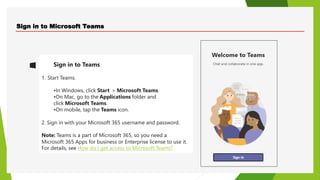
Sign in to Teams
1. Start Teams.
•In Windows, click Start > Microsoft Teams.
•On Mac, go to the Applications folder and
click Microsoft Teams.
•On mobile, tap the Teams icon.
2. Sign in with your Microsoft 365 username and password.
Note: Teams is a part of Microsoft 365, so you need a
Microsoft 365 Apps for business or Enterprise license to use it.
For details, see How do I get access to Microsoft Teams?
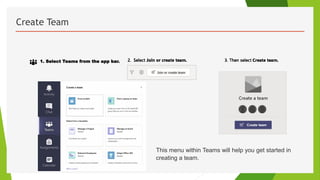
Create Team
1. Select Teams from the app bar.
This menu within Teams will help you get started in
creating a team.
How to create a team and invite team members
To make a team and invite members to it, follow these steps:
 Select Teams from the tab on the left.
 Then select Create team.
 Choose Build a team from scratch.
 If you want everyone in the organization to have access to
the team, select To restrict access, go with Private.
 Enter a name and description for your team, then select
 Next, add all the names of your team members to the list
and click
 To add someone from outside the organization, you will have
to send an invitation. Click the Invite People button on the
bottom left to do so.
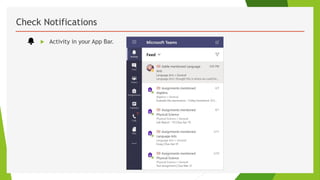
Check Notifications
 Activity in your App Bar.
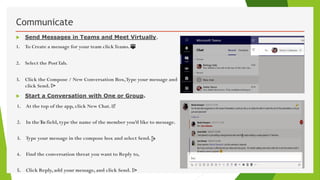
Communicate
 Send Messages in Teams and Meet Virtually.
1. To Create a message for your team clickTeams.
2. Select the PostTab.
3. Click the Compose / New Conversation Box,Type your message and
click Send.
 Start a Conversation with One or Group.
1. At the top of the app, click New Chat.
2. In theTo field, type the name of the member you’d like to message.
3. Type your message in the compose box and select Send.
4. Find the conversation threat you want to Reply to,
5. Click Reply, add your message, and click Send.
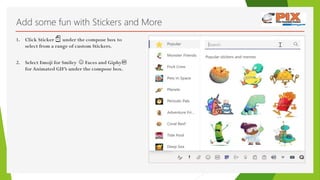
Add some fun with Stickers and More
1. Click Sticker under the compose box to
select from a range of custom Stickers.
2. Select Emoji for Smiley Faces and Giphy
for Animated GIF’s under the compose box.
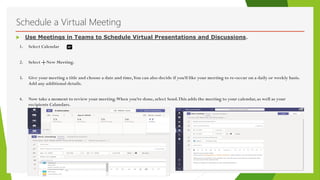
Schedule a Virtual Meeting
1. Select Calendar
2. Select New Meeting.
3. Give your meeting a title and choose a date and time,You can also decide if you’d like your meeting to re-occur on a daily or weekly basis.
Add any additional details.
4. Now take a moment to review your meeting.When you’re done, select Send.This adds the meeting to your calendar, as well as your
recipients Calandars.
 Use Meetings in Teams to Schedule Virtual Presentations and Discussions.
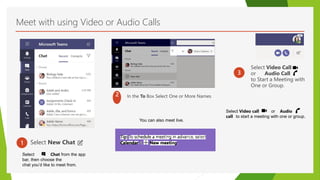
Meet with using Video or Audio Calls
1 Select New Chat
2 In the To Box Select One or More Names.
3
Select Video Call
or Audio Call
to Start a Meeting with
One or Group.
You can also meet live.
Select Chat from the app
bar, then choose the
chat you’d like to meet from.
Select Video call or Audio
call to start a meeting with one or group.
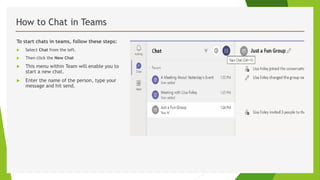
How to Chat in Teams
To start chats in teams, follow these steps:
 Select Chat from the left.
 Then click the New Chat
 This menu within Team will enable you to
start a new chat.
 Enter the name of the person, type your
message and hit send.
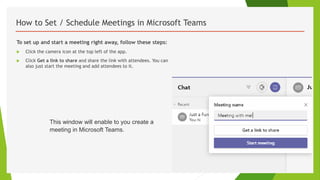
How to Set / Schedule Meetings in Microsoft Teams
To set up and start a meeting right away, follow these steps:
 Click the camera icon at the top left of the app.
 Click Get a link to share and share the link with attendees. You can
also just start the meeting and add attendees to it.
This window will enable to you create a
meeting in Microsoft Teams.
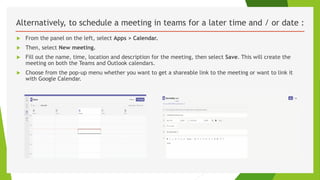
Alternatively, to schedule a meeting in teams for a later time and / or date :
 From the panel on the left, select Apps > Calendar.
 Then, select New meeting.
 Fill out the name, time, location and description for the meeting, then select Save. This will create the
meeting on both the Teams and Outlook calendars.
 Choose from the pop-up menu whether you want to get a shareable link to the meeting or want to link it
with Google Calendar.
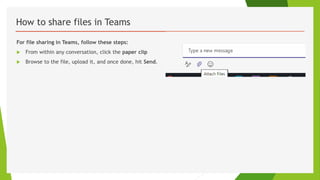
How to share files in Teams
For file sharing in Teams, follow these steps:
 From within any conversation, click the paper clip
 Browse to the file, upload it, and once done, hit Send.
How to use Teams for Voice and Video Calls
To make a voice or video call in Teams:
 While on any channel team, or chat, click
the camera or phone icon to start a voice or video call.
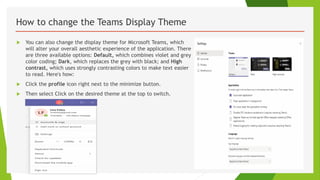
How to change the Teams Display Theme
 You can also change the display theme for Microsoft Teams, which
will alter your overall aesthetic experience of the application. There
are three available options: Default, which combines violet and grey
color coding; Dark, which replaces the grey with black; and High
contrast, which uses strongly contrasting colors to make text easier
to read. Here's how:
 Click the profile icon right next to the minimize button.
 Then select Click on the desired theme at the top to switch.
Recording Audio / Video Calls
To record an audio or video call in Teams:
 While in the meeting, go to meeting controls and then choose More options > Start recording. Everyone in the meeting will be
notified that the recording has begun.
 To stop recording, once again go to the meeting controls and then select More options > Stop recording.
 While recording audio and video calls in Teams is an option, it is important to note that some states require two-party consent to
initiate a recording. This means that all parties involved in the call must agree to being recorded.
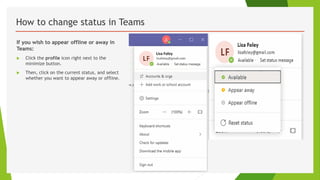
How to change status in Teams
If you wish to appear offline or away in
Teams:
 Click the profile icon right next to the
minimize button.
 Then, click on the current status, and select
whether you want to appear away or offline.
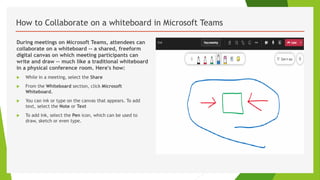
How to Collaborate on a whiteboard in Microsoft Teams
During meetings on Microsoft Teams, attendees can
collaborate on a whiteboard -- a shared, freeform
digital canvas on which meeting participants can
write and draw -- much like a traditional whiteboard
in a physical conference room. Here's how:
 While in a meeting, select the Share
 From the Whiteboard section, click Microsoft
Whiteboard.
 You can ink or type on the canvas that appears. To add
text, select the Note or Text
 To add ink, select the Pen icon, which can be used to
draw, sketch or even type.

Microsoft Teams - User Guide Presentation

  • 1.
    Get started How tosign in Sign in to Teams 1. Go to office.com on your web browser and sign in with your registered email id and password. 2. Select the Teams App.
  • 2.
    Sign in toMicrosoft Teams Sign in to Teams 1. Start Teams. •In Windows, click Start > Microsoft Teams. •On Mac, go to the Applications folder and click Microsoft Teams. •On mobile, tap the Teams icon. 2. Sign in with your Microsoft 365 username and password. Note: Teams is a part of Microsoft 365, so you need a Microsoft 365 Apps for business or Enterprise license to use it. For details, see How do I get access to Microsoft Teams?
  • 3.
    Create Team 1. SelectTeams from the app bar. This menu within Teams will help you get started in creating a team.
  • 4.
    How to createa team and invite team members To make a team and invite members to it, follow these steps:  Select Teams from the tab on the left.  Then select Create team.  Choose Build a team from scratch.  If you want everyone in the organization to have access to the team, select To restrict access, go with Private.  Enter a name and description for your team, then select  Next, add all the names of your team members to the list and click  To add someone from outside the organization, you will have to send an invitation. Click the Invite People button on the bottom left to do so.
  • 5.
  • 6.
    Communicate  Send Messagesin Teams and Meet Virtually. 1. To Create a message for your team clickTeams. 2. Select the PostTab. 3. Click the Compose / New Conversation Box,Type your message and click Send.  Start a Conversation with One or Group. 1. At the top of the app, click New Chat. 2. In theTo field, type the name of the member you’d like to message. 3. Type your message in the compose box and select Send. 4. Find the conversation threat you want to Reply to, 5. Click Reply, add your message, and click Send.
  • 7.
    Add some funwith Stickers and More 1. Click Sticker under the compose box to select from a range of custom Stickers. 2. Select Emoji for Smiley Faces and Giphy for Animated GIF’s under the compose box.
  • 8.
    Schedule a VirtualMeeting 1. Select Calendar 2. Select New Meeting. 3. Give your meeting a title and choose a date and time,You can also decide if you’d like your meeting to re-occur on a daily or weekly basis. Add any additional details. 4. Now take a moment to review your meeting.When you’re done, select Send.This adds the meeting to your calendar, as well as your recipients Calandars.  Use Meetings in Teams to Schedule Virtual Presentations and Discussions.
  • 9.
    Meet with usingVideo or Audio Calls 1 Select New Chat 2 In the To Box Select One or More Names. 3 Select Video Call or Audio Call to Start a Meeting with One or Group. You can also meet live. Select Chat from the app bar, then choose the chat you’d like to meet from. Select Video call or Audio call to start a meeting with one or group.
  • 10.
    How to Chatin Teams To start chats in teams, follow these steps:  Select Chat from the left.  Then click the New Chat  This menu within Team will enable you to start a new chat.  Enter the name of the person, type your message and hit send.
  • 11.
    How to Set/ Schedule Meetings in Microsoft Teams To set up and start a meeting right away, follow these steps:  Click the camera icon at the top left of the app.  Click Get a link to share and share the link with attendees. You can also just start the meeting and add attendees to it. This window will enable to you create a meeting in Microsoft Teams.
  • 12.
    Alternatively, to schedulea meeting in teams for a later time and / or date :  From the panel on the left, select Apps > Calendar.  Then, select New meeting.  Fill out the name, time, location and description for the meeting, then select Save. This will create the meeting on both the Teams and Outlook calendars.  Choose from the pop-up menu whether you want to get a shareable link to the meeting or want to link it with Google Calendar.
  • 13.
    How to sharefiles in Teams For file sharing in Teams, follow these steps:  From within any conversation, click the paper clip  Browse to the file, upload it, and once done, hit Send.
  • 14.
    How to useTeams for Voice and Video Calls To make a voice or video call in Teams:  While on any channel team, or chat, click the camera or phone icon to start a voice or video call.
  • 15.
    How to changethe Teams Display Theme  You can also change the display theme for Microsoft Teams, which will alter your overall aesthetic experience of the application. There are three available options: Default, which combines violet and grey color coding; Dark, which replaces the grey with black; and High contrast, which uses strongly contrasting colors to make text easier to read. Here's how:  Click the profile icon right next to the minimize button.  Then select Click on the desired theme at the top to switch.
  • 16.
    Recording Audio /Video Calls To record an audio or video call in Teams:  While in the meeting, go to meeting controls and then choose More options > Start recording. Everyone in the meeting will be notified that the recording has begun.  To stop recording, once again go to the meeting controls and then select More options > Stop recording.  While recording audio and video calls in Teams is an option, it is important to note that some states require two-party consent to initiate a recording. This means that all parties involved in the call must agree to being recorded.
  • 17.
    How to changestatus in Teams If you wish to appear offline or away in Teams:  Click the profile icon right next to the minimize button.  Then, click on the current status, and select whether you want to appear away or offline.
  • 18.
    How to Collaborateon a whiteboard in Microsoft Teams During meetings on Microsoft Teams, attendees can collaborate on a whiteboard -- a shared, freeform digital canvas on which meeting participants can write and draw -- much like a traditional whiteboard in a physical conference room. Here's how:  While in a meeting, select the Share  From the Whiteboard section, click Microsoft Whiteboard.  You can ink or type on the canvas that appears. To add text, select the Note or Text  To add ink, select the Pen icon, which can be used to draw, sketch or even type.