OFFICE 365 –FIRST THINGS TO
DO & AN OVERVIEW
LYNN DYE 405-633-1770
EXTREME VIRTUAL SUPPORT, INC.
DIGITAL ORGANIZATION | SOCIAL MEDIA | OFFICE 365 TRAINING | WEBSITES
HTTP://LYNNDYE.COM/
LYNN@EXTREMEVIRTUALSUPPORT.COM
WHAT WE’LL COVER
• Account personalizations (about you and start page)
• Sign into your Office apps on the desktop to add your account(s)
• Add your places (you can have OneDrive for Biz, OneDrive, SharePoint & more)
• Introduction to main apps (Teams, OneDrive for Business & SharePoint)
• Resources
• Subscribe to my YouTube channel and my newsletter
VIDEO TOUR OF OFFICE 365 APPS AND WHAT THIS
PRESENTATION CONTAINS
Link to YouTube to watch there
OFFICE 365 – WHAT IS IT?
• Office apps in the cloud (Word, Excel, PowerPoint, Outlook, OneDrive, SharePoint)
• Office mobile (get either Android or iPhone apps free)
• Online versions of Office anywhere there’s an internet connection
• Collaborate with documents in real time with co-workers
• Constant updates to Office (for those with Office 2016 Pro Plus)
WHEN YOU FIRST LOG IN
• Log in at http://login.microsoftonline.com and sign in with your O365 credentials
• As you click the Office 365 tab at the upper left corner, your main apps appear
(only the Admin sees the Admin tile). Click the ‘Explore all your apps’ to see even
more apps.
SETTING UP
YOUR O365
ACCOUNT
ONLINE
• After logging in, click your name in the upper
right and then click ‘My profile’ and you’ll be
taken to the app called Delve. This is where
you’ll personalize your account.
PERSONALIZE YOUR ACCOUNT
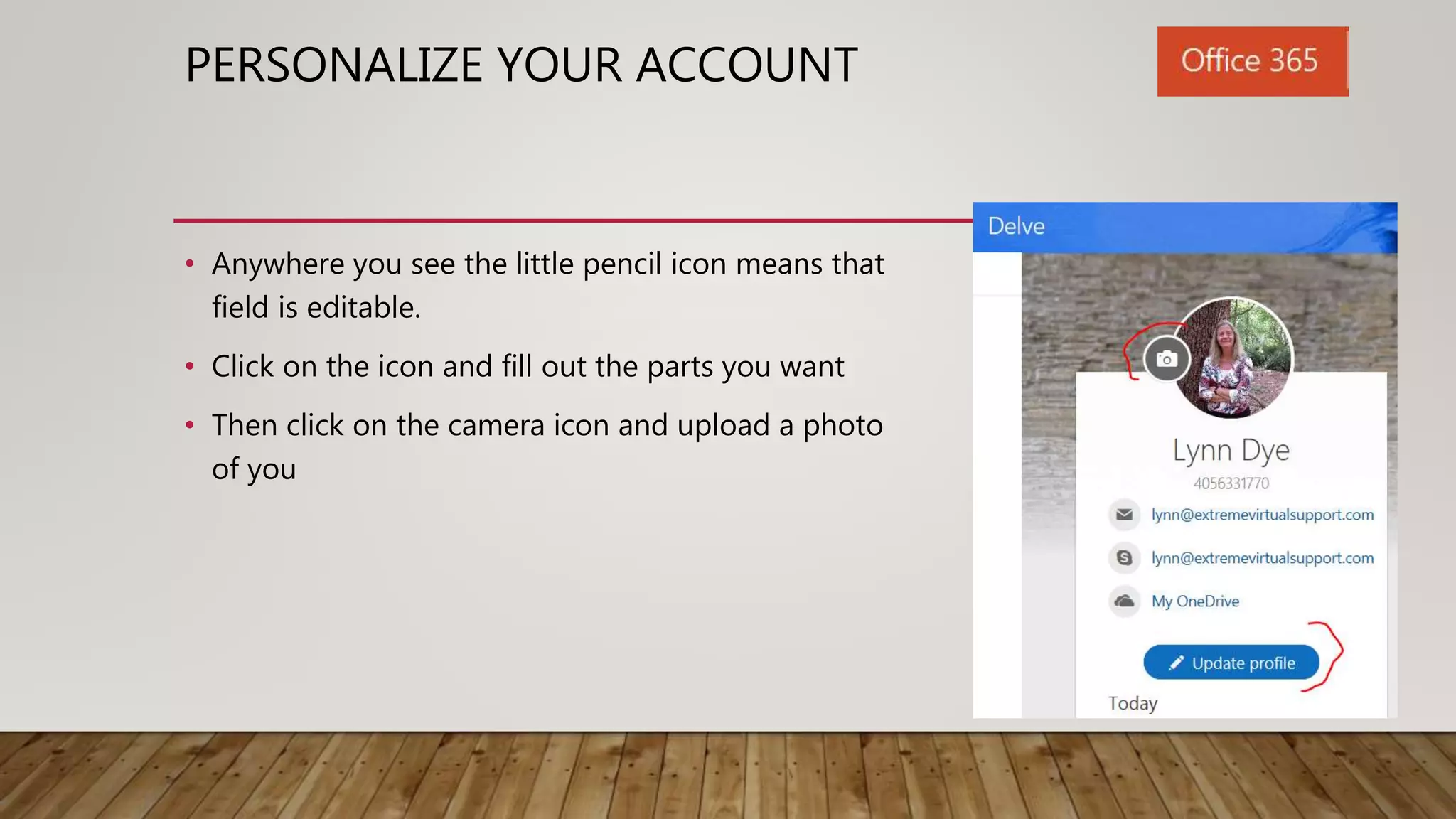
• Anywhere you see the little pencil icon means that
field is editable.
• Click on the icon and fill out the parts you want
• Then click on the camera icon and upload a photo
of you
PERSONALIZING
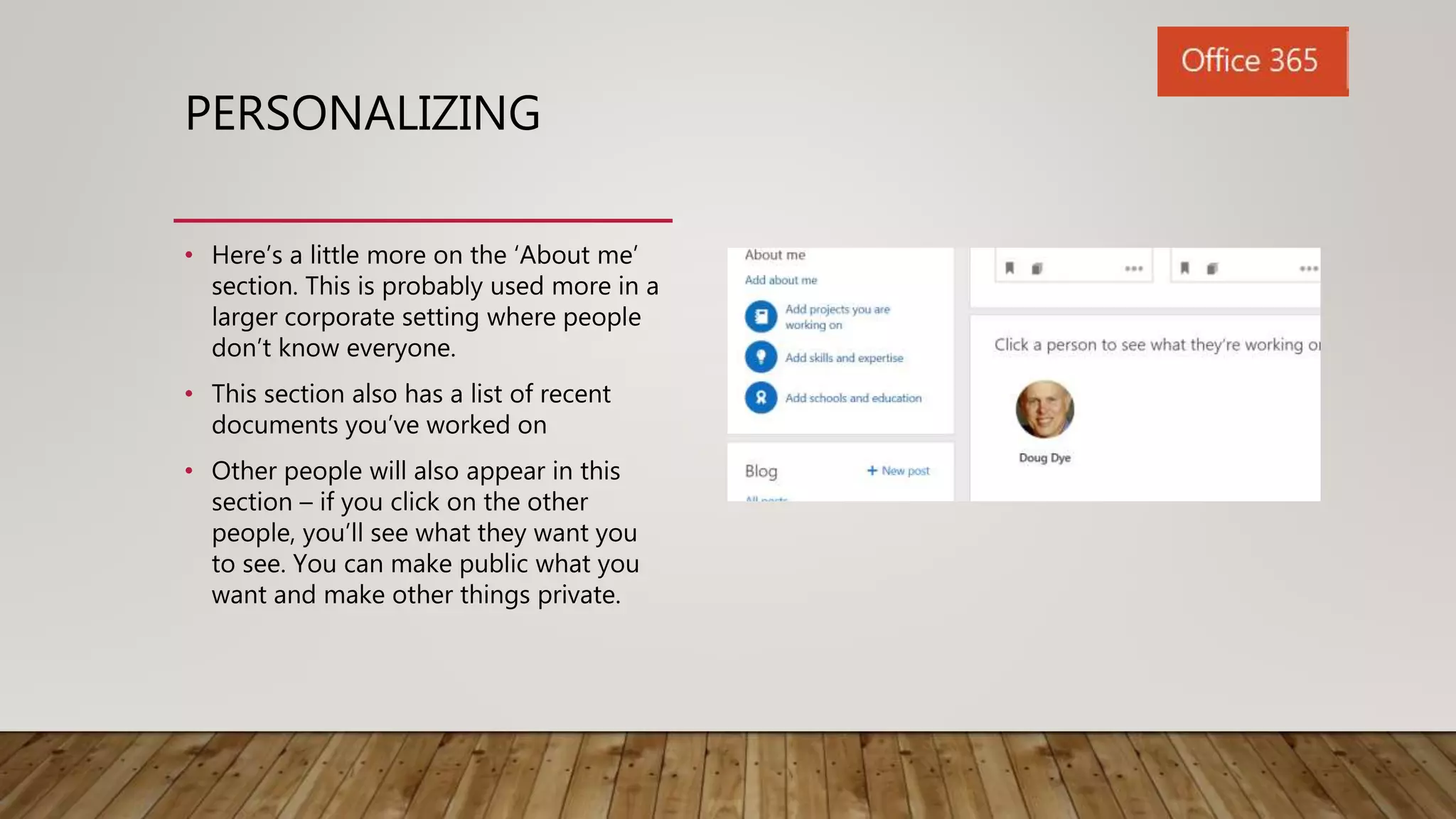
• Here’s a little more on the ‘About me’
section. This is probably used more in a
larger corporate setting where people
don’t know everyone.
• This section also has a list of recent
documents you’ve worked on
• Other people will also appear in this
section – if you click on the other
people, you’ll see what they want you
to see. You can make public what you
want and make other things private.
PERSONALIZE YOUR O365 THEME & START PAGE
• Click on ‘My account’
• Select a theme and a start page
• TIP: On most pages when you’re
in O365, you’ll need to click the
save changes button!
PERSONALIZE OFFICE DOCUMENTS
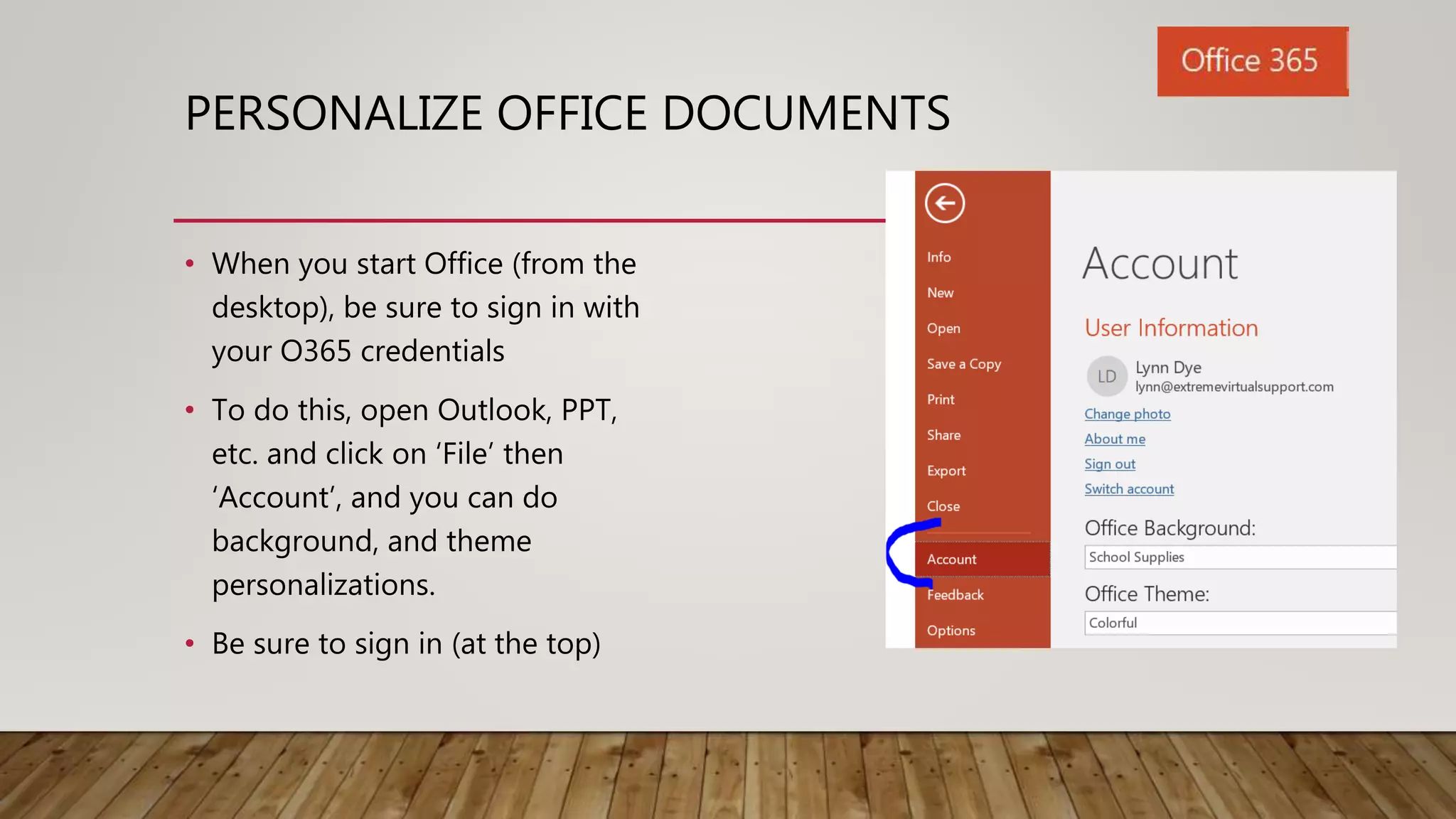
• When you start Office (from the
desktop), be sure to sign in with
your O365 credentials
• To do this, open Outlook, PPT,
etc. and click on ‘File’ then
‘Account’, and you can do
background, and theme
personalizations.
• Be sure to sign in (at the top)
PERSONALIZE OFFICE DOCUMENTS
• From then on, when
you open up an app,
you’ll be able to see a
list of your recent
documents
PERSONALIZE OFFICE – ADDING PLACES
IN THE BACK END OF OFFICE
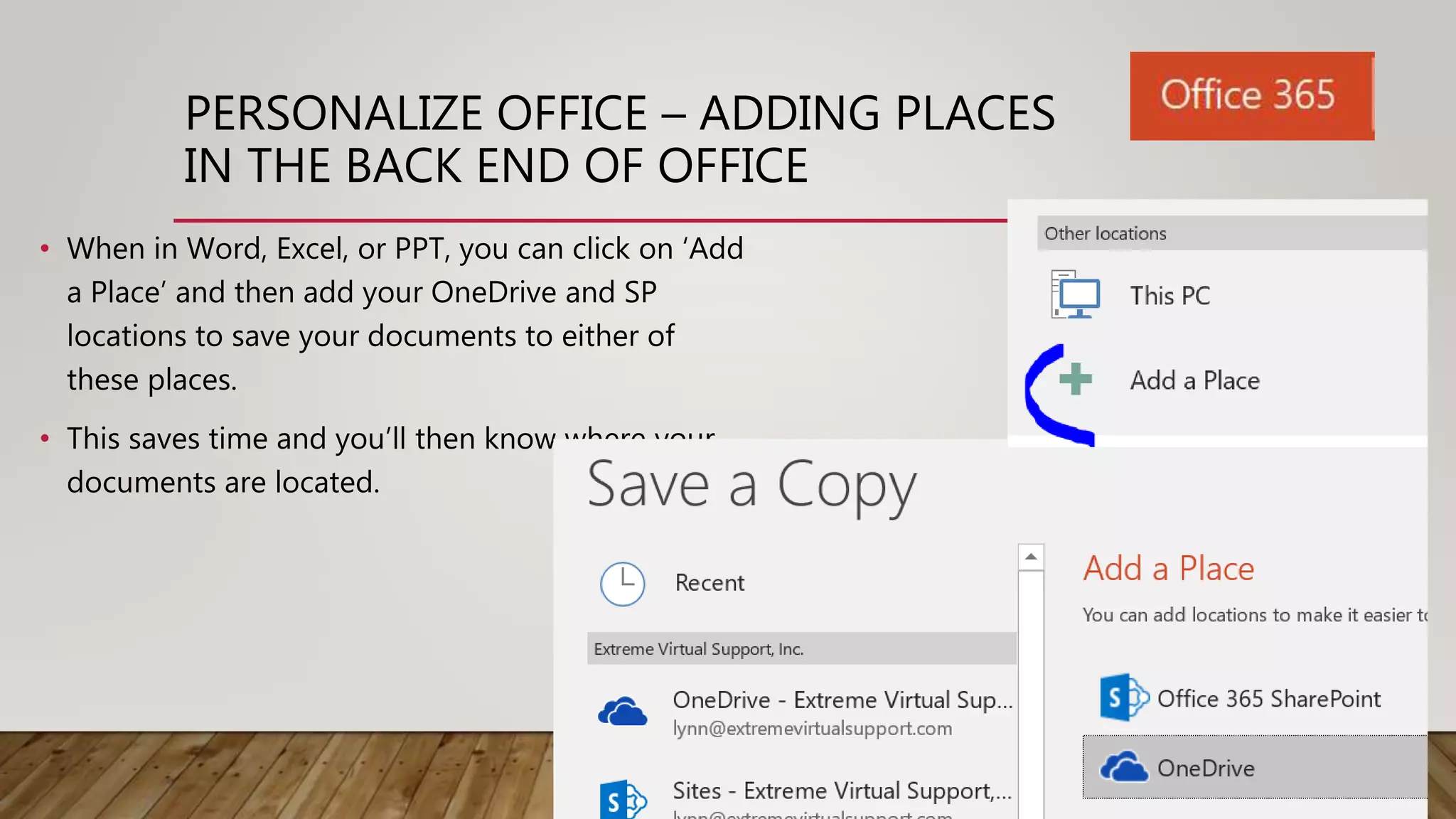
• When in Word, Excel, or PPT, you can click on ‘Add
a Place’ and then add your OneDrive and SP
locations to save your documents to either of
these places.
• This saves time and you’ll then know where your
documents are located.
DEEPER LOOK AT THE MOST USED O365 APPS
ONEDRIVE FOR BUSINESS | SHAREPOINT | TEAMS
• Chat-based collaborative tool that includes file storage and sharing
• 1 x 1 chat and threaded conversations to keep track of things
• Shared workspace (you can have several projects to keep things separated)
• Whoever starts the team can invite people within and outside the organization
• Calendar built into teams for scheduling meetings
DEEPER LOOK AT THE NEWER O365 APPS
ONEDRIVE FOR BUSINESS | SHAREPOINT | TEAMS
• OneDrive for Business (ODFB) – this is your personal place to put your business
files – the ones only you will need to access
• You can upload files or folders of just about any type (.jpg, .png, .pdf and of
course, all office files). Uploading can be done in the cloud (on-line) or you can
drag files into OneDrive from Windows Explorer
DEEPER LOOK AT THE NEWER O365 APPS
ONEDRIVE FOR BUSINESS | SHAREPOINT | TEAMS
• Here is ODFB from within Windows
Explorer
• You can create folders or drag and
drop existing files/folders here
• Everything syncs to the cloud and you
have the ability to access from
anywhere
• Here is ODFB from the web
• Click the ‘Upload’ button to upload either files or
folders
• Multiple files can be selected and uploaded at the
same time
• After upload, click on the ‘Sync’ button to synchronize
to your desktop
DEEPER LOOK AT THE NEWER O365 APPS
ONEDRIVE FOR BUSINESS | SHAREPOINT | TEAMS
• There’s ODFB that is part of your business/O365 subscription
• Then there’s OneDrive (OD). This is the consumer OneDrive and should NOT be
used at the office because it’s not part of the business plan
• You can tell the difference because your company name will be next to the
OneDrive!
DEEPER LOOK AT THE NEWER O365 APPS
ONEDRIVE FOR BUSINESS | SHAREPOINT | TEAMS
• SharePoint is for sharing files with the team or select groups of people
• Your company already has a Team Site where documents can be stored and
everyone can access
• New sites can be created and invitations sent to all or some
DEEPER LOOK AT THE NEWER O365 APPS
ONEDRIVE FOR BUSINESS | SHAREPOINT | TEAMS
• SharePoint and ODFB can be simply used as a storage area for files that people
need to access from time to time
• OR SharePoint and ODFB can be used as extremely powerful tools. Some
examples:
• Force files to be checked out and in
• Create lists and put meta data (detailed information) on files and folders for faster
search
• Create work flows from with SP to have a method you want people to use for certain
files
• Have subsites of sites and add what are called ‘web parts’ – additions to SP sites that
may have calendars, photos, chat and more
RESOURCES FOR FREE O365 TRAINING
• https://support.office.com/office-training-
center?ui=en-US&rs=en-US&ad=US
• This site has an intro into each app (video
and transcript)
• There are cheat sheets and downloadable
pdfs with great tips
• Office quick start guides
• Links to more training
Lynn Dye Extreme Virtual Support, Inc.
Digital Organization | Social Media | Office 365 training |
Websites
http://lynndye.com/
lynn@extremevirtualsupport.com
Please subscribe to
my YouTube channel
for how-to and
informational videos
on Office,
SharePoint and
other tech
Click below to
subscribe to my
Monthly Newsletter
where I share tips,
what’s on my mind
and my latest blog
article.
Have a question on something here or something different regarding O365? Send me an
email to lynn@extremevirtualsupport.com
• https://support.office.com/office-training-center?ui=en-US&rs=en-US&ad=US
• Office training center

Office365for thebeginner

  • 1.
    OFFICE 365 –FIRSTTHINGS TO DO & AN OVERVIEW LYNN DYE 405-633-1770 EXTREME VIRTUAL SUPPORT, INC. DIGITAL ORGANIZATION | SOCIAL MEDIA | OFFICE 365 TRAINING | WEBSITES HTTP://LYNNDYE.COM/ LYNN@EXTREMEVIRTUALSUPPORT.COM
  • 2.
    WHAT WE’LL COVER •Account personalizations (about you and start page) • Sign into your Office apps on the desktop to add your account(s) • Add your places (you can have OneDrive for Biz, OneDrive, SharePoint & more) • Introduction to main apps (Teams, OneDrive for Business & SharePoint) • Resources • Subscribe to my YouTube channel and my newsletter
  • 3.
    VIDEO TOUR OFOFFICE 365 APPS AND WHAT THIS PRESENTATION CONTAINS Link to YouTube to watch there
  • 4.
    OFFICE 365 –WHAT IS IT? • Office apps in the cloud (Word, Excel, PowerPoint, Outlook, OneDrive, SharePoint) • Office mobile (get either Android or iPhone apps free) • Online versions of Office anywhere there’s an internet connection • Collaborate with documents in real time with co-workers • Constant updates to Office (for those with Office 2016 Pro Plus)
  • 5.
    WHEN YOU FIRSTLOG IN • Log in at http://login.microsoftonline.com and sign in with your O365 credentials • As you click the Office 365 tab at the upper left corner, your main apps appear (only the Admin sees the Admin tile). Click the ‘Explore all your apps’ to see even more apps.
  • 6.
    SETTING UP YOUR O365 ACCOUNT ONLINE •After logging in, click your name in the upper right and then click ‘My profile’ and you’ll be taken to the app called Delve. This is where you’ll personalize your account.
  • 7.
    PERSONALIZE YOUR ACCOUNT •Anywhere you see the little pencil icon means that field is editable. • Click on the icon and fill out the parts you want • Then click on the camera icon and upload a photo of you
  • 8.
    PERSONALIZING • Here’s alittle more on the ‘About me’ section. This is probably used more in a larger corporate setting where people don’t know everyone. • This section also has a list of recent documents you’ve worked on • Other people will also appear in this section – if you click on the other people, you’ll see what they want you to see. You can make public what you want and make other things private.
  • 9.
    PERSONALIZE YOUR O365THEME & START PAGE • Click on ‘My account’ • Select a theme and a start page • TIP: On most pages when you’re in O365, you’ll need to click the save changes button!
  • 10.
    PERSONALIZE OFFICE DOCUMENTS •When you start Office (from the desktop), be sure to sign in with your O365 credentials • To do this, open Outlook, PPT, etc. and click on ‘File’ then ‘Account’, and you can do background, and theme personalizations. • Be sure to sign in (at the top)
  • 11.
    PERSONALIZE OFFICE DOCUMENTS •From then on, when you open up an app, you’ll be able to see a list of your recent documents
  • 12.
    PERSONALIZE OFFICE –ADDING PLACES IN THE BACK END OF OFFICE • When in Word, Excel, or PPT, you can click on ‘Add a Place’ and then add your OneDrive and SP locations to save your documents to either of these places. • This saves time and you’ll then know where your documents are located.
  • 13.
    DEEPER LOOK ATTHE MOST USED O365 APPS ONEDRIVE FOR BUSINESS | SHAREPOINT | TEAMS • Chat-based collaborative tool that includes file storage and sharing • 1 x 1 chat and threaded conversations to keep track of things • Shared workspace (you can have several projects to keep things separated) • Whoever starts the team can invite people within and outside the organization • Calendar built into teams for scheduling meetings
  • 14.
    DEEPER LOOK ATTHE NEWER O365 APPS ONEDRIVE FOR BUSINESS | SHAREPOINT | TEAMS • OneDrive for Business (ODFB) – this is your personal place to put your business files – the ones only you will need to access • You can upload files or folders of just about any type (.jpg, .png, .pdf and of course, all office files). Uploading can be done in the cloud (on-line) or you can drag files into OneDrive from Windows Explorer
  • 15.
    DEEPER LOOK ATTHE NEWER O365 APPS ONEDRIVE FOR BUSINESS | SHAREPOINT | TEAMS • Here is ODFB from within Windows Explorer • You can create folders or drag and drop existing files/folders here • Everything syncs to the cloud and you have the ability to access from anywhere • Here is ODFB from the web • Click the ‘Upload’ button to upload either files or folders • Multiple files can be selected and uploaded at the same time • After upload, click on the ‘Sync’ button to synchronize to your desktop
  • 16.
    DEEPER LOOK ATTHE NEWER O365 APPS ONEDRIVE FOR BUSINESS | SHAREPOINT | TEAMS • There’s ODFB that is part of your business/O365 subscription • Then there’s OneDrive (OD). This is the consumer OneDrive and should NOT be used at the office because it’s not part of the business plan • You can tell the difference because your company name will be next to the OneDrive!
  • 17.
    DEEPER LOOK ATTHE NEWER O365 APPS ONEDRIVE FOR BUSINESS | SHAREPOINT | TEAMS • SharePoint is for sharing files with the team or select groups of people • Your company already has a Team Site where documents can be stored and everyone can access • New sites can be created and invitations sent to all or some
  • 18.
    DEEPER LOOK ATTHE NEWER O365 APPS ONEDRIVE FOR BUSINESS | SHAREPOINT | TEAMS • SharePoint and ODFB can be simply used as a storage area for files that people need to access from time to time • OR SharePoint and ODFB can be used as extremely powerful tools. Some examples: • Force files to be checked out and in • Create lists and put meta data (detailed information) on files and folders for faster search • Create work flows from with SP to have a method you want people to use for certain files • Have subsites of sites and add what are called ‘web parts’ – additions to SP sites that may have calendars, photos, chat and more
  • 19.
    RESOURCES FOR FREEO365 TRAINING • https://support.office.com/office-training- center?ui=en-US&rs=en-US&ad=US • This site has an intro into each app (video and transcript) • There are cheat sheets and downloadable pdfs with great tips • Office quick start guides • Links to more training
  • 20.
    Lynn Dye ExtremeVirtual Support, Inc. Digital Organization | Social Media | Office 365 training | Websites http://lynndye.com/ lynn@extremevirtualsupport.com Please subscribe to my YouTube channel for how-to and informational videos on Office, SharePoint and other tech Click below to subscribe to my Monthly Newsletter where I share tips, what’s on my mind and my latest blog article. Have a question on something here or something different regarding O365? Send me an email to lynn@extremevirtualsupport.com
  • 21.