Network Naming


   Chapter 10
Objectives
• Describe the function and capabilities of DNS
• Configure and troubleshoot WINS
• Use common TCP/IP utilities to diagnose
  problems with and WINS
Overview
Introduction to Naming
• Computers use IP addresses to communicate
• People remember names better than
  numbers
• Name resolution created to convert names to
  IP addresses (and vice versa)
•   Name resolution has evolved over the years
•   Main protocol is Domain Name System (DNS)
•   Operating systems support old and new
•   Windows, Linux, and Macintosh OS X still
    support Windows Internet Name Server
    (WINS)
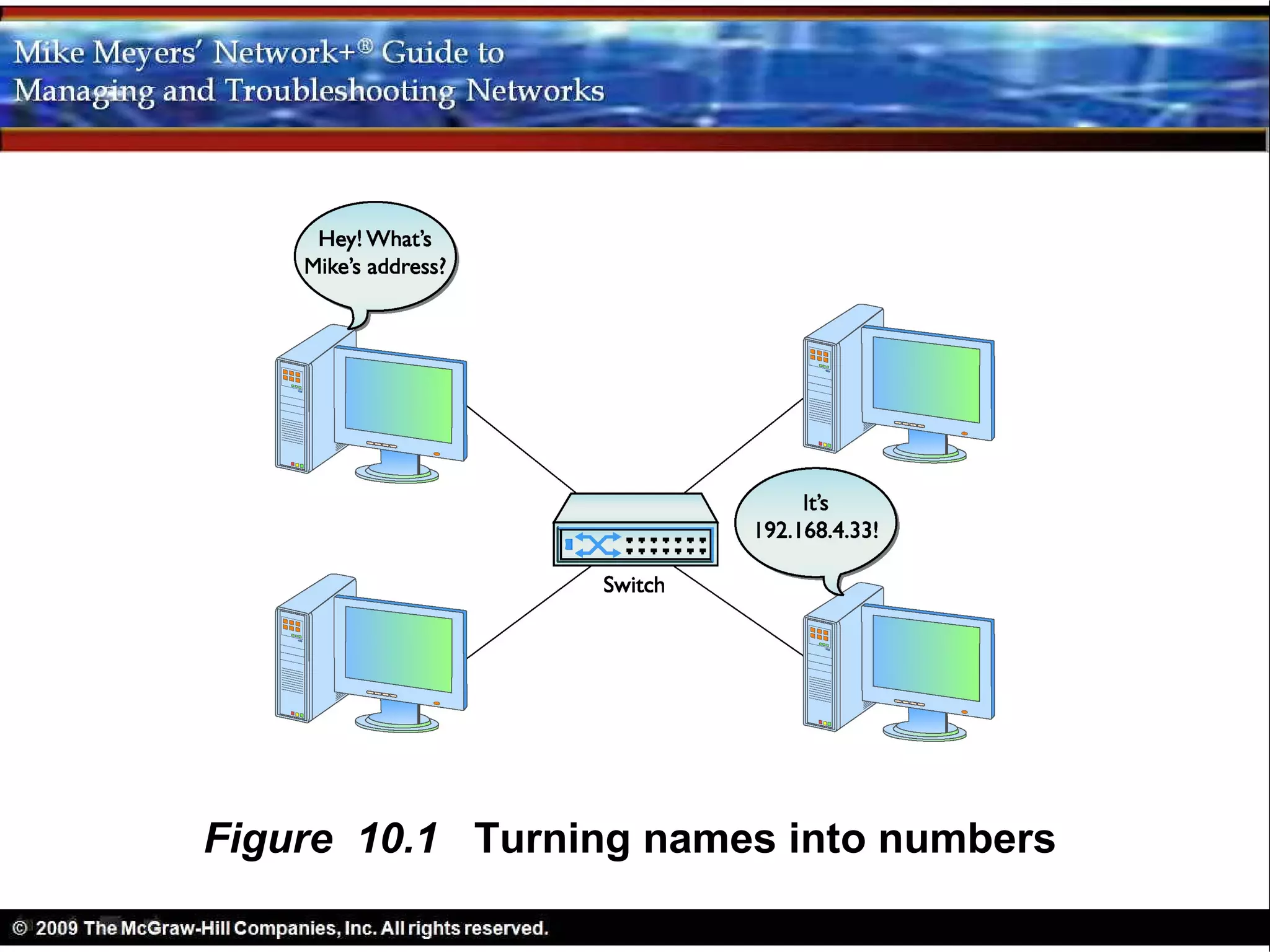
Figure 10.1 Turning names into numbers
Three Parts to Chapter 10
• DNS
• WINS
• Diagnosing TCP/IP Networks
DNS
DNS
• Early Internet use of HOSTS file
  – One file copied to all hosts on the Internet
  – Contained a list of IP addresses for every
    computer, matched to system names
  – Preceded rules for composing Internet
    names
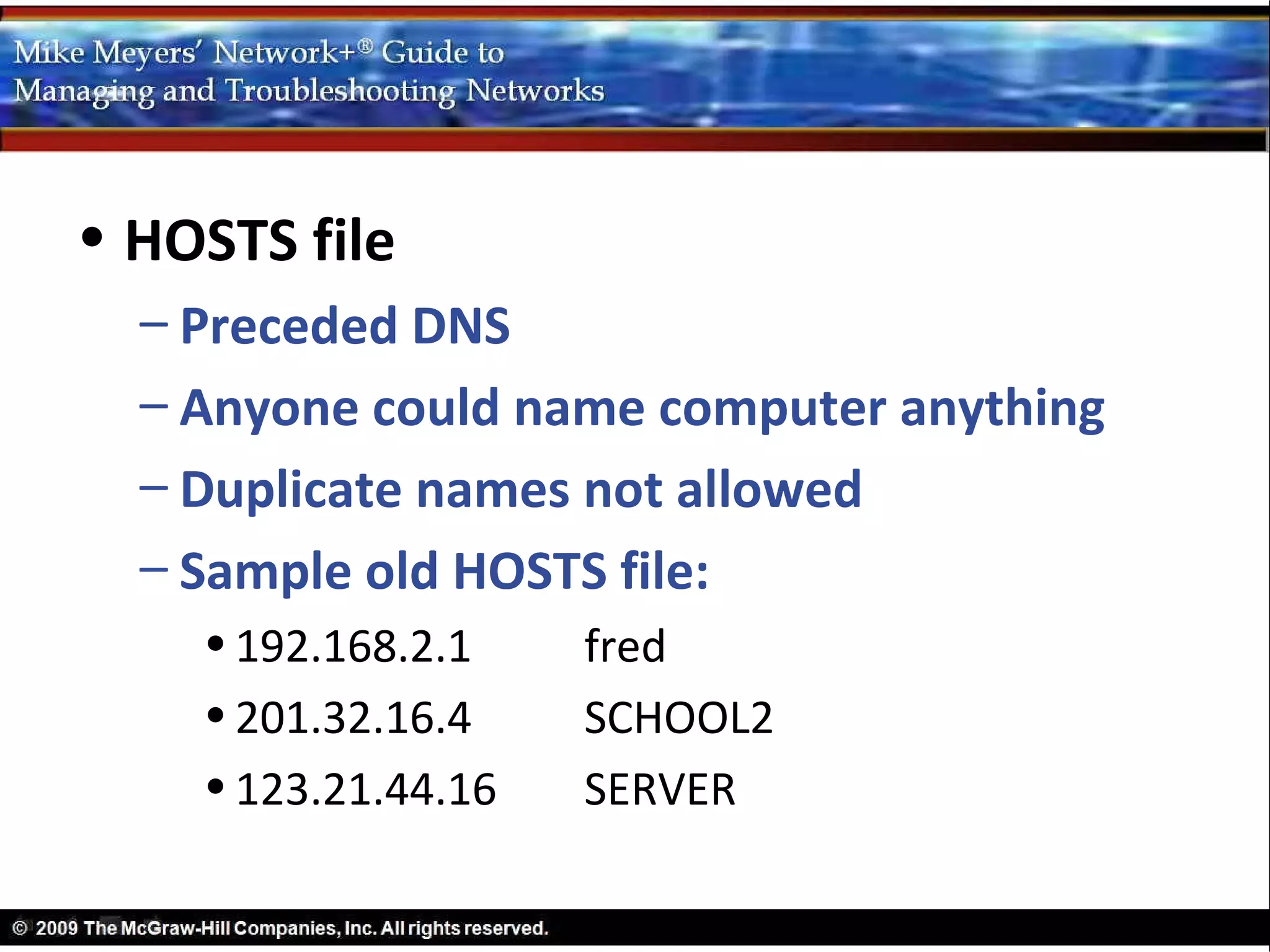
• HOSTS file
  – Preceded DNS
  – Anyone could name computer anything
  – Duplicate names not allowed
  – Sample old HOSTS file:
    • 192.168.2.1    fred
    • 201.32.16.4    SCHOOL2
    • 123.21.44.16   SERVER
• HOSTS file
  – Hosts file updated on every system every
    morning at 2 a.m.
  – Impractical after Internet grew to 5000
  – New name system, but HOSTS file still
    exists
  – # symbol indicates a line is a comment
• HOSTS file
  – Every OS first looks in HOSTS file
  – Follow-up to Try This!
    • Every TCP/IP app looks at HOSTS file
    • If you altered the HOSTS file per the Try This!
      enter this command:
      ping timmy
• HOSTS file
  – Some place shortcut names in a HOSTS file
    to avoid typing a long name into browser
  – DNS is more powerful and used much
    more
• How DNS works
  – No single computer can handle all Internet
    name resolution
  – Delegation used
    • Top-dog DNS system delegates parts of the job
    • Subsidiary DNS systems delegate parts of their
      work
    • All DNS servers run a special DNS server program
• How DNS works
  – Naming system facilitates delegation
  – Top-dog DNS a bunch of powerful systems
    • Dispersed around the world
    • Known collectively as the DNS root servers (or
      DNS root)
       – The Internet name for DNS root is “.”
       – Below root are the top-level domain servers
• Name Spaces
  – Hosts file uses a flat name space
  – DNS uses a hierarchical name space
    • A hierarchy of DNS domains and computer names
    • Hierarchical DNS names space is the DNS Tree
    • Root is the holding area to which all domains
      connect
    • Individual computers have host names
• Name Spaces
  – Home-brewed DNS
    • Must not connect to the Internet
    • Set up a DNS server to be the root server
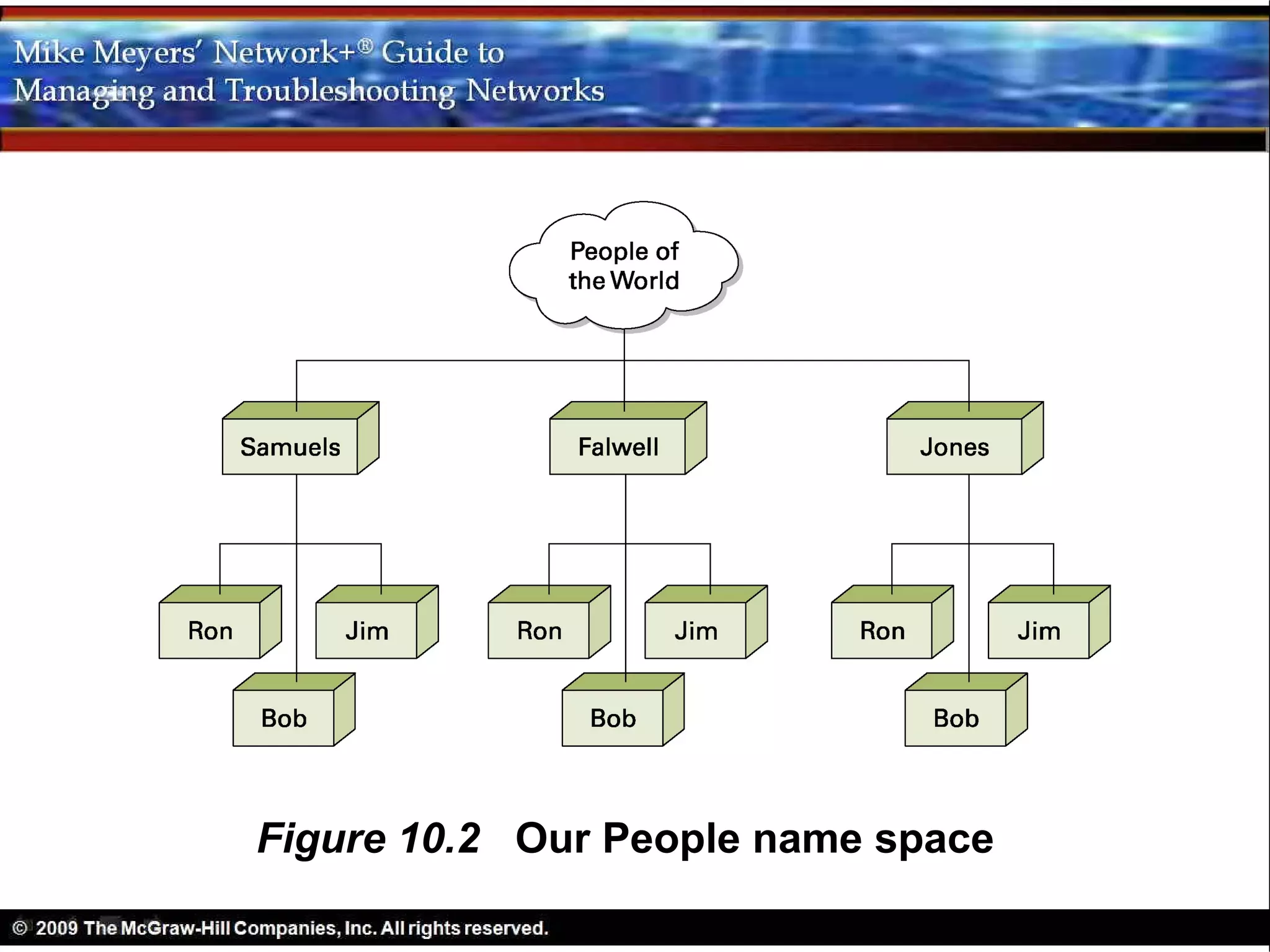
Figure 10.2 Our People name space
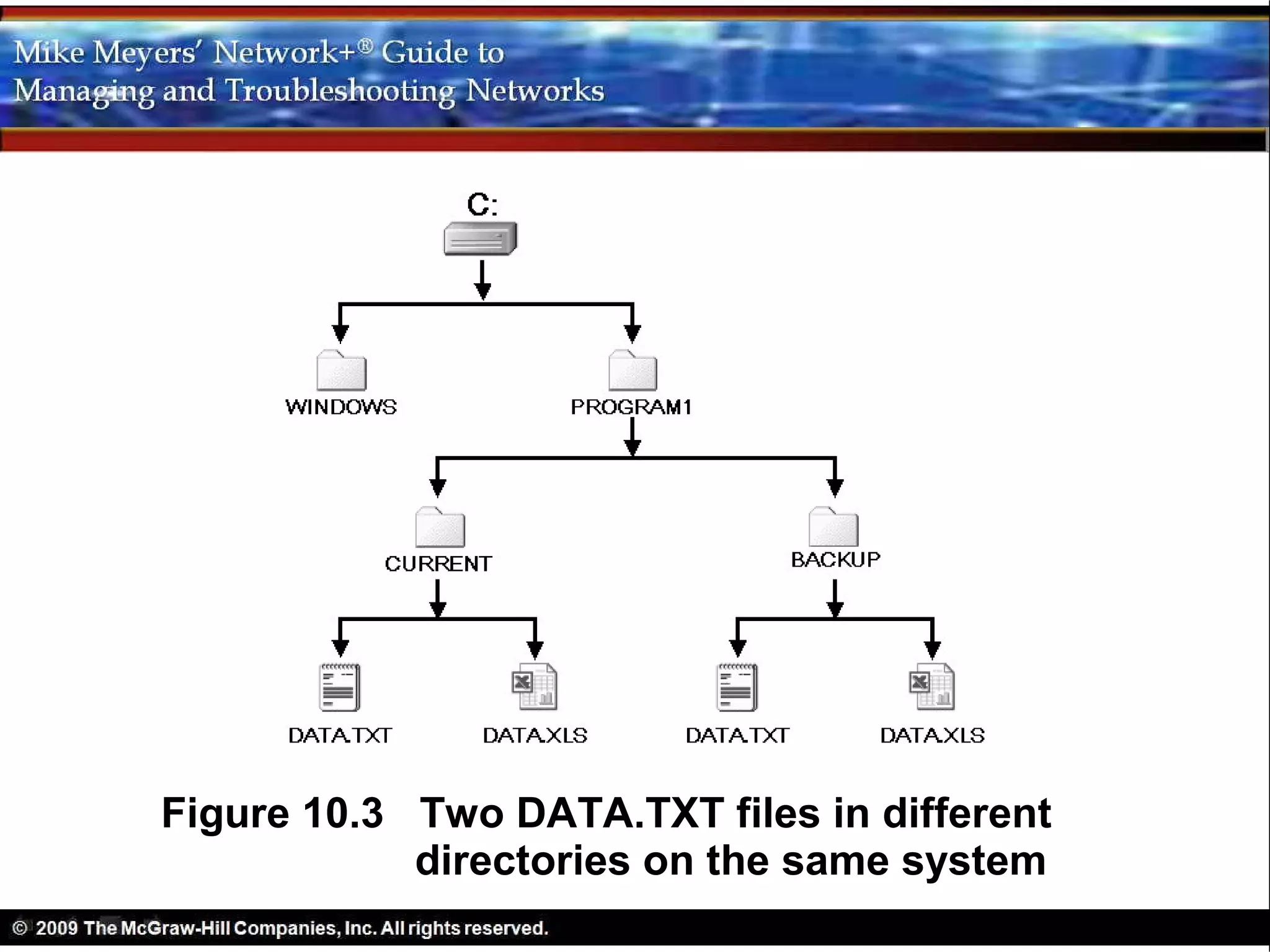
Figure 10.3 Two DATA.TXT files in different
            directories on the same system
• Name Spaces
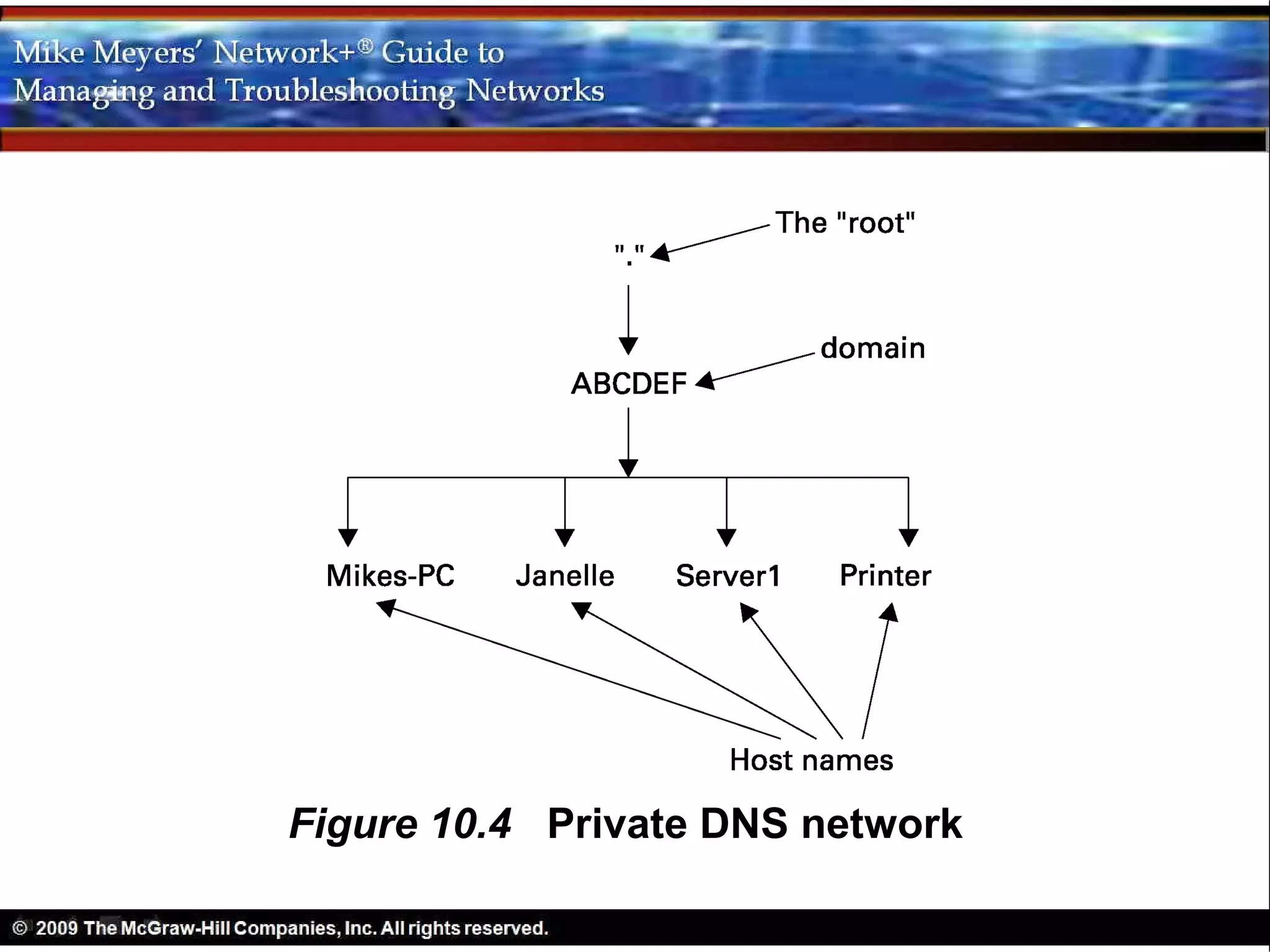
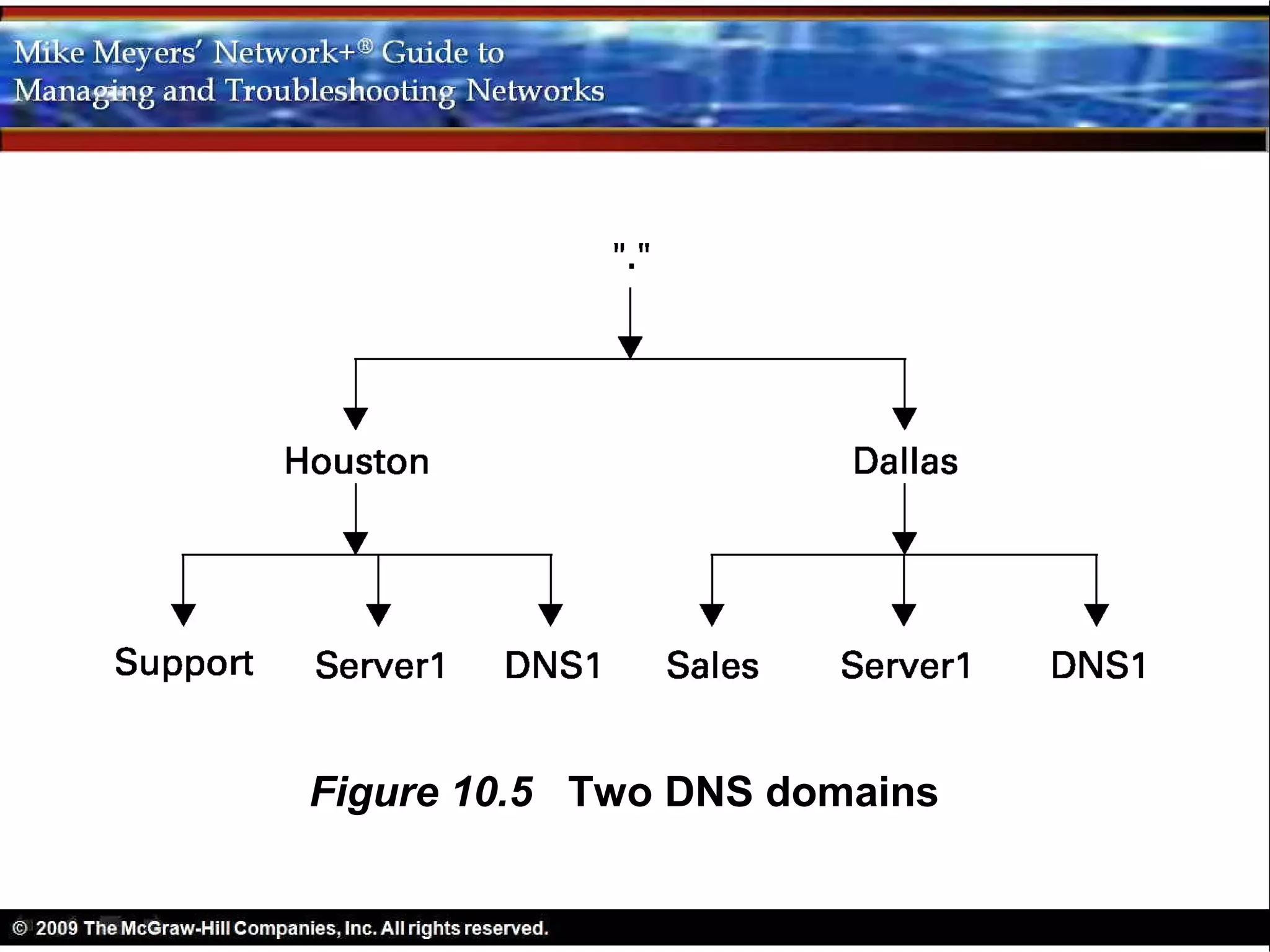
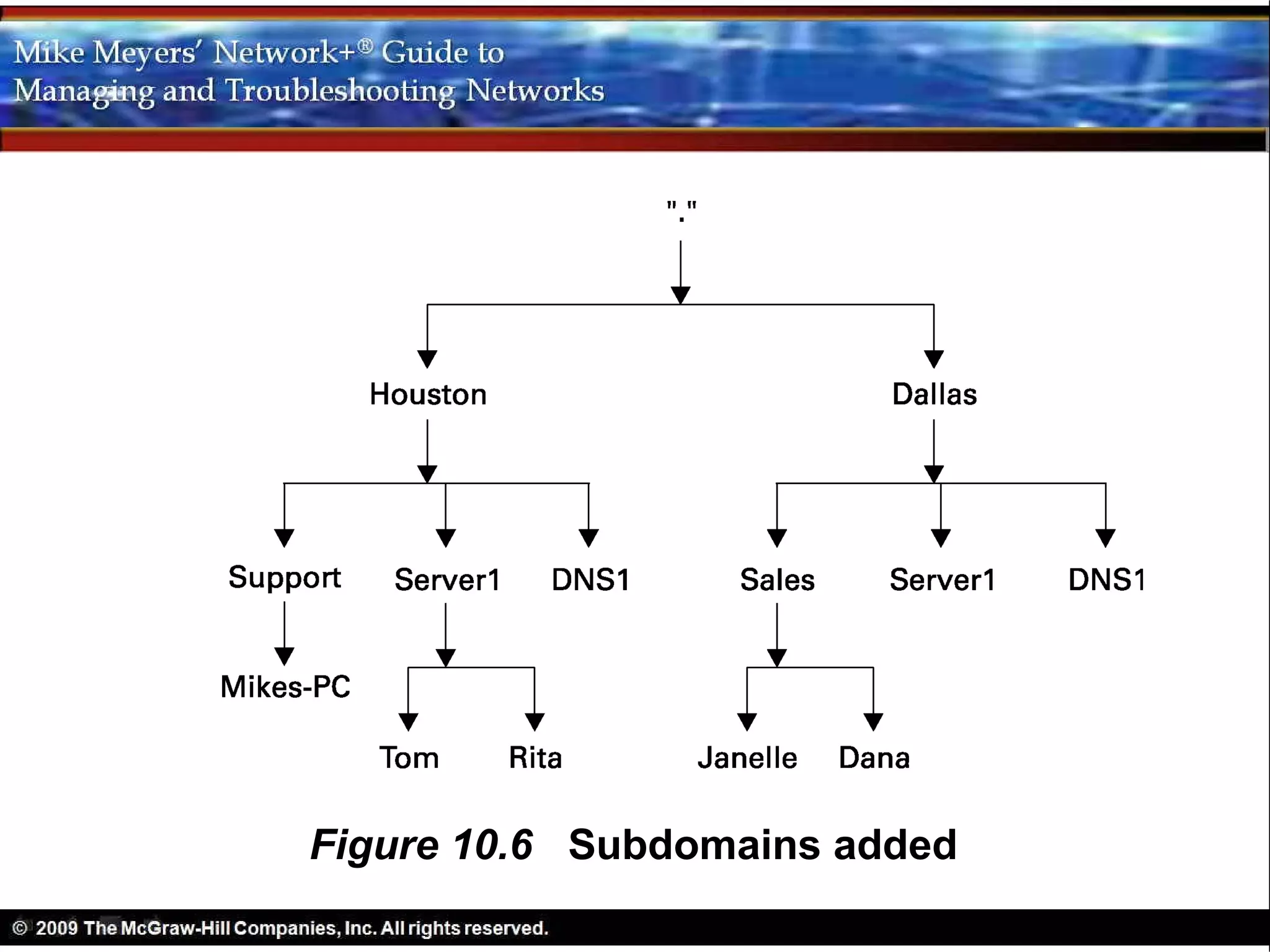
  – DNS naming syntax
    • Opposite of disk folder/directory syntax
    • A complete DNS name is a fully qualified domain
      name (FQDN)
    • Host and all domains in order
    • Root is far right
Figure 10.4 Private DNS network
Figure 10.5 Two DNS domains
Figure 10.6 Subdomains added
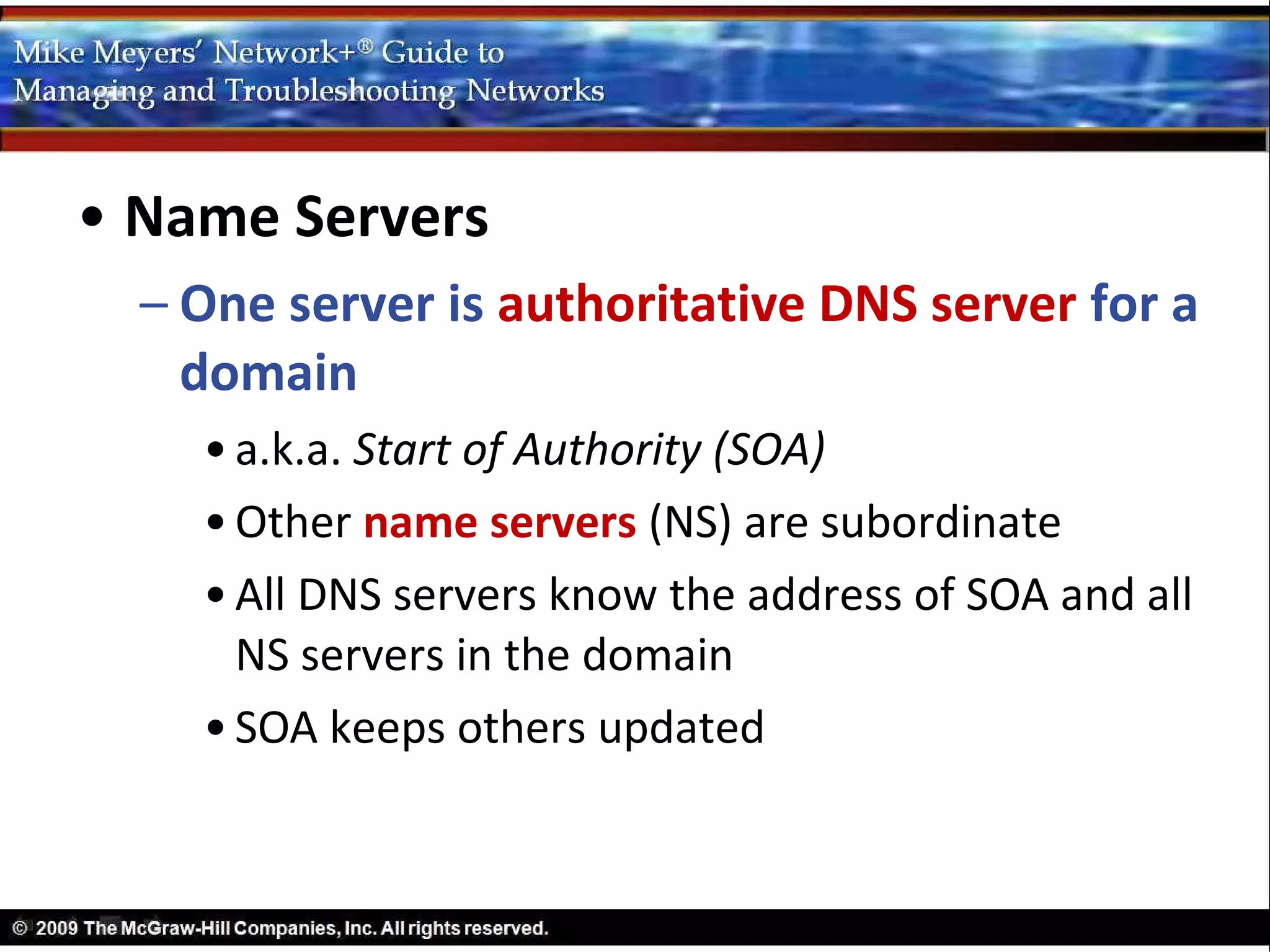
• Name Servers
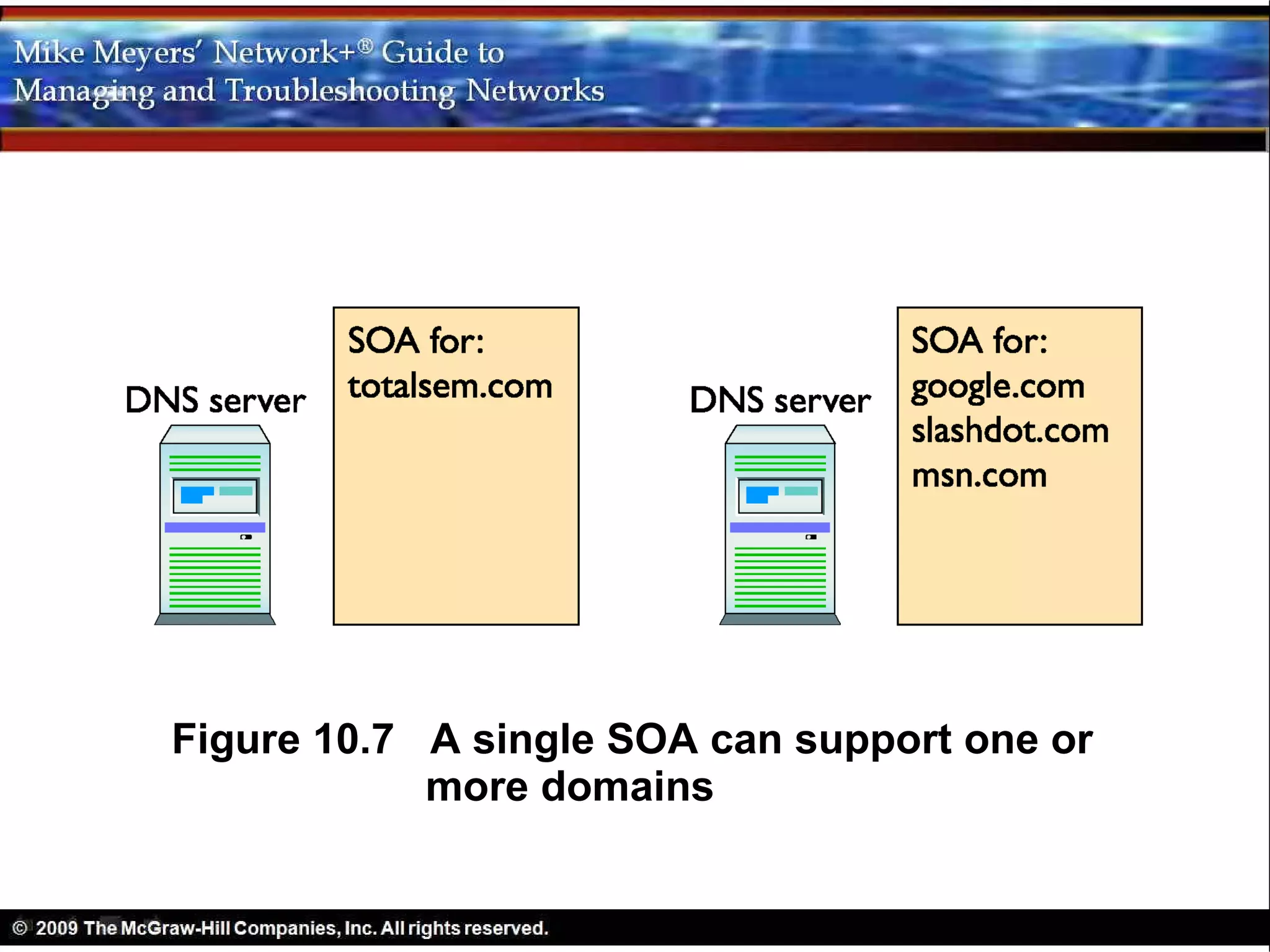
  – One server is authoritative DNS server for a
    domain
    • a.k.a. Start of Authority (SOA)
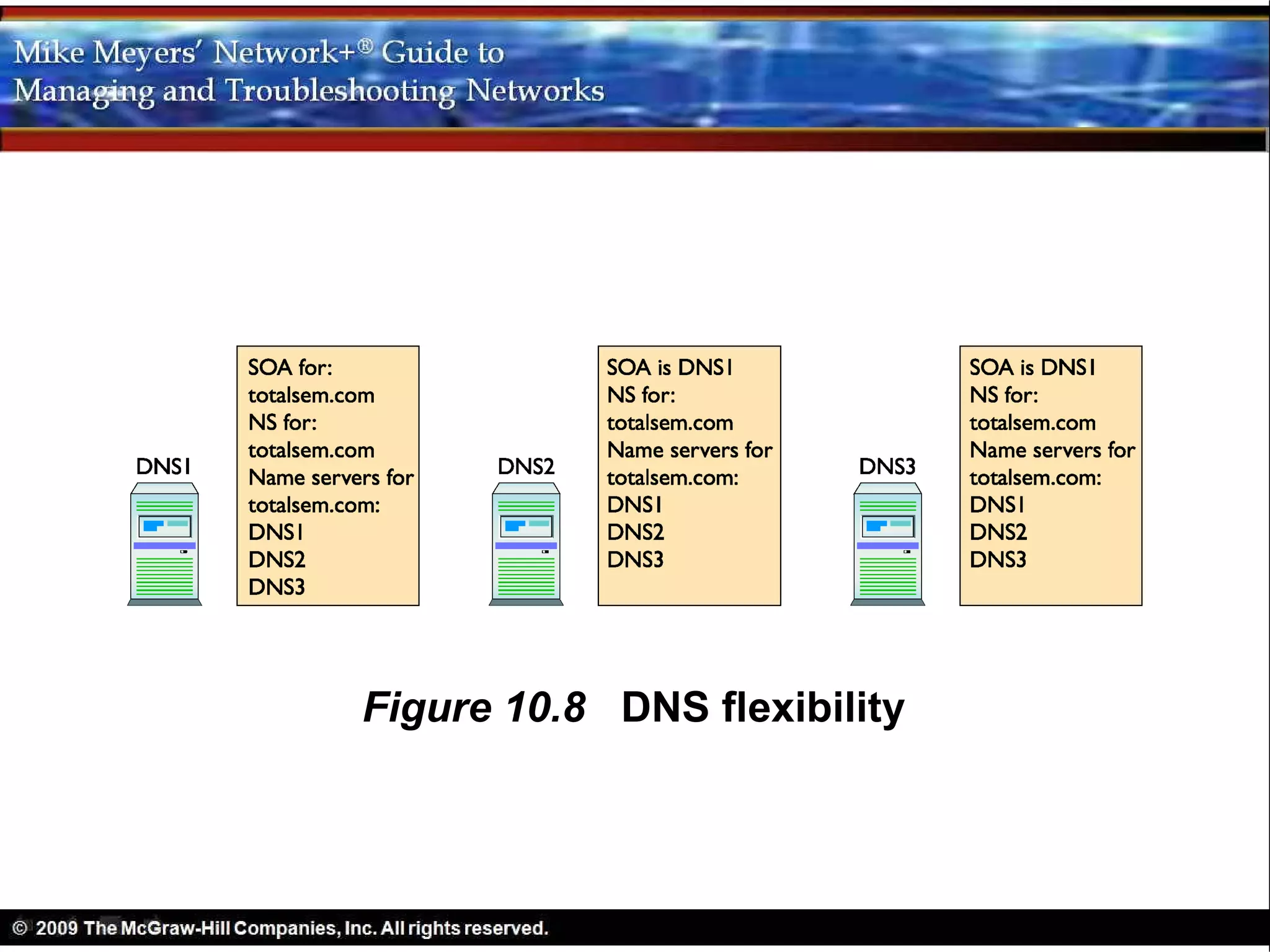
    • Other name servers (NS) are subordinate
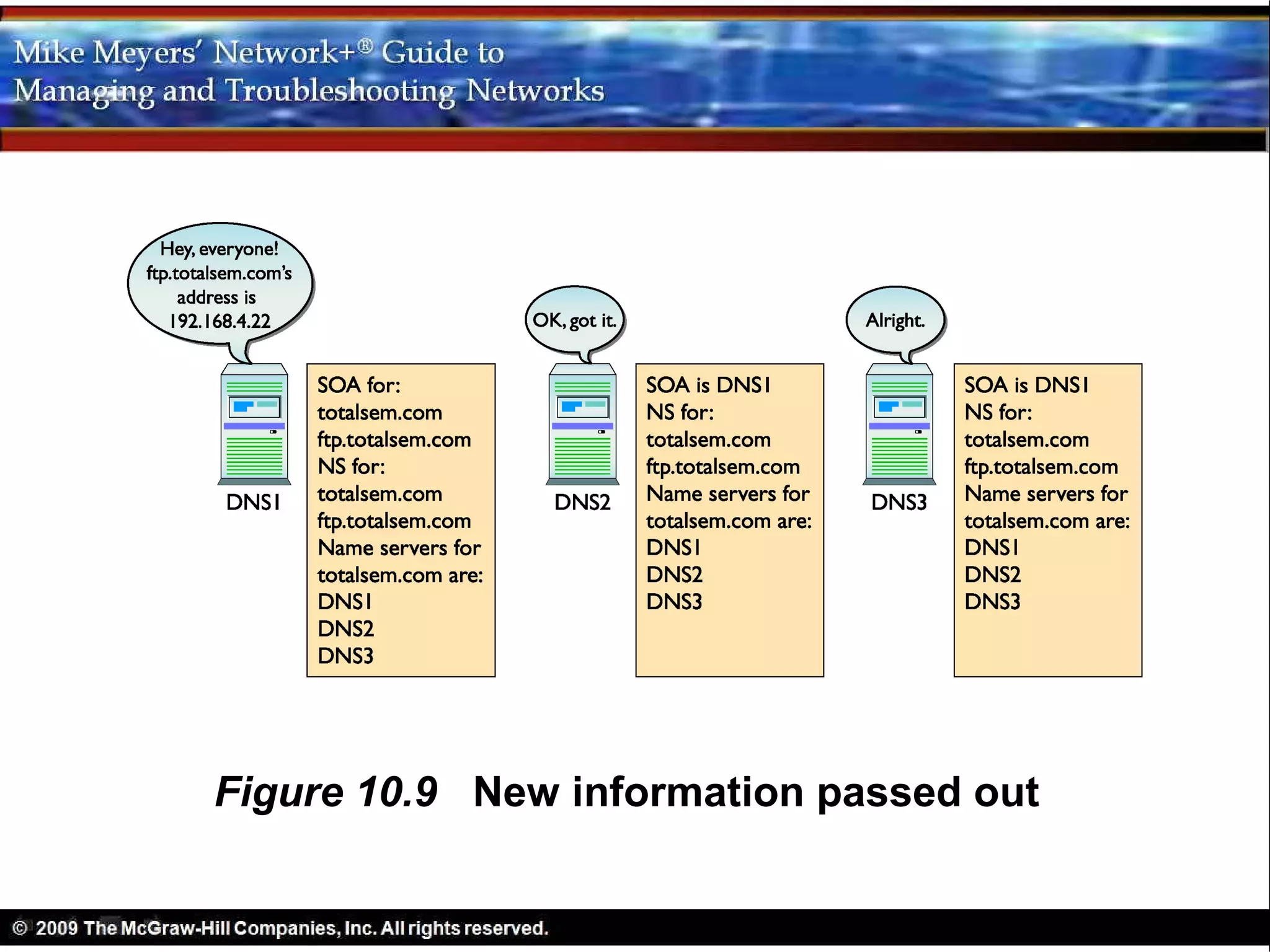
    • All DNS servers know the address of SOA and all
      NS servers in the domain
    • SOA keeps others updated
• Name Servers
  – Other systems send queries to DNS servers
  – Request resolution of FQDNs to IP addresses
Figure 10.7 A single SOA can support one or
            more domains
Figure 10.8 DNS flexibility
Figure 10.9 New information passed out
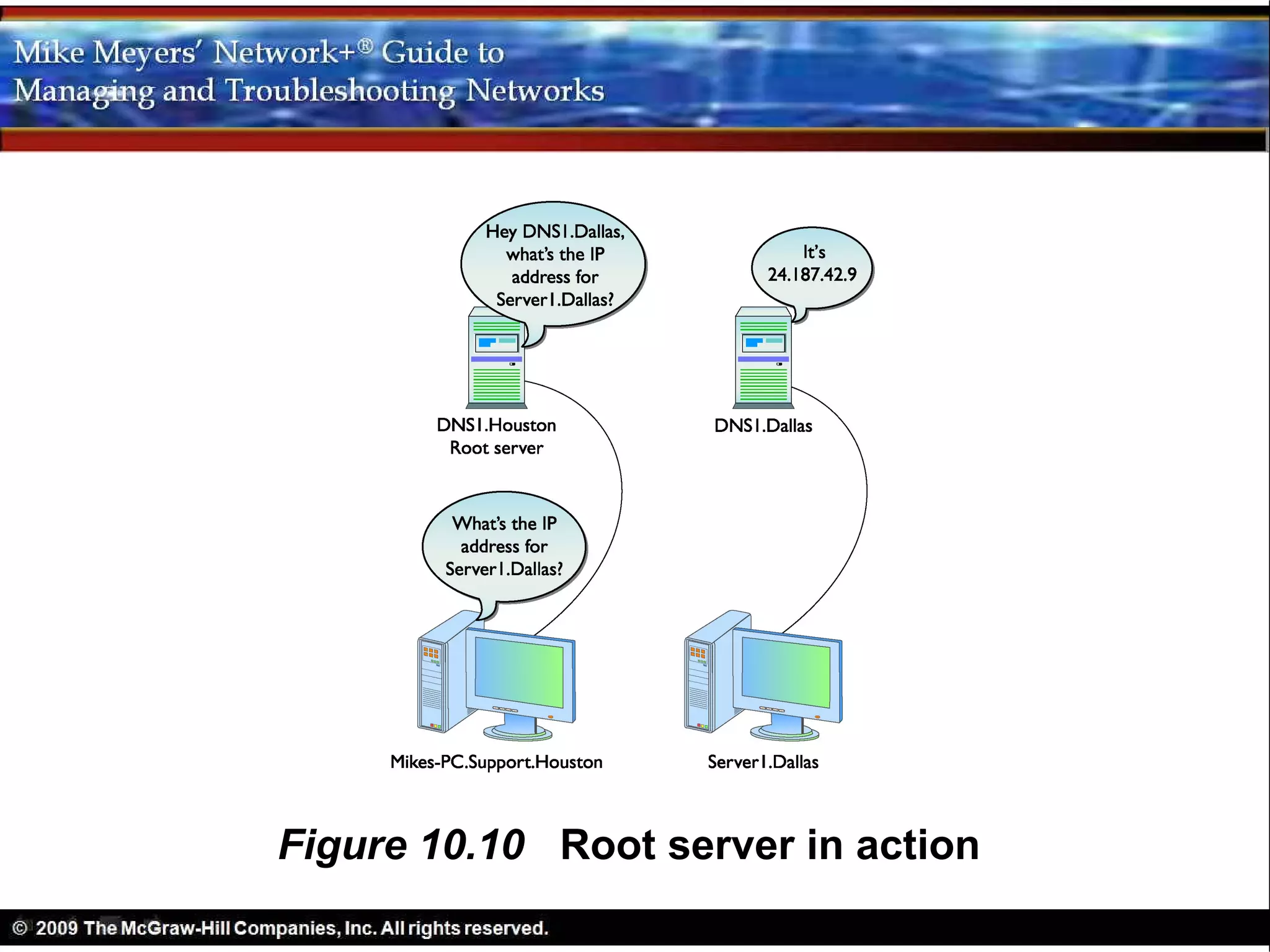
Figure 10.10 Root server in action
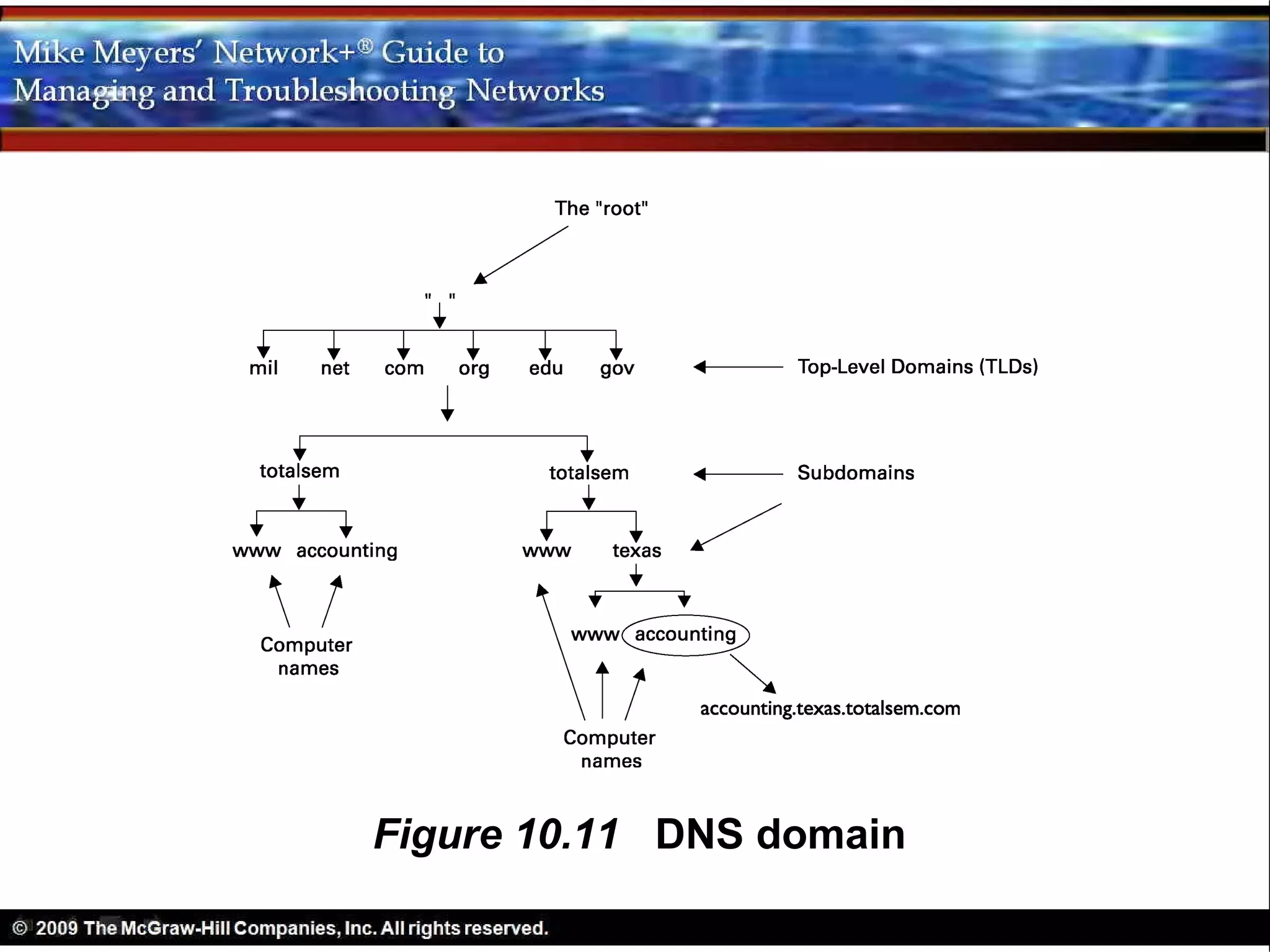
Figure 10.11 DNS domain
• Name Resolution
  – DNS not required to access Internet
  – DNS just makes is much easier
  – IP addresses required for connections
  – Most people would not use Internet without
    DNS name resolution
• Name Resolution
  – Type Web address into a browser
  – It must resolve the name to IP address
  – Three ways to resolve a name
    • Broadcasting
    • HOSTS file
    • Querying a DNS server
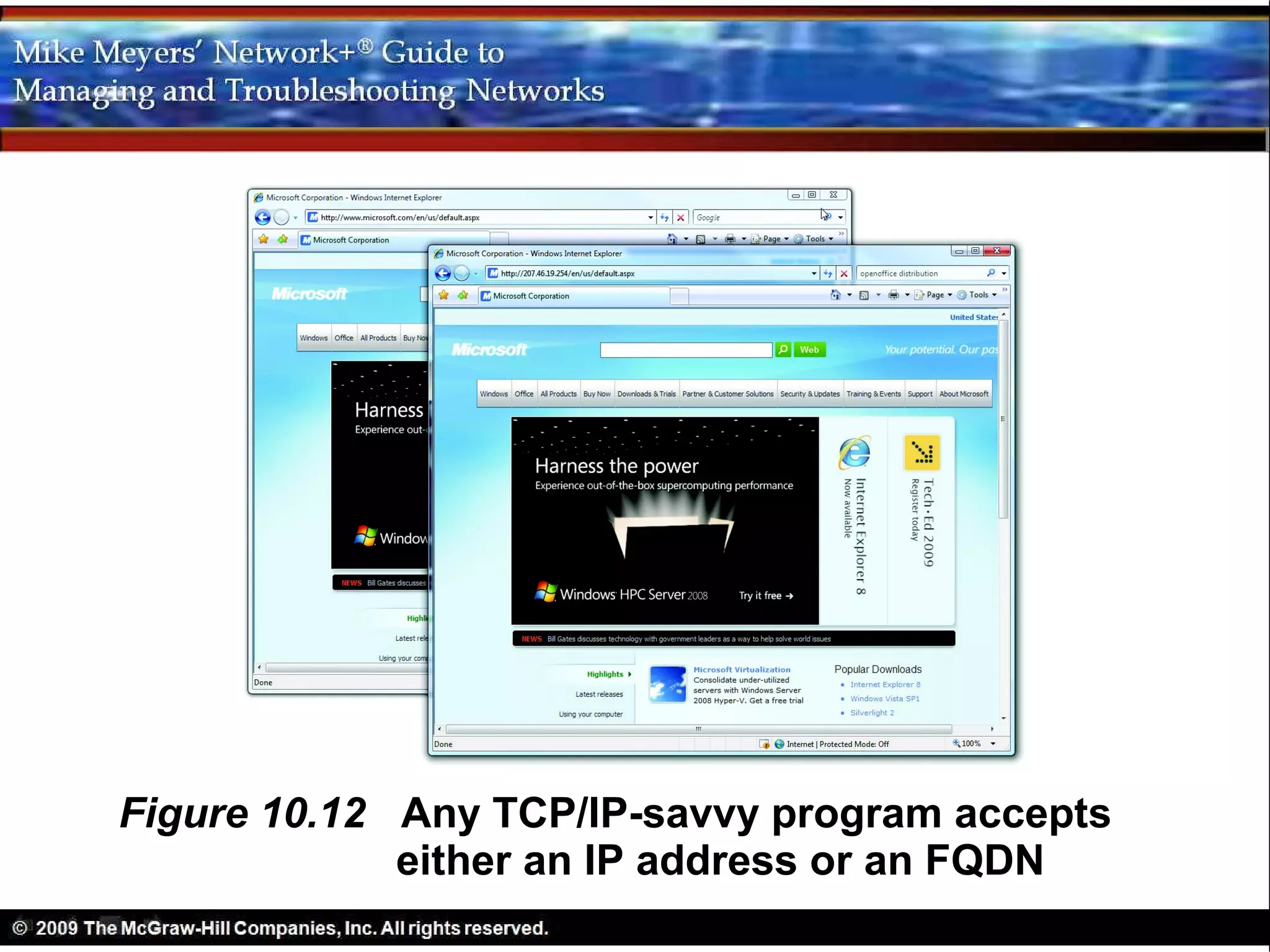
Figure 10.12 Any TCP/IP-savvy program accepts
             either an IP address or an FQDN
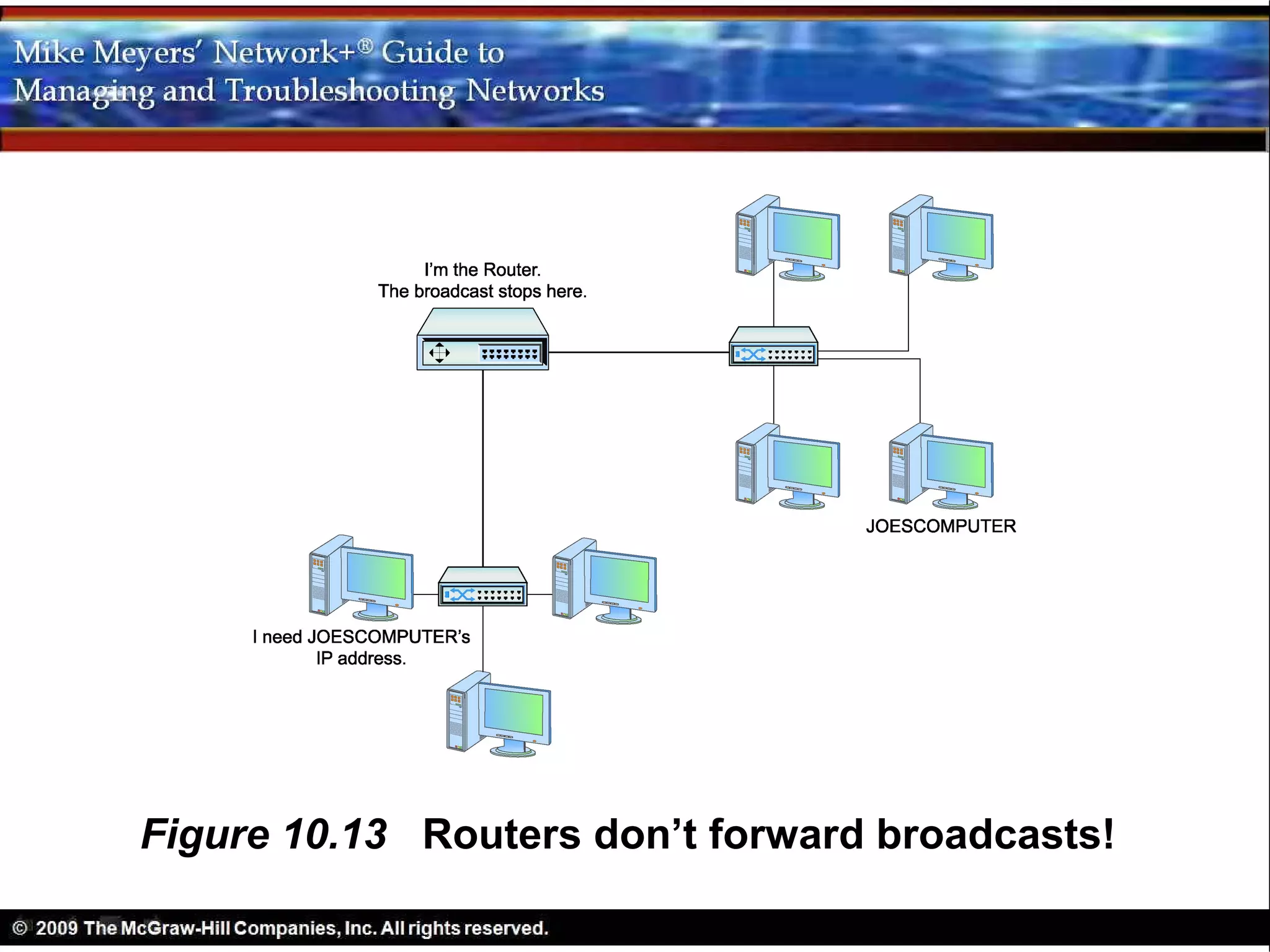
Figure 10.13 Routers don’t forward broadcasts!
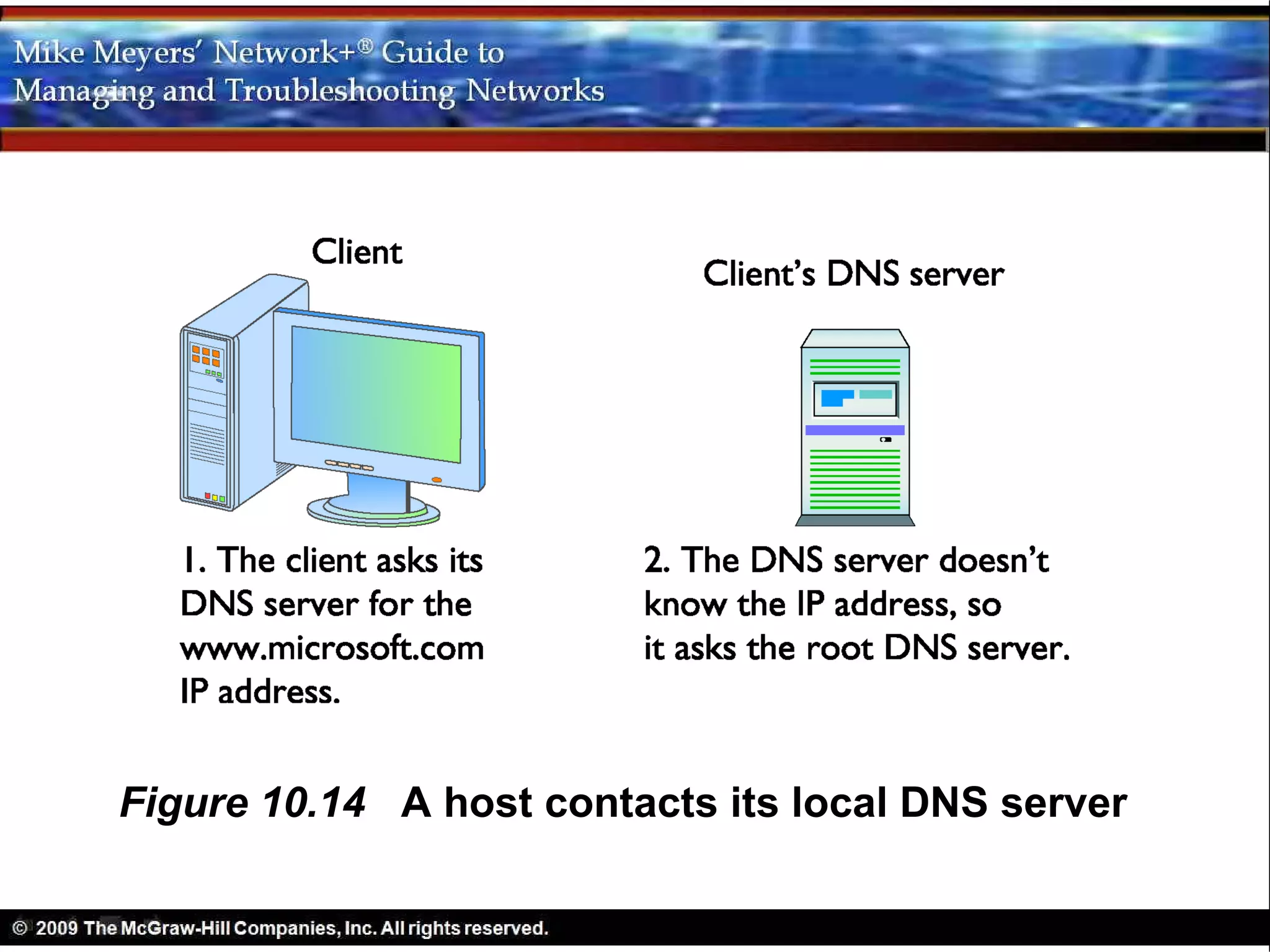
Figure 10.14 A host contacts its local DNS server
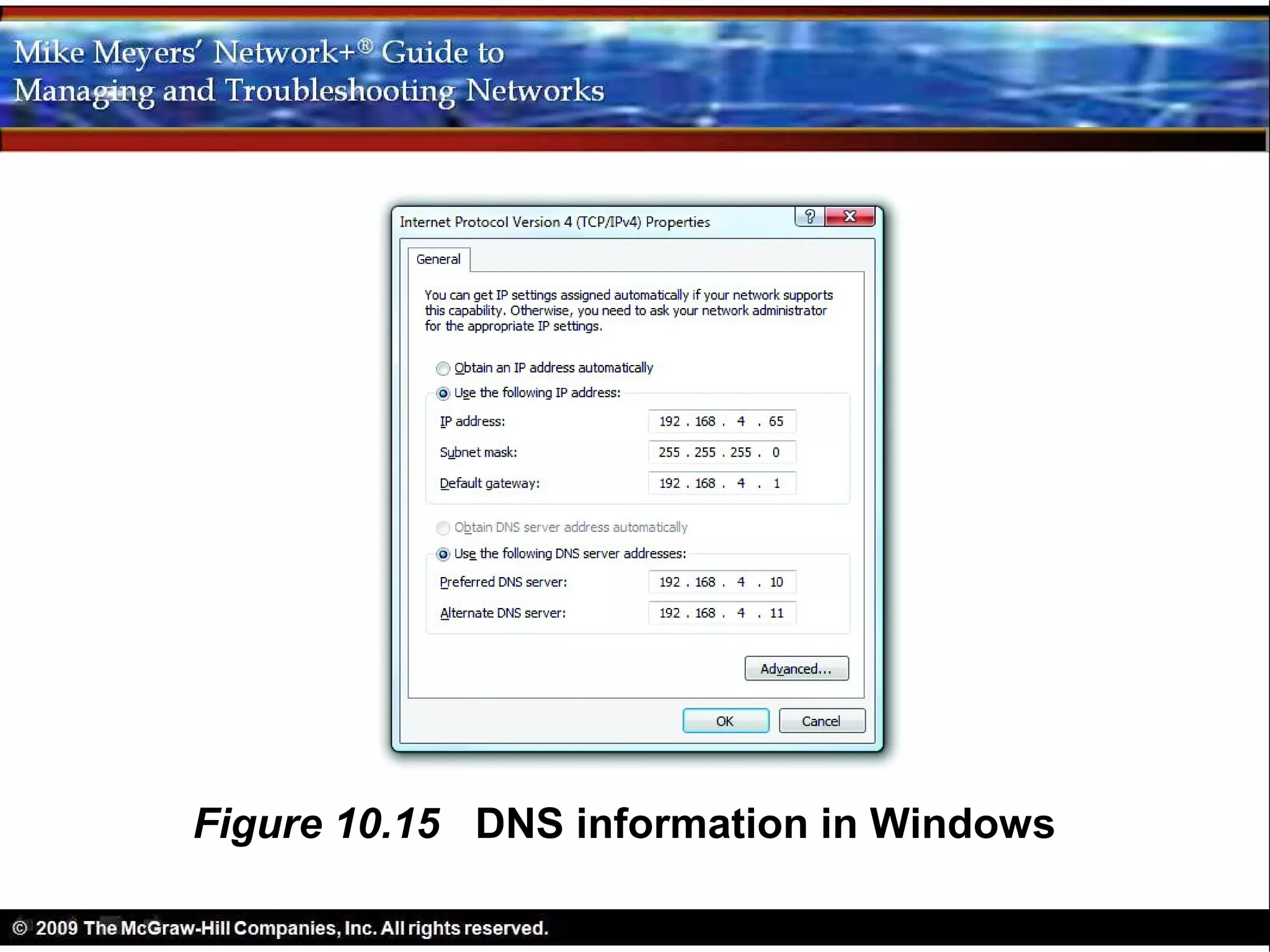
Figure 10.15 DNS information in Windows
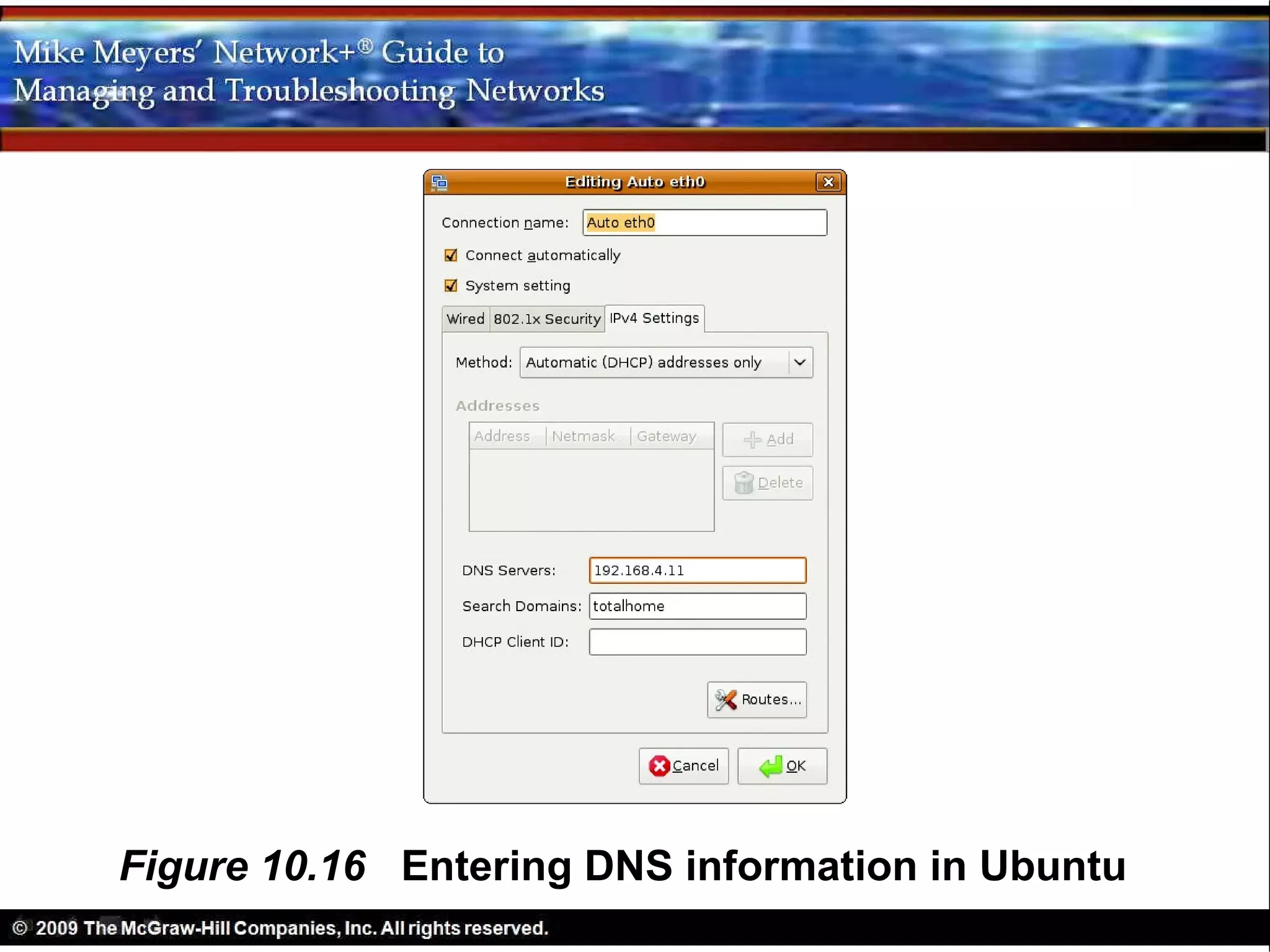
Figure 10.16 Entering DNS information in Ubuntu
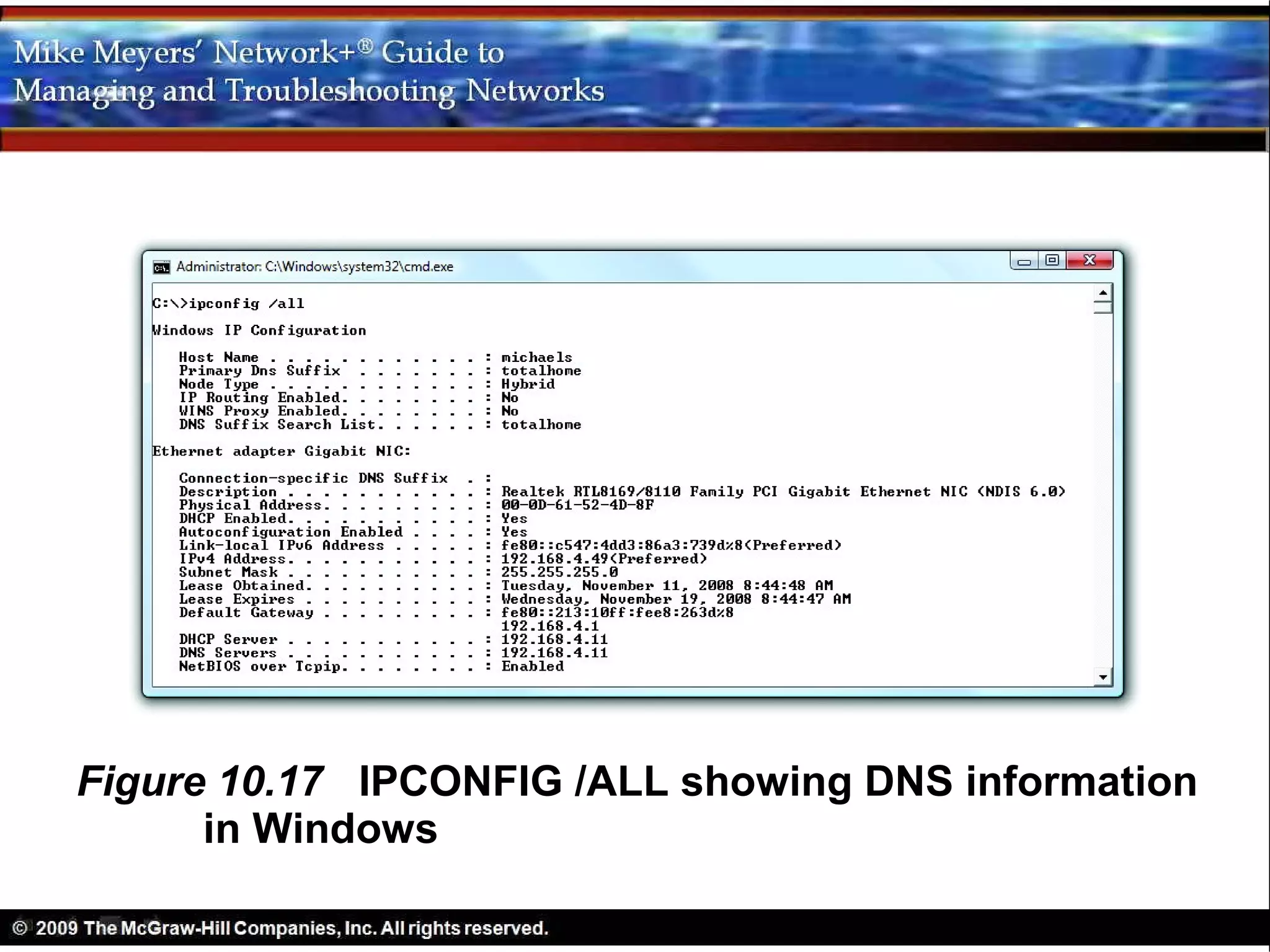
Figure 10.17 IPCONFIG /ALL showing DNS information
      in Windows
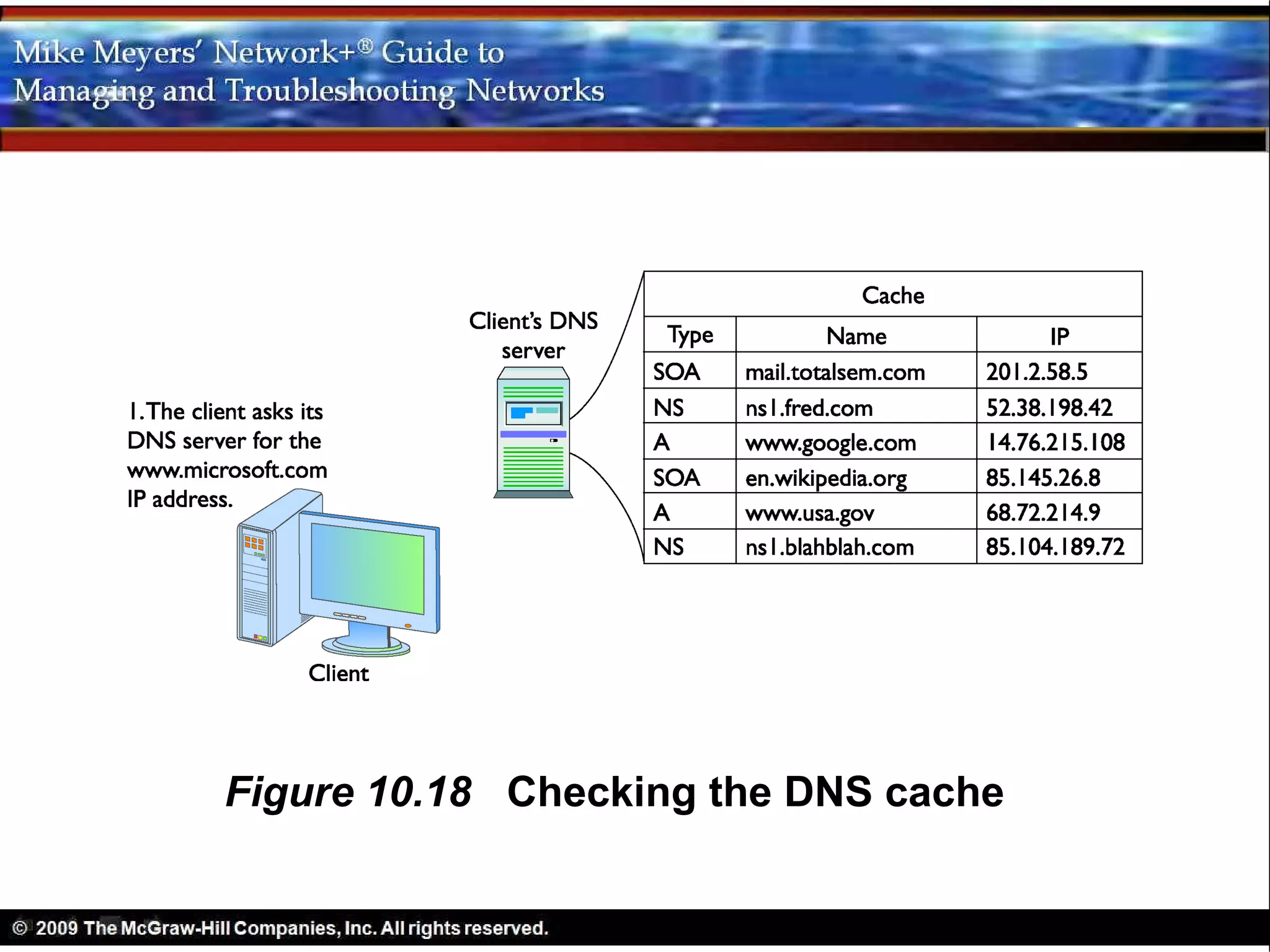
Figure 10.18 Checking the DNS cache
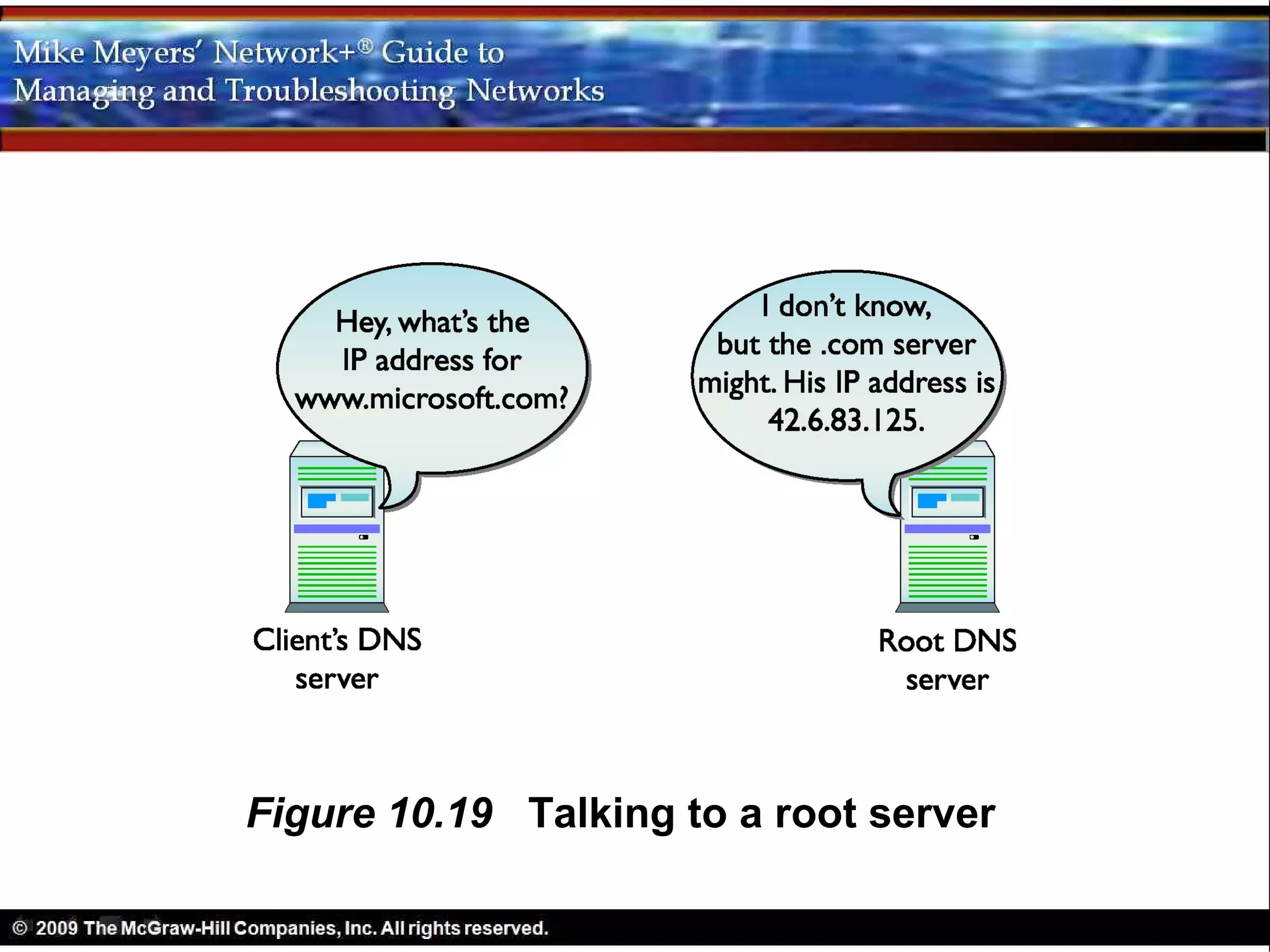
Figure 10.19 Talking to a root server
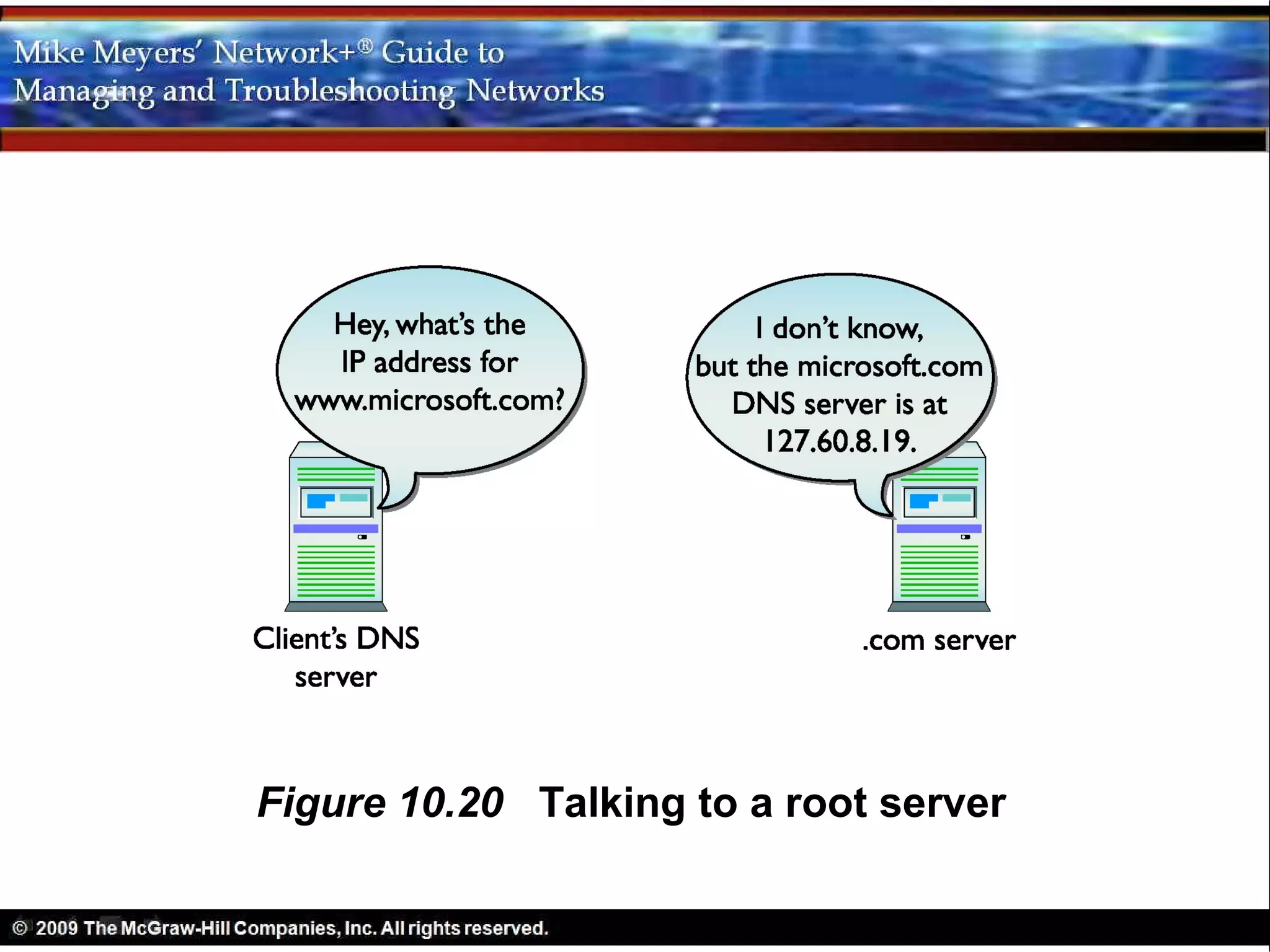
Figure 10.20 Talking to a root server
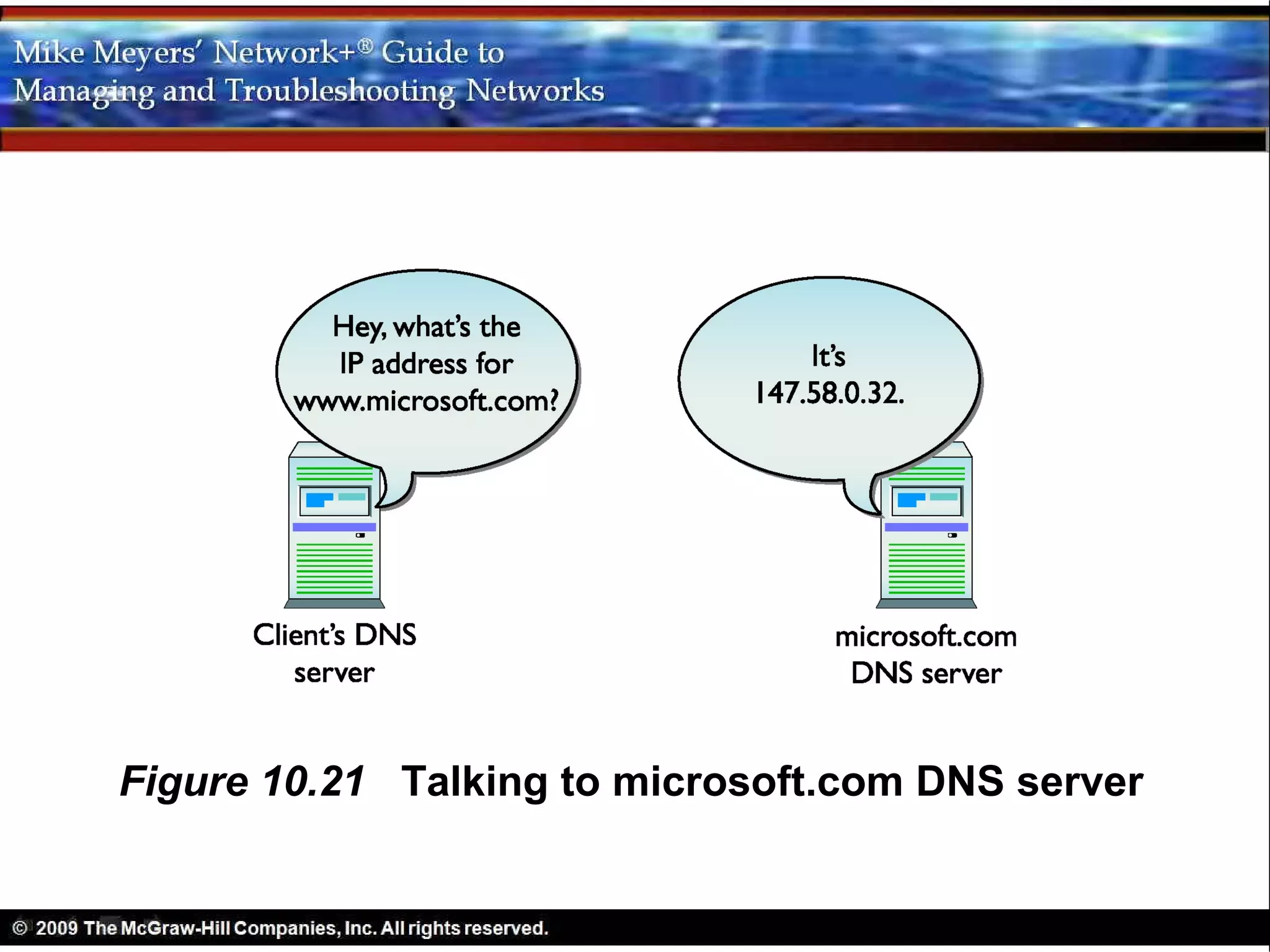
Figure 10.21 Talking to microsoft.com DNS server
• DNS Servers (in action)
  – Most OSs have built-in DNS server software
    • Server versions of Windows
    • Most versions of UNIX/Linux
  – Third-party DNS servers
• DNS Servers (in action)
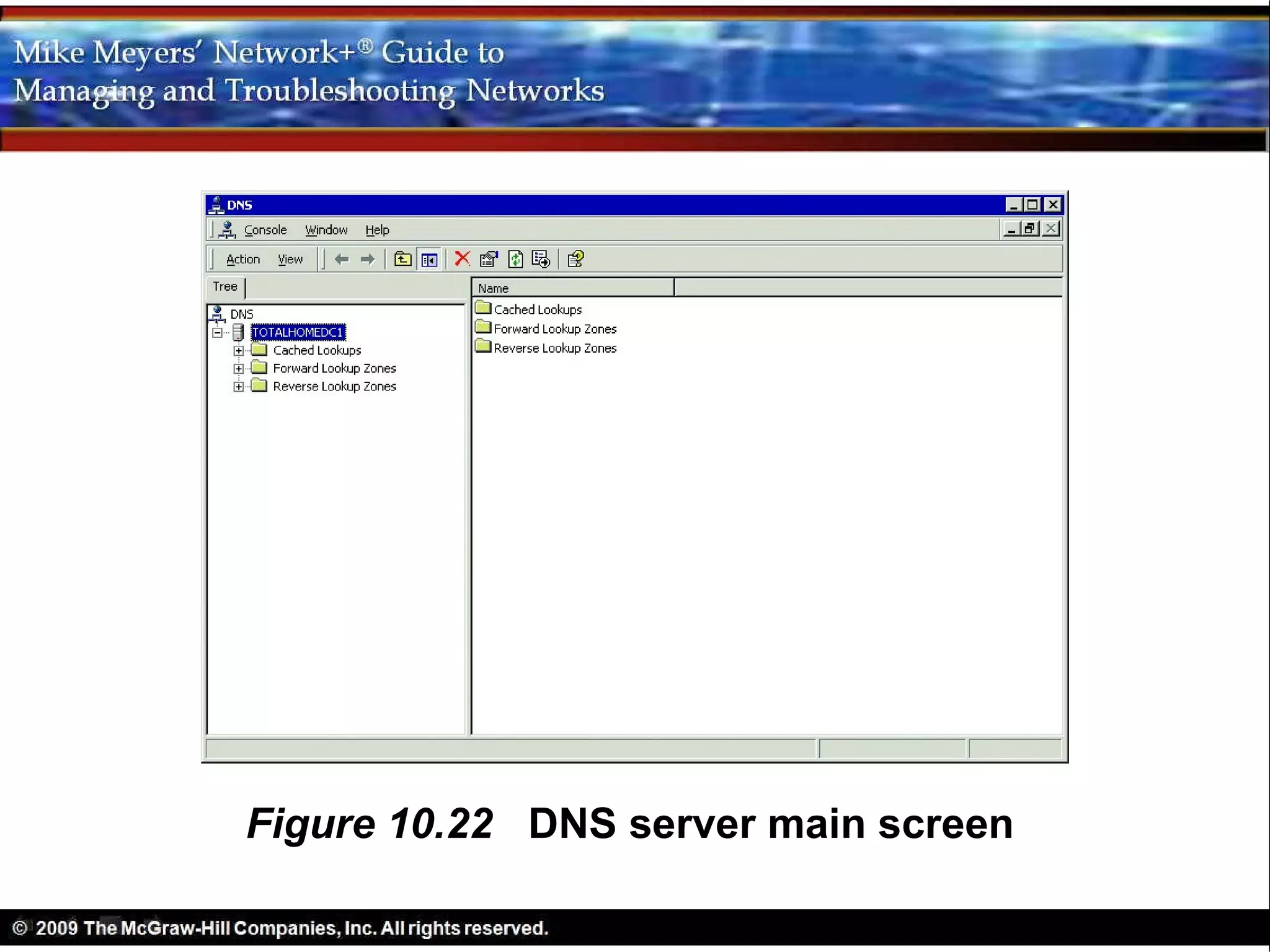
  – Three special storage areas
    • Cached Lookups
    • Forward Lookup Zones
    • Reverse Lookup Zones
Figure 10.22 DNS server main screen
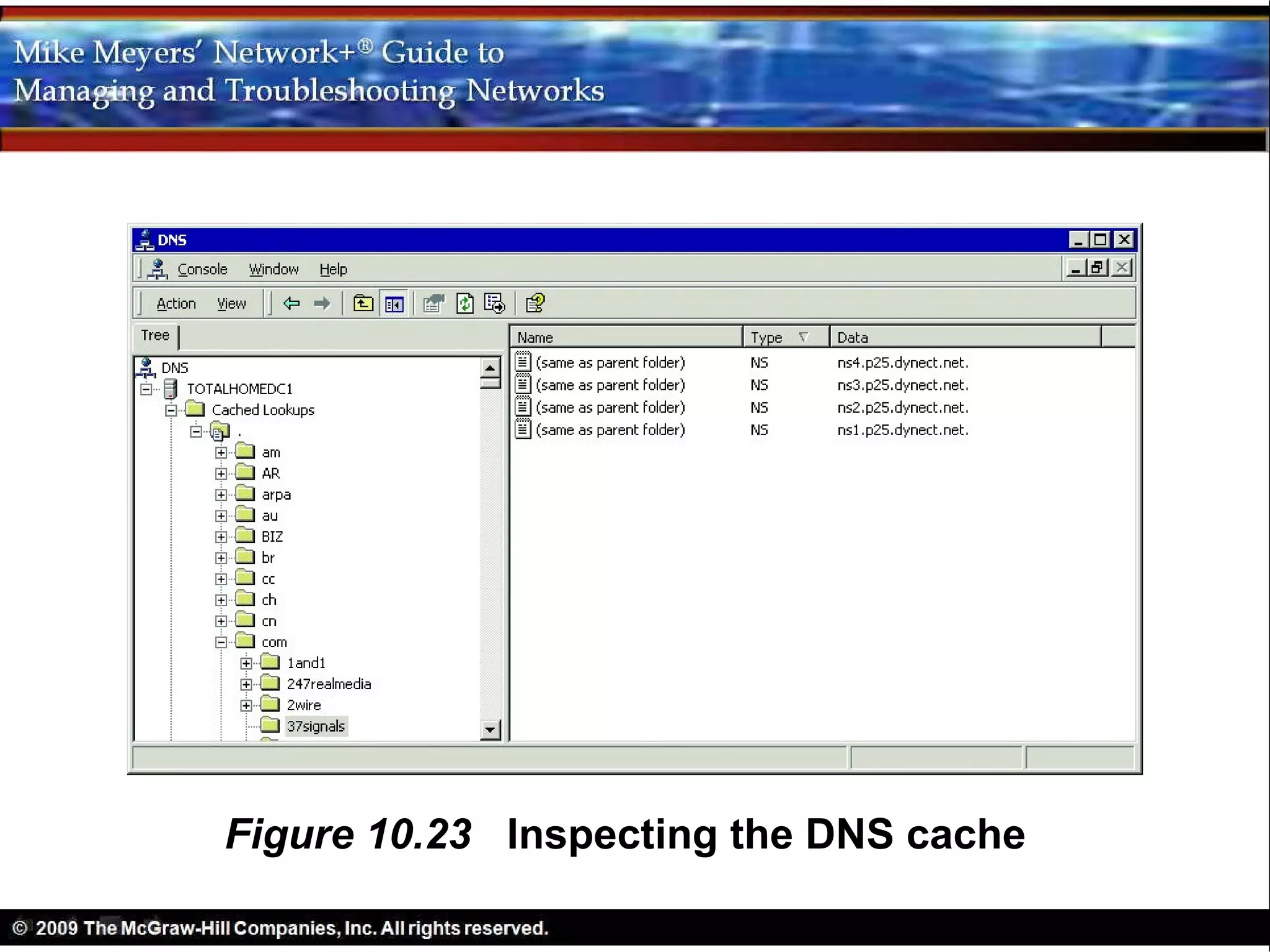
Figure 10.23 Inspecting the DNS cache
• DNS Servers (in action)
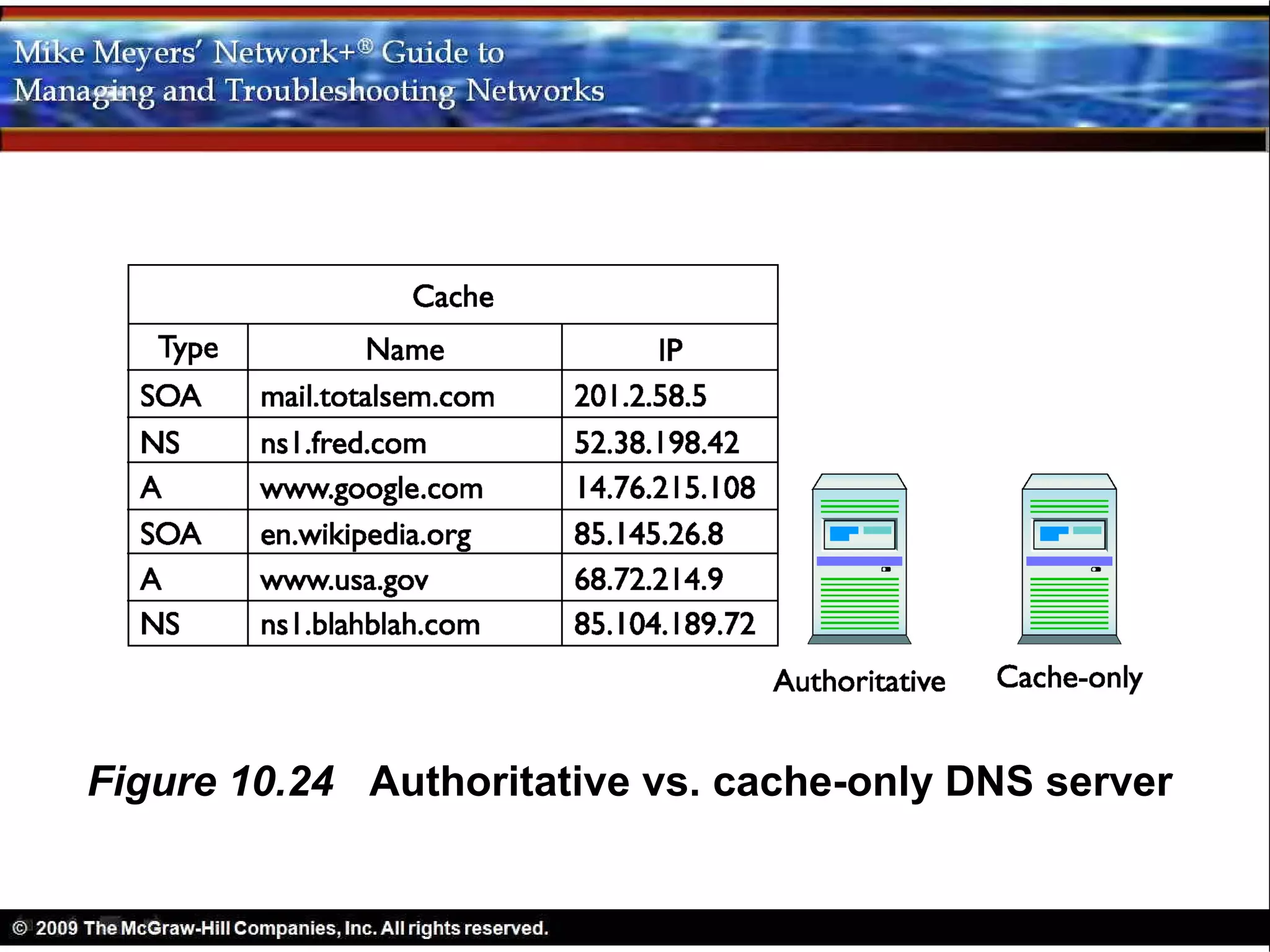
  – Cache-only DNS servers
    • Do not store lookup zones
    • Talk to other DNS servers to resolve for clients
Figure 10.24 Authoritative vs. cache-only DNS server
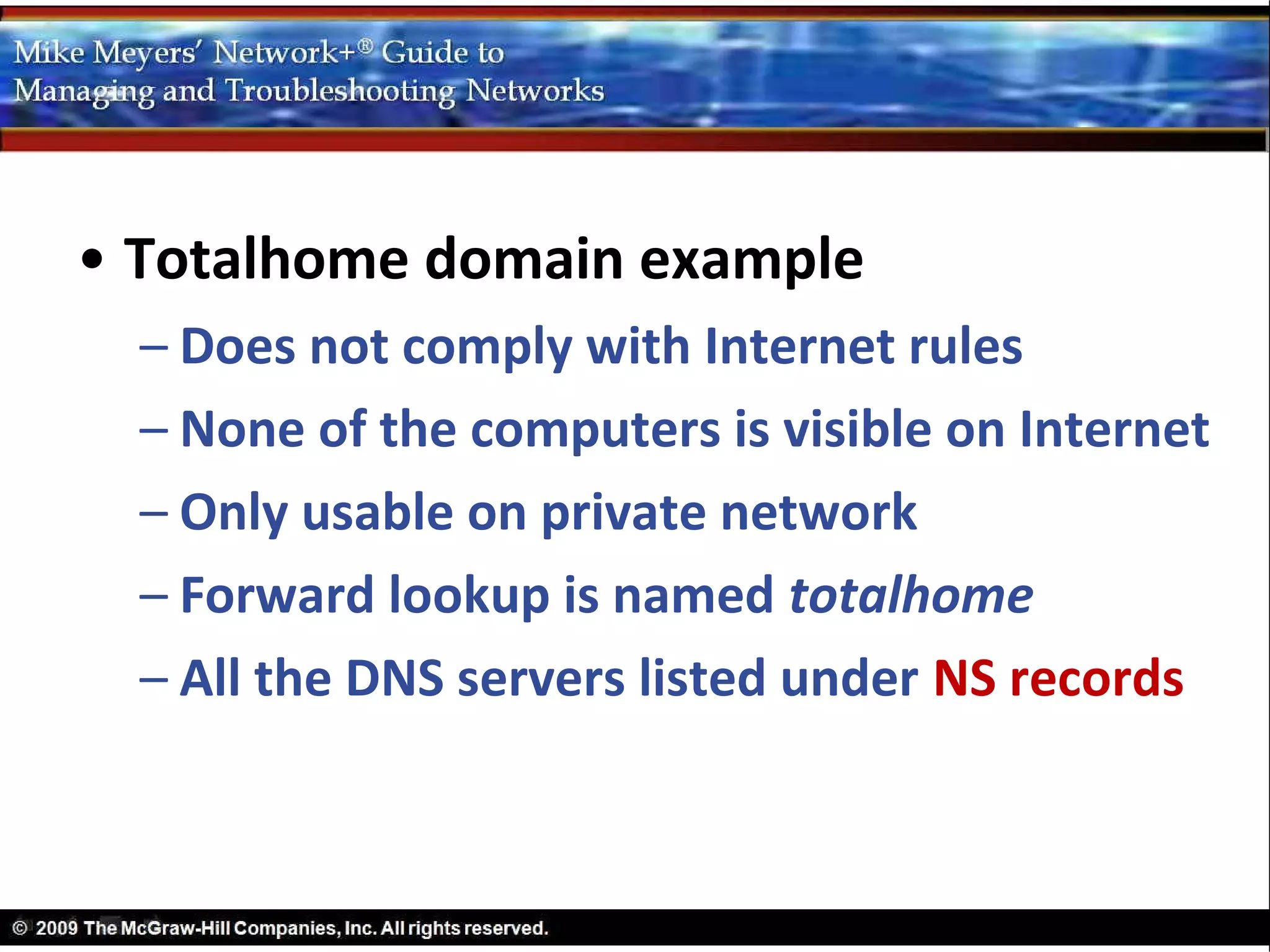
• Totalhome domain example
  – Does not comply with Internet rules
  – None of the computers is visible on Internet
  – Only usable on private network
  – Forward lookup is named totalhome
  – All the DNS servers listed under NS records
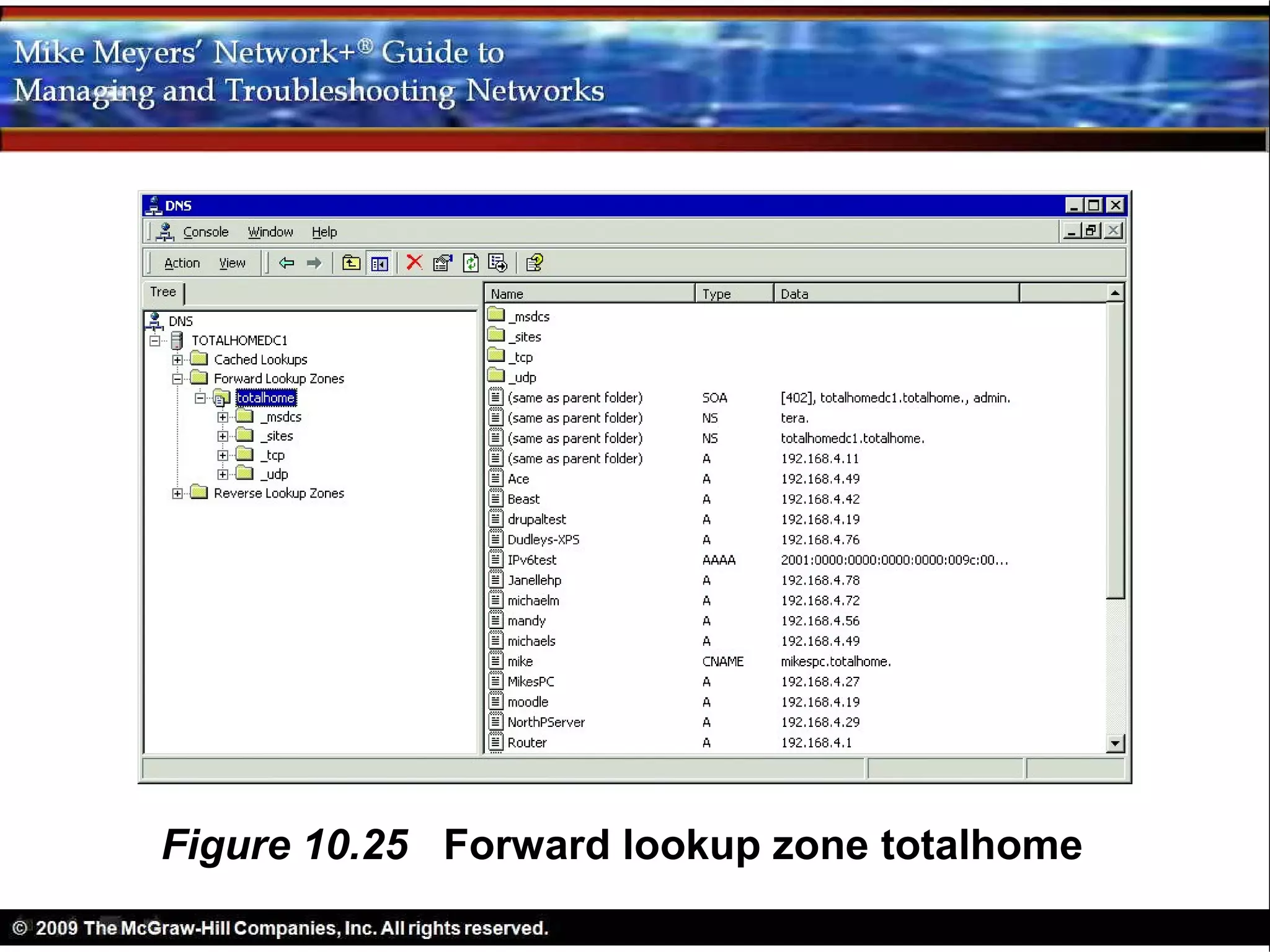
• Totalhome forward lookup zone
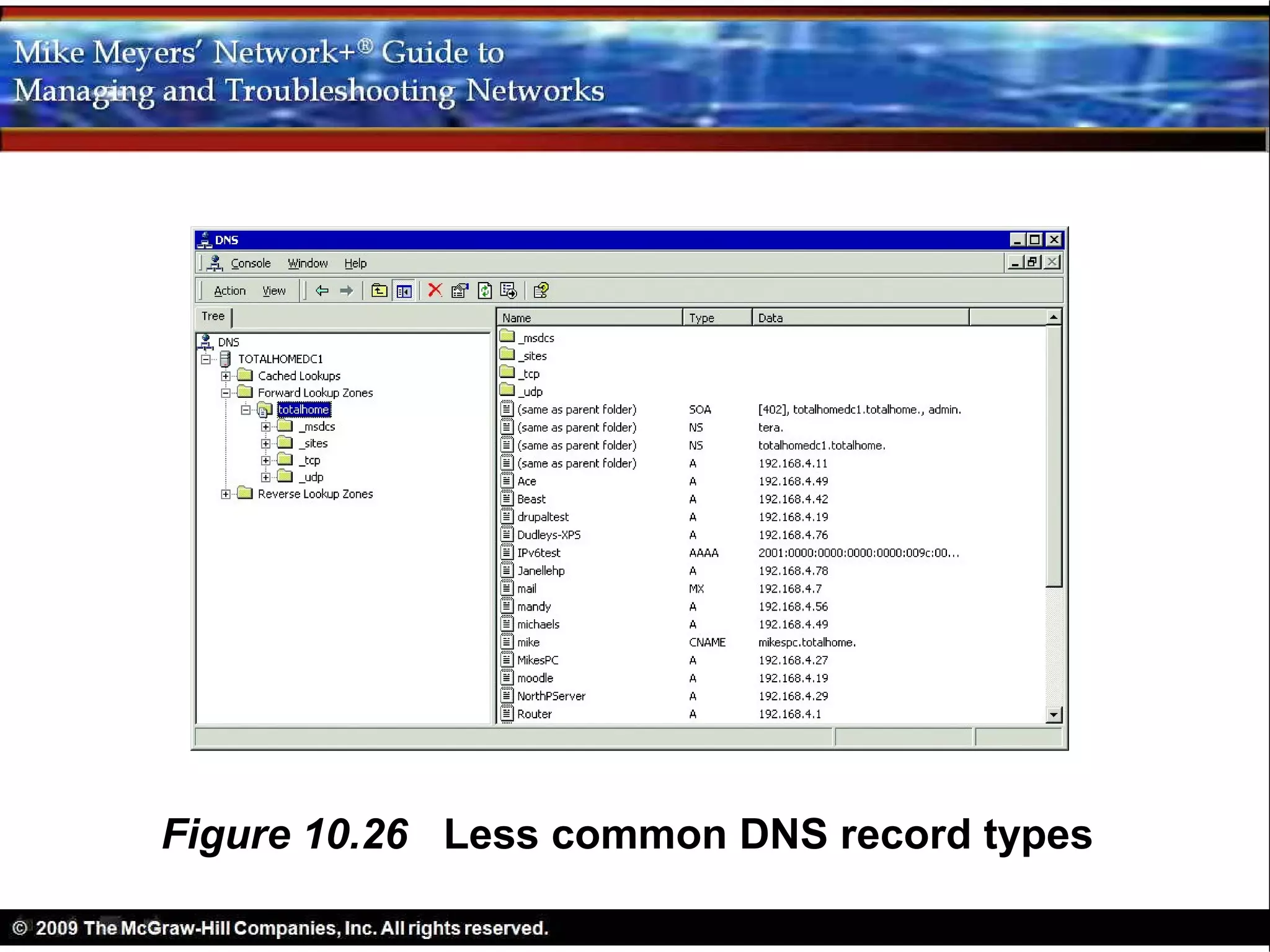
  – Each system in the domain has an A record
  – An alias for a system is a canonical name
    (CNAME)
  – SMTP servers use MX records (Mail eXchanger)
  – AAAA records are for IPv6 addresses
Figure 10.25 Forward lookup zone totalhome
Figure 10.26 Less common DNS record types
• Forward lookup zones
  – Two types of forward lookup zones: Primary
    zone and Secondary zone
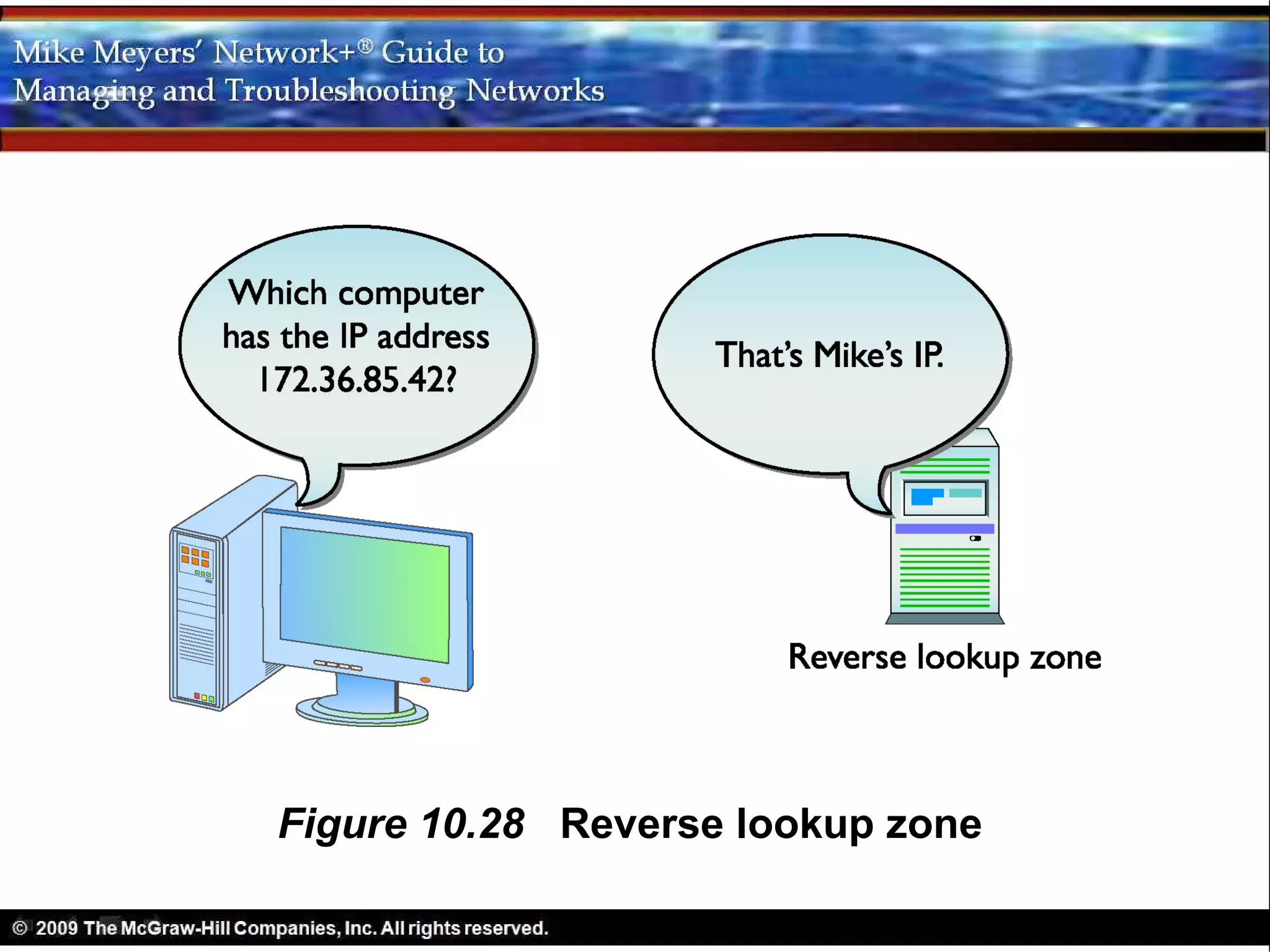
  – Resolve FQDN to IP address with Reverse
    lookup zone
Figure 10.27 Two DNS servers with updating

             taking place
Figure 10.28 Reverse lookup zone
• Windows DNS server
  – Performs most functions exactly like
    UNIX/Linux DNS servers
  – Adds a Windows-only Active Directory-
    integrated zone
  – Avoids problems of standard DNS servers
  – All domain controllers are DNS servers
  – All DNS servers are equal
• Enter Windows
  – 1980s Microsoft NetBIOS/NetBEUI
  – 1990s Microsoft created NetBIOS over
    TCP/IP – added NetBIOS naming to DNS
  – Old sharing protocol Server Message Block
    (SMB)
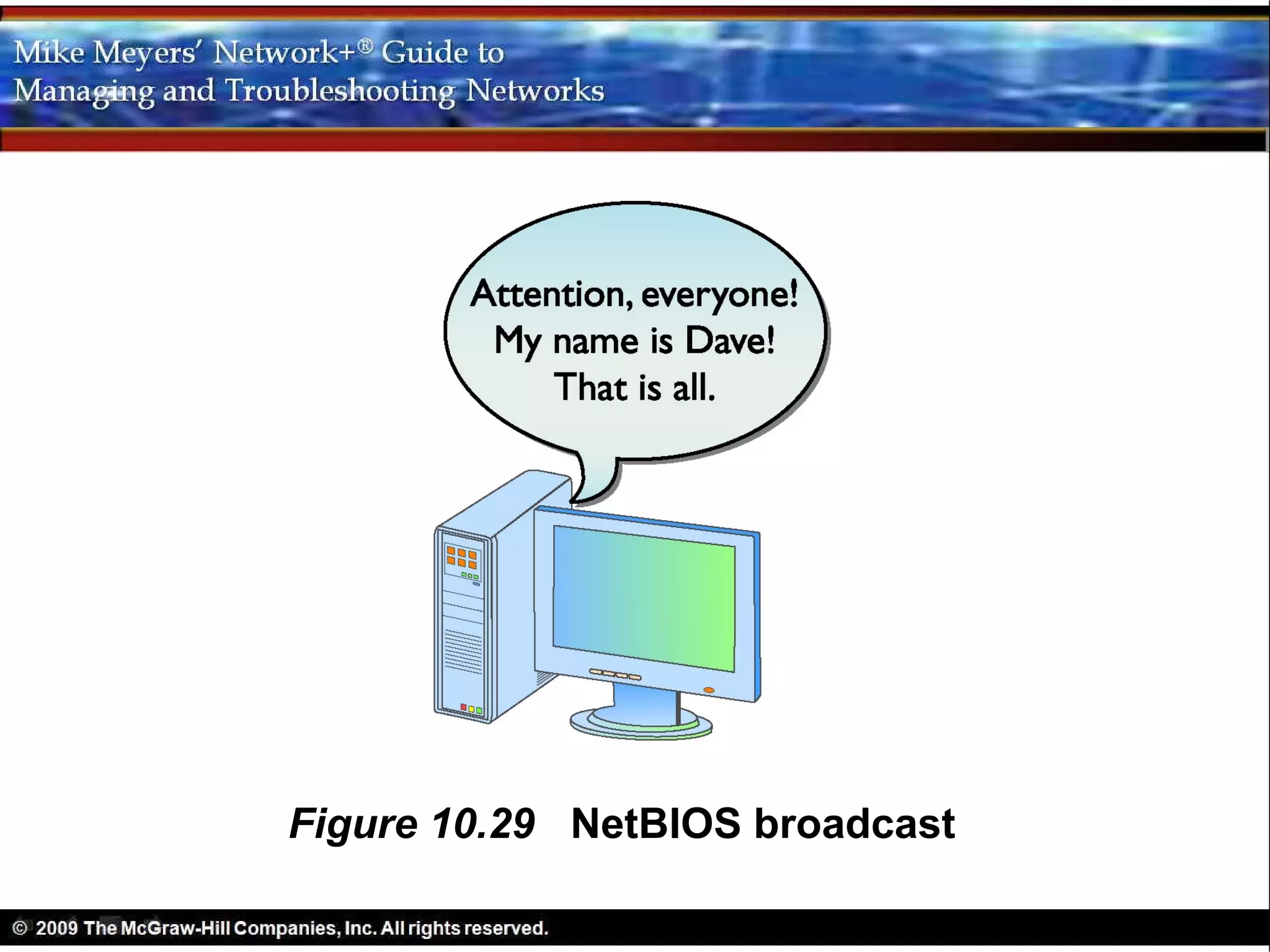
Figure 10.29 NetBIOS broadcast
• Enter Windows—NetBIOS over TCP/IP
  – New sharing protocol Common Internet File
    System (CIFS)
  – SMB/CIFS adopted by UNIX/Linux and Mac
    OS X
  – CIFS and DNS work together
Figure 10.30 Samba on Ubuntu (it’s so common that the OS
              doesn’t even use the term in the dialog box)
• Living with the Legacy of CIFS
  – Networks using CIFS use two name systems
  – CIFS broadcast to find local server
  – DNS query to find TCP/IP host
  – CIFS and DNS work together
• Living with the Legacy of CIFS
  – CIFS organizes computers into workgroups
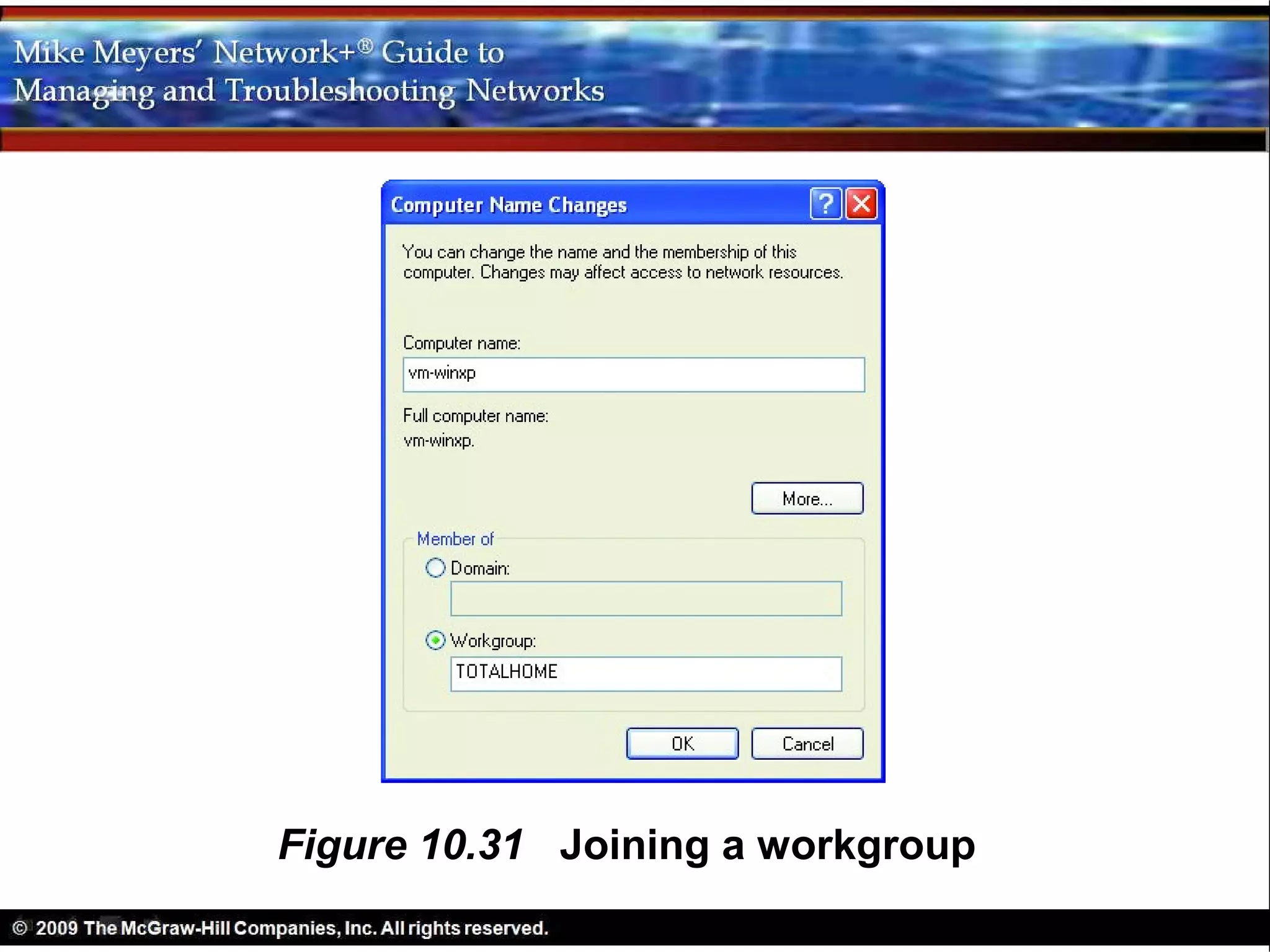
  – Computer joins a workgroup
  – Flat name space
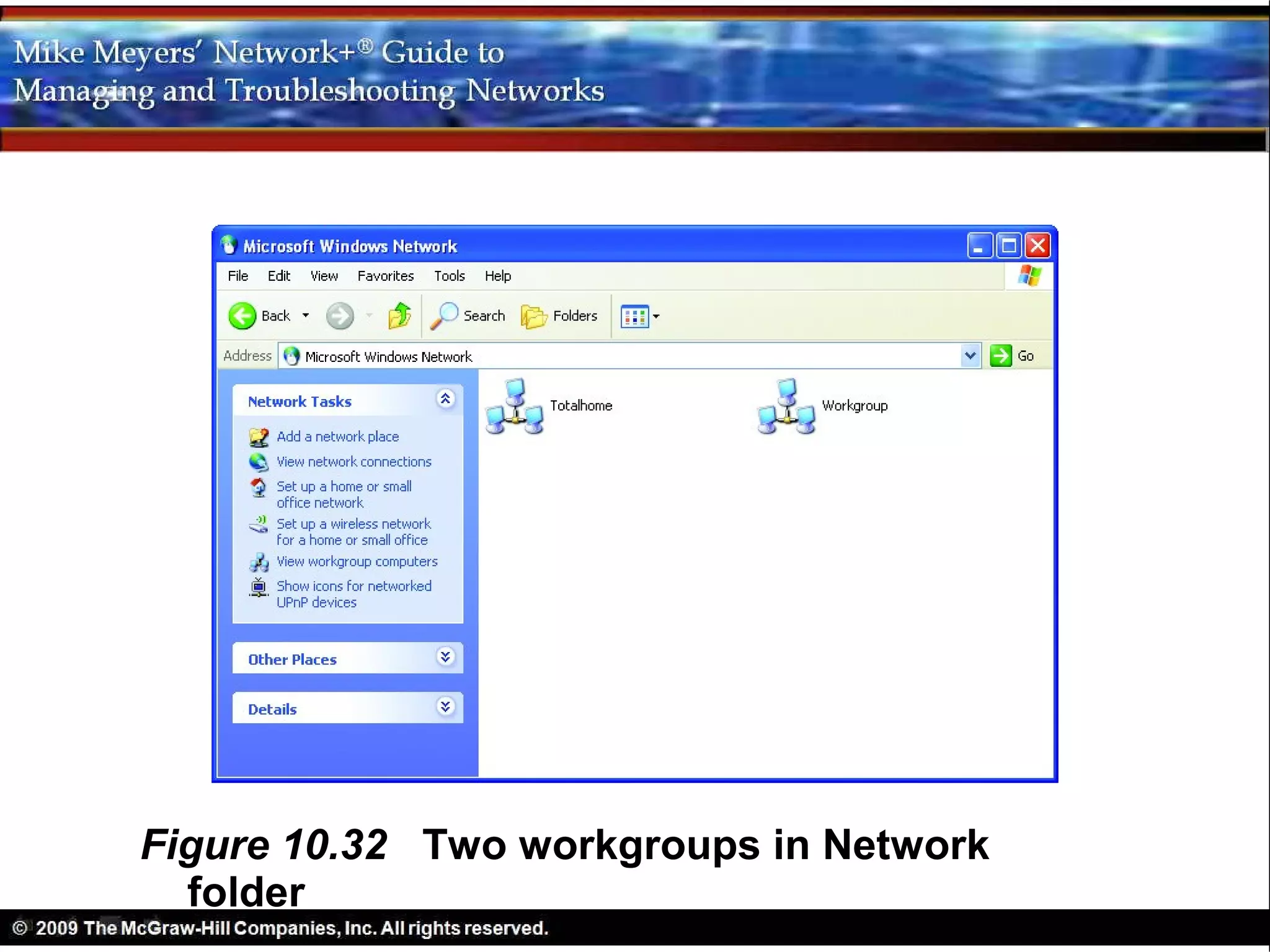
  – See workgroups in Network/My Network
    Places
Figure 10.31 Joining a workgroup
Figure 10.32 Two workgroups in Network
  folder
• Living with the Legacy of CIFS
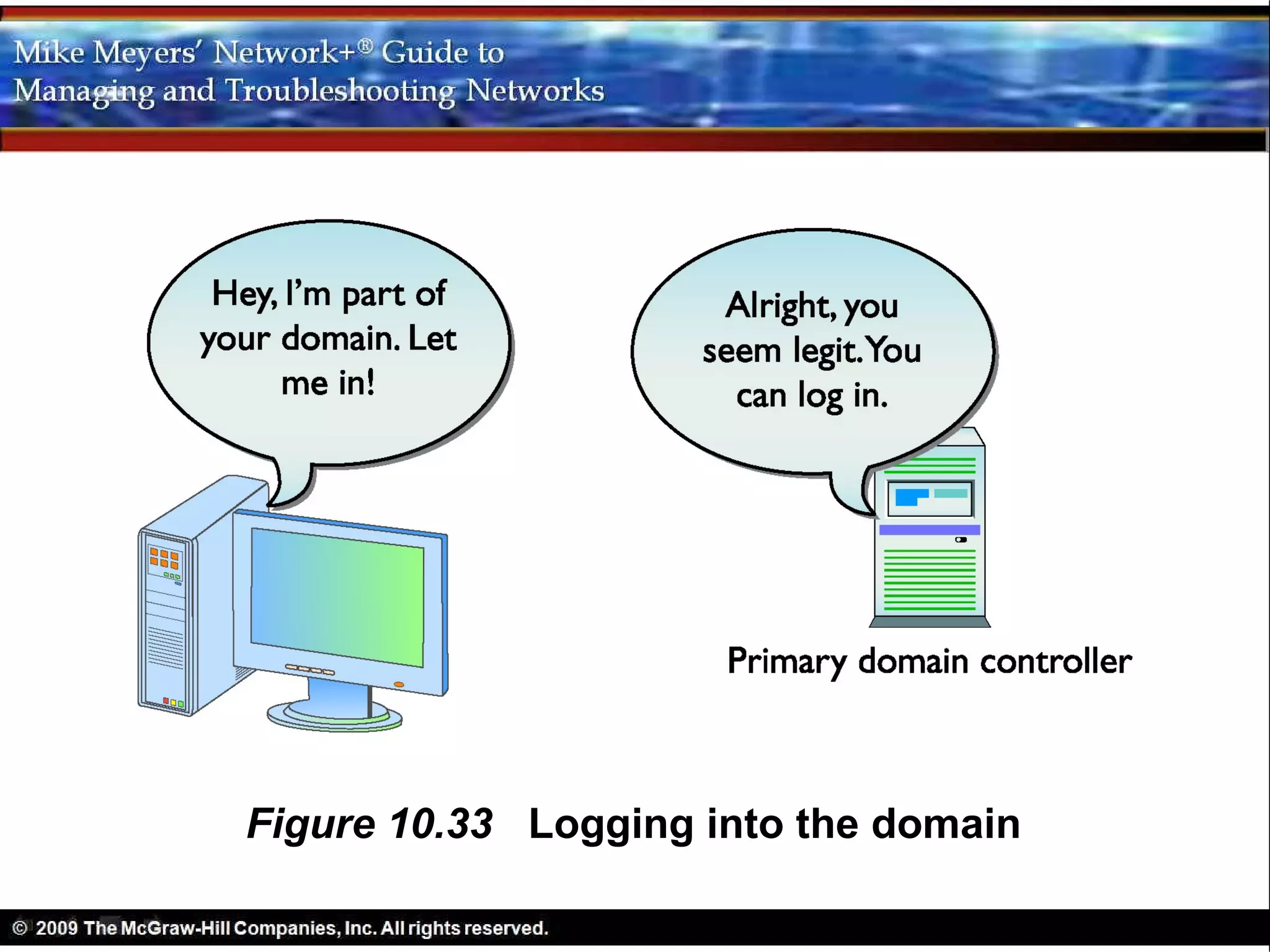
  – Computers controlled by Windows domain
    controller server are grouped in a Windows
    domain
  – Windows Computers join a domain
  – Computers (and users) authenticate to the
    domain
  – Windows domains now use DNS naming
Figure 10.33 Logging into the domain
• Living with the Legacy of CIFS
  – An Active Directory domain is an
    organization of computers that shares one
    or more Windows domains
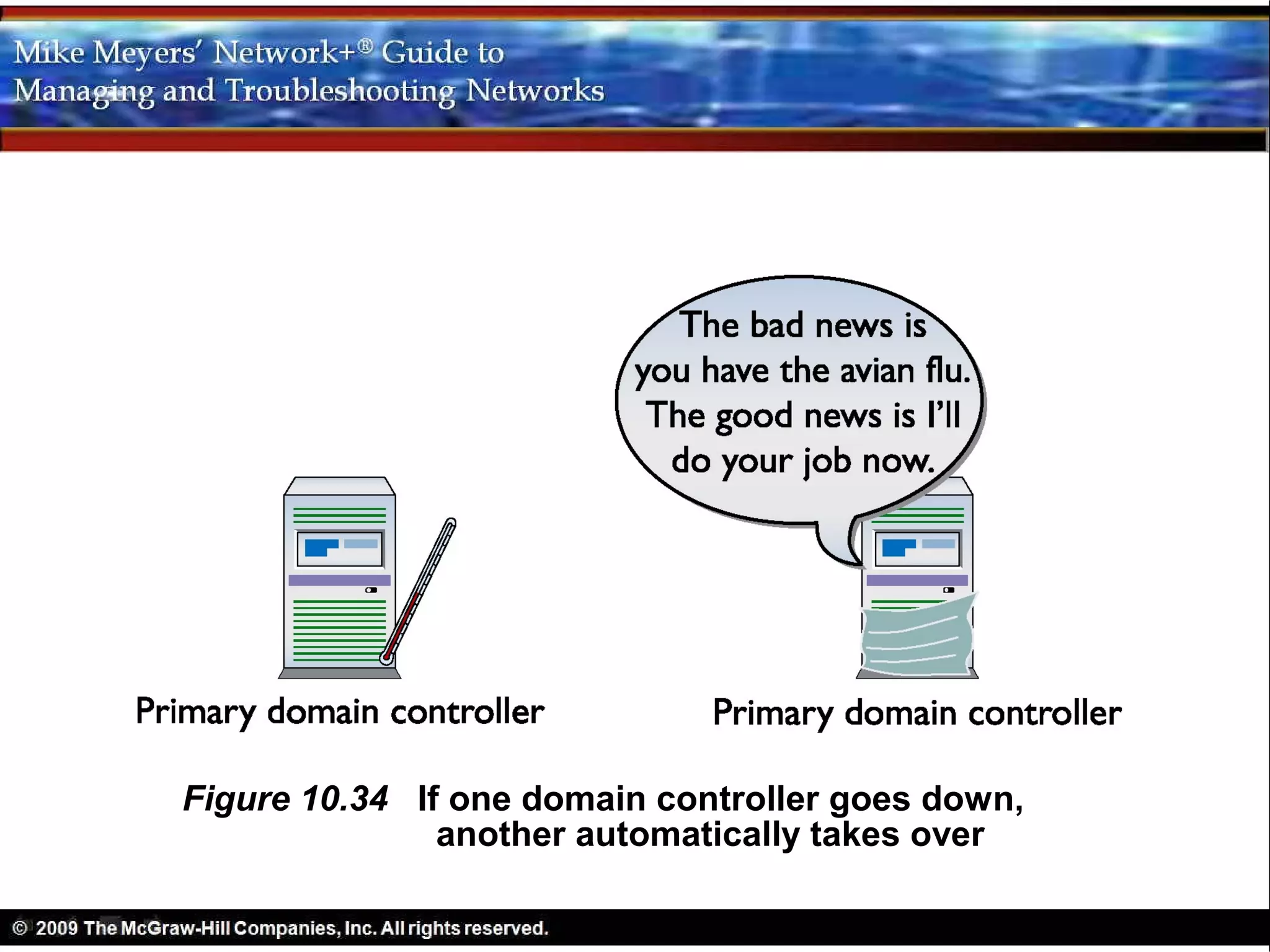
  – All Active Directory Windows domain
    controllers are DNS servers
  – All domain controllers are equal partners
Figure 10.34 If one domain controller goes down,
               another automatically takes over
• Active Directory-Integrated Zones
  – DNS system not reliant on a single server
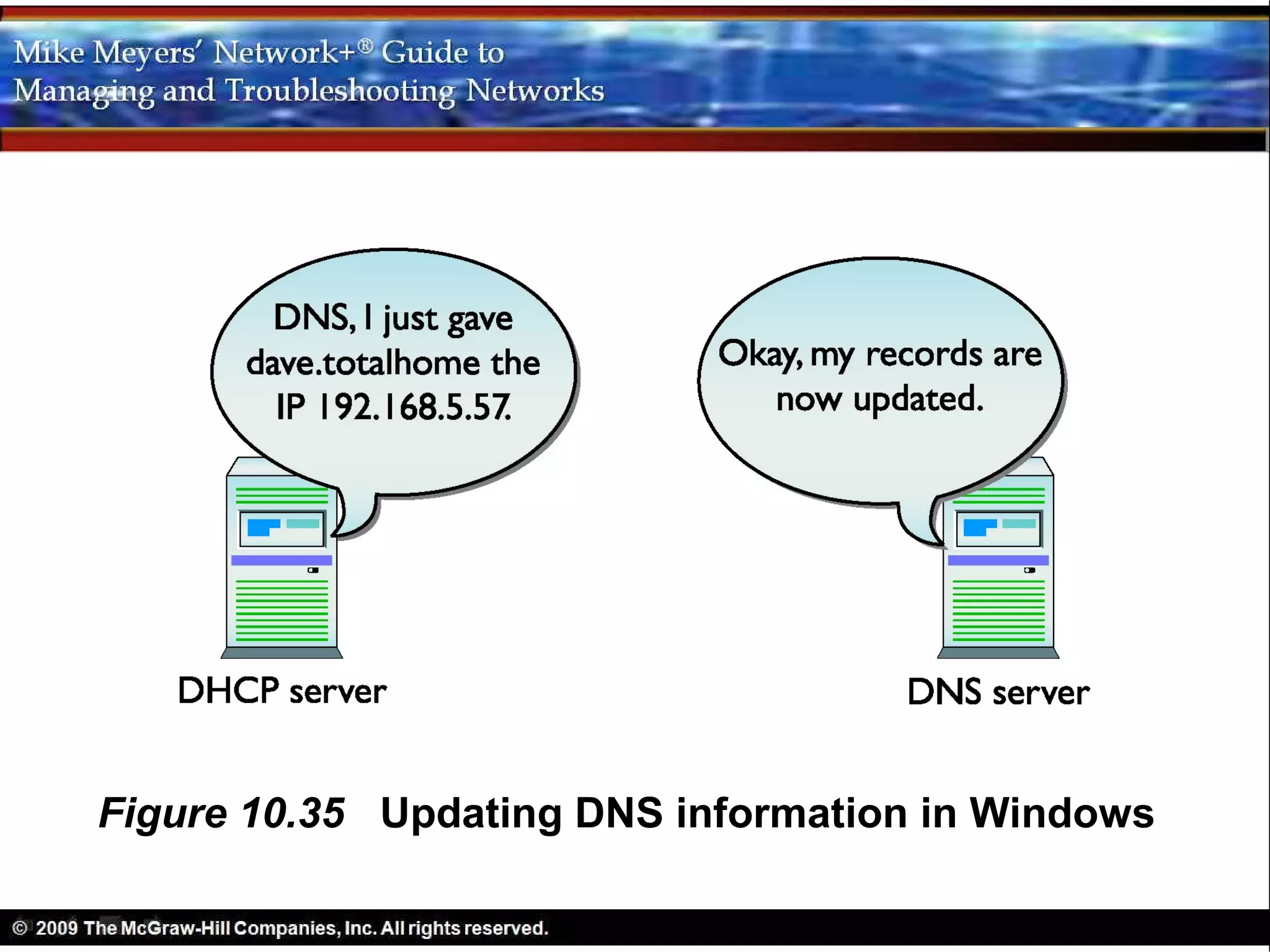
  – Windows DHCP servers automatically
    update all client information in the Active
    Directory-integrated zone
  – In some cases the client updates DNS
  – Non-Windows systems can only update
    Activity Directory-Integrated Zones using a
    Windows client (like Samba)
Figure 10.35 Updating DNS information in Windows
• Troubleshooting DNS
  – Client is source of most DNS problems
  – DNS servers rarely go down
  – If a DNS server is down, clients use
    secondary DNS server
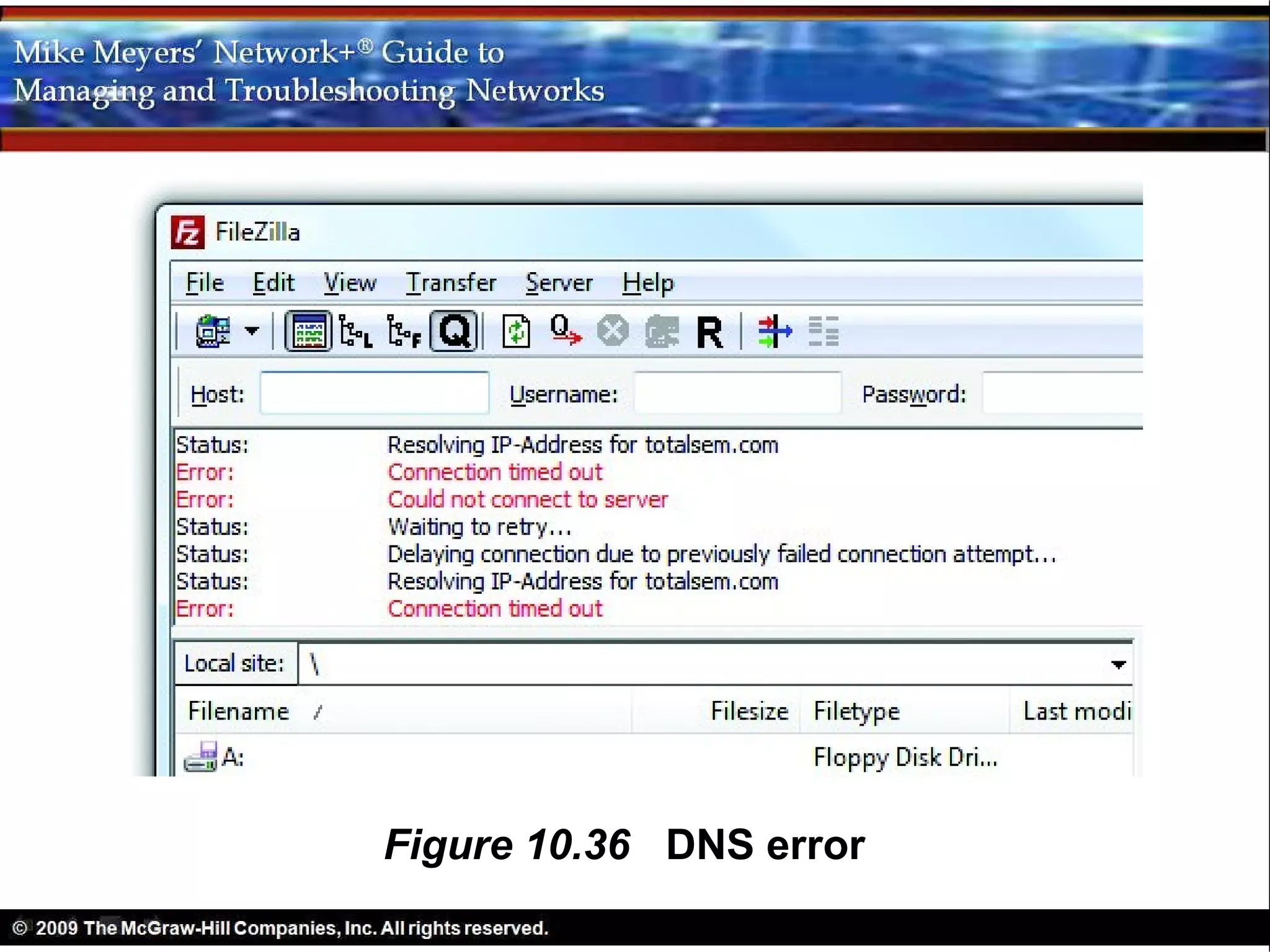
  – Symptom: “server not found” error
Figure 10.36 DNS error
• Troubleshooting DNS
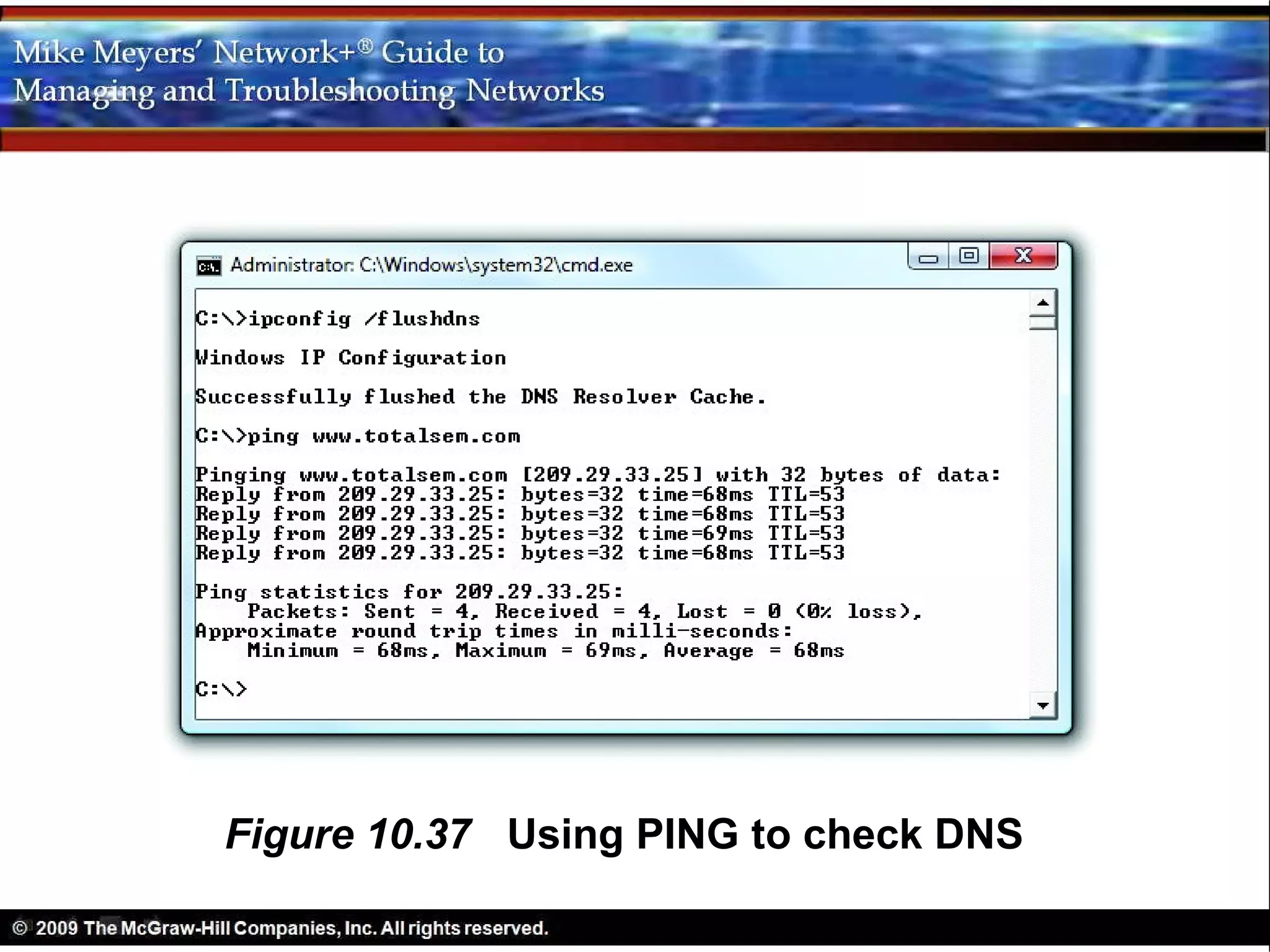
  – Eliminate any local DNS caches
    • Do not use Web browser for troubleshooting
    • Run ipconfig /flushdns
    • PING the name of a well-known Web site
       – Does it return IP address?
       – If not, PING an IP address
Figure 10.37 Using PING to check DNS
• Troubleshooting DNS
  – If the previous steps indicate a problem with
    the DNS server, run NSLOOKUP run
    • Queries functions of DNS servers
    • Depends on proper permission level
    • Use to change how your system uses DNS
• Troubleshooting DNS
  – Run NSLOOKUP without parameters to get
    • IP address and name of default DNS server
    • Error indicates primary DNS server is down or
      client has wrong IP for DNS server
    • NSLOOKUP has own prompt
• Troubleshooting DNS
  – UNIX/Linux tool: domain information
    grouper (DIG)
    • Similar to NSLOOKUP
    • Non-interactive
    • Ask it a question; it answers
DNS
WINS
• Legacy NetBIOS
  – Current versions of Windows use DNS
    and/or CIFS
  – NetBIOS names supported for downward
    compatibility
  – NetBIOS system broadcasts its name
• Prior to CIFS
  – LMHOSTS file
     • Works for NetBIOS like HOSTS does for DNS
     • Microsoft OSs still support
     • Every Windows systems has an LMHOSTS file
• Windows Internet Naming Service (WINS)
  – WINS server for legacy Windows
  – No broadcasting: NetBIOS hosts register
    with WINS
  – Allows NetBIOS to function in a routed
    network
  – WINS proxy agent for legacy Windows
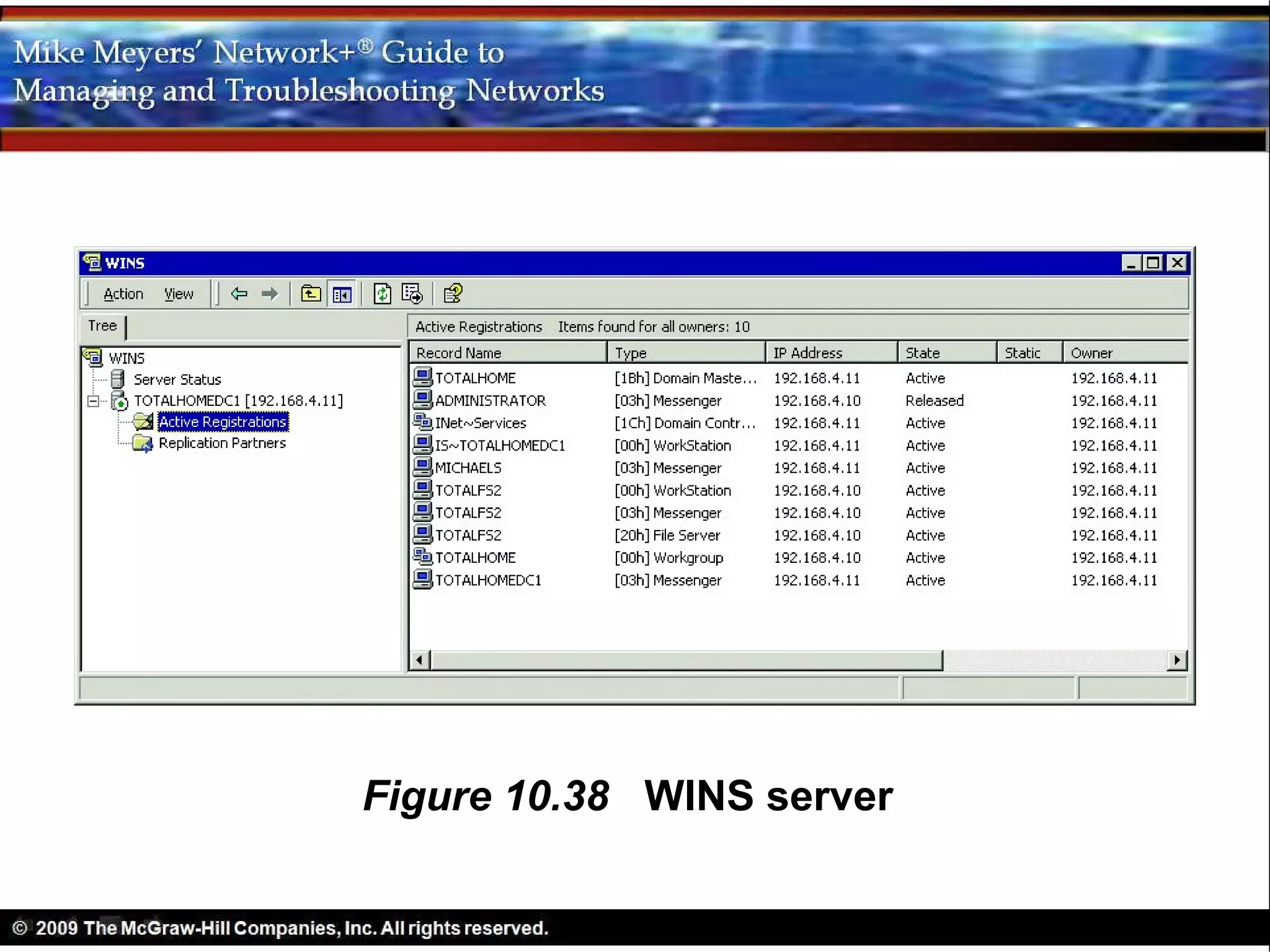
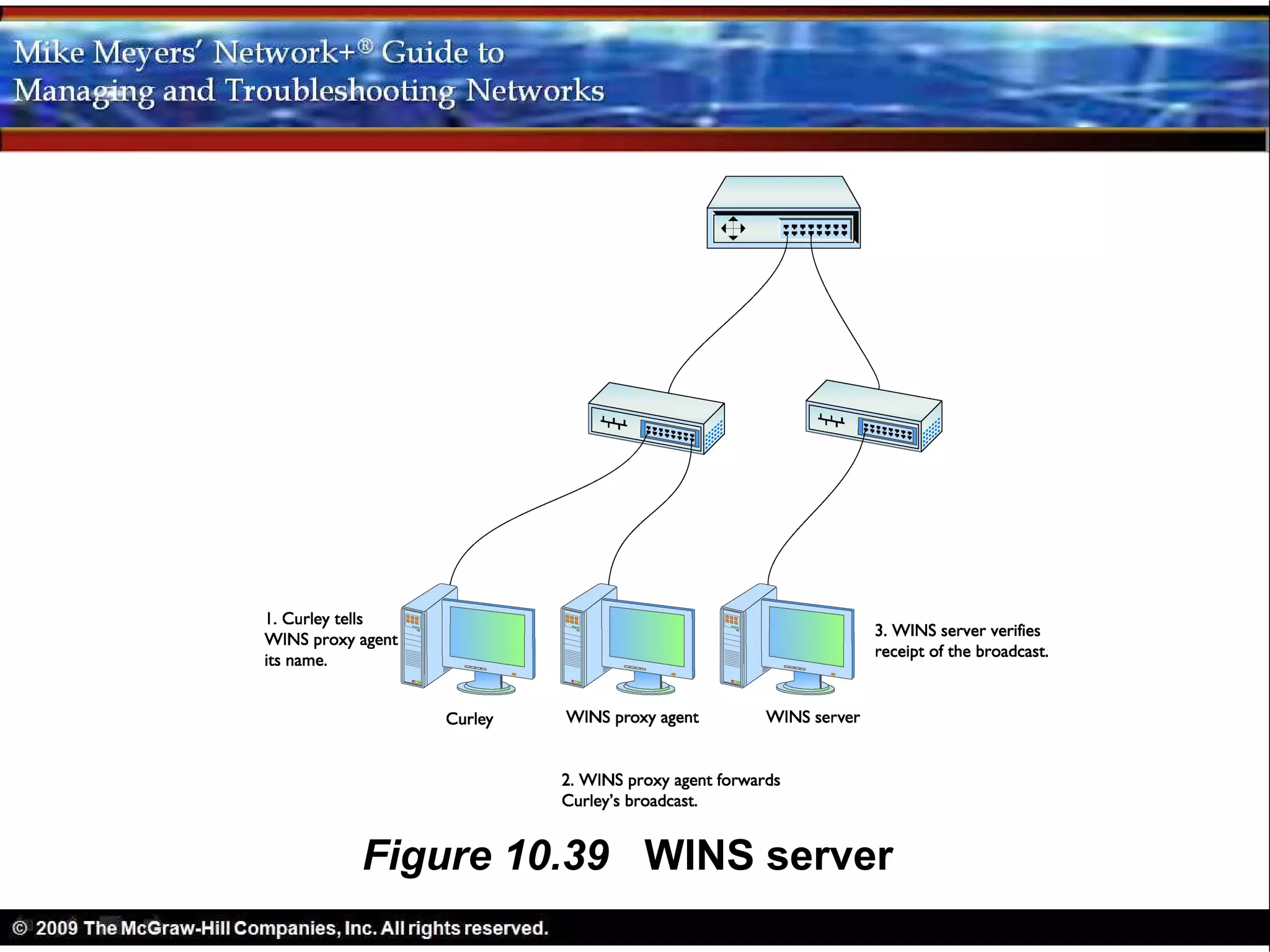
Figure 10.38 WINS server
Figure 10.39 WINS server
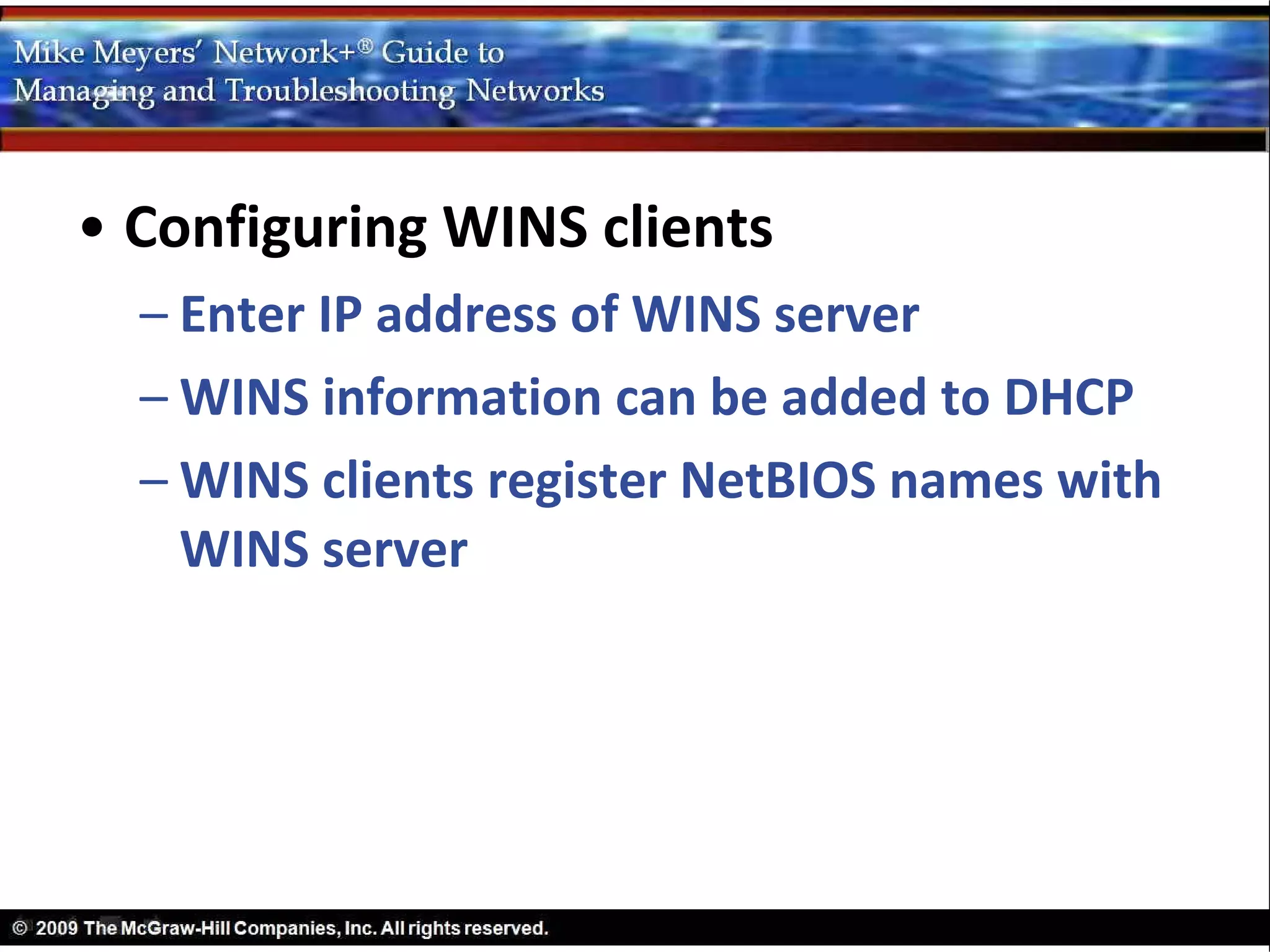
• Configuring WINS clients
  – Enter IP address of WINS server
  – WINS information can be added to DHCP
  – WINS clients register NetBIOS names with
    WINS server
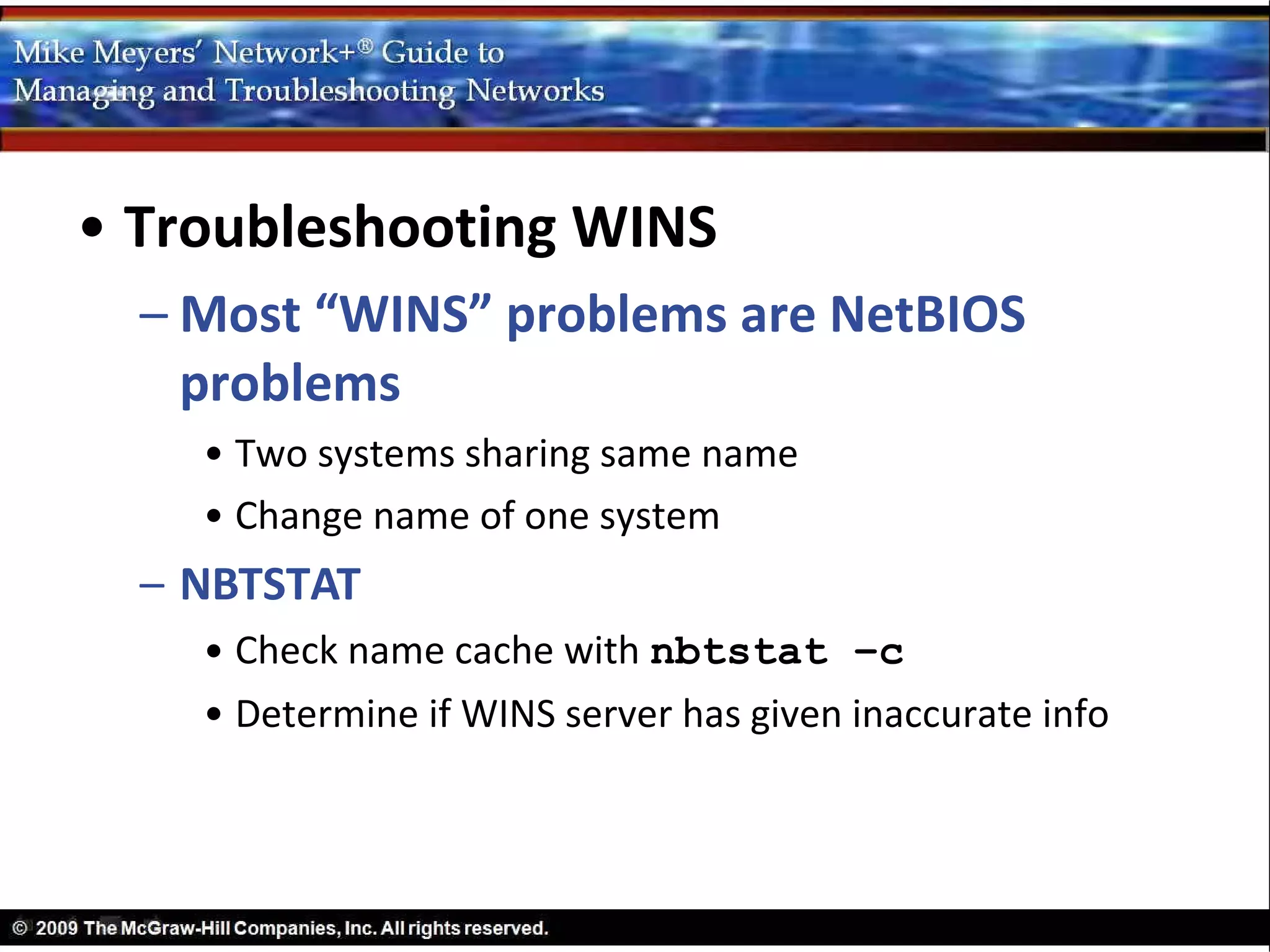
• Troubleshooting WINS
  – Most “WINS” problems are NetBIOS
    problems
    • Two systems sharing same name
    • Change name of one system
  – NBTSTAT
    • Check name cache with nbtstat –c
    • Determine if WINS server has given inaccurate info
Diagnosing TCP/IP
    Networks
• Improper configuration causes most
  problems
• PING anyone you want to connect to
• Regardless of what the user cannot
  connect to, you perform the same steps
• Use common sense
  – If one system behaves differently than others,
    the problem is with the client
  – Before starting steps (below) check the network
    connections and protocols
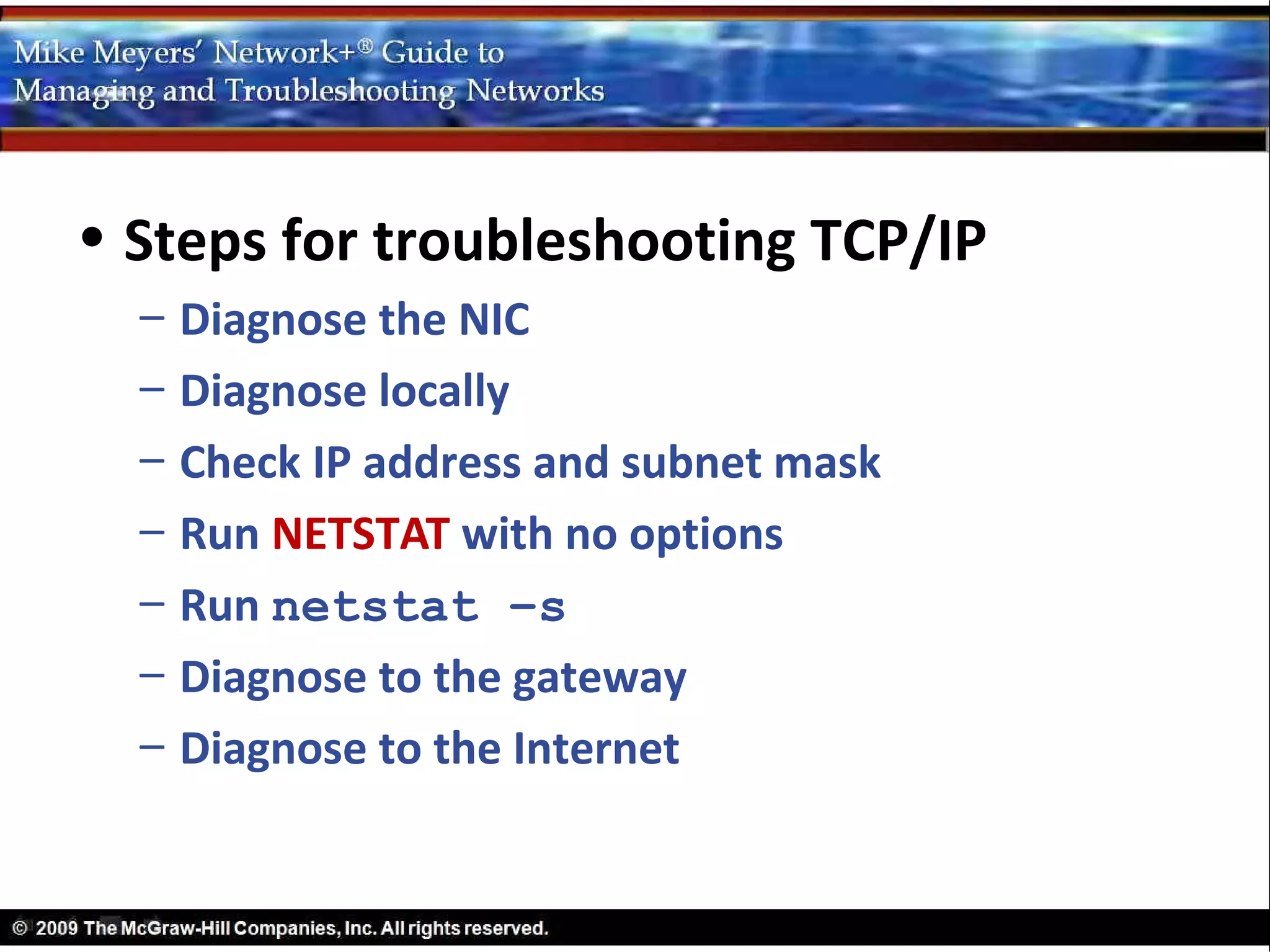
• Steps for troubleshooting TCP/IP
  –   Diagnose the NIC
  –   Diagnose locally
  –   Check IP address and subnet mask
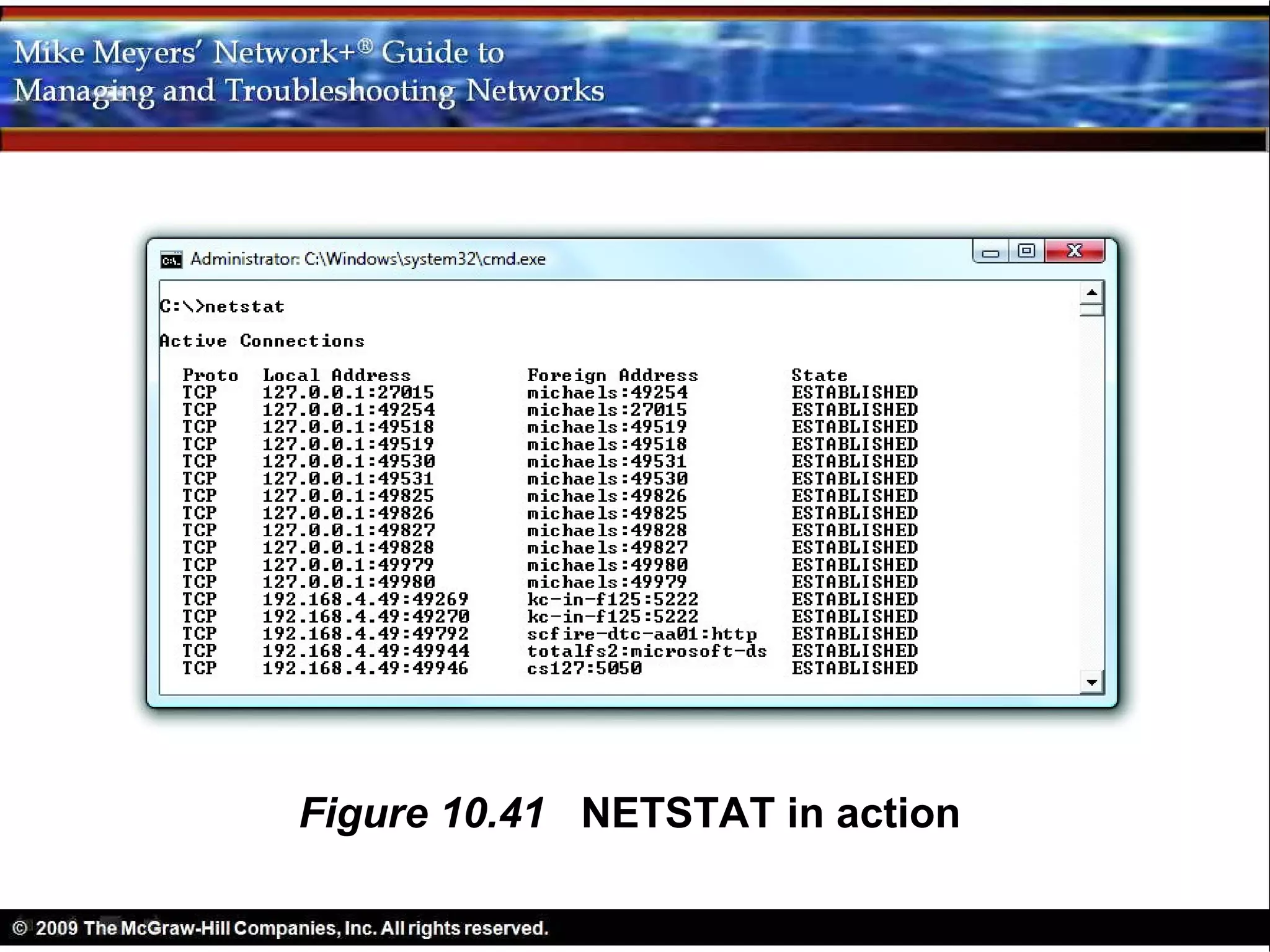
  –   Run NETSTAT with no options
  –   Run netstat –s
  –   Diagnose to the gateway
  –   Diagnose to the Internet
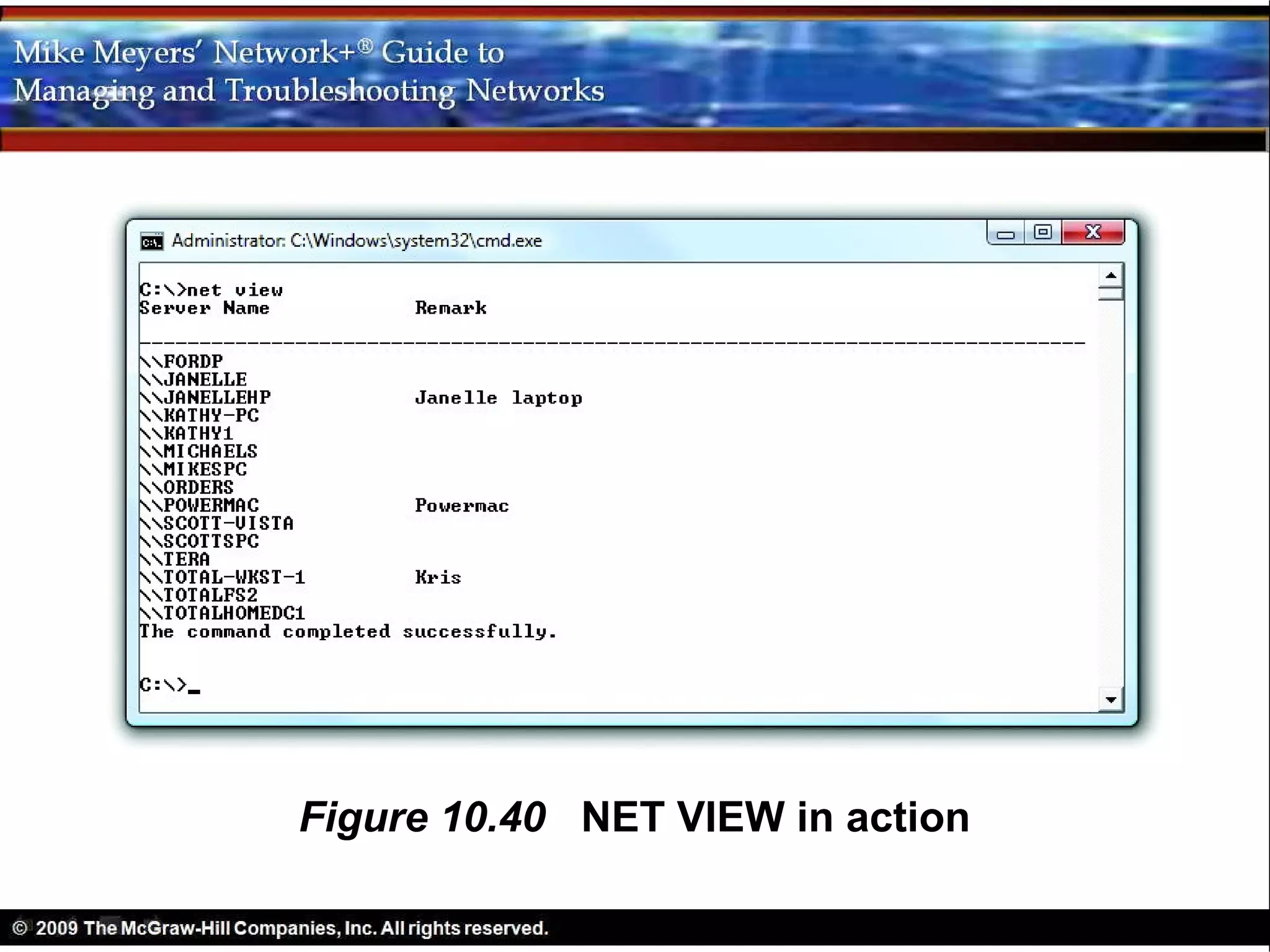
Figure 10.40 NET VIEW in action
Figure 10.41 NETSTAT in action
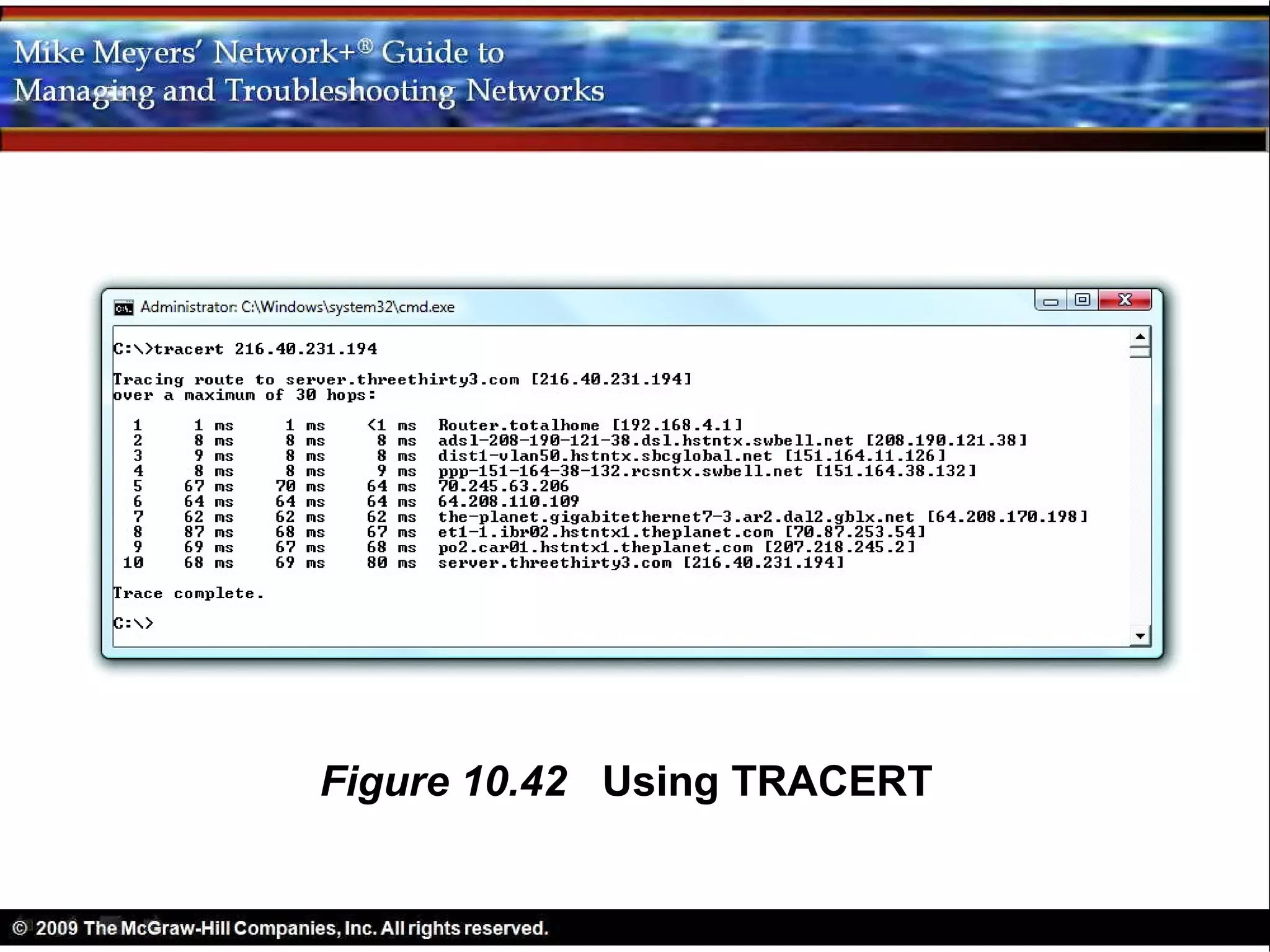
Figure 10.42 Using TRACERT

Networking Chapter 10

  • 1.
    Network Naming Chapter 10
  • 2.
    Objectives • Describe thefunction and capabilities of DNS • Configure and troubleshoot WINS • Use common TCP/IP utilities to diagnose problems with and WINS
  • 3.
  • 4.
    Introduction to Naming •Computers use IP addresses to communicate • People remember names better than numbers • Name resolution created to convert names to IP addresses (and vice versa)
  • 5.
    Name resolution has evolved over the years • Main protocol is Domain Name System (DNS) • Operating systems support old and new • Windows, Linux, and Macintosh OS X still support Windows Internet Name Server (WINS)
  • 6.
    Figure 10.1 Turningnames into numbers
  • 7.
    Three Parts toChapter 10 • DNS • WINS • Diagnosing TCP/IP Networks
  • 8.
  • 9.
    DNS • Early Internetuse of HOSTS file – One file copied to all hosts on the Internet – Contained a list of IP addresses for every computer, matched to system names – Preceded rules for composing Internet names
  • 10.
    • HOSTS file – Preceded DNS – Anyone could name computer anything – Duplicate names not allowed – Sample old HOSTS file: • 192.168.2.1 fred • 201.32.16.4 SCHOOL2 • 123.21.44.16 SERVER
  • 11.
    • HOSTS file – Hosts file updated on every system every morning at 2 a.m. – Impractical after Internet grew to 5000 – New name system, but HOSTS file still exists – # symbol indicates a line is a comment
  • 12.
    • HOSTS file – Every OS first looks in HOSTS file – Follow-up to Try This! • Every TCP/IP app looks at HOSTS file • If you altered the HOSTS file per the Try This! enter this command: ping timmy
  • 13.
    • HOSTS file – Some place shortcut names in a HOSTS file to avoid typing a long name into browser – DNS is more powerful and used much more
  • 14.
    • How DNSworks – No single computer can handle all Internet name resolution – Delegation used • Top-dog DNS system delegates parts of the job • Subsidiary DNS systems delegate parts of their work • All DNS servers run a special DNS server program
  • 15.
    • How DNSworks – Naming system facilitates delegation – Top-dog DNS a bunch of powerful systems • Dispersed around the world • Known collectively as the DNS root servers (or DNS root) – The Internet name for DNS root is “.” – Below root are the top-level domain servers
  • 16.
    • Name Spaces – Hosts file uses a flat name space – DNS uses a hierarchical name space • A hierarchy of DNS domains and computer names • Hierarchical DNS names space is the DNS Tree • Root is the holding area to which all domains connect • Individual computers have host names
  • 17.
    • Name Spaces – Home-brewed DNS • Must not connect to the Internet • Set up a DNS server to be the root server
  • 18.
    Figure 10.2 OurPeople name space
  • 19.
    Figure 10.3 TwoDATA.TXT files in different directories on the same system
  • 20.
    • Name Spaces – DNS naming syntax • Opposite of disk folder/directory syntax • A complete DNS name is a fully qualified domain name (FQDN) • Host and all domains in order • Root is far right
  • 21.
  • 22.
    Figure 10.5 TwoDNS domains
  • 23.
  • 24.
    • Name Servers – One server is authoritative DNS server for a domain • a.k.a. Start of Authority (SOA) • Other name servers (NS) are subordinate • All DNS servers know the address of SOA and all NS servers in the domain • SOA keeps others updated
  • 25.
    • Name Servers – Other systems send queries to DNS servers – Request resolution of FQDNs to IP addresses
  • 26.
    Figure 10.7 Asingle SOA can support one or more domains
  • 27.
    Figure 10.8 DNSflexibility
  • 28.
    Figure 10.9 Newinformation passed out
  • 29.
    Figure 10.10 Rootserver in action
  • 30.
  • 31.
    • Name Resolution – DNS not required to access Internet – DNS just makes is much easier – IP addresses required for connections – Most people would not use Internet without DNS name resolution
  • 32.
    • Name Resolution – Type Web address into a browser – It must resolve the name to IP address – Three ways to resolve a name • Broadcasting • HOSTS file • Querying a DNS server
  • 33.
    Figure 10.12 AnyTCP/IP-savvy program accepts either an IP address or an FQDN
  • 34.
    Figure 10.13 Routersdon’t forward broadcasts!
  • 35.
    Figure 10.14 Ahost contacts its local DNS server
  • 36.
    Figure 10.15 DNSinformation in Windows
  • 37.
    Figure 10.16 EnteringDNS information in Ubuntu
  • 38.
    Figure 10.17 IPCONFIG/ALL showing DNS information in Windows
  • 39.
    Figure 10.18 Checkingthe DNS cache
  • 40.
    Figure 10.19 Talkingto a root server
  • 41.
    Figure 10.20 Talkingto a root server
  • 42.
    Figure 10.21 Talkingto microsoft.com DNS server
  • 43.
    • DNS Servers(in action) – Most OSs have built-in DNS server software • Server versions of Windows • Most versions of UNIX/Linux – Third-party DNS servers
  • 44.
    • DNS Servers(in action) – Three special storage areas • Cached Lookups • Forward Lookup Zones • Reverse Lookup Zones
  • 45.
    Figure 10.22 DNSserver main screen
  • 46.
  • 47.
    • DNS Servers(in action) – Cache-only DNS servers • Do not store lookup zones • Talk to other DNS servers to resolve for clients
  • 48.
    Figure 10.24 Authoritativevs. cache-only DNS server
  • 49.
    • Totalhome domainexample – Does not comply with Internet rules – None of the computers is visible on Internet – Only usable on private network – Forward lookup is named totalhome – All the DNS servers listed under NS records
  • 50.
    • Totalhome forwardlookup zone – Each system in the domain has an A record – An alias for a system is a canonical name (CNAME) – SMTP servers use MX records (Mail eXchanger) – AAAA records are for IPv6 addresses
  • 51.
    Figure 10.25 Forwardlookup zone totalhome
  • 52.
    Figure 10.26 Lesscommon DNS record types
  • 53.
    • Forward lookupzones – Two types of forward lookup zones: Primary zone and Secondary zone – Resolve FQDN to IP address with Reverse lookup zone
  • 54.
    Figure 10.27 TwoDNS servers with updating taking place
  • 55.
  • 56.
    • Windows DNSserver – Performs most functions exactly like UNIX/Linux DNS servers – Adds a Windows-only Active Directory- integrated zone – Avoids problems of standard DNS servers – All domain controllers are DNS servers – All DNS servers are equal
  • 57.
    • Enter Windows – 1980s Microsoft NetBIOS/NetBEUI – 1990s Microsoft created NetBIOS over TCP/IP – added NetBIOS naming to DNS – Old sharing protocol Server Message Block (SMB)
  • 58.
  • 59.
    • Enter Windows—NetBIOSover TCP/IP – New sharing protocol Common Internet File System (CIFS) – SMB/CIFS adopted by UNIX/Linux and Mac OS X – CIFS and DNS work together
  • 60.
    Figure 10.30 Sambaon Ubuntu (it’s so common that the OS doesn’t even use the term in the dialog box)
  • 61.
    • Living withthe Legacy of CIFS – Networks using CIFS use two name systems – CIFS broadcast to find local server – DNS query to find TCP/IP host – CIFS and DNS work together
  • 62.
    • Living withthe Legacy of CIFS – CIFS organizes computers into workgroups – Computer joins a workgroup – Flat name space – See workgroups in Network/My Network Places
  • 63.
  • 64.
    Figure 10.32 Twoworkgroups in Network folder
  • 65.
    • Living withthe Legacy of CIFS – Computers controlled by Windows domain controller server are grouped in a Windows domain – Windows Computers join a domain – Computers (and users) authenticate to the domain – Windows domains now use DNS naming
  • 66.
    Figure 10.33 Logginginto the domain
  • 67.
    • Living withthe Legacy of CIFS – An Active Directory domain is an organization of computers that shares one or more Windows domains – All Active Directory Windows domain controllers are DNS servers – All domain controllers are equal partners
  • 68.
    Figure 10.34 Ifone domain controller goes down, another automatically takes over
  • 69.
    • Active Directory-IntegratedZones – DNS system not reliant on a single server – Windows DHCP servers automatically update all client information in the Active Directory-integrated zone – In some cases the client updates DNS – Non-Windows systems can only update Activity Directory-Integrated Zones using a Windows client (like Samba)
  • 70.
    Figure 10.35 UpdatingDNS information in Windows
  • 71.
    • Troubleshooting DNS – Client is source of most DNS problems – DNS servers rarely go down – If a DNS server is down, clients use secondary DNS server – Symptom: “server not found” error
  • 72.
  • 73.
    • Troubleshooting DNS – Eliminate any local DNS caches • Do not use Web browser for troubleshooting • Run ipconfig /flushdns • PING the name of a well-known Web site – Does it return IP address? – If not, PING an IP address
  • 74.
    Figure 10.37 UsingPING to check DNS
  • 75.
    • Troubleshooting DNS – If the previous steps indicate a problem with the DNS server, run NSLOOKUP run • Queries functions of DNS servers • Depends on proper permission level • Use to change how your system uses DNS
  • 76.
    • Troubleshooting DNS – Run NSLOOKUP without parameters to get • IP address and name of default DNS server • Error indicates primary DNS server is down or client has wrong IP for DNS server • NSLOOKUP has own prompt
  • 77.
    • Troubleshooting DNS – UNIX/Linux tool: domain information grouper (DIG) • Similar to NSLOOKUP • Non-interactive • Ask it a question; it answers
  • 78.
  • 79.
    WINS • Legacy NetBIOS – Current versions of Windows use DNS and/or CIFS – NetBIOS names supported for downward compatibility – NetBIOS system broadcasts its name
  • 80.
    • Prior toCIFS – LMHOSTS file • Works for NetBIOS like HOSTS does for DNS • Microsoft OSs still support • Every Windows systems has an LMHOSTS file
  • 81.
    • Windows InternetNaming Service (WINS) – WINS server for legacy Windows – No broadcasting: NetBIOS hosts register with WINS – Allows NetBIOS to function in a routed network – WINS proxy agent for legacy Windows
  • 82.
  • 83.
  • 84.
    • Configuring WINSclients – Enter IP address of WINS server – WINS information can be added to DHCP – WINS clients register NetBIOS names with WINS server
  • 85.
    • Troubleshooting WINS – Most “WINS” problems are NetBIOS problems • Two systems sharing same name • Change name of one system – NBTSTAT • Check name cache with nbtstat –c • Determine if WINS server has given inaccurate info
  • 86.
  • 87.
    • Improper configurationcauses most problems • PING anyone you want to connect to • Regardless of what the user cannot connect to, you perform the same steps
  • 88.
    • Use commonsense – If one system behaves differently than others, the problem is with the client – Before starting steps (below) check the network connections and protocols
  • 89.
    • Steps fortroubleshooting TCP/IP – Diagnose the NIC – Diagnose locally – Check IP address and subnet mask – Run NETSTAT with no options – Run netstat –s – Diagnose to the gateway – Diagnose to the Internet
  • 90.
    Figure 10.40 NETVIEW in action
  • 91.
  • 92.

Editor's Notes

  • #12 Teaching Tip If the students have access to computers with an Internet connection, have them take time to do the Try This on page 246. If their computers are running Windows, they will find the HOSTS file in the locations provided in the paragraph immediately above the exercise. However, they will only be successful if they have full access to the HOSTS file, including the ability to save it back to the same location. You may have to tinker with the permissions on the computers in order to allow the students to do this. If these are lab computers, and you are not permitted or inclined to change the security, then consider giving a demonstration. If you have full control of a computer with a projector connected, be prepared to simply demonstrate this on your computer. That will mean checking out the exercise before class. Now, the point of the exercise is that the HOSTS file may be archaic, but it is powerful in the right or wrong hands. There are good reasons why the recent versions of Windows protect this file so fiercely. A HOSTS file can be used to lock down a network, and it can also be used maliciously. I experienced both situations in computer training labs.
  • #13 Teaching Tip If you have not done so, introduce the concept of name space here, but do not go into detail (it is a topic head later in the chapter). Point out that the HOSTS file came into being when the Internet had a flat name space, whereas DNS is a hierarchical name space. This is true, even though HOSTS files still work today.
  • #15 Teaching Tip The Test-specific information begins here.
  • #16 Teaching Tip The Tip on the bottom of Page 247 points out that DNS servers use TCP and UDP port 53. Teaching Tip Per Note on Page 247: “The DNS root for the entire Internet consists of 13 powerful DNS server clusters scattered all over the world.” Make sure the students understand that a cluster consists of many servers. Also, have them go to www.root-servers.org , or do so for them, and share the information you find there.
  • #54 Teaching Tip The TRACERT command does a reverse lookup when you use an IP address rather than an FQDN. If you need to find the FQDN associated with an IP address, do a TRACERT on the address.