© 2012 Pearson Education, Inc. All rights reserved.

                                   Chapter 13:
                             Advanced GUI Applications

                         Starting Out with Java:
              From Control Structures through Data Structures

                                                  Second Edition

                         by Tony Gaddis and Godfrey Muganda
Chapter Topics
  Chapter 13 discusses the following main topics:
        – The Swing and AWT Class Hierarchy
        – Read-Only Text Fields
        – Lists
        – Combo Boxes
        – Displaying Images in Labels and Buttons
        – Mnemonics and Tool Tips


© 2012 Pearson Education, Inc. All rights reserved.   13-2
Chapter Topics
  Chapter 13 discusses the following main topics:
        – File Choosers and Color Choosers
        – Menus
        – More about Text Components: Text Areas and
          Fonts
        – Sliders
        – Look and Feel


© 2012 Pearson Education, Inc. All rights reserved.    13-3
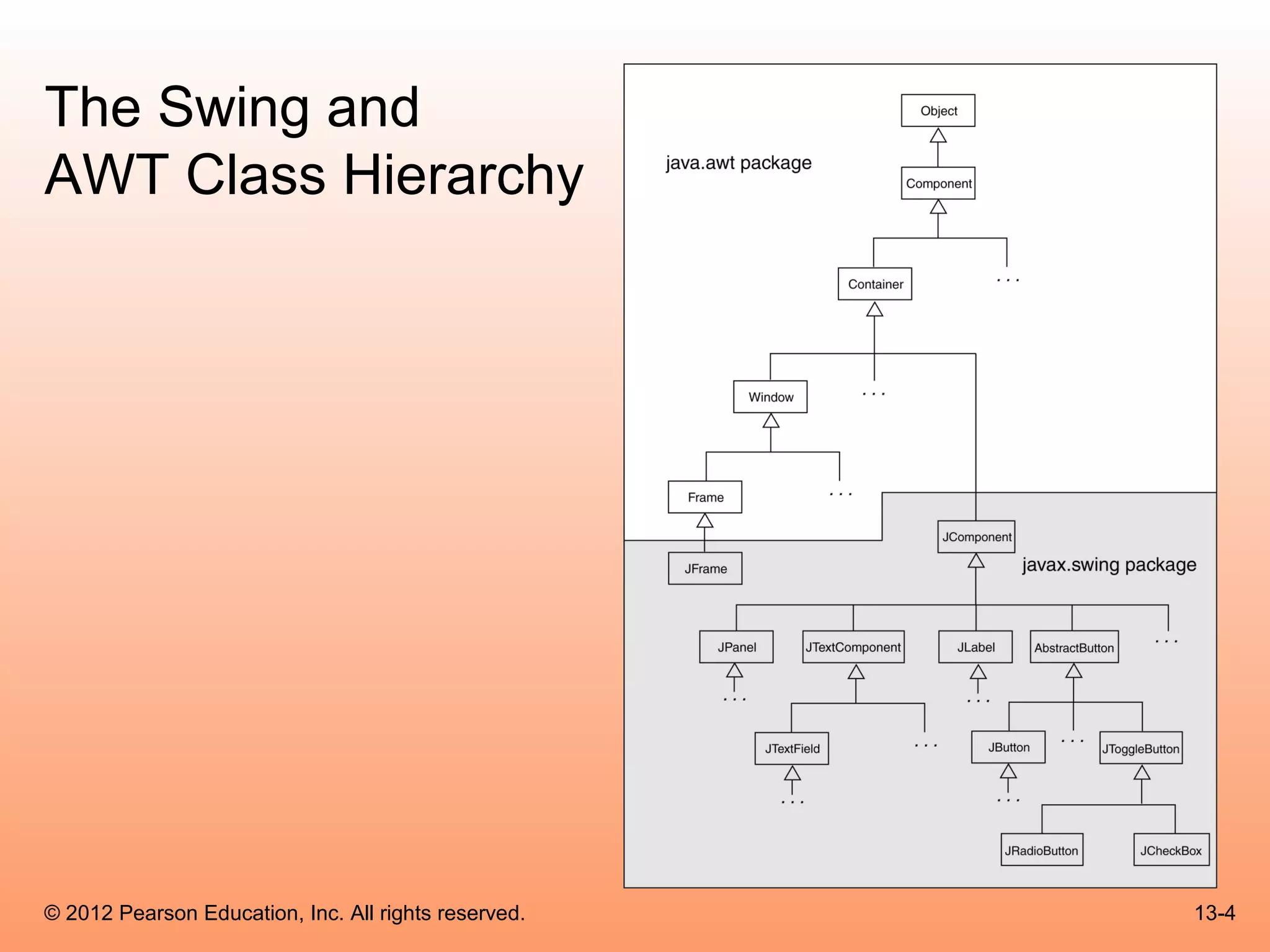
The Swing and
AWT Class Hierarchy


© 2012 Pearson Education, Inc. All rights reserved.   13-4
Read Only Text Fields
 • Read only text fields are a different way to use the
   JTextField component.
 • The JTextField component has a method named
   setEditable:

       setEditable(boolean editable)

 • By default a text field is editable.
 • The setEditable method must be called and passed false to
   make the field read-only.


© 2012 Pearson Education, Inc. All rights reserved.            13-5
Lists
 • A list is a component that displays a list of items and
   allows the user to select items from the list.
 • The JList component is used for creating lists.
 • When an instance of the JList class is created, an
   array of objects is passed to the constructor.
       JList (Object[] array)
 • The JList component uses the array to create the list
   of items.
       String[] names = { "Bill", "Geri", "Greg", "Jean",
         "Kirk", "Phillip", "Susan" };
       JList nameList = new JList(names);


© 2012 Pearson Education, Inc. All rights reserved.          13-6
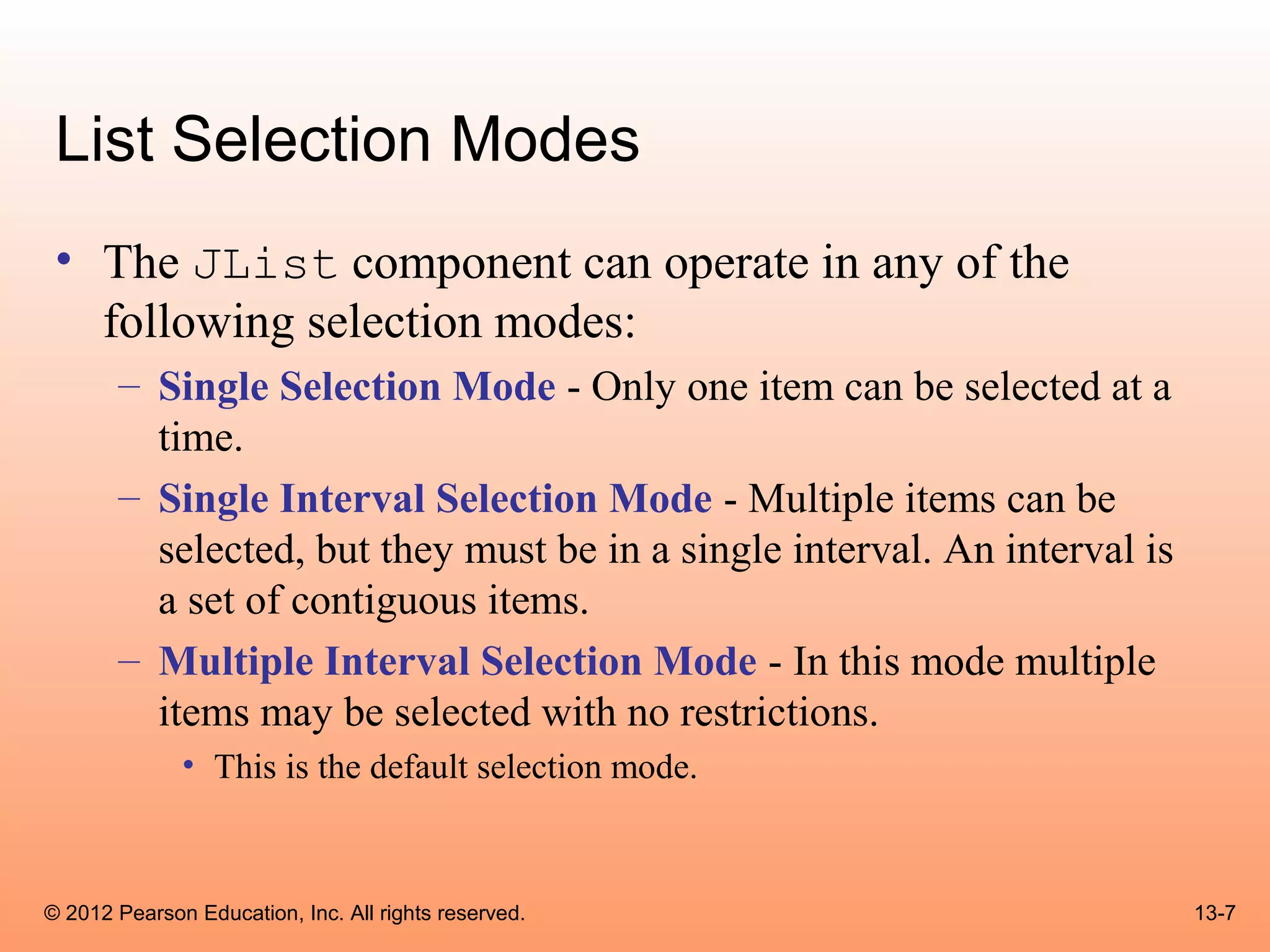
List Selection Modes
 • The JList component can operate in any of the
   following selection modes:
       – Single Selection Mode - Only one item can be selected at a
         time.
       – Single Interval Selection Mode - Multiple items can be
         selected, but they must be in a single interval. An interval is
         a set of contiguous items.
       – Multiple Interval Selection Mode - In this mode multiple
         items may be selected with no restrictions.
              • This is the default selection mode.


© 2012 Pearson Education, Inc. All rights reserved.                        13-7
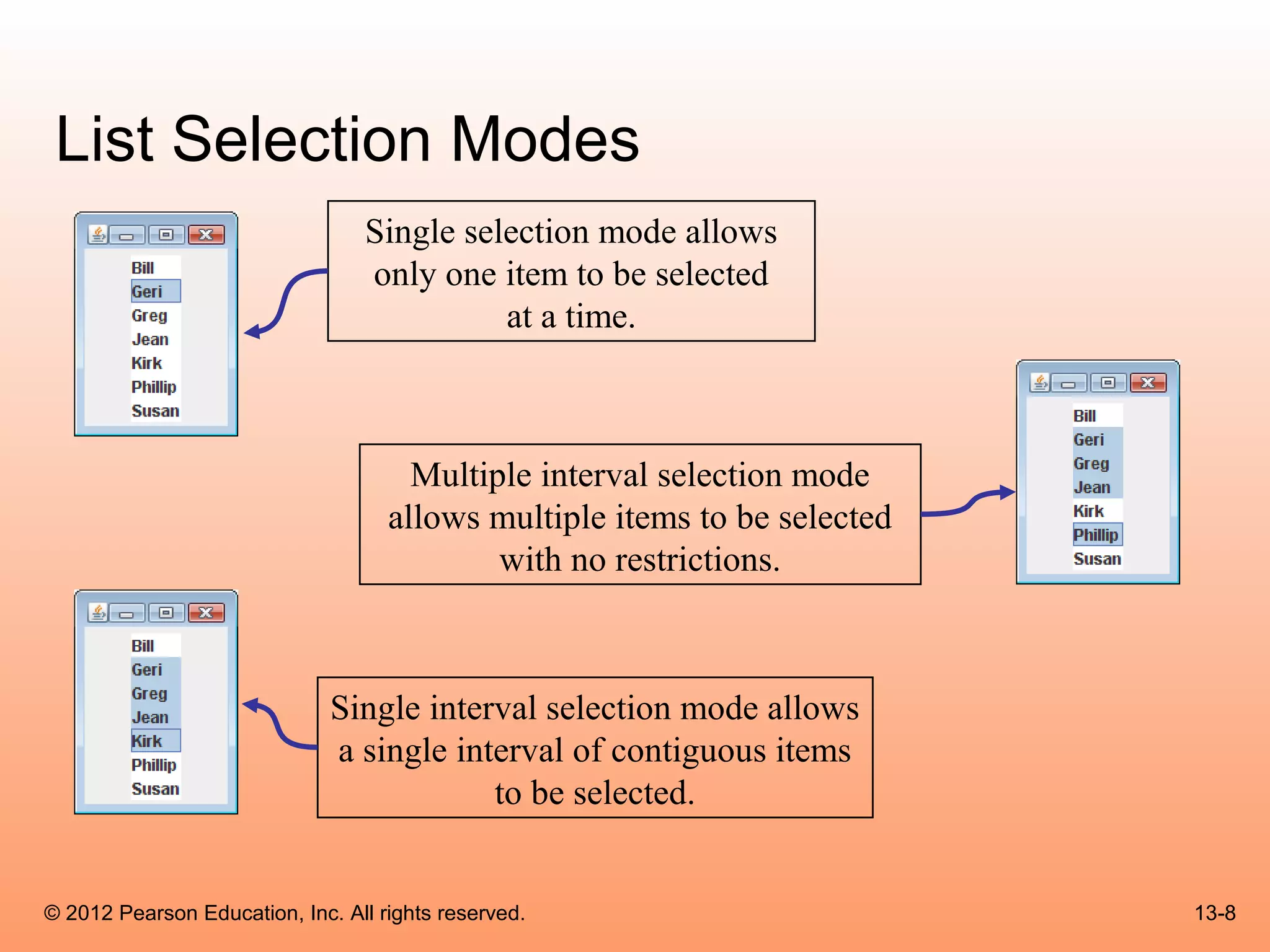
List Selection Modes
                                 Single selection mode allows
                                 only one item to be selected
                                           at a time.


                                      Multiple interval selection mode
                                    allows multiple items to be selected
                                            with no restrictions.


                              Single interval selection mode allows
                              a single interval of contiguous items
                                          to be selected.


© 2012 Pearson Education, Inc. All rights reserved.                        13-8
List Selection Modes
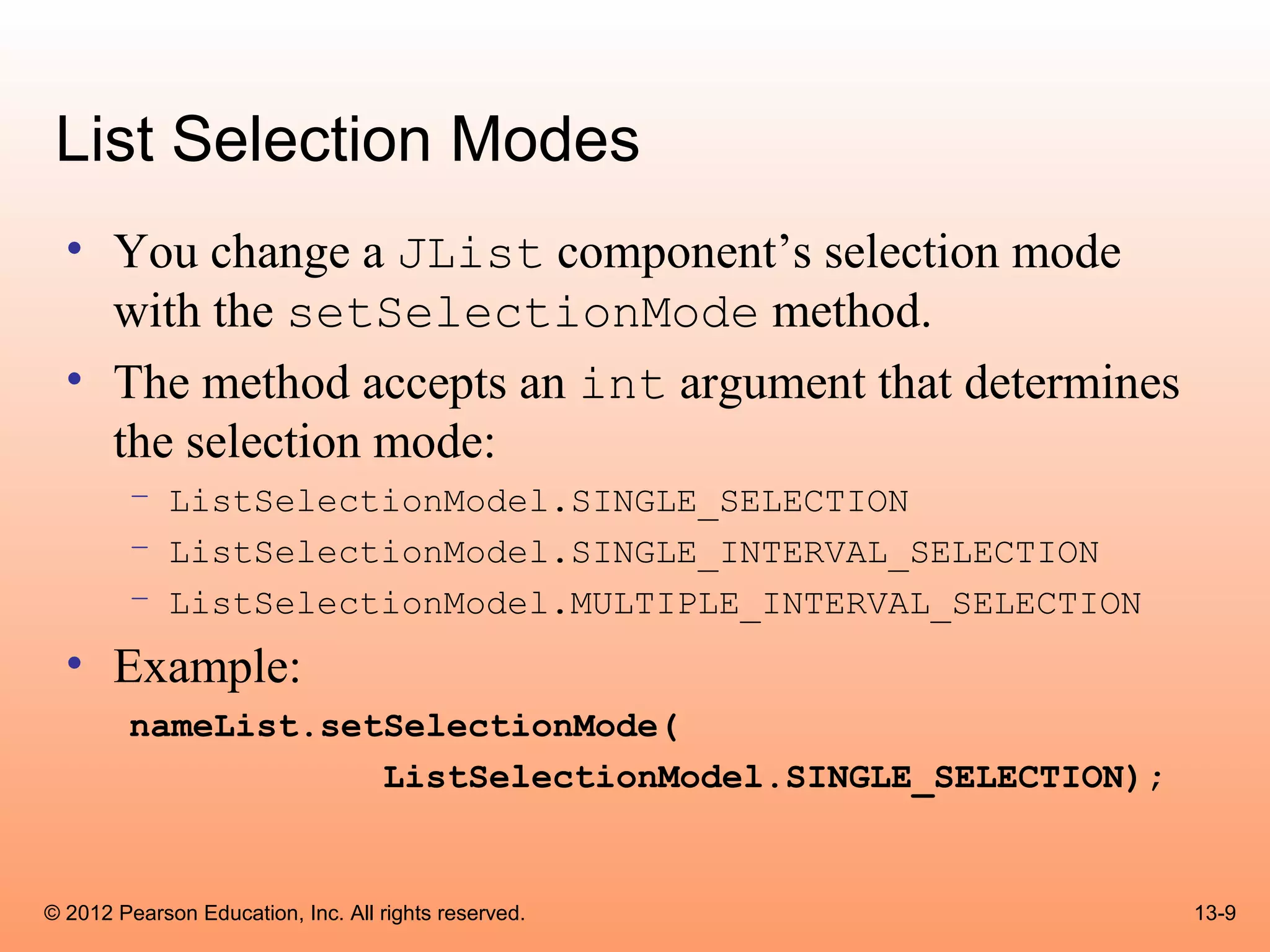
  • You change a JList component’s selection mode
    with the setSelectionMode method.
  • The method accepts an int argument that determines
    the selection mode:
        – ListSelectionModel.SINGLE_SELECTION
        – ListSelectionModel.SINGLE_INTERVAL_SELECTION
        – ListSelectionModel.MULTIPLE_INTERVAL_SELECTION
  • Example:
        nameList.setSelectionMode(
                    ListSelectionModel.SINGLE_SELECTION);


© 2012 Pearson Education, Inc. All rights reserved.         13-9
List Events
 • When an item in a JList object is selected it generates a list
   selection event.
 • The event is handled by an instance of a list selection listener
   class, which must meet the following requirements:
       – It must implement the ListSelectionListener interface.
       – It must have a method named valueChanged. This method must take an
         argument of the ListSelectionEvent type.
 • Use the addListSelectionListener method of the JList
   class to register the instance of the list selection listener class with
   the list object.


© 2012 Pearson Education, Inc. All rights reserved.                     13-10
List Events
 • When the JList component generates an
   event:
       – it automatically executes the valueChanged
         method of the list selection listener object
       – It passes the event object as an argument.


© 2012 Pearson Education, Inc. All rights reserved.     13-11
Retrieving Selected Items
  • You may use:
               • getSelectedValue or
               • getSelectedIndex
        – to determine which item in a list is currently selected.

  • getSelectedValue returns a reference to the item that is
    currently selected.
        String selectedName;
        selectedName = (String)nameList.getSelectedValue();

  • The return value must be cast to String is required in order to
    store it in the selectedName variable.
  • If no item in the list is selected, the method returns null.

© 2012 Pearson Education, Inc. All rights reserved.                  13-12
Retrieving Selected Items
 • The getSelectedIndex method returns the index of the
   selected item, or –1 if no item is selected.
 • Internally, the items that are stored in a list are numbered
   (similar to an array).
 • Each item’s number is called its index.
 • The first item has the index 0.
 • You can use the index of the selected item to retrieve the item
   from an array.

       String[] names = { "Bill", "Geri", "Greg", "Jean",
         "Kirk", "Phillip", "Susan" };
       JList nameList = new JList(names);


© 2012 Pearson Education, Inc. All rights reserved.                  13-13
Retrieving Selected Items
 • This code could be used to determine the
   selected item:
       int index;
       String selectedName;
       index = nameList.getSelectedIndex();
       if (index != -1)
         selectedName = names[index];

 • Example: ListWindow.java


© 2012 Pearson Education, Inc. All rights reserved.   13-14
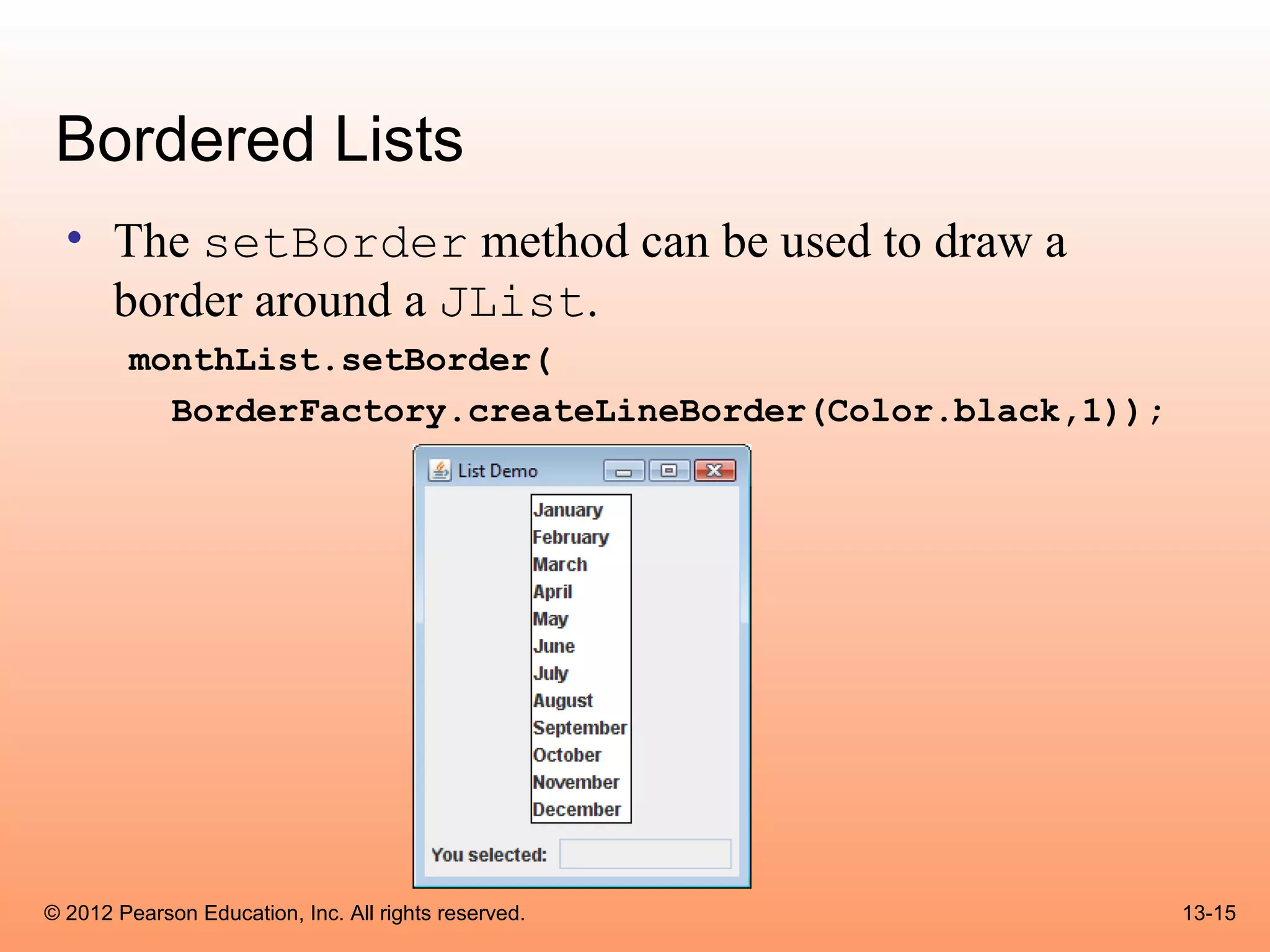
Bordered Lists
  • The setBorder method can be used to draw a
    border around a JList.
        monthList.setBorder(
          BorderFactory.createLineBorder(Color.black,1));


© 2012 Pearson Education, Inc. All rights reserved.         13-15
Adding A Scroll Bar To a List
  • By default, a list component is large enough to display
    all of the items it contains.
  • Sometimes a list component contains too many items to
    be displayed at once.
  • Most GUI applications display a scroll bar on list
    components that contain a large number of items.
  • List components do not automatically display a scroll
    bar.


© 2012 Pearson Education, Inc. All rights reserved.      13-16
Adding A Scroll Bar To a List
 • To display a scroll bar on a list component, follow
   these general steps.
       1. Set the number of visible rows for the list component.
       2. Create a scroll pane object and add the list component to it.
       3. Add the scroll pane object to any other containers, such as
          panels.
 • For this list:
       String[] names = { "Bill", "Geri", "Greg", "Jean",
         "Kirk", "Phillip", "Susan" };
       JList nameList = new JList(names);


© 2012 Pearson Education, Inc. All rights reserved.                       13-17
Adding A Scroll Bar To a List
 • Establish the size of the list component.
       nameList.setVisibleRowCount(3);

 • Create a scroll pane object and add the list component to it.
 • A scroll pane object is a container that displays scroll bars on any
   component it contains.
 • The JScrollPane class to create a scroll pane object.
 • We pass the object that we wish to add to the scroll pane as an
   argument to the JScrollPane constructor.

       JScrollPane scrollPane = new
            JScrollPane(nameList);


© 2012 Pearson Education, Inc. All rights reserved.                 13-18
Adding A Scroll Bar To a List
 • Add the scroll pane object to any other containers that
   are necessary for our GUI.
       JPanel panel = new JPanel();
       panel.add(scrollPane);
       add(panel);
 • When the list component is displayed, it will appear
   with:
       – Three items showing at a time and
       – scroll bars:


© 2012 Pearson Education, Inc. All rights reserved.          13-19
Adding A Scroll Bar To a List
 • By default, JList components added to a JScrollPane
   object only display a scroll bar if there are more items in the list
   than there are visible rows.
 • When a JList component is added to a JScrollPane
   object, a border will automatically appear around the list.
 • Example: ListWindowWithScroll.java


© 2012 Pearson Education, Inc. All rights reserved.                   13-20
Adding Items to an Existing List
 • The setListData method allows the adding of
   items in an existing JList component.

       void setListData(Object[] data)


 • This replaces any items that are currently displayed in
   the component.
 • This can be used to add items to an empty list.


© 2012 Pearson Education, Inc. All rights reserved.          13-21
Adding Items to an Existing List
 • You can create an empty list by using the JList
   component’s no-parameter constructor:

       JList nameList = new JList();


 • Items can be added to the list:

       String[] names = { "Bill", "Geri", "Greg", "Jean",
         "Kirk", "Phillip", "Susan" };
       nameList.setListData(names);


© 2012 Pearson Education, Inc. All rights reserved.         13-22
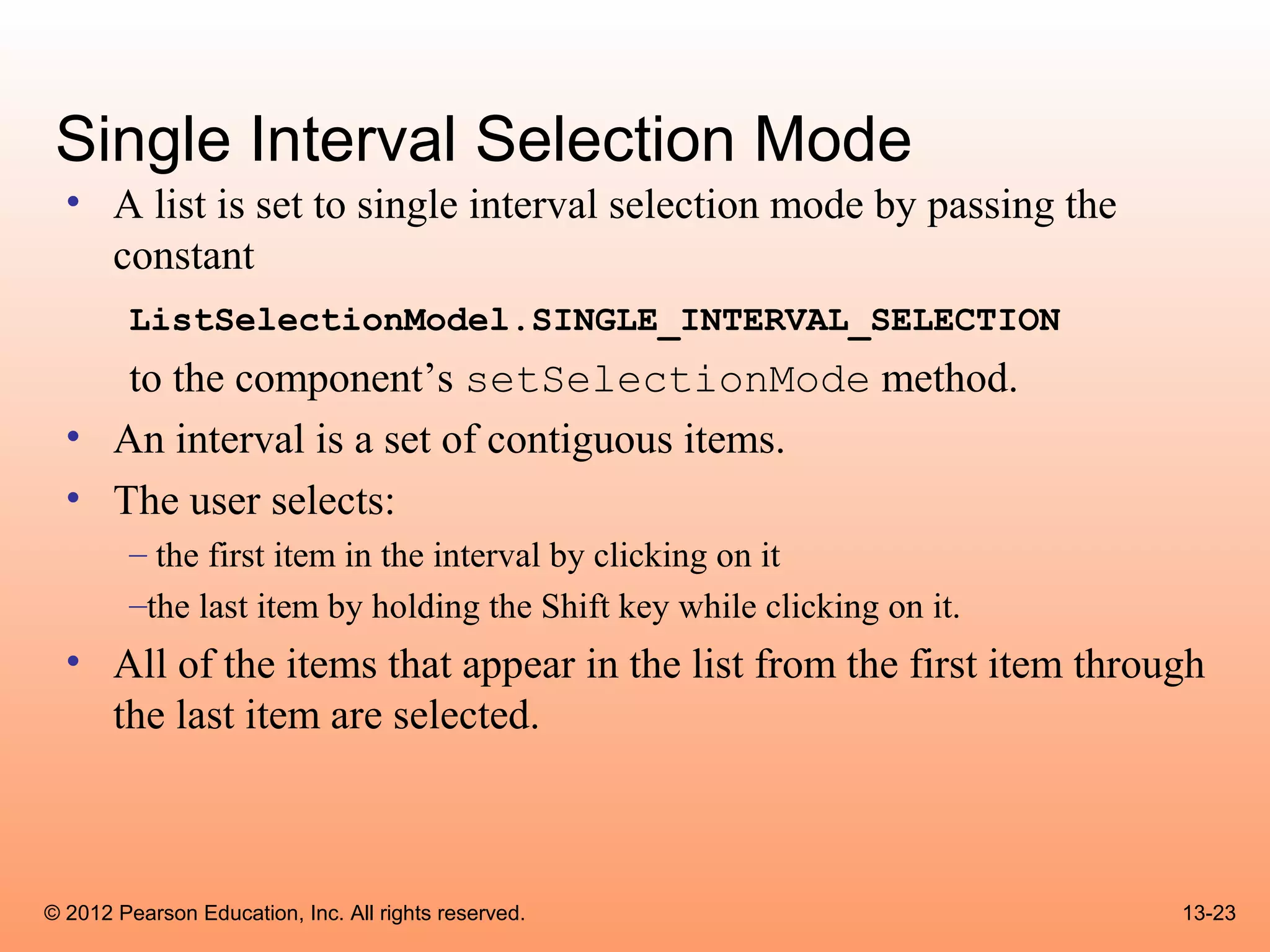
Single Interval Selection Mode
  • A list is set to single interval selection mode by passing the
    constant
        ListSelectionModel.SINGLE_INTERVAL_SELECTION
     to the component’s setSelectionMode method.
  • An interval is a set of contiguous items.
  • The user selects:
        – the first item in the interval by clicking on it
        –the last item by holding the Shift key while clicking on it.
  • All of the items that appear in the list from the first item through
    the last item are selected.


© 2012 Pearson Education, Inc. All rights reserved.                     13-23
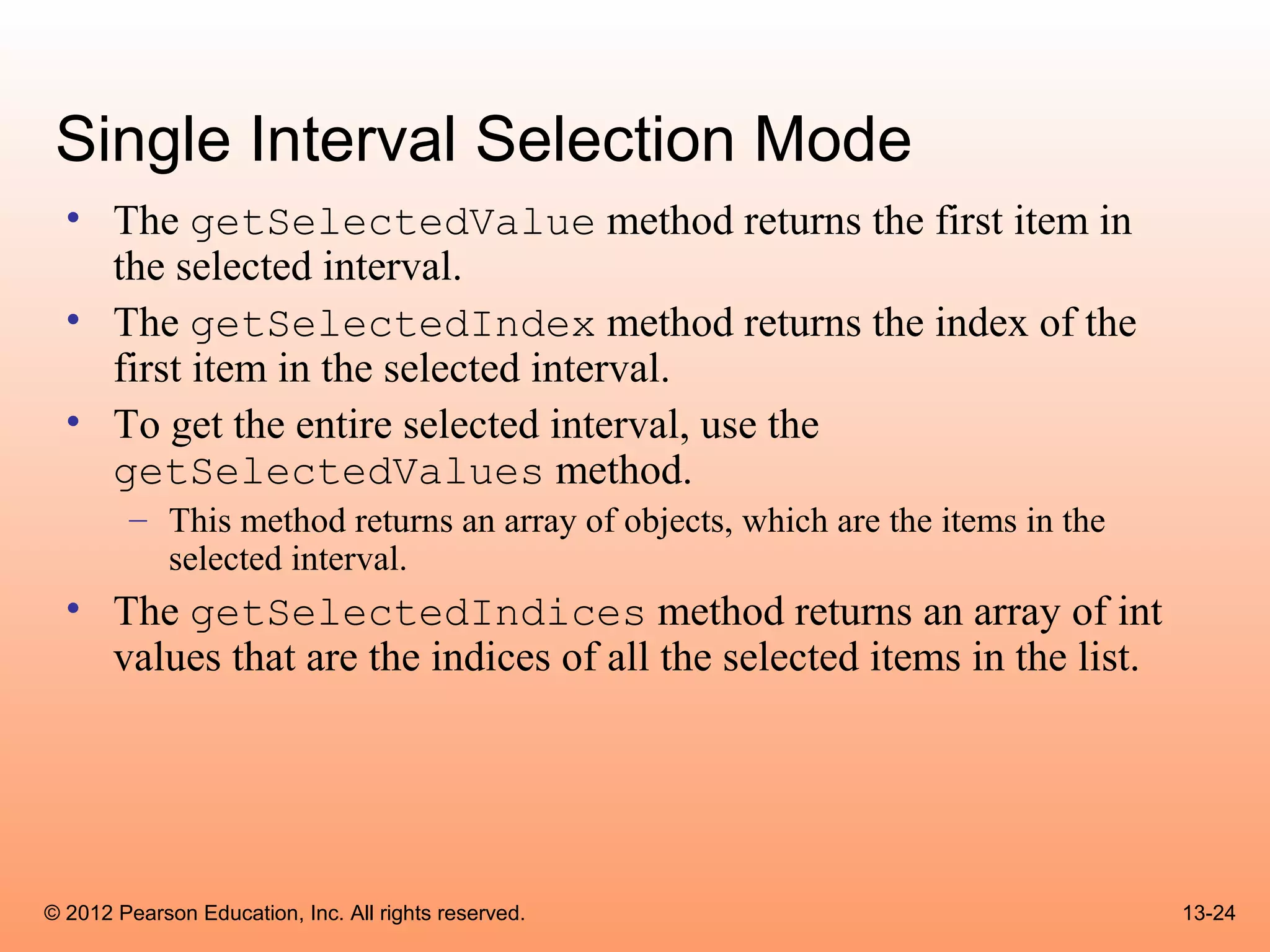
Single Interval Selection Mode
  • The getSelectedValue method returns the first item in
    the selected interval.
  • The getSelectedIndex method returns the index of the
    first item in the selected interval.
  • To get the entire selected interval, use the
    getSelectedValues method.
        – This method returns an array of objects, which are the items in the
          selected interval.
  • The getSelectedIndices method returns an array of int
    values that are the indices of all the selected items in the list.


© 2012 Pearson Education, Inc. All rights reserved.                             13-24
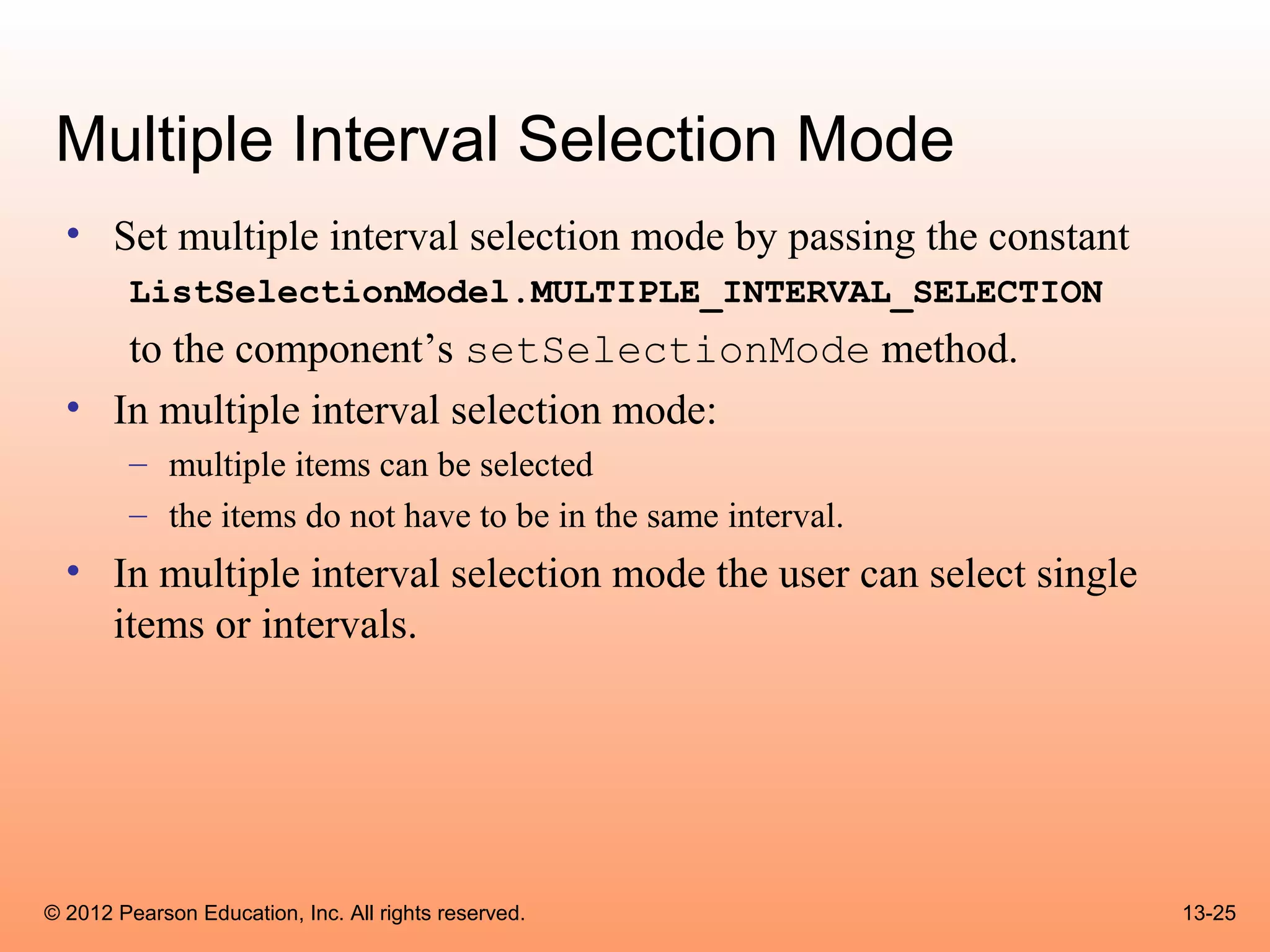
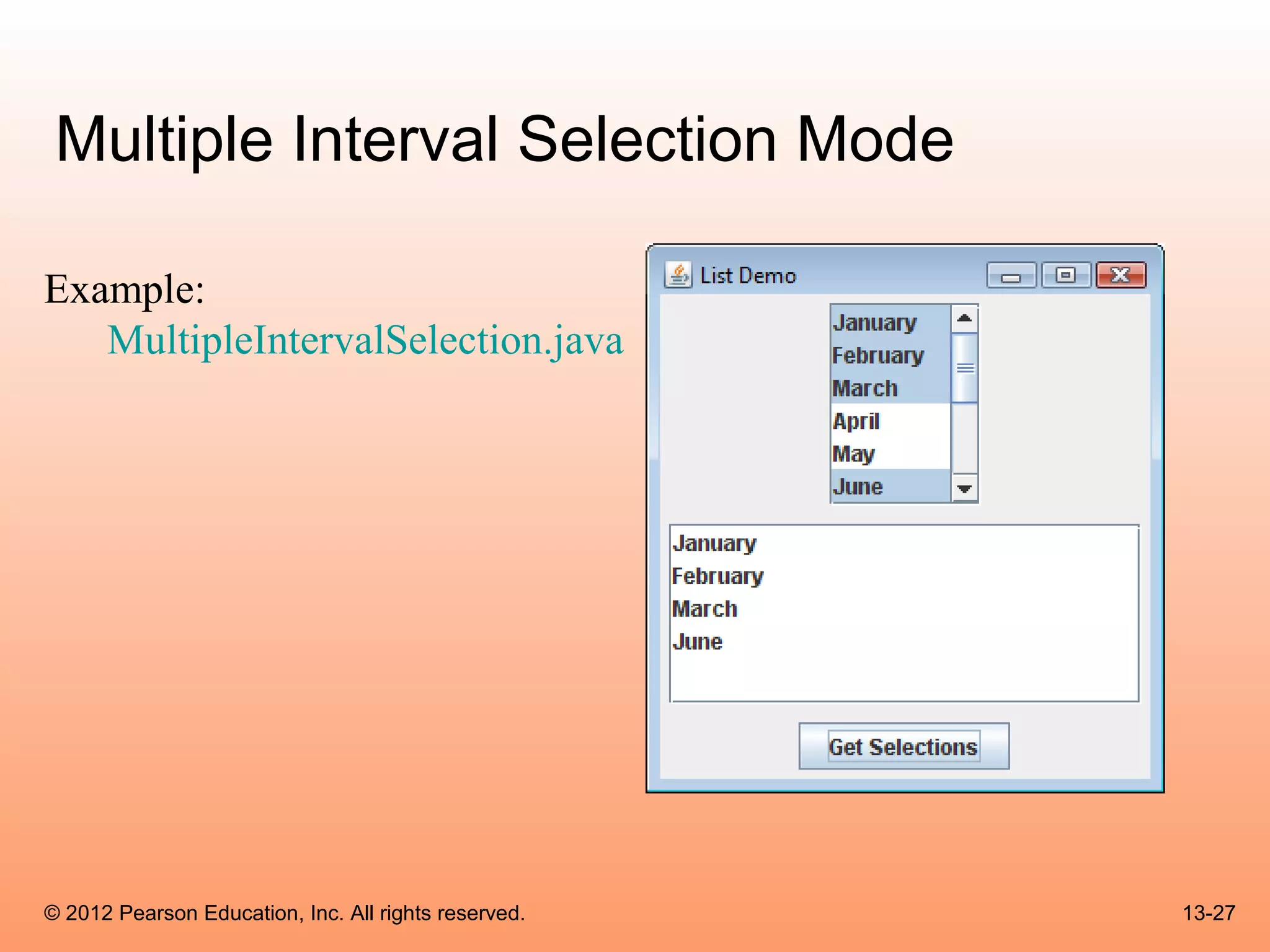
Multiple Interval Selection Mode
  • Set multiple interval selection mode by passing the constant
        ListSelectionModel.MULTIPLE_INTERVAL_SELECTION
     to the component’s setSelectionMode method.
  • In multiple interval selection mode:
        – multiple items can be selected
        – the items do not have to be in the same interval.
  • In multiple interval selection mode the user can select single
    items or intervals.


© 2012 Pearson Education, Inc. All rights reserved.                  13-25
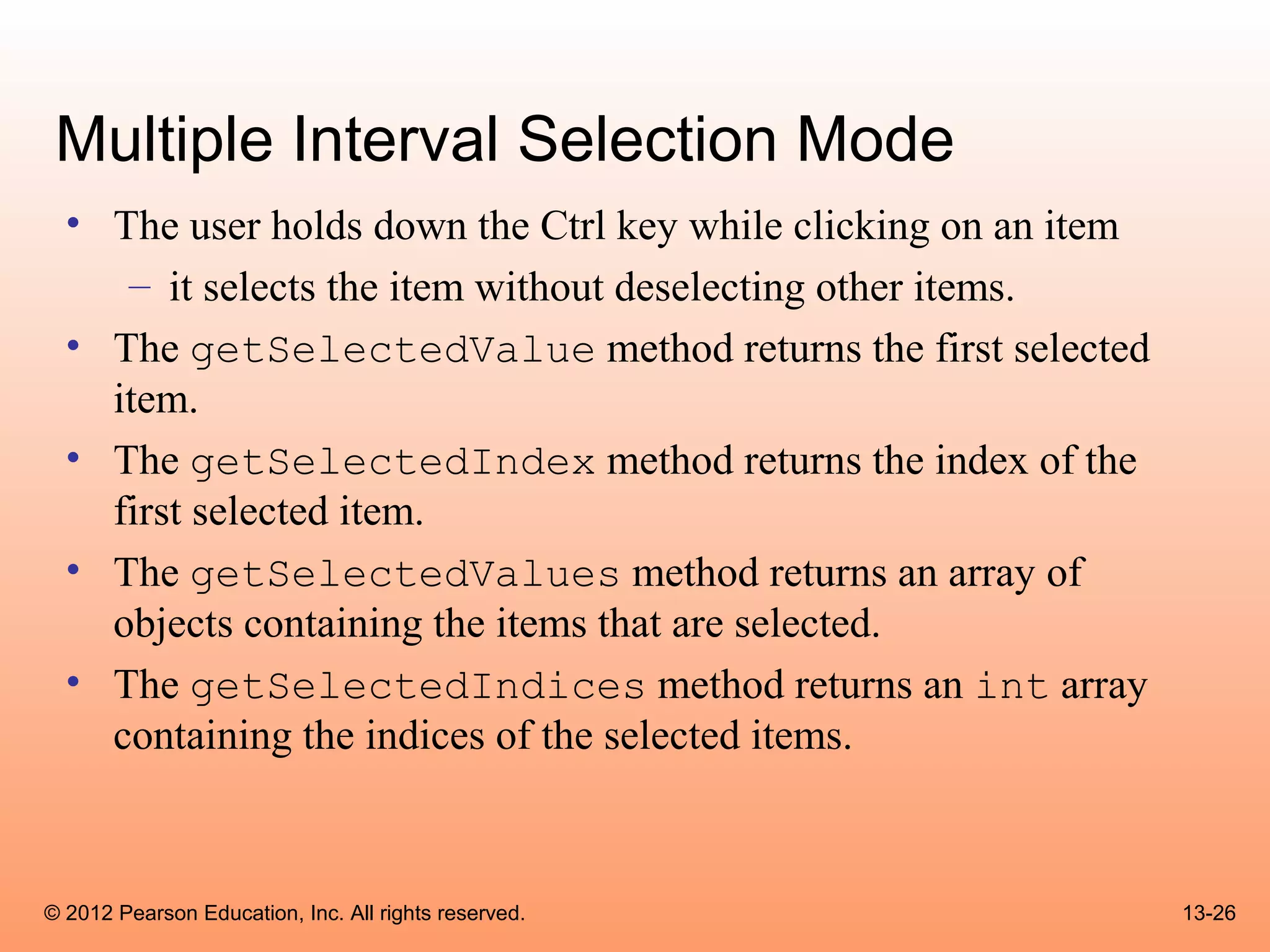
Multiple Interval Selection Mode
  • The user holds down the Ctrl key while clicking on an item
     – it selects the item without deselecting other items.
  • The getSelectedValue method returns the first selected
    item.
  • The getSelectedIndex method returns the index of the
    first selected item.
  • The getSelectedValues method returns an array of
    objects containing the items that are selected.
  • The getSelectedIndices method returns an int array
    containing the indices of the selected items.


© 2012 Pearson Education, Inc. All rights reserved.              13-26
Multiple Interval Selection Mode

Example:
   MultipleIntervalSelection.java


© 2012 Pearson Education, Inc. All rights reserved.   13-27
Combo Boxes
 • A combo box presents a drop-down list of items that the user may
   select from.
 • The JComboBox class is used to create a combo box.
 • Pass an array of objects that are to be displayed as the items in the
   drop-down list to the constructor.
       String[] names = { "Bill", "Geri", "Greg", "Jean",
         "Kirk", "Phillip", "Susan" };
       JComboBox nameBox = new JComboBox(names);

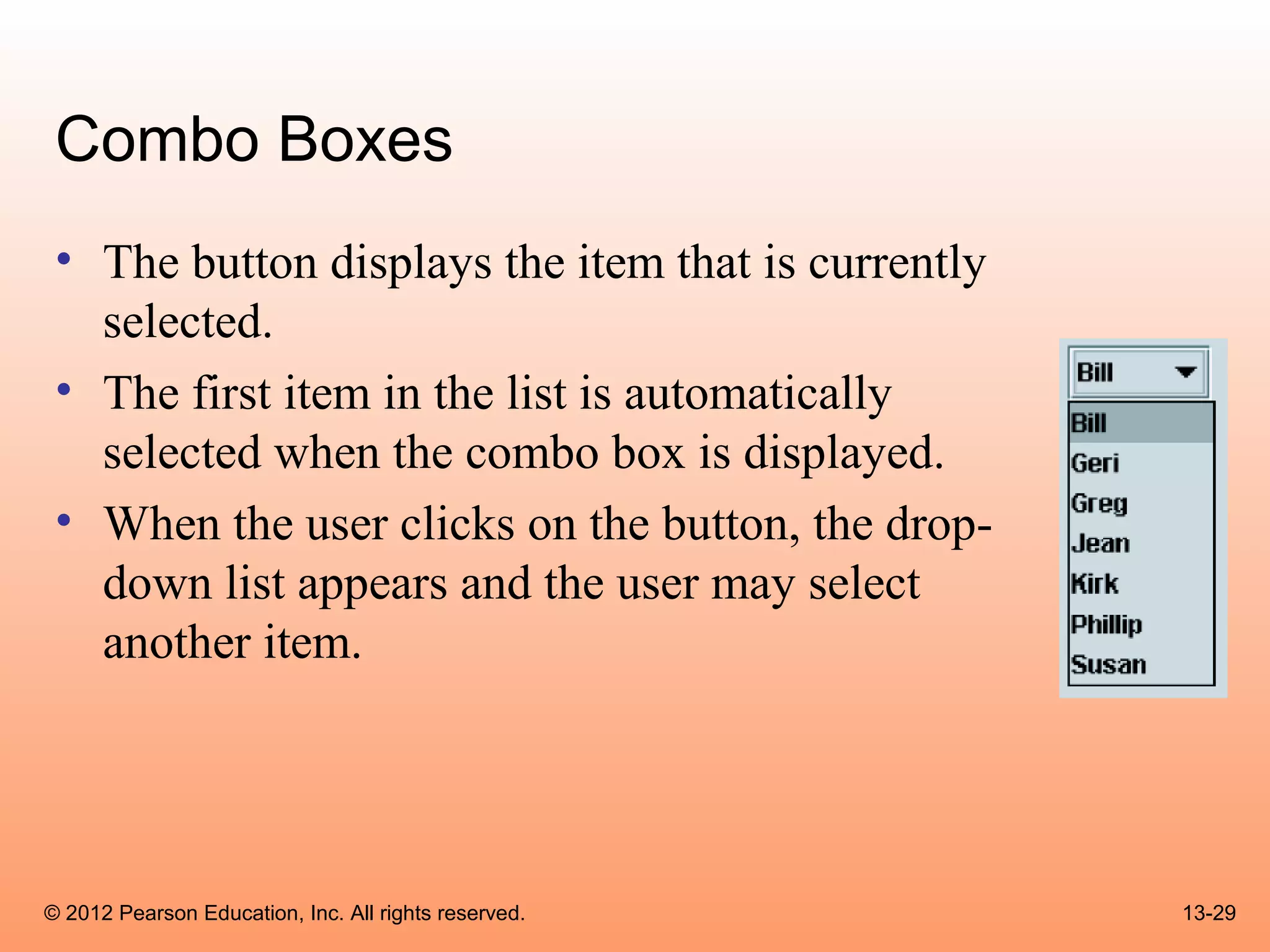
 • When displayed, the combo box created by this code will initially
   appear as the button:


© 2012 Pearson Education, Inc. All rights reserved.                  13-28
Combo Boxes
 • The button displays the item that is currently
   selected.
 • The first item in the list is automatically
   selected when the combo box is displayed.
 • When the user clicks on the button, the drop-
   down list appears and the user may select
   another item.


© 2012 Pearson Education, Inc. All rights reserved.   13-29
Combo Box Events
 • When an item in a JComboBox object is selected, it generates
   an action event.
 • Handle action events with an action event listener class, which
   must have an actionPerformed method.
 • When the user selects an item in a combo box, the combo box
   executes its action event listener’s actionPerformed
   method, passing an ActionEvent object as an argument.


© 2012 Pearson Education, Inc. All rights reserved.                  13-30
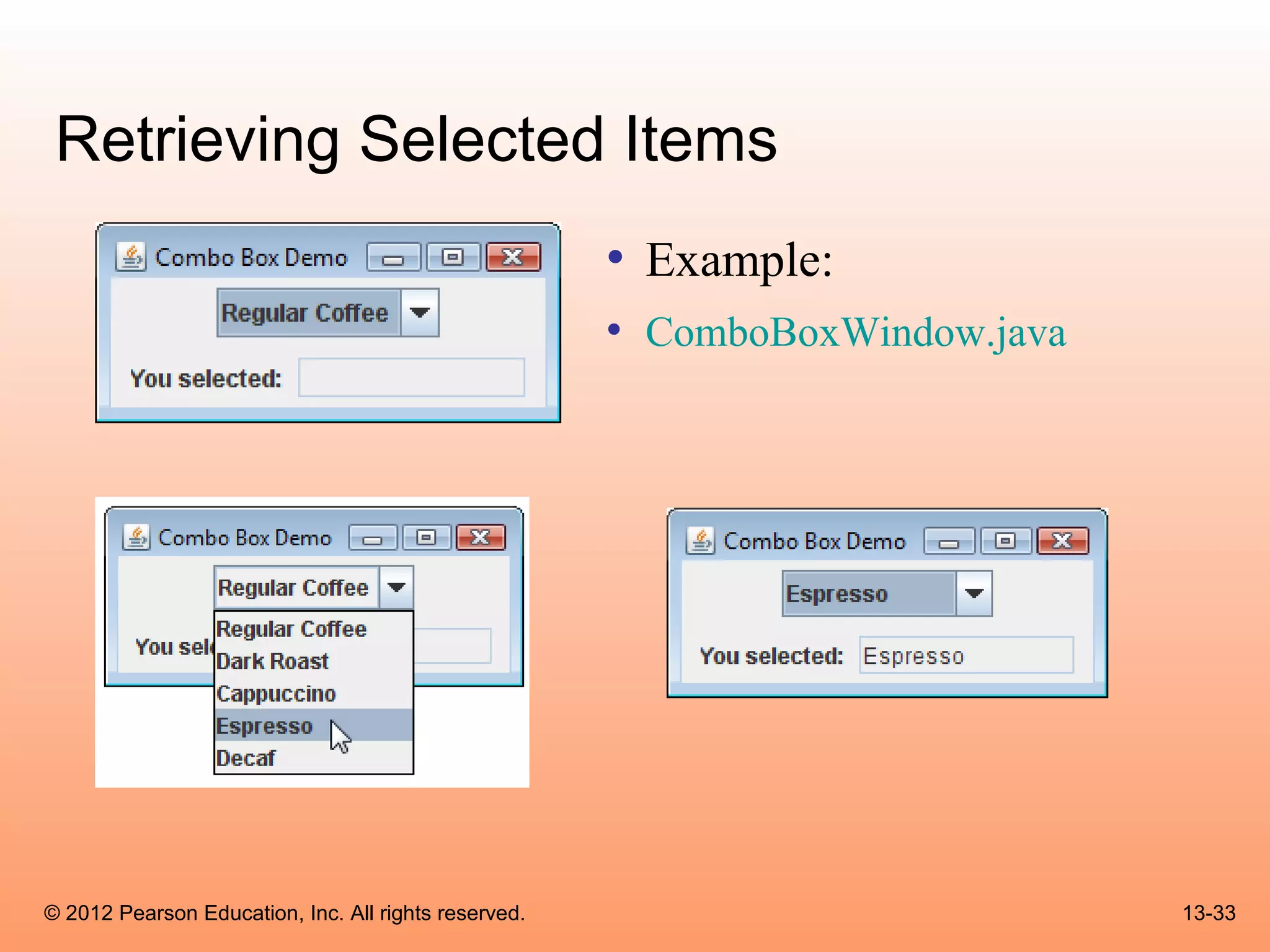
Retrieving Selected Items
  • There are two methods in the JComboBox class that can be
    used to determine which item in a list is currently selected:
        – getSelectedItem
        – getSelectedIndex
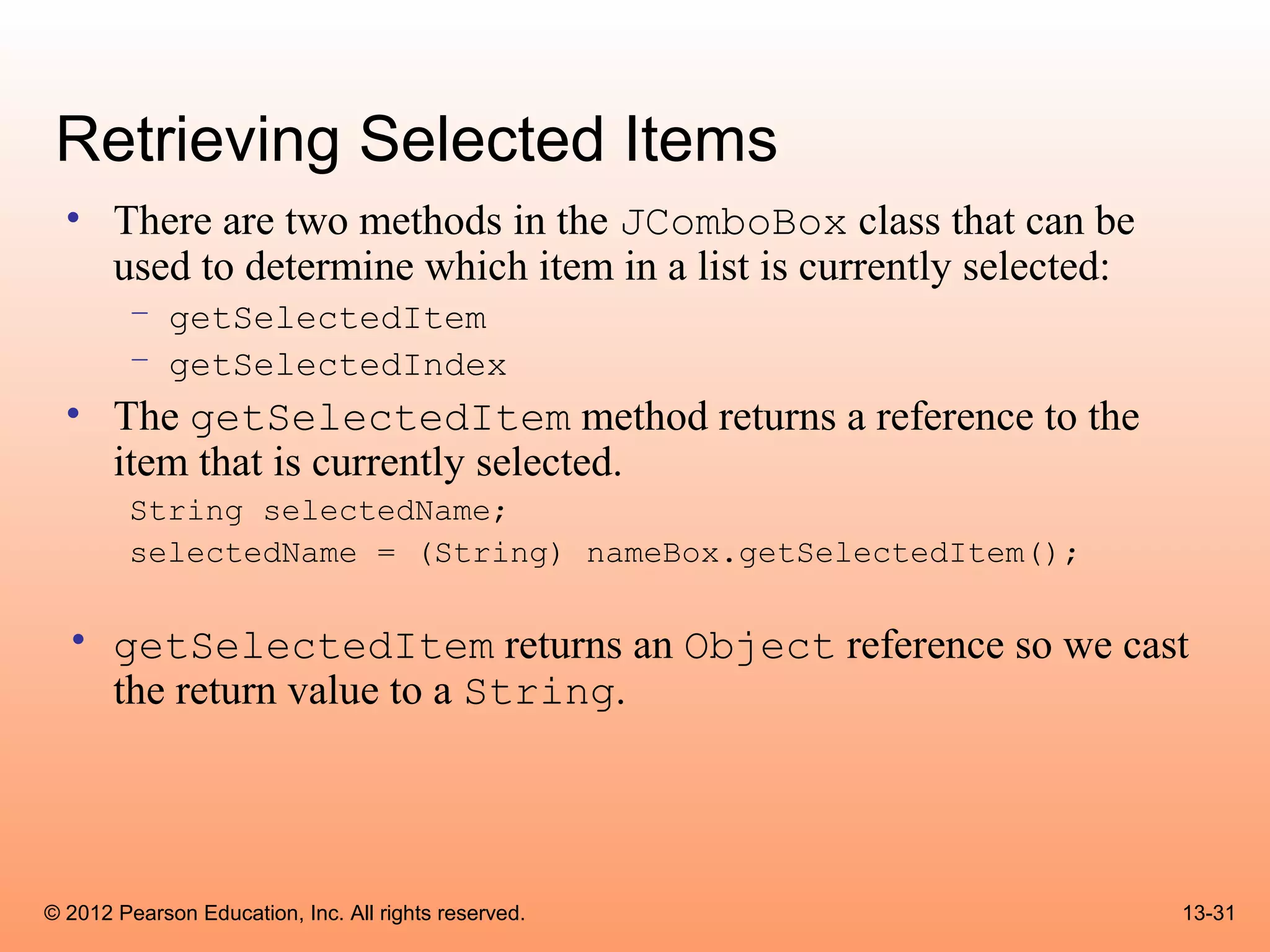
  • The getSelectedItem method returns a reference to the
    item that is currently selected.
        String selectedName;
        selectedName = (String) nameBox.getSelectedItem();
  • getSelectedItem returns an Object reference so we cast
    the return value to a String.


© 2012 Pearson Education, Inc. All rights reserved.                 13-31
Retrieving Selected Items
 • The getSelectedIndex method returns the index
   of the selected item.
       String[] names = { "Bill", "Geri", "Greg", "Jean",
         "Kirk", "Phillip", "Susan" };
       JComboBox nameBox = new JComboBox(names);


 • Get the selected item from the names array:
       int index;
       String selectedName;
       index = nameBox.getSelectedIndex();
       selectedName = names[index];


© 2012 Pearson Education, Inc. All rights reserved.         13-32
Retrieving Selected Items
                                                      • Example:
                                                      • ComboBoxWindow.java


© 2012 Pearson Education, Inc. All rights reserved.                           13-33
Editable Combo Boxes
 • There are two types of combo boxes:
       – uneditable – allows the user to only select items from its list.
       – editable – combines a text field and a list.
              • It allows the selection of items from the list
              • allows the user to type input into the text field
 • The setEditable method sets the edit mode for the
   component.
       String[] names = { "Bill", "Geri", "Greg", "Jean",
         "Kirk", "Phillip", "Susan" };
       JComboBox nameBox = new JComboBox(names);
       nameBox.setEditable(true);


© 2012 Pearson Education, Inc. All rights reserved.                         13-34
Editable Combo Boxes
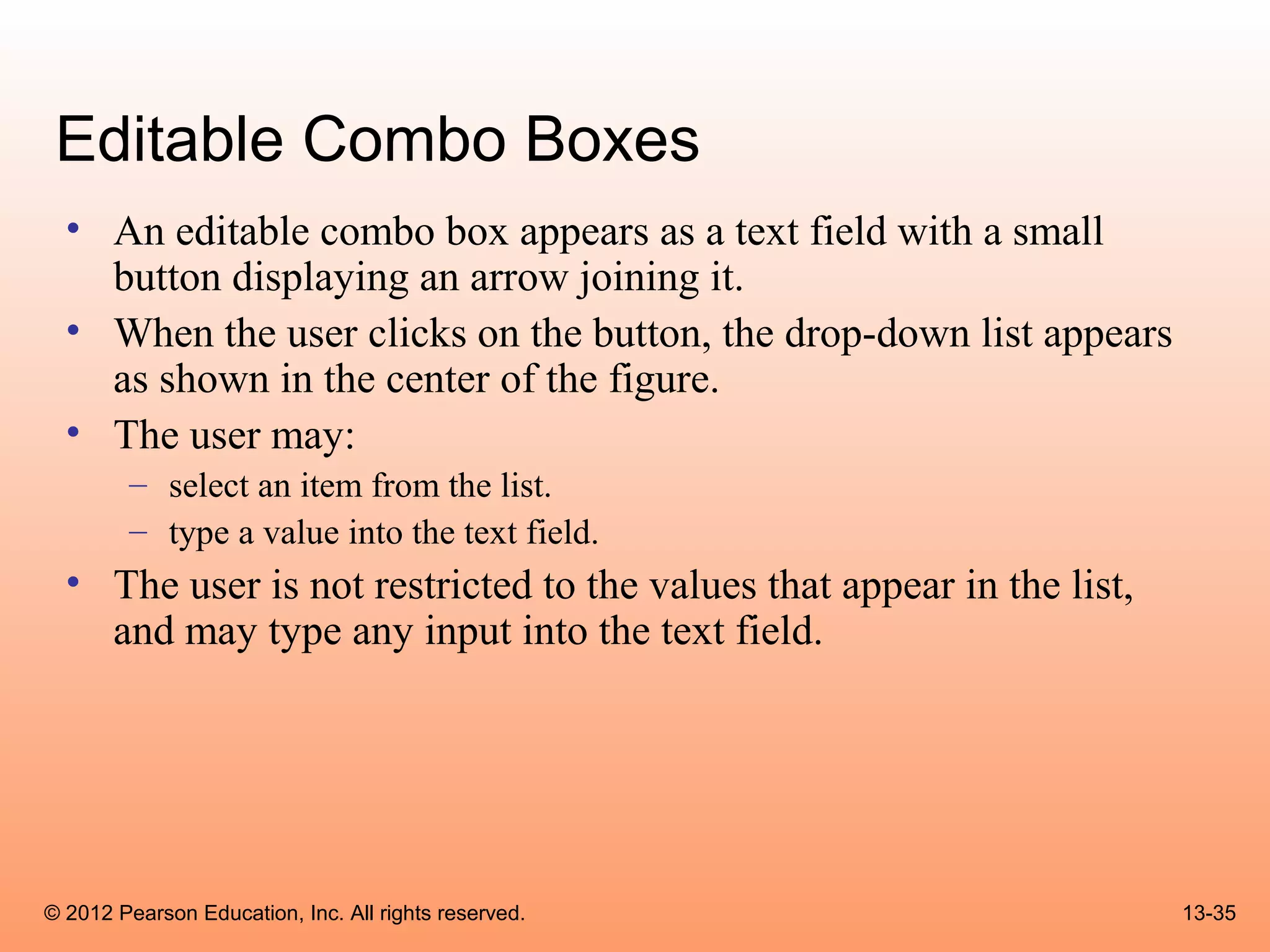
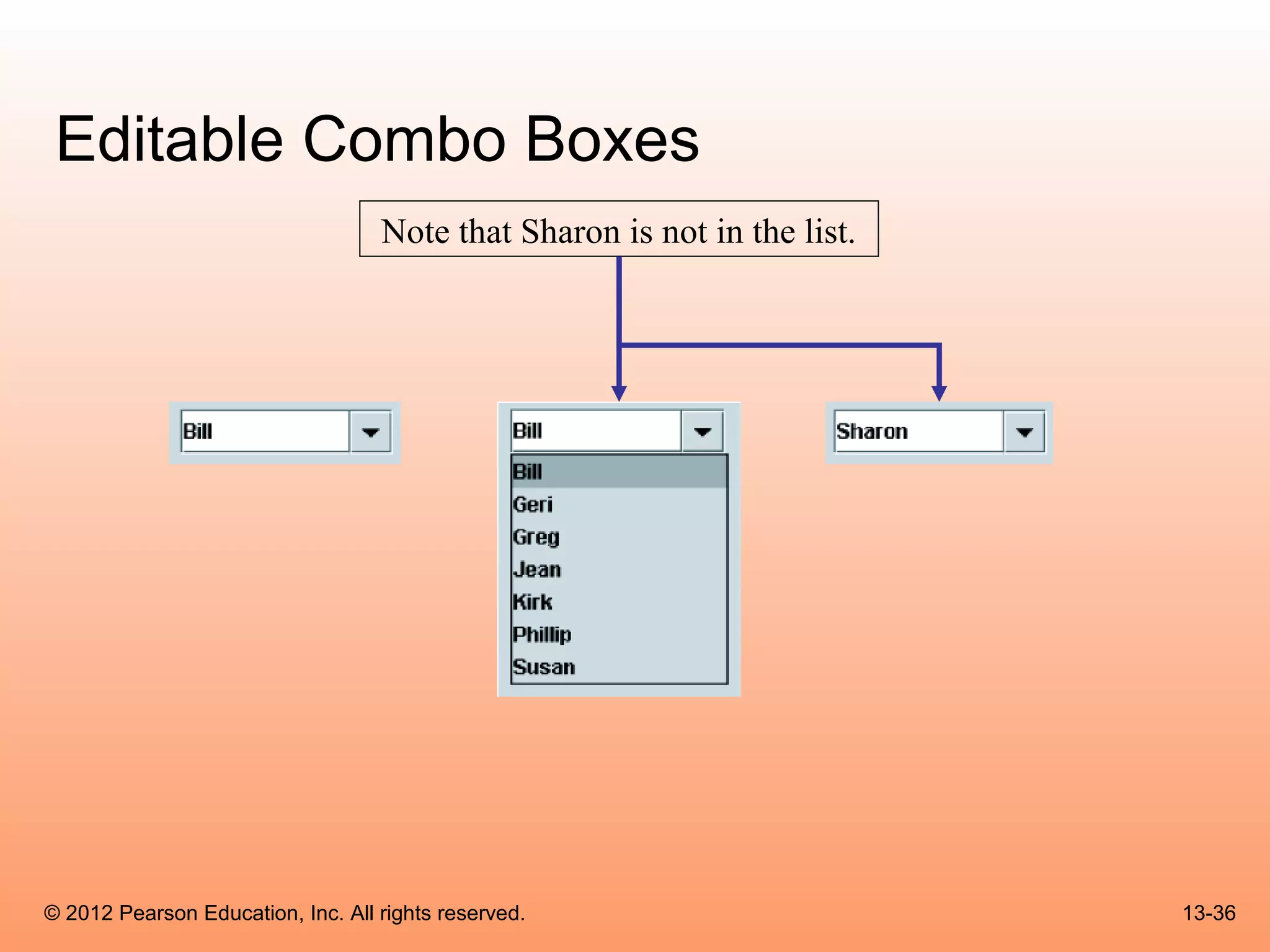
  • An editable combo box appears as a text field with a small
    button displaying an arrow joining it.
  • When the user clicks on the button, the drop-down list appears
    as shown in the center of the figure.
  • The user may:
        – select an item from the list.
        – type a value into the text field.
  • The user is not restricted to the values that appear in the list,
    and may type any input into the text field.


© 2012 Pearson Education, Inc. All rights reserved.                     13-35
Editable Combo Boxes
                                   Note that Sharon is not in the list.


© 2012 Pearson Education, Inc. All rights reserved.                       13-36
Displaying Images in Labels and Buttons
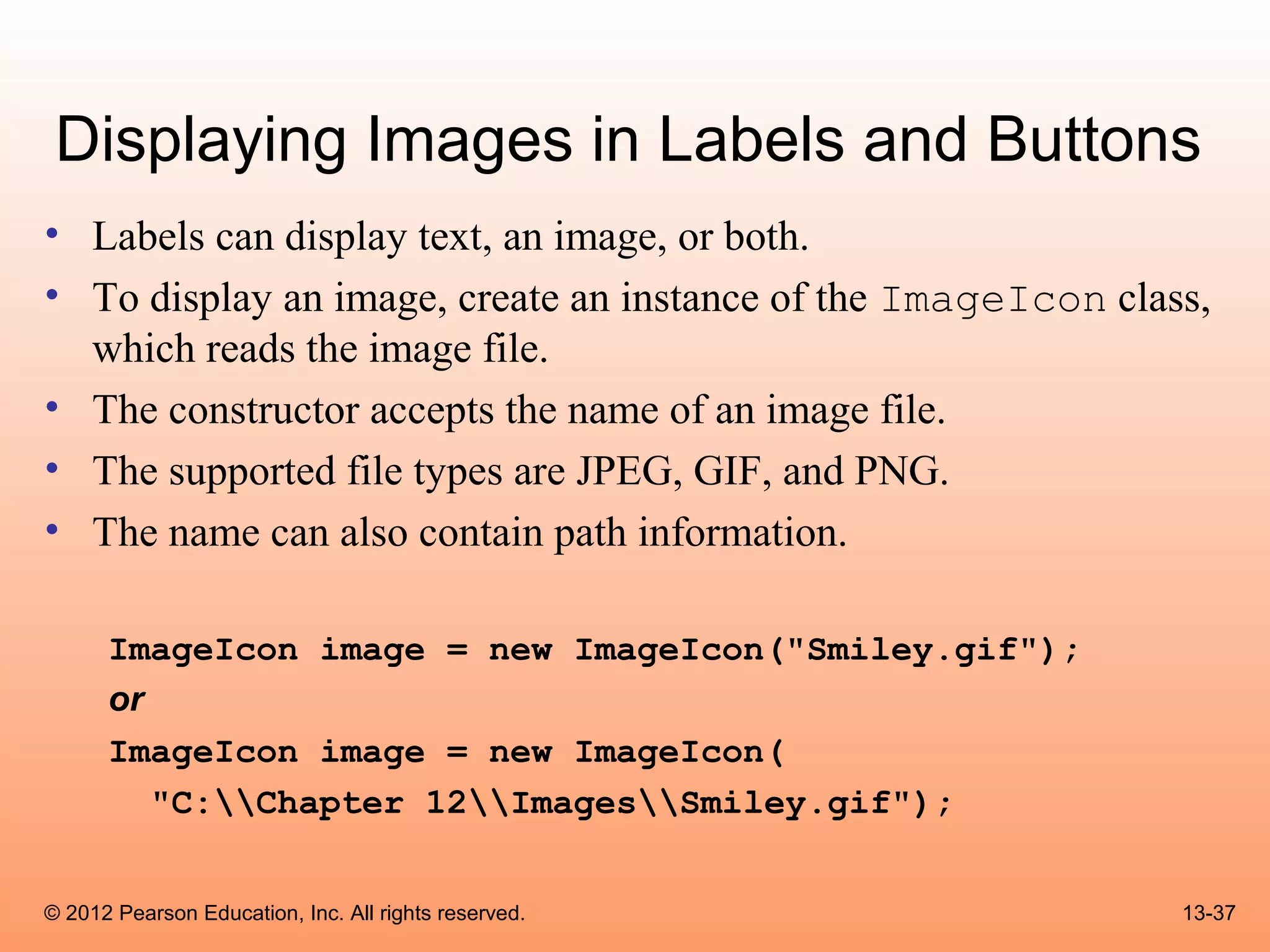
• Labels can display text, an image, or both.
• To display an image, create an instance of the ImageIcon class,
  which reads the image file.
• The constructor accepts the name of an image file.
• The supported file types are JPEG, GIF, and PNG.
• The name can also contain path information.

      ImageIcon image = new ImageIcon("Smiley.gif");
      or
      ImageIcon image = new ImageIcon(
         "C:Chapter 12ImagesSmiley.gif");


© 2012 Pearson Education, Inc. All rights reserved.            13-37
Displaying Images in Labels and Buttons
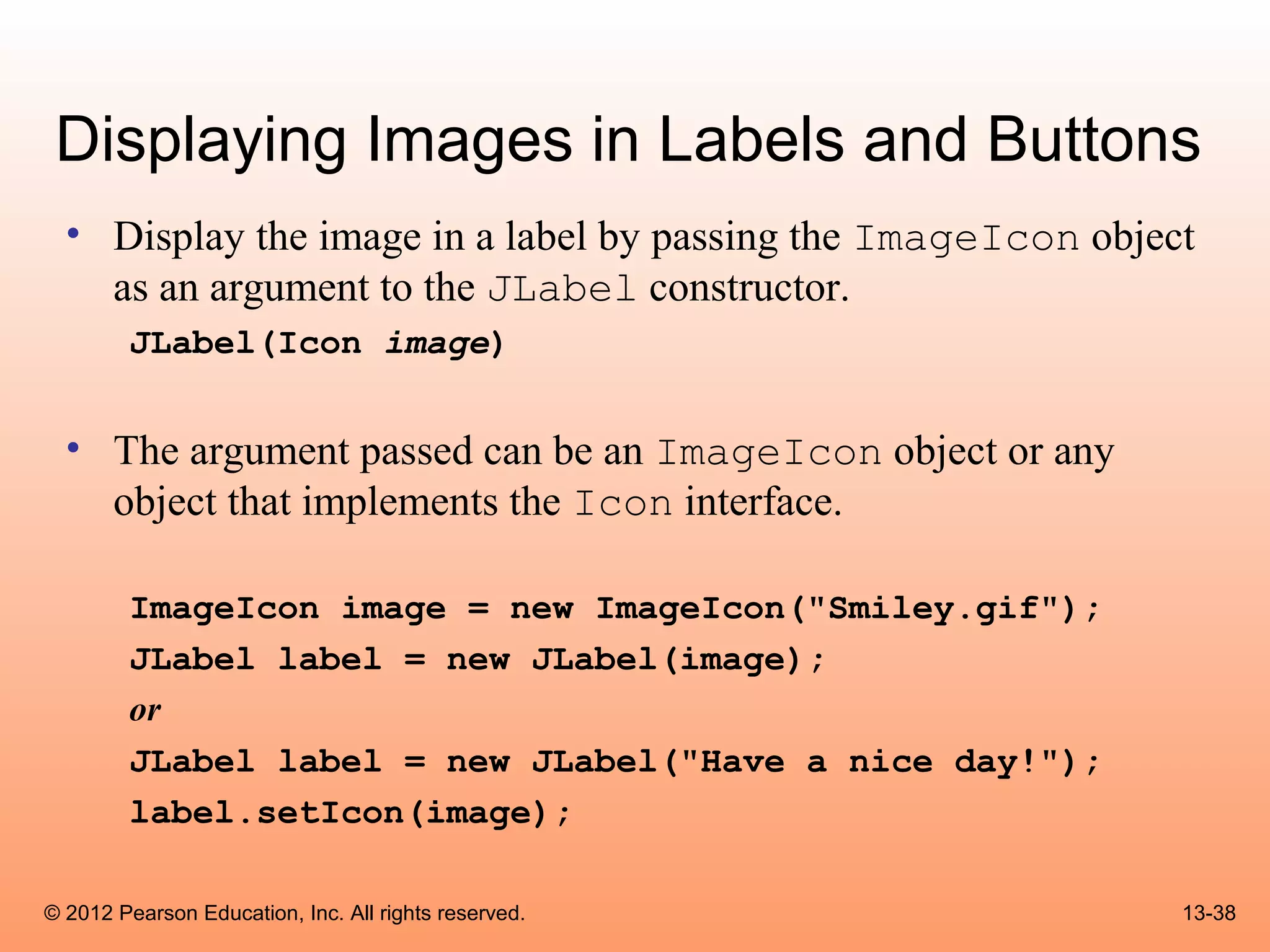
  • Display the image in a label by passing the ImageIcon object
    as an argument to the JLabel constructor.
        JLabel(Icon image)

  • The argument passed can be an ImageIcon object or any
    object that implements the Icon interface.

        ImageIcon image = new ImageIcon("Smiley.gif");
        JLabel label = new JLabel(image);
        or
        JLabel label = new JLabel("Have a nice day!");
        label.setIcon(image);

© 2012 Pearson Education, Inc. All rights reserved.            13-38
Displaying Images in Labels and Buttons
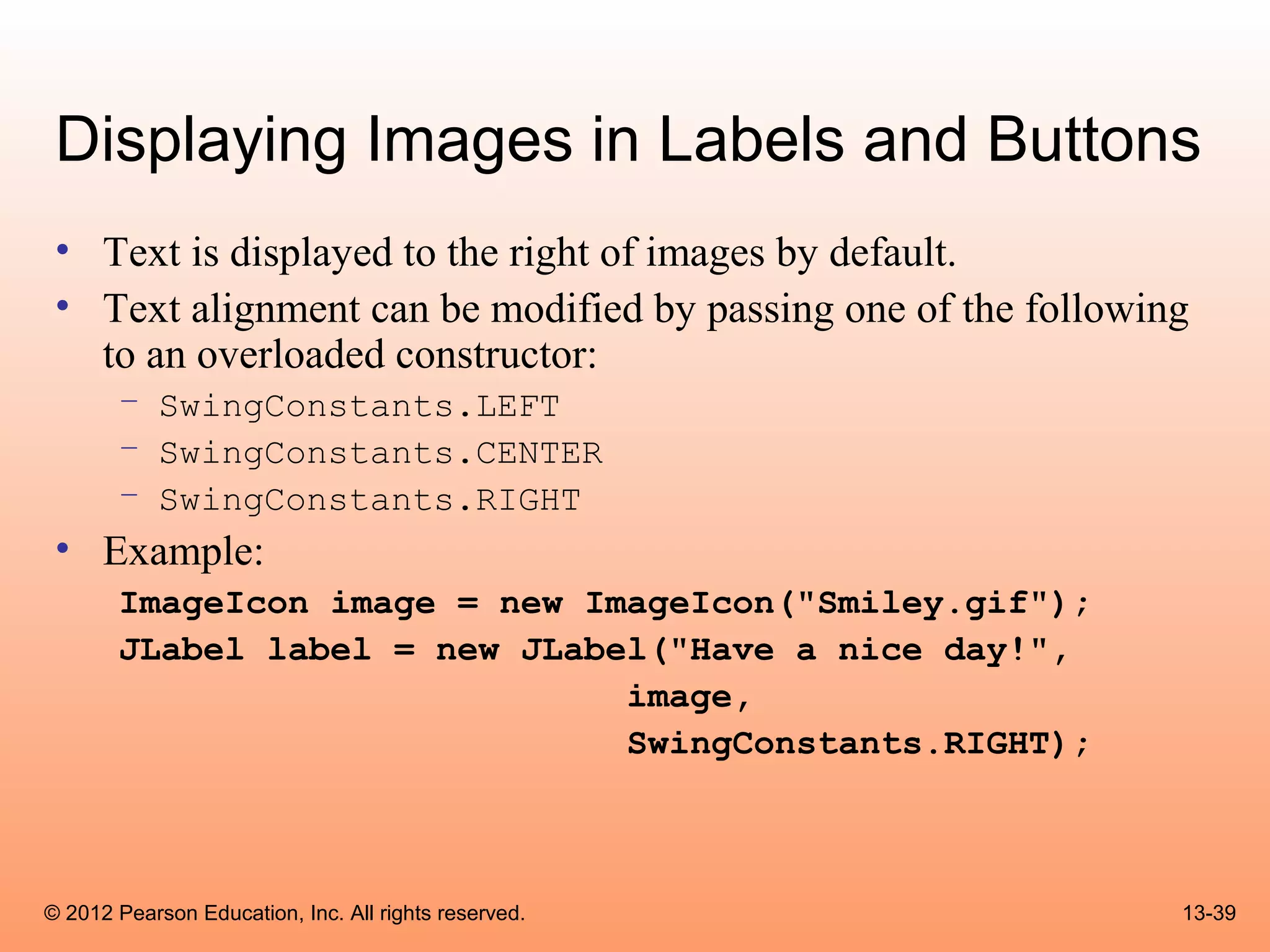
 • Text is displayed to the right of images by default.
 • Text alignment can be modified by passing one of the following
   to an overloaded constructor:
       – SwingConstants.LEFT
       – SwingConstants.CENTER
       – SwingConstants.RIGHT
 • Example:
       ImageIcon image = new ImageIcon("Smiley.gif");
       JLabel label = new JLabel("Have a nice day!",
                               image,
                               SwingConstants.RIGHT);


© 2012 Pearson Education, Inc. All rights reserved.             13-39
Displaying Images in Labels and Buttons
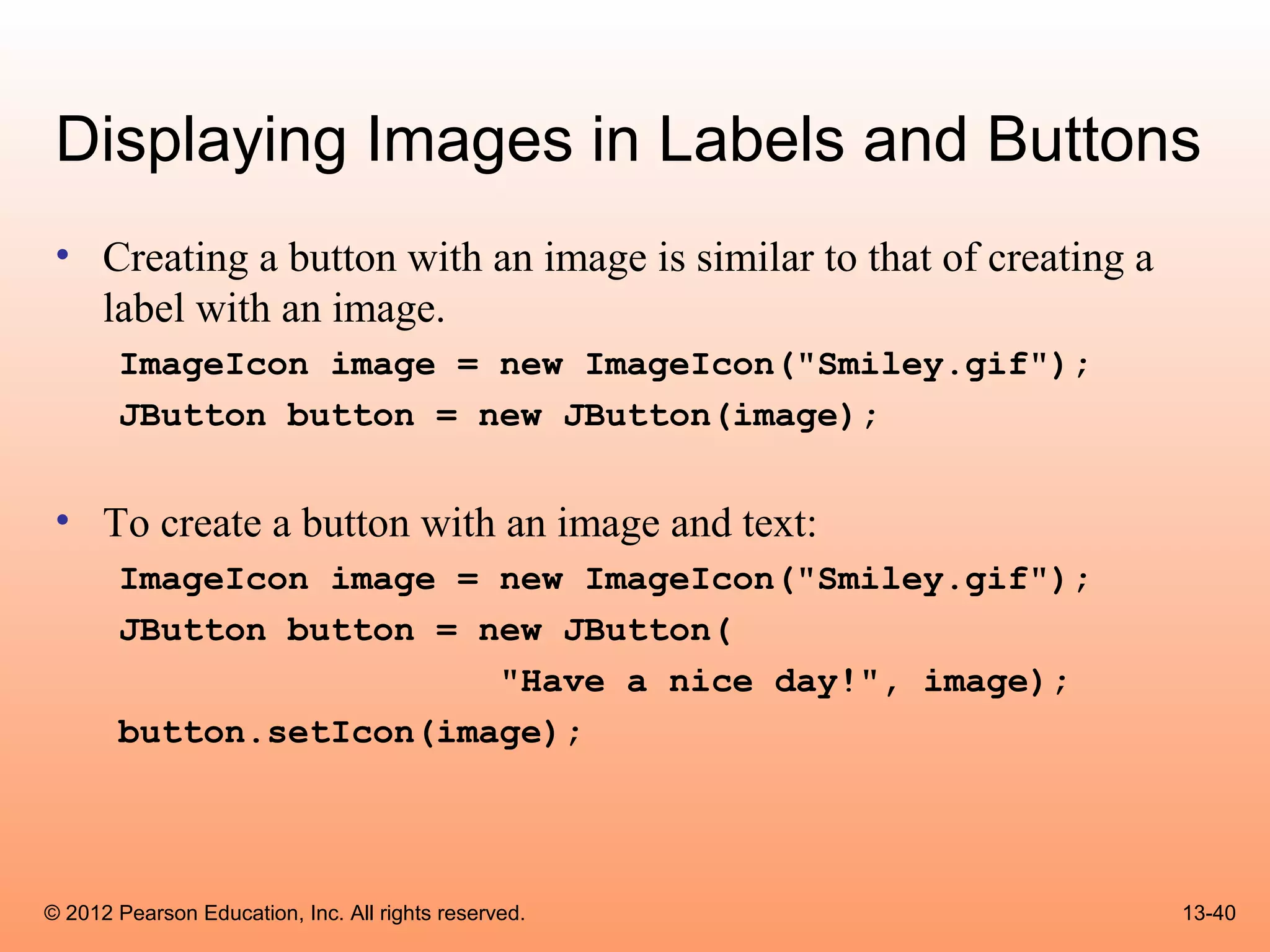
 • Creating a button with an image is similar to that of creating a
   label with an image.
       ImageIcon image = new ImageIcon("Smiley.gif");
       JButton button = new JButton(image);


 • To create a button with an image and text:
       ImageIcon image = new ImageIcon("Smiley.gif");
       JButton button = new JButton(
                         "Have a nice day!", image);
       button.setIcon(image);


© 2012 Pearson Education, Inc. All rights reserved.                   13-40
Displaying Images in Labels and Buttons
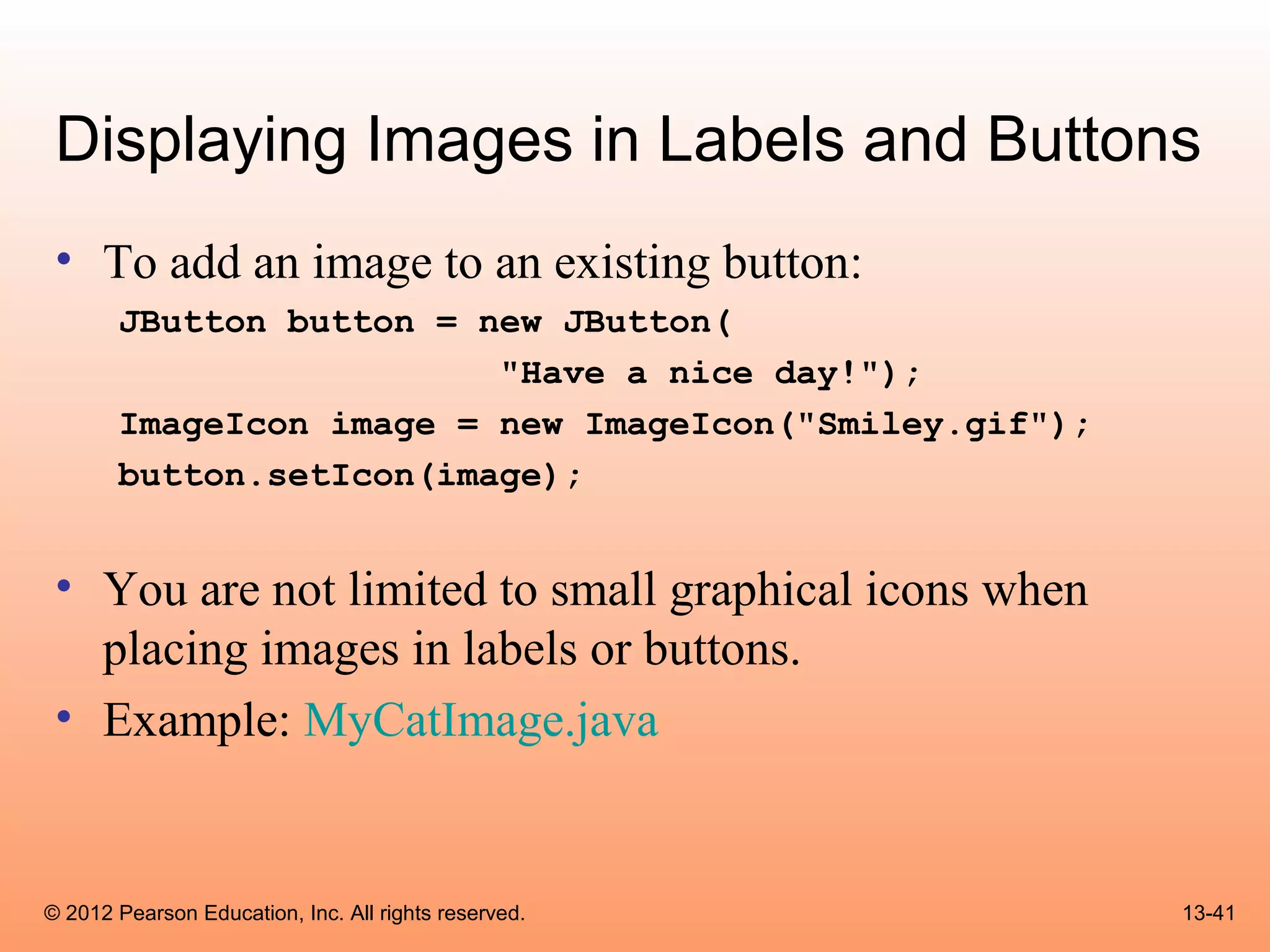
 • To add an image to an existing button:
       JButton button = new JButton(
                         "Have a nice day!");
       ImageIcon image = new ImageIcon("Smiley.gif");
       button.setIcon(image);


 • You are not limited to small graphical icons when
   placing images in labels or buttons.
 • Example: MyCatImage.java


© 2012 Pearson Education, Inc. All rights reserved.     13-41
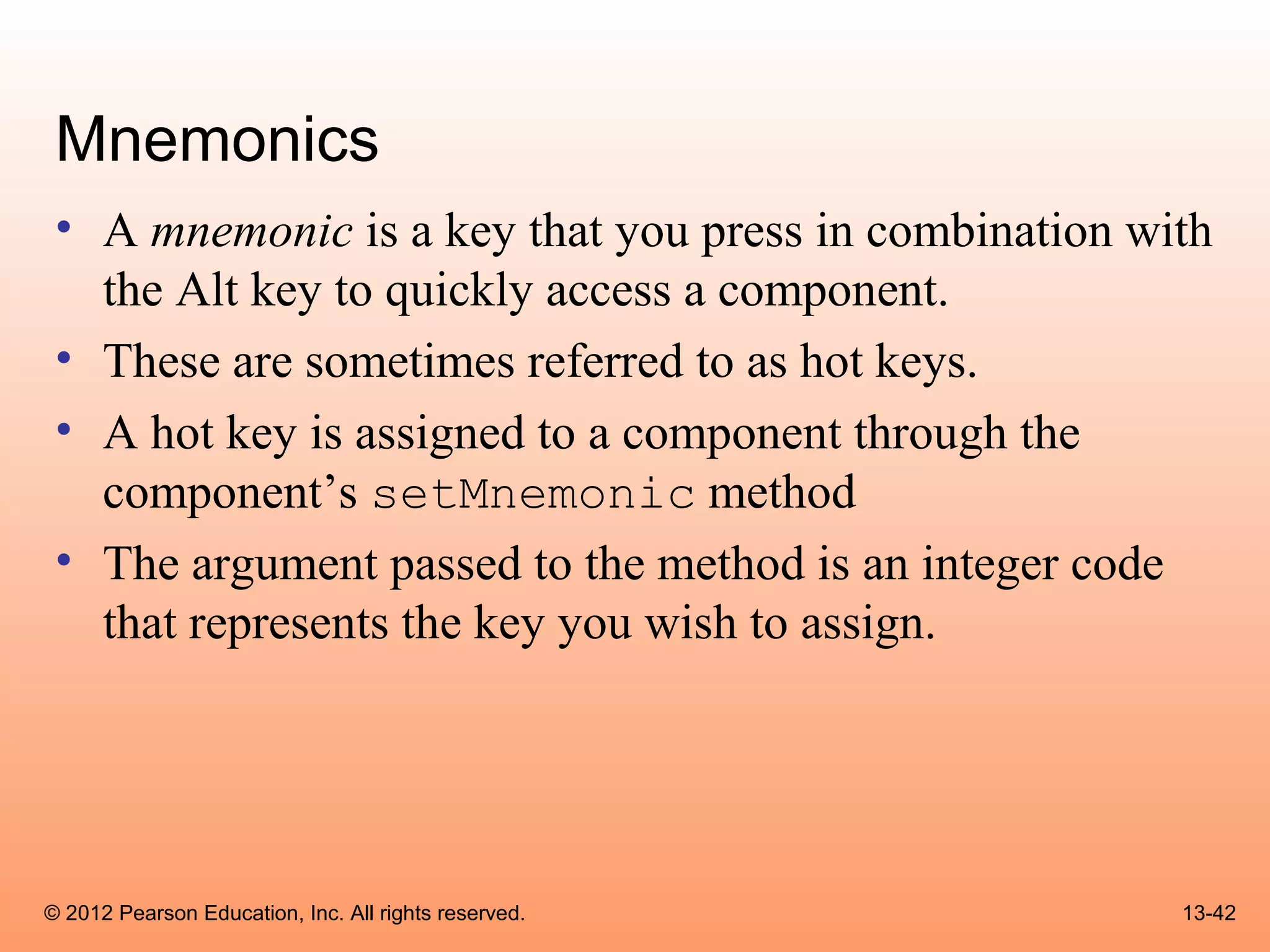
Mnemonics
 • A mnemonic is a key that you press in combination with
   the Alt key to quickly access a component.
 • These are sometimes referred to as hot keys.
 • A hot key is assigned to a component through the
   component’s setMnemonic method
 • The argument passed to the method is an integer code
   that represents the key you wish to assign.


© 2012 Pearson Education, Inc. All rights reserved.    13-42
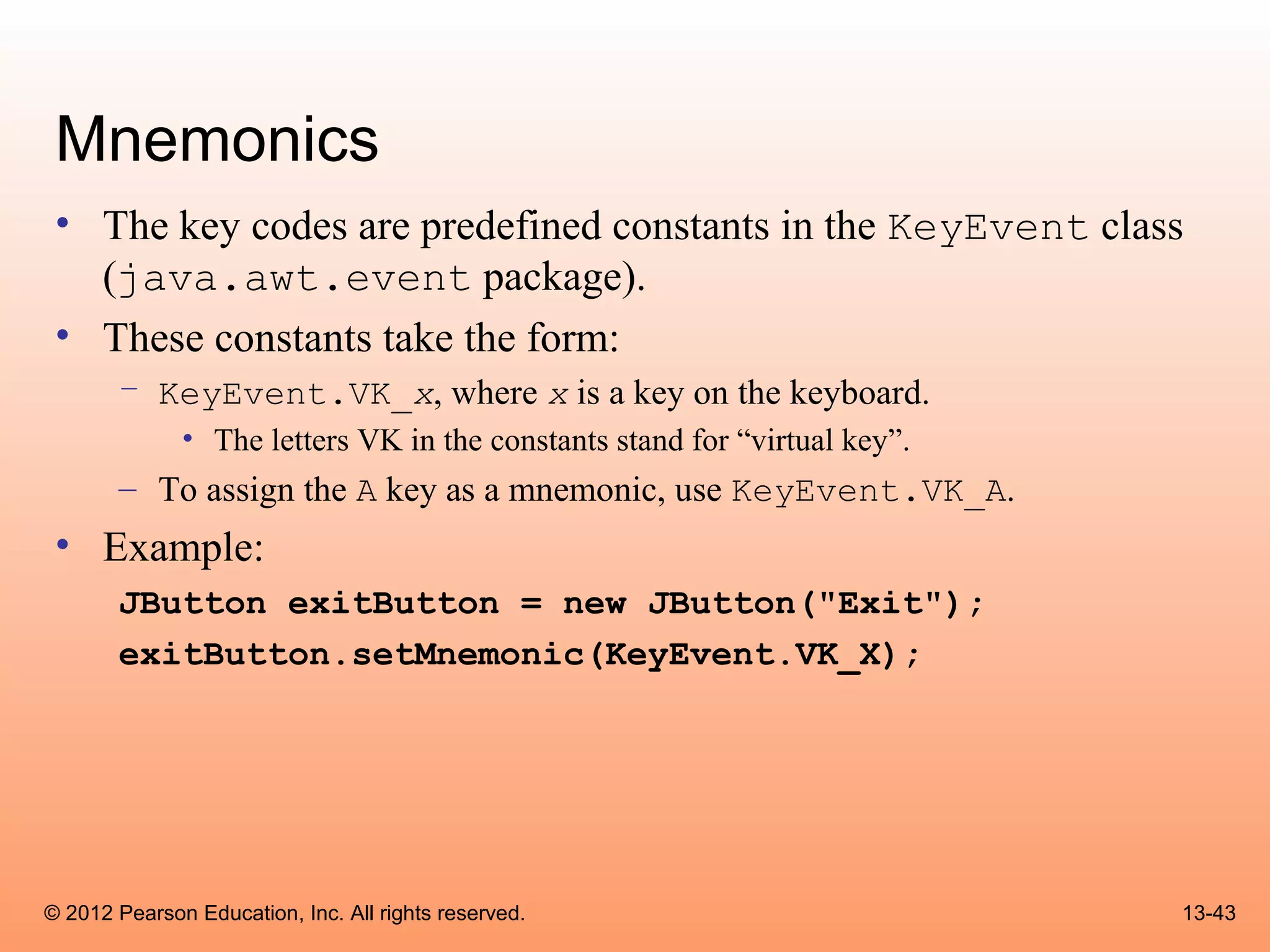
Mnemonics
 • The key codes are predefined constants in the KeyEvent class
   (java.awt.event package).
 • These constants take the form:
       – KeyEvent.VK_x, where x is a key on the keyboard.
              • The letters VK in the constants stand for “virtual key”.
       – To assign the A key as a mnemonic, use KeyEvent.VK_A.
 • Example:
       JButton exitButton = new JButton("Exit");
       exitButton.setMnemonic(KeyEvent.VK_X);


© 2012 Pearson Education, Inc. All rights reserved.                        13-43
Mnemonics
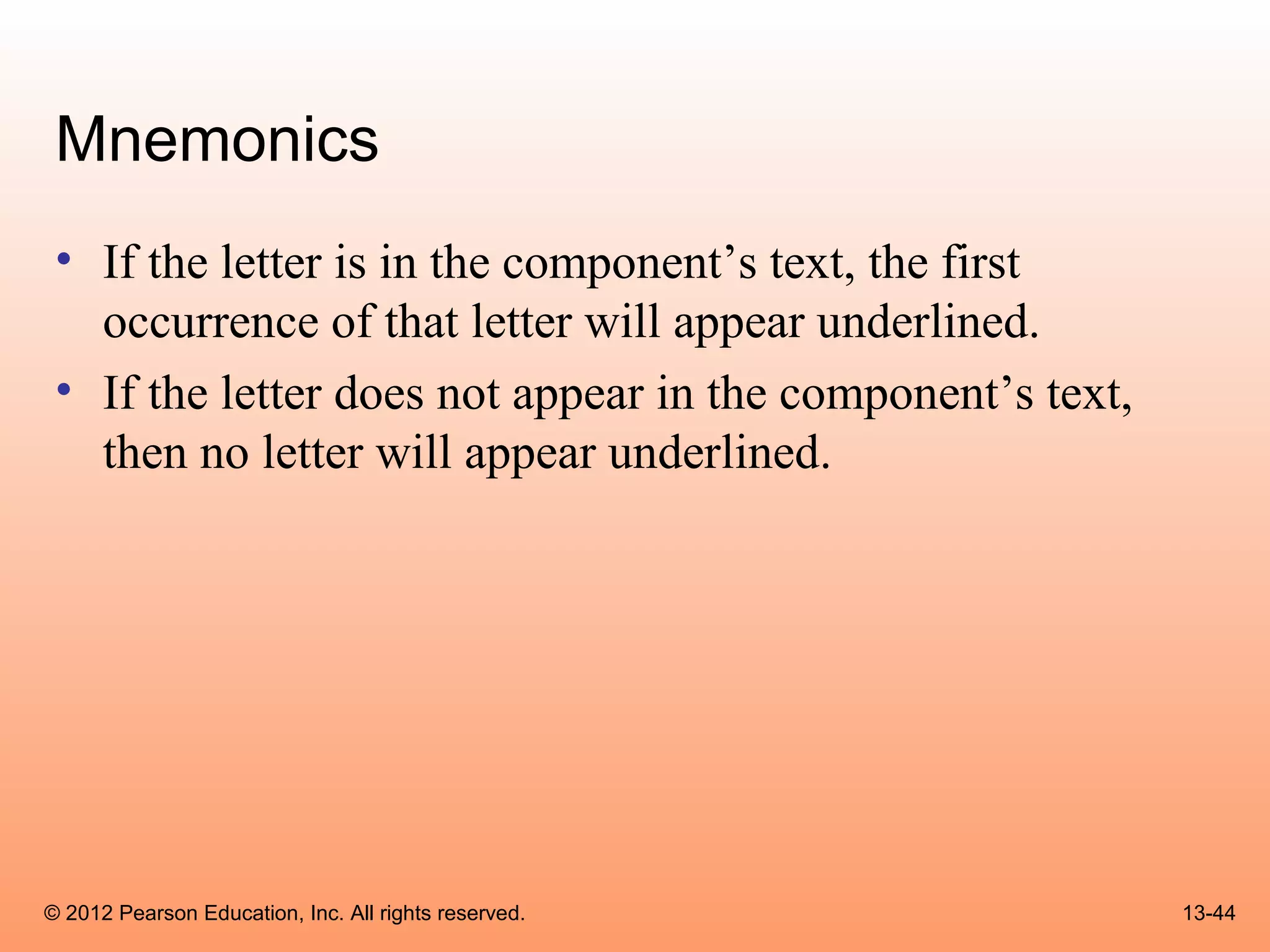
 • If the letter is in the component’s text, the first
   occurrence of that letter will appear underlined.
 • If the letter does not appear in the component’s text,
   then no letter will appear underlined.


© 2012 Pearson Education, Inc. All rights reserved.         13-44
Mnemonics
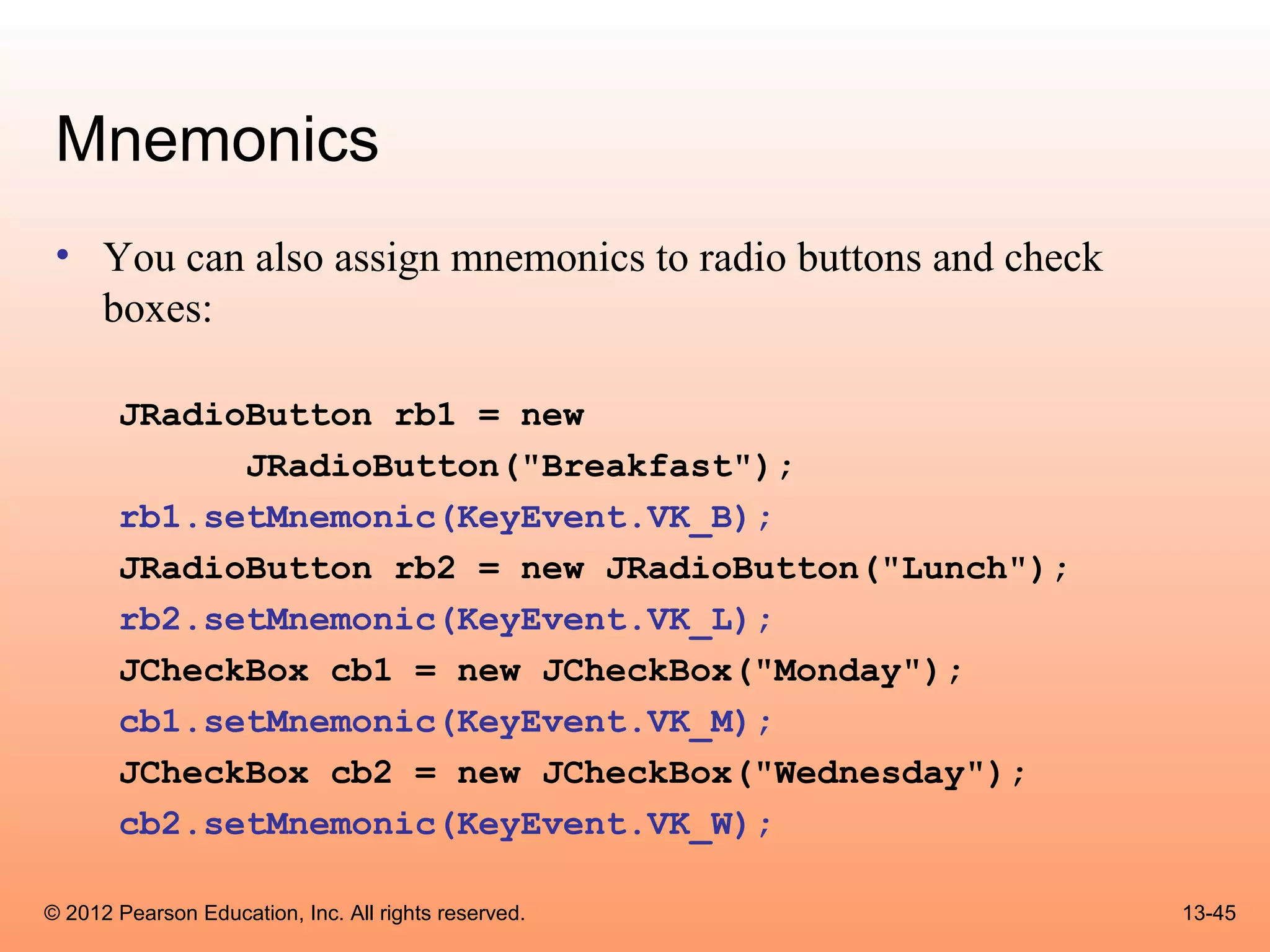
 • You can also assign mnemonics to radio buttons and check
   boxes:

       JRadioButton rb1 = new
             JRadioButton("Breakfast");
       rb1.setMnemonic(KeyEvent.VK_B);
       JRadioButton rb2 = new JRadioButton("Lunch");
       rb2.setMnemonic(KeyEvent.VK_L);
       JCheckBox cb1 = new JCheckBox("Monday");
       cb1.setMnemonic(KeyEvent.VK_M);
       JCheckBox cb2 = new JCheckBox("Wednesday");
       cb2.setMnemonic(KeyEvent.VK_W);

© 2012 Pearson Education, Inc. All rights reserved.           13-45
Tool Tips
   • A tool tip is text that is displayed in a small box when
     the mouse is held over a component.
   • The box usually gives a short description of what the
     component does.
   • Most GUI applications use tool tips as concise help to
     the user.


© 2012 Pearson Education, Inc. All rights reserved.         13-46
Tool Tips
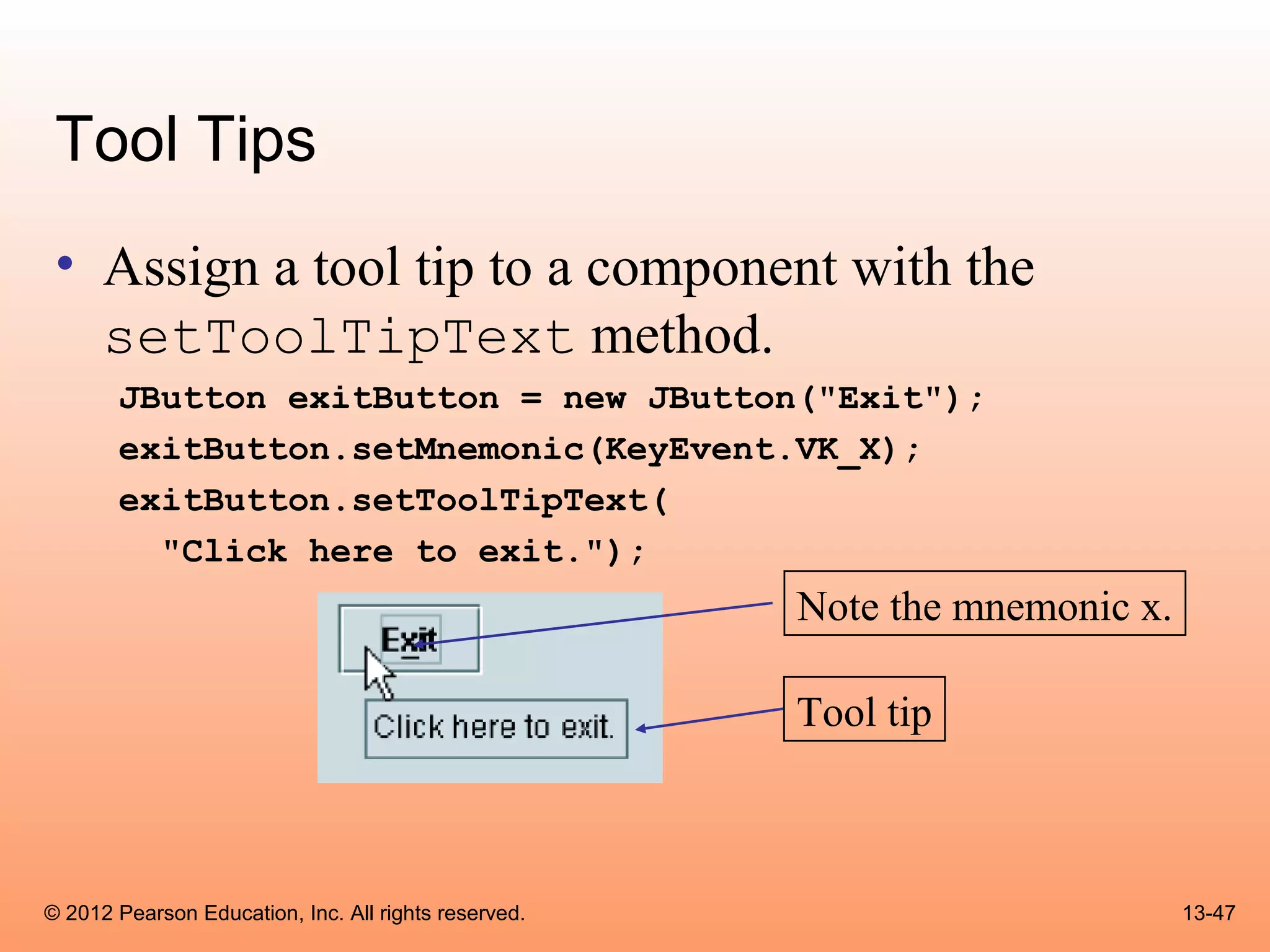
 • Assign a tool tip to a component with the
   setToolTipText method.
       JButton exitButton = new JButton("Exit");
       exitButton.setMnemonic(KeyEvent.VK_X);
       exitButton.setToolTipText(
         "Click here to exit.");
                                                      Note the mnemonic x.

                                                      Tool tip


© 2012 Pearson Education, Inc. All rights reserved.                          13-47
File Choosers
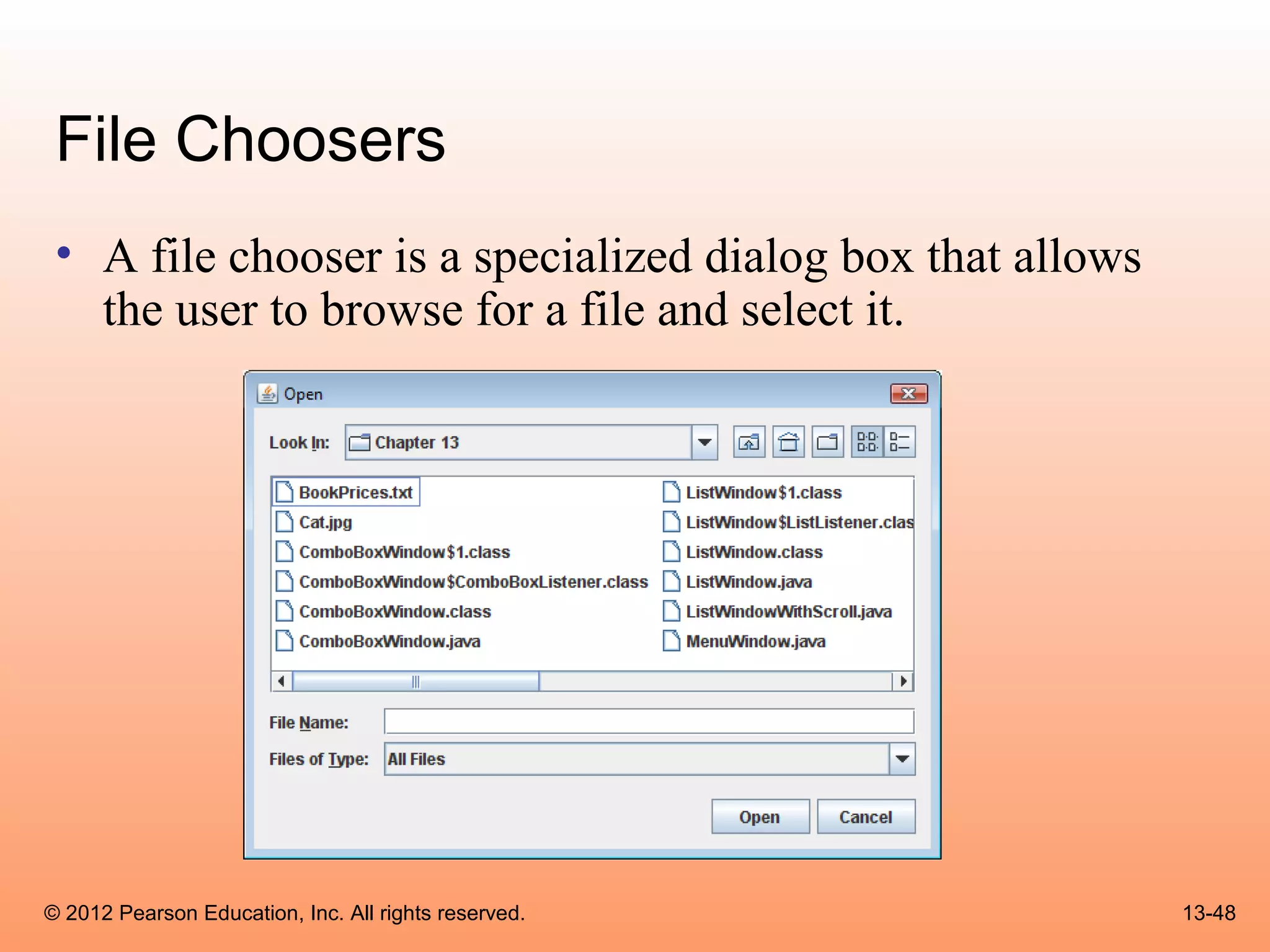
 • A file chooser is a specialized dialog box that allows
   the user to browse for a file and select it.


© 2012 Pearson Education, Inc. All rights reserved.         13-48
File Choosers
  • Create an instance of the JFileChooser class to display a file
    chooser dialog box.
  • Two of the constructors have the form:
        JFileChooser()
        JFileChooser(String path)

  • The first constructor shown takes no arguments and uses the
    default directory as the starting point for all of its dialog boxes.
  • The second constructor takes a String argument containing a
    valid path. This path will be the starting point for the object’s
    dialog boxes.


© 2012 Pearson Education, Inc. All rights reserved.                    13-49
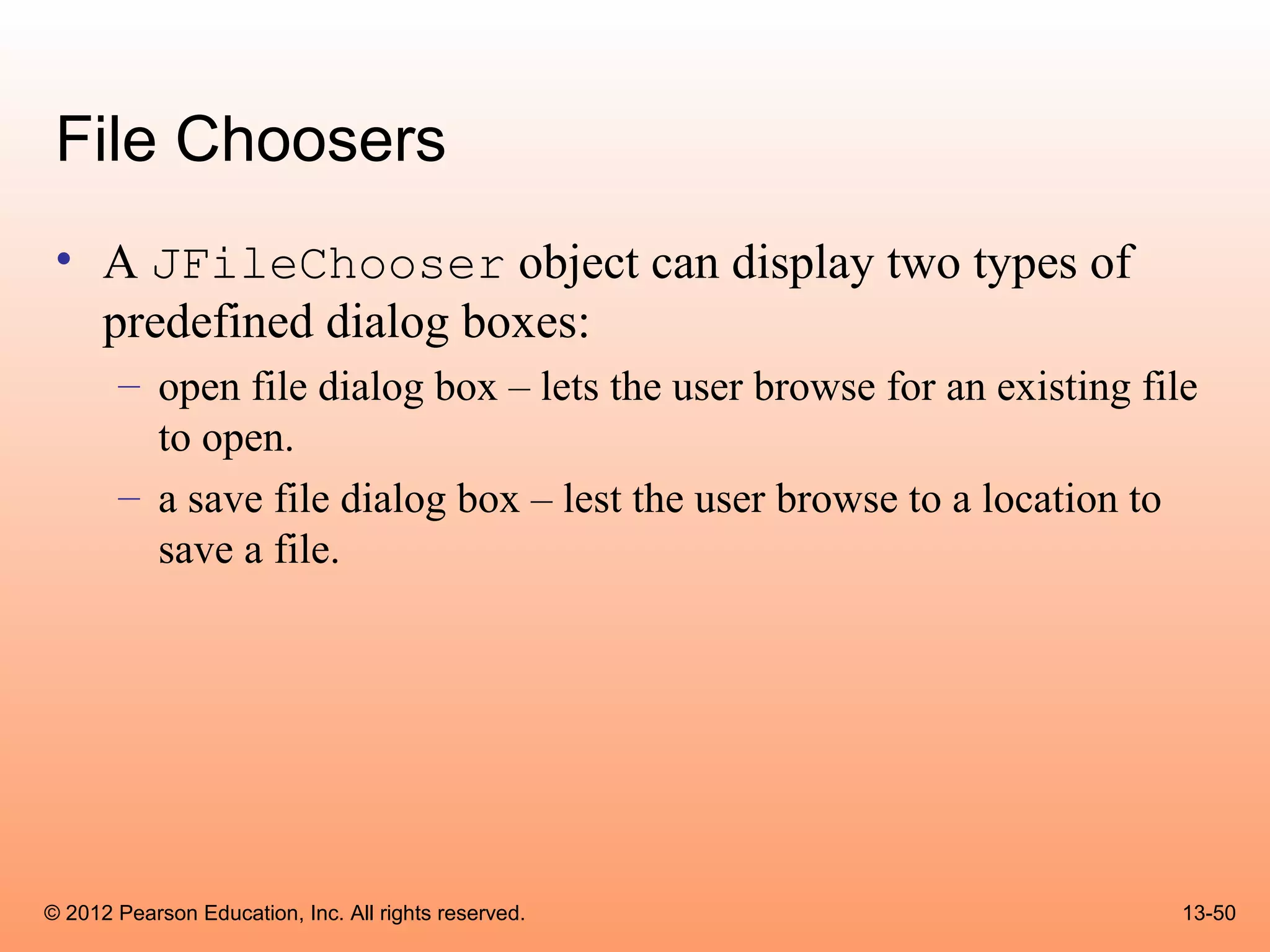
File Choosers
 • A JFileChooser object can display two types of
   predefined dialog boxes:
       – open file dialog box – lets the user browse for an existing file
         to open.
       – a save file dialog box – lest the user browse to a location to
         save a file.


© 2012 Pearson Education, Inc. All rights reserved.                     13-50
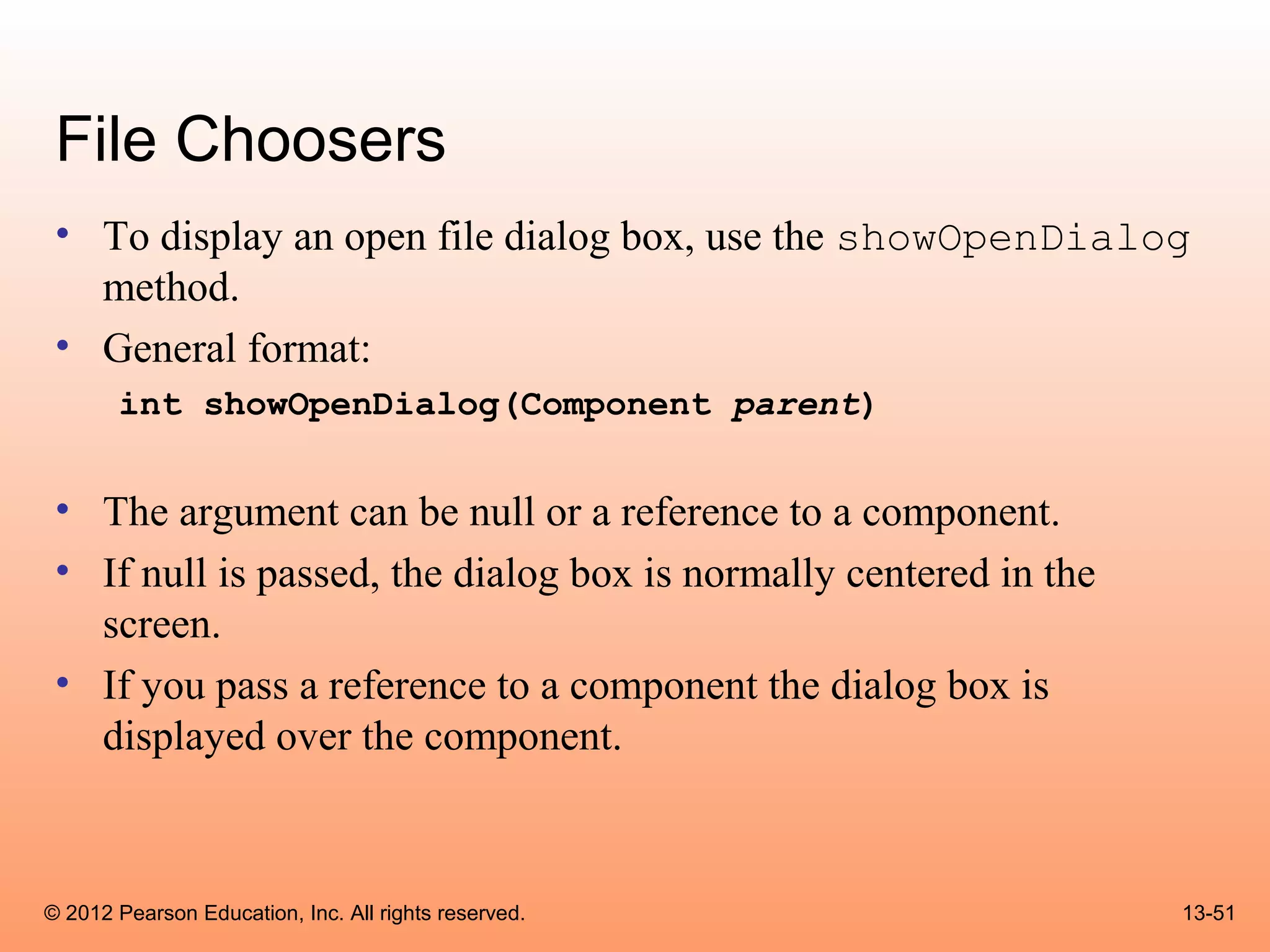
File Choosers
 • To display an open file dialog box, use the showOpenDialog
   method.
 • General format:
       int showOpenDialog(Component parent)


 • The argument can be null or a reference to a component.
 • If null is passed, the dialog box is normally centered in the
   screen.
 • If you pass a reference to a component the dialog box is
   displayed over the component.


© 2012 Pearson Education, Inc. All rights reserved.                13-51
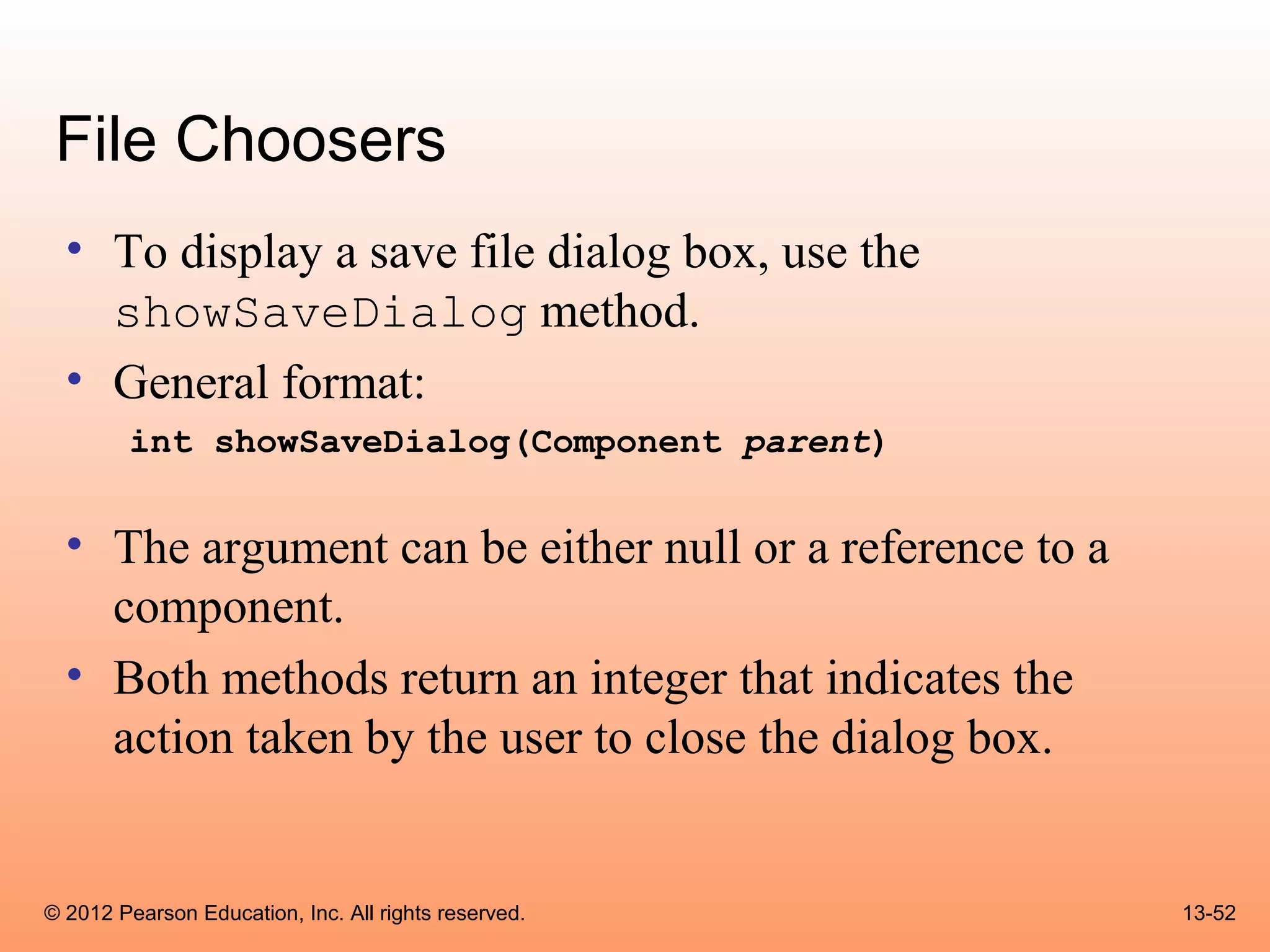
File Choosers
  • To display a save file dialog box, use the
    showSaveDialog method.
  • General format:
        int showSaveDialog(Component parent)


  • The argument can be either null or a reference to a
    component.
  • Both methods return an integer that indicates the
    action taken by the user to close the dialog box.


© 2012 Pearson Education, Inc. All rights reserved.       13-52
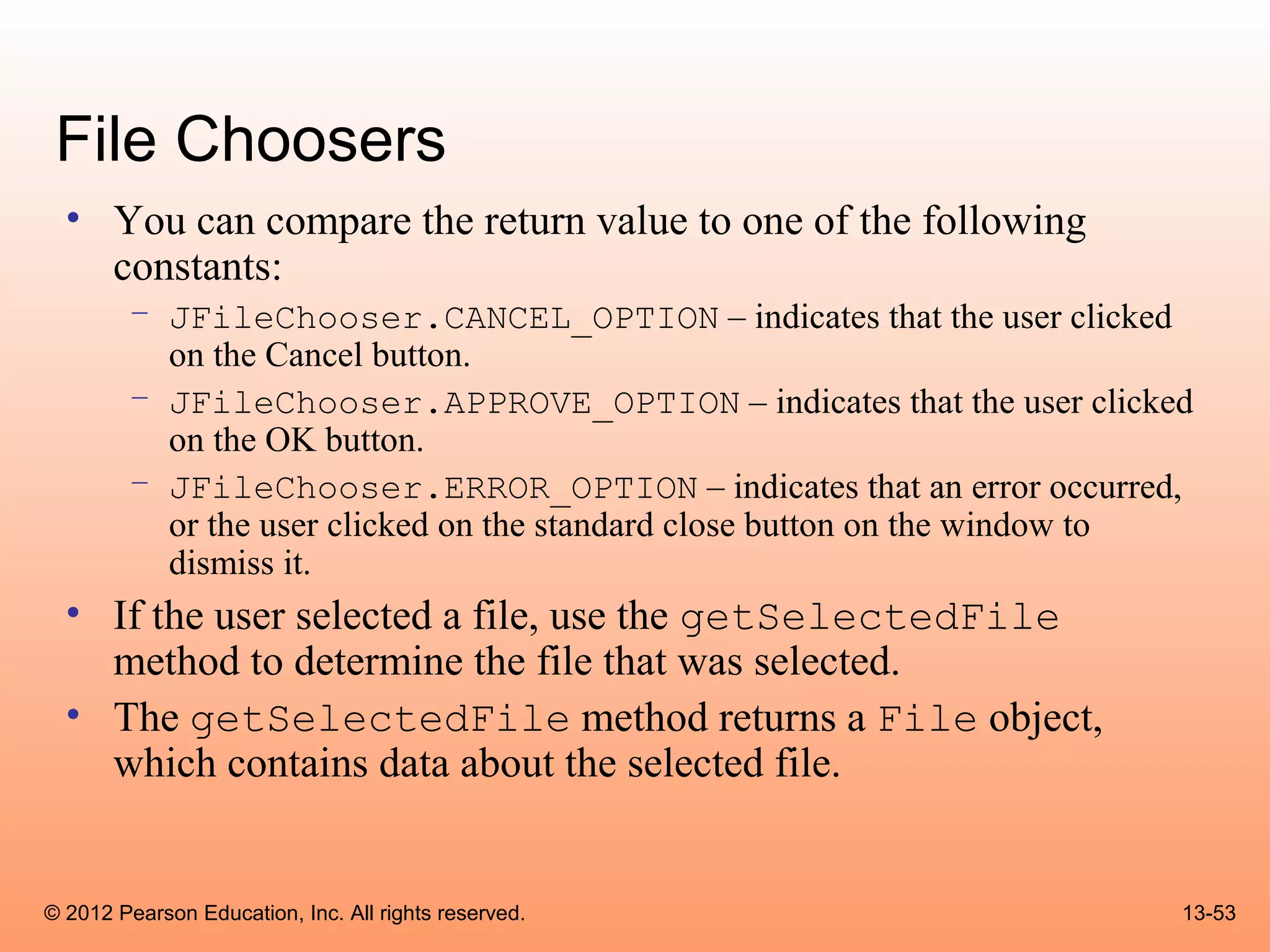
File Choosers
  • You can compare the return value to one of the following
    constants:
        – JFileChooser.CANCEL_OPTION – indicates that the user clicked
          on the Cancel button.
        – JFileChooser.APPROVE_OPTION – indicates that the user clicked
          on the OK button.
        – JFileChooser.ERROR_OPTION – indicates that an error occurred,
          or the user clicked on the standard close button on the window to
          dismiss it.
  • If the user selected a file, use the getSelectedFile
    method to determine the file that was selected.
  • The getSelectedFile method returns a File object,
    which contains data about the selected file.


© 2012 Pearson Education, Inc. All rights reserved.                       13-53
File Choosers
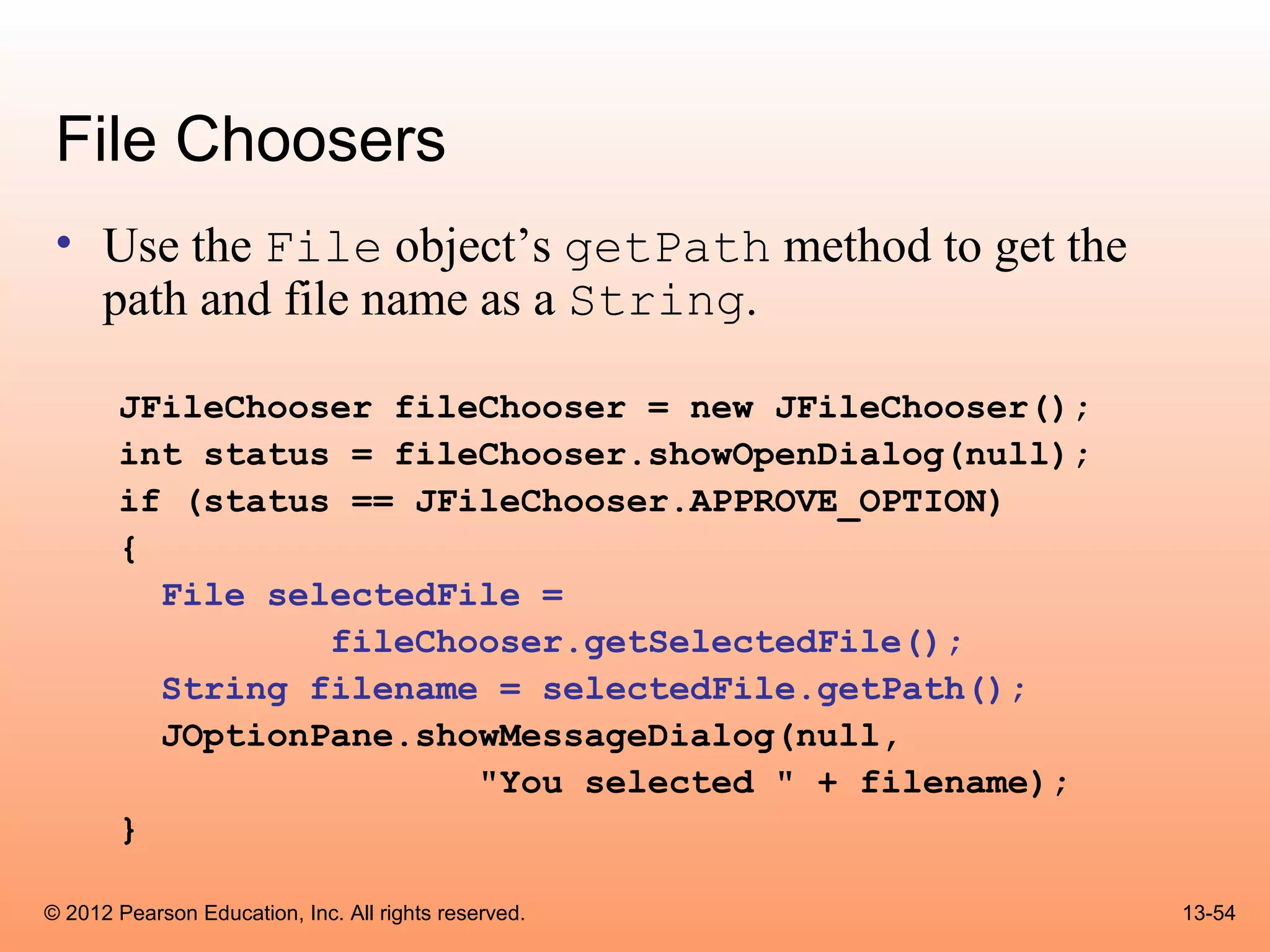
 • Use the File object’s getPath method to get the
   path and file name as a String.

       JFileChooser fileChooser = new JFileChooser();
       int status = fileChooser.showOpenDialog(null);
       if (status == JFileChooser.APPROVE_OPTION)
       {
         File selectedFile =
                 fileChooser.getSelectedFile();
         String filename = selectedFile.getPath();
         JOptionPane.showMessageDialog(null,
                        "You selected " + filename);
       }

© 2012 Pearson Education, Inc. All rights reserved.     13-54
Color Choosers
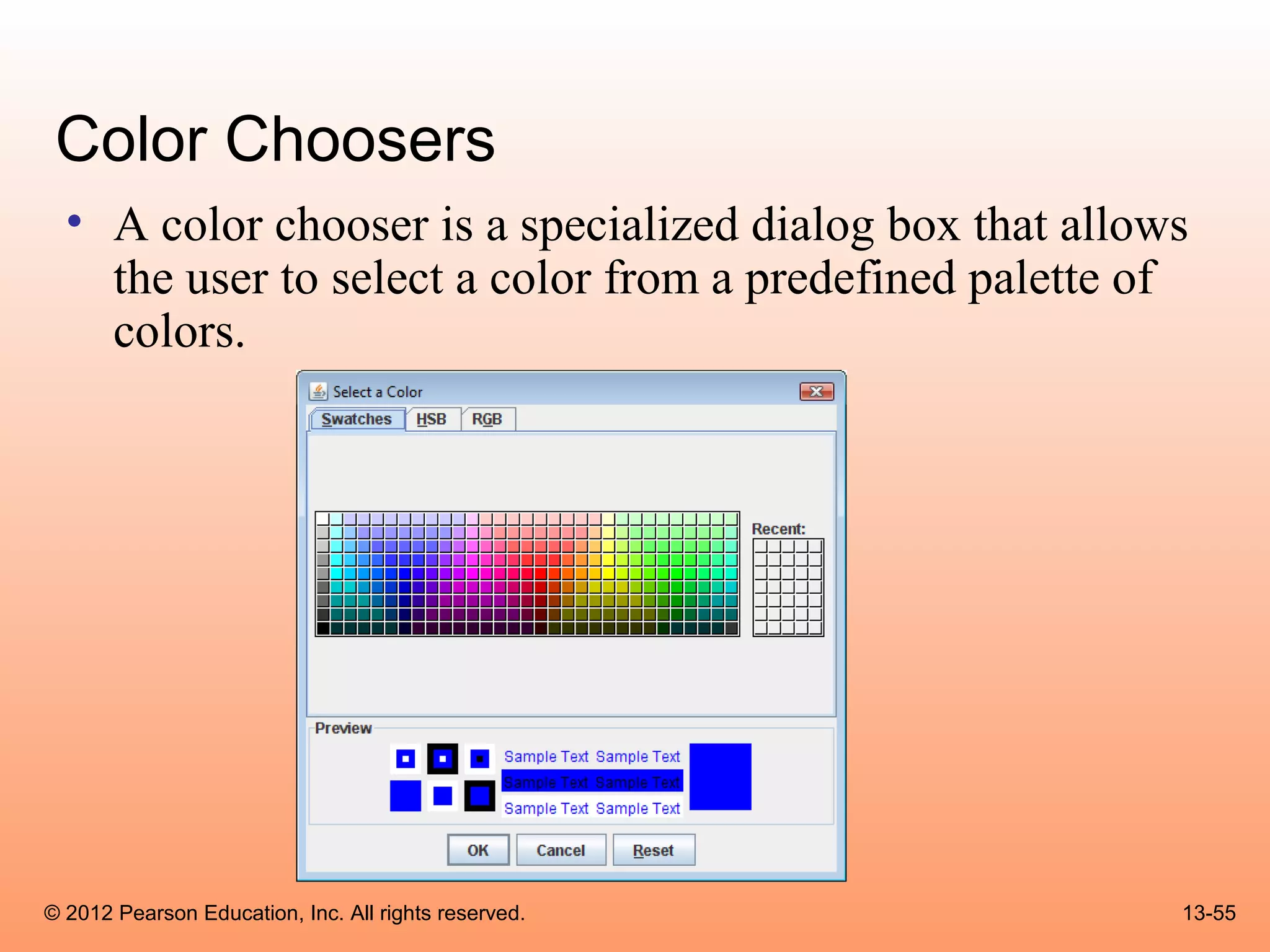
  • A color chooser is a specialized dialog box that allows
    the user to select a color from a predefined palette of
    colors.


© 2012 Pearson Education, Inc. All rights reserved.       13-55
Color Choosers
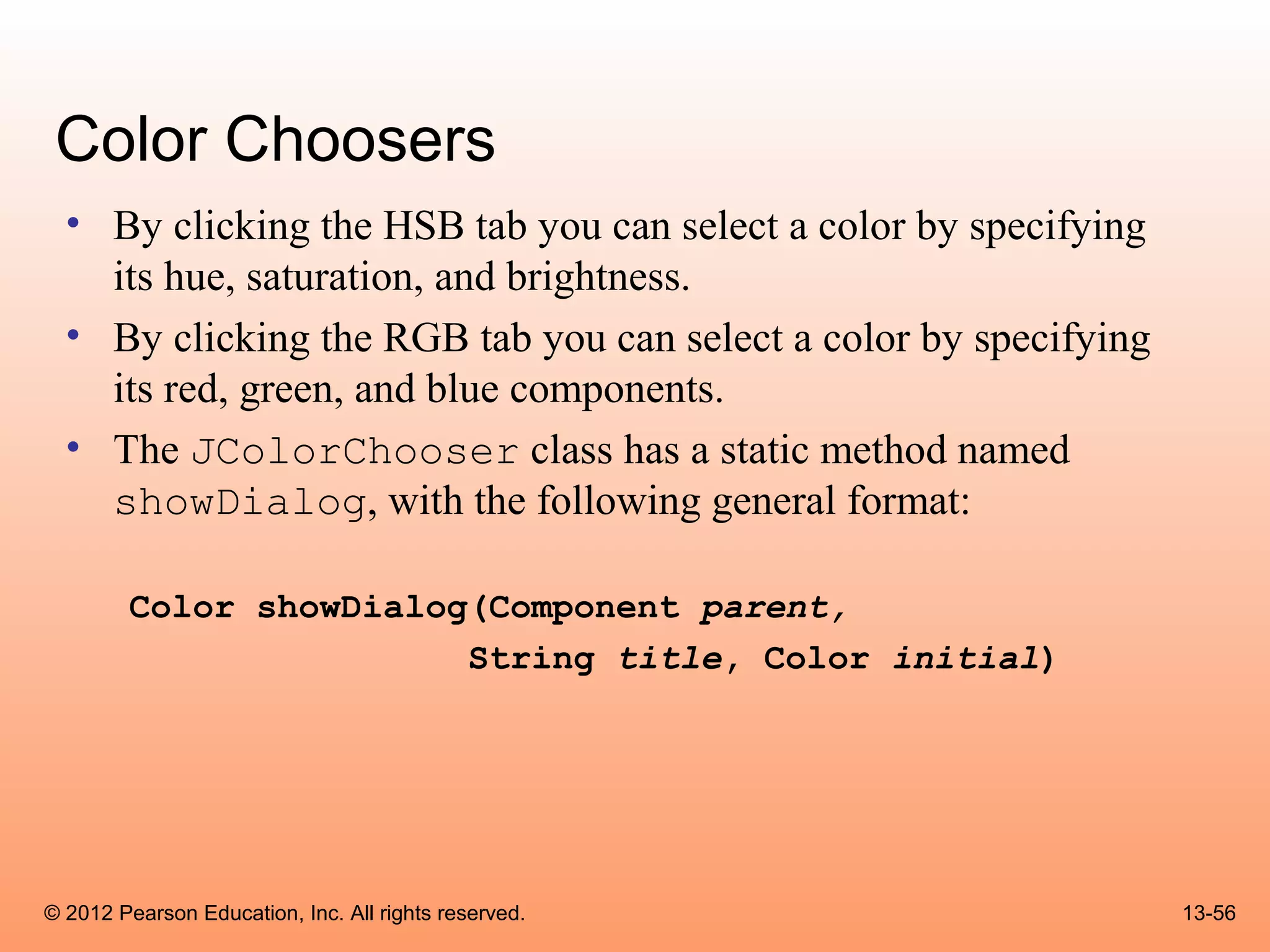
  • By clicking the HSB tab you can select a color by specifying
    its hue, saturation, and brightness.
  • By clicking the RGB tab you can select a color by specifying
    its red, green, and blue components.
  • The JColorChooser class has a static method named
    showDialog, with the following general format:

        Color showDialog(Component parent,
                        String title, Color initial)


© 2012 Pearson Education, Inc. All rights reserved.                13-56
Color Choosers
 • If the first argument is null, the dialog box is
   normally centered in the screen.
 • If it is a reference to a component the dialog box is
   displayed over the component.
 • The second argument is the dialog title.
 • The third argument indicates the color that appears
   initially selected in the dialog box.
 • This method returns the color selected by the user.


© 2012 Pearson Education, Inc. All rights reserved.        13-57
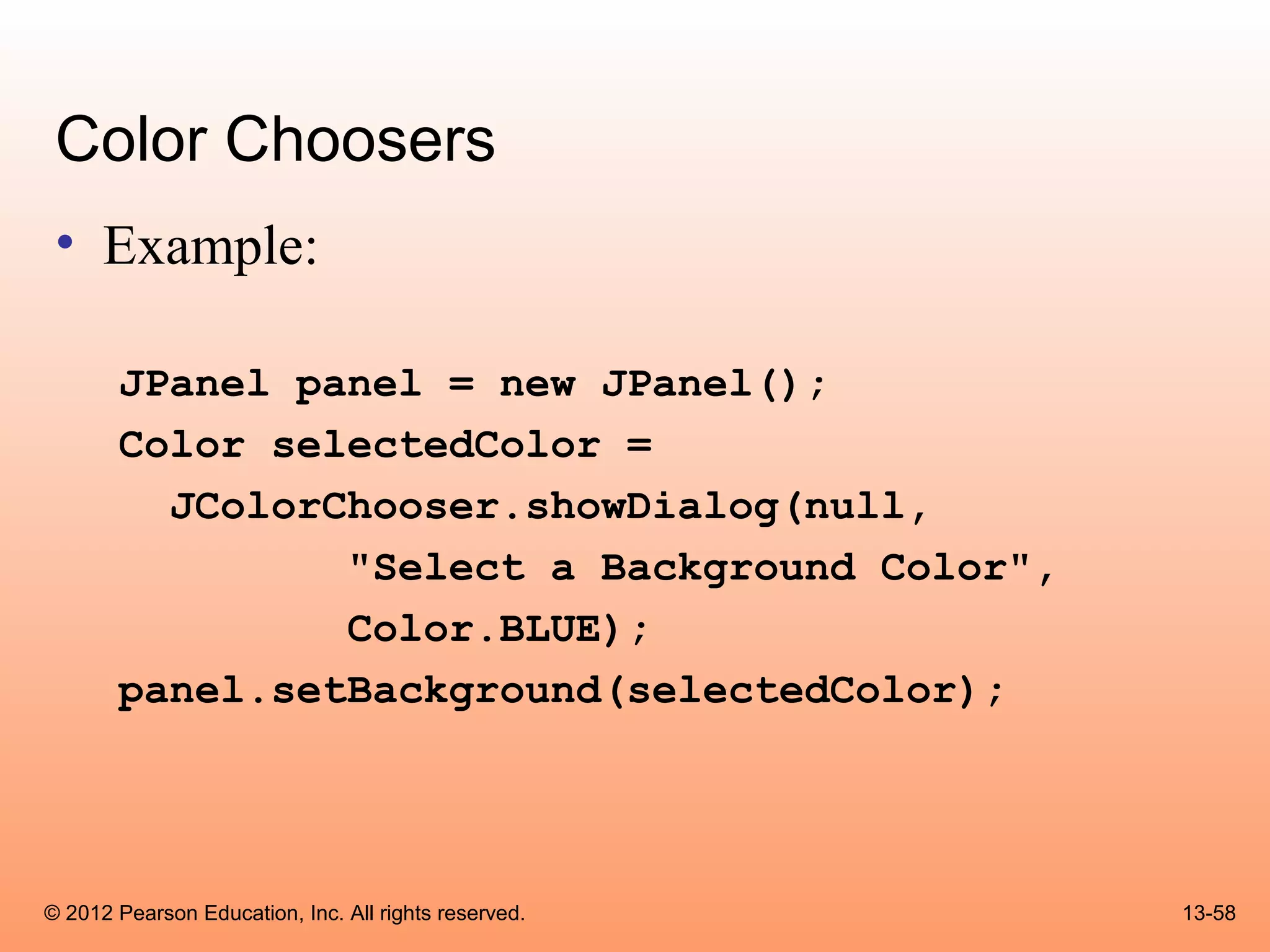
Color Choosers
 • Example:

       JPanel panel = new JPanel();
       Color selectedColor =
         JColorChooser.showDialog(null,
                "Select a Background Color",
                Color.BLUE);
       panel.setBackground(selectedColor);


© 2012 Pearson Education, Inc. All rights reserved.   13-58
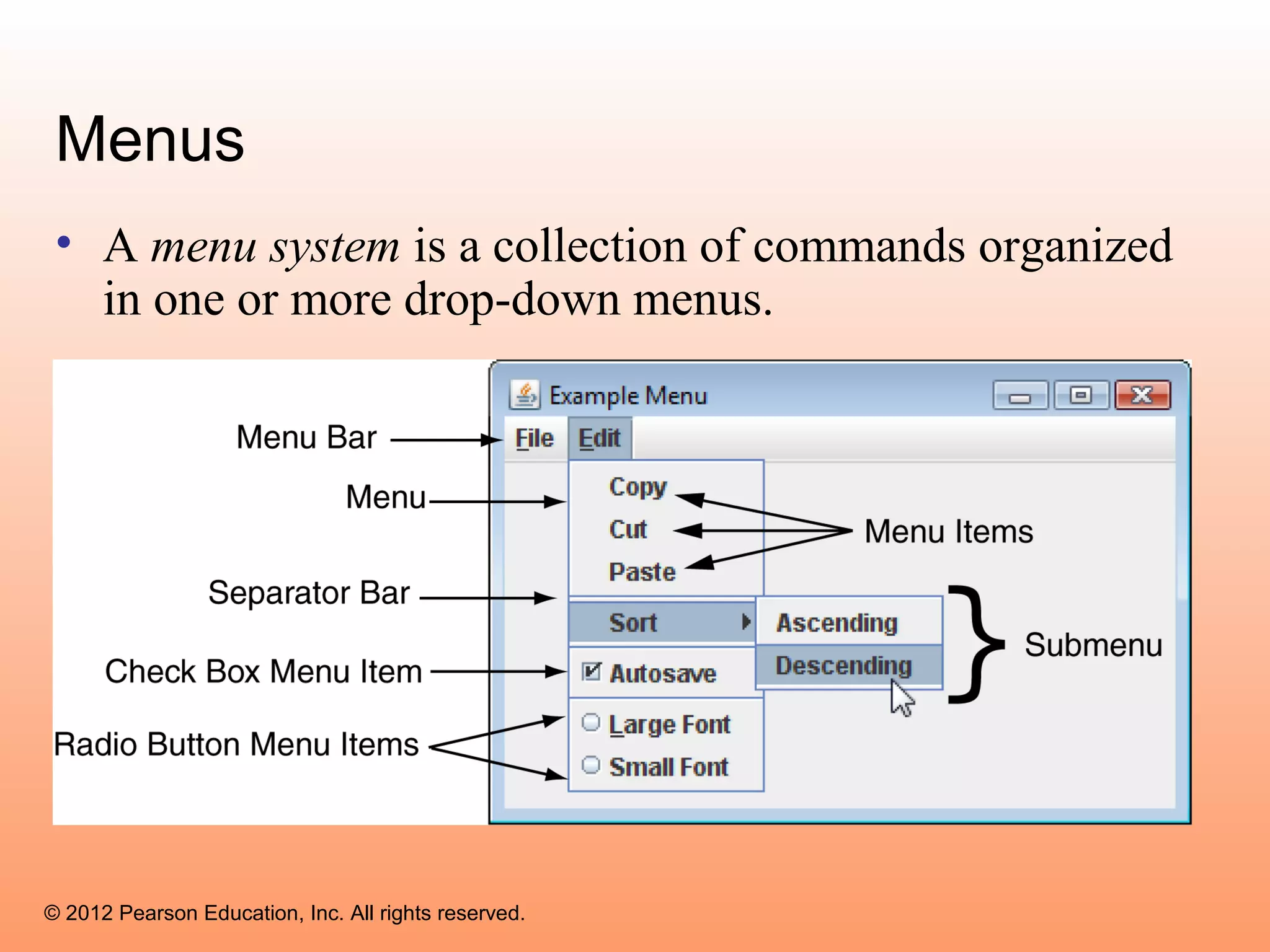
Menus
 • A menu system is a collection of commands organized
   in one or more drop-down menus.


© 2012 Pearson Education, Inc. All rights reserved.
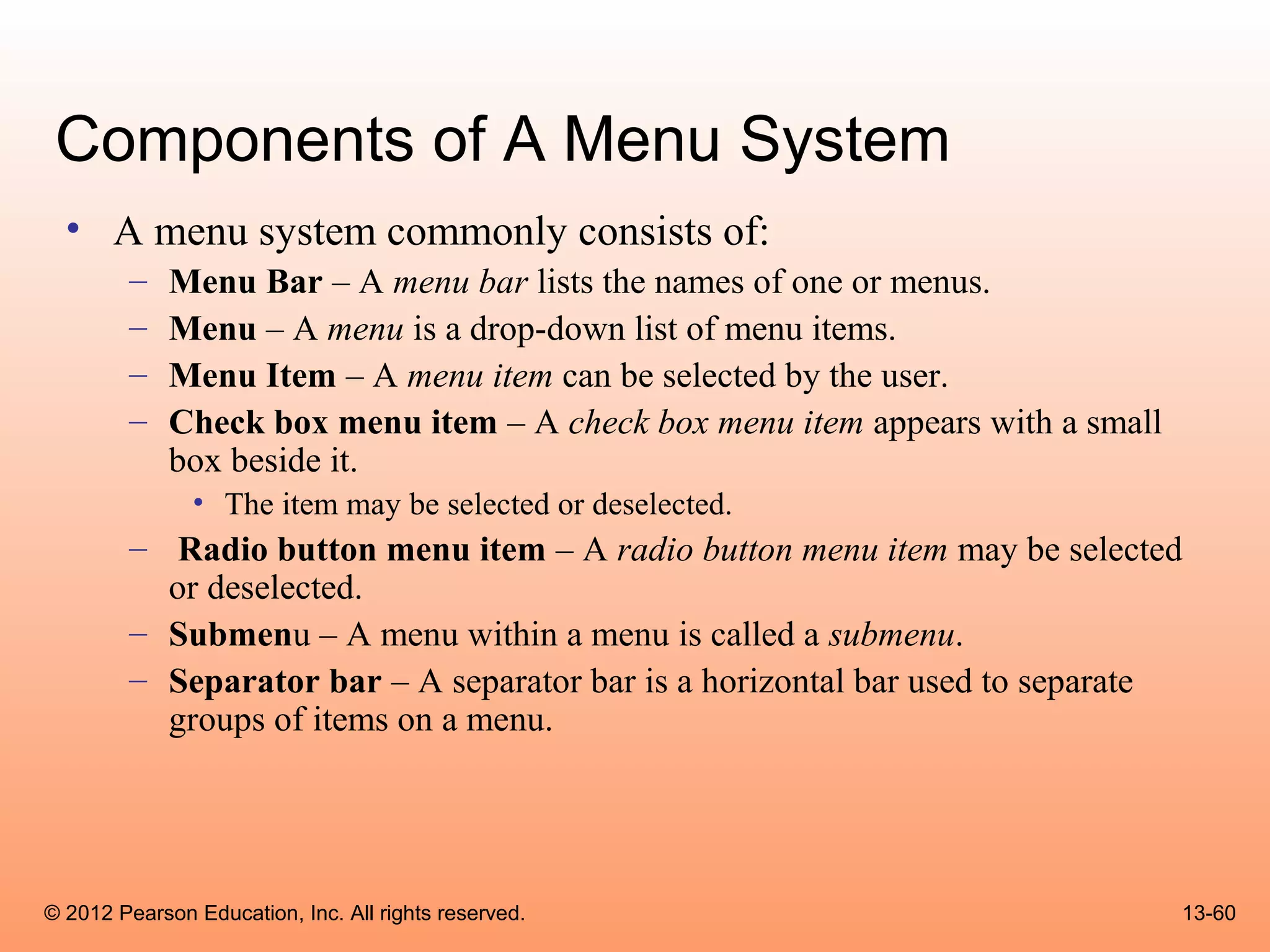
Components of A Menu System
  • A menu system commonly consists of:
        –    Menu Bar – A menu bar lists the names of one or menus.
        –    Menu – A menu is a drop-down list of menu items.
        –    Menu Item – A menu item can be selected by the user.
        –    Check box menu item – A check box menu item appears with a small
             box beside it.
               • The item may be selected or deselected.
        – Radio button menu item – A radio button menu item may be selected
          or deselected.
        – Submenu – A menu within a menu is called a submenu.
        – Separator bar – A separator bar is a horizontal bar used to separate
          groups of items on a menu.


© 2012 Pearson Education, Inc. All rights reserved.                             13-60
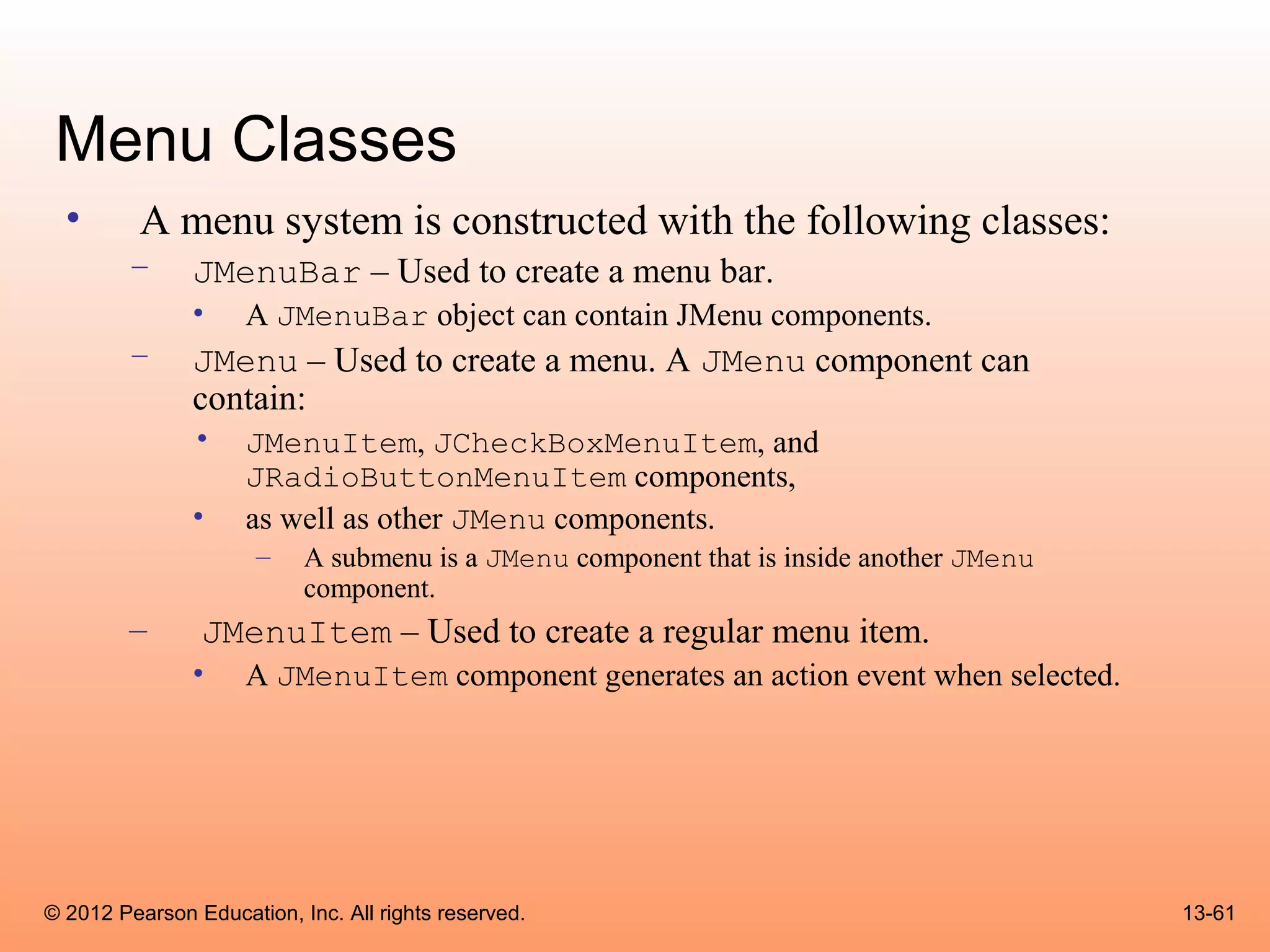
Menu Classes
  •       A menu system is constructed with the following classes:
        –      JMenuBar – Used to create a menu bar.
               •     A JMenuBar object can contain JMenu components.
        –      JMenu – Used to create a menu. A JMenu component can
               contain:
               •     JMenuItem, JCheckBoxMenuItem, and
                     JRadioButtonMenuItem components,
               •     as well as other JMenu components.
                      –    A submenu is a JMenu component that is inside another JMenu
                           component.
        –       JMenuItem – Used to create a regular menu item.
               •     A JMenuItem component generates an action event when selected.


© 2012 Pearson Education, Inc. All rights reserved.                                      13-61
Menu Classes
        – JCheckBoxMenuItem – Used to create a check box menu item.
               • The class’s isSelected method returns true if the item is selected, or
                 false otherwise.
               • A JCheckBoxMenuItem component generates an action event
                 when selected.
        – JRadioButtonMenuItem – Used to create a radio button menu
          item.
               • JRadioButtonMenuItem components can be grouped together in
                 a ButtonGroup object so that only one of them can be selected at a
                 time.
               • The class’s isSelected method returns true if the item is selected,
                 or false otherwise.
               • A JRadioButtonMenuItem component generates an action event
                 when selected.


© 2012 Pearson Education, Inc. All rights reserved.                                       13-62
Menu Example
 • Menu Example: MenuWindow.java


© 2012 Pearson Education, Inc. All rights reserved.   13-63
Text Areas
  • The JTextField class is used to create text fields.
  • A text field is a component that allows the user to enter a
    single line of text.
  • A text area is like a text field that can accept multiple lines
    of input.
  • You use the JTextArea class to create a text area.
  • The general format of two of the class’s constructors:
        JTextArea(int rows, int columns)
        JTextArea(String text, int rows, int columns)


© 2012 Pearson Education, Inc. All rights reserved.                   13-64
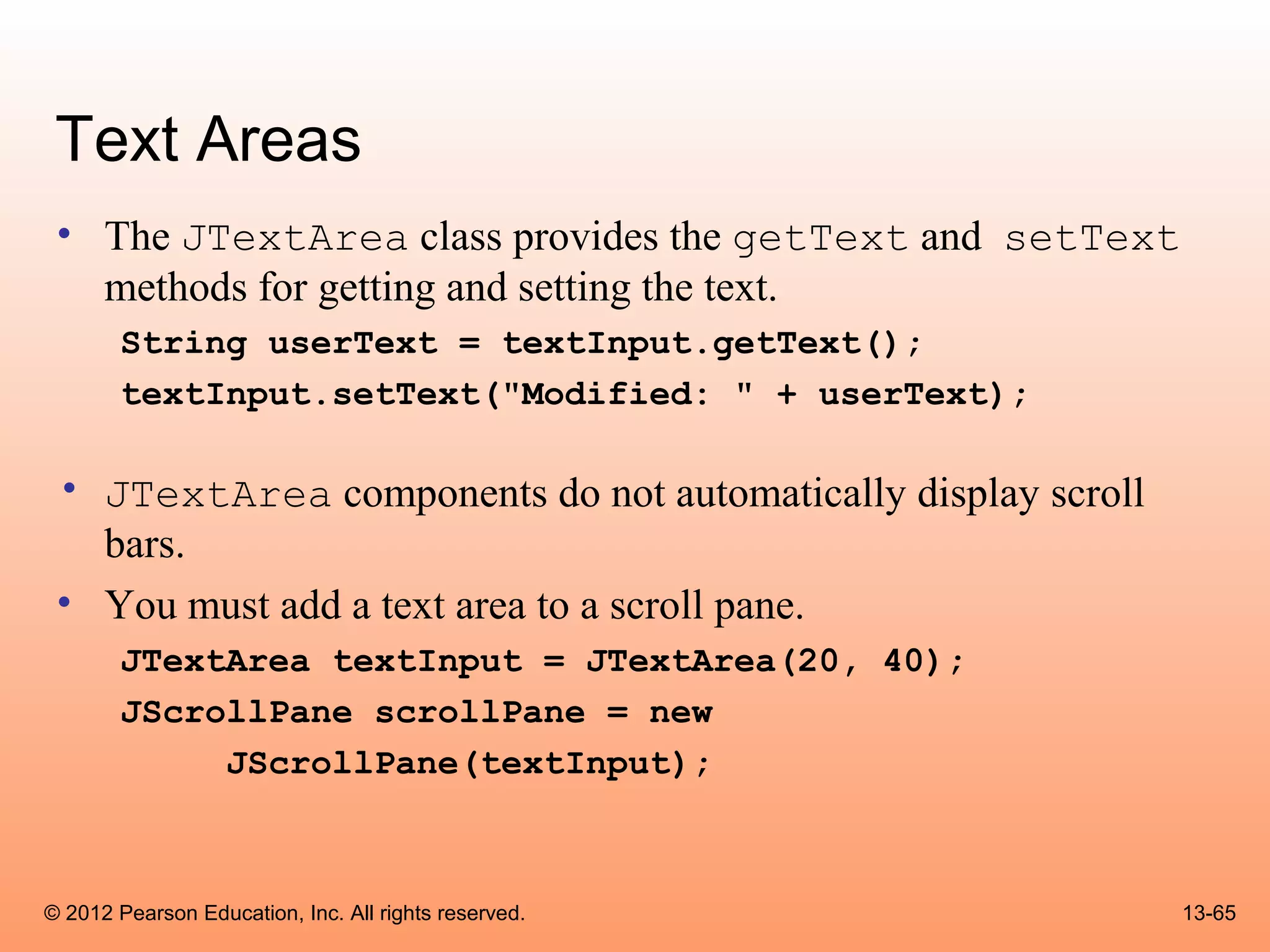
Text Areas
 • The JTextArea class provides the getText and setText
   methods for getting and setting the text.
        String userText = textInput.getText();
        textInput.setText("Modified: " + userText);

 • JTextArea components do not automatically display scroll
   bars.
 • You must add a text area to a scroll pane.
        JTextArea textInput = JTextArea(20, 40);
        JScrollPane scrollPane = new
             JScrollPane(textInput);


© 2012 Pearson Education, Inc. All rights reserved.           13-65
Text Areas
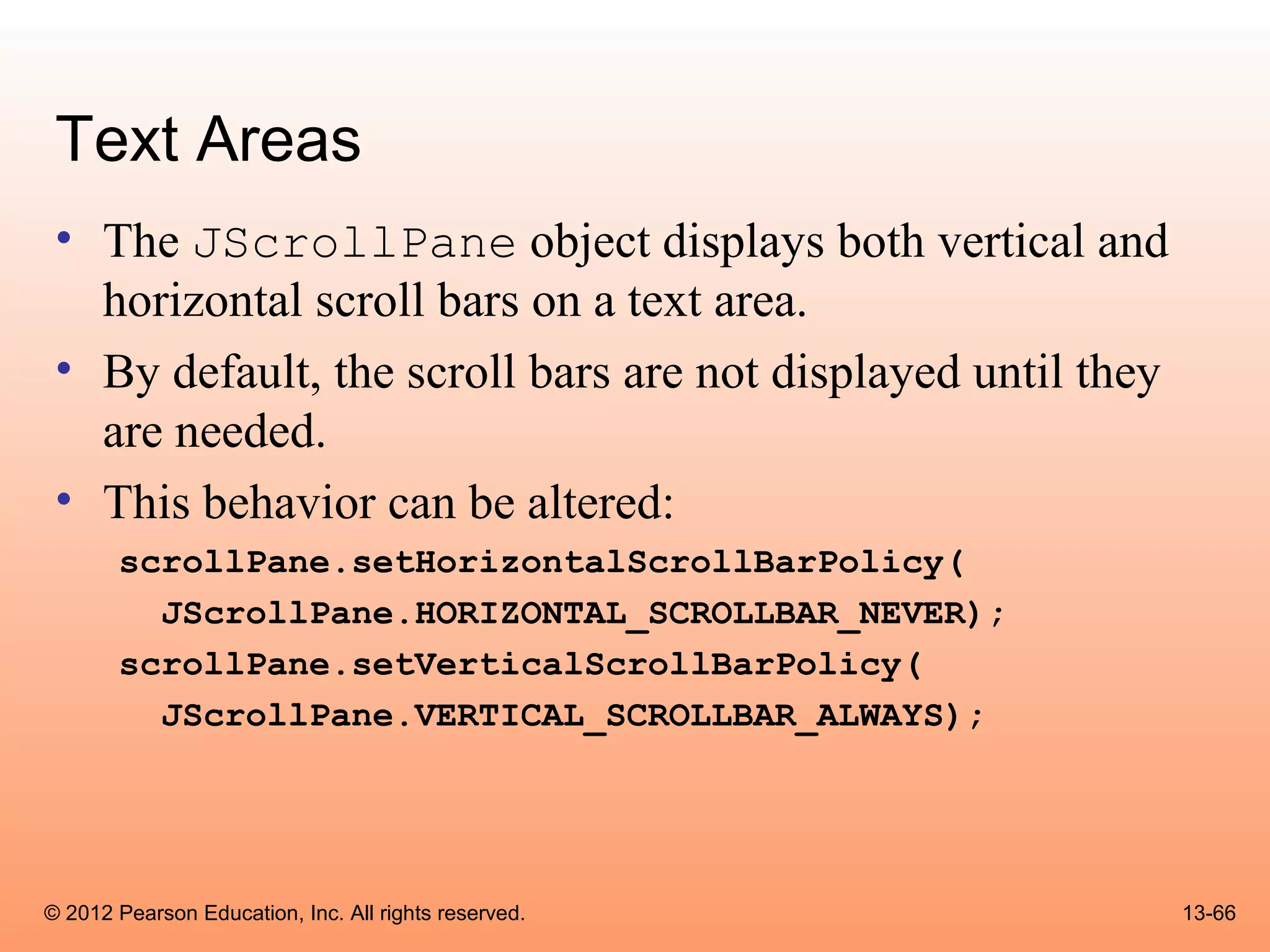
 • The JScrollPane object displays both vertical and
   horizontal scroll bars on a text area.
 • By default, the scroll bars are not displayed until they
   are needed.
 • This behavior can be altered:
       scrollPane.setHorizontalScrollBarPolicy(
         JScrollPane.HORIZONTAL_SCROLLBAR_NEVER);
       scrollPane.setVerticalScrollBarPolicy(
         JScrollPane.VERTICAL_SCROLLBAR_ALWAYS);


© 2012 Pearson Education, Inc. All rights reserved.           13-66
Text Areas
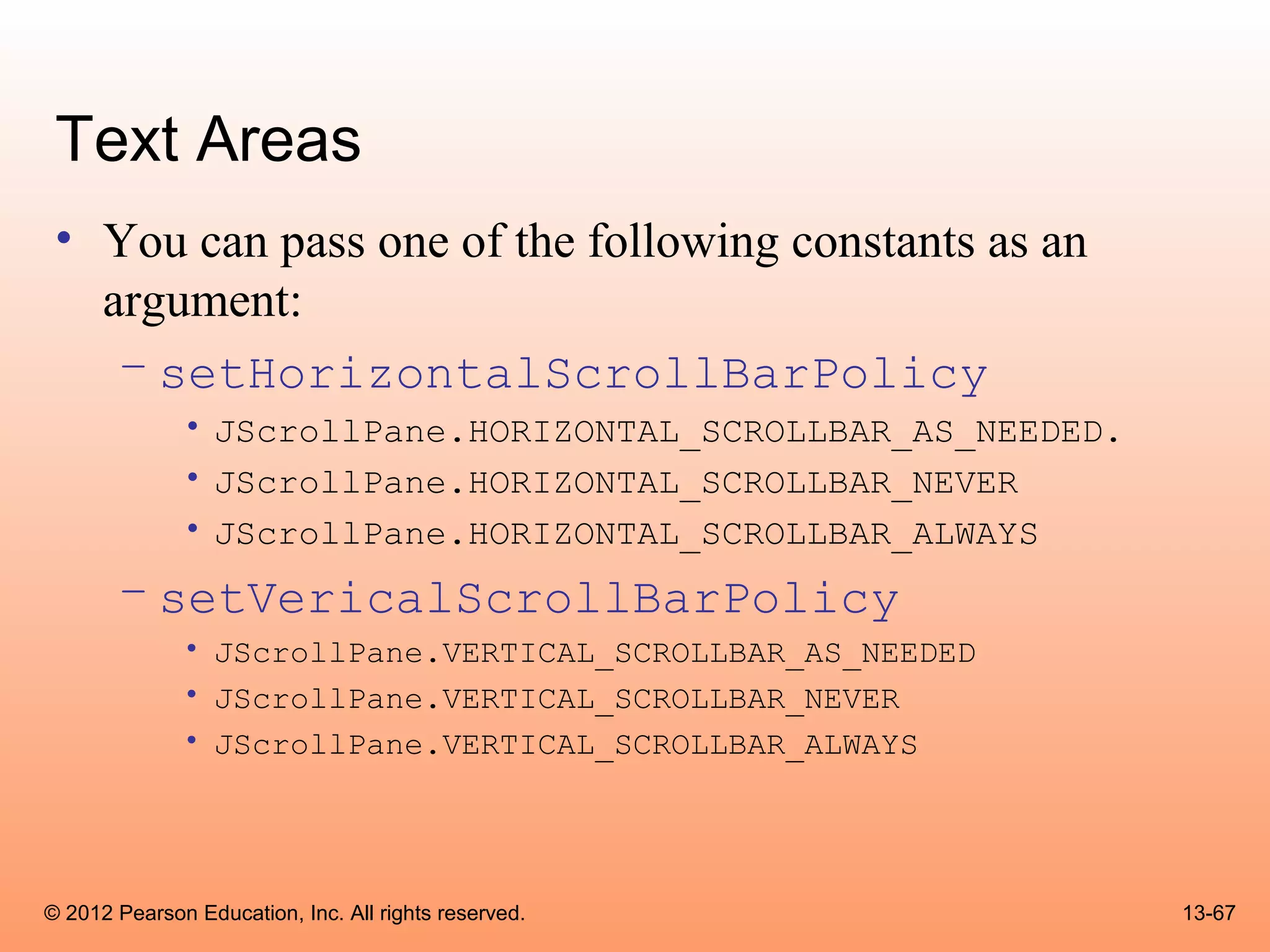
 • You can pass one of the following constants as an
   argument:
    – setHorizontalScrollBarPolicy
              • JScrollPane.HORIZONTAL_SCROLLBAR_AS_NEEDED.
              • JScrollPane.HORIZONTAL_SCROLLBAR_NEVER
              • JScrollPane.HORIZONTAL_SCROLLBAR_ALWAYS
       – setVericalScrollBarPolicy
              • JScrollPane.VERTICAL_SCROLLBAR_AS_NEEDED
              • JScrollPane.VERTICAL_SCROLLBAR_NEVER
              • JScrollPane.VERTICAL_SCROLLBAR_ALWAYS


© 2012 Pearson Education, Inc. All rights reserved.           13-67
Text Areas
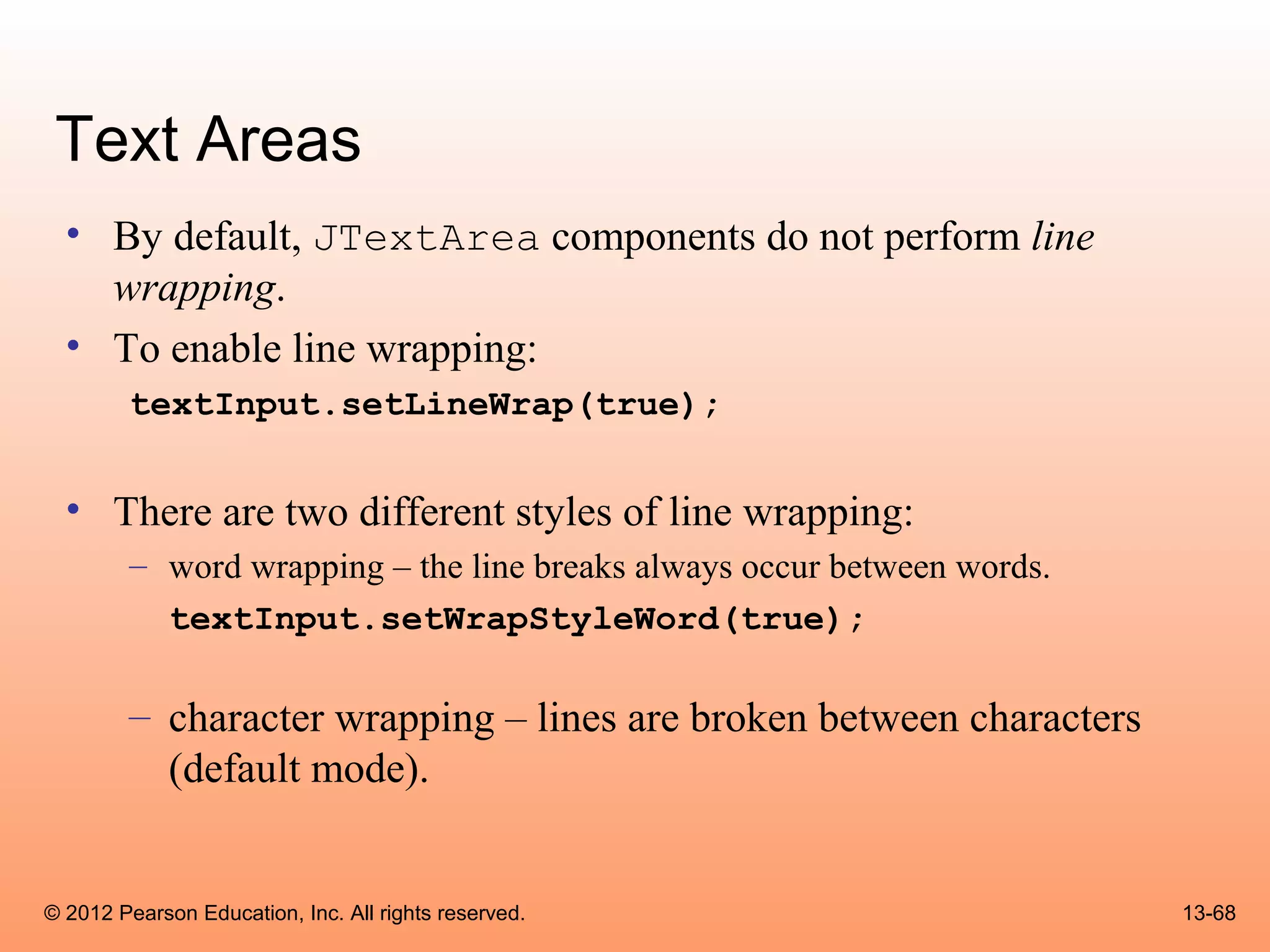
  • By default, JTextArea components do not perform line
    wrapping.
  • To enable line wrapping:
        textInput.setLineWrap(true);


  • There are two different styles of line wrapping:
        – word wrapping – the line breaks always occur between words.
          textInput.setWrapStyleWord(true);

        – character wrapping – lines are broken between characters
          (default mode).


© 2012 Pearson Education, Inc. All rights reserved.                     13-68
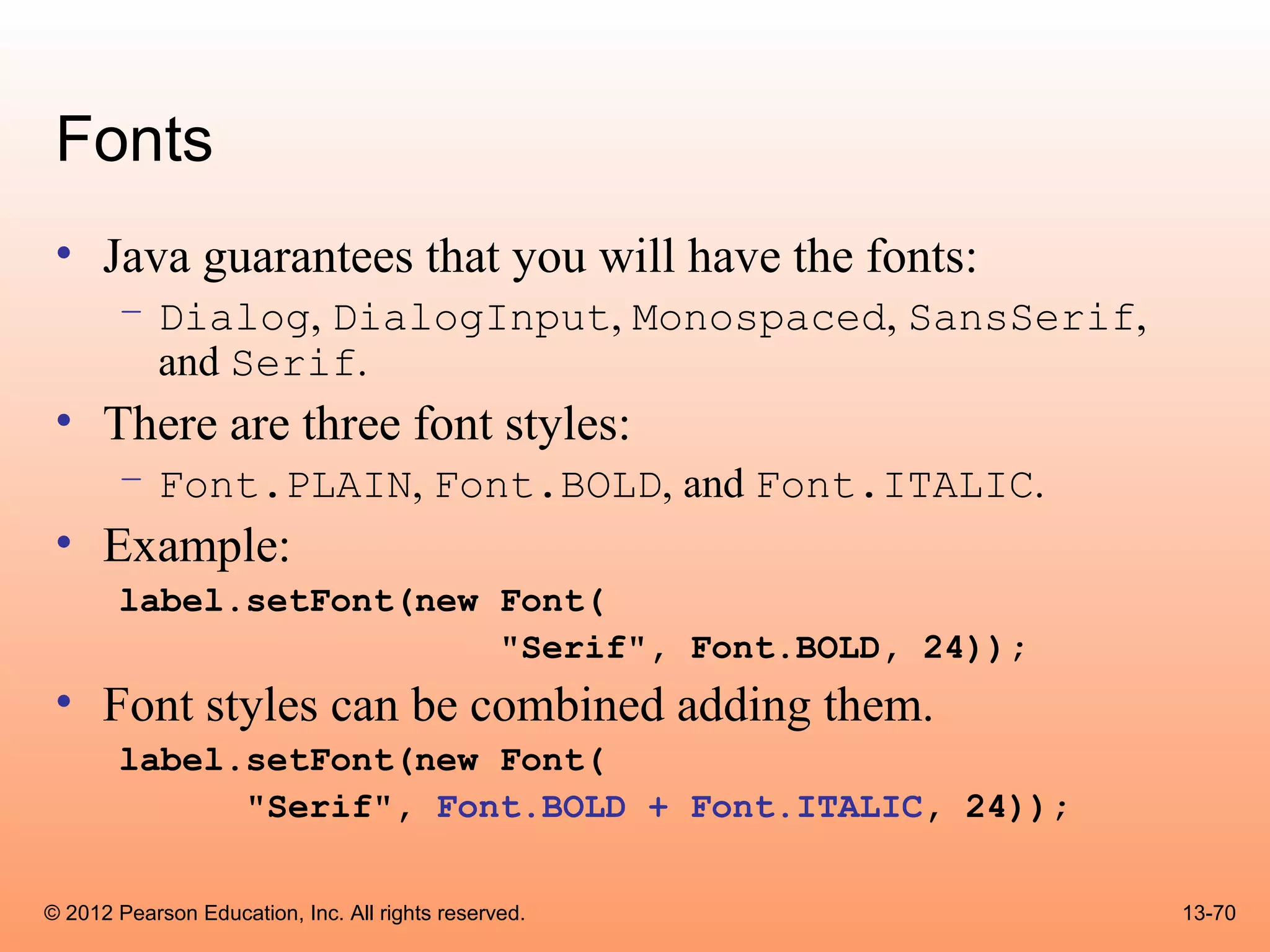
Fonts
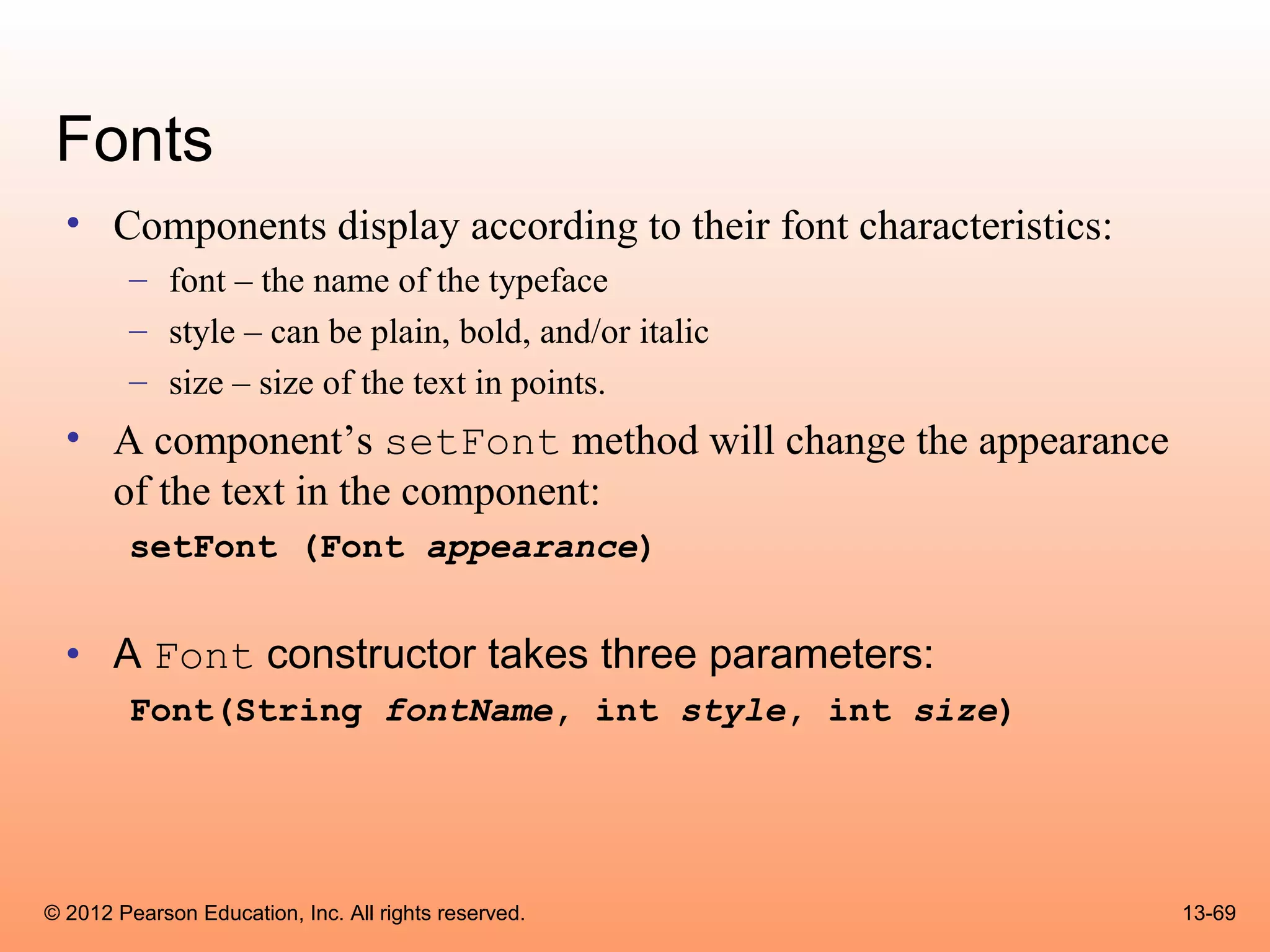
  • Components display according to their font characteristics:
        – font – the name of the typeface
        – style – can be plain, bold, and/or italic
        – size – size of the text in points.
  • A component’s setFont method will change the appearance
    of the text in the component:
        setFont (Font appearance)


  • A Font constructor takes three parameters:
        Font(String fontName, int style, int size)


© 2012 Pearson Education, Inc. All rights reserved.               13-69
Fonts
 • Java guarantees that you will have the fonts:
       – Dialog, DialogInput, Monospaced, SansSerif,
         and Serif.
 • There are three font styles:
       – Font.PLAIN, Font.BOLD, and Font.ITALIC.
 • Example:
       label.setFont(new Font(
                         "Serif", Font.BOLD, 24));
 • Font styles can be combined adding them.
       label.setFont(new Font(
             "Serif", Font.BOLD + Font.ITALIC, 24));

© 2012 Pearson Education, Inc. All rights reserved.    13-70
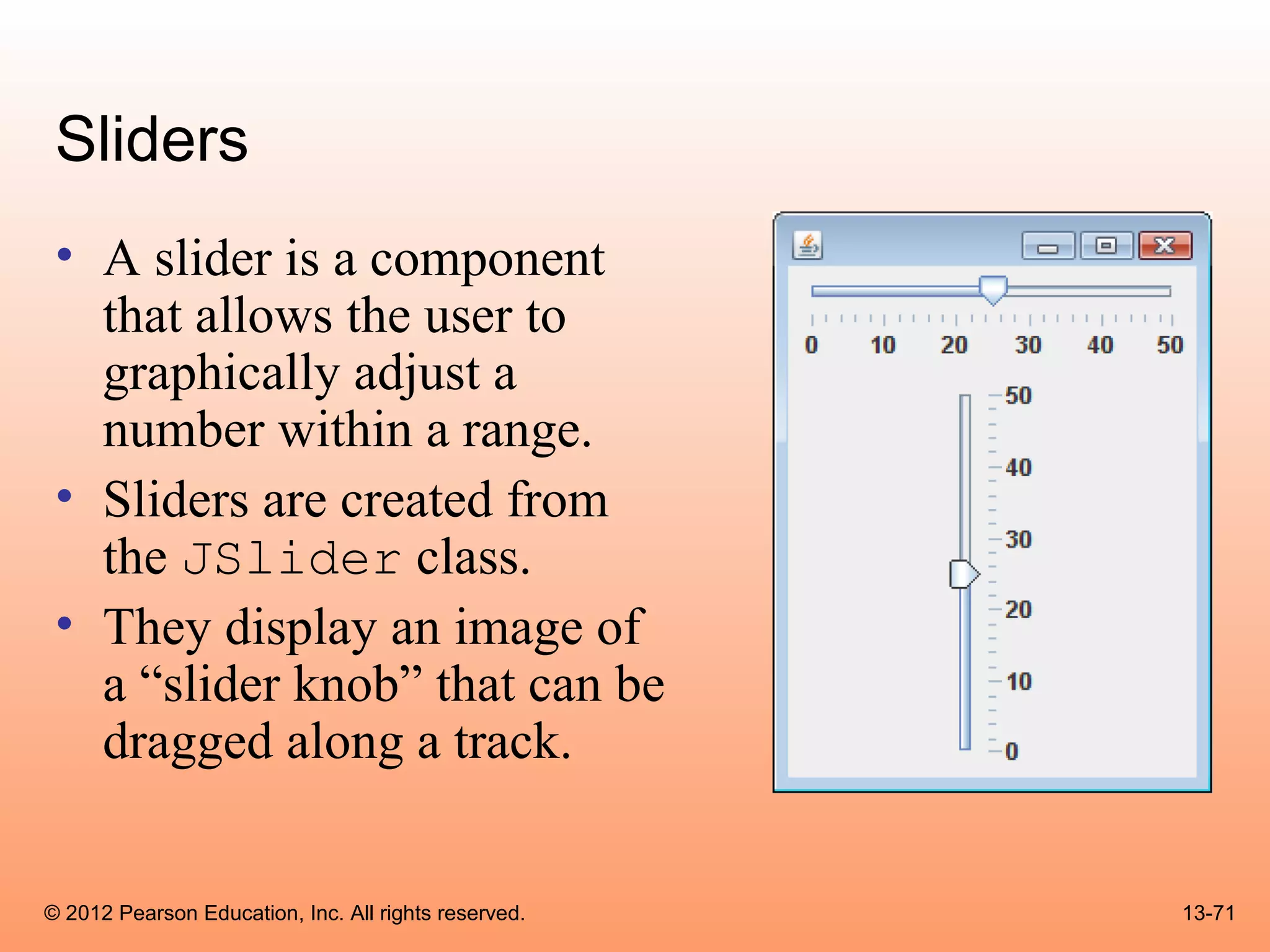
Sliders
 • A slider is a component
   that allows the user to
   graphically adjust a
   number within a range.
 • Sliders are created from
   the JSlider class.
 • They display an image of
   a “slider knob” that can be
   dragged along a track.


© 2012 Pearson Education, Inc. All rights reserved.   13-71
Sliders
 • A slider is designed to represent a range of numeric
   values.
 • As the user moves the knob along the track, the numeric
   value is adjusted accordingly.
 • Between the minimum and maximum values, major tick
   marks are displayed with a label indicating the value at
   that tick mark.
 • Between the major tick marks are minor tick marks.


© 2012 Pearson Education, Inc. All rights reserved.      13-72
Sliders
 • The JSlider constructor has the general format:
       JSlider(int orientation, int minValue,
               int maxValue, int initialValue)


 • For orientation, one of these constants should be used:
       – JSlider.HORIZONTAL
       – JSlider.VERTICAL


© 2012 Pearson Education, Inc. All rights reserved.          13-73
Sliders
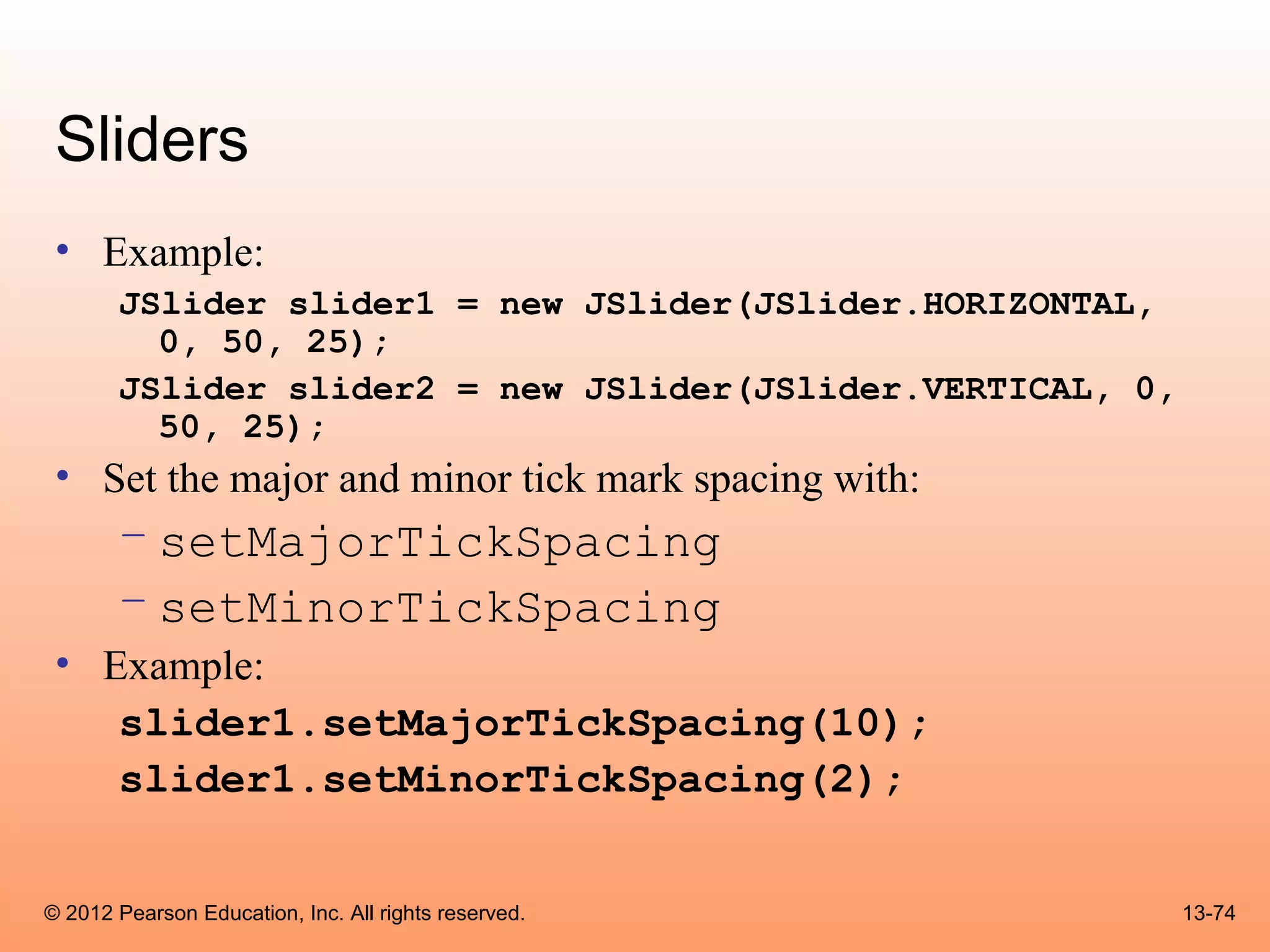
 • Example:
       JSlider slider1 = new JSlider(JSlider.HORIZONTAL,
         0, 50, 25);
       JSlider slider2 = new JSlider(JSlider.VERTICAL, 0,
         50, 25);
 • Set the major and minor tick mark spacing with:
       – setMajorTickSpacing
       – setMinorTickSpacing
 • Example:
    slider1.setMajorTickSpacing(10);
    slider1.setMinorTickSpacing(2);


© 2012 Pearson Education, Inc. All rights reserved.         13-74
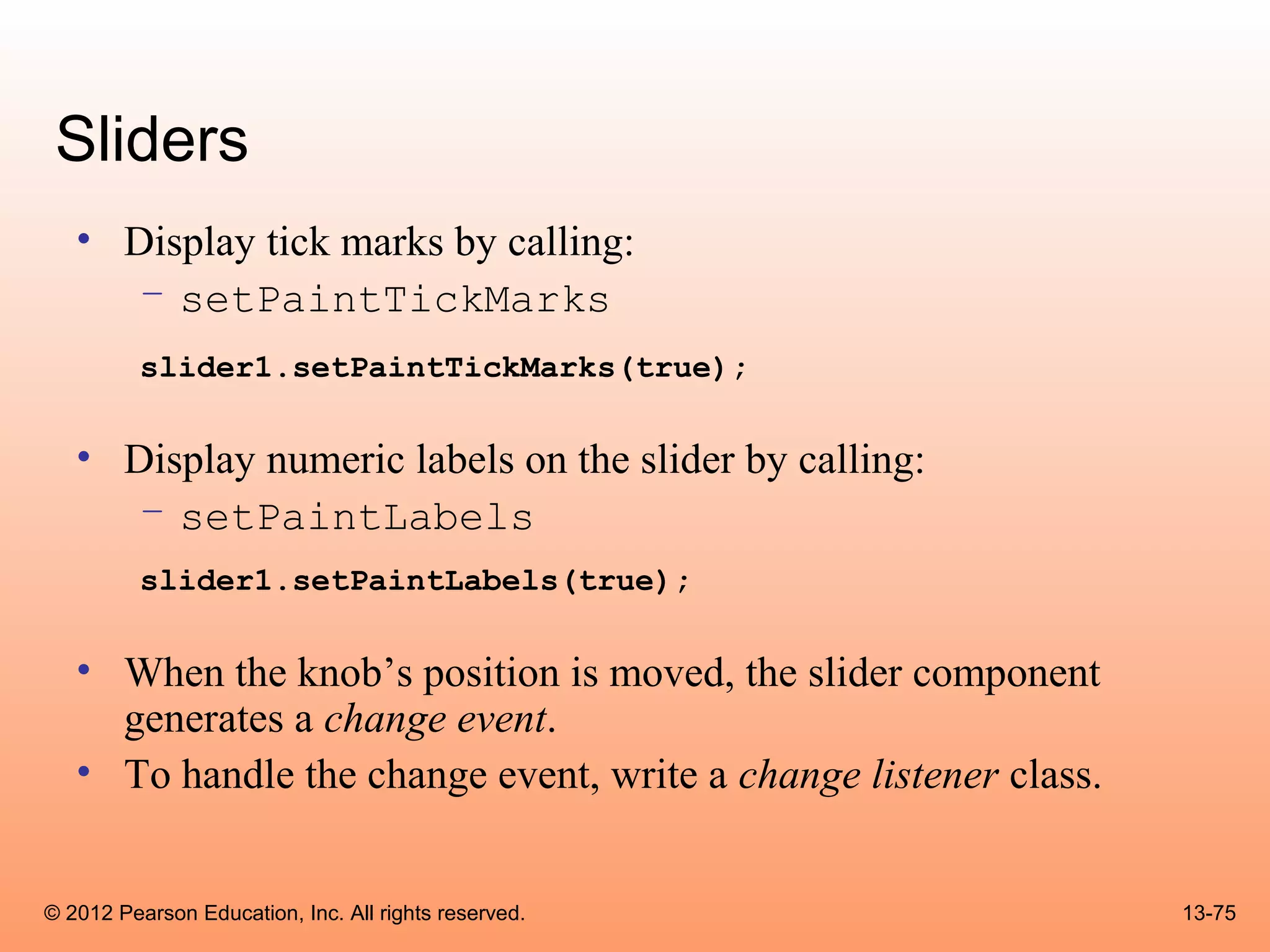
Sliders
   • Display tick marks by calling:
      – setPaintTickMarks
          slider1.setPaintTickMarks(true);

   • Display numeric labels on the slider by calling:
      – setPaintLabels
          slider1.setPaintLabels(true);

   • When the knob’s position is moved, the slider component
     generates a change event.
   • To handle the change event, write a change listener class.


© 2012 Pearson Education, Inc. All rights reserved.               13-75
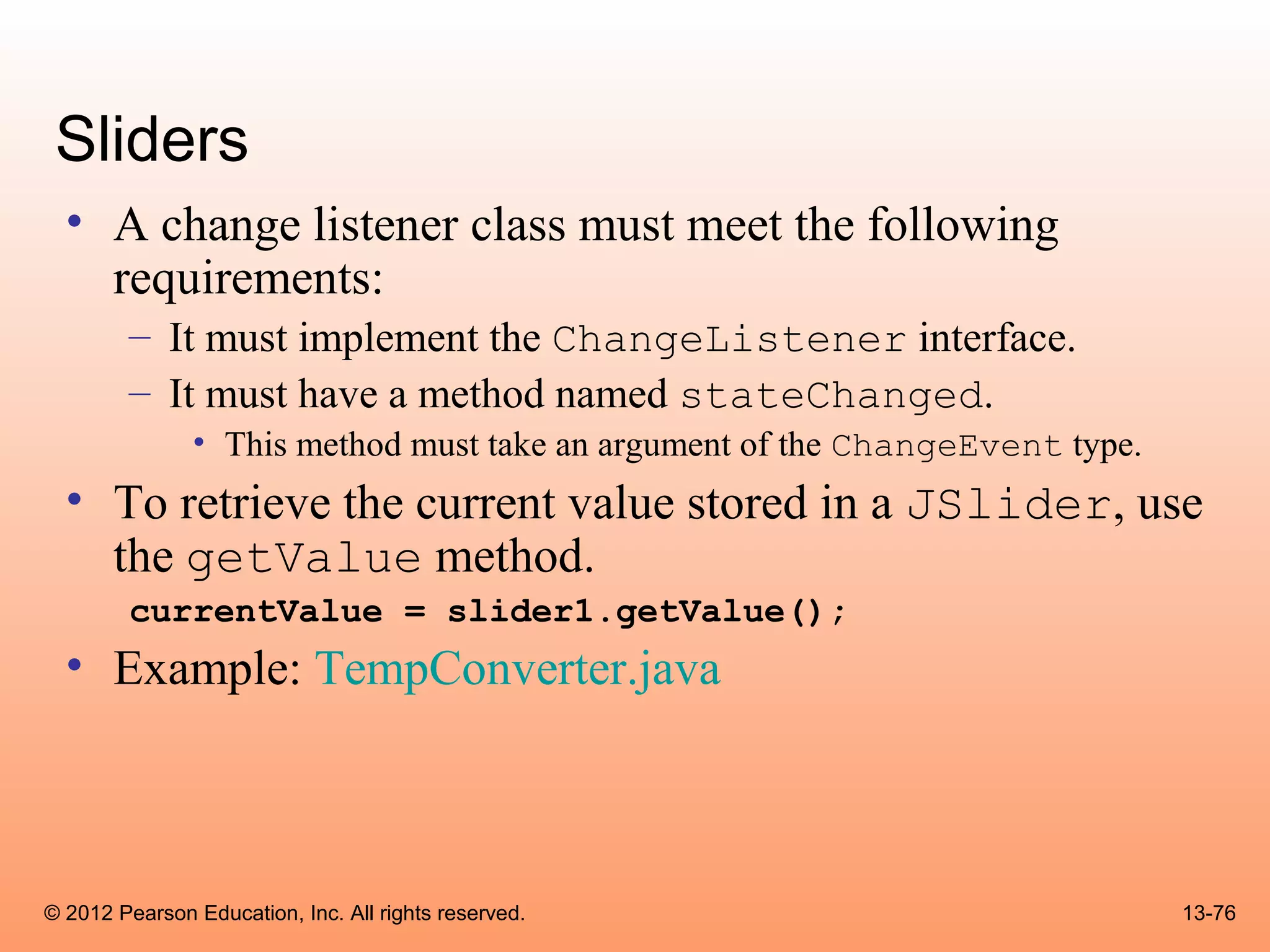
Sliders
  • A change listener class must meet the following
    requirements:
        – It must implement the ChangeListener interface.
        – It must have a method named stateChanged.
               • This method must take an argument of the ChangeEvent type.
  • To retrieve the current value stored in a JSlider, use
    the getValue method.
        currentValue = slider1.getValue();
  • Example: TempConverter.java


© 2012 Pearson Education, Inc. All rights reserved.                           13-76
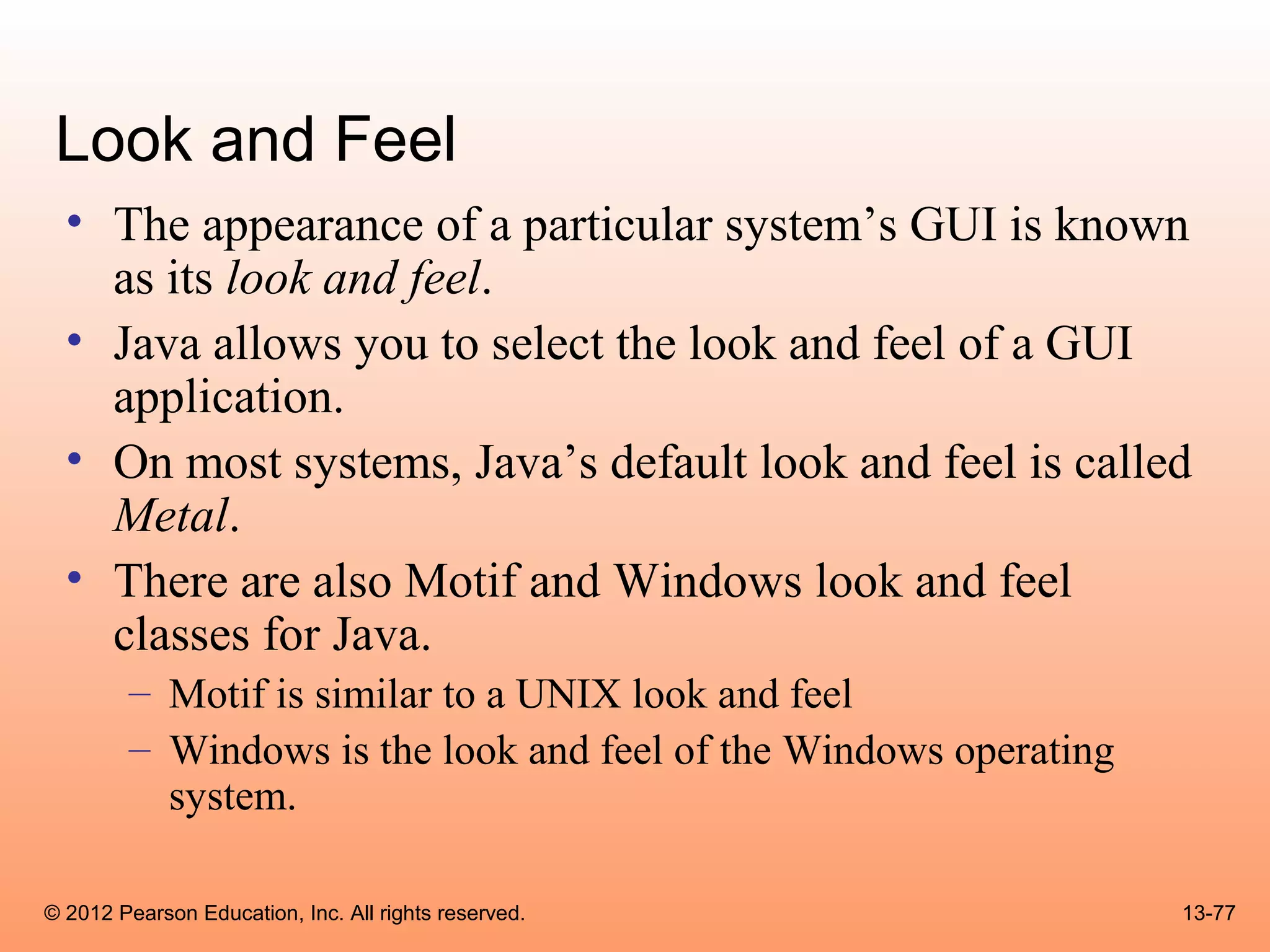
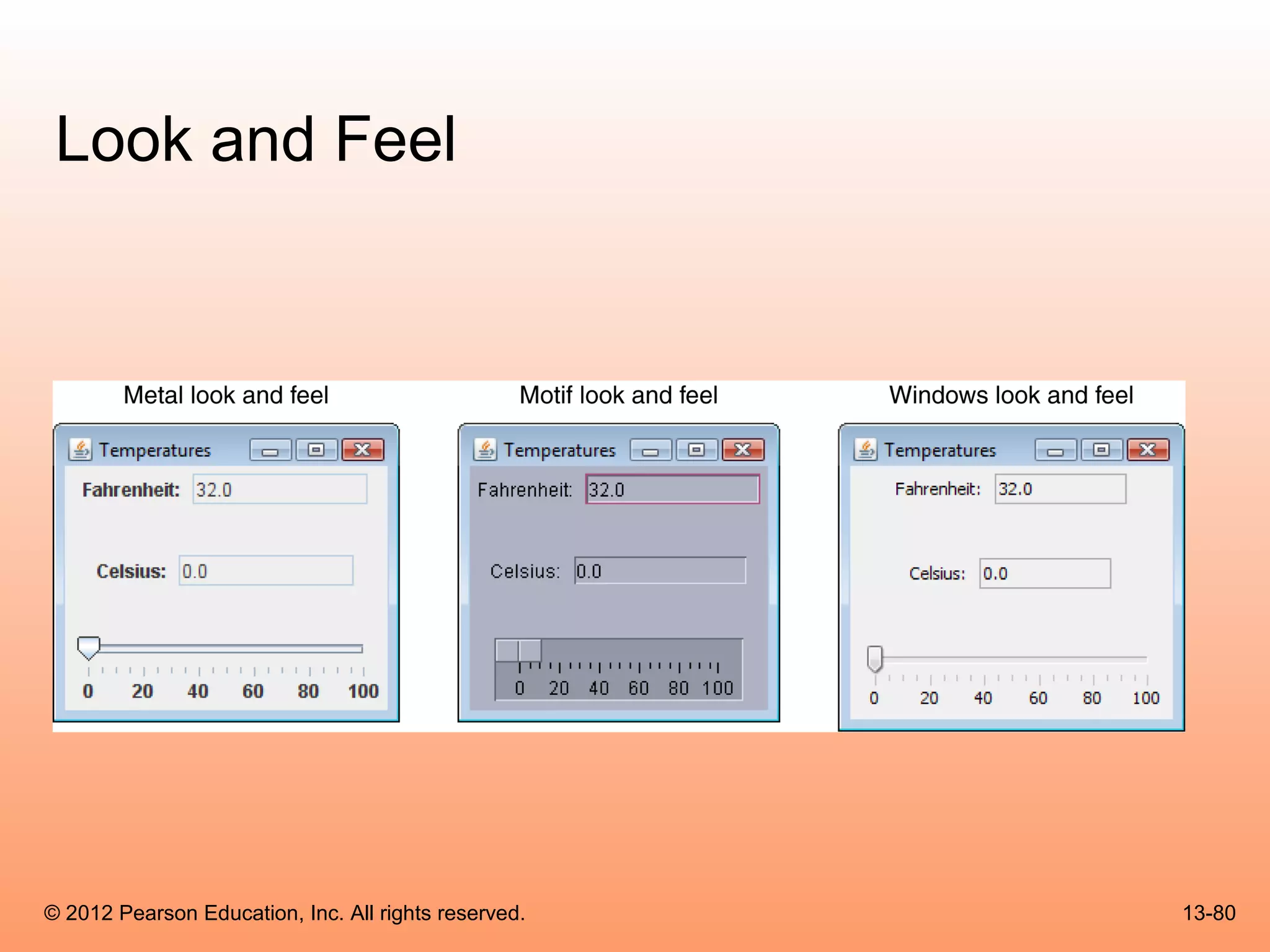
Look and Feel
  • The appearance of a particular system’s GUI is known
    as its look and feel.
  • Java allows you to select the look and feel of a GUI
    application.
  • On most systems, Java’s default look and feel is called
    Metal.
  • There are also Motif and Windows look and feel
    classes for Java.
        – Motif is similar to a UNIX look and feel
        – Windows is the look and feel of the Windows operating
          system.

© 2012 Pearson Education, Inc. All rights reserved.               13-77
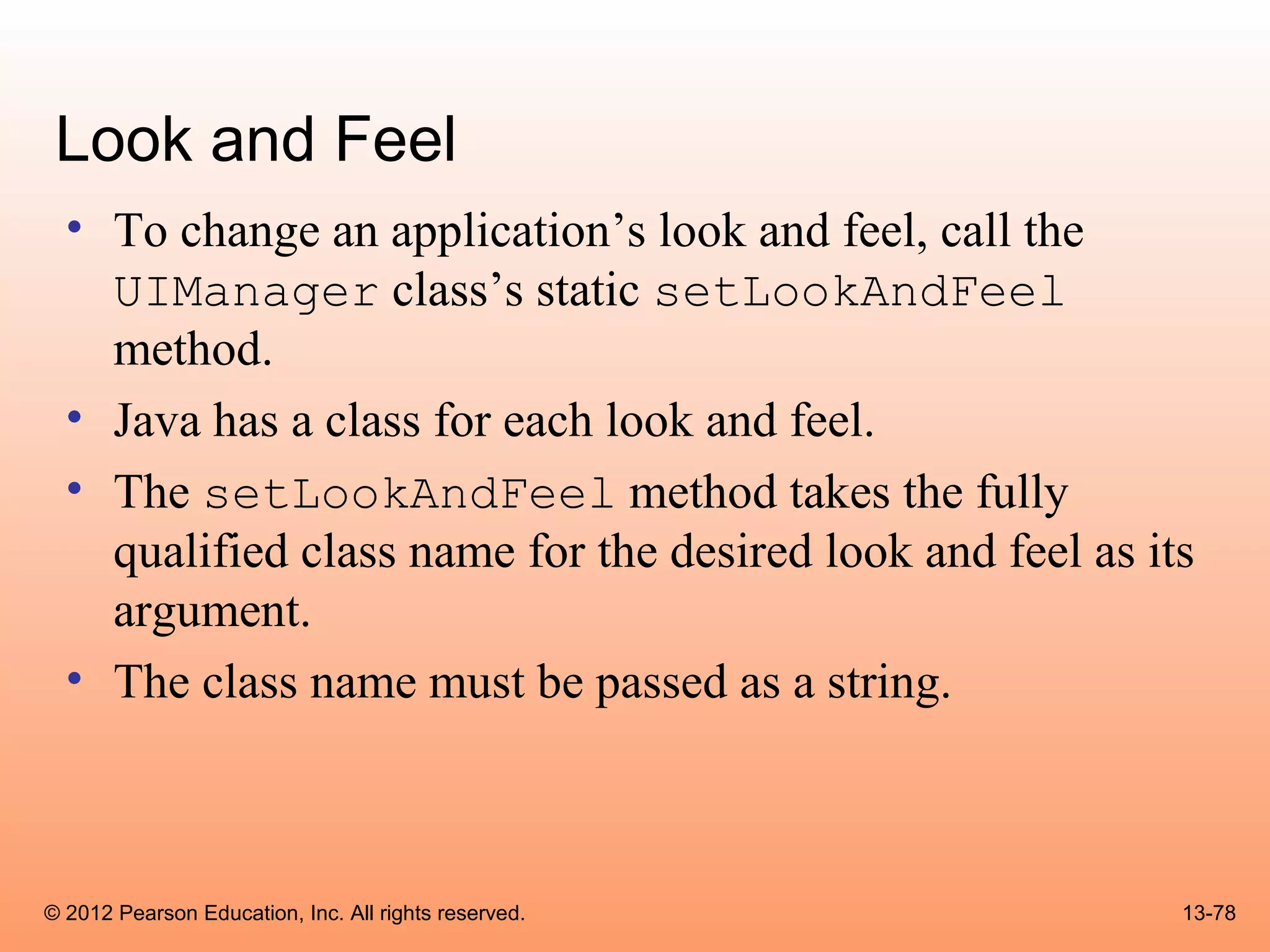
Look and Feel
  • To change an application’s look and feel, call the
    UIManager class’s static setLookAndFeel
    method.
  • Java has a class for each look and feel.
  • The setLookAndFeel method takes the fully
    qualified class name for the desired look and feel as its
    argument.
  • The class name must be passed as a string.


© 2012 Pearson Education, Inc. All rights reserved.         13-78
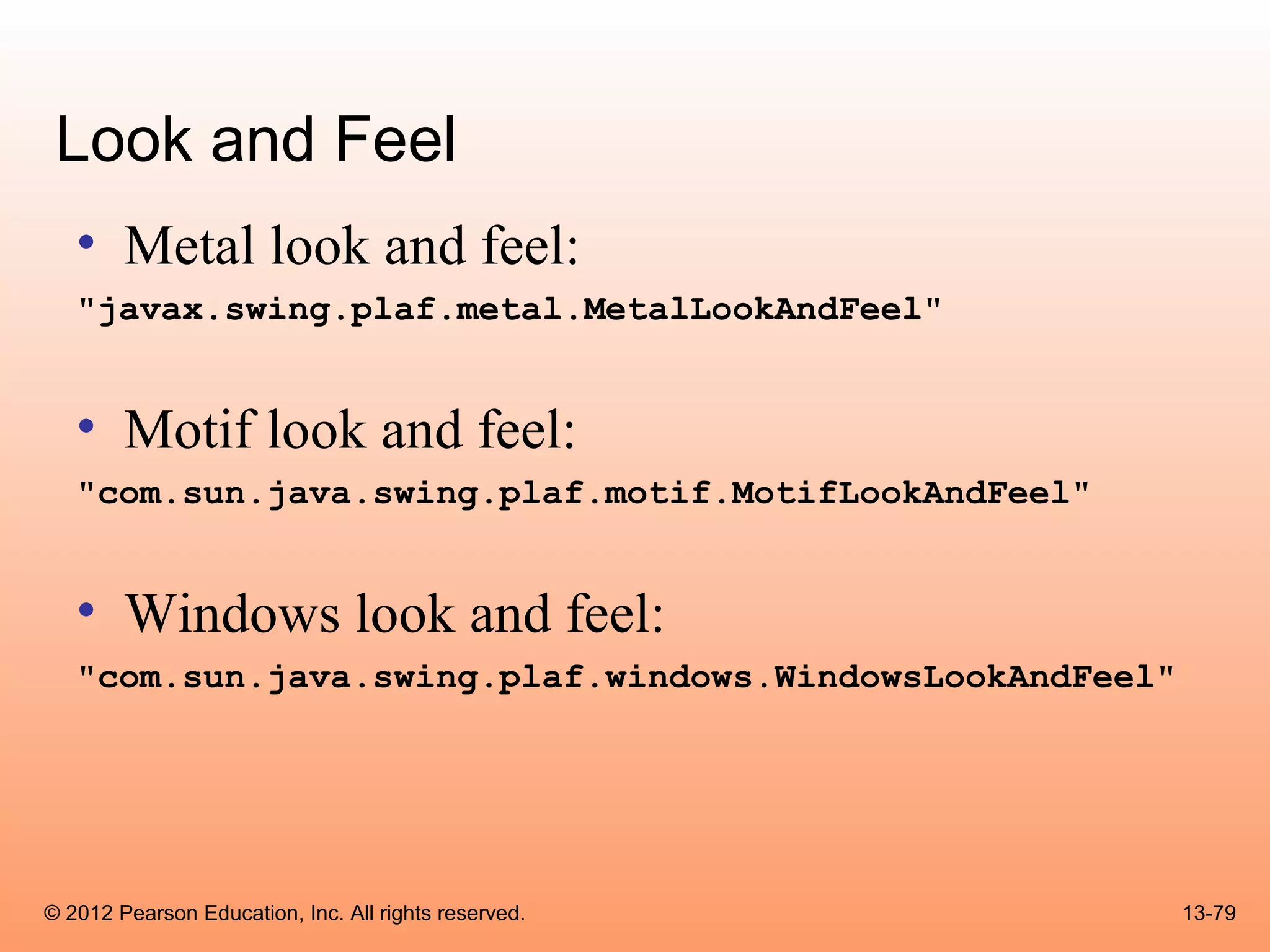
Look and Feel
   • Metal look and feel:
   "javax.swing.plaf.metal.MetalLookAndFeel"


   • Motif look and feel:
   "com.sun.java.swing.plaf.motif.MotifLookAndFeel"


   • Windows look and feel:
   "com.sun.java.swing.plaf.windows.WindowsLookAndFeel"


© 2012 Pearson Education, Inc. All rights reserved.       13-79
Look and Feel


© 2012 Pearson Education, Inc. All rights reserved.   13-80
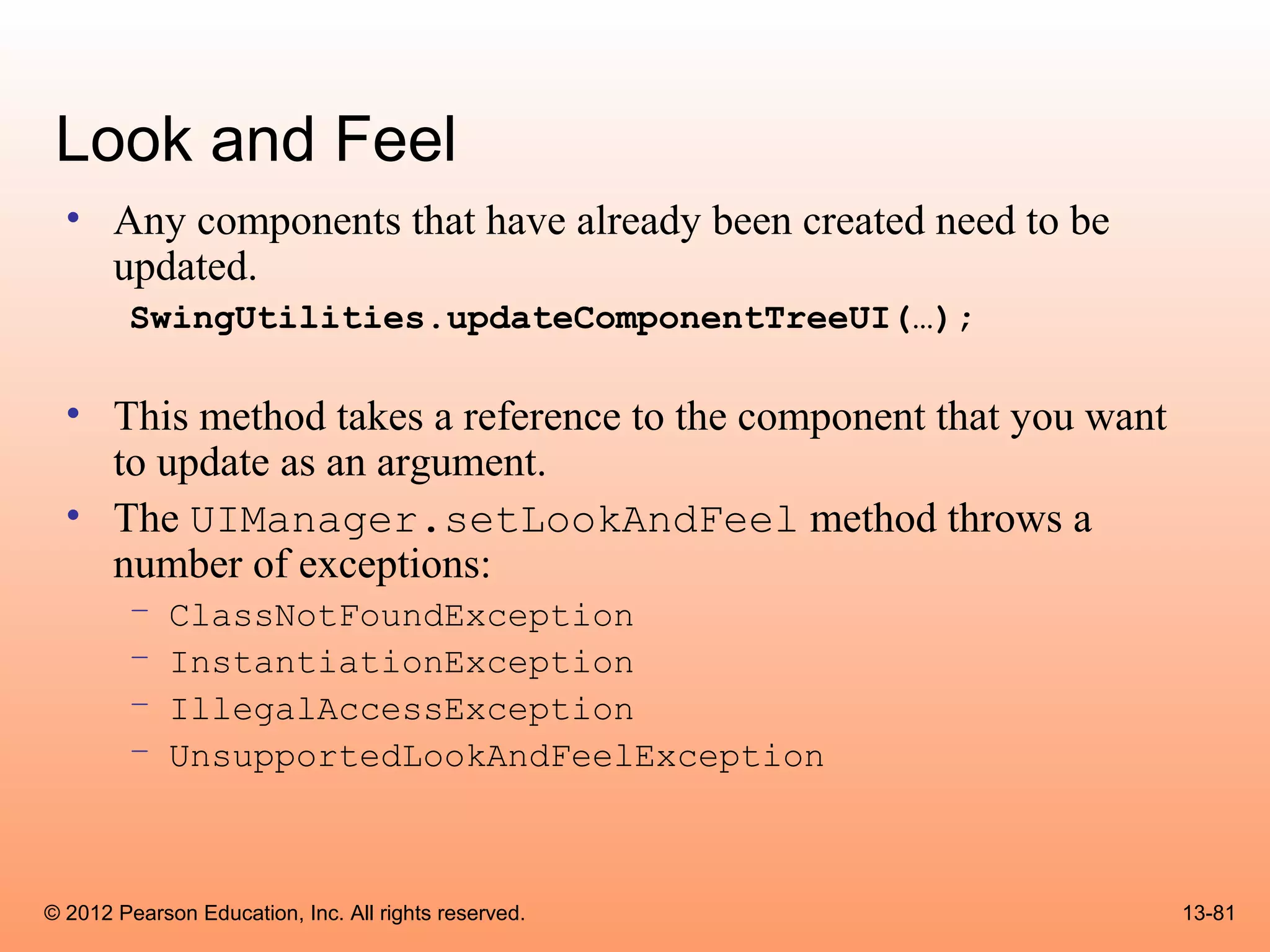
Look and Feel
  • Any components that have already been created need to be
    updated.
        SwingUtilities.updateComponentTreeUI(…);

  • This method takes a reference to the component that you want
    to update as an argument.
  • The UIManager.setLookAndFeel method throws a
    number of exceptions:
        –    ClassNotFoundException
        –    InstantiationException
        –    IllegalAccessException
        –    UnsupportedLookAndFeelException


© 2012 Pearson Education, Inc. All rights reserved.                13-81
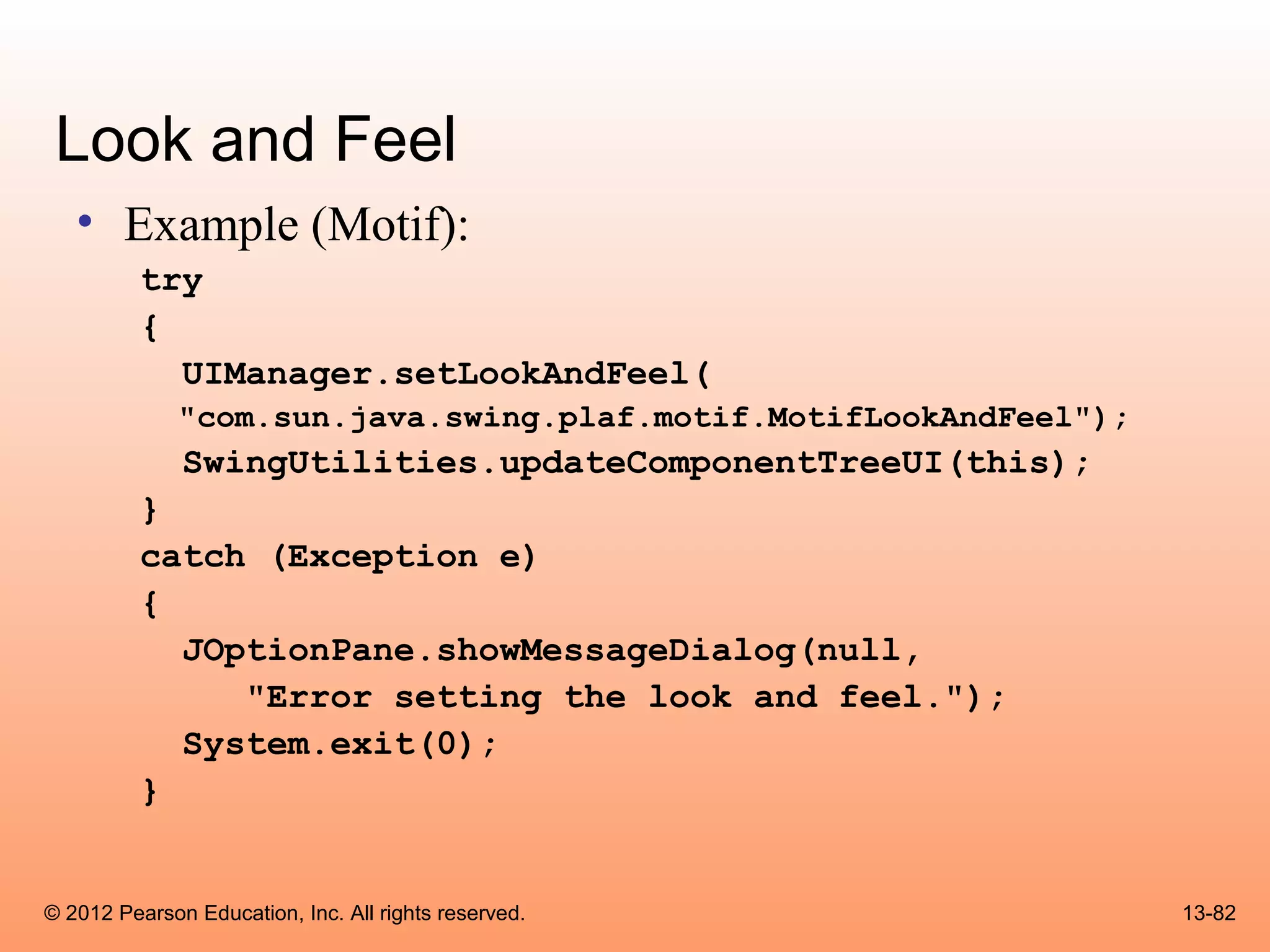
Look and Feel
   • Example (Motif):
          try
          {
            UIManager.setLookAndFeel(
              "com.sun.java.swing.plaf.motif.MotifLookAndFeel");
              SwingUtilities.updateComponentTreeUI(this);
          }
          catch (Exception e)
          {
            JOptionPane.showMessageDialog(null,
               "Error setting the look and feel.");
            System.exit(0);
          }


© 2012 Pearson Education, Inc. All rights reserved.                13-82
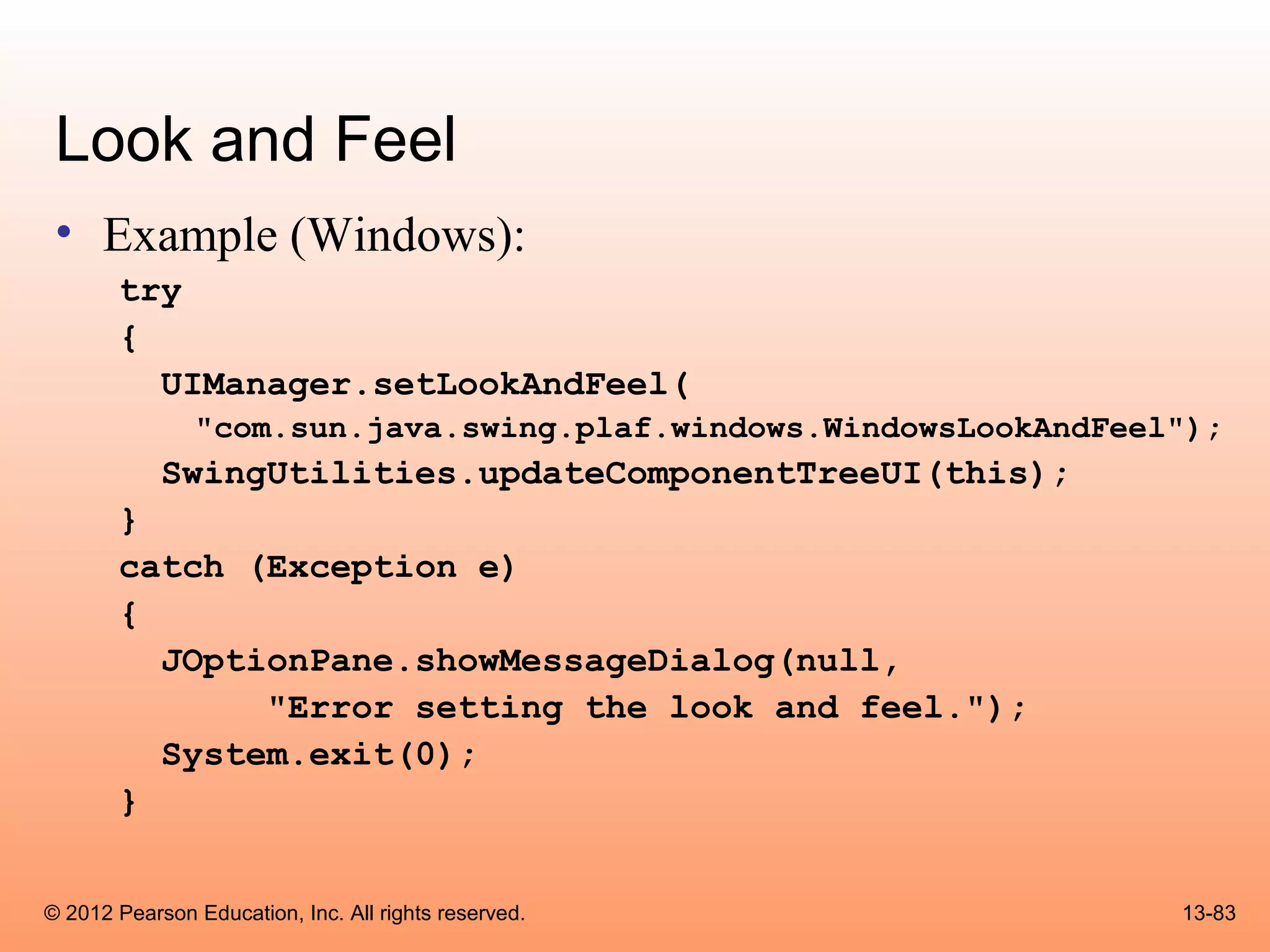
Look and Feel
 • Example (Windows):
       try
       {
         UIManager.setLookAndFeel(
               "com.sun.java.swing.plaf.windows.WindowsLookAndFeel");
            SwingUtilities.updateComponentTreeUI(this);
       }
       catch (Exception e)
       {
         JOptionPane.showMessageDialog(null,
              "Error setting the look and feel.");
         System.exit(0);
       }


© 2012 Pearson Education, Inc. All rights reserved.               13-83

Cso gaddis java_chapter13

  • 1.
    © 2012 PearsonEducation, Inc. All rights reserved. Chapter 13: Advanced GUI Applications Starting Out with Java: From Control Structures through Data Structures Second Edition by Tony Gaddis and Godfrey Muganda
  • 2.
    Chapter Topics Chapter 13 discusses the following main topics: – The Swing and AWT Class Hierarchy – Read-Only Text Fields – Lists – Combo Boxes – Displaying Images in Labels and Buttons – Mnemonics and Tool Tips © 2012 Pearson Education, Inc. All rights reserved. 13-2
  • 3.
    Chapter Topics Chapter 13 discusses the following main topics: – File Choosers and Color Choosers – Menus – More about Text Components: Text Areas and Fonts – Sliders – Look and Feel © 2012 Pearson Education, Inc. All rights reserved. 13-3
  • 4.
    The Swing and AWTClass Hierarchy © 2012 Pearson Education, Inc. All rights reserved. 13-4
  • 5.
    Read Only TextFields • Read only text fields are a different way to use the JTextField component. • The JTextField component has a method named setEditable: setEditable(boolean editable) • By default a text field is editable. • The setEditable method must be called and passed false to make the field read-only. © 2012 Pearson Education, Inc. All rights reserved. 13-5
  • 6.
    Lists • Alist is a component that displays a list of items and allows the user to select items from the list. • The JList component is used for creating lists. • When an instance of the JList class is created, an array of objects is passed to the constructor. JList (Object[] array) • The JList component uses the array to create the list of items. String[] names = { "Bill", "Geri", "Greg", "Jean", "Kirk", "Phillip", "Susan" }; JList nameList = new JList(names); © 2012 Pearson Education, Inc. All rights reserved. 13-6
  • 7.
    List Selection Modes • The JList component can operate in any of the following selection modes: – Single Selection Mode - Only one item can be selected at a time. – Single Interval Selection Mode - Multiple items can be selected, but they must be in a single interval. An interval is a set of contiguous items. – Multiple Interval Selection Mode - In this mode multiple items may be selected with no restrictions. • This is the default selection mode. © 2012 Pearson Education, Inc. All rights reserved. 13-7
  • 8.
    List Selection Modes Single selection mode allows only one item to be selected at a time. Multiple interval selection mode allows multiple items to be selected with no restrictions. Single interval selection mode allows a single interval of contiguous items to be selected. © 2012 Pearson Education, Inc. All rights reserved. 13-8
  • 9.
    List Selection Modes • You change a JList component’s selection mode with the setSelectionMode method. • The method accepts an int argument that determines the selection mode: – ListSelectionModel.SINGLE_SELECTION – ListSelectionModel.SINGLE_INTERVAL_SELECTION – ListSelectionModel.MULTIPLE_INTERVAL_SELECTION • Example: nameList.setSelectionMode( ListSelectionModel.SINGLE_SELECTION); © 2012 Pearson Education, Inc. All rights reserved. 13-9
  • 10.
    List Events •When an item in a JList object is selected it generates a list selection event. • The event is handled by an instance of a list selection listener class, which must meet the following requirements: – It must implement the ListSelectionListener interface. – It must have a method named valueChanged. This method must take an argument of the ListSelectionEvent type. • Use the addListSelectionListener method of the JList class to register the instance of the list selection listener class with the list object. © 2012 Pearson Education, Inc. All rights reserved. 13-10
  • 11.
    List Events •When the JList component generates an event: – it automatically executes the valueChanged method of the list selection listener object – It passes the event object as an argument. © 2012 Pearson Education, Inc. All rights reserved. 13-11
  • 12.
    Retrieving Selected Items • You may use: • getSelectedValue or • getSelectedIndex – to determine which item in a list is currently selected. • getSelectedValue returns a reference to the item that is currently selected. String selectedName; selectedName = (String)nameList.getSelectedValue(); • The return value must be cast to String is required in order to store it in the selectedName variable. • If no item in the list is selected, the method returns null. © 2012 Pearson Education, Inc. All rights reserved. 13-12
  • 13.
    Retrieving Selected Items • The getSelectedIndex method returns the index of the selected item, or –1 if no item is selected. • Internally, the items that are stored in a list are numbered (similar to an array). • Each item’s number is called its index. • The first item has the index 0. • You can use the index of the selected item to retrieve the item from an array. String[] names = { "Bill", "Geri", "Greg", "Jean", "Kirk", "Phillip", "Susan" }; JList nameList = new JList(names); © 2012 Pearson Education, Inc. All rights reserved. 13-13
  • 14.
    Retrieving Selected Items • This code could be used to determine the selected item: int index; String selectedName; index = nameList.getSelectedIndex(); if (index != -1) selectedName = names[index]; • Example: ListWindow.java © 2012 Pearson Education, Inc. All rights reserved. 13-14
  • 15.
    Bordered Lists • The setBorder method can be used to draw a border around a JList. monthList.setBorder( BorderFactory.createLineBorder(Color.black,1)); © 2012 Pearson Education, Inc. All rights reserved. 13-15
  • 16.
    Adding A ScrollBar To a List • By default, a list component is large enough to display all of the items it contains. • Sometimes a list component contains too many items to be displayed at once. • Most GUI applications display a scroll bar on list components that contain a large number of items. • List components do not automatically display a scroll bar. © 2012 Pearson Education, Inc. All rights reserved. 13-16
  • 17.
    Adding A ScrollBar To a List • To display a scroll bar on a list component, follow these general steps. 1. Set the number of visible rows for the list component. 2. Create a scroll pane object and add the list component to it. 3. Add the scroll pane object to any other containers, such as panels. • For this list: String[] names = { "Bill", "Geri", "Greg", "Jean", "Kirk", "Phillip", "Susan" }; JList nameList = new JList(names); © 2012 Pearson Education, Inc. All rights reserved. 13-17
  • 18.
    Adding A ScrollBar To a List • Establish the size of the list component. nameList.setVisibleRowCount(3); • Create a scroll pane object and add the list component to it. • A scroll pane object is a container that displays scroll bars on any component it contains. • The JScrollPane class to create a scroll pane object. • We pass the object that we wish to add to the scroll pane as an argument to the JScrollPane constructor. JScrollPane scrollPane = new JScrollPane(nameList); © 2012 Pearson Education, Inc. All rights reserved. 13-18
  • 19.
    Adding A ScrollBar To a List • Add the scroll pane object to any other containers that are necessary for our GUI. JPanel panel = new JPanel(); panel.add(scrollPane); add(panel); • When the list component is displayed, it will appear with: – Three items showing at a time and – scroll bars: © 2012 Pearson Education, Inc. All rights reserved. 13-19
  • 20.
    Adding A ScrollBar To a List • By default, JList components added to a JScrollPane object only display a scroll bar if there are more items in the list than there are visible rows. • When a JList component is added to a JScrollPane object, a border will automatically appear around the list. • Example: ListWindowWithScroll.java © 2012 Pearson Education, Inc. All rights reserved. 13-20
  • 21.
    Adding Items toan Existing List • The setListData method allows the adding of items in an existing JList component. void setListData(Object[] data) • This replaces any items that are currently displayed in the component. • This can be used to add items to an empty list. © 2012 Pearson Education, Inc. All rights reserved. 13-21
  • 22.
    Adding Items toan Existing List • You can create an empty list by using the JList component’s no-parameter constructor: JList nameList = new JList(); • Items can be added to the list: String[] names = { "Bill", "Geri", "Greg", "Jean", "Kirk", "Phillip", "Susan" }; nameList.setListData(names); © 2012 Pearson Education, Inc. All rights reserved. 13-22
  • 23.
    Single Interval SelectionMode • A list is set to single interval selection mode by passing the constant ListSelectionModel.SINGLE_INTERVAL_SELECTION to the component’s setSelectionMode method. • An interval is a set of contiguous items. • The user selects: – the first item in the interval by clicking on it –the last item by holding the Shift key while clicking on it. • All of the items that appear in the list from the first item through the last item are selected. © 2012 Pearson Education, Inc. All rights reserved. 13-23
  • 24.
    Single Interval SelectionMode • The getSelectedValue method returns the first item in the selected interval. • The getSelectedIndex method returns the index of the first item in the selected interval. • To get the entire selected interval, use the getSelectedValues method. – This method returns an array of objects, which are the items in the selected interval. • The getSelectedIndices method returns an array of int values that are the indices of all the selected items in the list. © 2012 Pearson Education, Inc. All rights reserved. 13-24
  • 25.
    Multiple Interval SelectionMode • Set multiple interval selection mode by passing the constant ListSelectionModel.MULTIPLE_INTERVAL_SELECTION to the component’s setSelectionMode method. • In multiple interval selection mode: – multiple items can be selected – the items do not have to be in the same interval. • In multiple interval selection mode the user can select single items or intervals. © 2012 Pearson Education, Inc. All rights reserved. 13-25
  • 26.
    Multiple Interval SelectionMode • The user holds down the Ctrl key while clicking on an item – it selects the item without deselecting other items. • The getSelectedValue method returns the first selected item. • The getSelectedIndex method returns the index of the first selected item. • The getSelectedValues method returns an array of objects containing the items that are selected. • The getSelectedIndices method returns an int array containing the indices of the selected items. © 2012 Pearson Education, Inc. All rights reserved. 13-26
  • 27.
    Multiple Interval SelectionMode Example: MultipleIntervalSelection.java © 2012 Pearson Education, Inc. All rights reserved. 13-27
  • 28.
    Combo Boxes •A combo box presents a drop-down list of items that the user may select from. • The JComboBox class is used to create a combo box. • Pass an array of objects that are to be displayed as the items in the drop-down list to the constructor. String[] names = { "Bill", "Geri", "Greg", "Jean", "Kirk", "Phillip", "Susan" }; JComboBox nameBox = new JComboBox(names); • When displayed, the combo box created by this code will initially appear as the button: © 2012 Pearson Education, Inc. All rights reserved. 13-28
  • 29.
    Combo Boxes •The button displays the item that is currently selected. • The first item in the list is automatically selected when the combo box is displayed. • When the user clicks on the button, the drop- down list appears and the user may select another item. © 2012 Pearson Education, Inc. All rights reserved. 13-29
  • 30.
    Combo Box Events • When an item in a JComboBox object is selected, it generates an action event. • Handle action events with an action event listener class, which must have an actionPerformed method. • When the user selects an item in a combo box, the combo box executes its action event listener’s actionPerformed method, passing an ActionEvent object as an argument. © 2012 Pearson Education, Inc. All rights reserved. 13-30
  • 31.
    Retrieving Selected Items • There are two methods in the JComboBox class that can be used to determine which item in a list is currently selected: – getSelectedItem – getSelectedIndex • The getSelectedItem method returns a reference to the item that is currently selected. String selectedName; selectedName = (String) nameBox.getSelectedItem(); • getSelectedItem returns an Object reference so we cast the return value to a String. © 2012 Pearson Education, Inc. All rights reserved. 13-31
  • 32.
    Retrieving Selected Items • The getSelectedIndex method returns the index of the selected item. String[] names = { "Bill", "Geri", "Greg", "Jean", "Kirk", "Phillip", "Susan" }; JComboBox nameBox = new JComboBox(names); • Get the selected item from the names array: int index; String selectedName; index = nameBox.getSelectedIndex(); selectedName = names[index]; © 2012 Pearson Education, Inc. All rights reserved. 13-32
  • 33.
    Retrieving Selected Items • Example: • ComboBoxWindow.java © 2012 Pearson Education, Inc. All rights reserved. 13-33
  • 34.
    Editable Combo Boxes • There are two types of combo boxes: – uneditable – allows the user to only select items from its list. – editable – combines a text field and a list. • It allows the selection of items from the list • allows the user to type input into the text field • The setEditable method sets the edit mode for the component. String[] names = { "Bill", "Geri", "Greg", "Jean", "Kirk", "Phillip", "Susan" }; JComboBox nameBox = new JComboBox(names); nameBox.setEditable(true); © 2012 Pearson Education, Inc. All rights reserved. 13-34
  • 35.
    Editable Combo Boxes • An editable combo box appears as a text field with a small button displaying an arrow joining it. • When the user clicks on the button, the drop-down list appears as shown in the center of the figure. • The user may: – select an item from the list. – type a value into the text field. • The user is not restricted to the values that appear in the list, and may type any input into the text field. © 2012 Pearson Education, Inc. All rights reserved. 13-35
  • 36.
    Editable Combo Boxes Note that Sharon is not in the list. © 2012 Pearson Education, Inc. All rights reserved. 13-36
  • 37.
    Displaying Images inLabels and Buttons • Labels can display text, an image, or both. • To display an image, create an instance of the ImageIcon class, which reads the image file. • The constructor accepts the name of an image file. • The supported file types are JPEG, GIF, and PNG. • The name can also contain path information. ImageIcon image = new ImageIcon("Smiley.gif"); or ImageIcon image = new ImageIcon( "C:Chapter 12ImagesSmiley.gif"); © 2012 Pearson Education, Inc. All rights reserved. 13-37
  • 38.
    Displaying Images inLabels and Buttons • Display the image in a label by passing the ImageIcon object as an argument to the JLabel constructor. JLabel(Icon image) • The argument passed can be an ImageIcon object or any object that implements the Icon interface. ImageIcon image = new ImageIcon("Smiley.gif"); JLabel label = new JLabel(image); or JLabel label = new JLabel("Have a nice day!"); label.setIcon(image); © 2012 Pearson Education, Inc. All rights reserved. 13-38
  • 39.
    Displaying Images inLabels and Buttons • Text is displayed to the right of images by default. • Text alignment can be modified by passing one of the following to an overloaded constructor: – SwingConstants.LEFT – SwingConstants.CENTER – SwingConstants.RIGHT • Example: ImageIcon image = new ImageIcon("Smiley.gif"); JLabel label = new JLabel("Have a nice day!", image, SwingConstants.RIGHT); © 2012 Pearson Education, Inc. All rights reserved. 13-39
  • 40.
    Displaying Images inLabels and Buttons • Creating a button with an image is similar to that of creating a label with an image. ImageIcon image = new ImageIcon("Smiley.gif"); JButton button = new JButton(image); • To create a button with an image and text: ImageIcon image = new ImageIcon("Smiley.gif"); JButton button = new JButton( "Have a nice day!", image); button.setIcon(image); © 2012 Pearson Education, Inc. All rights reserved. 13-40
  • 41.
    Displaying Images inLabels and Buttons • To add an image to an existing button: JButton button = new JButton( "Have a nice day!"); ImageIcon image = new ImageIcon("Smiley.gif"); button.setIcon(image); • You are not limited to small graphical icons when placing images in labels or buttons. • Example: MyCatImage.java © 2012 Pearson Education, Inc. All rights reserved. 13-41
  • 42.
    Mnemonics • Amnemonic is a key that you press in combination with the Alt key to quickly access a component. • These are sometimes referred to as hot keys. • A hot key is assigned to a component through the component’s setMnemonic method • The argument passed to the method is an integer code that represents the key you wish to assign. © 2012 Pearson Education, Inc. All rights reserved. 13-42
  • 43.
    Mnemonics • Thekey codes are predefined constants in the KeyEvent class (java.awt.event package). • These constants take the form: – KeyEvent.VK_x, where x is a key on the keyboard. • The letters VK in the constants stand for “virtual key”. – To assign the A key as a mnemonic, use KeyEvent.VK_A. • Example: JButton exitButton = new JButton("Exit"); exitButton.setMnemonic(KeyEvent.VK_X); © 2012 Pearson Education, Inc. All rights reserved. 13-43
  • 44.
    Mnemonics • Ifthe letter is in the component’s text, the first occurrence of that letter will appear underlined. • If the letter does not appear in the component’s text, then no letter will appear underlined. © 2012 Pearson Education, Inc. All rights reserved. 13-44
  • 45.
    Mnemonics • Youcan also assign mnemonics to radio buttons and check boxes: JRadioButton rb1 = new JRadioButton("Breakfast"); rb1.setMnemonic(KeyEvent.VK_B); JRadioButton rb2 = new JRadioButton("Lunch"); rb2.setMnemonic(KeyEvent.VK_L); JCheckBox cb1 = new JCheckBox("Monday"); cb1.setMnemonic(KeyEvent.VK_M); JCheckBox cb2 = new JCheckBox("Wednesday"); cb2.setMnemonic(KeyEvent.VK_W); © 2012 Pearson Education, Inc. All rights reserved. 13-45
  • 46.
    Tool Tips • A tool tip is text that is displayed in a small box when the mouse is held over a component. • The box usually gives a short description of what the component does. • Most GUI applications use tool tips as concise help to the user. © 2012 Pearson Education, Inc. All rights reserved. 13-46
  • 47.
    Tool Tips •Assign a tool tip to a component with the setToolTipText method. JButton exitButton = new JButton("Exit"); exitButton.setMnemonic(KeyEvent.VK_X); exitButton.setToolTipText( "Click here to exit."); Note the mnemonic x. Tool tip © 2012 Pearson Education, Inc. All rights reserved. 13-47
  • 48.
    File Choosers •A file chooser is a specialized dialog box that allows the user to browse for a file and select it. © 2012 Pearson Education, Inc. All rights reserved. 13-48
  • 49.
    File Choosers • Create an instance of the JFileChooser class to display a file chooser dialog box. • Two of the constructors have the form: JFileChooser() JFileChooser(String path) • The first constructor shown takes no arguments and uses the default directory as the starting point for all of its dialog boxes. • The second constructor takes a String argument containing a valid path. This path will be the starting point for the object’s dialog boxes. © 2012 Pearson Education, Inc. All rights reserved. 13-49
  • 50.
    File Choosers •A JFileChooser object can display two types of predefined dialog boxes: – open file dialog box – lets the user browse for an existing file to open. – a save file dialog box – lest the user browse to a location to save a file. © 2012 Pearson Education, Inc. All rights reserved. 13-50
  • 51.
    File Choosers •To display an open file dialog box, use the showOpenDialog method. • General format: int showOpenDialog(Component parent) • The argument can be null or a reference to a component. • If null is passed, the dialog box is normally centered in the screen. • If you pass a reference to a component the dialog box is displayed over the component. © 2012 Pearson Education, Inc. All rights reserved. 13-51
  • 52.
    File Choosers • To display a save file dialog box, use the showSaveDialog method. • General format: int showSaveDialog(Component parent) • The argument can be either null or a reference to a component. • Both methods return an integer that indicates the action taken by the user to close the dialog box. © 2012 Pearson Education, Inc. All rights reserved. 13-52
  • 53.
    File Choosers • You can compare the return value to one of the following constants: – JFileChooser.CANCEL_OPTION – indicates that the user clicked on the Cancel button. – JFileChooser.APPROVE_OPTION – indicates that the user clicked on the OK button. – JFileChooser.ERROR_OPTION – indicates that an error occurred, or the user clicked on the standard close button on the window to dismiss it. • If the user selected a file, use the getSelectedFile method to determine the file that was selected. • The getSelectedFile method returns a File object, which contains data about the selected file. © 2012 Pearson Education, Inc. All rights reserved. 13-53
  • 54.
    File Choosers •Use the File object’s getPath method to get the path and file name as a String. JFileChooser fileChooser = new JFileChooser(); int status = fileChooser.showOpenDialog(null); if (status == JFileChooser.APPROVE_OPTION) { File selectedFile = fileChooser.getSelectedFile(); String filename = selectedFile.getPath(); JOptionPane.showMessageDialog(null, "You selected " + filename); } © 2012 Pearson Education, Inc. All rights reserved. 13-54
  • 55.
    Color Choosers • A color chooser is a specialized dialog box that allows the user to select a color from a predefined palette of colors. © 2012 Pearson Education, Inc. All rights reserved. 13-55
  • 56.
    Color Choosers • By clicking the HSB tab you can select a color by specifying its hue, saturation, and brightness. • By clicking the RGB tab you can select a color by specifying its red, green, and blue components. • The JColorChooser class has a static method named showDialog, with the following general format: Color showDialog(Component parent, String title, Color initial) © 2012 Pearson Education, Inc. All rights reserved. 13-56
  • 57.
    Color Choosers •If the first argument is null, the dialog box is normally centered in the screen. • If it is a reference to a component the dialog box is displayed over the component. • The second argument is the dialog title. • The third argument indicates the color that appears initially selected in the dialog box. • This method returns the color selected by the user. © 2012 Pearson Education, Inc. All rights reserved. 13-57
  • 58.
    Color Choosers •Example: JPanel panel = new JPanel(); Color selectedColor = JColorChooser.showDialog(null, "Select a Background Color", Color.BLUE); panel.setBackground(selectedColor); © 2012 Pearson Education, Inc. All rights reserved. 13-58
  • 59.
    Menus • Amenu system is a collection of commands organized in one or more drop-down menus. © 2012 Pearson Education, Inc. All rights reserved.
  • 60.
    Components of AMenu System • A menu system commonly consists of: – Menu Bar – A menu bar lists the names of one or menus. – Menu – A menu is a drop-down list of menu items. – Menu Item – A menu item can be selected by the user. – Check box menu item – A check box menu item appears with a small box beside it. • The item may be selected or deselected. – Radio button menu item – A radio button menu item may be selected or deselected. – Submenu – A menu within a menu is called a submenu. – Separator bar – A separator bar is a horizontal bar used to separate groups of items on a menu. © 2012 Pearson Education, Inc. All rights reserved. 13-60
  • 61.
    Menu Classes • A menu system is constructed with the following classes: – JMenuBar – Used to create a menu bar. • A JMenuBar object can contain JMenu components. – JMenu – Used to create a menu. A JMenu component can contain: • JMenuItem, JCheckBoxMenuItem, and JRadioButtonMenuItem components, • as well as other JMenu components. – A submenu is a JMenu component that is inside another JMenu component. – JMenuItem – Used to create a regular menu item. • A JMenuItem component generates an action event when selected. © 2012 Pearson Education, Inc. All rights reserved. 13-61
  • 62.
    Menu Classes – JCheckBoxMenuItem – Used to create a check box menu item. • The class’s isSelected method returns true if the item is selected, or false otherwise. • A JCheckBoxMenuItem component generates an action event when selected. – JRadioButtonMenuItem – Used to create a radio button menu item. • JRadioButtonMenuItem components can be grouped together in a ButtonGroup object so that only one of them can be selected at a time. • The class’s isSelected method returns true if the item is selected, or false otherwise. • A JRadioButtonMenuItem component generates an action event when selected. © 2012 Pearson Education, Inc. All rights reserved. 13-62
  • 63.
    Menu Example •Menu Example: MenuWindow.java © 2012 Pearson Education, Inc. All rights reserved. 13-63
  • 64.
    Text Areas • The JTextField class is used to create text fields. • A text field is a component that allows the user to enter a single line of text. • A text area is like a text field that can accept multiple lines of input. • You use the JTextArea class to create a text area. • The general format of two of the class’s constructors: JTextArea(int rows, int columns) JTextArea(String text, int rows, int columns) © 2012 Pearson Education, Inc. All rights reserved. 13-64
  • 65.
    Text Areas •The JTextArea class provides the getText and setText methods for getting and setting the text. String userText = textInput.getText(); textInput.setText("Modified: " + userText); • JTextArea components do not automatically display scroll bars. • You must add a text area to a scroll pane. JTextArea textInput = JTextArea(20, 40); JScrollPane scrollPane = new JScrollPane(textInput); © 2012 Pearson Education, Inc. All rights reserved. 13-65
  • 66.
    Text Areas •The JScrollPane object displays both vertical and horizontal scroll bars on a text area. • By default, the scroll bars are not displayed until they are needed. • This behavior can be altered: scrollPane.setHorizontalScrollBarPolicy( JScrollPane.HORIZONTAL_SCROLLBAR_NEVER); scrollPane.setVerticalScrollBarPolicy( JScrollPane.VERTICAL_SCROLLBAR_ALWAYS); © 2012 Pearson Education, Inc. All rights reserved. 13-66
  • 67.
    Text Areas •You can pass one of the following constants as an argument: – setHorizontalScrollBarPolicy • JScrollPane.HORIZONTAL_SCROLLBAR_AS_NEEDED. • JScrollPane.HORIZONTAL_SCROLLBAR_NEVER • JScrollPane.HORIZONTAL_SCROLLBAR_ALWAYS – setVericalScrollBarPolicy • JScrollPane.VERTICAL_SCROLLBAR_AS_NEEDED • JScrollPane.VERTICAL_SCROLLBAR_NEVER • JScrollPane.VERTICAL_SCROLLBAR_ALWAYS © 2012 Pearson Education, Inc. All rights reserved. 13-67
  • 68.
    Text Areas • By default, JTextArea components do not perform line wrapping. • To enable line wrapping: textInput.setLineWrap(true); • There are two different styles of line wrapping: – word wrapping – the line breaks always occur between words. textInput.setWrapStyleWord(true); – character wrapping – lines are broken between characters (default mode). © 2012 Pearson Education, Inc. All rights reserved. 13-68
  • 69.
    Fonts •Components display according to their font characteristics: – font – the name of the typeface – style – can be plain, bold, and/or italic – size – size of the text in points. • A component’s setFont method will change the appearance of the text in the component: setFont (Font appearance) • A Font constructor takes three parameters: Font(String fontName, int style, int size) © 2012 Pearson Education, Inc. All rights reserved. 13-69
  • 70.
    Fonts • Javaguarantees that you will have the fonts: – Dialog, DialogInput, Monospaced, SansSerif, and Serif. • There are three font styles: – Font.PLAIN, Font.BOLD, and Font.ITALIC. • Example: label.setFont(new Font( "Serif", Font.BOLD, 24)); • Font styles can be combined adding them. label.setFont(new Font( "Serif", Font.BOLD + Font.ITALIC, 24)); © 2012 Pearson Education, Inc. All rights reserved. 13-70
  • 71.
    Sliders • Aslider is a component that allows the user to graphically adjust a number within a range. • Sliders are created from the JSlider class. • They display an image of a “slider knob” that can be dragged along a track. © 2012 Pearson Education, Inc. All rights reserved. 13-71
  • 72.
    Sliders • Aslider is designed to represent a range of numeric values. • As the user moves the knob along the track, the numeric value is adjusted accordingly. • Between the minimum and maximum values, major tick marks are displayed with a label indicating the value at that tick mark. • Between the major tick marks are minor tick marks. © 2012 Pearson Education, Inc. All rights reserved. 13-72
  • 73.
    Sliders • TheJSlider constructor has the general format: JSlider(int orientation, int minValue, int maxValue, int initialValue) • For orientation, one of these constants should be used: – JSlider.HORIZONTAL – JSlider.VERTICAL © 2012 Pearson Education, Inc. All rights reserved. 13-73
  • 74.
    Sliders • Example: JSlider slider1 = new JSlider(JSlider.HORIZONTAL, 0, 50, 25); JSlider slider2 = new JSlider(JSlider.VERTICAL, 0, 50, 25); • Set the major and minor tick mark spacing with: – setMajorTickSpacing – setMinorTickSpacing • Example: slider1.setMajorTickSpacing(10); slider1.setMinorTickSpacing(2); © 2012 Pearson Education, Inc. All rights reserved. 13-74
  • 75.
    Sliders • Display tick marks by calling: – setPaintTickMarks slider1.setPaintTickMarks(true); • Display numeric labels on the slider by calling: – setPaintLabels slider1.setPaintLabels(true); • When the knob’s position is moved, the slider component generates a change event. • To handle the change event, write a change listener class. © 2012 Pearson Education, Inc. All rights reserved. 13-75
  • 76.
    Sliders •A change listener class must meet the following requirements: – It must implement the ChangeListener interface. – It must have a method named stateChanged. • This method must take an argument of the ChangeEvent type. • To retrieve the current value stored in a JSlider, use the getValue method. currentValue = slider1.getValue(); • Example: TempConverter.java © 2012 Pearson Education, Inc. All rights reserved. 13-76
  • 77.
    Look and Feel • The appearance of a particular system’s GUI is known as its look and feel. • Java allows you to select the look and feel of a GUI application. • On most systems, Java’s default look and feel is called Metal. • There are also Motif and Windows look and feel classes for Java. – Motif is similar to a UNIX look and feel – Windows is the look and feel of the Windows operating system. © 2012 Pearson Education, Inc. All rights reserved. 13-77
  • 78.
    Look and Feel • To change an application’s look and feel, call the UIManager class’s static setLookAndFeel method. • Java has a class for each look and feel. • The setLookAndFeel method takes the fully qualified class name for the desired look and feel as its argument. • The class name must be passed as a string. © 2012 Pearson Education, Inc. All rights reserved. 13-78
  • 79.
    Look and Feel • Metal look and feel: "javax.swing.plaf.metal.MetalLookAndFeel" • Motif look and feel: "com.sun.java.swing.plaf.motif.MotifLookAndFeel" • Windows look and feel: "com.sun.java.swing.plaf.windows.WindowsLookAndFeel" © 2012 Pearson Education, Inc. All rights reserved. 13-79
  • 80.
    Look and Feel ©2012 Pearson Education, Inc. All rights reserved. 13-80
  • 81.
    Look and Feel • Any components that have already been created need to be updated. SwingUtilities.updateComponentTreeUI(…); • This method takes a reference to the component that you want to update as an argument. • The UIManager.setLookAndFeel method throws a number of exceptions: – ClassNotFoundException – InstantiationException – IllegalAccessException – UnsupportedLookAndFeelException © 2012 Pearson Education, Inc. All rights reserved. 13-81
  • 82.
    Look and Feel • Example (Motif): try { UIManager.setLookAndFeel( "com.sun.java.swing.plaf.motif.MotifLookAndFeel"); SwingUtilities.updateComponentTreeUI(this); } catch (Exception e) { JOptionPane.showMessageDialog(null, "Error setting the look and feel."); System.exit(0); } © 2012 Pearson Education, Inc. All rights reserved. 13-82
  • 83.
    Look and Feel • Example (Windows): try { UIManager.setLookAndFeel( "com.sun.java.swing.plaf.windows.WindowsLookAndFeel"); SwingUtilities.updateComponentTreeUI(this); } catch (Exception e) { JOptionPane.showMessageDialog(null, "Error setting the look and feel."); System.exit(0); } © 2012 Pearson Education, Inc. All rights reserved. 13-83