Linux Redhat
Network
Configuration
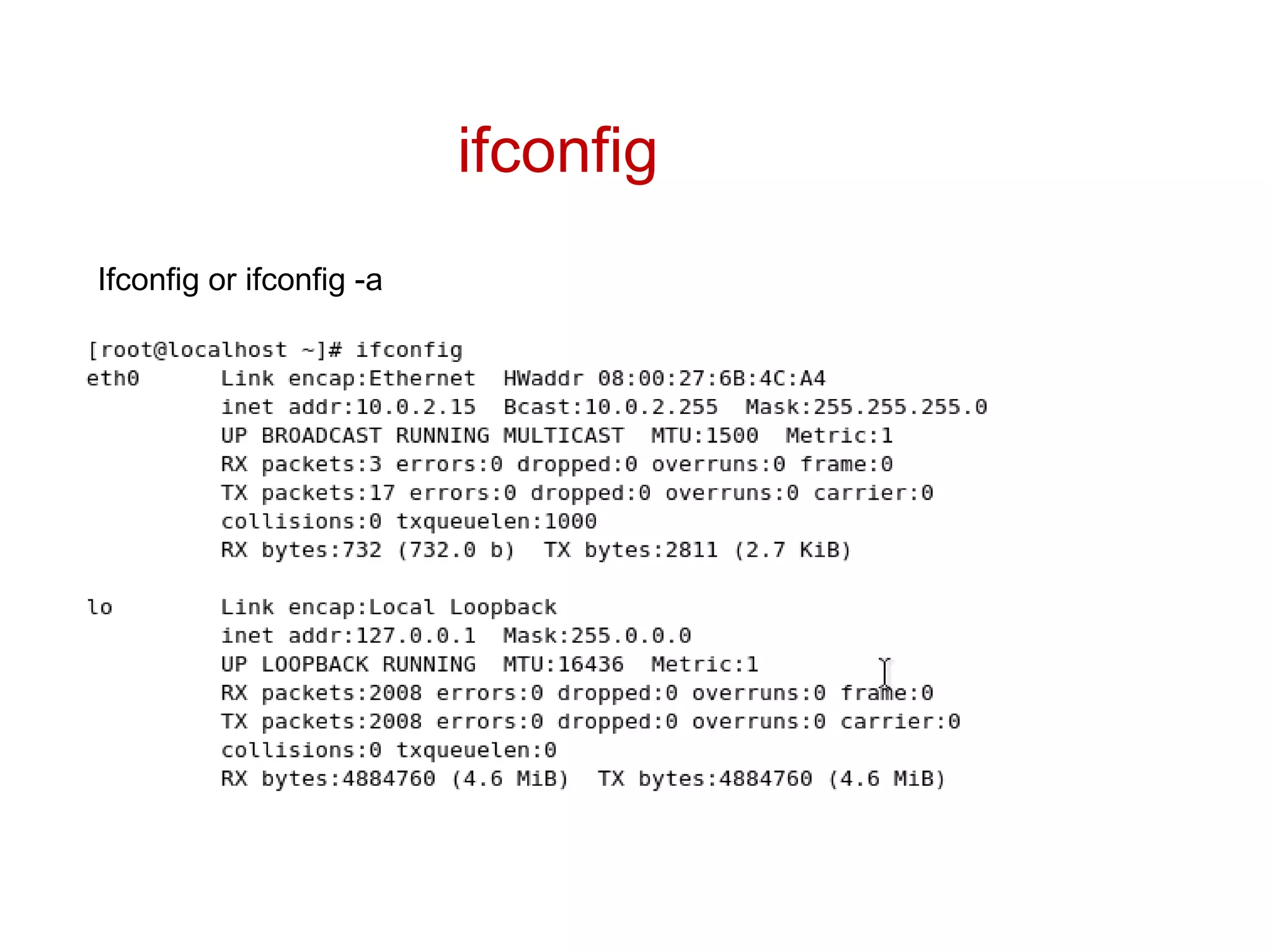
ifconfig
Ifconfig or ifconfig -a
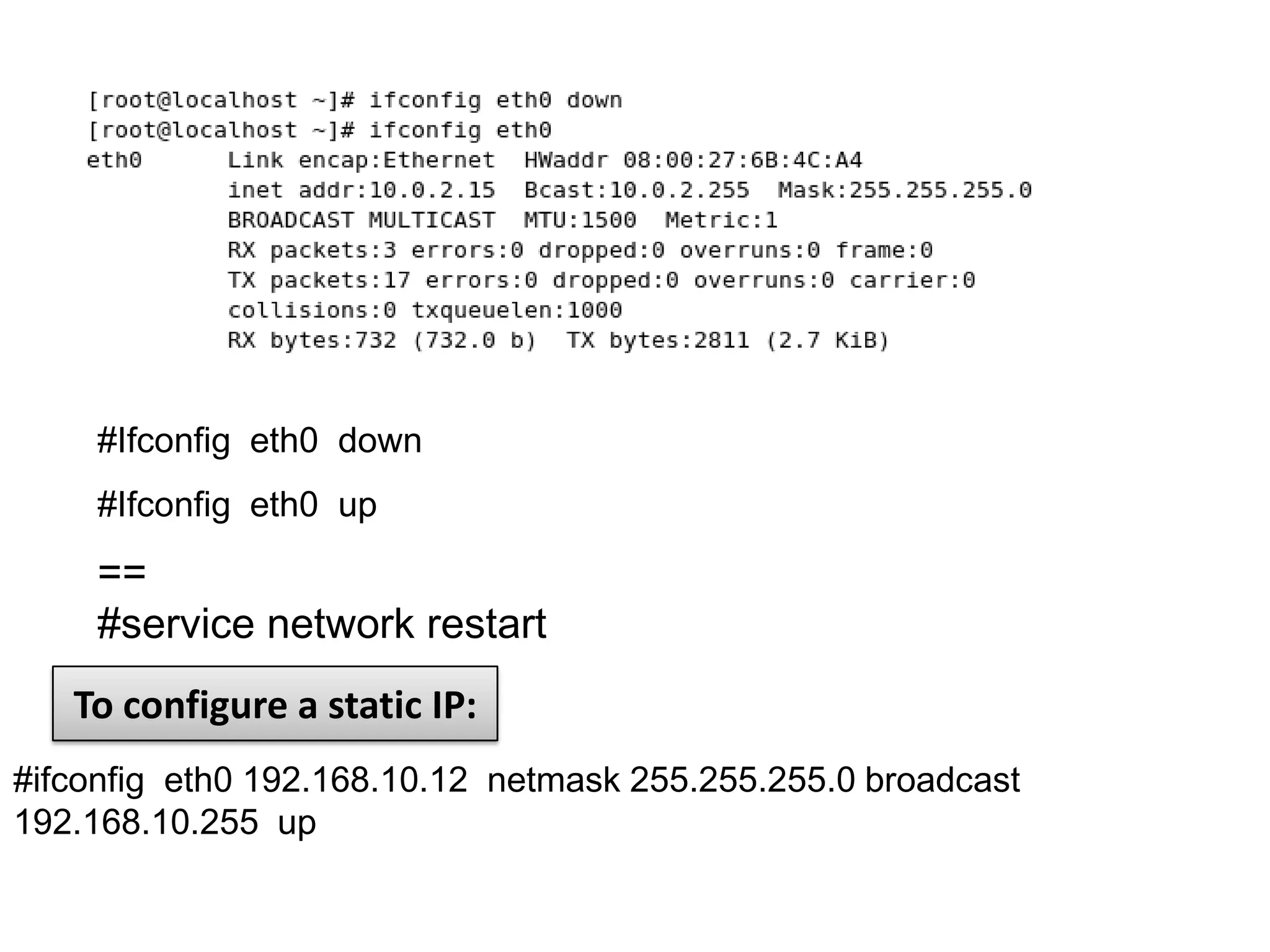
#Ifconfig eth0 down
     #Ifconfig eth0 up
     ==
     #service network restart
   To configure a static IP:
#ifconfig eth0 192.168.10.12 netmask 255.255.255.0 broadcast
192.168.10.255 up
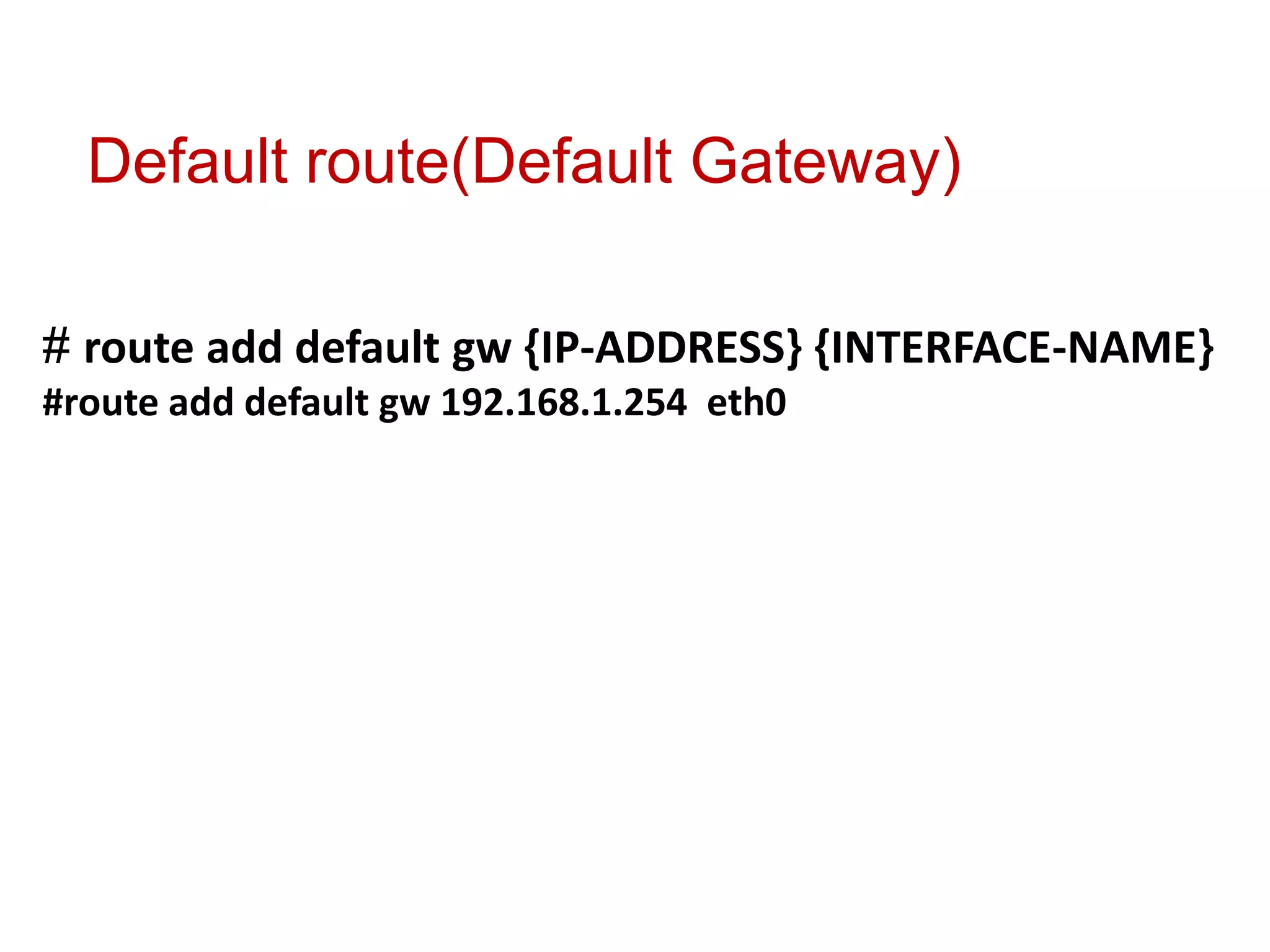
Default route(Default Gateway)

# route add default gw {IP-ADDRESS} {INTERFACE-NAME}
#route add default gw 192.168.1.254 eth0
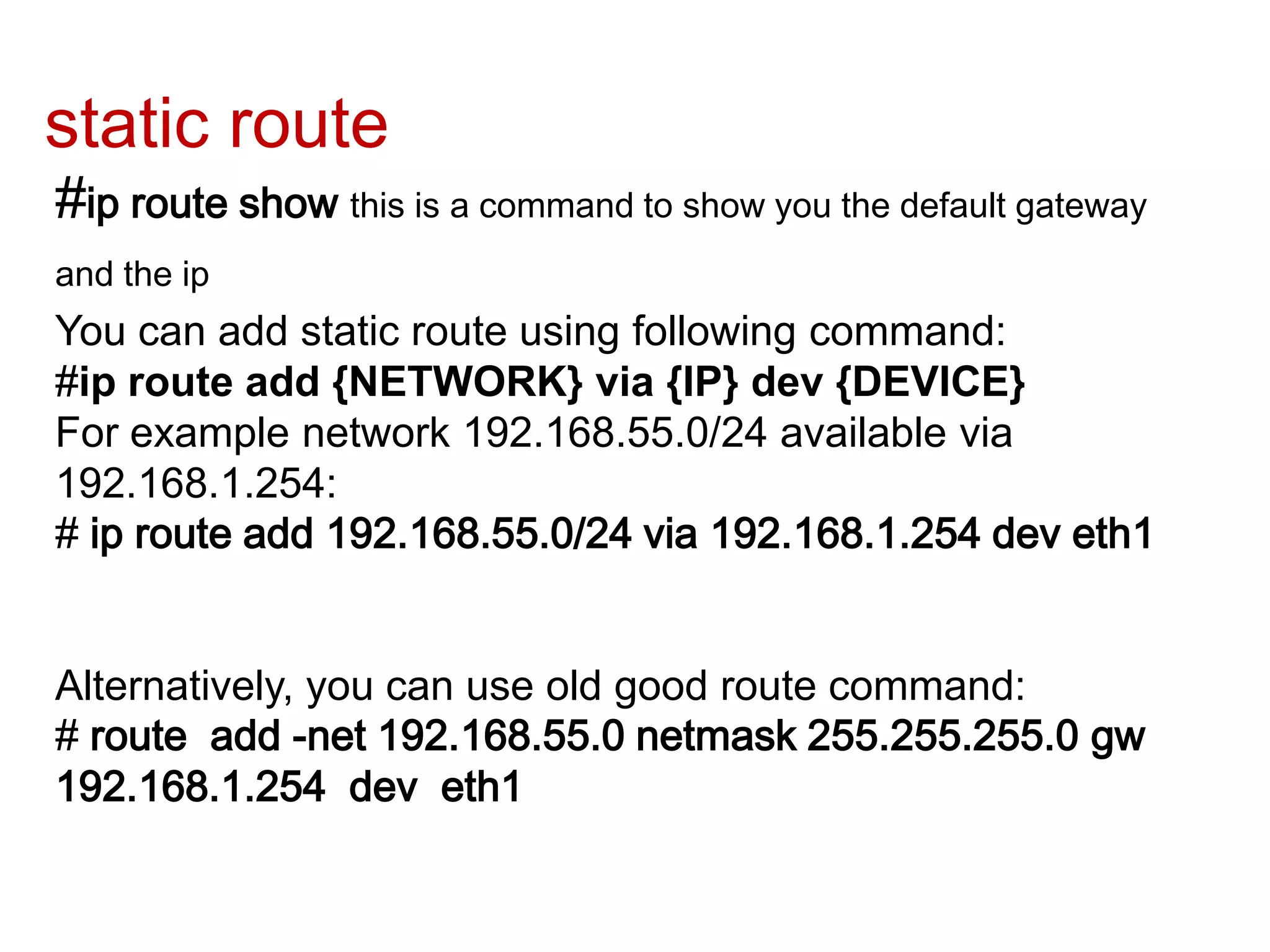
static route
#ip route show this is a command to show you the default gateway
and the ip
You can add static route using following command:
#ip route add {NETWORK} via {IP} dev {DEVICE}
For example network 192.168.55.0/24 available via
192.168.1.254:
# ip route add 192.168.55.0/24 via 192.168.1.254 dev eth1


Alternatively, you can use old good route command:
# route add -net 192.168.55.0 netmask 255.255.255.0 gw
192.168.1.254 dev eth1
Network Configuration Files
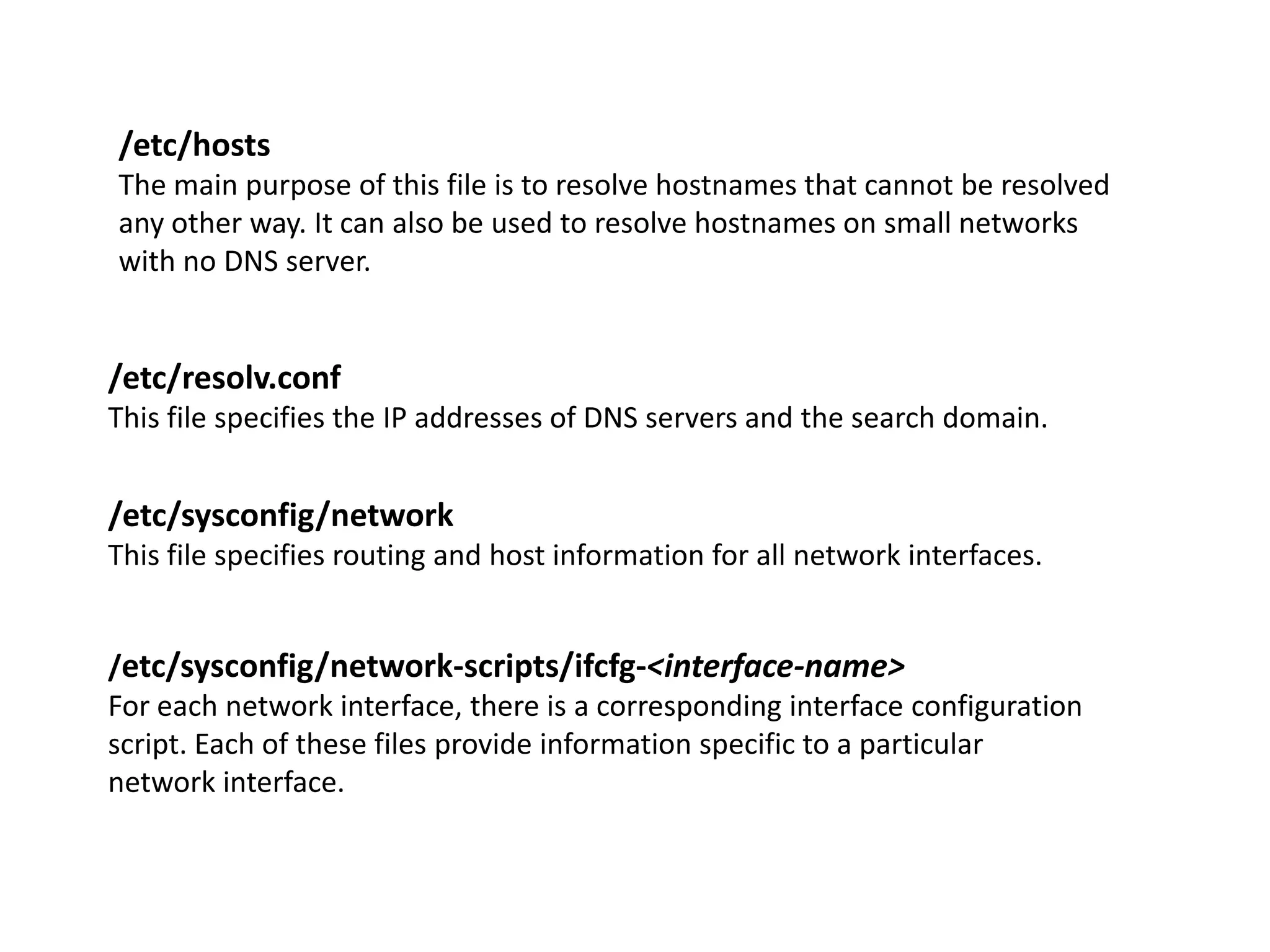
/etc/hosts
The main purpose of this file is to resolve hostnames that cannot be resolved
any other way. It can also be used to resolve hostnames on small networks
with no DNS server.


/etc/resolv.conf
This file specifies the IP addresses of DNS servers and the search domain.


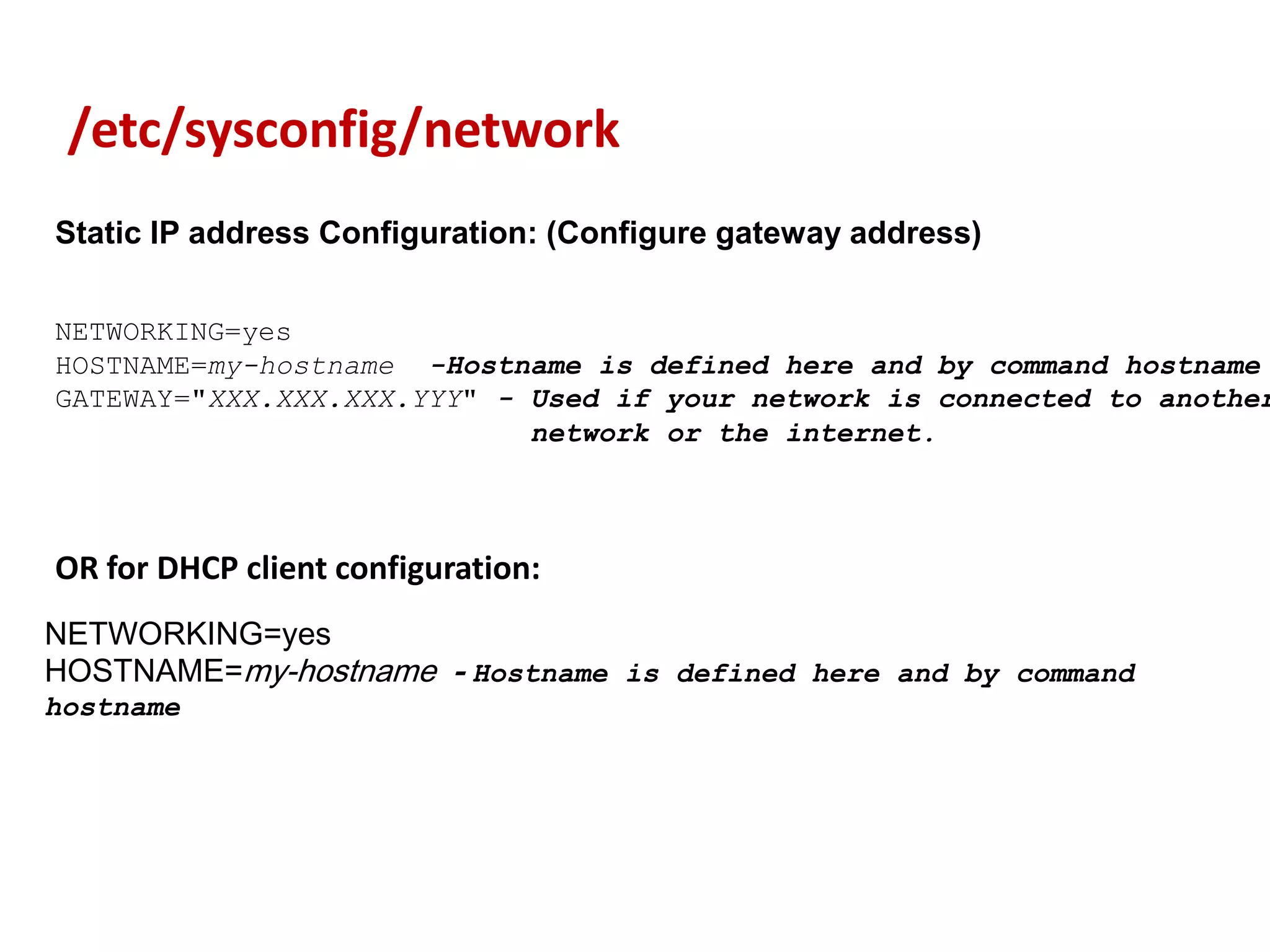
/etc/sysconfig/network
This file specifies routing and host information for all network interfaces.


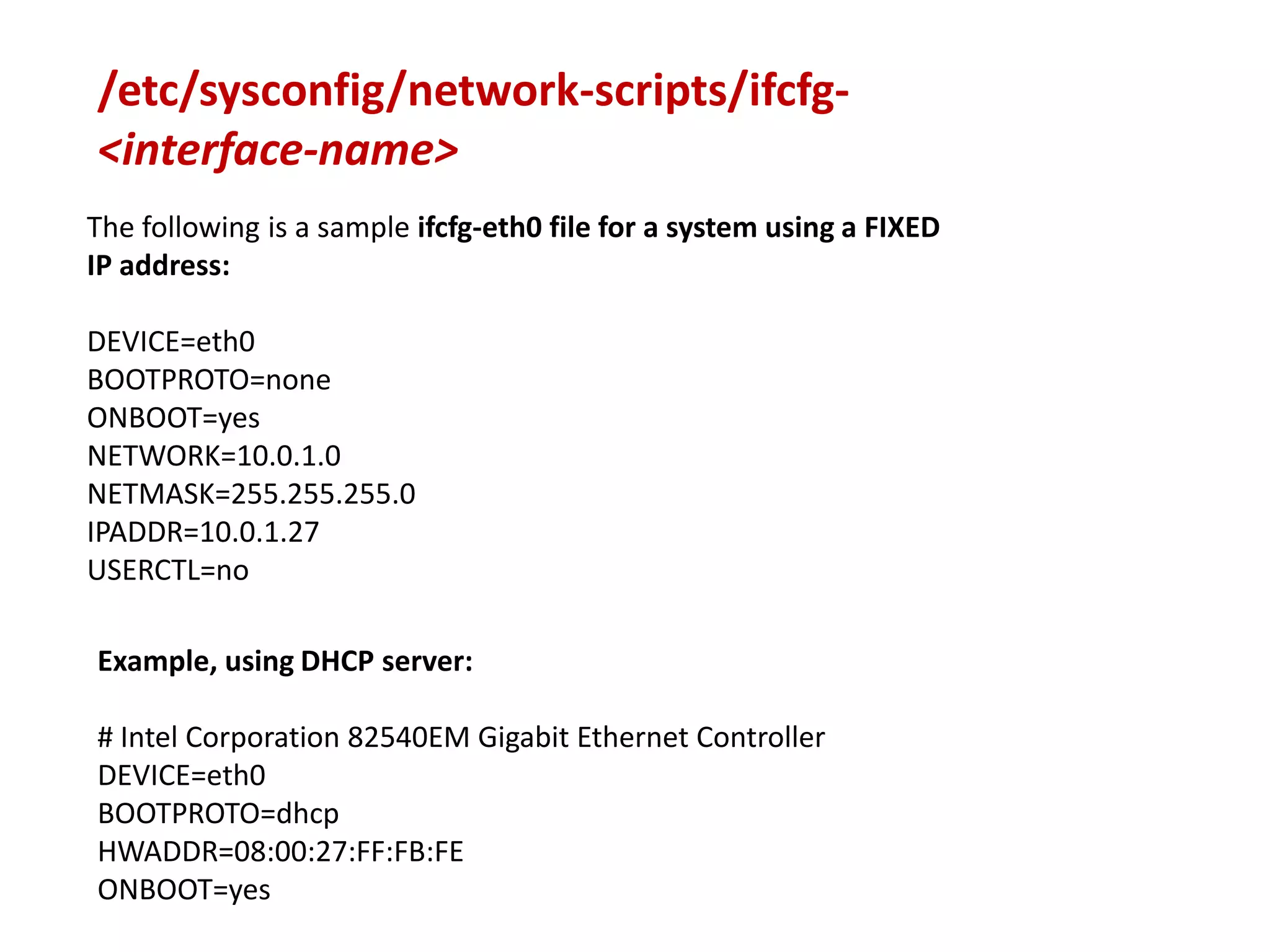
/etc/sysconfig/network-scripts/ifcfg-<interface-name>
For each network interface, there is a corresponding interface configuration
script. Each of these files provide information specific to a particular
network interface.
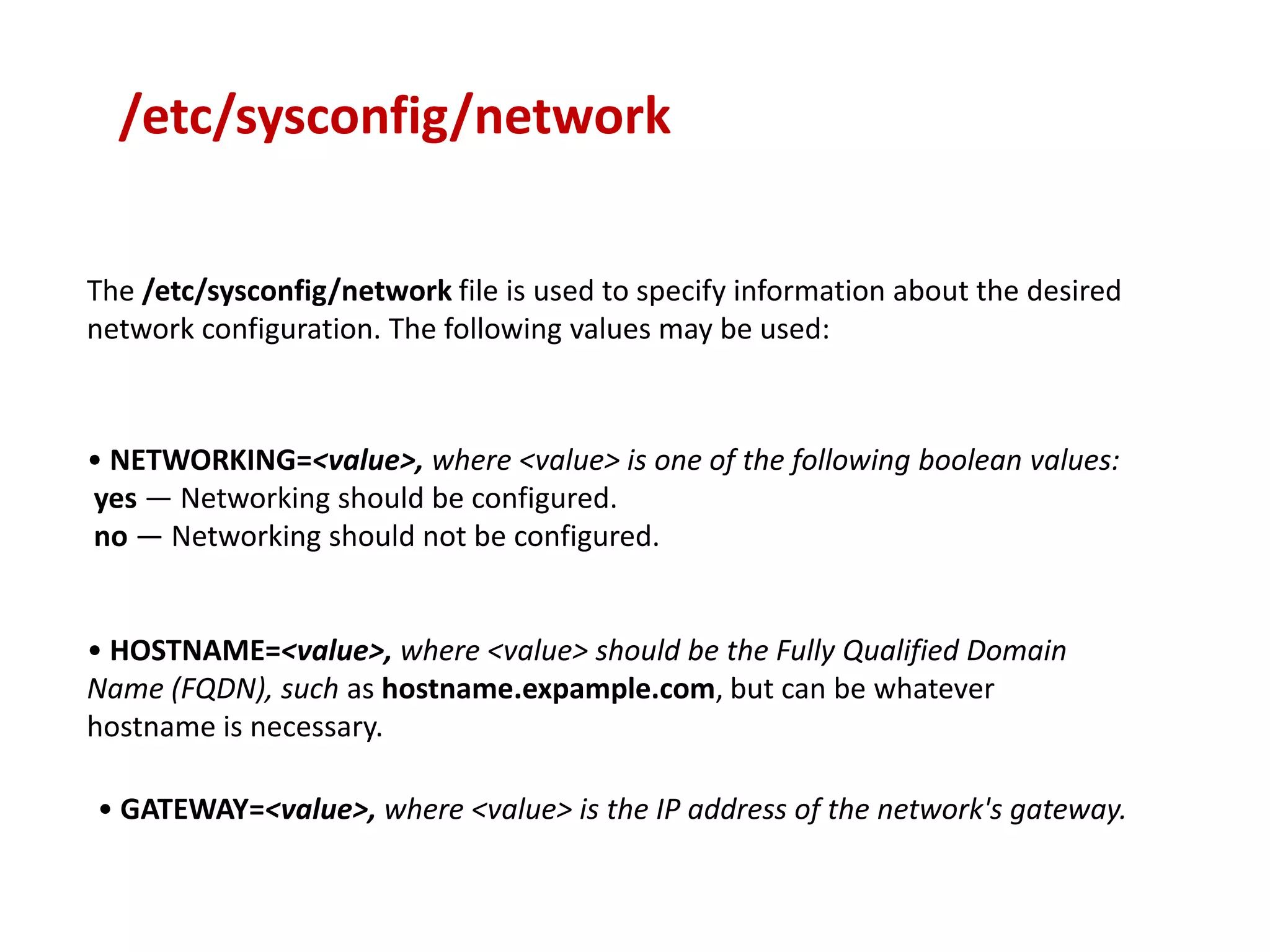
/etc/sysconfig/network

The /etc/sysconfig/network file is used to specify information about the desired
network configuration. The following values may be used:


• NETWORKING=<value>, where <value> is one of the following boolean values:
yes — Networking should be configured.
no — Networking should not be configured.


• HOSTNAME=<value>, where <value> should be the Fully Qualified Domain
Name (FQDN), such as hostname.expample.com, but can be whatever
hostname is necessary.

• GATEWAY=<value>, where <value> is the IP address of the network's gateway.
/etc/sysconfig/network
Static IP address Configuration: (Configure gateway address)


NETWORKING=yes
HOSTNAME=my-hostname -Hostname is defined here and by command hostname
GATEWAY="XXX.XXX.XXX.YYY" - Used if your network is connected to another
                            network or the internet.


OR for DHCP client configuration:
NETWORKING=yes
HOSTNAME=my-hostname - Hostname is defined here and by command
hostname
/etc/sysconfig/network-scripts/ifcfg-
<interface-name>
The following is a sample ifcfg-eth0 file for a system using a FIXED
IP address:

DEVICE=eth0
BOOTPROTO=none
ONBOOT=yes
NETWORK=10.0.1.0
NETMASK=255.255.255.0
IPADDR=10.0.1.27
USERCTL=no

Example, using DHCP server:

# Intel Corporation 82540EM Gigabit Ethernet Controller
DEVICE=eth0
BOOTPROTO=dhcp
HWADDR=08:00:27:FF:FB:FE
ONBOOT=yes
Below is a listing of the configurable
parameters in an Ethernet interface
configuration file:
/etc/sysconfig/network-scripts/ifcfg-<interface-
name>
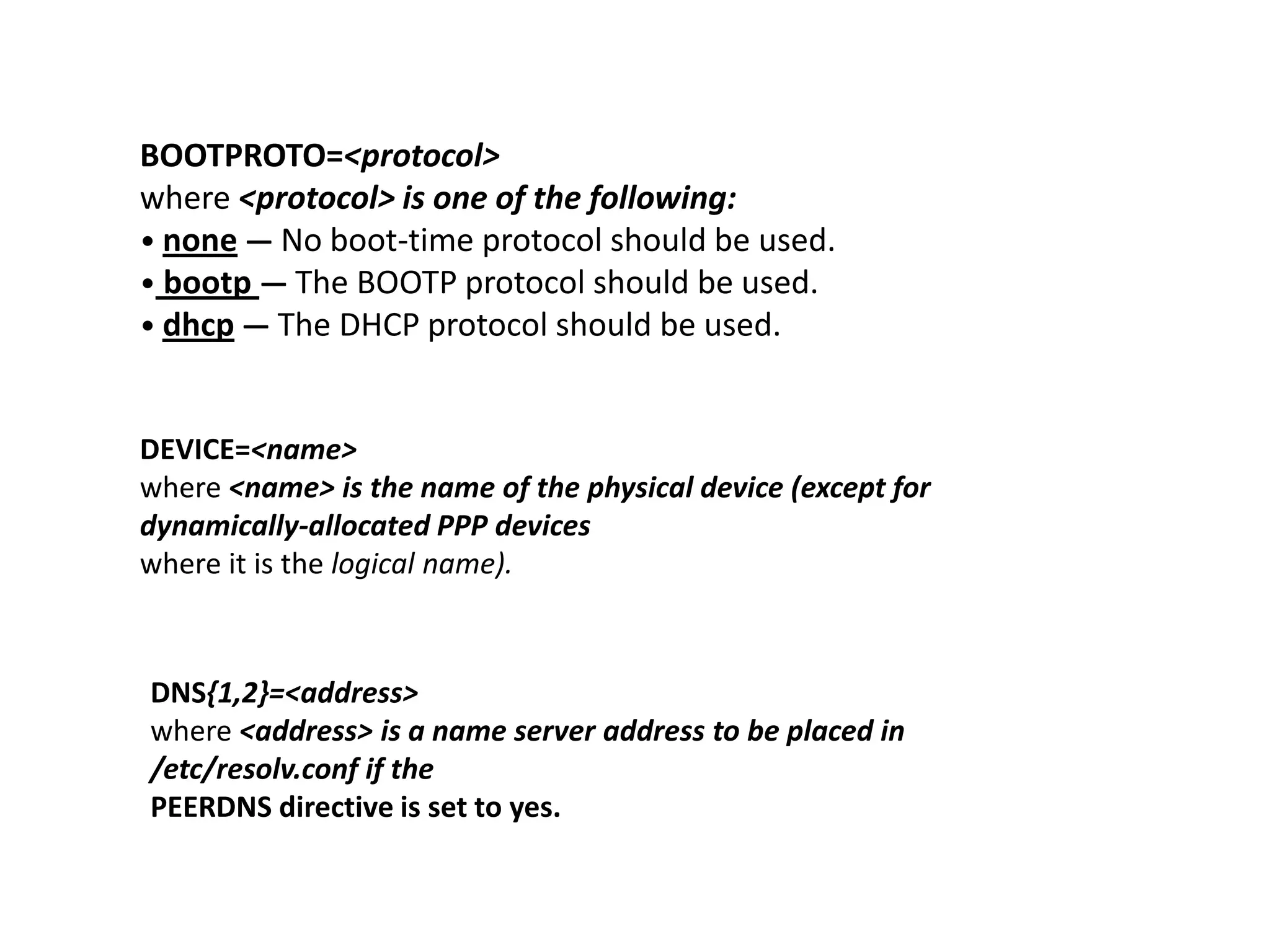
BOOTPROTO=<protocol>
where <protocol> is one of the following:
• none — No boot-time protocol should be used.
• bootp — The BOOTP protocol should be used.
• dhcp — The DHCP protocol should be used.


DEVICE=<name>
where <name> is the name of the physical device (except for
dynamically-allocated PPP devices
where it is the logical name).


DNS{1,2}=<address>
where <address> is a name server address to be placed in
/etc/resolv.conf if the
PEERDNS directive is set to yes.
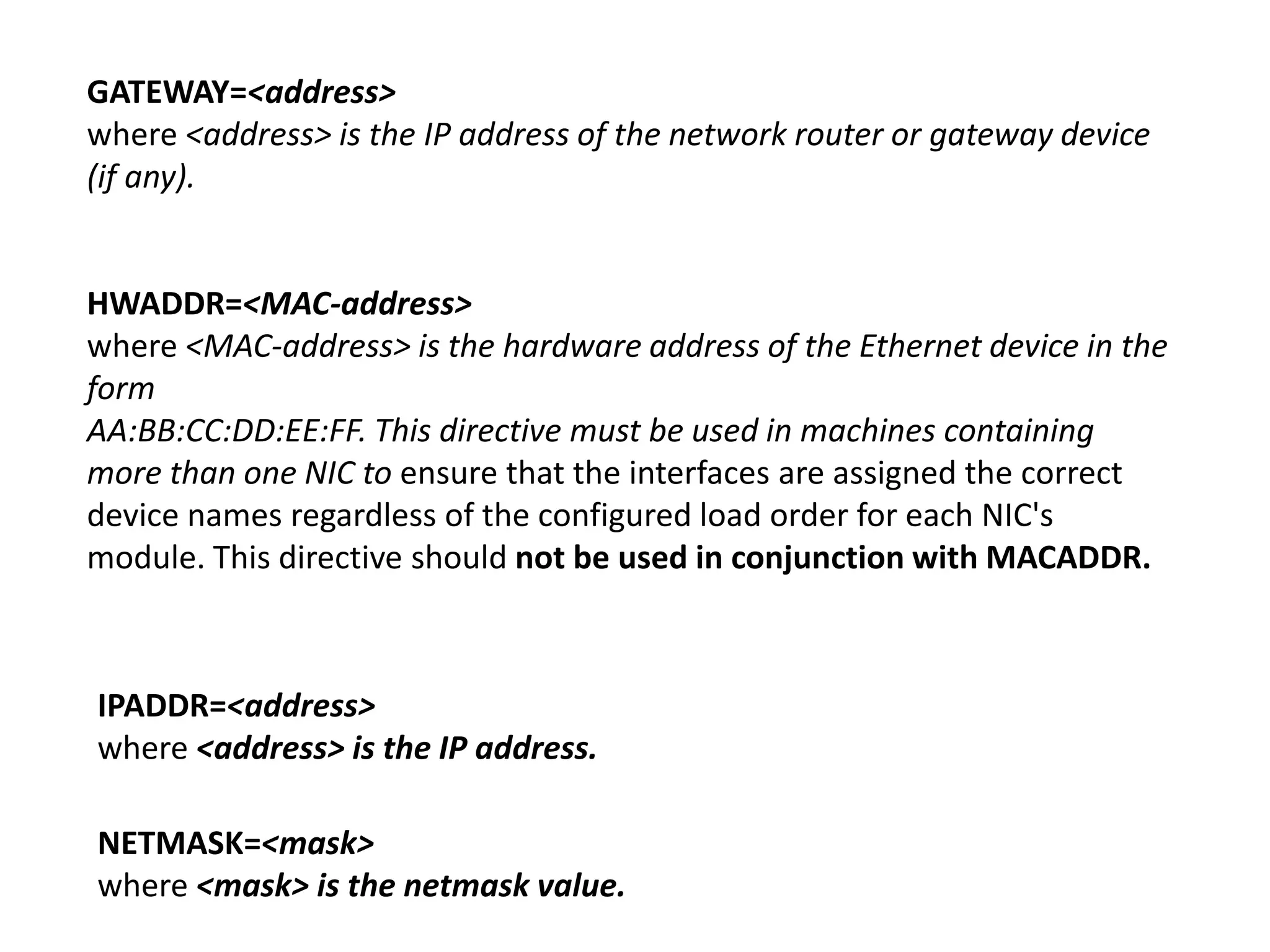
GATEWAY=<address>
where <address> is the IP address of the network router or gateway device
(if any).


HWADDR=<MAC-address>
where <MAC-address> is the hardware address of the Ethernet device in the
form
AA:BB:CC:DD:EE:FF. This directive must be used in machines containing
more than one NIC to ensure that the interfaces are assigned the correct
device names regardless of the configured load order for each NIC's
module. This directive should not be used in conjunction with MACADDR.


IPADDR=<address>
where <address> is the IP address.

NETMASK=<mask>
where <mask> is the netmask value.
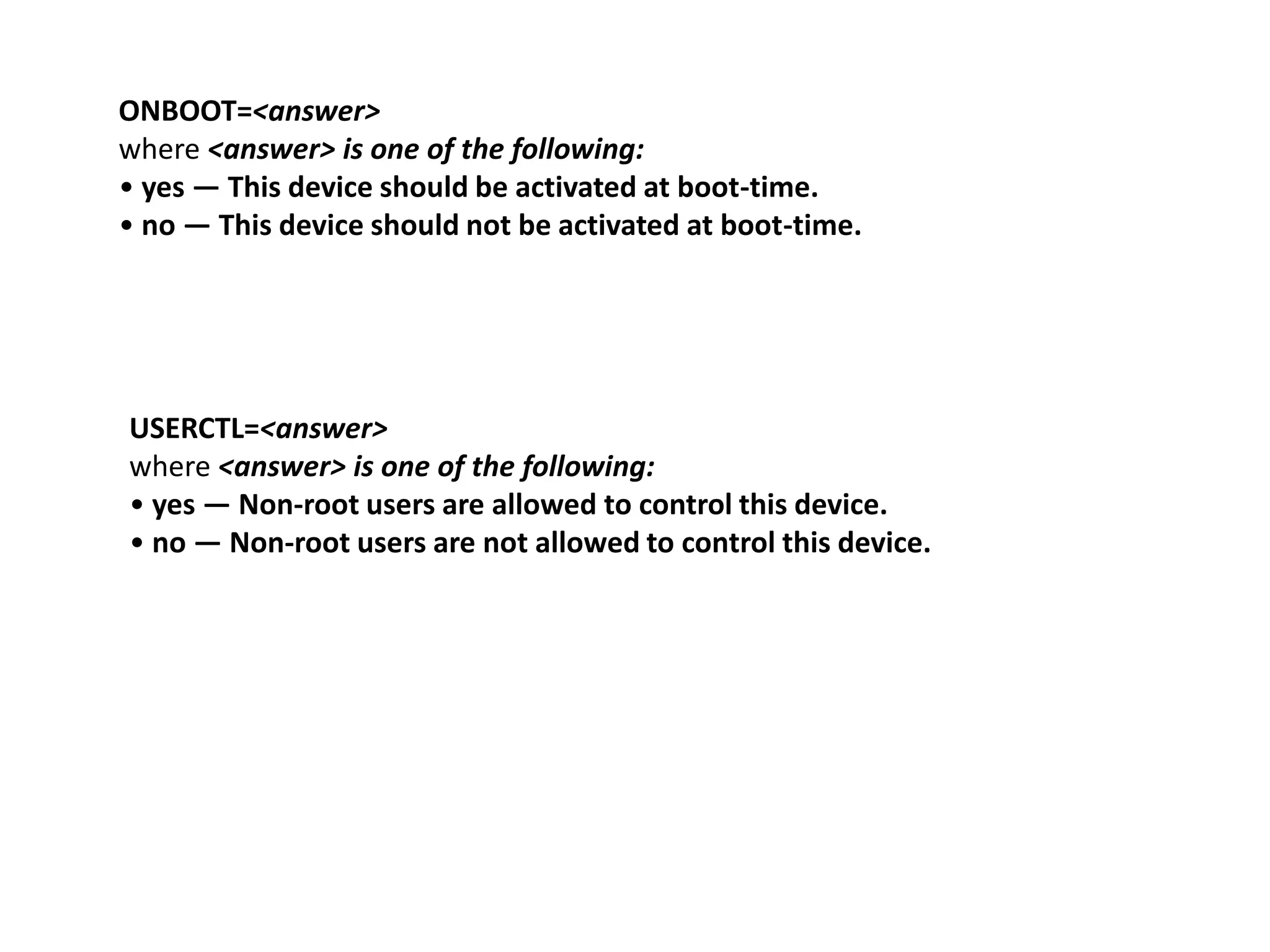
ONBOOT=<answer>
where <answer> is one of the following:
• yes — This device should be activated at boot-time.
• no — This device should not be activated at boot-time.


USERCTL=<answer>
where <answer> is one of the following:
• yes — Non-root users are allowed to control this device.
• no — Non-root users are not allowed to control this device.
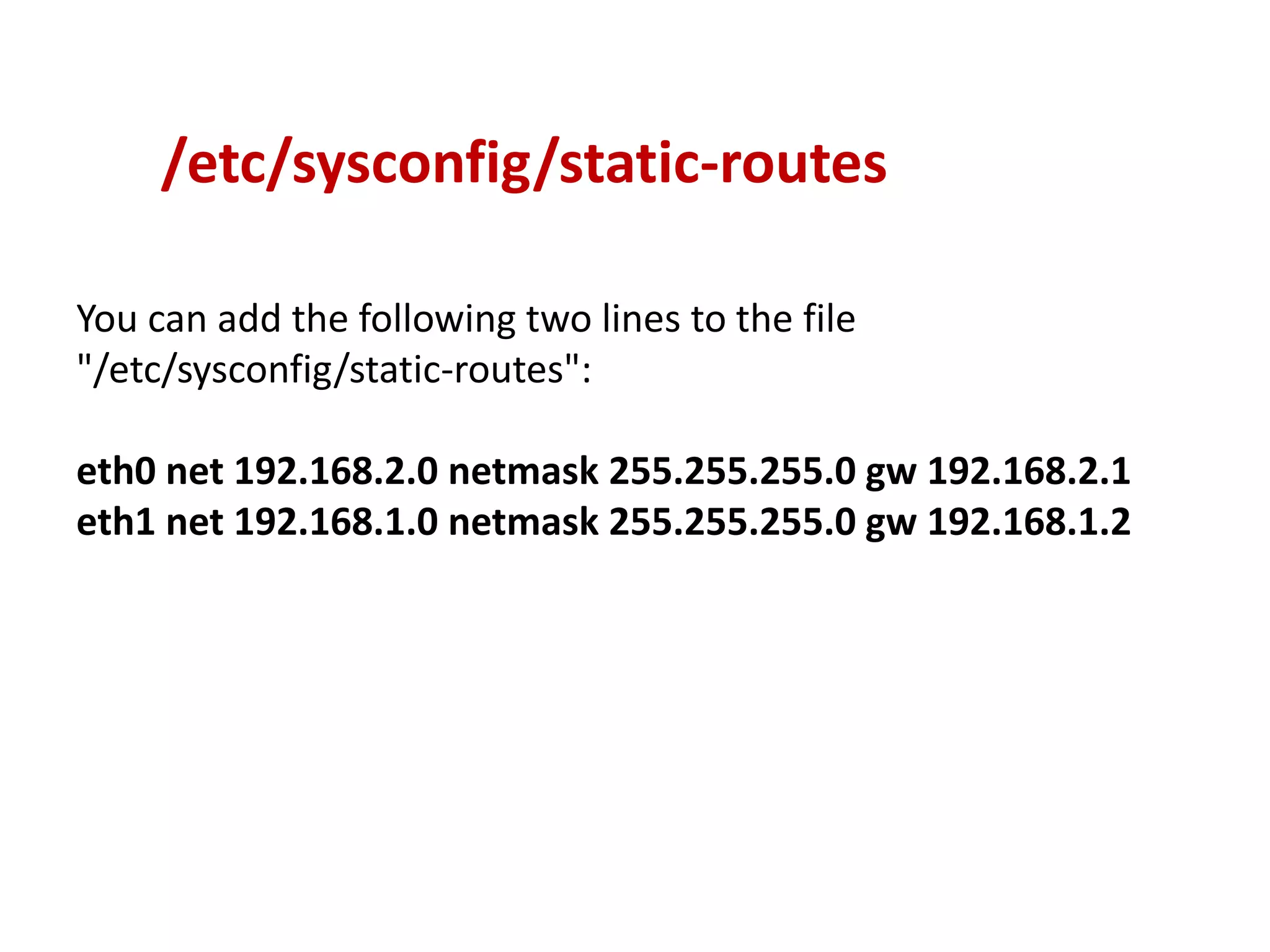
/etc/sysconfig/static-routes

You can add the following two lines to the file
"/etc/sysconfig/static-routes":

eth0 net 192.168.2.0 netmask 255.255.255.0 gw 192.168.2.1
eth1 net 192.168.1.0 netmask 255.255.255.0 gw 192.168.1.2
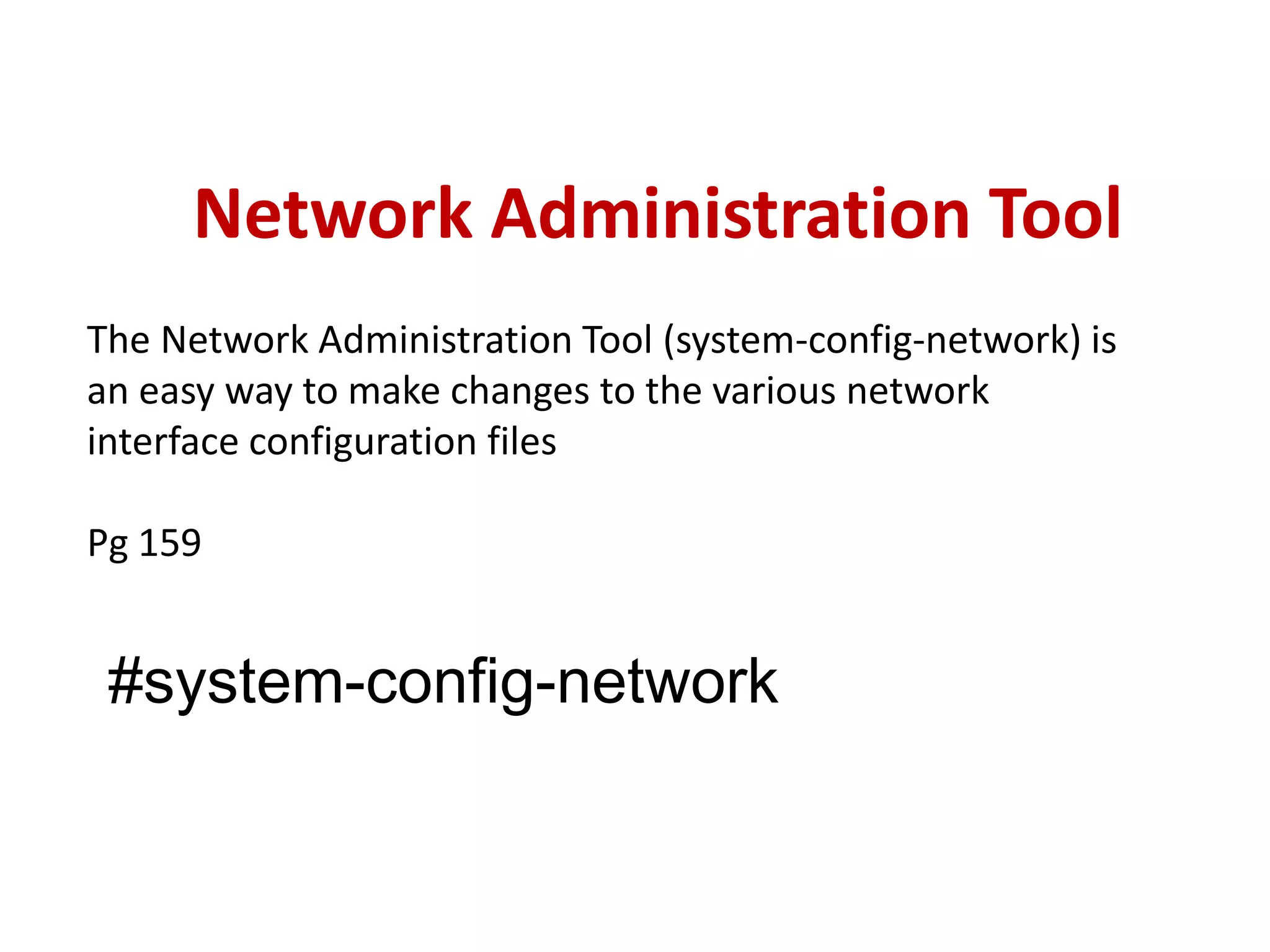
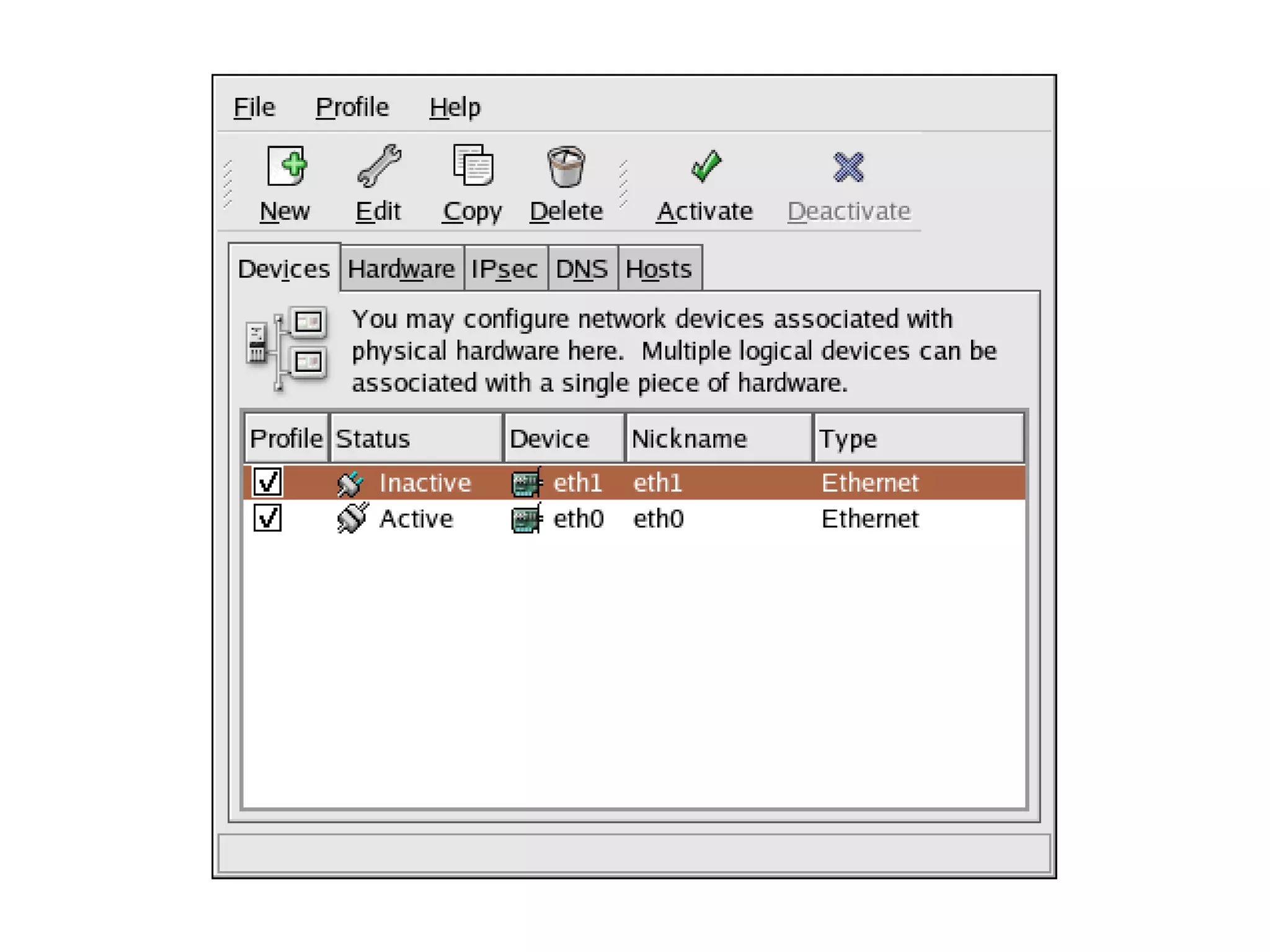
Network Administration Tool
The Network Administration Tool (system-config-network) is
an easy way to make changes to the various network
interface configuration files

Pg 159


 #system-config-network
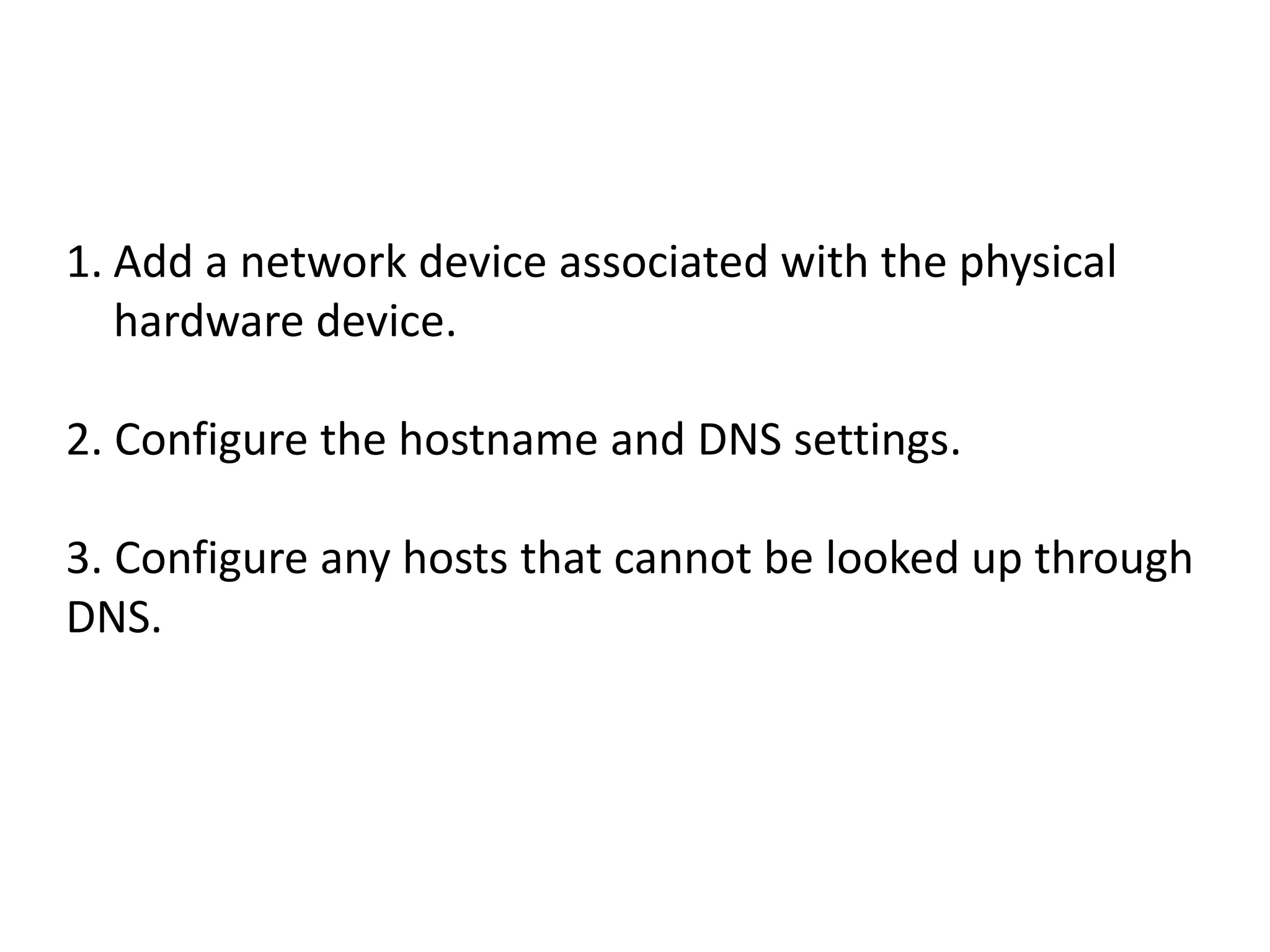
1. Add a network device associated with the physical
   hardware device.

2. Configure the hostname and DNS settings.

3. Configure any hosts that cannot be looked up through
DNS.
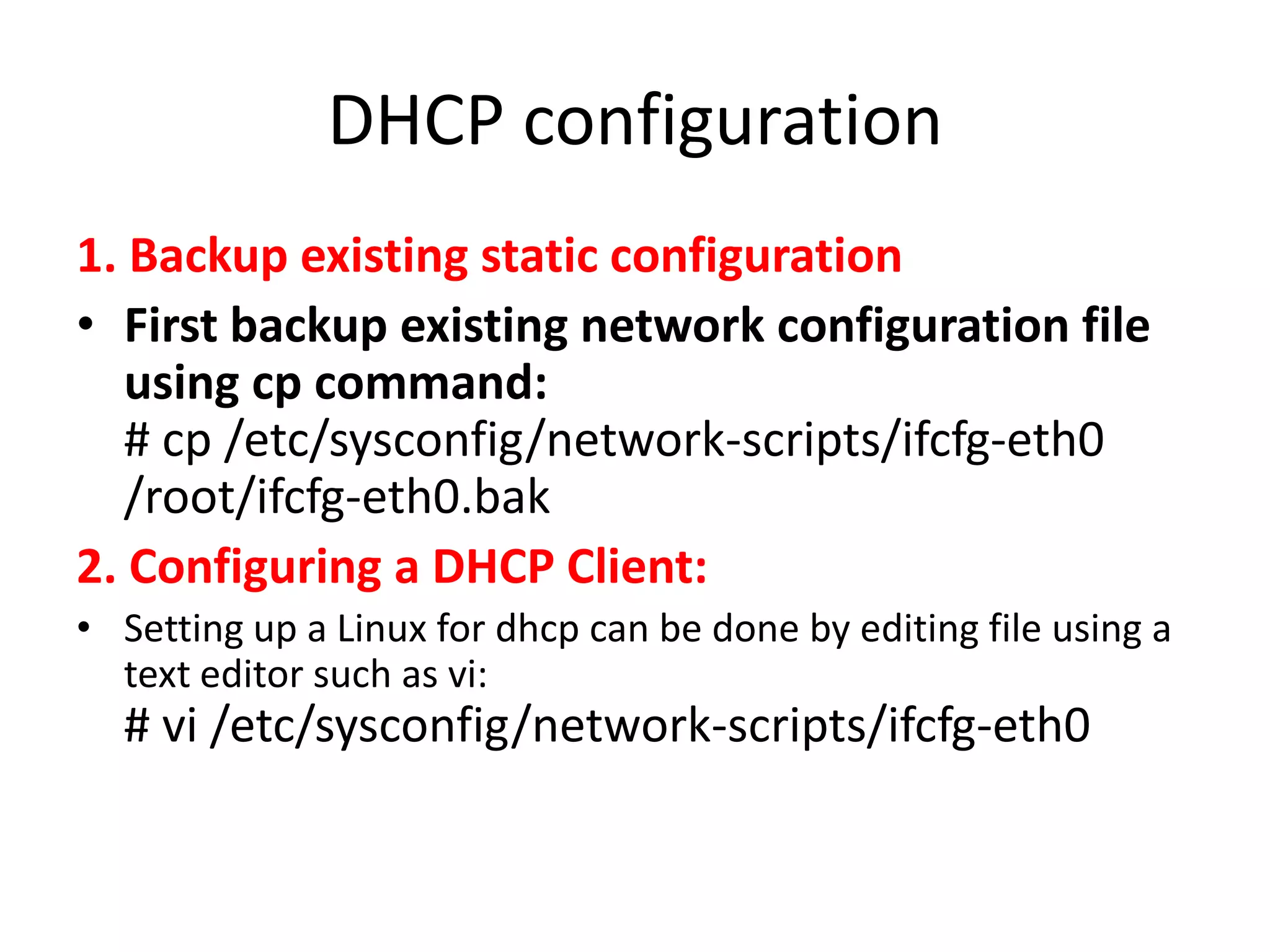
DHCP configuration
1. Backup existing static configuration
• First backup existing network configuration file
   using cp command:
   # cp /etc/sysconfig/network-scripts/ifcfg-eth0
   /root/ifcfg-eth0.bak
2. Configuring a DHCP Client:
• Setting up a Linux for dhcp can be done by editing file using a
  text editor such as vi:
  # vi /etc/sysconfig/network-scripts/ifcfg-eth0
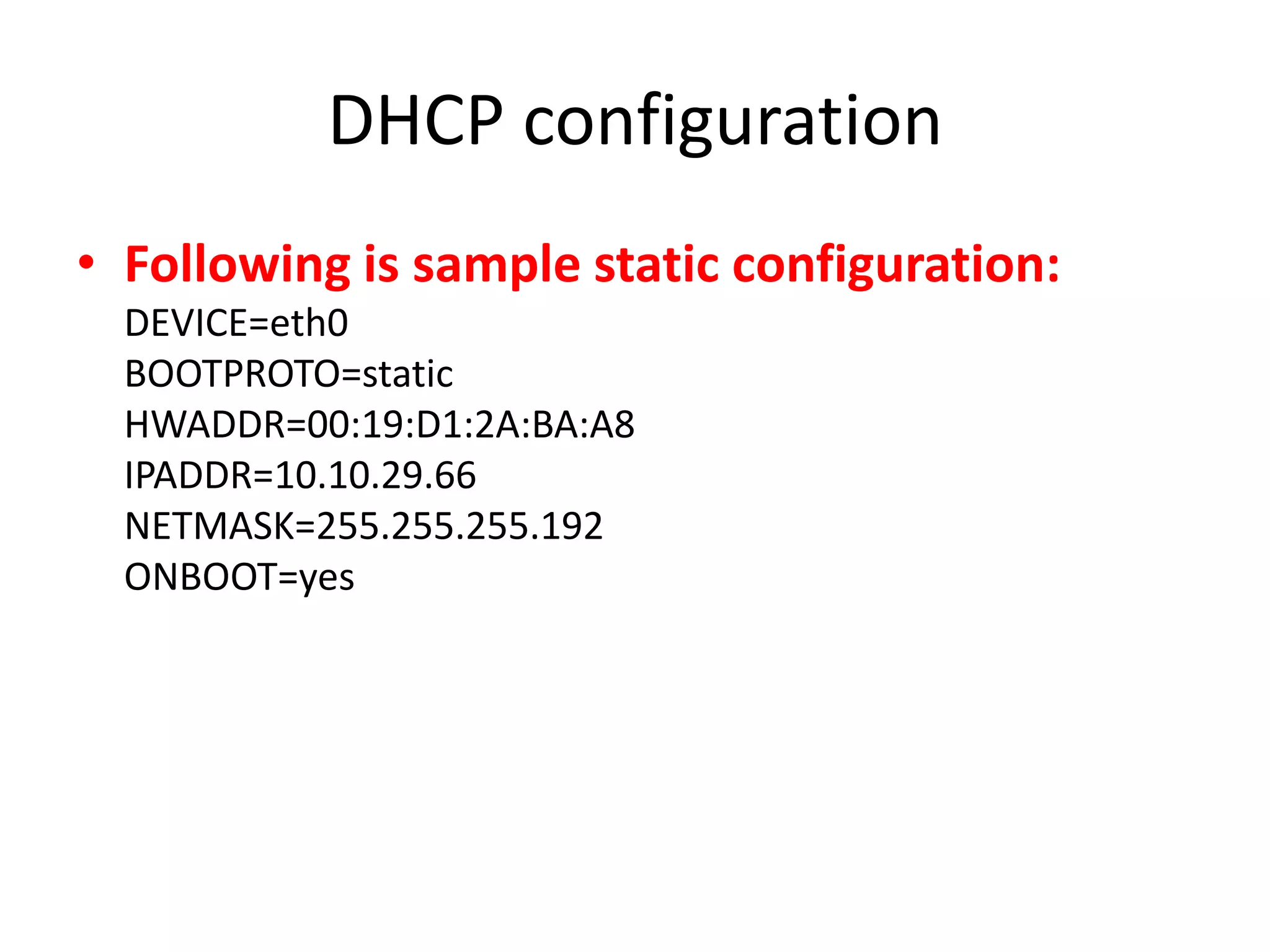
DHCP configuration
• Following is sample static configuration:
  DEVICE=eth0
  BOOTPROTO=static
  HWADDR=00:19:D1:2A:BA:A8
  IPADDR=10.10.29.66
  NETMASK=255.255.255.192
  ONBOOT=yes
DHCP configuration
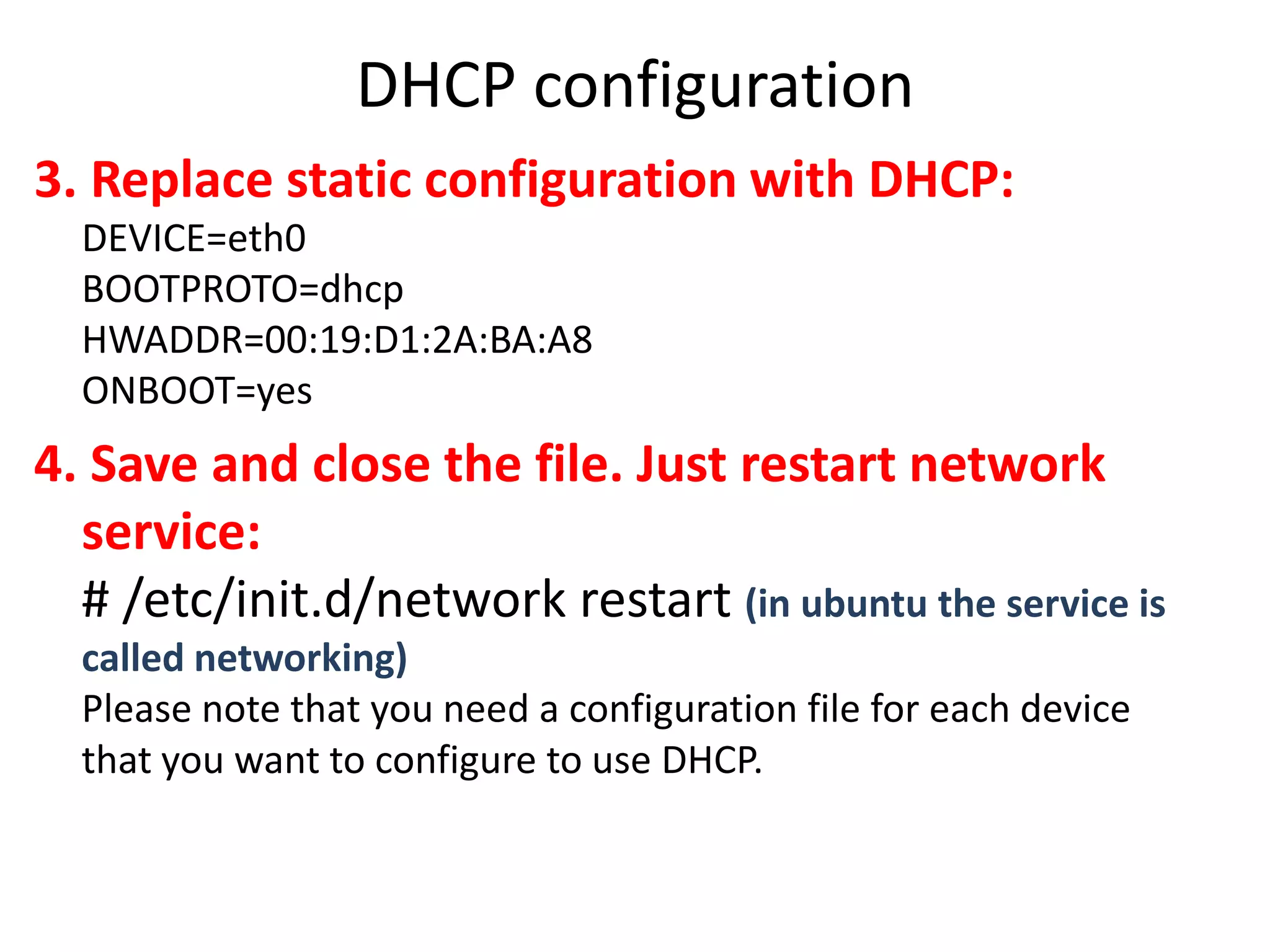
3. Replace static configuration with DHCP:
  DEVICE=eth0
  BOOTPROTO=dhcp
  HWADDR=00:19:D1:2A:BA:A8
  ONBOOT=yes
4. Save and close the file. Just restart network
  service:
  # /etc/init.d/network restart (in ubuntu the service is
  called networking)
  Please note that you need a configuration file for each device
  that you want to configure to use DHCP.

Network configuration

  • 1.
  • 2.
  • 3.
    #Ifconfig eth0 down #Ifconfig eth0 up == #service network restart To configure a static IP: #ifconfig eth0 192.168.10.12 netmask 255.255.255.0 broadcast 192.168.10.255 up
  • 4.
    Default route(Default Gateway) #route add default gw {IP-ADDRESS} {INTERFACE-NAME} #route add default gw 192.168.1.254 eth0
  • 5.
    static route #ip routeshow this is a command to show you the default gateway and the ip You can add static route using following command: #ip route add {NETWORK} via {IP} dev {DEVICE} For example network 192.168.55.0/24 available via 192.168.1.254: # ip route add 192.168.55.0/24 via 192.168.1.254 dev eth1 Alternatively, you can use old good route command: # route add -net 192.168.55.0 netmask 255.255.255.0 gw 192.168.1.254 dev eth1
  • 6.
  • 7.
    /etc/hosts The main purposeof this file is to resolve hostnames that cannot be resolved any other way. It can also be used to resolve hostnames on small networks with no DNS server. /etc/resolv.conf This file specifies the IP addresses of DNS servers and the search domain. /etc/sysconfig/network This file specifies routing and host information for all network interfaces. /etc/sysconfig/network-scripts/ifcfg-<interface-name> For each network interface, there is a corresponding interface configuration script. Each of these files provide information specific to a particular network interface.
  • 8.
    /etc/sysconfig/network The /etc/sysconfig/network fileis used to specify information about the desired network configuration. The following values may be used: • NETWORKING=<value>, where <value> is one of the following boolean values: yes — Networking should be configured. no — Networking should not be configured. • HOSTNAME=<value>, where <value> should be the Fully Qualified Domain Name (FQDN), such as hostname.expample.com, but can be whatever hostname is necessary. • GATEWAY=<value>, where <value> is the IP address of the network's gateway.
  • 9.
    /etc/sysconfig/network Static IP addressConfiguration: (Configure gateway address) NETWORKING=yes HOSTNAME=my-hostname -Hostname is defined here and by command hostname GATEWAY="XXX.XXX.XXX.YYY" - Used if your network is connected to another network or the internet. OR for DHCP client configuration: NETWORKING=yes HOSTNAME=my-hostname - Hostname is defined here and by command hostname
  • 10.
    /etc/sysconfig/network-scripts/ifcfg- <interface-name> The following isa sample ifcfg-eth0 file for a system using a FIXED IP address: DEVICE=eth0 BOOTPROTO=none ONBOOT=yes NETWORK=10.0.1.0 NETMASK=255.255.255.0 IPADDR=10.0.1.27 USERCTL=no Example, using DHCP server: # Intel Corporation 82540EM Gigabit Ethernet Controller DEVICE=eth0 BOOTPROTO=dhcp HWADDR=08:00:27:FF:FB:FE ONBOOT=yes
  • 11.
    Below is alisting of the configurable parameters in an Ethernet interface configuration file: /etc/sysconfig/network-scripts/ifcfg-<interface- name>
  • 12.
    BOOTPROTO=<protocol> where <protocol> isone of the following: • none — No boot-time protocol should be used. • bootp — The BOOTP protocol should be used. • dhcp — The DHCP protocol should be used. DEVICE=<name> where <name> is the name of the physical device (except for dynamically-allocated PPP devices where it is the logical name). DNS{1,2}=<address> where <address> is a name server address to be placed in /etc/resolv.conf if the PEERDNS directive is set to yes.
  • 13.
    GATEWAY=<address> where <address> isthe IP address of the network router or gateway device (if any). HWADDR=<MAC-address> where <MAC-address> is the hardware address of the Ethernet device in the form AA:BB:CC:DD:EE:FF. This directive must be used in machines containing more than one NIC to ensure that the interfaces are assigned the correct device names regardless of the configured load order for each NIC's module. This directive should not be used in conjunction with MACADDR. IPADDR=<address> where <address> is the IP address. NETMASK=<mask> where <mask> is the netmask value.
  • 14.
    ONBOOT=<answer> where <answer> isone of the following: • yes — This device should be activated at boot-time. • no — This device should not be activated at boot-time. USERCTL=<answer> where <answer> is one of the following: • yes — Non-root users are allowed to control this device. • no — Non-root users are not allowed to control this device.
  • 15.
    /etc/sysconfig/static-routes You can addthe following two lines to the file "/etc/sysconfig/static-routes": eth0 net 192.168.2.0 netmask 255.255.255.0 gw 192.168.2.1 eth1 net 192.168.1.0 netmask 255.255.255.0 gw 192.168.1.2
  • 16.
    Network Administration Tool TheNetwork Administration Tool (system-config-network) is an easy way to make changes to the various network interface configuration files Pg 159 #system-config-network
  • 18.
    1. Add anetwork device associated with the physical hardware device. 2. Configure the hostname and DNS settings. 3. Configure any hosts that cannot be looked up through DNS.
  • 19.
    DHCP configuration 1. Backupexisting static configuration • First backup existing network configuration file using cp command: # cp /etc/sysconfig/network-scripts/ifcfg-eth0 /root/ifcfg-eth0.bak 2. Configuring a DHCP Client: • Setting up a Linux for dhcp can be done by editing file using a text editor such as vi: # vi /etc/sysconfig/network-scripts/ifcfg-eth0
  • 20.
    DHCP configuration • Followingis sample static configuration: DEVICE=eth0 BOOTPROTO=static HWADDR=00:19:D1:2A:BA:A8 IPADDR=10.10.29.66 NETMASK=255.255.255.192 ONBOOT=yes
  • 21.
    DHCP configuration 3. Replacestatic configuration with DHCP: DEVICE=eth0 BOOTPROTO=dhcp HWADDR=00:19:D1:2A:BA:A8 ONBOOT=yes 4. Save and close the file. Just restart network service: # /etc/init.d/network restart (in ubuntu the service is called networking) Please note that you need a configuration file for each device that you want to configure to use DHCP.