Networking
RED HAT COMMANDS – CHAPTER 5
1
Setting Up Networking
2
ifconfig Displays the IP address and other interface-
related information
route Enables you to view or change the routing
information on the system
system-config-
network-tui
Provides a menu-driven utility for network
configuration
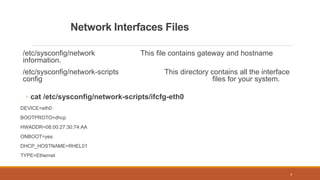
Network Interfaces Files
/etc/sysconfig/network This file contains gateway and hostname
information.
/etc/sysconfig/network-scripts This directory contains all the interface
config files for your system.
◦ cat /etc/sysconfig/network-scripts/ifcfg-eth0
DEVICE=eth0
BOOTPROTO=dhcp
HWADDR=08:00:27:30:74:AA
ONBOOT=yes
DHCP_HOSTNAME=RHEL01
TYPE=Ethernet
3
Static IP Addresses
Launch the utility:
# system-config-network-tui
You need to restart the network service for the changes to take effect
Instead of bringing down all the interfaces on the system by restarting the
network service, you could also just bring down a single interface to which
you have made changes
◦ Ifdown
◦ ifup
4
ifconfig command
Syntax: ifconfig [options] [interface]
Options
◦ netmask MASK Specifies the netmask for the interface
◦ hw ADDRESS Sets the MAC address of the interface
◦ Up Brings up the interface
◦ down Bring down the interface
5
ifconfig eth1
To view the current IP address of the eth0 interface
◦ cat /etc/sysconfig/network-scripts/ifcfg-eth1
The ifconfig command displays information about the interface
along with its IP address.
ifconfig command to display all the interfaces on the system
6
Any time you make a change to an interface’s settings, you
need to bring down that interface and then bring it back up
again.
If multiple interfaces have been edited, you could also just
restart the entire networking service.
7
Restart the network service as follows:
• # service network restart
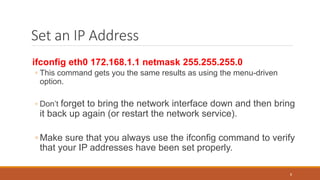
Set an IP Address
ifconfig eth0 172.168.1.1 netmask 255.255.255.0
◦ This command gets you the same results as using the menu-driven
option.
◦ Don’t forget to bring the network interface down and then bring
it back up again (or restart the network service).
◦ Make sure that you always use the ifconfig command to verify
that your IP addresses have been set properly.
8
Routing
When you have a system that has two or more network
interfaces ,they are called dual-homed or multihomed
systems.
You need to make sure that each interface has a gateway
that it can route through.
Using the route command, you can display the current
routes the system has and add additional routes if you need
to.
9
Routing
Options Description
add Adds a net route
del Deletes an existing route
flush flush Flushes any temporary routes
10
Syntax: route [options]
Routing
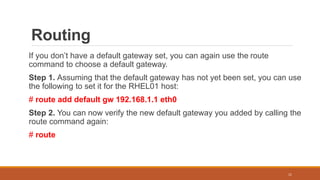
If you don’t have a default gateway set, you can again use the route
command to choose a default gateway.
Step 1. Assuming that the default gateway has not yet been set, you can use
the following to set it for the RHEL01 host:
# route add default gw 192.168.1.1 eth0
Step 2. You can now verify the new default gateway you added by calling the
route command again:
# route
11
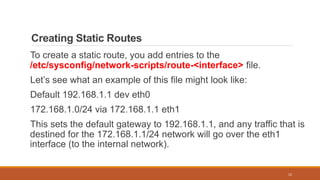
Creating Static Routes
To create a static route, you add entries to the
/etc/sysconfig/network-scripts/route-<interface> file.
Let’s see what an example of this file might look like:
Default 192.168.1.1 dev eth0
172.168.1.0/24 via 172.168.1.1 eth1
This sets the default gateway to 192.168.1.1, and any traffic that is
destined for the 172.168.1.1/24 network will go over the eth1
interface (to the internal network).
12
Troubleshooting Network Connections
ping Tests the connectivity between two
hosts
traceroute Looks for latency in the path from host to
host
netstat Shows information about connections
(open, closed, and listening)
route Shows routing information
13
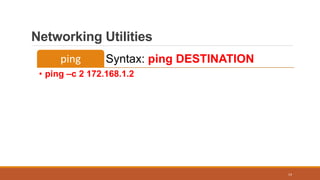
Networking Utilities
14
Syntax: ping DESTINATION
ping
• ping –c 2 172.168.1.2
netstat command
You can view listening or established ports using the netstat
command.
You can also use the netstat command to obtain information
on routing tables, listening sockets, and established
connections.
15
netstat command
Syntax: netstat [options]
16
netstat command
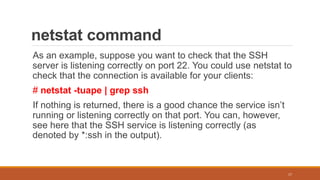
As an example, suppose you want to check that the SSH
server is listening correctly on port 22. You could use netstat to
check that the connection is available for your clients:
# netstat -tuape | grep ssh
If nothing is returned, there is a good chance the service isn’t
running or listening correctly on that port. You can, however,
see here that the SSH service is listening correctly (as
denoted by *:ssh in the output).
17
Network Monitoring and Analysis
you can use a packet capture utility to view all the raw data being
sent across the interfaces on your machine.
To help out, you can use the tcpdump utility.
Syntax: tcpdump [options]
18
tcpdump utility
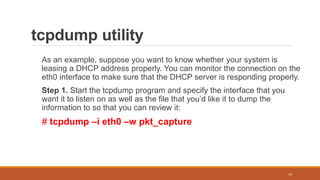
As an example, suppose you want to know whether your system is
leasing a DHCP address properly. You can monitor the connection on the
eth0 interface to make sure that the DHCP server is responding properly.
Step 1. Start the tcpdump program and specify the interface that you
want it to listen on as well as the file that you’d like it to dump the
information to so that you can review it:
# tcpdump –i eth0 –w pkt_capture
19
tcpdump utility
Step 2. While the packet capture is running, you need to obtain access to
another console. Call the dhclient utility, which pulls down a new IP
address for you from the DHCP server:
# dhclient
Step 3. When the system finishes determining its IP address, return to
the first console and stop the tcpdump program by pressing Ctrl+C. To
review the information you’ve captured, call the tcpdump program again:
# tcpdump –r pkt_capture | less
20
Advanced Networking
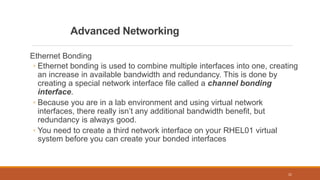
Ethernet Bonding
◦ Ethernet bonding is used to combine multiple interfaces into one, creating
an increase in available bandwidth and redundancy. This is done by
creating a special network interface file called a channel bonding
interface.
◦ Because you are in a lab environment and using virtual network
interfaces, there really isn’t any additional bandwidth benefit, but
redundancy is always good.
◦ You need to create a third network interface on your RHEL01 virtual
system before you can create your bonded interfaces
21
Ethernet Bonding
Step 1. Enable the bonding kernel module:
# nano /etc/modprobe.d/bond.conf
Alias bond0 bonding
Step 2. Create the channel bond interface file in the /etc/sysconfig/networkscripts
directory:
# nano /etc/sysconfig/network-scripts/ifcfg-bond0
DEVICE=”eth0”
IPADDR=172.168.1.1
NETMASK=255.255.255.0
ONBOOT=yes
BOOTPROTO=none
USERCTL=no
BONDING_OPTS=”primary=eth1”
22
Ethernet Bonding
Step 3. Edit the eth1 interface to look like the following:
DEVICE=eth1
BOOTPROTO=none
ONBOOT=yes
MASTER=bond0
SALVE=yes
USERCTL=no
23
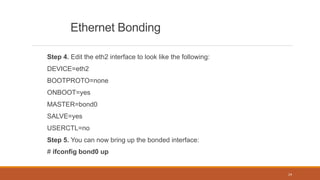
Ethernet Bonding
Step 4. Edit the eth2 interface to look like the following:
DEVICE=eth2
BOOTPROTO=none
ONBOOT=yes
MASTER=bond0
SALVE=yes
USERCTL=no
Step 5. You can now bring up the bonded interface:
# ifconfig bond0 up
24

5 - Networking in Red Hat

  • 1.
  • 2.
    Setting Up Networking 2 ifconfigDisplays the IP address and other interface- related information route Enables you to view or change the routing information on the system system-config- network-tui Provides a menu-driven utility for network configuration
  • 3.
    Network Interfaces Files /etc/sysconfig/networkThis file contains gateway and hostname information. /etc/sysconfig/network-scripts This directory contains all the interface config files for your system. ◦ cat /etc/sysconfig/network-scripts/ifcfg-eth0 DEVICE=eth0 BOOTPROTO=dhcp HWADDR=08:00:27:30:74:AA ONBOOT=yes DHCP_HOSTNAME=RHEL01 TYPE=Ethernet 3
  • 4.
    Static IP Addresses Launchthe utility: # system-config-network-tui You need to restart the network service for the changes to take effect Instead of bringing down all the interfaces on the system by restarting the network service, you could also just bring down a single interface to which you have made changes ◦ Ifdown ◦ ifup 4
  • 5.
    ifconfig command Syntax: ifconfig[options] [interface] Options ◦ netmask MASK Specifies the netmask for the interface ◦ hw ADDRESS Sets the MAC address of the interface ◦ Up Brings up the interface ◦ down Bring down the interface 5
  • 6.
    ifconfig eth1 To viewthe current IP address of the eth0 interface ◦ cat /etc/sysconfig/network-scripts/ifcfg-eth1 The ifconfig command displays information about the interface along with its IP address. ifconfig command to display all the interfaces on the system 6
  • 7.
    Any time youmake a change to an interface’s settings, you need to bring down that interface and then bring it back up again. If multiple interfaces have been edited, you could also just restart the entire networking service. 7 Restart the network service as follows: • # service network restart
  • 8.
    Set an IPAddress ifconfig eth0 172.168.1.1 netmask 255.255.255.0 ◦ This command gets you the same results as using the menu-driven option. ◦ Don’t forget to bring the network interface down and then bring it back up again (or restart the network service). ◦ Make sure that you always use the ifconfig command to verify that your IP addresses have been set properly. 8
  • 9.
    Routing When you havea system that has two or more network interfaces ,they are called dual-homed or multihomed systems. You need to make sure that each interface has a gateway that it can route through. Using the route command, you can display the current routes the system has and add additional routes if you need to. 9
  • 10.
    Routing Options Description add Addsa net route del Deletes an existing route flush flush Flushes any temporary routes 10 Syntax: route [options]
  • 11.
    Routing If you don’thave a default gateway set, you can again use the route command to choose a default gateway. Step 1. Assuming that the default gateway has not yet been set, you can use the following to set it for the RHEL01 host: # route add default gw 192.168.1.1 eth0 Step 2. You can now verify the new default gateway you added by calling the route command again: # route 11
  • 12.
    Creating Static Routes Tocreate a static route, you add entries to the /etc/sysconfig/network-scripts/route-<interface> file. Let’s see what an example of this file might look like: Default 192.168.1.1 dev eth0 172.168.1.0/24 via 172.168.1.1 eth1 This sets the default gateway to 192.168.1.1, and any traffic that is destined for the 172.168.1.1/24 network will go over the eth1 interface (to the internal network). 12
  • 13.
    Troubleshooting Network Connections pingTests the connectivity between two hosts traceroute Looks for latency in the path from host to host netstat Shows information about connections (open, closed, and listening) route Shows routing information 13
  • 14.
    Networking Utilities 14 Syntax: pingDESTINATION ping • ping –c 2 172.168.1.2
  • 15.
    netstat command You canview listening or established ports using the netstat command. You can also use the netstat command to obtain information on routing tables, listening sockets, and established connections. 15
  • 16.
  • 17.
    netstat command As anexample, suppose you want to check that the SSH server is listening correctly on port 22. You could use netstat to check that the connection is available for your clients: # netstat -tuape | grep ssh If nothing is returned, there is a good chance the service isn’t running or listening correctly on that port. You can, however, see here that the SSH service is listening correctly (as denoted by *:ssh in the output). 17
  • 18.
    Network Monitoring andAnalysis you can use a packet capture utility to view all the raw data being sent across the interfaces on your machine. To help out, you can use the tcpdump utility. Syntax: tcpdump [options] 18
  • 19.
    tcpdump utility As anexample, suppose you want to know whether your system is leasing a DHCP address properly. You can monitor the connection on the eth0 interface to make sure that the DHCP server is responding properly. Step 1. Start the tcpdump program and specify the interface that you want it to listen on as well as the file that you’d like it to dump the information to so that you can review it: # tcpdump –i eth0 –w pkt_capture 19
  • 20.
    tcpdump utility Step 2.While the packet capture is running, you need to obtain access to another console. Call the dhclient utility, which pulls down a new IP address for you from the DHCP server: # dhclient Step 3. When the system finishes determining its IP address, return to the first console and stop the tcpdump program by pressing Ctrl+C. To review the information you’ve captured, call the tcpdump program again: # tcpdump –r pkt_capture | less 20
  • 21.
    Advanced Networking Ethernet Bonding ◦Ethernet bonding is used to combine multiple interfaces into one, creating an increase in available bandwidth and redundancy. This is done by creating a special network interface file called a channel bonding interface. ◦ Because you are in a lab environment and using virtual network interfaces, there really isn’t any additional bandwidth benefit, but redundancy is always good. ◦ You need to create a third network interface on your RHEL01 virtual system before you can create your bonded interfaces 21
  • 22.
    Ethernet Bonding Step 1.Enable the bonding kernel module: # nano /etc/modprobe.d/bond.conf Alias bond0 bonding Step 2. Create the channel bond interface file in the /etc/sysconfig/networkscripts directory: # nano /etc/sysconfig/network-scripts/ifcfg-bond0 DEVICE=”eth0” IPADDR=172.168.1.1 NETMASK=255.255.255.0 ONBOOT=yes BOOTPROTO=none USERCTL=no BONDING_OPTS=”primary=eth1” 22
  • 23.
    Ethernet Bonding Step 3.Edit the eth1 interface to look like the following: DEVICE=eth1 BOOTPROTO=none ONBOOT=yes MASTER=bond0 SALVE=yes USERCTL=no 23
  • 24.
    Ethernet Bonding Step 4.Edit the eth2 interface to look like the following: DEVICE=eth2 BOOTPROTO=none ONBOOT=yes MASTER=bond0 SALVE=yes USERCTL=no Step 5. You can now bring up the bonded interface: # ifconfig bond0 up 24