System Administrator
13th week
Prof. Gamboa
Let’s Study
Computers are connected in a network to exchange
information or resources each other. Two or more computer
connected through network media called computer network.
There are number of network devices or media are involved to
form computer network. Computer loaded with Linux Operating
System can also be a part of network whether it is small or large
network by its multitasking and multiuser natures.
Maintaining of system and network up and running is a task
of System / Network Administrator’s job.
Networking Commands
ping
ping sends ECHO_REQUEST packets to the address you specify.
It’s a great way to see whether your computer can communicate with the Internet or a
specific IP address.
Bear in mind that many systems are configured not to respond to ping
Unlike the ping command on Windows, the Linux ping command will keep sending packets
until you terminate it. You can specify a finite amount of packets with the -c switch.
ping -c 4 google.com
2. PING Command
PING (Packet INternet Groper) command is the best way to test
connectivity between two nodes. Whether it is Local Area
Network (LAN) or Wide Area Network (WAN). Ping
use ICMP (Internet Control Message Protocol) to communicate to
other devices. You can ping host name of ip address using below
command.
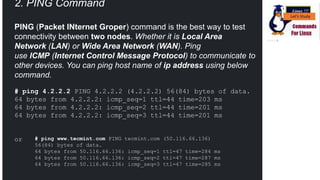
# ping 4.2.2.2 PING 4.2.2.2 (4.2.2.2) 56(84) bytes of data.
64 bytes from 4.2.2.2: icmp_seq=1 ttl=44 time=203 ms
64 bytes from 4.2.2.2: icmp_seq=2 ttl=44 time=201 ms
64 bytes from 4.2.2.2: icmp_seq=3 ttl=44 time=201 ms
or # ping www.tecmint.com PING tecmint.com (50.116.66.136)
56(84) bytes of data.
64 bytes from 50.116.66.136: icmp_seq=1 ttl=47 time=284 ms
64 bytes from 50.116.66.136: icmp_seq=2 ttl=47 time=287 ms
64 bytes from 50.116.66.136: icmp_seq=3 ttl=47 time=285 ms
Ping command/ nslookup
ping facebook.com
ping –I 2 facebook.com
Ping –c 5 –p ff facebook
ping –c 5 –M want facebook.com
ping –c 5 –q facebook
ping –c -2 facebook.com
nslookup –query=mx facebook.com
nslookup – type=soa facebook.com
Demonstration
Networking Commands
tracepath & traceroute
The tracepath command is similar to traceroute, but it doesn’t require root
privileges. It’s also installed by default on Ubuntu, while traceroute isn’t.
tracepath traces the network path to a destination you specify and reports
each “hop” along the path. If you’re having network problems or slowness,
tracepath can show you where the network is failing or where the slowness
is occurring.
tracepath example.com
Note!
Install pkg install tracepath in your termux
Networking Commands
mtr
The mtr command combines ping and tracepath into a single command.
mtr will continue to send packets, showing you the ping time to each “hop.”
This will also show you any problems — in this case, we can see that hop
6 is losing over 20% of the packets.
mtr howtogeek.com
Networking Commands
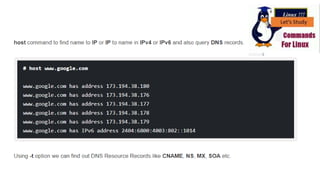
Host [install dnsutils]
The host command performs DNS lookups. Give it a domain name and
you’ll see the associated IP address. Give it an IP address and you’ll see
the associated domain name.
host howtogeek.com
host 208.43.115.82
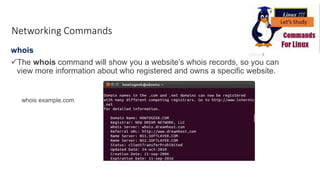
whois
The whois command will show you a website’s whois records, so you can
view more information about who registered and owns a specific website.
Networking Commands
whois example.com
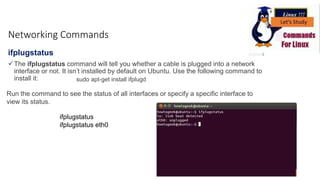
ifplugstatus
The ifplugstatus command will tell you whether a cable is plugged into a network
interface or not. It isn’t installed by default on Ubuntu. Use the following command to
install it: sudo apt-get install ifplugd
Run the command to see the status of all interfaces or specify a specific interface to
view its status.
ifplugstatus
ifplugstatus eth0
Networking Commands
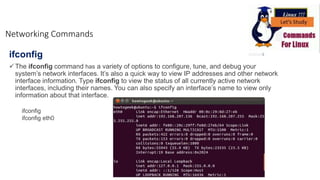
ifconfig
The ifconfig command has a variety of options to configure, tune, and debug your
system’s network interfaces. It’s also a quick way to view IP addresses and other network
interface information. Type ifconfig to view the status of all currently active network
interfaces, including their names. You can also specify an interface’s name to view only
information about that interface.
Networking Commands
ifconfig
ifconfig eth0
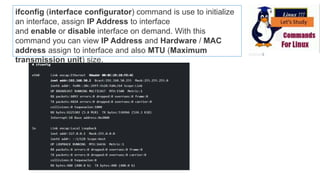
ifconfig (interface configurator) command is use to initialize
an interface, assign IP Address to interface
and enable or disable interface on demand. With this
command you can view IP Address and Hardware / MAC
address assign to interface and also MTU (Maximum
transmission unit) size.
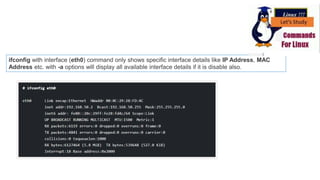
ifconfig with interface (eth0) command only shows specific interface details like IP Address, MAC
Address etc. with -a options will display all available interface details if it is disable also.
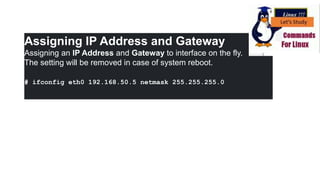
Assigning IP Address and Gateway
Assigning an IP Address and Gateway to interface on the fly.
The setting will be removed in case of system reboot.
# ifconfig eth0 192.168.50.5 netmask 255.255.255.0
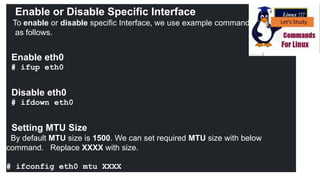
Enable or Disable Specific Interface
To enable or disable specific Interface, we use example command
as follows.
Enable eth0
# ifup eth0
Disable eth0
# ifdown eth0
Setting MTU Size
By default MTU size is 1500. We can set required MTU size with below
command. Replace XXXX with size.
# ifconfig eth0 mtu XXXX
Set Interface in Promiscuous mode
Network interface only received packets belongs to that
particular NIC. If you put interface in promiscuous mode it will
receive all the packets. This is very useful to capture packets and
analyze later. For this you may require superuser access.
# ifconfig eth0 - promisc
ifdown & ifup
The ifdown and ifup commands are the same thing as
running ifconfig up or ifconfig down. Given an interface’s
name, they take the interface down or bring it up. This requires
root permissions, so you have to use sudo on Ubuntu.
Networking Commands
sudo ifdown eth0
sudo ifup eth0
Try this on a Linux desktop system and you’ll probably get an error message. Linux desktops
usually use NetworkManager, which manages network interfaces for you. These commands
will still work on servers without NetworkManager, though.
If you really need to configure NetworkManager from the command line, use
the nmcli command.
dhclient
The dhclient command can release your computer’s IP address and get
a new one from your DHCP server. This requires root permissions, so
use sudo on Ubuntu. Run dhclient with no options to get a new IP
address or use the -r switch to release your current IP address.
sudo dhclient -r
sudo dhclient
Networking Commands
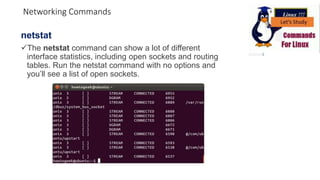
netstat
The netstat command can show a lot of different
interface statistics, including open sockets and routing
tables. Run the netstat command with no options and
you’ll see a list of open sockets.
Networking Commands
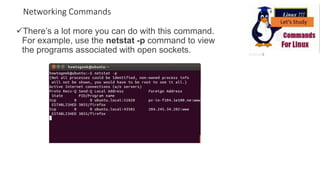
There’s a lot more you can do with this command.
For example, use the netstat -p command to view
the programs associated with open sockets.
Networking Commands
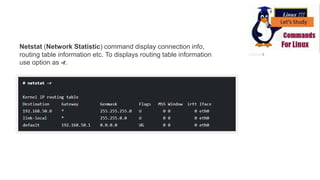
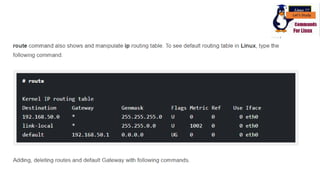
Netstat (Network Statistic) command display connection info,
routing table information etc. To displays routing table information
use option as -r.
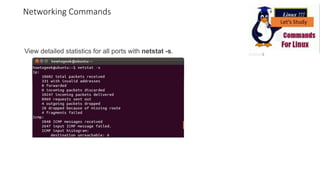
View detailed statistics for all ports with netstat -s.
Networking Commands
Linux Commands

Linux Commands

  • 1.
  • 2.
    Computers are connectedin a network to exchange information or resources each other. Two or more computer connected through network media called computer network. There are number of network devices or media are involved to form computer network. Computer loaded with Linux Operating System can also be a part of network whether it is small or large network by its multitasking and multiuser natures. Maintaining of system and network up and running is a task of System / Network Administrator’s job.
  • 3.
    Networking Commands ping ping sendsECHO_REQUEST packets to the address you specify. It’s a great way to see whether your computer can communicate with the Internet or a specific IP address. Bear in mind that many systems are configured not to respond to ping Unlike the ping command on Windows, the Linux ping command will keep sending packets until you terminate it. You can specify a finite amount of packets with the -c switch. ping -c 4 google.com
  • 4.
    2. PING Command PING(Packet INternet Groper) command is the best way to test connectivity between two nodes. Whether it is Local Area Network (LAN) or Wide Area Network (WAN). Ping use ICMP (Internet Control Message Protocol) to communicate to other devices. You can ping host name of ip address using below command. # ping 4.2.2.2 PING 4.2.2.2 (4.2.2.2) 56(84) bytes of data. 64 bytes from 4.2.2.2: icmp_seq=1 ttl=44 time=203 ms 64 bytes from 4.2.2.2: icmp_seq=2 ttl=44 time=201 ms 64 bytes from 4.2.2.2: icmp_seq=3 ttl=44 time=201 ms or # ping www.tecmint.com PING tecmint.com (50.116.66.136) 56(84) bytes of data. 64 bytes from 50.116.66.136: icmp_seq=1 ttl=47 time=284 ms 64 bytes from 50.116.66.136: icmp_seq=2 ttl=47 time=287 ms 64 bytes from 50.116.66.136: icmp_seq=3 ttl=47 time=285 ms
  • 5.
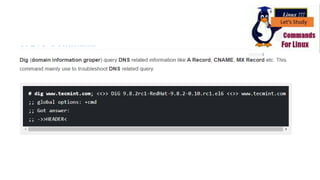
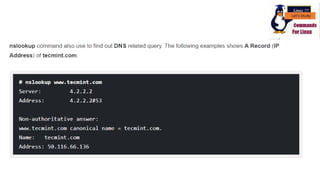
    Ping command/ nslookup pingfacebook.com ping –I 2 facebook.com Ping –c 5 –p ff facebook ping –c 5 –M want facebook.com ping –c 5 –q facebook ping –c -2 facebook.com nslookup –query=mx facebook.com nslookup – type=soa facebook.com Demonstration
  • 6.
    Networking Commands tracepath &traceroute The tracepath command is similar to traceroute, but it doesn’t require root privileges. It’s also installed by default on Ubuntu, while traceroute isn’t. tracepath traces the network path to a destination you specify and reports each “hop” along the path. If you’re having network problems or slowness, tracepath can show you where the network is failing or where the slowness is occurring. tracepath example.com Note! Install pkg install tracepath in your termux
  • 7.
    Networking Commands mtr The mtrcommand combines ping and tracepath into a single command. mtr will continue to send packets, showing you the ping time to each “hop.” This will also show you any problems — in this case, we can see that hop 6 is losing over 20% of the packets. mtr howtogeek.com
  • 8.
    Networking Commands Host [installdnsutils] The host command performs DNS lookups. Give it a domain name and you’ll see the associated IP address. Give it an IP address and you’ll see the associated domain name. host howtogeek.com host 208.43.115.82
  • 14.
    whois The whois commandwill show you a website’s whois records, so you can view more information about who registered and owns a specific website. Networking Commands whois example.com
  • 15.
    ifplugstatus The ifplugstatus commandwill tell you whether a cable is plugged into a network interface or not. It isn’t installed by default on Ubuntu. Use the following command to install it: sudo apt-get install ifplugd Run the command to see the status of all interfaces or specify a specific interface to view its status. ifplugstatus ifplugstatus eth0 Networking Commands
  • 16.
    ifconfig The ifconfig commandhas a variety of options to configure, tune, and debug your system’s network interfaces. It’s also a quick way to view IP addresses and other network interface information. Type ifconfig to view the status of all currently active network interfaces, including their names. You can also specify an interface’s name to view only information about that interface. Networking Commands ifconfig ifconfig eth0
  • 17.
    ifconfig (interface configurator)command is use to initialize an interface, assign IP Address to interface and enable or disable interface on demand. With this command you can view IP Address and Hardware / MAC address assign to interface and also MTU (Maximum transmission unit) size.
  • 18.
    ifconfig with interface(eth0) command only shows specific interface details like IP Address, MAC Address etc. with -a options will display all available interface details if it is disable also.
  • 19.
    Assigning IP Addressand Gateway Assigning an IP Address and Gateway to interface on the fly. The setting will be removed in case of system reboot. # ifconfig eth0 192.168.50.5 netmask 255.255.255.0
  • 20.
    Enable or DisableSpecific Interface To enable or disable specific Interface, we use example command as follows. Enable eth0 # ifup eth0 Disable eth0 # ifdown eth0 Setting MTU Size By default MTU size is 1500. We can set required MTU size with below command. Replace XXXX with size. # ifconfig eth0 mtu XXXX
  • 21.
    Set Interface inPromiscuous mode Network interface only received packets belongs to that particular NIC. If you put interface in promiscuous mode it will receive all the packets. This is very useful to capture packets and analyze later. For this you may require superuser access. # ifconfig eth0 - promisc
  • 22.
    ifdown & ifup Theifdown and ifup commands are the same thing as running ifconfig up or ifconfig down. Given an interface’s name, they take the interface down or bring it up. This requires root permissions, so you have to use sudo on Ubuntu. Networking Commands sudo ifdown eth0 sudo ifup eth0 Try this on a Linux desktop system and you’ll probably get an error message. Linux desktops usually use NetworkManager, which manages network interfaces for you. These commands will still work on servers without NetworkManager, though. If you really need to configure NetworkManager from the command line, use the nmcli command.
  • 23.
    dhclient The dhclient commandcan release your computer’s IP address and get a new one from your DHCP server. This requires root permissions, so use sudo on Ubuntu. Run dhclient with no options to get a new IP address or use the -r switch to release your current IP address. sudo dhclient -r sudo dhclient Networking Commands
  • 24.
    netstat The netstat commandcan show a lot of different interface statistics, including open sockets and routing tables. Run the netstat command with no options and you’ll see a list of open sockets. Networking Commands
  • 25.
    There’s a lotmore you can do with this command. For example, use the netstat -p command to view the programs associated with open sockets. Networking Commands
  • 26.
    Netstat (Network Statistic)command display connection info, routing table information etc. To displays routing table information use option as -r.
  • 31.
    View detailed statisticsfor all ports with netstat -s. Networking Commands