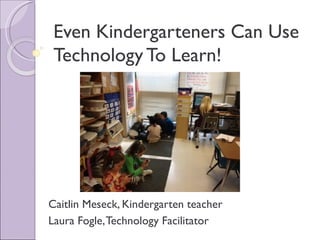
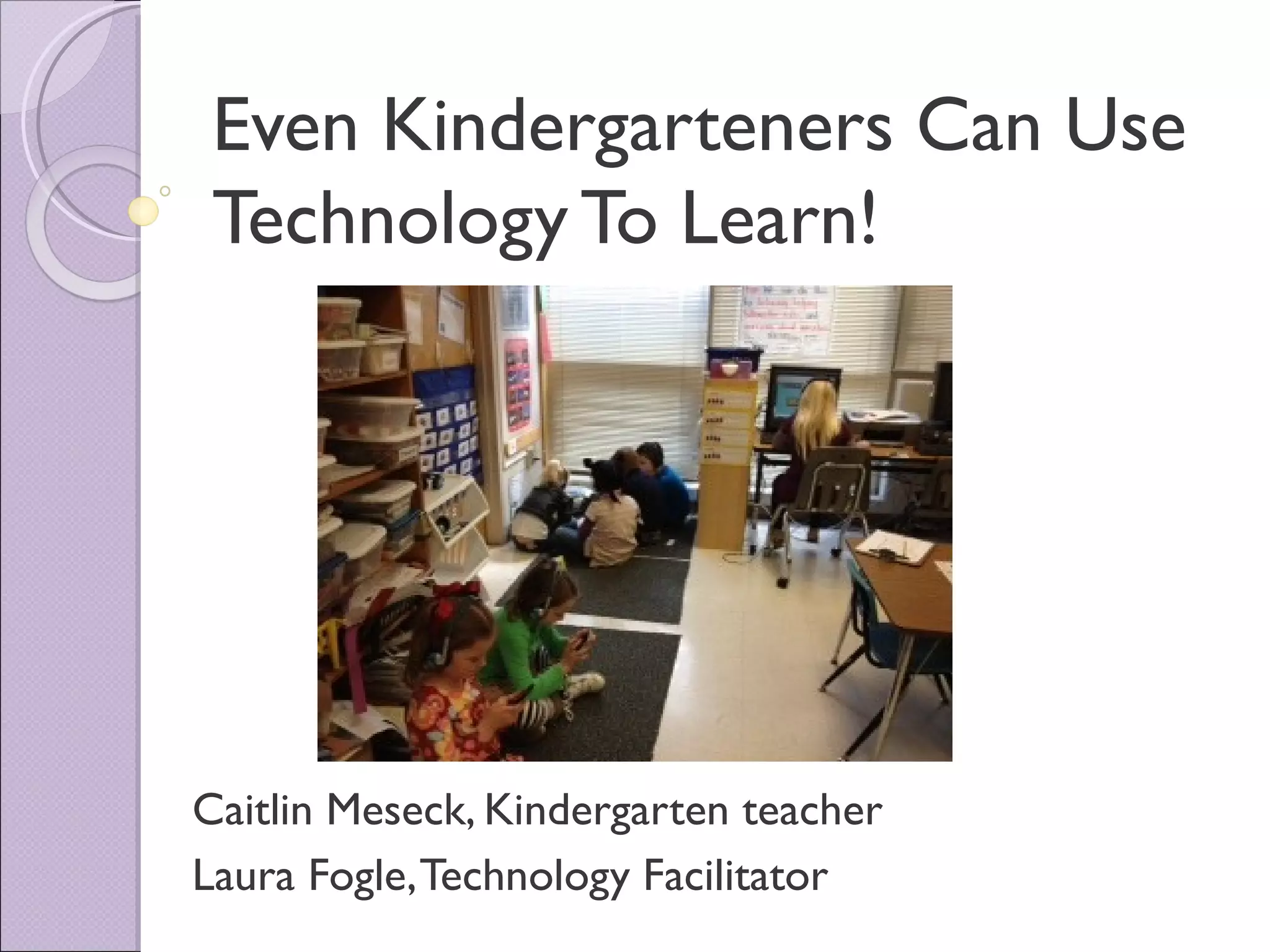
Even Kindergarteners Can Use
 Technology To Learn!


Caitlin Meseck, Kindergarten teacher
Laura Fogle, Technology Facilitator
   Centers that (practically) run themselves

   Paperless assessments

   Student created products

   Teacher tips
Why the “littlest learners”
   Lots of presentations for older students

   “What can I do with kindergarten?”


   Build skills one at a time and breakdown
    complex tasks
Little Steps
   Model computer use on whiteboard

    ◦ Games
        Jeopardy
        Name the setting


    ◦ Web sites and programs for centers
        Starfall
        TumbleBooks
Predict what the setting is
by listening to the sounds.
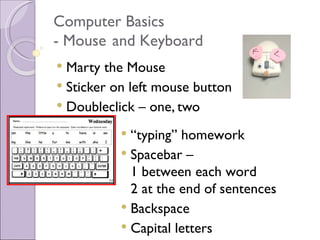
Computer Basics
- Mouse and Keyboard
 Marty the Mouse
 Sticker on left mouse button
 Doubleclick – one, two

            “typing” homework
            Spacebar –
             1 between each word
             2 at the end of sentences
            Backspace
            Capital letters
   Centers that (practically) run themselves

   Paperless assessments

   Student created products

   Teacher tips
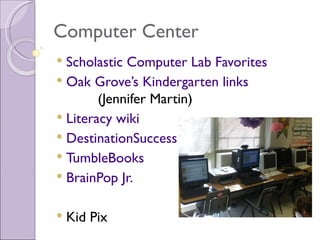
Computer Center
 Scholastic Computer Lab Favorites
 Oak Grove’s Kindergarten links
        (Jennifer Martin)
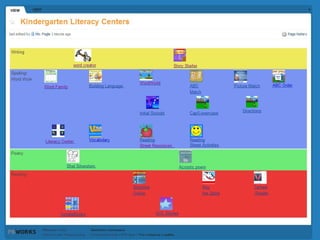
 Literacy wiki
 DestinationSuccess
 TumbleBooks
 BrainPop Jr.


   Kid Pix
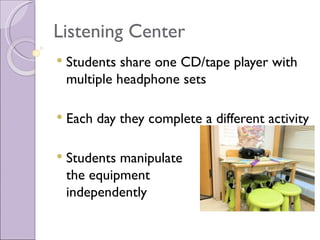
Listening Center
   Students share one CD/tape player with
    multiple headphone sets

   Each day they complete a different activity

   Students manipulate
    the equipment
    independently
Moving Beyond the Basics
   Observe other teachers modeling

   Start small

   Build one step at a time
iCenter

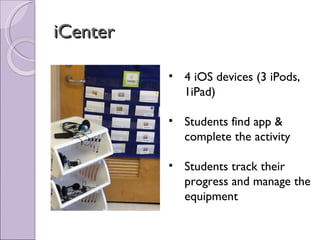
          • 4 iOS devices (3 iPods,
            1iPad)

          • Students find app &
            complete the activity

          • Students track their
            progress and manage the
            equipment
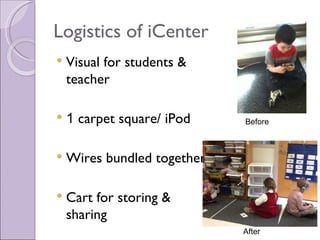
Logistics of iCenter
   Visual for students &
    teacher

   1 carpet square/ iPod    Before


   Wires bundled together

   Cart for storing &
    sharing
                             After
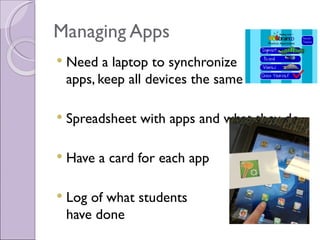
Managing Apps
   Need a laptop to synchronize
    apps, keep all devices the same

   Spreadsheet with apps and what they do

   Have a card for each app

   Log of what students
    have done
Our Next Step
   Recorded center instructions with QR
    code for easy playback


      http://www.youtube.com/watch?v=8CWJduI829k&feature=youtube
   Centers that (practically) run themselves

   Paperless assessments

   Student created products

   Teacher tips
Paperless Assessments
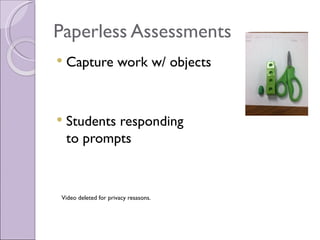
   Capture work w/ objects


   Students responding
    to prompts


Video deleted for privacy resasons.
   Centers that (practically) run themselves

   Paperless assessments

   Student created products

   Teacher tips
Student Created Work Products
   Muffins with Mom

   StoryKit – Adapted Pete the Cat

   StoryKit – Dental Health
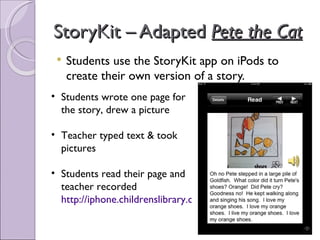
StoryKit – Adapted Pete the Cat
    Students use the StoryKit app on iPods to
     create their own version of a story.
• Students wrote one page for
  the story, drew a picture

• Teacher typed text & took
  pictures

• Students read their page and
  teacher recorded
  http://iphone.childrenslibrary.org/cgi-bin/view.py?b=o7prr4u4
Student Created Work Products
   Muffins with Mom

   StoryKit – Adapted Pete the Cat

   StoryKit – Dental Health
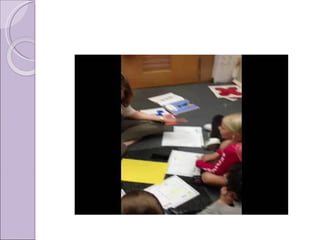
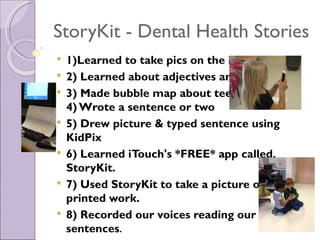
StoryKit - Dental Health Stories
   1)Learned to take pics on the iTouch
   2) Learned about adjectives and teeth!
   3) Made bubble map about teeth
    4) Wrote a sentence or two
   5) Drew picture & typed sentence using
    KidPix
   6) Learned iTouch's *FREE* app called,
    StoryKit.
   7) Used StoryKit to take a picture of our
    printed work.
   8) Recorded our voices reading our
    sentences.
   Centers that (practically) run themselves

   Paperless assessments

   Student created products

   Teacher tips
Teacher Tips
- Work Smarter in Your Room

   Things you would write on your board over

   PowerPoint Lesson tools
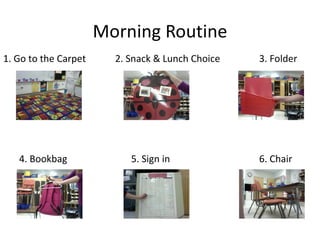
Morning Routine
1. Go to the Carpet     2. Snack & Lunch Choice   3. Folder


   4. Bookbag              5. Sign in             6. Chair
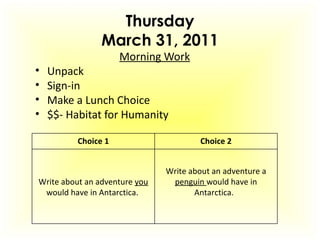
Thursday
                March 31, 2011
                     Morning Work
•   Unpack
•   Sign-in
•   Make a Lunch Choice
•   $$- Habitat for Humanity

          Choice 1                     Choice 2


                               Write about an adventure a
Write about an adventure you    penguin would have in
 would have in Antarctica.            Antarctica.
Teacher Tips
- Work Smarter in Your Room

   Things you would write on your board over

   PowerPoint Lesson tools
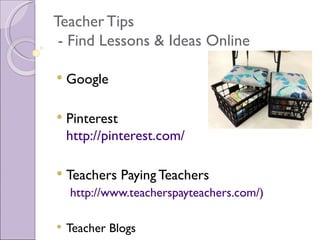
Teacher Tips
 - Find Lessons & Ideas Online

   Google

   Pinterest
    http://pinterest.com/

   Teachers Paying Teachers
    http://www.teacherspayteachers.com/)

   Teacher Blogs
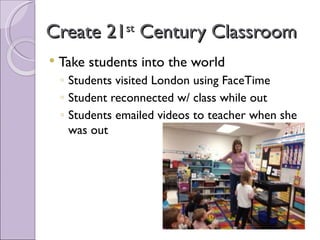
Create 21 Century Classroom
                st

   Take students into the world
    ◦ Students visited London using FaceTime
    ◦ Student reconnected w/ class while out
    ◦ Students emailed videos to teacher when she
      was out
Special Thanks

   Little River PTO

   Daniel Moore & Jerry Williamson @
    Durham Public Schools

   Donors Choose

   Patrick Tart, Jennifer Anderson & Angela
    Sonntag @ Banks Road Elementary

Ncties 2012 presentation minus video

  • 1.
    Even Kindergarteners CanUse Technology To Learn! Caitlin Meseck, Kindergarten teacher Laura Fogle, Technology Facilitator
  • 2.
    Centers that (practically) run themselves  Paperless assessments  Student created products  Teacher tips
  • 3.
    Why the “littlestlearners”  Lots of presentations for older students  “What can I do with kindergarten?”  Build skills one at a time and breakdown complex tasks
  • 4.
    Little Steps  Model computer use on whiteboard ◦ Games  Jeopardy  Name the setting ◦ Web sites and programs for centers  Starfall  TumbleBooks
  • 5.
    Predict what thesetting is by listening to the sounds.
  • 6.
    Computer Basics - Mouseand Keyboard  Marty the Mouse  Sticker on left mouse button  Doubleclick – one, two  “typing” homework  Spacebar – 1 between each word 2 at the end of sentences  Backspace  Capital letters
  • 7.
    Centers that (practically) run themselves  Paperless assessments  Student created products  Teacher tips
  • 8.
    Computer Center  ScholasticComputer Lab Favorites  Oak Grove’s Kindergarten links (Jennifer Martin)  Literacy wiki  DestinationSuccess  TumbleBooks  BrainPop Jr.  Kid Pix
  • 10.
    Listening Center  Students share one CD/tape player with multiple headphone sets  Each day they complete a different activity  Students manipulate the equipment independently
  • 11.
    Moving Beyond theBasics  Observe other teachers modeling  Start small  Build one step at a time
  • 12.
    iCenter • 4 iOS devices (3 iPods, 1iPad) • Students find app & complete the activity • Students track their progress and manage the equipment
  • 13.
    Logistics of iCenter  Visual for students & teacher  1 carpet square/ iPod Before  Wires bundled together  Cart for storing & sharing After
  • 14.
    Managing Apps  Need a laptop to synchronize apps, keep all devices the same  Spreadsheet with apps and what they do  Have a card for each app  Log of what students have done
  • 15.
    Our Next Step  Recorded center instructions with QR code for easy playback http://www.youtube.com/watch?v=8CWJduI829k&feature=youtube
  • 16.
    Centers that (practically) run themselves  Paperless assessments  Student created products  Teacher tips
  • 17.
    Paperless Assessments  Capture work w/ objects  Students responding to prompts Video deleted for privacy resasons.
  • 18.
    Centers that (practically) run themselves  Paperless assessments  Student created products  Teacher tips
  • 19.
    Student Created WorkProducts  Muffins with Mom  StoryKit – Adapted Pete the Cat  StoryKit – Dental Health
  • 20.
    StoryKit – AdaptedPete the Cat  Students use the StoryKit app on iPods to create their own version of a story. • Students wrote one page for the story, drew a picture • Teacher typed text & took pictures • Students read their page and teacher recorded http://iphone.childrenslibrary.org/cgi-bin/view.py?b=o7prr4u4
  • 22.
    Student Created WorkProducts  Muffins with Mom  StoryKit – Adapted Pete the Cat  StoryKit – Dental Health
  • 23.
    StoryKit - DentalHealth Stories  1)Learned to take pics on the iTouch  2) Learned about adjectives and teeth!  3) Made bubble map about teeth 4) Wrote a sentence or two  5) Drew picture & typed sentence using KidPix  6) Learned iTouch's *FREE* app called, StoryKit.  7) Used StoryKit to take a picture of our printed work.  8) Recorded our voices reading our sentences.
  • 24.
    Centers that (practically) run themselves  Paperless assessments  Student created products  Teacher tips
  • 25.
    Teacher Tips - WorkSmarter in Your Room  Things you would write on your board over  PowerPoint Lesson tools
  • 26.
    Morning Routine 1. Goto the Carpet 2. Snack & Lunch Choice 3. Folder 4. Bookbag 5. Sign in 6. Chair
  • 27.
    Thursday March 31, 2011 Morning Work • Unpack • Sign-in • Make a Lunch Choice • $$- Habitat for Humanity Choice 1 Choice 2 Write about an adventure a Write about an adventure you penguin would have in would have in Antarctica. Antarctica.
  • 28.
    Teacher Tips - WorkSmarter in Your Room  Things you would write on your board over  PowerPoint Lesson tools
  • 29.
    Teacher Tips -Find Lessons & Ideas Online  Google  Pinterest http://pinterest.com/  Teachers Paying Teachers http://www.teacherspayteachers.com/)  Teacher Blogs
  • 30.
    Create 21 CenturyClassroom st  Take students into the world ◦ Students visited London using FaceTime ◦ Student reconnected w/ class while out ◦ Students emailed videos to teacher when she was out
  • 31.
    Special Thanks  Little River PTO  Daniel Moore & Jerry Williamson @ Durham Public Schools  Donors Choose  Patrick Tart, Jennifer Anderson & Angela Sonntag @ Banks Road Elementary

Editor's Notes

  • #2 HI Welcome! Disclaimer re iOS devices
  • #3 We are going to talk about - how to get kindergarten (and first grade students) using technology independently - use technology as an assessment tool use technology to create work products - - how to use technology to make your job easier
  • #4 Last year at NC Ties Caitlin didn’t see or hear much targeted at kindergarten The first year Laura had kindergarten in the computer lab she didn’t know where to start, but it became one of her favorite grade levels.
  • #5 Get students familiar with the graphic interface – where to click and how to click BEFORE they use the computer center independently
  • #6 Click on rooster – top left
  • #7 Working on the skill of spacing words when writing, coming into the computer lab reinforces that skill because they have to stop between words and make a space. Seeing the words run all together on the computer helps them understand the importance of putting spaces in their written work
  • #8 Now that you have gotten the kindergartners ready, you can open your computer center 3 rd week of school
  • #11 Another center that runs itself
  • #12 Most kindergarten classrooms are equipped to do everything we have talked about so far. And many of you may already be doing it. What if you want to do more? Use the same steps you did to teach your students
  • #14 Started students using personal iPad before school really started. Then added 2 school iPods. Caitlin was handing the iPods out to students. Wasn’t consistent every week. Now every week in two classrooms. Share the ipod cart – roll it down the hall.
  • #16 Kids scan the QR code to be reminded of center instructions Mention banks road
  • #18 Capture work w/ objects – students took the pictures (after practicing using ipod as camera) Assessment was during the first 9 weeks - hard to categorize some of the responses, gave a way to capture actual response Referral documentation – sent video of student to physician who was trying to diagnose student
  • #20 Muffins with mom – scanner, headset, powerpoint, PC Nothing fancy here! StoryKit – second iPod project with
  • #21 This was the first time that we used StoryKit in the classroom. Laura’s 10 year old daughter piloted it over the summer. Have to click record twice on the ipod, works with only one click on the iPad. Have to do the recording in one take which is challenging. Choral reading was hard to get recorded
  • #23 Dental Health students did most of the work themselves. Click link to StoryKit before going on to the next slide to see the steps
  • #24 To learn how to take pictures they took pictures of each other being Statue of Liberty Talk about first 3 before clicking to load 1 st picture Through number 7 before loading the 3 rd picture
  • #27 This is especially useful at the beginning of the year for the students and the teacher
  • #28 This is GREAT for sub plans
  • #29 Click the powerpoint lesson tools link to go to the vocabulary slides
  • #30 Everyone – uses Google Check for accuracy & appropriateness Give credit if you use or modify