Instructions	
  
               Create	
  a	
  Movie	
  in	
  
                 Movie	
  Maker	
  

 Jacqui Sharp 2005                             Page 1
MovieMaker
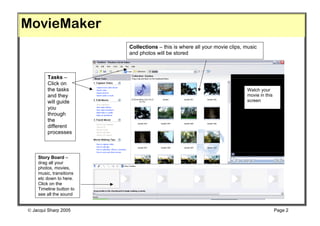
                         Collections – this is where all your movie clips, music
                         and photos will be stored


        Tasks –
        Click on
        the tasks                                                          Watch your
        and they                                                           movie in this
        will guide                                                         screen
        you
        through
        the
        different
        processes


    Story Board –
    drag all your
    photos, movies,
    music, transitions
    etc down to here.
    Click on the
    Timeline button to
    see all the sound


 Jacqui Sharp 2005                                                                        Page 2
Creativity FunPack
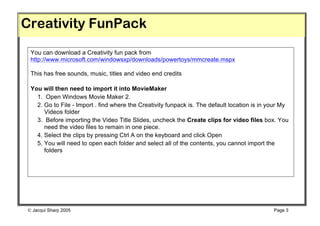
 You can download a Creativity fun pack from
 http://www.microsoft.com/windowsxp/downloads/powertoys/mmcreate.mspx

 This has free sounds, music, titles and video end credits

 You will then need to import it into MovieMaker
   1. Open Windows Movie Maker 2.
   2. Go to File - Import . find where the Creativity funpack is. The default location is in your My
      Videos folder
   3. Before importing the Video Title Slides, uncheck the Create clips for video files box. You
      need the video files to remain in one piece.
   4. Select the clips by pressing Ctrl A on the keyboard and click Open
   5. You will need to open each folder and select all of the contents, you cannot import the
      folders


 Jacqui Sharp 2005                                                                           Page 3
Capture the movie
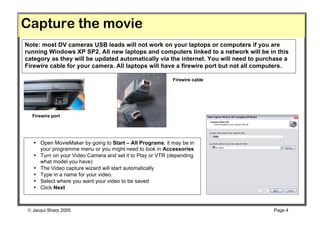
Note: most DV cameras USB leads will not work on your laptops or computers if you are
running Windows XP SP2. All new laptops and computers linked to a network will be in this
category as they will be updated automatically via the internet. You will need to purchase a
Firewire cable for your camera. All laptops will have a firewire port but not all computers.

                                                          Firewire cable


  Firewire port


   • Open MovieMaker by going to Start – All Programs, it may be in
     your programme menu or you might need to look in Accessories
   • Turn on your Video Camera and set it to Play or VTR (depending
     what model you have)
   • The Video capture wizard will start automatically
   • Type in a name for your video.
   • Select where you want your video to be saved
   • Click Next


 Jacqui Sharp 2005                                                                   Page 4
Capture the movie
 Select Best quality for playback on any
 computer if you are just going to be using on
 your computer.
 If you want to create a good quality DVD you
 will need to select Digital Device format or
 choose from other settings.
 If you select Other Settings, you can choose
 other ways to save your movie file. It can be
 saved to a Pocket PC or you can publish to a
 website and choose how big you would like
 the file. If you choose the DV-AVI (PAL)
 option that will give you a very large file of
 very good quality that can be burned to DVD,
 for slightly lesser quality but a significantly
 smaller file you could choose High Quality
 video.
 Click Next.


 Jacqui Sharp 2005                                Page 5
Capture the movie
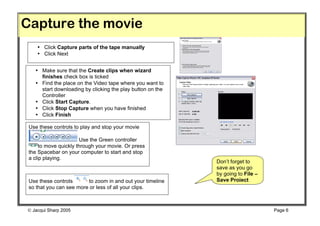
    • Click Capture parts of the tape manually
    • Click Next


   • Make sure that the Create clips when wizard
     finishes check box is ticked
   • Find the place on the Video tape where you want to
     start downloading by clicking the play button on the
     Controller
   • Click Start Capture.
   • Click Stop Capture when you have finished
   • Click Finish

 Use these controls to play and stop your movie

                       Use the Green controller
      to move quickly through your movie. Or press
 the Spacebar on your computer to start and stop
 a clip playing.
                                                            Don’t forget to
                                                            save as you go
                                                            by going to File –
 Use these controls      to zoom in and out your timeline   Save Project
 so that you can see more or less of all your clips.


 Jacqui Sharp 2005                                                              Page 6
Storyboard
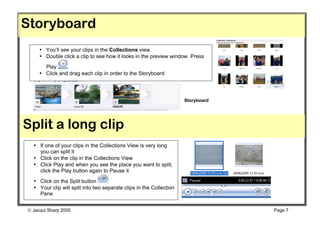
     • You’ll see your clips in the Collections view.
     • Double click a clip to see how it looks in the preview window. Press
       Play
     • Click and drag each clip in order to the Storyboard


                                                                     Storyboard


Split a long clip
  • If one of your clips in the Collections View is very long
    you can split it
  • Click on the clip in the Collections View
  • Click Play and when you see the place you want to split,
    click the Play button again to Pause it
  • Click on the Split button
  • Your clip will split into two separate clips in the Collection
    Pane


 Jacqui Sharp 2005                                                               Page 7
Combine your clips
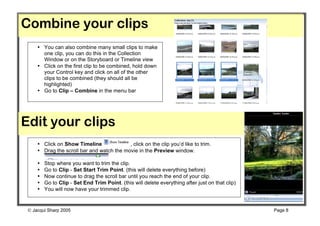
     • You can also combine many small clips to make
       one clip, you can do this in the Collection
       Window or on the Storyboard or Timeline view
     • Click on the first clip to be combined, hold down
       your Control key and click on all of the other
       clips to be combined (they should all be
       highlighted)
     • Go to Clip – Combine in the menu bar


Edit your clips
     • Click on Show Timeline              , click on the clip you’d like to trim.
     • Drag the scroll bar and watch the movie in the Preview window.

     •   Stop where you want to trim the clip.
     •   Go to Clip - Set Start Trim Point. (this will delete everything before)
     •   Now continue to drag the scroll bar until you reach the end of your clip.
     •   Go to Clip - Set End Trim Point. (this will delete everything after just on that clip)
     •   You will now have your trimmed clip.


  Jacqui Sharp 2005                                                                              Page 8
Import photos
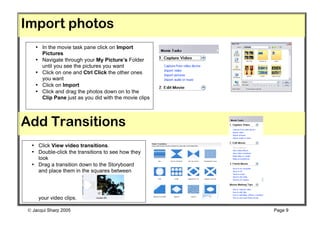
   • In the movie task pane click on Import
     Pictures
   • Navigate through your My Picture’s Folder
     until you see the pictures you want
   • Click on one and Ctrl Click the other ones
     you want
   • Click on Import
   • Click and drag the photos down on to the
     Clip Pane just as you did with the movie clips


Add Transitions
 • Click View video transitions.
 • Double-click the transitions to see how they
   look
 • Drag a transition down to the Storyboard
   and place them in the squares between


    your video clips.

 Jacqui Sharp 2005                                   Page 9
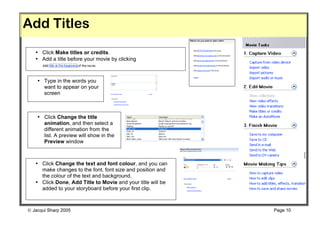
Add Titles
   • Click Make titles or credits.
   • Add a title before your movie by clicking


    • Type in the words you
      want to appear on your
      screen


    • Click Change the title
      animation, and then select a
      different animation from the
      list. A preview will show in the
      Preview window


   • Click Change the text and font colour, and you can
     make changes to the font, font size and position and
     the colour of the text and background.
   • Click Done, Add Title to Movie and your title will be
     added to your storyboard before your first clip.


 Jacqui Sharp 2005                                          Page 10
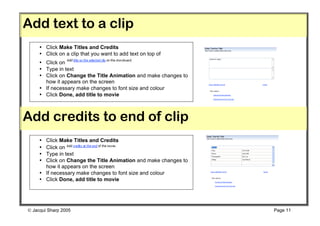
Add text to a clip
     • Click Make Titles and Credits
     • Click on a clip that you want to add text on top of
     • Click on
     • Type in text
     • Click on Change the Title Animation and make changes to
       how it appears on the screen
     • If necessary make changes to font size and colour
     • Click Done, add title to movie


Add credits to end of clip
     • Click Make Titles and Credits
     • Click on
     • Type in text
     • Click on Change the Title Animation and make changes to
       how it appears on the screen
     • If necessary make changes to font size and colour
     • Click Done, add title to movie


 Jacqui Sharp 2005                                              Page 11
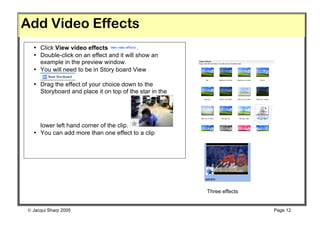
Add Video Effects
  • Click View video effects              .
  • Double-click on an effect and it will show an
    example in the preview window.
  • You will need to be in Story board View

  • Drag the effect of your choice down to the
    Storyboard and place it on top of the star in the


    lower left hand corner of the clip.
  • You can add more than one effect to a clip


                                                        Three effects


 Jacqui Sharp 2005                                                     Page 12
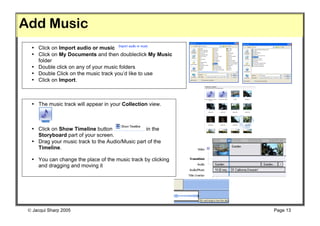
Add Music
  • Click on Import audio or music
  • Click on My Documents and then doubleclick My Music
    folder
  • Double click on any of your music folders
  • Double Click on the music track you’d like to use
  • Click on Import.


  • The music track will appear in your Collection view.


  • Click on Show Timeline button                in the
    Storyboard part of your screen.
  • Drag your music track to the Audio/Music part of the
    Timeline.

  • You can change the place of the music track by clicking
    and dragging and moving it


  Jacqui Sharp 2005                                          Page 13
Adjust audio levels
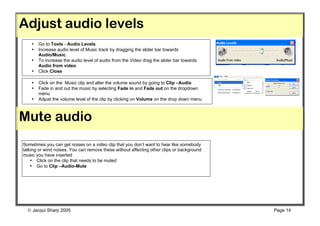
    •   Go to Tools - Audio Levels.
    •   Increase audio level of Music track by dragging the slider bar towards
        Audio/Music.
    •   To increase the audio level of audio from the Video drag the slider bar towards
        Audio from video.
    •   Click Close

    •   Click on the Music clip and alter the volume sound by going to Clip –Audio
    •   Fade in and out the music by selecting Fade in and Fade out on the dropdown
        menu
    •   Adjust the volume level of the clip by clicking on Volume on the drop down menu
    •


Mute audio
Sometimes you can get noises on a video clip that you don’t want to hear like somebody
talking or wind noises. You can remove these without affecting other clips or background
music you have inserted
    • Click on the clip that needs to be muted
    • Go to Clip –Audio-Mute


   Jacqui Sharp 2005                                                                      Page 14
Add a Narration
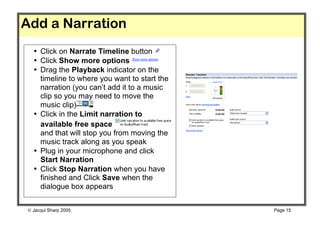
  • Click on Narrate Timeline button
  • Click Show more options
  • Drag the Playback indicator on the
    timeline to where you want to start the
    narration (you can’t add it to a music
    clip so you may need to move the
    music clip)
  • Click in the Limit narration to
    available free space
    and that will stop you from moving the
    music track along as you speak
  • Plug in your microphone and click
    Start Narration
  • Click Stop Narration when you have
    finished and Click Save when the
    dialogue box appears


 Jacqui Sharp 2005                           Page 15
Save a Movie
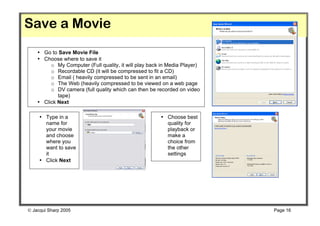
    • Go to Save Movie File
    • Choose where to save it
         o My Computer (Full quality, it will play back in Media Player)
         o Recordable CD (it will be compressed to fit a CD)
         o Email ( heavily compressed to be sent in an email)
         o The Web (heavily compressed to be viewed on a web page
         o DV camera (full quality which can then be recorded on video
            tape)
    • Click Next

     • Type in a                                       • Choose best
       name for                                          quality for
       your movie                                        playback or
       and choose                                        make a
       where you                                         choice from
       want to save                                      the other
       it                                                settings
     • Click Next


 Jacqui Sharp 2005                                                        Page 16
Save a Movie
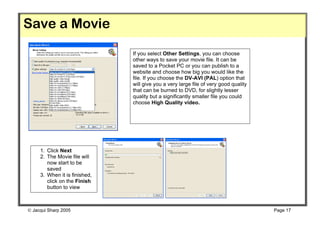
                               If you select Other Settings, you can choose
                               other ways to save your movie file. It can be
                               saved to a Pocket PC or you can publish to a
                               website and choose how big you would like the
                               file. If you choose the DV-AVI (PAL) option that
                               will give you a very large file of very good quality
                               that can be burned to DVD, for slightly lesser
                               quality but a significantly smaller file you could
                               choose High Quality video.


     1. Click Next
     2. The Movie file will
        now start to be
        saved
     3. When it is finished,
        click on the Finish
        button to view
        movie


 Jacqui Sharp 2005                                                                   Page 17

Movie maker notes

  • 1.
    Instructions   Create  a  Movie  in   Movie  Maker    Jacqui Sharp 2005 Page 1
  • 2.
    MovieMaker Collections – this is where all your movie clips, music and photos will be stored Tasks – Click on the tasks Watch your and they movie in this will guide screen you through the different processes Story Board – drag all your photos, movies, music, transitions etc down to here. Click on the Timeline button to see all the sound  Jacqui Sharp 2005 Page 2
  • 3.
    Creativity FunPack Youcan download a Creativity fun pack from http://www.microsoft.com/windowsxp/downloads/powertoys/mmcreate.mspx This has free sounds, music, titles and video end credits You will then need to import it into MovieMaker 1. Open Windows Movie Maker 2. 2. Go to File - Import . find where the Creativity funpack is. The default location is in your My Videos folder 3. Before importing the Video Title Slides, uncheck the Create clips for video files box. You need the video files to remain in one piece. 4. Select the clips by pressing Ctrl A on the keyboard and click Open 5. You will need to open each folder and select all of the contents, you cannot import the folders  Jacqui Sharp 2005 Page 3
  • 4.
    Capture the movie Note:most DV cameras USB leads will not work on your laptops or computers if you are running Windows XP SP2. All new laptops and computers linked to a network will be in this category as they will be updated automatically via the internet. You will need to purchase a Firewire cable for your camera. All laptops will have a firewire port but not all computers. Firewire cable Firewire port • Open MovieMaker by going to Start – All Programs, it may be in your programme menu or you might need to look in Accessories • Turn on your Video Camera and set it to Play or VTR (depending what model you have) • The Video capture wizard will start automatically • Type in a name for your video. • Select where you want your video to be saved • Click Next  Jacqui Sharp 2005 Page 4
  • 5.
    Capture the movie Select Best quality for playback on any computer if you are just going to be using on your computer. If you want to create a good quality DVD you will need to select Digital Device format or choose from other settings. If you select Other Settings, you can choose other ways to save your movie file. It can be saved to a Pocket PC or you can publish to a website and choose how big you would like the file. If you choose the DV-AVI (PAL) option that will give you a very large file of very good quality that can be burned to DVD, for slightly lesser quality but a significantly smaller file you could choose High Quality video. Click Next.  Jacqui Sharp 2005 Page 5
  • 6.
    Capture the movie • Click Capture parts of the tape manually • Click Next • Make sure that the Create clips when wizard finishes check box is ticked • Find the place on the Video tape where you want to start downloading by clicking the play button on the Controller • Click Start Capture. • Click Stop Capture when you have finished • Click Finish Use these controls to play and stop your movie Use the Green controller to move quickly through your movie. Or press the Spacebar on your computer to start and stop a clip playing. Don’t forget to save as you go by going to File – Use these controls to zoom in and out your timeline Save Project so that you can see more or less of all your clips.  Jacqui Sharp 2005 Page 6
  • 7.
    Storyboard • You’ll see your clips in the Collections view. • Double click a clip to see how it looks in the preview window. Press Play • Click and drag each clip in order to the Storyboard Storyboard Split a long clip • If one of your clips in the Collections View is very long you can split it • Click on the clip in the Collections View • Click Play and when you see the place you want to split, click the Play button again to Pause it • Click on the Split button • Your clip will split into two separate clips in the Collection Pane  Jacqui Sharp 2005 Page 7
  • 8.
    Combine your clips • You can also combine many small clips to make one clip, you can do this in the Collection Window or on the Storyboard or Timeline view • Click on the first clip to be combined, hold down your Control key and click on all of the other clips to be combined (they should all be highlighted) • Go to Clip – Combine in the menu bar Edit your clips • Click on Show Timeline , click on the clip you’d like to trim. • Drag the scroll bar and watch the movie in the Preview window. • Stop where you want to trim the clip. • Go to Clip - Set Start Trim Point. (this will delete everything before) • Now continue to drag the scroll bar until you reach the end of your clip. • Go to Clip - Set End Trim Point. (this will delete everything after just on that clip) • You will now have your trimmed clip.  Jacqui Sharp 2005 Page 8
  • 9.
    Import photos • In the movie task pane click on Import Pictures • Navigate through your My Picture’s Folder until you see the pictures you want • Click on one and Ctrl Click the other ones you want • Click on Import • Click and drag the photos down on to the Clip Pane just as you did with the movie clips Add Transitions • Click View video transitions. • Double-click the transitions to see how they look • Drag a transition down to the Storyboard and place them in the squares between your video clips.  Jacqui Sharp 2005 Page 9
  • 10.
    Add Titles • Click Make titles or credits. • Add a title before your movie by clicking • Type in the words you want to appear on your screen • Click Change the title animation, and then select a different animation from the list. A preview will show in the Preview window • Click Change the text and font colour, and you can make changes to the font, font size and position and the colour of the text and background. • Click Done, Add Title to Movie and your title will be added to your storyboard before your first clip.  Jacqui Sharp 2005 Page 10
  • 11.
    Add text toa clip • Click Make Titles and Credits • Click on a clip that you want to add text on top of • Click on • Type in text • Click on Change the Title Animation and make changes to how it appears on the screen • If necessary make changes to font size and colour • Click Done, add title to movie Add credits to end of clip • Click Make Titles and Credits • Click on • Type in text • Click on Change the Title Animation and make changes to how it appears on the screen • If necessary make changes to font size and colour • Click Done, add title to movie  Jacqui Sharp 2005 Page 11
  • 12.
    Add Video Effects • Click View video effects . • Double-click on an effect and it will show an example in the preview window. • You will need to be in Story board View • Drag the effect of your choice down to the Storyboard and place it on top of the star in the lower left hand corner of the clip. • You can add more than one effect to a clip Three effects  Jacqui Sharp 2005 Page 12
  • 13.
    Add Music • Click on Import audio or music • Click on My Documents and then doubleclick My Music folder • Double click on any of your music folders • Double Click on the music track you’d like to use • Click on Import. • The music track will appear in your Collection view. • Click on Show Timeline button in the Storyboard part of your screen. • Drag your music track to the Audio/Music part of the Timeline. • You can change the place of the music track by clicking and dragging and moving it  Jacqui Sharp 2005 Page 13
  • 14.
    Adjust audio levels • Go to Tools - Audio Levels. • Increase audio level of Music track by dragging the slider bar towards Audio/Music. • To increase the audio level of audio from the Video drag the slider bar towards Audio from video. • Click Close • Click on the Music clip and alter the volume sound by going to Clip –Audio • Fade in and out the music by selecting Fade in and Fade out on the dropdown menu • Adjust the volume level of the clip by clicking on Volume on the drop down menu • Mute audio Sometimes you can get noises on a video clip that you don’t want to hear like somebody talking or wind noises. You can remove these without affecting other clips or background music you have inserted • Click on the clip that needs to be muted • Go to Clip –Audio-Mute  Jacqui Sharp 2005 Page 14
  • 15.
    Add a Narration • Click on Narrate Timeline button • Click Show more options • Drag the Playback indicator on the timeline to where you want to start the narration (you can’t add it to a music clip so you may need to move the music clip) • Click in the Limit narration to available free space and that will stop you from moving the music track along as you speak • Plug in your microphone and click Start Narration • Click Stop Narration when you have finished and Click Save when the dialogue box appears  Jacqui Sharp 2005 Page 15
  • 16.
    Save a Movie • Go to Save Movie File • Choose where to save it o My Computer (Full quality, it will play back in Media Player) o Recordable CD (it will be compressed to fit a CD) o Email ( heavily compressed to be sent in an email) o The Web (heavily compressed to be viewed on a web page o DV camera (full quality which can then be recorded on video tape) • Click Next • Type in a • Choose best name for quality for your movie playback or and choose make a where you choice from want to save the other it settings • Click Next  Jacqui Sharp 2005 Page 16
  • 17.
    Save a Movie If you select Other Settings, you can choose other ways to save your movie file. It can be saved to a Pocket PC or you can publish to a website and choose how big you would like the file. If you choose the DV-AVI (PAL) option that will give you a very large file of very good quality that can be burned to DVD, for slightly lesser quality but a significantly smaller file you could choose High Quality video. 1. Click Next 2. The Movie file will now start to be saved 3. When it is finished, click on the Finish button to view movie  Jacqui Sharp 2005 Page 17