Digital Storytelling Lisa Lothspeich January 2008 Photo Story Movie Maker
Photo Story Opening Photo Story   Click on  Start Point to  All Programs Click  Photo Story 3 for Windows On the Welcome page, click  Begin a new story Click  Next .
Photo Story Importing and arranging your photos   On the  Import and arrange your pictures  page, click  Import Pictures . In the File Browser dialog box, browse to  My Documents, My Pictures ,etc. and select the pictures you want to include. To add more than one picture at a time, press and hold the CTRL key and click on the pictures you want to add, and then click OK. All of your pictures should now be present in the filmstrip.
Photo Story
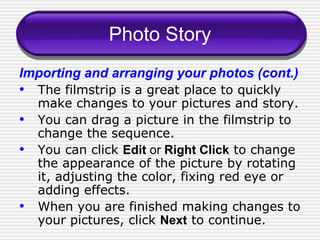
Photo Story Importing and arranging your photos (cont.) The filmstrip is a great place to quickly make changes to your pictures and story. You can drag a picture in the filmstrip to change the sequence. You can click  Edit  or  Right Click  to change the appearance of the picture by rotating it, adjusting the color, fixing red eye or adding effects. When you are finished making changes to your pictures, click  Next  to continue.
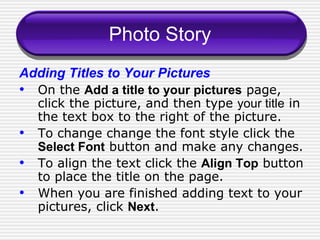
Photo Story Adding Titles to Your Pictures On the  Add a title to your pictures  page, click the picture, and then type  your title  in the text box to the right of the picture. To change change the font style click the  Select Font  button and make any changes. To align the text click the  Align Top  button to place the title on the page. When you are finished adding text to your pictures, click  Next .
Photo Story
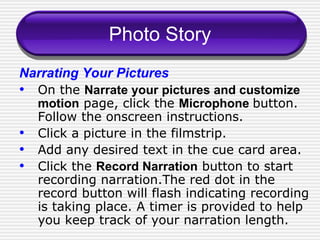
Photo Story Narrating Your Pictures On the  Narrate your pictures and customize motion  page, click the  Microphone   button. Follow the onscreen instructions. Click a picture in the filmstrip. Add any desired text in the cue card area. Click the  Record Narration   button to start recording narration.The red dot in the record button will flash indicating recording is taking place. A timer is provided to help you keep track of your narration length.
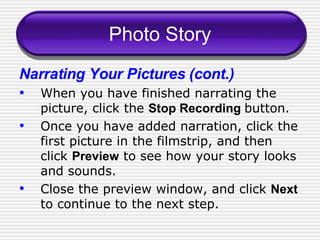
Photo Story Narrating Your Pictures (cont.) When you have finished narrating the picture, click the  Stop Recording   button. Once you have added narration, click the first picture in the filmstrip, and then click  Preview  to see how your story looks and sounds. Close the preview window, and click  Next   to continue to the next step.
Photo Story
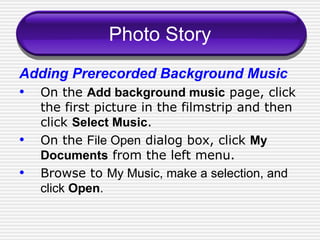
Photo Story Adding Prerecorded Background Music On the  Add background music  page, click the first picture in the filmstrip and then click  Select Music . On the  File Open  dialog box, click  My Documents  from the left menu. Browse to  My Music, make a selection, and click  Open .
Photo Story
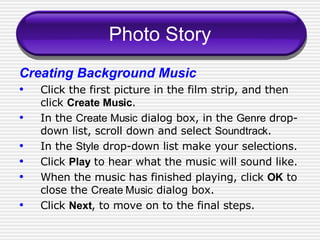
Photo Story Creating Background Music Click the first picture in the film strip, and then click  Create Music . In the  Create Music  dialog box, in the  Genre  drop-down list, scroll down and select  Soundtrack . In the  Style  drop-down list make your selections. Click  Play  to hear what the music will sound like. When the music has finished playing, click  OK  to close the  Create Music  dialog box. Click  Next , to move on to the final steps.
Photo Story
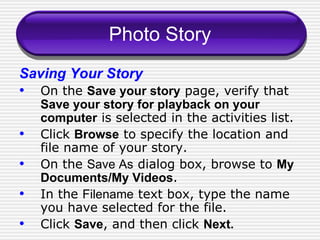
Photo Story Saving Your Story On the  Save your story  page, verify that  Save your story for playback on your computer  is selected in the activities list. Click  Browse  to specify the location and file name of your story. On the  Save As  dialog box, browse to  My Documents/My Videos . In the  Filename  text box, type the name you have selected for the file. Click  Save , and then click  Next.
Photo Story
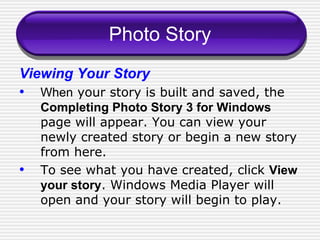
Photo Story Viewing Your Story When  your story is built and saved, the  Completing Photo Story 3 for Windows   page will appear. You can view your newly created story or begin a new story from here.  To see what you have created, click  View your story . Windows Media Player will open and your story will begin to play.
Movie Maker - Options AutoMovie This feature of Movie Maker, automatically creates a movie for you using a theme, title, and background music of your choosing. AutoMovie is the best way to “quickly” see what Movie Maker can do.
Movie Maker - Options Creating and Trimming Video Clips Movie Maker can automatically split your home movies, which might be an hour long on a single tape, into smaller clips that are easier to edit. You can also manually trim your video clips to show just the most interesting moments. This article shows you how to use Movie Maker to automatically split movies into short clips and then how to manually divide those clips.
Movie Maker - Options Working With Collections Movie Maker organizes your video, music, and pictures into collections.  You can then drag items in your collections to your storyboard to make a movie.
Movie Maker - AutoMovie Connect your camera to your computer , and  download your movies into Movie Maker . Movie Maker will create a collection (a group of video clips) from your movies. In the  Movie Tasks  pane, under  2. Edit Movie , click  Make an AutoMovie .
Movie Maker - AutoMovie Select  AutoMovie Editing Style  page, click on a style. Movie Maker will use this style to create your movie .
Movie Maker - AutoMovie Under  More Options  click  Enter a title for the movie . Type a title for your movie. 4. Under More options click Enter a title for the movie.
Movie Maker - AutoMovie Enter the title for your movie.  If you have music on our computer you want to play in the background, click  Select Audio or Background Music .  If you don’t want to use music, skip to step 7.
Movie Maker - AutoMovie Click  Browse  and select your song (the song is probably stored in you’re  My Music  folder.
Movie Maker - AutoMovie Click  Done, edit movie  to create the Auto-Movie and add the clips to the storyboard/timeline.
Movie Maker - AutoMovie Sit back and relax while AutoMovie edits your video. This process could take anywhere from a few minutes to 20 minutes depending on the length of your video. When AutoMovie finishes editing, you can click the Play button on the Preview Monitor to immediately watch your video.
Movie Maker  Create Video Clips Clips  are automatically created if you select the  Create clips for video files  box when you import a video file into Movie Maker. If the check box is not selected, the video is imported as a single continuous clip, rather than as a series of shorter clips. Don’ t  worry; you can use the Movie Maker clip detection feature to divide a video file into smaller, more manageable clips.
Movie Maker Create Video Clips To import a video file that you have already saved to your computer and automatically create short clips: Under  Capture Video , click  Import Video .
Movie Maker  Create Video Clips On the  Import File  dialog box, select the  Create clips for video files  check box (it is selected by default). Click your video file, and then click  Import .
Movie Maker  Create Video Clips To break a video into clips, in the Movie Maker  Collection  pane, right-click the video. Then click  Create Clips . Then,  drag the clips from the collection to your storyboard.
Movie Maker  Trim Video Clips Drag clips from your collection to the story-board at the bottom of the window.
Movie Maker  Trim Video Clips Select the clip you want to trim. Then click the  Play  button on the  Preview Monitor .
Movie Maker  Trim Video Clips Let the clip play until it gets to the point where you want to trim it. Then click the  Split Clip  button on the  Preview Monitor . This cuts your clip into two separate clips at the current point in the video and adds the new clips to your storyboard.
Movie Maker  Trim Video Clips Delete the portion of the clip you no longer need by right-clicking it and then clicking  Delete .
Movie Maker  Trim Video Clips Repeat this process for each clip. You can split clips several times to use more than one moment from a clip. If you do a lot of editing, you might find it easier to use the timeline view, which shows you how long each clip will play. To use the timeline view, click the  Show Timeline  button.
Movie Maker  Working With Your Collections To import existing digital media files: On the  File  menu, click  Import into Collections . In  File name , enter the path and name of the file you want to import, and then click  Import . (Optional) If you want the video files to be separated into smaller clips, select the  Create clips for video files  check box. A new collection folder is created for each video file you import into Windows Movie Maker.
Movie Maker  Working With Your Collections Video files in Windows Explorer and Windows Movie Maker.
Movie Maker  Working With Your Collections Audio files in Windows Explorer and Windows Movie Maker.
Movie Maker  Working With Your Collections Photos in Windows Explorer and Windows Movie Maker.
Movie Maker  Working With Your Collections After  you import audio, video, or pictures into Windows Movie Maker, you can add the individual clips in the different collection folders to the storyboard/timeline. The following figures show clips as they appear in the storyboard and timeline views respectively for the same project.
Movie Maker  Working With Your Collections Video Clips in story- board view
Movie Maker  Working With Your Collections Video and audio clips in story- board view
Movie Maker  Working With Your Collections Video and audio clips in timeline view
Movie Maker  Saving Your Project On the  File  menu, click  Save Project .
Movie Maker  Saving Your Project In the  File name  box, type the file name, and then click  Save .The resulting Windows Movie Maker project file is stored on your computer.
Movie Maker  Saving Your Project Important: Since your Windows Movie Maker project file does not contain a copy of the source files that are used in the project, if you want to move a Windows Movie Maker project file and edit it on another computer, you also need to copy all of the source content to that computer or make sure that the computer has access to the location where the source files are stored.
Movie Maker  Saving Your Project as a Movie After you've saved a project, you can then save the project as a movie file by using the Save Movie Wizard. When you do this, all of the files on the storyboard/timeline are encoded into a single digital media video file. You can then share this video file with others, and they can watch and enjoy it in a media player, such as Windows Media Player.
Movie Maker  Saving Your Project as a Movie On the  File  menu, click  Save Movie File .
Movie Maker  Saving Your Project as a Movie Enter a file name for your saved movie  box, type a name for your movie. Choose a place to save your movie. If you want to watch your movie after completing the wizard, select the  Play movie when I click Finish  check box. After the movie is saved, click  Finish .
Movie Maker  Saving Your Project as a Movie The resulting movie is saved on your computer.
Movie Maker  Saving Your Project as a Movie You or your audience can then play the movie in a media player, such as Windows Media Player.
Information Provided by: http://www.microsoft.com/windowsxp/using/digitalphotography/photostory/tips/firststory.mspx http://www.microsoft.com/windowsxp/using/moviemaker/getstarted http://www.techlearning.com/showArticle.php

Digital Storytelling

  • 1.
    Digital Storytelling LisaLothspeich January 2008 Photo Story Movie Maker
  • 2.
    Photo Story OpeningPhoto Story Click on Start Point to All Programs Click Photo Story 3 for Windows On the Welcome page, click Begin a new story Click Next .
  • 3.
    Photo Story Importingand arranging your photos On the Import and arrange your pictures page, click Import Pictures . In the File Browser dialog box, browse to My Documents, My Pictures ,etc. and select the pictures you want to include. To add more than one picture at a time, press and hold the CTRL key and click on the pictures you want to add, and then click OK. All of your pictures should now be present in the filmstrip.
  • 4.
  • 5.
    Photo Story Importingand arranging your photos (cont.) The filmstrip is a great place to quickly make changes to your pictures and story. You can drag a picture in the filmstrip to change the sequence. You can click Edit or Right Click to change the appearance of the picture by rotating it, adjusting the color, fixing red eye or adding effects. When you are finished making changes to your pictures, click Next to continue.
  • 6.
    Photo Story AddingTitles to Your Pictures On the Add a title to your pictures page, click the picture, and then type your title in the text box to the right of the picture. To change change the font style click the Select Font button and make any changes. To align the text click the Align Top button to place the title on the page. When you are finished adding text to your pictures, click Next .
  • 7.
  • 8.
    Photo Story NarratingYour Pictures On the Narrate your pictures and customize motion page, click the Microphone button. Follow the onscreen instructions. Click a picture in the filmstrip. Add any desired text in the cue card area. Click the Record Narration button to start recording narration.The red dot in the record button will flash indicating recording is taking place. A timer is provided to help you keep track of your narration length.
  • 9.
    Photo Story NarratingYour Pictures (cont.) When you have finished narrating the picture, click the Stop Recording button. Once you have added narration, click the first picture in the filmstrip, and then click Preview to see how your story looks and sounds. Close the preview window, and click Next to continue to the next step.
  • 10.
  • 11.
    Photo Story AddingPrerecorded Background Music On the Add background music page, click the first picture in the filmstrip and then click Select Music . On the File Open dialog box, click My Documents from the left menu. Browse to My Music, make a selection, and click Open .
  • 12.
  • 13.
    Photo Story CreatingBackground Music Click the first picture in the film strip, and then click Create Music . In the Create Music dialog box, in the Genre drop-down list, scroll down and select Soundtrack . In the Style drop-down list make your selections. Click Play to hear what the music will sound like. When the music has finished playing, click OK to close the Create Music dialog box. Click Next , to move on to the final steps.
  • 14.
  • 15.
    Photo Story SavingYour Story On the Save your story page, verify that Save your story for playback on your computer is selected in the activities list. Click Browse to specify the location and file name of your story. On the Save As dialog box, browse to My Documents/My Videos . In the Filename text box, type the name you have selected for the file. Click Save , and then click Next.
  • 16.
  • 17.
    Photo Story ViewingYour Story When your story is built and saved, the Completing Photo Story 3 for Windows page will appear. You can view your newly created story or begin a new story from here. To see what you have created, click View your story . Windows Media Player will open and your story will begin to play.
  • 18.
    Movie Maker -Options AutoMovie This feature of Movie Maker, automatically creates a movie for you using a theme, title, and background music of your choosing. AutoMovie is the best way to “quickly” see what Movie Maker can do.
  • 19.
    Movie Maker -Options Creating and Trimming Video Clips Movie Maker can automatically split your home movies, which might be an hour long on a single tape, into smaller clips that are easier to edit. You can also manually trim your video clips to show just the most interesting moments. This article shows you how to use Movie Maker to automatically split movies into short clips and then how to manually divide those clips.
  • 20.
    Movie Maker -Options Working With Collections Movie Maker organizes your video, music, and pictures into collections. You can then drag items in your collections to your storyboard to make a movie.
  • 21.
    Movie Maker -AutoMovie Connect your camera to your computer , and download your movies into Movie Maker . Movie Maker will create a collection (a group of video clips) from your movies. In the Movie Tasks pane, under 2. Edit Movie , click Make an AutoMovie .
  • 22.
    Movie Maker -AutoMovie Select AutoMovie Editing Style page, click on a style. Movie Maker will use this style to create your movie .
  • 23.
    Movie Maker -AutoMovie Under More Options click Enter a title for the movie . Type a title for your movie. 4. Under More options click Enter a title for the movie.
  • 24.
    Movie Maker -AutoMovie Enter the title for your movie. If you have music on our computer you want to play in the background, click Select Audio or Background Music . If you don’t want to use music, skip to step 7.
  • 25.
    Movie Maker -AutoMovie Click Browse and select your song (the song is probably stored in you’re My Music folder.
  • 26.
    Movie Maker -AutoMovie Click Done, edit movie to create the Auto-Movie and add the clips to the storyboard/timeline.
  • 27.
    Movie Maker -AutoMovie Sit back and relax while AutoMovie edits your video. This process could take anywhere from a few minutes to 20 minutes depending on the length of your video. When AutoMovie finishes editing, you can click the Play button on the Preview Monitor to immediately watch your video.
  • 28.
    Movie Maker Create Video Clips Clips are automatically created if you select the Create clips for video files box when you import a video file into Movie Maker. If the check box is not selected, the video is imported as a single continuous clip, rather than as a series of shorter clips. Don’ t worry; you can use the Movie Maker clip detection feature to divide a video file into smaller, more manageable clips.
  • 29.
    Movie Maker CreateVideo Clips To import a video file that you have already saved to your computer and automatically create short clips: Under Capture Video , click Import Video .
  • 30.
    Movie Maker Create Video Clips On the Import File dialog box, select the Create clips for video files check box (it is selected by default). Click your video file, and then click Import .
  • 31.
    Movie Maker Create Video Clips To break a video into clips, in the Movie Maker Collection pane, right-click the video. Then click Create Clips . Then, drag the clips from the collection to your storyboard.
  • 32.
    Movie Maker Trim Video Clips Drag clips from your collection to the story-board at the bottom of the window.
  • 33.
    Movie Maker Trim Video Clips Select the clip you want to trim. Then click the Play button on the Preview Monitor .
  • 34.
    Movie Maker Trim Video Clips Let the clip play until it gets to the point where you want to trim it. Then click the Split Clip button on the Preview Monitor . This cuts your clip into two separate clips at the current point in the video and adds the new clips to your storyboard.
  • 35.
    Movie Maker Trim Video Clips Delete the portion of the clip you no longer need by right-clicking it and then clicking Delete .
  • 36.
    Movie Maker Trim Video Clips Repeat this process for each clip. You can split clips several times to use more than one moment from a clip. If you do a lot of editing, you might find it easier to use the timeline view, which shows you how long each clip will play. To use the timeline view, click the Show Timeline button.
  • 37.
    Movie Maker Working With Your Collections To import existing digital media files: On the File menu, click Import into Collections . In File name , enter the path and name of the file you want to import, and then click Import . (Optional) If you want the video files to be separated into smaller clips, select the Create clips for video files check box. A new collection folder is created for each video file you import into Windows Movie Maker.
  • 38.
    Movie Maker Working With Your Collections Video files in Windows Explorer and Windows Movie Maker.
  • 39.
    Movie Maker Working With Your Collections Audio files in Windows Explorer and Windows Movie Maker.
  • 40.
    Movie Maker Working With Your Collections Photos in Windows Explorer and Windows Movie Maker.
  • 41.
    Movie Maker Working With Your Collections After you import audio, video, or pictures into Windows Movie Maker, you can add the individual clips in the different collection folders to the storyboard/timeline. The following figures show clips as they appear in the storyboard and timeline views respectively for the same project.
  • 42.
    Movie Maker Working With Your Collections After you import audio, video, or pictures into Windows Movie Maker, you can add the individual clips in the different collection folders to the storyboard/timeline. The following figures show clips as they appear in the storyboard and timeline views respectively for the same project.
  • 43.
    Movie Maker Working With Your Collections Video Clips in story- board view
  • 44.
    Movie Maker Working With Your Collections Video and audio clips in story- board view
  • 45.
    Movie Maker Working With Your Collections Video and audio clips in timeline view
  • 46.
    Movie Maker Saving Your Project On the File menu, click Save Project .
  • 47.
    Movie Maker Saving Your Project In the File name box, type the file name, and then click Save .The resulting Windows Movie Maker project file is stored on your computer.
  • 48.
    Movie Maker Saving Your Project Important: Since your Windows Movie Maker project file does not contain a copy of the source files that are used in the project, if you want to move a Windows Movie Maker project file and edit it on another computer, you also need to copy all of the source content to that computer or make sure that the computer has access to the location where the source files are stored.
  • 49.
    Movie Maker Saving Your Project as a Movie After you've saved a project, you can then save the project as a movie file by using the Save Movie Wizard. When you do this, all of the files on the storyboard/timeline are encoded into a single digital media video file. You can then share this video file with others, and they can watch and enjoy it in a media player, such as Windows Media Player.
  • 50.
    Movie Maker Saving Your Project as a Movie On the File menu, click Save Movie File .
  • 51.
    Movie Maker Saving Your Project as a Movie Enter a file name for your saved movie box, type a name for your movie. Choose a place to save your movie. If you want to watch your movie after completing the wizard, select the Play movie when I click Finish check box. After the movie is saved, click Finish .
  • 52.
    Movie Maker Saving Your Project as a Movie The resulting movie is saved on your computer.
  • 53.
    Movie Maker Saving Your Project as a Movie You or your audience can then play the movie in a media player, such as Windows Media Player.
  • 54.
    Information Provided by:http://www.microsoft.com/windowsxp/using/digitalphotography/photostory/tips/firststory.mspx http://www.microsoft.com/windowsxp/using/moviemaker/getstarted http://www.techlearning.com/showArticle.php