How to Use the Unity TV Menus and Features
                July 1, 2012
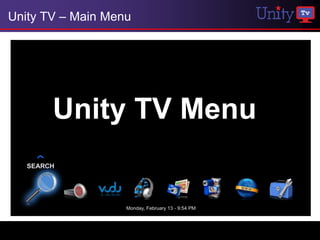
Unity TV – Main Menu


       Unity TV Menu
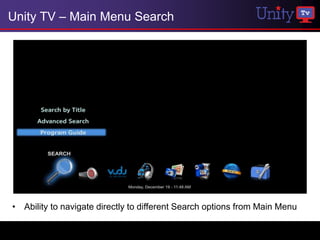
Unity TV – Main Menu Search


• Ability to navigate directly to different Search options from Main Menu
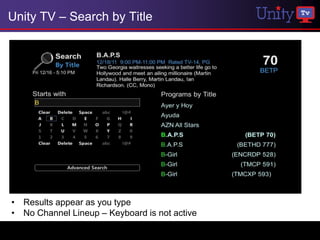
Unity TV – Search by Title


• Results appear as you type
• No Channel Lineup – Keyboard is not active
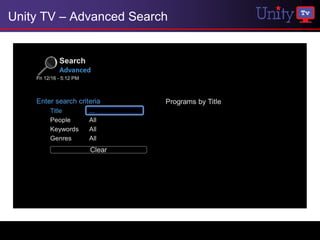
Unity TV – Advanced Search
Program Guide
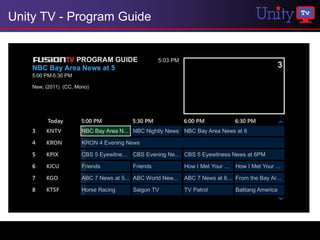
Unity TV - Program Guide
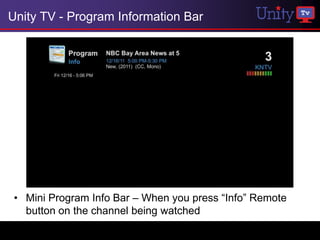
Unity TV - Program Information Bar


 • Mini Program Info Bar – When you press “Info” Remote
   button on the channel being watched
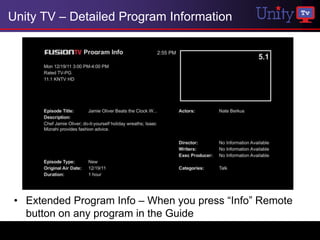
Unity TV – Detailed Program Information


 • Extended Program Info – When you press “Info” Remote
   button on any program in the Guide
Unity TV – Program Guide


Electronic Program Guide (EPG)

   • User must have broadband connection
   • Once the setup is complete, EPG data will be available in about
     an hour.
   • EPG will be downloaded once every hour
   • User gets 14 days of guide data
   • Box retains the guide on a reboot
   • No Network – Guide is retrieved through PSIP
   • EPG data overrides PSIP data
DVR
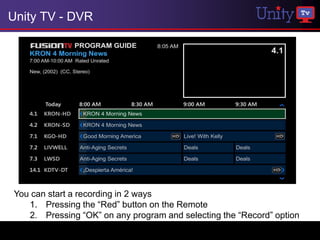
Unity TV - DVR


You can start a recording in 2 ways
   1. Pressing the “Red” button on the Remote
   2. Pressing “OK” on any program and selecting the “Record” option
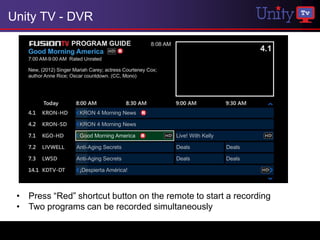
Unity TV - DVR


 • Press “Red” shortcut button on the remote to start a recording
 • Two programs can be recorded simultaneously
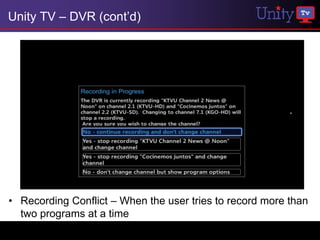
Unity TV – DVR (cont’d)


• Recording Conflict – When the user tries to record more than
  two programs at a time
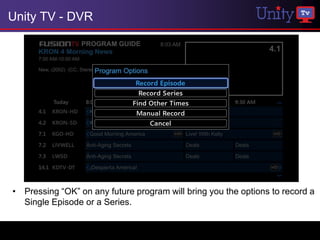
Unity TV - DVR


• Pressing “OK” on any future program will bring you the options to record a
  Single Episode or a Series.
Unity TV - DVR


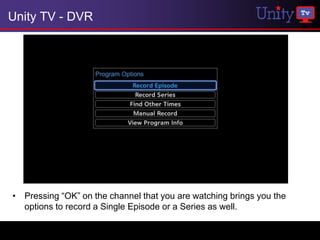
• Pressing “OK” on the channel that you are watching brings you the
  options to record a Single Episode or a Series as well.
Unity TV - DVR

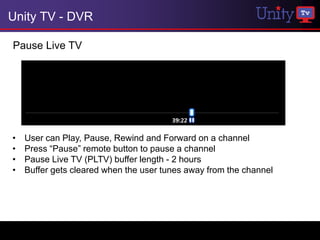
Pause Live TV


•   User can Play, Pause, Rewind and Forward on a channel
•   Press “Pause” remote button to pause a channel
•   Pause Live TV (PLTV) buffer length - 2 hours
•   Buffer gets cleared when the user tunes away from the channel
Unity TV - DVR

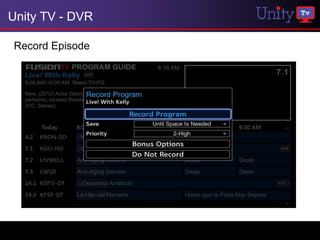
Record Episode
Unity TV - DVR

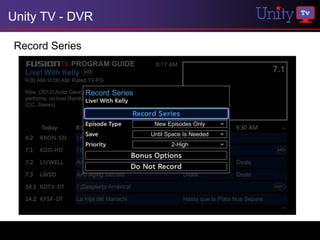
Record Series
Unity TV - DVR


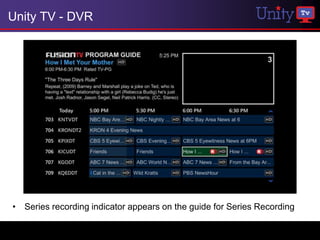
• Series recording indicator appears on the guide for Series Recording
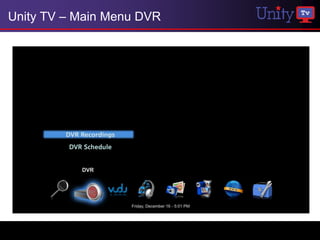
Unity TV – Main Menu DVR
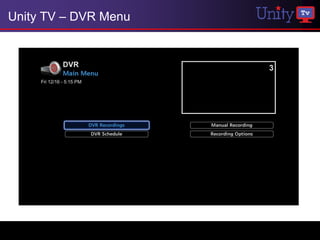
Unity TV – DVR Menu
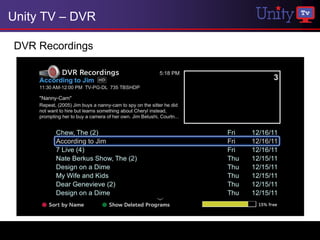
Unity TV – DVR

DVR Recordings
Unity TV – DVR

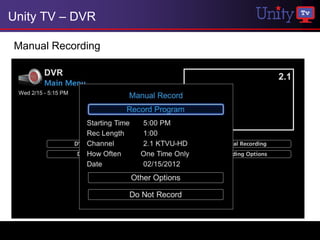
Manual Recording
Unity TV – DVR

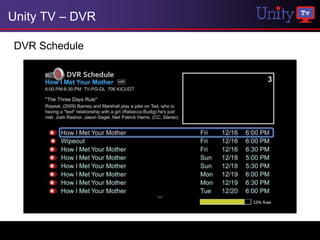
DVR Schedule
Unity TV – DVR

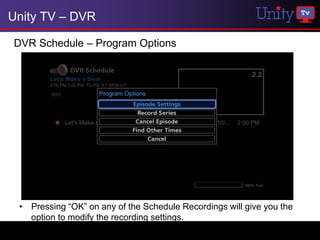
DVR Schedule – Program Options


 • Pressing “OK” on any of the Schedule Recordings will give you the
   option to modify the recording settings.
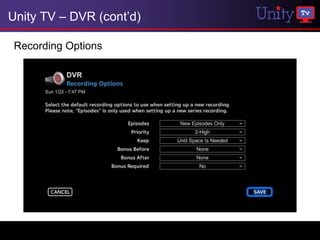
Unity TV – DVR (cont’d)

 Recording Options
Unity TV – DVR


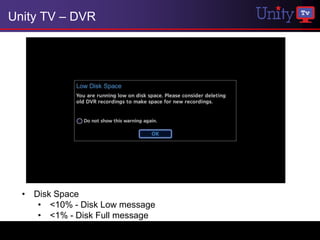
  • Disk Space
     • <10% - Disk Low message
     • <1% - Disk Full message
Unity TV – DVR


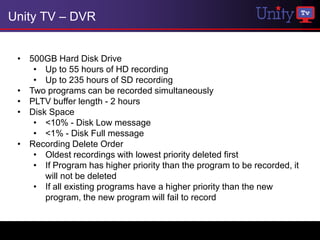
 • 500GB Hard Disk Drive
    • Up to 55 hours of HD recording
    • Up to 235 hours of SD recording
 • Two programs can be recorded simultaneously
 • PLTV buffer length - 2 hours
 • Disk Space
    • <10% - Disk Low message
    • <1% - Disk Full message
 • Recording Delete Order
    • Oldest recordings with lowest priority deleted first
    • If Program has higher priority than the program to be recorded, it
       will not be deleted
    • If all existing programs have a higher priority than the new
       program, the new program will fail to record
VUDU
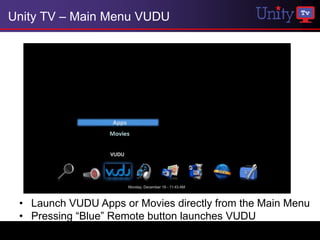
Unity TV – Main Menu VUDU


 • Launch VUDU Apps or Movies directly from the Main Menu
 • Pressing “Blue” Remote button launches VUDU
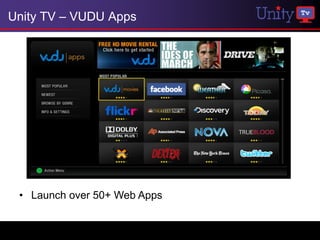
Unity TV – VUDU Apps


 • Launch over 50+ Web Apps
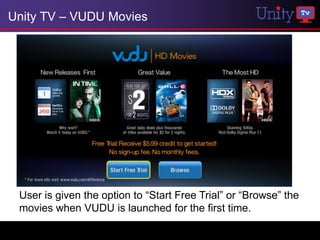
Unity TV – VUDU Movies


 User is given the option to “Start Free Trial” or “Browse” the
 movies when VUDU is launched for the first time.
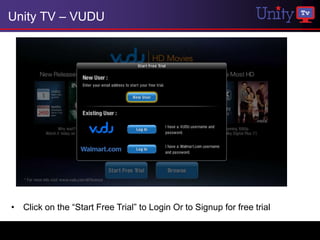
Unity TV – VUDU


• Click on the “Start Free Trial” to Login Or to Signup for free trial
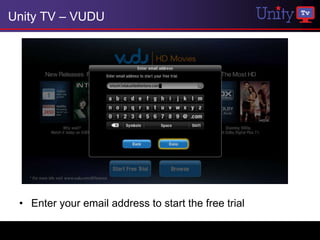
Unity TV – VUDU


 • Enter your email address to start the free trial
Unity TV – VUDU


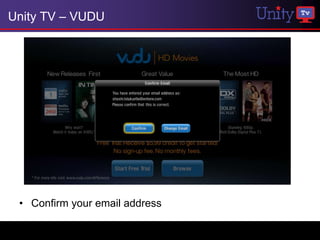
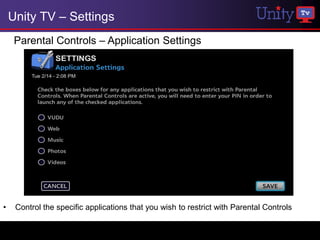
 • Confirm your email address
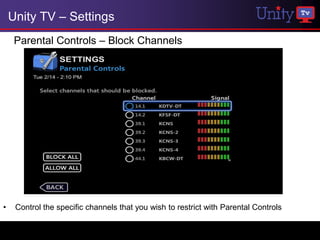
Unity TV – VUDU


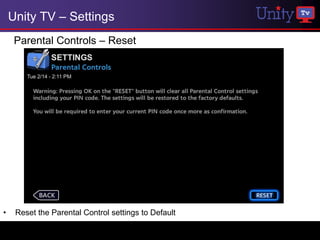
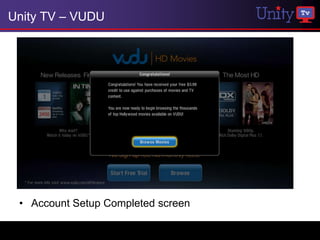
 • Account Setup Completed screen
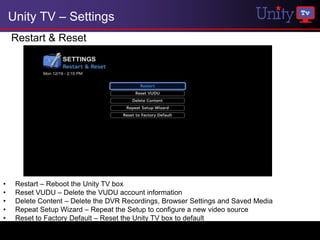
Unity TV – VUDU Movies


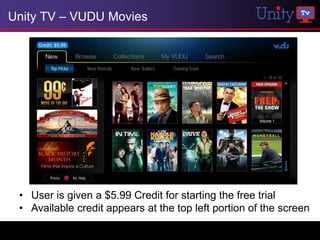
 • User is given a $5.99 Credit for starting the free trial
 • Available credit appears at the top left portion of the screen
Unity TV – VUDU


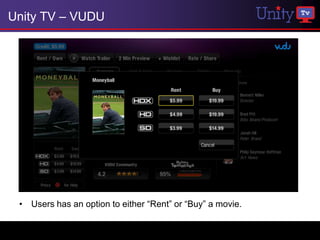
 • Users has an option to either “Rent” or “Buy” a movie.
Unity TV – VUDU

Buy/Rent -

• When users Buy a movie, it is stored permanently on their box.

• When users Rent a movie, they have 30 days to begin viewing the
  movie.

• Once the user presses play, a 24 hour viewing period is initiated, after
  which the rental will expire.

• Within that 24 hour period, users can watch the movie as often as they
  wish.

• There may also be movies from independent studios that allow users a
  48 hour period to watch the movie.
Unity TV – VUDU


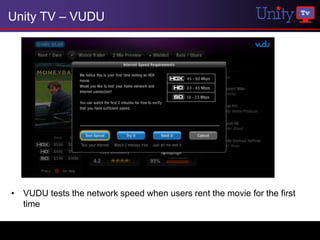
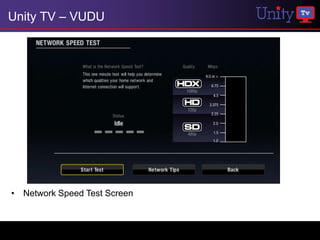
• VUDU tests the network speed when users rent the movie for the first
  time
Unity TV – VUDU


• Network Speed Test Screen
Unity TV – VUDU


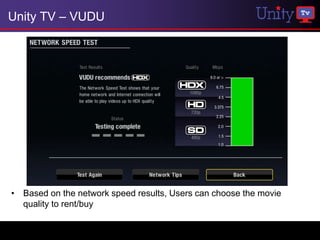
• Based on the network speed results, Users can choose the movie
  quality to rent/buy
Unity TV – VUDU

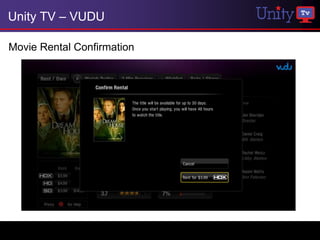
Movie Rental Confirmation
Unity TV – VUDU

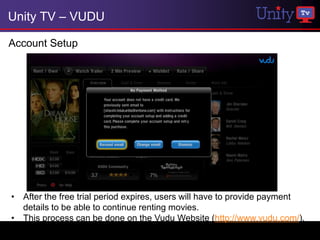
Account Setup


• After the free trial period expires, users will have to provide payment
  details to be able to continue renting movies.
• This process can be done on the Vudu Website (http://www.vudu.com/).
Unity TV – VUDU

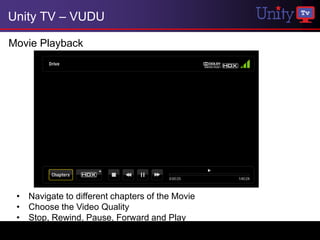
Movie Playback


 • Navigate to different chapters of the Movie
 • Choose the Video Quality
 • Stop, Rewind, Pause, Forward and Play
Unity TV – VUDU

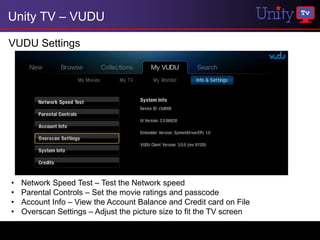
VUDU Settings


•   Network Speed Test – Test the Network speed
•   Parental Controls – Set the movie ratings and passcode
•   Account Info – View the Account Balance and Credit card on File
•   Overscan Settings – Adjust the picture size to fit the TV screen
Unity TV – VUDU

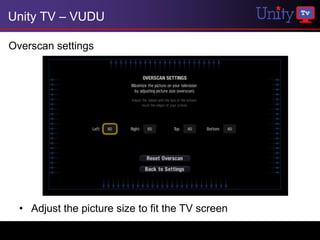
Overscan settings


  • Adjust the picture size to fit the TV screen
Unity TV – VUDU

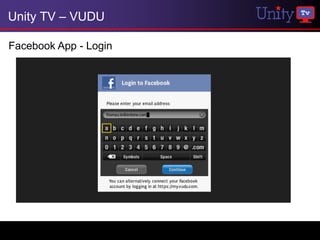
Facebook App - Login
Unity TV – VUDU

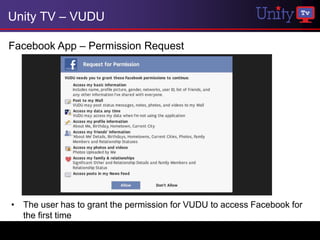
Facebook App – Permission Request


• The user has to grant the permission for VUDU to access Facebook for
  the first time
Unity TV – VUDU

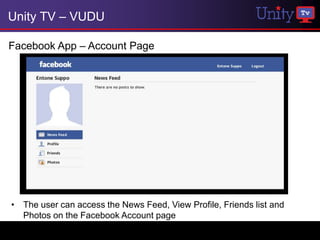
Facebook App – Account Page


• The user can access the News Feed, View Profile, Friends list and
  Photos on the Facebook Account page
Personal Media Management
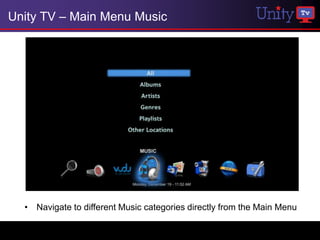
Unity TV – Main Menu Music


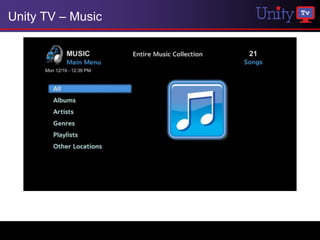
  • Navigate to different Music categories directly from the Main Menu
Unity TV – Music
Unity TV – Music
USB External Drive


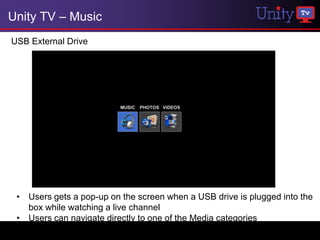
 • Users gets a pop-up on the screen when a USB drive is plugged into the
   box while watching a live channel
 • Users can navigate directly to one of the Media categories
Unity TV – Music
USB External Drive


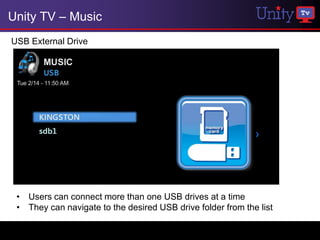
 • Users can connect more than one USB drives at a time
 • They can navigate to the desired USB drive folder from the list
Unity TV – Music
USB External Drive


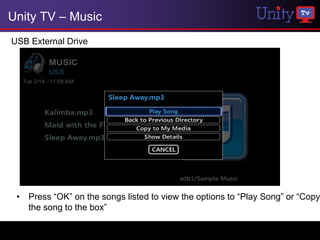
 • Press “OK” on the songs listed to view the options to “Play Song” or “Copy
   the song to the box”
Unity TV – Music
USB External Drive


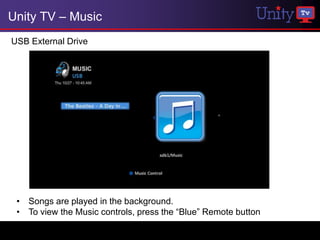
 • Songs are played in the background.
 • To view the Music controls, press the “Blue” Remote button
Unity TV – Music
Music Controls


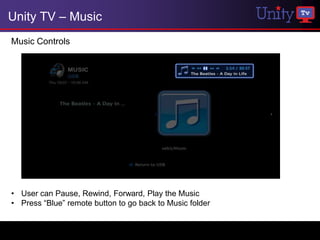
• User can Pause, Rewind, Forward, Play the Music
• Press “Blue” remote button to go back to Music folder
Unity TV – Music
USB External Drive


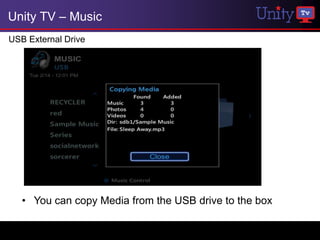
   • You can copy Media from the USB drive to the box
Unity TV – Music
Music – All


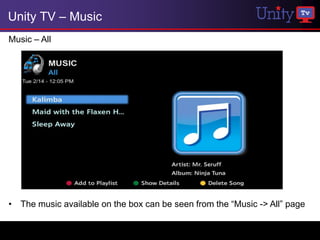
• The music available on the box can be seen from the “Music -> All” page
Unity TV – Music
Music – All


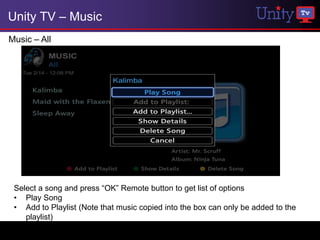
 Select a song and press “OK” Remote button to get list of options
 • Play Song
 • Add to Playlist (Note that music copied into the box can only be added to the
    playlist)
Unity TV – Music
Music – Playlists


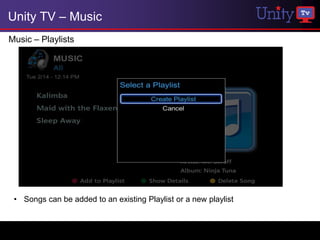
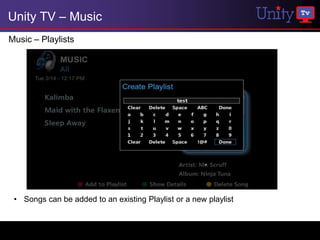
 • Songs can be added to an existing Playlist or a new playlist
Unity TV – Music
Music – Playlists


 • Songs can be added to an existing Playlist or a new playlist
Unity TV – Music
Music – Playlists


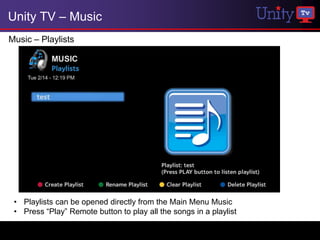
 • Playlists can be opened directly from the Main Menu Music
 • Press “Play” Remote button to play all the songs in a playlist
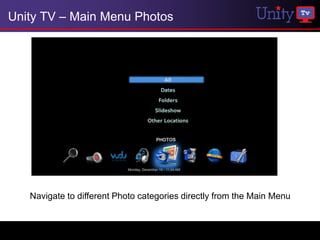
Unity TV – Main Menu Photos


   Navigate to different Photo categories directly from the Main Menu
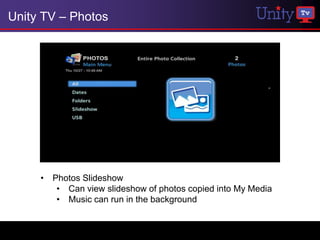
Unity TV – Photos


     • Photos Slideshow
        • Can view slideshow of photos copied into My Media
        • Music can run in the background
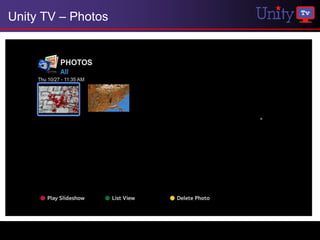
Unity TV – Photos
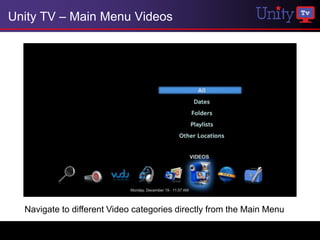
Unity TV – Main Menu Videos


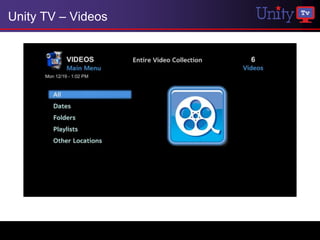
  Navigate to different Video categories directly from the Main Menu
Unity TV – Videos
Unity TV – Media Management

  Supported File Formats:
  • Audio : AAC, MP3, PCM, WAV, WMA, WMA Pro,
    Dolby Digital
  • Photo : BMP, GIF, JPEG, PNG, TIFF
  • Video : MPEG 1,2,4, H.264, WM9, DivX, AVS,
    MP4/MOV, MKV, VC1
PlayOn
Unity TV – PlayOn

What is PlayOn?
   • PlayOn is an application that allows consumers to show PC based video
       subscriptions on the TV.
   • PlayOn is a software program that runs on your Windows PC, giving you
       access to a wide range of Internet-based on-demand content on your Unity TV
   • PlayOn runs in the background on your PC over your home network.

What content is available through PlayOn?
   Content sites that are available through PlayOn include YouTube, Hulu, Netflix,
   Comedy Central, and many others.

Requirements
   • PlayOn software running your Windows PC
   • PC and Unity TV box connected to the same local network

NOTE
   PlayOn is a subscription based service
   Netflix, Hulu subscriptions required to play through PlayOn.
Unity TV – PlayOn

PlayOn Software – Settings
Unity TV – PlayOn

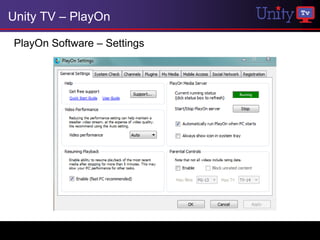
  PlayOn Software – Settings


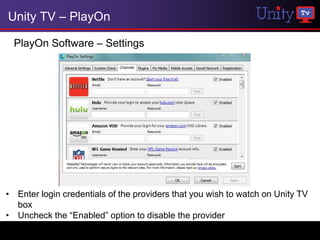
• Enter login credentials of the providers that you wish to watch on Unity TV
  box
• Uncheck the “Enabled” option to disable the provider
Unity TV – Videos/PlayOn


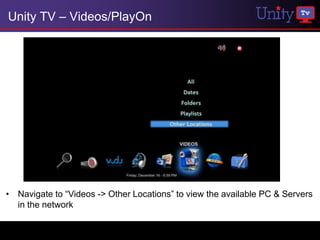
• Navigate to “Videos -> Other Locations” to view the available PC & Servers
  in the network
Unity TV – Videos/PlayOn


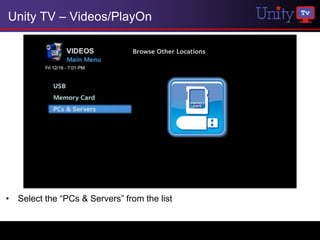
• Select the “PCs & Servers” from the list
Unity TV – Videos/PlayOn


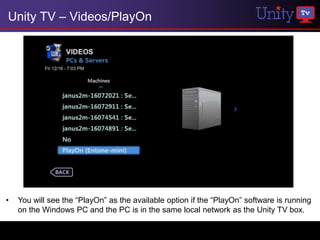
•   You will see the “PlayOn” as the available option if the “PlayOn” software is running
    on the Windows PC and the PC is in the same local network as the Unity TV box.
Unity TV – Videos/PlayOn


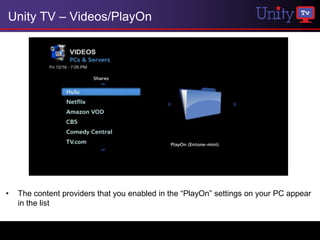
•   The content providers that you enabled in the “PlayOn” settings on your PC appear
    in the list
Unity TV – Videos/PlayOn

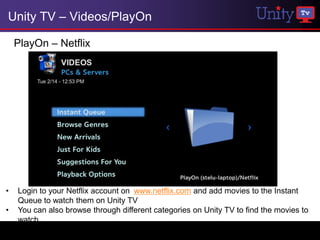
    PlayOn – Netflix


•   Login to your Netflix account on www.netflix.com and add movies to the Instant
    Queue to watch them on Unity TV
•   You can also browse through different categories on Unity TV to find the movies to
    watch
Web Browser
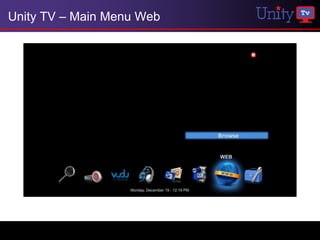
Unity TV – Main Menu Web
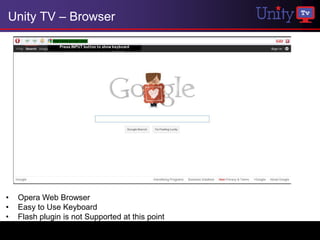
Unity TV – Browser


•   Opera Web Browser
•   Easy to Use Keyboard
•   Flash plugin is not Supported at this point
Settings
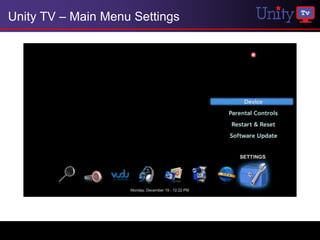
Unity TV – Main Menu Settings
Unity TV – Settings

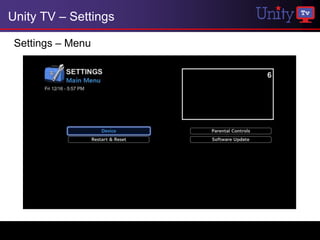
 Settings – Menu
Unity TV – Settings
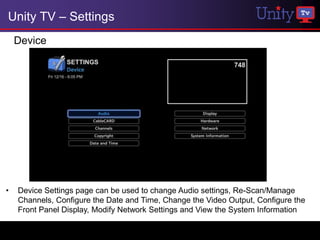
    Device


•   Device Settings page can be used to change Audio settings, Re-Scan/Manage
    Channels, Configure the Date and Time, Change the Video Output, Configure the
    Front Panel Display, Modify Network Settings and View the System Information
Unity TV – Settings
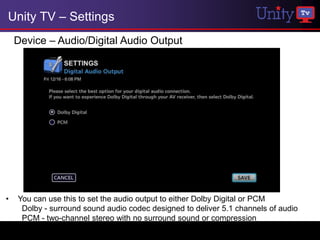
    Device – Audio/Digital Audio Output


•   You can use this to set the audio output to either Dolby Digital or PCM
     Dolby - surround sound audio codec designed to deliver 5.1 channels of audio
     PCM - two-channel stereo with no surround sound or compression
Unity TV – Settings
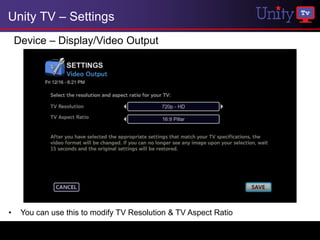
    Device – Display/Video Output


•    You can use this to modify TV Resolution & TV Aspect Ratio
Unity TV – Settings
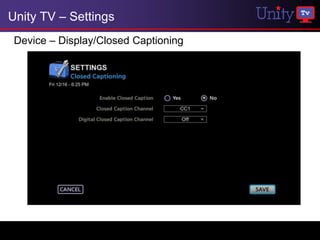
 Device – Display/Closed Captioning
Unity TV – Settings
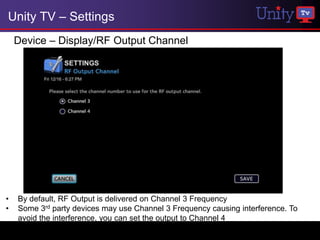
    Device – Display/RF Output Channel


•   By default, RF Output is delivered on Channel 3 Frequency
•   Some 3rd party devices may use Channel 3 Frequency causing interference. To
    avoid the interference, you can set the output to Channel 4
Unity TV – Settings
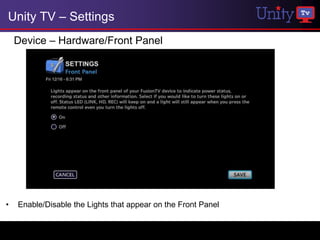
    Device – Hardware/Front Panel


•   Enable/Disable the Lights that appear on the Front Panel
Unity TV – Settings
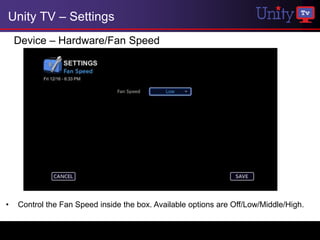
    Device – Hardware/Fan Speed


•   Control the Fan Speed inside the box. Available options are Off/Low/Middle/High.
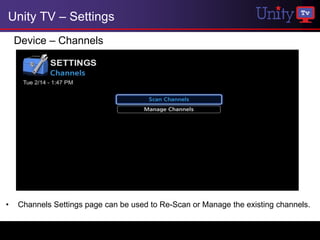
Unity TV – Settings
    Device – Channels


•   Channels Settings page can be used to Re-Scan or Manage the existing channels.
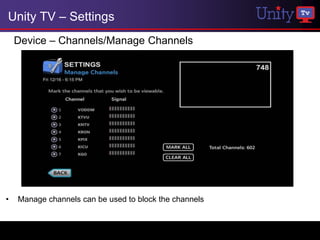
Unity TV – Settings
    Device – Channels/Manage Channels


•   Manage channels can be used to block the channels
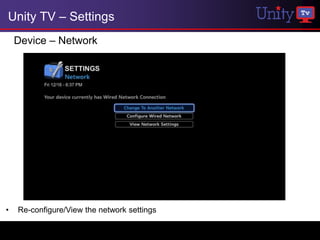
Unity TV – Settings
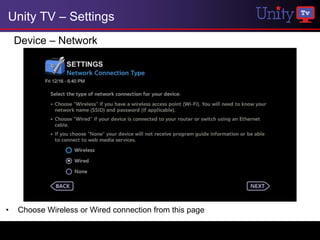
    Device – Network


•   Re-configure/View the network settings
Unity TV – Settings
    Device – Network


•   Choose Wireless or Wired connection from this page
Unity TV – Settings
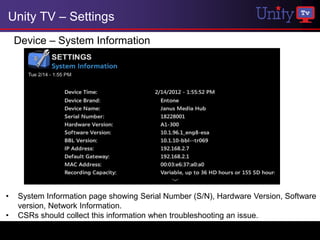
    Device – System Information


•   System Information page showing Serial Number (S/N), Hardware Version, Software
    version, Network Information.
•   CSRs should collect this information when troubleshooting an issue.
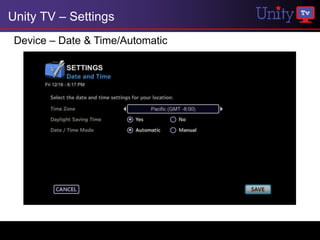
Unity TV – Settings
 Device – Date & Time/Automatic
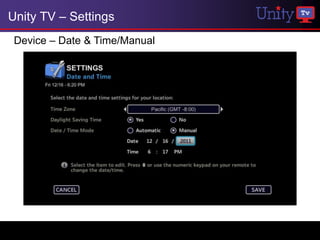
Unity TV – Settings
 Device – Date & Time/Manual
Unity TV – Settings
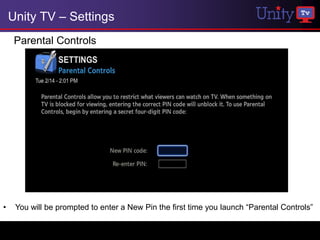
     Parental Controls


•    You will be prompted to enter a New Pin the first time you launch “Parental Controls”
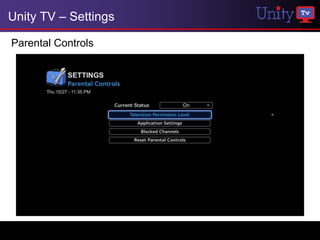
Unity TV – Settings

Parental Controls
Unity TV – Settings
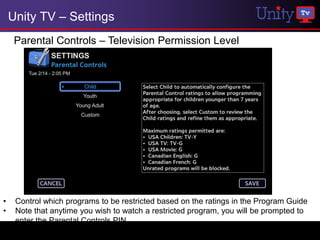
     Parental Controls – Television Permission Level


•    Control which programs to be restricted based on the ratings in the Program Guide
•    Note that anytime you wish to watch a restricted program, you will be prompted to
     enter the Parental Controls PIN
Unity TV – Settings
     Parental Controls – Application Settings


•    Control the specific applications that you wish to restrict with Parental Controls
Unity TV – Settings
     Parental Controls – Block Channels


•    Control the specific channels that you wish to restrict with Parental Controls
Unity TV – Settings
     Parental Controls – Reset


•    Reset the Parental Control settings to Default
Unity TV – Settings
    Restart & Reset


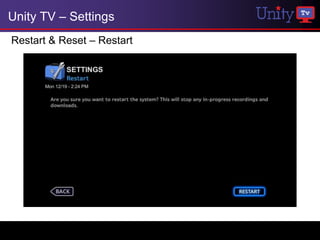
•    Restart – Reboot the Unity TV box
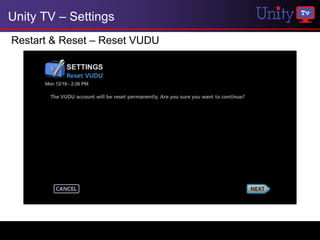
•    Reset VUDU – Delete the VUDU account information
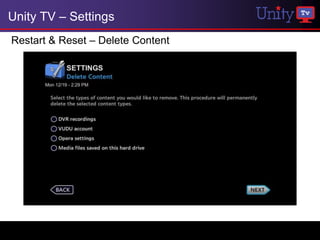
•    Delete Content – Delete the DVR Recordings, Browser Settings and Saved Media
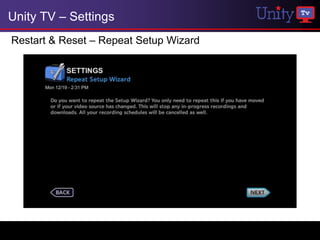
•    Repeat Setup Wizard – Repeat the Setup to configure a new video source
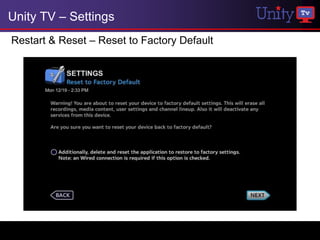
•    Reset to Factory Default – Reset the Unity TV box to default
Unity TV – Settings
Restart & Reset – Restart
Unity TV – Settings
Restart & Reset – Reset VUDU
Unity TV – Settings
Restart & Reset – Delete Content
Unity TV – Settings
Restart & Reset – Repeat Setup Wizard
Unity TV – Settings
Restart & Reset – Reset to Factory Default
Unity TV – Settings
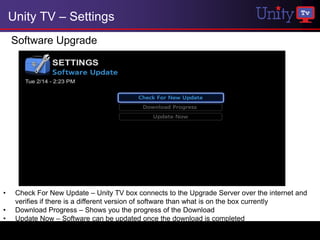
    Software Upgrade


•    Check For New Update – Unity TV box connects to the Upgrade Server over the internet and
     verifies if there is a different version of software than what is on the box currently
•    Download Progress – Shows you the progress of the Download
•    Update Now – Software can be updated once the download is completed

Unity TV Menus and Features

  • 1.
    How to Usethe Unity TV Menus and Features July 1, 2012
  • 2.
    Unity TV –Main Menu Unity TV Menu
  • 3.
    Unity TV –Main Menu Search • Ability to navigate directly to different Search options from Main Menu
  • 4.
    Unity TV –Search by Title • Results appear as you type • No Channel Lineup – Keyboard is not active
  • 5.
    Unity TV –Advanced Search
  • 6.
  • 7.
    Unity TV -Program Guide
  • 8.
    Unity TV -Program Information Bar • Mini Program Info Bar – When you press “Info” Remote button on the channel being watched
  • 9.
    Unity TV –Detailed Program Information • Extended Program Info – When you press “Info” Remote button on any program in the Guide
  • 10.
    Unity TV –Program Guide Electronic Program Guide (EPG) • User must have broadband connection • Once the setup is complete, EPG data will be available in about an hour. • EPG will be downloaded once every hour • User gets 14 days of guide data • Box retains the guide on a reboot • No Network – Guide is retrieved through PSIP • EPG data overrides PSIP data
  • 11.
  • 12.
    Unity TV -DVR You can start a recording in 2 ways 1. Pressing the “Red” button on the Remote 2. Pressing “OK” on any program and selecting the “Record” option
  • 13.
    Unity TV -DVR • Press “Red” shortcut button on the remote to start a recording • Two programs can be recorded simultaneously
  • 14.
    Unity TV –DVR (cont’d) • Recording Conflict – When the user tries to record more than two programs at a time
  • 15.
    Unity TV -DVR • Pressing “OK” on any future program will bring you the options to record a Single Episode or a Series.
  • 16.
    Unity TV -DVR • Pressing “OK” on the channel that you are watching brings you the options to record a Single Episode or a Series as well.
  • 17.
    Unity TV -DVR Pause Live TV • User can Play, Pause, Rewind and Forward on a channel • Press “Pause” remote button to pause a channel • Pause Live TV (PLTV) buffer length - 2 hours • Buffer gets cleared when the user tunes away from the channel
  • 18.
    Unity TV -DVR Record Episode
  • 19.
    Unity TV -DVR Record Series
  • 20.
    Unity TV -DVR • Series recording indicator appears on the guide for Series Recording
  • 21.
    Unity TV –Main Menu DVR
  • 22.
    Unity TV –DVR Menu
  • 23.
    Unity TV –DVR DVR Recordings
  • 24.
    Unity TV –DVR Manual Recording
  • 25.
    Unity TV –DVR DVR Schedule
  • 26.
    Unity TV –DVR DVR Schedule – Program Options • Pressing “OK” on any of the Schedule Recordings will give you the option to modify the recording settings.
  • 27.
    Unity TV –DVR (cont’d) Recording Options
  • 28.
    Unity TV –DVR • Disk Space • <10% - Disk Low message • <1% - Disk Full message
  • 29.
    Unity TV –DVR • 500GB Hard Disk Drive • Up to 55 hours of HD recording • Up to 235 hours of SD recording • Two programs can be recorded simultaneously • PLTV buffer length - 2 hours • Disk Space • <10% - Disk Low message • <1% - Disk Full message • Recording Delete Order • Oldest recordings with lowest priority deleted first • If Program has higher priority than the program to be recorded, it will not be deleted • If all existing programs have a higher priority than the new program, the new program will fail to record
  • 30.
  • 31.
    Unity TV –Main Menu VUDU • Launch VUDU Apps or Movies directly from the Main Menu • Pressing “Blue” Remote button launches VUDU
  • 32.
    Unity TV –VUDU Apps • Launch over 50+ Web Apps
  • 33.
    Unity TV –VUDU Movies User is given the option to “Start Free Trial” or “Browse” the movies when VUDU is launched for the first time.
  • 34.
    Unity TV –VUDU • Click on the “Start Free Trial” to Login Or to Signup for free trial
  • 35.
    Unity TV –VUDU • Enter your email address to start the free trial
  • 36.
    Unity TV –VUDU • Confirm your email address
  • 37.
    Unity TV –VUDU • Account Setup Completed screen
  • 38.
    Unity TV –VUDU Movies • User is given a $5.99 Credit for starting the free trial • Available credit appears at the top left portion of the screen
  • 39.
    Unity TV –VUDU • Users has an option to either “Rent” or “Buy” a movie.
  • 40.
    Unity TV –VUDU Buy/Rent - • When users Buy a movie, it is stored permanently on their box. • When users Rent a movie, they have 30 days to begin viewing the movie. • Once the user presses play, a 24 hour viewing period is initiated, after which the rental will expire. • Within that 24 hour period, users can watch the movie as often as they wish. • There may also be movies from independent studios that allow users a 48 hour period to watch the movie.
  • 41.
    Unity TV –VUDU • VUDU tests the network speed when users rent the movie for the first time
  • 42.
    Unity TV –VUDU • Network Speed Test Screen
  • 43.
    Unity TV –VUDU • Based on the network speed results, Users can choose the movie quality to rent/buy
  • 44.
    Unity TV –VUDU Movie Rental Confirmation
  • 45.
    Unity TV –VUDU Account Setup • After the free trial period expires, users will have to provide payment details to be able to continue renting movies. • This process can be done on the Vudu Website (http://www.vudu.com/).
  • 46.
    Unity TV –VUDU Movie Playback • Navigate to different chapters of the Movie • Choose the Video Quality • Stop, Rewind, Pause, Forward and Play
  • 47.
    Unity TV –VUDU VUDU Settings • Network Speed Test – Test the Network speed • Parental Controls – Set the movie ratings and passcode • Account Info – View the Account Balance and Credit card on File • Overscan Settings – Adjust the picture size to fit the TV screen
  • 48.
    Unity TV –VUDU Overscan settings • Adjust the picture size to fit the TV screen
  • 49.
    Unity TV –VUDU Facebook App - Login
  • 50.
    Unity TV –VUDU Facebook App – Permission Request • The user has to grant the permission for VUDU to access Facebook for the first time
  • 51.
    Unity TV –VUDU Facebook App – Account Page • The user can access the News Feed, View Profile, Friends list and Photos on the Facebook Account page
  • 52.
  • 53.
    Unity TV –Main Menu Music • Navigate to different Music categories directly from the Main Menu
  • 54.
  • 55.
    Unity TV –Music USB External Drive • Users gets a pop-up on the screen when a USB drive is plugged into the box while watching a live channel • Users can navigate directly to one of the Media categories
  • 56.
    Unity TV –Music USB External Drive • Users can connect more than one USB drives at a time • They can navigate to the desired USB drive folder from the list
  • 57.
    Unity TV –Music USB External Drive • Press “OK” on the songs listed to view the options to “Play Song” or “Copy the song to the box”
  • 58.
    Unity TV –Music USB External Drive • Songs are played in the background. • To view the Music controls, press the “Blue” Remote button
  • 59.
    Unity TV –Music Music Controls • User can Pause, Rewind, Forward, Play the Music • Press “Blue” remote button to go back to Music folder
  • 60.
    Unity TV –Music USB External Drive • You can copy Media from the USB drive to the box
  • 61.
    Unity TV –Music Music – All • The music available on the box can be seen from the “Music -> All” page
  • 62.
    Unity TV –Music Music – All Select a song and press “OK” Remote button to get list of options • Play Song • Add to Playlist (Note that music copied into the box can only be added to the playlist)
  • 63.
    Unity TV –Music Music – Playlists • Songs can be added to an existing Playlist or a new playlist
  • 64.
    Unity TV –Music Music – Playlists • Songs can be added to an existing Playlist or a new playlist
  • 65.
    Unity TV –Music Music – Playlists • Playlists can be opened directly from the Main Menu Music • Press “Play” Remote button to play all the songs in a playlist
  • 66.
    Unity TV –Main Menu Photos Navigate to different Photo categories directly from the Main Menu
  • 67.
    Unity TV –Photos • Photos Slideshow • Can view slideshow of photos copied into My Media • Music can run in the background
  • 68.
  • 69.
    Unity TV –Main Menu Videos Navigate to different Video categories directly from the Main Menu
  • 70.
  • 71.
    Unity TV –Media Management Supported File Formats: • Audio : AAC, MP3, PCM, WAV, WMA, WMA Pro, Dolby Digital • Photo : BMP, GIF, JPEG, PNG, TIFF • Video : MPEG 1,2,4, H.264, WM9, DivX, AVS, MP4/MOV, MKV, VC1
  • 72.
  • 73.
    Unity TV –PlayOn What is PlayOn? • PlayOn is an application that allows consumers to show PC based video subscriptions on the TV. • PlayOn is a software program that runs on your Windows PC, giving you access to a wide range of Internet-based on-demand content on your Unity TV • PlayOn runs in the background on your PC over your home network. What content is available through PlayOn? Content sites that are available through PlayOn include YouTube, Hulu, Netflix, Comedy Central, and many others. Requirements • PlayOn software running your Windows PC • PC and Unity TV box connected to the same local network NOTE PlayOn is a subscription based service Netflix, Hulu subscriptions required to play through PlayOn.
  • 74.
    Unity TV –PlayOn PlayOn Software – Settings
  • 75.
    Unity TV –PlayOn PlayOn Software – Settings • Enter login credentials of the providers that you wish to watch on Unity TV box • Uncheck the “Enabled” option to disable the provider
  • 76.
    Unity TV –Videos/PlayOn • Navigate to “Videos -> Other Locations” to view the available PC & Servers in the network
  • 77.
    Unity TV –Videos/PlayOn • Select the “PCs & Servers” from the list
  • 78.
    Unity TV –Videos/PlayOn • You will see the “PlayOn” as the available option if the “PlayOn” software is running on the Windows PC and the PC is in the same local network as the Unity TV box.
  • 79.
    Unity TV –Videos/PlayOn • The content providers that you enabled in the “PlayOn” settings on your PC appear in the list
  • 80.
    Unity TV –Videos/PlayOn PlayOn – Netflix • Login to your Netflix account on www.netflix.com and add movies to the Instant Queue to watch them on Unity TV • You can also browse through different categories on Unity TV to find the movies to watch
  • 81.
  • 82.
    Unity TV –Main Menu Web
  • 83.
    Unity TV –Browser • Opera Web Browser • Easy to Use Keyboard • Flash plugin is not Supported at this point
  • 84.
  • 85.
    Unity TV –Main Menu Settings
  • 86.
    Unity TV –Settings Settings – Menu
  • 87.
    Unity TV –Settings Device • Device Settings page can be used to change Audio settings, Re-Scan/Manage Channels, Configure the Date and Time, Change the Video Output, Configure the Front Panel Display, Modify Network Settings and View the System Information
  • 88.
    Unity TV –Settings Device – Audio/Digital Audio Output • You can use this to set the audio output to either Dolby Digital or PCM Dolby - surround sound audio codec designed to deliver 5.1 channels of audio PCM - two-channel stereo with no surround sound or compression
  • 89.
    Unity TV –Settings Device – Display/Video Output • You can use this to modify TV Resolution & TV Aspect Ratio
  • 90.
    Unity TV –Settings Device – Display/Closed Captioning
  • 91.
    Unity TV –Settings Device – Display/RF Output Channel • By default, RF Output is delivered on Channel 3 Frequency • Some 3rd party devices may use Channel 3 Frequency causing interference. To avoid the interference, you can set the output to Channel 4
  • 92.
    Unity TV –Settings Device – Hardware/Front Panel • Enable/Disable the Lights that appear on the Front Panel
  • 93.
    Unity TV –Settings Device – Hardware/Fan Speed • Control the Fan Speed inside the box. Available options are Off/Low/Middle/High.
  • 94.
    Unity TV –Settings Device – Channels • Channels Settings page can be used to Re-Scan or Manage the existing channels.
  • 95.
    Unity TV –Settings Device – Channels/Manage Channels • Manage channels can be used to block the channels
  • 96.
    Unity TV –Settings Device – Network • Re-configure/View the network settings
  • 97.
    Unity TV –Settings Device – Network • Choose Wireless or Wired connection from this page
  • 98.
    Unity TV –Settings Device – System Information • System Information page showing Serial Number (S/N), Hardware Version, Software version, Network Information. • CSRs should collect this information when troubleshooting an issue.
  • 99.
    Unity TV –Settings Device – Date & Time/Automatic
  • 100.
    Unity TV –Settings Device – Date & Time/Manual
  • 101.
    Unity TV –Settings Parental Controls • You will be prompted to enter a New Pin the first time you launch “Parental Controls”
  • 102.
    Unity TV –Settings Parental Controls
  • 103.
    Unity TV –Settings Parental Controls – Television Permission Level • Control which programs to be restricted based on the ratings in the Program Guide • Note that anytime you wish to watch a restricted program, you will be prompted to enter the Parental Controls PIN
  • 104.
    Unity TV –Settings Parental Controls – Application Settings • Control the specific applications that you wish to restrict with Parental Controls
  • 105.
    Unity TV –Settings Parental Controls – Block Channels • Control the specific channels that you wish to restrict with Parental Controls
  • 106.
    Unity TV –Settings Parental Controls – Reset • Reset the Parental Control settings to Default
  • 107.
    Unity TV –Settings Restart & Reset • Restart – Reboot the Unity TV box • Reset VUDU – Delete the VUDU account information • Delete Content – Delete the DVR Recordings, Browser Settings and Saved Media • Repeat Setup Wizard – Repeat the Setup to configure a new video source • Reset to Factory Default – Reset the Unity TV box to default
  • 108.
    Unity TV –Settings Restart & Reset – Restart
  • 109.
    Unity TV –Settings Restart & Reset – Reset VUDU
  • 110.
    Unity TV –Settings Restart & Reset – Delete Content
  • 111.
    Unity TV –Settings Restart & Reset – Repeat Setup Wizard
  • 112.
    Unity TV –Settings Restart & Reset – Reset to Factory Default
  • 113.
    Unity TV –Settings Software Upgrade • Check For New Update – Unity TV box connects to the Upgrade Server over the internet and verifies if there is a different version of software than what is on the box currently • Download Progress – Shows you the progress of the Download • Update Now – Software can be updated once the download is completed