Movie Maker 2
                                      6/29/04
                                    Kena Clark


1. Introduction to the interface
2. Collections
3. Capturing and Importing
4. Working with Projects
5. Working with Clips
6. Applying Video Effects
7. Applying Transitions
8. Adding Titles and Credits
9. Working with Audio
10. Saving as a movie

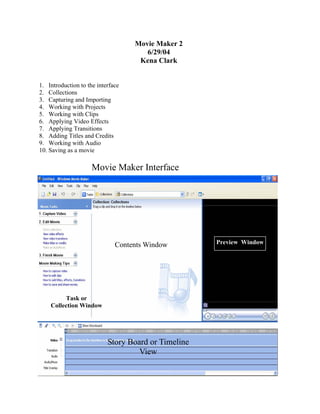
                     Movie Maker Interface


                              Contents Window        Preview Window


         Task or
    Collection Window


                           Story Board or Timeline
                                    View
To view video transition click on Video Transitions in the collections pane and video transitions will open up
in the contents window. Click on the video transition that you want to preview and it will show in the pre-
view pane. The same goes for video effects. When you want to view a video effect click on Video Effects
in the collections pane. Video Effects will open up in the contents window. Click on the video effect and
you can preview it on the preview window.


                                     Video Transitions


                                         Video Effects
To get to the options menu you will click on Tools and then click options


Most of these will be left as the de-
fault but the one that you might want
to change is the Temporary storage.
Temporary is where you will be sav-
ing your projects. You will want to
make sure that wherever you save
them to you have enough hard drive
space.

While the auto recovery feature is a
great feature it will only recover
whatever was Last Manually saved.


On the advanced tab of the options
menu you will also want to leave
these as default. In the future you
might want to change the picture
duration or the transition duration
to meet your specific needs.
Working With Collections

Collections will be where you store your media so that you can work with it. Collections will help you keep
your media organized so that you don’t have to search for it. Collections are much like folders on your
computer. Within a folder you can have subfolders as you can with collections.
Collections already come with three main components, Video Effects, Video Transitions and Collections.
To make a new folder in collections click on the new folder icon


                Type in a name that you want the folder to be called
                such as audio, stills, video etc. and press enter


                 Importing Pictures and audio into the collections


               Click on the collection that you want to import files into.
Importing Pictures Into Your Collection


                                           1.   Click on the collection
                                                that you want to import
                                                into.
                                           2.   Click on file
                                           3.   Click on Import into col-
                                                lection.
                                           4.   Browse to the folder
                                                where you have the pic-
                                                ture that you want to im-
                                                port.


              Your picture or pictures
              will appear into your col-
              lection folder.
              You will then drag your
              picture to the timeline.
              You will do this for your
              audio, music and video.
Working with Clips
Once your video is imported you might need to trim the video clip. To trim your video clip
you will be using the controls in the preview pane.


                         You can use the arrow buttons or the
                         slide lever to get to the position. Once
                         you are at the position you want to edit
                         you will click on Clip and select start
                         trim point or set end trim point.


   If you find that you have trimmed too much of the clip off you can click the undo arrow.
   If the undo arrow is not highlighted you can import the clip again.
Applying Video Effects and Video Transitions
Applying video effects and video transitions to the timeline is much the same as applying a picture or
video to the timeline. You will drag the transition or video effect that you want to the timeline where
you want it.


Above I have dragged a video transition to the timeline between a picture and a video
clip. As you can see the video transition is on the video transition line in the timeline.
For a video effect you will do the same thing. Click on video effects and then drag the
effect you want to the timeline.
Applying Titles and Credits


Before your movie is complete you will want to add titles and credits to your project. You
will click on tools then click on Titles and Credits.


                                                   As you can see you have several choices
                                                   for titles. It will be just a matter of where
                                                   you want it. You will click on the one that
                                                   you want and type in your title or credits.


     You will type your title here.


                            You can change the title animation ,
                            change the text font and color here.
Working with Audio
Working with audio is the same as working with video effects and transitions. You will drag your
audio to the timeline. As you can see I have placed the song Dancing Queen on the timeline, how-
ever the song is longer then the clips that I have so I will have to trim the song.


 To trim the song you will place your mouse at the end of the song and simply click and drag
 back to the end of the picture.

 This is what the edited song looks like now.
Saving as a Movie

Once you are satisfied with your project you will need to save it as a movie. Click on file and Save Movie
File


                                                                      As you can see there are several op-
                                                                      tions for saving your project. You
                                                                      can save it to your computer. Save it
                                                                      to a recordable CD that is if you have
                                                                      a CD burner on your computer. Save
                                                                      it to send in E-mail. Save it to the
                                                                      web and save it back to your DV
                                                                      camera.
                                                                      If you have a DVD burner you on
                                                                      your computer you will save your
                                                                      project to your computer first then
                                                                      you will burn it to the DVD. You
                                                                      will click on the option that you plan
                                                                      to use and then follow the onscreen
                                                                      prompts.
Resources

www.atomiclearning.com/moviemaker2

http://www.microsoft.com/windowsxp/using/
moviemaker/getstarted/default.mspx

http://www.microsoft.com/education/
MovieMaker.aspx (for use in the classroom)

http://desktopvideo.about.com/library/weekly/
aa032303a.htm (how to capture video)

http://www.bamaed.ua.edu/cse489/tutorial/saving.html

http://soe.cahs.colostate.edu/cttec/PDF/Intro%20to%
20Movie%20Maker%20lesson.pdf

http://www.engadget.com/entry/1139359724757783/
(capturing and making an auto movie)

http://www.pineriver.k12.mi.us/ms/moviemaker/
movie_from_pics.htm (for use in the classroom)

Windows Movie Maker Tutorial

  • 1.
    Movie Maker 2 6/29/04 Kena Clark 1. Introduction to the interface 2. Collections 3. Capturing and Importing 4. Working with Projects 5. Working with Clips 6. Applying Video Effects 7. Applying Transitions 8. Adding Titles and Credits 9. Working with Audio 10. Saving as a movie Movie Maker Interface Contents Window Preview Window Task or Collection Window Story Board or Timeline View
  • 2.
    To view videotransition click on Video Transitions in the collections pane and video transitions will open up in the contents window. Click on the video transition that you want to preview and it will show in the pre- view pane. The same goes for video effects. When you want to view a video effect click on Video Effects in the collections pane. Video Effects will open up in the contents window. Click on the video effect and you can preview it on the preview window. Video Transitions Video Effects
  • 3.
    To get tothe options menu you will click on Tools and then click options Most of these will be left as the de- fault but the one that you might want to change is the Temporary storage. Temporary is where you will be sav- ing your projects. You will want to make sure that wherever you save them to you have enough hard drive space. While the auto recovery feature is a great feature it will only recover whatever was Last Manually saved. On the advanced tab of the options menu you will also want to leave these as default. In the future you might want to change the picture duration or the transition duration to meet your specific needs.
  • 4.
    Working With Collections Collectionswill be where you store your media so that you can work with it. Collections will help you keep your media organized so that you don’t have to search for it. Collections are much like folders on your computer. Within a folder you can have subfolders as you can with collections. Collections already come with three main components, Video Effects, Video Transitions and Collections. To make a new folder in collections click on the new folder icon Type in a name that you want the folder to be called such as audio, stills, video etc. and press enter Importing Pictures and audio into the collections Click on the collection that you want to import files into.
  • 5.
    Importing Pictures IntoYour Collection 1. Click on the collection that you want to import into. 2. Click on file 3. Click on Import into col- lection. 4. Browse to the folder where you have the pic- ture that you want to im- port. Your picture or pictures will appear into your col- lection folder. You will then drag your picture to the timeline. You will do this for your audio, music and video.
  • 6.
    Working with Clips Onceyour video is imported you might need to trim the video clip. To trim your video clip you will be using the controls in the preview pane. You can use the arrow buttons or the slide lever to get to the position. Once you are at the position you want to edit you will click on Clip and select start trim point or set end trim point. If you find that you have trimmed too much of the clip off you can click the undo arrow. If the undo arrow is not highlighted you can import the clip again.
  • 7.
    Applying Video Effectsand Video Transitions Applying video effects and video transitions to the timeline is much the same as applying a picture or video to the timeline. You will drag the transition or video effect that you want to the timeline where you want it. Above I have dragged a video transition to the timeline between a picture and a video clip. As you can see the video transition is on the video transition line in the timeline. For a video effect you will do the same thing. Click on video effects and then drag the effect you want to the timeline.
  • 8.
    Applying Titles andCredits Before your movie is complete you will want to add titles and credits to your project. You will click on tools then click on Titles and Credits. As you can see you have several choices for titles. It will be just a matter of where you want it. You will click on the one that you want and type in your title or credits. You will type your title here. You can change the title animation , change the text font and color here.
  • 9.
    Working with Audio Workingwith audio is the same as working with video effects and transitions. You will drag your audio to the timeline. As you can see I have placed the song Dancing Queen on the timeline, how- ever the song is longer then the clips that I have so I will have to trim the song. To trim the song you will place your mouse at the end of the song and simply click and drag back to the end of the picture. This is what the edited song looks like now.
  • 10.
    Saving as aMovie Once you are satisfied with your project you will need to save it as a movie. Click on file and Save Movie File As you can see there are several op- tions for saving your project. You can save it to your computer. Save it to a recordable CD that is if you have a CD burner on your computer. Save it to send in E-mail. Save it to the web and save it back to your DV camera. If you have a DVD burner you on your computer you will save your project to your computer first then you will burn it to the DVD. You will click on the option that you plan to use and then follow the onscreen prompts.
  • 11.
    Resources www.atomiclearning.com/moviemaker2 http://www.microsoft.com/windowsxp/using/ moviemaker/getstarted/default.mspx http://www.microsoft.com/education/ MovieMaker.aspx (for usein the classroom) http://desktopvideo.about.com/library/weekly/ aa032303a.htm (how to capture video) http://www.bamaed.ua.edu/cse489/tutorial/saving.html http://soe.cahs.colostate.edu/cttec/PDF/Intro%20to% 20Movie%20Maker%20lesson.pdf http://www.engadget.com/entry/1139359724757783/ (capturing and making an auto movie) http://www.pineriver.k12.mi.us/ms/moviemaker/ movie_from_pics.htm (for use in the classroom)