Presented By
Steve Gladstone
steve.gladstone@spg-solutions.com
Presentation Roadmap
 What is Microsoft Project (MSP)?
 Setting Up The Project Plan
 Set Project Start/End Dates
 Define Tasks And Dependencies
 Assign Resources and Costs
 “Baseline” The Plan
 Verify The Project Plan Is Viable
 Identify Resource Over-Allocations
 “Level” Project, If Necessary
 Execute And Manage The Plan
 Periodically Update Plan With Actual Work Done
 Compare Actual Against Baseline Plan
 Re-Plan and Re-Baseline, If Required
 Use The Plan To Balance And Communicate Scope, Time, And Resource Issues
 Wrap-Up: Review And Q&A
 Please Complete & Submit Feedback Forms
What Is Microsoft Project?
 Microsoft Project (or MSP)
 Project management software program developed and sold by Microsoft which is designed to
assist project managers in developing plans, assigning resources to tasks, tracking progress,
managing budgets and analyzing workloads.
 Microsoft Project Server
 Microsoft extends the capabilities of Microsoft Project with Project Server and Web Access.
Microsoft Project Server stores project information in a central database, protected from
unauthorized access and corruption. A Project Administrator can control security defining users
and access rights.
 The Project Center supports reports across an organization at the project level. Managers can
drill down into project details.
 The project manager needs to communicate project plans and to distribute task assignments to
team members. The assignment of tasks can be distributed to team member home pages in Web
Access. They need to communicate status and changes to keep the project manager up to date.
Project Server supports electronic communication over the web via Web Access.
 Resource workloads can be analyzed by project and by resource with the Resource Center,
allowing organizations to forecast future resource requirements and make more efficient use of
resources.
 The view definition is easier to understand and more robust with Web Access than with
Microsoft Project. Views can be protected to assist standardization. Project Server stores custom
calendars, views, tables, filters, and fields, in an Enterprise Global area where users have access to
the latest version every time they restart Microsoft Project.
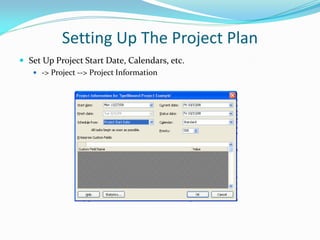
Setting Up The Project Plan
 Set Up Project Start Date, Calendars, etc.
 -> Project --> Project Information
Setting Up The Project Plan
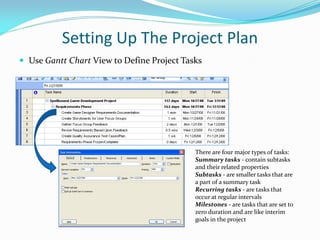
 Use Gantt Chart View to Define Project Tasks
There are four major types of tasks:
Summary tasks - contain subtasks
and their related properties
Subtasks - are smaller tasks that are
a part of a summary task
Recurring tasks - are tasks that
occur at regular intervals
Milestones - are tasks that are set to
zero duration and are like interim
goals in the project
Setting Up The Project Plan
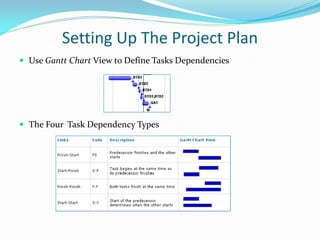
 Use Gantt Chart View to Define Tasks Dependencies
 The Four Task Dependency Types
Setting Up The Project Plan
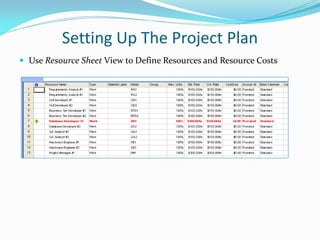
 Use Resource Sheet View to Define Resources and Resource Costs
Setting Up The Project Plan
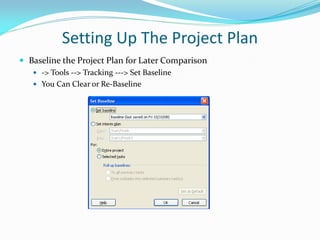
 Baseline the Project Plan for Later Comparison
 -> Tools --> Tracking ---> Set Baseline
 You Can Clear or Re-Baseline
Verify The Project Plan Is Viable
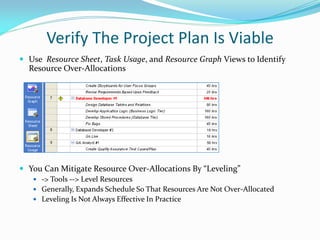
 Use Resource Sheet, Task Usage, and Resource Graph Views to Identify
Resource Over-Allocations
 You Can Mitigate Resource Over-Allocations By “Leveling”
 -> Tools --> Level Resources
 Generally, Expands Schedule So That Resources Are Not Over-Allocated
 Leveling Is Not Always Effective In Practice
Execute And Manage The Plan
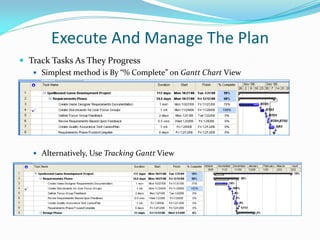
 Track Tasks As They Progress
 Simplest method is By “% Complete” on Gantt Chart View
 Alternatively, Use Tracking Gantt View
Execute And Manage The Plan
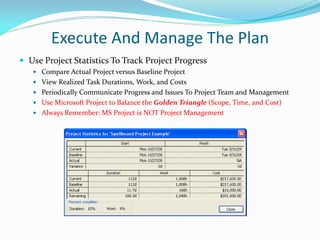
 Use Project Statistics To Track Project Progress
 Compare Actual Project versus Baseline Project
 View Realized Task Durations, Work, and Costs
 Periodically Communicate Progress and Issues To Project Team and Management
 Use Microsoft Project to Balance the Golden Triangle (Scope, Time, and Cost)
 Always Remember: MS Project is NOT Project Management
Wrap-Up: Review And Q&A
 What is Microsoft Project (MSP)?
 Setting Up The Project Plan
 Set Project Start/End Dates
 Define Tasks And Dependencies
 Assign Resources and Costs
 “Baseline” The Plan
 Verify The Project Plan Is Viable
 Identify Resource Over-Allocations
 “Level” Project, If Necessary
 Execute And Manage The Plan
 Periodically Update Plan With Actual Work Done
 Compare Actual Against Baseline Plan
 Re-Plan and Re-Baseline, If Required
 Use The Plan To Balance And Communicate Scope, Time, And Resource Issues
 Wrap-Up: Review And Q&A
 Please Complete & Submit Feedback Forms

Practical Use of Microsoft Project for Project Managers

  • 1.
  • 2.
    Presentation Roadmap  Whatis Microsoft Project (MSP)?  Setting Up The Project Plan  Set Project Start/End Dates  Define Tasks And Dependencies  Assign Resources and Costs  “Baseline” The Plan  Verify The Project Plan Is Viable  Identify Resource Over-Allocations  “Level” Project, If Necessary  Execute And Manage The Plan  Periodically Update Plan With Actual Work Done  Compare Actual Against Baseline Plan  Re-Plan and Re-Baseline, If Required  Use The Plan To Balance And Communicate Scope, Time, And Resource Issues  Wrap-Up: Review And Q&A  Please Complete & Submit Feedback Forms
  • 3.
    What Is MicrosoftProject?  Microsoft Project (or MSP)  Project management software program developed and sold by Microsoft which is designed to assist project managers in developing plans, assigning resources to tasks, tracking progress, managing budgets and analyzing workloads.  Microsoft Project Server  Microsoft extends the capabilities of Microsoft Project with Project Server and Web Access. Microsoft Project Server stores project information in a central database, protected from unauthorized access and corruption. A Project Administrator can control security defining users and access rights.  The Project Center supports reports across an organization at the project level. Managers can drill down into project details.  The project manager needs to communicate project plans and to distribute task assignments to team members. The assignment of tasks can be distributed to team member home pages in Web Access. They need to communicate status and changes to keep the project manager up to date. Project Server supports electronic communication over the web via Web Access.  Resource workloads can be analyzed by project and by resource with the Resource Center, allowing organizations to forecast future resource requirements and make more efficient use of resources.  The view definition is easier to understand and more robust with Web Access than with Microsoft Project. Views can be protected to assist standardization. Project Server stores custom calendars, views, tables, filters, and fields, in an Enterprise Global area where users have access to the latest version every time they restart Microsoft Project.
  • 4.
    Setting Up TheProject Plan  Set Up Project Start Date, Calendars, etc.  -> Project --> Project Information
  • 5.
    Setting Up TheProject Plan  Use Gantt Chart View to Define Project Tasks There are four major types of tasks: Summary tasks - contain subtasks and their related properties Subtasks - are smaller tasks that are a part of a summary task Recurring tasks - are tasks that occur at regular intervals Milestones - are tasks that are set to zero duration and are like interim goals in the project
  • 6.
    Setting Up TheProject Plan  Use Gantt Chart View to Define Tasks Dependencies  The Four Task Dependency Types
  • 7.
    Setting Up TheProject Plan  Use Resource Sheet View to Define Resources and Resource Costs
  • 8.
    Setting Up TheProject Plan  Baseline the Project Plan for Later Comparison  -> Tools --> Tracking ---> Set Baseline  You Can Clear or Re-Baseline
  • 9.
    Verify The ProjectPlan Is Viable  Use Resource Sheet, Task Usage, and Resource Graph Views to Identify Resource Over-Allocations  You Can Mitigate Resource Over-Allocations By “Leveling”  -> Tools --> Level Resources  Generally, Expands Schedule So That Resources Are Not Over-Allocated  Leveling Is Not Always Effective In Practice
  • 10.
    Execute And ManageThe Plan  Track Tasks As They Progress  Simplest method is By “% Complete” on Gantt Chart View  Alternatively, Use Tracking Gantt View
  • 11.
    Execute And ManageThe Plan  Use Project Statistics To Track Project Progress  Compare Actual Project versus Baseline Project  View Realized Task Durations, Work, and Costs  Periodically Communicate Progress and Issues To Project Team and Management  Use Microsoft Project to Balance the Golden Triangle (Scope, Time, and Cost)  Always Remember: MS Project is NOT Project Management
  • 12.
    Wrap-Up: Review AndQ&A  What is Microsoft Project (MSP)?  Setting Up The Project Plan  Set Project Start/End Dates  Define Tasks And Dependencies  Assign Resources and Costs  “Baseline” The Plan  Verify The Project Plan Is Viable  Identify Resource Over-Allocations  “Level” Project, If Necessary  Execute And Manage The Plan  Periodically Update Plan With Actual Work Done  Compare Actual Against Baseline Plan  Re-Plan and Re-Baseline, If Required  Use The Plan To Balance And Communicate Scope, Time, And Resource Issues  Wrap-Up: Review And Q&A  Please Complete & Submit Feedback Forms