Windows RT in the Enterprise


Nico Sienaert
Lead Infrastructure Consultant | Getronics
V-Technology Solutions Professional | Microsoft
Session Objectives and Takeaways

Positioning of Windows RT devices

Where does Windows RT in the Enterprise makes sense

What are the challenges

How do you manage and keep control
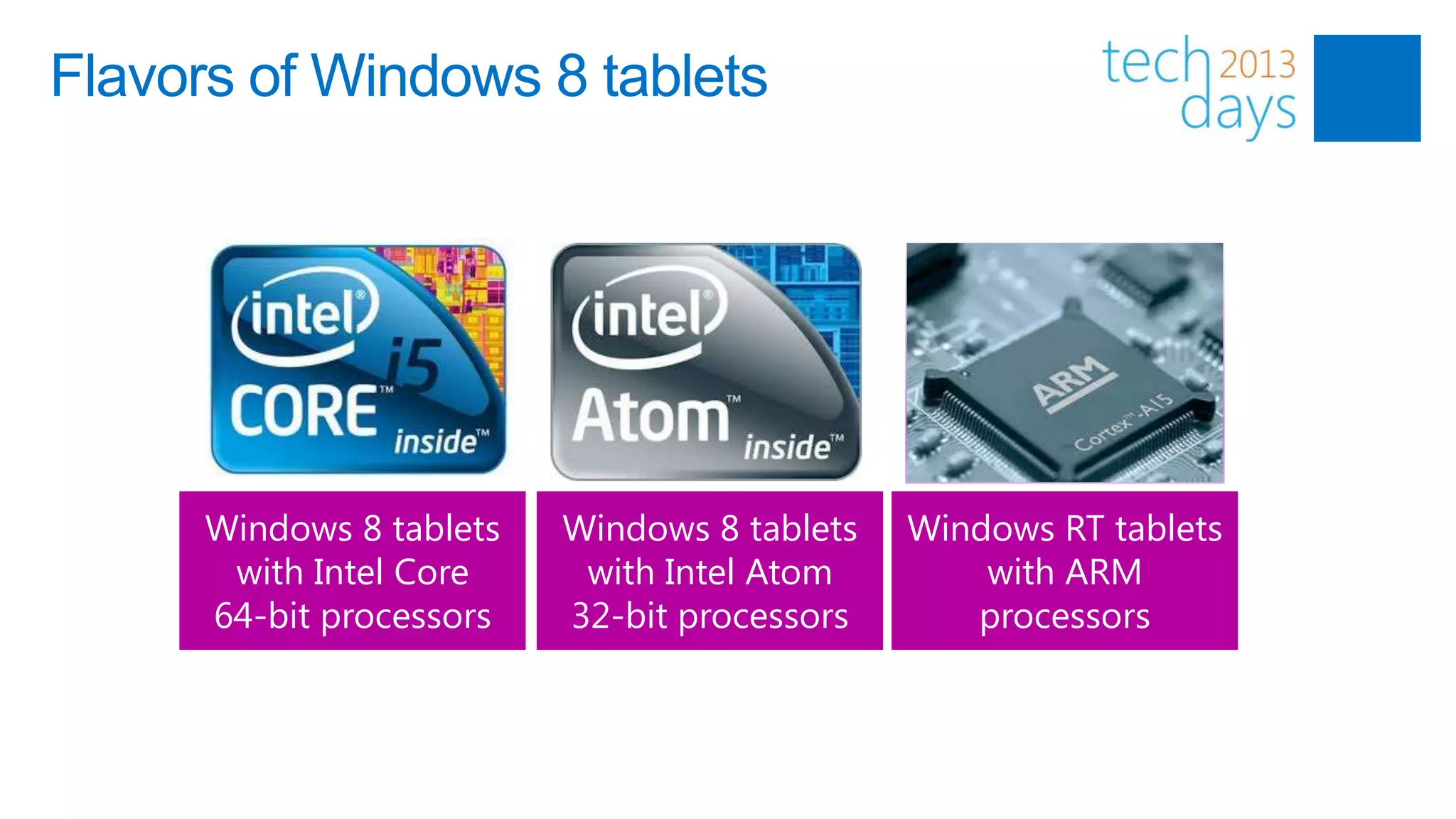
Flavors of Windows 8 tablets


      Windows 8 tablets   Windows 8 tablets   Windows RT tablets
       with Intel Core     with Intel Atom        with ARM
      64-bit processors   32-bit processors      processors
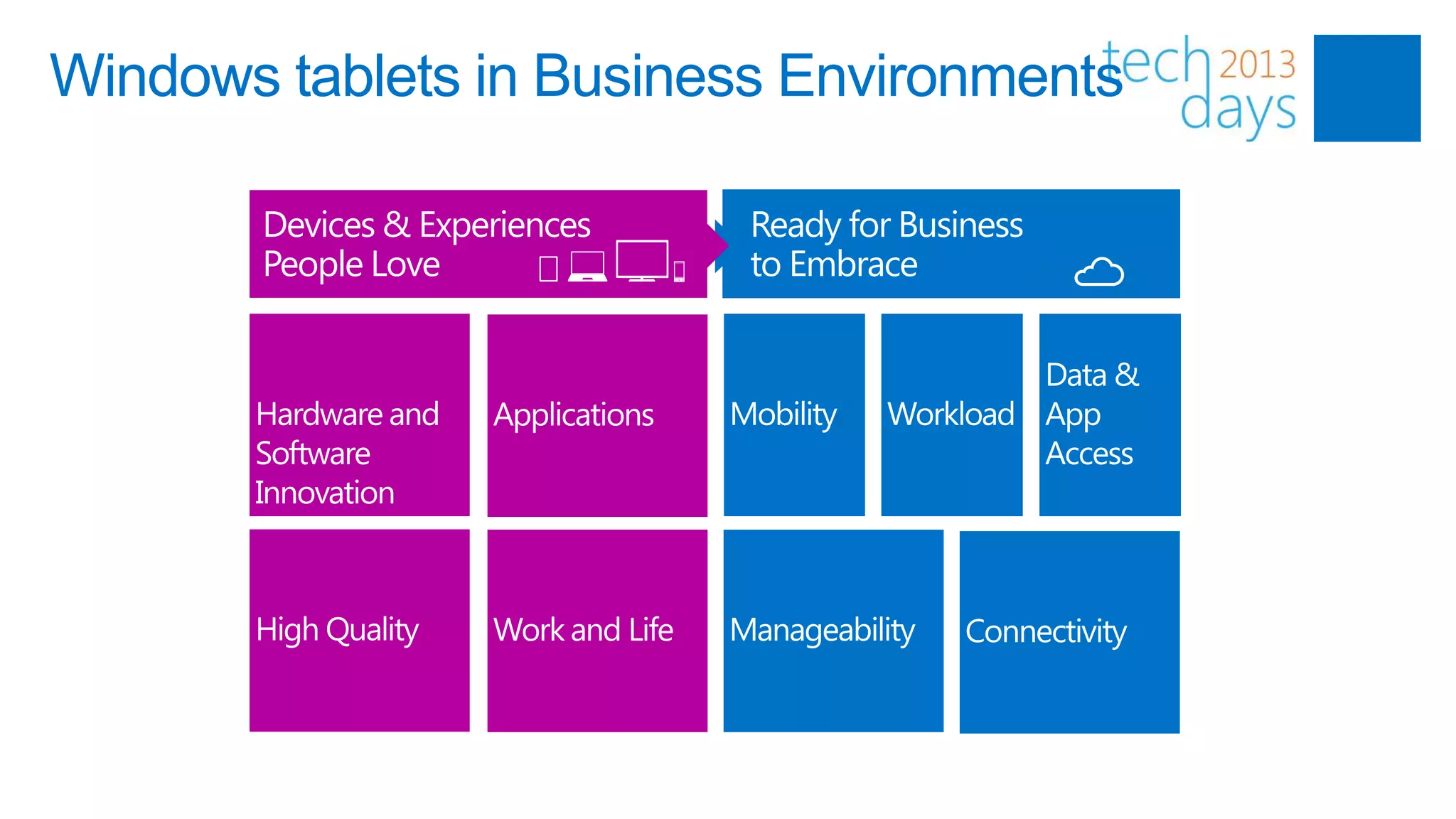
Windows tablets in Business Environments

       Devices & Experiences   Ready for Business
       People Love             to Embrace
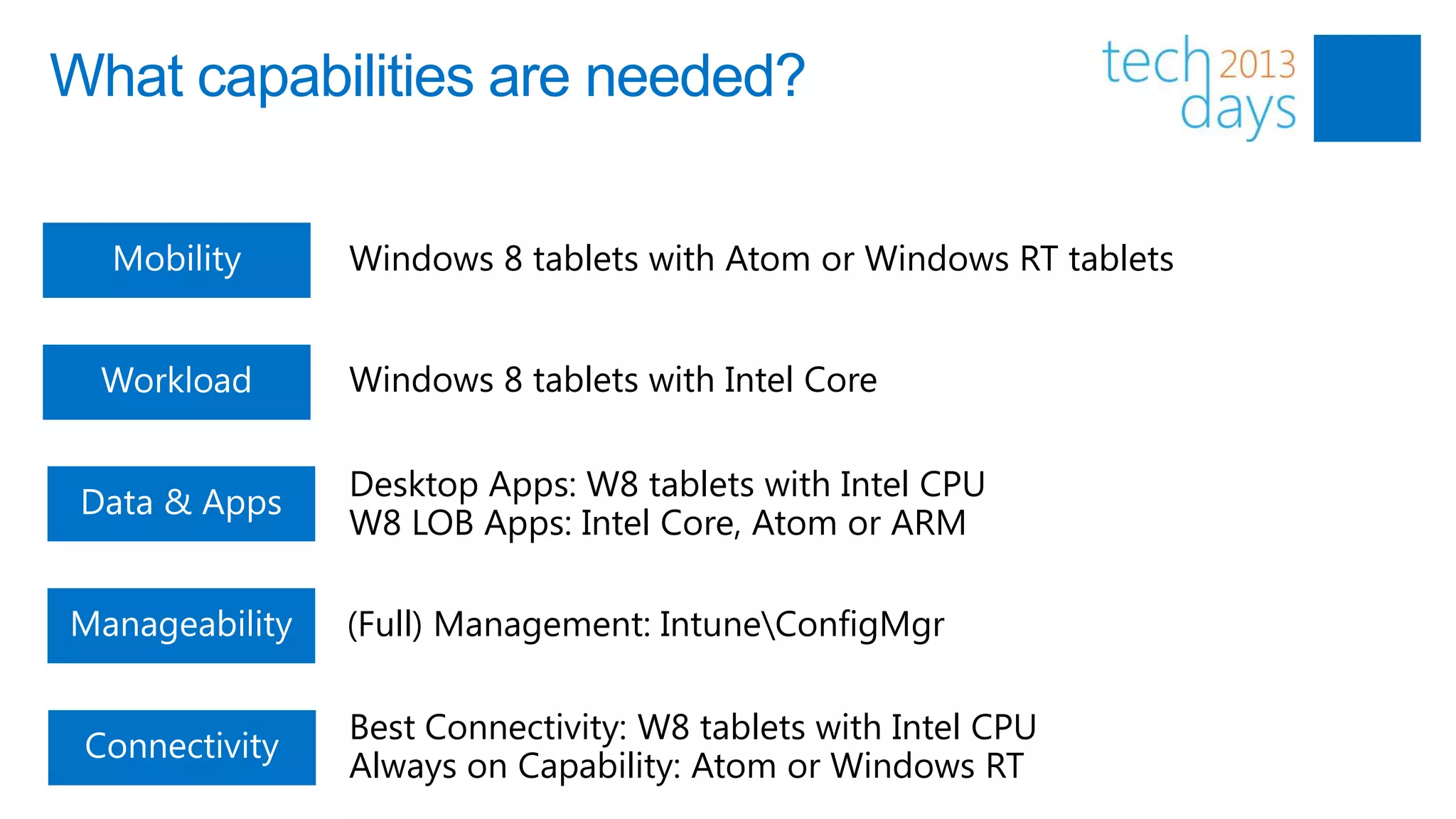
What capabilities are needed?

           Windows 8 tablets with Atom or Windows RT tablets


           Windows 8 tablets with Intel Core

           Desktop Apps: W8 tablets with Intel CPU
           W8 LOB Apps: Intel Core, Atom or ARM

           (Full) Management: IntuneConfigMgr

           Best Connectivity: W8 tablets with Intel CPU
           Always on Capability: Atom or Windows RT
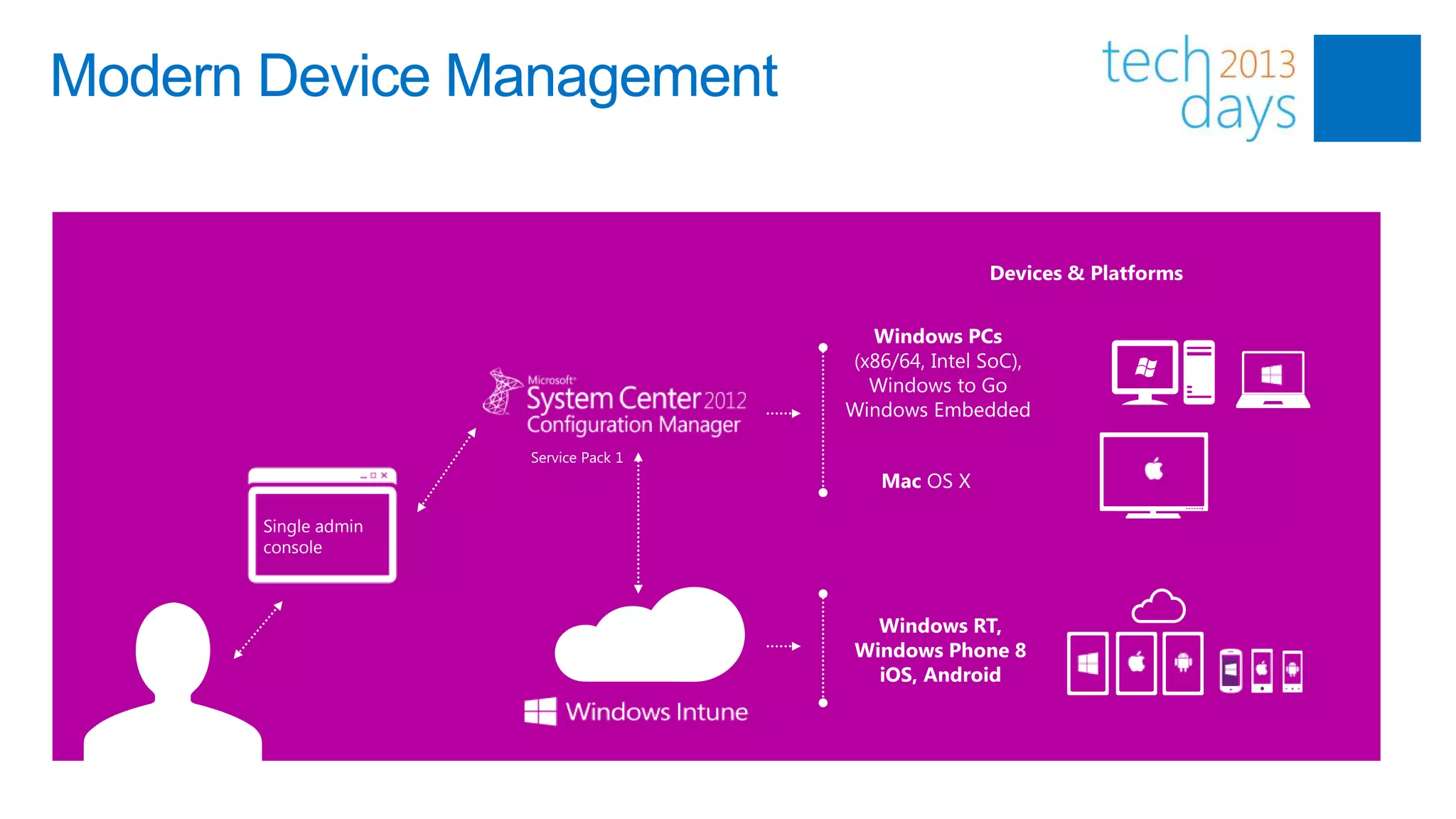
Modern Device Management


                           Devices & Platforms


       Single admin
       console
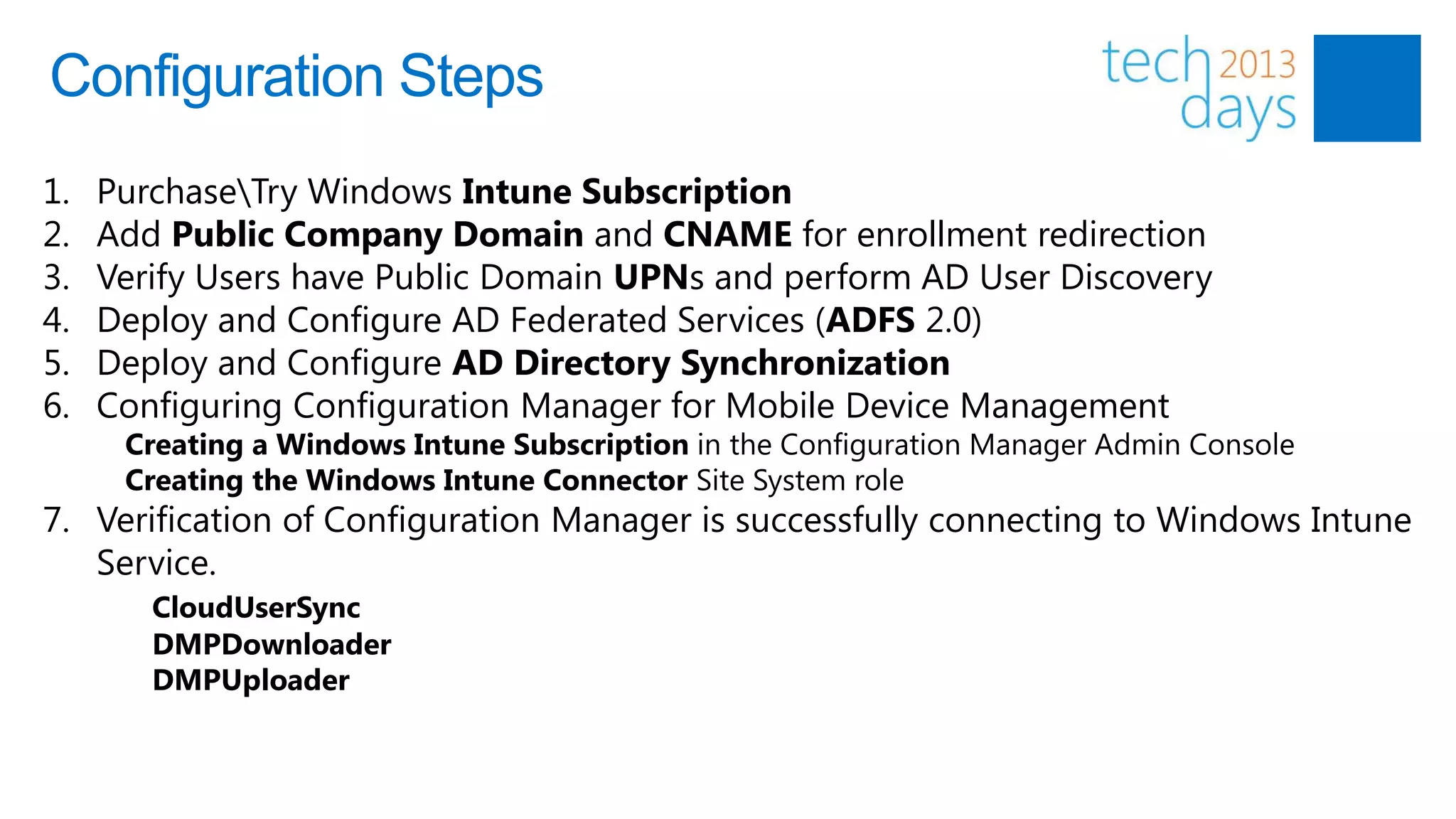
Configuration Steps
1.   PurchaseTry Windows Intune Subscription
2.   Add Public Company Domain and CNAME for enrollment redirection
3.   Verify Users have Public Domain UPNs and perform AD User Discovery
4.   Deploy and Configure AD Federated Services (ADFS 2.0)
5.   Deploy and Configure AD Directory Synchronization
6.   Configuring Configuration Manager for Mobile Device Management
      Creating a Windows Intune Subscription in the Configuration Manager Admin Console
      Creating the Windows Intune Connector Site System role
7. Verification of Configuration Manager is successfully connecting to Windows Intune
   Service.
        CloudUserSync
        DMPDownloader
        DMPUploader
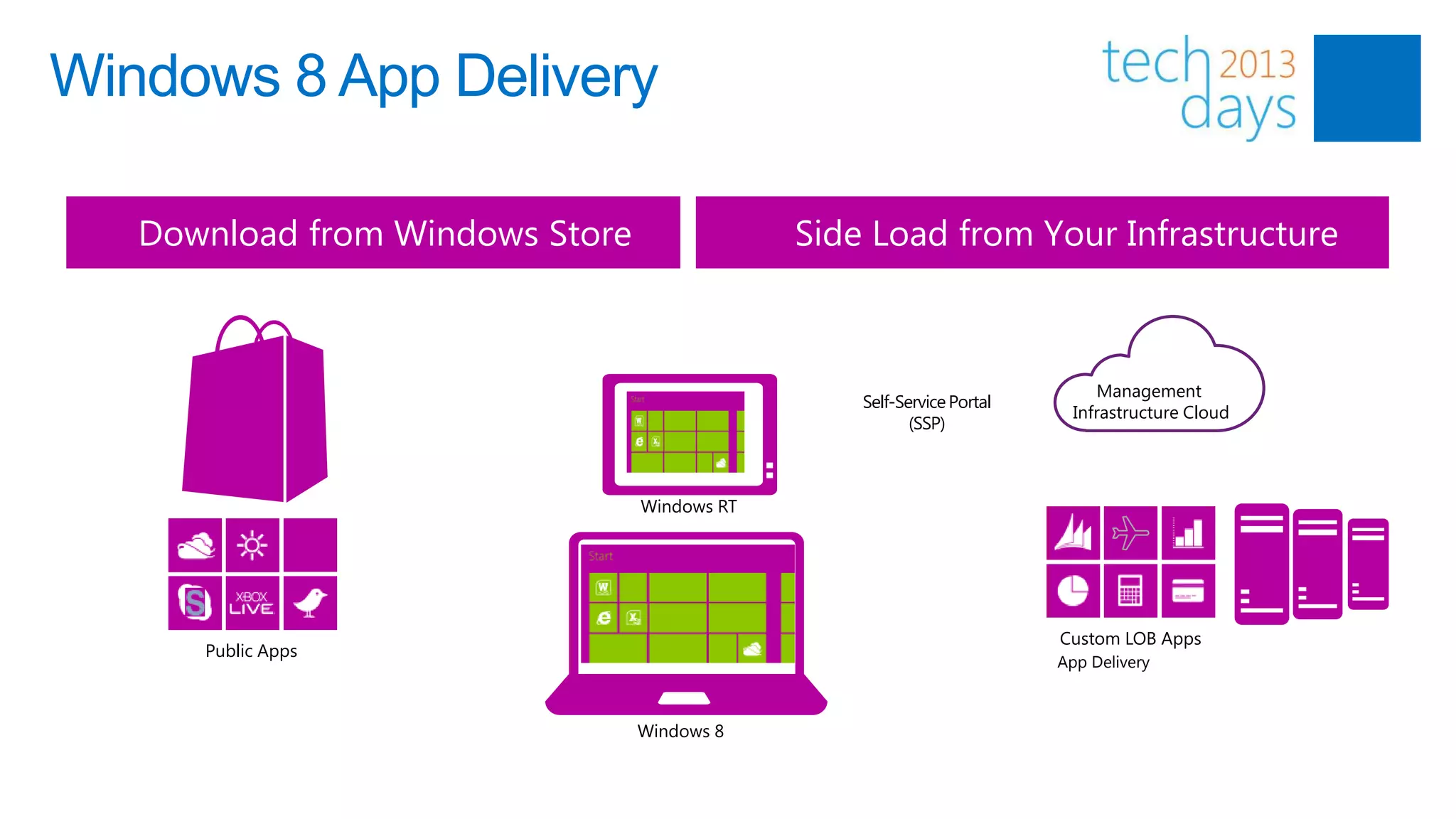
Windows 8 App Delivery

   Download from Windows Store                Side Load from Your Infrastructure


                                                                             Management
                                                  Self-Service Portal
                                                                          Infrastructure Cloud
                                                         (SSP)


                                 Windows RT


                                                                        Custom LOB Apps
      Public Apps
                                                                        App Delivery


                                 Windows 8
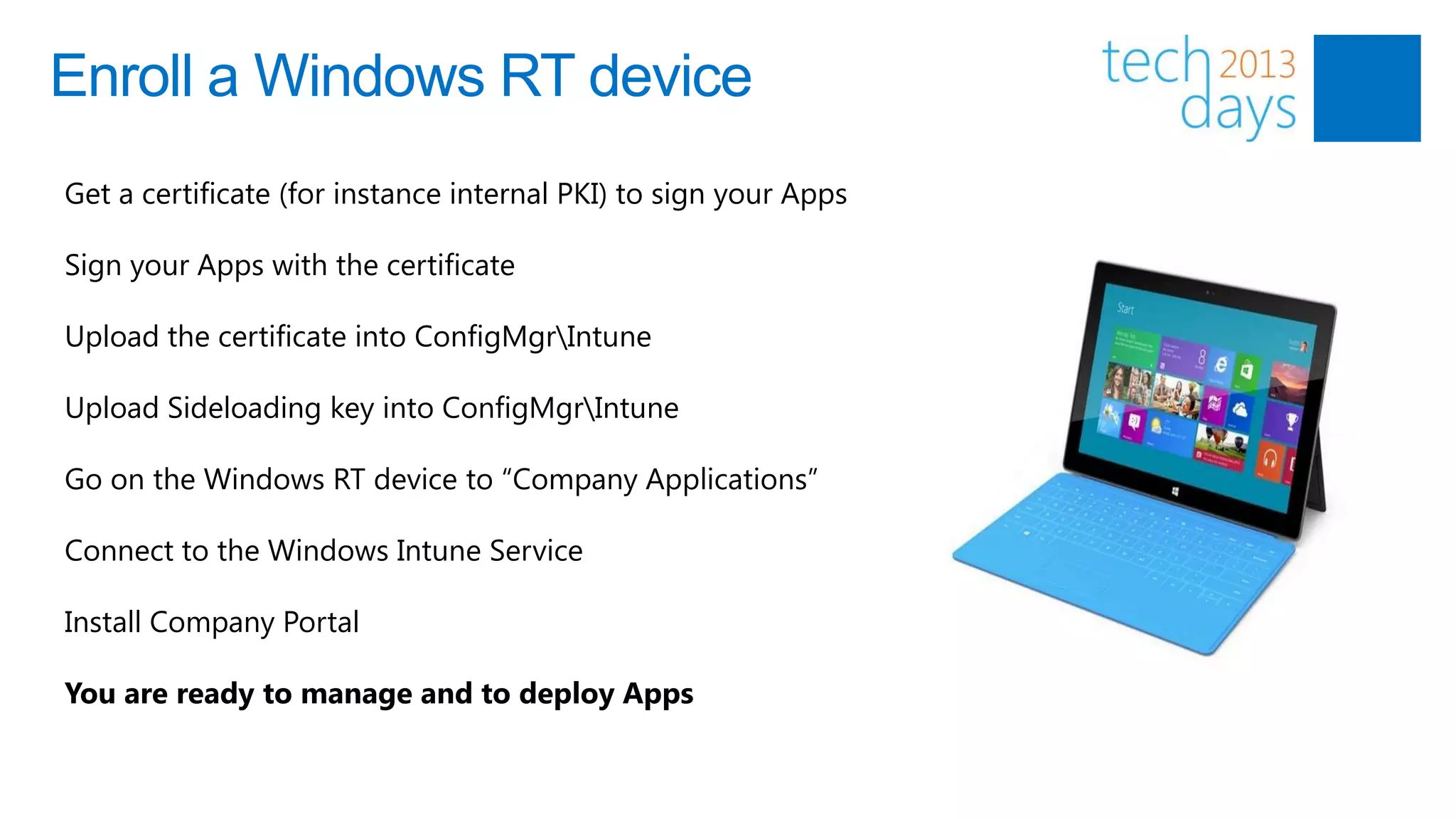
Enroll a Windows RT device
Get a certificate (for instance internal PKI) to sign your Apps

Sign your Apps with the certificate

Upload the certificate into ConfigMgrIntune

Upload Sideloading key into ConfigMgrIntune

Go on the Windows RT device to “Company Applications”

Connect to the Windows Intune Service

Install Company Portal

You are ready to manage and to deploy Apps
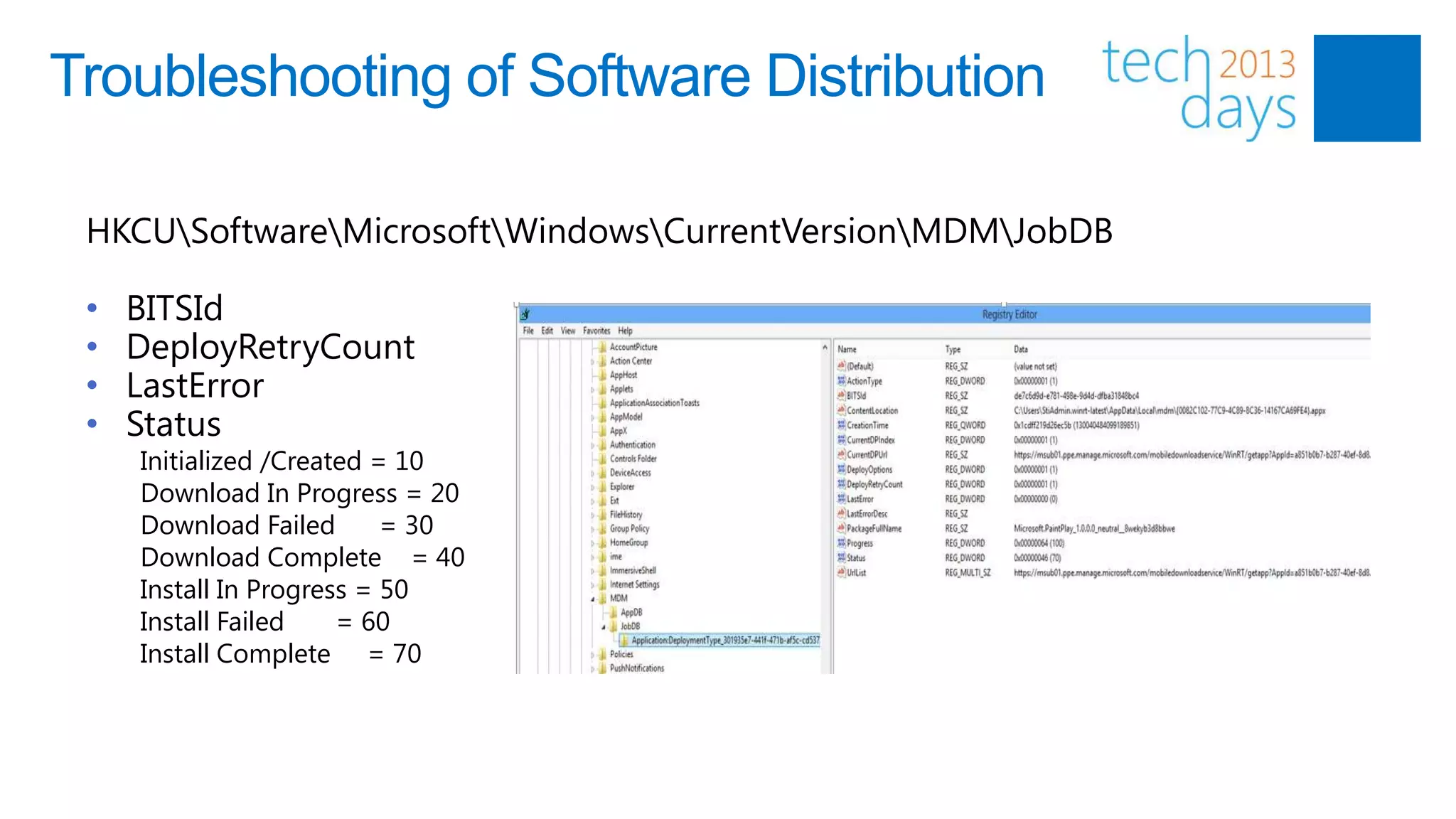
Troubleshooting of Software Distribution

 HKCUSoftwareMicrosoftWindowsCurrentVersionMDMJobDB

 •   BITSId
 •   DeployRetryCount
 •   LastError
 •   Status
     Initialized /Created = 10
     Download In Progress = 20
     Download Failed       = 30
     Download Complete = 40
     Install In Progress = 50
     Install Failed    = 60
     Install Complete = 70
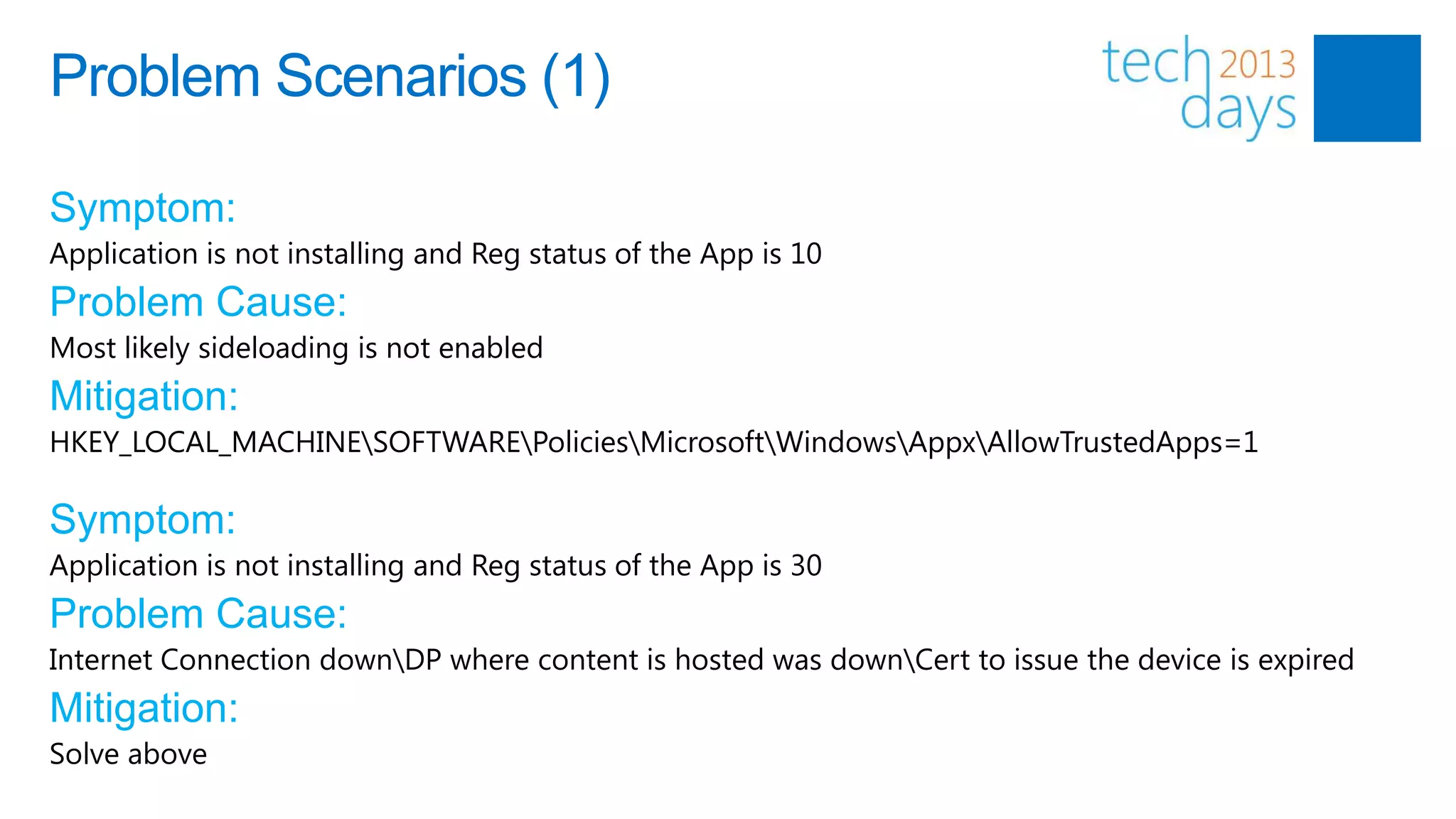
Problem Scenarios (1)

Symptom:
Application is not installing and Reg status of the App is 10
Problem Cause:
Most likely sideloading is not enabled
Mitigation:
HKEY_LOCAL_MACHINESOFTWAREPoliciesMicrosoftWindowsAppxAllowTrustedApps=1

Symptom:
Application is not installing and Reg status of the App is 30
Problem Cause:
Internet Connection downDP where content is hosted was downCert to issue the device is expired
Mitigation:
Solve above
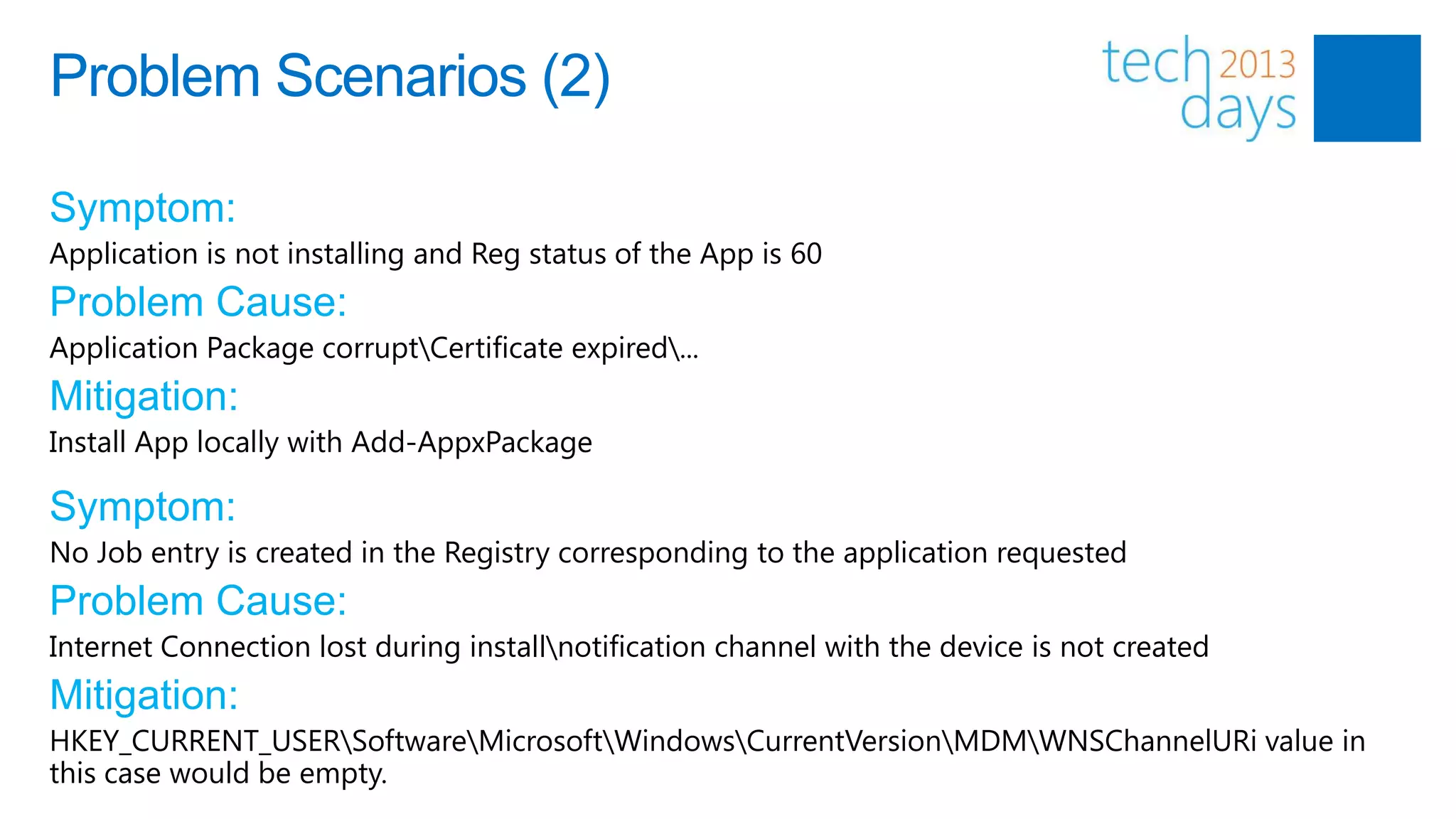
Problem Scenarios (2)

Symptom:
Application is not installing and Reg status of the App is 60
Problem Cause:
Application Package corruptCertificate expired...
Mitigation:
Install App locally with Add-AppxPackage

Symptom:
No Job entry is created in the Registry corresponding to the application requested
Problem Cause:
Internet Connection lost during installnotification channel with the device is not created
Mitigation:
HKEY_CURRENT_USERSoftwareMicrosoftWindowsCurrentVersionMDMWNSChannelURi value in
this case would be empty.
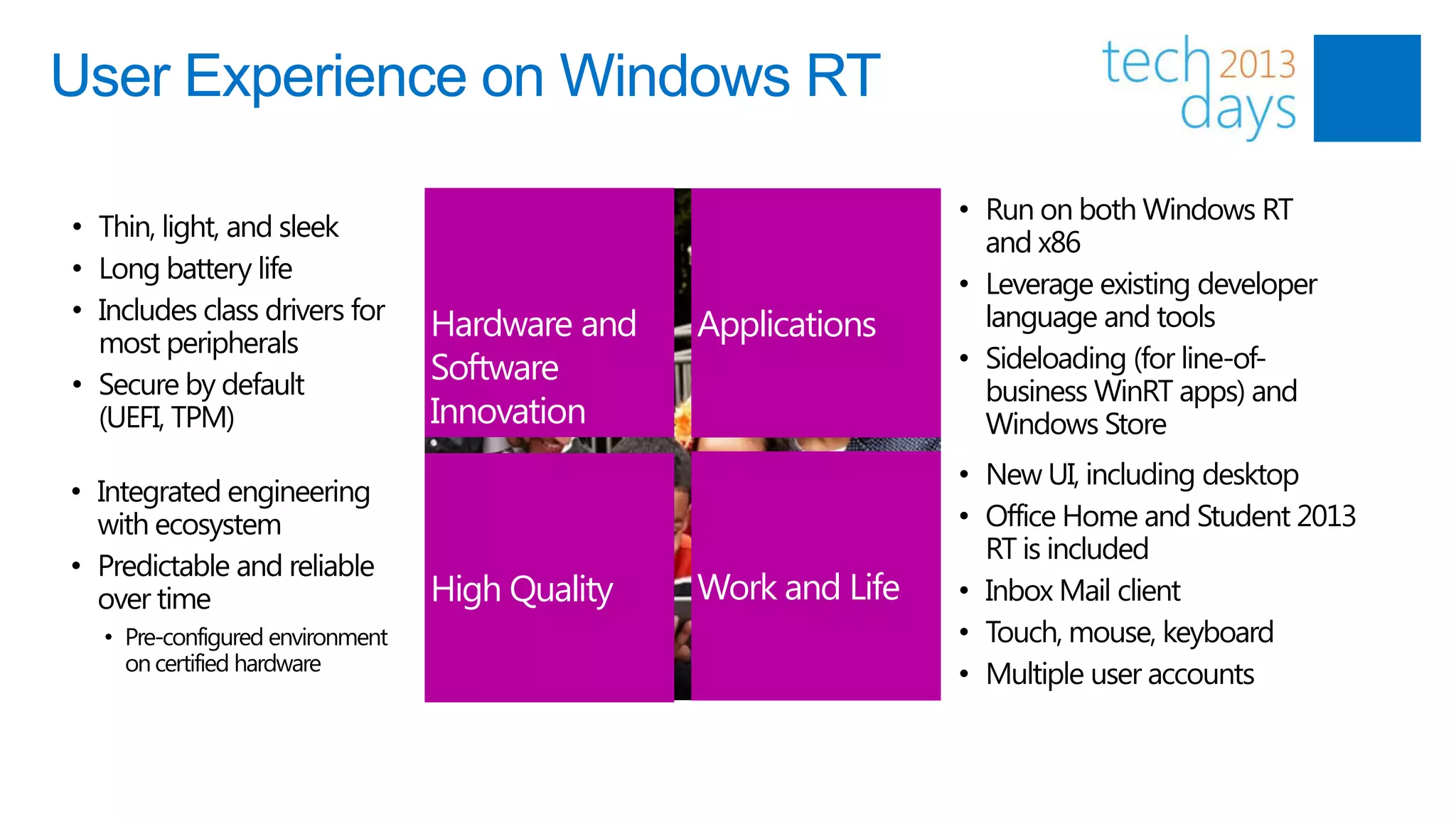
User Experience on Windows RT

                                                                • Run on both Windows RT
• Thin, light, and sleek
                                                                  and x86
• Long battery life
                                                                • Leverage existing developer
• Includes class drivers for                                      language and tools
  most peripherals
                                 Hardware and   Applications
                                 Software                       • Sideloading (for line-of-
• Secure by default                                               business WinRT apps) and
  (UEFI, TPM)                    Innovation                       Windows Store
                                                                • New UI, including desktop
• Integrated engineering
  with ecosystem                                                • Office Home and Student 2013
                                                                  RT is included
• Predictable and reliable
  over time                      High Quality   Work and Life   • Inbox Mail client
  • Pre-configured environment                                  • Touch, mouse, keyboard
    on certified hardware
                                                                • Multiple user accounts
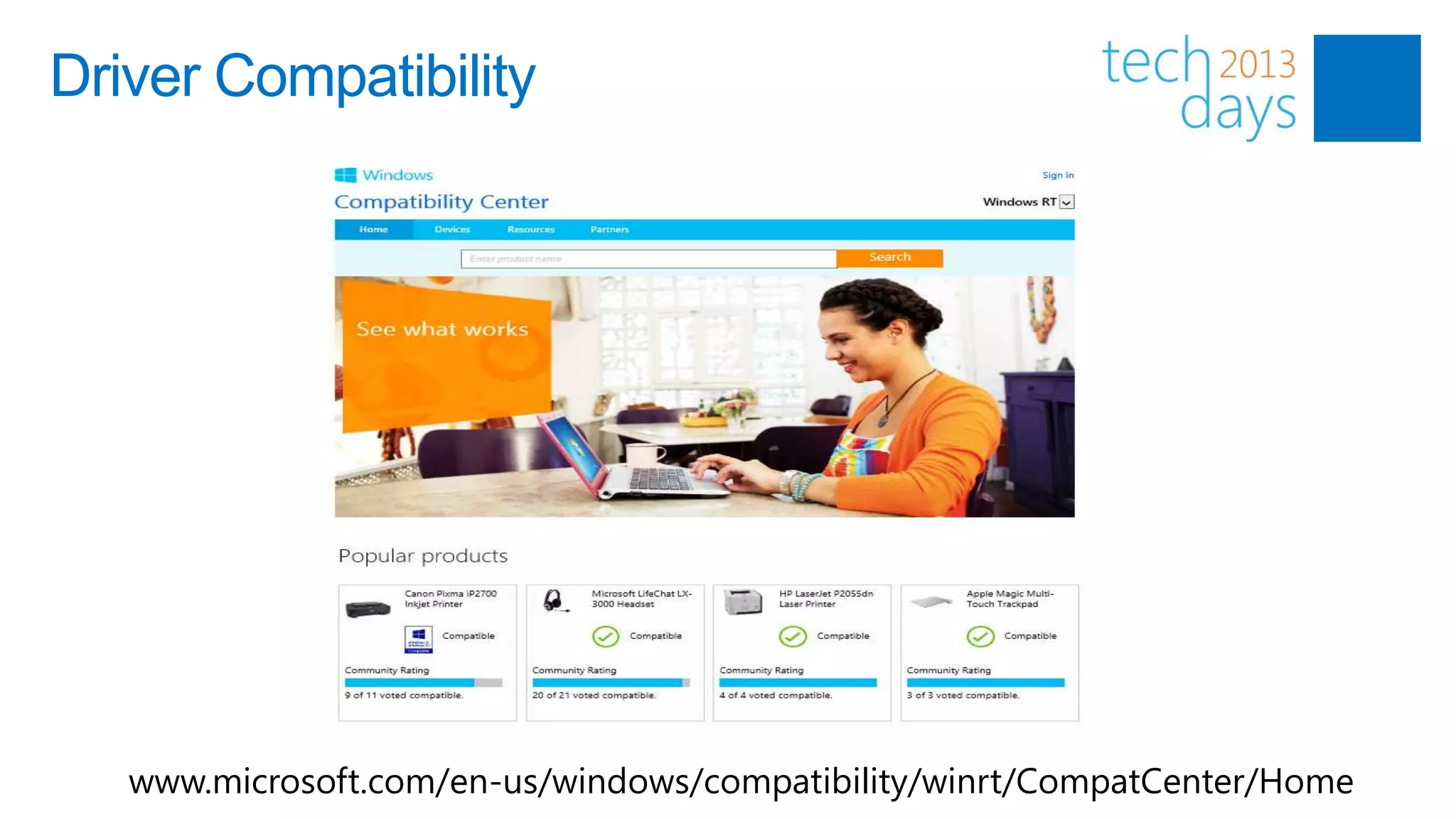
Driver Compatibility


   www.microsoft.com/en-us/windows/compatibility/winrt/CompatCenter/Home
Office Home and Students 2013 RT

                  • Preinstalled on ARM-based Windows RT devices
                  • Includes new Office applications:
                    Word, Excel, PowerPoint, OneNote
                  • Office Home & Student 2013 RT commercial use rights
                    are included in:
                        Office 365 or
                        Office Standard/Professional Plus 2013 (as secondary use right)
                        or
                        Commercial use license via Volume Licensing
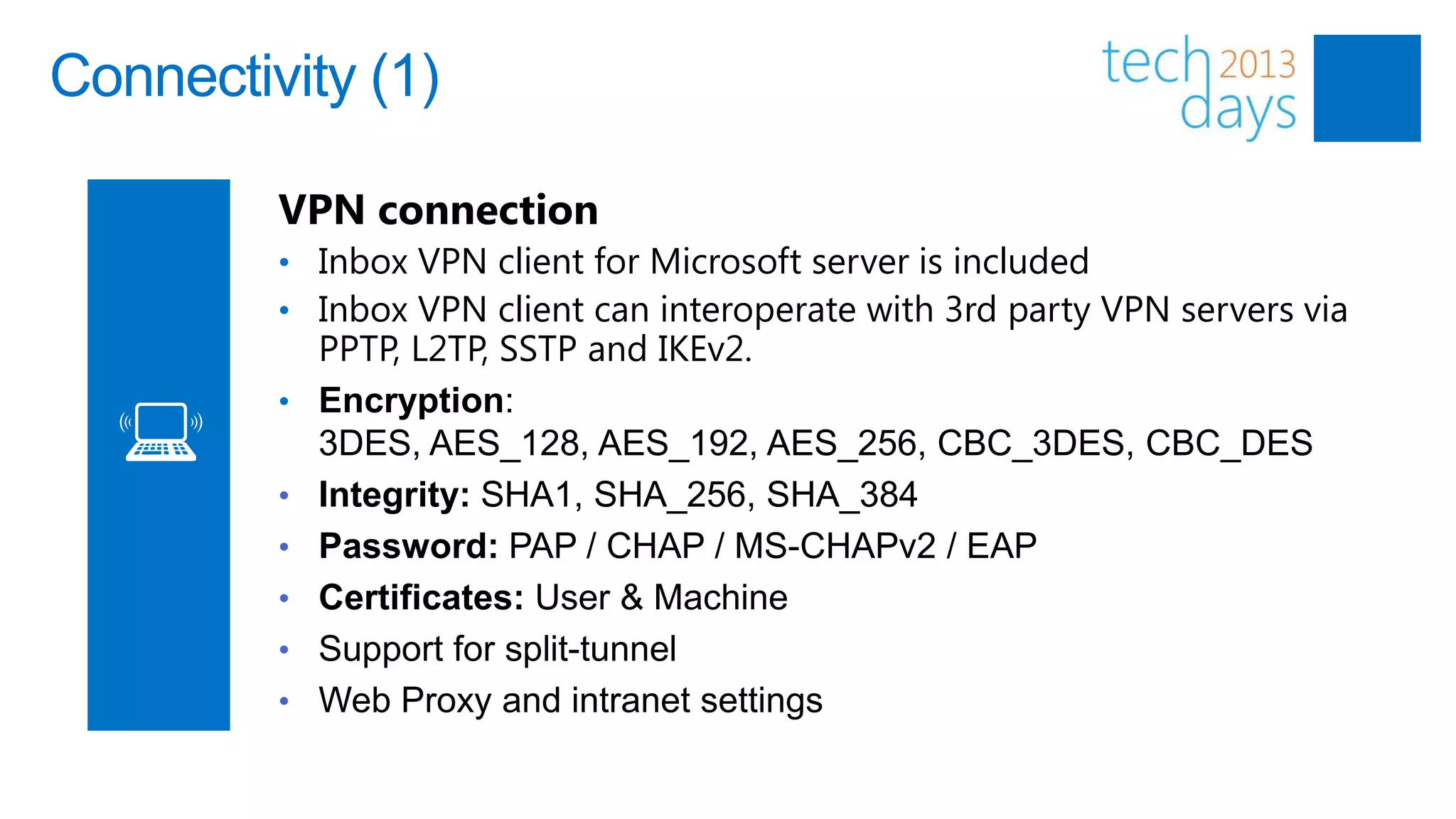
Connectivity (1)

         VPN connection
         • Inbox VPN client for Microsoft server is included
         • Inbox VPN client can interoperate with 3rd party VPN servers via
             PPTP, L2TP, SSTP and IKEv2.
         •   Encryption:
             3DES, AES_128, AES_192, AES_256, CBC_3DES, CBC_DES
         •   Integrity: SHA1, SHA_256, SHA_384
         •   Password: PAP / CHAP / MS-CHAPv2 / EAP
         •   Certificates: User & Machine
         •   Support for split-tunnel
         •   Web Proxy and intranet settings
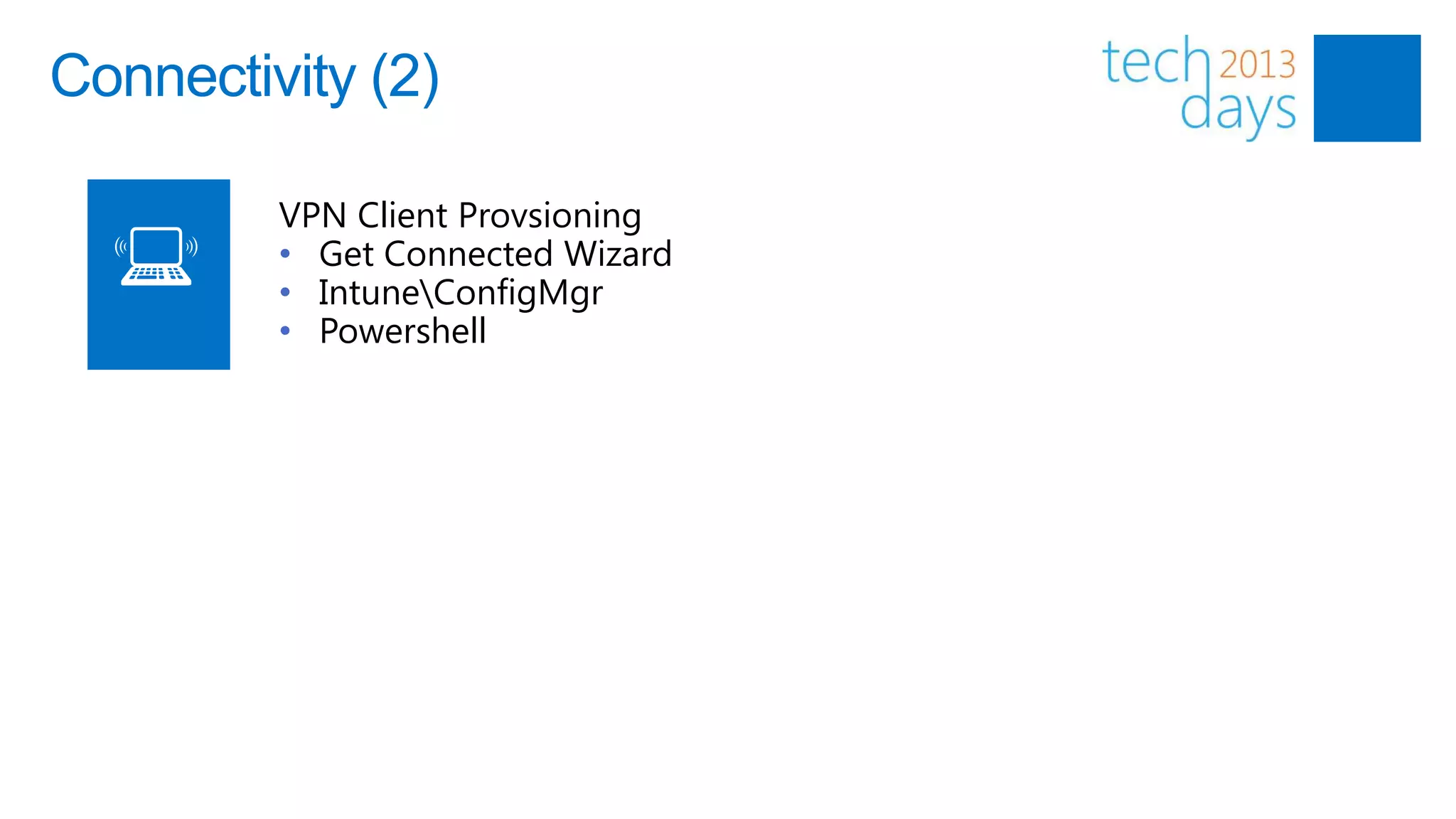
Connectivity (2)

         VPN Client Provsioning
         • Get Connected Wizard
         • IntuneConfigMgr
         • Powershell
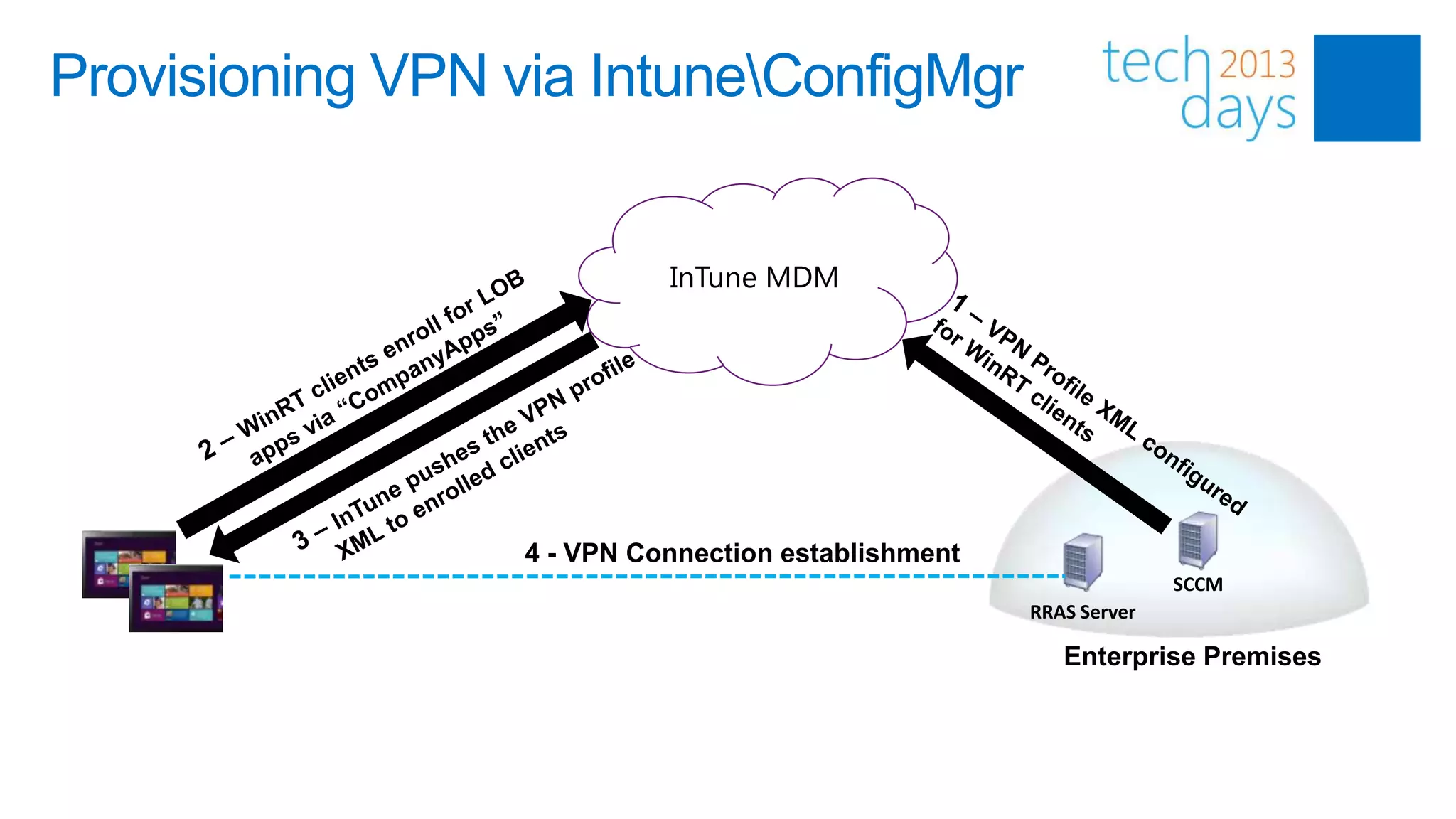
Provisioning VPN via IntuneConfigMgr


                            InTune MDM


                  4 - VPN Connection establishment
                                                                   SCCM
                                                     RRAS Server

                                                        Enterprise Premises
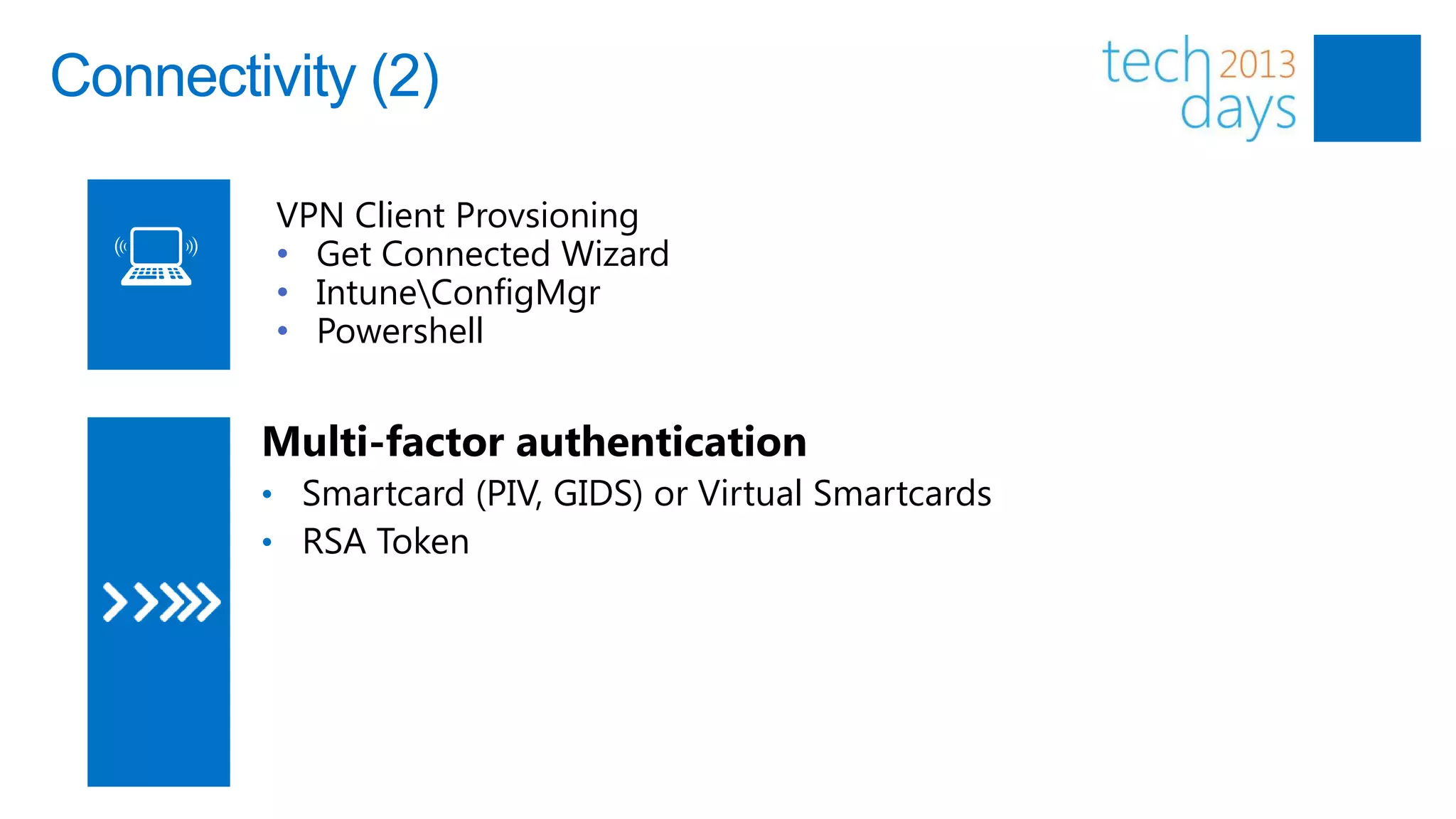
Connectivity (2)

         VPN Client Provsioning
         • Get Connected Wizard
         • IntuneConfigMgr
         • Powershell


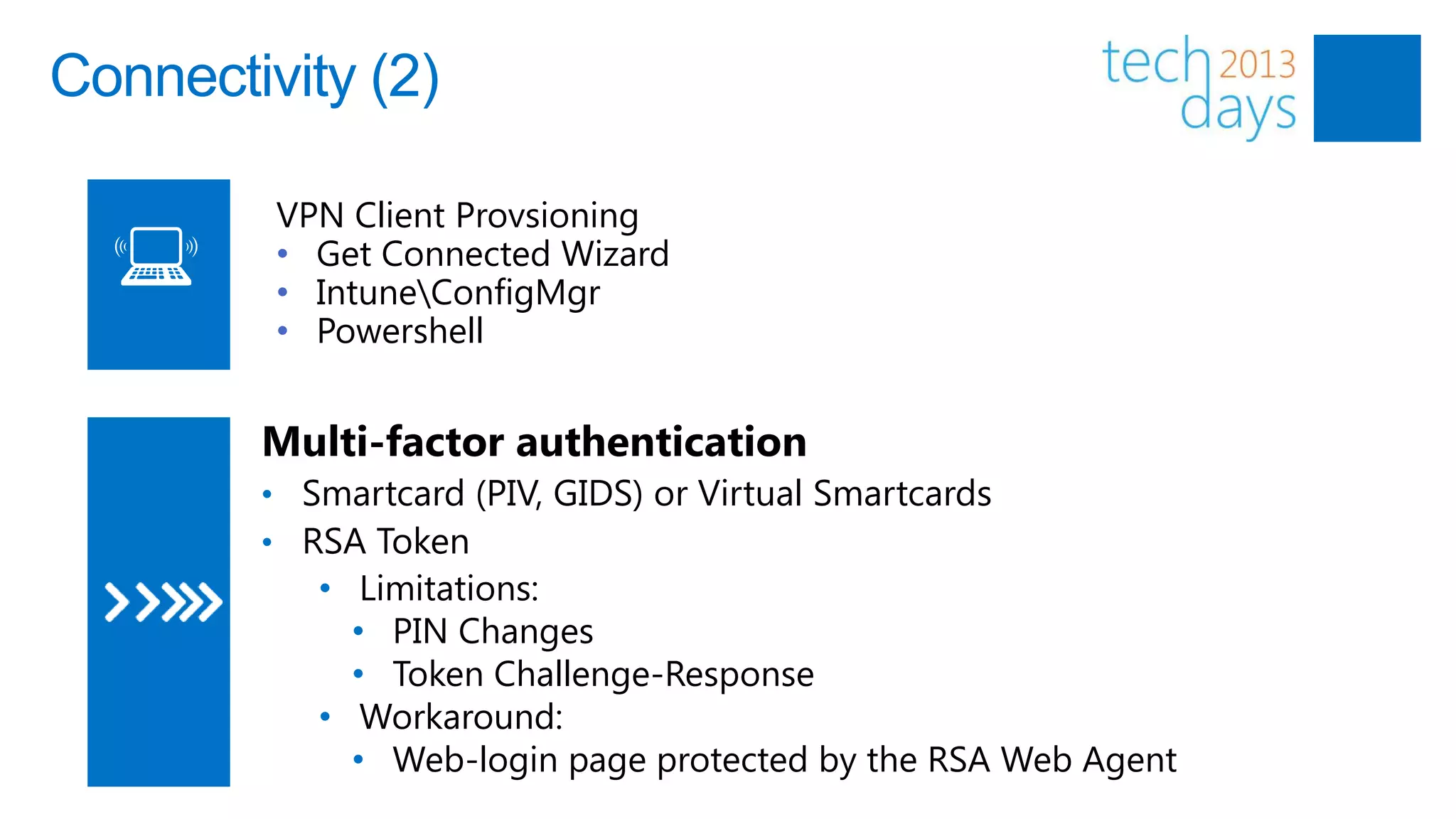
        Multi-factor authentication
        • Smartcard (PIV, GIDS) or Virtual Smartcards
        • RSA Token
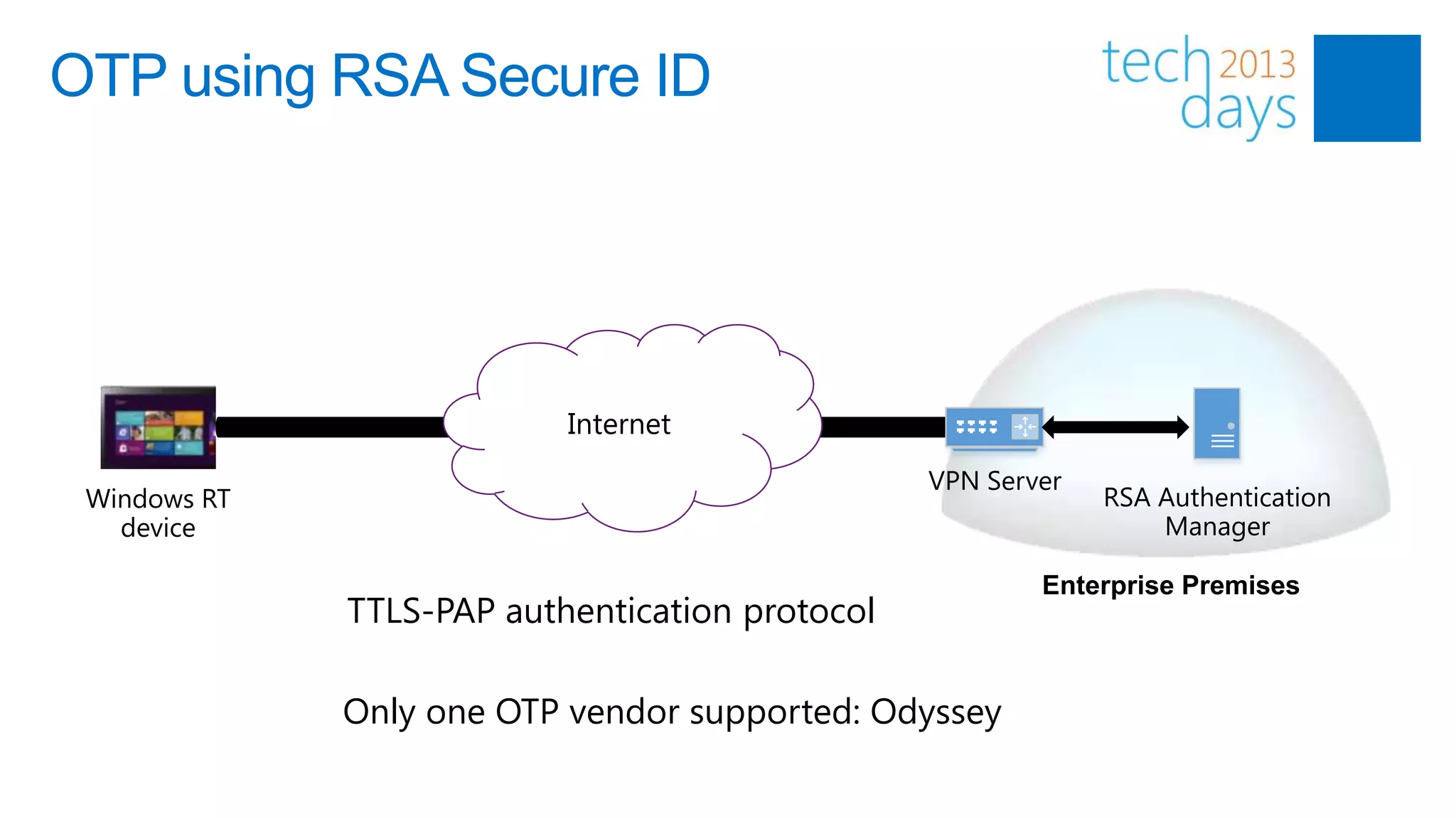
OTP using RSA Secure ID


              VPN Tunnel          Internet
                                                        VPN Server
 Windows RT                                                          RSA Authentication
   device                                                                Manager

                                                                Enterprise Premises
                     TTLS-PAP authentication protocol

                     Only one OTP vendor supported: Odyssey
Connectivity (2)

         VPN Client Provsioning
         • Get Connected Wizard
         • IntuneConfigMgr
         • Powershell


        Multi-factor authentication
        • Smartcard (PIV, GIDS) or Virtual Smartcards
        • RSA Token
           • Limitations:
             • PIN Changes
             • Token Challenge-Response
           • Workaround:
             • Web-login page protected by the RSA Web Agent
Data and App Access

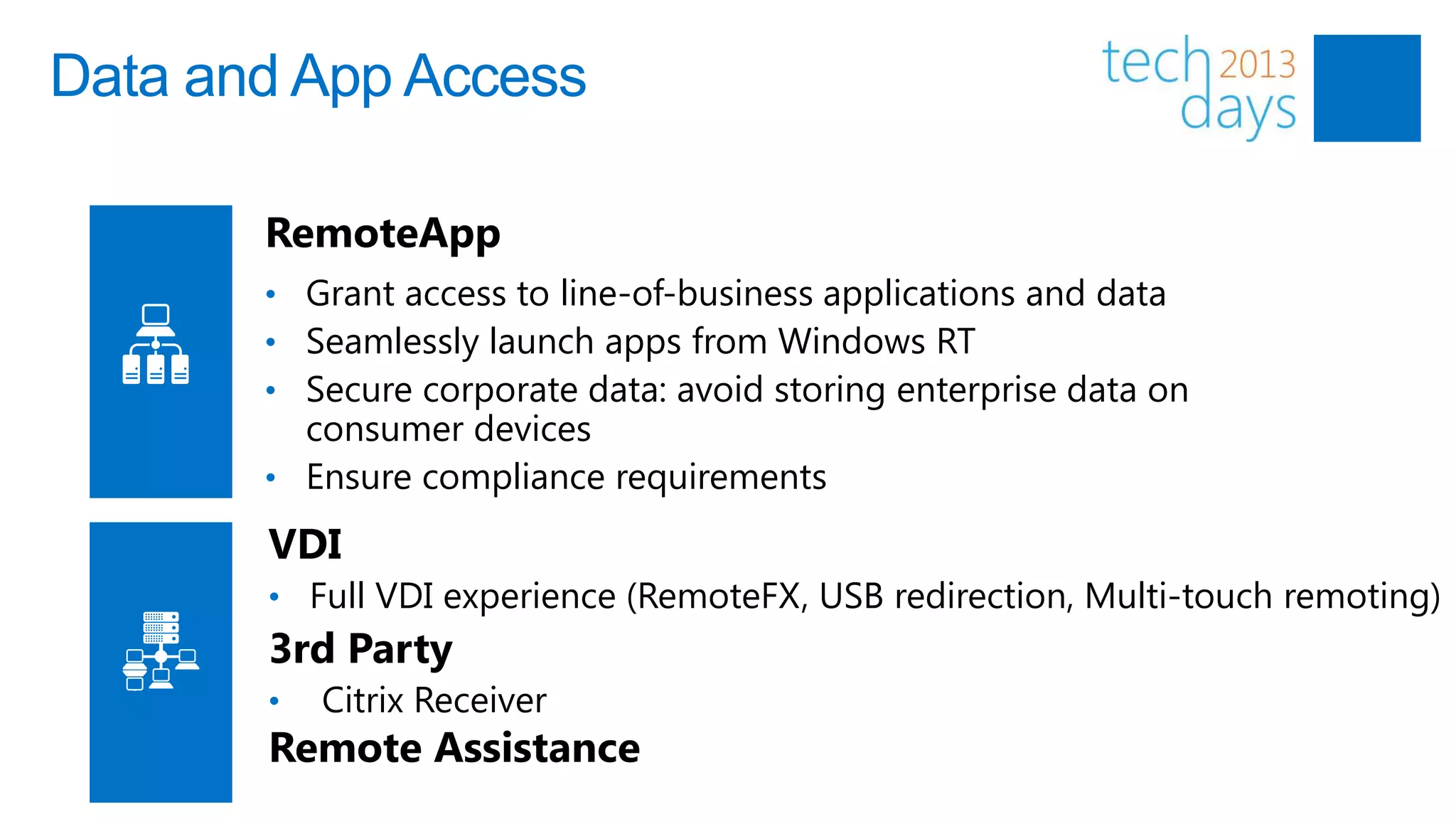
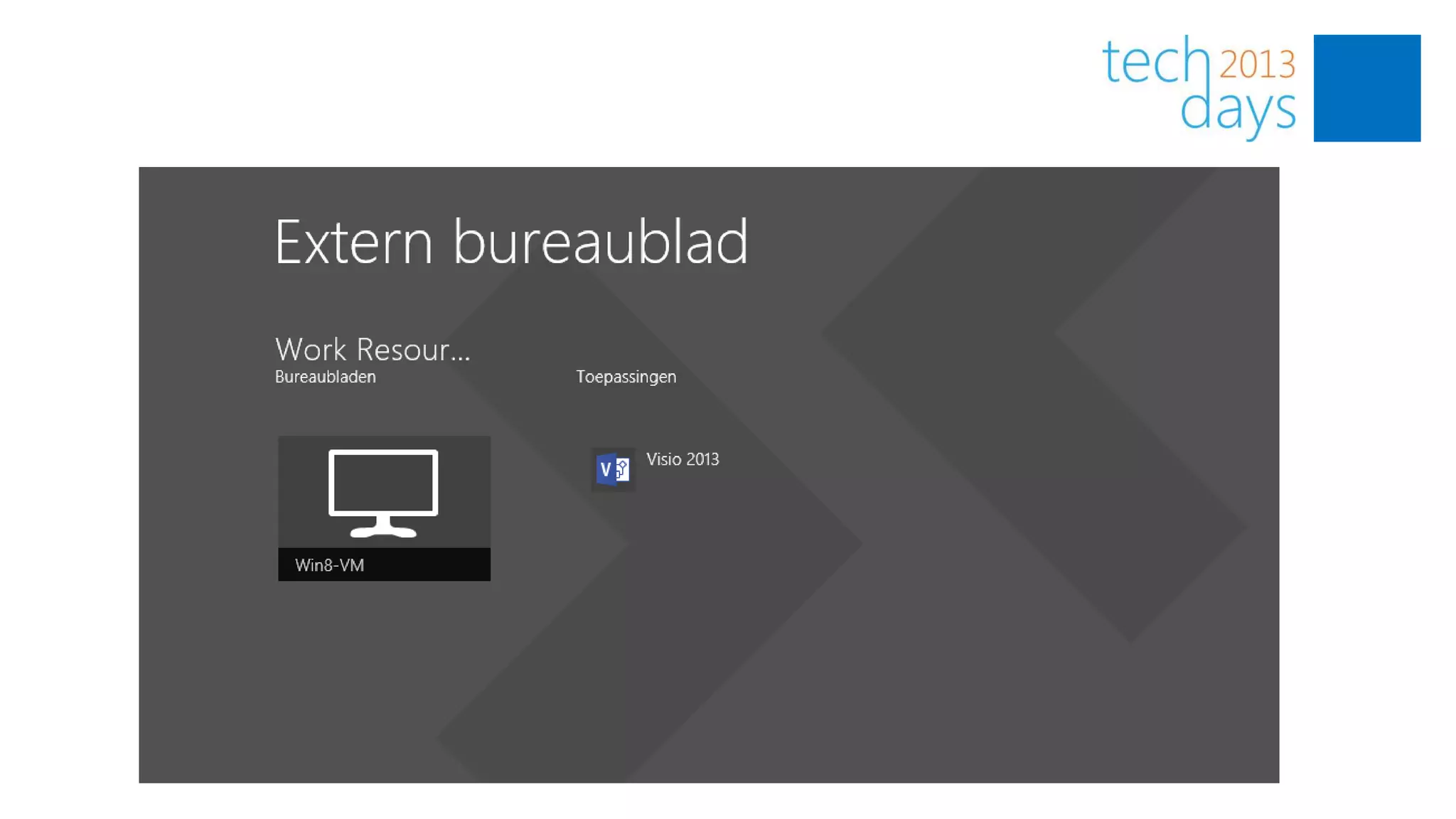
       RemoteApp
       • Grant access to line-of-business applications and data
       • Seamlessly launch apps from Windows RT
       • Secure corporate data: avoid storing enterprise data on
         consumer devices
       • Ensure compliance requirements

       VDI
       • Full VDI experience (RemoteFX, USB redirection, Multi-touch remoting)
       3rd Party
       •   Citrix Receiver
       Remote Assistance
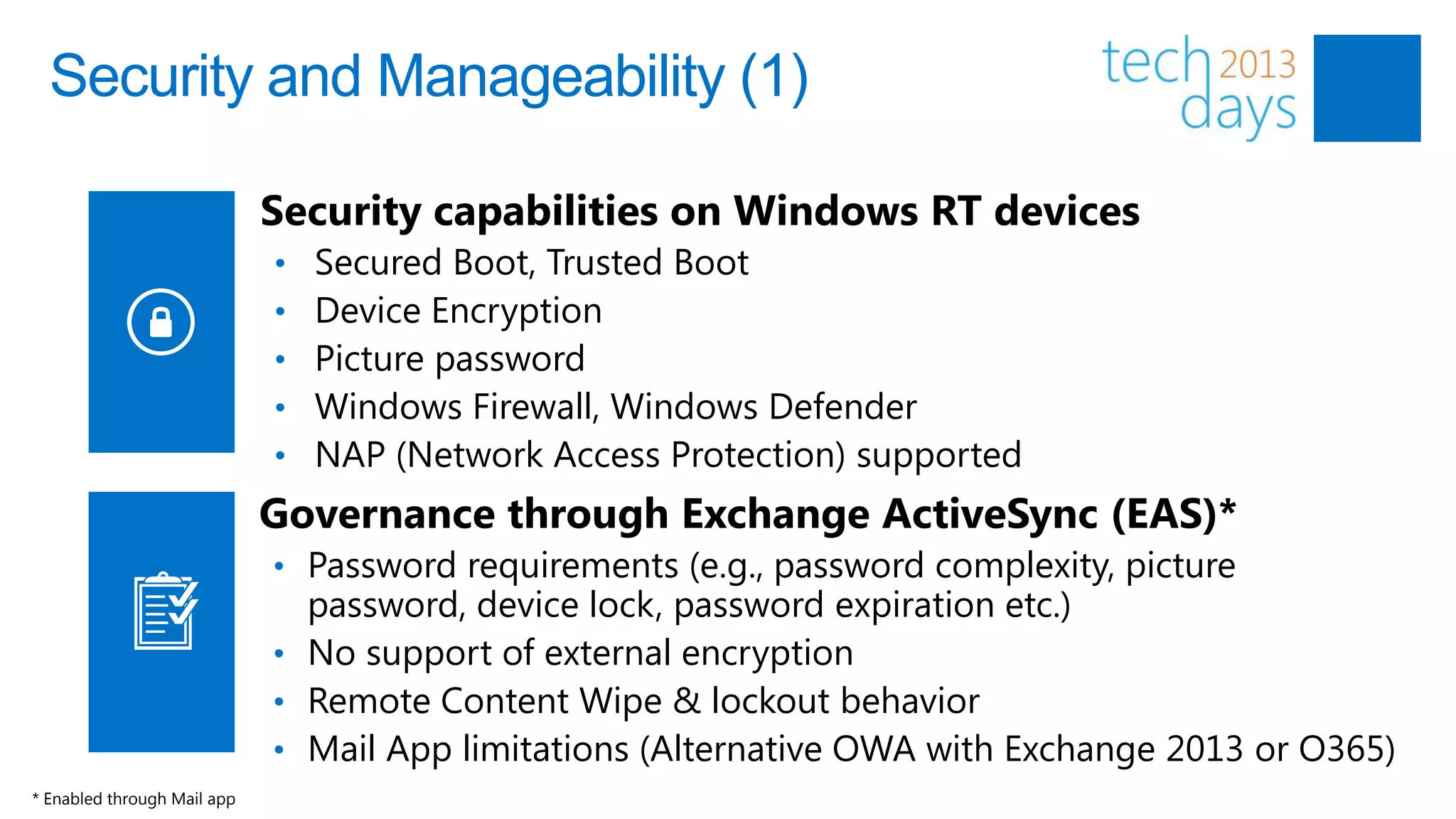
Security and Manageability (1)

                             Security capabilities on Windows RT devices
                             •   Secured Boot, Trusted Boot
                             •   Device Encryption
                             •   Picture password
                             •   Windows Firewall, Windows Defender
                             •   NAP (Network Access Protection) supported
                             Governance through Exchange ActiveSync (EAS)*
                             • Password requirements (e.g., password complexity, picture
                               password, device lock, password expiration etc.)
                             • No support of external encryption
                             • Remote Content Wipe & lockout behavior
                             • Mail App limitations (Alternative OWA with Exchange 2013 or O365)
* Enabled through Mail app
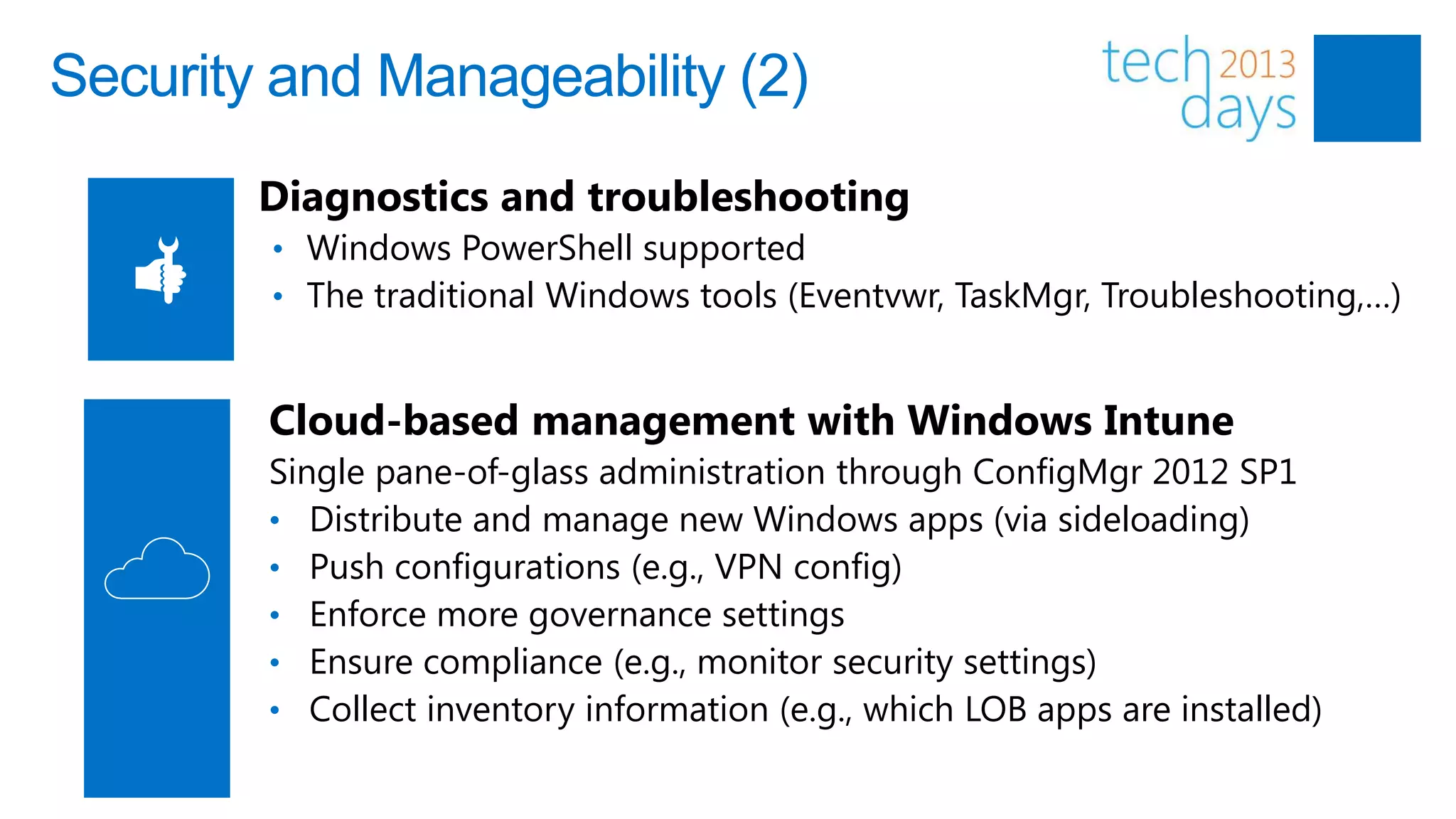
Security and Manageability (2)
        Diagnostics and troubleshooting
        • Windows PowerShell supported
        • The traditional Windows tools (Eventvwr, TaskMgr, Troubleshooting,…)


        Cloud-based management with Windows Intune
        Single pane-of-glass administration through ConfigMgr 2012 SP1
        • Distribute and manage new Windows apps (via sideloading)
        • Push configurations (e.g., VPN config)
        • Enforce more governance settings
        • Ensure compliance (e.g., monitor security settings)
        • Collect inventory information (e.g., which LOB apps are installed)
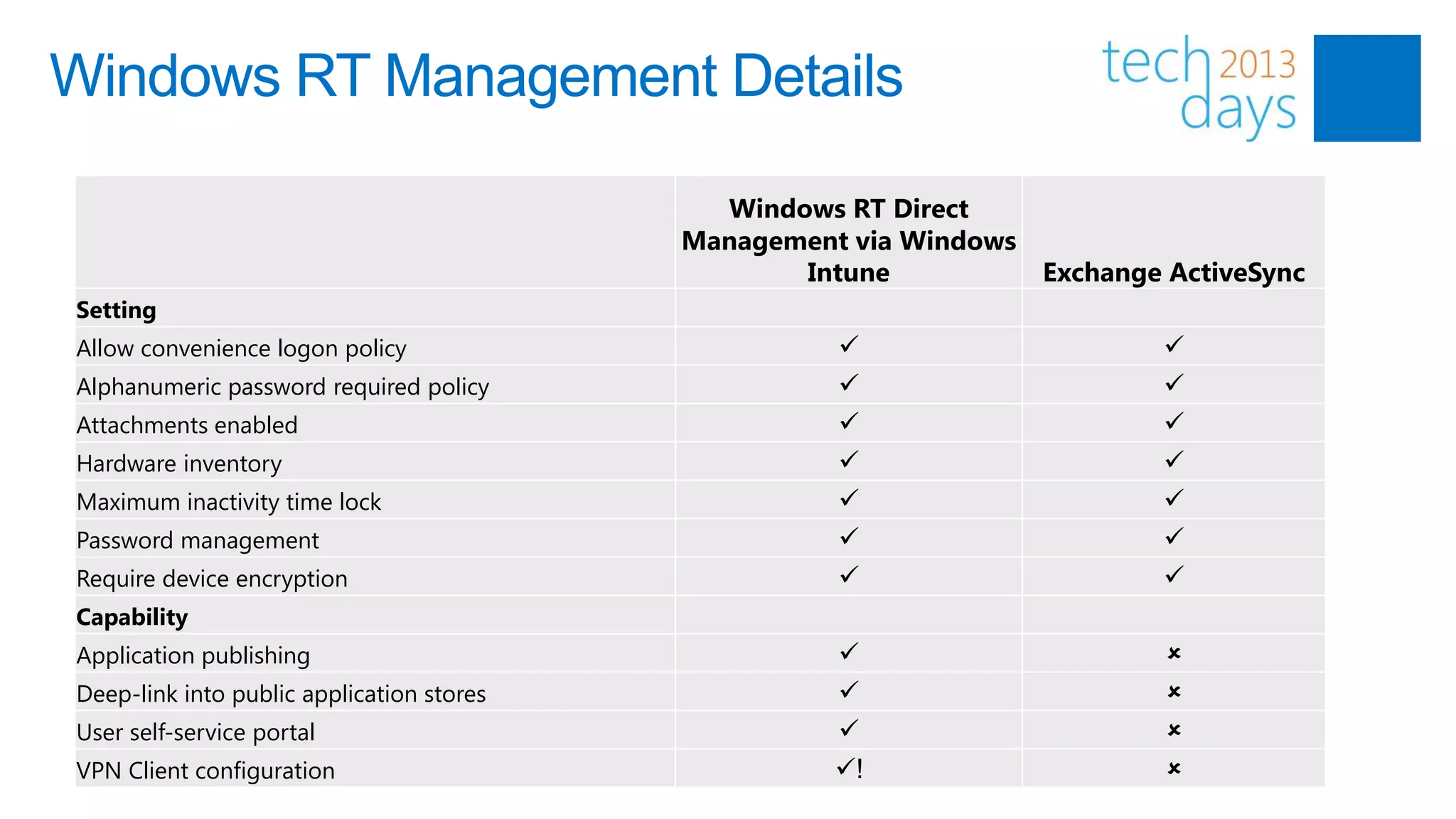
Windows RT Management Details

                                             Windows RT Direct
                                           Management via Windows
                                                  Intune          Exchange ActiveSync
Setting
Allow convenience logon policy                                            
Alphanumeric password required policy                                     
Attachments enabled                                                       
Hardware inventory                                                        
Maximum inactivity time lock                                              
Password management                                                       
Require device encryption                                                 
Capability
Application publishing                                                    
Deep-link into public application stores                                  
User self-service portal                                                  
VPN Client configuration                             !                    
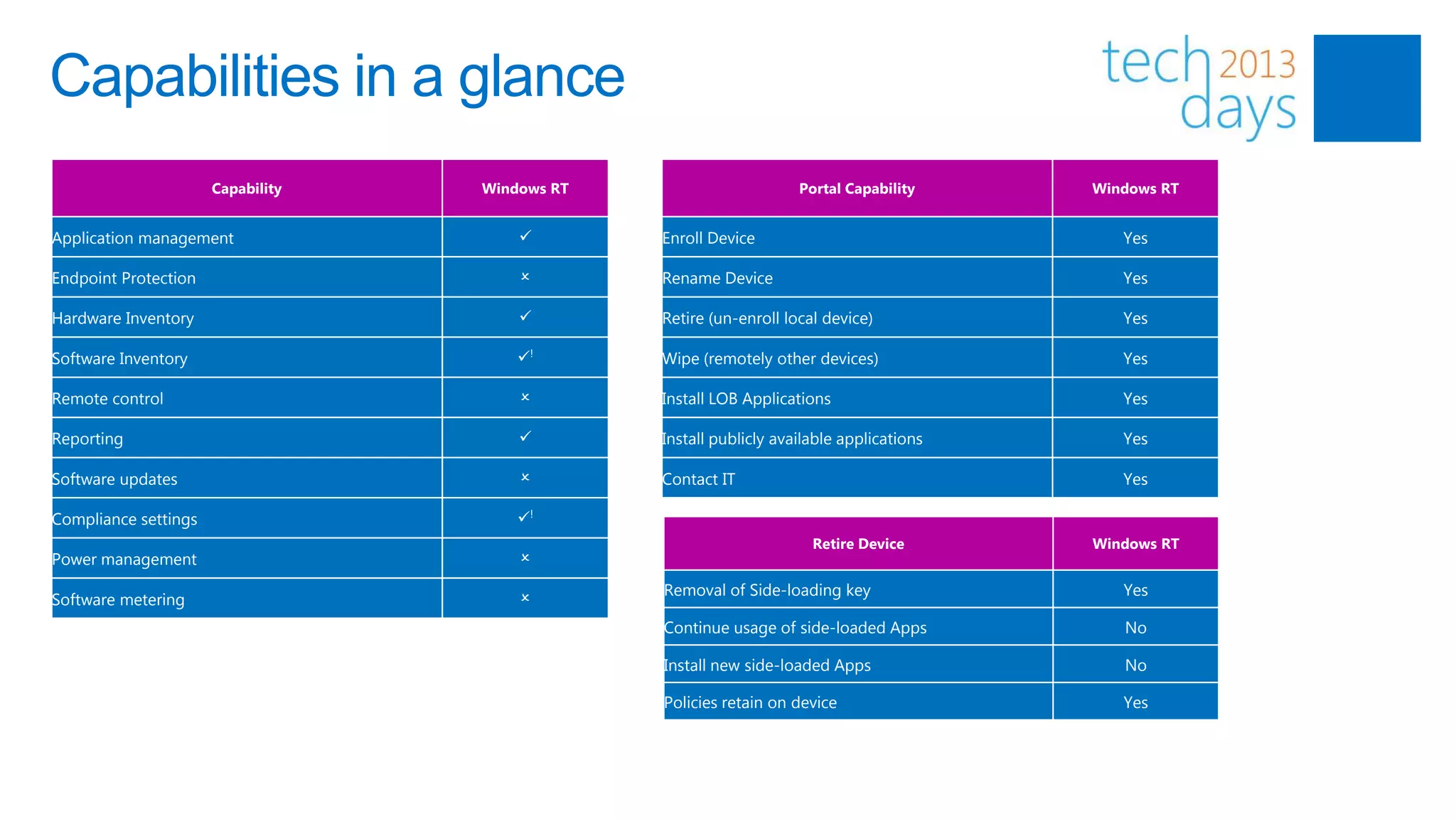
Capabilities in a glance
                      Capability   Windows RT                       Portal Capability     Windows RT


Application management                         Enroll Device                                Yes

Endpoint Protection                    O        Rename Device                                Yes

Hardware Inventory                             Retire (un-enroll local device)              Yes

Software Inventory                     !       Wipe (remotely other devices)                Yes

Remote control                         O        Install LOB Applications                     Yes

Reporting                                      Install publicly available applications      Yes

Software updates                       O        Contact IT                                   Yes

Compliance settings                    !
                                                                      Retire Device       Windows RT
Power management                       O
                                                Removal of Side-loading key                  Yes
Software metering                      O
                                                Continue usage of side-loaded Apps           No

                                                Install new side-loaded Apps                 No

                                                Policies retain on device                    Yes
Miscellaneous
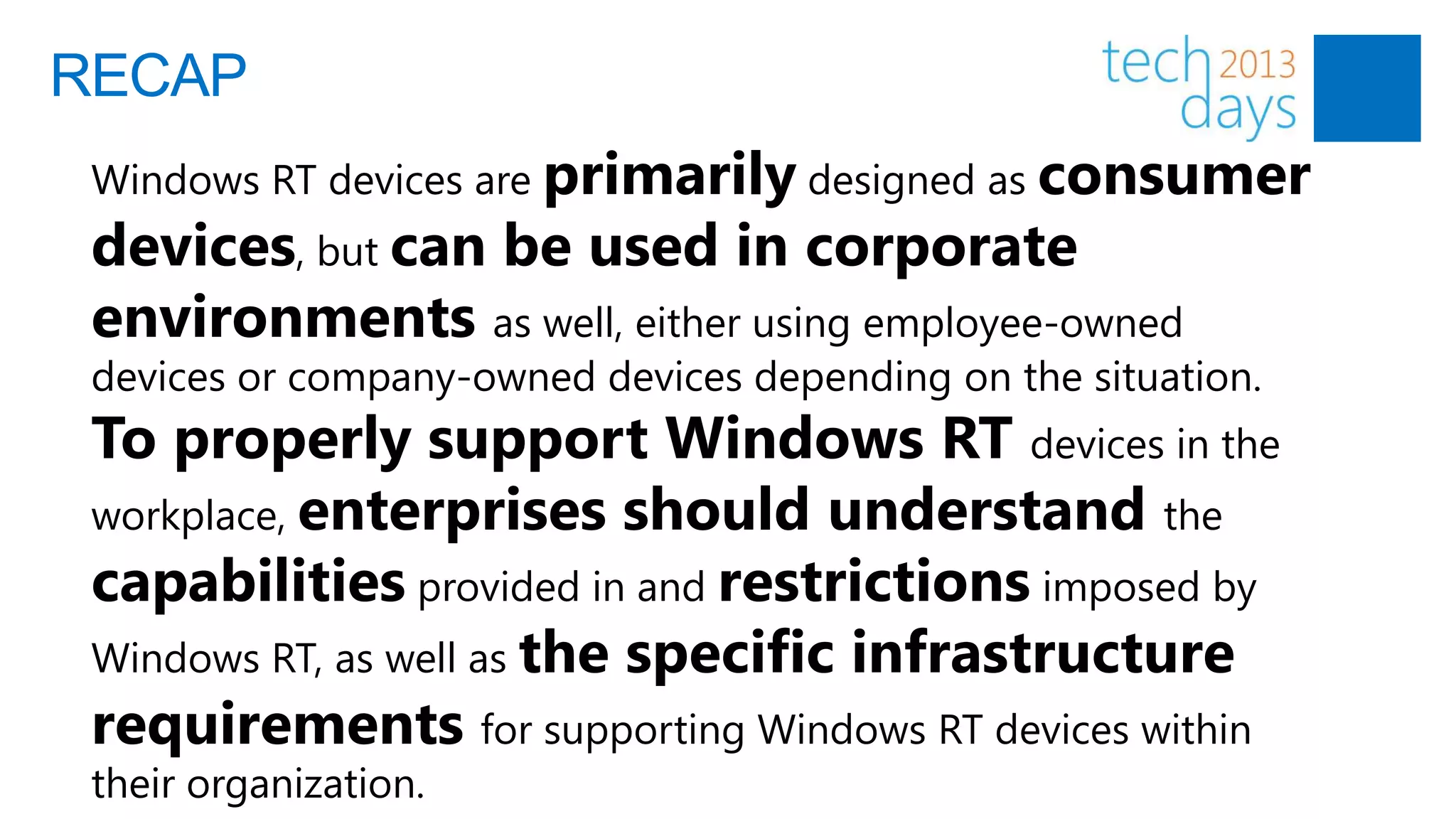
RECAP
 Windows RT devices are primarily designed as consumer
 devices, but can be used in corporate
 environments as well, either using employee-owned
 devices or company-owned devices depending on the situation.
 To properly support Windows RT devices in the
 workplace, enterprises should understand the
 capabilities provided in and restrictions imposed by
 Windows RT, as well as the specific infrastructure
 requirements for supporting Windows RT devices within
 their organization.
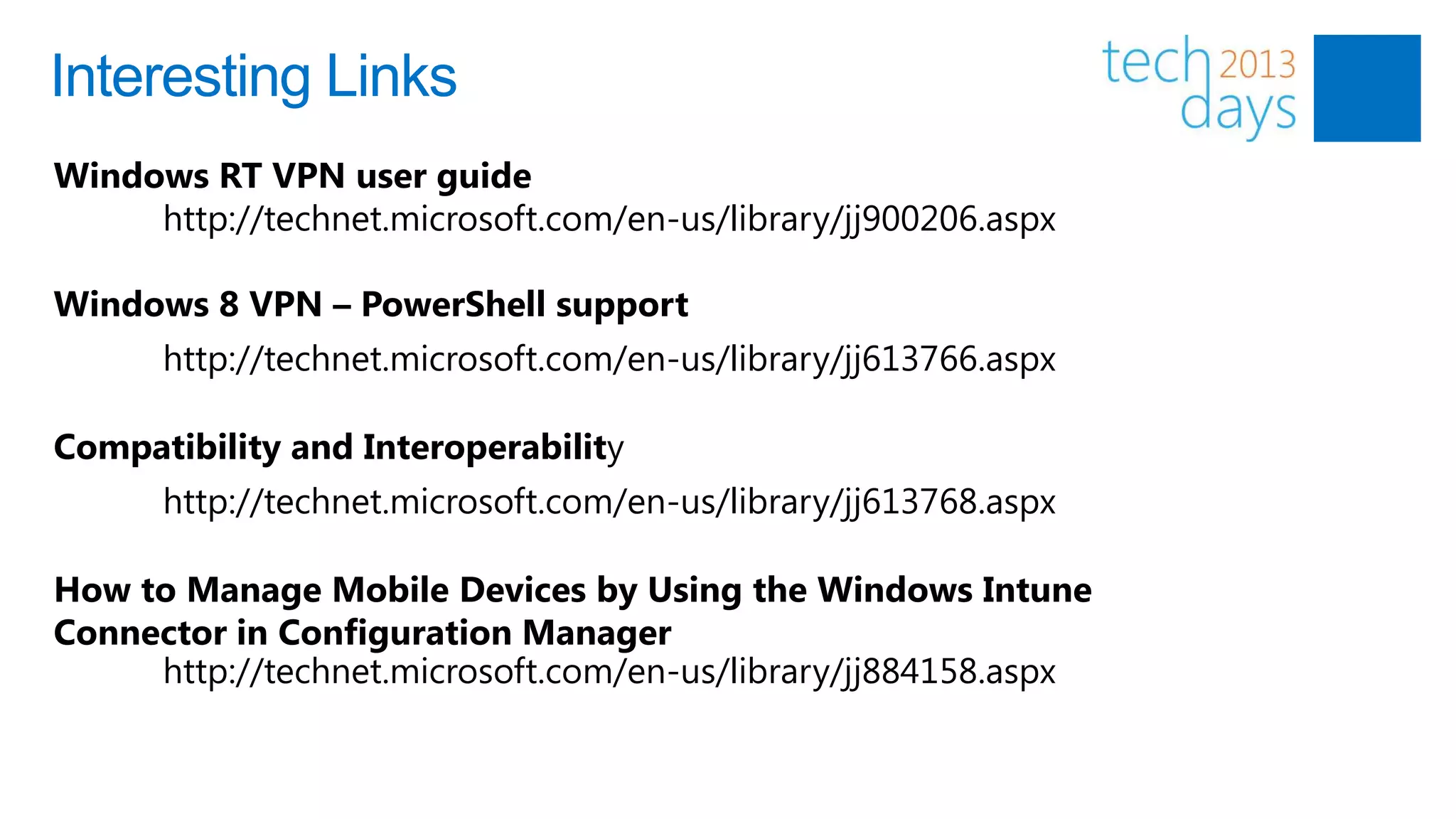
Interesting Links
Windows RT VPN user guide
     http://technet.microsoft.com/en-us/library/jj900206.aspx

Windows 8 VPN – PowerShell support
      http://technet.microsoft.com/en-us/library/jj613766.aspx

Compatibility and Interoperability
      http://technet.microsoft.com/en-us/library/jj613768.aspx

How to Manage Mobile Devices by Using the Windows Intune
Connector in Configuration Manager
     http://technet.microsoft.com/en-us/library/jj884158.aspx
Windows RT in the Enterprise


Thank you!

Managing Windows RT devices in the Enterprise

  • 1.
    Windows RT inthe Enterprise Nico Sienaert Lead Infrastructure Consultant | Getronics V-Technology Solutions Professional | Microsoft
  • 2.
    Session Objectives andTakeaways Positioning of Windows RT devices Where does Windows RT in the Enterprise makes sense What are the challenges How do you manage and keep control
  • 3.
    Flavors of Windows8 tablets Windows 8 tablets Windows 8 tablets Windows RT tablets with Intel Core with Intel Atom with ARM 64-bit processors 32-bit processors processors
  • 4.
    Windows tablets inBusiness Environments Devices & Experiences Ready for Business People Love to Embrace
  • 5.
    What capabilities areneeded? Windows 8 tablets with Atom or Windows RT tablets Windows 8 tablets with Intel Core Desktop Apps: W8 tablets with Intel CPU W8 LOB Apps: Intel Core, Atom or ARM (Full) Management: IntuneConfigMgr Best Connectivity: W8 tablets with Intel CPU Always on Capability: Atom or Windows RT
  • 6.
    Modern Device Management Devices & Platforms Single admin console
  • 7.
    Configuration Steps 1. PurchaseTry Windows Intune Subscription 2. Add Public Company Domain and CNAME for enrollment redirection 3. Verify Users have Public Domain UPNs and perform AD User Discovery 4. Deploy and Configure AD Federated Services (ADFS 2.0) 5. Deploy and Configure AD Directory Synchronization 6. Configuring Configuration Manager for Mobile Device Management Creating a Windows Intune Subscription in the Configuration Manager Admin Console Creating the Windows Intune Connector Site System role 7. Verification of Configuration Manager is successfully connecting to Windows Intune Service. CloudUserSync DMPDownloader DMPUploader
  • 8.
    Windows 8 AppDelivery Download from Windows Store Side Load from Your Infrastructure Management Self-Service Portal Infrastructure Cloud (SSP) Windows RT Custom LOB Apps Public Apps App Delivery Windows 8
  • 9.
    Enroll a WindowsRT device Get a certificate (for instance internal PKI) to sign your Apps Sign your Apps with the certificate Upload the certificate into ConfigMgrIntune Upload Sideloading key into ConfigMgrIntune Go on the Windows RT device to “Company Applications” Connect to the Windows Intune Service Install Company Portal You are ready to manage and to deploy Apps
  • 10.
    Troubleshooting of SoftwareDistribution HKCUSoftwareMicrosoftWindowsCurrentVersionMDMJobDB • BITSId • DeployRetryCount • LastError • Status Initialized /Created = 10 Download In Progress = 20 Download Failed = 30 Download Complete = 40 Install In Progress = 50 Install Failed = 60 Install Complete = 70
  • 11.
    Problem Scenarios (1) Symptom: Applicationis not installing and Reg status of the App is 10 Problem Cause: Most likely sideloading is not enabled Mitigation: HKEY_LOCAL_MACHINESOFTWAREPoliciesMicrosoftWindowsAppxAllowTrustedApps=1 Symptom: Application is not installing and Reg status of the App is 30 Problem Cause: Internet Connection downDP where content is hosted was downCert to issue the device is expired Mitigation: Solve above
  • 12.
    Problem Scenarios (2) Symptom: Applicationis not installing and Reg status of the App is 60 Problem Cause: Application Package corruptCertificate expired... Mitigation: Install App locally with Add-AppxPackage Symptom: No Job entry is created in the Registry corresponding to the application requested Problem Cause: Internet Connection lost during installnotification channel with the device is not created Mitigation: HKEY_CURRENT_USERSoftwareMicrosoftWindowsCurrentVersionMDMWNSChannelURi value in this case would be empty.
  • 14.
    User Experience onWindows RT • Run on both Windows RT • Thin, light, and sleek and x86 • Long battery life • Leverage existing developer • Includes class drivers for language and tools most peripherals Hardware and Applications Software • Sideloading (for line-of- • Secure by default business WinRT apps) and (UEFI, TPM) Innovation Windows Store • New UI, including desktop • Integrated engineering with ecosystem • Office Home and Student 2013 RT is included • Predictable and reliable over time High Quality Work and Life • Inbox Mail client • Pre-configured environment • Touch, mouse, keyboard on certified hardware • Multiple user accounts
  • 15.
    Driver Compatibility www.microsoft.com/en-us/windows/compatibility/winrt/CompatCenter/Home
  • 16.
    Office Home andStudents 2013 RT • Preinstalled on ARM-based Windows RT devices • Includes new Office applications: Word, Excel, PowerPoint, OneNote • Office Home & Student 2013 RT commercial use rights are included in: Office 365 or Office Standard/Professional Plus 2013 (as secondary use right) or Commercial use license via Volume Licensing
  • 17.
    Connectivity (1) VPN connection • Inbox VPN client for Microsoft server is included • Inbox VPN client can interoperate with 3rd party VPN servers via PPTP, L2TP, SSTP and IKEv2. • Encryption: 3DES, AES_128, AES_192, AES_256, CBC_3DES, CBC_DES • Integrity: SHA1, SHA_256, SHA_384 • Password: PAP / CHAP / MS-CHAPv2 / EAP • Certificates: User & Machine • Support for split-tunnel • Web Proxy and intranet settings
  • 18.
    Connectivity (2) VPN Client Provsioning • Get Connected Wizard • IntuneConfigMgr • Powershell
  • 19.
    Provisioning VPN viaIntuneConfigMgr InTune MDM 4 - VPN Connection establishment SCCM RRAS Server Enterprise Premises
  • 20.
    Connectivity (2) VPN Client Provsioning • Get Connected Wizard • IntuneConfigMgr • Powershell Multi-factor authentication • Smartcard (PIV, GIDS) or Virtual Smartcards • RSA Token
  • 21.
    OTP using RSASecure ID VPN Tunnel Internet VPN Server Windows RT RSA Authentication device Manager Enterprise Premises TTLS-PAP authentication protocol Only one OTP vendor supported: Odyssey
  • 22.
    Connectivity (2) VPN Client Provsioning • Get Connected Wizard • IntuneConfigMgr • Powershell Multi-factor authentication • Smartcard (PIV, GIDS) or Virtual Smartcards • RSA Token • Limitations: • PIN Changes • Token Challenge-Response • Workaround: • Web-login page protected by the RSA Web Agent
  • 23.
    Data and AppAccess RemoteApp • Grant access to line-of-business applications and data • Seamlessly launch apps from Windows RT • Secure corporate data: avoid storing enterprise data on consumer devices • Ensure compliance requirements VDI • Full VDI experience (RemoteFX, USB redirection, Multi-touch remoting) 3rd Party • Citrix Receiver Remote Assistance
  • 26.
    Security and Manageability(1) Security capabilities on Windows RT devices • Secured Boot, Trusted Boot • Device Encryption • Picture password • Windows Firewall, Windows Defender • NAP (Network Access Protection) supported Governance through Exchange ActiveSync (EAS)* • Password requirements (e.g., password complexity, picture password, device lock, password expiration etc.) • No support of external encryption • Remote Content Wipe & lockout behavior • Mail App limitations (Alternative OWA with Exchange 2013 or O365) * Enabled through Mail app
  • 27.
    Security and Manageability(2) Diagnostics and troubleshooting • Windows PowerShell supported • The traditional Windows tools (Eventvwr, TaskMgr, Troubleshooting,…) Cloud-based management with Windows Intune Single pane-of-glass administration through ConfigMgr 2012 SP1 • Distribute and manage new Windows apps (via sideloading) • Push configurations (e.g., VPN config) • Enforce more governance settings • Ensure compliance (e.g., monitor security settings) • Collect inventory information (e.g., which LOB apps are installed)
  • 28.
    Windows RT ManagementDetails Windows RT Direct Management via Windows Intune Exchange ActiveSync Setting Allow convenience logon policy   Alphanumeric password required policy   Attachments enabled   Hardware inventory   Maximum inactivity time lock   Password management   Require device encryption   Capability Application publishing   Deep-link into public application stores   User self-service portal   VPN Client configuration ! 
  • 29.
    Capabilities in aglance Capability Windows RT Portal Capability Windows RT Application management  Enroll Device Yes Endpoint Protection O Rename Device Yes Hardware Inventory  Retire (un-enroll local device) Yes Software Inventory ! Wipe (remotely other devices) Yes Remote control O Install LOB Applications Yes Reporting  Install publicly available applications Yes Software updates O Contact IT Yes Compliance settings ! Retire Device Windows RT Power management O Removal of Side-loading key Yes Software metering O Continue usage of side-loaded Apps No Install new side-loaded Apps No Policies retain on device Yes
  • 31.
  • 32.
    RECAP Windows RTdevices are primarily designed as consumer devices, but can be used in corporate environments as well, either using employee-owned devices or company-owned devices depending on the situation. To properly support Windows RT devices in the workplace, enterprises should understand the capabilities provided in and restrictions imposed by Windows RT, as well as the specific infrastructure requirements for supporting Windows RT devices within their organization.
  • 33.
    Interesting Links Windows RTVPN user guide http://technet.microsoft.com/en-us/library/jj900206.aspx Windows 8 VPN – PowerShell support http://technet.microsoft.com/en-us/library/jj613766.aspx Compatibility and Interoperability http://technet.microsoft.com/en-us/library/jj613768.aspx How to Manage Mobile Devices by Using the Windows Intune Connector in Configuration Manager http://technet.microsoft.com/en-us/library/jj884158.aspx
  • 34.
    Windows RT inthe Enterprise Thank you!