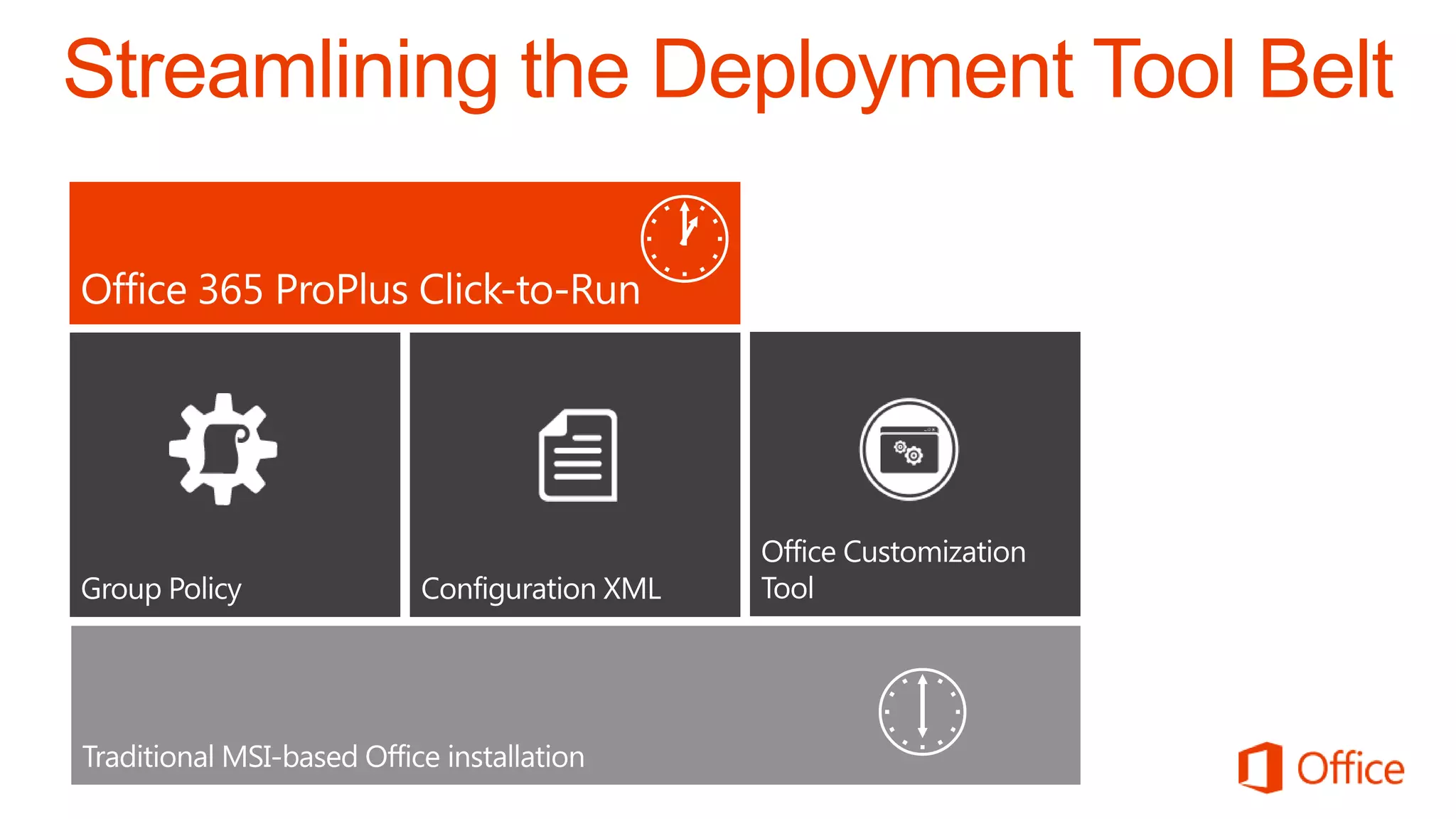
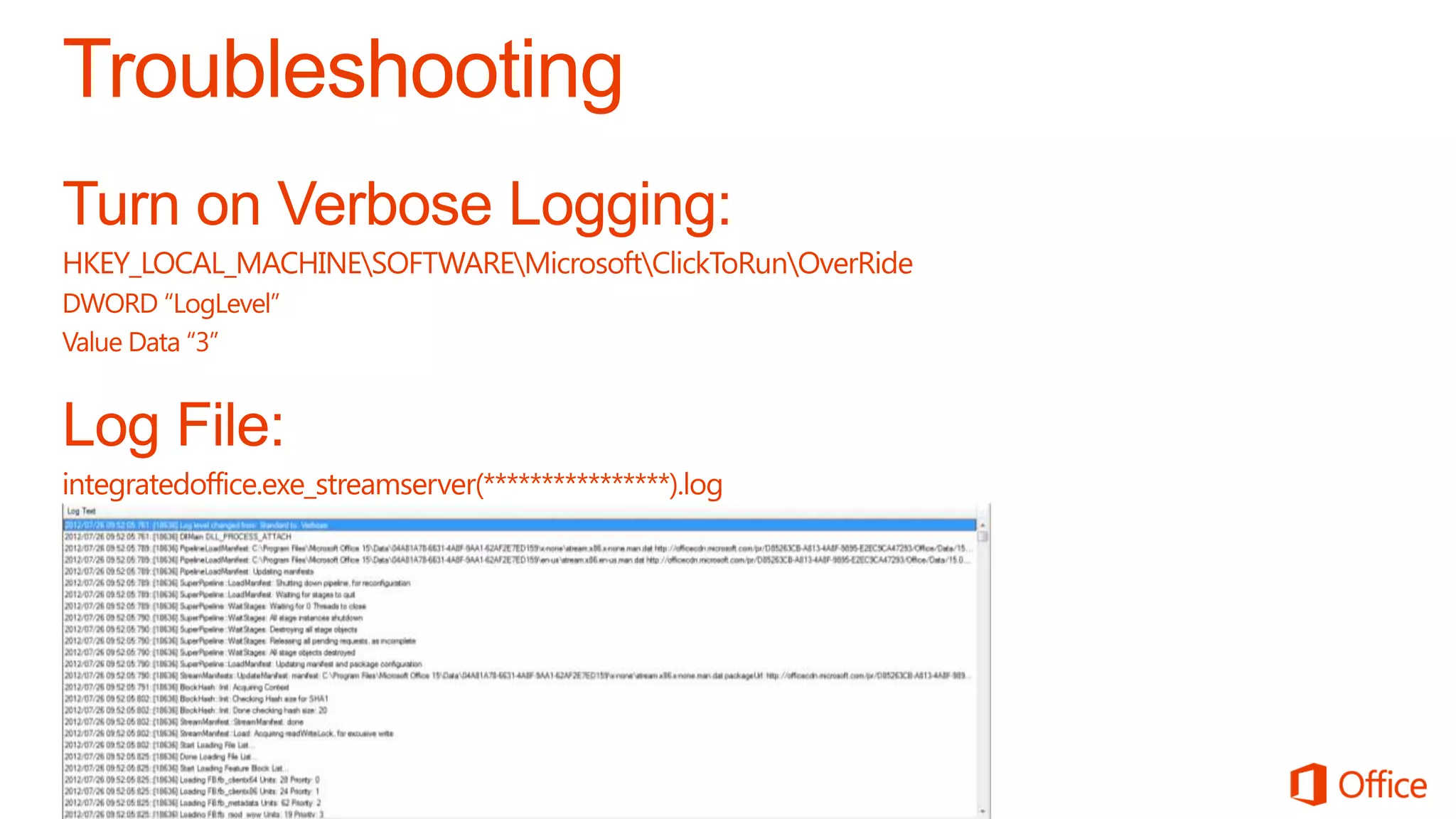
Office 365 ProPlus:
Click-to-Run deployment and management

Brian Shiers
Sr. Product Manager – Microsoft Office Division
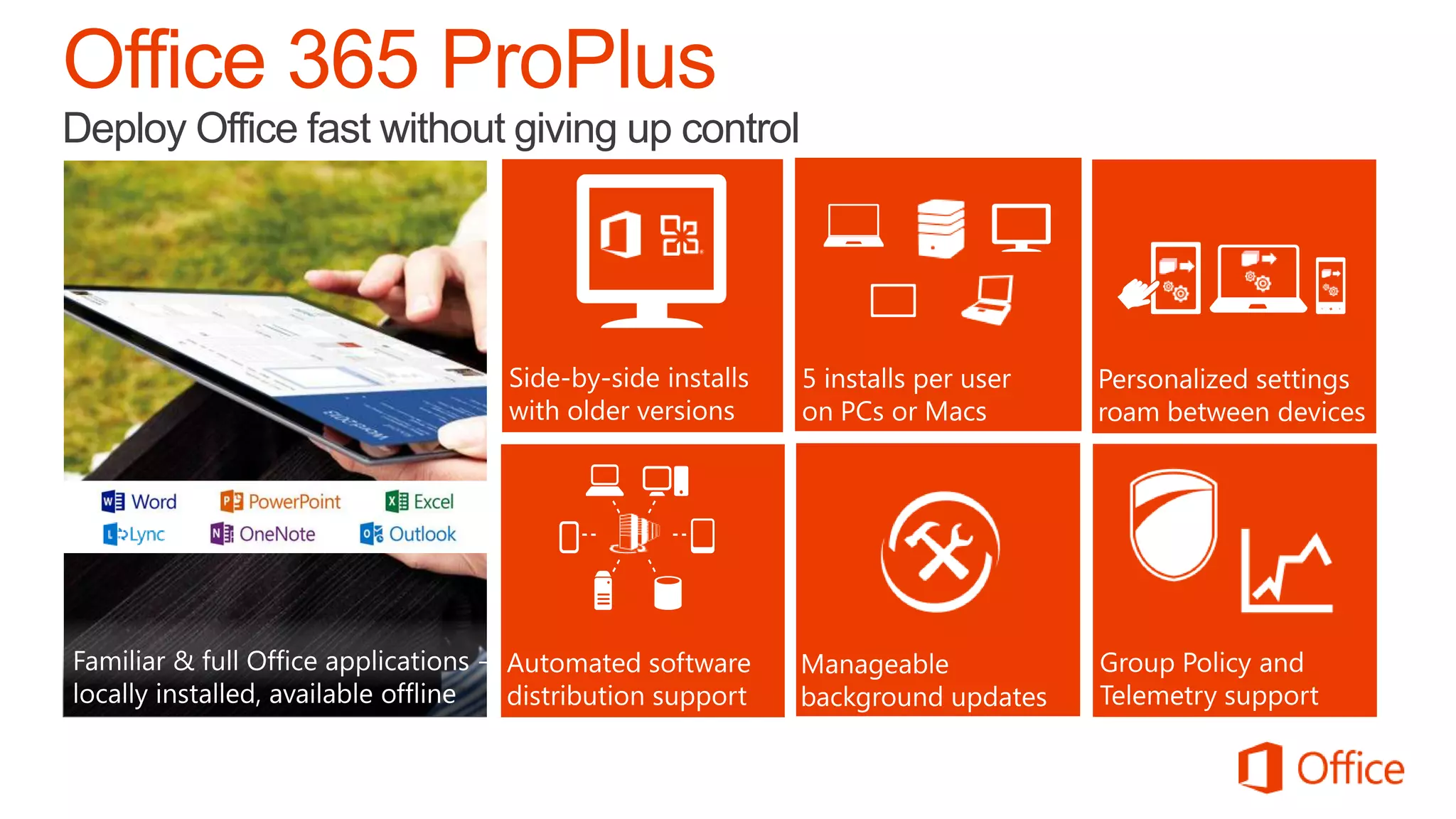
Deploy Office fast without giving up control
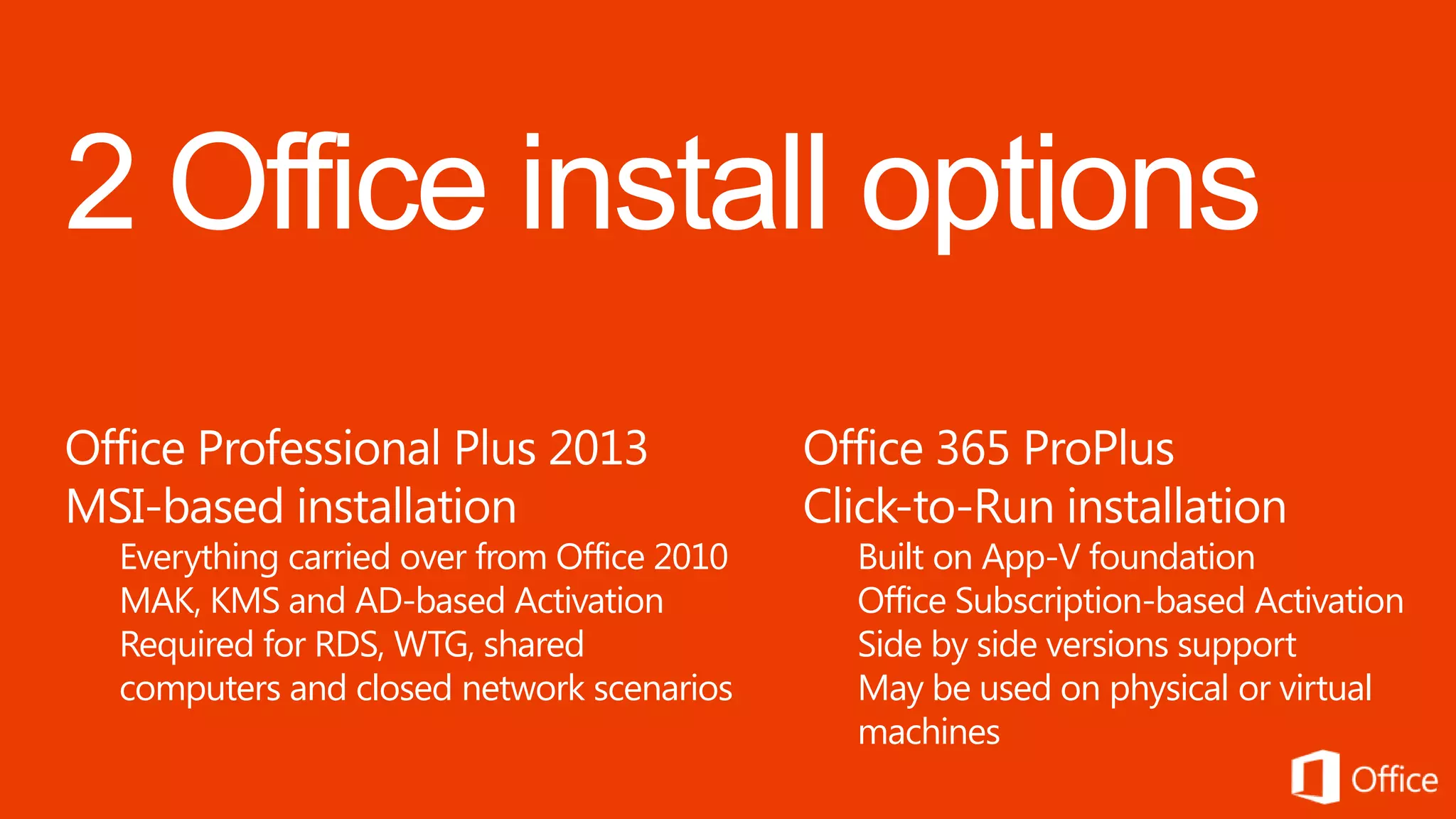
Office Professional Plus 2013                Office 365 ProPlus
MSI-based installation                       Click-to-Run installation
  Everything carried over from Office 2010     Built on App-V foundation
  MAK, KMS and AD-based Activation             Office Subscription-based Activation
  Required for RDS, WTG, shared                Side by side versions support
  computers and closed network scenarios       May be used on physical or virtual
                                               machines
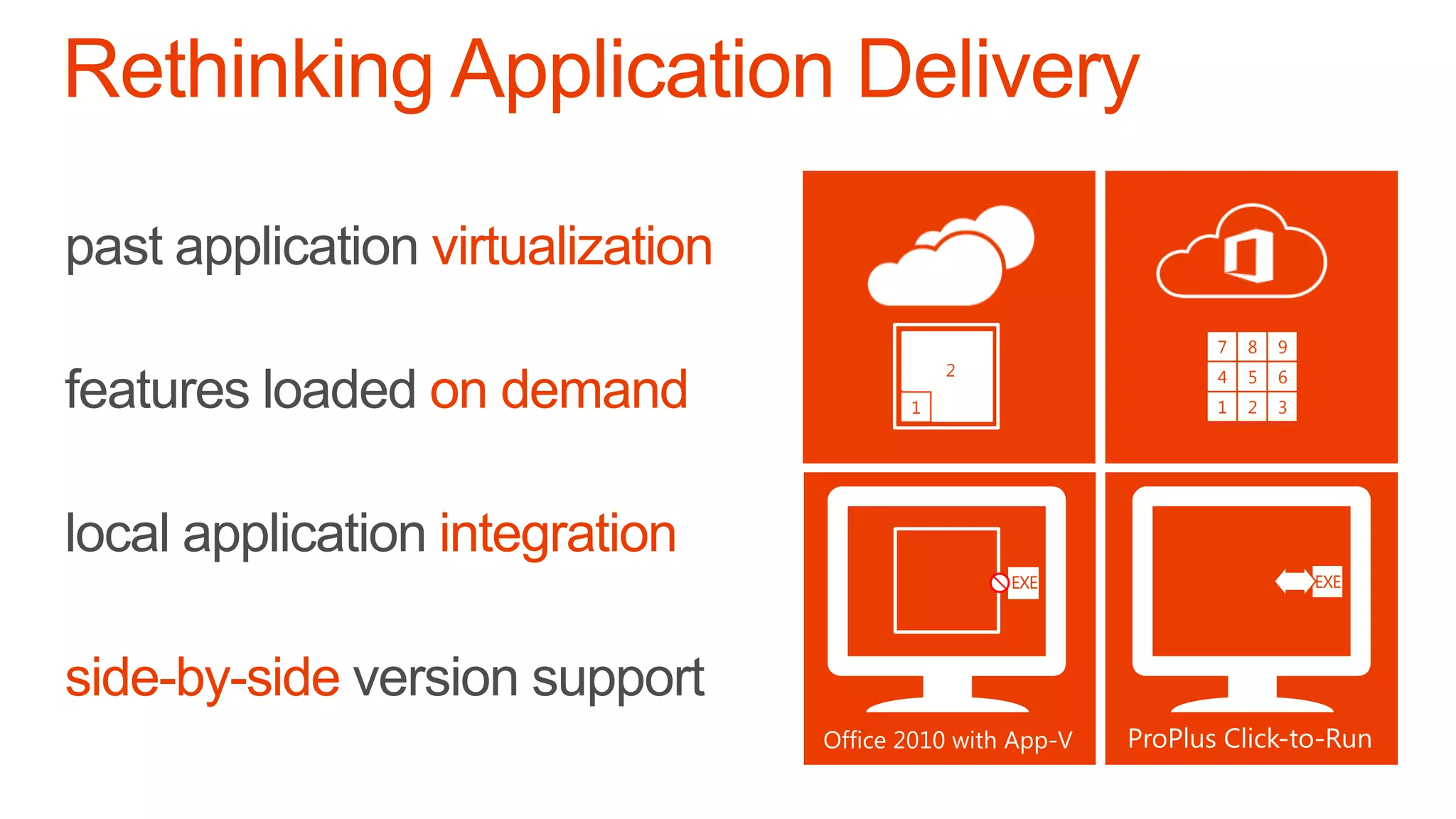
past application virtualization
                                                4
                                                7
                                                1   5
                                                    8   6
                                                        9
                                      2
                                      2         4
                                                7   9
                                                    5
                                                    8   8
                                                        6
                                                        9
features loaded on demand         1             3
                                                1
                                                2   2
                                                    3   1
                                                        3
                                                        4


local application integration
                                          EXE               EXE


side-by-side version support
demo
Click-to-Run installation and
Side-by-Side version support
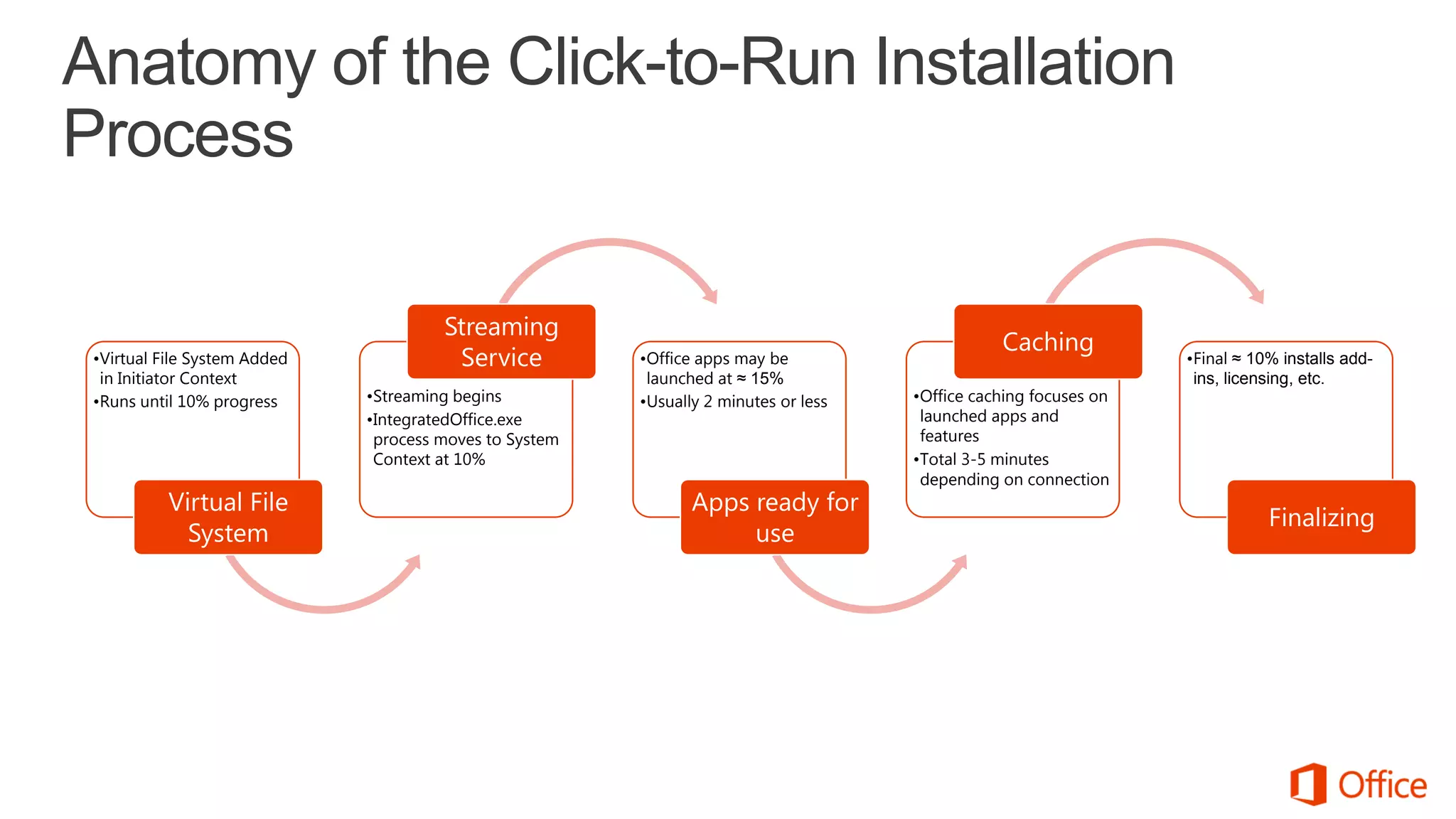
Anatomy of the Click-to-Run Installation
Process

                                       Streaming
                                                                                                 Caching
 •Virtual File System Added             Service          •Office apps may be                                       •Final ≈ 10% installs add-
  in Initiator Context                                    launched at ≈ 15%                                         ins, licensing, etc.
 •Runs until 10% progress     •Streaming begins          •Usually 2 minutes or less   •Office caching focuses on
                              •IntegratedOffice.exe                                    launched apps and
                               process moves to System                                 features
                               Context at 10%                                         •Total 3-5 minutes
                                                                                       depending on connection
           Virtual File                                         Apps ready for
                                                                                                                              Finalizing
             System                                                  use
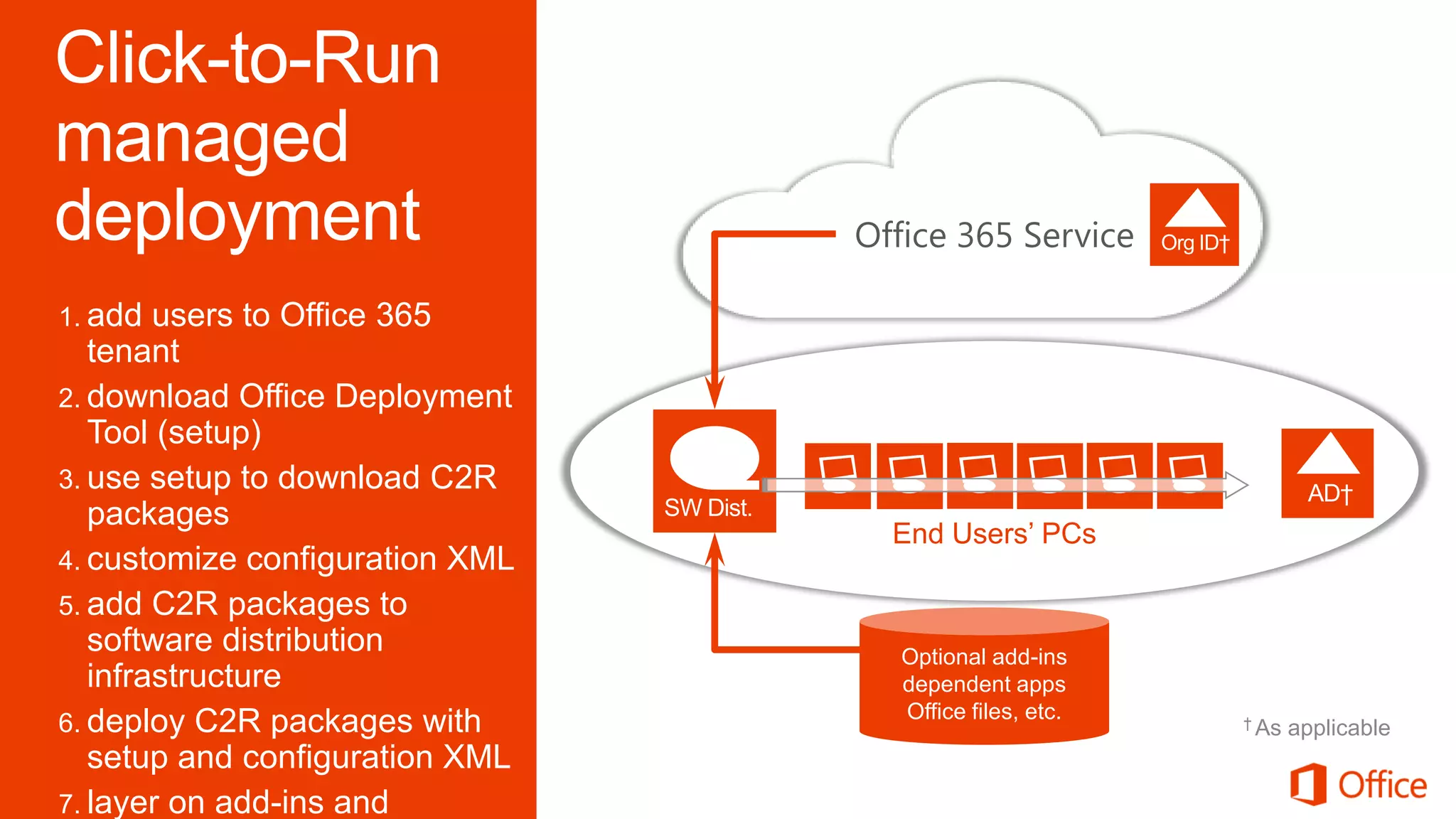
Office 365 Service

1. add  users to Office 365
   tenant
2. download Office Deployment
   Tool (setup)
3. use setup to download C2R
   packages
                                   End Users’ PCs
4. customize configuration XML
5. add C2R packages to
   software distribution           Optional add-ins
   infrastructure                  dependent apps
                                   Office files, etc.
6. deploy C2R packages with                             † As   applicable
   setup and configuration XML
7. layer on add-ins and



    
demo
Office Deployment Tool for Click-to-Run
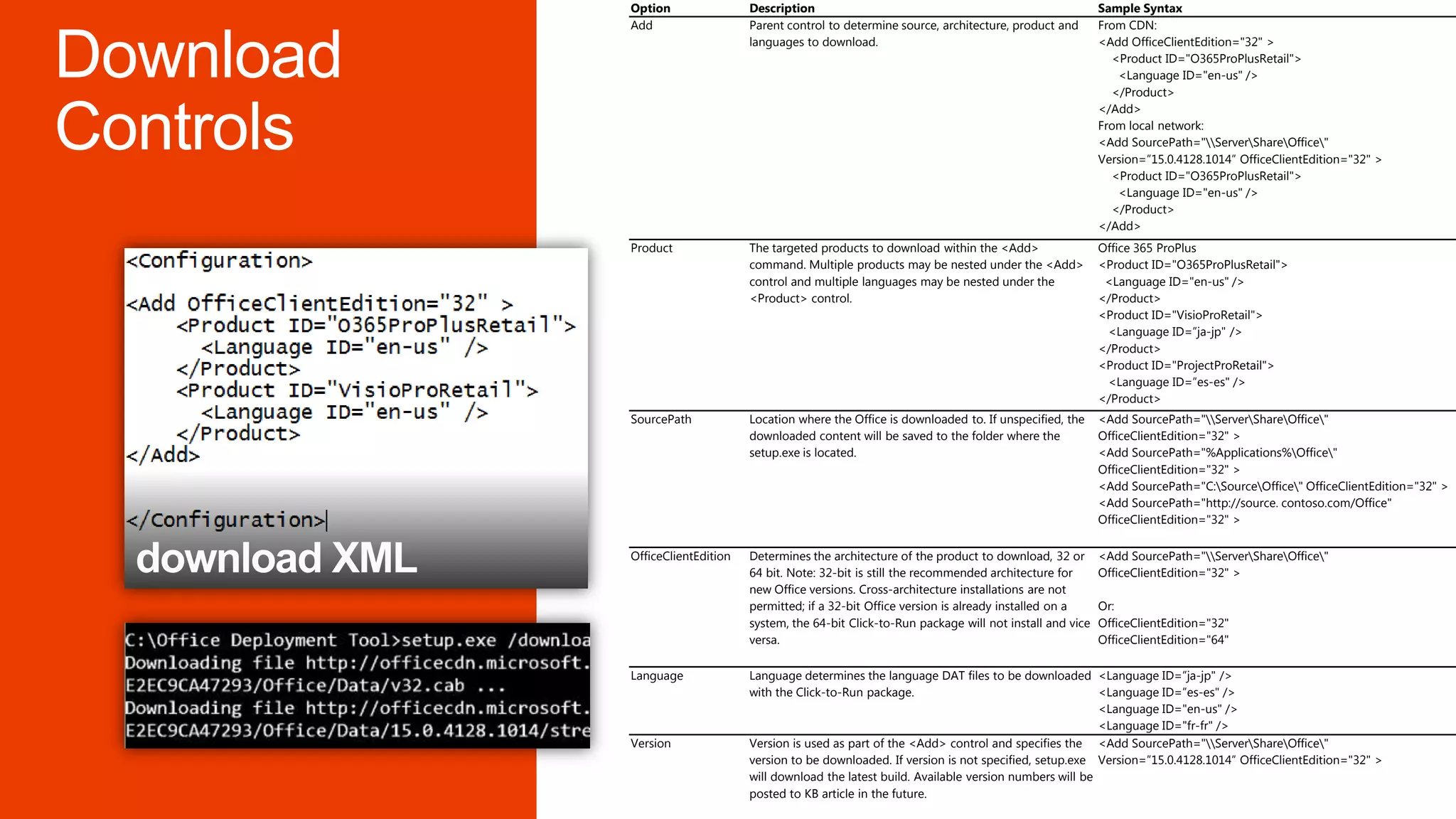
Option                Description                                                         Sample Syntax
Add                   Parent control to determine source, architecture, product and       From CDN:
                      languages to download.                                              <Add OfficeClientEdition="32" >
                                                                                            <Product ID="O365ProPlusRetail">
                                                                                             <Language ID="en-us" />
                                                                                            </Product>
                                                                                          </Add>
                                                                                          From local network:
                                                                                          <Add SourcePath="ServerShareOffice"
                                                                                          Version=”15.0.4128.1014” OfficeClientEdition="32" >
                                                                                            <Product ID="O365ProPlusRetail">
                                                                                             <Language ID="en-us" />
                                                                                            </Product>
                                                                                          </Add>
Product               The targeted products to download within the <Add>                  Office 365 ProPlus
                      command. Multiple products may be nested under the <Add>            <Product ID="O365ProPlusRetail">
                      control and multiple languages may be nested under the               <Language ID="en-us" />
                      <Product> control.                                                  </Product>
                                                                                          <Product ID="VisioProRetail">
                                                                                           <Language ID=”ja-jp" />
                                                                                          </Product>
                                                                                          <Product ID="ProjectProRetail">
                                                                                           <Language ID=”es-es" />
                                                                                          </Product>
SourcePath            Location where the Office is downloaded to. If unspecified, the     <Add SourcePath="ServerShareOffice"
                      downloaded content will be saved to the folder where the            OfficeClientEdition="32" >
                      setup.exe is located.                                               <Add SourcePath="%Applications%Office"
                                                                                          OfficeClientEdition="32" >
                                                                                          <Add SourcePath="C:SourceOffice" OfficeClientEdition="32" >
                                                                                          <Add SourcePath="http://source. contoso.com/Office"
                                                                                          OfficeClientEdition="32" >

OfficeClientEdition   Determines the architecture of the product to download, 32 or       <Add SourcePath="ServerShareOffice"
                      64 bit. Note: 32-bit is still the recommended architecture for      OfficeClientEdition="32" >
                      new Office versions. Cross-architecture installations are not
                      permitted; if a 32-bit Office version is already installed on a     Or:
                      system, the 64-bit Click-to-Run package will not install and vice   OfficeClientEdition="32"
                      versa.                                                              OfficeClientEdition="64"

Language              Language determines the language DAT files to be downloaded <Language ID=”ja-jp" />
                      with the Click-to-Run package.                                    <Language ID=”es-es" />
                                                                                        <Language ID="en-us" />
                                                                                        <Language ID="fr-fr" />
Version               Version is used as part of the <Add> control and specifies the <Add SourcePath="ServerShareOffice"
                      version to be downloaded. If version is not specified, setup.exe Version=”15.0.4128.1014” OfficeClientEdition="32" >
                      will download the latest build. Available version numbers will be
                      posted to KB article in the future.
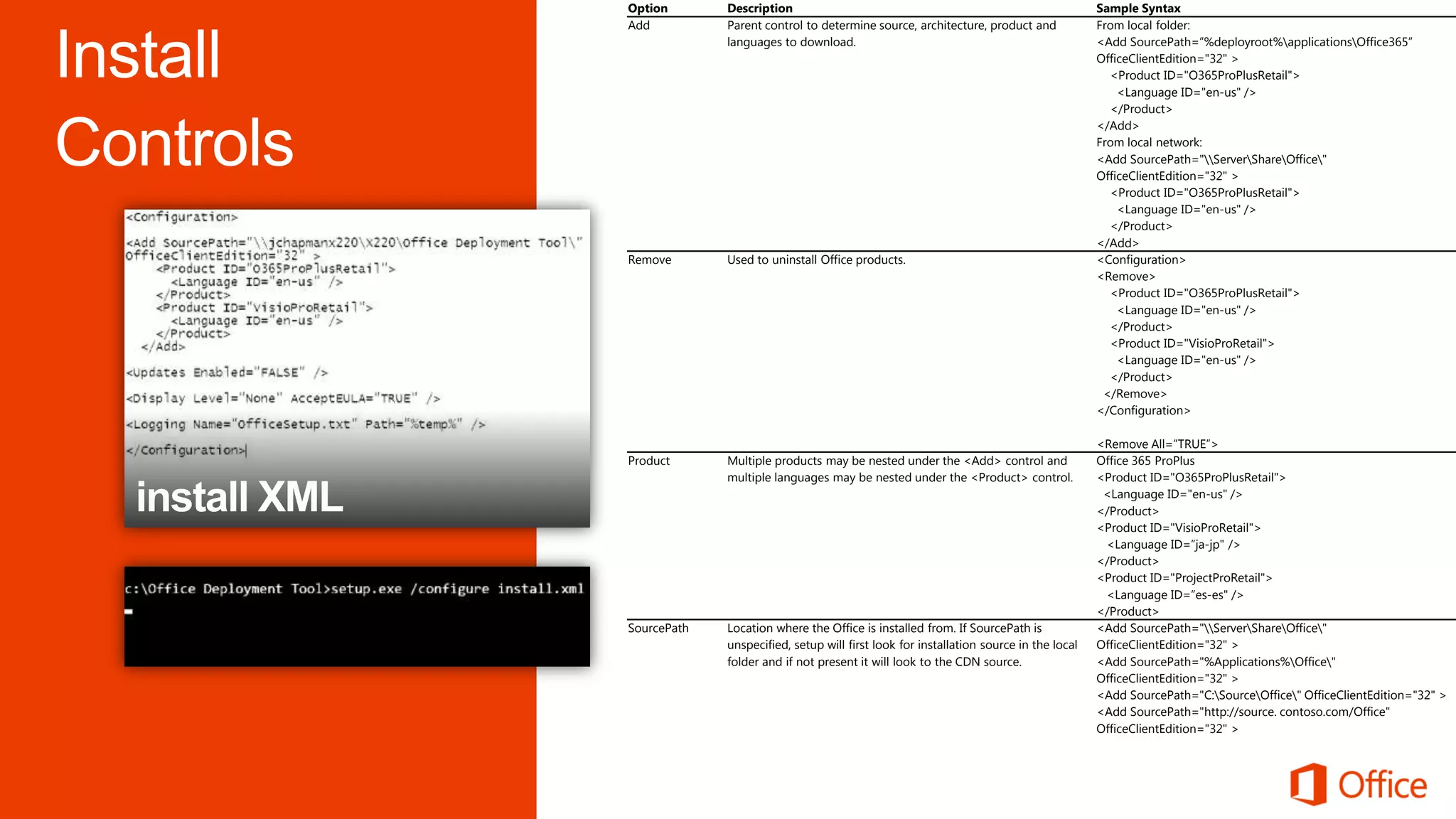
Option       Description                                                               Sample Syntax
Add          Parent control to determine source, architecture, product and             From local folder:
             languages to download.                                                    <Add SourcePath=”%deployroot%applicationsOffice365”
                                                                                       OfficeClientEdition="32" >
                                                                                         <Product ID="O365ProPlusRetail">
                                                                                           <Language ID="en-us" />
                                                                                         </Product>
                                                                                       </Add>
                                                                                       From local network:
                                                                                       <Add SourcePath="ServerShareOffice"
                                                                                       OfficeClientEdition="32" >
                                                                                         <Product ID="O365ProPlusRetail">
                                                                                           <Language ID="en-us" />
                                                                                         </Product>
                                                                                       </Add>
Remove       Used to uninstall Office products.                                        <Configuration>
                                                                                       <Remove>
                                                                                         <Product ID="O365ProPlusRetail">
                                                                                           <Language ID="en-us" />
                                                                                         </Product>
                                                                                         <Product ID="VisioProRetail">
                                                                                           <Language ID="en-us" />
                                                                                         </Product>
                                                                                        </Remove>
                                                                                       </Configuration>

                                                                                       <Remove All=”TRUE”>
Product      Multiple products may be nested under the <Add> control and               Office 365 ProPlus
             multiple languages may be nested under the <Product> control.             <Product ID="O365ProPlusRetail">
                                                                                        <Language ID="en-us" />
                                                                                       </Product>
                                                                                       <Product ID="VisioProRetail">
                                                                                        <Language ID=”ja-jp" />
                                                                                       </Product>
                                                                                       <Product ID="ProjectProRetail">
                                                                                        <Language ID=”es-es" />
                                                                                       </Product>
SourcePath   Location where the Office is installed from. If SourcePath is             <Add SourcePath="ServerShareOffice"
             unspecified, setup will first look for installation source in the local   OfficeClientEdition="32" >
             folder and if not present it will look to the CDN source.                 <Add SourcePath="%Applications%Office"
                                                                                       OfficeClientEdition="32" >
                                                                                       <Add SourcePath="C:SourceOffice" OfficeClientEdition="32" >
                                                                                       <Add SourcePath="http://source. contoso.com/Office"
                                                                                       OfficeClientEdition="32" >
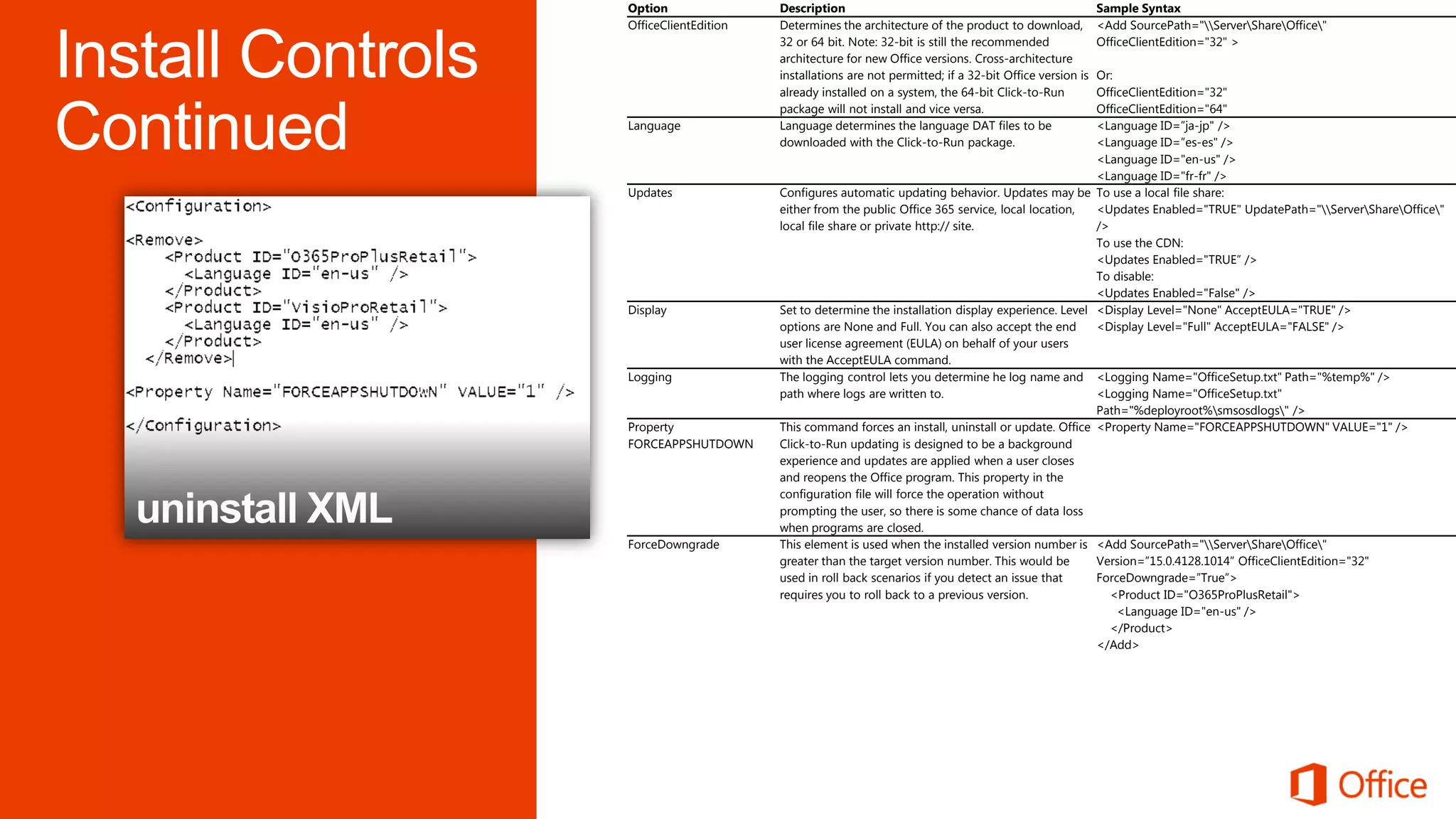
Option                Description                                                      Sample Syntax
OfficeClientEdition   Determines the architecture of the product to download,          <Add SourcePath="ServerShareOffice"
                      32 or 64 bit. Note: 32-bit is still the recommended              OfficeClientEdition="32" >
                      architecture for new Office versions. Cross-architecture
                      installations are not permitted; if a 32-bit Office version is
                                                                                  Or:
                      already installed on a system, the 64-bit Click-to-Run      OfficeClientEdition="32"
                      package will not install and vice versa.                    OfficeClientEdition="64"
Language              Language determines the language DAT files to be            <Language ID=”ja-jp" />
                      downloaded with the Click-to-Run package.                   <Language ID=”es-es" />
                                                                                  <Language ID="en-us" />
                                                                                  <Language ID="fr-fr" />
Updates               Configures automatic updating behavior. Updates may be To use a local file share:
                      either from the public Office 365 service, local location,  <Updates Enabled="TRUE" UpdatePath="ServerShareOffice"
                      local file share or private http:// site.                   />
                                                                                  To use the CDN:
                                                                                  <Updates Enabled="TRUE” />
                                                                                  To disable:
                                                                                  <Updates Enabled="False" />
Display               Set to determine the installation display experience. Level <Display Level="None" AcceptEULA="TRUE" />
                      options are None and Full. You can also accept the end      <Display Level="Full" AcceptEULA="FALSE" />
                      user license agreement (EULA) on behalf of your users
                      with the AcceptEULA command.
Logging               The logging control lets you determine he log name and <Logging Name="OfficeSetup.txt" Path="%temp%" />
                      path where logs are written to.                             <Logging Name="OfficeSetup.txt"
                                                                                  Path="%deployroot%smsosdlogs" />
Property              This command forces an install, uninstall or update. Office <Property Name="FORCEAPPSHUTDOWN" VALUE="1" />
FORCEAPPSHUTDOWN      Click-to-Run updating is designed to be a background
                      experience and updates are applied when a user closes
                      and reopens the Office program. This property in the
                      configuration file will force the operation without
                      prompting the user, so there is some chance of data loss
                      when programs are closed.
ForceDowngrade        This element is used when the installed version number is <Add SourcePath="ServerShareOffice"
                      greater than the target version number. This would be       Version=”15.0.4128.1014” OfficeClientEdition="32"
                      used in roll back scenarios if you detect an issue that     ForceDowngrade=”True”>
                      requires you to roll back to a previous version.               <Product ID="O365ProPlusRetail">
                                                                                      <Language ID="en-us" />
                                                                                     </Product>
                                                                                  </Add>
demo
Using MDT to Deploy Office 365
ProPlus
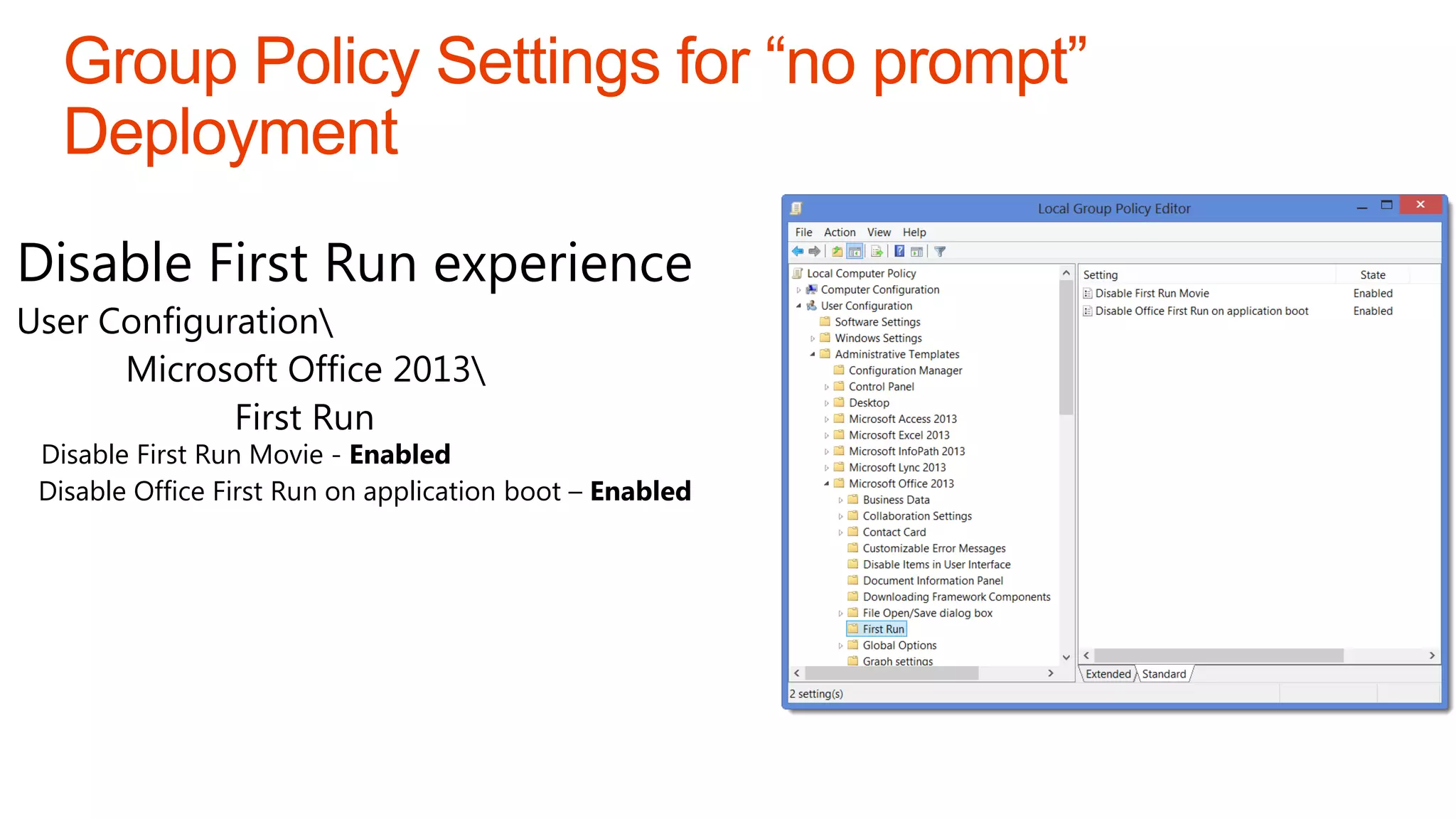
Disable First Run experience
User Configuration
      Microsoft Office 2013
             First Run
 Disable First Run Movie - Enabled
 Disable Office First Run on application boot – Enabled
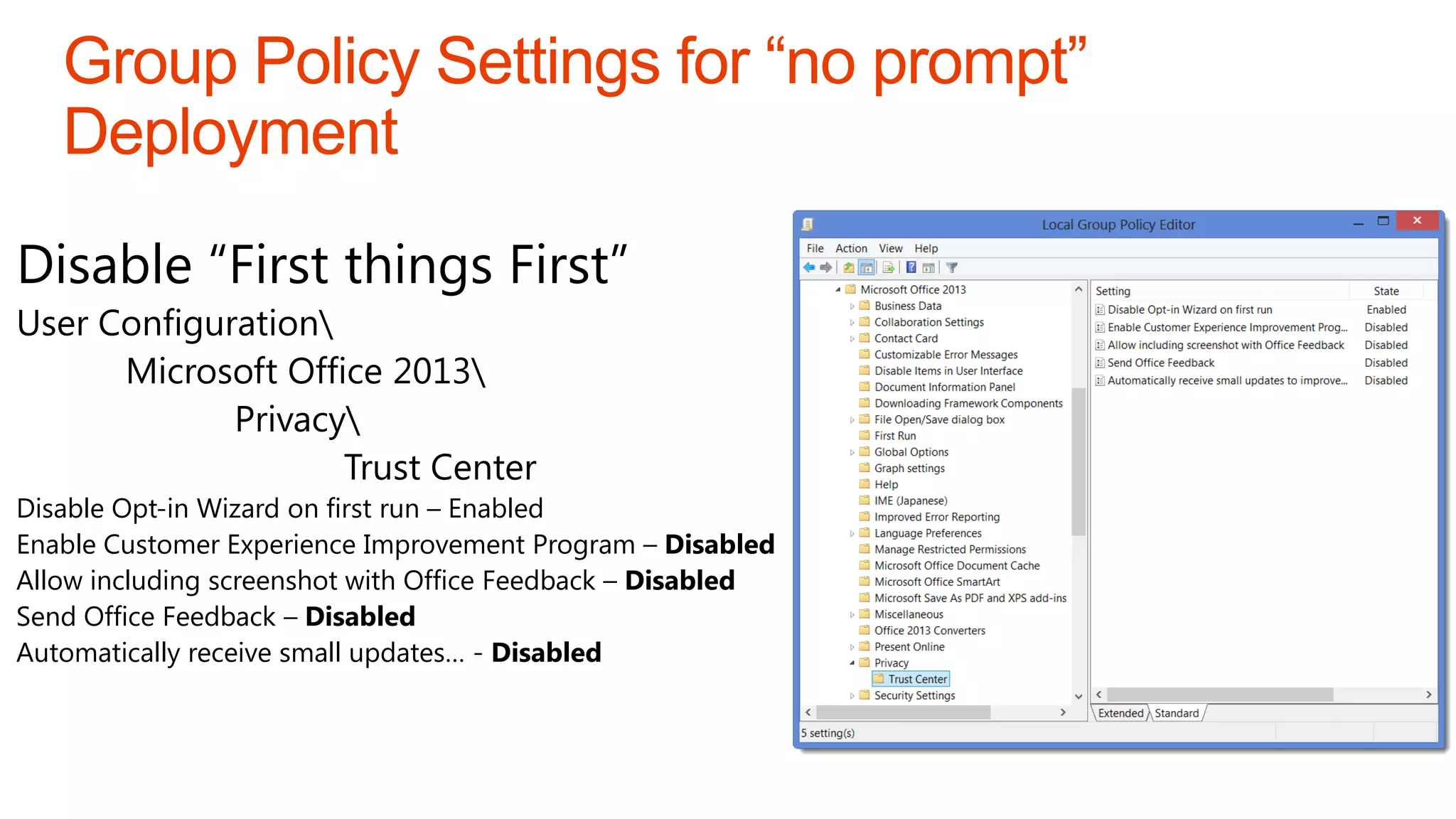
Disable “First things First”
User Configuration
      Microsoft Office 2013
             Privacy
                    Trust Center
Disable Opt-in Wizard on first run – Enabled
Enable Customer Experience Improvement Program – Disabled
Allow including screenshot with Office Feedback – Disabled
Send Office Feedback – Disabled
Automatically receive small updates… - Disabled
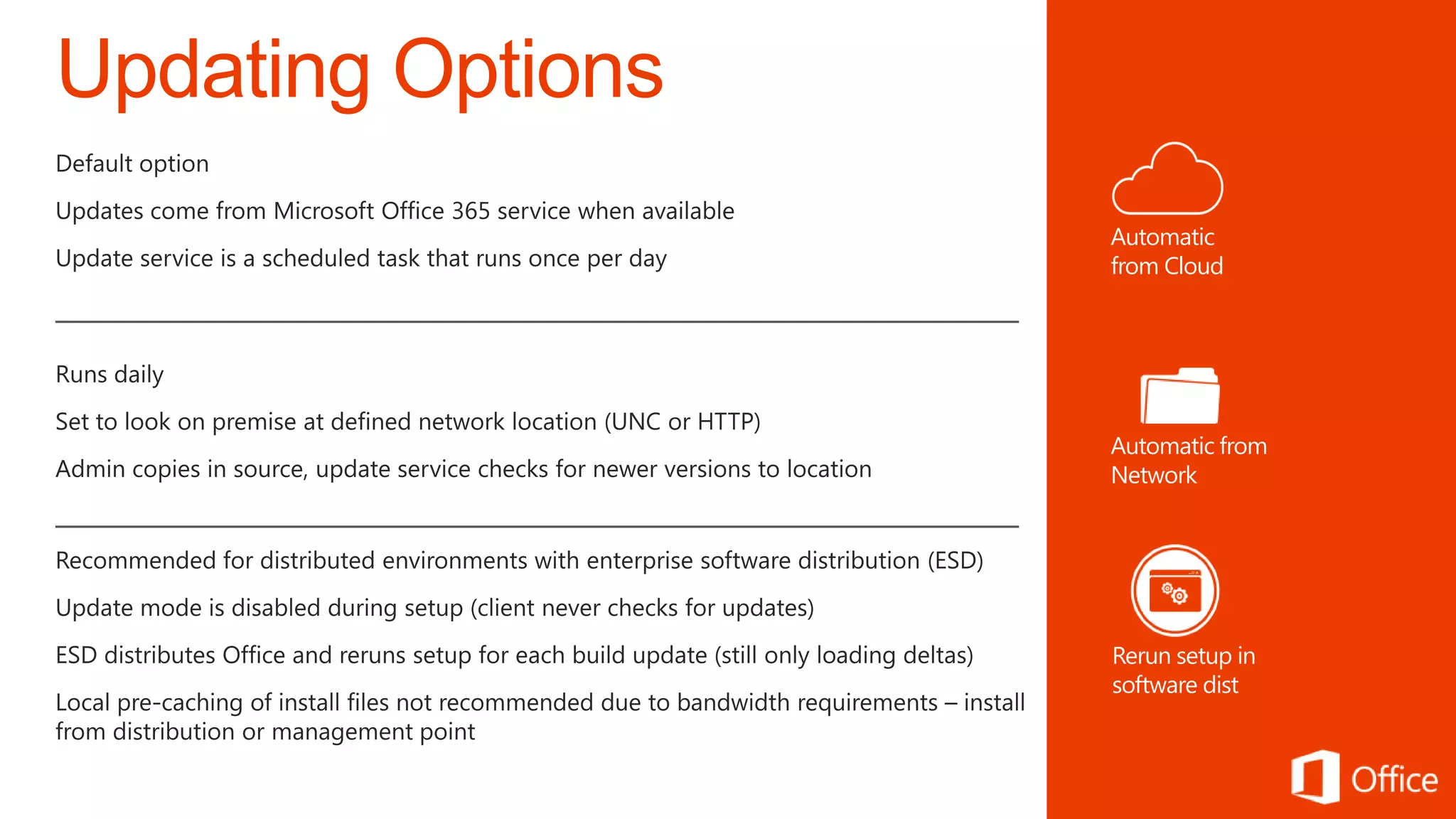
Automatic
from Cloud


Automatic from
Network


Rerun setup in
software dist
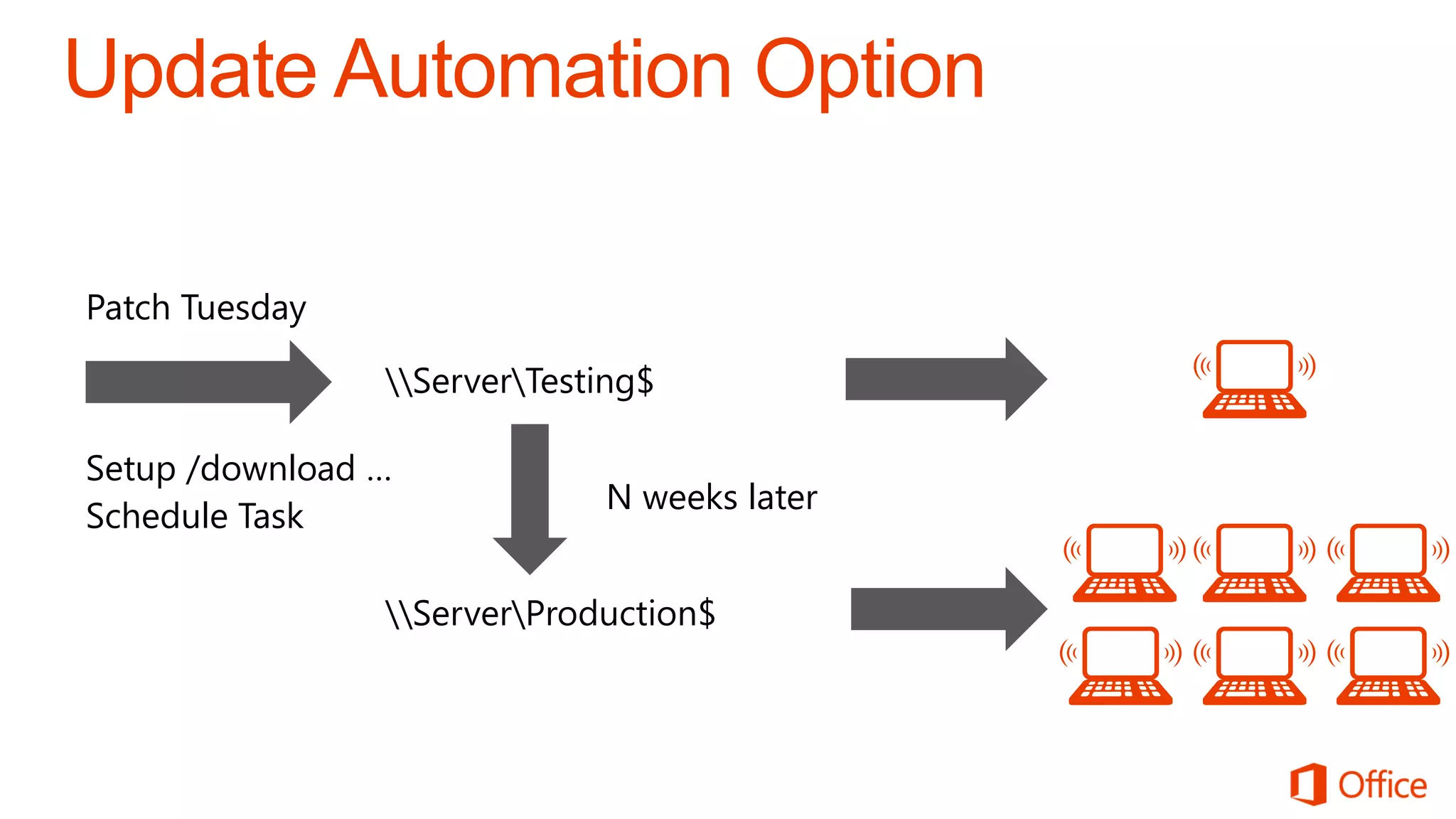
Patch Tuesday

                ServerTesting$

Setup /download …
                             N weeks later
Schedule Task

                ServerProduction$
Manage.
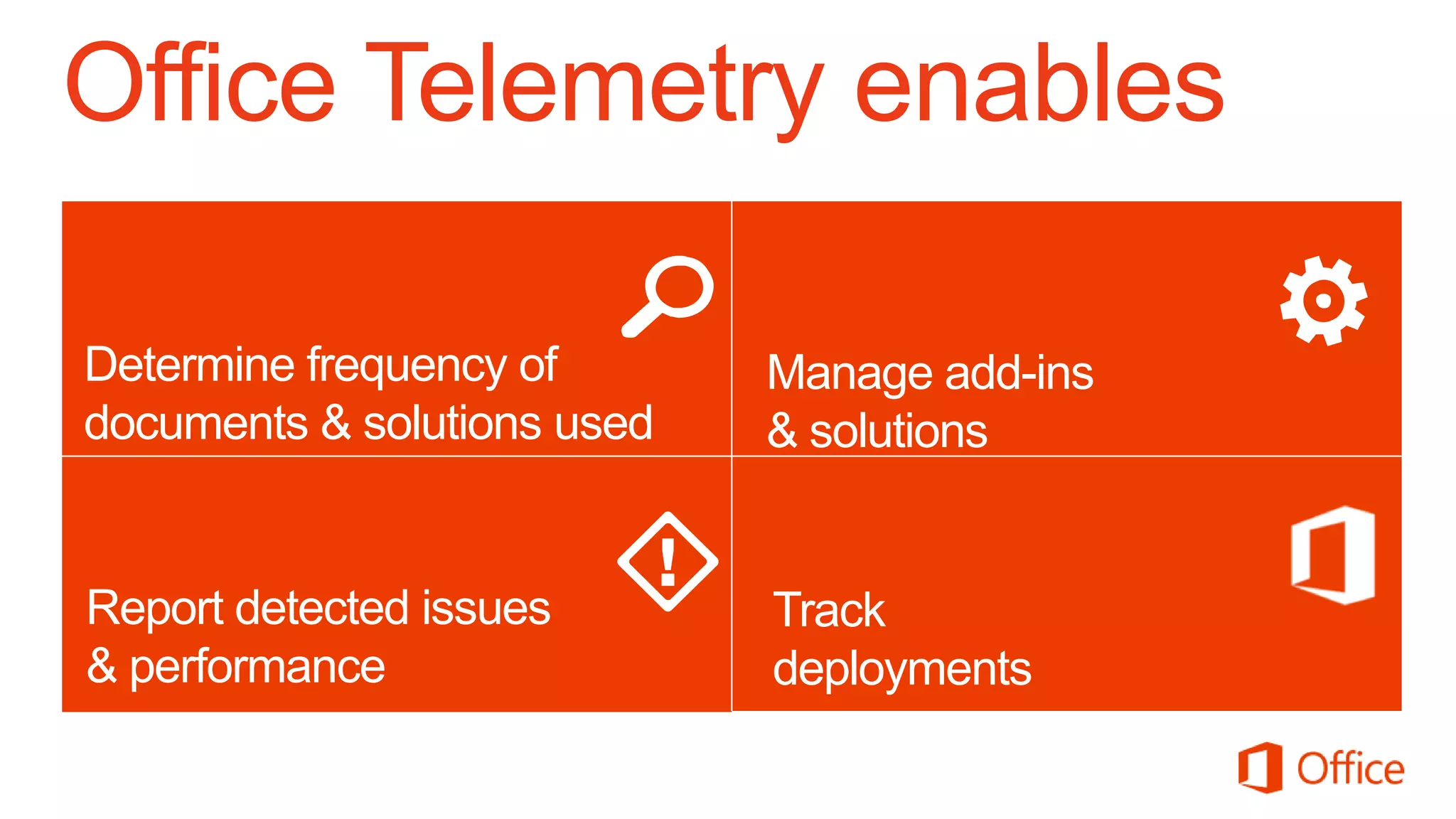
Office Telemetry enables

Determine frequency of          Manage add-ins
Document identification used
documents & solutions          Solution management
                                & solutions


Report detected issues          Track
& performance
Issue detection                 deployments
                               Deployment
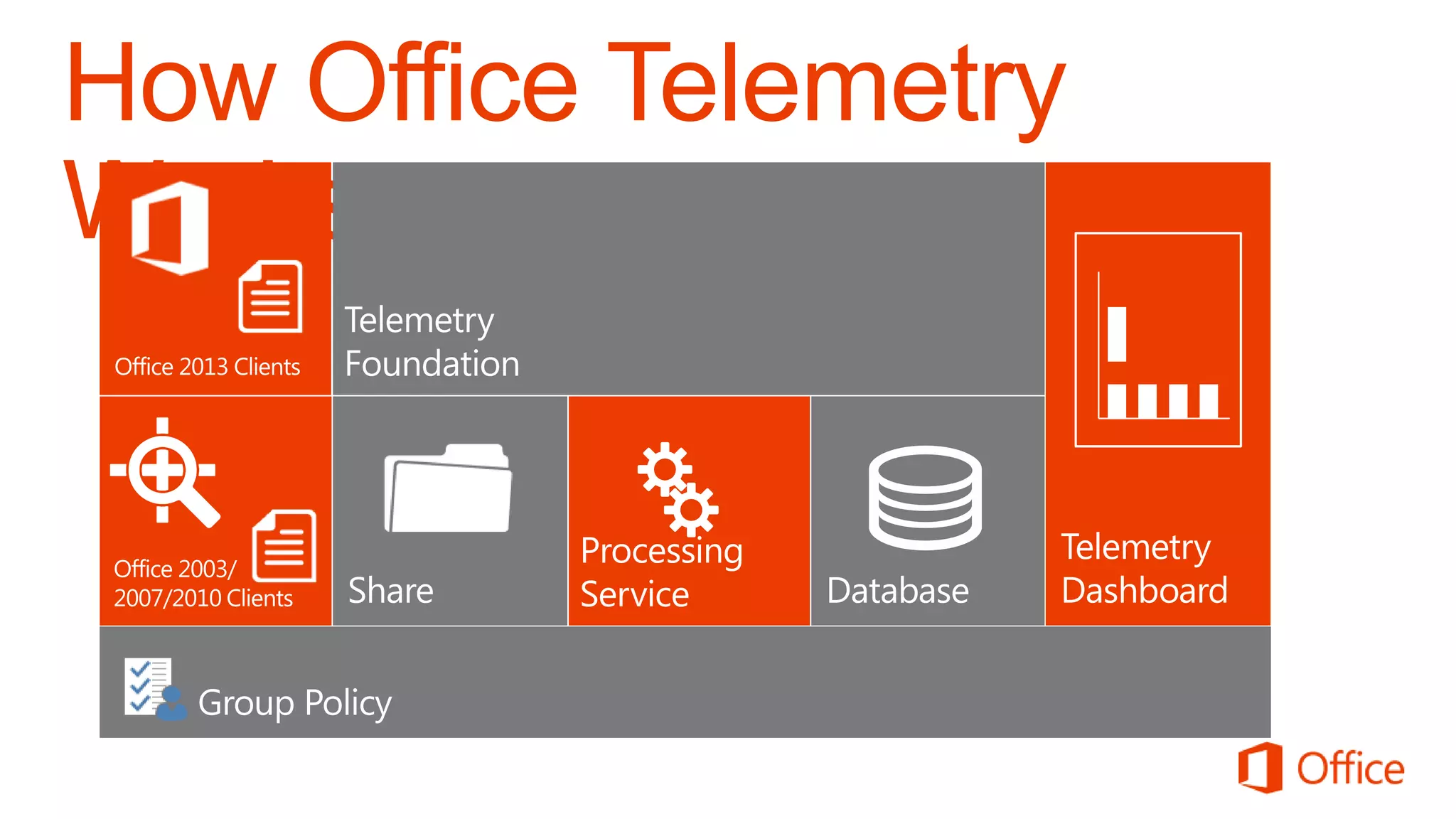
Telemetry Dashboard
Introduction
How Office Telemetry
Works


                       Microsoft Confidential
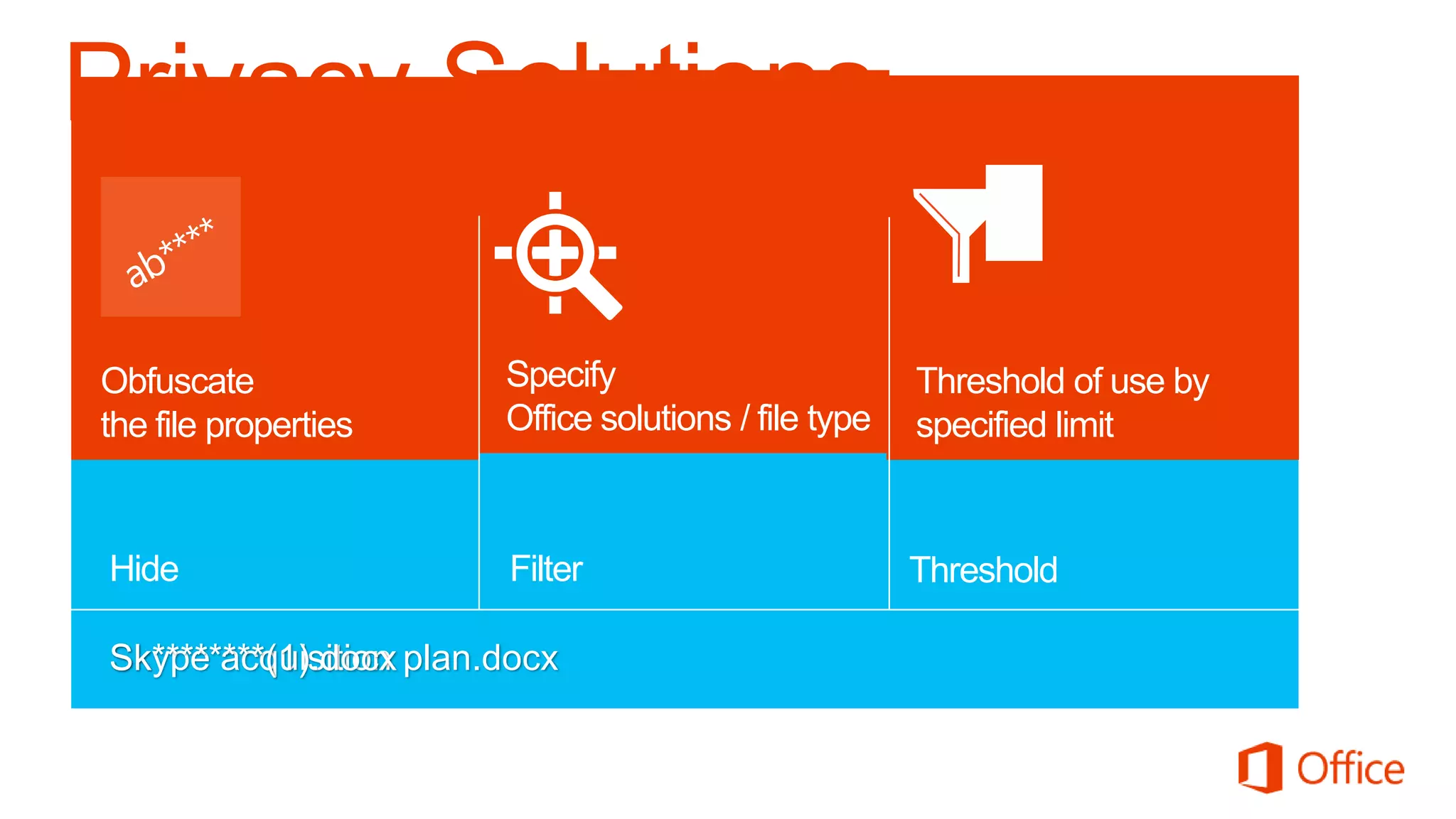
Privacy Solutions

Obfuscate              Specify                        Threshold of use by
the file properties    Office solutions / file type   specified limit


Hide                    Filter                        Threshold

Skype acquisition plan.docx
Sk********(1).docx
Telemetry Agent
                                  Group Policy Template
                                                                            ProPlus    Pre ProPlus
                                   office15.admx and office15.adml
                                                 System info
                                   User ConfigurationAdministrative TemplatesMicrosoft
                                   ProPlusTelemetry Dashboard
                                                 Most recently used files

 Telemetry     Collection Point   Static Scan Add-ins startup
                                  Registry setting
                                   Windows Registry Editor Version 5.00
                                   [HKEY_CURRENT_USERSoftwarePoliciesMicrosoftOffice15.0os
                                   m]
                                                 Registered add-ins
                                   "CommonFileShare"="<SERVERNAME><SHARENAME>"
                                   "Tag1"="<TAG1>"
                                                 Runtime events
                                   "Tag2"="<TAG2>"
                                   "Tag3"="<TAG3>"
                                  Telemetry
                                   "Tag4"="<TAG4>"
                                                 Issue logging
                                   "AgentInitWait"=dword:00000258
                                   "Enablelogging"=dword:00000001
                                   "EnableUpload"=dword:00000001
 Static Scan   Setting             "EnableFileObfuscation"=dword:00000000
                                   "AgentRandomDelay"=dword:000000F0
Telemetry Processor

                             > osql.exe -E -S servernameinstancename -d databasename -Q
                             "EXEC sp_addrolemember 'td_readonly', 'domaingrouporuser'"
Windows      Database size
                             > osql.exe -E -S servernameinstancename -d databasename -Q
                             "update [ServerSettings] Set [IntValue] = 3 Where [Name] =
                             'SolutionFilterThreshold'"


                             > tdadm.exe –o delete –sf server_name –df db_name –datetime
SQL Server   Settings        12312011
Demo
Telemetry Dashboard
Deep Dive
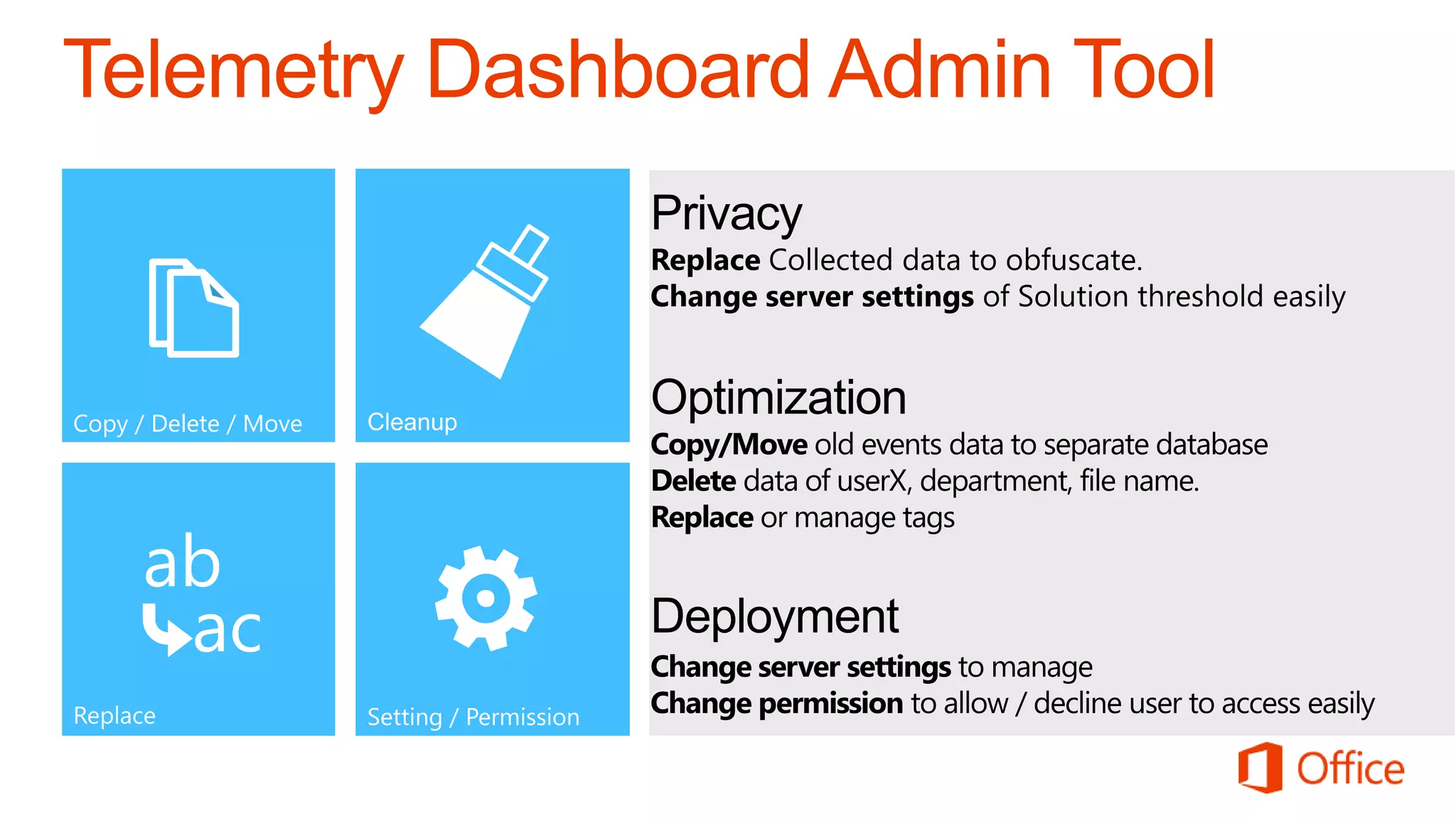
Copy / Delete / Move


      ab
       ac
IT Pro events, webcasts and guides for
the new Office


        OfficeIgnite.com                  www.microsoft.com/garage


The Tools
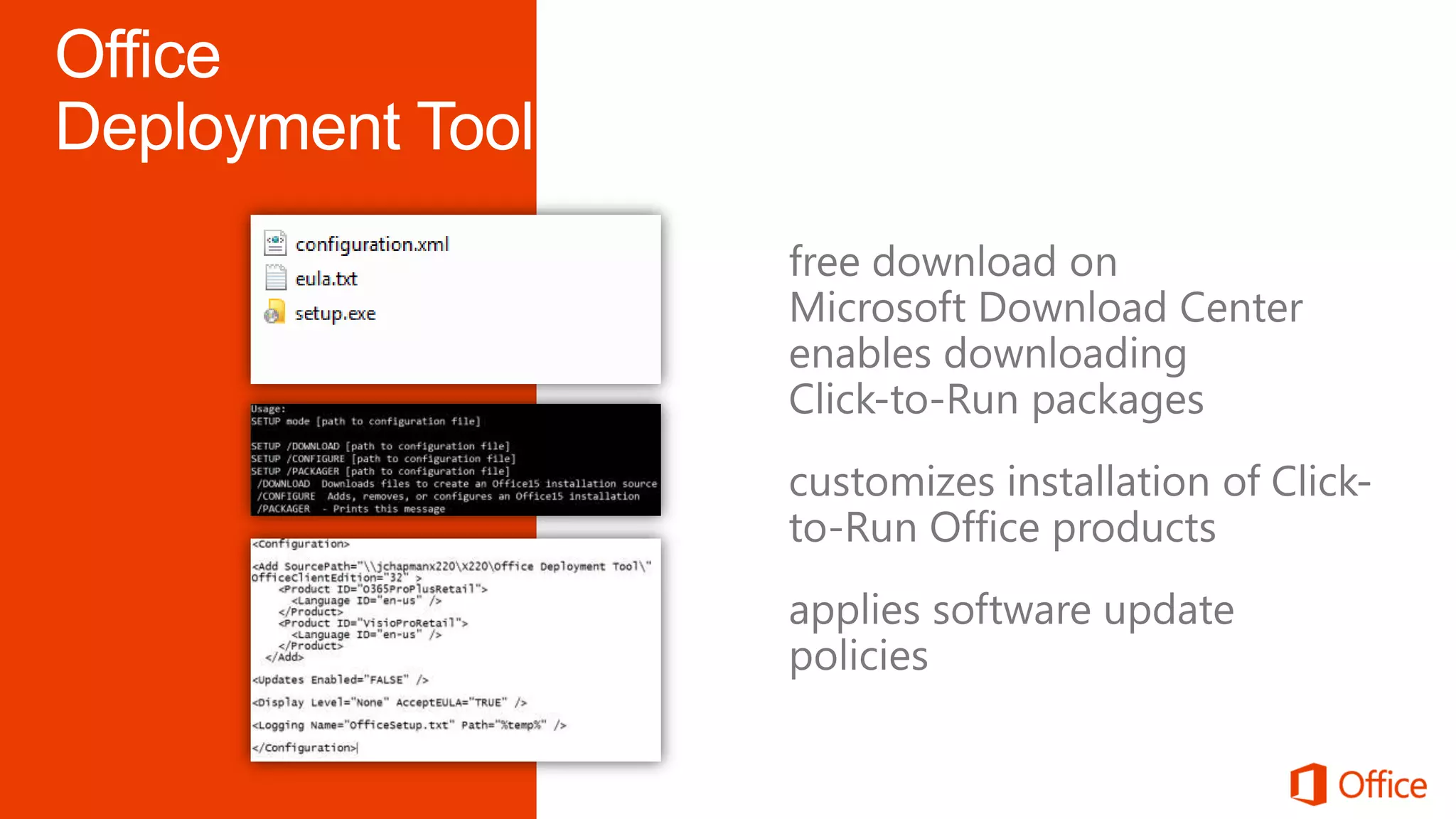
Office Deployment Tool for Click-to-Run
Telemetry Dashboard Admin Tool
Office Telemetry Resource

Office 365 ProPlus: Click-to-run deployment and management

  • 1.
    Office 365 ProPlus: Click-to-Rundeployment and management Brian Shiers Sr. Product Manager – Microsoft Office Division
  • 2.
    Deploy Office fastwithout giving up control
  • 3.
    Office Professional Plus2013 Office 365 ProPlus MSI-based installation Click-to-Run installation Everything carried over from Office 2010 Built on App-V foundation MAK, KMS and AD-based Activation Office Subscription-based Activation Required for RDS, WTG, shared Side by side versions support computers and closed network scenarios May be used on physical or virtual machines
  • 4.
    past application virtualization 4 7 1 5 8 6 9 2 2 4 7 9 5 8 8 6 9 features loaded on demand 1 3 1 2 2 3 1 3 4 local application integration EXE EXE side-by-side version support
  • 5.
  • 7.
    Anatomy of theClick-to-Run Installation Process Streaming Caching •Virtual File System Added Service •Office apps may be •Final ≈ 10% installs add- in Initiator Context launched at ≈ 15% ins, licensing, etc. •Runs until 10% progress •Streaming begins •Usually 2 minutes or less •Office caching focuses on •IntegratedOffice.exe launched apps and process moves to System features Context at 10% •Total 3-5 minutes depending on connection Virtual File Apps ready for Finalizing System use
  • 8.
    Office 365 Service 1.add users to Office 365 tenant 2. download Office Deployment Tool (setup) 3. use setup to download C2R packages End Users’ PCs 4. customize configuration XML 5. add C2R packages to software distribution Optional add-ins infrastructure dependent apps Office files, etc. 6. deploy C2R packages with † As applicable setup and configuration XML 7. layer on add-ins and
  • 9.
  • 11.
  • 12.
    Option Description Sample Syntax Add Parent control to determine source, architecture, product and From CDN: languages to download. <Add OfficeClientEdition="32" > <Product ID="O365ProPlusRetail"> <Language ID="en-us" /> </Product> </Add> From local network: <Add SourcePath="ServerShareOffice" Version=”15.0.4128.1014” OfficeClientEdition="32" > <Product ID="O365ProPlusRetail"> <Language ID="en-us" /> </Product> </Add> Product The targeted products to download within the <Add> Office 365 ProPlus command. Multiple products may be nested under the <Add> <Product ID="O365ProPlusRetail"> control and multiple languages may be nested under the <Language ID="en-us" /> <Product> control. </Product> <Product ID="VisioProRetail"> <Language ID=”ja-jp" /> </Product> <Product ID="ProjectProRetail"> <Language ID=”es-es" /> </Product> SourcePath Location where the Office is downloaded to. If unspecified, the <Add SourcePath="ServerShareOffice" downloaded content will be saved to the folder where the OfficeClientEdition="32" > setup.exe is located. <Add SourcePath="%Applications%Office" OfficeClientEdition="32" > <Add SourcePath="C:SourceOffice" OfficeClientEdition="32" > <Add SourcePath="http://source. contoso.com/Office" OfficeClientEdition="32" > OfficeClientEdition Determines the architecture of the product to download, 32 or <Add SourcePath="ServerShareOffice" 64 bit. Note: 32-bit is still the recommended architecture for OfficeClientEdition="32" > new Office versions. Cross-architecture installations are not permitted; if a 32-bit Office version is already installed on a Or: system, the 64-bit Click-to-Run package will not install and vice OfficeClientEdition="32" versa. OfficeClientEdition="64" Language Language determines the language DAT files to be downloaded <Language ID=”ja-jp" /> with the Click-to-Run package. <Language ID=”es-es" /> <Language ID="en-us" /> <Language ID="fr-fr" /> Version Version is used as part of the <Add> control and specifies the <Add SourcePath="ServerShareOffice" version to be downloaded. If version is not specified, setup.exe Version=”15.0.4128.1014” OfficeClientEdition="32" > will download the latest build. Available version numbers will be posted to KB article in the future.
  • 13.
    Option Description Sample Syntax Add Parent control to determine source, architecture, product and From local folder: languages to download. <Add SourcePath=”%deployroot%applicationsOffice365” OfficeClientEdition="32" > <Product ID="O365ProPlusRetail"> <Language ID="en-us" /> </Product> </Add> From local network: <Add SourcePath="ServerShareOffice" OfficeClientEdition="32" > <Product ID="O365ProPlusRetail"> <Language ID="en-us" /> </Product> </Add> Remove Used to uninstall Office products. <Configuration> <Remove> <Product ID="O365ProPlusRetail"> <Language ID="en-us" /> </Product> <Product ID="VisioProRetail"> <Language ID="en-us" /> </Product> </Remove> </Configuration> <Remove All=”TRUE”> Product Multiple products may be nested under the <Add> control and Office 365 ProPlus multiple languages may be nested under the <Product> control. <Product ID="O365ProPlusRetail"> <Language ID="en-us" /> </Product> <Product ID="VisioProRetail"> <Language ID=”ja-jp" /> </Product> <Product ID="ProjectProRetail"> <Language ID=”es-es" /> </Product> SourcePath Location where the Office is installed from. If SourcePath is <Add SourcePath="ServerShareOffice" unspecified, setup will first look for installation source in the local OfficeClientEdition="32" > folder and if not present it will look to the CDN source. <Add SourcePath="%Applications%Office" OfficeClientEdition="32" > <Add SourcePath="C:SourceOffice" OfficeClientEdition="32" > <Add SourcePath="http://source. contoso.com/Office" OfficeClientEdition="32" >
  • 14.
    Option Description Sample Syntax OfficeClientEdition Determines the architecture of the product to download, <Add SourcePath="ServerShareOffice" 32 or 64 bit. Note: 32-bit is still the recommended OfficeClientEdition="32" > architecture for new Office versions. Cross-architecture installations are not permitted; if a 32-bit Office version is Or: already installed on a system, the 64-bit Click-to-Run OfficeClientEdition="32" package will not install and vice versa. OfficeClientEdition="64" Language Language determines the language DAT files to be <Language ID=”ja-jp" /> downloaded with the Click-to-Run package. <Language ID=”es-es" /> <Language ID="en-us" /> <Language ID="fr-fr" /> Updates Configures automatic updating behavior. Updates may be To use a local file share: either from the public Office 365 service, local location, <Updates Enabled="TRUE" UpdatePath="ServerShareOffice" local file share or private http:// site. /> To use the CDN: <Updates Enabled="TRUE” /> To disable: <Updates Enabled="False" /> Display Set to determine the installation display experience. Level <Display Level="None" AcceptEULA="TRUE" /> options are None and Full. You can also accept the end <Display Level="Full" AcceptEULA="FALSE" /> user license agreement (EULA) on behalf of your users with the AcceptEULA command. Logging The logging control lets you determine he log name and <Logging Name="OfficeSetup.txt" Path="%temp%" /> path where logs are written to. <Logging Name="OfficeSetup.txt" Path="%deployroot%smsosdlogs" /> Property This command forces an install, uninstall or update. Office <Property Name="FORCEAPPSHUTDOWN" VALUE="1" /> FORCEAPPSHUTDOWN Click-to-Run updating is designed to be a background experience and updates are applied when a user closes and reopens the Office program. This property in the configuration file will force the operation without prompting the user, so there is some chance of data loss when programs are closed. ForceDowngrade This element is used when the installed version number is <Add SourcePath="ServerShareOffice" greater than the target version number. This would be Version=”15.0.4128.1014” OfficeClientEdition="32" used in roll back scenarios if you detect an issue that ForceDowngrade=”True”> requires you to roll back to a previous version. <Product ID="O365ProPlusRetail"> <Language ID="en-us" /> </Product> </Add>
  • 15.
    demo Using MDT toDeploy Office 365 ProPlus
  • 16.
    Disable First Runexperience User Configuration Microsoft Office 2013 First Run Disable First Run Movie - Enabled Disable Office First Run on application boot – Enabled
  • 17.
    Disable “First thingsFirst” User Configuration Microsoft Office 2013 Privacy Trust Center Disable Opt-in Wizard on first run – Enabled Enable Customer Experience Improvement Program – Disabled Allow including screenshot with Office Feedback – Disabled Send Office Feedback – Disabled Automatically receive small updates… - Disabled
  • 19.
  • 20.
    Patch Tuesday ServerTesting$ Setup /download … N weeks later Schedule Task ServerProduction$
  • 22.
  • 23.
    Office Telemetry enables Determinefrequency of Manage add-ins Document identification used documents & solutions Solution management & solutions Report detected issues Track & performance Issue detection deployments Deployment
  • 24.
  • 25.
    How Office Telemetry Works Microsoft Confidential
  • 26.
    Privacy Solutions Obfuscate Specify Threshold of use by the file properties Office solutions / file type specified limit Hide Filter Threshold Skype acquisition plan.docx Sk********(1).docx
  • 27.
    Telemetry Agent Group Policy Template ProPlus Pre ProPlus office15.admx and office15.adml System info User ConfigurationAdministrative TemplatesMicrosoft ProPlusTelemetry Dashboard Most recently used files Telemetry Collection Point Static Scan Add-ins startup Registry setting Windows Registry Editor Version 5.00 [HKEY_CURRENT_USERSoftwarePoliciesMicrosoftOffice15.0os m] Registered add-ins "CommonFileShare"="<SERVERNAME><SHARENAME>" "Tag1"="<TAG1>" Runtime events "Tag2"="<TAG2>" "Tag3"="<TAG3>" Telemetry "Tag4"="<TAG4>" Issue logging "AgentInitWait"=dword:00000258 "Enablelogging"=dword:00000001 "EnableUpload"=dword:00000001 Static Scan Setting "EnableFileObfuscation"=dword:00000000 "AgentRandomDelay"=dword:000000F0
  • 28.
    Telemetry Processor > osql.exe -E -S servernameinstancename -d databasename -Q "EXEC sp_addrolemember 'td_readonly', 'domaingrouporuser'" Windows Database size > osql.exe -E -S servernameinstancename -d databasename -Q "update [ServerSettings] Set [IntValue] = 3 Where [Name] = 'SolutionFilterThreshold'" > tdadm.exe –o delete –sf server_name –df db_name –datetime SQL Server Settings 12312011
  • 29.
  • 30.
    Copy / Delete/ Move ab ac
  • 31.
    IT Pro events,webcasts and guides for the new Office OfficeIgnite.com www.microsoft.com/garage The Tools Office Deployment Tool for Click-to-Run Telemetry Dashboard Admin Tool Office Telemetry Resource