Spark the future.
May 4 – 8, 2015
Chicago, IL
Exchange Online Protection,
Mail flow, and Encryption:
Notes from the Field
Jennifer Gagnon
Scott Landry
BRK3161
 What is EOP?
 Planning & Deployment
 Protection: Anti-spam & Malware
 Encryption
 Troubleshooting
 Q&A
Agenda
What is EOP Anyway?
 Cloud-based email filtering service
 Protect from spam and malware
 Data Loss Prevention ( DLP)
 Encryption
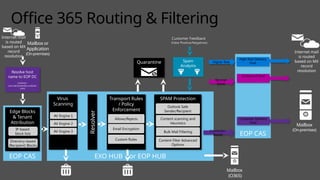
Exchange Online Protection
EXO HUB or EOP HUB
EOP CAS
Connector-
Based
Customer Delivery
Pool
Mailbox
(On-premises)
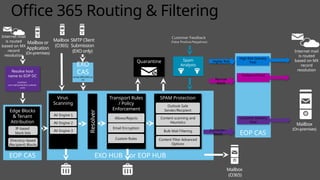
Office 365 Routing & Filtering
Mailbox or
Application
(On-premises)
Higher Risk
High Risk Delivery
Pool
Resolve host
name to EOP DC
(contoso-
com.mail.protection.outlook.
com)
Virus
Scanning
AV Engine 1
AV Engine 2
AV Engine 3
EOP CAS
Edge Blocks
& Tenant
Attribution
IP-based
block lists
Directory-based
(Recipient) Blocks
Internet mail
is routed
based on MX
record
resolution
Spam
Analysts
Customer Feedback
(False Positive/Negatives)
Outbound Pool
Normal
Score
Internet mail
is routed
based on MX
record
resolution
Mailbox
(O365)
Transport Rules
/ Policy
Enforcement
Custom Rules
Email Encryption
Quarantine
Allows/Rejects
SPAM Protection
Content scanning and
Heuristics
Content Filter Advanced
Options
Outlook Safe
Sender/Recipient
Bulk Mail Filtering
Resolver
Deployment: Basic Mail
Flow
EOP Types
Filtering only… or with Exchange
Online, including
Hybrid:
You can easily upgrade
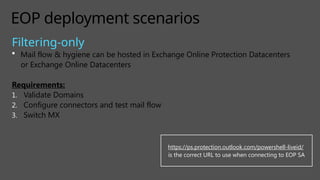
EOP deployment scenarios
Filtering-only
 Mail flow & hygiene can be hosted in Exchange Online Protection Datacenters
or Exchange Online Datacenters
Requirements:
1. Validate Domains
2. Configure connectors and test mail flow
3. Switch MX
https://ps.protection.outlook.com/powershell-liveid/
is the correct URL to use when connecting to EOP SA
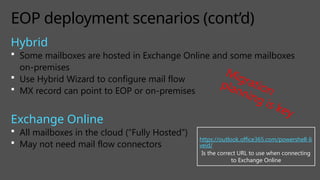
Hybrid
 Some mailboxes are hosted in Exchange Online and some mailboxes
on-premises
 Use Hybrid Wizard to configure mail flow
 MX record can point to EOP or on-premises
Exchange Online
 All mailboxes in the cloud (“Fully Hosted”)
 May not need mail flow connectors
EOP deployment scenarios (cont’d)
https://outlook.office365.com/powershell-li
veid/
Is the correct URL to use when connecting
to Exchange Online
Migration
planning is key
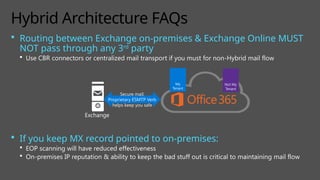
 Routing between Exchange on-premises & Exchange Online MUST
NOT pass through any 3rd
party
 Use CBR connectors or centralized mail transport if you must for non-Hybrid mail flow
 If you keep MX record pointed to on-premises:
 EOP scanning will have reduced effectiveness
 On-premises IP reputation & ability to keep the bad stuff out is critical to maintaining mail flow
Hybrid Architecture FAQs
Exchange
Secure mail:
Proprietary ESMTP Verb
helps keep you safe
My
Tenant
Not My
Tenant
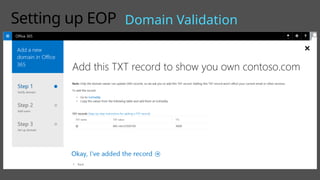
Setting up EOP Domain Validation
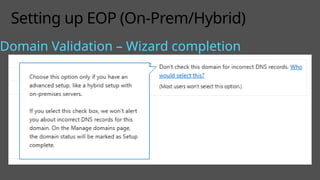
Setting up EOP (On-Prem/Hybrid)
Domain Validation – Wizard completion
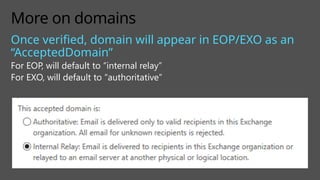
More on domains
Once verified, domain will appear in EOP/EXO as an
“AcceptedDomain”
For EOP, will default to “internal relay”
For EXO, will default to “authoritative”
Demo: Connectors &
Validation
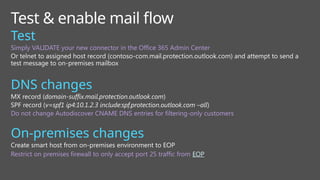
Test & enable mail flow
Test
Simply VALIDATE your new connector in the Office 365 Admin Center
Or telnet to assigned host record (contoso-com.mail.protection.outlook.com) and attempt to send a
test message to on-premises mailbox
DNS changes
MX record (domain-suffix.mail.protection.outlook.com)
SPF record (v=spf1 ip4:10.1.2.3 include:spf.protection.outlook.com –all)
Do not change Autodiscover CNAME DNS entries for filtering-only customers
On-premises changes
Create smart host from on-premises environment to EOP
Restrict on premises firewall to only accept port 25 traffic from EOP
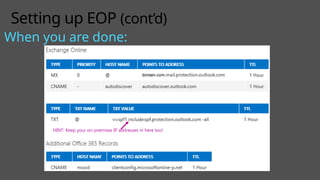
Setting up EOP (cont’d)
When you are done:
HINT: Keep your on-premises IP addresses in here too!
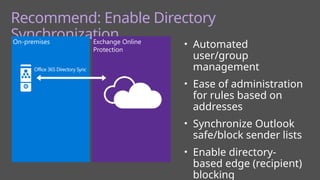
Recommend: Enable Directory
Synchronization
• Automated
user/group
management
• Ease of administration
for rules based on
addresses
• Synchronize Outlook
safe/block sender lists
• Enable directory-
based edge (recipient)
blocking
On-premises Exchange Online
Protection
Office 365 Directory Sync
Protection: Anti-Spam &
Anti-Malware
Migrating from third party to EOP
Setting expectations
May see a change in email patterns
Every product needs to be tuned to your environment
Features may function differently
Porting configuration
Good opportunity to trim old safe/block lists
Spam filtering rules may not be needed
Review filtering policies (transport rules)
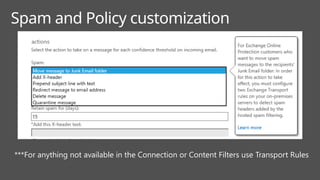
Spam and Policy customization
***For anything not available in the Connection or Content Filters use Transport Rules
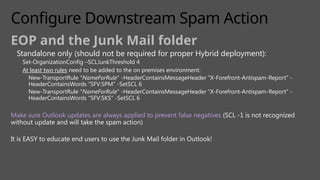
Configure Downstream Spam Action
EOP and the Junk Mail folder
Standalone only (should not be required for proper Hybrid deployment):
Set-OrganizationConfig –SCLJunkThreshold 4
At least two rules need to be added to the on premises environment:
New-TransportRule "NameForRule" -HeaderContainsMessageHeader "X-Forefront-Antispam-Report" -
HeaderContainsWords "SFV:SPM" -SetSCL 6
New-TransportRule "NameForRule" -HeaderContainsMessageHeader "X-Forefront-Antispam-Report" -
HeaderContainsWords "SFV:SKS" -SetSCL 6
Make sure Outlook updates are always applied to prevent false negatives (SCL -1 is not recognized
without update and will take the spam action)
It is EASY to educate end users to use the Junk Mail folder in Outlook!
Configure Downstream Spam Action
(cont’d)
EOP and the quarantine
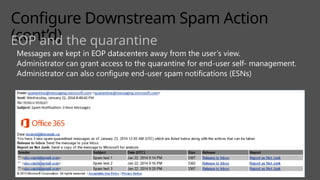
Messages are kept in EOP datacenters away from the user’s view.
Administrator can grant access to the quarantine for end-user self- management.
Administrator can also configure end-user spam notifications (ESNs)
Spam, phishing & spoofing
Publish an SPF record (Sender Policy Framework)
Include EOP IPs and on-premises public IPs
Use the Microsoft Configuration Wizard
Avoid safe-listing own domains - this by-passes the SPF check and negates the check’s effectiveness
Publish a DMARC policy (Domain-based Message
Authentication, Reporting and Conformance)
If you can’t publish p=reject or p=quarantine, you can still publish p=none and collect feedback.
Spam, phishing & spoofing (cont’d)
Publish a DKIM signature (DomainKeys Identified Mail)
Recommend reporting Spam to Microsoft
Get the Junk email reporting tool
Attach to a new email, copy headers into body of new email and send to junk@office365.microsoft.com
Recommend reporting False Positives to
Microsoft
Attach to a new email, copy headers into body of new email and send to
not_junk@office365.Microsoft.com
Advanced Threat Protection
Protection against unknown malware and
viruses
Through a feature called Safe Attachments
Real time, time-of-click protection against
malicious URLs
Through a feature called Safe Links
Rich reporting and URL trace capabilities
A new email filtering service coming this summer
Bulk Email
Receiving
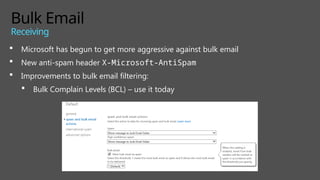
 Microsoft has begun to get more aggressive against bulk email
 New anti-spam header X-Microsoft-AntiSpam
 Improvements to bulk email filtering:
 Bulk Complain Levels (BCL) – use it today
Bulk Email
Sending
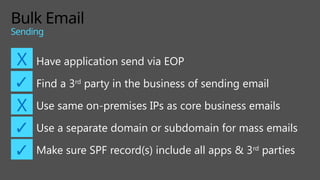
Have application send via EOP
Find a 3rd
party in the business of sending email
Use same on-premises IPs as core business emails
Use a separate domain or subdomain for mass emails
Make sure SPF record(s) include all apps & 3rd
parties
X
✓
X
✓
✓
 Make adjustments to rules or settings as needed
 Evaluate effectiveness of spam settings
 Did you report that to the Microsoft Anti-spam team?
 Reports (Office 365 Portal or Mail Protection Reports for Office
365) – Updates Coming!
Monitor and fine tune
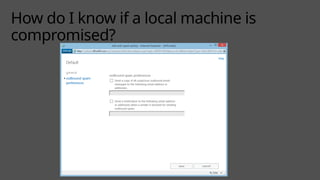
How do I know if a local machine is
compromised?
Encryption
 Transport Layer Security (TLS)
 Great for securing email between Office 365 and on-premises or with specific partner/external
servers
 All Office 365 SMTP is defaulted to opportunistic; TLS 1.0-1.2 secure ciphers
 Office 365 Message Encryption
 Allows recipient to be external and on any device; if recipient’s mailbox can be accessed,
then the message can be decrypted
 Information Rights Management (Azure AD)
 Keys held on RMS server; organization can set usage rights and custom templates; requires
organizational authentication; does not get in the way of e-Discovery
 S/MIME
 Secure from client-to-client, as long as the private keys remain secure
Office 365 Encryption Features/Options
Increasing
Complexity
Troubleshooting
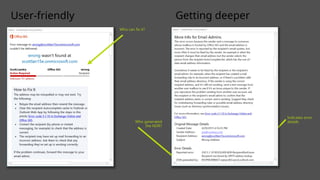
Non-Delivery Reports
User-friendly Getting deeper
Who can fix it?
Indicates error
details
Who generated
the NDR?
joe@contoso.com
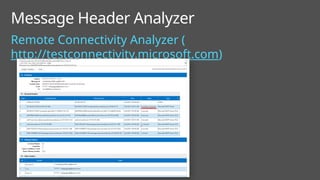
Message Header
Analyzer
Remote Connectivity Analyzer (
http://testconnectivity.microsoft.com)
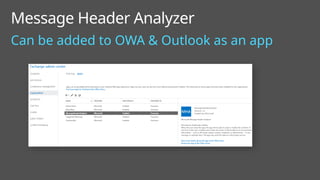
Message Header Analyzer
Can be added to OWA & Outlook as an app
Message Trace
 Find out everything about a message
that Office 365 handled
 Search up to 90 days
 Get routing details
Message Trace
Message Trace
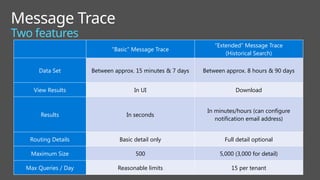
Two features
Ne
w!
“Basic” Message Trace
“Extended” Message Trace
(Historical Search)
Data Set Between approx. 15 minutes & 7 days Between approx. 8 hours & 90 days
View Results In UI Download
Results In seconds
In minutes/hours (can configure
notification email address)
Routing Details Basic detail only Full detail optional
Maximum Size 500 5,000 (3,000 for detail)
Max Queries / Day Reasonable limits 15 per tenant
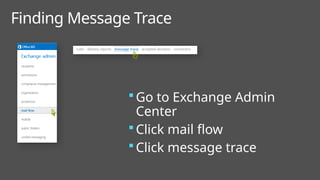
Finding Message Trace
 Go to Exchange Admin
Center
 Click mail flow
 Click message trace
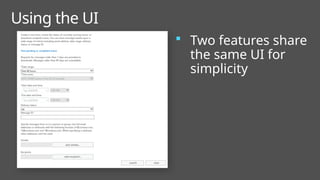
Using the UI
 Two features share
the same UI for
simplicity
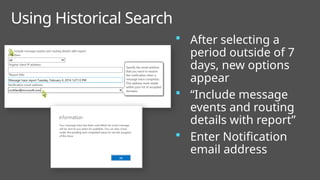
Using Historical Search
 After selecting a
period outside of 7
days, new options
appear
 “Include message
events and routing
details with report”
 Enter Notification
email address
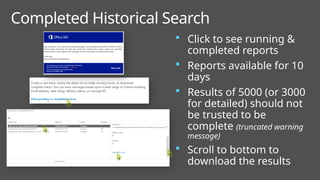
Completed Historical Search
 Click to see running &
completed reports
 Reports available for 10
days
 Results of 5000 (or 3000
for detailed) should not
be trusted to be
complete (truncated warning
message)
 Scroll to bottom to
download the results
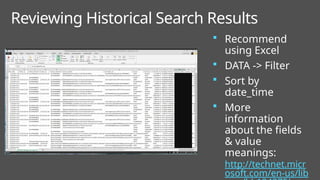
Reviewing Historical Search Results
 Recommend
using Excel
 DATA -> Filter
 Sort by
date_time
 More
information
about the fields
& value
meanings:
http://technet.micr
osoft.com/en-us/lib
47
 Basic: Get-MessageTrace, Get-MessageTraceDetail
 Extended: Start-HistoricalSearch, Stop-
HistoricalSearch,
Get-HistoricalSearch
 Pull results inside of (and shorter than) 7 days (but still >8 hours)
 Search on advanced criteria such as find all messages that hit a
particular DLP rule
PowerShell
Start-HistoricalSearch [[-Organization] <OrganizationIdParameter>] -ReportType <HistoricalSearchReportType>
{MessageTrace | MessageTraceDetail | DLP | TransportRule | SPAM | Malware} -ReportTitle <string> -StartDate
<datetime> -EndDate <datetime> [-NotifyAddress <MultiValuedProperty[string]>] [-DeliveryStatus <string>]
[-SenderAddress <MultiValuedProperty[string]>] [-RecipientAddress <MultiValuedProperty[string]>]
[-OriginalClientIP <string>] [-MessageID <MultiValuedProperty[string]>] [-DLPPolicy
<MultiValuedProperty[guid]>]
[-TransportRule <MultiValuedProperty[guid]>] [-Locale <cultureinfo>] [-Direction <MessageDirection> {All |
Sent |
Demo: Message Trace
Scenarios
 Check to see if there is any record of the
message
(if no record, then you’ll need to check with
the sender)
 Check hygiene results
 Look for hints about where it may have gone
(forwards, rules, etc.)
Scenario: Inbound
 Make sure the message was received from
Outlook client (if not, troubleshoot Outlook)
 Look for SMTP SEND Event
Scenario: Outbound
Q&A
Visit Myignite at
http://myignite.microsoft.com
or download and use the Ignite Mobile
Please evaluate this session
Your feedback is important to us!
EXO HUB or EOP HUB
EOP CAS
Connector-
Based
Customer Delivery
Pool
Mailbox
(On-premises)
Office 365 Routing & Filtering
Mailbox or
Application
(On-premises)
Higher Risk
High Risk Delivery
Pool
Resolve host
name to EOP DC
(contoso-
com.mail.protection.outlook.
com)
Virus
Scanning
AV Engine 1
AV Engine 2
AV Engine 3
EOP CAS
Edge Blocks
& Tenant
Attribution
IP-based
block lists
Directory-based
(Recipient) Blocks
Internet mail
is routed
based on MX
record
resolution
Spam
Analysts
Customer Feedback
(False Positive/Negatives)
Outbound Pool
Normal
Score
Internet mail
is routed
based on MX
record
resolution
Mailbox
(O365)
Transport Rules
/ Policy
Enforcement
Custom Rules
Email Encryption
Quarantine
Allows/Rejects
SPAM Protection
Content scanning and
Heuristics
Content Filter Advanced
Options
Outlook Safe
Sender/Recipient
Bulk Mail Filtering
SMTP Client
Submission
(EXO only)
EXO
CAS
(smtp.office365.co
m)
Mailbox
(O365)
Resolver
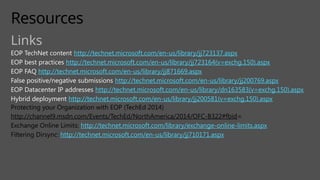
Resources
Links
EOP TechNet content http://technet.microsoft.com/en-us/library/jj723137.aspx
EOP best practices http://technet.microsoft.com/en-us/library/jj723164(v=exchg.150).aspx
EOP FAQ http://technet.microsoft.com/en-us/library/jj871669.aspx
False positive/negative submissions http://technet.microsoft.com/en-us/library/jj200769.aspx
EOP Datacenter IP addresses http://technet.microsoft.com/en-us/library/dn163583(v=exchg.150).aspx
Hybrid deployment http://technet.microsoft.com/en-us/library/jj200581(v=exchg.150).aspx
Protecting your Organization with EOP (TechEd 2014)
http://channel9.msdn.com/Events/TechEd/NorthAmerica/2014/OFC-B322#fbid=
Exchange Online Limits: http://technet.microsoft.com/library/exchange-online-limits.aspx
Filtering Dirsync: http://technet.microsoft.com/en-us/library/jj710171.aspx
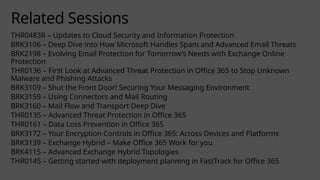
Related Sessions
THR0483R – Updates to Cloud Security and Information Protection
BRK3106 – Deep Dive into How Microsoft Handles Spam and Advanced Email Threats
BRK2198 – Evolving Email Protection for Tomorrow’s Needs with Exchange Online
Protection
THR0136 – First Look at Advanced Threat Protection in Office 365 to Stop Unknown
Malware and Phishing Attacks
BRK3109 – Shut the Front Door! Securing Your Messaging Environment
BRK3159 – Using Connectors and Mail Routing
BRK3160 – Mail Flow and Transport Deep Dive
THR0135 – Advanced Threat Protection in Office 365
THR0161 – Data Loss Prevention in Office 365
BRK3172 – Your Encryption Controls in Office 365: Across Devices and Platforms
BRK3139 – Exchange Hybrid – Make Office 365 Work for you
BRK4115 – Advanced Exchange Hybrid Topologies
THR0145 – Getting started with deployment planning in FastTrack for Office 365
Visit Myignite at
http://myignite.microsoft.com
or download and use the Ignite Mobile
Please evaluate this session
Your feedback is important to us!
© 2015 Microsoft Corporation. All rights reserved.
Appendix
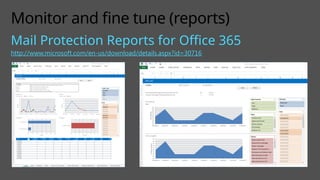
Monitor and fine tune (reports)
Mail Protection Reports for Office 365
http://www.microsoft.com/en-us/download/details.aspx?id=30716
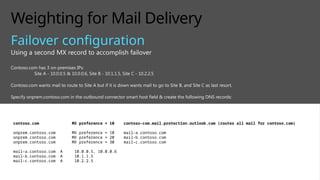
Weighting for Mail Delivery
Failover configuration
Using a second MX record to accomplish failover
Contoso.com has 3 on-premises IPs:
Site A - 10.0.0.5 & 10.0.0.6, Site B - 10.1.1.5, Site C - 10.2.2.5
Contoso.com wants mail to route to Site A but if it is down wants mail to go to Site B, and Site C as last resort.
Specify onprem.contoso.com in the outbound connector smart host field & create the following DNS records:
contoso.com MX preference = 10 contoso-com.mail.protection.outlook.com (routes all mail for contoso.com)
onprem.contoso.com MX preference = 10 mail-a.contoso.com
onprem.contoso.com MX preference = 20 mail-b.contoso.com
onprem.contoso.com MX preference = 30 mail-c.contoso.com
mail-a.contoso.com A 10.0.0.5, 10.0.0.6
mail-b.contoso.com A 10.1.1.5
mail-c.contoso.com A 10.2.2.5
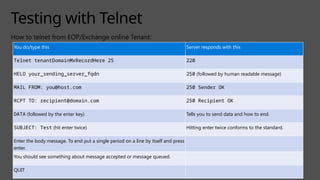
Testing with Telnet
How to telnet from EOP/Exchange online Tenant:
You do/type this Server responds with this
Telnet tenantDomainMxRecordHere 25 220
HELO your_sending_server_fqdn 250 (followed by human readable message)
MAIL FROM: you@host.com 250 Sender OK
RCPT TO: recipient@domain.com 250 Recipient OK
DATA (followed by the enter key) Tells you to send data and how to end.
SUBJECT: Test (hit enter twice) Hitting enter twice conforms to the standard.
Enter the body message. To end put a single period on a line by itself and press
enter.
You should see something about message accepted or message queued.
QUIT


BRK3161_Gagnon copilot for m365 microsoft

  • 1.
    Spark the future. May4 – 8, 2015 Chicago, IL
  • 2.
    Exchange Online Protection, Mailflow, and Encryption: Notes from the Field Jennifer Gagnon Scott Landry BRK3161
  • 3.
     What isEOP?  Planning & Deployment  Protection: Anti-spam & Malware  Encryption  Troubleshooting  Q&A Agenda
  • 4.
    What is EOPAnyway?
  • 5.
     Cloud-based emailfiltering service  Protect from spam and malware  Data Loss Prevention ( DLP)  Encryption Exchange Online Protection
  • 6.
    EXO HUB orEOP HUB EOP CAS Connector- Based Customer Delivery Pool Mailbox (On-premises) Office 365 Routing & Filtering Mailbox or Application (On-premises) Higher Risk High Risk Delivery Pool Resolve host name to EOP DC (contoso- com.mail.protection.outlook. com) Virus Scanning AV Engine 1 AV Engine 2 AV Engine 3 EOP CAS Edge Blocks & Tenant Attribution IP-based block lists Directory-based (Recipient) Blocks Internet mail is routed based on MX record resolution Spam Analysts Customer Feedback (False Positive/Negatives) Outbound Pool Normal Score Internet mail is routed based on MX record resolution Mailbox (O365) Transport Rules / Policy Enforcement Custom Rules Email Encryption Quarantine Allows/Rejects SPAM Protection Content scanning and Heuristics Content Filter Advanced Options Outlook Safe Sender/Recipient Bulk Mail Filtering Resolver
  • 7.
  • 8.
    EOP Types Filtering only…or with Exchange Online, including Hybrid: You can easily upgrade
  • 9.
    EOP deployment scenarios Filtering-only Mail flow & hygiene can be hosted in Exchange Online Protection Datacenters or Exchange Online Datacenters Requirements: 1. Validate Domains 2. Configure connectors and test mail flow 3. Switch MX https://ps.protection.outlook.com/powershell-liveid/ is the correct URL to use when connecting to EOP SA
  • 10.
    Hybrid  Some mailboxesare hosted in Exchange Online and some mailboxes on-premises  Use Hybrid Wizard to configure mail flow  MX record can point to EOP or on-premises Exchange Online  All mailboxes in the cloud (“Fully Hosted”)  May not need mail flow connectors EOP deployment scenarios (cont’d) https://outlook.office365.com/powershell-li veid/ Is the correct URL to use when connecting to Exchange Online Migration planning is key
  • 11.
     Routing betweenExchange on-premises & Exchange Online MUST NOT pass through any 3rd party  Use CBR connectors or centralized mail transport if you must for non-Hybrid mail flow  If you keep MX record pointed to on-premises:  EOP scanning will have reduced effectiveness  On-premises IP reputation & ability to keep the bad stuff out is critical to maintaining mail flow Hybrid Architecture FAQs Exchange Secure mail: Proprietary ESMTP Verb helps keep you safe My Tenant Not My Tenant
  • 12.
    Setting up EOPDomain Validation
  • 13.
    Setting up EOP(On-Prem/Hybrid) Domain Validation – Wizard completion
  • 14.
    More on domains Onceverified, domain will appear in EOP/EXO as an “AcceptedDomain” For EOP, will default to “internal relay” For EXO, will default to “authoritative”
  • 15.
  • 16.
    Test & enablemail flow Test Simply VALIDATE your new connector in the Office 365 Admin Center Or telnet to assigned host record (contoso-com.mail.protection.outlook.com) and attempt to send a test message to on-premises mailbox DNS changes MX record (domain-suffix.mail.protection.outlook.com) SPF record (v=spf1 ip4:10.1.2.3 include:spf.protection.outlook.com –all) Do not change Autodiscover CNAME DNS entries for filtering-only customers On-premises changes Create smart host from on-premises environment to EOP Restrict on premises firewall to only accept port 25 traffic from EOP
  • 17.
    Setting up EOP(cont’d) When you are done: HINT: Keep your on-premises IP addresses in here too!
  • 18.
    Recommend: Enable Directory Synchronization •Automated user/group management • Ease of administration for rules based on addresses • Synchronize Outlook safe/block sender lists • Enable directory- based edge (recipient) blocking On-premises Exchange Online Protection Office 365 Directory Sync
  • 19.
  • 20.
    Migrating from thirdparty to EOP Setting expectations May see a change in email patterns Every product needs to be tuned to your environment Features may function differently Porting configuration Good opportunity to trim old safe/block lists Spam filtering rules may not be needed Review filtering policies (transport rules)
  • 21.
    Spam and Policycustomization ***For anything not available in the Connection or Content Filters use Transport Rules
  • 22.
    Configure Downstream SpamAction EOP and the Junk Mail folder Standalone only (should not be required for proper Hybrid deployment): Set-OrganizationConfig –SCLJunkThreshold 4 At least two rules need to be added to the on premises environment: New-TransportRule "NameForRule" -HeaderContainsMessageHeader "X-Forefront-Antispam-Report" - HeaderContainsWords "SFV:SPM" -SetSCL 6 New-TransportRule "NameForRule" -HeaderContainsMessageHeader "X-Forefront-Antispam-Report" - HeaderContainsWords "SFV:SKS" -SetSCL 6 Make sure Outlook updates are always applied to prevent false negatives (SCL -1 is not recognized without update and will take the spam action) It is EASY to educate end users to use the Junk Mail folder in Outlook!
  • 23.
    Configure Downstream SpamAction (cont’d) EOP and the quarantine Messages are kept in EOP datacenters away from the user’s view. Administrator can grant access to the quarantine for end-user self- management. Administrator can also configure end-user spam notifications (ESNs)
  • 24.
    Spam, phishing &spoofing Publish an SPF record (Sender Policy Framework) Include EOP IPs and on-premises public IPs Use the Microsoft Configuration Wizard Avoid safe-listing own domains - this by-passes the SPF check and negates the check’s effectiveness Publish a DMARC policy (Domain-based Message Authentication, Reporting and Conformance) If you can’t publish p=reject or p=quarantine, you can still publish p=none and collect feedback.
  • 25.
    Spam, phishing &spoofing (cont’d) Publish a DKIM signature (DomainKeys Identified Mail) Recommend reporting Spam to Microsoft Get the Junk email reporting tool Attach to a new email, copy headers into body of new email and send to junk@office365.microsoft.com Recommend reporting False Positives to Microsoft Attach to a new email, copy headers into body of new email and send to not_junk@office365.Microsoft.com
  • 26.
    Advanced Threat Protection Protectionagainst unknown malware and viruses Through a feature called Safe Attachments Real time, time-of-click protection against malicious URLs Through a feature called Safe Links Rich reporting and URL trace capabilities A new email filtering service coming this summer
  • 27.
    Bulk Email Receiving  Microsofthas begun to get more aggressive against bulk email  New anti-spam header X-Microsoft-AntiSpam  Improvements to bulk email filtering:  Bulk Complain Levels (BCL) – use it today
  • 28.
    Bulk Email Sending Have applicationsend via EOP Find a 3rd party in the business of sending email Use same on-premises IPs as core business emails Use a separate domain or subdomain for mass emails Make sure SPF record(s) include all apps & 3rd parties X ✓ X ✓ ✓
  • 29.
     Make adjustmentsto rules or settings as needed  Evaluate effectiveness of spam settings  Did you report that to the Microsoft Anti-spam team?  Reports (Office 365 Portal or Mail Protection Reports for Office 365) – Updates Coming! Monitor and fine tune
  • 30.
    How do Iknow if a local machine is compromised?
  • 31.
  • 32.
     Transport LayerSecurity (TLS)  Great for securing email between Office 365 and on-premises or with specific partner/external servers  All Office 365 SMTP is defaulted to opportunistic; TLS 1.0-1.2 secure ciphers  Office 365 Message Encryption  Allows recipient to be external and on any device; if recipient’s mailbox can be accessed, then the message can be decrypted  Information Rights Management (Azure AD)  Keys held on RMS server; organization can set usage rights and custom templates; requires organizational authentication; does not get in the way of e-Discovery  S/MIME  Secure from client-to-client, as long as the private keys remain secure Office 365 Encryption Features/Options Increasing Complexity
  • 33.
  • 34.
  • 35.
    User-friendly Getting deeper Whocan fix it? Indicates error details Who generated the NDR? joe@contoso.com
  • 36.
  • 37.
    Remote Connectivity Analyzer( http://testconnectivity.microsoft.com) Message Header Analyzer
  • 38.
    Message Header Analyzer Canbe added to OWA & Outlook as an app
  • 39.
  • 40.
     Find outeverything about a message that Office 365 handled  Search up to 90 days  Get routing details Message Trace
  • 41.
    Message Trace Two features Ne w! “Basic”Message Trace “Extended” Message Trace (Historical Search) Data Set Between approx. 15 minutes & 7 days Between approx. 8 hours & 90 days View Results In UI Download Results In seconds In minutes/hours (can configure notification email address) Routing Details Basic detail only Full detail optional Maximum Size 500 5,000 (3,000 for detail) Max Queries / Day Reasonable limits 15 per tenant
  • 42.
    Finding Message Trace Go to Exchange Admin Center  Click mail flow  Click message trace
  • 43.
    Using the UI Two features share the same UI for simplicity
  • 44.
    Using Historical Search After selecting a period outside of 7 days, new options appear  “Include message events and routing details with report”  Enter Notification email address
  • 45.
    Completed Historical Search Click to see running & completed reports  Reports available for 10 days  Results of 5000 (or 3000 for detailed) should not be trusted to be complete (truncated warning message)  Scroll to bottom to download the results
  • 46.
    Reviewing Historical SearchResults  Recommend using Excel  DATA -> Filter  Sort by date_time  More information about the fields & value meanings: http://technet.micr osoft.com/en-us/lib
  • 47.
    47  Basic: Get-MessageTrace,Get-MessageTraceDetail  Extended: Start-HistoricalSearch, Stop- HistoricalSearch, Get-HistoricalSearch  Pull results inside of (and shorter than) 7 days (but still >8 hours)  Search on advanced criteria such as find all messages that hit a particular DLP rule PowerShell Start-HistoricalSearch [[-Organization] <OrganizationIdParameter>] -ReportType <HistoricalSearchReportType> {MessageTrace | MessageTraceDetail | DLP | TransportRule | SPAM | Malware} -ReportTitle <string> -StartDate <datetime> -EndDate <datetime> [-NotifyAddress <MultiValuedProperty[string]>] [-DeliveryStatus <string>] [-SenderAddress <MultiValuedProperty[string]>] [-RecipientAddress <MultiValuedProperty[string]>] [-OriginalClientIP <string>] [-MessageID <MultiValuedProperty[string]>] [-DLPPolicy <MultiValuedProperty[guid]>] [-TransportRule <MultiValuedProperty[guid]>] [-Locale <cultureinfo>] [-Direction <MessageDirection> {All | Sent |
  • 48.
  • 49.
     Check tosee if there is any record of the message (if no record, then you’ll need to check with the sender)  Check hygiene results  Look for hints about where it may have gone (forwards, rules, etc.) Scenario: Inbound
  • 50.
     Make surethe message was received from Outlook client (if not, troubleshoot Outlook)  Look for SMTP SEND Event Scenario: Outbound
  • 51.
  • 52.
    Visit Myignite at http://myignite.microsoft.com ordownload and use the Ignite Mobile Please evaluate this session Your feedback is important to us!
  • 53.
    EXO HUB orEOP HUB EOP CAS Connector- Based Customer Delivery Pool Mailbox (On-premises) Office 365 Routing & Filtering Mailbox or Application (On-premises) Higher Risk High Risk Delivery Pool Resolve host name to EOP DC (contoso- com.mail.protection.outlook. com) Virus Scanning AV Engine 1 AV Engine 2 AV Engine 3 EOP CAS Edge Blocks & Tenant Attribution IP-based block lists Directory-based (Recipient) Blocks Internet mail is routed based on MX record resolution Spam Analysts Customer Feedback (False Positive/Negatives) Outbound Pool Normal Score Internet mail is routed based on MX record resolution Mailbox (O365) Transport Rules / Policy Enforcement Custom Rules Email Encryption Quarantine Allows/Rejects SPAM Protection Content scanning and Heuristics Content Filter Advanced Options Outlook Safe Sender/Recipient Bulk Mail Filtering SMTP Client Submission (EXO only) EXO CAS (smtp.office365.co m) Mailbox (O365) Resolver
  • 54.
    Resources Links EOP TechNet contenthttp://technet.microsoft.com/en-us/library/jj723137.aspx EOP best practices http://technet.microsoft.com/en-us/library/jj723164(v=exchg.150).aspx EOP FAQ http://technet.microsoft.com/en-us/library/jj871669.aspx False positive/negative submissions http://technet.microsoft.com/en-us/library/jj200769.aspx EOP Datacenter IP addresses http://technet.microsoft.com/en-us/library/dn163583(v=exchg.150).aspx Hybrid deployment http://technet.microsoft.com/en-us/library/jj200581(v=exchg.150).aspx Protecting your Organization with EOP (TechEd 2014) http://channel9.msdn.com/Events/TechEd/NorthAmerica/2014/OFC-B322#fbid= Exchange Online Limits: http://technet.microsoft.com/library/exchange-online-limits.aspx Filtering Dirsync: http://technet.microsoft.com/en-us/library/jj710171.aspx
  • 55.
    Related Sessions THR0483R –Updates to Cloud Security and Information Protection BRK3106 – Deep Dive into How Microsoft Handles Spam and Advanced Email Threats BRK2198 – Evolving Email Protection for Tomorrow’s Needs with Exchange Online Protection THR0136 – First Look at Advanced Threat Protection in Office 365 to Stop Unknown Malware and Phishing Attacks BRK3109 – Shut the Front Door! Securing Your Messaging Environment BRK3159 – Using Connectors and Mail Routing BRK3160 – Mail Flow and Transport Deep Dive THR0135 – Advanced Threat Protection in Office 365 THR0161 – Data Loss Prevention in Office 365 BRK3172 – Your Encryption Controls in Office 365: Across Devices and Platforms BRK3139 – Exchange Hybrid – Make Office 365 Work for you BRK4115 – Advanced Exchange Hybrid Topologies THR0145 – Getting started with deployment planning in FastTrack for Office 365
  • 56.
    Visit Myignite at http://myignite.microsoft.com ordownload and use the Ignite Mobile Please evaluate this session Your feedback is important to us!
  • 57.
    © 2015 MicrosoftCorporation. All rights reserved.
  • 58.
  • 59.
    Monitor and finetune (reports) Mail Protection Reports for Office 365 http://www.microsoft.com/en-us/download/details.aspx?id=30716
  • 60.
    Weighting for MailDelivery Failover configuration Using a second MX record to accomplish failover Contoso.com has 3 on-premises IPs: Site A - 10.0.0.5 & 10.0.0.6, Site B - 10.1.1.5, Site C - 10.2.2.5 Contoso.com wants mail to route to Site A but if it is down wants mail to go to Site B, and Site C as last resort. Specify onprem.contoso.com in the outbound connector smart host field & create the following DNS records: contoso.com MX preference = 10 contoso-com.mail.protection.outlook.com (routes all mail for contoso.com) onprem.contoso.com MX preference = 10 mail-a.contoso.com onprem.contoso.com MX preference = 20 mail-b.contoso.com onprem.contoso.com MX preference = 30 mail-c.contoso.com mail-a.contoso.com A 10.0.0.5, 10.0.0.6 mail-b.contoso.com A 10.1.1.5 mail-c.contoso.com A 10.2.2.5
  • 61.
    Testing with Telnet Howto telnet from EOP/Exchange online Tenant: You do/type this Server responds with this Telnet tenantDomainMxRecordHere 25 220 HELO your_sending_server_fqdn 250 (followed by human readable message) MAIL FROM: you@host.com 250 Sender OK RCPT TO: recipient@domain.com 250 Recipient OK DATA (followed by the enter key) Tells you to send data and how to end. SUBJECT: Test (hit enter twice) Hitting enter twice conforms to the standard. Enter the body message. To end put a single period on a line by itself and press enter. You should see something about message accepted or message queued. QUIT