Onwards to
Exchange Online
Town Hall presentations
• Marc DeBonis – Director, Collaborative Computing Solutions (CCS)/Division
of IT (DoIT)
• Chris Shively – IT Manager, CCS
• Steve Cox – Exchange lead systems administrator, CCS
v.2.1 – End user
Tl;dr
Starting May 2017 we’ll be migrating all our on
premise Exchange mailboxes to in-cloud Exchange
Online. #greatsuccess
Why do this?
 From on premise Exchange 2013 -> in-cloud Exchange 2016
 Bigger storage quotas (10 GB -> 50 GB)
 Maybe even 100 GB soon?
 Data duplicated x4 (3 DAGs and 1 LAG)
 Support for FERPA, PII and ITAR
 Data stays in US datacenters
 Much improved web access
 Supports Federated Hokies SSO and Duo 2-factor
 Improved SPAM and AV scanning
 Meets high availability and disaster recovery needs
 More options with DLP, e-Discovery, Information Protection
 Integration with other Office 365 (O365) services
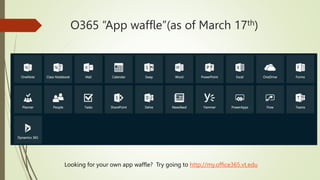
O365 “App waffle”(as of March 17th)
Looking for your own app waffle? Try going to http://my.office365.vt.edu
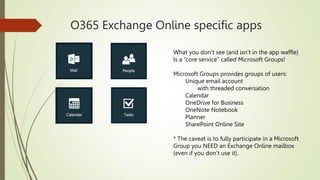
O365 Exchange Online specific apps
What you don’t see (and isn’t in the app waffle)
Is a “core service” called Microsoft Groups!
Microsoft Groups provides groups of users:
Unique email account
with threaded conversation
Calendar
OneDrive for Business
OneNote Notebook
Planner
SharePoint Online Site
* The caveat is to fully participate in a Microsoft
Group you NEED an Exchange Online mailbox
(even if you don’t use it).
Implementation specifics – Phase one
 All existing Exchange On-Prem mailboxes will be migrated to
Exchange Online
 The Exchange Hybrid Bridge will remain in place for one year
Hybrid bridge: on premise   in-cloud
 New Faculty and Staff will have the option to create their in-
cloud mailboxes using ADadmin
 Sponsored accounts will automatically have in-cloud
mailboxes created for them
Implementation specifics – Phase one
 Resource Accounts
Existing accounts will be migrated
New room and equipment account requests will be
approved by IMCS and submitted to CCS for creation in
Exchange Online
Resource mailboxes (non-PACE) may be replaced by user
provisioned Office 365 Groups
Pending ITC / community feedback being positive
PACE accounts will be handed by IMCS in the tradition
method. CCS will move the local mailbox to Exchange
Online.
Migration steps
 OU’s will be migrated by identified preference of OU admin(s)
 Users in NotOU will be migrated last!
 More information about this later in the presentation…
 Steps:
1. OU Admin, ITEE and users are informed that the OU move will start
on X date
2. CCS begins a 95% behind-the-scenes move (account stays local)
3. OU Admin and ITEE are informed when the 95% is complete and the
final migration (remaining 5%) starts
4. CCS runs a script to provision EO licenses and complete the
migration
5. OU Admin, ITEE and users are informed when complete
Demo ADadmin
 How can I find out if my Hokies account is in a organizational
unit (OU)?
 How can I find out who my OU admin is?
 How can I tell what type of Exchange mailbox I have?
 How can I tell what O365 licenses I have?
http://adadmin.w2k.vt.edu
How can we be ready? 1 of 7
 Most important! Upgrade your Windows and Mac desktop
client to latest supported Microsoft Office platform - Office
2016
For individual users, use the ProPlus version they can
download from Office 365 portal (aka
http://my.office365.vt.edu)
For managed users (or labs) use the Volume Licensed (VL)
version from http://network.software.vt.edu
 Have your mobile devices upgrades to latest version of the
mobile OS version
How can we be ready? 2 of 7
 Install, configure and use the Outlook mobile app instead of
native email and calendaring apps
The app can also simultaneously support other email
solutions (like Gmail) and can integrate multiple calendars
together!
https://www.microsoft.com/en-us/outlook-com/mobile/
How can we be ready? 3 of 7
 Verify caching mode is turned on in desktop Outlook client
 https://support.office.com/en-us/article/Turn-on-Cached-Exchange-
Mode-7885AF08-9A60-4EC3-850A-E221C1ED0C1C
 http://tinyurl.com/lx7xzs5
 Ensure that you and your resources (such as Exchange PACE accounts) are
identified and moved to the correct Hokies OU
 Avoid issues of users and resource being separated between on
premise and in-cloud to avoid delegation issues!
 Protip: Use ADadmin to verify where you reside
 Verifying mailbox type for users
 Full Exchange mailbox -> Exchange Online mailbox
 Calendar-only mailbox -> Exchange Online mailbox w/ forward
Protip: Use ADadmin verify what type of mailboxes you have
How can we be ready? 4 of 7
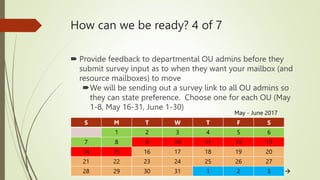
 Provide feedback to departmental OU admins before they
submit survey input as to when they want your mailbox (and
resource mailboxes) to move
We will be sending out a survey link to all OU admins so
they can state preference. Choose one for each OU (May
1-8, May 16-31, June 1-30)
S M T W T F S
1 2 3 4 5 6
7 8 9 10 11 12 13
14 15 16 17 18 19 20
21 22 23 24 25 26 27
28 29 30 31 1 2 3
May - June 2017

How can we be ready? 5 of 7
 For users using managed firewall, group policy, IPSEC, RLAN or
office network security appliances, verify with your local IT that
systems will be able to connect to the Office 365 cloud
environment
Use https://testconnectivity.microsoft.com/ to test from
restricted systems
https://support.office.com/en-us/article/Office-365-URLs-and-
IP-address-ranges-8548a211-3fe7-47cb-abb1-355ea5aa88a2
http://tinyurl.com/pruu2fx
https://support.office.com/en-us/article/NAT-support-with-
Office-365-170e96ea-d65d-4e51-acac-1de56abe39b9
http://tinyurl.com/mu23ezm
How can we be ready? 6 of 7
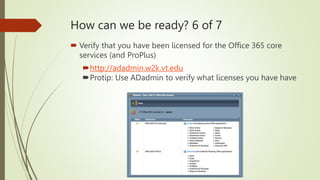
 Verify that you have been licensed for the Office 365 core
services (and ProPlus)
http://adadmin.w2k.vt.edu
Protip: Use ADadmin to verify what licenses you have have
How can we be ready? 7 of 7
 Stop using POP/IMAP with on premise Exchange and change access
methods
 VT Exchange Online WILL NOT support these access methods
Insecure communications (TLS 1.0)
Cannot be 2 factored
Missing out on all the additional features of newer protocols
Easier for spammers to use as a spamming vector
 Discontinue logging into Outlook and mobile apps with the old
@w2k.vt.edu UPN, instead use pid@vt.edu
 Understand that data in Exchange Online is NOT backed up.
 It is replicated 4x across datacenters
 Deleted data will be available for 30 days (client restorable)
 https://technet.microsoft.com/en-
us/library/dn440734(v=exchg.150).aspx
 http://tinyurl.com/pvpg2c7
Migration Experiences so far
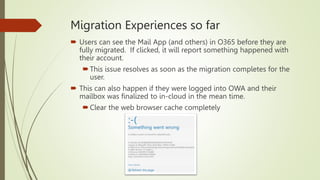
 Users can see the Mail App (and others) in O365 before they are
fully migrated. If clicked, it will report something happened with
their account.
This issue resolves as soon as the migration completes for the
user.
 This can also happen if they were logged into OWA and their
mailbox was finalized to in-cloud in the mean time.
Clear the web browser cache completely
Migration Experiences
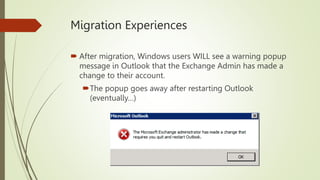
 After migration, Windows users WILL see a warning popup
message in Outlook that the Exchange Admin has made a
change to their account.
The popup goes away after restarting Outlook
(eventually…)
Migration Experiences
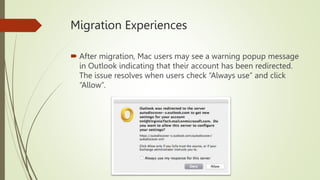
 After migration, Mac users may see a warning popup message
in Outlook indicating that their account has been redirected.
The issue resolves when users check “Always use” and click
“Allow”.
Migration Experiences
 Users sharing calendars with migrated accounts may see a popup
indicating that the calendar needs the log in for the user you are sharing
with..
 This can be very confusing for users!
 User must enter in their _own_ credentials as pid@vt.edu/hokies
password
 “Send on behalf” and “access to shared resource accounts” will not work
across the hybrid bridge. All accounts must move to EO to continue to
function. This is why we’re moving by OU!
 Two testers reported corrupted Outlook profiles after migration. They had
to remove and recreate their profiles.
 Users may receive a bounced mail message if they email a person who is
migrating during the 5%.
 It is a-ok to re-import .psts into your mailbox _before_ the migration
 Just make sure you don’t go past you on premise 10 GB mailbox
quota!
Project Schedule
 January
 Dev Testing with Internal Participants
 February:
 Small External Test Group to production: 2/1
 Division of IT Migration to production: 2/20
~600 mailboxes
 March
 Campus Town Halls starting around 3/20
 April
 CCS and ITEE building out additional documentation, scripts and workflow
 Departmental IT working to ready users
 May
 University Migration Start Date: 5/1
 Completes within 2-3 months
We are here!
Questions?
?
Onwards to
Exchange Online
Town Hall presentations
• Marc DeBonis – Director, Collaborative Computing Solutions (CCS)/Division
of IT (DoIT)
• Chris Shively – IT Manager, CCS
• Steve Cox – Exchange lead systems administrator, CCS
v.2 .1– End user

EO-TH-v2-End-Users.pptx

  • 1.
    Onwards to Exchange Online TownHall presentations • Marc DeBonis – Director, Collaborative Computing Solutions (CCS)/Division of IT (DoIT) • Chris Shively – IT Manager, CCS • Steve Cox – Exchange lead systems administrator, CCS v.2.1 – End user
  • 2.
    Tl;dr Starting May 2017we’ll be migrating all our on premise Exchange mailboxes to in-cloud Exchange Online. #greatsuccess
  • 3.
    Why do this? From on premise Exchange 2013 -> in-cloud Exchange 2016  Bigger storage quotas (10 GB -> 50 GB)  Maybe even 100 GB soon?  Data duplicated x4 (3 DAGs and 1 LAG)  Support for FERPA, PII and ITAR  Data stays in US datacenters  Much improved web access  Supports Federated Hokies SSO and Duo 2-factor  Improved SPAM and AV scanning  Meets high availability and disaster recovery needs  More options with DLP, e-Discovery, Information Protection  Integration with other Office 365 (O365) services
  • 4.
    O365 “App waffle”(asof March 17th) Looking for your own app waffle? Try going to http://my.office365.vt.edu
  • 5.
    O365 Exchange Onlinespecific apps What you don’t see (and isn’t in the app waffle) Is a “core service” called Microsoft Groups! Microsoft Groups provides groups of users: Unique email account with threaded conversation Calendar OneDrive for Business OneNote Notebook Planner SharePoint Online Site * The caveat is to fully participate in a Microsoft Group you NEED an Exchange Online mailbox (even if you don’t use it).
  • 6.
    Implementation specifics –Phase one  All existing Exchange On-Prem mailboxes will be migrated to Exchange Online  The Exchange Hybrid Bridge will remain in place for one year Hybrid bridge: on premise   in-cloud  New Faculty and Staff will have the option to create their in- cloud mailboxes using ADadmin  Sponsored accounts will automatically have in-cloud mailboxes created for them
  • 7.
    Implementation specifics –Phase one  Resource Accounts Existing accounts will be migrated New room and equipment account requests will be approved by IMCS and submitted to CCS for creation in Exchange Online Resource mailboxes (non-PACE) may be replaced by user provisioned Office 365 Groups Pending ITC / community feedback being positive PACE accounts will be handed by IMCS in the tradition method. CCS will move the local mailbox to Exchange Online.
  • 8.
    Migration steps  OU’swill be migrated by identified preference of OU admin(s)  Users in NotOU will be migrated last!  More information about this later in the presentation…  Steps: 1. OU Admin, ITEE and users are informed that the OU move will start on X date 2. CCS begins a 95% behind-the-scenes move (account stays local) 3. OU Admin and ITEE are informed when the 95% is complete and the final migration (remaining 5%) starts 4. CCS runs a script to provision EO licenses and complete the migration 5. OU Admin, ITEE and users are informed when complete
  • 9.
    Demo ADadmin  Howcan I find out if my Hokies account is in a organizational unit (OU)?  How can I find out who my OU admin is?  How can I tell what type of Exchange mailbox I have?  How can I tell what O365 licenses I have? http://adadmin.w2k.vt.edu
  • 10.
    How can webe ready? 1 of 7  Most important! Upgrade your Windows and Mac desktop client to latest supported Microsoft Office platform - Office 2016 For individual users, use the ProPlus version they can download from Office 365 portal (aka http://my.office365.vt.edu) For managed users (or labs) use the Volume Licensed (VL) version from http://network.software.vt.edu  Have your mobile devices upgrades to latest version of the mobile OS version
  • 11.
    How can webe ready? 2 of 7  Install, configure and use the Outlook mobile app instead of native email and calendaring apps The app can also simultaneously support other email solutions (like Gmail) and can integrate multiple calendars together! https://www.microsoft.com/en-us/outlook-com/mobile/
  • 12.
    How can webe ready? 3 of 7  Verify caching mode is turned on in desktop Outlook client  https://support.office.com/en-us/article/Turn-on-Cached-Exchange- Mode-7885AF08-9A60-4EC3-850A-E221C1ED0C1C  http://tinyurl.com/lx7xzs5  Ensure that you and your resources (such as Exchange PACE accounts) are identified and moved to the correct Hokies OU  Avoid issues of users and resource being separated between on premise and in-cloud to avoid delegation issues!  Protip: Use ADadmin to verify where you reside  Verifying mailbox type for users  Full Exchange mailbox -> Exchange Online mailbox  Calendar-only mailbox -> Exchange Online mailbox w/ forward Protip: Use ADadmin verify what type of mailboxes you have
  • 13.
    How can webe ready? 4 of 7  Provide feedback to departmental OU admins before they submit survey input as to when they want your mailbox (and resource mailboxes) to move We will be sending out a survey link to all OU admins so they can state preference. Choose one for each OU (May 1-8, May 16-31, June 1-30) S M T W T F S 1 2 3 4 5 6 7 8 9 10 11 12 13 14 15 16 17 18 19 20 21 22 23 24 25 26 27 28 29 30 31 1 2 3 May - June 2017 
  • 14.
    How can webe ready? 5 of 7  For users using managed firewall, group policy, IPSEC, RLAN or office network security appliances, verify with your local IT that systems will be able to connect to the Office 365 cloud environment Use https://testconnectivity.microsoft.com/ to test from restricted systems https://support.office.com/en-us/article/Office-365-URLs-and- IP-address-ranges-8548a211-3fe7-47cb-abb1-355ea5aa88a2 http://tinyurl.com/pruu2fx https://support.office.com/en-us/article/NAT-support-with- Office-365-170e96ea-d65d-4e51-acac-1de56abe39b9 http://tinyurl.com/mu23ezm
  • 15.
    How can webe ready? 6 of 7  Verify that you have been licensed for the Office 365 core services (and ProPlus) http://adadmin.w2k.vt.edu Protip: Use ADadmin to verify what licenses you have have
  • 16.
    How can webe ready? 7 of 7  Stop using POP/IMAP with on premise Exchange and change access methods  VT Exchange Online WILL NOT support these access methods Insecure communications (TLS 1.0) Cannot be 2 factored Missing out on all the additional features of newer protocols Easier for spammers to use as a spamming vector  Discontinue logging into Outlook and mobile apps with the old @w2k.vt.edu UPN, instead use pid@vt.edu  Understand that data in Exchange Online is NOT backed up.  It is replicated 4x across datacenters  Deleted data will be available for 30 days (client restorable)  https://technet.microsoft.com/en- us/library/dn440734(v=exchg.150).aspx  http://tinyurl.com/pvpg2c7
  • 17.
    Migration Experiences sofar  Users can see the Mail App (and others) in O365 before they are fully migrated. If clicked, it will report something happened with their account. This issue resolves as soon as the migration completes for the user.  This can also happen if they were logged into OWA and their mailbox was finalized to in-cloud in the mean time. Clear the web browser cache completely
  • 18.
    Migration Experiences  Aftermigration, Windows users WILL see a warning popup message in Outlook that the Exchange Admin has made a change to their account. The popup goes away after restarting Outlook (eventually…)
  • 19.
    Migration Experiences  Aftermigration, Mac users may see a warning popup message in Outlook indicating that their account has been redirected. The issue resolves when users check “Always use” and click “Allow”.
  • 20.
    Migration Experiences  Userssharing calendars with migrated accounts may see a popup indicating that the calendar needs the log in for the user you are sharing with..  This can be very confusing for users!  User must enter in their _own_ credentials as pid@vt.edu/hokies password  “Send on behalf” and “access to shared resource accounts” will not work across the hybrid bridge. All accounts must move to EO to continue to function. This is why we’re moving by OU!  Two testers reported corrupted Outlook profiles after migration. They had to remove and recreate their profiles.  Users may receive a bounced mail message if they email a person who is migrating during the 5%.  It is a-ok to re-import .psts into your mailbox _before_ the migration  Just make sure you don’t go past you on premise 10 GB mailbox quota!
  • 21.
    Project Schedule  January Dev Testing with Internal Participants  February:  Small External Test Group to production: 2/1  Division of IT Migration to production: 2/20 ~600 mailboxes  March  Campus Town Halls starting around 3/20  April  CCS and ITEE building out additional documentation, scripts and workflow  Departmental IT working to ready users  May  University Migration Start Date: 5/1  Completes within 2-3 months We are here!
  • 22.
  • 23.
    Onwards to Exchange Online TownHall presentations • Marc DeBonis – Director, Collaborative Computing Solutions (CCS)/Division of IT (DoIT) • Chris Shively – IT Manager, CCS • Steve Cox – Exchange lead systems administrator, CCS v.2 .1– End user