Unit 6 – Link Presentation   2 Web Programming
Objectives At the end of this presentation, you will be able to Differentiate Internal and External Hyperlinks Open a Web page in a new Window
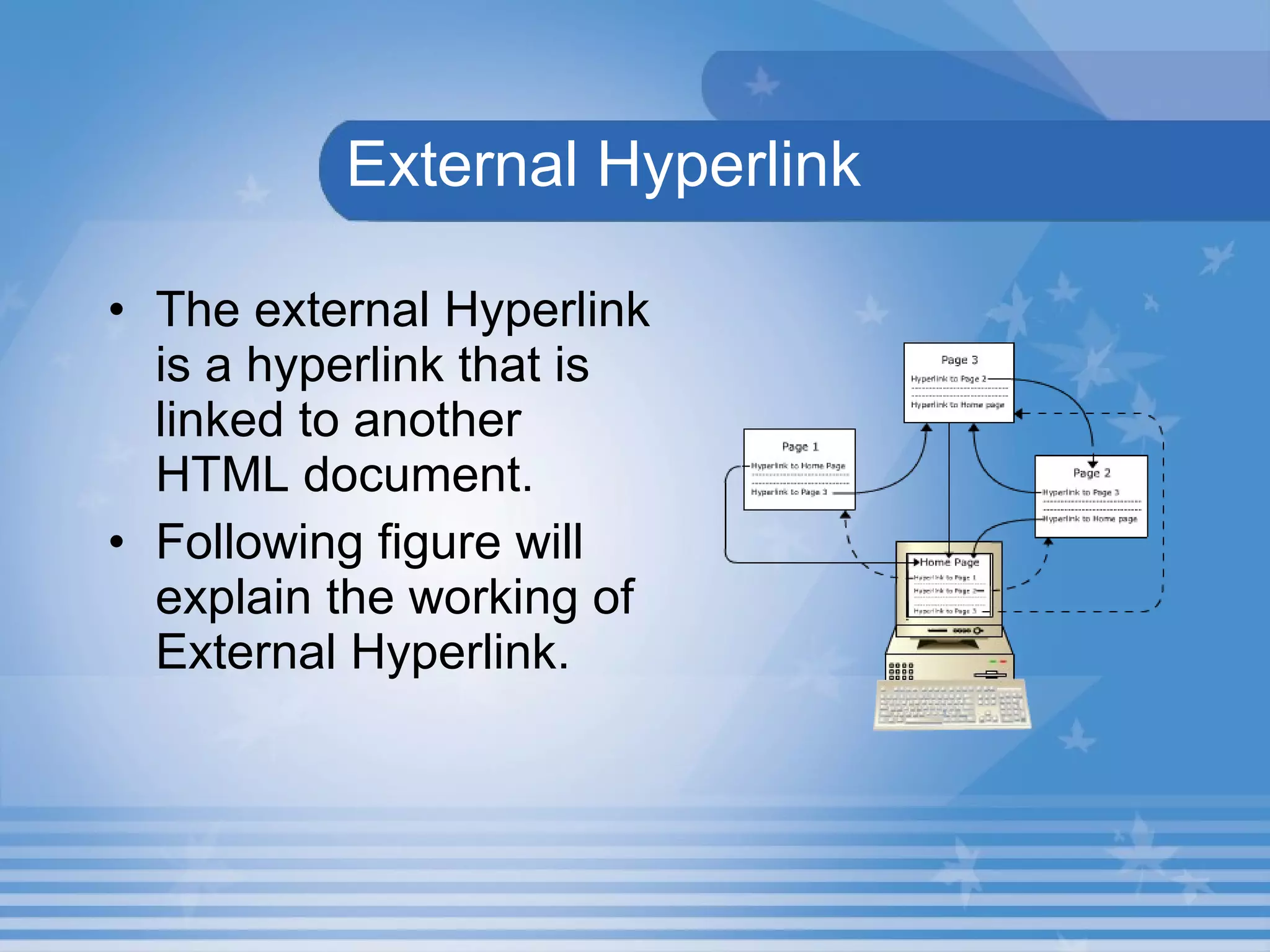
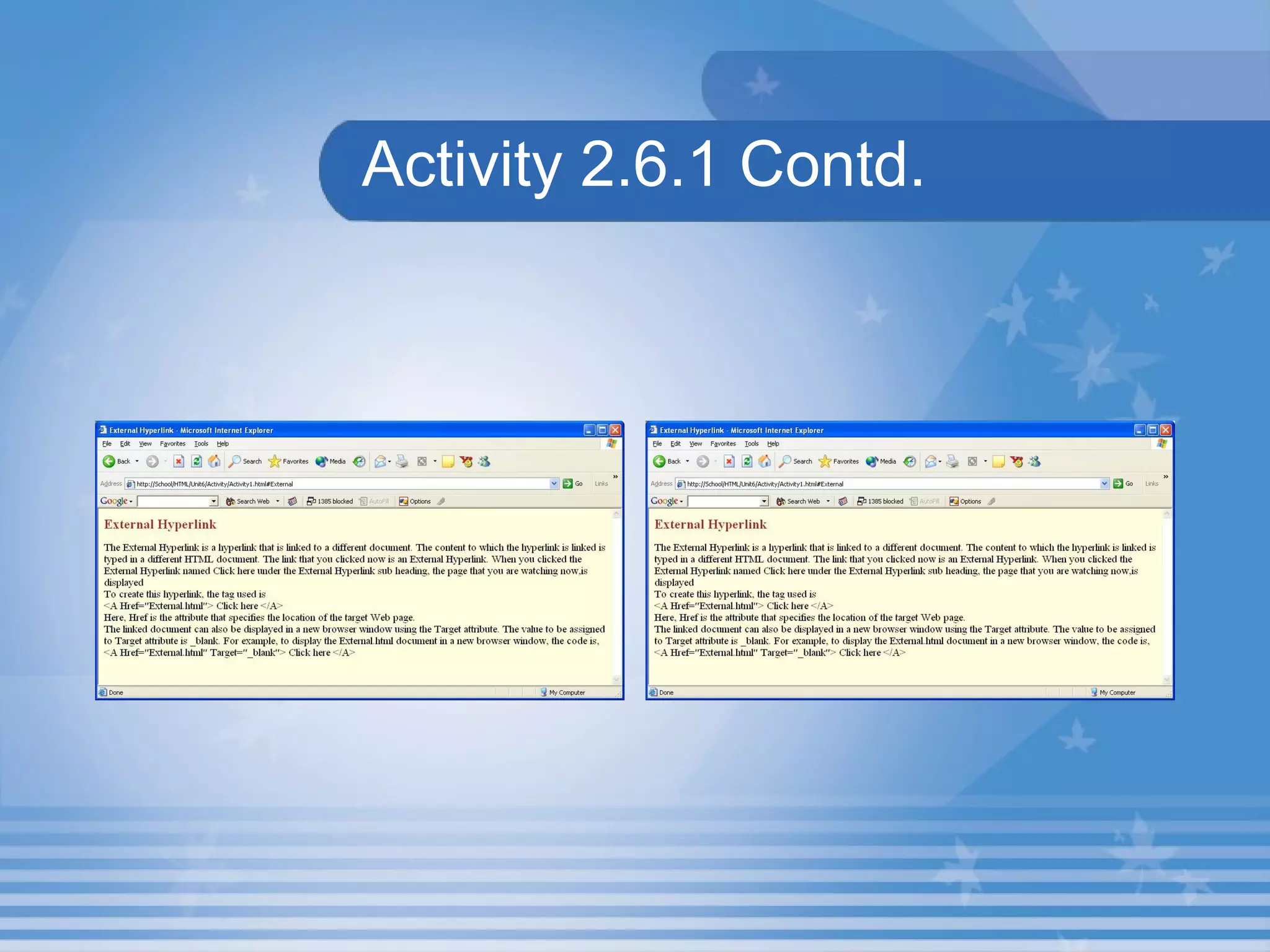
  External Hyperlink The external Hyperlink is a hyperlink that is linked to another HTML document.  Following figure will explain the working of External Hyperlink.
Lab Exercise 3. Open D6_2.html in Internet Explorer.  Identify the tag which is used to create link in source code D6_2.html. Underline the attribute which is used with the <A> tag to specify the name of the file to be linked to. Name the attribute which is used to sets the colour for active links, visited links and hyper links in source code D6_2.html.
Lab Exercise 4. Open D6_2.html in Internet Explorer. View the source code in notepad. Apply the active link colour to Maroon. Apply the visited link colour to Yellow. Apply the hyperlink colour to Green. Save the file and view the output in the browser.
Lab Exercise Open  Malaysia.HTML  that you have created under the folder in your name in C: When you click on the text “ States of Malaysia ”, the “ States.HTML ” which you have created under the folder in your name in C: should open in new window. When you click on the text “ Festival” , the “ Festivals.HTML ” which you have created under the folder in your name in C: should open in new window.
Lab Exercise contd. c. When you click on the text “ Whether and Climate in Malaysia ”, the “ Climate.HTML ” which you have created under the folder in your name in C: should open in next window.
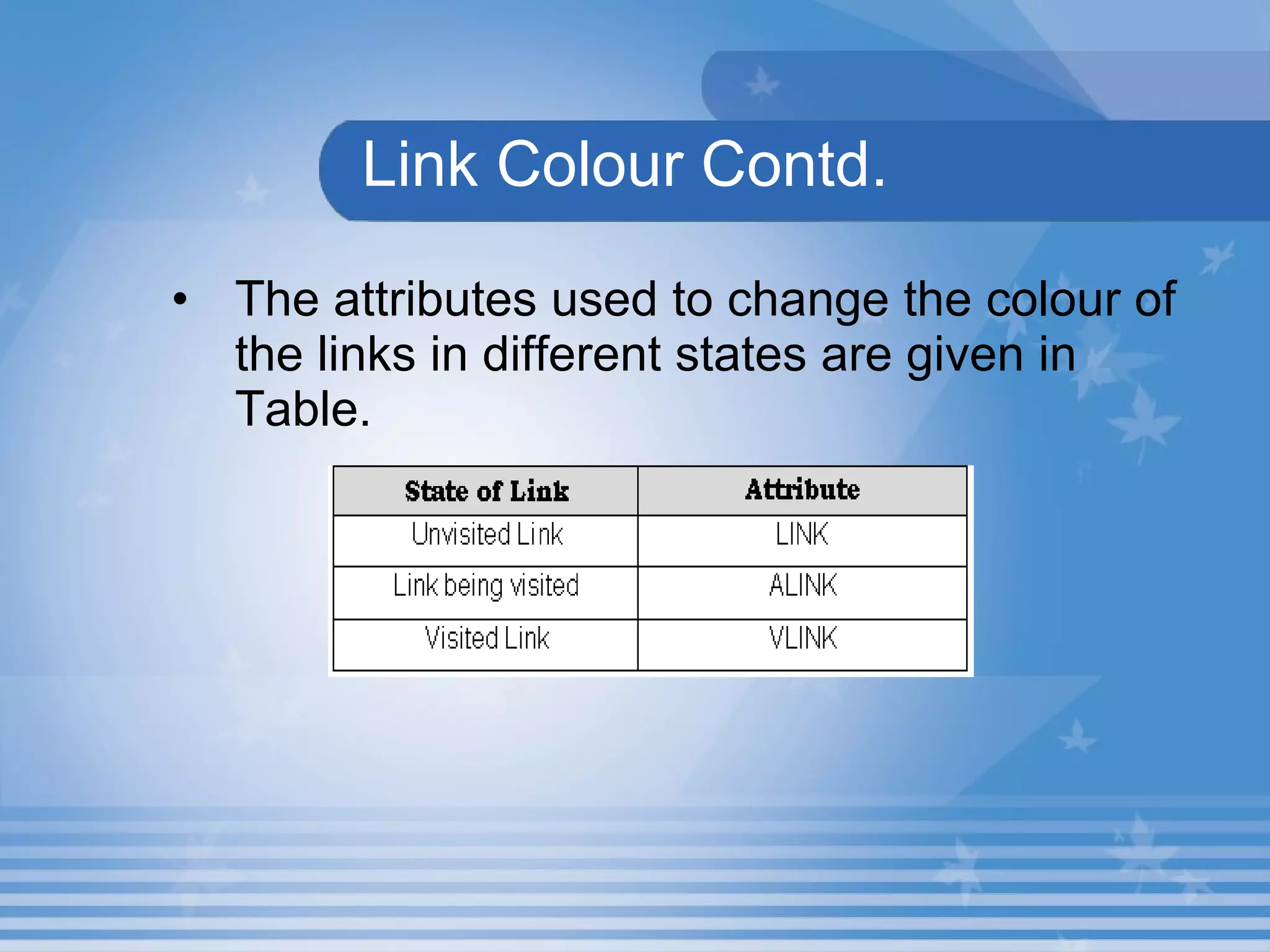
Link Colour The hyperlink is distinguished from ordinary text by the colour.   There are three states of a link.  They are  The link that has not been visited earlier. The link that is being visited. The link that had been already visited.
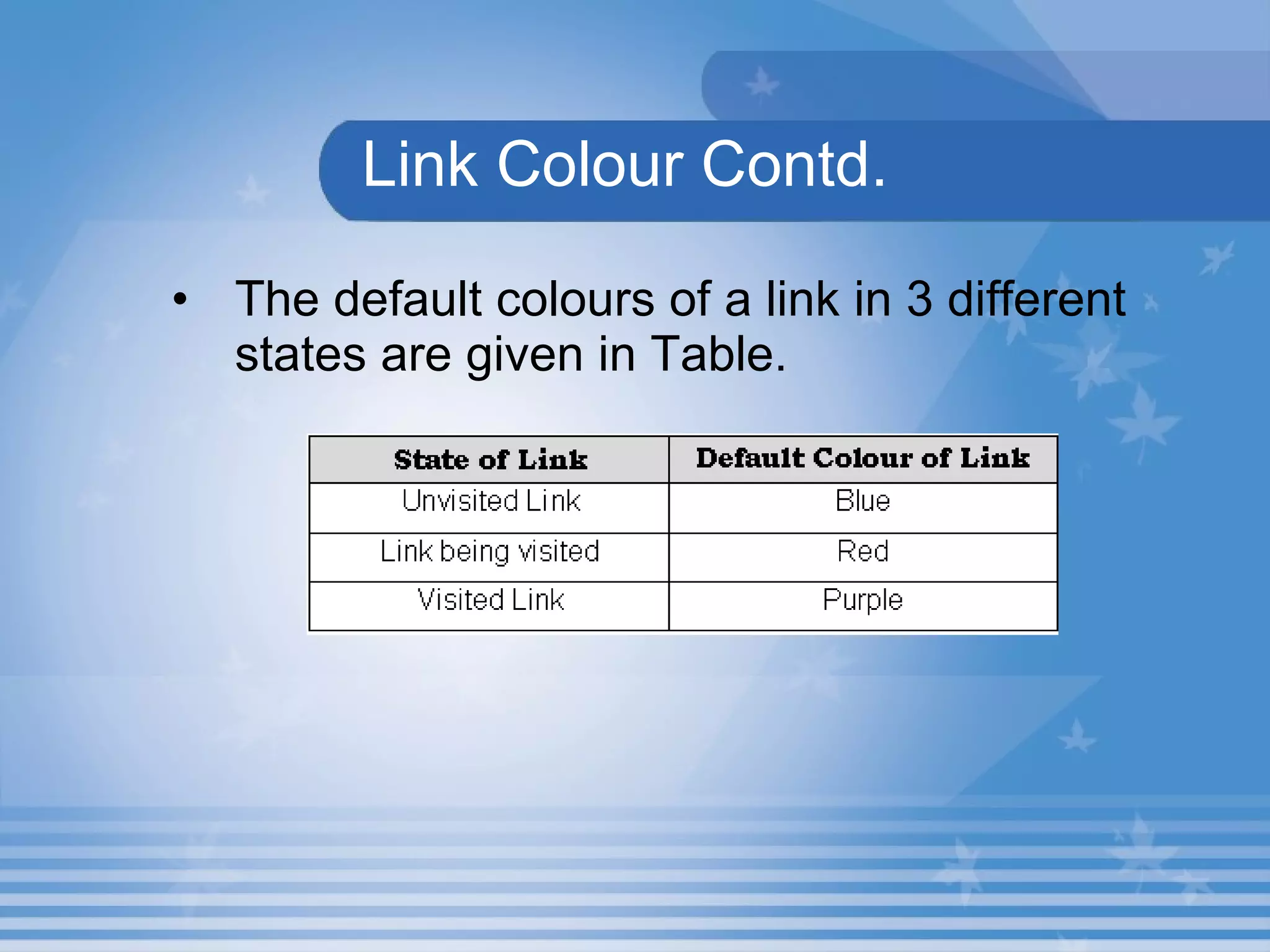
Link Colour Contd. The default colours of a link in 3 different states are given in Table.
Link Colour Contd. The attributes used to change the colour of the links in different states are given in Table.
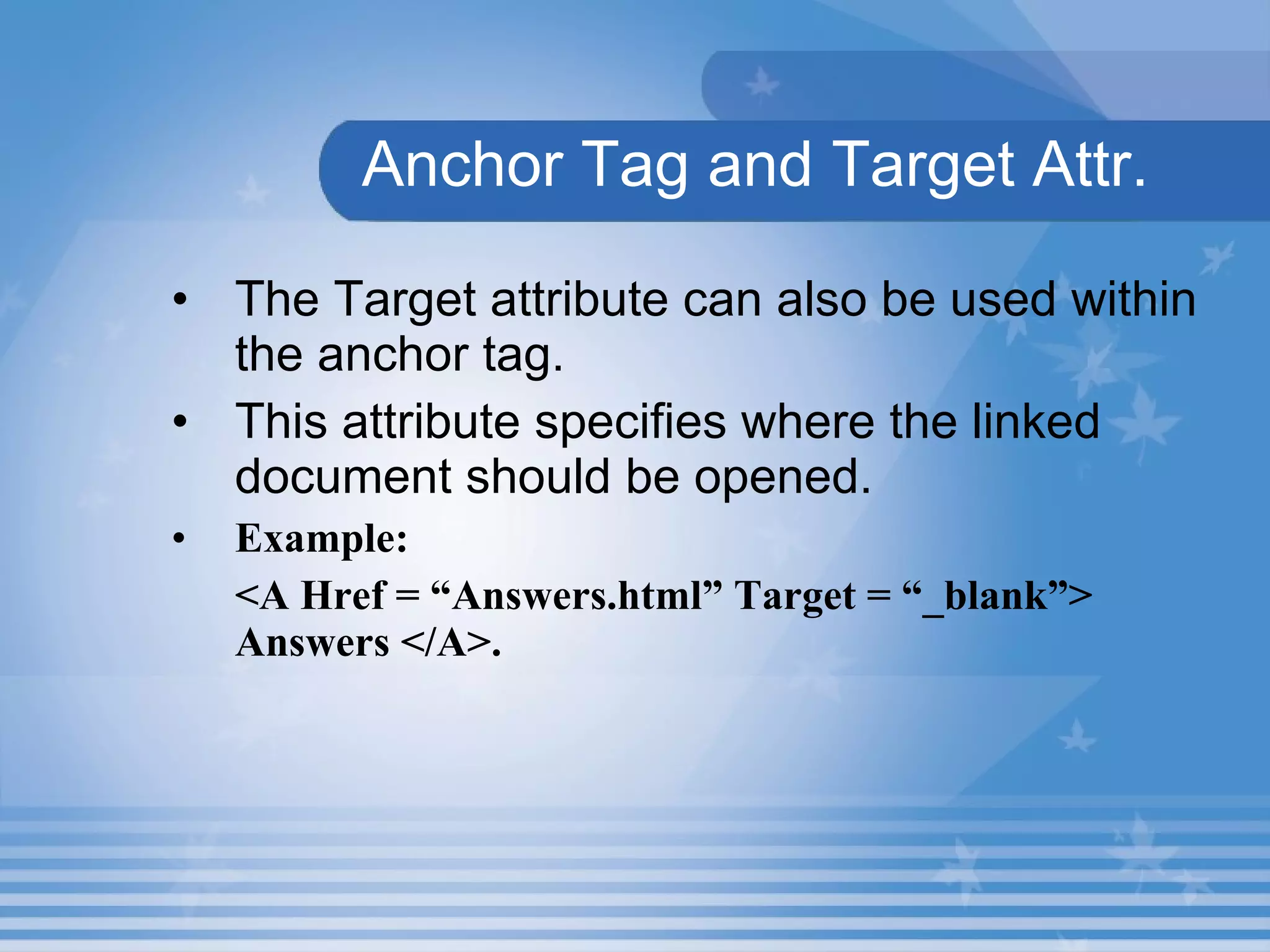
Anchor Tag and Target Attr. The Target attribute can also be used within the anchor tag.  This attribute specifies where the linked document should be opened.   Example: <A Href = “Answers.html” Target = “_blank”> Answers </A>.
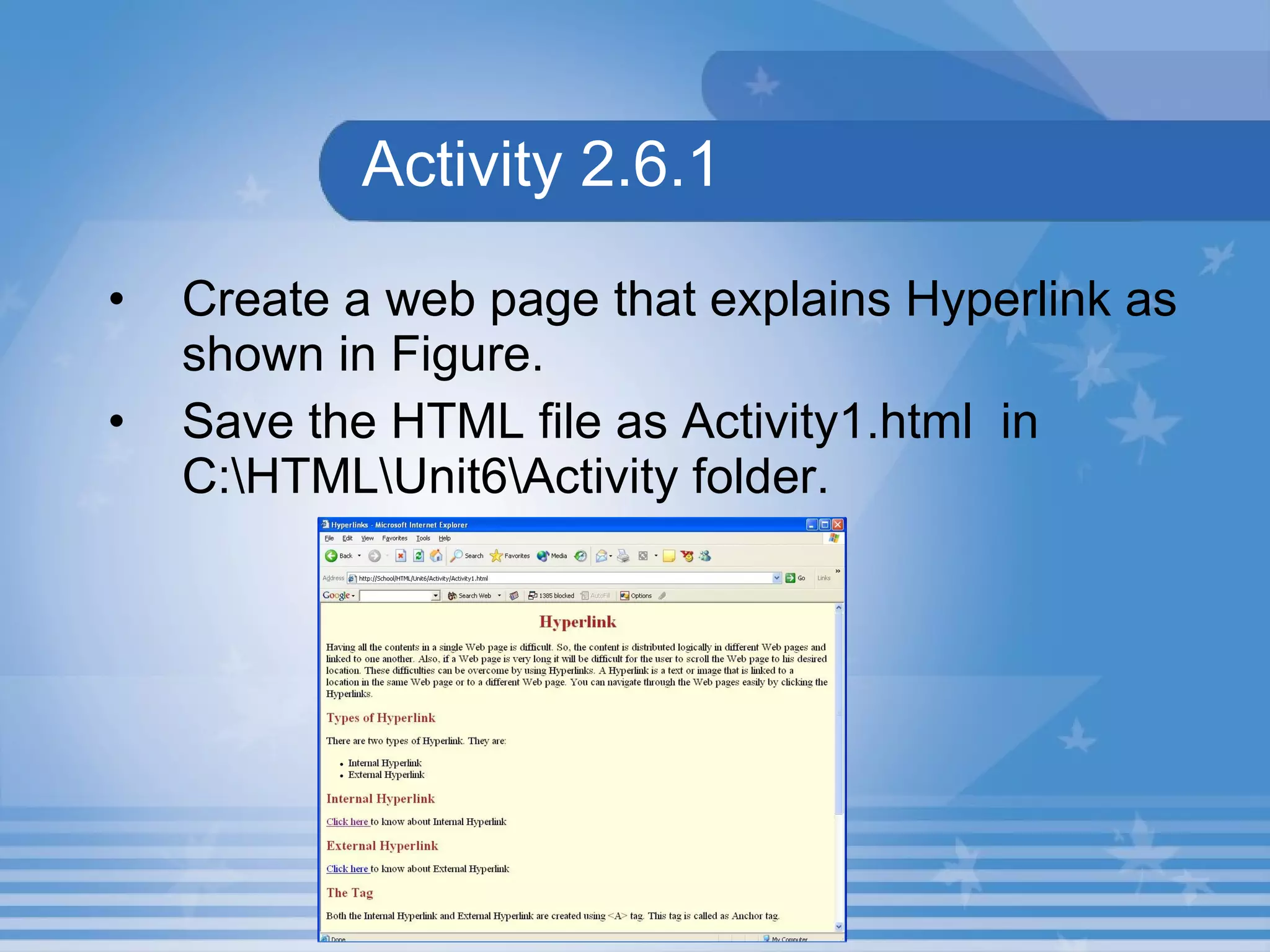
Activity 2.6.1 Create a web page that explains Hyperlink as shown in Figure. Save the HTML file as Activity1.html  in C:\HTML\Unit6\Activity folder.
Activity 2.6.1 Contd.
Summary In this presentation, you learnt the following: To open the linked document in a new window, the value to be assigned to the  Target  attribute is  _blank . The default colour of unvisited link is Blue. The default colour of visited link is Purple.
Summary The default colour of active link is Red. The attributes of the  <BODY>  tag that are used to change the colour of the link are  LINK, ALINK  and  VLINK .
Assignment Write how will you change the colour of the Hyperlinks? Name the three states of link in HTML.

M02 un06 p02

  • 1.
    Unit 6 –Link Presentation 2 Web Programming
  • 2.
    Objectives At theend of this presentation, you will be able to Differentiate Internal and External Hyperlinks Open a Web page in a new Window
  • 3.
    ExternalHyperlink The external Hyperlink is a hyperlink that is linked to another HTML document. Following figure will explain the working of External Hyperlink.
  • 4.
    Lab Exercise 3.Open D6_2.html in Internet Explorer. Identify the tag which is used to create link in source code D6_2.html. Underline the attribute which is used with the <A> tag to specify the name of the file to be linked to. Name the attribute which is used to sets the colour for active links, visited links and hyper links in source code D6_2.html.
  • 5.
    Lab Exercise 4.Open D6_2.html in Internet Explorer. View the source code in notepad. Apply the active link colour to Maroon. Apply the visited link colour to Yellow. Apply the hyperlink colour to Green. Save the file and view the output in the browser.
  • 6.
    Lab Exercise Open Malaysia.HTML that you have created under the folder in your name in C: When you click on the text “ States of Malaysia ”, the “ States.HTML ” which you have created under the folder in your name in C: should open in new window. When you click on the text “ Festival” , the “ Festivals.HTML ” which you have created under the folder in your name in C: should open in new window.
  • 7.
    Lab Exercise contd.c. When you click on the text “ Whether and Climate in Malaysia ”, the “ Climate.HTML ” which you have created under the folder in your name in C: should open in next window.
  • 8.
    Link Colour Thehyperlink is distinguished from ordinary text by the colour. There are three states of a link. They are The link that has not been visited earlier. The link that is being visited. The link that had been already visited.
  • 9.
    Link Colour Contd.The default colours of a link in 3 different states are given in Table.
  • 10.
    Link Colour Contd.The attributes used to change the colour of the links in different states are given in Table.
  • 11.
    Anchor Tag andTarget Attr. The Target attribute can also be used within the anchor tag. This attribute specifies where the linked document should be opened. Example: <A Href = “Answers.html” Target = “_blank”> Answers </A>.
  • 12.
    Activity 2.6.1 Createa web page that explains Hyperlink as shown in Figure. Save the HTML file as Activity1.html in C:\HTML\Unit6\Activity folder.
  • 13.
  • 14.
    Summary In thispresentation, you learnt the following: To open the linked document in a new window, the value to be assigned to the Target attribute is _blank . The default colour of unvisited link is Blue. The default colour of visited link is Purple.
  • 15.
    Summary The defaultcolour of active link is Red. The attributes of the <BODY> tag that are used to change the colour of the link are LINK, ALINK and VLINK .
  • 16.
    Assignment Write howwill you change the colour of the Hyperlinks? Name the three states of link in HTML.