Unit 2 – HTML Basics Presentation   1 Web Programming
Revision… Define the term Internet. List the requirements to get Internet connection. Define the term E-commerce. State the use of Forward button in IE. Expand WWW and URL.
Objectives At the end of this presentation, you will be able to Outline  the structure of HTML document Create HTML document Execute HTML document in a Web browser Correct the errors in HTML document
Introduction - HTML Web Browser reads the instructions from a file. It displays the document in the browser window according to the instructions given in the file. Instructions are given in a language called HTML. File is HTML file.
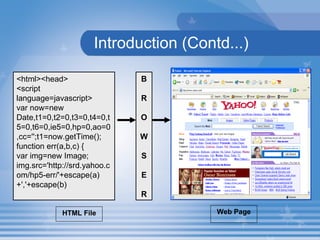
Introduction (Contd...) <html><head> <script language=javascript> var now=new Date,t1=0,t2=0,t3=0,t4=0,t5=0,t6=0,ie5=0,hp=0,ao=0,cc='';t1=now.getTime(); function err(a,b,c) { var img=new Image; img.src='http://srd.yahoo.com/hp5-err/'+escape(a)+','+escape(b) B R O W S E R HTML File Web Page
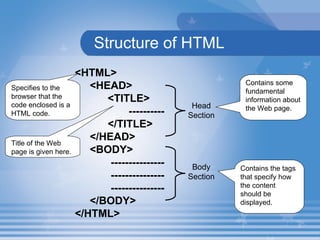
Structure of HTML <HTML> <HEAD> <TITLE> ---------- </TITLE> </HEAD> <BODY> --------------- --------------- --------------- </BODY> </HTML>  Contains some fundamental information about the Web page.  Title of the Web page is given here. Contains the tags that specify how the content should be displayed. Specifies to the browser that the code enclosed is a HTML code.  Head Section Body Section
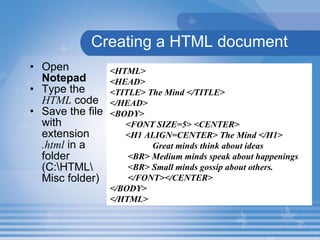
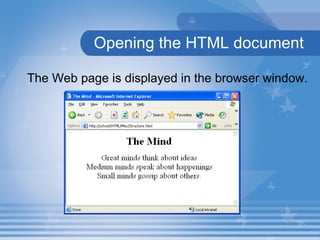
Creating a HTML document Open  Notepad   Type the  HTML  code Save the file with extension  .html  in a folder (C:\HTML\ Misc folder) <HTML> <HEAD> <TITLE> The Mind </TITLE> </HEAD> <BODY>  <FONT SIZE=5> <CENTER> <H1 ALIGN=CENTER> The Mind </H1>  Great minds think about ideas  <BR> Medium minds speak about happenings <BR> Small minds gossip about others. </FONT></CENTER> </BODY> </HTML>
Creating a virtual directory To store HTML documents in IIS, you have to create a directory known as  Virtual Directory . Click  Start    Control Panel . Select  Performance and Maintenance Select  Administrative tools
Creating a virtual directory (Contd..) Select  IIS .  Internet Information Services  dialog box is displayed. In the left pane, right click  Default Web site  in the  Web sites  folder and select  New    Virtual Directory .  Virtual Directory Creation  Wizard is displayed. 5. Click the  Next  button. In the  Alias  text box, type the Virtual Directory name, say  HTML  and click the  Next  button.
In the  Web site content directory  page, browse and select the path of the directory that contains the HTML files, say  C:\HTML . With the default settings in the  Access Permissions  page, click the  Next  button. Click  Finish  to complete the  Virtual Directory Creation  wizard. Creating a virtual directory (Contd..)
Opening the HTML document To view the Web page, open  Internet Explorer .  Type the  URL  of the Web page created, in the address bar  http://localhost/HTML/Misc/Structure.HTML Press the  Enter  key.  The browser interprets the instructions given in the  HTML  file.
Opening the HTML document The Web page is displayed in the browser window.
Lab Exercise  1.  Open  D2_1.html  in Internet Explorer.  The following code will be present in  D2_1.html . F ind out the tag which is used to display  First Web Page in the title bar. Which tag is used to display Welcome in the source code of  D2_1.html ? Which tag is used to display the contents of the Web page? What is the name of the Web page?
Correcting the mistakes 1.  Click the  View      Source  option. The  source code (HTML code) of the Web page is displayed in the Notepad file . Make the necessary corrections. Save and close the file. Click the  Refresh  button in  Internet Explorer .
Tags Instructions given to a Web browser. Enclosed within angled brackets (<  >).  Starting tag - Indicates the starting point of an effect. For example,  <HEAD> . Ending tag - Indicates the ending point of an effect. The ending tag is enclosed within angled brackets and is preceded by a slash (/). For example,  </HEAD>.   The effect of the tag is applied to the content which is placed inside the starting and ending tags.
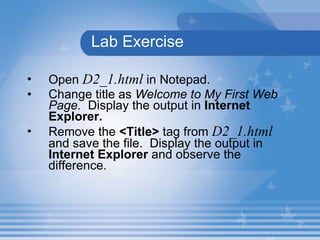
Lab Exercise Open  D2_1.html  in Notepad. Change title as  Welcome to My First Web Page.   Display the output in  Internet Explorer. Remove the  <Title>  tag from  D2_1.html   and save the file.  Display the output in  Internet Explorer  and observe the difference.
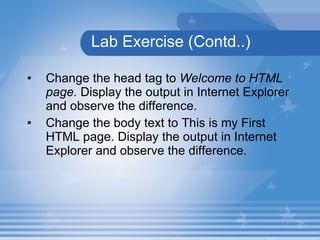
Lab Exercise (Contd..) Change the head tag to  Welcome to HTML page.  Display the output in Internet Explorer and observe the difference.  Change the body text to This is my First HTML page. Display the output in Internet Explorer and observe the difference.
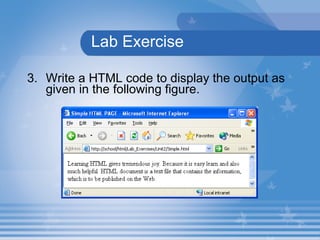
Lab Exercise 3. Write a HTML code to display the output as given in the following figure.
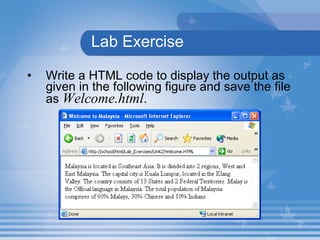
Lab Exercise Write a HTML code to display the output as given in the following figure and save the file as  Welcome.html .
Summary In this presentation, you learnt the following: A Web page is an electronic document that contains information in the form of text, pictures, audio or video.  HTML is a language that instructs the browser how to display the contents of a Web page in the browser window.  The source code of a Web page can be viewed by selecting  View    Source  in the Internet Explorer.
Summary The instructions given to a Web browser are called Tags. The text given in the TITLE section will appear in the title bar of the browser window.
Assignment Give the expansion of HTML. List the steps to be followed while correcting the errors in a HTML document. List the steps to be followed in creating a virtual directory. Define the term Tag.

Unit 2.2 Part 1

  • 1.
    Unit 2 –HTML Basics Presentation 1 Web Programming
  • 2.
    Revision… Define theterm Internet. List the requirements to get Internet connection. Define the term E-commerce. State the use of Forward button in IE. Expand WWW and URL.
  • 3.
    Objectives At theend of this presentation, you will be able to Outline the structure of HTML document Create HTML document Execute HTML document in a Web browser Correct the errors in HTML document
  • 4.
    Introduction - HTMLWeb Browser reads the instructions from a file. It displays the document in the browser window according to the instructions given in the file. Instructions are given in a language called HTML. File is HTML file.
  • 5.
    Introduction (Contd...) <html><head><script language=javascript> var now=new Date,t1=0,t2=0,t3=0,t4=0,t5=0,t6=0,ie5=0,hp=0,ao=0,cc='';t1=now.getTime(); function err(a,b,c) { var img=new Image; img.src='http://srd.yahoo.com/hp5-err/'+escape(a)+','+escape(b) B R O W S E R HTML File Web Page
  • 6.
    Structure of HTML<HTML> <HEAD> <TITLE> ---------- </TITLE> </HEAD> <BODY> --------------- --------------- --------------- </BODY> </HTML> Contains some fundamental information about the Web page. Title of the Web page is given here. Contains the tags that specify how the content should be displayed. Specifies to the browser that the code enclosed is a HTML code. Head Section Body Section
  • 7.
    Creating a HTMLdocument Open Notepad Type the HTML code Save the file with extension .html in a folder (C:\HTML\ Misc folder) <HTML> <HEAD> <TITLE> The Mind </TITLE> </HEAD> <BODY> <FONT SIZE=5> <CENTER> <H1 ALIGN=CENTER> The Mind </H1> Great minds think about ideas <BR> Medium minds speak about happenings <BR> Small minds gossip about others. </FONT></CENTER> </BODY> </HTML>
  • 8.
    Creating a virtualdirectory To store HTML documents in IIS, you have to create a directory known as Virtual Directory . Click Start  Control Panel . Select Performance and Maintenance Select Administrative tools
  • 9.
    Creating a virtualdirectory (Contd..) Select IIS . Internet Information Services dialog box is displayed. In the left pane, right click Default Web site in the Web sites folder and select New  Virtual Directory . Virtual Directory Creation Wizard is displayed. 5. Click the Next button. In the Alias text box, type the Virtual Directory name, say HTML and click the Next button.
  • 10.
    In the Web site content directory page, browse and select the path of the directory that contains the HTML files, say C:\HTML . With the default settings in the Access Permissions page, click the Next button. Click Finish to complete the Virtual Directory Creation wizard. Creating a virtual directory (Contd..)
  • 11.
    Opening the HTMLdocument To view the Web page, open Internet Explorer . Type the URL of the Web page created, in the address bar http://localhost/HTML/Misc/Structure.HTML Press the Enter key. The browser interprets the instructions given in the HTML file.
  • 12.
    Opening the HTMLdocument The Web page is displayed in the browser window.
  • 13.
    Lab Exercise 1. Open D2_1.html in Internet Explorer. The following code will be present in D2_1.html . F ind out the tag which is used to display First Web Page in the title bar. Which tag is used to display Welcome in the source code of D2_1.html ? Which tag is used to display the contents of the Web page? What is the name of the Web page?
  • 14.
    Correcting the mistakes1. Click the View  Source option. The source code (HTML code) of the Web page is displayed in the Notepad file . Make the necessary corrections. Save and close the file. Click the Refresh button in Internet Explorer .
  • 15.
    Tags Instructions givento a Web browser. Enclosed within angled brackets (< >). Starting tag - Indicates the starting point of an effect. For example, <HEAD> . Ending tag - Indicates the ending point of an effect. The ending tag is enclosed within angled brackets and is preceded by a slash (/). For example, </HEAD>. The effect of the tag is applied to the content which is placed inside the starting and ending tags.
  • 16.
    Lab Exercise Open D2_1.html in Notepad. Change title as Welcome to My First Web Page. Display the output in Internet Explorer. Remove the <Title> tag from D2_1.html and save the file. Display the output in Internet Explorer and observe the difference.
  • 17.
    Lab Exercise (Contd..)Change the head tag to Welcome to HTML page. Display the output in Internet Explorer and observe the difference. Change the body text to This is my First HTML page. Display the output in Internet Explorer and observe the difference.
  • 18.
    Lab Exercise 3.Write a HTML code to display the output as given in the following figure.
  • 19.
    Lab Exercise Writea HTML code to display the output as given in the following figure and save the file as Welcome.html .
  • 20.
    Summary In thispresentation, you learnt the following: A Web page is an electronic document that contains information in the form of text, pictures, audio or video. HTML is a language that instructs the browser how to display the contents of a Web page in the browser window. The source code of a Web page can be viewed by selecting View  Source in the Internet Explorer.
  • 21.
    Summary The instructionsgiven to a Web browser are called Tags. The text given in the TITLE section will appear in the title bar of the browser window.
  • 22.
    Assignment Give theexpansion of HTML. List the steps to be followed while correcting the errors in a HTML document. List the steps to be followed in creating a virtual directory. Define the term Tag.