WHAT IS THE MAIL MERGE?
 Software product that uses a file (or database) of
names and addresses, together with a template document, to
produce multiple copies of a letter, each personally addressed to a
different recipient.
 In business as well as in official matters, it is often needed to
send letters with similar information to different people.
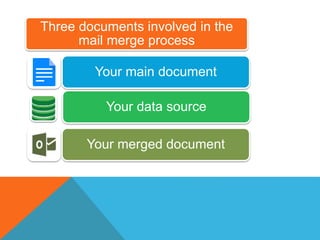
Three documents involved in the
mail merge process
Your main document
Your data source
Your merged document
Mail Merge Steps:
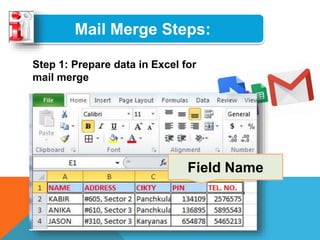
Step 1: Prepare data in Excel for
mail merge
The most important step in the mail
merge process is to set up and
prepare your data. You'll use your
Excel spreadsheet as the data
source for the recipient list.
Field Name
Mail Merge Steps:
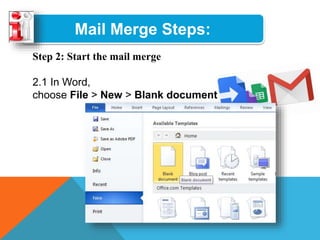
Step 2: Start the mail merge
2.1 In Word,
choose File > New > Blank document
Mail Merge Steps:
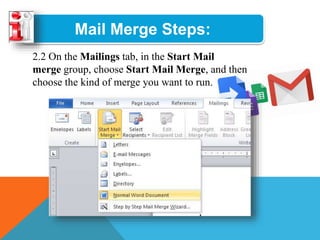
2.2 On the Mailings tab, in the Start Mail
merge group, choose Start Mail Merge, and then
choose the kind of merge you want to run.
Mail Merge Steps:
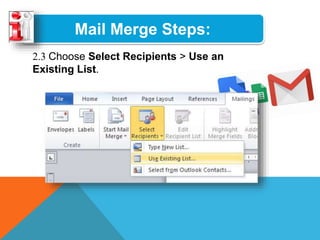
2.3 Choose Select Recipients > Use an
Existing List.
Mail Merge Steps:
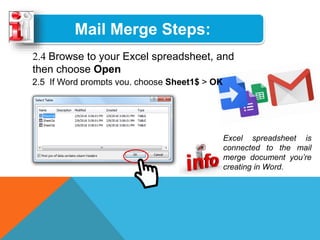
2.4 Browse to your Excel spreadsheet, and
then choose Open
2.5 If Word prompts you, choose Sheet1$ > OK
Excel spreadsheet is
connected to the mail
merge document you’re
creating in Word.
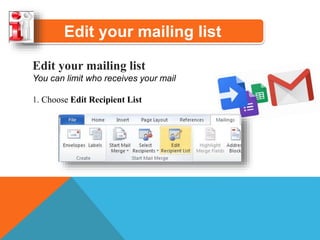
Edit your mailing list
You can limit who receives your mail
1. Choose Edit Recipient List
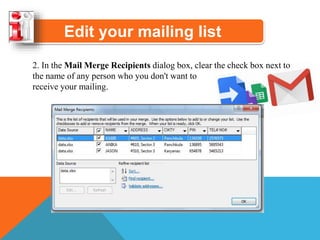
2. In the Mail Merge Recipients dialog box, clear the check box next to
the name of any person who you don't want to
receive your mailing.
Edit your mailing list
Mail Merge Steps:
Step 3: Insert a merge field
You can insert one or more mail merge
fields that pull the information from your
spreadsheet into your document.
Mail Merge Steps:
To insert an address block for an envelope, a label, an
email message, or a letter
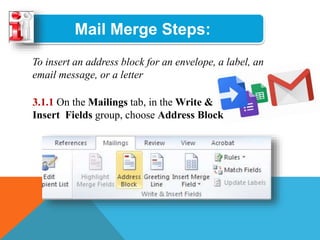
3.1.1 On the Mailings tab, in the Write &
Insert Fields group, choose Address Block
Mail Merge Steps:
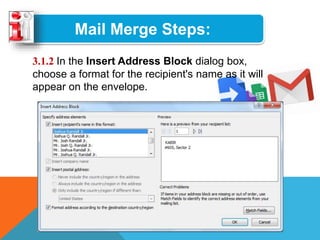
3.1.2 In the Insert Address Block dialog box,
choose a format for the recipient's name as it will
appear on the envelope.
Mail Merge Steps:
3.1.3 Choose OK.
3.1.4 Choose File > Save
Mail Merge Steps:
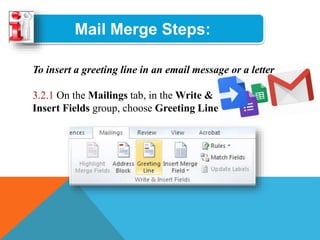
To insert a greeting line in an email message or a letter
3.2.1 On the Mailings tab, in the Write &
Insert Fields group, choose Greeting Line
Mail Merge Steps:
To insert a greeting line in an email message or a letter
3.2.1 In the Insert Greeting Line dialog
box, you can change the salutation if
necessary
3.2.2 Choose OK
3.2.2 Choose File > Save.
Mail Merge Steps:
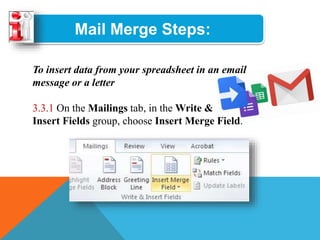
To insert data from your spreadsheet in an email
message or a letter
3.3.1 On the Mailings tab, in the Write &
Insert Fields group, choose Insert Merge Field.
Mail Merge Steps:
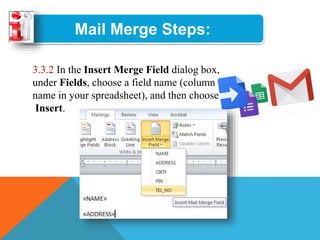
3.3.2 In the Insert Merge Field dialog box,
under Fields, choose a field name (column
name in your spreadsheet), and then choose
Insert.
Mail Merge Steps:
3.3.3 Repeat step 2 as needed, and
choose Close when done
3.3.4 Choose File > Save.
Mail Merge Steps:
Step 4: Preview and finish the mail
merge
 After you insert the merge fields you
want, preview the results to confirm that
the content is okay. and then you're
ready to complete the merge process
Mail Merge Steps:
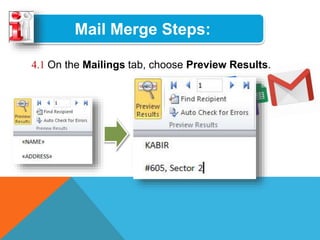
4.1 On the Mailings tab, choose Preview Results.
Mail Merge Steps:
4.2 Choose the Next or Previous record button to
move through records in your data source
and view how the records will appear in the
document.
Mail Merge Steps:
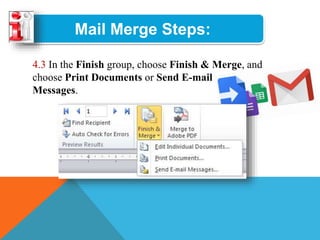
4.3 In the Finish group, choose Finish & Merge, and
choose Print Documents or Send E-mail
Messages.
Mail merge

Mail merge

  • 2.
    WHAT IS THEMAIL MERGE?  Software product that uses a file (or database) of names and addresses, together with a template document, to produce multiple copies of a letter, each personally addressed to a different recipient.
  • 3.
     In businessas well as in official matters, it is often needed to send letters with similar information to different people.
  • 4.
    Three documents involvedin the mail merge process Your main document Your data source Your merged document
  • 5.
    Mail Merge Steps: Step1: Prepare data in Excel for mail merge The most important step in the mail merge process is to set up and prepare your data. You'll use your Excel spreadsheet as the data source for the recipient list. Field Name
  • 6.
    Mail Merge Steps: Step2: Start the mail merge 2.1 In Word, choose File > New > Blank document
  • 7.
    Mail Merge Steps: 2.2On the Mailings tab, in the Start Mail merge group, choose Start Mail Merge, and then choose the kind of merge you want to run.
  • 8.
    Mail Merge Steps: 2.3Choose Select Recipients > Use an Existing List.
  • 9.
    Mail Merge Steps: 2.4Browse to your Excel spreadsheet, and then choose Open 2.5 If Word prompts you, choose Sheet1$ > OK Excel spreadsheet is connected to the mail merge document you’re creating in Word.
  • 10.
    Edit your mailinglist Edit your mailing list You can limit who receives your mail 1. Choose Edit Recipient List
  • 11.
    2. In theMail Merge Recipients dialog box, clear the check box next to the name of any person who you don't want to receive your mailing. Edit your mailing list
  • 12.
    Mail Merge Steps: Step3: Insert a merge field You can insert one or more mail merge fields that pull the information from your spreadsheet into your document.
  • 13.
    Mail Merge Steps: Toinsert an address block for an envelope, a label, an email message, or a letter 3.1.1 On the Mailings tab, in the Write & Insert Fields group, choose Address Block
  • 14.
    Mail Merge Steps: 3.1.2In the Insert Address Block dialog box, choose a format for the recipient's name as it will appear on the envelope.
  • 15.
    Mail Merge Steps: 3.1.3Choose OK. 3.1.4 Choose File > Save
  • 16.
    Mail Merge Steps: Toinsert a greeting line in an email message or a letter 3.2.1 On the Mailings tab, in the Write & Insert Fields group, choose Greeting Line
  • 17.
    Mail Merge Steps: Toinsert a greeting line in an email message or a letter 3.2.1 In the Insert Greeting Line dialog box, you can change the salutation if necessary 3.2.2 Choose OK 3.2.2 Choose File > Save.
  • 18.
    Mail Merge Steps: Toinsert data from your spreadsheet in an email message or a letter 3.3.1 On the Mailings tab, in the Write & Insert Fields group, choose Insert Merge Field.
  • 19.
    Mail Merge Steps: 3.3.2In the Insert Merge Field dialog box, under Fields, choose a field name (column name in your spreadsheet), and then choose Insert.
  • 20.
    Mail Merge Steps: 3.3.3Repeat step 2 as needed, and choose Close when done 3.3.4 Choose File > Save.
  • 21.
    Mail Merge Steps: Step4: Preview and finish the mail merge  After you insert the merge fields you want, preview the results to confirm that the content is okay. and then you're ready to complete the merge process
  • 22.
    Mail Merge Steps: 4.1On the Mailings tab, choose Preview Results.
  • 23.
    Mail Merge Steps: 4.2Choose the Next or Previous record button to move through records in your data source and view how the records will appear in the document.
  • 24.
    Mail Merge Steps: 4.3In the Finish group, choose Finish & Merge, and choose Print Documents or Send E-mail Messages.